Week 3 A journey through the universe

Concept


My idea was to create a universe, representing the night sky. I wanted the user to “discover” planets in space by clicking somewhere and I wanted to add something personal to it. Additionally, using the new skills from class I decided to have the option to remove planets by pressing a key. Each planet has a 50/50 % of having a ring (an ellipse). This is decided through a Boolean – it it returns true then the planet has a ring. To complete the whole galaxy theme, I made the cursor a rocket by removing it and putting and emoji with the same coordinates.

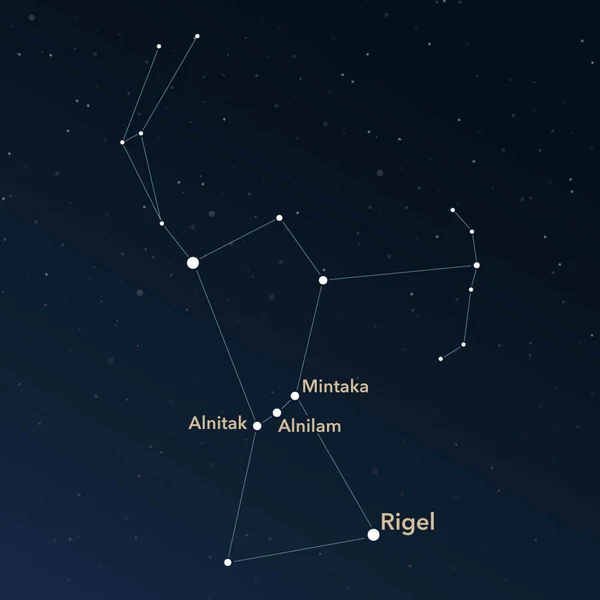
The background is a dark blue sky with stars and the concept behind it was my favourite star constellation – Orion.

Code I am Particularly Proud of

//when one clicks with the mouse a new planet appears (adds element to the array)
function mousePressed(){
  let newPlanet = new Planet (mouseX, mouseY, random(8,40));
  planets.push(newPlanet);
}
//when one touches a key the last element of the array diappears
function keyPressed (){
  planets.pop();
  }

Applying the knowledge I gained from class I was able to create new planets and using the .push and .pop I could add to the array or delete the last element from the array. Now I feel more confident using array functions and am willing to explore more of them in my next coding assignments.

How Was This Made

First, I made a class called Planet, which served as my guide until the end. Each of my planets is stored in the planets array.

After this, I specifically chose a color palette that complemented my idea of space. Then, I had to decide on the variety of planets and for this purpose I chose a random size between 8 and 40. Each celestial body has a range of motion and to imitate the constant movement in space, I did this:

move(){
    this.x=this.x+ random (-5,5);
    this.y=this.y+random (-6,6);

I tried adding more or less range to the random motion but decided on this as the perfect amount of randomness. I also added text to let people know how to interact with it.

I took inspiration from the technical readings and:

https://happycoding.io/tutorials/p5js/array-functions

https://p5js.org/reference/p5/noCursor/

No AI was used in the making of this.

Reflection

I have a few thing in mind that I would like to explore. After adding rings to some of my planets I thought “what would happen if I add different patterns to others?”. I think it’d be cool to see a variety of planets. Also, I believe it would be interesting to include more than just mousePressed and keyPressed options to interact with it. For instance, I am thinking of adding a separate action for a few buttons, so it gets closer to game-like feel.

Assignment 3: Nostalgia in Bubbles

Concept:

For this artwork, I wanted to capture the childhood memory and experience of when we would go outside to play with bubbles. My aim is to be able to relay that nostalgic, hazy, dreamy feeling using soft colors and a gradient background of the sky and grass but in a blur just like the memories. I did not want it to be too complex but simple, carefree, and fun instead because that is how life was, where popping bubbles was the highlight of our day and running out of the bubble soap was our low.
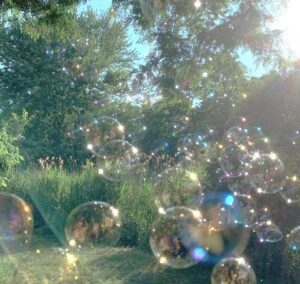
If you press a key, bubbles spawn. If you mouse click, a bubble pops. I intentionally did it this way because the press of a key reminded me of when we would press on a bubble machine to blow out more bubbles, and the click of the mouse reminded me of how we would run, jump, and reach out with our hands to pop the bubbles as fast as we can before it flies too high or pops on its own.

Highlighted Code:

// "pops" the bubble
function mousePressed(){
  for (let i = bubbles.length - 1; i >= 0; i--){
    let distance = dist(mouseX, mouseY, bubbles[i].x, bubbles[i].y);
    if (distance < bubbles[i].size / 2){
      bubbles.splice(i, 1);
    }
  }
}

I am proud of this function because it creates the main interactive feature: popping the bubbles. I had to do some research in order to figure out how to get it to pop but also used previous dist() knowledge from Week 2 to calculate the distance between the mouse and the center of the bubble. The code splice() was used to remove the bubble from the array when clicked. I think I am most proud of it because it wasthe code that had the most trial and error, which I explain more in depth in the “How This Was Made?” section.

How This Was Made?

The majority of the code was made using what we learned in class. In the Bubble class, I added this.size in order to produce many different sizes of bubbles to match realistically how it is. To add to that, I also created an array of different colors that picks between them randomly  using this.color for that very same reason. I searched for a bubble color palette on Google and scrolled till I found the one that matched the vision in my head and used those colors.
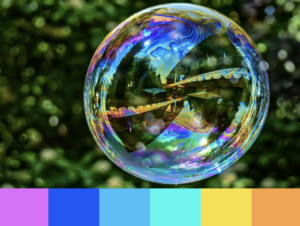
For the bubbles it is just one perfect ellipse based on this.size, which is a random number between 50 and 150. The two small reflection spots are also ellipses but multiplied by + or – 0.1-0.3 to make it smaller. Though small, this is what adds dimensions and makes the bubble look like a bubble.

I let keyPressed() create a new bubble instead and mousePressed() to pop it. For keyPressed() I ran into an issue where the bubbles would almost disappear because they would go out of the canvas, so I had to subtract the radius (this.size / 2) from the width and height in order for it to bounce off immediately as it touches the canvas borders.

For the bubble popping part, I knew I needed dist() as wherever mouseX, mouseY, and the x and y values of the certain bubble[i] in the array is, but I was unsure how to have it “pop” because when I actually used bubbles.pop() it deleted the last bubble that was made regardless of where I clicked. I noticed that the previous student’s example used splice(), but she also had other variables and codes that made it confusing to understand. So, a simpler way was just searching up “bubbles popping p5.js” on google. I ended up finding an example made by someone and noticed they used splice() as well. I asked Gemini to explain how their code works and then I implemented it on my own. Their code had the distance in a separate function, so I just combined it in the same mousePressed() function because it felt unnecessary and simpler.
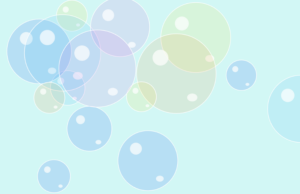
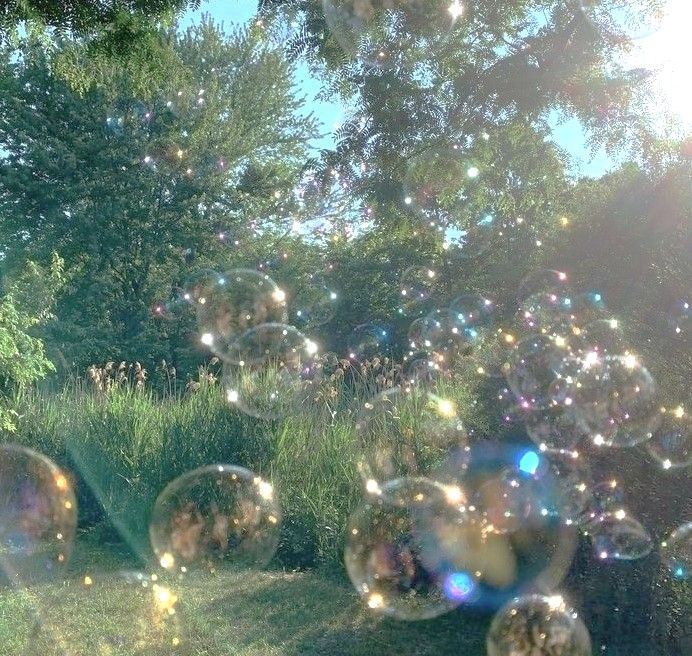
I did the gradient background last because initially I was just going to leave it as a plain light blue; however, I did not think it encapsulated the nostalgic, hazy, childhood memory feeling, so I thought a gradient from light blue to green would be better. It matched my bubble reference image where you see the sky above then the greenery below it. I searched for “gradient background p5.js” and found a simple example. I recognized lerpColor from a classmate’s palleteLerp() code but wanted to know more about how map works, so I looked for the reference. It learned that it converts the coordinates to numbers between 0-1 as a the percent lerpColor needs to blend c1 and c2.

Reflection:

Overall, I am pretty happy with how it turned out because I think that I achieved that nostalgic, childhood feeling I was going for. I feel like this assignment definitely helped me understand classes more and allowed me to explore new things that we have not learned. In the future, I could maybe do more with the background like having the gradient flow and move around from top to bottom like an actual hazy memory. For improvements, I also found a p5.js example where they actually installed a bubble pop sound that plays when the user “pops” a bubble, which I thought could have been a fun interaction and addition to complete the experience.

References:

Bubble reference image: https://www.pinterest.com/pin/112027111108718506/

WK13 Bouncing ball example: https://editor.p5js.org/Aya_Riad/sketches/Wky6-ythQ

Previous student example: https://editor.p5js.org/AyshaSalma/sketches/09cZh8SDk

Bubble pop example: https://editor.p5js.org/haydencarey/sketches/4Jksy0Odg

map(): https://www.geeksforgeeks.org/javascript/p5-js-map-function/

Gradient background example: https://editor.p5js.org/evebdn/sketches/O9G35ueZv

Bubble color palette: https://www.schemecolor.com/colors-of-a-soap-bubble.php

WK3 Creative Reading

In the reading by Chris Crawford, they define interaction as “a cyclic process in which two actors alternatively listen, think, and speak.” He emphasizes that there are two actors, not one, and that is the only way to define something as interactive, but I disagree with his definition. I feel like there does not have to be a back and forth and an interaction can just be something simple like the user just clicking something and something appears. For example, in my Assignment 3, I had an interaction where if the user presses a key, a bubble appears, and if you click on the bubble, it disappears. To me, that is interaction even though the p5.js system is not necessarily thinking or speaking. I would describe it as what he thinks is low interactivity.

With that, I think characteristics of a strong interactive system is, first of all and most important of all, the system responding to the user. This means that the user should have input and be able to affect the outcome. Now, what makes a strong interactive system I think should be having multiple different outcomes, so multiple user inputs. In the section about “Thinking” he was talking about communication and how when you talk with someone who is a slow thinker, the conversation is meaningless and how “Good thinking can make a conversation sparkle.” Therefore, another strong interactive system has to feel engaging, so the user feels like whatever it is they are controlling in the system matters and is worth their time.

Finally, after reading and analyzing the text, some ideas I have for improving the degree of user interaction in my p5 sketch is maybe having the bubbles make a pop sound when the user clicks it. I could also have the user decide what size and color they want so they could personalize it. I also thought of having the background move as a gradient to the direction of where the mouse hovers.

Week 3 Reading Response

Creative Reading Response:

I began the reading assuming I knew how to ‘define’ interactivity, however, as the author started giving counter examples of what’s not interactive, like the fridge and the books, I began to reflect on whether I really ‘know’ how to define interactivity or do I just recognize interactivity, because knowing is very different from recognizing; the former is active and genuine understanding and the latter is passive and intuitive/ shallow understanding. Throughout the text, I was just in this cycle between contemplation and realization.

On one hand, I strongly resonated with Crawford’s metaphor of interactivity as a ‘conversation’ between the user and computer, because indeed, that’s the traits I find in successful interactive art works; the art ‘speaks’ to you, ‘listens’ to your reaction, process them and then in response, speak to you again. However, on the other hand, when he began talking about user-interface designers and graphic designers, I grew confused and began to question what he meant by integrating “form with function”. I thought of it in 2 ways: first, the shallow way, in which by function he means literal computer function where the “thinking” is supposed to happen, like in AI; second, perhaps he means every ‘form’/ ‘visual design’ is supposed to be functional in a way that contributes to the interaction. Both ways of thinking feel a bit weird, in the sense that I don’t know if artworks should ‘think’, but perhaps he wasn’t talking about art works, and I just automatically assumed so because of my experiences with art works. It would make a lot more sense if he addressed, perhaps designers, than artists, but again, artists can be designers. Overall, I think I learned a lot in terms of expanding my view on the topic of interactivity and what it really means to make my works interactive, whether as a designer or an artist.

Week 3 – Reading

The reading was actually so much more interesting than I thought it would be. I like that Crawford included playful moments and examples throughout because it kept me more interested while he was trying to explain an idea that could have easily felt more technical. To me, there was one line that really stood out, and that was when he said “interaction is not reaction on a higher plane of existence.” At first I didn’t really think that there was even a difference between reacting to something and interacting with something. I assumed that if something made me feel involved or allowed me to do something, then that was already interactive. Crawford made me question all of that. This also changed my way of thinking about interactions with Code. A computer is not automatically interactive just because I can click something or because something on the screen gets a reaction out of me. Interaction is more like a conversation.

He says both sides need to listen, think and respond. This made me look at the assignments that I’ve been doing in a completely different way. Instead of only asking whether the user can click or move or control something, I started to think about how the computer responds to what the user does and whether there’s a real back and forth happening. I used to think adding something like mousePressed()  automatically made a project interactive because the user could affect it, but now I know it’s beyond all that. So my biggest takeaway from this reading is definitely that interaction is much less simple than I originally thought it was.

Week 3: Reading Reflection

Before this reading, I had never had a clear definition of what interactivity means. Now I realize that one cannot call something interactive just because it reacts to input. If we consider the superficial meaning of interactivity that many people use, then even turning on a light is considered interactive. You press a button, and in response the light bulb turns on. Using this definition of interactivity is meaningless, since it makes almost everything interactive. For something to be truly interactive, it has to involve two sides that alternately listen, think, and speak.

It has to be like a dialogue between two sides, where each action shapes and changes future inputs. This made me rethink my last assignment, where I created a sketch with fireflies that fly away when the mouse cursor gets close. I used to think of this as interactivity, but it is really just a simple reaction to input. It is not an interactive dialogue, since only one side is speaking while the other is just listening without giving any response back.

I think I could make the fireflies respond differently depending on how the user moves the mouse. For example, if the user moves the mouse slowly, the fireflies could drift away calmly, but if the cursor moves faster, the fireflies could fly away more dramatically. This would at least make the interaction feel like the fireflies are thinking before reacting, rather than just responding the same way every time.

Week 3 – Functions, Arrays, and OOP

My concept:

When it came to thinking of what my concept should be this week, I wanted it to somehow relate it to current times. It might not be apparent in this country, but it is autumn season and I decided to portray the fall aesthetic to this assignment. Using classes and arrays, I wanted it to create an interactive scenery. My idea was, having leaves falling off a tree while also having the user have the ability to click the screen and add even more leaves. I wanted the overall code to give off warm and calm vibes in order to emphasize the true feeling of autumn. I used mostly brown, oranges, and yellows to achieve this. In my last assignment I said if I could do anything to elevate my code, it would be randomness, and that’s exactly what I did. The colors of the leaves are all random. I also added a windy motion in order for the falling to look more realistic.

Highlight of my code:

 //leaf class
class Leaf {

  constructor(x, y, size, speed) {
    this.x = x;
    this.y = y;
    this.size = size;
    this.speed = speed;

    // random colors leaves
    this.leafColor = random([
      "#c85d3a",
      "#e58b3a",
      "#d9a441",
      "#a94432",
      "#7a4a00"
    ]);
  }


  move() {
    

    // fallinf down
    this.y = this.y + this.speed;


    // windy
    this.x = this.x + 0.5;


    // returning to the top
    if (this.y > height) {
      this.y = 0;
    }
  }


  show() {

I’d like to say that the highlight of my code is my leaf class. This was my first time working with classes, so I was defiently proud on how it all came together and how I made multiple leaves with their own size, color, and speed. I also used random() to choose between different autumn colors, which helped make the leaves look less repetitive. My favorite part is the move() function because it makes each leaf fall while slightly moving to the side to give it a windy effect. I also added an if statement so when a leaf reaches the bottom, it returns to the top and continues falling. I made it so if the leaf goes pass the canvas, it moves back to the top. As the leaf falls, the y gets bigger and bigger, until it becomes bigger than the height. That’s when it goes all the way back.

How this was made: 

I started off with just a tree branch and a bunch of leaves falling. It felt very dull and plain, and the opposite of what I wanted the viewer to feel. I went on Pinterest to get some autumn inspiration and got inspired by the pale orange sky and the clouds. So I decided to make some more leaves on the branches and on the ground to give a more alive look, as well as some clouds and a sun, all using ellipses. Besides the overall look, I also worked on creating the leaf class that controlled every leaf. Inside the class, I used a constructor to give each leaf its own position, size, speed, and color. I wanted the falling leaves to give me realism so I added the move and show functions. The move() function makes the leaves fall down while also slightly moving to the right to give the effect of wind. The show() function draws each leaf on the screen. I also used an array to store all the leaves object. And a loop that  goes through the array and moves and displays every leaf. I also used mouse pressed so that whenever the user clicks, a new leaf is created at the mouse position. I think a struggle I had was thinking about how I wanted the leaves to fall down. Having them fall all straight looked very unnatural, so I added a small change to their x position to make it look like the wind was pushing them sideways. ( this.x = this.x + 0.5; ). The references helped me significantly when it came to recalling some steps like loops and mouse pressed.

This may contain: a tree with lots of leaves on the ground

References:

https://www.pinterest.com/search/pins/?q=fall%20and%20autumn%20aesthetic&rs=ac&len=12&source_id=ac_hoiAF6sn&eq=fall%20and%20aut&etslf=5522

https://p5js.org/reference/p5/for/

https://p5js.org/reference/p5/class/

https://editor.p5js.org/Aya_Riad/sketches/Wky6-ythQ

Reflection:

I liked how the ending product ending up looking. It has a moving effect that I’m very proud of, and i’m glad I got to learn how to use class and arrays. I think using random colors, sizes, and speeds helped make the leaves feel less repetitive. I also feel like I paid more attention to the aesthetics in this assignment and I feel like the outcome was defiantly worth the effort of creativity. Maybe if I had to work more on this, I’d play around with the movement of the clouds as well. Or maybe learn how to make a more accurate looking leaf, and different types of leaves. Overall, proud.

Week 3 – Assignment

Concept:

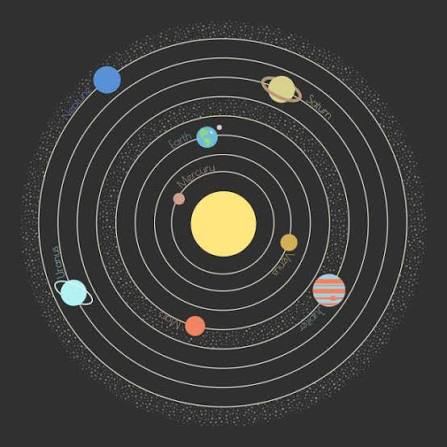
I have always loved space, especially anything to do with stars and the solar system, so for this assignment I decided to build a small generative solar system in p5.js using object oriented programming. Each orbiting body is a Planet object with its own distance from the sun, speed, size and color, all stored in an array so I could build and animate the whole system with loops instead of writing out five separate planets by hand. The exact stats for each planet are randomized within set ranges, so it looks a little different every time you refresh it, which felt fitting since no two solar systems out there actually look the same either.

How this was made:

I split the code into two files: sketch.js for the main setup/draw loop and the sun, and planet.js for the Planet class, which handles one planets data (distance, speed, size, color, current angle) plus its own update() and display() methods. In setup() I loop through and create 5 planets, spacing their orbit distances out with map() so they do not end up overlapping and giving each one a random speed, size and color. In draw() I loop through the array every frame so that update() moves each planet a little further along its orbit and display() draws it along with a faint ring showing its orbit path.

Code Highlight:

update() {
    this.angle += this.speed;
  }

  display() {
    push();
    //translate() shifts where (0,0) is on the canvas.
    //normally (0,0) is the top-left corner, so every shape would need
    //width/2 and height/2 added to its position to appear centered.
    //instead I move the origin itself to the center of the canvas once,
    //so I can treat the sun as sitting at (0,0) and calculate every
    //planets position relative to the sun instead of the corner
    translate(width / 2, height / 2);

    //orbit ring just a circle showing the path this planet travels
    //drawn centered on the new (0,0) which is now the canvas center
    noFill();
    stroke(255, 60);
    strokeWeight(1);
    ellipse(0, 0, this.distance * 2, this.distance * 2); //*2 because ellipse() takes diameter

    //this is the actual orbit math.
    //this.angle is a value in radians representing how far around
    //the circle the planet currently is (a full loop = TWO_PI, about 6.28)
    //cos(angle) and sin(angle) both output a number between -1 and 1 -
    //multiplying by this.distance scales that up to the actual orbit radius
    //I want turning it into a real pixel offset from the center.
    let x = cos(this.angle) * this.distance; //horizontal offset from center
    let y = sin(this.angle) * this.distance; //vertical offset from center

    //every frame angle increases slightly (from update()) which changes
    //the result of cos/sin slightly which moves x and y slightly 
    //that is what creates the smooth circular motion over time

    noStroke();
    fill(this.col);
    ellipse(x, y, this.size, this.size); //draw the planet at its calculated position

    pop(); //restore the coordinate system back to normal (undoes the translate)
           //so the next planet in the loop does not inherit this shift
  }

This is the part of the code in Planet class I am happy about, since it is where the actual orbiting motion happens. update() just nudges the planets angle forward a tiny bit every frame, like a slowly ticking clock hand. In display(), I use translate() to shift the canvas’s origin point to the center, so I can treat the sun as sitting at (0,0) instead of constantly adding width/2 and height/2 to every position. Then cos(this.angle) and sin(this.angle) calculate where a point at that angle would land on a circle, and multiplying by this.distance stretches that out to the planets actual orbit radius. Since the angle keeps increasing frame by frame, this position keeps recalculating slightly differently each time, which is what produces the smooth circular motion. I wrap the whole thing in push() and pop() so the translate only affects this one planet and does not carry over and throw off the position of the next planet in the loop.

Problems I ran into:

The orbit math was the main thing I struggled with like I understood conceptually that I wanted planets to move in circles but I could not figure out on my own how to turn an increasing angle into an actual x/y position on screen. I ended up going back to Claude multiple times to work through the logic and the translate() part step by step until it actually clicked. I also ran into an issue with the orbit rings not lining up with the planets real path. I had unfortunately forgotten that ellipse takes a diameter and not a radius, so my rings were drawn at half the size they should have been. On top of that, I had to switch from fully random orbit distances to using map() to space them out evenly since random values kept causing planets to spawn too close together or right on top of the sun.

Embedded Sketch:

Reflection and ideas for improvement

This was honestly one of my favorite assignments so far because of the subject matter. Using classes also made a lot more sense once I actually built something with them, since having each planet manage its own data felt way cleaner than juggling separate arrays. For future improvements, I would really like to make the orbits a little more realistic by making them elliptical instead of perfect circles and maybe add small moons orbiting the planets themselves and also add fading trails behind each planet so you can actually see the path it has traced instead of just a plain guide ring!!!

References:

https://p5js.org/reference/p5/translate

https://p5js.org/reference/p5/cos

https://p5js.org/reference/p5/sin

https://p5js.org/reference/p5/push

https://p5js.org/reference/p5/pop

https://p5js.org/reference/p5/map


Reading Reflection – Week 3

Before this reading, I thought anything that reacted when I touched or clicked it was automatically interactive. Crawford’s example of the refrigerator light made me reconsider that idea. I agree that a strong interactive system should do more than give one automatic response. It should understand the user’s input, process it in a meaningful way, and give a useful response. Video games support his argument because they react differently depending on a player’s choices, while a movie continues in the same way no matter what the viewer says or does. However, I think Crawford is slightly biased because his definition is very strict. Even simple interactions can still be enjoyable or helpful, especially for beginners or children.

For me, a strongly interactive system should respond quickly, provide clear feedback, and make the user feel that their choices matter. The response should also change depending on what the user does instead of repeating the same result every time. In my future sketches, I could improve interaction by using the mouse and keyboard to let users control objects, change colors, create new shapes, or remove items from an array. I could also make objects react differently depending on where the user clicks. The reading made me wonder whether a simple response can become strongly interactive if it leads to many different choices over time.

Week 3 – Assignment


My Concept:

For this assignment, I decided to create something relatively simple. My idea was to have a bathtub with foam bubbles resting on top of it. Whenever the user presses the screen, a new bubble appears from the bathtub and begins to float up. Each moving bubble is given a random position, size, and speed, which means that the bubbles do not always appear or move in the same way.

Code I’m Proud Of:

class Bubble {
  constructor(){
  this.x = random (10,390);
  this.y = random (275,300);
  this.xspeed = random (-0.5,0.5);
  this.yspeed = random (-3,-1);
  this.size = random(15,40);
  }

  move(){
  this.x = this.x + this.xspeed; 
  this.y = this.y + this.yspeed;
  }

  show(){
  //circle
  fill(255,255,255,120); 
  stroke('#90e0ef')
  circle(this.x, this.y, this.size);
  
  //white highlight in the circle
  noStroke();
  fill(255,255,255,220);
  circle(
  this.x - this.size * 0.2,
  this.y - this.size * 0.2,
  this.size * 0.2
);
  }
}

This is a section of code that I am really proud of because this is where I was able to take the idea of classes that we learned in class and actually use it in my own work. At first, I was a little confused about how one class could be used to create multiple bubbles. However, after looking back at the class presentations and watching The Coding Train’s video about classes, it started to make much more sense. I used the constructor to give each bubble a random position, speed, and size, which means that the bubbles do not all look or move in the same way. I then used the move() function to change the position of each bubble and the show() function to make it appear on the screen. I think this part helped me understand classes much better because I could actually see how the same class was being used to create multiple bubble objects.

How This Was Made:

I created this piece using p5. While working on this assignment, I referred back to my class notes and the presentation, as well as the p5 references and The Coding Train videos whenever I needed some extra help understanding how to apply the different concepts to my code. I also used ChatGPT to help me choose the colors and transparency values for the bubbles because I had an image in mind of how I wanted them to look but was struggling to recreate it in p5.

references:

https://p5js.org/reference/p5/mousePressed/

https://p5js.org/tutorials/variables-and-change/

https://p5js.org/reference/p5/rect/

ChatGPT – assistance with choosing the colors and transparency values for the bubbles

Reflection:

This assignment helped me become more comfortable with classes and arrays, which I initially found difficult to apply to my own work. One of the main problems I faced was organizing my code and knowing where each function should begin and end. I accidentally placed some of my functions inside other functions, but working through this problem helped me better understand the structure of my code.

Although I used ChatGPT to help me choose the color and transparency values for the bubbles, next time I would like to challenge myself to figure out these details on my own through experimentation and the references available to me. I think this would help me become more confident in making my own choices and solving problems independently. If I continued developing this piece, I would also like to allow the user to press the floating bubbles to pop them and add more details to the bathtub and background.