Week 11 Exercises

EXERCISE 01: ARDUINO TO P5 COMMUNICATION

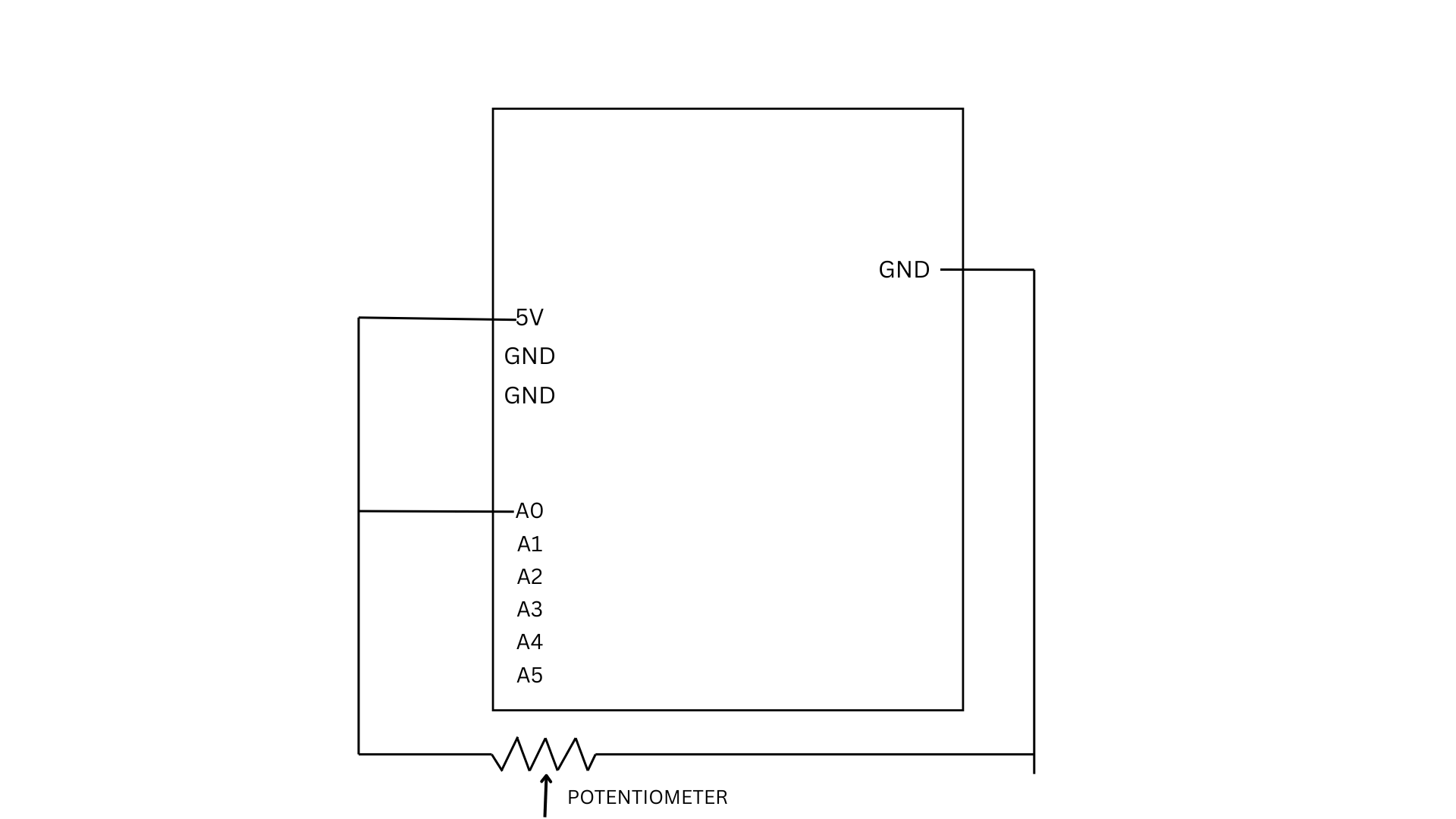
For this exercise, we used a potentiometer as our sensor to control an ellipse in p5.js. As the knob is turned, the Arduino reads the changing analog values and sends them to p5 through serial communication. 

let x = map(sensorValue, 0, 255, 50, width - 50);
  ellipse(x, height / 2, 50, 50);
}

The values are mapped to the x-position of the ellipse, allowing it to move horizontally across the screen while staying centered vertically.

P5 Code | Demo  | Github

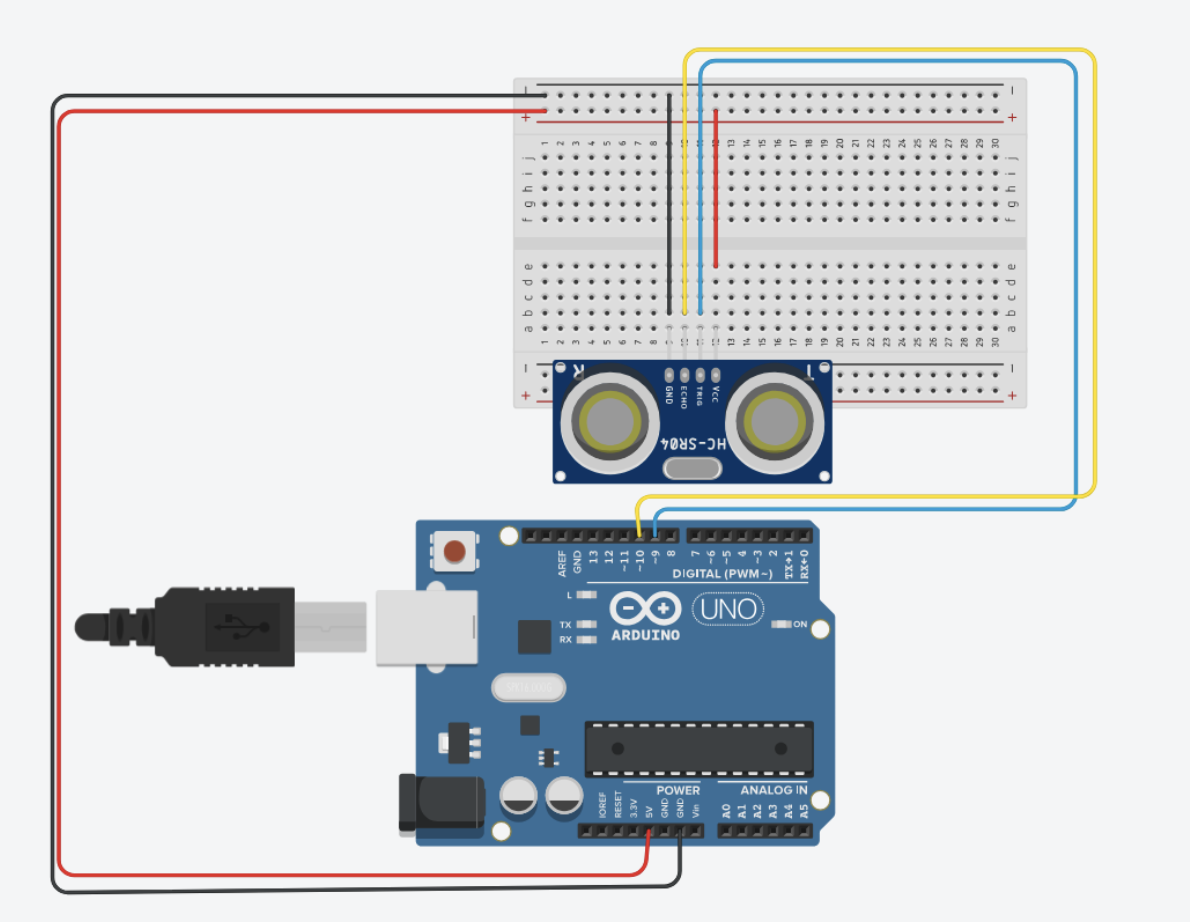
We also did another version of it, which basically uses an ultrasonic sensor. The P5 code is the same for both, just the mapping is different. You comment out the one user using it for a smoother response. The ball movement corresponds to the distance detected by the sensor.

Github

EXERCISE 02: P5 TO ARDUINO COMMUNICATION

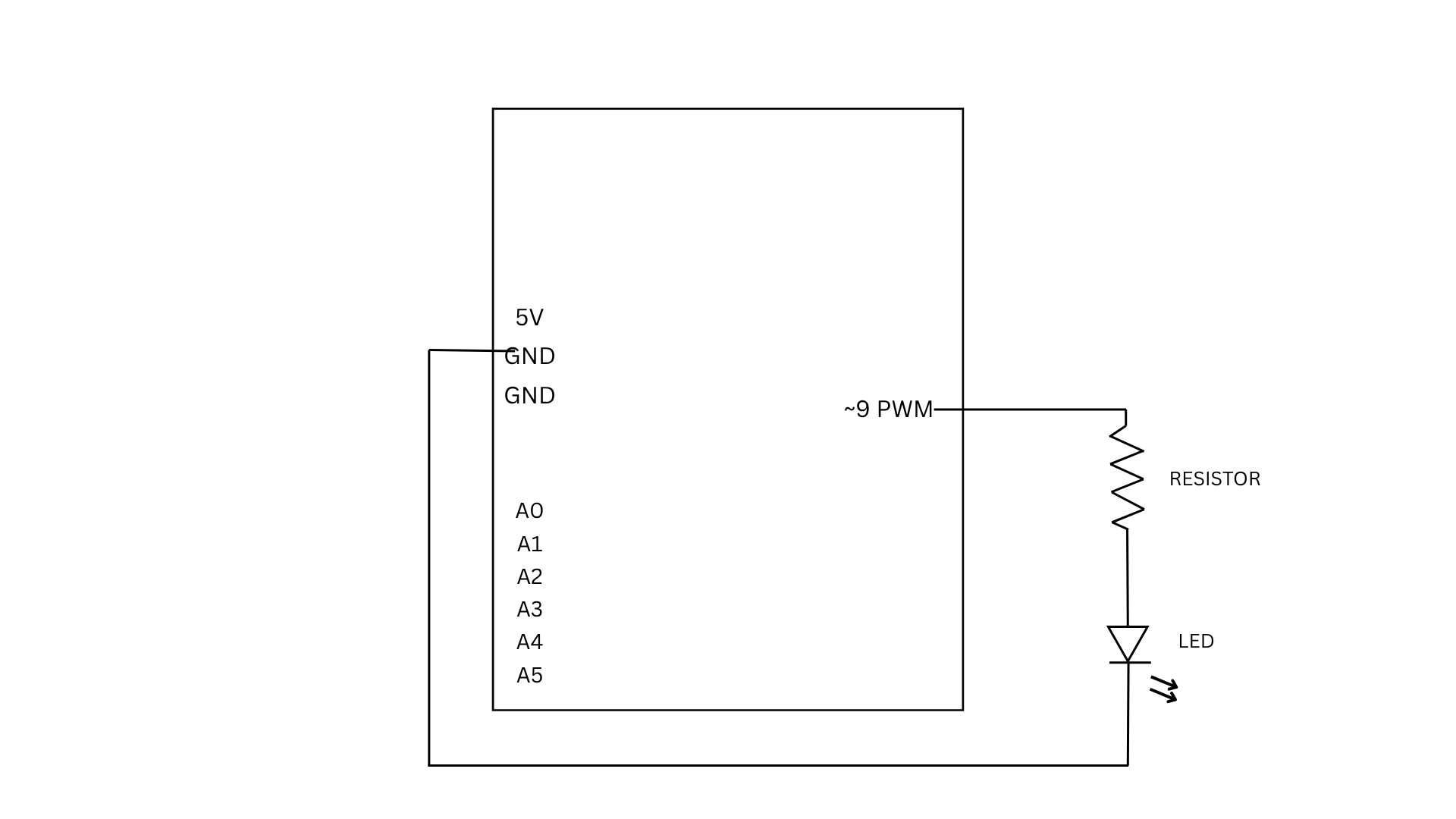
For Exercise 2, we used a slider in p5 to control the brightness of an LED connected to the Arduino. As the slider moves, it sends values from 0 to 255 through serial communication. The Arduino reads these incoming values and uses them to adjust the LED brightness using PWM, making the LED appear dimmer or brighter depending on the slider position.

if (Serial.available() > 0) {
int brightness = Serial.parseInt();
analogWrite(9, brightness);
}

This part of the code checks if there is incoming data from p5. When a value is received, it reads the number using parseInt() and uses it to control the LED brightness through analogWrite, which determines how bright or dim the LED will be.

P5 Code | Demo | Github

EXERCISE 03: BI-DIRECTIONAL COMMUNICATION

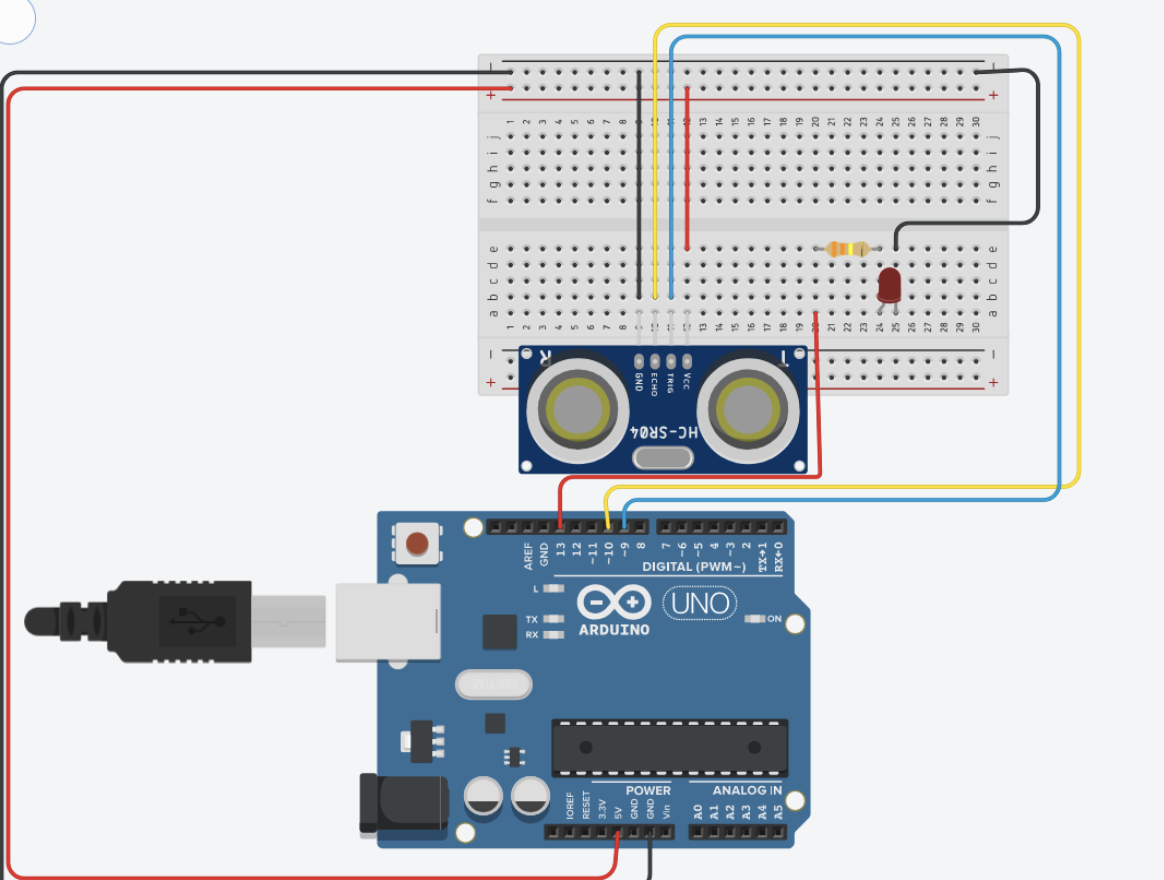
For Exercise 3, we used a simple setup of an LED, a 330 ohm resistor, and an ultrasonic sensor. The core logic is that the LED is on by default and turns off for a split second when the ball touches the ground, giving a blinking effect. The wind is mapped to the distance detected by the sensor. A distance of less than 40 cm causes left winds and vice versa. The wind strength is proportional to the distance. The ball is meant to bounce off the walls. 

The Arduino code is rather simple, if an object is detected, the distance is written to the serial communication, and if an input is read on the serial communication, the light is blinked. The most interesting part about the Arduino code is how the distance is measured using the pulse

long duration = pulseIn(ECHO, HIGH, 30000); // 30 ms timeout

On the P5 ending, smoothening of the input by the distance sensor was important because otherwise the signal was getting abrupt

latestData = lerp(latestData, val, 0.2);

This was suggested by ChatGPT. It defines a number that basically gets an average, but using linear interpolation. 

The most challenging part of the code was managing the movement of the ball when the bounce is dying off. In the last second, there were a lot of bounces happening. We dealt with that by, instead of blinking the LED on each bounce, we kept the LED on and just turned it off when the ball was in contact with the ground.

P5 Code | Demo | Github


Week 11 Reading Response

One idea that stuck with me even after the reading is that eyewear is a space where fashion and disability overlap. The text explains how glasses are no longer seen only as medical tools but also as items people wear to express themselves. This connects to my own experience. When I was younger, I saw my friend’s glasses as more of a fashion statement than something related to vision problems. I would even try them on because I thought they looked good on me. At that time, I didn’t really understand the difference between graded glasses and fashion glasses since they looked similar and came in many styles and colors. It was only later, when I developed farsightedness myself, that I realized their actual purpose. Looking back, I see that my experience reflects what the text describes, that glasses can function both as a medical tool and as a form of self-expression. I also noticed that, as mentioned in the reading, glasses are often visible and even desired, unlike many assistive devices that are designed to be hidden. This shows how eyewear challenges the idea that disability-related products should always be discreet.

On the other hand, I liked how the author pointed out that invisibility is not always the best approach for disability design. Instead of hiding, creating a positive and confident image can change how people see disability. This made me think that trying to make assistive devices invisible can make them seem like something to be embarrassed about. This also made me realize that design doesn’t just solve a problem, it also affects how people feel about themselves and how they are seen by others. A good example of this from the text is Aimee Mullins, who embraces her prosthetic legs and uses them to express herself, similar to how people choose different outfits. Through this example, I realized that design for disability goes beyond just function. It also plays an important role in someone’s confidence, identity, and how people choose to express themselves.

Final Project Concept: Echo Step

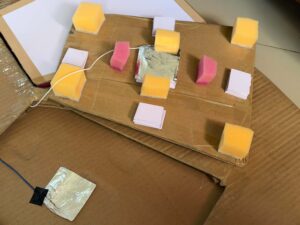
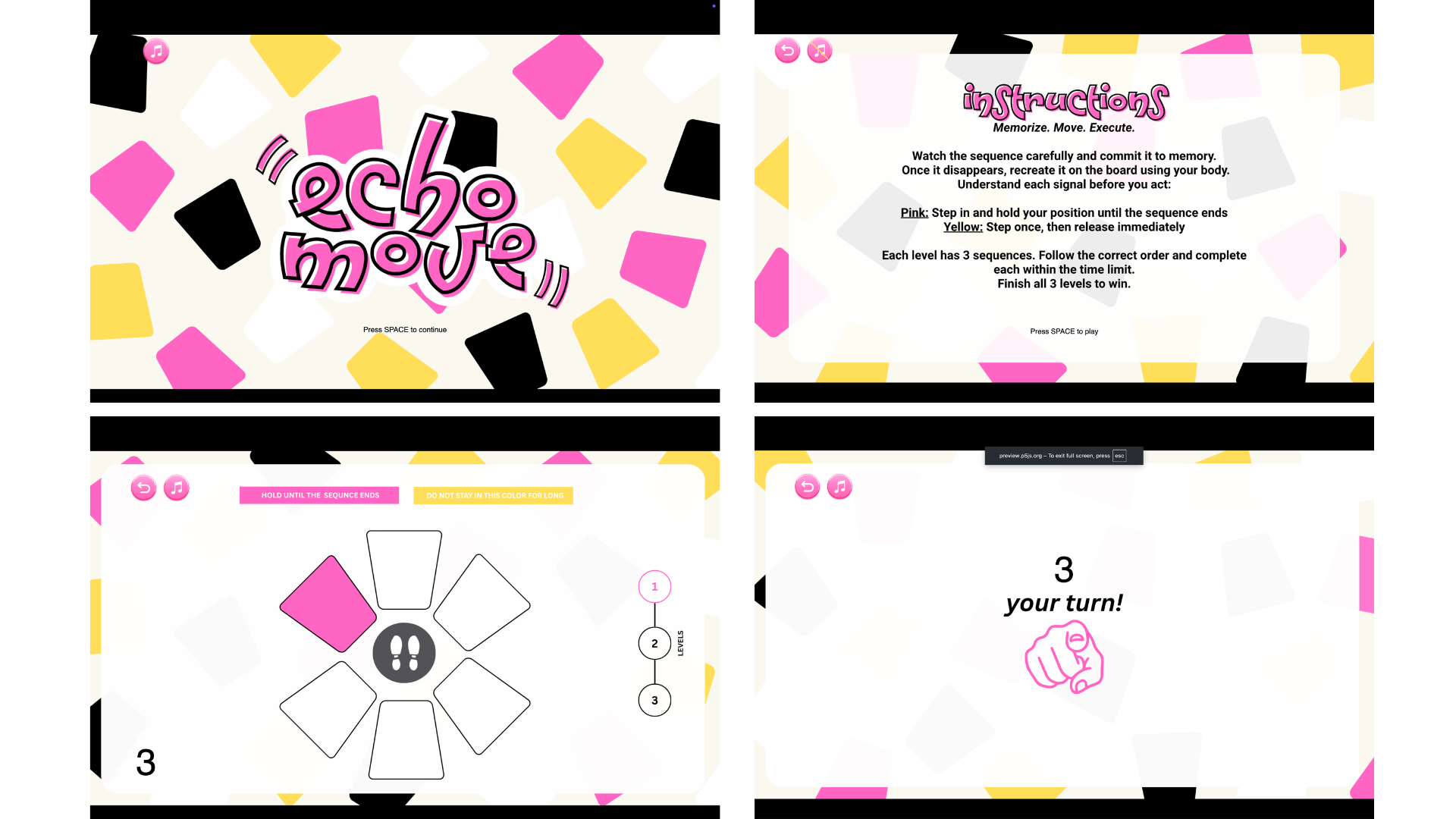
I was inspired by Color Twister, a game where players follow color-based instructions by placing their hands and feet on matching spots. I wanted to take that idea further and make it less about quick reactions and more about thinking, memory, and control, so I came up with Echo Step.


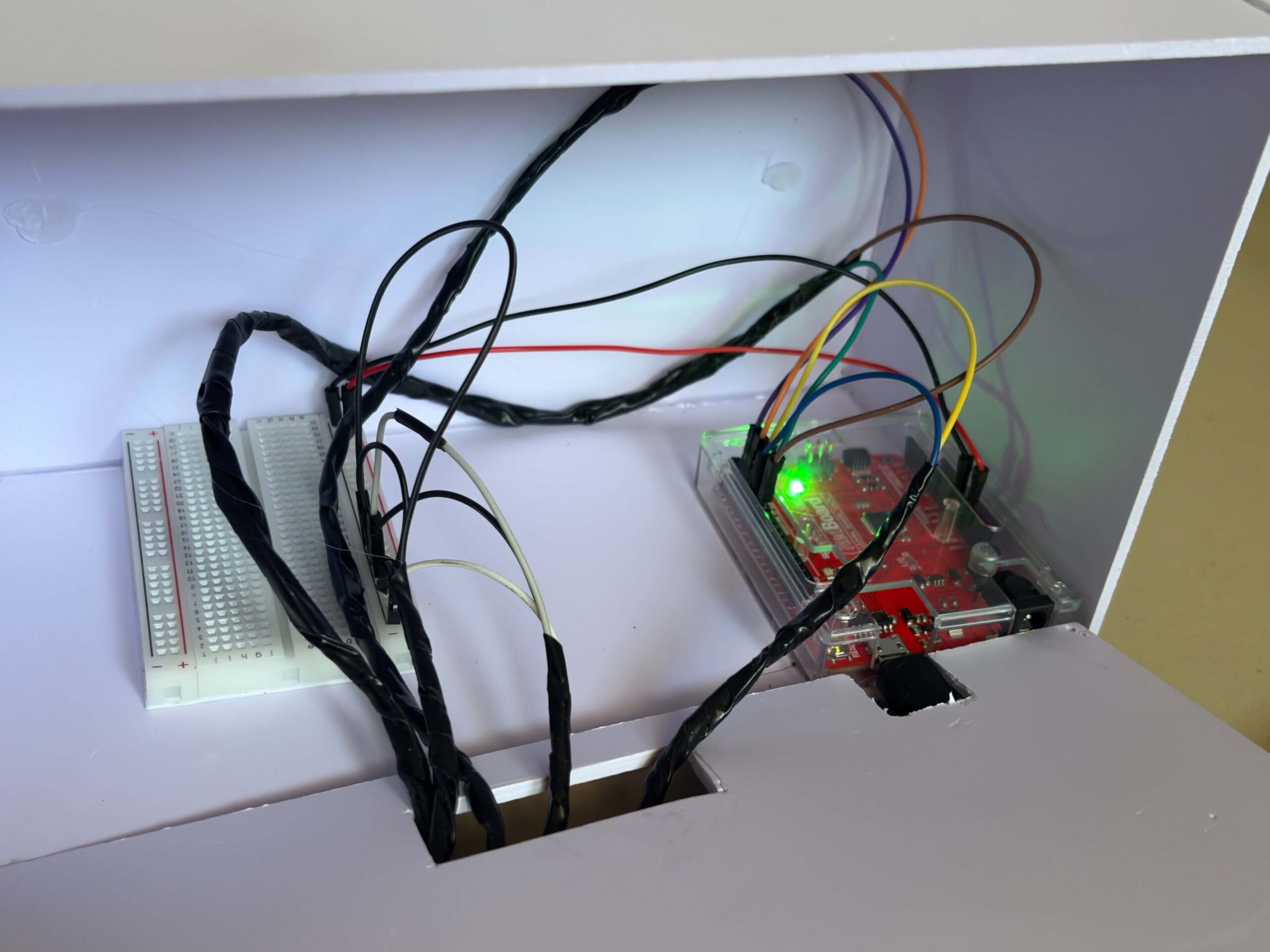
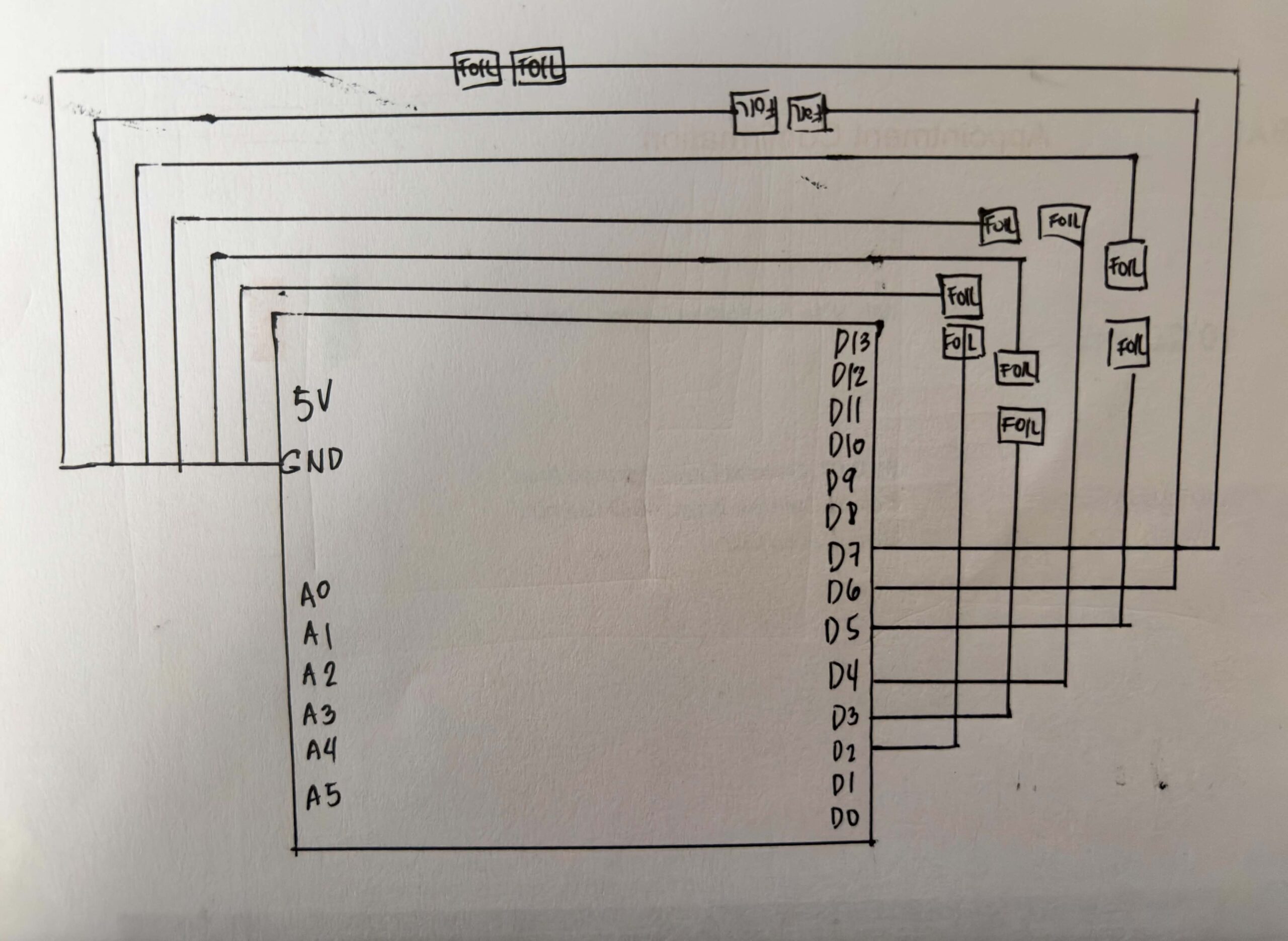
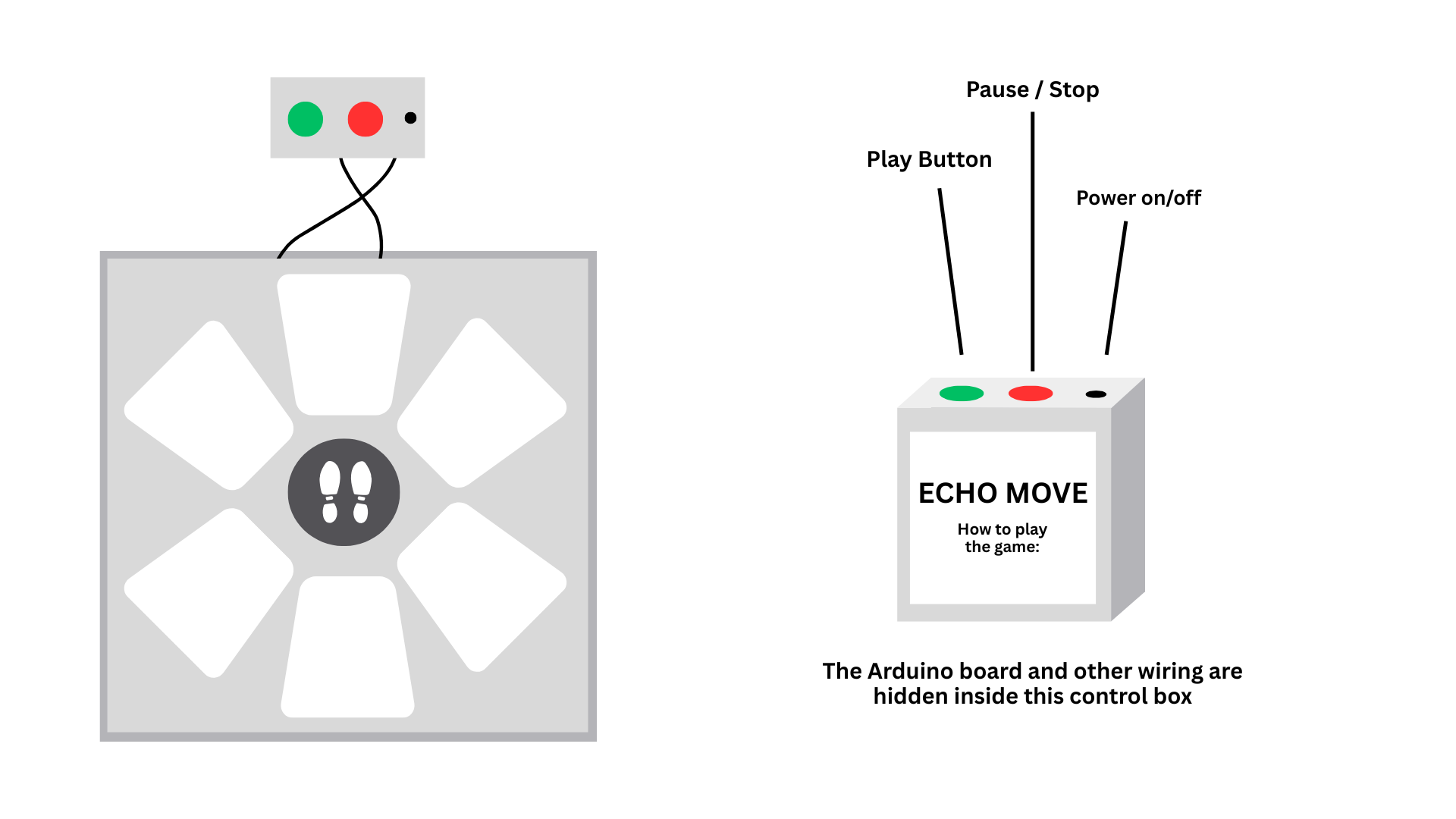
In this game, players are shown a sequence of visual signals on screen for a few seconds. Once it disappears, they have to recall and perform the sequence using their body on the “Echo Step Board,” which is connected to an Arduino. The challenge is to remember the information and use it accurately on time.
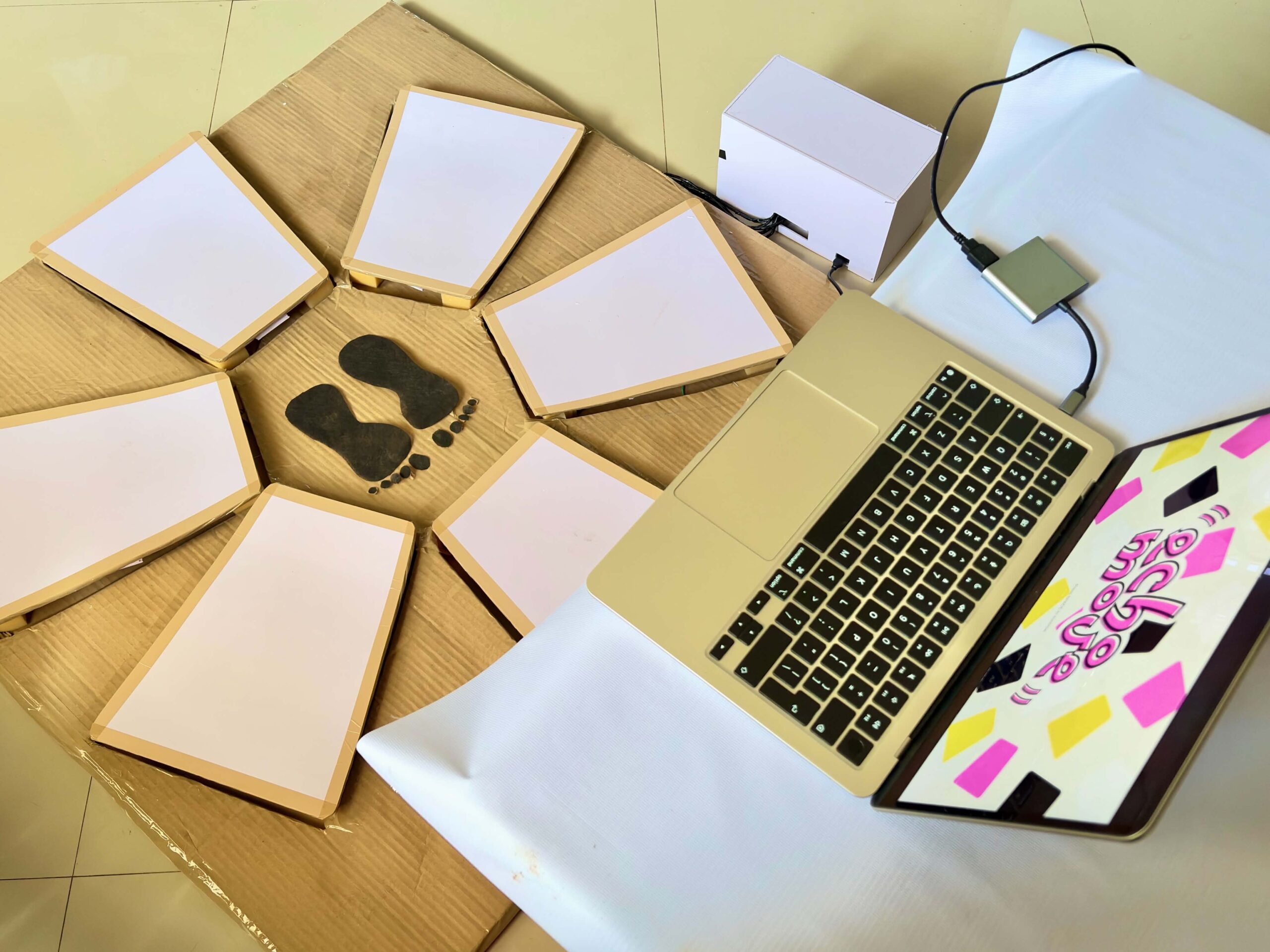
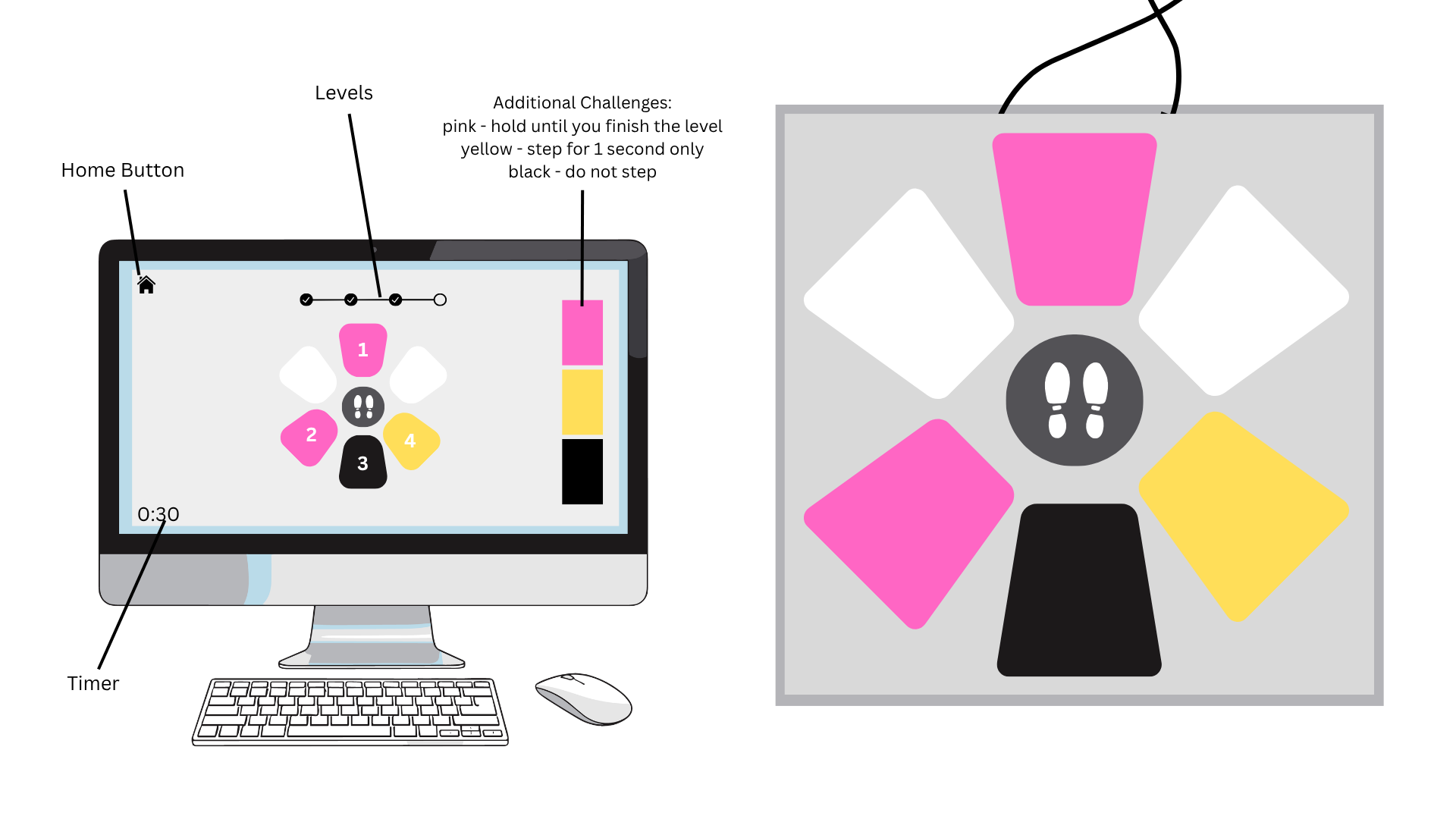
Echo Step doesn’t just tell where to step, it also tells the player how to interact. When the pink color appears in the sequence, the player should step into the zone and hold it until the level ends. If it’s yellow, the player should step once and remove it afterward. Holding too long or stepping on it again results in a loss. If it’s black, the player should be aware that it is only for deceit. They should avoid it completely, even if it appears in the sequence. Because of this, players have to interpret each signal before acting. It’s not just about memorizing positions, it’s about understanding instructions, timing movements, and controlling the body.

The game has four levels. Each level gets harder. It adds more complex sequences, tighter timing, and trickier signals. These elements test the player’s memory and decision-making skills.

Another key aspect is that the physical board itself has no colors, only neutral zones. All cues come from the screen, which means players must mentally map what they see onto the board. This adds abstraction. It forces them to turn visual cues into actions without direct help.

Week 10 Reading Response

When I watched the 6-minute video from the article, I immediately thought of a scene from an Avengers movie. In that scene, Tony Stark, also known as Iron Man, works with his technology. He manipulates a floating, transparent screen that he can see through and control with his hands. When I was younger, I remember imagining myself owning the same technology from the movie. I also wondered how many years I would have to wait for that kind of technology to be released, especially since technology keeps evolving so quickly. I almost forgot the article’s main point: technology becomes more meaningful when we can interact with it ourselves, rather than just swiping or looking at it. 

As Bret Victor explains, our hands are meant to feel and handle things, not just tap on a flat surface. I liked the examples he gave about how there is almost nothing in the natural world that we interact with by just sliding. In real life, we do not just slide our hands on things. We hold them, adjust our grip, and feel their weight, which helps us control them better. That kind of interaction is missing when we only slide on a flat screen.

Thinking about it now, even if something like Iron Man’s interface existed, it might still feel limited if it only relied on gestures in the air without any real sense of touch or resistance. This led me to think that even if something looks advanced, it can still miss the deeper idea of creating something that we can fully see, feel, and physically interact with.

WEEK 10 Group Assignment

Concept

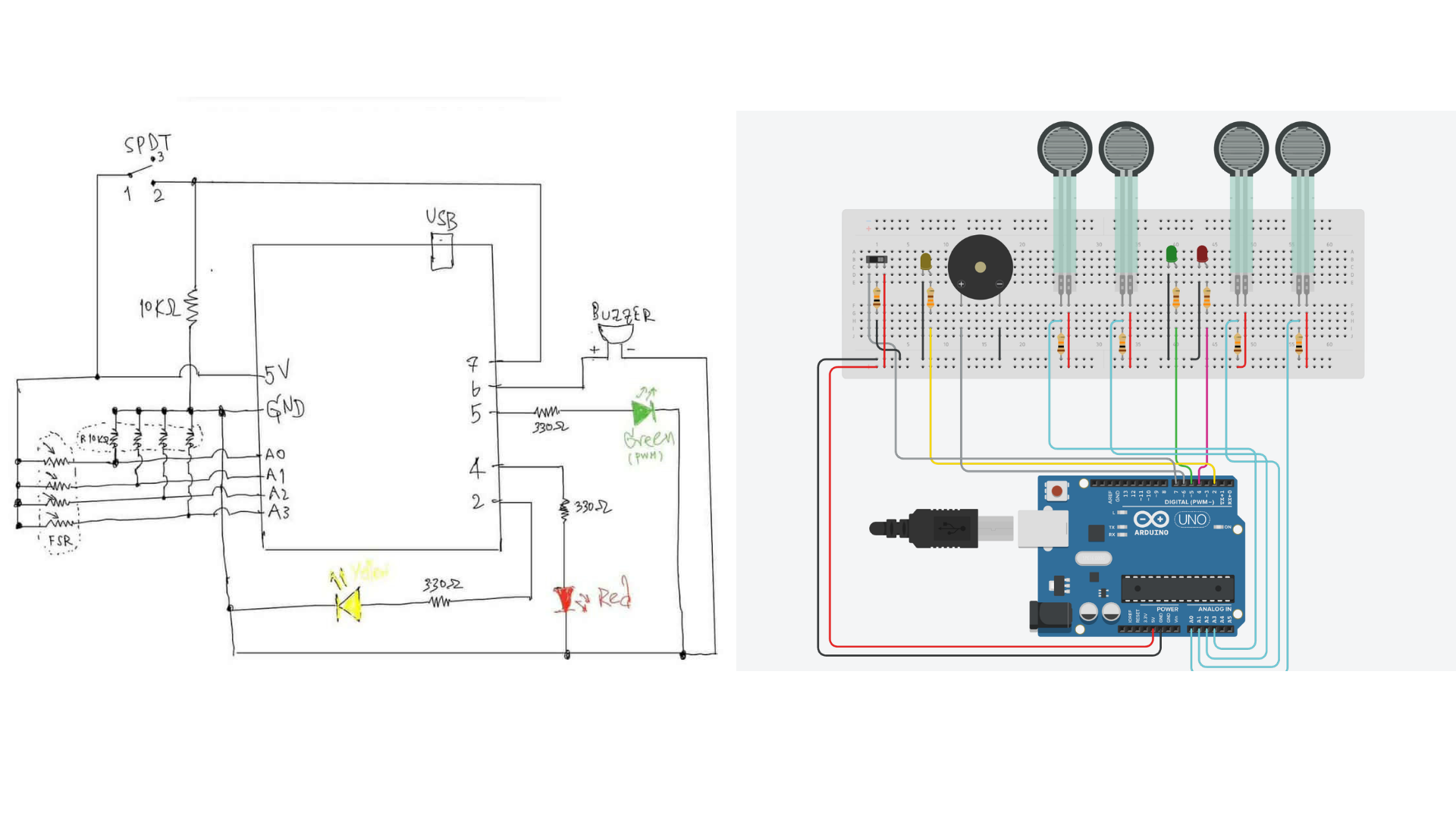
In this project, a simple interactive mini piano was created using Arduino. The system combines both analog and digital inputs to control LEDs and sound output. The main goal was to explore how analog sensor data can be translated into both visual and auditory feedback in a way that feels responsive and engaging.

The project brings together multiple components working at the same time: 

  • Analog input through Force Sensitive Resistors (FSRs)
  • Digital input using a switch for overall control
  • Analog output through a PWM-controlled LED for brightness variation
  • Digital output using a red LED and a buzzer for clear feedback

Each FSR functions like a piano key. When pressure is applied, it changes the resistance, which affects the analog value being read. This value is then used to control both the pitch of the sound from the buzzer and the brightness of the LED, making the interaction feel more dynamic depending on how hard the user presses.

All FSRs are connected using a voltage divider with a 10kΩ resistor, and their values are read through analog pins A0 to A3. The system also includes several indicators:

  • The yellow LED shows when the system is turned on
  • The green LED represents the analog output, adjusting brightness based on the input
  • The red LED lights up when a stronger pressure threshold is reached
  • The buzzer produces a sound corresponding to the input
  • The switch acts as the main ON/OFF control


How It Works

The system starts by checking the switch. When it is OFF, everything stays inactive, so no LEDs light up, and no sound is played. Once the switch is turned ON, the yellow LED lights up to show that the system is active, and the Arduino begins reading the values from all the FSR sensors. It then compares these readings to figure out which sensor is being pressed the most.

This core logic, added by my group partner, is what allows the system to function like a piano:

// ---------- Read + smooth sensors ----------
for (int i = 0; i < 4; i++) {
  int raw = readAverage(FSR_PINS[i]);   // read sensor
  smoothVals[i] = (smoothVals[i] * 3 + raw) / 4;   // smoothing
}

// ---------- Find strongest press ----------
int strongestIndex = 0;
int strongestValue = smoothVals[0];

for (int i = 1; i < 4; i++) {
  if (smoothVals[i] > strongestValue) {
    strongestValue = smoothVals[i];
    strongestIndex = i;
  }
}
// ---------- Determine pressure level ----------
 int level;

 if (strongestValue <= LEVEL_1_MAX) {
   level = 0;   // light press
 } 
 else if (strongestValue <= LEVEL_2_MAX) {
   level = 1;   // medium press
 } 
 else {
   level = 2;   // hard press
 }

 // ---------- Select note ----------
 int nextNote = NOTES[strongestIndex][level];

 // ---------- Play sound ----------
 if (nextNote != currentNote) {
   tone(BUZZER, nextNote);   // play note
   currentNote = nextNote;   // update
 }

Based on how much pressure is applied, the input is grouped into three levels: light, medium, and hard. At the same time, the outputs respond to these changes. The green LED adjusts its brightness using PWM depending on the pressure, the red LED turns on when a strong press is detected, and the buzzer plays the corresponding note.

Tinkercad Link | Demo | Code

Reflection

At first, my partner and I both thought about adding a piano-like element to our Arduino for this week’s project, so we then decided to move forward with that idea. It was really interesting to see how different inputs could change the sound and how that made the interaction feel more alive. Instead of just having one tone, being able to play different pitches made it feel more responsive and a bit more like an actual instrument.

I really liked how the project turned out. Setting up the code both in Arduino and Tinkercad helped us see how the system fits together step by step. It was also fun to be able to actually try it out after. Overall, this project gave us a better sense of how input values can be interpreted and used in different ways. It made us more aware of how even simple changes in input can lead to noticeable differences in how a system responds. Because of this, I would definitely consider integrating sound into my future projects as well.

References

• Arduino Documentation
https://www.arduino.cc/reference/en/
• Analog Input Tutorial
https://www.arduino.cc/en/Tutorial/BuiltInExamples/AnalogInput
• PWM (analogWrite)
https://www.arduino.cc/en/Tutorial/PWM
• Voltage Divider Explanation
https://learn.sparkfun.com/tutorials/voltage-dividers

https://youtu.be/JZ44h-jy0p4?si=LTeRxI9Gy2SYuQWJ

https://youtu.be/QYYigxRwXfc?si=fmBr9DmXWSOYV1rm

https://youtu.be/CvZ-SGJ8fGo?si=kRXJ7upESpJA1Qsh

Week 9 Documentation

CONCEPT

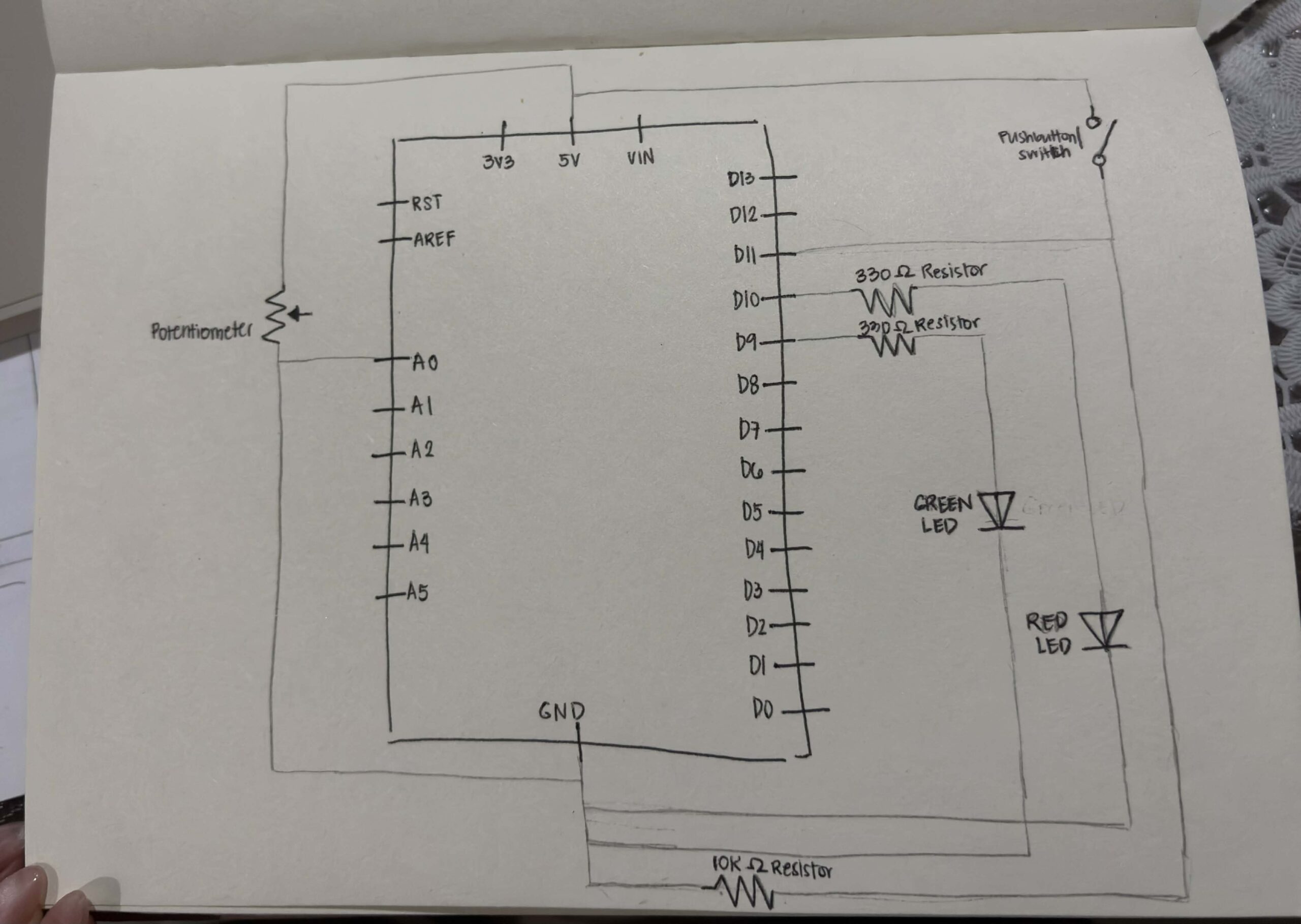
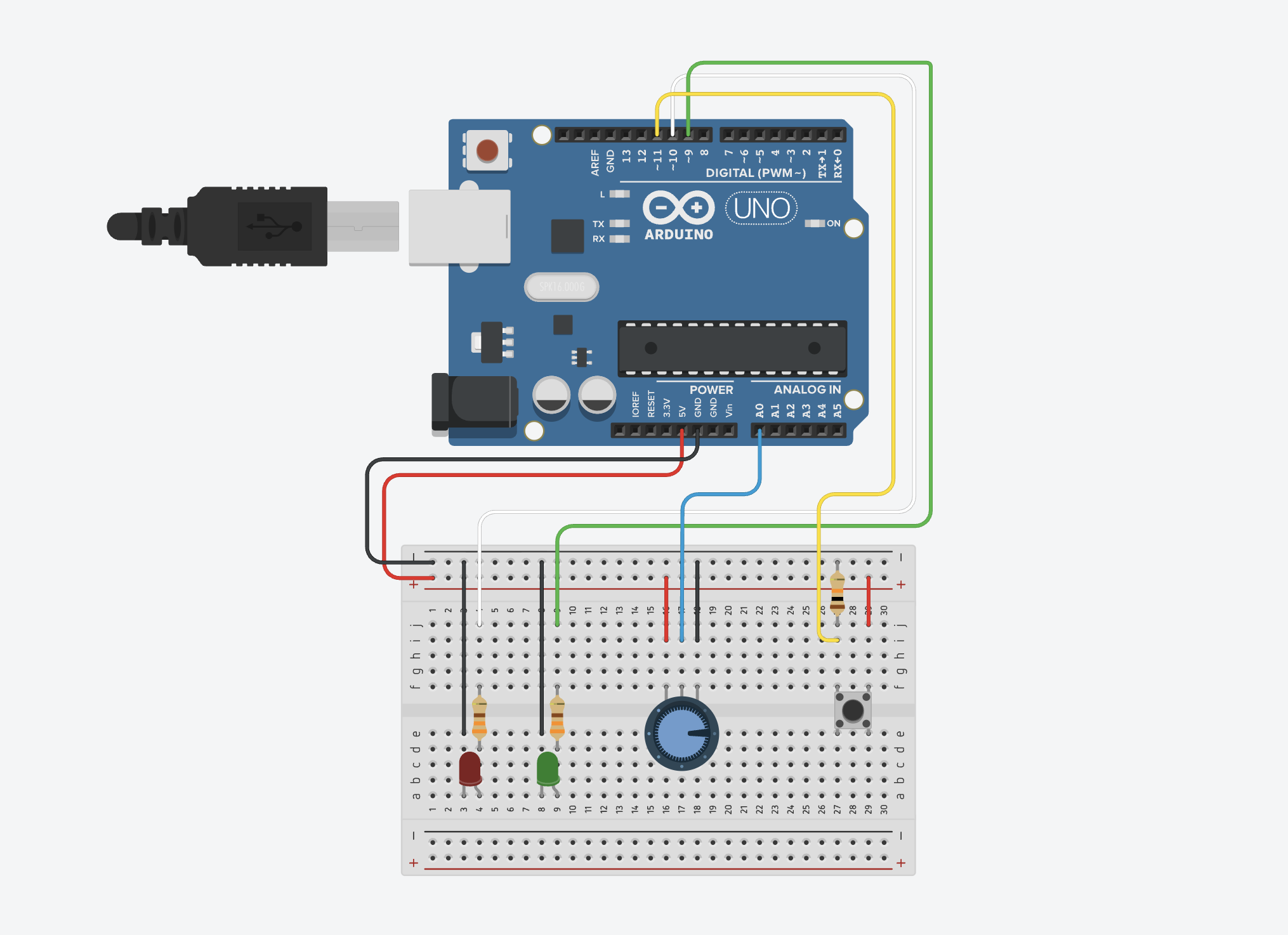
For my project this week, I wanted to create a “Luck Spectrum” using an analog sensor, two LEDs, and a digital sensor. The potentiometer acts as the analog input, where the player “chooses” their luck by twisting it. Before pressing the button, which will be my digital sensor, they can adjust the potentiometer as a way of testing or setting their luck. Once the button is pressed, a short suspense moment happens where the LEDs flicker first before showing their ‘luck.’ After that, the system reveals the result: if the LED turns green, it means the player is lucky, with the brightness showing how strong their luck is. If it turns red, then they’re not in luck, and again, the brightness reflects the intensity of that outcome.

CODE HIGHLIGHT

I used YouTube tutorials to help me set up my Arduino since I needed a refresher on the wiring. After that, I started working on the code itself. One part that I’m most proud of is how I used randomness to generate the “luck” result. The line below creates a random number, which I then use to decide if the result is lucky or unlucky.

int chance = random(0, 100); // generates a random number from 0-99, to decide whether it's green (lucky) or red (unlucky)

If the number is below 50, the green LED turns on (lucky). If not, the red LED turns on (unlucky). This is the core part of my project, as it represents whether someone is lucky enough to get a green light or ends up with a dim red one.

if (chance < 50) { // decides if lucky or unlucky, LEDs will not turn ON at the same time
     analogWrite(greenLed, brightness);
     analogWrite(redLed, 0);
   } else {
     analogWrite(redLed, brightness);
     analogWrite(greenLed, 0);
   }
PROBLEM I ENCOUNTERED

At first, I had a problem with the potentiometer. I wanted it to control both the “luck” and the brightness using it, but instead, it ended up directly controlling the brightness. So whenever I turned the knob, it didn’t really feel like it was affecting the ‘luck’, it just changed how bright the LED was. To fix this, I changed the system into three clear brightness levels: dim, bright, and very bright. This also made the brightness differences more obvious. 

int potLevel = map(potValue, 0, 1023, 0, 2); // gives 3 brightness settings = 0,1,2
    int randomShift = random(0, 2); // randomizes the brightness setting
    int level = constrain(potLevel + randomShift, 0, 2); // brightness randomness, this keeps the brightness level between 0 (dim), 1 (bright), and 2 (very bright)

    int brightness;

    if (level == 0) { // levels of brightness
      brightness = 20;   // dim
    } else if (level == 1) {
      brightness = 140;  // bright
    } else {
      brightness = 255;  // very bright
    }
REFLECTION

After working on the midterm project, I realized that I enjoy creating small interactive experiences, especially ones that feel like a mini game where users are not just interacting but are actually engaged and curious about what will happen next. That realization led me to this idea. This “mini game” is not meant to measure or define someone’s real-life luck. Instead, it focuses on creating a moment of suspense and enjoyment, where the outcome feels exciting even if it is random.

Overall, I really enjoyed the whole process and how everything turned out. I started by experimenting in Tinkercad since I didn’t have my Arduino kit with me at the time and was still figuring out what I wanted to do for the project. I actually found Tinkercad really helpful and more organized, especially when it came to wiring, which made it easier to test ideas without getting overwhelmed. Because of that, I think I’ll keep using it as a starting point for future projects before moving on to the actual board. If I had more time in the future, I would like to incorporate a buzzer to make the mini game more engaging and immersive.

GitHub Code  |    Demo   |   Try it on TinkerCad   

REFERENCES

https://www.youtube.com/watch?v=yBgMJssXqHY

https://www.youtube.com/watch?v=DLCDGCe7FRA

https://docs.arduino.cc/tutorials/generic/digital-input-pullup/ 

USAGE OF AI

I used ChatGPT to help debug my code whenever I encountered errors or confusion. It assisted me in identifying issues such as missing semicolons, incorrect brackets, and inconsistencies in values, allowing me to fix problems more efficiently.

Week 9 Reading Response

Today’s readings cover different points. However, both texts urge creators to go beyond just technical skills. They encourage creators to make their works meaningful so that their audiences can have expressive experiences. The text by Tigoe about making interactive art made me realize that our creations don’t have to be perfect, because it’s really the audience’s experience that completes our creation. He also explains that our task is to create something that allows the audience to discover meaning on their own in a creative way, whether they end up enjoying it or not.

This connects to the other text by Tigoe about physical computing. I relate to this second reading because when I start a project, I often begin with an initial idea and do my research, only to realize that it has already been done by someone else. Because of that, I end up letting go of the idea and trying to come up with something new. This text helped me see that instead of giving up completely, I can still build on ideas and improve them by using different tools and approaches. Tigoe’s examples made this clearer, especially the dolls and pets example, which is something I would love to try in the future. Overall, both readings made me realize that creating is not just about coming up with something entirely original or technically perfect. It is more about making something meaningful and open enough for people to experience in their own way.

Week 8: Unusual Switch

GitHub Code  |  Demonstration Vid & Photos

CONCEPT

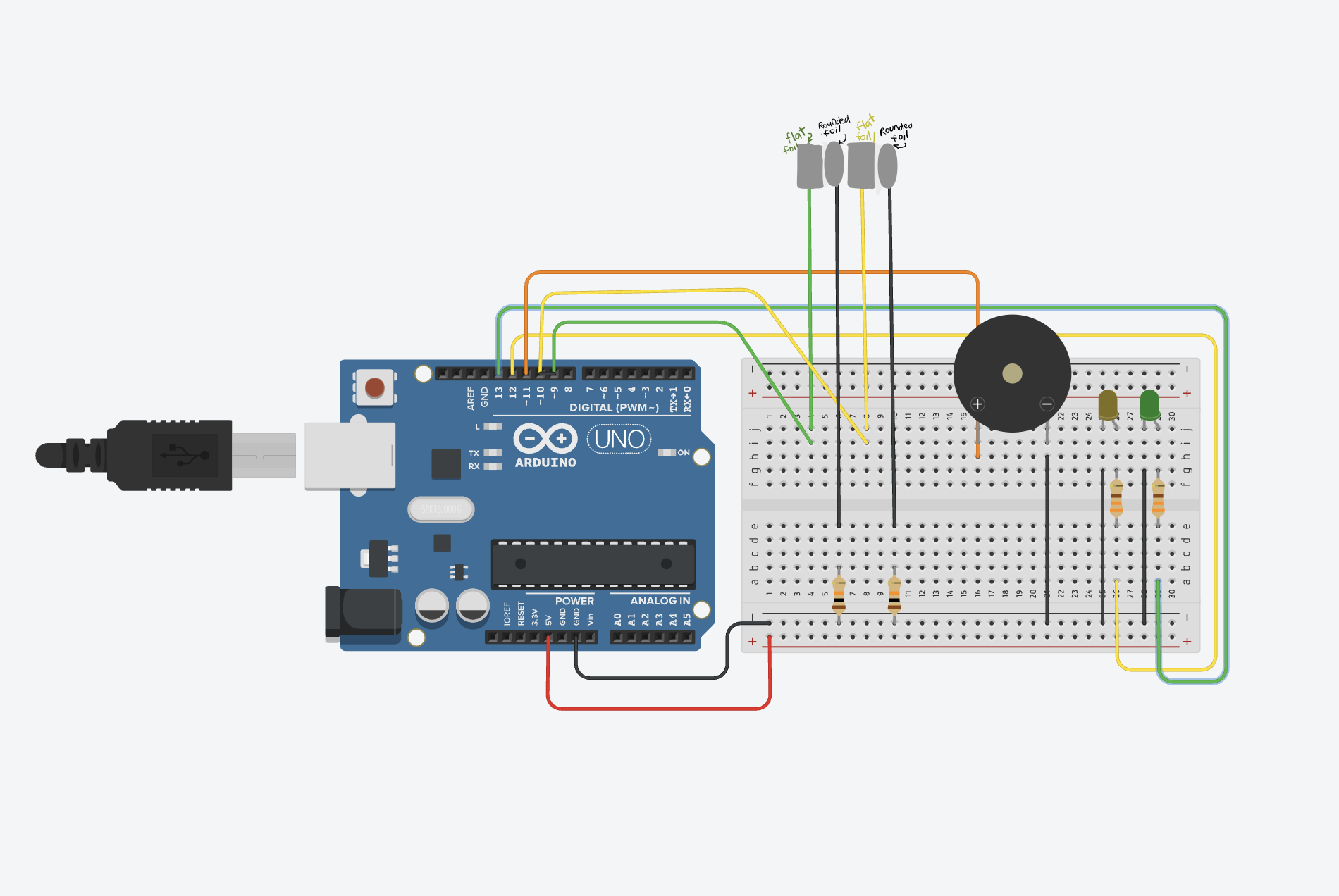
When I was thinking about what to do for this assignment, I remembered watching a TV game show called Family Feud. That’s where I got the idea to recreate their buzzer system. I was curious about how it worked, so I wanted to try making something similar using Arduino. However, the instructions said that we needed to create a switch that uses the human body, but not the hands. So instead of just using a push button to turn on an LED, I decided to modify the idea. I used foil to act as my switch, since it can open and close a circuit when touched.

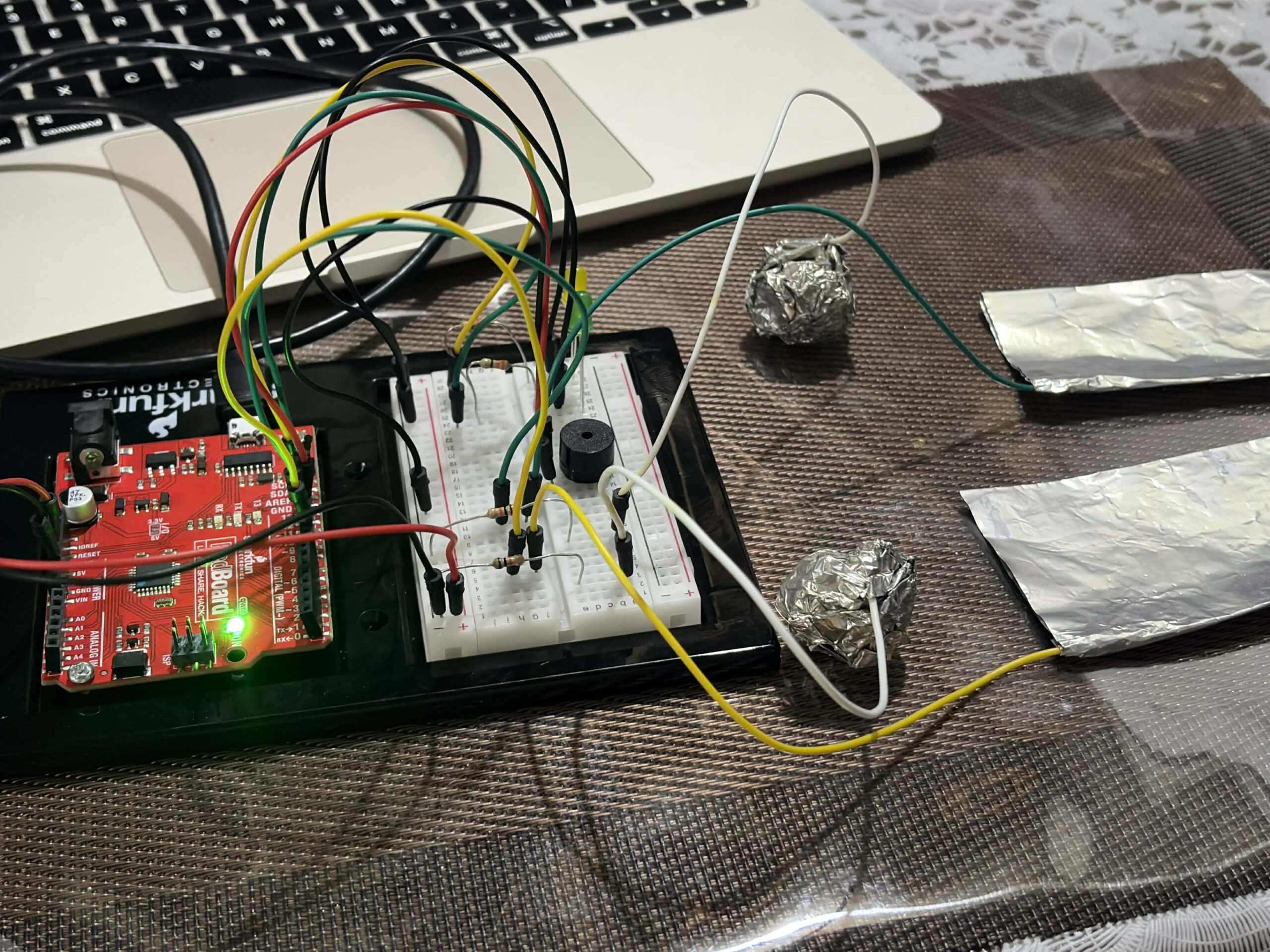
I created two foil setups with two LED lights, similar to how two players compete in the game show. Each player has their own side, and whoever activates their side first lights up their LED. To make it more interesting, I used a round foil and a flat foil instead of a regular button. The idea is that players drop the round foil onto the flat foil, which completes the circuit and turns on the LED. Whichever LED lights up first means that player gets to go first, just like in the game. So instead of pressing a button directly with my hands, the interaction happens through contact between 2 foil surfaces. When that contact happens, the circuit is completed, turning on the LED, and determines who goes first.

CODE I’M PROUD OF

I feel like my code is simple, but I enjoyed experimenting with the buzzer and how it responds when someone activates the foil. Even though the logic is straightforward, it works well for what I wanted to achieve. Here’s my code snippet:

if (digitalRead(foil1) == LOW) { 

    digitalWrite(ledYellow, HIGH);
    tone(buzzer, 1000);
    delay(500);
    noTone(buzzer);

    resetAll();
  }

  else if (digitalRead(foil2) == LOW) {

    digitalWrite(ledGreen, HIGH);
    tone(buzzer, 1000);
    delay(500);
    noTone(buzzer);
PROBLEMS I ENCOUNTERED

I followed a tutorial on YouTube by SunFounder Maker Education, but the tutorial used multiple push buttons. Because of that, I had to experiment with how to replace the buttons with foil and make it behave the same way. I first looked at my classmates’ and previous students’ blog posts about how to connect the foil using jumper wires. From that, I learned that the wires connect well to the foil if I wrap them around it securely. However, I initially just followed the tutorial and directly replaced the buttons with foil and tried to “press” the foil the same way as a button. That didn’t work, and my Arduino wasn’t responding properly.

During class, I learned that I needed to use a 10k resistor to stabilize the input. After adding the 10k ohm resistor, it still didn’t work, so I asked ChatGPT for help. It guided me through debugging and gave me a checklist of things to double check in both my code and Arduino setup. Through that process, I realized that I needed two separate foil pieces for each LED, one connected to the pin and the other to GND. At first, I was only using one piece of foil, which was the main problem. After adjusting this, the setup started working properly. Now, when the round foil is dropped onto the flat foil, it completes the circuit correctly and allows the LED to turn on and function the way I wanted it to.

REFLECTION

I really enjoyed the process, and I’m happy with how everything turned out. It took me a while to get to this finished assignment because I had to change my idea after finishing my first draft. I realized I didn’t fully follow the instructions, so I had to rethink and come up with a better approach. Next time, I’ll make sure to read the instructions more carefully from the start, since that would have saved me a lot of time. I also realized that working with Arduino isn’t as difficult as I thought. I actually enjoy it. I loved the feeling of satisfaction when my circuit and code finally worked the way I wanted them to.

REFERENCES

https://www.youtube.com/watch?v=_DjONeQnseo , class slides, https://github.com/liffiton/Arduino-Cheat-Sheet/blob/master/Arduino%20Cheat%20Sheet.pdf

Week 8 – Reading Response

I really enjoyed reading Norman’s text, especially his idea that things that look pleasing actually work better, are easier to learn, and lead to a better result. That idea really stuck with me, because I also noticed this in my own habits. When my space is messy or cluttered, I can’t focus well, so I usually clean up first and make everything feel more comfortable. Once things look better, I feel more organized and a lot more productive. It becomes easier for me to work, think clearly, and learn better when I’m studying. I also liked how he talked about how a design needs to match its purpose rather than just looking good. In more serious or stressful situations, design should not be too complicated because it can slow someone down or get in the way, making things harder and disrupting their progress.

McMillan’s story about Margaret Hamilton and the Apollo mission connects to Norman’s text in a different but just as meaningful way. Her work showed how important it is to think ahead and build systems that actually help people. The software she worked on wasn’t just meant to function. It was thoughtfully designed to handle mistakes and still keep everything running smoothly, even when things didn’t go as planned. After reading both of the texts, I realized that good design isn’t just about how something looks. It’s also about how well it works and how efficient it is for people in different situations. Whether it’s something small like fixing my space or something much bigger, what really matters is understanding people’s needs and being thoughtful about what will help them succeed.

MIDTERM GAME: Laundry Day!

Play in full screen :  https://jamayccaaa.github.io/Midterm_IntroToIM-Moreno/

Github Link 

CONCEPT

While thinking about a concept for this project, I initially wanted to create something like a puzzle game with character movement. I explored multiple ideas before deciding on this one, mainly because it felt more doable while still being engaging. I chose to go with a chill vibe because I wanted the game to be child-friendly, something players can easily understand, explore, and enjoy. The interface is designed in a way that encourages players to read and follow the instructions first. Without doing so, they could lose the game right away or even win without fully understanding how.

The main goal of the game is to hang exactly 10 pieces of clothing on a clothesline before the 1 minute is up, without exceeding the line’s strict weight limit of 2000 grams. Each piece of clothing has a different weight. Hoodies weigh 400 grams, pants weigh 300 grams, shirts weigh 200 grams, and shorts weigh 100 grams. Players will not know in advance which item they will get from the laundry basket, which adds unpredictability and requires careful decision-making. If they are unsure, they can temporarily place a piece of clothing in the “for later” basket. However, this basket can only hold up to 6 items, and exceeding that limit will also result in a loss.

HOW THE PROJECT WORKS AND WHAT PARTS I’M PROUD OF

The project works by placing the player in a timed game where their decision-making is challenged. They must select and hang pieces of clothing while managing both a strict weight limit and limited storage. The player should interact with the items from a laundry basket and decide whether to hang them on the clothesline or save them for later. In order to win, the player must hang exactly 10 pieces of clothing before the timer runs out, without exceeding the clothesline’s maximum capacity. Going beyond the limit will cause the line to snap, resulting in a loss.

Even though some parts of my original concept did not go as planned, I am still proud of how the game turned out. The part I am most proud of is the dragging mechanic, especially how the clothes snap and stick onto the clothesline. This took a lot of trial and error, and I spent a lot of time experimenting, searching for tutorials, and studying sample codes to make it work properly. It was challenging but also one of the most interesting parts of the process. I am also proud of the overall visual design of the game. I worked on everything using Canva, p5.js, and VS Code, and I like how the final output looks polished. Seeing all the elements come together after all the revisions made the process feel worth it.

PROBLEMS AND IMPROVEMENTS

One of the main ideas I originally wanted to include was a character holding the basket, along with a rain feature that would appear halfway through the game. The plan was for it to start raining after 40 seconds, requiring the player to control the character and move to a shaded area. The rain would also increase the weight of both the clothes and the clothesline, adding another layer of challenge. However, due to time constraints, I was not able to do this feature. Instead, I adjusted the game by shortening the timer and lowering the clothesline capacity to maintain a level of difficulty. If I were given more time, I would like to revisit this idea and add more challenges to make the game more engaging and competitive, as I do believe that there is a lot to improve to make the game better.

Another challenge I faced was designing the “for later” basket. My initial idea was to have the clothes disappear into the basket while still keeping track of how many items were stored. However, this required more complex logic than I expected, and I had to spend additional time researching and looking for tutorials. To manage my time better, I decided to simplify the feature. Instead of hiding the items, I made the clothes stack visibly on top of the basket. If the stack reaches more than 6 items, the player immediately loses the game. I think this solution still communicates the rule clearly and reinforces the importance of following the instructions.

REFERENCES

Tutorials:

https://www.youtube.com/watch?v=h8dHw1-WbAY – timer tutorial

https://www.youtube.com/watch?v=4fWStxYepE0 – drag and snap tutorial

https://www.youtube.com/watch?v=YcezEwOXun4&list=PLRqwX-V7Uu6aFcVjlDAkkGIixw70s7jpW&index=2 – sound explanation

https://www.youtube.com/watch?v=7A5tKW9HGoM – mouseX, mouseY explanation

Other References:

https://ko-fi.com/s/b7b1607f14 – Where I got the music

https://p5js.org/reference/ 

Class Slides & Past Classworks

USAGE OF AI

A. ClothesLine – Together with the Drag and Snap tutorial by Rob Duarte, I initially had a hard time figuring out how to properly place the clothesline and make the clothes snap to it horizontally, since the snapping in the tutorial was different. To solve this, I asked ChatGPT for help in creating fixed “slots” where each clothing item can align, giving the visual of the clothes being snapped onto the clothesline.

What I understood from the code is that instead of relying on the clothesline image, I needed to set exact positions in the code. So I created an array to store these positions and set a starting point (startX) along with a fixed y value so everything stays in one horizontal line. The code also includes a loop that creates multiple slots across the clothesline, with equal spacing so they form a straight line from left to right. With this, each clothing item can detect and snap to the nearest slot, making the placement look more organized instead of in random places.

clothesLine = []; //clothes array


 let startX = width / 2 - 200; // where the clothesline snap starts
 let y = height/ 2;
 let maxSlots = 10; // 10 clothes only on the line
 let spacing = 60;


 for (let i = 0; i < 10; i++) { // 10 slots in the clothes line
 clothesLine.push(createVector(startX + i * 80, y));
}

For the snapping part, I also asked ChatGPT for help in figuring out how to compute which part of the clothesline the clothing should snap to. From the code, I understood that it first checks which slot is closest to the clothing by looping through all the points in the clothesLine array and measuring the distance. It keeps track of the nearest one by comparing the distances.

Then, it checks if the clothing is within the snap range. If it is close, the code counts how many clothes are already placed on the line to make sure it doesn’t exceed the limit. Once there’s space, it positions the clothing based on the next available slot using consistent spacing, while also adjusting the y position so it sits properly on the line. If the clothing is too far, it doesn’t snap and just stays where it is. This helped me understand how snapping works more clearly, especially how distance and positioning are used.

//finding the closest point on the line
   let closest = null;
   let minDist = 9999;

   for (let p of clothesLine) {
     let d = dist(c.x, c.y, p.x, p.y);

     if (d < minDist) {
       minDist = d;
       closest = p;
     }
   }

   // if the clothes are close, it will snap onto the clothesline
   if (minDist < 80) {

     // count how many are already placed
     let placed = game.clothes.filter(cl => cl.onLine).length;

     if (!c.onLine && placed < maxSlots) {

       let startX = clothesLine[0].x;
       c.x = startX + placed * spacing;
       c.y = closest.y - c.size / 2;

       c.onLine = true;
     }

   } else {
     c.onLine = false;
   }

B. Fixing errors and debugging – For checking errors and debugging, I used ChatGPT when my code started getting too long and I couldn’t figure out which part was causing the game to break. When I transferred everything to Visual Studio Code, it took me a while to identify what was not working because I was more used to p5.js, where errors are shown more directly. In VS Code, I had to rely more on the console, which I wasn’t as familiar with.

Because of that, I asked ChatGPT to help check my code and explain the errors in the console whenever I didn’t understand them. It also helped point out possible causes of the issue, which made it easier for me to track down what was breaking the game and fix it step by step.

C. Game Idea – For the game idea, ChatGPT helped me both in completing and brainstorming the concept. It suggested different ideas, and as I continued developing the game and adding my own, it also guided me on what was possible to implement. It helped me think through important parts like the winning and losing conditions, which made the overall design clearer and more structured.