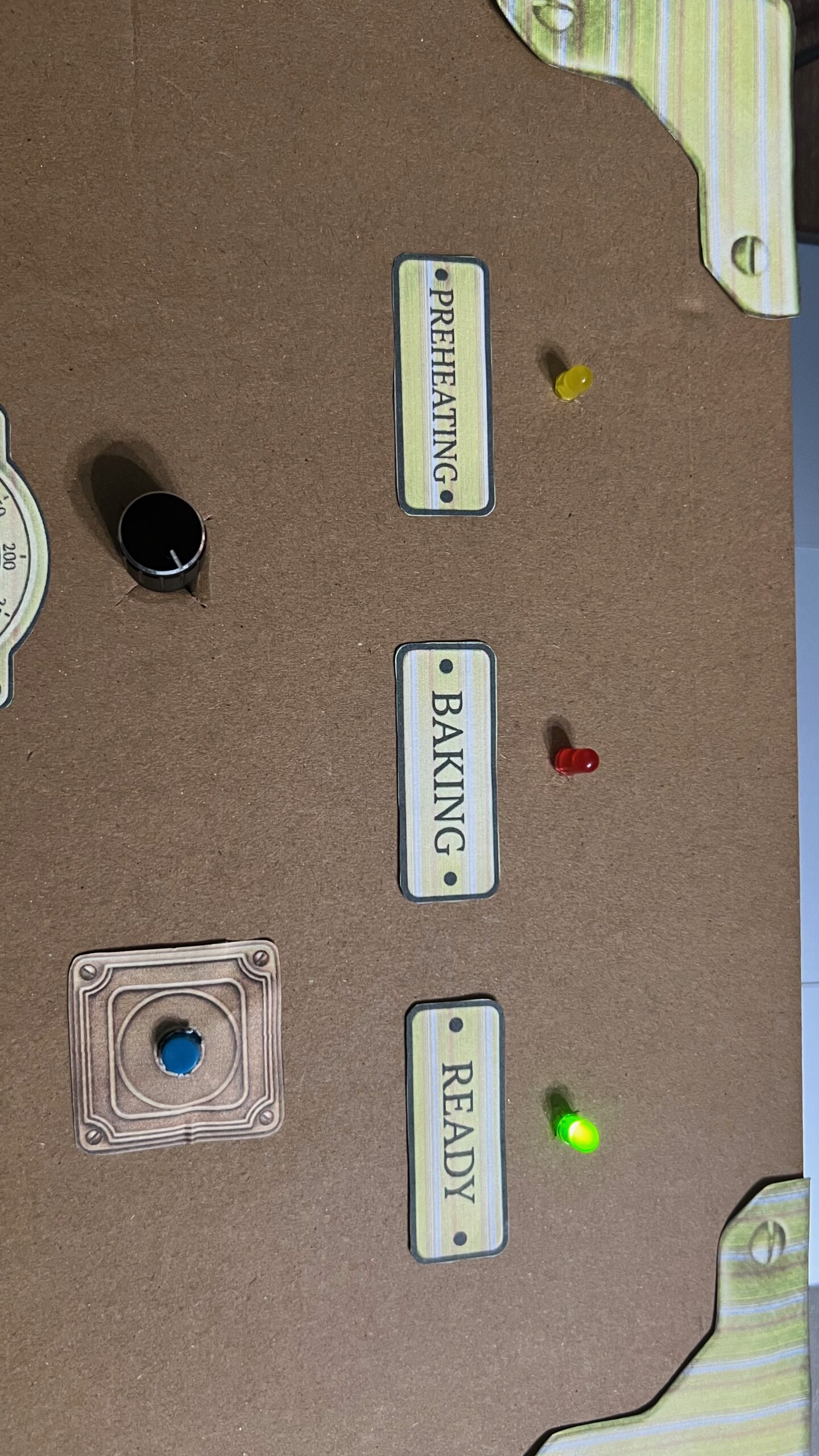
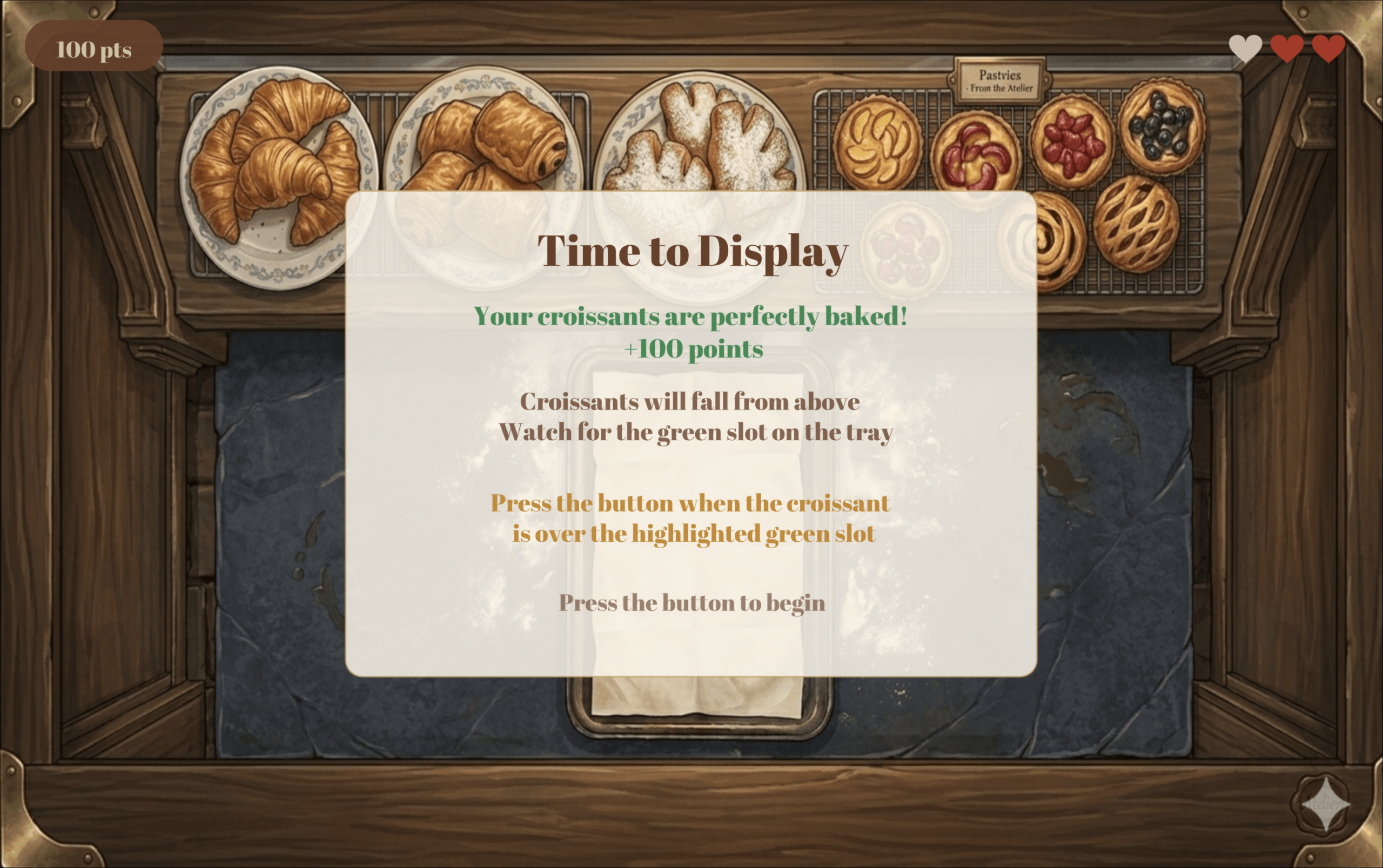
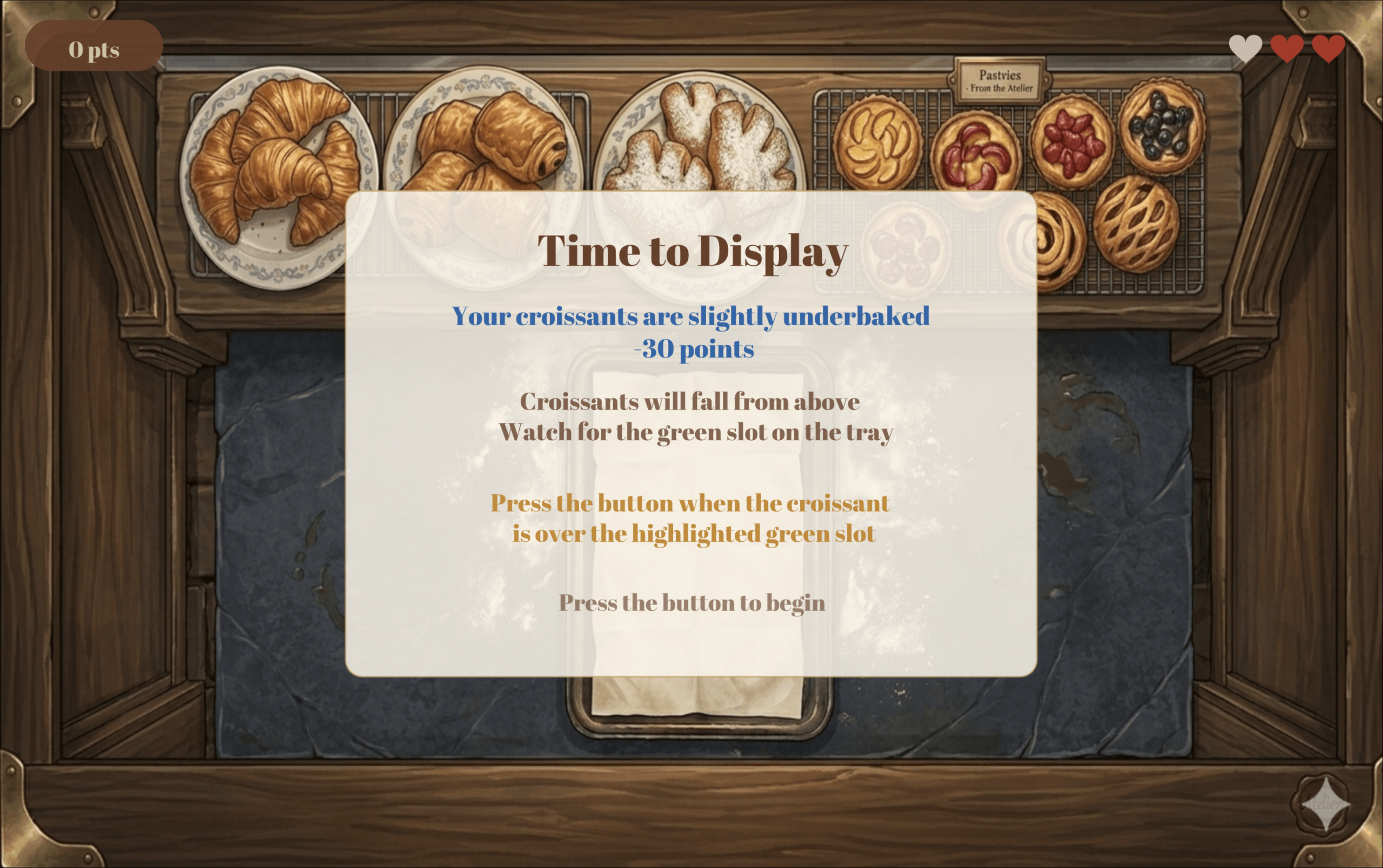
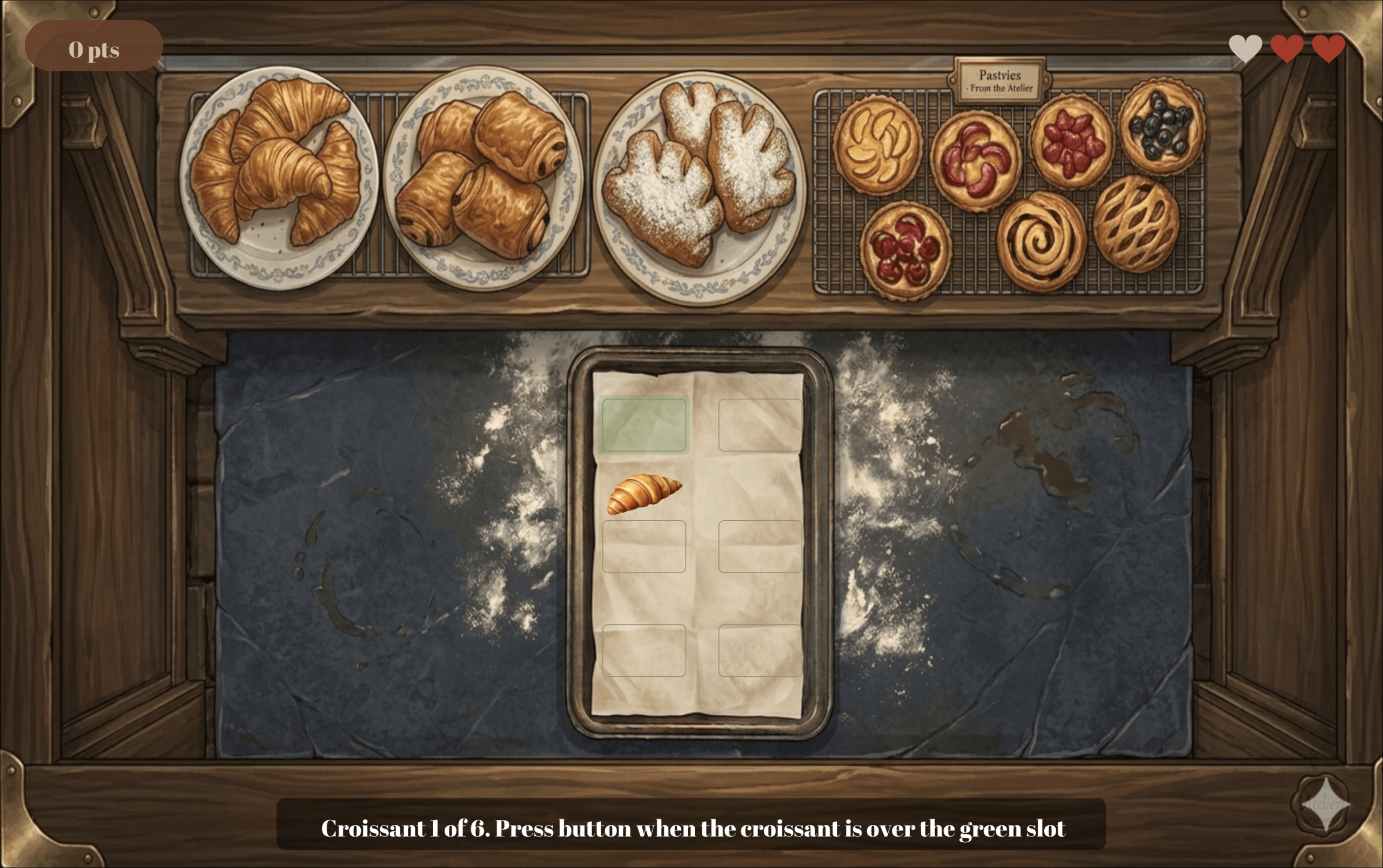
Week 11 – Serial Communication

Exercise 1

Demo:

Implementation:

  • Arduino
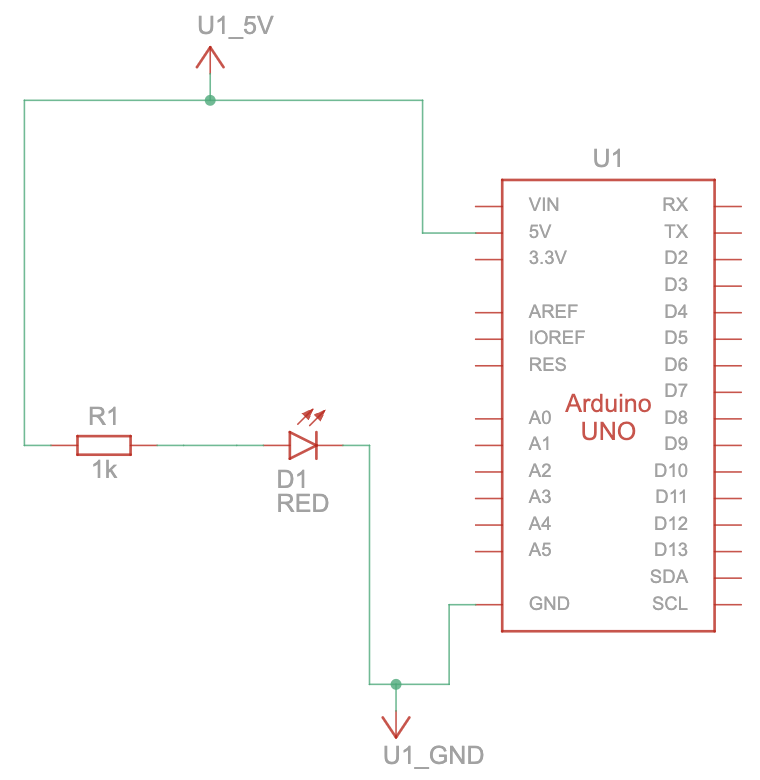
    • I began by setting up a simple circuit with an ultrasonic sensor to control the circle’s position in p5 using my hand’s distance from the sensor.
    • For the code, I used the same distance calculating code I used in one of my previous assignments that used the ultrasonic sensor. The only thing I changed is
      void loop(){
      //...
        Serial.println(mappedDistance);
      //...
      }

      where I used println instead of just print, so that a new line is printed with every write to the serial monitor.

  • P5.js:
    • I used the same connection logic from the class example using the “click to connect” button. Then, I read from the serial monitor and convert the string it reads into a value. Then, I draw the ellipse and insert the x-value we read from Arduino into its appropriate place in the parameters.

Exercise 2

Demo:

Implementation:

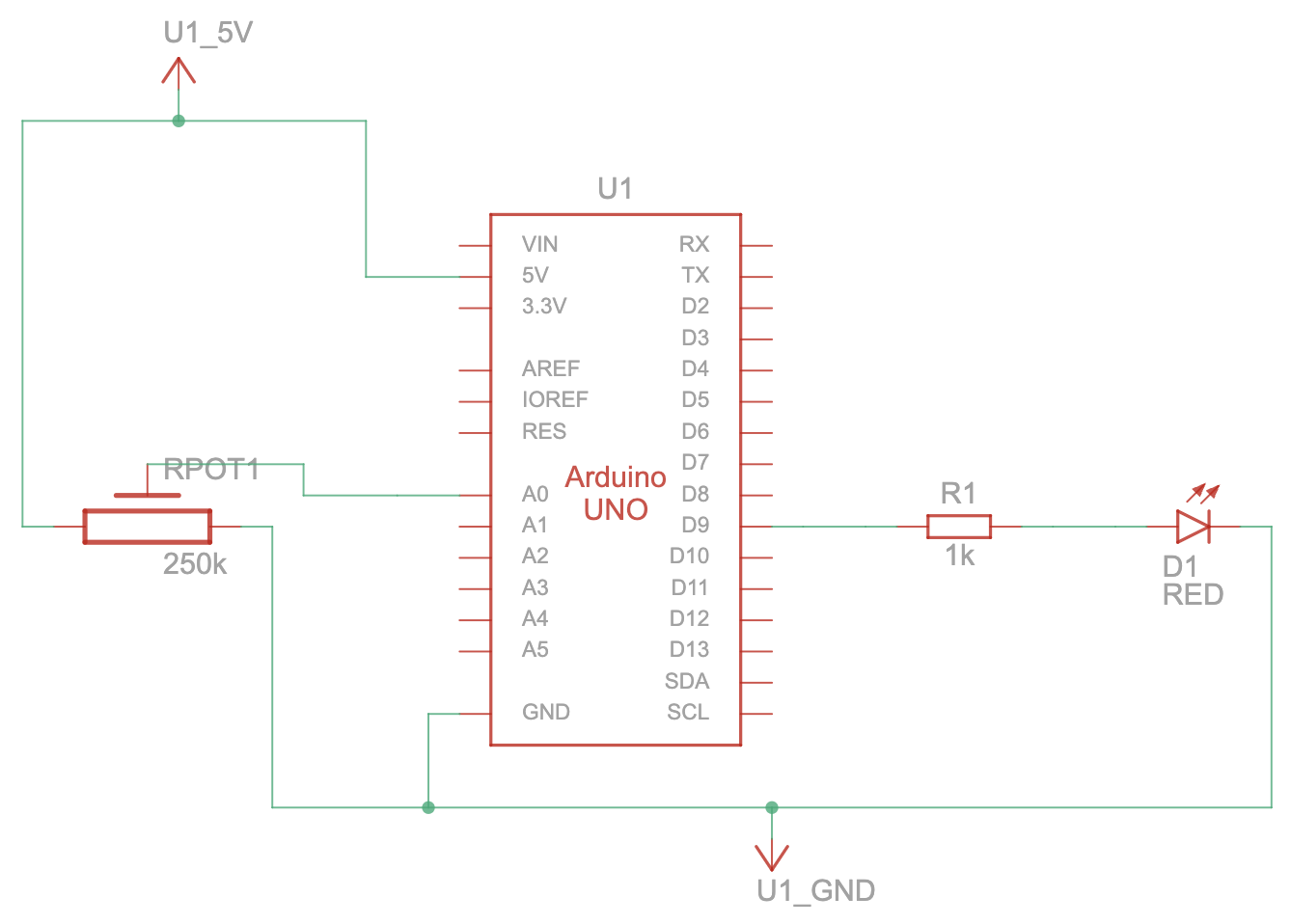
For this exercise, I decided to use a slider on p5 to control the brightness of an LED on my Arduino.

  • Arduino:
    • I started by setting up a simple circuit with one LED light connected to pin 9


Week 11 – Reading Response

The author claims that the strive toward the “discreetness” of medical devices enforces a stigma around them, sending a message that needing these devices is shameful. However, while the primary purpose of these devices is functional, on a social level, many people of determination who wear them simply want to feel included and navigate the world without drawing unwanted attention. While I certainly do not condone making people of determination feel left out, and I believe that eliminating stigma starts with changing society’s mindset rather than hiding a disability, I am also realistic. It is extremely difficult to change societal behavior and opinions overnight. Therefore, it can be highly beneficial to create devices that are discreet. Providing these options is ultimately about offering choice: it caters to those who prefer not to draw attention to themselves. Realistically, many people face intense social pressure and would rather blend in than stand out. Years down the line, I hope all medical devices can achieve a destigmatized success story like eyewear, where users have the agency to be as bold or as subtle as they wish. In the meantime, however, making discreet devices is not necessarily a negative thing; it is a necessary accommodation for the social realities people currently face.

Week 10 – Musical Instrument

Concept

For this week’s assignment, we decided to create a make-shift piano using the DIY aluminum foil compression button we used in previous assignments. The piano only plays one song; each time you press one of the piano “keys,” the next note in the sequence plays.

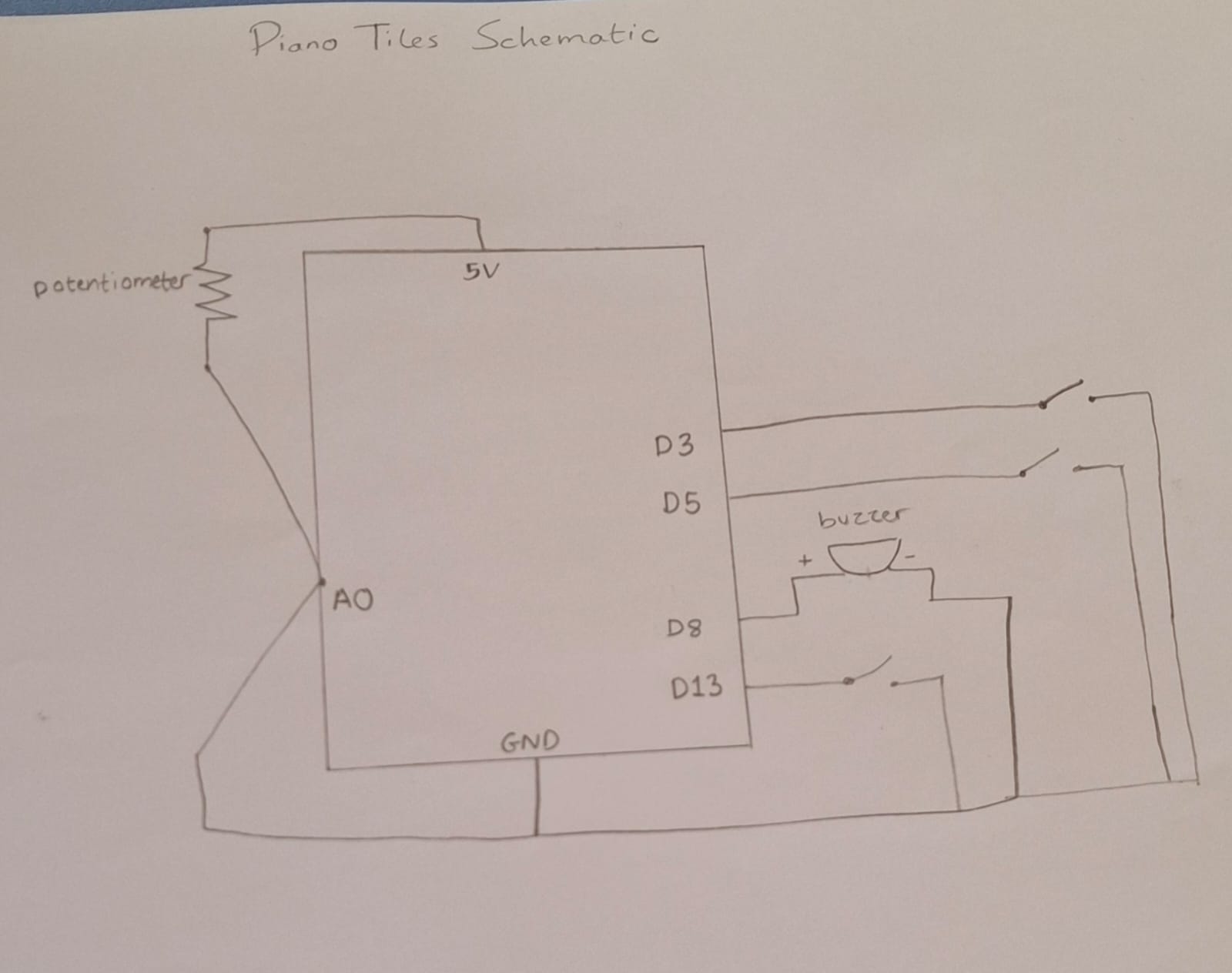
For the analog input, we used a potentiometer to control the pitch/frequency of the notes.

Demo:

Implementation:

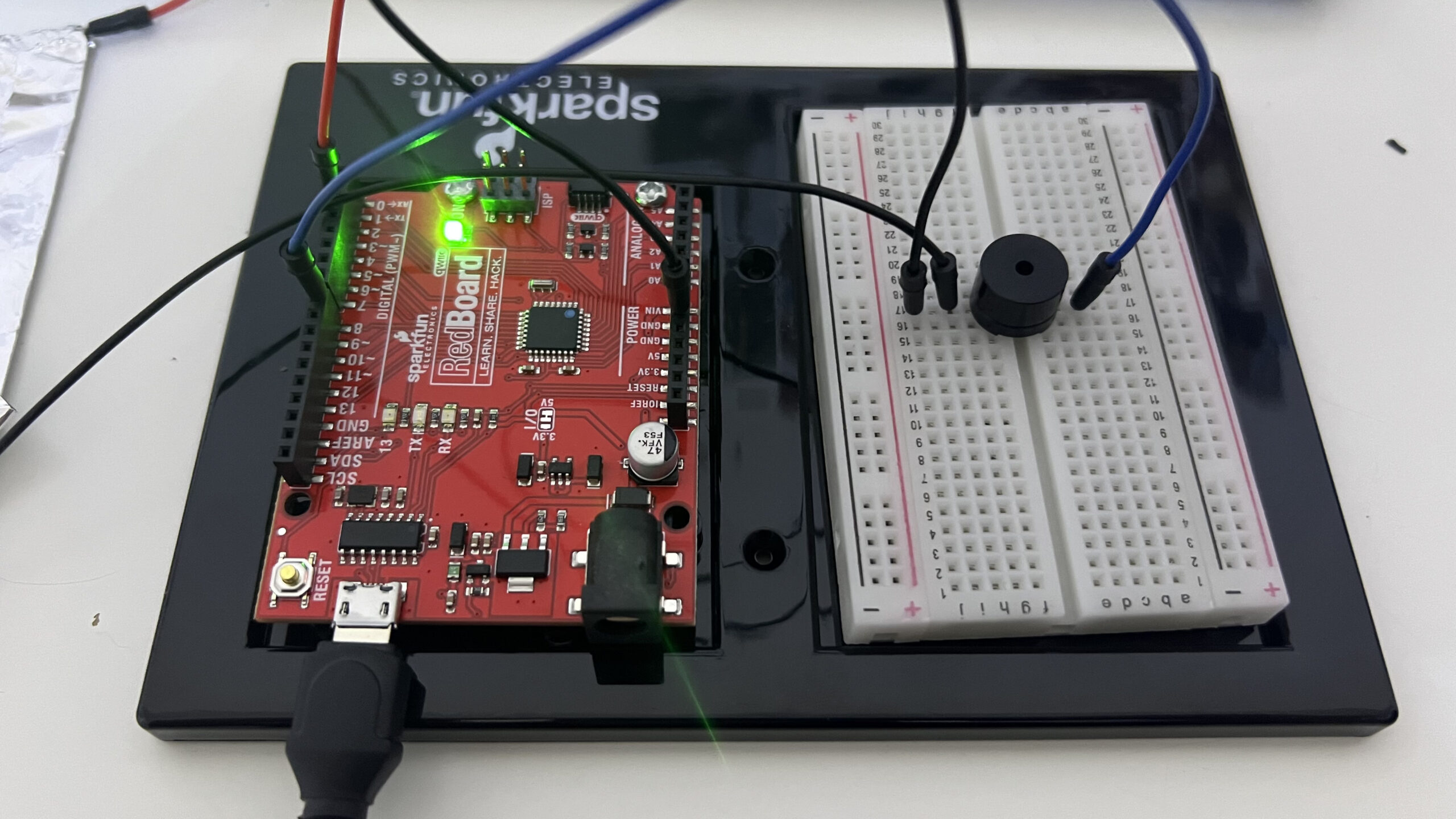
We created 3 foil switches, taping one side of each switch to GND and the other to a digital pin. Then, we connected the buzzer and potentiometer.

For the code, we used sound files from the same Github repo we used in class. I used the notes for the song “It’s a Small World.”

On every loop iteration, it reads the state of all three buttons and checks if any of them just transitioned from unpressed to pressed, if a button was HIGH last loop and is LOW now, that counts as a single press.

void loop(){
//...

bool justPressed = (state_yellow == LOW && prev_yellow == HIGH) 
                      || (state_blue == LOW && prev_blue == HIGH) 
                      || (state_red == LOW && prev_red == HIGH);

//...
}

When a press is detected, it looks up the current note’s frequency and duration from two parallel arrays, scales the frequency up or down based on the potentiometer reading, plays it through the buzzer, waits for it to finish, then advances to the next note in the melody. The previous button states are saved at the end of every loop so the next iteration can do the same comparison, ensuring each physical press only ever triggers one note no matter how long you hold it down.

Initially, I had the code so that the note plays every time the button is pressed; however, this was causing the entire melody to continuously play as long as the button is pressed. So, we had to come up with a different way to ensure a note is only played when the button changes from unpressed to pressed.

Due to the way the foils are made, it does appear that only one note is playing when the button is pressed. Sometimes when I press the foil button, the foil may touch from one side by accident, or the wires may move which closes and opens the circuit without my intent. Therefore, the device appears to still be playing multiple notes at once but it eventually pauses.

We had to figure out a way to change the pitch of the notes without completely changing what the note was. Since there is a trend among the notes where if you want to move from a note from higher pitch to a lower or vice versa, the note’s pitch value/frequency would need to either be divided by 2 or multiplied by 2.

For example: standard Do sound = C4; a lower pitch would be C3. The difference between the pitch of the two is that C4 is double C3

For that we mapped the potentiometer’s input values (0, 1023) to (50, 200) and divided by 100, this allows us to shift between notes and their pitches smoothly using the potentiometer.

We multiplied this factor to the original note that would have been played and set the tone to include the multiplied value as the frequency in the tone statement.

void loop(){ 
float pitchMultiplier = map(pot_value, 0, 1023, 50, 200) / 100.0;
}

Reflection:

Reflecting on the issue of the foils touching and playing more notes than I want them to, I thought of a way to fix them using cloth pins. I can attach two foils to the inside of the end you use to open the pin, so when you are opening the pin, the foils touch and it counts as a “press.” I imagine this method to function more smoothly than the sponge compression I built for this assignment because the cloth pin is stable and forces the foils away from each other after every press.

Week 10 – Reading Response

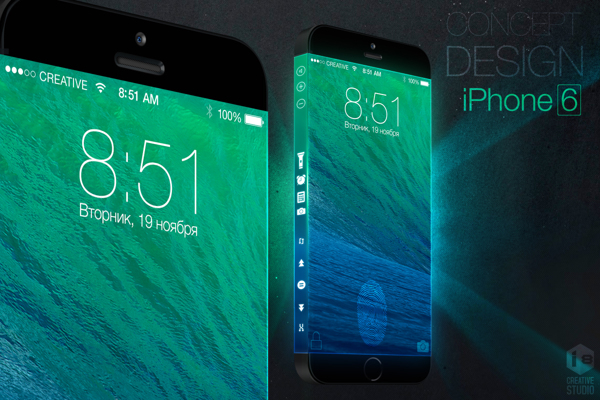
I found this week’s readings quite eye-opening. The video at the beginning of the article was accurately how I imagine the “future” of technology: exactly what it is now, but unlocks more gesture possibilities and projects onto anything. This reminds me of a rumored concept for the iPhone 6 that I got quite excited over in 2013, deeming it to be innovative and futuristic.

Video: iPhone 6 concept with Three-Sided Display that Apple will never  build - iPhone Hacks | #1 iPhone, iPad, iOS Blog — WordPress

While I was upset that Apple did not end up releasing this concept as the iPhone 6, this article made me hope they never release such a phone.

I feel like the article made me realize innovation has kind of paused in the last few years. My friends and I often discuss this question of “if we wanted to invent something new, what could we invent?” because we feel like everything we need, that has a realistic solution, has already been invented. However, this article made me think, what if videos and visions like the ones presented in the article are the reason we are unable to think outside of the box and invent new ideas. The vision for the future often consists of simply combining different existing technologies into one, or expanding current technologies, halting the invention of ground-breaking inventions. It almost feels like phones with a touch screen was the last time humanity witnessed a truly impressive and shocking invention.

Week 9 Assignment – Analog Input and Output

Concept

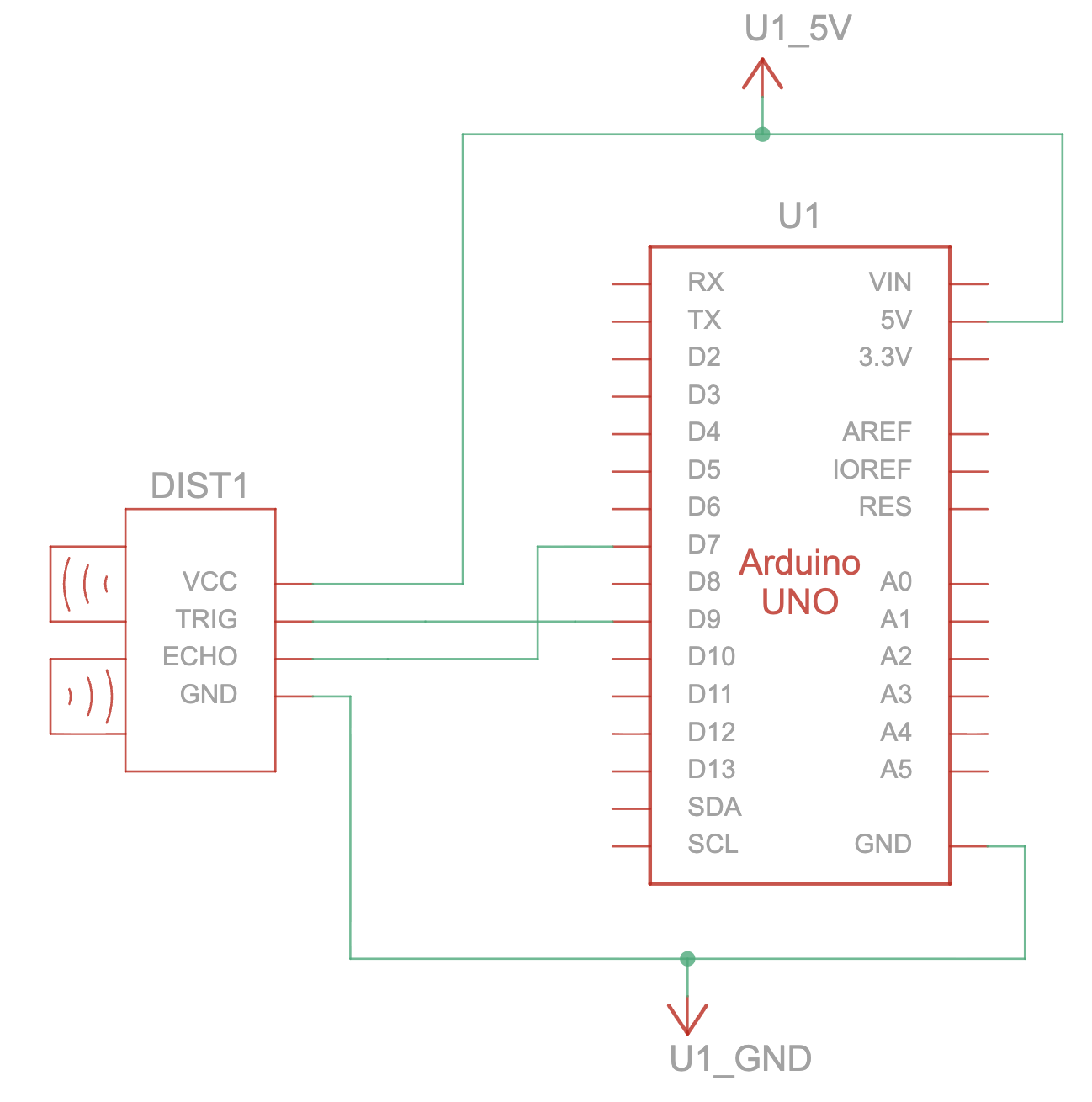
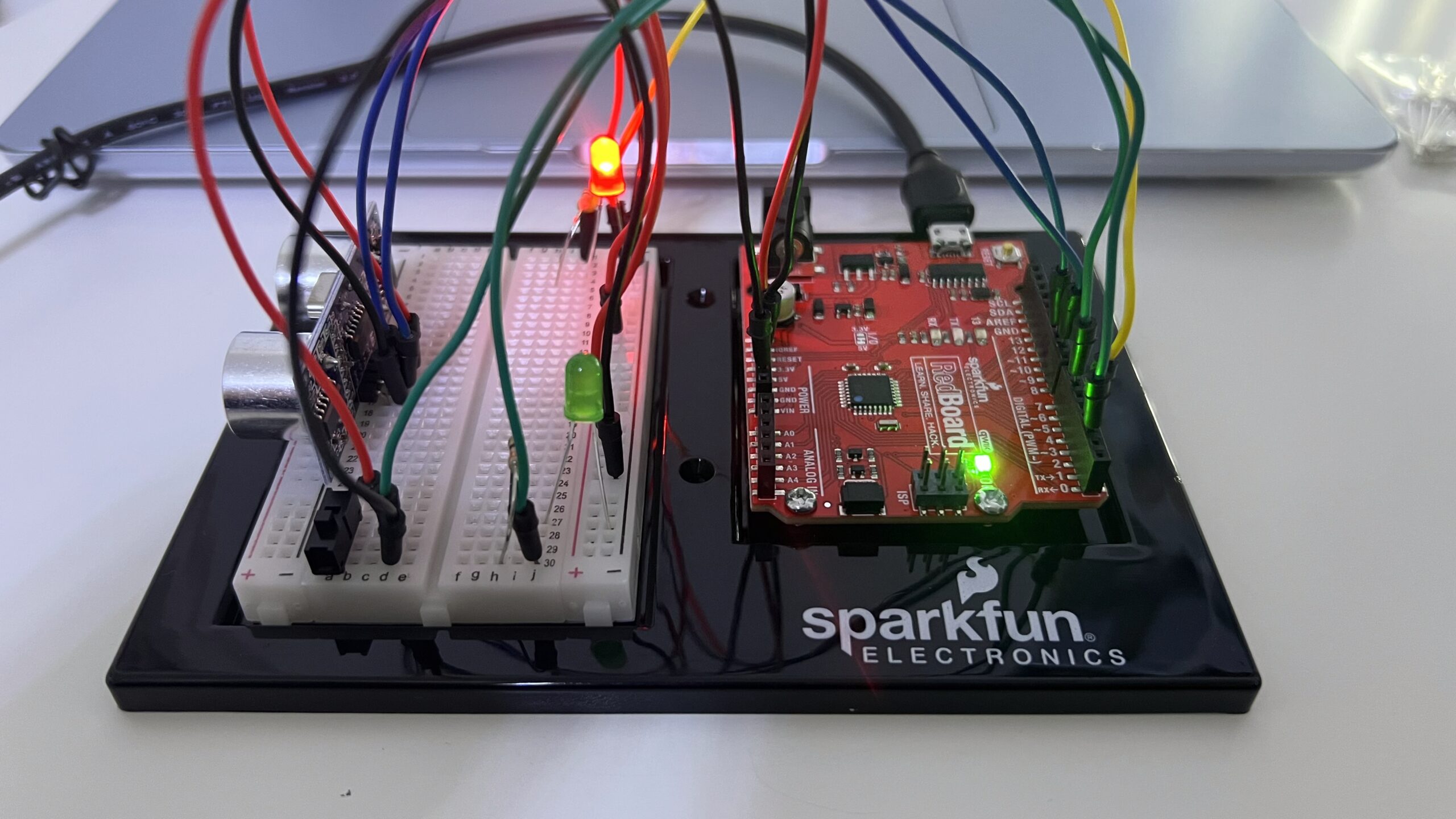
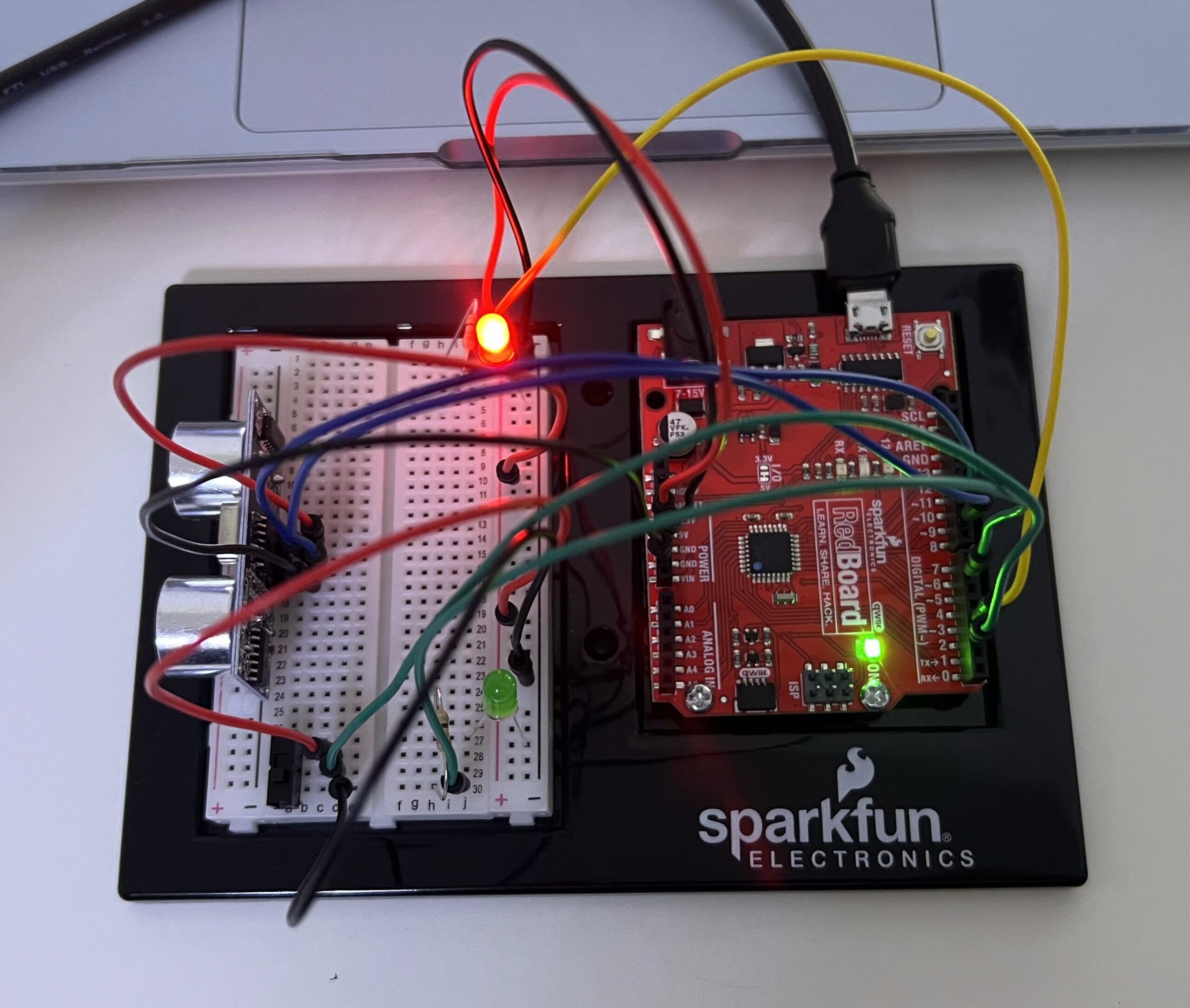
For this week’s assignment, I used an ultrasonic sensor as my analog input source to control the brightness of two LED lights, and then used a slide switch as my digital input source to toggle between the two LED lights.

The ultrasonic sensor works like a sonar and measures distance by emitting high-frequency sound waves and calculating the time it takes for the echo to return. I programmed the device so that as any object gets closer to the sensor, the LED light’s brightness decreases, and as the object moved further, the light’s brightness increases.

The switch is used to toggle between the two LED lights. So, when the switch is in the HIGH state, the sensor controls the red LED light, while the other light is completely off and vice-versa.

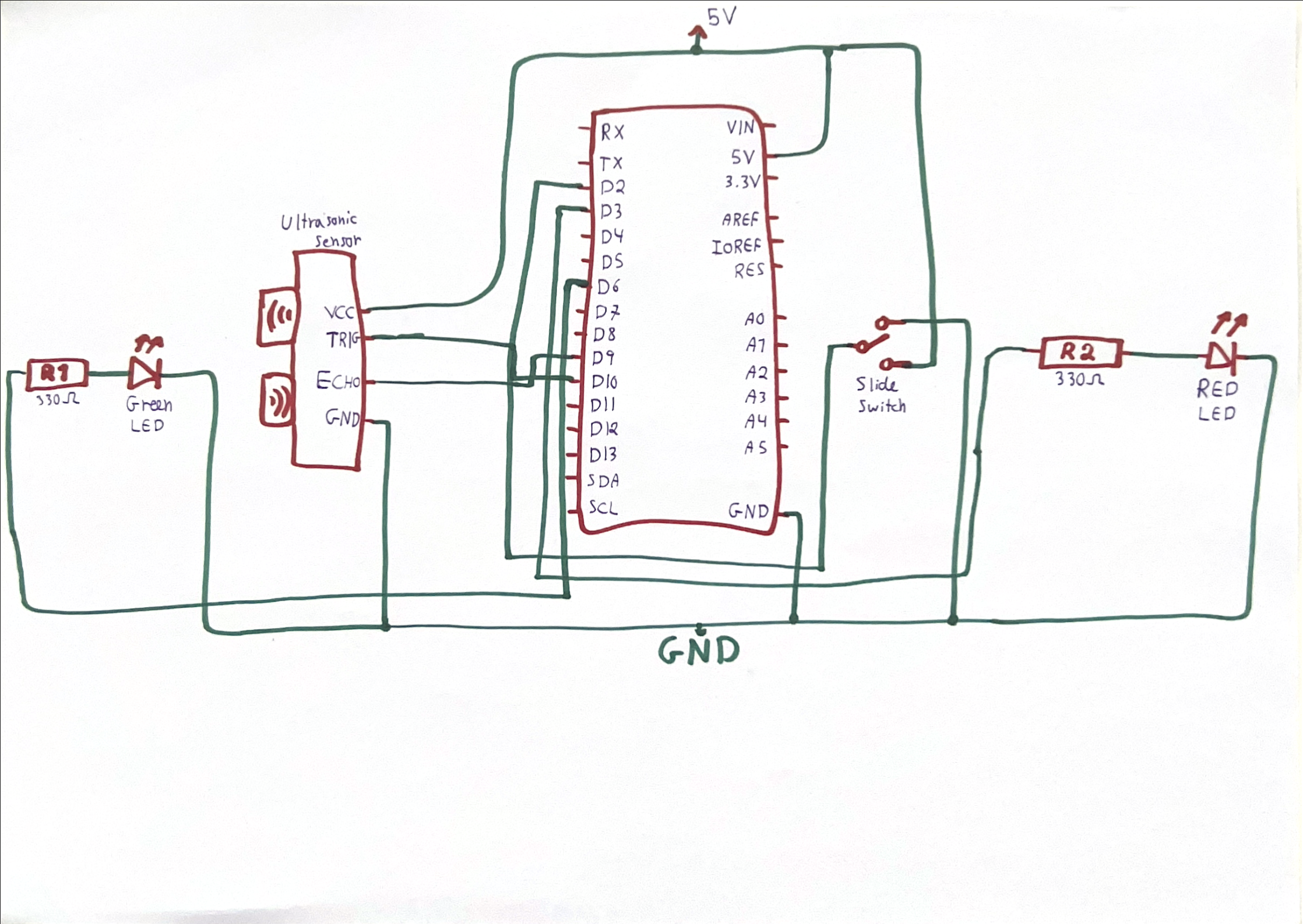
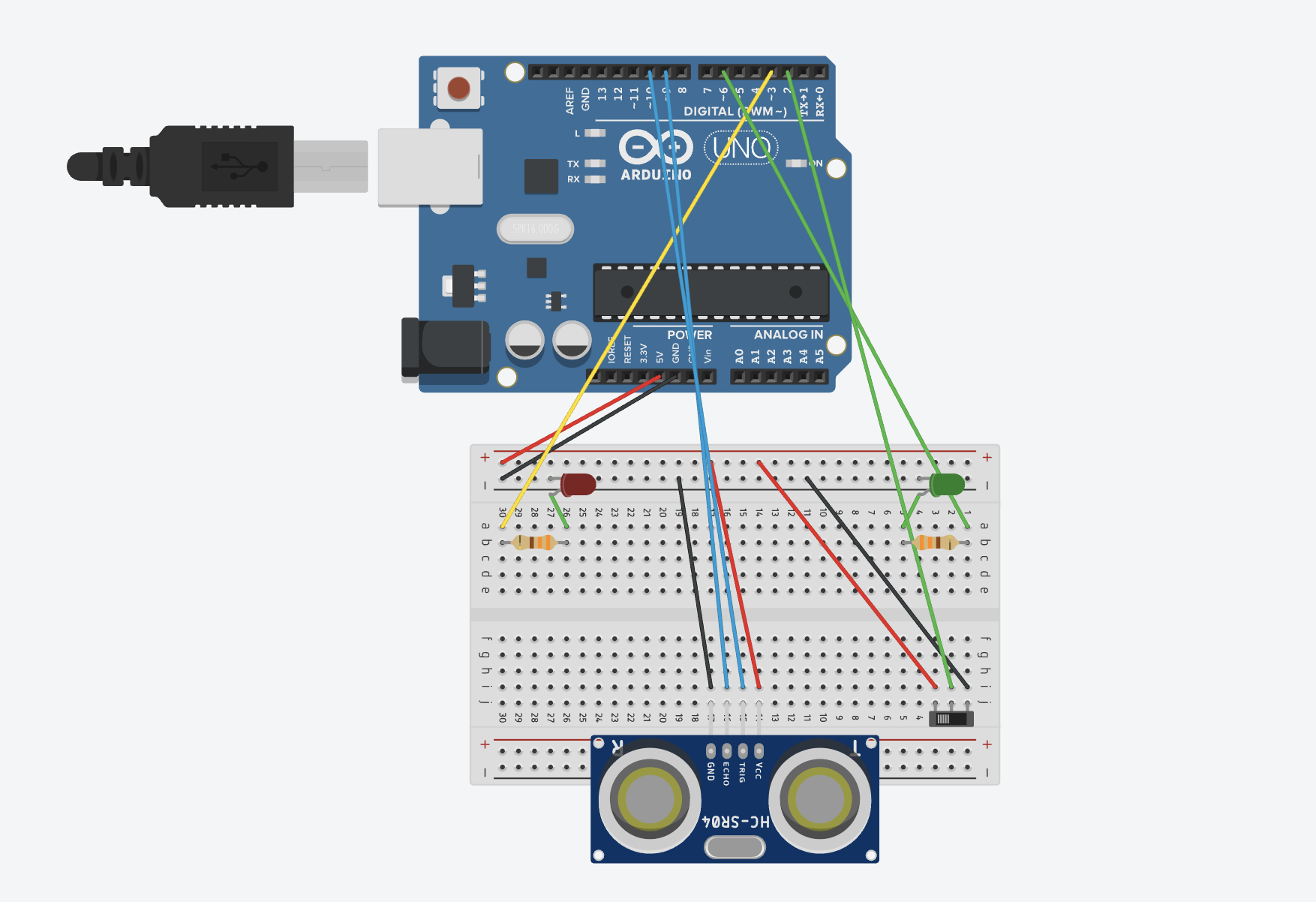
Final Design, Demo, and Schematic

Implementation

I began by creating my circuit and connecting everything together:

For the code, I used an online blog post giving a tutorial on using the ultrasonic sensor. I followed the tutorial to get the sensor initially running: sending a wave, receiving it, and converting it into distance.

void loop(){
//sends a 10 microsecond pulse
  digitalWrite(trigPin, HIGH);
  delayMicroseconds(10);
  digitalWrite(trigPin, LOW);

  //waits until the echo comes back and measures how long it took
  duration = pulseIn(echoPin, HIGH);

  //Sound travels at 0.034 cm per microsecond
  //Divide by 2 for the go and return trip = 0.017
  distanceCm = 0.017 * duration;

//rest of the code
}

Then I used what we learned in class last week to constrain the distance values. After testing, I found that the closest distance it can detect is ~3cm, and the furthest is ~210cm, so I set these as the constrain values. Then, I mapped them to the values 0-255, representing the brightness of the LED.

The next part was simple. First, I read the state of my slide switch. Then I wrote an if-else statement so when the switch is ON, the red light is controlled by the sensor readings, and when the switch is OFF, the green light is controlled.

void loop(){
//earlier code...

//if the switch is ON
  if (slideSwitchState == HIGH) {
    digitalWrite(greenLED, LOW);      //turn off the green LED
    analogWrite(redLED, brightness);  //control red LED's brightness
  } else {
    digitalWrite(redLED, LOW);          //turn off the red LED
    analogWrite(greenLED, brightness);  //control green LED's brightness
  }

//rest of the code...
}

Initially, I forgot to add the statements turning off the LED light not currently in use. Therefore, when I switched from one light to the other, the previous light remained stuck in the brightness that it was last at before switching control to the other LED. So, if the red light was on, and I switch to the green light, the red light will remain on until I switch back to it and dim it using the sensor until it turns off.

Reflection

I am extremely happy with my work overall. I felt like this project was one of the most that helped me deeply understand how to use Arduino as I felt I was still a little confused on how things connect and work.

For the future, I would like to expand the project by adding more LEDs of each color and aligning them in a straight line. As an object comes closer to the sensor, more LED’s light up, and the further away it is, the less the LED’s light up. So, it would look like a gradually lighting up strip of light.

References

Week 9 – Reading Reflection

Physical Computing’s Greatest Hits (and misses)

This reading made me realize that I have interacted with way more physical computing projects/products in my life than I initially realized. While reading each example the author gives, I began remembering different projects I have experienced or come across. I started reflecting on how these projects might have been implemented and how I can draw inspiration from them to build something new.

The reading mentions the Wii remote, specifically its tilty controlling abilities. This brought back some great memories for me as I grew up playing Wii. It specifically reminded me of Mario Kart, which relies on the tilting sensors of the remote to control the car.

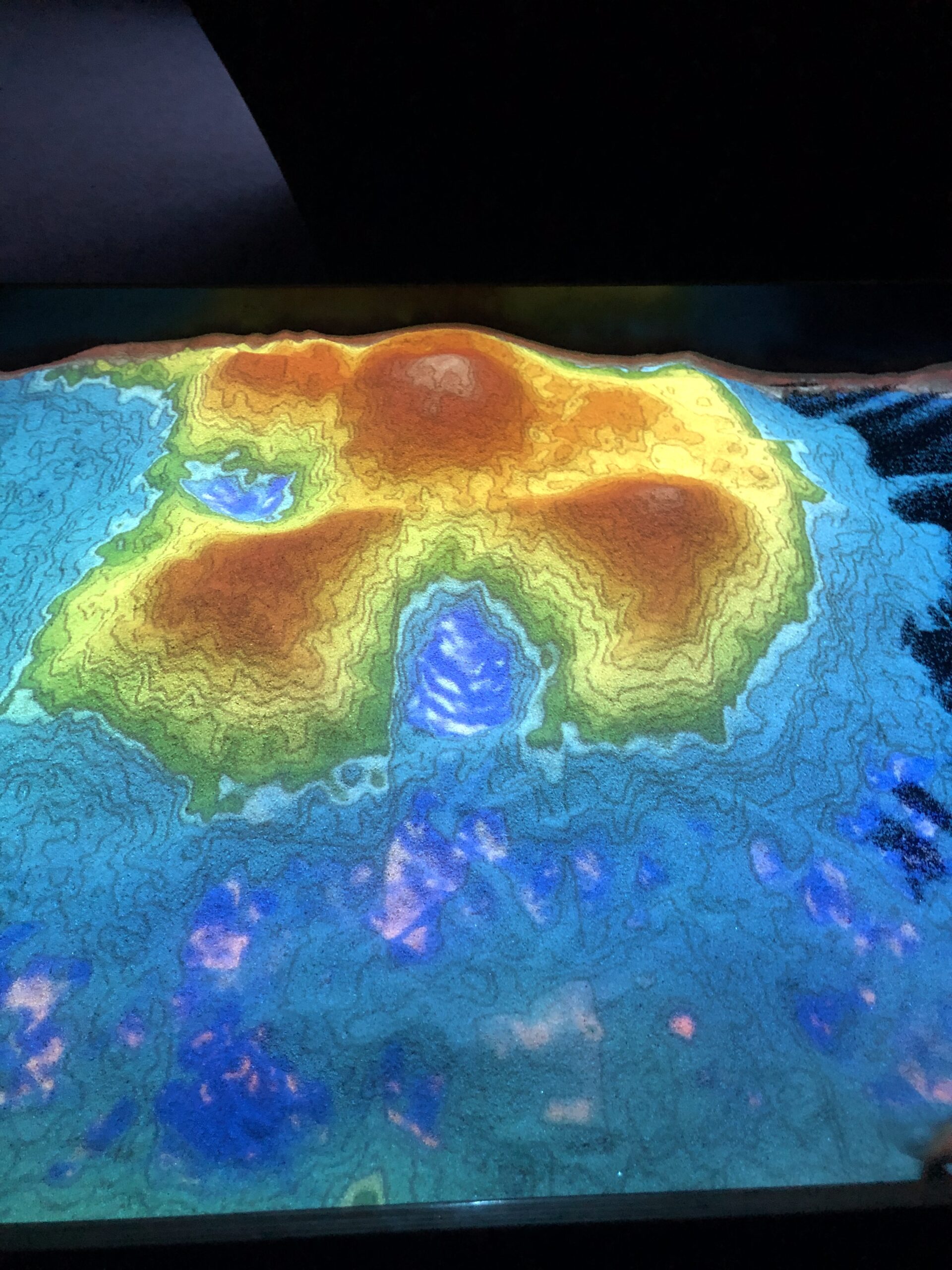
The “multitouch interfaces” example reminded me of an interactive sand experience I saw in the Science Park in Spain.

The projected image on the sand changes based on the height of the sand in a certain area. For instance, if you create a mini sand hill, the projected image on that hill will be an island. In areas with less sand, they will show as surrounding sea water. The design changes as you change the sand. This got me thinking about its implementation. I predict it probably uses sensors from the top, which measure the distance between the sand and the sensor, to determine what should be displayed at that point. If the distance is shorter, then it shows the top of the island, and as the distance gets longer, it displays a transition from the top of the island into the ocean.

Making Interactive Art: Set the Stage, Then Shut Up and Listen

I found that this reading kind of goes hand-in-hand with a previous reading we did in the semester about good design being obvious. To be able to act on this readings advice and allow the users to take full control of their interaction with your work, you must have designed it to be self-explanatory. It would be difficult to throw someone into an interaction with no context on it and controls that are difficult to understand. Therefore, in order to allow people to fully immerse in your experience, as the reading suggests, it is crucial to ensure you have a good design.

Week 8 Assignment- Creative Switch

Concept:

For this week’s assignment, I decided to create a system to help me remember to sit with a straight posture and to avoid slouching. The system works using two sheets of aluminum foil connected to a buzzer. When the aluminum foils are connected (i.e. your back is touching the chair meaning you are sitting up straight), the buzzer is silenced. When the aluminum foils are separated, meaning you are slouching and your back is off the chair, then the buzzer gives tone, reminding you to sit up straight.

Demo + Setup:


Implementation:

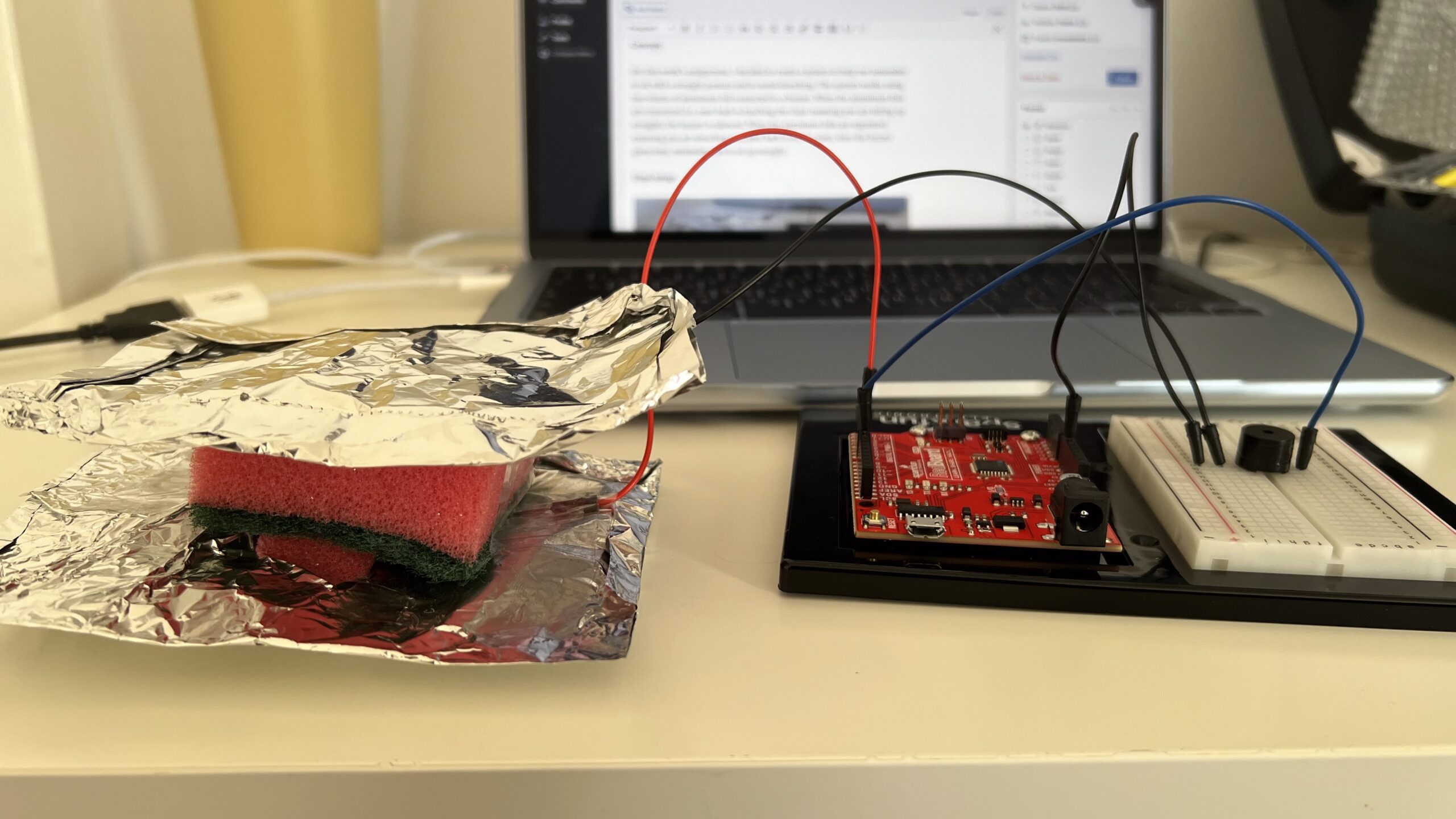
To create my foil switch, I taped two thin sheets of foil to a dish washing sponge. This works as a compression switch, so when you press the foils together they close the circuit, and when pressure is released, the sponge between them separates the foils and opens the circuit.

I connected one tin foil to digital pin 2, and the other foil to GND. This functions as the switch, so when the foils are touching they close the circuit, and when they are not the circuit is open.

For the buzzer, I connected its -ve leg to GND, and its +ve leg to digital pin 8.

void setup() {
  pinMode(foilPin, INPUT_PULLUP);
}

For the code, I used a new pinMode called INPUT_PULLUP. I found it while I was doing some research about Arduino coding, and essentially it just uses Arduino’s internal pull up resistors so you do not have to add a physical resistor into the circuit. I wanted to test this out to explore a bit with the code.

if (state == HIGH){ //foils not touching (slouching)
    delay(1500); //wait 2 seconds in case person is just moving
    if(digitalRead(foilPin)==HIGH) { //read input again, if person is still slouched
      tone(buzzer, 1000); //tone
    }
  }

I set an if-else statement so when the state of the foil switch is high, meaning the foils are not touching and the circuit is open, the buzzer will wait a few seconds before giving tone to account for when the user might just be adjusting their sitting position. After 2 seconds, there is another check to see if the foils are in fact still not touching, and then the buzzer gives tone. Else, as long as the circuit is closed, and the foils are touching, then there is no tone produced.

Reflection:

Overall, I am quite proud of my project and the usefulness behind its idea. It was also really exciting and fun to work with Arduino and I really enjoyed the concept of physical work combined with coding.

For the future, I would like to have longer wires so that I can set the Arduino and breadboard setup on my table when the foils are taped to my chair. I considered taping the entire setup to the chair, but that would then make it uncomfortable for the person sitting on the chair.

References:

Week 8 – Reading Reflection

A paragraph that stood out to me in the reading on Margaret Hamilton was the one discussing how programmers used to write, run, and test code. Nowadays, we simply use a text editor to write code, compile it, and run it in a matter of seconds. Back then, however, code had to be punched into paper cards, fed into a machine to be compiled and run, which could take hours, and then, to insert the code into the spaceship, wires had to be hand-woven through rings. This made me reflect on how far the software industry has advanced since then.

As a current computer science student, I cannot imagine how difficult my university experience would have been if I were a student in the 1960s. Today, I can easily make changes to my code and test them immediately, which allows me to focus on efficiency, functionality, and aesthetics. Reflecting on the second reading about how attractive things work better, I imagine that in the 1960s, since code was much more difficult to develop, software engineers likely had to prioritize functionality over aesthetics. If they had to prioritize both, it would have made their work even more challenging than it already was.

Additionally, a large part of making software aesthetically pleasing involves constantly editing and testing the placement and design of elements such as buttons and images. Adjusting even a single button can require hundreds of recompilations and test runs. This process would have been extremely difficult in the 1960s, when every small change required going through the entire process of punching holes into cards, feeding them into a machine, and waiting hours for results.

The software industry is constantly evolving and improving. More recently, we have seen groundbreaking advancements in generative AI, which can assist in developing and running code. Many software engineers now use AI to address the challenge Don Norman discusses in “Attractive Things Work Better.” By using AI to help build the front end, they can shift more of their focus toward the functionality and theoretical aspects of software. This also speeds up the development process by providing a visual starting point.

Midterm Project – F1 Pitstop Game

Concept:

Inspired by pit stops in Formula 1, the goal of this game is to change tires in the correct order as quickly as possible.

There are 3 rounds per game. In each round, the car enters your garage, and you are given a random order to change the tires. The order changes every round. At the top of the screen in the red banner, you see the tire you have to change. You must click that tire on the car to “change” it. The game not only requires speed but correctness. Each wrong tire you press costs you a 2-second penalty, adding to your total time at the end.

Once all 3 rounds are complete, you can see your final time and the time taken during each round. The game also tracks your high score, even when you restart the sketch, so you can come back to beat your high score at any time!

Final Game + Code:

*For the best experience, open the sketch in a new tab and play the game in full screen

Implementation:

I began by creating the audio files I needed for the game. I went to YouTube to find the F1 theme song to use on the start and results pages, and I also found a video demonstrating a real pit stop to use for the wheelgun and engine sounds. Then, I converted each video to an MP3 file, and I used an audio cutting website to cut the audio so I only took the wheelgun and engine sounds, and I had to shorten the F1 theme audio since it was too big to upload to the p5 editor.

Then, I gathered all my images. I asked ChatGPT to create a cartoon-ish pitlane image with arrows and lines to use in my game since I could not find the exact image I needed online. I also found a cartoon F1 car with a transparent background.

I also chose a font to use from Google Fonts and uploaded that as well.

Then, I researched different functions I knew I needed. First, as the professor suggested, I wanted to implement a high score tracking feature, where the user’s highest score is saved even when they restart the sketch. I found the function storeItem(), which does exactly that. I also needed a time tracking function for the timer, so I found the millis() function, which returns the number of milliseconds since the sketch started running. Finally, I needed a way to shuffle the order of the tires. My initial idea for implementing the shuffling was to randomly generate a number between 0 and 3, and each time the number is used, it cannot be used again. These numbers are then used to access the tire at that index in the array and is displayed to the player; however, I realized this would make it more complicated to track the tire and if the user clicked the correct one, and is also very inefficient. So, I referred to Google to find a function that shuffles items in an array and found the shuffle() function.

The game was built around 4 classes. First is the GameManager class which controls everything. It tracks which screen should currently be displayed from the 4 screens: start, instructions, playing, or results. It also manages the progression between the three rounds, calculates the total pit stop time, compares it against the stored high score, and handles the mute state for the background music in the main and results screens. The high score is stored using the storeItem() function, which stores a certain value with a label you give it in the browser’s localStorage. For retrieval, you use the getItem() function. Initially, I did not have a mute button, but after having my friends test my game, one of them suggested it due to the song’s loud volume and how it can become annoying after listening to it for a while.

The Car class handles how the car drives into and out of the pit box. It has three properties that control its movement: y which is its current position, targetY which is where it needs to stop, and two boolean flags called arrived and exiting that track what stage of the animation it is in. Every frame the update() method runs and uses

lerp(this.y, this.targetY, 0.04)

to move the car smoothly toward the center. lerp() works by taking 4% of the remaining distance each frame, which means the car moves fast at first and naturally slows down as it gets closer, creating a deceleration effect. I only used lerp() for the entrance of the car because logically when the car accelerates to the top of the screen it is leaving the garage to go back on track, so it must leave the screen quickly to give that effect. Once the difference between the current position and the target is less than 1 pixel, the car snaps exactly to the center and arrived is set to true. When the pit stop is complete, exiting is set to true and the car moves upward until it disappears off the top edge. To draw the car, I used imageMode(CENTER) with translate(), so the image is always perfectly centered on the car’s current coordinates.

The PitStop class controls the main gameplay logic. At the start of every round the start() method calls shuffle() on the array storing the tire labels to generate a random sequence, and the variable currentStep keeps track of which position in that sequence the player is currently on. The timer only starts counting when the car has fully arrived, using a boolean flag timerStarted so that millis() is only recorded as startTime the moment the banner appears. The elapsed time is calculated every frame as

(millis() - this.startTime) / 1000 + this.penalty

because dividing by 1000 converts milliseconds to seconds and penalty adds any two second penalties from wrong clicks. When a wrong tire is clicked, wrongFlash is set to true and wrongTimer records the exact millisecond it happened, then in update() the code checks if 500 milliseconds have passed since then and resets the flash.

The Tire class handles each of the four individual tires, and each tire is an instance of the Tire class. Each tire stores its position as offsetX and offsetY, which are fractions of the canvas size, and the actual pixel coordinates are calculated every frame using getX() which returns gameManager.car.x + this.offsetX * width and getY() which returns gameManager.car.y + this.offsetY * height. I created functions to calculate the tire’s X and Y positions rather than giving them a static value in the constructor so they can be resized with the car when the window size is changed. Each tire also has a state property that is set to either ‘waiting’, ‘active’, ‘done’, or ‘wrong’, and the draw() method uses these states to determine the color it should display each tire with. Click detection in isClicked() works by checking whether the mouse coordinates fall within the rectangle representing the tire.

Parts I am proud of:

The feature I am most proud of is definitely the high score. When I initially heard the idea, I didn’t think I would be able to implement it, assuming it might be too complicated. However, I am glad I found the storeItem() and getItem() functions and that they were extremely simple to use.

This is where the high score is retrieved in the reset()/constructor function of the GameManager.

//load the saved high score from browser storage
//if nothing has been saved yet, default to 0
this.highScore = getItem("pitStopHighScore") || 0;

And here, it checks whether the player achieved a new high score or not to update the variable. It also changes a boolean flag which helps determine if the player achieve a new high score to display a new high score message in the results screen.

//check if this is a new high score
          if (this.highScore == 0 || this.totalTime < this.highScore) {
            //new best. save it to browser storage
            this.highScore = this.totalTime;
            storeItem("pitStopHighScore", this.highScore);
            this.isNewBest = true;
          } else {
            this.isNewBest = false;
          }

I am also generally proud of the graphics and sounds used in the game. It ended up looking way better than I imagined I would be able to make it.

Challenges and Areas for Improvement:

One bug I ran into was that the timer was starting at around 2 seconds instead of 0 at the beginning of each round. I realized this was because I was starting the timer the moment the round began in startRound(), so it was not accounting for the fact that the car still needed to move in from the bottom of the screen before the player could actually do anything. So, by the time the tires appeared, the timer had already been counting for however long the entry animation took. I fixed this by adding a boolean flag called timerStarted to the PitStop class and a startTimer() method that only records the start time if the timer hasn’t begun yet. Instead of starting the timer in start(), I call startTimer() inside drawPlaying() in the GameManager, but only once car.arrived is true, so that the timer starts at exactly the same moment the banner and tires appear on screen.

For the future, I would like to add more complexity to the game, perhaps more rules or different game modes. I also thought of this later on, but a great feature to implement, which would’ve allowed players to score lower times would be to show the sequence of tires that they need to click for that round. This would allow players to anticipate the next tire they have to click and click it faster.

References:

Pitlane Background:

Audio:

Function References:

Font:

Week 5 – Midterm Progress

Concept:

For my midterm project, I decided to create something inspired by one of my passions, Formula 1. I have been a huge Formula 1 fan for years, so I wanted to create something for my midterm project that I will enjoy working on.

I knew I wanted to create something related to Formula 1, but it took me some time to come up with my final idea. In the end, I decided to create a pit stop simulator game.

A pit stop in Formula 1 is the process of drivers coming into the garage to change their tyres mid-race. The entire process needs to take about 2-3 seconds to avoid the driver dropping out of places in the race. Below is a video demo of what a pit stop looks like.

The game would consist of 3 rounds. In each round, the car slides into the screen from the side, and you are given the order in which you need to change the tyres. You must click on the tyres in the correct order to change them as quickly as possible. If you click the wrong tyre, you get a 2.0s penalty added to your time. Your goal is to score the lowest time possible

Design:

I started by asking generative AI to create sample screen pages because I was struggling to imagine how they could look like. Below is a sample introduction screen, instructions page, and gameplay screen.

My original idea for the actual gameplay was to have an image of the pit stop view from the top. Something like this:

Pit Stop Top View F1 Racing Stock Vector (Royalty Free) 2602757631 | Shutterstock

However, I am struggling to find the exact image I am looking for, which is just a cartoon-ish pit stop area image, clear of the car and pit stop crew. Therefore, I designed the game differently for now. If I do find the background image I am looking for, I will change the design.

For sounds, I plan to incorporate a sound for the car pulling into and out of the “garage”, and the sound of the wheel gun when the player selects the right tyre.

Most Challenging Part:

Something I am a bit stressed about is tracking everything. When I think of how to implement each feature individually, it seems simple in my head; however, connecting everything, such as displaying the next tyre to be changed after the user completes it, and detecting if the user has clicked the right tyre or not, sounds a little bit overwhelming.

Another challenging part is ensuring all the elements on the screen move accordingly when they are in full-screen mode

Risk Reduction:

To reduce the risk, I need to properly plan which classes I am going to create and what elements need to be linked together before I begin coding. I think this would help me a lot with the full implementation and organization of the code. It would also give me a better understanding of how to translate my vision for the game into reality.