Fina_Concept

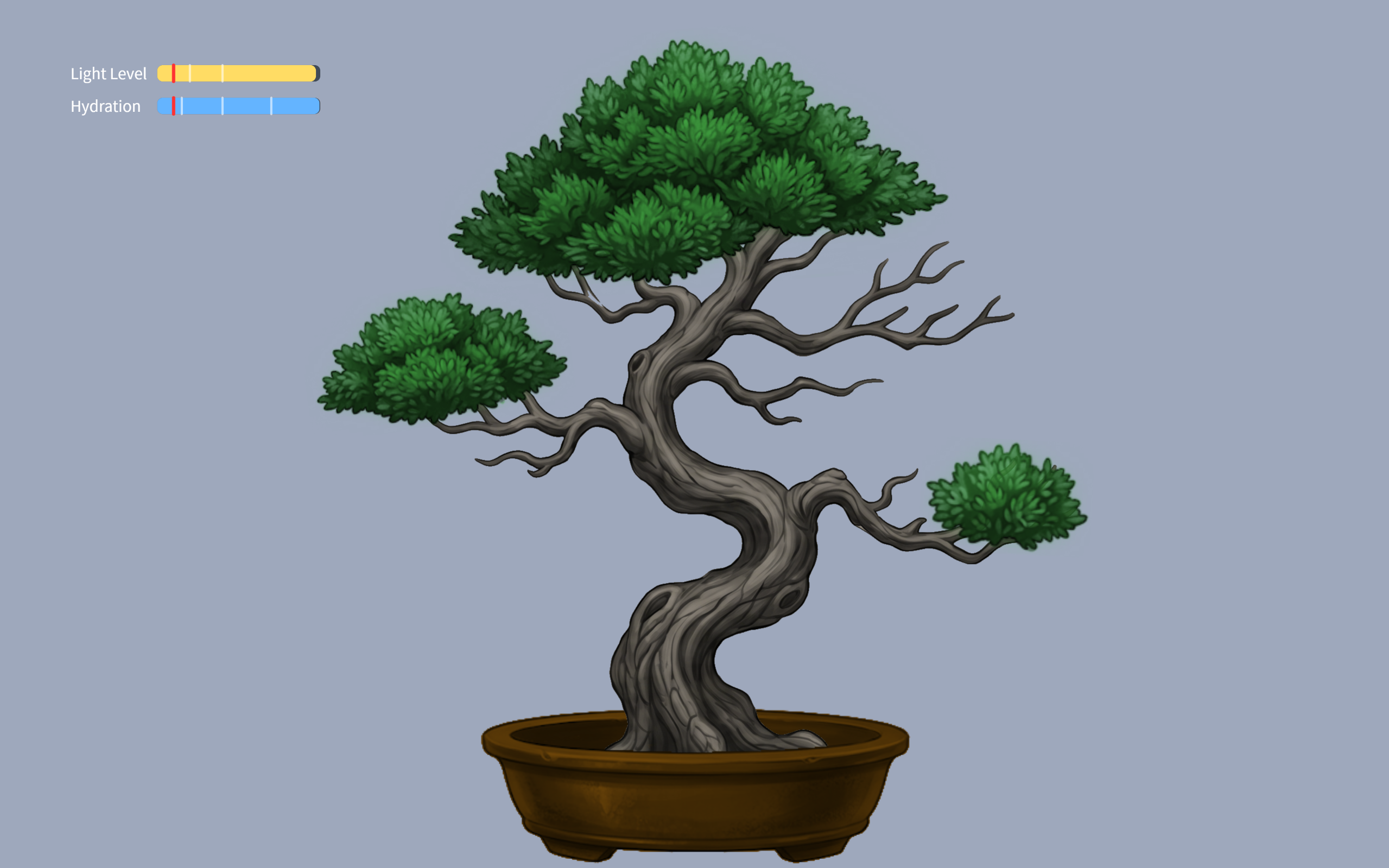
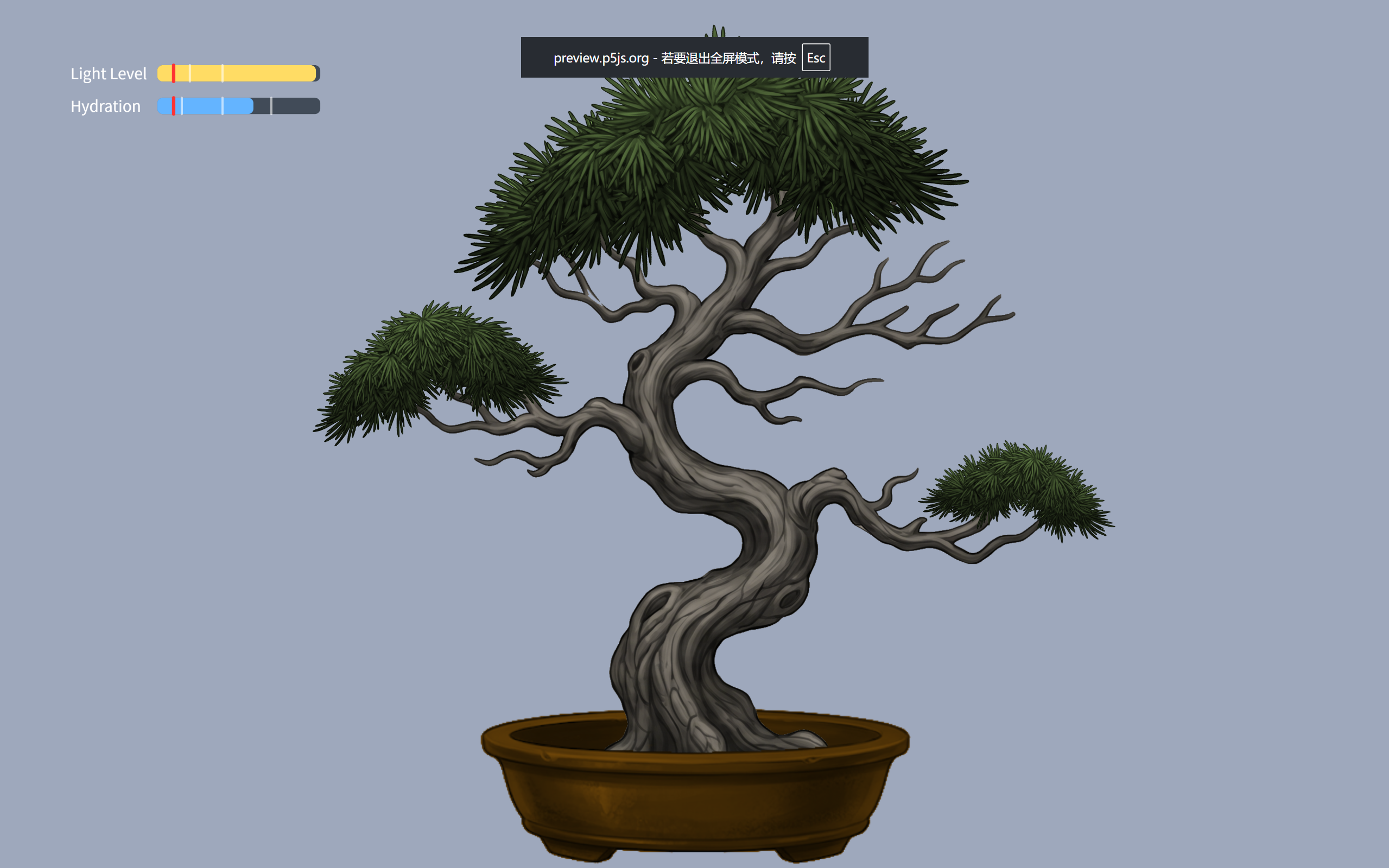
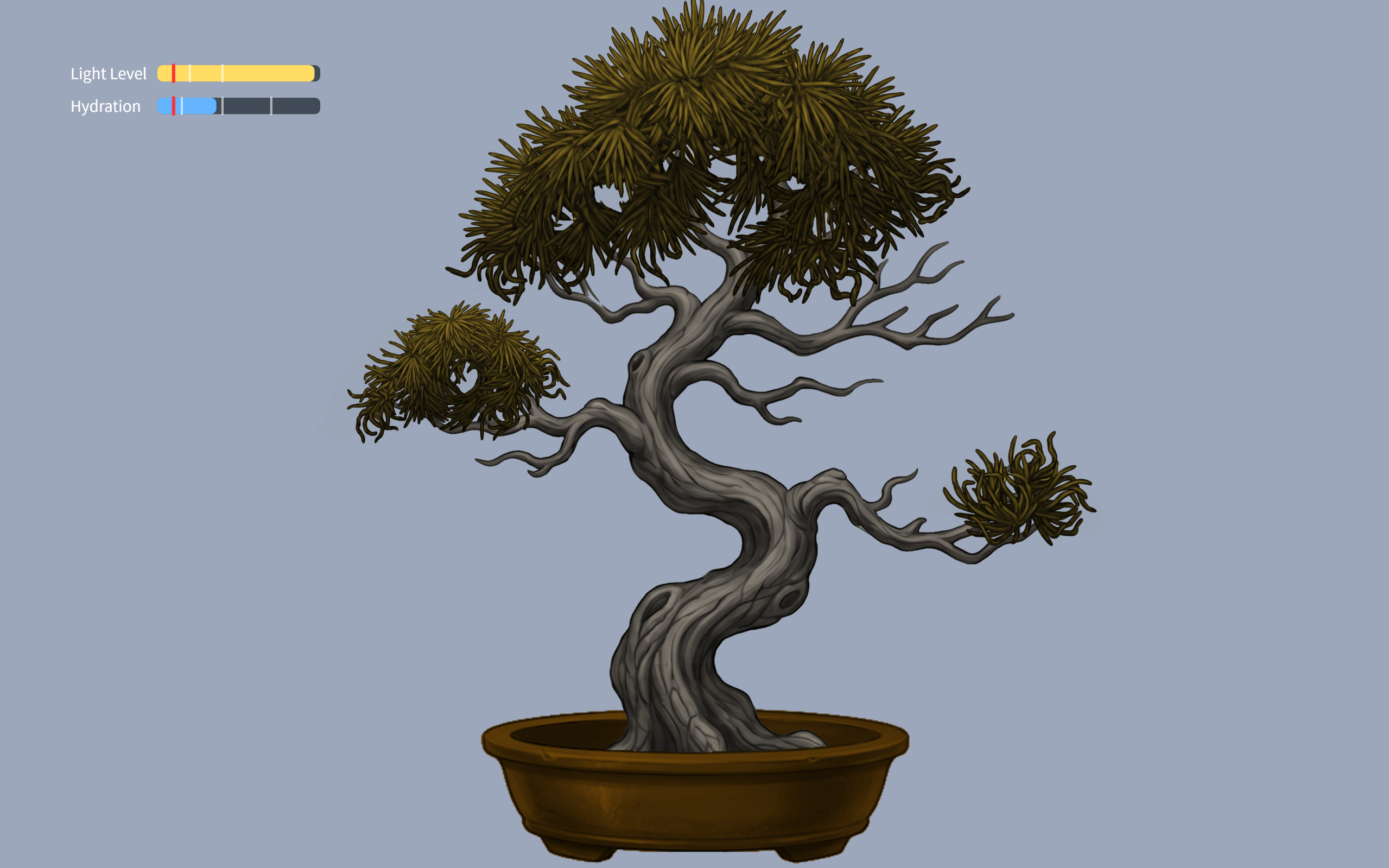
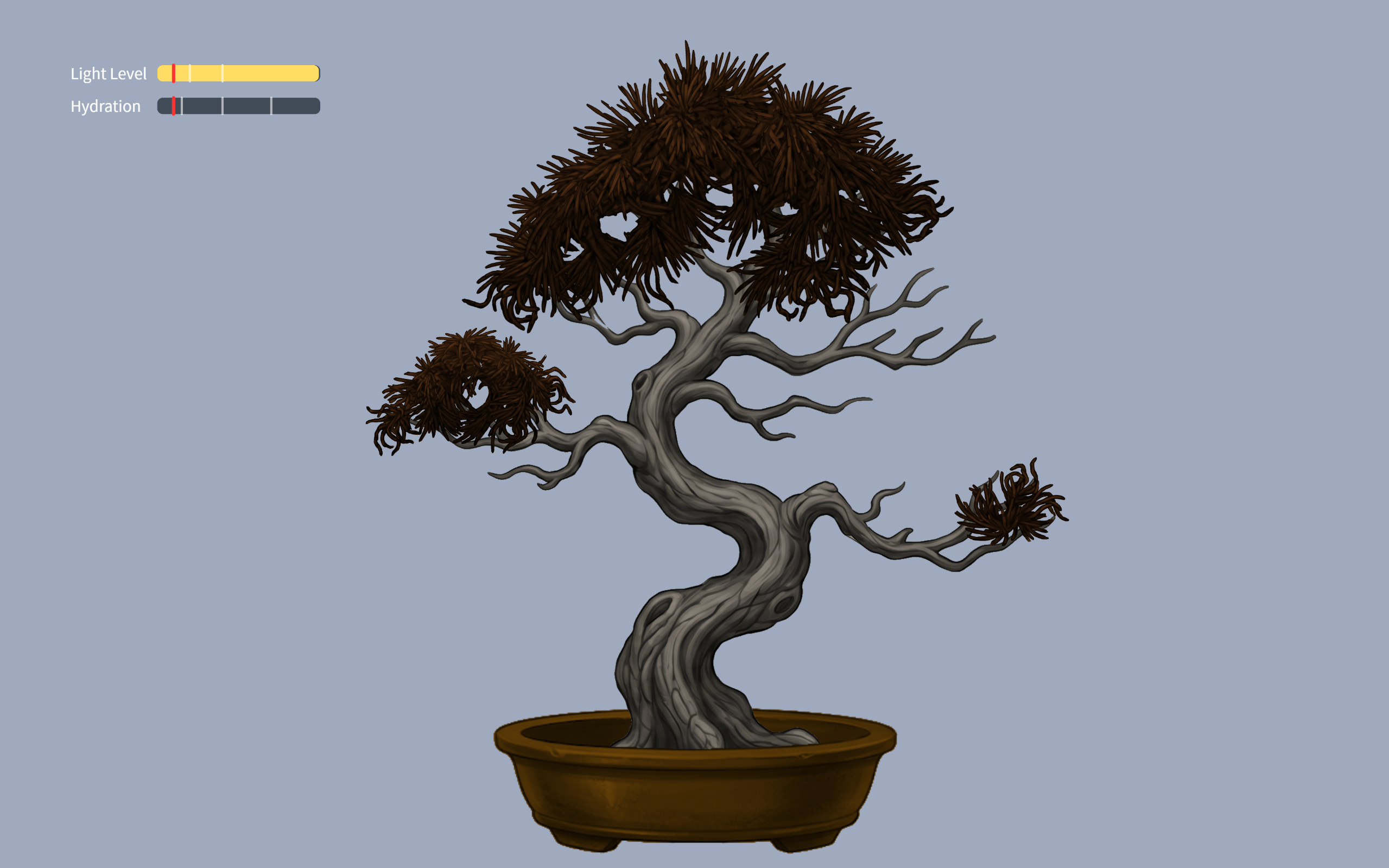
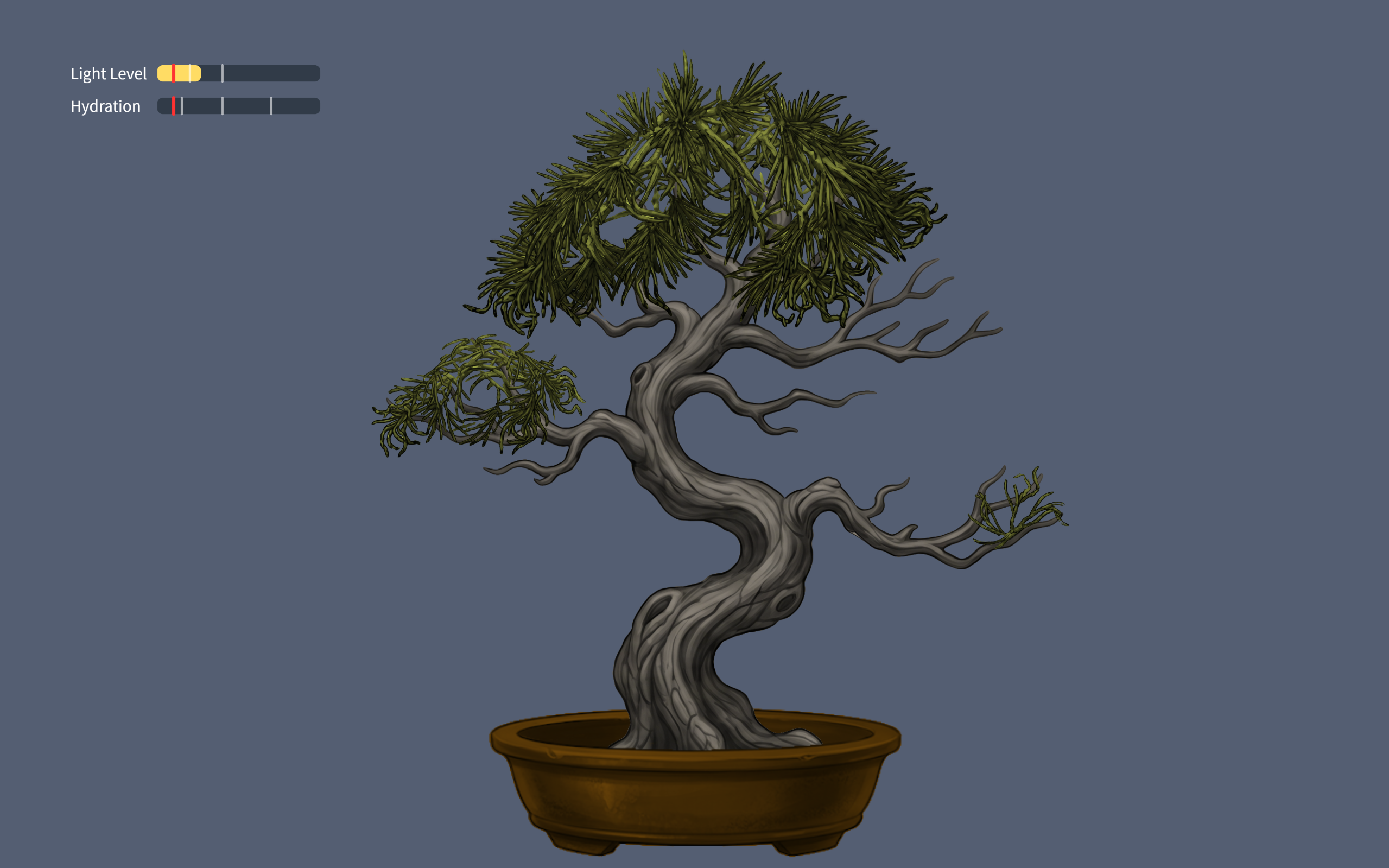
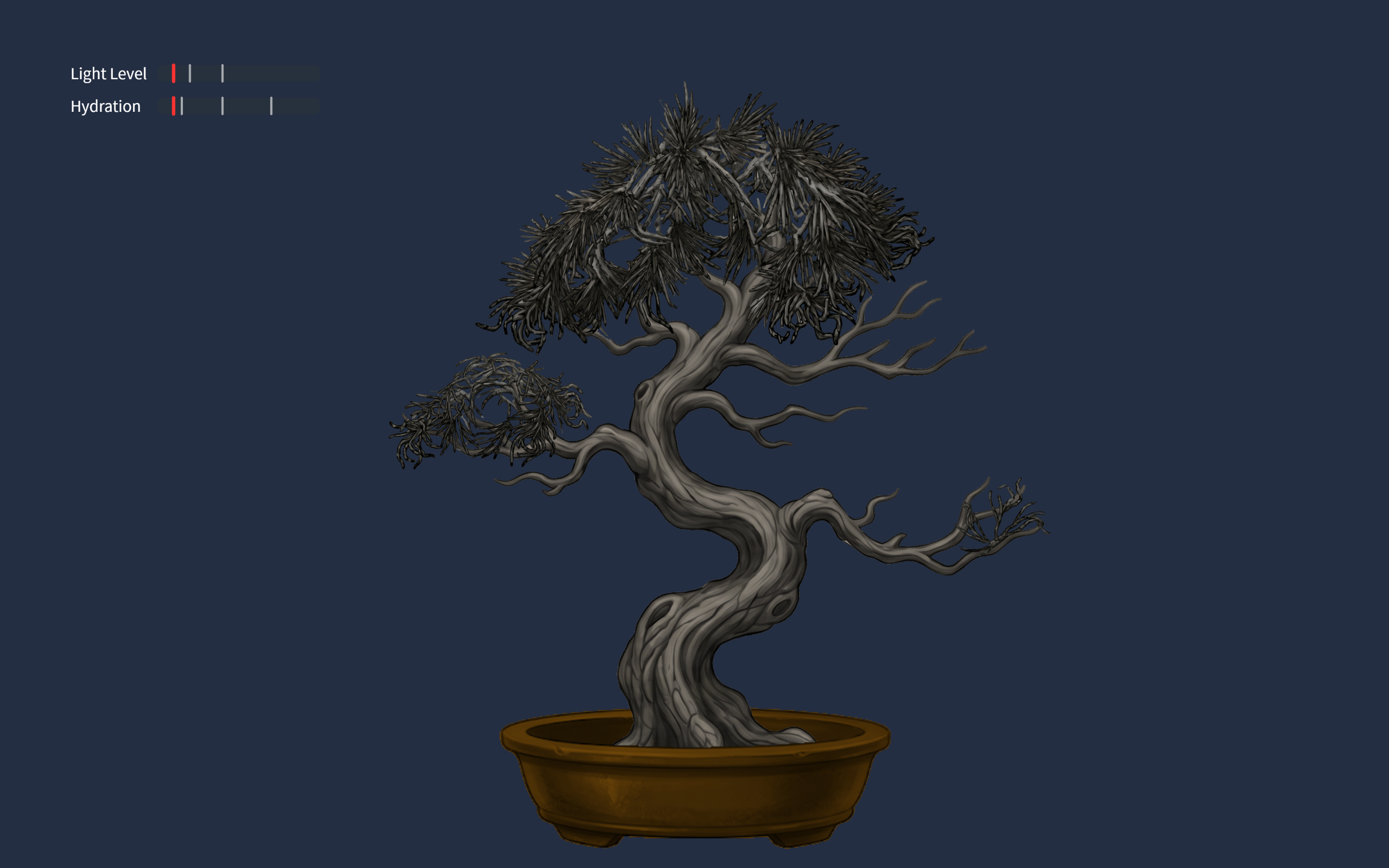
I want to create a calming, meditation like interface where the usdders physical actions are recorded using arduino sensors and shown as the physical states of a bonsai in the p5 sketch. Essentially, the user will be able to take care of the plant through caring for themselves.

Inspiration

My original thought was only to make something that can feel calming, because I have been staying indoors too much lately and that is emotionally frustrating. When I was thinking of exactly how to do it I thought I am not feeling my best because I am inside and not getting enough sunlight, air, and hydration, which is also what plants need to thrive. Its also spring outside, which gives people a sense of life and flourishing growth, making everything feel hopeful. These just clicked and I thought why not use a plant and a growth of a plant to create the calming, meditating effect? I first thought of using a flower but then the blossom of the flower would be like a “win” ending, which is not exactly what I am aiming for. So I looked for some plants related to meditation and found the bonsai, a sort of specially treated plants coming from Japan. Gardenery and taking care of plants in Japan is considered to be a calming process, generating a meditation effect, so I decided to use that as the final design.

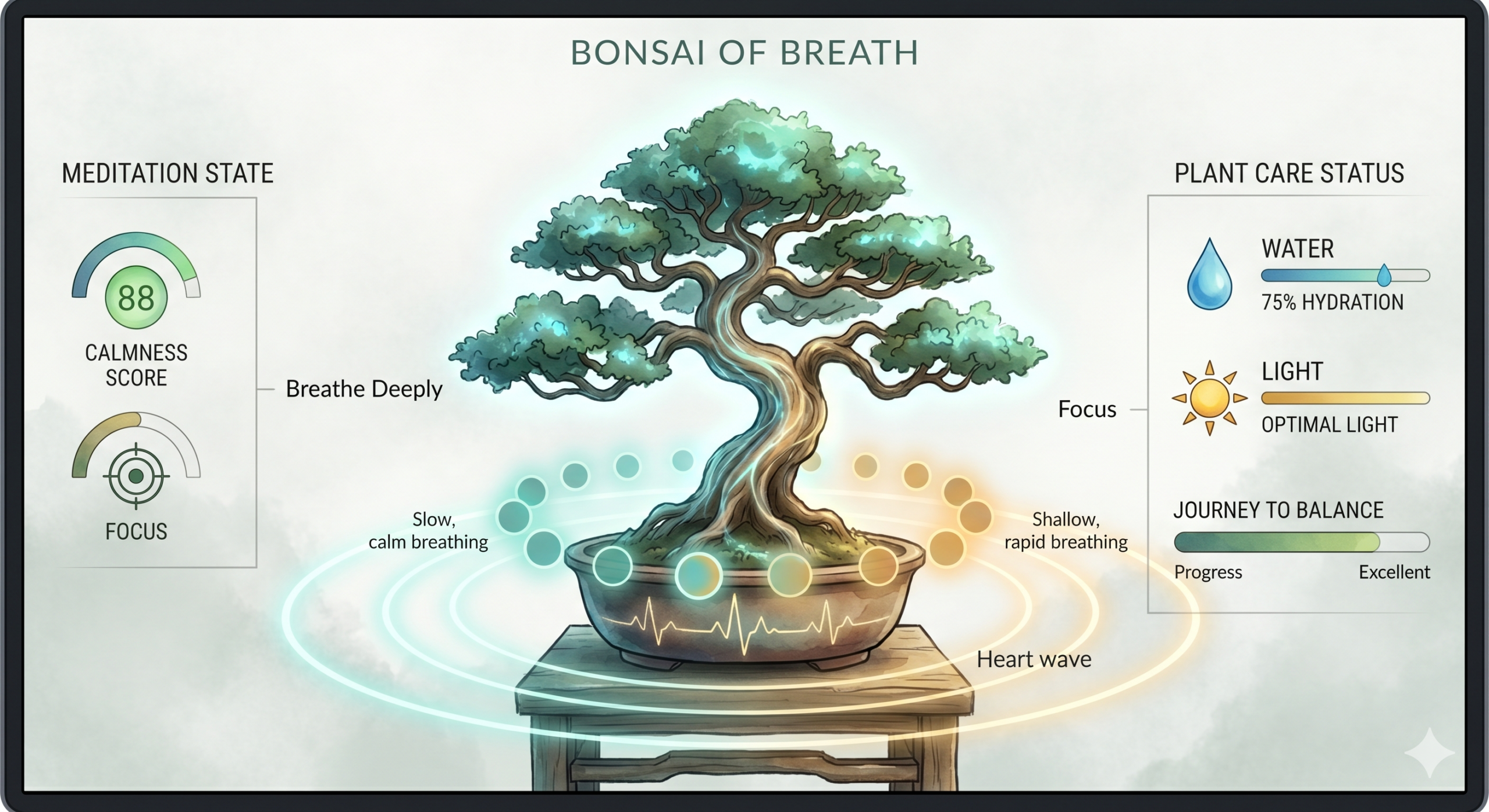
Conceptual Interface sketch

(conceptual image generated by gemini)

My current idea is that the user’s breathing or heartrate can be monitored through certain methods. These can be then used to assess stress levels and reflecfted towards the plants growth. If possible I would want the plant itself to move its leaves or wave in sync with the users breath. Watering of the plant can be done by tilting the tilt sensor (like when actually watering plants) or by the user themselves drinking water. I am still deciding between the two ideas.  Light conditions is directly linked to the users light conditions, since staying in a sunlit room is probably more emotionally beneficial to the user than staying in a dark room. Focus might be assessed by fidgiting or other factors, which may include flex or distance sensors, which I havent decided on.

References

https://greengoddess.com/the-zen-of-bonsai-cultivating-tranquility-in-miniature-landscapes/

Google gemini for image genrating.

Tutorials of interest

arduino breathing monitor:

https://www.youtube.com/watch?v=WDRokF_ZW9A

arduino heart rate monitor:

https://www.youtube.com/watch?v=aKus0FV4deU

flex sensor:

https://learn.sparkfun.com/tutorials/flex-sensor-hookup-guide/all

tilt sensor:

https://lastminuteengineers.com/ball-tilt-switch-sensor-arduino-tutorial/

Week_11_Reading Response

The most interesting idea raised by the article is shifting assistive devices from hiding the disability to embracing design. Glasses were used as an example of a good design that became a fashion trend rather than a clinical tool. But apart from its simple structure and variability in shapes and forms, I would tend to believe that another reason classes is such a success is because nearsightedness is increasingly common, and the variety of design came from the variety of needs. This idea could also insipire designerd to look at what the disabled group actually want for their assistive devices.

The other idea mentioned about not overburdening the device with features relates to one of the other readings in the past weeks about the realationship between mood, design and usability. Keeping the design simple would make it easy and good to use, but would lack emotional function. Adding design to the devices would add emotional support, which would also help bring a more possitive view to disabilities, making it less of a thing to be ashamed of. This would in turn generate more interest in design of diasbility aid and  actively catalyze and inspire broader design culture.

Week_11_Assignment

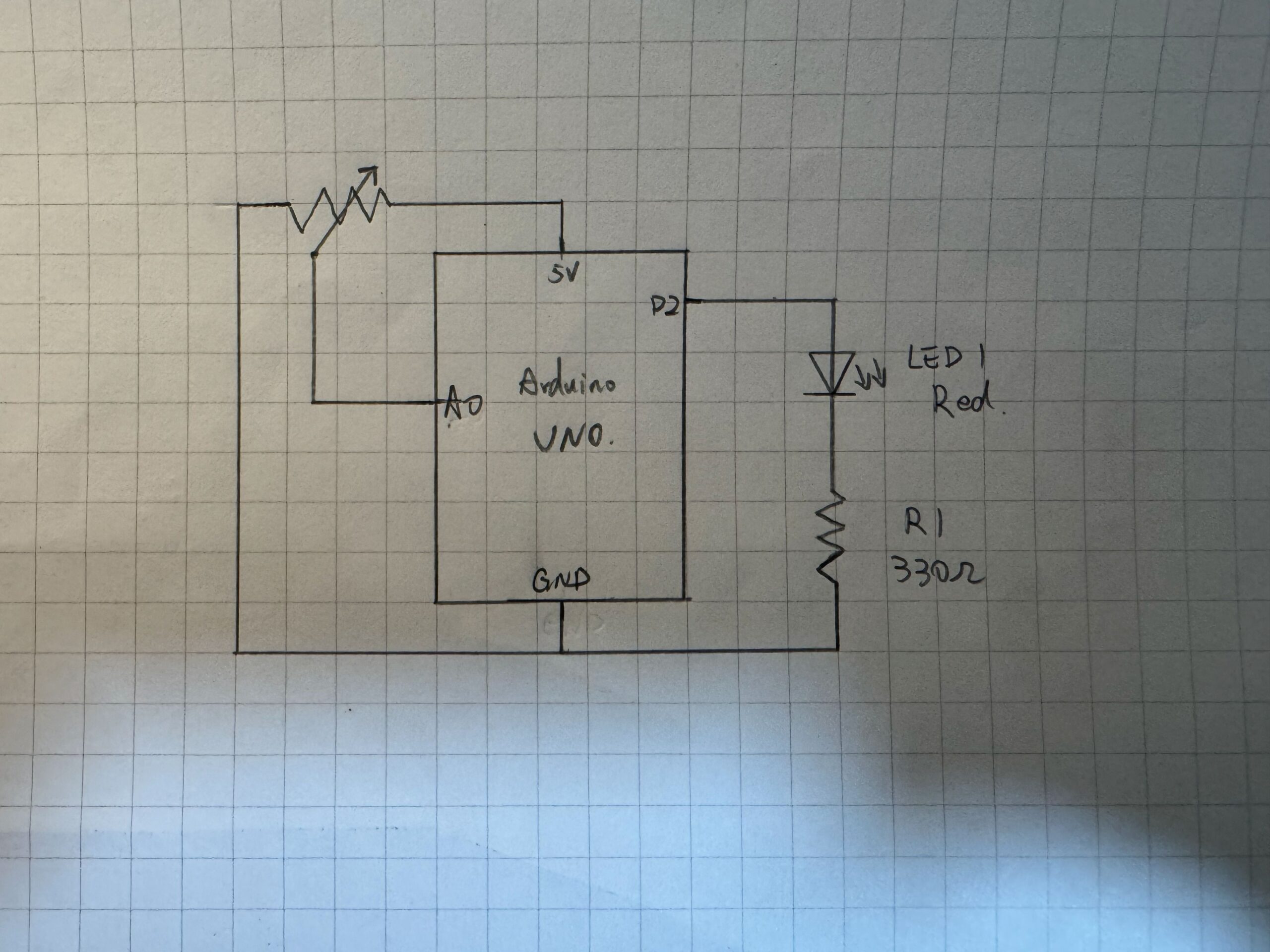
Schematics

Video Demo

P5 code

https://editor.p5js.org/JingyiChen/sketches/8ggtbgHZV

I made changes to the code to include the serial communication components and also adjust the LED logic slightly so it would fit the bounce better. The code for serial communication was all adapted from the week 11 example 2 bidirectional communication example.

//original bounce code, but it doesnt work well if I put the ledState deciding if else in here.
if (position.y > height - mass / 2) {
  velocity.y *= -0.9; // A little dampening when hitting the bottom
  position.y = height - mass / 2;
}
//so I added another if statement to individually decide whether the LED should light up according to ball y position
//first line creats a 15 pixel range near the bottom line for the led to light up, to prevent the glitch like blinks that would happen with the original bounce code.
if (position.y > height - mass / 2 - 15) {
  // Use the absolute of the velosity so the ball triggers the LED on both the way down and up
  if (abs(velocity.y) > 2) {
    ledState = 1;
  } else {
    ledState = 0;
  }
} else {
  //if the ball is not within the 15 pixel range
  ledState = 0;
}

This code snippet is where I added some logic to make the LED poerform more in sync with the bounce. Originally I added the ledStae changee directly to if (position.y > height – mass / 2){}, which resulted in a bit of a glitchy looking blink, which I think might have to do with the very small time frame on the on signal and the time it takes for the information to be communicated between p5 and arduino. So I added another if statement to have the LED turn on when the ball is in a 15 pixel range above the bottom line, and also checked the velocity so the led does not stay on when the ball is barely bouncing or stationary. This make the led a lot more stable and light up correctly every bounce.

Arduino code

https://github.com/JingyiChen-jc12771/Intro-to-IM/blob/8f5bdbc0282acbce4a7edea2334f1305c493216c/W11_01_serial_simple_potentiometer.ino

The arduino code is also adapted from the week 11 example 2 bidirectional communication example. I changes the code very slightly so it would reflect the wiring of having only one input from the potentialmeter.

Difficulties and areas for improvemment

The biggest difficulty was the glitchy blink when I added blink code to the original code. I spend some time trying to figure out why but because I couldnt find anything wrong with the p5 or arduino code I had to guess it was timing differences. It would have been better if I had been able to uncover the root cause of the problem and figured out how to solve it in the original code.


Week_10_Assignment

Concept

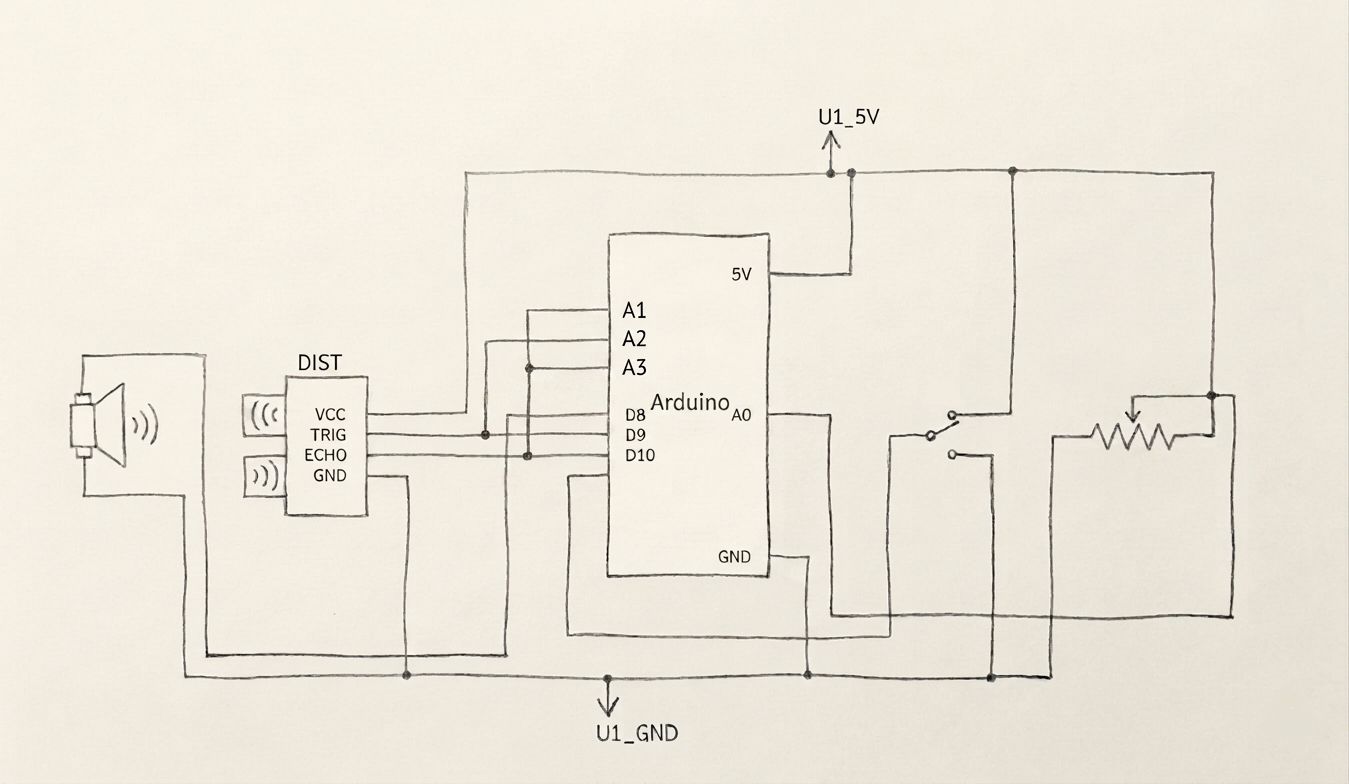
The requirement of creating a musical instrument with electrical components made me think of the Theremin, but I didn’t want to copy the logic comletely. So I dicided to use the ultrasonic distance sensor to imitate the change by hand movement. I also wanted to make the instrument a beat generater, because beats can be manipulated in their pitch, tempo and even rhythm pattern. This allows much more variation. So the ultimate design concept was to have the ultrasonic distance sensor acts as a pitch controller, where the player can move thir hand away or closer to the sensor to control pitch, the potentialmeter controls the tempo, and the toggle switch allows alternation between rythm patterns.

Video Demo

https://drive.google.com/file/d/1FMsPLRa6d30ubt3L1F19-kvFab5APs4L/view?usp=drive_link

Schematics

Code Snippet

https://github.com/JingyiChen-jc12771/Intro-to-IM/blob/e15f6f3478d8937ba91372ab2eed7e34a691b2b8/Week_10_assignment/Week_10_assignment.ino

int scale[]={NOTE_C4, NOTE_D4, NOTE_E4, NOTE_G4, NOTE_A4, 
  NOTE_C5, NOTE_D5, NOTE_E5, NOTE_G5, NOTE_A5};

The code shown above is the note array. It is used so not every single sound in the range of the distance to pitch mapping is used. This removes the more irritating pitches and leaves the actual notes, just to make the instrument sound better.

long duration,cm;
int switchState = digitalRead(switchPin);
//measuring chunk for the ultrasonic distance sensor
digitalWrite(distPin,LOW);
delayMicroseconds(2);
digitalWrite(distPin, HIGH);
delayMicroseconds(10);
digitalWrite(distPin, LOW);
//records the time between output of ultrasound and echo. 10000 sets a limit in case there is not close enought object, it prevents the program from stopping completely by setting cm to 0.
duration=pulseIn(echoPin,HIGH,10000);
//uses the convertion function to convert the time to distance
cm = microsecondsToCentimeters(duration);
//if the distance of object is further than 50cm away treat it as 50cm, this limits the range of distance.
if(cm==0||cm>50){cm=50;}
//map the distance to the array of notes, 2 is the reliable begining measurement of the sensor
int noteIndex = map(cm, 2, 50, 0, numNotes - 1);
int currentNote=scale[noteIndex];
//the function to convert time to distance, 10000 time would result in 0cm
long microsecondsToCentimeters(long microseconds) {
  return microseconds / 29 / 2;
}

This is the chunk where the distance sensor is activated and does its measuring, and the measurements are mapped to the note array. The code for initiating ultrasound release and receiving echos are referenced from a tutorial for 4 pin ultrasonic sensors on the Arduino project hub and the Arduino IDE Ping example for 3 pin ultrasonic sensors. The code tells the sensor to be quiet for 2 microseconds, emit ultrasound for 10 microseconds, and then stops so the echo can be listened for. Then the time it took for the echo to get back is assigned to the duration variable, which is converted to distance in cm used the function i found in the Arduino Ping example. The distancer is then mapped to the indexes of the note array, so distance would corresopond to note.

if (currentMillis - startMillis >= tempo) {
    startMillis = currentMillis; 
    beatStep++;
    //the beat generation
    //switch controls two states, one where the beats play at a steady tone
    if(switchState==HIGH){
      tone(buzzerPin,currentNote,50);
      //In the other state the beat is deeper at even beats and lighter at odd beats
    }else{if(beatStep%2==0){
      tone(buzzerPin,100,50);
    }else{
      tone(buzzerPin,currentNote,50);
    }
  }
}

This code snippet is the part that times the beats and controls the button alternation between the two rythm styles. The timer uses the same logic as the timer we have done in p5. Time passed is recorded in millis. the time the last beat was played was assigned to “startMillis”, and current time is “currentMillis”. When time interval between the two millis exceed the tempo, the next beat is played.

One of the switch state plays a steady tone, where the beat is played at the pitch defined by the redings of the distance sensor all the time. The other state plays an alternating pattern.  if(beatStep%2==0) results in even beats playing at a hard coded 100Hz, and odd beats at the distance influenced pitch. This can also be modified. The even beat can be made half the frequency, double the frequency, or pitch desired.

Reflection

The biggest challenge was with the timer. Initially we tried to use delay as we did in all our previou codes and the whole unit would freeze and not work at all. Thinking back to our P5 experience we figured using a background timer of millis would allow the unit to keep running between beats. The end result was good and the beats flowed smoothly. Something we could have done better might be to expand the array so the pitches are not that limited. Something else that would have been fun but a bit less feasible is adding more push buttons, and make the pitch or overall style change when the button is pushed, like a groove box. But that would work better if the output was not limited to a piezo speaker. That would allowe a wider variety of sounds and might even create some DJ effects.


Week_9 Reading Response

The two articles give insights into how to design as well as present interactive media. For the content of a design, the author states that beginners shouldn’t fearideas just because they are not completely original and “have been done before”. These common projects recur year after year, indicating that they are classic setups that give much room for modifications and more original design. Things like musical interfacersm floor pads, mirrors and body cursors are representations of such “common” projects. They have been made and displayed in so many projects, yet each in a differnet way and seving a new experience.

The other article is about the presentation of interactive meda. The key is “Dont interupt your own work.” Art is a communication, the meaning of the art and the thoughts behind it should be conveyed through the interaction between the art and the user. Any hint or required action should be convey ed by the design itself like putting a handle when something should be touched. The designer of the art should be like the dictor, providing the necceseties of the interaction and then stepping back and observing what happens. The designer should not interfere with the work when an interaction is happening, because the audience is “completing” the work through their own unique interactrions.

Week_9_Assignment

Concept

Since the assgnment requireed analog and digital input to be used on two LEDs, I thought it would make sense that the digital input change the effect of the analog input. The potentialmeter would control either the brightness of the LED or the speed of its blinking, and the push button can swich between these two states.

Demonstration:

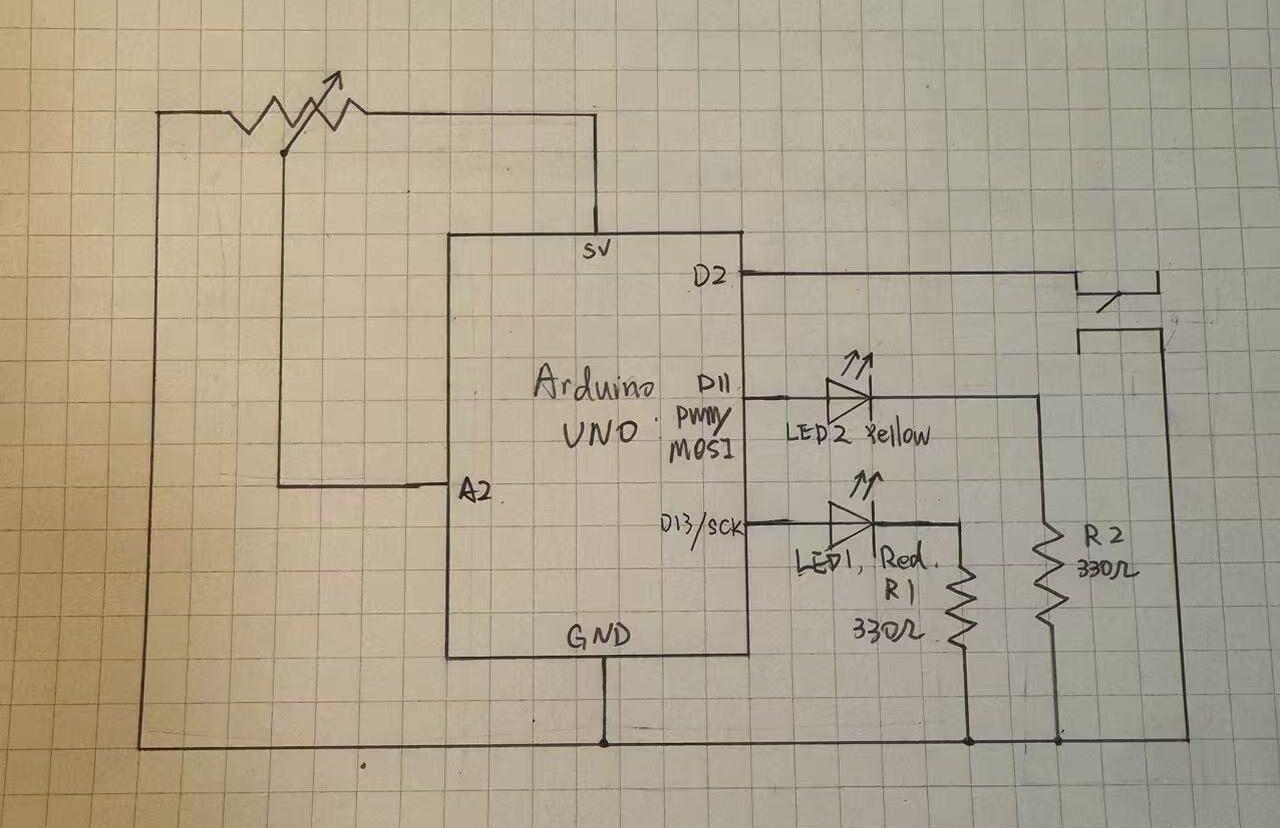
Schematics:


The potentialmeter input is plugged into analog pin 2, anolog output is connected to the yellow LED2 through digital pin 11, digital output is connected to red LED1 though digital pin 13. A 10k resister was not used with the push button because I tried the INPUT_PULLUP, which utalized the resistors default inside the arduino chip.

Code Snippet

https://github.com/JingyiChen-jc12771/Intro-to-IM/blob/35e184a707590f804979dca4b80f30b7e12bd01d/Week_9_assignment.ino

if (buttonState==LOW){
  //turn off yellow LED
  analogWrite(analogLed,0);
  //Bling red LED
  digitalWrite(digitalLed,HIGH);
  delay(sensorValue);        
  digitalWrite(digitalLed, LOW);          
  delay(sensorValue);
}else{
  //Turn off red LED
  digitalWrite(digitalLed,LOW);
  //control yellow LED brightness
  analogWrite(analogLed, sensorValue/4);
  delay(30);
}

This is the if-else loop that is responsible for the logic of the circuit. When the button is pressed it turns off the yellow LED and make the red LED blink with a delay od the potentialmeter reading. Since the reaidng is betwenn 0 and 1023 the longest delay is about 1s which is a resonable wait. When the button is pressed, the red LED turns off and the makes the brightness of the yellow LED 1/4 of the analog reading, mapping it to 0-255.

Some space forimprovement is that a regular switch can easily replace the function of the push button, even allowing the user to keep the circuit in whichever state they prefer, though it would bea bit less fun. It would be better if I find a way to display the uniqueness of the push button as a digital input.

AI was not used in this assignment.

Week_8 Reading Response

The article “Her Code Got Humans On The Moon” centers around the story of Margaret Hamilton. She was an outlier in a field which was very male-dominant at the time, bringing her daughter to the lab and supporting her husband who was going to law school. She contributed to the Apollo mission by implementing human centered peogramming and coding to give space for human error. NASA ignored her at first until the fatal error appeared in Apollo 8 and proved her correct. Her program also landed Apolo 11 safely on the moon by using asynchronus processing.

The article “Emotion&Design: Attractive things work better” caners on the psychologyu of user experiewnce. Usefulness and beaty was thought to be non-compatible. But the affect of beauty on mood showed that the beauty of products can allow some of its flaws to be ignored, making the design more useful. But it all eventually comes down to a balance of the two, because mood can influence the effect of the product. The design needs to adhere to its function. Designes used in high stress environments need to be easy and intuitive, while those made for leisure and pleasure can have more focus on beaty. Ultimately, design shound be centered around human need.

Week_8_assignment

Concept

I forget to drink water really often and always end up thirsty and dehydrated. So I thought of making a switch related to drinking water. This would make hydrating fun and mightg help people like me drink more water.

Here is my code

https://github.com/JingyiChen-jc12771/Intro-to-IM/blob/301c1448abf22661b1033a517ff53e9c13ab22f5/Week_8_assignment.inohttps://github.com/JingyiChen-jc12771/Intro-to-IM/blob/9e60105408124b158475443086f933d8e62a9231/Week_8_assignment.ino

My ciurcuit:


Demonstration video

Code snippetvoid

void setup() {
  // put your setup code here, to run once:
  pinMode(13, OUTPUT);
  pinMode(A2, INPUT);
}

void loop() {
  // put your main code here, to run repeatedly:
 int buttonState = digitalRead(A2);

  if (buttonState == HIGH) {
    //Not repeating the code uses the void loop and makes the LED blink as long as the circuit is connected.
    digitalWrite(13, HIGH);
    delay(200);             
    digitalWrite(13, LOW);
    delay(200); 
  } else  {
    digitalWrite(13, LOW);    
  }
}

I used pin 13 as output to the LED and pin A2 as input from the switch circuit. The circut structure was the same as our practice input structure in class, except changing the switch to the  cup. The 5v end was connected to one aluminum foil on the cup. the other piece of foil was inputted into pin A2 and connected to a 10k$\Omega$ pull down resistor. The LED was connected using normal circuit from pin 13. 

The switch is connected when there is water conducting the electricity between the two aluminum foils, which is what happens when I drink water. This results in buttonState==HIGH and the LED running the code to blink. When the water is removed the circuit is disconnected, resulting in buttonState == LOW

Reflection

The first time I buit the circuit I put the foils too close to each other so water drops would stick between them even if I am not drinking, causing the circuit to be connected all the time. I  solved this by moving the foil apart and also adding tape layer on top of the foils on bottom corner of the inside of the cup of where I would sip. This secured the foil in place and also served as a insulation for any small amounts of residue water whithout affecting the actual initiation of the circuit.

Complete Midterm

Complete  midterm:

Since the project neeed to be interactive, I was inspired by multiple souces that I have experience, like the interactive haunted Queren Mary story and the film “Night at the Museum”.  I deciede to do an interactive storytelling about a spooky story based in the museum setting. I enabled the player to make choices at multiple points in the stories, leading to different endings accordingly. I wrote the story myself and and organized the branching so seemingly safe choices can have unexpected turns.

Surprisingly though, the most difficult part of my project was not actually the coding but having AI genertate images for me. With coding I was able to see  what was wrong and physically fix it, and as long as I code it correctly it will do its job. But with AI generating images it sometimes just doesn’t get what I am saying. And since AI don’t actually see the images it really has difficulty when I want it to edit or make changes to the image it generated.

The way my project works is that I put all my scenes in the “playing” gamesate in a giant object called storyData, and made them nested objects. The storyData is coded in an individual .js file. This allows the main code to be organized since it only fetches the  information. The properties of the scenes, including: nnames of scenes, their relations,  the audio, visual, duration, text, delays and choices for individual parameters are all in the storyData file. Example is below.

storyData.scene1_part3 = {
  text: "In the darkness, you hear laughter in the corridors...",
  duration: 5000,
  textDelay: 1500,
  visual: "booth_dark",
  audio: "girl_laughter",
  choices: [
    { label: "Investigate", next: "scene2_part1" },
    { label: "Stay", next: "scene3_part1" },
  ],
};

This object file functions throught my drawCurrentScene  function, which I am sort of proud of.

function drawCurrentScene() {
  background(0);
  let scene = storyData[currentSceneId];
  //image
  if (myImages[scene.visual]) {
    let currentImg = myImages[scene.visual];
    let aspectRatio = min(
      windowWidth / currentImg.width,
      windowHeight / currentImg.height
    );
    let drawWidth = currentImg.width * aspectRatio;
    let drawHeight = currentImg.height * aspectRatio;
    image(currentImg, windowWidth / 2, windowHeight / 2, drawWidth, drawHeight);
  }
  //timer
  let elapsedTime = millis() - sceneStartTime;
  //audio mechanism for deplayed audio. Undelayed audio mechanism is with the changeScene function
  if (
    scene.audioDelay &&
    elapsedTime > scene.audioDelay &&
    lateSoundPlayed === false //If the scene has audio delay and time is more than delay and the delayed sound has not been played
  ) {
    mySounds[scene.audio].play(); //play the sound and indicate the delayed sound has been played
    lateSoundPlayed = true;
  } //This state mechanism for sound prevents if from playing every time draw runs
  //text (subtitle) display
  let delayTime;
  //if the scene has text delay make the delay time that, if not make it 0
  //The undelayed text cannot go in changeScene like the audio because it needs to be drawn every frame constantly. It must be in draw.
  if (scene.textDelay) {
    delayTime = scene.textDelay;
  } else {
    delayTime = 0;
  }
  //if time has passed delay,
  if (elapsedTime > delayTime) {
    //draw the background box for subtitles
    rectMode(CENTER);
    fill(0, 0, 0, 200);
    rect(
      windowWidth / 2,
      windowHeight * 0.85,
      windowWidth * 0.7,
      windowHeight * 0.1,
      10
    );
    //drawing the text
    fill(255);
    noStroke();
    textAlign(CENTER, CENTER);
    textSize(windowHeight * 0.04);
    // 4th parameter limits the max width of the text, keeping it from going out of the box
    text(scene.text, windowWidth / 2, windowHeight * 0.85, windowWidth * 0.7);
  }

  //scene change logic
  if (elapsedTime > scene.duration) {
    if (scene.autoNext) {
      changeScene(scene.autoNext); //If the scener has an automatic connecting scene, change it to next scene
    } else {
      rectMode(CORNER);
      fill(0, 0, 0, 100);
      rect(0, 0, windowWidth, windowHeight);
      if (choicesDisplayed == false) {
        //If it does not have automatic next scene but has choices, draw the black veil and display the choices
        displayChoices();
      }
    }
  }
}

The drawCurrentScene function was written so it would work for every scene that has information in the storyData file. It draws the image fulfilling the current window size,  creates the scene timer, uses that timer to operate audio and visual delays and scene duration and decide how to change the scene to the next scene based on the parameters of the scene. This allows a smooth flow of the game as if it is a video when the player does not need to interact. When the player does need to make choices, it allows unlimited time on the choice page. Because every scene needs to go through all these processes, coding it in this way allows 50 scenes to go through one function instead of having 50 processes, making the code much easier and much more organized.

It actually also allows super easy editing. If you don’t like any part of the story or want to add or delete anything, because of the existance of this function, you would only need to change or add or delete things in storyData. And since storyData is only storing infotmation, it follows less strict order and organization rules than the main code. Making changes to it would be a lot closer to human language and easier.

I am also quite proud of my logic for updating element position when the canvas is resized. The code actually encorporates multiple functions

function windowResized() {
  resizeCanvas(windowWidth, windowHeight);
  //resize and reposition button accordingly
  //start button
  if (gameState === "start" && startBtn) {
    //size
    let startWidth = max(200, windowWidth * 0.15);
    let startHeight = max(50, windowHeight * 0.08);
    let startFont = max(20, windowWidth * 0.02);
    startBtn.size(startWidth, startHeight);
    //positionn
    startBtn.position(windowWidth / 2 - startWidth / 2, windowHeight / 2 + 50);
    startBtn.style("font-size", startFont + "px");
  }
  //same for return button
  if (gameState === "credits" && returnBtn) {
    let btnWidth = max(200, windowWidth * 0.15);
    let btnHeight = max(50, windowHeight * 0.08);
    let btnFont = max(20, windowWidth * 0.02);
    returnBtn.size(btnWidth, btnHeight);
    returnBtn.position(windowWidth / 2 - btnWidth / 2, windowHeight * 0.85);
    returnBtn.style("font-size", btnFont + "px");
  }
  //game button
  if (choicesDisplayed && choiceButtons.length > 0) {
    for (let i = 0; i < choiceButtons.length; i++) {
      let btn = choiceButtons[i];
      updateButton(btn, i, choiceButtons.length);
    }
  }
}

I not only changed the canvas size according to window size in this code. I also included the button elements and repositioned them accordingly. I found out when I tried my code the HTML elements do not move like the texts do. They dont stay in the same position relative to the canvas. So I actively coded them to calculate new size and position when the canvas is resized. This function is then called in the buttonFunction function so they would be ready to act every time a button is created.

function buttonFunction() {
  //take the value from the button and give it to variable nextScene
  let nextScene = this.value();
  for (let i = 0; i < choiceButtons.length; i++) {
    //remove the buttons from the screen
    choiceButtons[i].remove();
  }
  //empty buttons array for new round of choices
  choiceButtons = [];
  //reset choice display state
  choicesDisplayed = false;
  //If next scene is credits
  if (nextScene === "credits") {
    //change game state in the state mechanism
    gameState = "credits";
    //display the restart button
    returnBtn.show();
    //use the windowResized function for reorganizing text and buttons for the credits screen.
    windowResized();
  } else if (nextScene === "restart") {
    //same logic as above
    gameState = "start";
    startBtn.show();
    windowResized();
  } else {
    //If it is just a choice in the story go with the story logic, the button doesnt need extra function.
    changeScene(nextScene);
  }
}

windowResized is called after the button is told to show. This way the buttons will always be in the right place no matter when or how the screen size is changed.

function startGame() {
  fullscreen(true);
  gameState = "playing";
  startBtn.hide();
  //input any scene here and its a quick portal to the scene
  changeScene("intro");
}

I also wanted to mention this code snippet that I found could also serve as a “maitainance platform”. This was originally written to changethe scene from start to intro and game state from start to playing. But change “intro” to any scene name that is in storyData and this serves as a portal to that scene. Without it I would have to needed to go through the whole story every time I changed something and wan to see the effect.

Some areas for improvement include adding fade in/out effects and more animation. When I looked through the game I felt that some scenes may need a gradual introduction effectr which fade in would perfectly suit. I wasn’t able to add that due to the limit of time. I tried to code it but bugs got in the way and I did not have enough time to trouble shoot the whole thing so I just deleted it. The game would also look better with more animation. But it would be near impossible to reproduce the shapes of spirits and ghosts in my current images with p5 code. The better way would be just make the plot a video, and code choices in between. But that would make it diverge from the goal for the midterm.

AI was used to some extent in this work. All the images used in this work was generated by Google Gemini accoirding to my requirements. For code, Gemini helped me with button styling. Because HTML objects were new to me I had trouble figuring out how to style them. Gemini introduced the different codes for button styling and I wrote the styling codes according to the examples provided. It also provided me with the idea of using an array for the buttons on the scene so they can easily be added and removed (line 433-436). (I originally only had array for choices so the buttons just got stuck on the screen). It also helped me with writing “not” in the if function (line 490) because I remembered it as || which was actually “or” and the code failed to work. Gemini also assisted my when I needed to find sound effect and voiceovers. It suggested using Freesound and Elevenlabs for these needs and gave me tutorials on how to use them. At the end ofc my project I also used Gemini for debugging once or twice when I encountered no councel error messages but the game crashing, because it was difficult for me to pick out the error among hundreds of lines of code. AI was used for help and assistance and did not write the code. The code was written based on an understanding of what was taught in class and what AI explained to me.

Reading Response Week_5

Computer visions differn from human vision in several ways. The human vision does not need pre-programed information about visual contexs to understand it directly. However computer vision is unable to do so without pre-programmed assumption about the context, or else it fails to understand. Human vision is also better at image level understanding instead of understanding or counting pixels, while computer vision is the exact opposite.

Some techniques to help computers see and track would be background subtraction: to help isolate moving object; brightness thresholding:  to detect change in picel brightness to infer change in the whole image; high contrast: so that the subject would stand out; simple backgrounds: to make background aubtraction and brightness thresholding easier.

Computer vision’s special capacity make it useful for bringing in a new perspective in interactive art. A computer vision will get differnt information or emphasis from the same image as a human, and the comparison or cooperation between the two would be a great lead for interaction. The computer vison is also objective and can pick up details, giving it the potential to learn its interactive audience better than a human would.