Create your 4 keys – Final project

Concept:
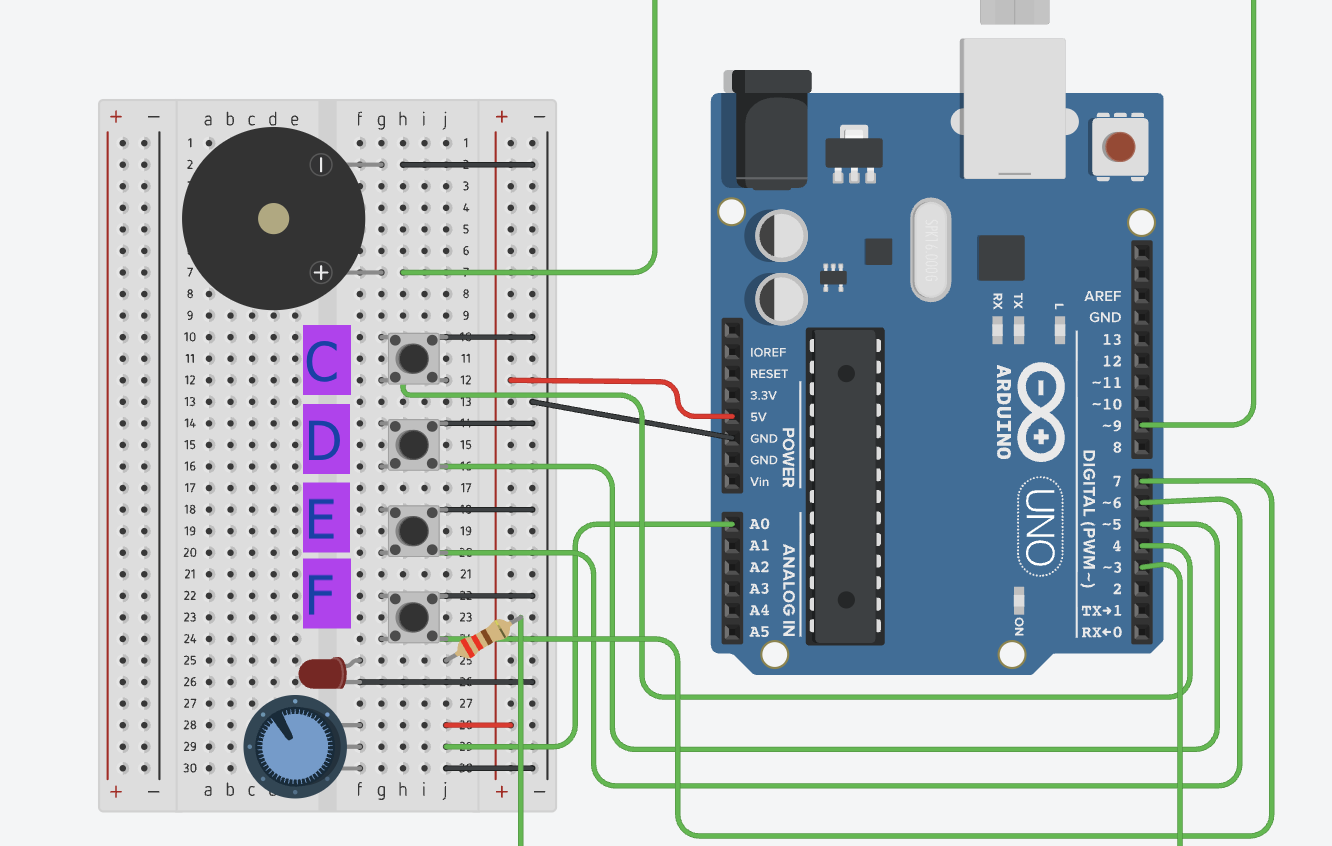
Create Your 4 Keys is an interactive music experience that allows participants to create their own rhythms and sound patterns using only four buttons. Each button acts like a musical key that plays a different note when pressed. The potentiometer allows the user to control and change the pitch of the sounds, making the notes lower or higher. I wanted to explore the idea of creating a simple music instrument for example Pianos usually have (from what I’ve seen) a lot of keys and sometimes it feels overwhelming, especially for people who are not musicians -like me and just want to learn!

So I started asking myself what can someone create with only four keys? Instead of focusing on every key and sound, I wanted to focus on only 4 keys for this project for experiments, rhythm, repetition, and just playing and having fun overall! Even with a limited number of buttons, the participant can still create many different patterns depending on the order, timing, and pitch of the notes they create.

The project of course is designed for anyone, even people with no musical background, because the interaction is meant to feel fun. Once the participant presses a button, the system responds instantly with sound which shows the action and feedback. The potentiometer also shows the interaction because it changes how the notes sound in real time, participants can change it and make it sound different.

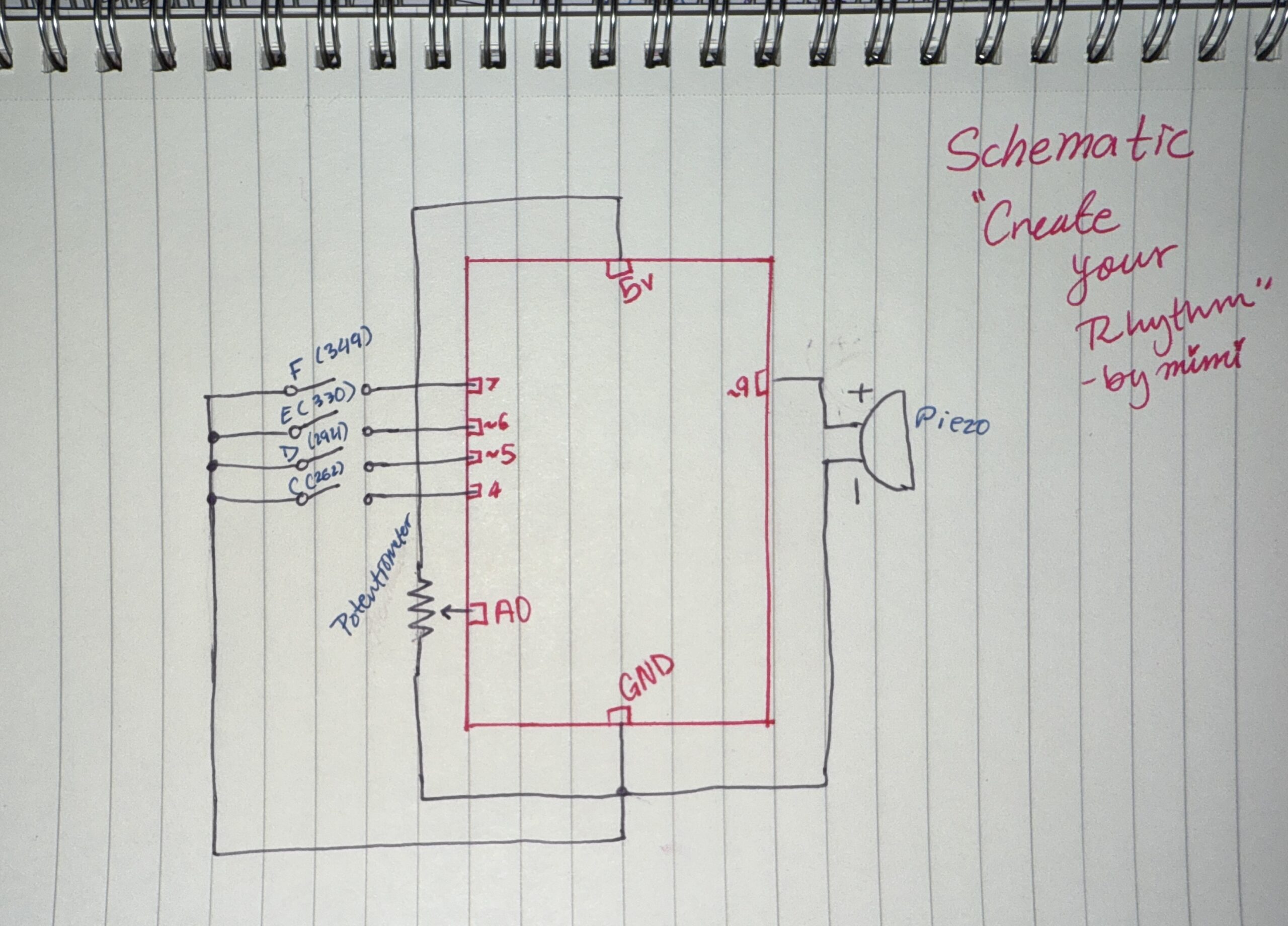
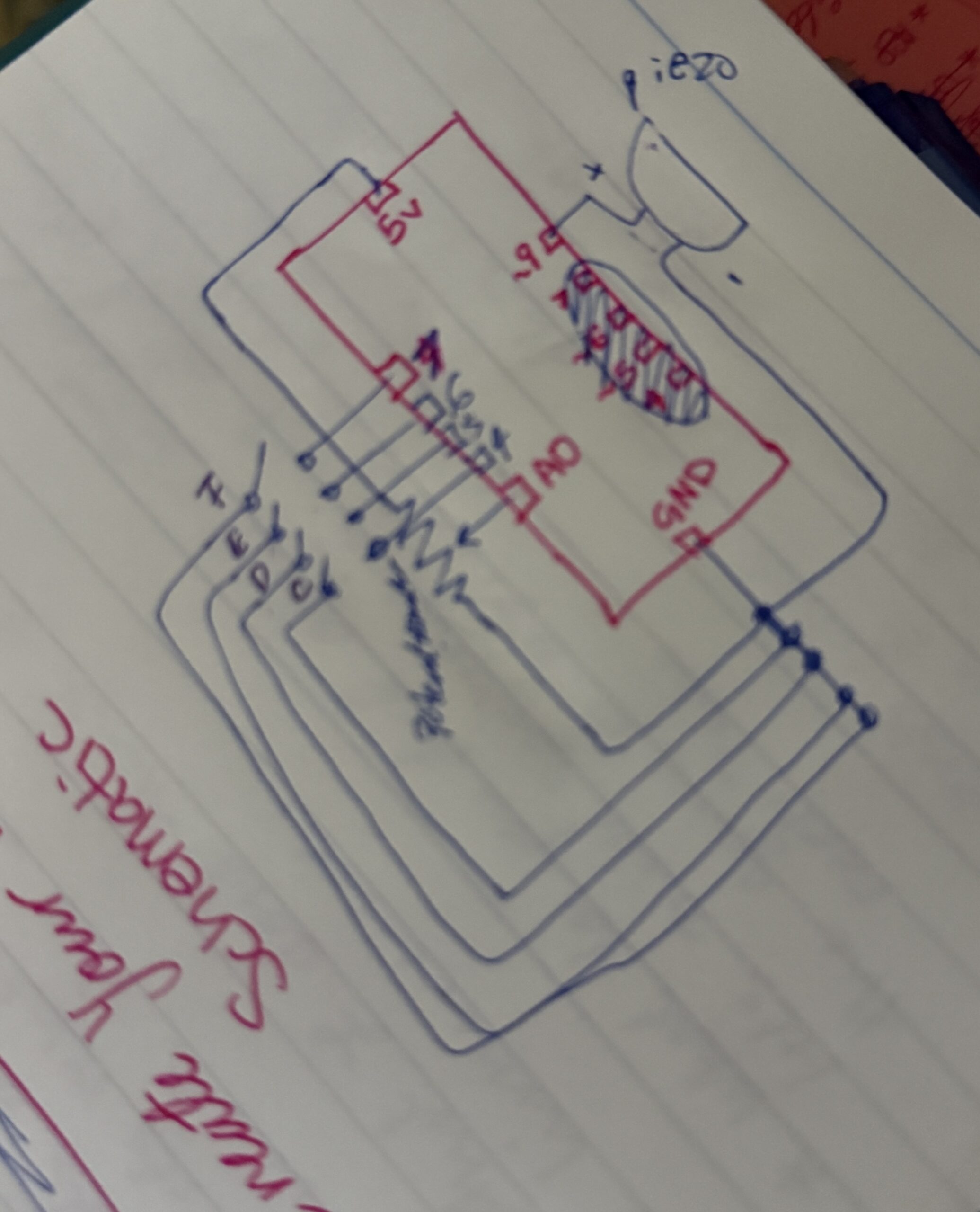
Hand-drawn schematic:
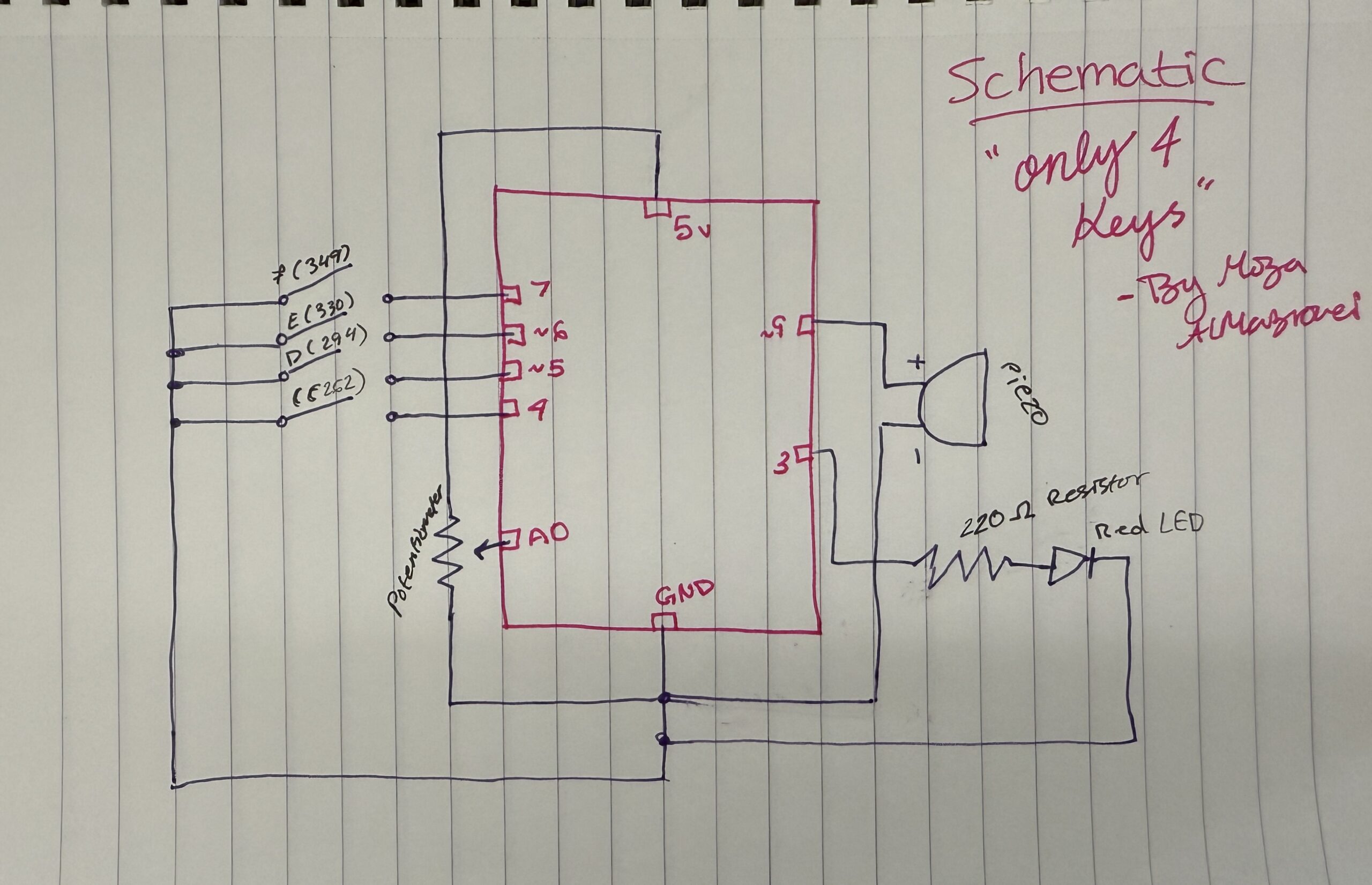
How this was made:
Schematics became easy for me to draw now after so many tries and practices in the old projects we created!!!

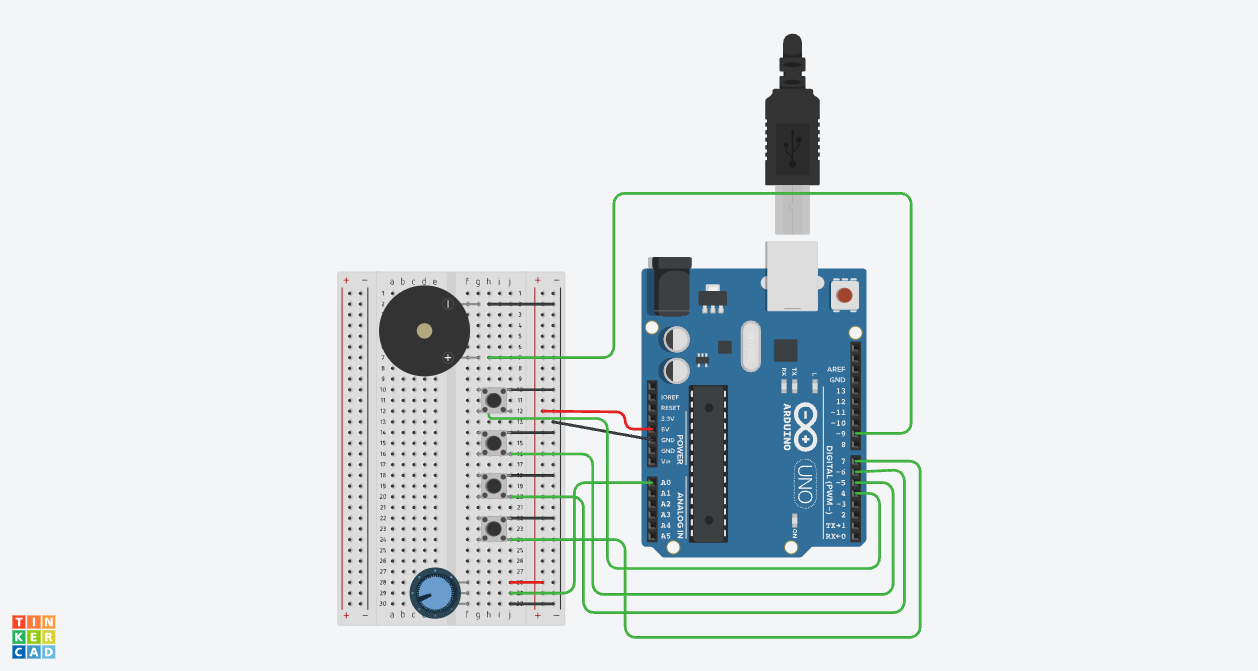
Image: Link to TC and Link to the video demo
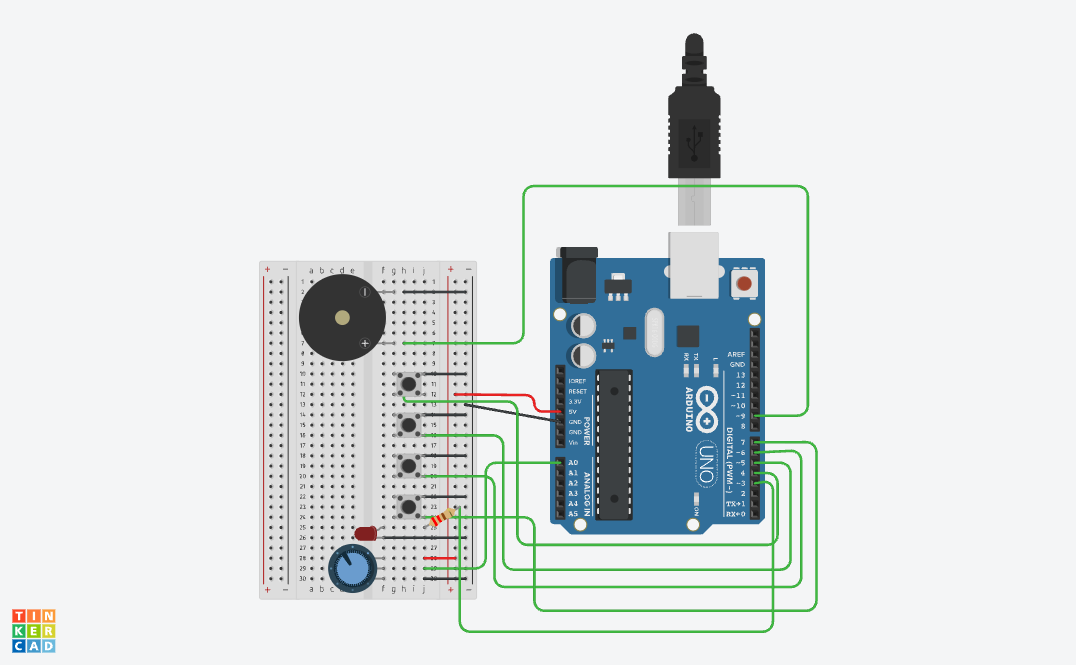
How this was made:
I really wanted to create something on tinkercad using sound! and I did! I really love how it turned out because not only can I personally explore and try different things but also I can create different music, sounds, etc.
I started by building my project based on the the past projects I created and everything I learned. I wanted to improve and create something conceptually stronger and fun! I added the Piezo by connecting the positive side (h7) to pin ~9 using a green wire. I specifically used pin ~9 because it’s a PWM pin, which we learned in class is important for creating different sound frequencies and tones overall. Then I connected the negative side of the piezo (h2) to the negative side using a black wire. After making sure the GND was connected to the negative side and the 5V was connected to the positive rail, I moved on to the buttons. I added 4 buttons across the middle of the breadboard to act like mini piano keys. Each button plays a different note: Button 1 plays Note C, Button 2 plays Note D, Button 3 plays Note E, and Button 4 plays Note F. I connected one side of each button to the negative rail with black wires, while the other side connected to digital pins 4, 5, 6, and 7 using green wires. I also lined them up because I wanted the interaction to feel similar to pressing keys on a real keyboard or piano and also because of my actual design plan. For my final touch, I added a red LED as a visual indicator so that the interaction feels more alive instead of only relying on sound. I also placed the anode in f25 and the cathode in f26 then I connected a 220Ω resistor from the same row as the anode to Pin 3, and connected the cathode row to the negative rail with a black wire. THEN I shifted the potentiometer a little to the side so there would be enough space for the buttons while still keeping it close enough to work as the “tuning” dial for the notes. (overall the hardest part is always the placement because when we learn in class everything looks small but on the tinkercad it looks way bigger!)

Code:

// C++ code
//

void setup() {
  pinMode(9, OUTPUT); //the piezo speaker
  pinMode(3, OUTPUT); //red light
  
  //all the buttons
  pinMode(4, INPUT_PULLUP); //button 1=Note C
  pinMode(5, INPUT_PULLUP); //button 2=Note D
  pinMode(6, INPUT_PULLUP); //button 3=Note E
  pinMode(7, INPUT_PULLUP); //button 4=Note F
}

void loop() {
  int sensor = analogRead(A0);
  //changing the dial to a small number for the pitch
  int multi = map(sensor, 0, 1023, 1, 4); 

  //checking each button
  if (digitalRead(4) == LOW) {
    tone(9, 262 * multi); //play C
    digitalWrite(3, HIGH); //light turns on
  } 
  else if (digitalRead(5) == LOW) {
    tone(9, 294 * multi); //play D
    digitalWrite(3, HIGH);
  } 
  else if (digitalRead(6) == LOW) {
    tone(9, 330 * multi); //play E
    digitalWrite(3, HIGH);
  } 
  else if (digitalRead(7) == LOW) {
    tone(9, 349 * multi); //play F
    digitalWrite(3, HIGH);
  } 
  else {
    noTone(9); //silence when nothing is pressed
    digitalWrite(3, LOW); //light off
  }

  delay(10); //slow 10ms delay
}

How this was made:

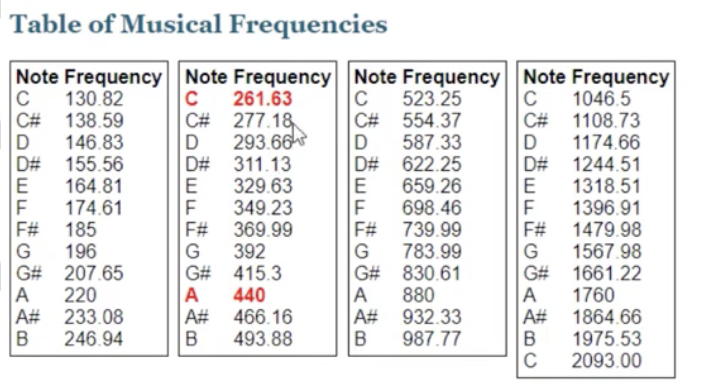
For my code, in the setup first I highlighted pin 9 because that’s for the Piezo, my speaker which is the most important part of the project. I also set up pin 3 as an output for my Red LED, which is for the visual signal whenever a note is played and it becomes lighter and darker based on the button pressed. Then I set up pins 4, 5, 6, and 7 for my buttons while using INPUT_PULLUP so I wouldn’t have to add any extra resistors or wires on the breadboard since I can easily use Tinkercad’s built-in resistors. Then I created a loop and used analogRead(A0) to first check the sensor and then inside, because the dial gives a number from 0 to 1023, I used the map function (which I learned from ARDUINODOCS) to change that number into a small number that goes from 1 to 4. I called this multi (short for multiply) which allows me to change the pitch higher just by turning the dial. For the music, I used the if/else because again its familiar -p5.js. Because I wanted to create keys, I followed the musical notes of button 1 = 262 (a C note) and it goes on (of course I checked the music notes to do this). Inside each if statement, I also added digitalWrite(3, HIGH) so that the Red LED (connected with a 220Ω resistor to protect it) lights up at the exact same time the sound plays. I basically ended the code with else { noTone(9); digitalWrite(3, LOW); } so when no button is pressed, the sound stops and the light turns off. Like always, I added a 10ms delay at the bottom just to keep the loop from running too fast and making the sound glitchy.

Resources:

I just took tips from class, from youtube, from Professor Mang and Professor Aya’s notes!!

My creativity! Link to TC and Link to video
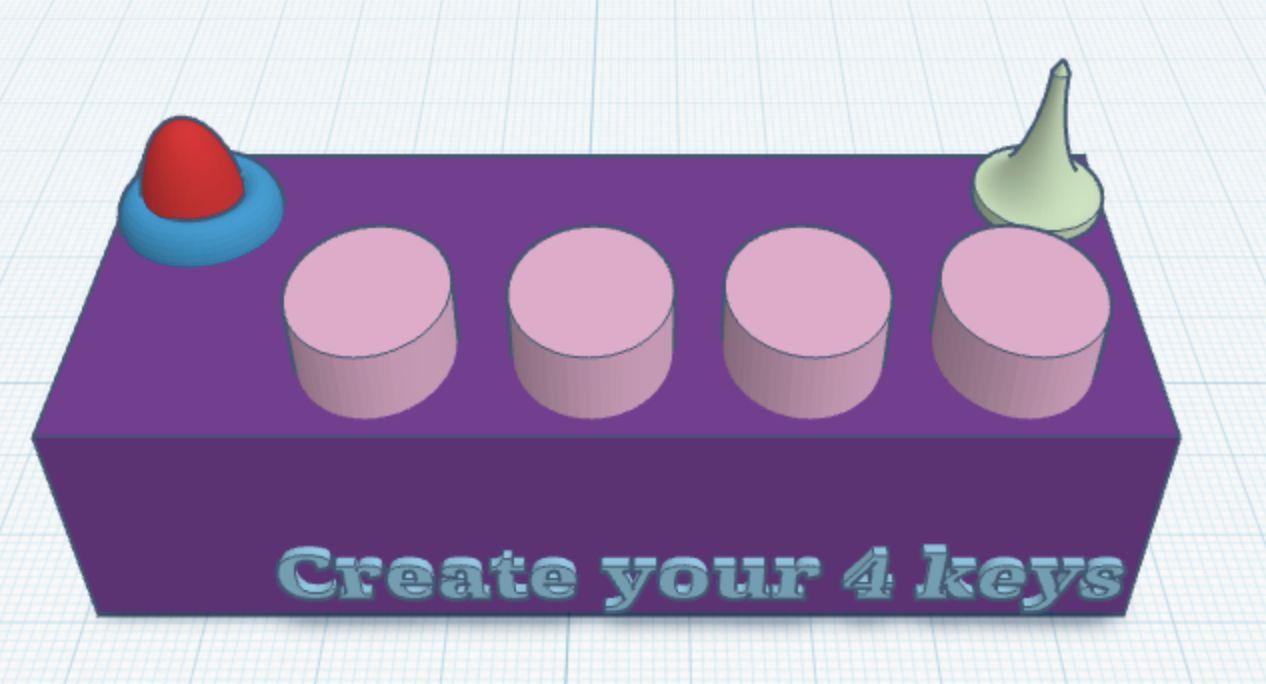
How this was made:
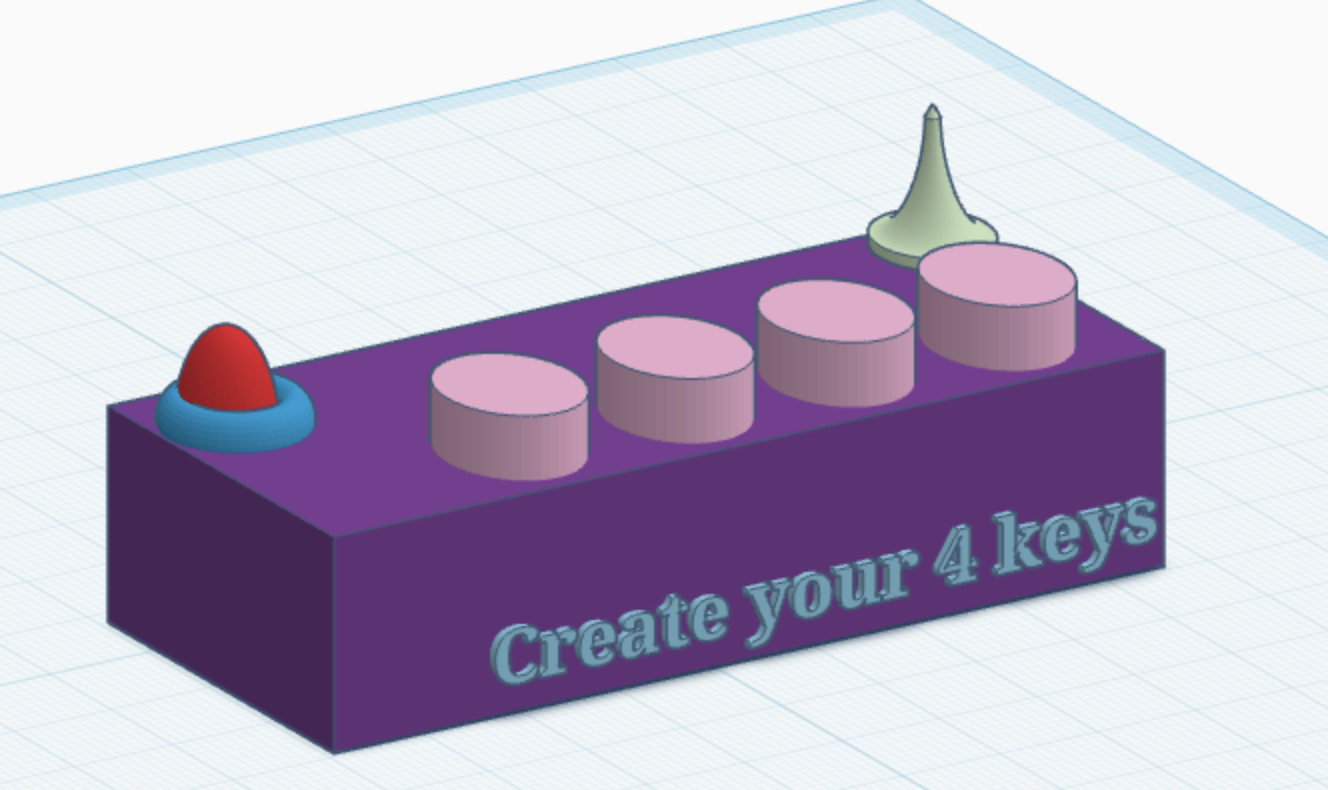
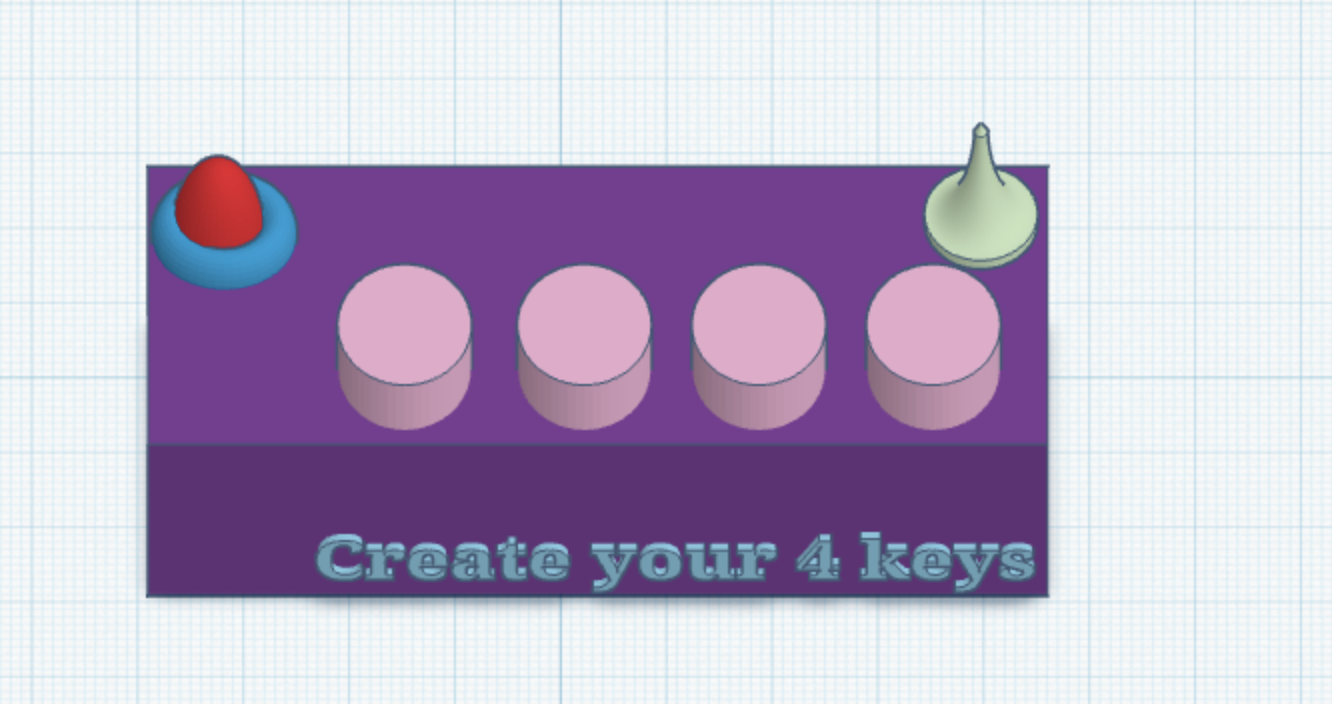
So of course, because I don’t have the actual kit 🙁 I had to use Tinkercad, and at first I was honestly sad because I felt limited when it came to creativity and design. But after Professor Mang told us that we could actually design the setup ourselves, I started exploring more inside Tinkercad and tried creating what I imagined the project would look like. Of course it’s still a bit different from how I would make it physically, but honestly that’s okay.

Overall what can you play -my experiment:
Mary Had a Little Lamb: E-D-C-D-E-E-E then D-D-D then E-E-E
Hot Cross Buns: E-D-C then E-D-C then C-C-C-C, D-D-D-D
Ode to Joy: E-E-F-F-E-D-C-C-D-E-E-D-D

Final reflection:
Honestly, I’m really proud of how this project turned out. At the beginning, everything felt confusing and overwhelming, especially because I didn’t have the physical Arduino kit and had to use Tinkercad -also with everything happening in the country 🙁 so overall the process wasn’t easy at all!

At first, I felt limited and thought it would make the experience less creative, but then I realized I could still experiment, design, and create something personal even in a simulation. Comparing myself from when I first started struggling through simple tutorials to now building an interactive project with buttons, sound, LEDs, and pitch control, I can honestly see how much I improved throughout the semester. What makes me happy  is that this project feels connected to me personally. I’ve always loved music, so creating my own mini “instrument” with only four keys was actually really fun. I also want to start finding a new hobby and learn piano! I also like that the project is simple but still allows people to experiment and create different patterns depending on how they interact with it. Even though it only has four buttons, it still allows people to show their creativity and curiosity.

I think one of the biggest things I learned from this project is that interaction design is not just about making something work technically, it’s about making the experience feel clear, engaging, and enjoyable for the person using it. I first did my project draft but after my sister played around with it she gave me feedback that allowed me to focus on specific user designs for my final. For future improvements, I would definitely want to expand the project by adding more notes, different sound effects, stronger visual feedback. Overall, I’m really happy I pushed myself further with this final instead of staying with something too simple, and I honestly want to keep experimenting more with Arduino and interactive design in the future.
User Testing

I tested my project by asking my younger sister to try it out. I just opened the Tinkercad simulation without giving her any instructions. I just told her to explore it while I observed to see if the interaction was clear without any required instructions.

The first thing I noticed was that she pressed on the board and on everything randomly -this is because she doesn’t have any experience with Arduino or Tinkercad which is interesting because I haven’t thought of that. Her confusing and randomly clicking made it clear to me that not everyone understands these things. Anyways while she was experimenting she clicked on the dial and started experimenting with it and when she turned it on the LCD screen changed between the different stations of the cafe, rain, etc. So then she figured out everything overall.

She was also confused when experimenting because the RGB LED wasn’t very obvious to her at first. She saw it change color based on the different locations but she didn’t immediately connect it to the mood of each station she just thought it was light. Also the piezo buzzer was also a bit unclear because the sound is very basic and kind of weird on Tinkercad, so she was kind of confused… which makes me wonder if I should change my project a bit to make it sound differently.

Overall  this experiment allowed me to reflect and realize things I would have missed. I realized that the LCD screen is the strongest part of my project because it gives clear and direct feedback in which they can easily understand. I also think that it guides the entire experience but the sound and lighting need improvement because they are supposed to support the mood, not confuse them. So I’ll try to make the sounds better and try to make the colors more intentional so the user can understand the atmosphere without relying only on the text. Also I think adding the project name would be beneficial for participants to know at least what is happening or get a hint. Since it’s on Tinkercad of course it’s sad to know that I can’t really decorate and design it because while the actual product works I think design plays a huge role overall.

Video

Reading Week 12 (Design Meets Disability)

Among all the readings, I would categorize this as one of the readings I enjoyed a lot because it talks about design which is something I am very interested in (I think that shows in all my past projects, and soon I will major in it, in sha Allah). What I liked most was how it showed that design is not just about fashion or making things look nice because I feel like in today’s world most people don’t understand design or maybe confuse it with just interior design or graphic deisgn, but it actually starts from human needs. The reading included some nice examples like glasses, which started more as medical appliances in the 1930s and later became part of fashion, personality, and self-expression. I think that transformation is beautiful because it shows how something made for function can also become something meaningful and personal. At the same time it kinda reminds me of how products were made and advertised before, people mostly focused on functionality and not design. I also found it interesting how design connects to the military, because before learning about design or art I never really linked them with things like war because they both felt so different. Looking at art too, I understand that a lot of digital art and design tools for example were connected to the military and first used by the government, engineers, scientists, and during world wars.

I got so excited when I saw Aimee Mullins because I think she is the perfect example to include. I watched her TED Talks, The Opportunity of Adversity and My Twelve Pairs of Legs, and I found them really powerful, especially when she talks about looking up the word “disabled” in the thesaurus and finding words like “crippled,” “helpless,” “useless,” and “mangled.” She says: “my voice broke, and I had to stop and collect myself from the emotional shock.” That part stood out because I personally went and did my own research and unfortunately these words have not changed, the meaning connects to the same negative or weird language used.  It is sad because these words shaps the way people see disability. I also like how the UAE uses the term “People of Determination” because it feels much more respectful and empowering instead of focusing on the weakness especially when most people were born naturally like this </3. Going back to Aimee, I honestly think that what she did was amazing! She changed something people usually viewed as negative into something creative, expressive, and even fashionable. Her idea of having a “wardrobe of legs” completely changes the question from “what is missing?” to “what can a leg do, and what can it be?” as she says. I also think that she is such a strong example of how design can challenge the way society thinks.

Final Project Proposal

Your Digital Atmosphere

Concept:

For my final project, I wanted to create something that feels personal and connected to memory, space, and atmosphere instead of just making another “radio” that plays music, I focus more on the feeling of a place rather than sound alone. Users here can find or choose their own tunes based on different moods and environment. The way theyll be able to do this is through the dial so they can switch between different atmospheres like a rainy afternoon, a cafe by the beach, a sunny day, a library, or even a busy NYC.

I want this project to feel like a small digital escape that anyone can use, experiment, and enjoy because I personally focus a lot on sound, lighting, and the overall atmosphere a lot specifically when I study or when I want to feel calm. Through intro to IM and understanding IM I started focusing more about experience and emotions through interactions because they leave a bigger impact on a person.

Design and description:
Honestly it is really sad to know that I will be using tinkercad, I wish I was able to use the physical Arduino kit but 1. it wont arrive in time and 2. I got so used to using tinkercad which I know are the same but I guess well never know until I get my hands on a kit soon? Anyways the whole project will be built in Tinkercad Circuits using Arduino components. This way I will be able to create a physical object that lets the users interact with different mood, environments, and memory through sound and light.. maybe text?

What I will be using:
The main input will be the potentiometer, which works like a tuning dial so as the user turns it up, the Arduino reads the value and changes the “station” depending on the specific range and each different range will be a different atmosphere.
LCD screen, so I haven’t actually used it for any of my mini projects but I did experiment a little with it! I will be using this for the name of each current place/mood/atmosphere.
RGB LED to change the color based on the mood so of course I will use the color symbolism to do this. Piezo to create the sound patterns or rhythms that represent each place

Step by Step improvements:
I already started testing some things like the potentiometer and how it connects to the outputs and I also started testing how the LCD screen works because I knew that would probably be the hardest part for me. Like always I wanted to get comfortable with the objects and the project because it always seems harder in my head (because I overthink) but I actually started the project to make it seem easier in my head.
Right now I also want to do some research on the color symbolism and while I finalized my project, I am still looking at a few videos I’ve wanted to watch so maybe I can make my project better?

Most Challenging Part:
The most challenging part for me will probably be using the LCD screen together with the RGB LED at the same time. I have used LEDs, buttons, and potentiometers before, but the LCD screen feels more specific because the code needs to be clean and organized because the screen will start displaying the wrong thing and thats not what I want! So I will try to write a clean code so that I don’t run into any issues.

Small demo/idea on how I want to work in tinkercad?
Potentiometer = to switch between the stations (ill try to first focus on something small then I can add more places/atmospheres): Rain, Café, and Library. When I turn the dial, the LCD changes the station name depending on the value which will help me get the green light that I’m doing things right then I’ll add the RGB LED and the buzzer.

Arduino/Tinkercad (2)

Create Your Rhythm

Concept:
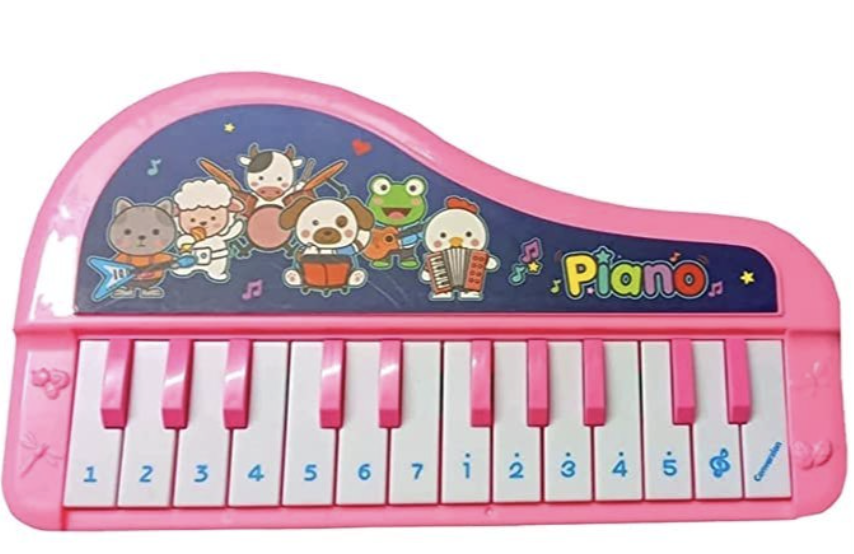
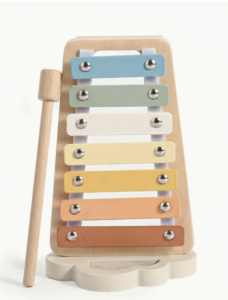
During class when Professor Mang was explaining the homework for Tuesday, my younger brother was actually sitting next to me and watching nursery rhymes (to be specific he was watching Mary had a little lamb) which I found funny because I then started to think about the project and different elements related. I also remember having a small toy piano (I had the one that looked like the piano and the one that looked like the toy) so then I started to wonder if I could create the keys and make my own music and to maybe try creating the same sounds for Mary had a little lamb.
I was able to create the song! and not just for Mary had a little lamb but also just experimenting with the notes to create my music! (3-2-1-2 (Ma-ry had a) 3-3-3 (lit-tle lamb) 2-2-2 (lit-tle lamb) 3-3-3 (lit-tle lamb) 3-2-1-2 (Ma-ry had a) 3-3-3-3 (lit-tle lamb whose) 2-2-3-2 (fleece was white as) 1 (snow)!!!!)

Hand-drawn schematic:

How this was made:
I used the tips from Professor Mang, he also advised us to use a ruler which is something I didn’t do last time but honestly compared to my first schematic this is so easy to read -my first one not that organized. Also I always like doing the schematics as I go then I do a final neat and organized one so I can easily look back at it.

Image: (Link)

How this was made:

First I duplicated my last project because I think it’s easier to just edit instead of start brand new. I just changed the LED lights, removed them, and added the piezo and connected the positive side (h7) to pin ~9 with a green wire I used Pin ~9 because like we learned in class it is a PWM pin that can handle the pulses and in my case its needed to create different sound frequencies. Then the negative side of the piezo (h2) to (-) connected with a black wire to GND. After I made sure GND is connected to (-) and 5V is connected to (+) I was able to focus on the buttons and add 4 different buttons (Button 1 plays Note C, Button 2 plays Note D, Button 3 plays Note E, and Button 4 plays Note F). I placed the buttons in a row across the middle of the board with the legs in columns g and e. Each button has one side connected to the negative rail with a black wire and the other side connected to its specific digital pin (4, 5, 6, or 7) with a green wire. I also decided to line them up this way to create something similar to a real piano keyboard. For the last part I just moved the potentiometer because I needed more space for the four buttons and they follow the similar position of my last project.

Code:

// C++ code
//
void setup() {
  pinMode(9, OUTPUT); // the piezo speaker
  
  // setting up all the buttons
  pinMode(4, INPUT_PULLUP); //Button 1=Note C
  pinMode(5, INPUT_PULLUP); //Button 2=Note D
  pinMode(6, INPUT_PULLUP); //Button 3=Note E
  pinMode(7, INPUT_PULLUP); //Button 4=Note F
}

void loop() {
  int sensor = analogRead(A0);
  int multi = map(sensor, 0, 1023, 1, 4); //when the dial is changed the sound does too

  //when button is pressed and the dial is changed then the notes are multiplied=higher pitch
  if (digitalRead(4) == LOW) {
    tone(9, 262 * multi); //C=262
  } 
  else if (digitalRead(5) == LOW) {
    tone(9, 294 * multi); //D=294
  } 
  else if (digitalRead(6) == LOW) {
    tone(9, 330 * multi); //E=330
  } 
  else if (digitalRead(7) == LOW) {
    tone(9, 349 * multi); //F=349
  } 
  else {
    noTone(9); //when nothing is pressed there is no sound
  }

  delay(10); //10 mil.sec. delay
}


How this was made:

For my code, in the setup first I highlighted pin 9 because thats for the Piezo -my speaker. Then I set up pins 4, 5, 6, and 7 for my buttons while using INPUT_PULLUP so I wouldn’t have add any extra resistors or wires on the breadboard since I can easily use tinkercad’s built-in resistors. Then I created a loop and used analogRead(A0) to first check the sensors and then inside because the dial gives a number from 0 to 1023, I used the map function (which I learned from ARDUINODOCS) to change that number into a small number that goes from 1 and 4. I called this variable multi (short for multiply) which allows me to change the pitch higher just by turning the dial. For the music I used the if/else structure which I am familiar with from p5js and because I wanted to create keys I followed the notes so button 1=262 a C note and it goes on (of course I checked the music notes to do this). And then based on each dial as it increases the numbers also increase by multiplication. I basically ended the code with else noTone(9) (for the tone function) so when the button is not pressed there is no sound coming from the Piezo and like always a 10ms delay at the bottom just to keep the loop from running too fast and making the sound glitchy.

Resources:

Reflection and future improvements:
Honestly, I’m super proud of what I created. Like always, the first time is confusing, complicated, and annoying but comparing myself to when I first did those tutorials to now creating my own rhythm, I’m so happy with how this turned out! I was actually playing it out loud for my siblings too. Overall, I think creating something in different formats while keeping it creative, personal, and fun is always something I look forward to doing. When it comes to the piano and my personal connection to it, honestly I think younger Moza would be so proud and amazed to see that I actually made those keys and notes using code and Arduino(tinkercad), because that’s just so cool! For future improvements, I think I did really well (fun fact: I actually created two projects: the first was simple, but for this one, I pushed myself to see what else I could do!) In the future, I want to experiment even more and keep pushing my limits. 🙂

Reading Week 11

This reading connects immersion to interactivity because Victor actually argues that real interaction should go beyond just touching a screen, “pictures under glass” like phones, tablets, and flat screens reduce human interaction to simple sliding and tapping, while ignoring how our hands actually work through touching, gripping, holding, and movement. I found this really interesting because it made me think about how much we rely on technology that removes physical experience instead of improving it. It also reminded me of the movie WALL-E, where humans stop moving, stop engaging with the world, and become fully dependent on screens and machines. This made me question if we are slowly doing the same thing in real life by ignoring our own human capabilities?

I actually made a project for my Understanding Interactive Media class based on this reading, and I called it Felt. My project focuses on immersion and accessibility because while the article asks us to question how technology limits human capabilities, screens and tech. can also create access for people with disabilities. This made me ask: how can we design interaction in a way that creates both immersion and inclusion? Felt is built on the idea that immersion is not visual, it’s actually physical and it goes beyond the use of vision and the reliance on it. (we see this a lot in many different installations like temLab) I chose to focus on blind people that already experience space differently because they rely more on sound, touch, memory, and balance. For sighted people, vision takes over making us forget how much the rest of the body can do.

Arduino/Tinkercad (1)

Don’t Dim Your Light

Concept:
I wanted to work with LED lights and experiment with different objects to create a dimming effect. I was also inspired by lights and spotlights in general -ever since I was a kid but I also remember Professor Mang mentioning how lights work and function which made me think about it more because I always wondered the same thing too. For this project, I focused on creating a light setup that explores control and brightness through the use of a potentiometer (dial) and a push button. The user gets to decide when the light turns on and how bright it becomes. The idea connects back to choosing when to let your own light shine instead of dimming yourself for others.

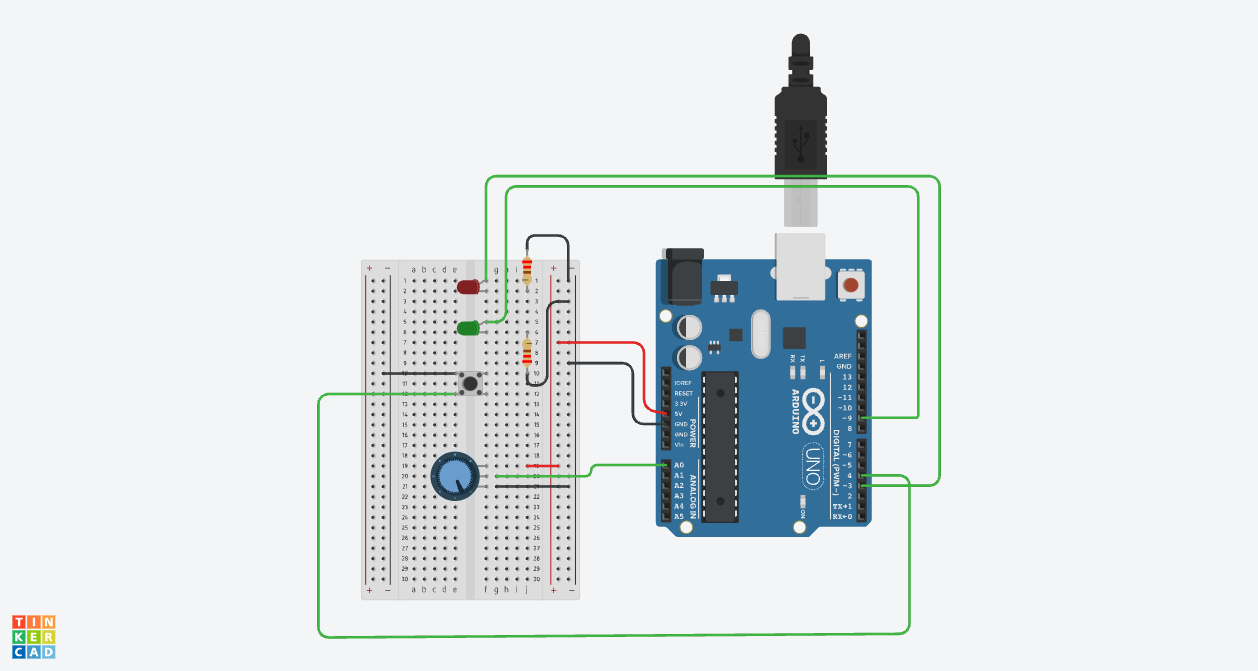
Image: Link

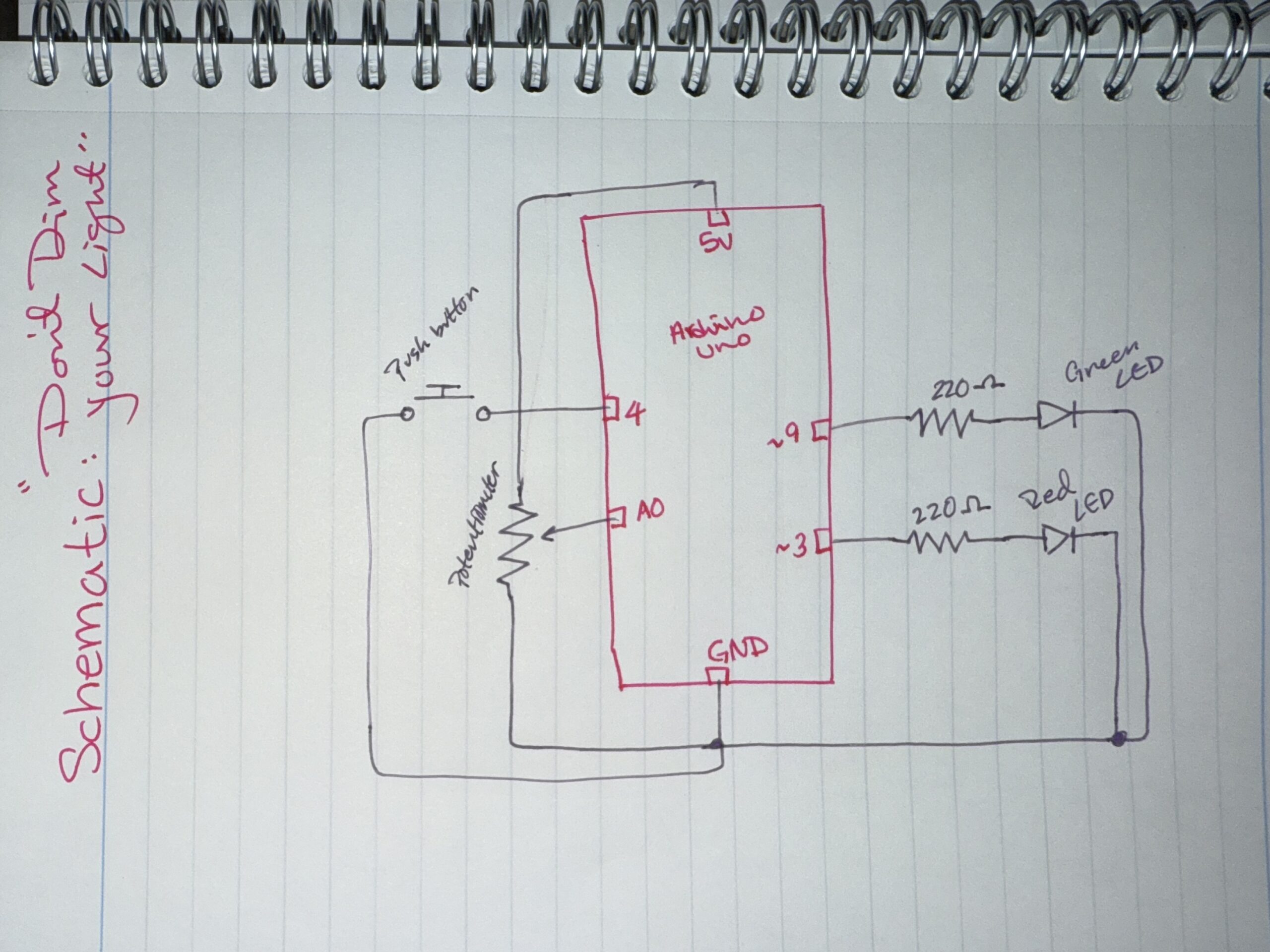
Hand-drawn schematic:

How this was made:

Setup: I started off by putting my resistors and LEDs on the breadboard and choosing the amount and colors of each which I used one red LED and one green LED with 220Ω resistors for both so I could protect the current and flow. After the LEDs were set and connected to Pins 3 and 9 so I could control their brightness, I focused on connected the push buttons and connecting the potentiometer to A0 and the push button to Pin 4. I also watched this video a while ago when we were first introduced to Tinkercad which I found was actually helpful: Tinkercad Circuit Diagram.

Code: While I was doing that, I also focused on the code, which surprisingly was the easiest part. I learned how to use analogRead() to read the potentiometer values and understand the overall idea of how to use the kit. I found out that the potentiometer gives values from 0 to around 1023, but the LED brightness only goes from 0–255 which is why I divided the value by 4 so the brightness would match correctly. For the [INPUT_PULLUP] code, I looked at this example (https://www.tinkercad.com/things/gfxVutEZ1QQ-inputpullup-example), which helped me learn and understand how to use the push button with the code. It made things easier because I didn’t need an extra resistor for the button since the code uses the Arduino’s built-in pull-up resistor.

full code

// C++ code
//
void setup()
{
  pinMode(3, OUTPUT); //the button pin for Red LED
  pinMode(9, OUTPUT); //the button pin for Green LED
  pinMode(4, INPUT_PULLUP); //the pushbutton to make it easy to wire
}

void loop() //for when the button is pressed
{
  int dialValue = analogRead(A0); //to read the dial
  int brightness = dialValue /4; //make the green light match

  if(digitalRead(4) == LOW) {
  analogWrite(9,brightness); //light brightness -green
  analogWrite(3,brightness); //light brightness -red
  } else {
    digitalWrite(3, LOW); //button will be off if not pressed
    digitalWrite(9, LOW); //button will be off if not pressed
  }

  delay(10); //Wait for 10 millisecond(s)
}


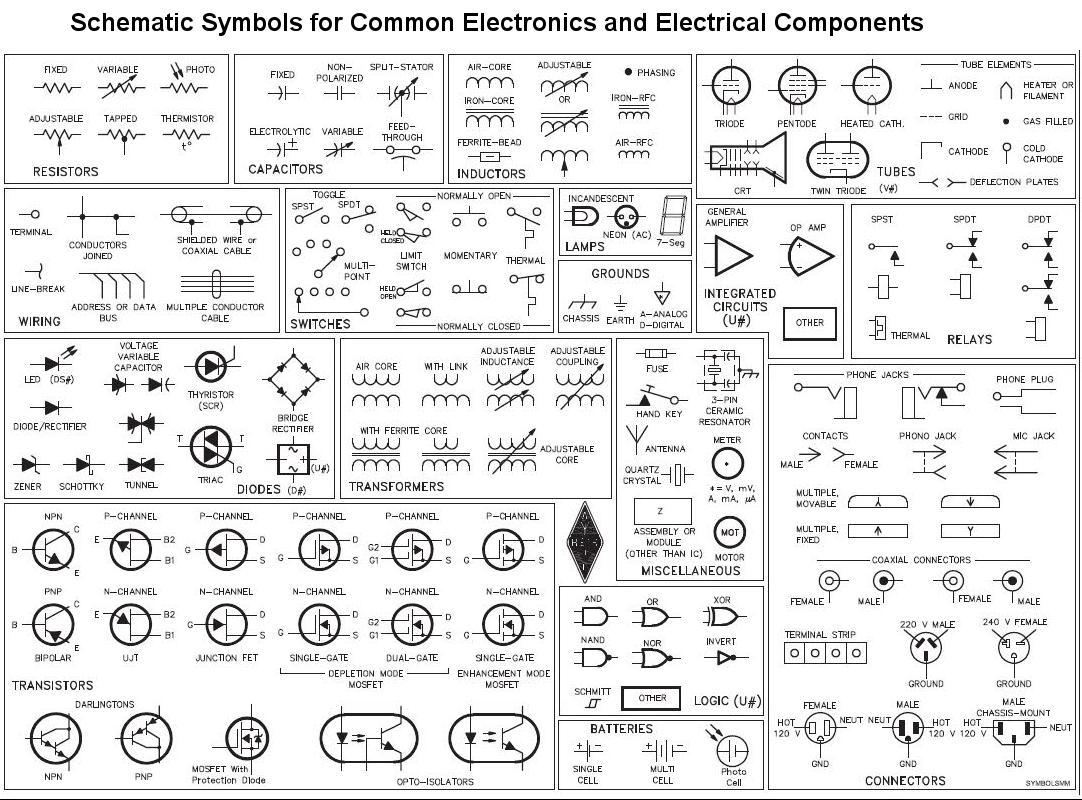
The hardest part out of all this was definitely the schematic. For some reason as a visual person I found this so confusing. I think because I’m used to thinking first, during, and after, the schematic required me to think and “brain dump” during the process, which is something I don’t usually do which is why I referred back to some Zoom call recordings and Collin’s Lab: Schematics. I also used an image of “cheat codes” to help me with the symbols since they’re different from the actual circuit.

Overall, I did look at some research before experimenting by myself because its our first time doing this I didn’t want to mess anything up so I practiced, did some tutorials, looked over examples before I did my final work. I watched videos about each part I wanted to work with, like the buttons (Pushbutton Digital Input With Arduino in Tinkercad) and also the potentiometer (TinkerCad Potentiometer with LED).

Reflection:

Making the schematic was honestly the hardest part because it forced me to understand the circuit as a system instead of just colored wires connected together. At first I found it really confusing but I actually started to like writing schematics because they helped me understand Arduino better and made me understand my own project more clearly. For future improvements, I would like to make the LEDs react differently instead of both doing the same thing? so maybe one LED could fade in while a few others fade out, or I could add sound so the project feels more interactive and creates more of a sensory experience.

Reading Response (week 10? originally for week 9)

Physical computing here is not really about using random sensors just because they look “cool” but TIGOE explains that physical computing allow us to create meaningful interactions. Just this idea of giving computers or devices a body to sense everything around and then be able to respond is fascinating, like the waving hand example where you can make music just from the movement of your hands, I wonder if I can try to create something like this using tinkercad. I honestly started thinking more about design and structure, specially focusing on how things were made and how important it is to design something where the action feels natural but at the same time connects to the purpose of the project.

I really liked reading about how artists do not need to explain everything to the audience because the creation and space should allow people experience it for themselves. This is also my favorite part about interactive media because it’s about feelings, experiences, perspective, and understanding. In my Understanding IM class I actually created a lot of different art projects related to specific modules which is why I love learning about IM through the artist perspective and the participants. At the same time while its better to just create the experience, I do tend to want to explain to people everything just because I really want them to understand, but even after my midterms I realize that there is no need for all that because sometimes the discovery is part of the experience.

Both readings connect a lot to working with Arduino and Tinkercad because they remind me that the goal is not just building a circuit that works, because I should look at the experience side of it. So when I use sensors, LEDs, buttons, or sounds, I always like asking myself why and how because this way I can remove myself from just being an artist and creator to the participant.

Reading Response – Week 9

Norman,“Emotion & Design: Attractive things work better”

This is so interesting. I’ve thought about design quite often because it’s something I’m always interested in, but the way Norman explains it made me think about design outside the box. The idea that “attractive” or “pretty” things actually work better is something I never fully considered before. I used to think functionality comes first and that’s it, but now I’m realizing that looks and feelings can change how we experience it. One part I thought of was the idea of modernization. As someone with OCD, I used to want everything to be in a very specific and controlled way, at least the things I could control. Recently, though I’ve started to realize that a bit of chaos or imperfection can actually be better. Norman’s examples of teapots reminded me of older designs and advertisements. In the past, designs were mainly focused on solving problems and functioning well, while aesthetics didn’t matter as much. Now, because of technology and how easily we can solve everyday problems, aesthetics have become much more important.

Norman’s idea of feelings and the “science of emotions” explains how our emotions shape the way we interact with the world. At the same time, I think this idea can be tricky. A design might try to create a specific emotion for users, but not everyone will feel the same way? This is where design becomes complicated, because emotions are not universal. Still, we often rely on shared associations, like color symbolism, to guide those emotional responses. For example, European street lights have been trending recently on social media because of their yellow lights. Now, whenever people reference European streets or a certain “vibe,” it automatically connects to that lighting. Adding on to the city designs, streets and roads specifically, I usually think of New York and how the streets are structured. I used to believe that everything being clean, organized, and “perfect” was better, so I would compare it to how roads are designed in the UAE and imagine how beneficial it would be if they were more like New York. But now I realize that what looks visually appealing or aesthetic is not always what functions best.

Overall, this reading made me realize that design is not just about making something work, but about how it makes people feel while using it. In my future projects I want to experiment with this idea of ‘attractiveness’ as well as focusing on the feelings from my perspective as the artist/creator but also the audience’s perspective.

Her Code Got Humans on the Moon

I always think about fate and destiny, which I personally find very beautiful. If Margaret’s 4 year old daughter Lauren didn’t pre-launch the system, then they wouldn’t have discovered that flaw and she wouldn’t have been able to think about a solution. Thinking about Margaret’s perspective, I expected her to get mad over the “ruined” project, but instead she treated it as an opportunity to improve the system. That mindset really stood out to me because it shows how mistakes aren’t always setbacks, they can actually prevent bigger failures later.

I also found it interesting how people were punching holes into stacks of cards to represent code, and how everything had to be perfect before running it because there was no room for edits. This made me reflect on how different my experience with coding is today because I’m constantly editing, fixing, and experimenting with my code which I now am very thankful for this flexibility. Back then, one small mistake could cost so much time and effort, which means they had always think carefully. This connects a lot to my own work and even my daily habits. I always know that there is a command z button I can press and have everything how it used to be, and I know that I can always go back and fix things. But reading this made me question whether I’m sometimes too dependent on that flexibility instead of thinking things through more deeply from the start. Like I always say to my friends, I wish there was a command z button in life so I can go back.

Overall, I think Margaret’s story inspires me to be more aware of the “impossible” or unexpected scenarios, because there is always a possibility of things going wrong. I also want to start using bugs as opportunities for growth in a more intentional way because normally, I just fix the issue, learn from it, and move on, but now I’m thinking about how I can actually expand from a single mistake, whether that’s improving the system, adding new features, or preventing future errors. I guess I’ll have to experiment with that next time.


Midterm: Morocco’s Door Studio

Overall concept:

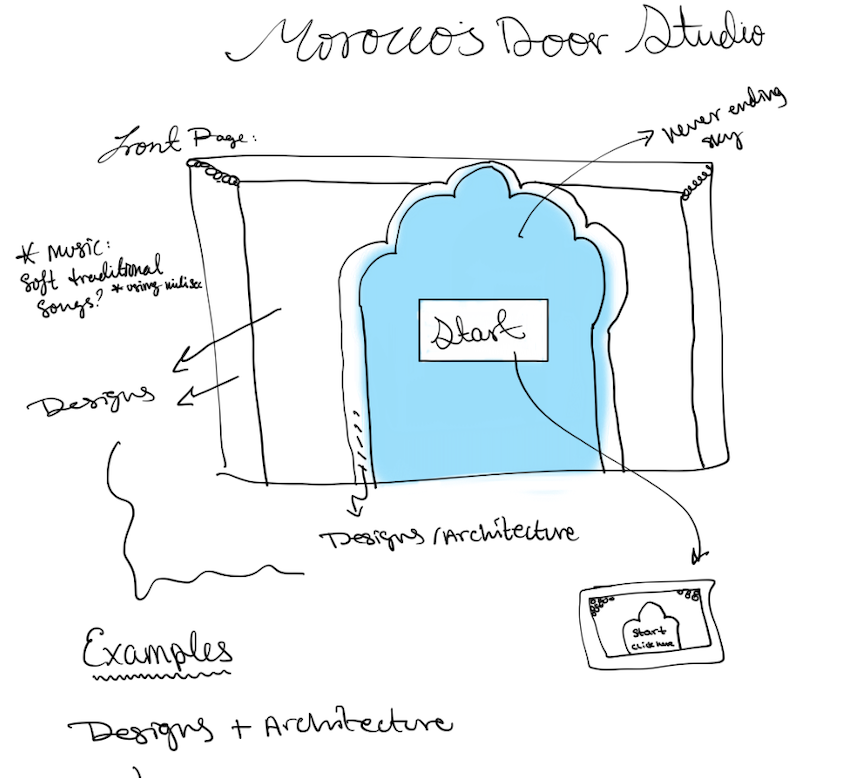
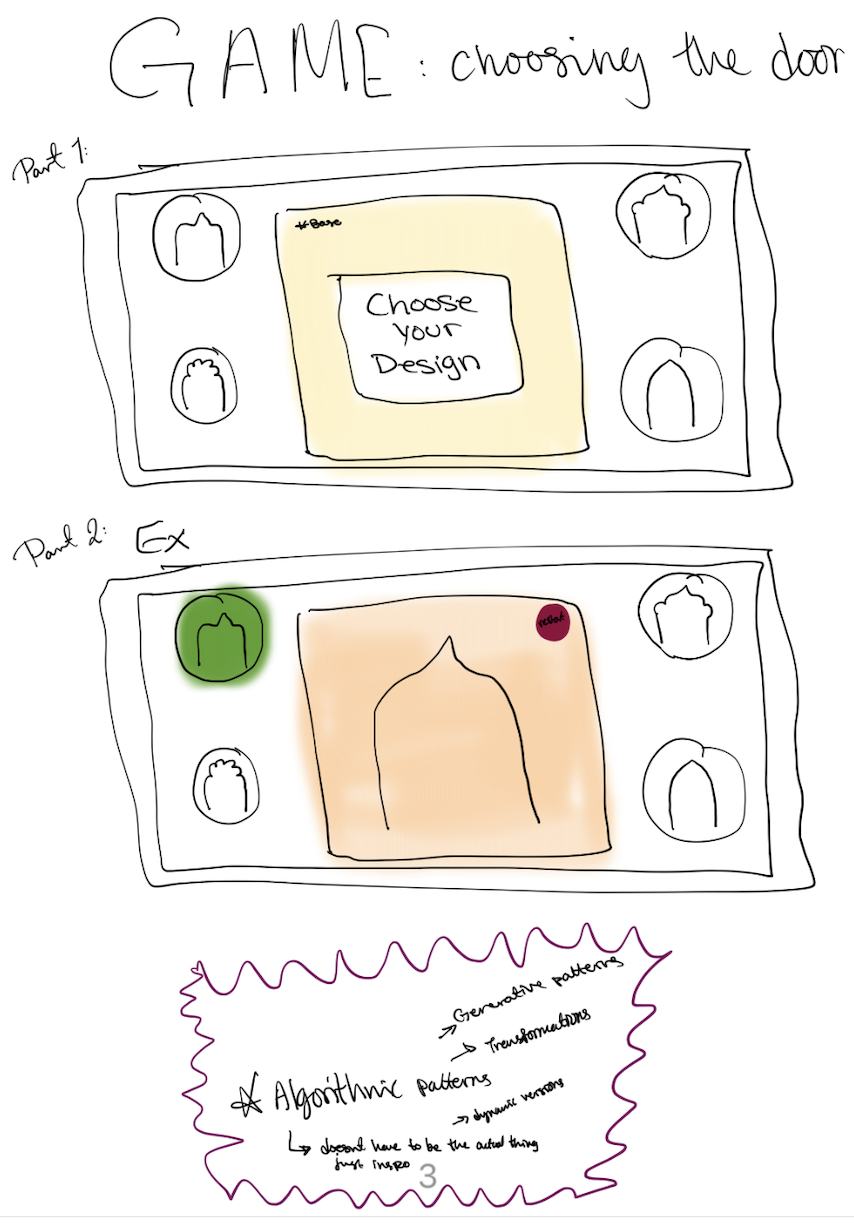
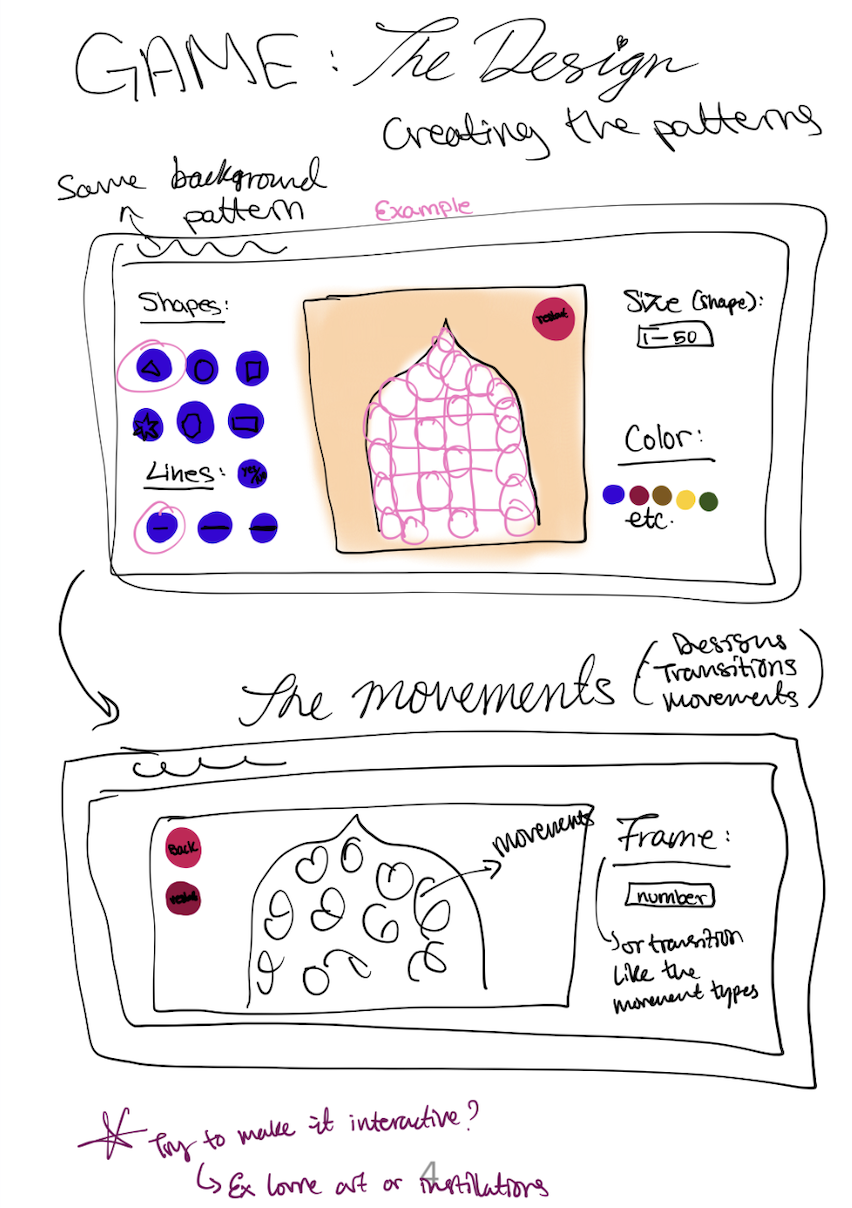
THE DESIGNING GAME! The main reasons why I created this game is because I love designing, and I have been learning on my own throughout the years (I have helped friends and family members with their businesses since design is an important factor in this field). With this background I wanted to create something for people who have the same interest, and for those who want to explore. The second reason is that since I am half Moroccan, I wanted to include a personal touch to my work and connect it to my culture. I decided to create a game where users can design one of my favorite elements of Moroccan architecture, which is the doors. Instead of simply creating a game that includes templates and colors, after speaking to Professor Mang, I decided to make it more interactive and generative. This way players can add their own shapes, change colors, and control the speed of the patterns. The shapes are also randomly generated, which is one of my favorite parts because my game includes randomness but at the same time it makes every design unique and unpredictable.

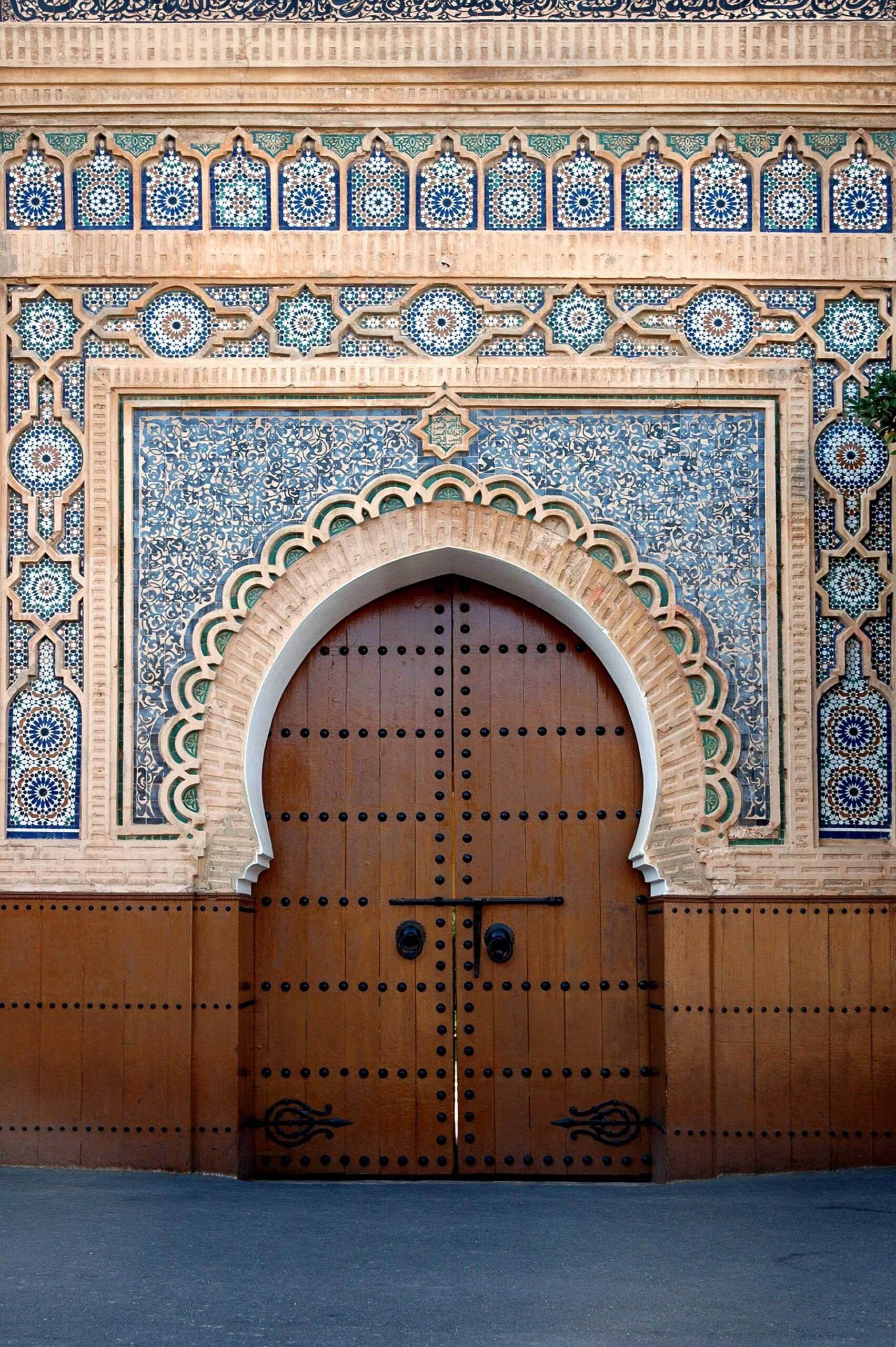
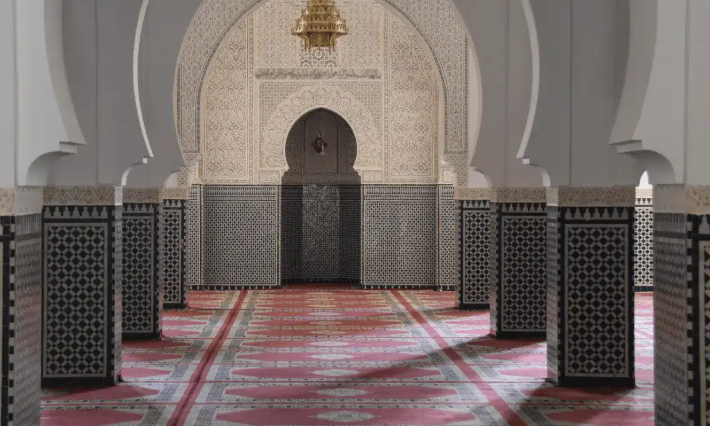
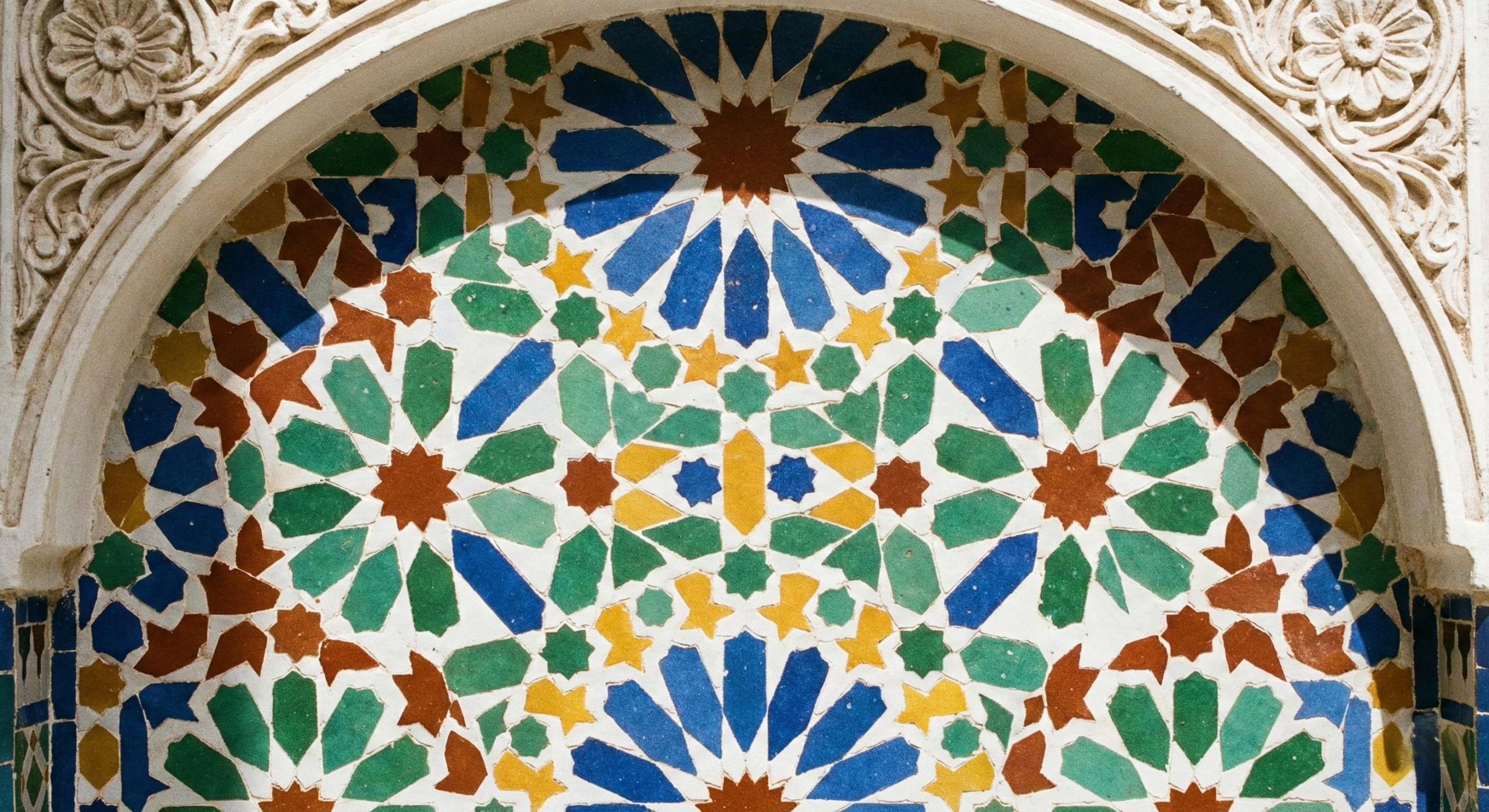
In Moroccan architecture, the Riyad is one of my favorite styles because of the level of detail and craftsmanship. It’s known for its intricate patterns, zellige tiles, and carefully designed spaces. What I find most interesting is how much time and effort goes into creating these details by hand, sometimes taking weeks or even months and up to years depending on the piece. I also grew up seeing these designs in my own home in Morocco, especially in fountains, tiled walls, and stairs which inspired me to recreate this experience digitally. I realized that there aren’t many games that focus on cultural design, especially Moroccan culture, so I wanted to create something that represents it in an interactive and modern way.

I started this project with an idea, although I had multiple ideas and sketches I decided to stay with this one. I mainly feared that it would be hard to create but in fact although it was challenging (starting before spring break and then with everything happening it was confusing to go back to unfinished work so a part of me wanted to start everything all over again and even change the concept but I didnt!) I loved every part of it because the concept truly speaks to me.

Inspo from Moroccan Architecture: 

Embedded sketch: (click to start!) [for full screen click here]


How it was made/how it works:

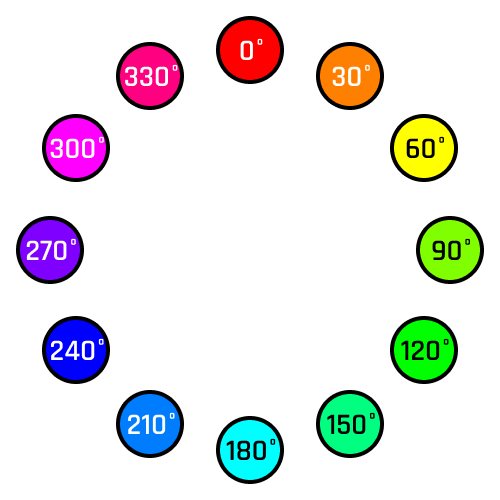
The project is built using a state-based system (a system where it changes, operates, or makes decisions based on the current “state” of the process), where the player moves through five different screens or pages as I call them: the home screen, help screen, info page, door selection, and finally the interactive “studio.” Each page is controlled by a variable that updates depending on where the user clicks, making the navigation simple but effective. I’ve always liked using Canva which is why I decided to create shapes and patterns to make something inspired by Moroccan architecture while still keeping it visually aesthetic and aligned with the overall concept. I also decided to look at Aya’s class since they finished their midterms, I got inspired to generate an image using Gemini which pushed me to experiment more with tools like Gemini. Instead of just using basic images, I uploaded my own references and used Gemini to help generate and refine visuals for the first three pages (home, intro, and instructions). So while the first 3 pages (home page, intro, and instructions) are generated by ai using an original existing image that I uploaded I still did lots of the designing myself in the other pages. When it comes to the doors I used a base vector from Vecteezy, but since the quality was low, I enhanced and clarified the design using Gemini so it would look clean and detailed in the final game. For the sound, I wanted something that matched the cultural vibe of my project and game so I searched for Moroccan-style audio on TikTok. I wanted to find a sound I can play in the background and a nice click sound effect, the click sound I found actually reminded me of games I used to play as a kid (friv, roblox, blocks). When I found the sounds I liked I had to convert the files into MP3 format since p5.js does not support formats like MOV or MP4. After that, I uploaded all the files into the sketch, I initially thought this would be the hardest part, but it turned out to be one of the easiest since it mainly involved organizing and dropping files correctly. I also added some the px size next to the size of the shapes because of my background in coding, I also added the HSB slider numbers 0-360° but I think in the future having buttons for it to be easy for people would be better. This game is not meant for everyone, but specifically for people interested in design and creative exploration.

When it comes to coding, (the fun part!) I mainly relied on class lecture notes from Professor Mang and Professor Aya because the material and examples available are always extremely helpful and always makes my process a lot smoother. For the main interaction, I used Object-Oriented Programming by creating a Tile class so every time the player clicks inside the door area (the white part), a new tile (which are the shapes) is created and added to an array. Each tile is independent so it stores its own size and color based on the slider values at the exact moment it is placed but for the speed slider, all the tiles change accordingly. One part I’m especially proud of is the geometric pattern system, specifically the 8-point star. I created this using a loop that rotates shapes by PI / 4 (45 degrees) around a central point. By repeating this rotation, I was able to recreate patterns inspired by traditional Moroccan zellige designs. Even though the code itself is relatively simple, the final result looks detailed and visually complex. I also focused on the user interface. I used createDiv() along with .parent() to group the canvas and sliders into one container, which keeps everything centered and organized. This idea came from researching how to structure UI elements because I thought I needed to research it a bit more. By doing this, the sliders stay aligned with the canvas and the whole project feels more like a complete application rather than just a basic sketch. The sliders allow users to control size, color, and speed, making the experience interactive and personalized instead of static.

Resources:

From p5.js:

  • parent() + createDiv(): I used this to attach my sliders and canvas to a single createDiv(). I had to use this to keep my UI organized and in position on the page.
  • this. learning how to use the [this.] function I used this.s inside a constructor function for a specific class.
  • colorMode(HSB): I used HSB (Hue, Saturation, Brightness) so that my color slider could be used as a 360 degree rainbow wheel since the game is a design studio.

    Other:
  • The Coding Train: How to Rotate Shapes in p5.js (translate, rotate, push, pop): This helped me understand how to use push() and pop() in my Tile class so that the rotation of one star wouldn’t affect the rest.
  • MDN Web Docs (Early Return): I used return in my mousePressed function to stop the code once a button was clicked. This helped me fixed an issue (the bug) where a tile would accidentally be placed behind the “Home” or “Screenshot” buttons.
  • Vecteezy Moroccan Door Vector: For the architectural doors which I then refined and cleared up using Gemini AI.
  • Aya Riad lecture notes: Anytime I forgot how to use a concept like PI or OOP and most specifically the mouse functions because I was able to go back and look at the slides which is always helpful!
  • Mang lecture notes: I always referred to the lecture notes for writing the code and functions as well understanding the bug in my code by checking the examples.
  • Gemini’s images: creating and clearing up images
  • Converter: to convert images and sound files
  • Canva: used to help create all the pages
  • Click sound from TikTok
  • Moroccan oud sound from TikTok

    Code:

 for (let i = 0; i < 8; i++) { //option 3: star pattern using rotated rectangles. i got help from ai for this part
rotate(PI / 4); 
rect(0, 0, this.s, this.s / 4,2); } //rotates 45 degrees for each of the 8 petals
}

This part of the code creates one of the more complex patterns in my project, which is the 8-point Moroccan star inspired by Zellige designs. Instead of drawing it manually, I used a loop that runs 8 times and rotates the shape by 45 degrees each time. With the help of AI, I was able to better understand how this pattern works and use it to create a repeating rotational design. Even though the code itself is simple, the result looks detailed and reflects real Moroccan geometric design.

class Tile {
constructor(x, y, type) { //constructor to allow the tiles to appear
this.x = x; //remembers where the user clicked horizontally
this.y = y; //remembers where the user clicked vertically
this.type = type; //remembers the type/shape
//captures the current slider values at the exact moment of placement
this.hue = colorSlider.value(); //color
this.s = sizeSlider.value(); //size
}

This constructor is what makes each tile unique! When a tile is created, it stores the exact position, type, size, and color based on the slider values at the moment the user clicks. This means that even if the user changes the sliders later, the old tiles stay the same instead of updating. Basically, each tile “remembers” how it was created, which makes the design feel more layered and personalized instead of everything changing at once.

 //Home button: house icon which will be used to go back to the home screen
let homeBtn = dist(mouseX, mouseY, 745, 356); //the center of the house icon location is x:745, y:356
if (homeBtn < 55) { //if the click is within 55 pixels the home button will be triggered 
clickSound.play(); //sound effect
currentPage = 2; //return to the main home screen
tiles = []; //clear canvas
hideSliders(); //sliders removed to avoid overlap
return; //pauses/stops the function
}

The ‘Early Return’ problem I faced. This part of the code solved one of my biggest issues because before adding this, whenever I clicked the Home button, it would also place a tile behind it, which messed up the design. By using return, the function stops immediately after detecting the button click, so no extra code runs after that. This makes sure the button works properly without triggering other actions at the same time.

Personal Sketches:

Code I am proud of + Areas for improvements and problems I ran into:

One of the biggest problems I ran into was when I clicked the “Home” or “Screenshot” buttons in the arch design pages, the program would accidentally place a tile on the door behind the button. This kept happening, and I didn’t know how to fix it until I used Early Return logic. Now, when the code detects a click on a button, it immediately stops the rest of the function, so no extra tiles are placed and the interaction works properly. Another issue I faced was when pressing the Home button on the arch design page, it would take me back to the home screen, but the sliders would still be visible, which made the interface confusing. I fixed this by explicitly hiding the sliders when leaving the studio page, so they only appear where they’re actually needed.

Overall, the idea of creating a game sounded scary at first. Before entering Intro to Interactive Media, I didn’t think I would be able to build something like this, let alone make it personal and meaningful. I’m really proud that I was able to create a full interactive experience and connect it to my culture. Once again this game is a designing game, its for people who love design and want to create something close to those historic designs but online. However, there are still areas I would improve. For example, I would expand the variety of shapes instead of only having a few options. I could also add an information button where users can learn about Moroccan architecture, the purpose of the game, and cultural facts. Another improvement would be giving users direct control over shape selection (like buttons for each shape) instead of relying only on randomness and sliders, which would make the experience feel more intentional and user-controlled.