Week 11 Assignment

Concept

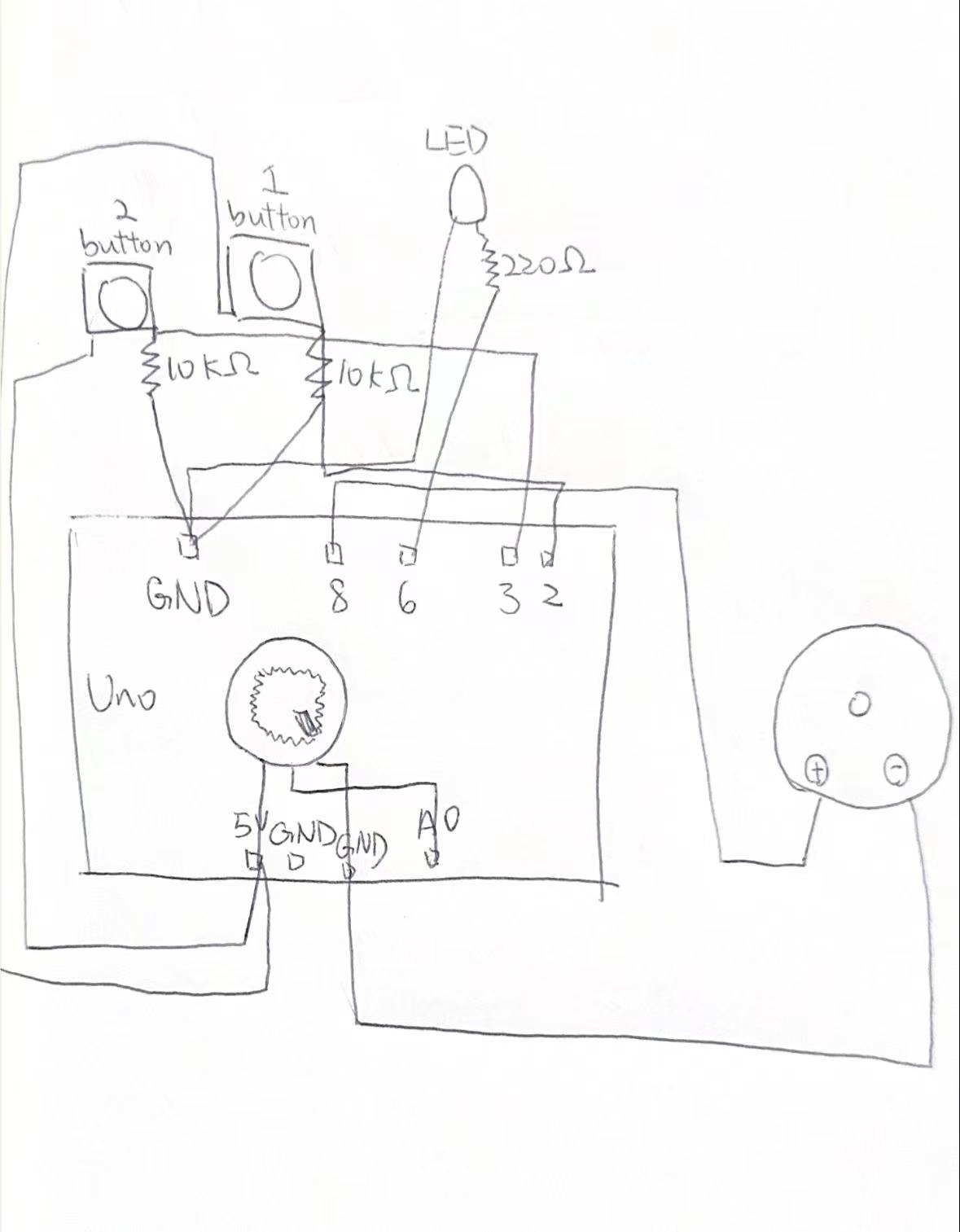
The concept of my project is to create a simple electronic musical instrument using Arduino. I wanted to turn basic components like a button and a potentiometer into something interactive and expressive. The button works like a “play key,” while the potentiometer controls the pitch of the sound. By combining these elements, the user can actively “play” the instrument instead of just hearing a fixed sound. I also added a second button to switch between low and high pitch modes, which makes the instrument feel more dynamic and closer to a real musical device.

How I Made This

int playButtonPin = 2;
int modeButtonPin = 3;
int buzzerPin = 8;
int ledPin = 6;
int potPin = A0;

int lowNotes[]  = {262, 294, 330, 349, 392, 440, 494, 523};   // C4 到 C5
int highNotes[] = {523, 587, 659, 698, 784, 880, 988, 1047};  // C5 到 C6

bool highMode = false;
int lastModeButtonState = LOW;

void setup() {
  pinMode(playButtonPin, INPUT);
  pinMode(modeButtonPin, INPUT);
  pinMode(buzzerPin, OUTPUT);
  pinMode(ledPin, OUTPUT);
  Serial.begin(9600);
}

void loop() {
  int playButtonState = digitalRead(playButtonPin);
  int modeButtonState = digitalRead(modeButtonPin);
  int potValue = analogRead(potPin);

  int noteIndex = map(potValue, 0, 1023, 0, 7);

  // detect second button:change mode
  if (modeButtonState == HIGH && lastModeButtonState == LOW) {
    highMode = !highMode;
    delay(200); // 
  }
  lastModeButtonState = modeButtonState;

  int frequency;
  if (highMode) {
    frequency = highNotes[noteIndex];
  } else {
    frequency = lowNotes[noteIndex];
  }

  if (playButtonState == HIGH) {
    tone(buzzerPin, frequency);
    digitalWrite(ledPin, HIGH);
  } else {
    noTone(buzzerPin);
    digitalWrite(ledPin, LOW);
  }

  Serial.print("Mode: ");
  if (highMode) {
    Serial.print("HIGH");
  } else {
    Serial.print("LOW");
  }

  Serial.print("  Note index: ");
  Serial.print(noteIndex);
  Serial.print("  Frequency: ");
  Serial.println(frequency);

  delay(10);
}


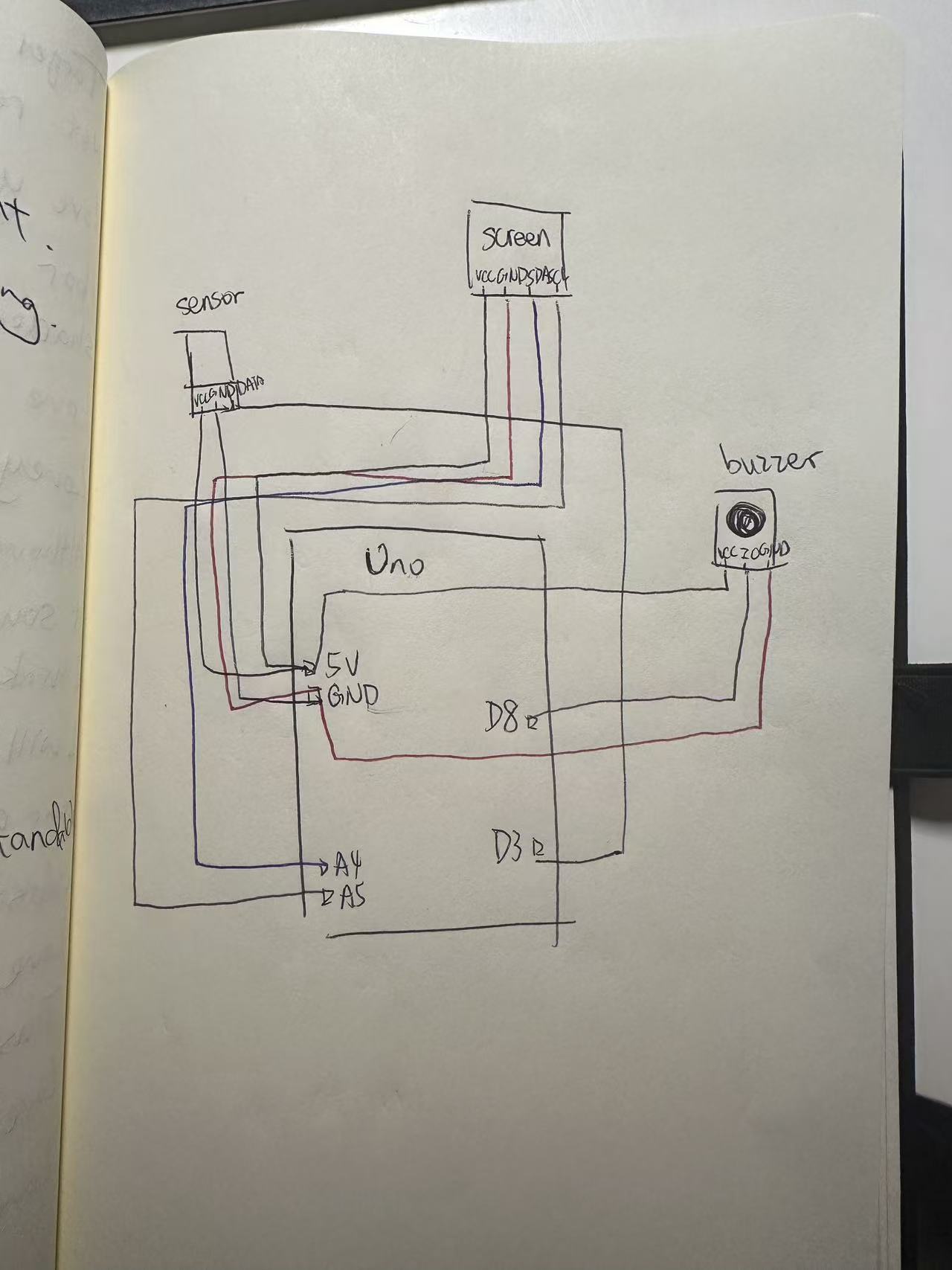
I started by building a very basic circuit with a buzzer, a button, and a potentiometer. At first, the buzzer only made continuous sounds, which didnot feel like music. Then I modified the code so that the potentiometer controls discrete notes instead of continuous frequencies. This made the sound more like a real scale (Do, Re, Mi).

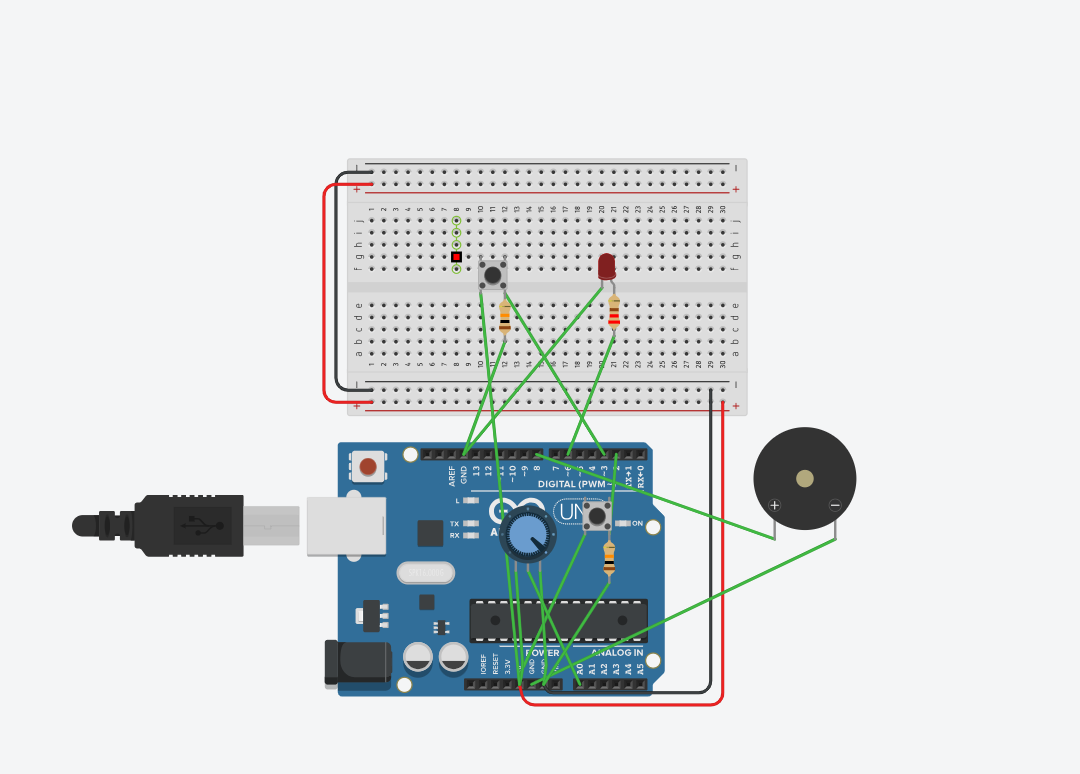
After that, I added a second button to switch between two sets of notes (low and high pitch). This required both wiring changes and updating the code logic to detect button presses and toggle modes. I also added an LED that lights up when the instrument is being played, which gives visual feedback and makes the interaction clearer.

Throughout the process, I tested each part step by step instead of building everything at once. This helped me identify problems more easily and understand how each component works.

What I’m Proud Of

The part I’m most proud of is how I figured out the mistakes with the buttons. At the beginning, my buttons did not work correctly at all. Sometimes the sound would play randomly, and sometimes pressing the button did nothing. I realized later that I misunderstood how the button pins (1A, 2A, etc.) are connected internally, and I also forgot to use the resistor properly.

After debugging, I learned that the button needs to cross the middle gap on the breadboard and that I must connect a pull-down resistor to stabilize the signal. Fixing this problem made everything work correctly, and it was a moment where I felt I really understood the circuit instead of just following instructions. This experience helped me become more confident in troubleshooting hardware problems.

What I Can Do Better Next Time

Next time, I think I can improve both the design and the interaction of my project. Right now, the instrument is still quite simple, and the sound is limited to basic tones. I could improve this by adding more buttons to create a small keyboard or by programming simple melodies.

I also want to make the interaction more intuitive. For example, I could use a light sensor to control pitch instead of a potentiometer, which would make the instrument feel more creative and less mechanical. Another improvement would be organizing the wiring more clearly, because my current circuit is a bit messy and hard to read.

Overall, this project helped me understand both coding and circuit design better, but I think there is still a lot of space to make it more expressive and closer to a real musical instrument.

Reading reflection

After reading both the essay and the responses, one clear idea is the difference between what interaction design could be vs what it is now. Bret Victor wants computers to help people think and understand, not just click buttons. This made me reflect that many of my own projects are still very basic—more like reactions, not real thinking tools.

Another important thought is about making things visible. He argues that systems should show how they work instead of hiding everything. This connects to learning. When I can see changes directly, I understand faster. So interaction design is not only about design, but also about how people learn.

However, the responses made me question his ideas. Some people say his vision is too idealistic and hard to apply in real life. Real systems have limits, and not all users want to explore deeply. Sometimes people just want things to be fast and simple. So his ideas may work better for learning tools, not everyday apps.

It also made me think about the role of the designer. Instead of controlling everything, the designer creates a system where users explore by themselves. This is similar to interactive art, but it also means less control over the final experience.

Overall, these readings made me see interaction design as more than coding. It is about how people think, understand, and interact with systems, but also about balancing ideal ideas with real-world limits.

Week 10 Assignment

Concept

My project is a simple interactive lighting system using one analog sensor and one digital sensor. I used a potentiometer as the analog sensor and a pushbutton as the digital sensor. The idea is that the potentiometer controls the brightness of one LED, while the button controls whether the other LED turns on or off. I wanted to make a small circuit that shows two different ways Arduino can read input and control output. This project is simple, one LED changes gradually, while the other only has two states, on and off.

How I made it:

const int potPin = A0;      // potentiometer connected to analog pin A0
const int buttonPin = 2;    // pushbutton connected to digital pin 2
const int ledDigital = 13;  // LED controlled by the button
const int ledAnalog = 9;    // LED with adjustable brightness

void setup() {
  pinMode(buttonPin, INPUT_PULLUP);  // use the internal pull-up resistor for the button
  pinMode(ledDigital, OUTPUT);       // set digital LED as output
  pinMode(ledAnalog, OUTPUT);        // set analog LED as output
}

void loop() {
  // read the potentiometer value from 0 to 1023
  int potValue = analogRead(potPin);

  // convert the potentiometer value into a brightness value from 0 to 255
  int brightness = map(potValue, 0, 1023, 0, 255);

  // control the brightness of the LED on pin 9
  analogWrite(ledAnalog, brightness);

  // read the button state
  int buttonState = digitalRead(buttonPin);

  // when the button is pressed, turn on the digital LED
  // when the button is not pressed, turn it off
  if (buttonState == LOW) {
    digitalWrite(ledDigital, HIGH);
  } else {
    digitalWrite(ledDigital, LOW);
  }
}

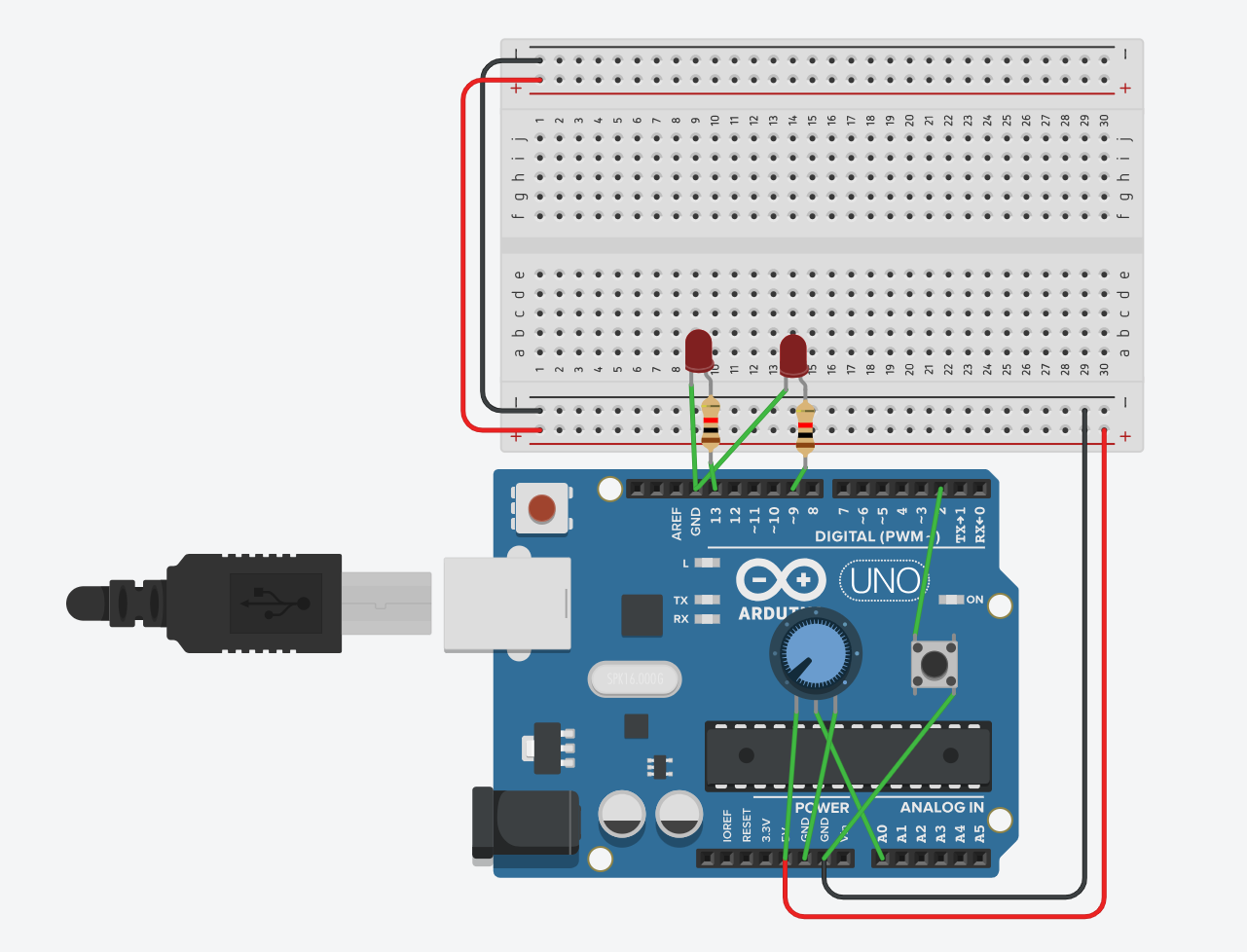
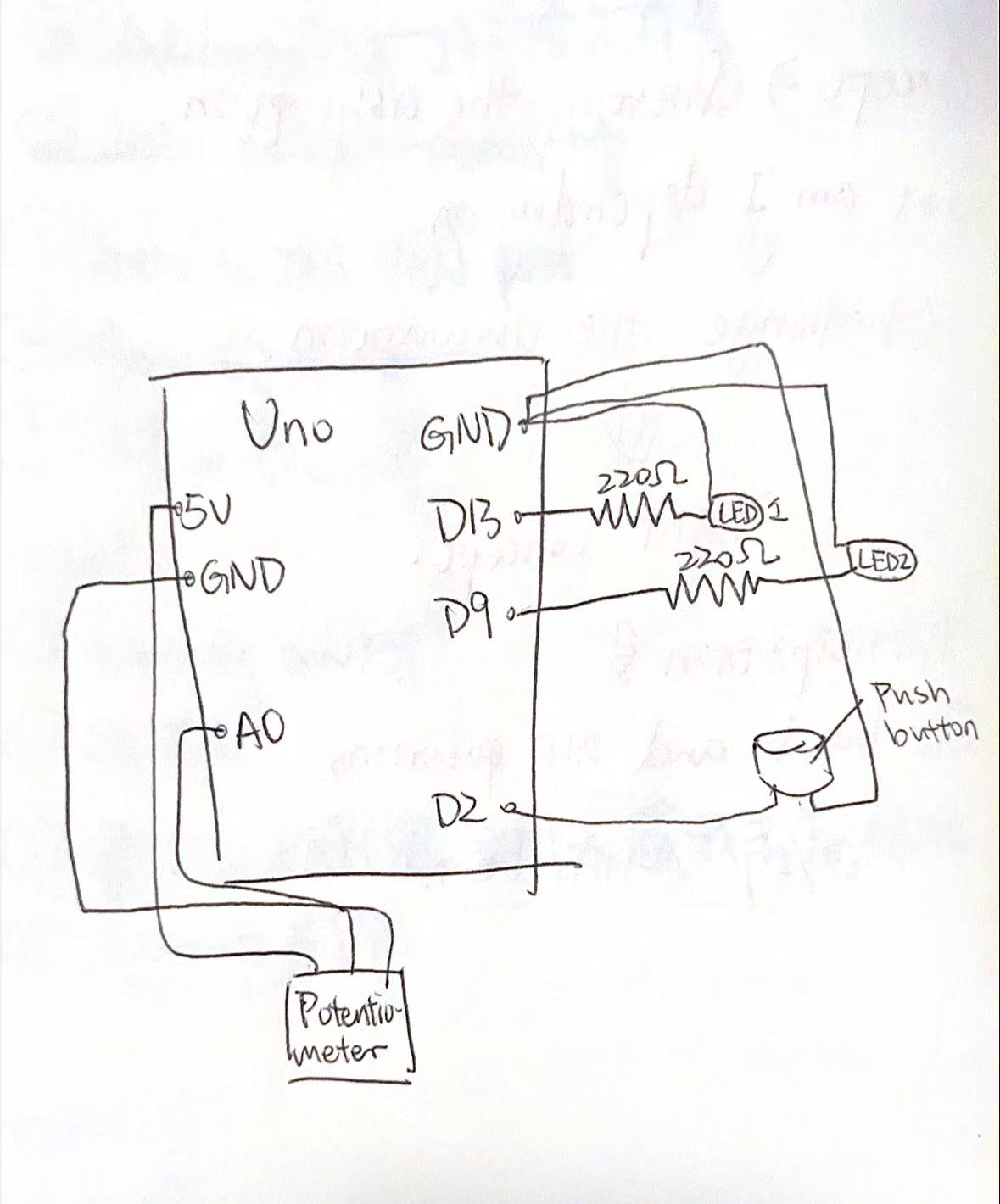
First, I built the circuit in Tinkercad because I do not have a physical Arduino with me right now. I added an Arduino Uno, a potentiometer, a pushbutton, two LEDs, and resistors. Then I connected the potentiometer to 5V, GND, and A0 so Arduino could read its analog value. After that, I connected the pushbutton to pin 2 and GND so it could work as a digital input.

Next, I connected one LED to pin 13 for simple on and off control, and another LED to pin 9 so I could control its brightness with PWM. In the code, I used analogRead() to read the potentiometer value and map() to change that value into a brightness level from 0 to 255. Then I used analogWrite() to change the brightness of the LED on pin 9. For the button, I used digitalRead() to check whether it was pressed, and then I turned the LED on pin 13 on or off.


What I’m proud of

I am proud that I solved a problem by checking my circuit carefully. At the beginning, I placed the button incorrectly, so LED2 could not light up. At first, I thought the code might be wrong, but later I realized the problem was in the button connection. After fixing the button placement, the circuit worked correctly.

This mistake helped me learn that in Arduino projects, the wiring is just as important as the code. Even if the code is correct, the circuit will not work if one part is connected incorrectly. I think this was an important learning moment for mebecause I am still new to Arduino.

Conclusion

Overall, this project helped me understand the basic difference between analog input and digital input. I learned how a potentiometer can control LED brightness and how a pushbutton can control an LED in a simple on/off way. I also learned how important it is to test carefully and fix mistakes step by step. However, this is my very fist time to learn Arduino, so this project might be a bit lack of creativity. But during the process, I learned the basics of Arduino.

Reading reflection and thoughts

One thought is that this article changes the role of the artist. Usually, we think the artist’s job is to express a clear message. But in this reading, the artist is more like a designer of experience. The artist builds the situation, and the audience helps finish the work through their actions.

Another idea is that interactive art is not fully complete until people engage with it. This makes the artwork feel alive and open, not fixed like a painting with one meaning. I think this is interesting because it gives more power to the audience.

I also thought about the phrase “set the stage, then shut up.” It sounds strong, but the meaning is important. The artist should guide people through space, objects, and hints, but should not explain too much. Too much explanation can limit people’s feelings and reactions.

The article also made me think that misunderstanding is not always failure. If people use the work in unexpected ways, that can still be part of the conversation. Their confusion or surprise may reveal something important about the design.

Another idea is that interactive art needs good affordance. If you want people to touch something, the object should invite touch. If you do not want touch, it should not look touchable. So meaning is not only in words, but also in design, placement, and behavior.

I also thought this reading connects interactive art to performance. The audience is not just watching; they are acting. This makes the artwork closer to theatre or rehearsal, where meaning is discovered through action, not just given in advance.

Week 9 reading


Reading 1(longer one):

One idea I got from the reading is that beauty is not just decoration. Attractive design can actually change how people feel, and that feeling can affect how well they use something.

I also thought it was interesting that people do not always choose things only because they are the most efficient. Sometimes we choose objects because they feel enjoyable, elegant, or comforting. That makes design feel more human, not just technical.

Another idea is that emotion affects thinking. When people feel relaxed and positive, they may become more open, creative, and flexible. But when they feel stressed, they focus more narrowly. This made me think that design should match the situation people are in.

The reading also made me think that usability and aesthetics should not be separated too much. A product may work well in a mechanical sense, but if it feels unpleasant, the whole experience is weaker. Good design should care about both function and feeling.


Reading 2(shorter one):

Margaret Hamilton did more than write programs. She helped make software into a serious field. At first, software was not even treated as an important part of the Apollo mission, but later it became central to success.

I also think the article has a strong message about responsibility. Hamilton understood that small mistakes in code could become huge real-life dangers. That makes her work feel very modern, because today we still depend on software in high-stakes situations.

The article also suggests that great inventions are not only about one person. Hamilton was a major leader, but Apollo software was built by a large team, including many women whose work is often forgotten. That makes the article partly about hidden labor and recognition.

Midterm Project: Where is the ghost?

Concept 
This project is a small “ghost hunting” camera game inspired by Identity V. In Identity V, a detective enters a mysterious place and slowly discovers clues. I borrowed that detective-in-a-secret-castle feeling and turned it into an interactive p5.js experience. The player is a brave “ghost catcher” who explores an ancient castle at night, hears strange whispers, and tries to help the people living there by collecting evidence.

I also wanted to change the usual mood of ghosts. Ghosts don’t always have to be terrifying. In my game, the ghosts are faint and mysterious in the live scene, but when you successfully capture one in a photo, it becomes cute and playful (with a tongue-out expression). I like this because it matches how cameras work in real life: people often want to look “better” in front of the camera, and the photo becomes a different version of reality.

How the project works + what I’m proud of 
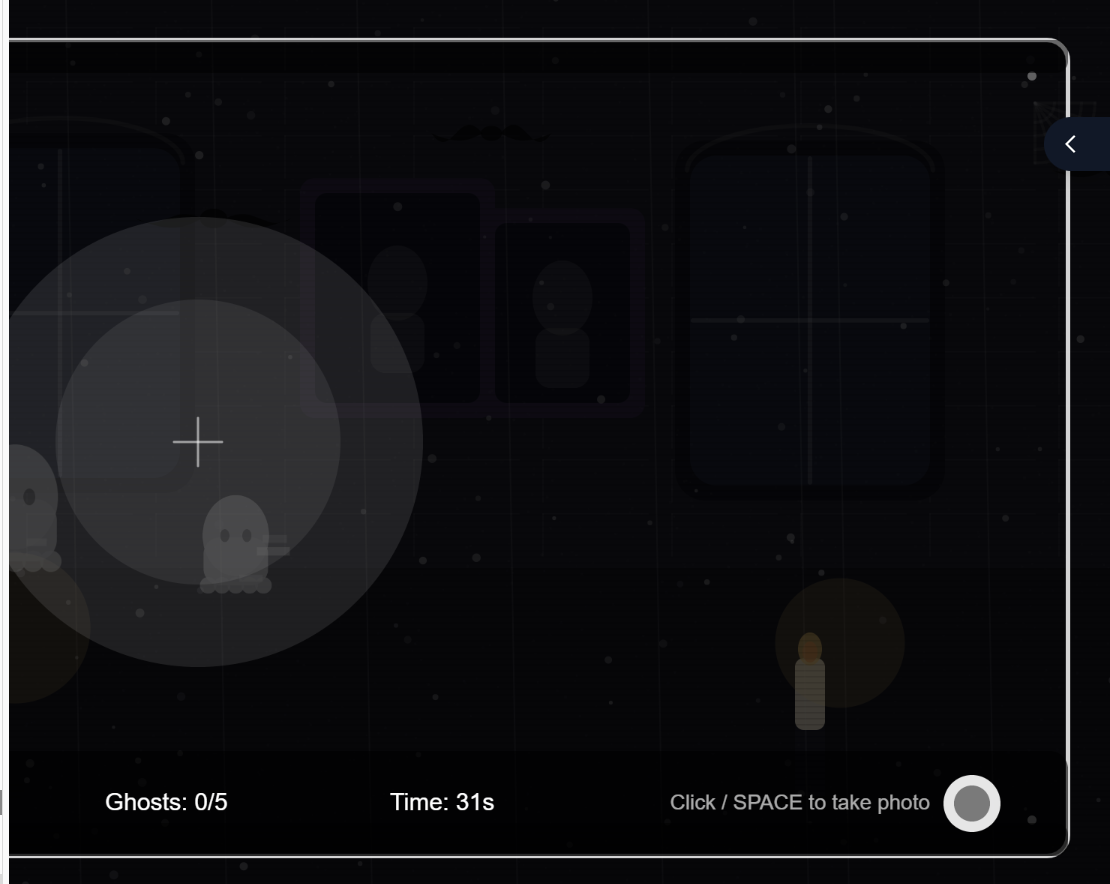
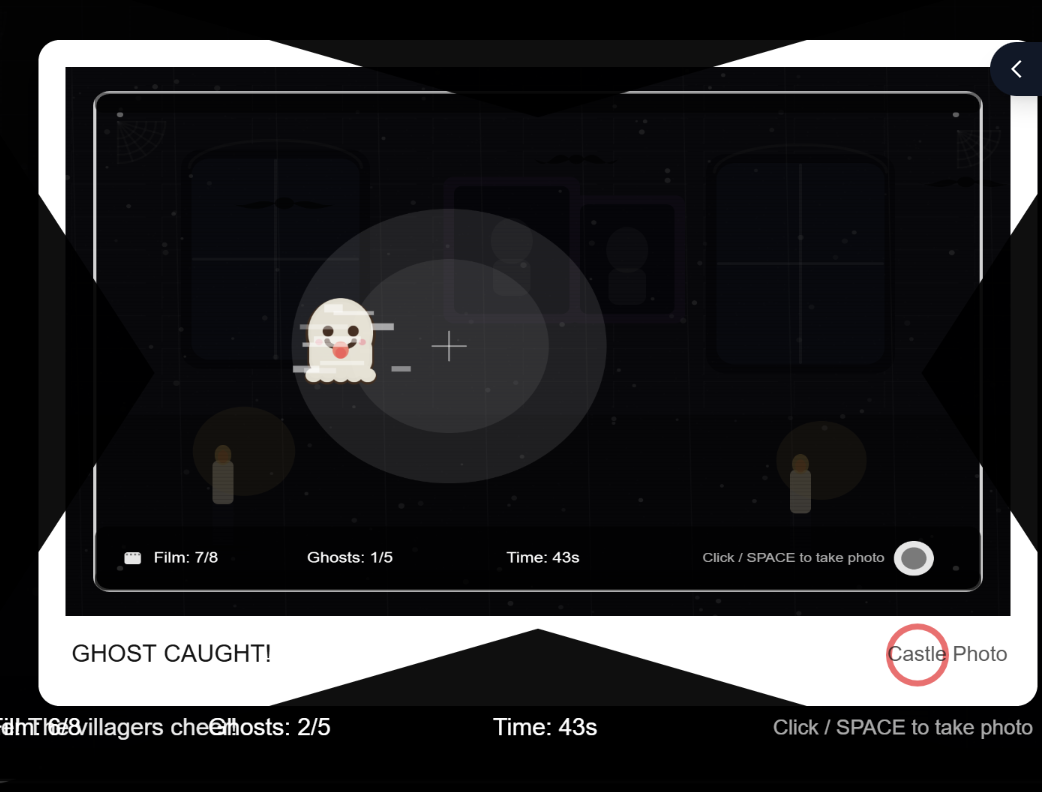
The game starts on an instruction screen with a short story setup, then waits for the player to press a key or click a start button. During gameplay, the mouse controls a flashlight that reveals the scene. Ghosts appear only sometimes, and they are only visible when they are inside the flashlight area. To “capture” a ghost, the player takes a photo (click or space) while a ghost is inside the light. The photo preview shows the captured frame like a polaroid, and if a ghost was caught, it displays a special “cute ghost” version. The game ends when the player captures enough ghosts, runs out of time, or runs out of film, and then it offers a restart without refreshing.

I separated “live view” from “photo view.” In the live scene, ghosts only count if they are currently visible AND inside the flashlight radius (so the player must aim and time it). Then, after a successful capture, I draw a special “tongue ghost” onto the captured image buffer (photoImage). This makes the camera feel meaningful: it doesn’t just add score, it changes the ghost’s personality in the “photo reality,” matching my concept that people want to look better on camera.

let capturedGhost = null;
for (let g of ghosts) {
  if (g.isVisibleNow() && g.isInsideFlashlight(mouseX, mouseY)) {
    capturedGhost = g;
    break;
  }
}

Then I did the important trick: I made a separate “photo layer” instead of drawing everything directly on the main screen. I create a new graphics canvas for the photo, and I copy the current screen into it. That’s what makes the photo feel like it’s frozen in time:

photoImage = createGraphics(width, height);
photoImage.image(get(), 0, 0);

After that, if I really did capture a ghost, I draw the cute tongue ghost onto the photo layer (not the live game). And I add to my capture count:

capturedGhost.drawTongueStrongOn(photoImage);
ghostsCaptured++;

Once I got this working, the whole game started to make sense. The live view stays spooky and subtle, but the photo becomes the “evidence,” and the ghost looks cuter in the picture—kind of like how people also want to look better when a camera points at them.

Areas for improvement + problems I ran into 
One area to improve is balancing and clarity. Sometimes players may miss ghosts too easily, depending on timing and where the flashlight is. I want to tune the ghost visibility timing and the capture conditions so it feels fair but still challenging. I also want to add clearer feedback when a ghost is nearby so the player can learn the game faster.

Adding sound was harder than I expected because browsers don’t just let a game play audio whenever it wants. In p5.js, if you try to play sound automatically when the page loads, most browsers will block it. They only allow audio after a real user action, like a click or pressing a key. At first this felt confusing, because my code was “correct,” but nothing played. So the challenge wasn’t only choosing sounds—it was designing the game flow so sound is unlocked in a clean way.

To fix that, I made sure audio starts only after the player begins the game on purpose. When the player presses SPACE (or clicks START), I call my audio setup function ensureAudioStarted(). Inside that function I use userStartAudio() (from p5.sound) to unlock audio, then I start my sound sources (an oscillator and a noise generator) at zero volume so they’re ready but not making noise.

Week 5 midterm progress

Concept
My midterm project is a simple car race game called “Mirror Lane Racer.” The player drives a car on a three-lane road and tries to survive by avoiding traffic cars. The main “new element” is Mirror Mode: sometimes a mirror shard pickup appears, and if the player collects it, the controls flip for a few seconds (left becomes right, right becomes left). This is meant to create a quick moment of confusion and force the player to adapt.
My reference of this work is the idea of subway surfers.subway suffers 的图像结果

The experience starts on an instruction screen and waits for the player to press SPACE (or click) before the game begins. If the player crashes, the game switches to an end screen showing the score and a clear restart option (press R) so a new run can start without refreshing the page.

Code plan
I’m planning to structure the sketch with three game states: Start, Play, and End. In the Play state, the game will repeatedly (1) spawn traffic cars and mirror shards, (2) update their positions as they move down the screen, (3) draw everything, and (4) check for collisions.

To meet the OOP requirement, I’ll use classes like: 1) PlayerCar: stores lane position and has methods to move left/right and display itself. 2) ObstacleCar: spawns in a lane, moves downward, and gets removed when off-screen. 3) PickupShard: spawns sometimes; if collected, it triggers Mirror Mode with a timer.

Traffic cars and pickups will be stored in arrays so multiple objects can exist at once. I’ll also include a `resetGame()` function that clears arrays, resets score/timers, turns off Mirror Mode, and puts the player back in the center lane for restarts.

Sound plan
The game will include at least one sound, and I’ll likely use a few short sounds: 1)An engine loop 2)A crash sound when the player hits traffic  3)A pickup sound when collecting a mirror shard

Because browsers usually require a user gesture before playing audio, I will start audio only after the player presses SPACE/clicks to begin. After that, I can trigger sounds during gameplay events (pickup/crash). I already tested that a keypress can reliably start audio, so I won’t risk the sound requirement failing at the end.

Week 5 Reading

Computer vision and human vision both “look,” but they don’t work the same way. Humans are good at understanding meaning. If you see a person in a messy room, you instantly know what’s important, even with bad lighting or weird angles. Computers usually don’t understand meaning by default. They see the world as numbers (pixels), and they often need clear conditions or extra rules to decide what something “is.” Humans also handle depth, shadows, and changes in lighting very naturally. A camera image is flat, and small changes (a shadow, glare, low light) can confuse the computer a lot more than a person.

To help the computer “see” or track what we care about, we usually make the situation simpler. One technique is controlling the environment: use bright, even lighting and a clean background so the subject stands out. Another is increasing contrast (like wearing a bright color against a dark wall). In code, you can use methods like motion detection (compare frames to find movement), background subtraction (separate the person from the background), thresholding (turn the image into black/white based on brightness), and color tracking (follow a specific color range). You can also add markers on purpose—like a QR-code-style tag, a colored sticker, or a high-contrast shape—so the computer can track that instead of trying to recognize a whole body or face. The general strategy is: don’t make the computer solve a hard problem if you can redesign the setup to make it an easy one.

Computer vision is strongly connected to tracking and surveillance, and that affects interactive art in a few ways. On the positive side, tracking can create powerful experiences: the artwork can “respond” to your body, movement, or presence in a way that feels alive. But the same tracking can also feel invasive, because people know cameras are used to monitor and identify them in real life. That can create discomfort or distrust, especially if the artwork is not clear about what it records. Artists using computer vision should think about consent and transparency: tell the audience what is being tracked, avoid collecting personal data when it isn’t needed, and design interactions that don’t require identifying someone (tracking motion or silhouettes instead of faces). In interactive art, the best use of vision often focuses on participation and expression, not surveillance.

Week 4 – Generative text

Concept:
I was inspired by the idea of an “answer book.” When people feel confused or overwhelmed, they sometimes speak their question out loud and then randomly open a book to any page. Even though the page is chosen by chance, a sentence on that page can feel meaningful or comforting, and it can help the person feel calmer or more encouraged. Based on this idea, I created a simple online version of the answer book. The user brings their own question, then clicks once to receive a randomly generated sentence. The goal is not to give a perfect or “correct” answer, but to offer a small prompt that can shift the user’s mood, support reflection, and help them move forward.
How this was made:
I made this project by following a simple p5.js workflow and using a mix of learning resources to solve specific problems as they came up. I started by watching beginner YouTube tutorials on p5.js to understand the basic structure of a sketch, especially how `setup()` and `draw()` work, and how to display text on the canvas. After I had a basic template running, I used the official p5.js reference website to check the correct syntax for functions like `text()`, `textAlign()`, `textSize()`, `mousePressed()`, and `saveCanvas()`. Next, I built the “answer book” logic using online examples about randomness and arrays. I created several word banks (sentence starters, subjects, verbs, adjectives, and endings) and then used `random()` to pick one item from each list. I combined those parts into a full sentence, so every click generates a new “page” from the book. I tested the output many times and edited the word lists to make sure the sentences sounded smooth and encouraging, not broken or repetitive. When I got stuck or wanted to improve the design, I also used generative AI as a helper. I asked it for simple code patterns (like how to organize arrays, how to avoid repeating the same quote too often, and how to make the layout look cleaner).

The part I am proud of:
Actually, the whole thing is fun and interesting, it indeed took me sometimes to collaborate the part that we use for adding all the words together to form a sentences. But I will say the “word bank” itself is the most chellenging part. Since I have to go through many answer books and find some short sentences to make the whole sentence make sense. (somehow)

// Word banks 
let starters = ["Today I learned", "I keep forgetting", "I wish", "I noticed", "It feels like", "Sometimes","I hope", "I confess"];
let subjects = ["my phone", "the app", "the door", "my brain", "the algorithm", "the website", "this class","the thoughts"];
let verbs = ["is", "acts", "behaves", "works", "fails", "pretends", "keeps trying","destroy"];
let adjectives = ["confusing", "too fast", "too slow", "strangely helpful", "kinda broken", "overdesigned", "simple"];
let endings = [
  "and I blame the design.",
  "but I'm still alive.",
  "so I take a deep breath.",
  "and somehow it makes sense.",
  "and then I start over.",
  "and that’s the whole story."
];

Conclusion:
I think I did a goood job on this assignment. But if the time is longer, I think I can put more phrases inside the coding, make the text not that repeatable.

Week 4- Reading

One thing that drives me crazy is QR-code restaurant ordering. I scan the code and it opens a slow website that is hard to use. Important things are hidden, like how to add notes (“no ice,” “no peanuts”), and the buttons are often small or confusing. Sometimes the page refreshes and my order disappears, so I have to start over. It makes me feel like I’m doing extra work just to buy food.

Using Norman’s design ideas, this could be improved in a few simple ways. First, the main actions should be obvious, like “Order,” “Ask for help,” and “Pay.” Second, the steps should match how people actually think: pick items, customize, review, then submit. Third, the system needs clear feedback, like “Added to cart,” “Order sent,” and a confirmation screen, so I know it worked. It should also prevent common mistakes by reminding me if I forgot a required choice, like size or toppings. Finally, it should save my progress if the internet is bad, instead of deleting everything.

We can apply the same principles to interactive media, like games, apps, VR, or interactive art. The most important thing is discoverability: people should quickly understand what they can do. Interactive objects should have clear signs, like a highlight, an icon, or a small animation that hints “touch me” or “pick me up.” Controls should also feel natural. If I move something left, the result should move left, not the opposite, unless the experience clearly explains why.

Feedback is also essential in interactive media. When I tap, grab, or press something, the system should respond right away with sound, vibration, movement, or a visual change. This makes the experience feel reliable. Good design also helps users recover from errors. There should be a clear way to undo, restart, or exit, so users don’t get stuck feeling confused. Overall, Norman’s principles remind us that if many people struggle, the design should change—not the user.