Week 4 Assignment- Generative Text

Concept:

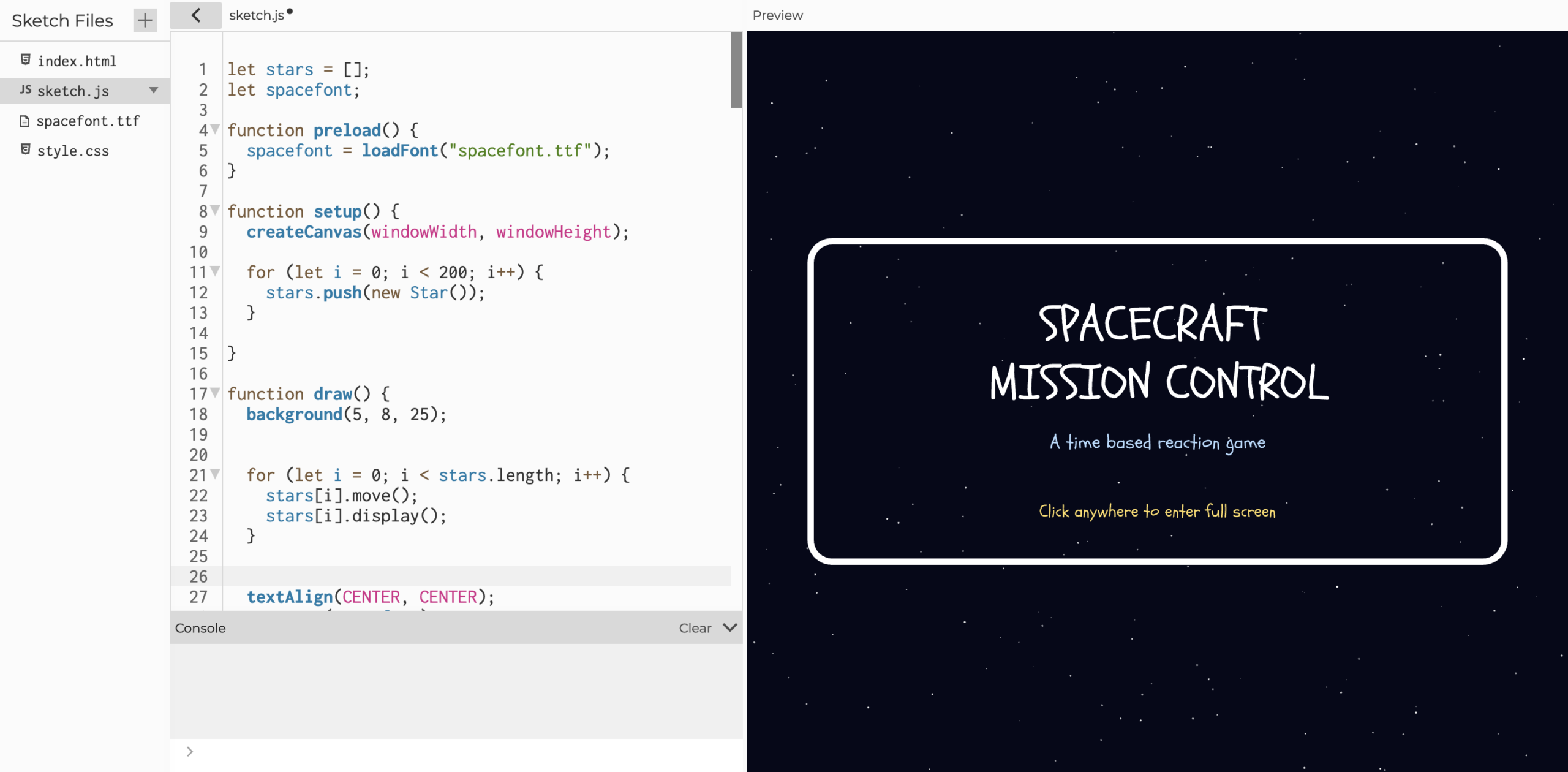
At the beginning of this project, I was deciding whether I should create a truth or dare style generative text. After researching different types of questions, I came across “Who’s Most Likely To,” which has a similar concept but felt more suitable for the project. Because the project focuses on generative text, I chose to create an interactive “Who’s Most Likely To” generator. Each click produces a new randomly generated question using words taken from a CSV file.

I wanted the interaction to feel playful and social, similar to a board game night activity. To support this, the background color changes every time the user clicks, so the experience feels dynamic rather than static. I also designed a bold border, a clear title, and a short prompt explaining how to interact with the page so the user immediately understands what to do. I used a playful font to match the tone of the game and make the interface feel light and inviting. The goal of the project is to create a simple interactive experience where the user repeatedly clicks and receives a new question each time.

Embedded code:

Highlight of the code:


push();//saves current drawing setting
 stroke(3);
 strokeWeight(20);
 noFill();
 rect(15, 15, width - 29, height - 29);//draws the rect to be framing the canvas
 noStroke();
 pop();//closes the drawing seeting what is between push and pop wont affect the other lines of code

 push();//saves current drawing setting
 textSize(30);
 text("Whos Likely Game", width / 2, height / 4);
 pop();//closes the drawing seeting what is between push and pop wont affect the other lines of code

 push();//saves current drawing setting
 textSize(17);
 // textAlign(CENTER,CENTER);
 text("Click the screen to generate a question!", width / 2, height / 3.5);
 pop();//closes the drawing seeting what is between push and pop wont affect the other lines of code

 translate(width / 2, height / 2);
function randomColor() {
  bgColor = color(random(255), random(255), random(255)); //everytime th emouse is clicked a new color is given to the background
}

I used push () and pop () to isolate the styling of the title and prompt. This prevents their font size and styling from affecting the generated question. It helped me understand that p5.js keeps drawing settings active unless they are reset, so push and pop act like saving and restoring the canvas settings. Instead of calculating the exact position of the generated text, I used translate () to move the coordinate system to the center of the canvas. This allowed me to draw the question at (0,0) and keep it centered regardless of canvas size. I implemented randomness visually by generating a new RGB color on every click. The background change works as feedback, letting the user know their interaction triggered the system while also making every interaction visually unique.

How it was made:

For the process, I first began by implementing the CSV file. I created a CSV containing the word groups I was going to use, specifically the determiners and the verbs. I then loaded the CSV file using loadStrings () and tested that the data was being imported correctly. I mostly used the same structure as the code we used in class, but modified it so it would fit my sentence structure and generate a “Who’s Most Likely To” question.

After that, I added a custom font to improve the visual style. I placed the font file as a . ttf file and loaded it inside the preload () function so it would be available before the sketch starts. Then I applied the font to the text elements.

Next, I created the stationary text elements, including the title “Who’s Most Likely Game” and the prompt “Click the screen to generate a question.” I positioned them using width/2 and height/4, and a similar proportional placement for the prompt. This way, if the canvas size changes, the text stays centered and aligned above the generated question. I then added a border using rect () and adjusted the dimensions so it scales with the canvas size. For the stationary text, I wrapped the styling inside push () and pop () so the text settings would not affect the rest of the sketch.

I also implemented interaction using mousePressed (). Each click refreshes the question and changes the background color to make the experience more playful. I referenced the p5.js example (link in refrences) for this part and adapted the example to my project. To properly position the generated question, I used translate() to center the text on the canvas. Throughout the process, I relied on the examples from class to build the basic structure first, and then gradually added variations and visual improvements.

Reflection and Future ideas:

For reflection and future ideas, I am proud that I was able to understand how to implement important p5.js features such as push () and pop (), the use of translate(), and how to properly structure the draw() function. I also learned how to work with external files by importing a custom font and a CSV dataset into p5.js. Through this project I improved my understanding of transformations and how randomness can be used to generate a dynamic canvas. The background color changes helped me better understand how interaction and feedback can make a simple system feel more engaging. I also became more aware of layout and visual clarity, and how small design choices affect how easily the user understands the interface.

In the future, I would like to expand the project by animating the generated text so it fades in or slightly bounces when a new question appears. I would also like to allow users to input their own names so the game feels more personalized, and possibly add a point system to make it feel closer to an actual game. Additionally, adding small icons or visual elements could make the interface more visually appealing and reinforce the playful board-game atmosphere.

References:

For the color background changing whenever its pressed:

https://p5js.org/reference/p5.Element/mousePressed/

For text randomizer :

https://editor.p5js.org/maa9946/sketches/-4EPAewPV

For refreshing my understanding of transformations:

https://p5js.org/tutorials/coordinates-and-transformations/

Background color labeling and randomizer:

https://editor.p5js.org/aferriss/sketches/B1oYHcN9W

For text font:

https://editor.p5js.org/maa9946/sketches/FUnL3noV1

https://fonts.google.com/specimen/Barriecito

For who’s most likely to questions:

https://www.teenvogue.com/story/most-likely-to-questions#how-to-play

Week 4- Reading Response

The first example that came to mind that drives me insane is the Apple Magic Mouse. Although it isn’t mentioned in the reading it is an outside example that illustrates several of Norman’s design principles in action and the failure to achieve these principles and its consequences. The mouse cannot be used while charging because the charging port is placed on the bottom which was something that received a lot of backlash due to its inconvenient design placement. When the battery dies, you are forced to stop using it entirely until it charges, which makes the interaction extremely inconvenient. This design breaks several of Don Norman’s design principles. First, it demonstrates poor mapping. The location of the charging port forces the mouse to be flipped upside down, which physically prevents interaction. The physical layout directly maps to the user not being able to use the product. A mouse is meant to support continuous use, but the placement of the port makes its core function temporarily impossible.

Second, it breaks the conceptual model. A user expects a rechargeable device to continue working while plugged in, similar to a phone or laptop. When the mouse suddenly becomes unusable during charging, the user realizes their mental model was wrong. This mismatch between expectation and reality causes frustration. It also violates discoverability. The user does not learn this limitation during purchase or setup they discover it only at the worst possible moment: when the battery dies. At that point, the design interrupts workflow and negatively impacts the entire user experience. The issue appears to come from prioritizing aesthetics over usability. The bottom placement hides the charging port and keeps the mouse visually minimal, but it sacrifices function. This overall poor design is a result of the designer prioritizing appearance over functionality this is similar to Normans friends case where he got stuck in between a set of poorly designed swinging doors, and Norman stated that the” designer aimed for beauty, not utility.” Which is essentially what happened with the apple magic mouse.

A better design solution would be to move the charging port to the front or side of the mouse. The cable could lay flat while the mouse remains usable, improving mapping and maintaining a clean appearance. Another improvement would be a swappable battery, similar to camera batteries, allowing users to replace a depleted battery instantly instead of waiting. By relocating the charging port and optionally adding a replaceable battery, the mouse would better support continuous interaction, align with the user’s conceptual model, and improve the overall user experience.

Some of the author’s principles that caught my attention, and that I think strongly apply to interactive media, are discoverability, understanding, signifiers, and conceptual models. I feel these are the minimum standards that any interactive project should meet, especially when creating an interactive website.

First, discoverability and understanding are essential. When a user opens a website, they should immediately understand what the website is and how they are supposed to interact with it. The user should not have to guess where to click or what is interactive. For example, on the NYU Brightspace website there are clear icons for settings, notifications, and the user profile. These icons communicate visual cues, and because the symbols are simple and familiar, the user can quickly understand their function. The elements are clearly mapped, easy to find, and obviously clickable, which allows the user to comfortably navigate the interface.

Another important principle is signifiers, which Norman describes as indicators that communicate where the action should take place. In interactive media, signifiers guide the user through the experience. For example, on a game website there might be a “Start Here” button that glows while the background is dimmed. This immediately captures attention and shows the user where to begin. Similarly, a button might be a different color, such as red, or use motion like a pulsing animation. In many games, especially during tutorials, an arrow icon hovers over an object to show the player what to tap and how to interact. These visual cues reduce confusion and help the user learn the system naturally.

Another principle is the conceptual model, which explains how something works. This is especially important in interactive media because users need to form a mental understanding of the system before they can fully engage with it. Tutorials are a good example, they teach the user the rules of interaction before the experience becomes logic of the system, they feel more confident navigating it.

Overall, these principles help make an interactive project intuitive rather than frustrating. When discoverability, clear signifiers, and a strong conceptual model are present, the user does not have to think about how to use the interface and can instead focus on the experience itself. This is ultimately the goal of good interaction design.

Week 3 – Reading Reflection

From the reading, I understood interactivity as a cyclic process where two actors continuously listen, think, and speak. I would say that I agree with his idea he explains the full idea in the reading clearly and uses relevant examples when introducing a new phrase or concept and I found myself easily understanding what he was saying and connecting it to my own works for example in my assignment 3 I responded to The idea of interactivity by allowing the users to generate new stars which fast like a small version of the listening and speaking and thinking cycle Crawford describes.

I really liked Crawford’s examples and his use of scenarios because they helped me visualize his concept instead of just reading a definition. His conversation example, especially the moment where “Step One: Fredegund listens to Gomer, paying close attention to Gomer’s words…,” made the idea much easier for me to grasp. The refrigerator door example also challenged one of my assumptions; before reading this, I probably would have called anything that reacts “interactive,” but now I see the difference between low interactivity (technically responsive but shallow) and high interactivity (meaningful and thoughtful). What stood out most is that strong interactivity requires all three parts to work well with no trading off. It reminded me of how frustrating it feels when someone “responds” to me without actually listening. A step in the reading I think would be hard to implement in my coding would be making the sketch respond in a meaningful and impactful way. While I can handle simple outputs, creating a system that truly “listens, thinks, and speaks” without weakening any part is more complicated than it sounds, especially as someone still new to code.

One thing that surprised me while reading was how much Crawford’s ideas made me reflect on my own life and experiences, both in coding and in everyday communication. I realized that I naturally focus on the part producing something visually interesting without fully thinking about how well my sketches are actually listening or thinking. It made me more aware of how limited my interactions can feel when the system only reacts in a basic way. But at the same time, that doesn’t make them any less satisfying.

Crawford’s refrigerator example reminded me that even simple reactions can feel rewarding when they respond at the right moment. Kids opening and closing a fridge door aren’t experiencing deep interactivity, but the responsiveness still feels good. That idea felt almost self contradicting at first, but it helped me understand that my sketches don’t need to be extremely complex to feel interactive they just need to respond in a way that feels intentional and connected to the user. That shift in perspective helped me appreciate the small interactions I’m already creating, while also motivating me to push them further.

To improve my sketch, I want to increase the “level” of conversation between the user and the system. Crawford’s idea that interactivity depends on how well something listens, thinks, and speaks made me realize that my sketches mostly stop at the listening stage. Since I’m still new to coding, the hardest part for me is creating a response that feels thoughtful rather than mechanical. One idea I’m excited about is having the sketch interpret the user’s “words” in a more complex way. For example, I want the code to listen to sound input and translate different volume levels into different colors, creating an evolving color palette. This would make the sketch feel like it’s actually responding to the user’s presence and energy, not just reacting to a single input. It’s a small step toward completing the “thinking” part of the cycle, but it feels like a meaningful way to push my work closer to the kind of interactivity Crawford describes.

Assignment 3- Arrays and Object

Concept:

Starting off this assignment, I began by brainstorming ways of incorporating the array into my artwork, and I ended up deciding that I wanted to create a shooting star effect, as I felt that, it was the most straightforward idea I could think of and it would allow me to have more creative freedom if I wanted to add more aspects as I developed my code. So the first thing I started with was creating the shooting stars array and the code for it. I wanted to create a generative night sky scene that felt calm, as if you were looking out a window during a star shower. The main idea was to use arrays and objects to animate shooting stars across the sky, inspired by the example we practiced in class. I chose shooting stars because they allowed me to use randomness, movement, and interaction in a simple but visually interesting way. As the project grew, I expanded the scene by adding a glowing moon and mountains with snowy peaks, which helped create a full landscape instead of just a blank sky. The mountains were created using the same loop structure we learned in class, where each mountain’s height comes from an array value. The glow effect around the moon was inspired by an example I found online that used layers of transparent shapes to create a soft halo. I further understood arrays by watching a YouTube video, since it is a somewhat complex concept, the video clarified what we learned in class and helped me feel more confident in implementing the code I was overall satisfied with my outcome. My goal was to mix static elements, the moon and mountains, with dynamic elements, the shooting stars, so the artwork feels alive but still peaceful. After the reading, it also made me think about user interaction, so I decided to let the viewer interact with the piece by clicking to add new stars. Depending on where the user clicks, a star is generated there, but its size, height, and speed are randomized. This allows the user to have some control while still keeping a random effect, which connects to the idea of the “thinking” part of the code referenced in the reading. Overall, the concept was to build a simple canvas that allowed me to apply what we learned in class, using arrays, loops, and object oriented programming to achieve my idea.

Code Highlight:

show(){
   stroke(250,250,200);
   strokeWeight(3);
   line(this.x,this.y,this.x-this.length,this.y-this.length/4);
 }
//every shooting star in the array goes through this loop 
 for(let i = 0; i <shootingStars.length; i++) {
   //moves the stars across the sketch
   shootingStars[i].move();
   //allows the starts to be drawn
   shootingStars[i].show();
   //allows the starts to be respawned when the leave the sketch canvas
   shootingStars[i].respawn();
for (let i = 0; i < mountainSizes.length; i++) {
    
    //x position formula for the triangles
    let x = 100 + i *180;
    
    //color of triangle
    fill('rgb(20,75,20)');
    noStroke();
    
    //upside down triangle to make it look like a mountain
    triangle(
      //bottom left corner of the mountain subtracted 100 from x to shift position left 
    x-100, 640, 
      //bottom right added 100 to x to shift the point right
    x+100, 640,
      //peak lifted up by subtracting the height comes from the mountain size array just like the nums[] example from class
    x, 640 - mountainSizes[i]
    );
    
    //small white triangle which is the snow cap
    fill(255);
    triangle(
    x-30,640 - mountainSizes[i] +40,
    x+ 30, 640 - mountainSizes[i] +40,
    x, 640 - mountainSizes[i] );
}

The first part of the code Im proud of is with the shooting stars . I am proud of this because the loop is based directly on the example from class where we used a loop to move and display each bubble. I was able to fully understand and adapt that example to my own objects, showing how arrays and objects can work together, which was my main goal. This loop controls the entire animation, without it, nothing would move, and it made me feel more confident in my coding abilities and in managing objects. I also learned how to make the shooting star look like it was actually stars by making them tilted. The shooting star looked tilted because the end of the line is drawn at this. x – this. length and this. y – this. length/4, which moves the line diagonally instead of straight across. Changing both x and y creates the angled streak that makes it look like a real shooting star.

Another is the respawn function and setting up the functions in general to restart the stars when they leave the screen. This was the trickiest part for me to understand, especially because it was what I started with. I spent the most time on it since it required checking conditions like if (this.x> width) and resetting values. In the respawn() function, I used an if statement to check when the star leaves the screen and then reset its position and speed. I learned the idea from the car example we were given, where the car resets once it goes off the screen, and I adapted that logic to my project by resetting the stars positions and giving them a random speed. This made the artwork feel alive and helped me understand how to use if statements inside a class, which felt like a big improvement for me.

Lastly, I am proud of an aesthetic addition involving the mountains. I used arrays similarly to the numbers example we did in class but applied it differently. Using the same structure, I created mountains instead of circles, with the mountainSizes array controlling the height of each mountain. I used the index variable to space the mountains evenly across the bottom of the canvas and added a second triangle as a snow cap to make them look more realistic and artistic. To add the snow cap I lifted it up by subtracting the height from the bottom of the canvas. This allowed the white triangle to sit exactly on top of the green mountain since the peak position is calculated using 640 – mountainSizes[i]. This section let me show my creativity and how I could take a class example and transform it into something that fit my assignment.

Reflection/future improvements:

Overall, this assignment helped me understand arrays and object-oriented programming in a clearer and deeper way than before. At first the concept felt confusing, but once I started applying it to something visual, it became easier to absorb and understand. The most challenging part for me was getting the shooting stars to respond correctly, along with small issues like spelling errors that I had to revise. I struggled with the logic at first, especially the conditions inside the class, but once I connected it to the car example I could directly see the cross reference. I also learned how important it is to break the code into smaller functions. Having separate move, show, and respawn functions made the project easier to manage, which reflects what we discussed in class. Adding the mountains  also taught me how flexible arrays and loops can be, since I reused the same structure from the nums[] example but created something completely different. I am proud of how the final work looked because it feels like a complete sketch rather than just an individual final assignment. This project made me more confident experimenting with visuals, trying new ideas, and structuring code in different ways. In future work, I hope to add more interactive elements and experiment with new animations or even sound effects, such as a soft wind or chime when a new star is added. I also want to code more visually complex shapes to add depth to the piece, for example giving the star a diamond shape and an opaque trail. I think adding a more complex feature where the user can somehow remove a star would allow for more interactivity.

References:

Glow affect:

https://editor.p5js.org/_o.line/sketches/09NFFDGea

Youtube Video Arrays:

https://www.youtube.com/watch?v=fBqaA7zRO58

Arrays and loops code from class:

https://editor.p5js.org/maa9946/sketches/pNkSsqH_L

Car example for loop:

https://editor.p5js.org/aaronsherwood/sketches/eYFQE9EZa

Week2- Reading Reflection

This reading affected me by helping me understand that the coded system itself is the creative act. Which led me to the question “What point does the computer go from being a tool to a collaborator helping in the creative process?” .When randomness is introduced, the outcome is no longer fully controlled by the artist, and this lack of control is actually very intentional. The artist writes instructions, but the results can be unexpected, and that uncertainty becomes part of the artwork. I noticed this idea reflected clearly in the code I wrote for the assignment. I created a system with rules for line width, square size, and color, but each of these elements was randomized within certain limitations. For example, the line width was random between one and four, and the square size was random between 20 and 45. This allowed me to maintain some control over the overall structure while still allowing the visuals to remain unpredictable. The outcome felt more alive and dynamic because it was never exactly the same.I planned to incorporate random elements into my work by using color, line weight, and shape size. As the speaker Cassie Reas explains, us, me, the artist (coder), designs the rules of a system rather than controlling a single outcome, treating the code as a set of rules that guide the work instead of controlling exactly how it turns out.

The optimum balance is achievable by controlling the rules without limiting the outcomes. Setting constraints allows the work to stay coherent while still being unpredictable. I feel that the ideal balance exists when I can predict the behavior of the system, but not the final visual result. In my work, I was able to control what elements could vary and the range in which they changed, but I could not predict the exact combinations of square size, line width, and color that appeared every two frames.

 Casey Reas mentions the term system based art, which is when the artwork functions as a system defined by behaviors rather than a single image. In this approach, the work exists as an ongoing process instead of a finished product. This idea connects closely to my piece, since it generates new variations every time it runs, making no single outcome the definitive version of the artwork.

Assignment 2 :Loop Art

Your concept:

The concept of my drawing comes from the early generative art from the 1970s from the Computer Graphics magazine, specifically pages 14 and 30, which used simple geometric shapes and repetition. Something I liked specifically about this piece was how it used grids, and how I can envision myself using the grid coding we learned in class and apply it. I wanted to create a retro piece using the P5JS tool, focusing on grids, squares, and random variation. The artwork I created changes every 2 frames through random color, random line weight, and random square size, creating a  glitch like pattern. I watched a youtube tutorial which helped me understand how the random() code works which allowed me to apply it to my piece. Instead of static shapes, I wanted the grid to feel unpredictable and constantly changing, but I didn’t want it to be overwhelming, so I set the frame rate to 2.

Another thing I wanted to do was set the background as black, so when you hover over the squares, depending on which square you hover over, it will become black and essentially give the effect of it disappearing. This is the small interactive element of mouse hover, which I adapted from our class code.

Page 14 from the magazine that inspired my work:

A highlight of some code that you’re particularly proud of:

//random square size+lineWidth from youtube video + color from p5.js example
       let squareSize= random(20,45);
       let lineWidth= random(1,4);
       strokeWeight(lineWidth);
       stroke(random(255),random(255),random(255));
       
       
       //When mouse hovers inside the square boundaries the stroke changes to black using the same condition we learned in class
       if(mouseX > x&& mouseX <x + 50 && mouseY > y && mouseY < y +50) {
         stroke (0);
       }
       
       //draw square the first square is the main one for this grid and the second square is smaller and centered within the first square using simple math and experimentation to find the correct placement of the second square 
       rect(x,y,squareSize,squareSize);
       rect(x+10,y+10,squareSize-20,squareSize-20);


A part of the code I’m proud of specifically is how I was able to incorporate the random () effect, especially the part of the code where the squares have random size variation, as well as random stroke weight and color variation . All o these affects become more noticeable because my sketch runs at 2 frames per second.

I’m proud of this because I was able to learn the random size and line weight from a YouTube tutorial and successfully adapt it to my own square design. I used the random color idea from a p5.js example, but I changed it from fill() to stroke() to match my outline based work. By combining all three random elements size, line weight, and color the pattern becomes visually interesting, even though the grid structure stays the same. I’m proud of how I was able to mix what we learned in class with new techniques I found on my own. Im also proud of how I was able to adjust the square sizes using simple math adding to x/y and subtracting from some to create a clean square within square effect.

For the mouse hover condition I was able to adjust it to work inside the grid and change the stroke () to a fill(), as a beginner I was able to take a concept we learned in class and adapt I to my code. I referenced directly from what we coded during class but adjusted it to my code:

    (Code in class)

if (mouseX > 50 && mouseX < 400 && mouseY > 100 && mouseY < 200) {

    fill(‘pink’);

}

In my version I replaced the fixed numbers with the loop variables X and Y so the hover effect works for every square in the grid instead of just one rectangle

Embedded sketch:

Reflection and ideas for future work or improvements:

Working on the second P5JS assignment, I was able to understand how simple shapes can become interesting and how code can become more interesting when it is combined with randomness. Even though the grid I created is very structured, I think the addition of random size, color, and line weight makes every frame feel more unique. Through this assignment, I was able to mix different ideas from different places: inspiration from the 1977 Computer Graphics and Art magazine, the YouTube example, the p5.js example, and the hover condition from our class code. I was also able to acknowledge the importance of the draw loop. Because my sketch runs at two frames per second, I was able to clearly apply and see each new variation. An idea for a future improvement I can make is experimenting with different shapes or mixed geometry to see how randomness affects them. I could also try adding rotation or movement so the squares slowly shift or spin over time and experiment with more complex mathematical code. Another idea is adding more layers of shapes and seeing how I can adapt this style to more complex code.

References:

Inspiration from Graphic magazine:

COMPUTER GRAPHICS AND ART Aug1977 Page 14 and Page 30

Random Color from this example :

https://editor.p5js.org/aferriss/sketches/HJKCR03uG#:~:text=1,let%20shapeColor%3B&text=2,%E2%80%8B&text=3,function%20setup()%20%7B&text=4,createCanvas(400%2C%20400)%3B&text=5

Random Line weight and shape size :

https://youtu.be/POn4cZ0jL-o?si=D8w6gaTpVwLFj8qH

Assignment 1: Self Portrait

Concept:

For the first assignment self-portrait. I decided to create a code for an image of a frog, and the idea was to create it using the 2D primitives, and my goal was to take what we learned in class about how to code using the shapes and implement it into my own piece, changing the colors, the size, and layering of the shapes and experimenting with the code to see what works for the image I had in my mind. The goal was to practice layering and the proportions, and I added small details like the eyelash and the fly to give the frog more detail.

How it’s made:

The image was created entirely using p5.js, I first created the frame size then created the background color and then chose a subject to create which is a frog.

I used basic shapes like ellipse, circle, and lines, and arc to build the frog. I built it from the back to the front, layered it from legs to body to head, then eyes, and lastly the details. I used the color fills and stroke changes to separate different parts of the frog. In addition to the frog i added a small fly to add more detail to the portrait as I felt it was on theme.

A part of the code I’m proud of:

A particular part of the code that I’m proud of is the mouth and the eyelashes. Because they required more precision and experimentation than the rest of the shapes, I would say these parts took me the longest to perfect and be satisfied with the results. The mouth uses an arc function, which requires specific angles to create a smooth curved line, and the eyelashes had to be carefully placed using the line function to angle them naturally around the eye to give the appearance of eyelashes.

The arc required understanding about how the arc worked because it isn’t as straightforward as the ellipse or the circle. I had to experiment and reference to examples from the p5.js to understand how it works more clearly.

https://p5js.org/examples/shapes-and-color-shape-primitives/

https://p5js.org/reference/p5/arc/

Because the mouth needed to sit naturally between the eyes and the end of the face, I adjusted the X position and the Y position multiple times to get the expression right. And I experimented with the width and the height to get the most natural looking smile. I also increased the stroke weight for this part of the feature to give the mouth a bold cartoon like outline to make the mouth stand out without overpowering the eyes.

//mouth
noFill();
stroke(0);
strokeWeight(10);
arc(305,400,150,100,0,PI);

//eyelashes
stroke(0);
strokeWeight(6);

//left eye lashes
line(170,180,150,160);
line(200,170,200,150);
line(230,180,250,160);

//right eye lashes
line(370,180,350,160);
line(400,170,400,150);
line(430,180,450,160);

Reflection:

I’m satisfied with how expressive the frog looks, especially the eyes and the smile and the addition of the fly. It adds more detail, and something I think would be interesting to implement in the future once we learn how complete more complex code, is a blinking animations for the eyes or how to make the code responsive to interaction for example if I click on the fly it starts flying around. Overall, this project helped me understand how coordinate changes can affect the design and how layering can differ the shape placement and how line weight can be played around with and used to advantage and how to code shapes more confidently overall. I look forward to learning more complex codes for the future to help enhance my coding skills.