Week 11: Final Project Preliminary Concept

Concept:

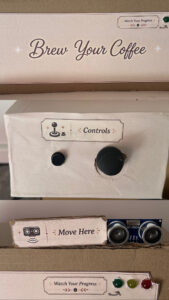
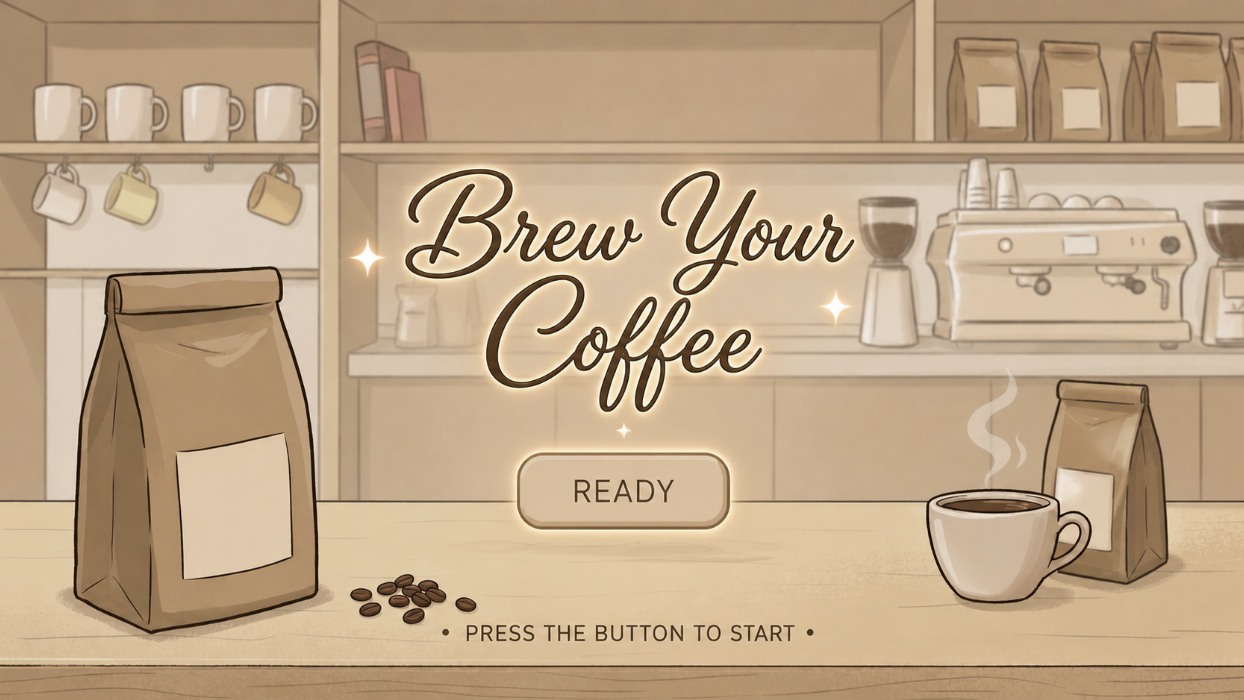
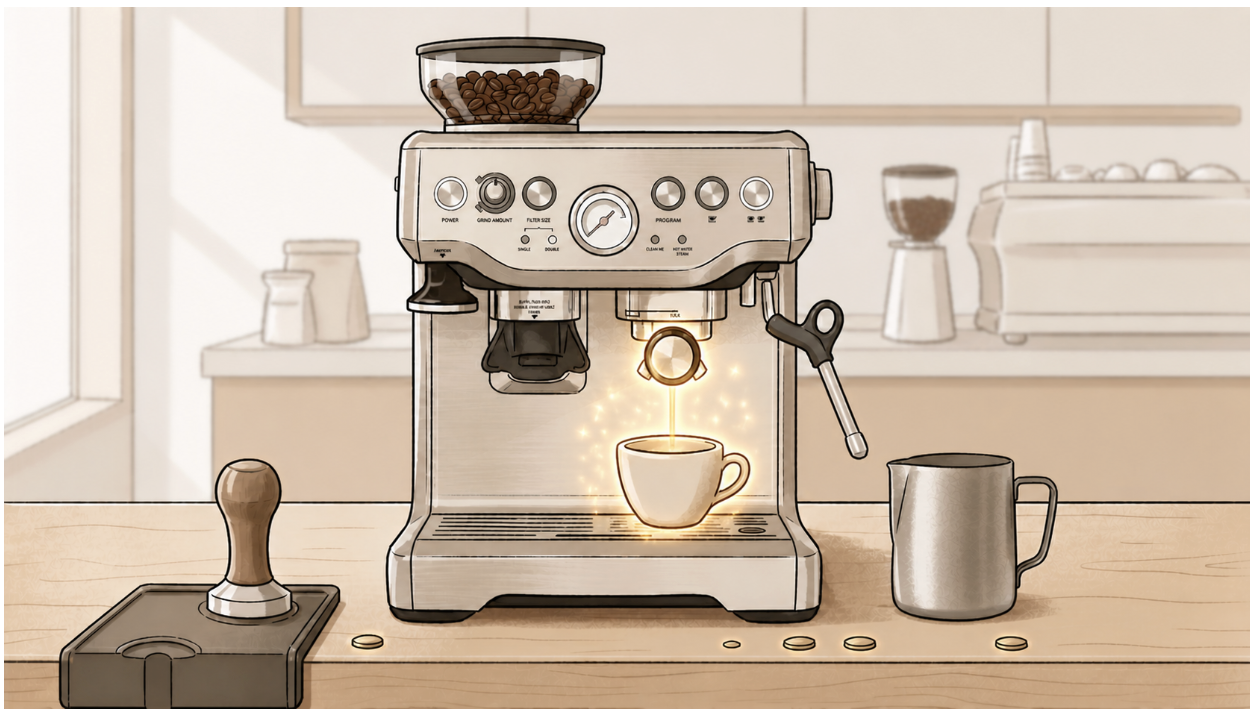
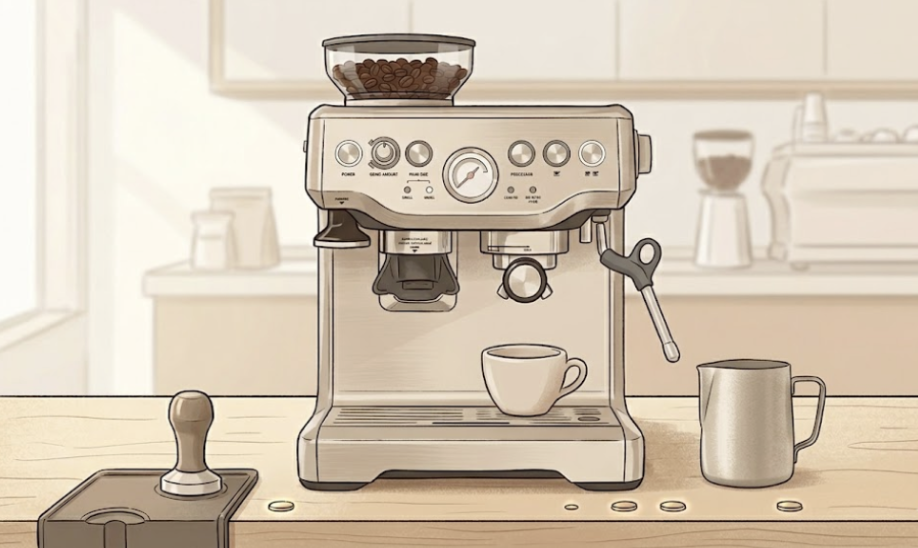
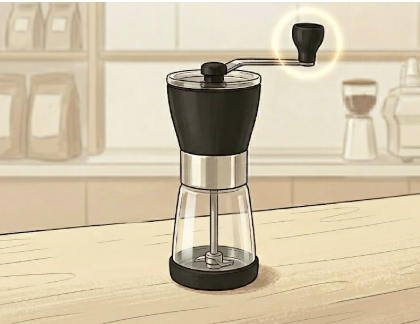
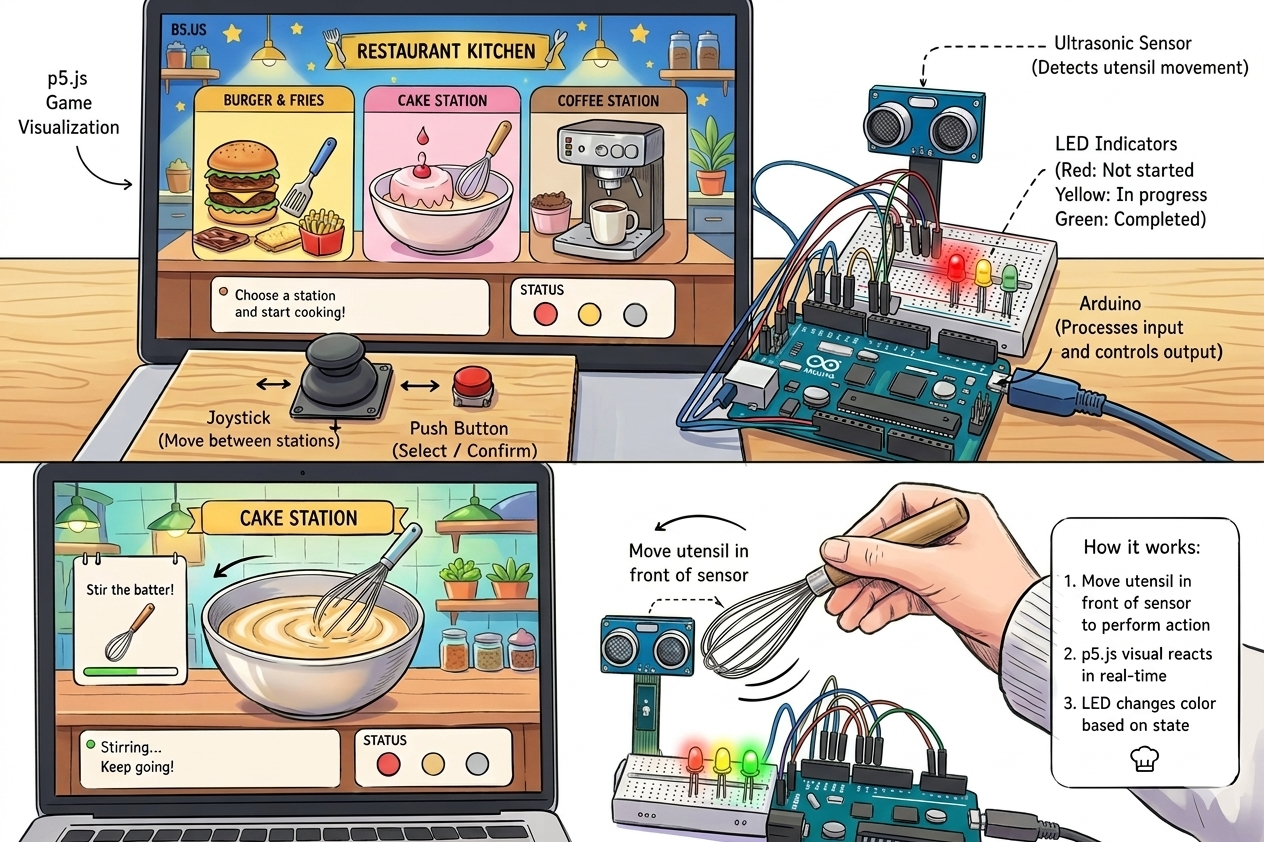
For my final project, I want to create an interactive game that smoothly processes between the p5 sketch and Arduino and provides a realistic experience for users. I chose to create an interactive restaurant game/experience where the user is set in a kitchen with multiple sections, such as a food station, desert station, and coffee machine, and gets to choose a section and actually experience creating it as if it were real.

Inspiration:

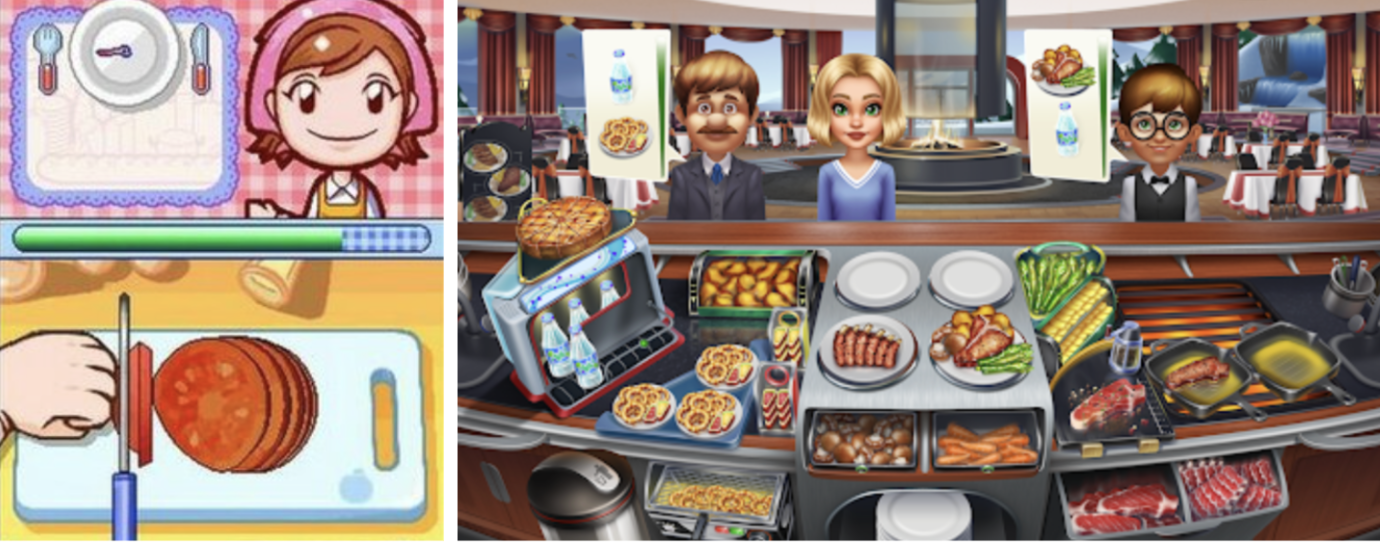
I actually had multiple inspirations that helped me come up with this idea. Firstly, one of my options for my midterm project was an Emirati kitchen on p5, but I ended up choosing another one, so I thought it would be a good idea to use it for my final project. I also thought of many cooking games I used to play, such as Cooking Mama from my childhood, and Cooking Fever, which is more recent. Then, because I wanted it to feel more realistic, I came up with more interactive ideas.

Vision:

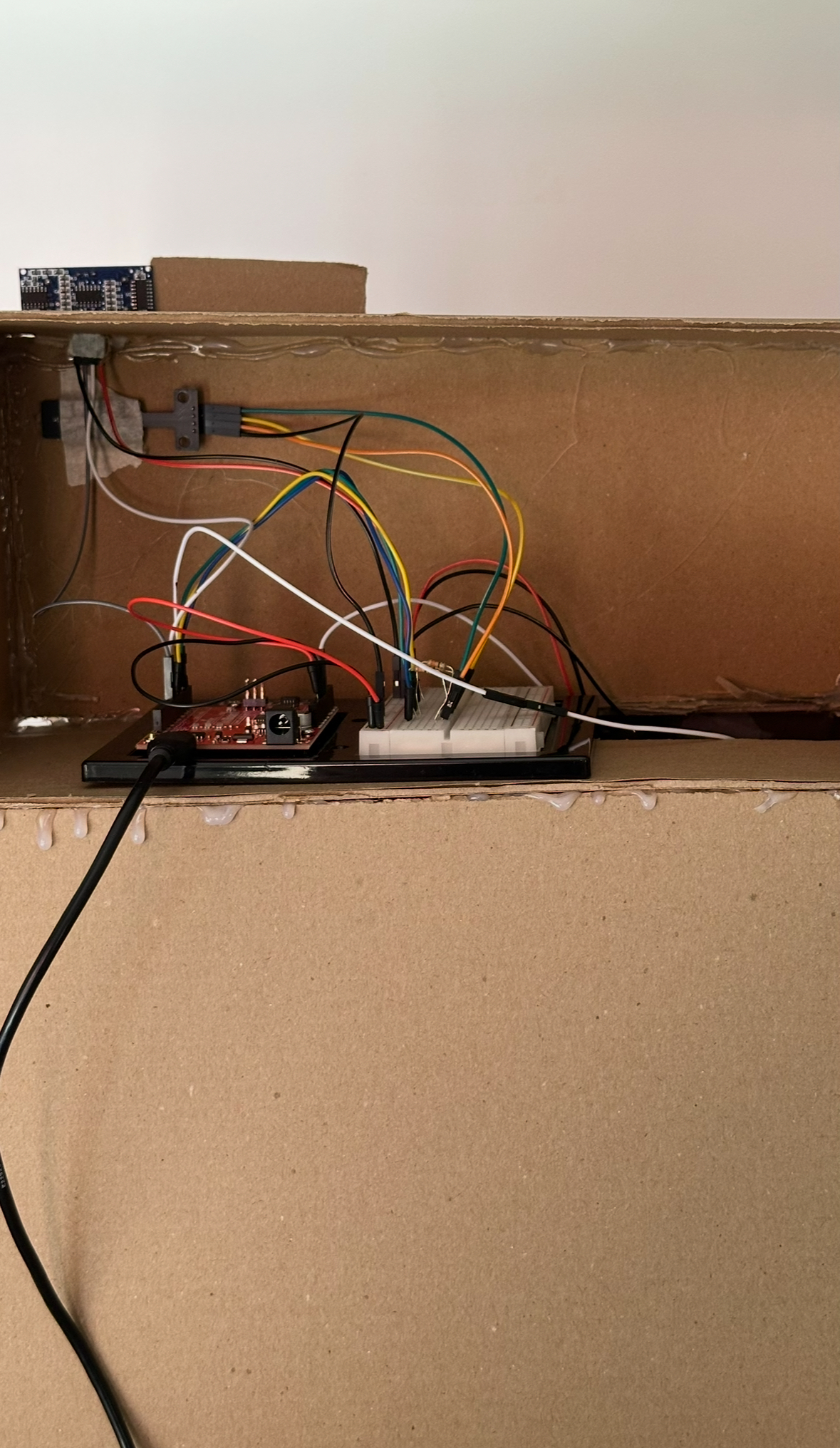
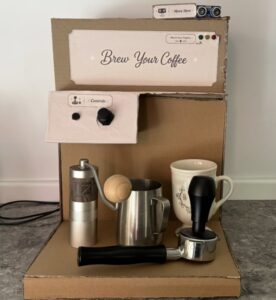
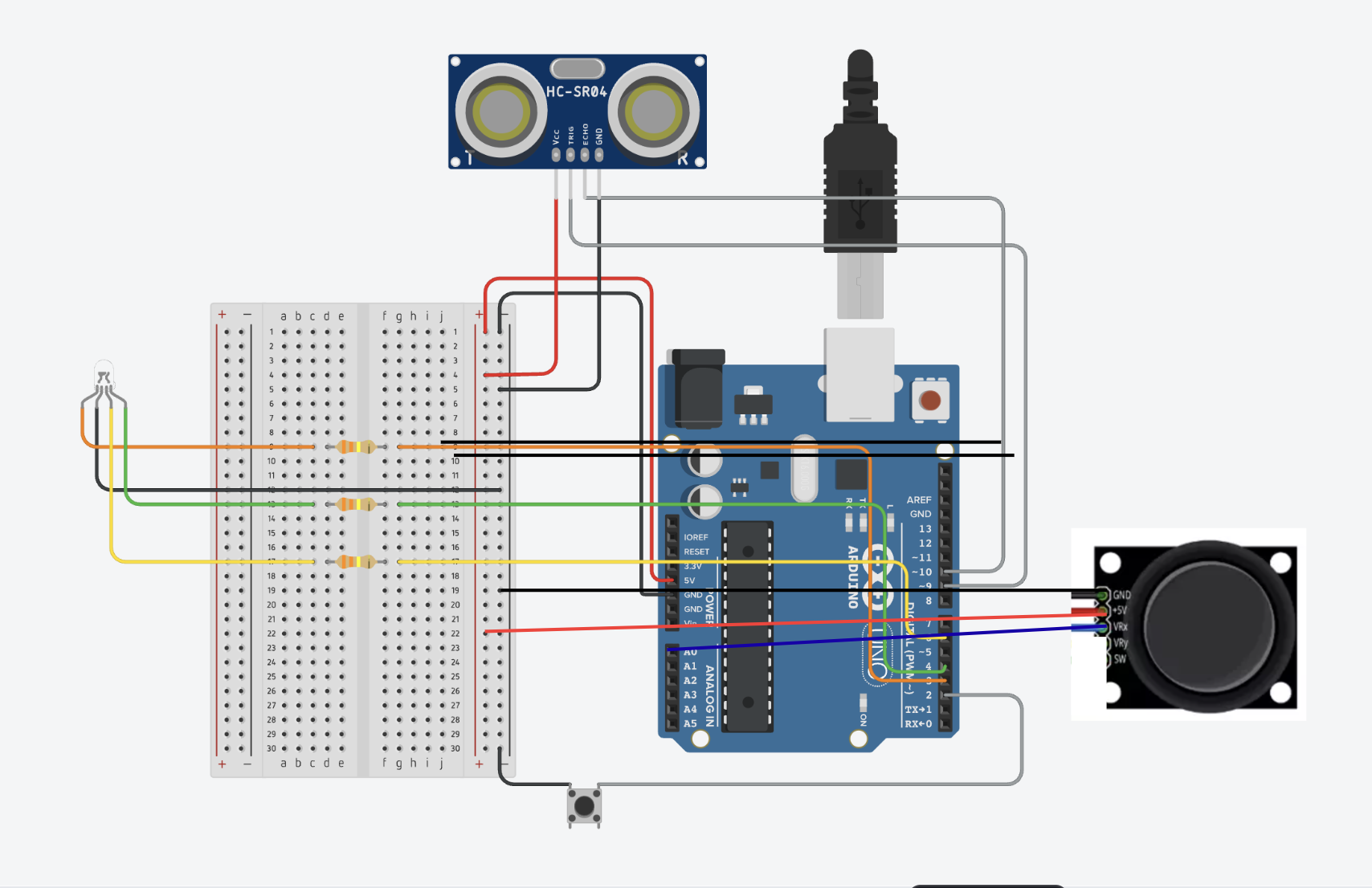
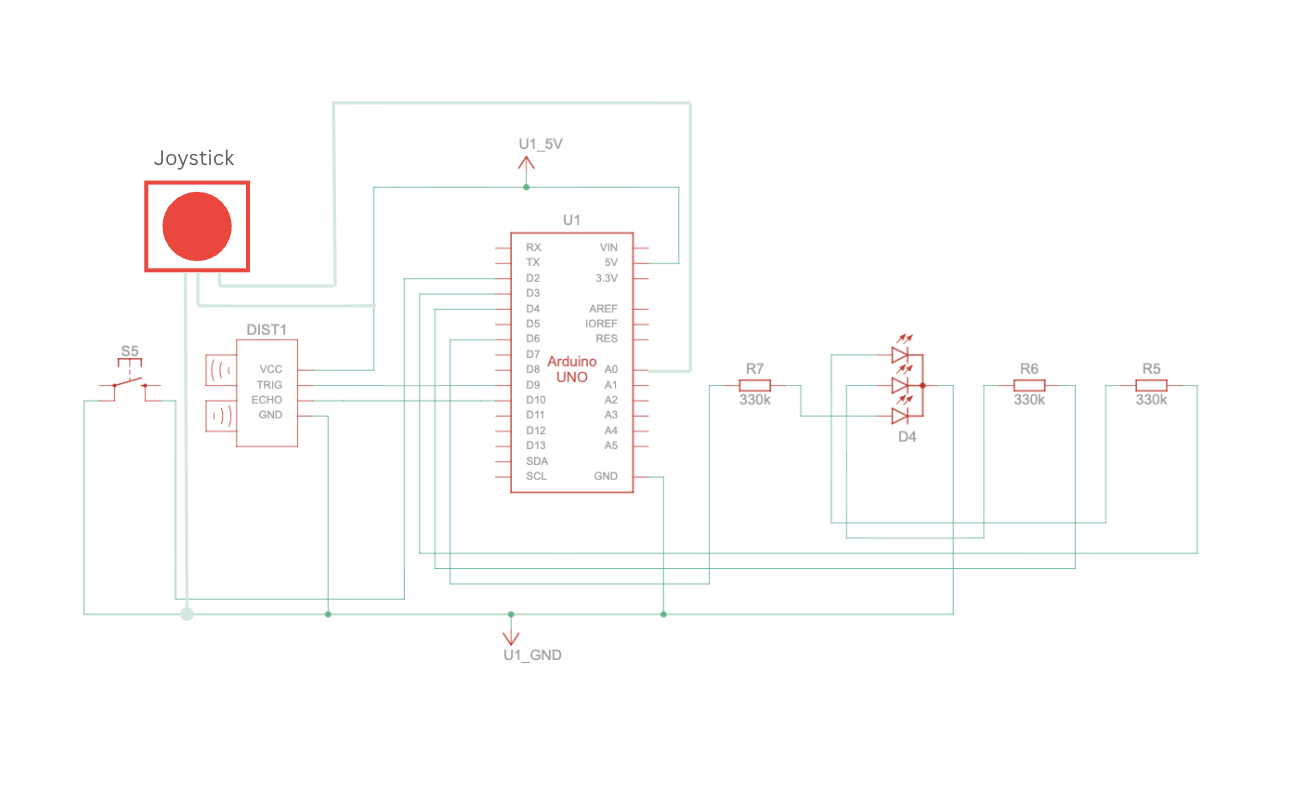
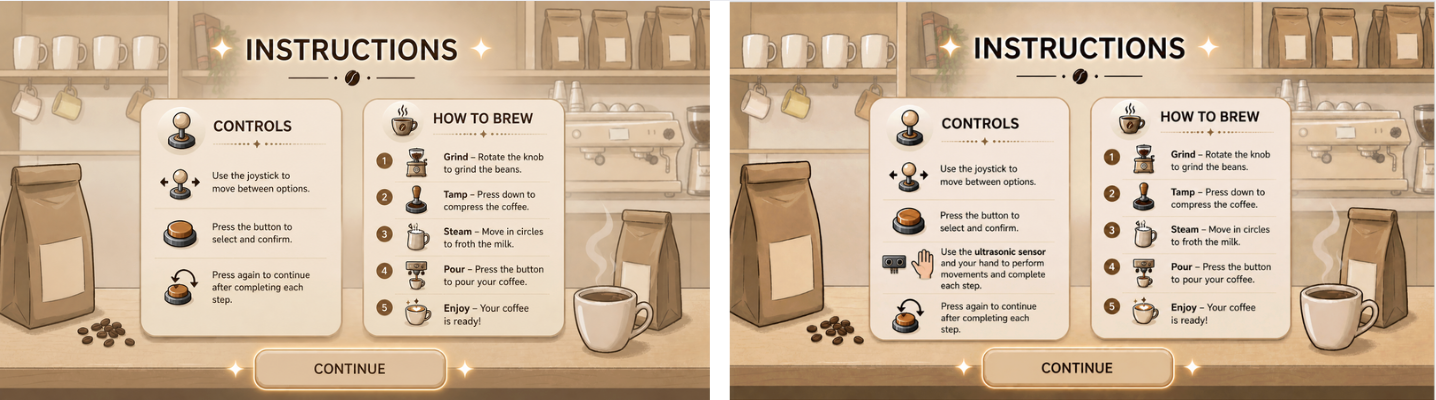
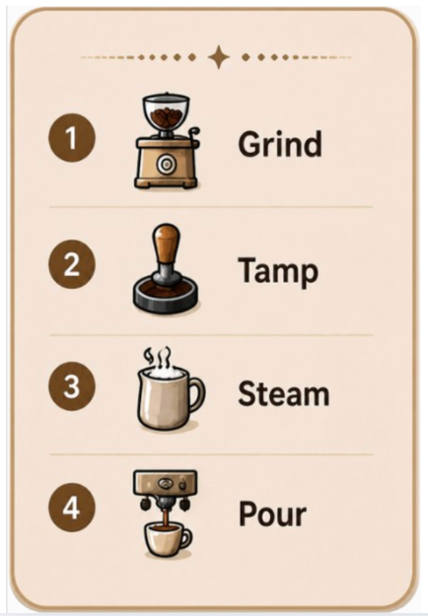
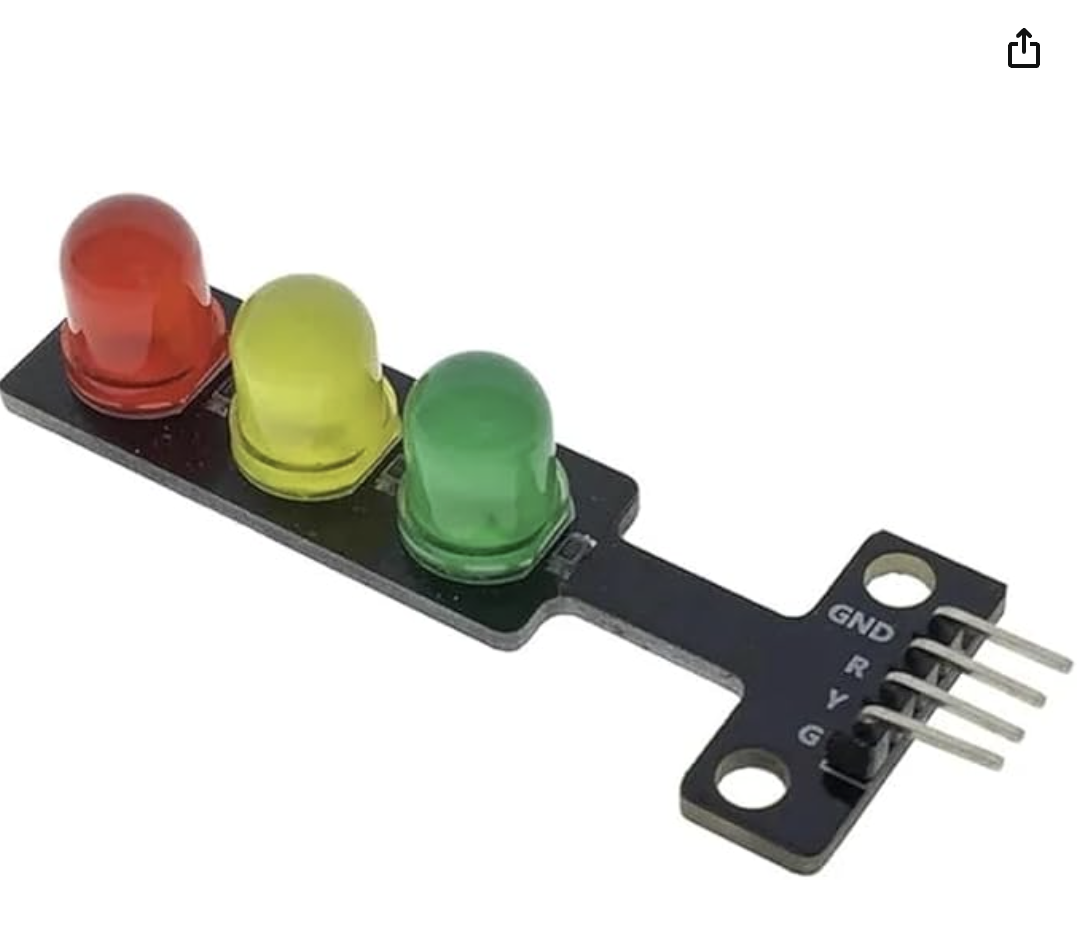
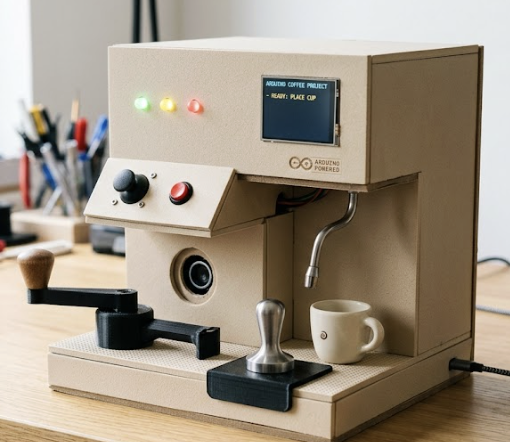
I have a specific vision for my final project that I wish to create if possible. Starting with the p5 sketch, I will have an aesthetic but colorful kitchen setup with around 3 different sections, and in each section there will be animations of the actions the user can perform. On the Arduino side, I would like to create a simple controller, such as arrow buttons or a joystick, to move between selections, and a push button for confirmation. I also want to include an ultrasonic sensor and create kitchen utensils where players can move in front of the sensor to finish the activity. I might also add LED lights of different colors to indicate the state of completion, such as red before starting, yellow during the process, and green when it is done.

References: 

For P5, along with recapping what we learned:

https://youtu.be/b2s8yZ06waQ?si=Su3dHMMqvrrCNXIz  
https://youtu.be/HfvTNIe2IaQ?si=EhtGjs7IjOrHAGLF

For Arduino, along with recapping what we learned:

https://youtu.be/vo7SbVhW3pE?si=ZUV6hNZY7ecwRSva
https://youtu.be/wTfSfhjhAU0?si=So-vFN7DNnjQD3hn
https://youtu.be/a37xWuNJsQI?si=uddzGXgVkkTvSW1k

Week 11: Reading Response

This week’s reading, Design Meets Disability, made me realize how limited my understanding and awareness of design in this aspect was. I initially thought that design in functional contexts was mainly about creating something accessible for problem-solving. I also thought that disabilities were something people might feel worried or concerned about when it comes to appearance. What really stuck with me was the idea that disability can actually inspire mainstream design, not just be something that adapts to it. I was particularly interested when I read the discussion about glasses, as I never really thought of them as related to a serious disability, and that is because of how normalized they are nowadays. People who need glasses wear them openly, and they come in many different styles from different brands. Along with this, the example of the Eames leg splint showed how something designed under strict constraints for injured soldiers led to completely new techniques that later influenced furniture design. This made me understand that disabilities are not always limitations, but can actually lead to innovation.

Moreover, comparing this to hearing aids made the contrast very clear, where focusing too much on hiding them can limit both their function and how people feel about using them. This also made me think of different applications, and the one that stood out most to me was prosthetic arms and legs. They started off as very visible and mechanical, made of materials like metal or wood, but with improvements, they are becoming more realistic, and sometimes even designed in creative ways. I felt like this shows a combination of both hiding the disability and expressing design, which highlights how complex this topic can be. Overall, this reading made me realize that design is not just about fixing an issue, but also about experimenting and thinking beyond it. This connects a lot to the work we do, because I sometimes focus too much on making something work, without thinking about how I can push it further or make it more creative.

Week 11: Bidirectional Communication Exercises

Exercise 1:

P5 code:

https://editor.p5js.org/farahshaer/sketches/K1ETNJevI 

Arduino code:

https://github.com/farahshaer/Intro-to-IM/blob/15f03b7108b0eead04ecc8fbade23e0703c774e4/sketch_apr16a.ino 

Process:

So for the first part, it was a one way communication between arduino and p5 with the idea of taking an input from a sensor on arduino and using that data to control the circle on p5. I used a potentiometer as my sensor because it gives a smooth range of values which makes it easier to control the movement on the screen. The arduino reads the values and sends it to p5 using serial.prin1n(). Then in p5 I used readUntil(“\n”) to receive the data and once I got that value I cleaned it using trim() and converted it into a number using int(). Then I map it from the sensor range to the width of the canvas so it can control the x position of the ellipse. As I turn the potentiometer, the circle moves left and right on the screen. 

Exercise 2:

P5 Code:

https://editor.p5js.org/MariamAlameri/sketches/oWfNkocIc 

Arduino Code:

https://github.com/mariam9766/Intro-to-IM/blob/736de2e50c777dff22b3545885aebfa6cce33cfd/BidirectionalCommunicationExercise2_mariam.ino 

Process:

The second exercise involved bidirectional communication between p5 and Arduino, where we were asked to control the Arduino from p5. I wanted to create a p5 sketch that allows the user to control the brightness of an LED on the Arduino board. I chose to use a slider in the sketch, as it provides an intuitive and suitable way to adjust brightness. I also referred to the exercises completed in class and adjusted them to meet the purpose of this assignment. In the Arduino code, I used two if statements to ensure that the LED responds when data is received from p5, and to constrain the brightness value within the range of 0–255 for proper PWM control. In the p5 sketch, I implemented the slider using createSlider, adjusted its position and appearance, and used port.write to send the brightness value to the Arduino, allowing accurate control of the LED.

Exercise 3:

Concept:

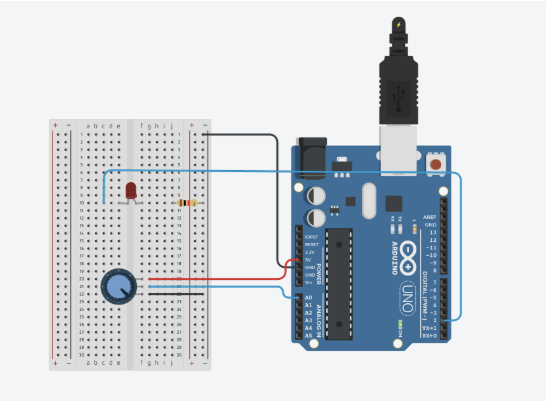
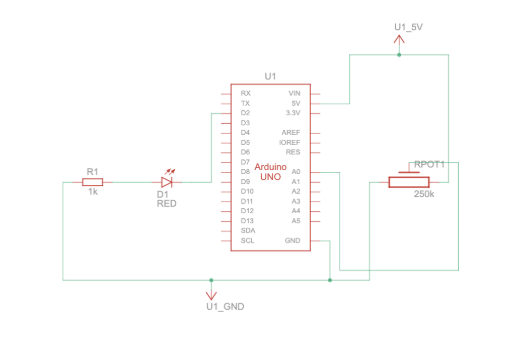
After completing the first two exercises and creating communication between the p5 sketch and the Arduino code and board back and forth, in this exercise we had to combine both. When the ball in the p5 sketch bounces on the ground, the LED on the board flashes on and off, and when we use the potentiometer, which is the analog sensor on our Arduino board, we control the wind in the sketch and move the ball left and right.

P5 Code:

https://editor.p5js.org/farahshaer/sketches/hAwlRZjXM 

Arduino Code:

https://github.com/mariam9766/Intro-to-IM/blob/9f561f01e2719a784d6c54e8d43e4bbc998a6608/BidirectionalCommunicationExcercise3_mariam.ino 

Demonstration:

Circuit:

Schematic:

Code we’re proud of:

One part of the code that we are proud of is the bounce detection and how it connects to the Arduino:

//the bounce detection
  if (position.y > height - mass / 2) {
    //check if the ball hits the ground
    velocity.y *= -0.9; // A little dampening when hitting the bottom (reverse the direction when it hits)
    position.y = height - mass / 2; //keep it above the floor
    bounce = 1; //to mark that the bounce happened
  }
  //send to arduino
  let sendToArduino = bounce + "\n"; //send the bounce value 1 or 0 and the "\n" tells ardunio the message is done
  port.write(sendToArduino);
  // reset bounceafter it sends
  bounce = 0;
}

We are proud of this part because it turns the ball bouncing into a signal that affects something physical (the LED). It also only sends the signal once per bounce, which makes the interaction feel more intentional instead of constant.

Process:

So in this version of the gravity and wind example, I added serial communication so the sketch can interact with an Arduino on p5. Instead of controlling the wind using the keyboard like in the original example, the wind now comes from an analog sensor (like a potentiometer) connected to the Arduino. The Arduino sends that sensor value to p5, and I map it to a wind force so it pushes the ball left or right. I also added a bounce signal that goes the other way. Every time the ball hits the bottom of the canvas, I set a variable to 1 and send it to the Arduino. This tells the Arduino to briefly turn on an LED, then it gets reset back to 0 so the signal only happens once per bounce. Most of the original physics code stayed the same, but the main changes were adding serial setup, reading sensor data to control wind, and sending a bounce message back to control the LED.

For the Arduino side, I worked on the Arduino code to align with the p5 sketch we have and create serial communication from the Arduino board to the p5 sketch and vice versa. I set it up so the Arduino sends the analog sensor value from A0 to control the wind on the ball on the sketch, and receives a bounce signal from p5 when the ball hits the ground. When this signal is received, the Arduino briefly turns on an LED to indicate the bounce, and then resets the value so the LED only activates once every time it touches the ground. I also made sure the serial communication was properly structured so both inputs and outputs work smoothly together at the same time, allowing interaction between the physical sensor and the digital sketch.

Reflection:

This exercise helped us understand how bidirectional communication actually works, instead of just sending data one way. It was interesting to see how the Arduino and p5 sketch can influence each other at the same time. One challenge we ran into was getting the potentiometer to properly control the wind. Even though the LED response worked, the sensor input was inconsistent, which made it harder to debug whether the issue was in the Arduino code or the p5 code. This made us realize how important timing and serial communication structure are, especially when both sides are sending and receiving data continuously.

If we had more time, we would focus on possibly smoothing the wind movement so it feels less jumpy. We would also experiment with adding more physical outputs, like multiple LEDs or different types of sensors, to make the interaction more dynamic but we just wanted to stick with the assignment instructions for now to get a grasp of the concept.

Week 10: Musical Instrument

Concept:

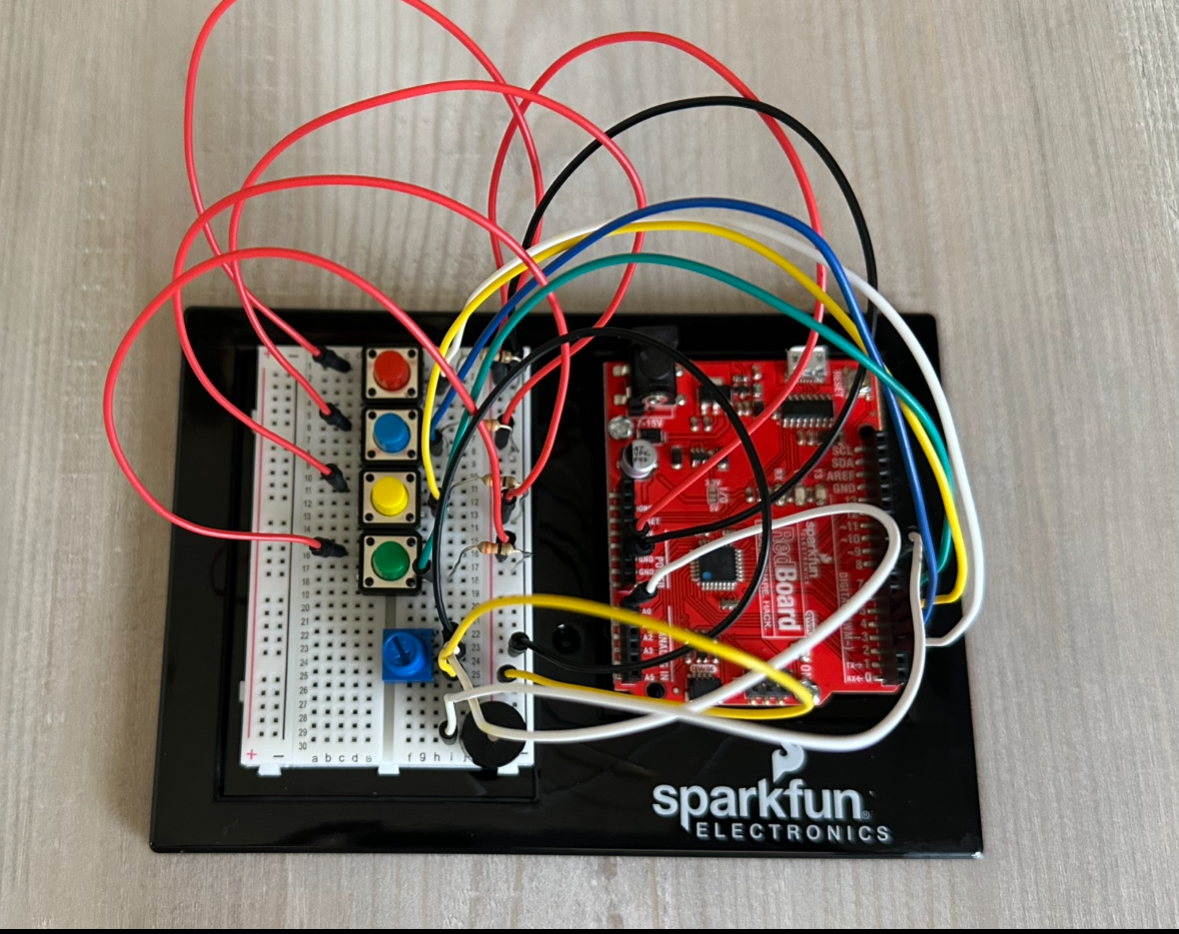
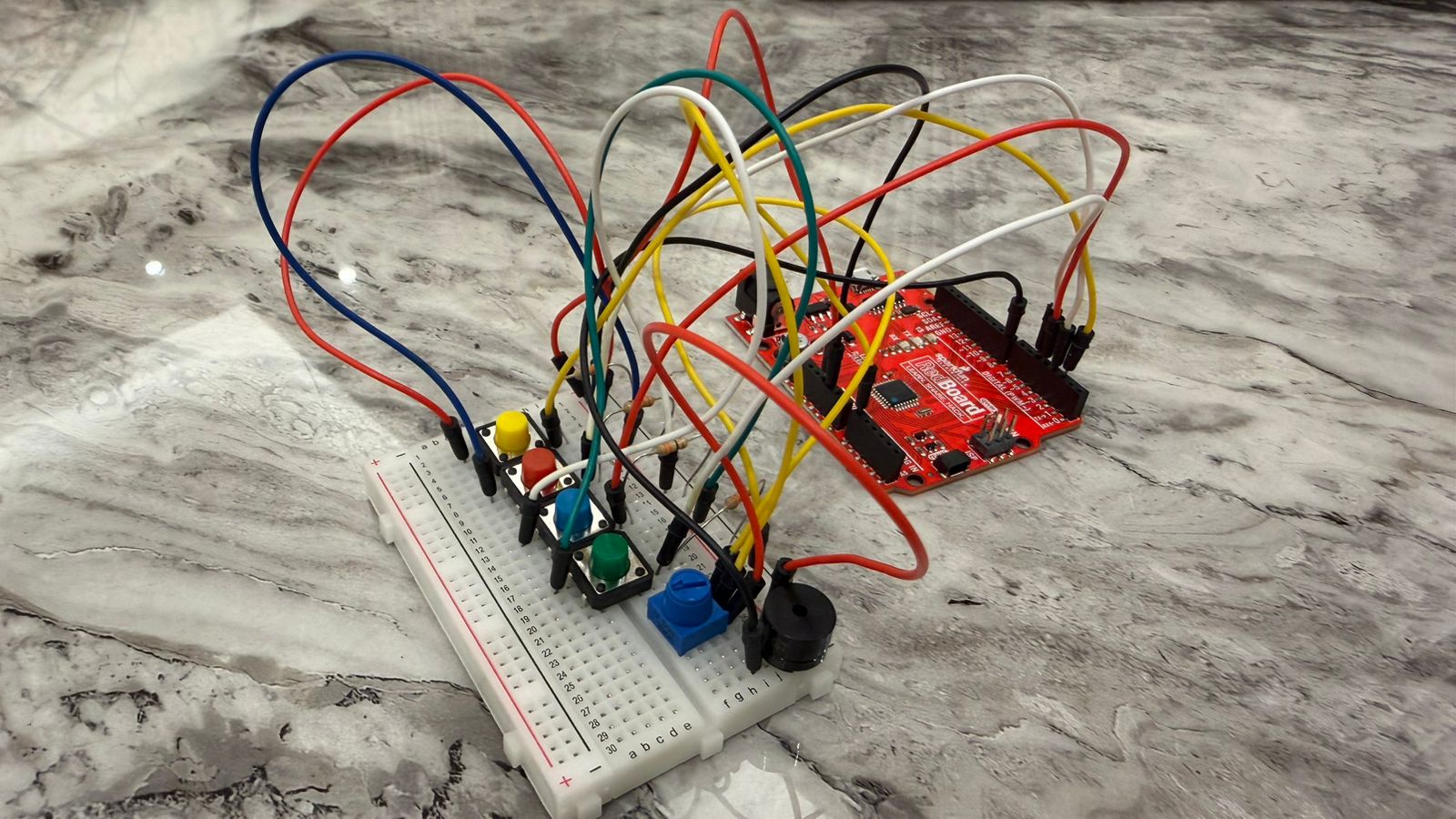
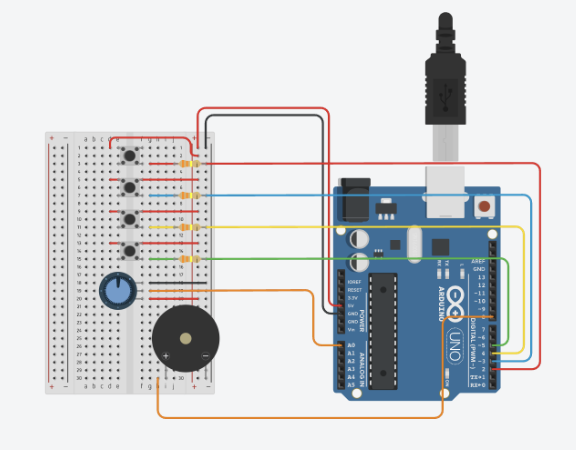
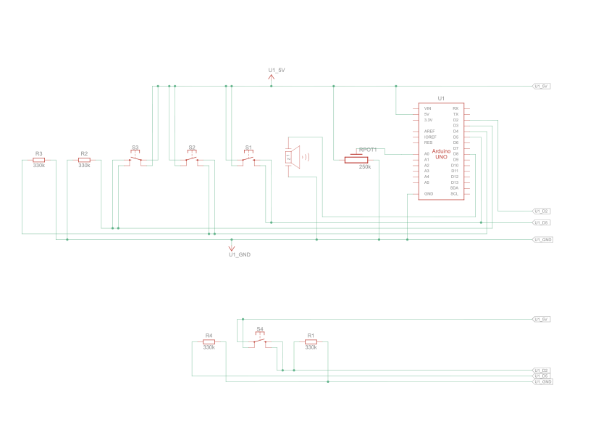
In this assignment, we had to create a musical instrument using digital and analog sensors. We used push buttons as our digital sensors and a potentiometer as our analog sensor. We then decided to create a mini piano-like device that plays the four basic piano notes C, D, E, and F, and allows the user to adjust the pitch of these notes. In this project, there are four push buttons, each assigned to one note that only plays when the button is pressed, and a potentiometer that changes the pitch of the notes when it is turned.

Code:

Arduino File on GitHub

Setup:

MariamMhara

Demonstration:

Mariam

Mhara

Digital Circuit:

Schematic:

Process:

In the process of this assignment, we decided to combine four buttons (digital) with one potentiometer (analog) to control a piezo buzzer. Each button plays a different note, and the potentiometer slightly adjusts the pitch so the sound changes depending on how much it’s turned. We worked together on the idea and the wiring, but we divided the coding so each of us focused on one part. Mariam handled the digital part (the buttons and the notes), and Mhara worked on the analog part (the potentiometer and the pitch control). After both parts were working separately, we combined them into one full sketch of code.

We then tested the circuit in Tinkercad to make sure all the wiring and logic of the code were correct. This helped us confirm that the buttons were reading properly and that the potentiometer was giving smooth values. Running it in Tinkercad also made it easier to fix small mistakes before trying it on the physical Arduino board.

At first, the audio wasn’t changing when the potentiometer was turned because the mapping was happening after the tone was already being played, so we rearranged the order of the code and that finally made the pitch respond. After that, the sound became too noisy and robotic, so we added a small adjustment range (90 – 105) to each note to make the pitch change smoother and less harsh.

Code Snippets:

While building the project, there were a couple of code snippets that stood out to us because they played an important role in making the instrument work the way we wanted it to. 

tone(buzzerPin, noteC * map(sensorValue, 0, 1023, 90, 105) / 100);

This was the part we were most proud of because it solved the “robotic” and “noisy” sound problem. Instead of letting the potentiometer completely change the note, we used a small adjustment (90-150) to bend the pitch smoothly. And this showed how the digital and analog inputs can work together in one line of code. 

Another part of the code is :

pitch = map(sensorValue, 0, 1023, 200, 2000);

This line shows how the analog input (the potentiometer) controls the sound. It takes the raw value from 0-1023 and maps it into a pitch range that the buzzer can actually play. This was important because the potentiometer originally wasn’t affecting the sound at all, and fixing the order of the code made this line finally work the way we wanted it to. 

Areas of Improvement and Reflection:

After completing this assignment, we were able to learn and explore different sensors and sounds. It was easy and smooth to work as a pair, as each person focused on one part and then we combined our work together. As for areas of improvement, we could make the sound of the notes smoother and more musical, since it still sounds slightly robotic, or add more notes to make it closer to a real piano. Another idea is to implement other sensors, such as an ultrasonic sensor, to play different notes or even melodies based on motion or distance. Working with audio and sensors is a fun part of Arduino, and it allows us to create many different ideas for various purposes. Overall, we are satisfied with our final outcome and the entire process of this project.

References:

Looked back at Week 10 slides about sound to recap what we learned.

Reviewed specific code concepts using the Arduino documentation:

https://docs.arduino.cc/language-reference/en/functions/math/map/ 

  • How we used it: We used this to convert the potentiometer’s range into a smaller pitch-adjustment range that works smoothly with the buzzer.

https://docs.arduino.cc/language-reference/en/functions/advanced-io/tone/ 

  • How we used it: We used this page to understand how the tone() function works and how to send different frequencies to the buzzer. 

https://docs.arduino.cc/built-in-examples/digital/toneMelody/ 

  • How we used it: We looked at this example to understand how notes from pitches.h are used and how tone() can be combined with different frequencies to create musical sounds.

Used ChatGPT to help navigate and resolve a major issue where the tones sounded too robotic and noisy. From this, we learned that using the map() function with a smaller range for each note helps create smoother, more controlled pitch changes.

Week 10: Reading Response

This week’s first reading, A Brief Rant On The Future Of Interaction Design, made me realize something deeper about the things I do, and what everyone does every day. Starting by watching the video, I initially thought it was just about technology, and I found it interesting, especially with all the futuristic functions they included such as the window screen and others. What I didn’t notice or really think about was the fact that everything was done on screens, because that is our reality and something we do every day for almost everything. After reading the text, I started to realize how true this is, and how most of what I do happens through flat screens using my fingers, even for things that could be done physically, such as the reading example. I did agree with that point, that some things do not have to be done on a screen. However, I also thought about how people do not actually do everything through screens, as we still move, go outside, and use our bodies for different tasks. But since the author is talking about the future, I do agree that this should be considered so it does not reach a point where everything is done through a flat screen.

This week’s second reading, the responses to the brief rant, clarified many of the thoughts I had while reading, and also introduced aspects I had not considered, which made me go from partially agreeing to agreeing more with the author’s concern. I did think about the common idea that devices can be harmful, especially for children, but the responses helped me understand that while current technology is useful, it could become problematic if it becomes too dominant in the future. I also found the hologram example very helpful, as it made the main idea clearer, that technology should continue to develop, but in a way that is more interactive and three-dimensional, matching the environment we live in. Additionally, the quote by neuroscientist Matti Bergström about the effects of constant touchscreen use from a young age made me realize that this could become harmful if it reaches the future vision being discussed.

Both readings were interesting to read, especially because they address real situations and possible future developments. They made me think more about how we use screens in everyday life and how many things have already shifted to digital formats, such as borrowing books or using services that were once physical. I also thought about how it would be interesting and beneficial if future technologies included more physical interaction and engagement with the human body. This connects to the work we do in this class, where our Arduino projects involve physical interaction, while our p5 sketches are mostly screen-based using buttons and touchpads. Since our final project will combine both, I feel like that is a strong example of how technology can be improved by balancing physical interaction with screen-based systems.

Week 9: Analog and Digital Sensors

Concept:

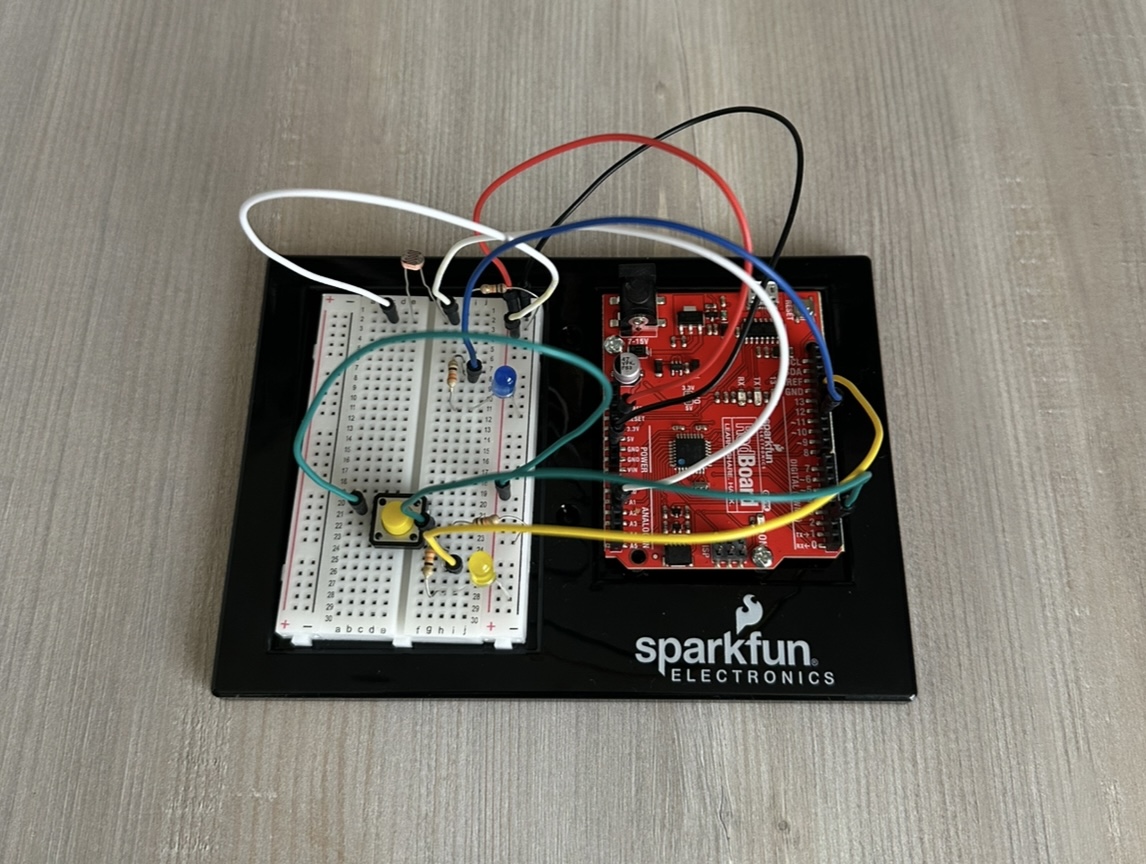
For this Arduino assignment, I wanted to combine an analog sensor that works according to the surrounding environment in a smooth, fading way, and a digital sensor that works with the user’s input in an immediate way. When thinking about this assignment, the idea of airplane cabin lights came to mind, where there are dim blue lights lit throughout the plane when it’s dark, along with separate small seat lights that we can turn on and off.

I created an analog system using a photoresistor, where a blue LED lights up in the dark when the surrounding lights are off, in a slow and calm fading manner. I also integrated a digital system using a pushbutton, where a yellow LED turns on and off when it is pressed. The blue light then slowly fades off again when the surrounding environment becomes bright.

Link to Code:

Arduino File on GitHub

Demonstration:

analog&digital sensors

Setup:

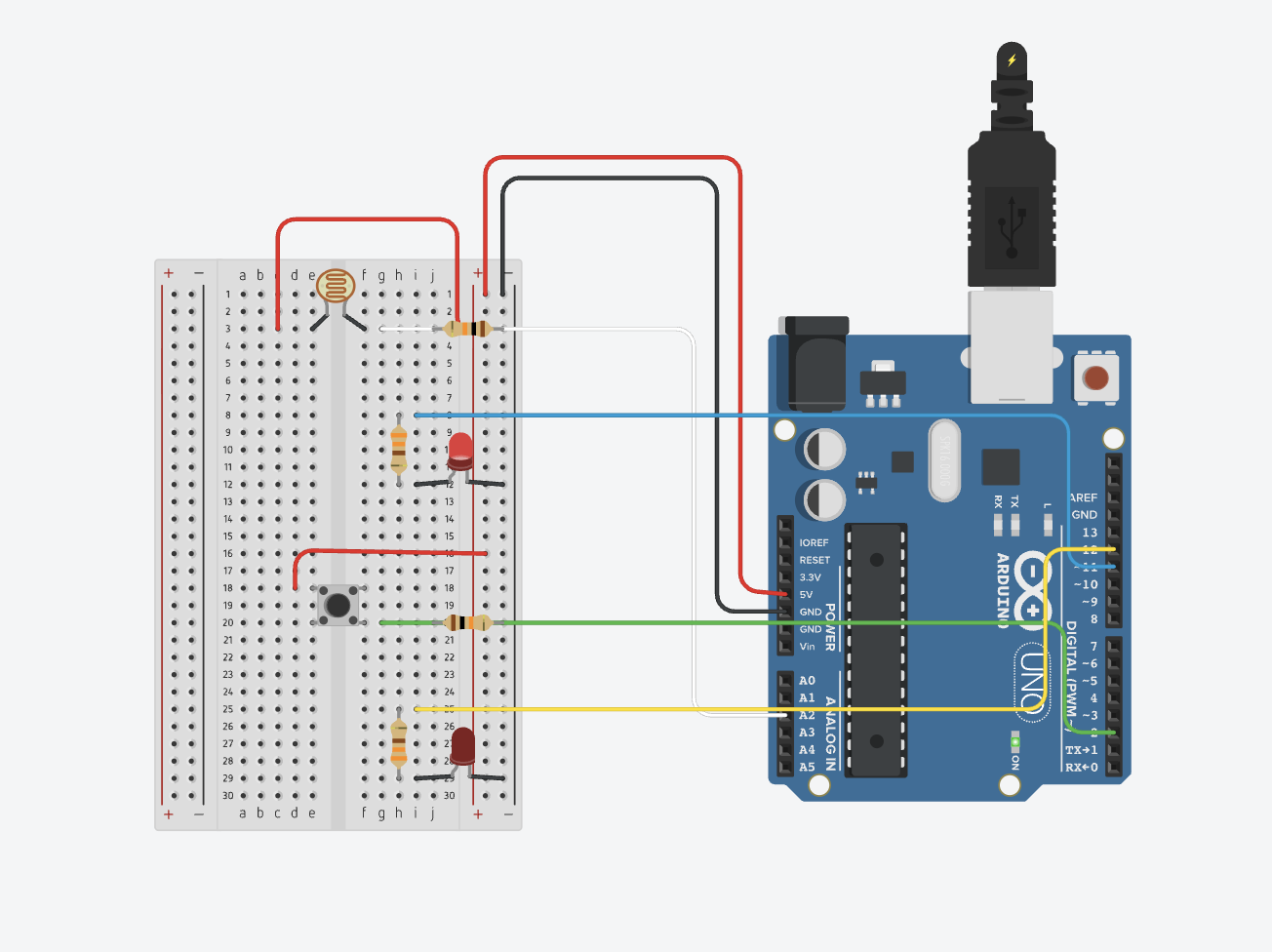
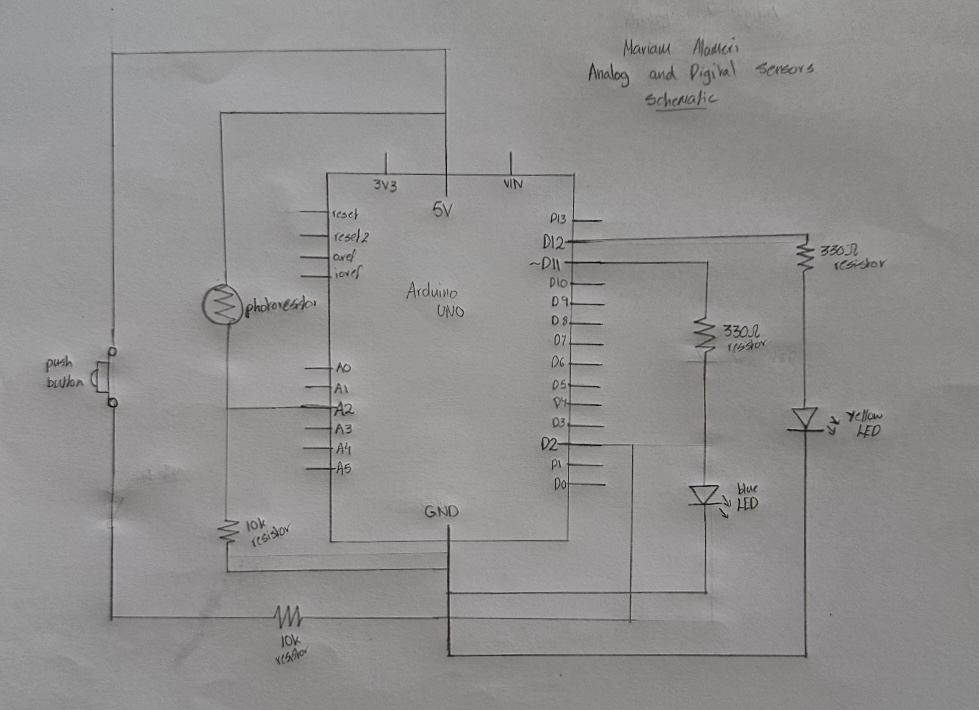
Here is an image of my Arduino setup. I have my 5-volt wire connected to the + bus and my ground connected to the – bus. I also have the photoresistor and pushbutton connected to 5 volts, with their 10kΩ resistors connected to ground. Each LED is placed under its sensor, with one leg connected to ground and the other leg connected to a 330Ω resistor, which then connects to the assigned Arduino pin.

Digital Circuit:

Drawn Schematic:

Code:

Since I have two types of sensors, I organized my code so that under each section (components, setup, loop), the analog part is labeled first, followed by the digital part, also labeled. All explanations are included directly in the code itself.

A particular part of the code I am proud of is the use of the if-else statement for the analog sensor, which allows the blue LED to turn on and off really smoothly and slowly. I wanted to do this to give it a more realistic behavior based on my concept goal. At first, the LED would turn on and off immediately and rapidly, but using this if-else statement along with the brightness calculation allowed it to work the way I wanted by making it gradually increase and decrease. I acknowledge that this function works differently when turning the light off compared to turning it on, and that is because the light sensor values change at different rates when the environment becomes dark or bright, causing the LED to reach its target brightness at different speeds.

if (brightness < targetBrightness) { // gradually adjust brightness according to state
  brightness++;  // increase brightness slowly
} else if (brightness > targetBrightness) {
  brightness--;  // decrease brightness slowly
}

I also used an if statement for the digital sensor to make the yellow LED turn on and off with the push of the button. When I followed what we had done in class and what I already knew, the light would only stay on while holding the button. Again, I wanted to achieve a more realistic behavior for my concept. Using the if statement with the && function allowed me to achieve this toggle effect.

if (buttonState == HIGH && lastButtonState == LOW) { // detect button press and allow transitioning
    ledState = !ledState;  // toggle yellow LED
  }

Reflection:

I found this assignment really interesting, as I felt like I was learning a lot while using two different devices at once. I was initially worried about creating one code that works with two different sensors at the same time, but after planning my process, I was able to manage it. I started off by focusing only on the analog sensor since it is more complex, and then integrated the digital sensor code into each part. I also feel like the organization of my code played a big role in this success.

On the Arduino itself, the setup first looked complicated to me as I was planning, but once I really looked at each part and understood what was happening, it all made sense. However, looking at it now, I feel like I could have organized it in a better way to make the LEDs clearer, since there are so many wires connected all over. That is, to me, an area for improvement and something I will definitely focus on next time, and even try to improve on this same project.

I also feel like this analog and digital sensor assignment could have so many more different approaches, and I would like to think about and explore more creative ideas in the future.

References:

In this assignment, I mostly referred back to our previous lecture recordings and slides, particularly 8.2 and 9.2, to recap what we had learned, and then adjusted and integrated my own ideas to match the concept.

For the pushbutton functionality, I needed to use the bool function to toggle the yellow LED using an if statement, so I referred to the Arduino official documentation for a better understanding:

https://docs.arduino.cc/language-reference/en/variables/data-types/bool/ 

I also asked ChatGPT about one particular thing, when I wanted to make the brightness of the blue LED fade in and out much slower than it did by default. I knew I had to use an if-else statement, so I explained my goal, and it suggested using brightness++ and brightness– to adjust the speed of the fading effect by gradually increasing and decreasing the brightness until it reaches the target.

Week 9: Reading Response

This week’s first reading, Physical Computing’s Greatest Hits (and Misses), made me think a lot about different physical computing themes, some that are around me, and the things that I could integrate and do with them. A sentence that stood out to me was at the start, “Sometimes when people learning about physical computing hear that a particular idea has been done before, they give up on it, because they think it’s not original,” as I related to it both during our p5 sketches work and now with Arduino, where I pressure myself to try to create something completely different. I was really interested as I read more, and some of the things that came to my mind that I could relate to were things I have already encountered, such as the floor pad games that exist in many arcades today in different styles, and the “Fields of Grass” theme that is used in places like TeamLab and museums, where you run your hand over sensors and experience an interaction. Interestingly, the dolls and pets theme reminded me of Build-A-Bear teddies I made when I was younger, where I would press a part of the bear and hear recorded audio. While reading, I found myself thinking about my Arduino and all the different sensors I have, and I think all the ideas mentioned are great inspiration and encouraged me to look deeper and find new ways to integrate them into my projects.

This week’s second reading, Making Interactive Art: Set the Stage, Then Shut Up and Listen, brought my attention to an aspect of interactive artworks that I had not considered before, and that feels different from what people usually say. I feel like it made a lot of sense to me that users who encounter something interactive should feel comfortable giving inputs based on their instincts. What I took away from the reading is that it is important to guide the user and give them context about what they are experiencing, but not to completely tell them exactly what to do, in order to maintain the purpose of “interactivity” in the artwork. The concluding example of a director working with actors really clarified this idea and made it more convincing.

All together, I feel like both readings are well aligned with each other and added to my knowledge and understanding of interactive artworks and programming. The first reading felt more like a collection of examples and structures of how a project could be, while the second reading added to it by focusing on the user experience and interaction within that same project. The knowledge I gained connects clearly to the work I have done and will continue to do in this course, and I feel like both readings gave me ideas, inspiration, and awareness of what I should consider moving forward.

Week 8: Unusual Switch

Concept:

For my first Arduino assignment, I had to create an LED light switch that worked without any direct contact with the hands. I got the idea of creating one that does not need direct contact with any part of the body, so no contact at all. I was interested in the sensor function when we were introduced to the kit, so I chose to experiment with it and see if I could create a switch using a motion sensor.

My switch almost works like a distance-check system: when any motion is detected close to the sensor, 10 cm or less, the green light turns on, almost as if it is in the perfect position. When motion is detected farther from the sensor, more than 10 cm, the red light turns on, signaling that it is too far away from the sensor. Although there is no physical contact, the ultrasonic sensor acts as a switch by detecting distance and controlling whether the circuit behaves as open or closed.

This idea brings to mind different real-world applications, such as mall parking lots, where you see a red light on top if a space is occupied and green if the parking spot is empty.

Link to Code:

Arduino File on GitHub

Demonstration:

unusualswitch

Setup:

For the Arduino setup, I started by placing the sensor and connecting four wires, each aligned with one of its pins. The red wire connects to 5 volts, the black to ground, and the blue and green wires are assigned to numbers to trigger and receive the echo pulse for the lights. Then I placed the two LEDs, with a wire of the same color aligned with one pin, which connects to an assigned Arduino pin, and a 330 ohm resistor aligned with the other pin. I then added a red wire that connects the negative side to the ground, and on that same row, I placed one side of both resistors.

Code:

My code, in general, is straightforward. I assign variables, and the code is designed to know when to accept and receive inputs and outputs. All explanations are included directly in the code itself.

One part of the code I found particularly important is using digitalWrite with LOW to ensure that the lights turn off when they are not called by the commands. Without this, the lights would stay on the whole time, no matter where I placed my hand, since the program wasn’t being instructed to turn them off again.

digitalWrite(trigPin,HIGH); // Send pulse to trigger sensor
delay(1000); // One second delay to trigger sensor 
digitalWrite(trigPin,LOW); // End trigger pulse

digitalWrite(led1,LOW); // Return green light to initial state before going into if else condition
digitalWrite(led2,LOW); // Return red light to initial state before going into if else condition

Additionally, the if-else statement is the most crucial part, as it tells the lights when to turn on and off based on the distance. I can also adjust it to suit whatever distances and measurements I want.

if (distance<=10){
  digitalWrite(led1, HIGH); // If distance from sensor is equal or less than 10 cm, green light on
}
else if (distance>10){
  digitalWrite(led2, HIGH); // If distance is more than 10 cm, light up led 2, red light on
}

Diagram:

Reflection:

Overall, I am satisfied with my work on this first assignment. Before starting, I was really overwhelmed and thought I would struggle a lot to make it work. However, as soon as I began understanding what each wire and piece of code does, I started to actually enjoy it and had fun experimenting with different colors.

I did get a little confused during the wiring process because of all the colors of the wires. The sensor and LEDs were placed on opposite sides from their wires, so I moved them, and everything made more sense, both on the board and in the code.

For future improvements, I feel like I could add more LEDs at different distances, or even make it more advanced. For example, instead of sensing simple hand waves, it could sense a specific area of walking.

References:

I first went over the class slides to recap what we learned, and I also reviewed parts of the Zoom recording for guidance on plugging in and uploading code.

I found a tutorial on using a motion sensor, which I followed along with, making sure I understood every step and the code needed to make it work:

https://youtu.be/7zPbEEPAwQA?si=mkxxcjrJ8M2CU19C 

I also used links to specific code references on the official Arduino website to recap what each function does:

https://docs.arduino.cc/language-reference/en/functions/digital-io/pinMode/

https://docs.arduino.cc/language-reference/en/functions/digital-io/pinMode/

https://docs.arduino.cc/language-reference/en/functions/advanced-io/pulseIn/

Week 8: Reading Response

This week’s first reading, Emotion and Design: Attractive Things Work Better by Norman, gave me a new perspective on how and when things can work better in different situations than I had thought before. At first, reading the title Attractive Things Work Better made me feel like I would disagree with the reading, since it gave the idea of prioritizing appearance, which does not sound right when trying to create something functional and useful. However, as I read through it, I was impressed by the number of ideas that made me realize things I had not thought of before, especially that we often use things based on how we feel, and those feelings are strongly influenced by design. This idea was clear in the example of the car, where we would prefer to drive it when it looks clean rather than when it looks dirty. It also made me think about how designers should consider the situations the user might be in, so they can adjust the design to create a smoother experience, like the idea of opening a push or pull door when being relaxed versus stressed. It also made me reflect on the things I create in this course, that I should make sure my work functions well, but also has a clear and attractive appearance that supports the user’s experience. It is almost like saying design is not only about physical appearance, but also a psychological aspect of the work.

This week’s second reading, Her Code Got Humans On The Moon and Invented Software Itself by McMillan, was very interesting to me because it was so different from the other readings we have done, including the one above. I was fascinated by how Margaret Hamilton was able to succeed and prove the importance of software and correct programming at a time when it was not fully developed or taken seriously. I was struck by her quote, “When I first got into it, nobody knew what it was that we were doing. It was like the Wild West. There was no course in it. They didn’t teach it,” as it made me realize that they had to create code and commands without references or guidance like we have today. It felt like coding from scratch, which is especially intense considering it was connected to astronauts and people’s lives. I was also inspired by her dedication, especially in the way she worked on preventing errors and thinking through different possible scenarios. This made me connect it to the work we do in our projects, for example when using if-else statements to control different outcomes.

Both readings were very different from each other, but they added a lot to my understanding of this course and my own work. One connection I was able to make was between Hamilton’s focus on error-preventing systems and Norman’s explanation of how people use things differently depending on their situation. For example, in a programmed website or interactive project, if a user is overwhelmed, they might start clicking the wrong things, so error-preventing code could help guide or correct their actions. I feel like these readings encouraged me to try new coding techniques and explore different ideas, while also paying attention to the appearance of my work, since it can affect how it is experienced and used.

Midterm Project – The Maze Captures

Concept:

My midterm project is designed as a new interactive game that combines both an artistic experience and an enjoyable gameplay element. The Maze Captures is inspired by the Sheikh Zayed Museum and the Qasr Al Hosn Festival in Abu Dhabi. The artistic aspect comes from the museum, which is modern in design while maintaining a strong historical and cultural connection to the United Arab Emirates. I then developed the game aspect based on the Qasr Al Hosn Festival, which featured a culturally themed escape room, but I adapted this idea into my own concept.

Here is an image that demonstrates my inspiration from the Sheikh Zayed National Museum in Abu Dhabi:

The concept of the game is to allow the player to walk around and experience a museum-like environment filled with Emirati cultural artworks. These artworks are AI-generated interpretations of real pieces found in the Sheikh Zayed Museum. Each time an object is spotted, the player must position it within their camera lens frame and capture it within a specified time to increase their score. Below are two of the 8 actual references used to create the artworks in my game:

Embedded Sketch:

How it works:

The game begins with an instruction screen, allowing the user to understand what is expected for the game to function properly. When the player presses the space bar, they are positioned at the start of the maze. The player uses the arrow keys to move smoothly and the mouse pad to look around, allowing for easier navigation and a more immersive experience. The maze is structured to provide multiple paths, similar to a traditional maze, with various types of objects, ranging from artworks to cultural items, placed throughout the space. I also included background music inspired by a song about Sheikh Zayed to reinforce the cultural theme and atmosphere of the museum. When an object is spotted, it must be centered within the camera lens frame and captured using the Enter key. A capture sound effect is played to enhance interactivity and create a sense of realism. Each time an object is captured, the player’s score increases depending on how much time remains, the earlier the capture, the higher the score. Once the timer ends, the player can view their final score and press the space bar to restart the game.

In terms of code organization, I used Object-Oriented Programming by creating two classes: one for walls and one for objects. Since these elements are repeated multiple times in different positions, using classes allowed me to keep the code organized and reusable by simply calling them in the sketch and adjusting their positions as needed. I then structured the main sketch using the three game states we covered: a start screen, the gameplay screen, and an end screen where the user can return to the beginning. I handled user interaction through functions such as keyPressed() for keyboard input and mouseDragged() for camera movement. Additionally, I incorporated audio elements, including a capture sound effect and background music, to enhance the realism and overall experience of the game. I also implemented collision detection to ensure that the player cannot walk through walls, which helps maintain the structure and realism of the maze. The project was built using WEBGL mode, which allowed me to create a 3D environment and simulate a first-person perspective using a camera system.

Parts I am proud of:

I am particularly proud of creating the movement of the player, as it initially started as a problem, but I was able to overcome it in the best way possible. The issue was that the arrow keys were not aligned with the movement and would keep switching directions, meaning that sometimes the forward key would move the player backwards and vice versa. I also couldn’t properly look around to decide which direction I was walking in. I then realized that I needed to use sine and cosine to control the direction, and carefully adjust the positive and negative values for each key. This allowed each movement key to function correctly without conflicting with the others. I also used the mouseDragged() function, which we covered in class, to allow the player to look around left and right.

// Allow user to look around left and right, using mouse
  function mouseDragged() {
  angle += movedX * 0.01;
}

// Move forward using the up arrow key
  if (keyIsDown(UP_ARROW)) {
    nextX += sin(angle) * speed;
    nextZ -= cos(angle) * speed;
  }

  // Move backward using the down arrow key
  if (keyIsDown(DOWN_ARROW)) {
    nextX -= sin(angle) * speed;
    nextZ += cos(angle) * speed;
  }

  // Move left the left arrow key
  if (keyIsDown(LEFT_ARROW)) {
    nextX -= cos(angle) * speed;
    nextZ -= sin(angle) * speed;
  }

  // Move right using the right arrow key
  if (keyIsDown(RIGHT_ARROW)) {
    nextX += cos(angle) * speed;
    nextZ += sin(angle) * speed;
  }

Another part I am proud of, which was also challenging at first, was preventing the player from walking through walls. This issue made the game feel unrealistic and not function as intended. By following tutorials on movement in WEBGL, I was able to implement collision detection using a loop and a detection function to stop the player from passing through walls. I also applied this logic to prevent the player from moving outside the boundaries of the game floor. However, I acknowledge that this system is not 100% accurate, as moving too close to a wall can sometimes allow the player to slightly see through it. This is something I would improve in the future.

In the walls class:

//Setup collision detection code to check if user is near a wall
  detect(px, pz, size) {
    return (
      px + size > this.x - this.w / 2 &&
      px - size < this.x + this.w / 2 &&
      pz + size > this.z - this.d / 2 &&
      pz - size < this.z + this.d / 2
    );
  }

In sketch:

let blocked = false;

  // For loop to check collision with all walls
  for (let wall of walls) {
    if (wall.detect(nextX, nextZ, playerSize)) {
      // check position
      blocked = true; // if blocked by wall, stop movement
      break;
    }
  }

  //Prevent moving outside game floor area

  // Floor is centered
  let half = floorSize / 2;

  if (nextX < -half + playerSize || nextX > half - playerSize) blocked = true; // check left and right movement on floor
  if (nextZ < -half + playerSize || nextZ > half - playerSize) blocked = true; // check forward and backward movement on floor

  // Update position of player if no collision
  if (!blocked) {
    player.x = nextX;
    player.z = nextZ;
  }

The part I am most proud of is placing the walls and objects within the maze. Since the project is built in a 3D environment, I had to continuously move around the space to check the positioning, orientation, and visibility of each element. This included making sure that walls were correctly aligned, objects were facing the right direction, and everything was visible and accessible to the player. After several adjustments and iterations, I became much more confident and was able to place elements exactly where I wanted them.

//Layout of the maze

  //Starting hallway
  walls.push(new Wall(-150, 500, 20, 280, 1000)); // left wall
  walls.push(new Wall(150, 500, 20, 280, 1000)); // right wall

  //Split to right and left
  walls.push(new Wall(-290, -10, 300, 280, 20)); //connected to the left
  walls.push(new Wall(290, -10, 300, 280, 20)); //connected to the right
  walls.push(new Wall(0, -190, 530, 280, 20)); // far end at the front

  //Top walls
  walls.push(new Wall(-450, -90, 20, 280, 180)); // left end
  walls.push(new Wall(450, -90, 20, 280, 180)); // right end

  //First room on the left
  walls.push(new Wall(-525, -380, 150, 280, 20)); // bottom wall
  walls.push(new Wall(-590, -280, 20, 280, 200)); // back wall
  walls.push(new Wall(-525, -170, 150, 280, 20)); // top wall

  //First room on the right
  walls.push(new Wall(525, -170, 150, 280, 20)); // bottom wall
  walls.push(new Wall(590, -280, 20, 280, 200)); // back wall
  walls.push(new Wall(525, -380, 150, 280, 20)); // top wall

  //Inner hallways - connected to the centered wall
  walls.push(new Wall(260, -405, 20, 280, 450)); //right hallway
  walls.push(new Wall(-260, -405, 20, 280, 450)); //left hallway

  //Far right section
  walls.push(new Wall(450, -610, 20, 280, 480)); // extended wall

  //Far left section
  walls.push(new Wall(-590, -550, 20, 280, 590)); // long back wall
  walls.push(new Wall(-525, -600, 150, 280, 20)); // divide that wall

  //Inner center section
  walls.push(new Wall(-90, -500, 20, 280, 350)); //vertical wall towards the right
  walls.push(new Wall(0, -330, 200, 280, 20)); // horizontal wall to divide that wall
  walls.push(new Wall(200, -620, 100, 280, 20)); // seperate horizontal wall from the other side

  //Far back wall at the end of the maze
  walls.push(new Wall(70, -850, 1500, 280, 20));

  //Layout of the artworks in the maze

  //Each image placed at a specific (x,z), last value to custom the direction of the artwork

  artworks.push(new ArtWork(0, -179, img1, PI)); // center front wall
  artworks.push(new ArtWork(-500, -300, img2, HALF_PI)); // first left room
  artworks.push(new ArtWork(249, -400, img3, HALF_PI)); // inner center, left wall
  artworks.push(new ArtWork(0, -341, img4, PI)); // inner center, horizontal wall
  artworks.push(new ArtWork(-510, -500, img5, -HALF_PI)); // second left room
  artworks.push(new ArtWork(-510, -700, img6, -HALF_PI)); // third left room
  artworks.push(new ArtWork(-155, -220, img7, 0)); // inner center, main wall towards the right
  artworks.push(new ArtWork(500, -280, img8, HALF_PI)); // first right room
}


Another simple but meaningful aspect I am proud of is my design decisions. I chose to use actual artworks from the museum as references, recreate them as visual elements in the game, and combine them with background music related to Sheikh Zayed. I believe these choices added cultural value and depth to the overall experience.

Problems I ran into:

This project was a real challenge, and I had to work through most of the steps independently. As mentioned above, I struggled with player movement, interaction within the 3D space, and the placement of objects throughout the maze, but I was able to resolve these issues through testing and adjustments.

However, there were two features from my initial plan that I decided to leave for future development, as they were slowing down my progress. The main challenge was adding a 2D camera frame that would include the timer and score. I wanted these elements to remain stable and fixed on the player’s screen, but since the project uses WEBGL, it was difficult to achieve. Every attempt resulted in issues such as the player moving through the frame or the timer and score appearing unstable or misplaced. I experimented with different approaches, including using resetMatrix() and attempting to switch between 2D and 3D rendering based on available resources, but I was unable to achieve the desired result within the time I had. Instead, I adapted this limitation into a design decision by encouraging players on the start screen to move quickly in order to achieve a higher score within the 30-second limit, and by displaying the final score at the end of the game.

Areas for improvement:

Overall, I am proud of my project. Working with WEBGL required a significant amount of effort, and I believe I successfully challenged myself and managed to achieve a strong outcome. However, there are several areas I would like to improve in the future, particularly in terms of visual design and graphics. 

One key improvement would be implementing the features I originally planned, such as a camera frame with a visible timer and score during gameplay. In addition, I would like to enhance the environment by adding more detailed and advanced visual elements, such as decorative features or more refined structures, to make the experience feel more realistic and immersive. I would also like to expand the environment beyond the interior of the maze by designing an exterior view of the museum, allowing players to explore both inside and outside spaces. Another potential improvement would be adding more interactive elements, such as objects that trigger sounds or actions when interacted with, to further engage the player.

References:

I began by learning about WEBGL mode in order to create my project in the way I envisioned, using the following resources:

https://p5js.org/reference/p5/WEBGL/ 

https://youtu.be/nqiKWXUX-o8?si=tSUSM77-Ie64E13u 

To meet the assignment requirements, I also used the slides covered in class, particularly those from Week 6, which included useful concepts for the project. I referred back to these materials whenever I had specific questions.

Go into fullscreen:

https://p5js.org/reference/p5/fullscreen/ 

Since I worked in WEBGL mode, I followed tutorials and reference links for different parts of the project:

Setting up the maze, with the floor and walls:
https://youtu.be/6TPVoB4uQCU?si=LFsx9b4IhB0HOYoW 

Allowing the player to move around:

https://youtu.be/BW3D9WwalQE?si=144ULyiZDN_HCjMr

https://p5js.org/reference/p5/camera/

https://p5js.org/reference/p5/sin/

https://p5js.org/reference/p5/cos/

Add images and objects in the maze:

https://youtu.be/O1mYw-3Wl_Q?si=4ENHn11BepkQGdqX

https://p5js.org/reference/p5/texture/

https://p5js.org/reference/p5/rotate/

https://p5js.org/reference/p5/rotateY/

https://p5js.org/reference/p5/translate/

Through these videos, I found a sample of a 3D game, which I used as a reference for specific aspects such as object placement and movement. This was discovered through the following video:

Through this video:
https://youtu.be/VoFsB0toORk?si=TB3XRVKkrED6CbsE

I found this code:

https://github.com/jrc03c/queasycam/blob/master/examples/MazeRunner/Maze.pde

I used Gemini to generate the visual assets in my project, including the start page and the artworks. For the artworks, I uploaded images of real pieces and asked for regenerated versions in a specific style, aiming for a modern, clean, anime-inspired aesthetic. For the start page, I specified the text, font, colors, and overall layout I wanted.

I also used ChatGPT throughout my development process to assist with challenges I faced when I could not find solutions through other resources, particularly for debugging and problem-solving as the code became more complex. Below are some clear examples of how I used it:

When working on the placement of walls in the maze, I became confused about positive and negative coordinates. I was guided using the following diagram to better understand the WEBGL coordinate system:

              -Z (forward)

                  ↑

                  |

                  |

– X (left) ← —— (0,0) —— → +X (right)

                  |

                  |

                  ↓

              +Z (back)

I also wanted to view the maze from above to better understand the layout and avoid duplicating paths. A temporary solution was suggested, which allowed me to toggle between a first-person and top-down view using a key. I implemented this feature during development and removed it afterward. This helped me understand how to switch perspectives in WEBGL using the keyPressed() function. The code used was:

let topView = false;

In keyPressed();
if (key === 'T' || key === 't'){
topView = !topView;
}

In runGame();
if (topView){
  camera(0, -800, 0, 0, 0, 0, 0, 0, -1);
} else {
  camera(
    player.x,
    -50,
    player.z,
    player.x + sin(angle) * 100,
    -50,
    player.z - cos(angle) * 100,
    0,
    1,
    0
  );
}

Finally, when completing the project, I encountered an issue where pressing the space bar at the end of the game would immediately restart gameplay instead of returning to the start screen. I learned that this was because both game states were using the same key input. I resolved this by restructuring the condition to first check for the key press, and then use if and else if statements to assign different outcomes depending on the current game state.