Week 11 – Serial Communication

Exercise 1:

P5 code:

https://editor.p5js.org/farahshaer/sketches/K1ETNJevI 

Arduino code:

https://github.com/farahshaer/Intro-to-IM/blob/15f03b7108b0eead04ecc8fbade23e0703c774e4/sketch_apr16a.ino 

Reflection/process:

So for the first part, it was a one way communication between arduino and p5 with the idea of taking an input from a sensor on arduino and using that data to control the circle on p5. I used a potentiometer as my sensor because it gives a smooth range of values which makes it easier to control the movement on the screen. The arduino reads the values and sends it to p5 using serial.prin1n(). Then in p5 I used readUntil(“\n”) to receive the data and once I got that value I cleaned it using trim() and converted it into a number using int(). Then I map it from the sensor range to the width of the canvas so it can control the x position of the ellipse. As I turn the potentiometer, the circle moves left and right on the screen. 


Exercise 2:

P5 Code:

https://editor.p5js.org/MariamAlameri/sketches/oWfNkocIc 

Arduino Code:

https://github.com/mariam9766/Intro-to-IM/blob/736de2e50c777dff22b3545885aebfa6cce33cfd/BidirectionalCommunicationExercise2_mariam.ino 

Reflection/process:

The second exercise involved bidirectional communication between p5 and Arduino, where we were asked to control the Arduino from p5. I wanted to create a p5 sketch that allows the user to control the brightness of an LED on the Arduino board. I chose to use a slider in the sketch, as it provides an intuitive and suitable way to adjust brightness. I also referred to the exercises completed in class and adjusted them to meet the purpose of this assignment. In the Arduino code, I used two if statements to ensure that the LED responds when data is received from p5, and to constrain the brightness value within the range of 0–255 for proper PWM control. In the p5 sketch, I implemented the slider using createSlider, adjusted its position and appearance, and used port.write to send the brightness value to the Arduino, allowing accurate control of the LED.


Exercise 3:

Concept:

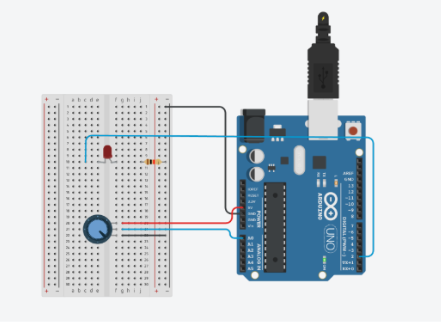
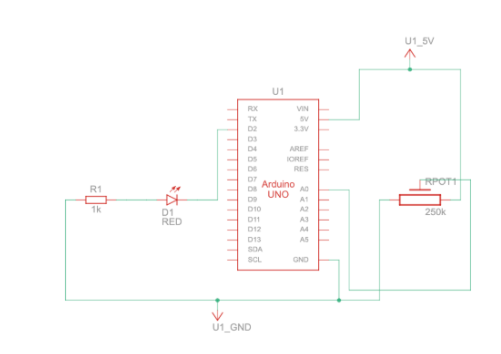
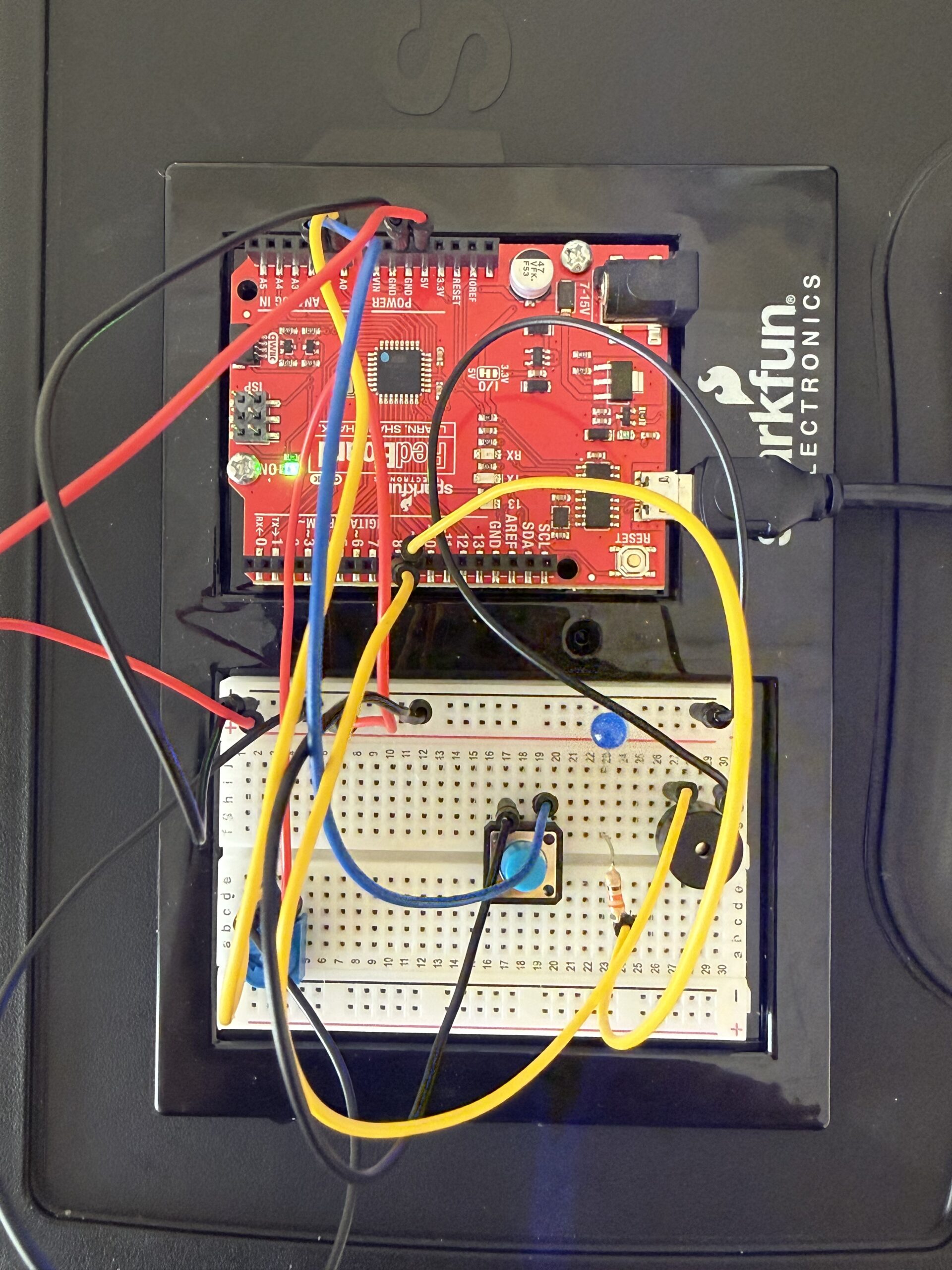
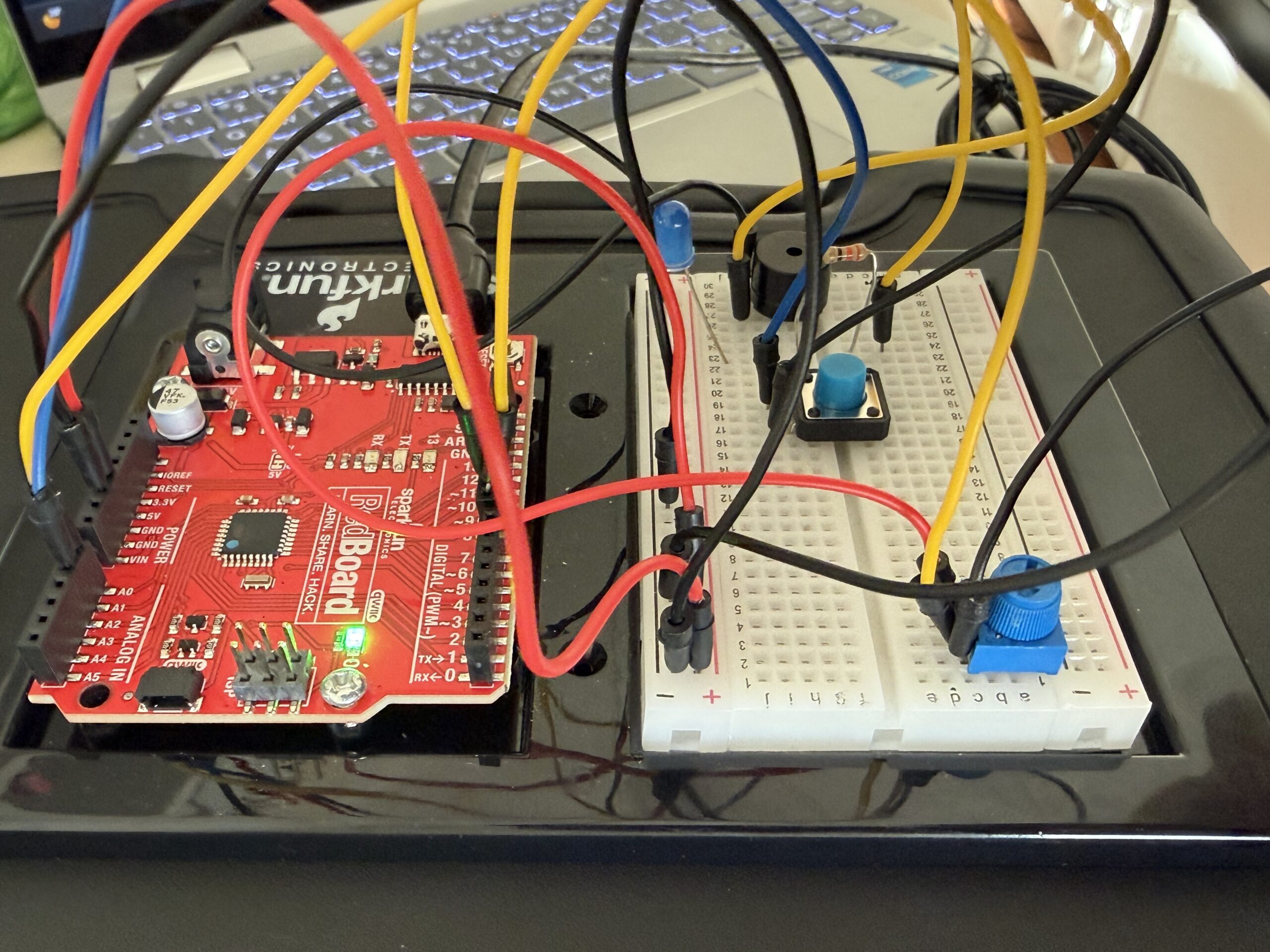
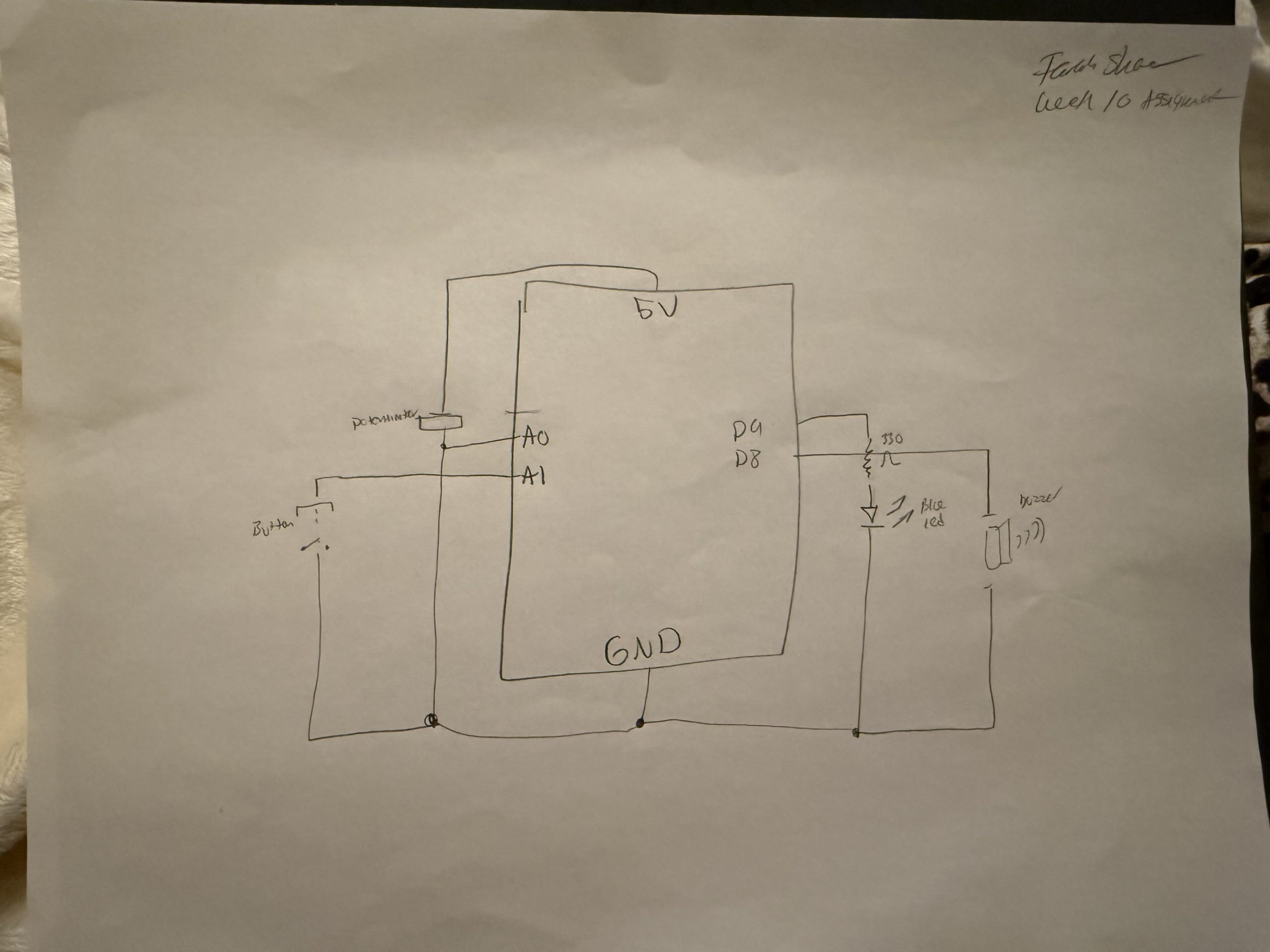
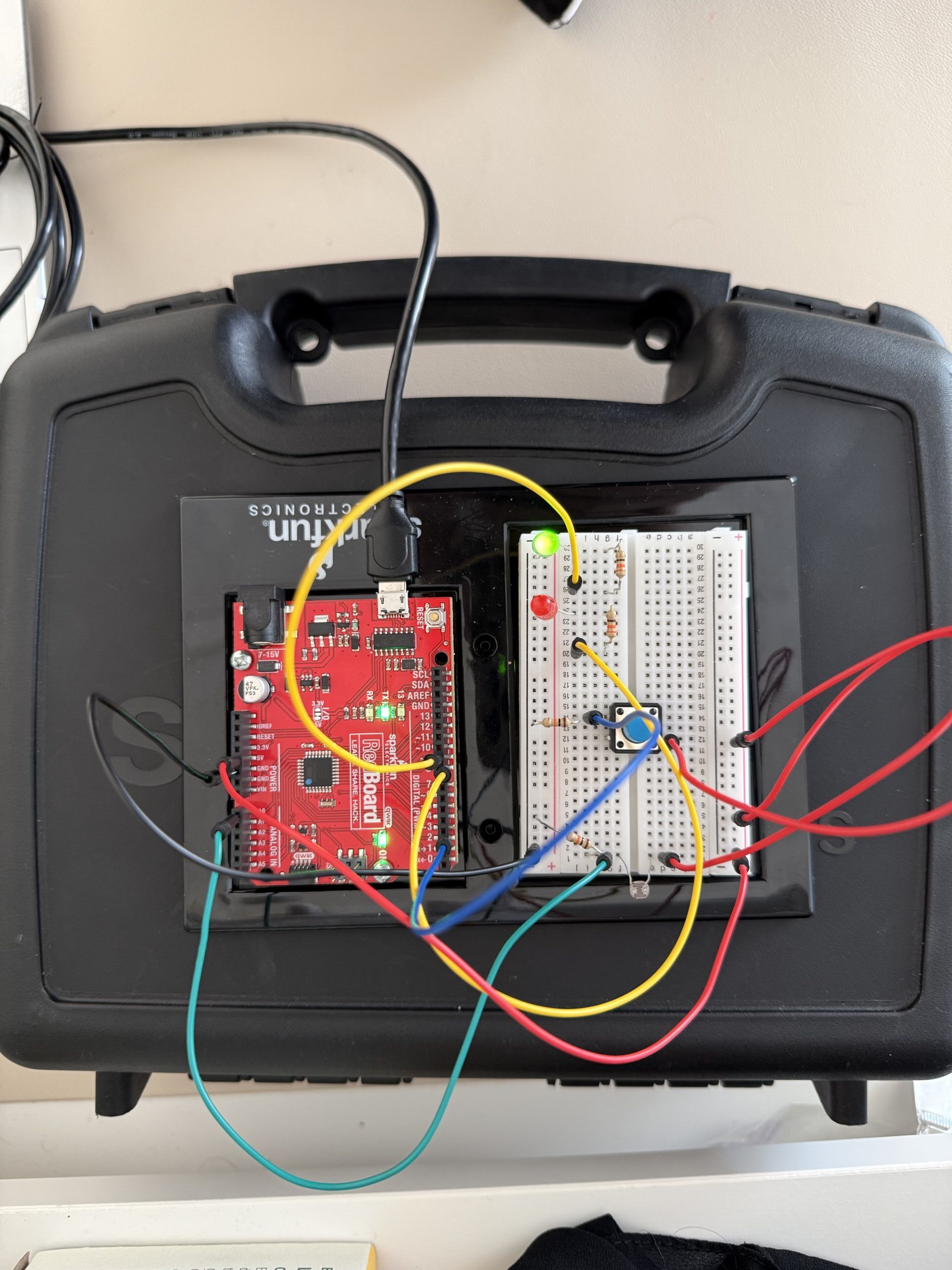
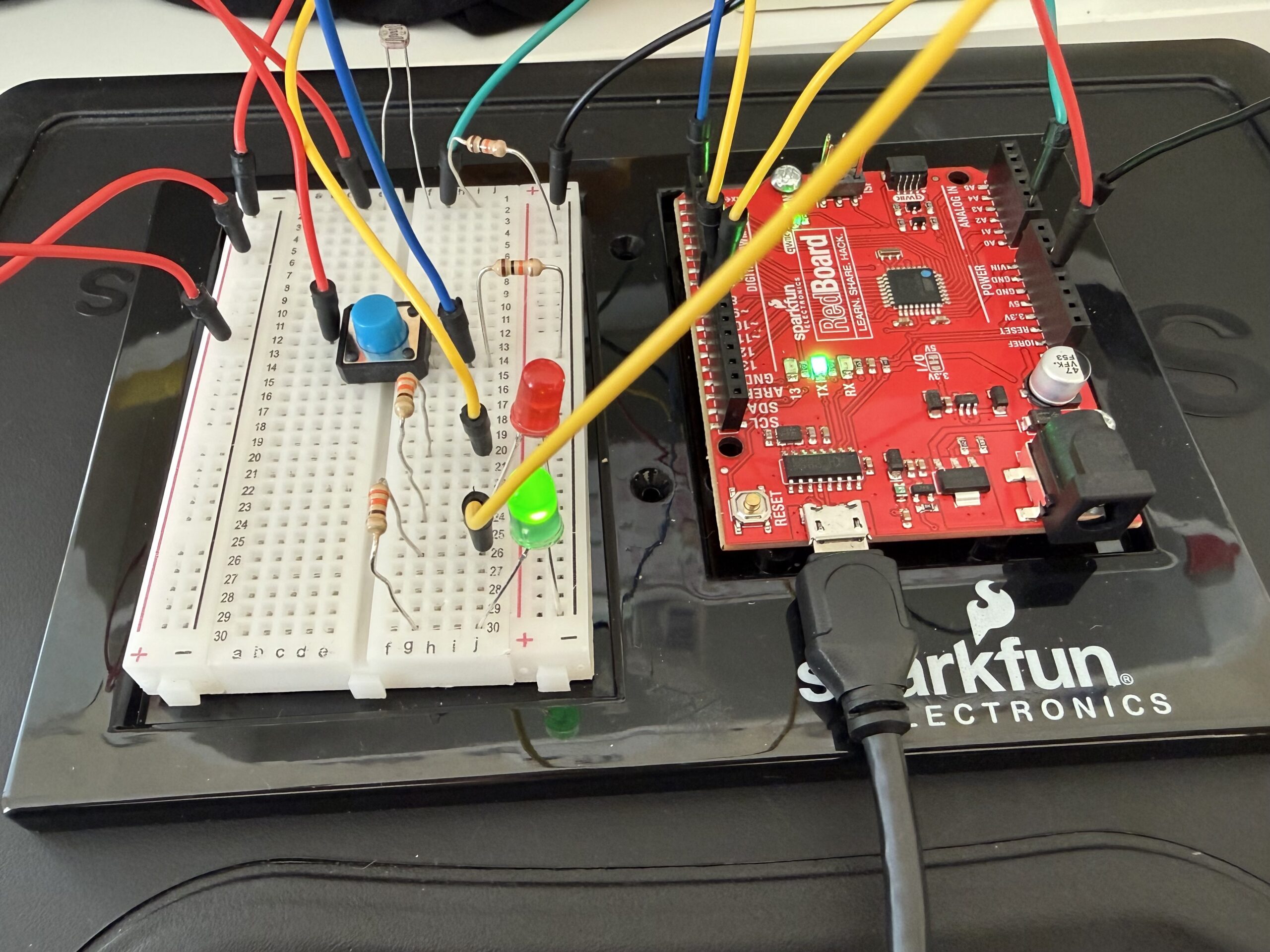
After completing the first two exercises and creating communication between the p5 sketch and the Arduino code and board back and forth, in this exercise, we had to combine both. When the ball in the p5 sketch bounces on the ground, the LED on the board flashes on and off, and when we use the potentiometer, which is the analog sensor on our Arduino board, we control the wind in the sketch and move the ball left and right.

P5 Code:

https://editor.p5js.org/farahshaer/sketches/hAwlRZjXM 

Arduino Code:

https://github.com/mariam9766/Intro-to-IM/blob/9f561f01e2719a784d6c54e8d43e4bbc998a6608/BidirectionalCommunicationExcercise3_mariam.ino 

Demonstration:

Circuit:

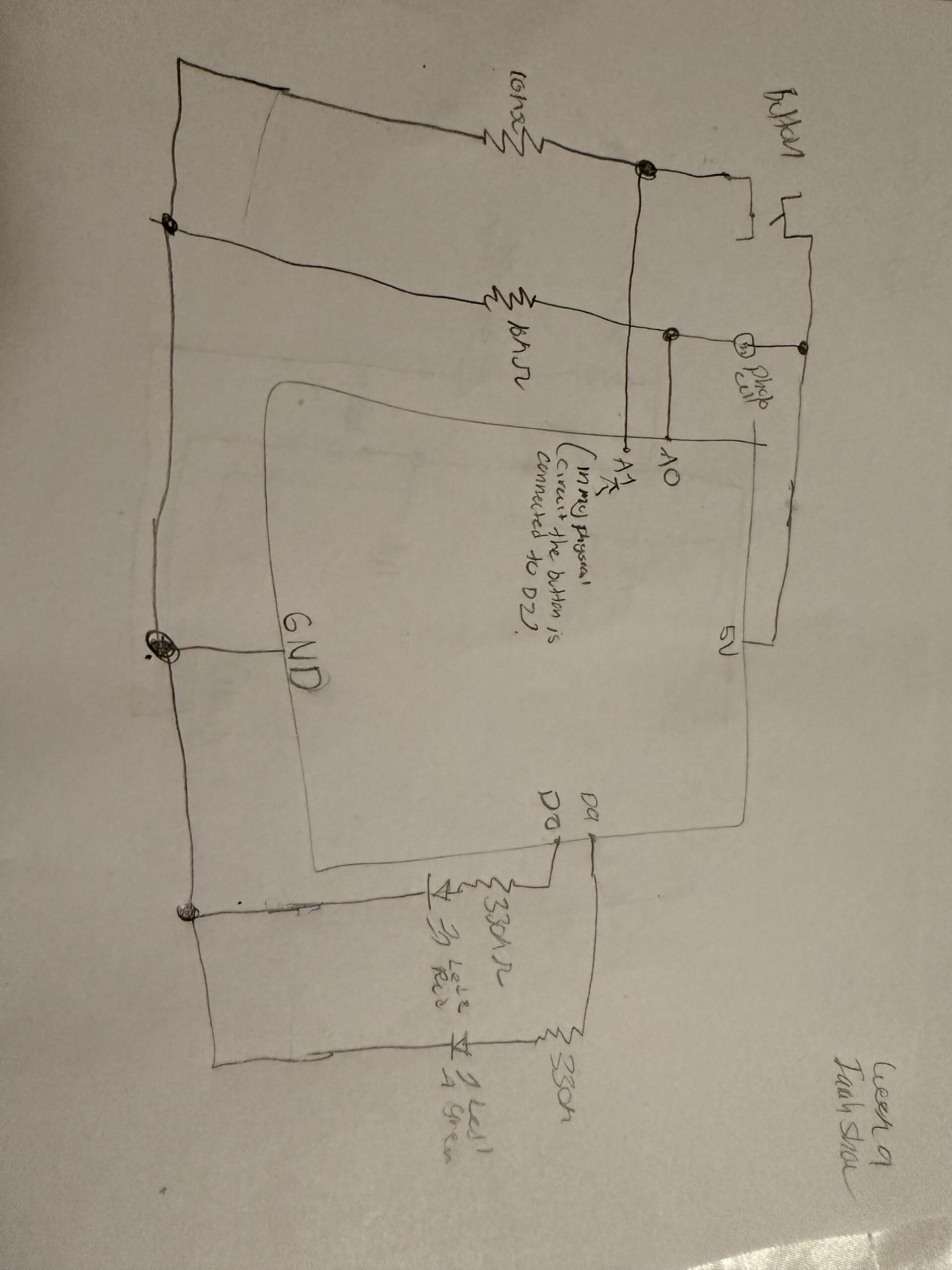
Schematic:

Code we’re proud of:

One part of the code that we are proud of is the bounce detection and how it connects to the Arduino:

//the bounce detection
  if (position.y > height - mass / 2) {
    //check if the ball hits the ground
    velocity.y *= -0.9; // A little dampening when hitting the bottom (reverse the direction when it hits)
    position.y = height - mass / 2; //keep it above the floor
    bounce = 1; //to mark that the bounce happened
  }
  //send to arduino
  let sendToArduino = bounce + "\n"; //send the bounce value 1 or 0 and the "\n" tells ardunio the message is done
  port.write(sendToArduino);
  // reset bounceafter it sends
  bounce = 0;
}

We are proud of this part because it turns the ball bouncing into a signal that affects something physical (the LED). It also only sends the signal once per bounce, which makes the interaction feel more intentional instead of constant.

Reflection/future work:

So in this version of the gravity and wind example, I added serial communication so the sketch can interact with an Arduino on p5. Instead of controlling the wind using the keyboard like in the original example, the wind now comes from an analog sensor (like a potentiometer) connected to the Arduino. The Arduino sends that sensor value to p5, and I map it to a wind force so it pushes the ball left or right. I also added a bounce signal that goes the other way. Every time the ball hits the bottom of the canvas, I set a variable to 1 and send it to the Arduino. This tells the Arduino to briefly turn on an LED, then it gets reset back to 0, so the signal only happens once per bounce. Most of the original physics code stayed the same, but the main changes were adding serial setup, reading sensor data to control wind, and sending a bounce message back to control the LED.

For the Arduino side, I worked on the Arduino code to align with the p5 sketch we have and create serial communication from the Arduino board to the p5 sketch and vice versa. I set it up so the Arduino sends the analog sensor value from A0 to control the wind on the ball in the sketch, and receives a bounce signal from p5 when the ball hits the ground. When this signal is received, the Arduino briefly turns on an LED to indicate the bounce, and then resets the value so the LED only activates once every time it touches the ground. I also made sure the serial communication was properly structured so both inputs and outputs work smoothly together at the same time, allowing interaction between the physical sensor and the digital sketch.

This exercise helped us understand how bidirectional communication actually works, instead of just sending data one way. It was interesting to see how the Arduino and p5 sketch can influence each other at the same time. One challenge we ran into was getting the potentiometer to properly control the wind. Even though the LED response worked, the sensor input was inconsistent, which made it harder to debug whether the issue was in the Arduino code or the p5 code. This made us realize how important timing and serial communication structure are, especially when both sides are sending and receiving data continuously.

If we had more time, we would focus on possibly smoothing the wind movement so it feels less jumpy. We would also experiment with adding more physical outputs, like multiple LEDs or different types of sensors, to make the interaction more dynamic, but we just wanted to stick with the assignment instructions for now to get a grasp of the concept.

Preliminary Concept for Final project

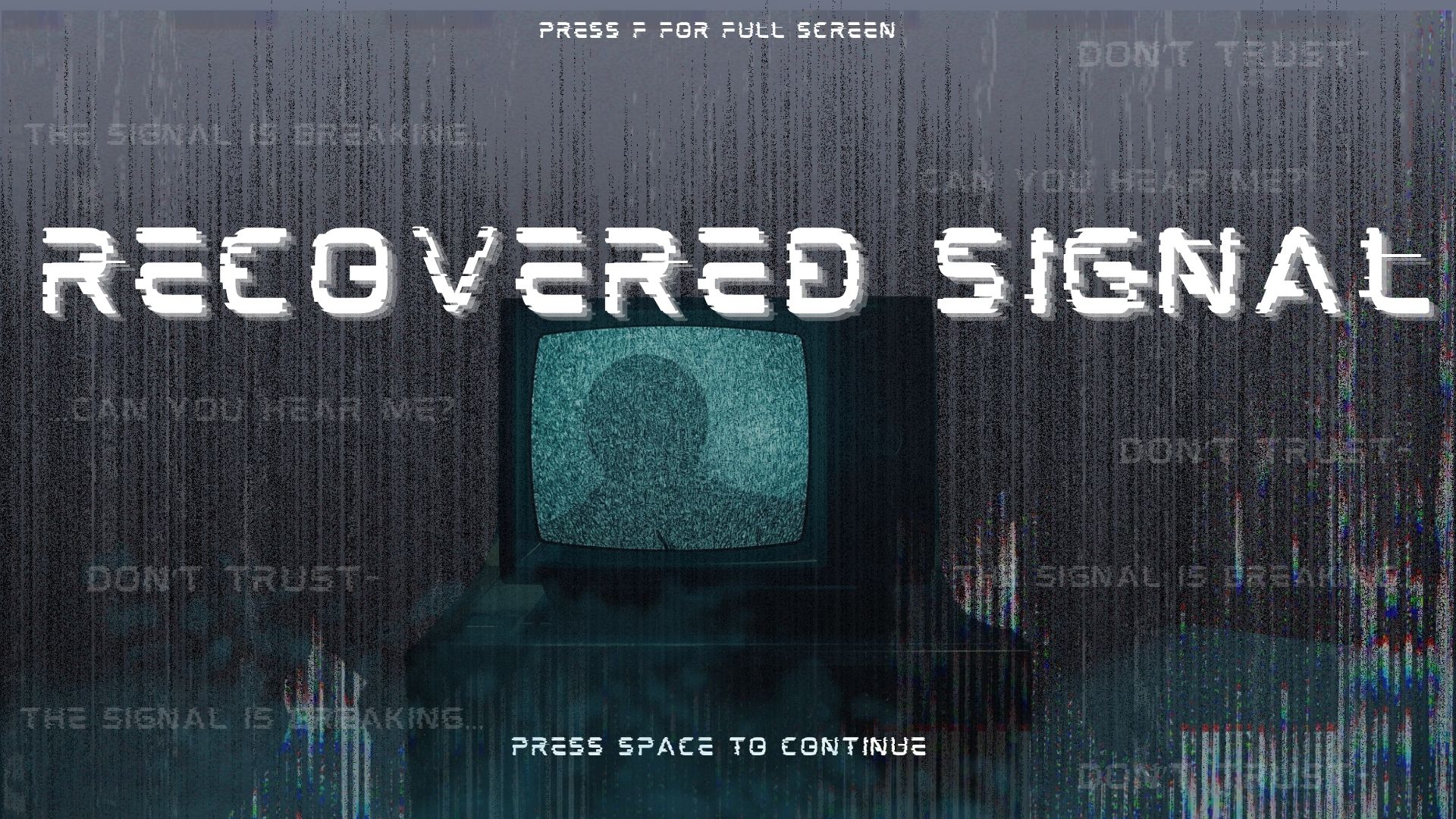
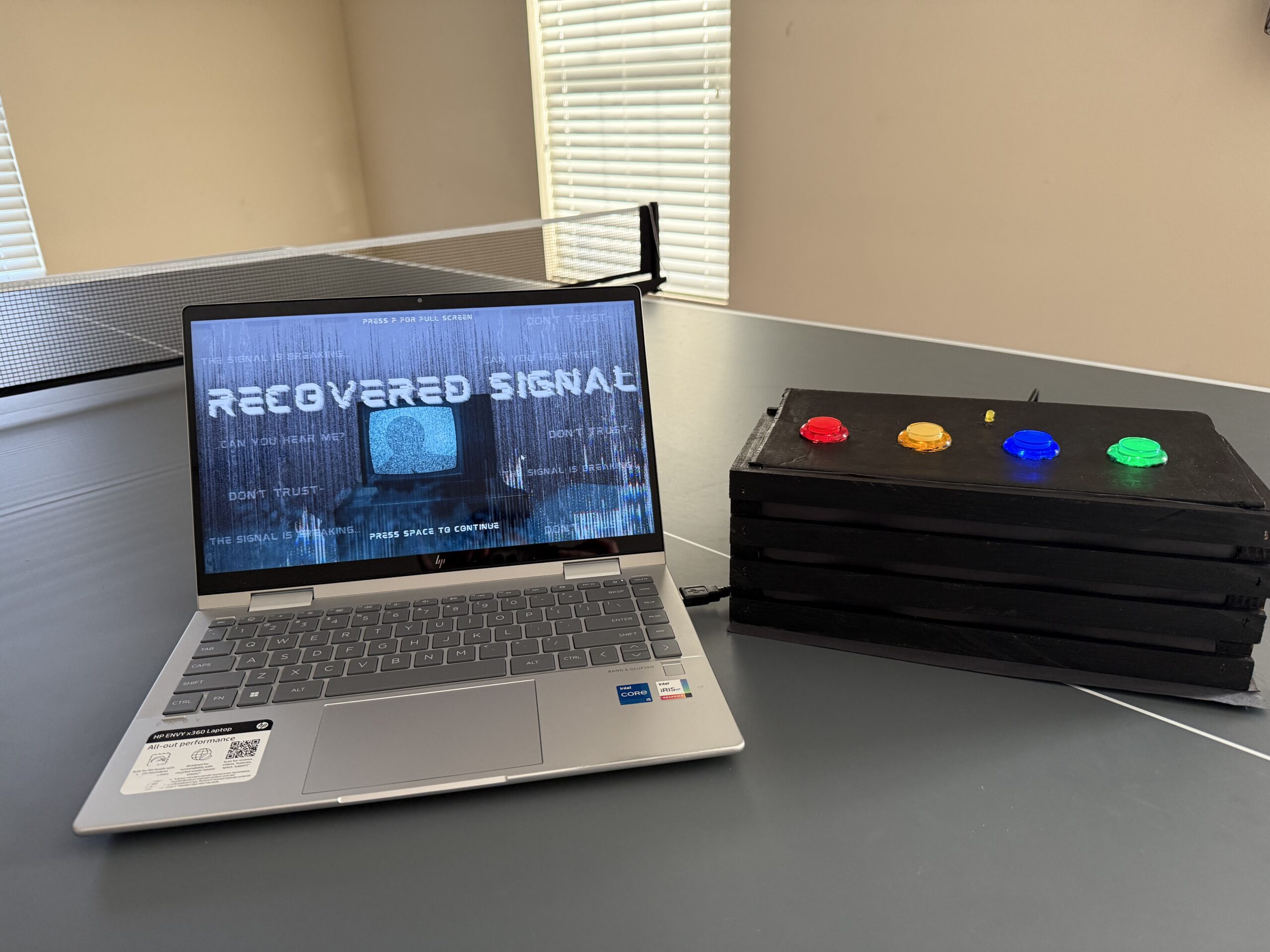
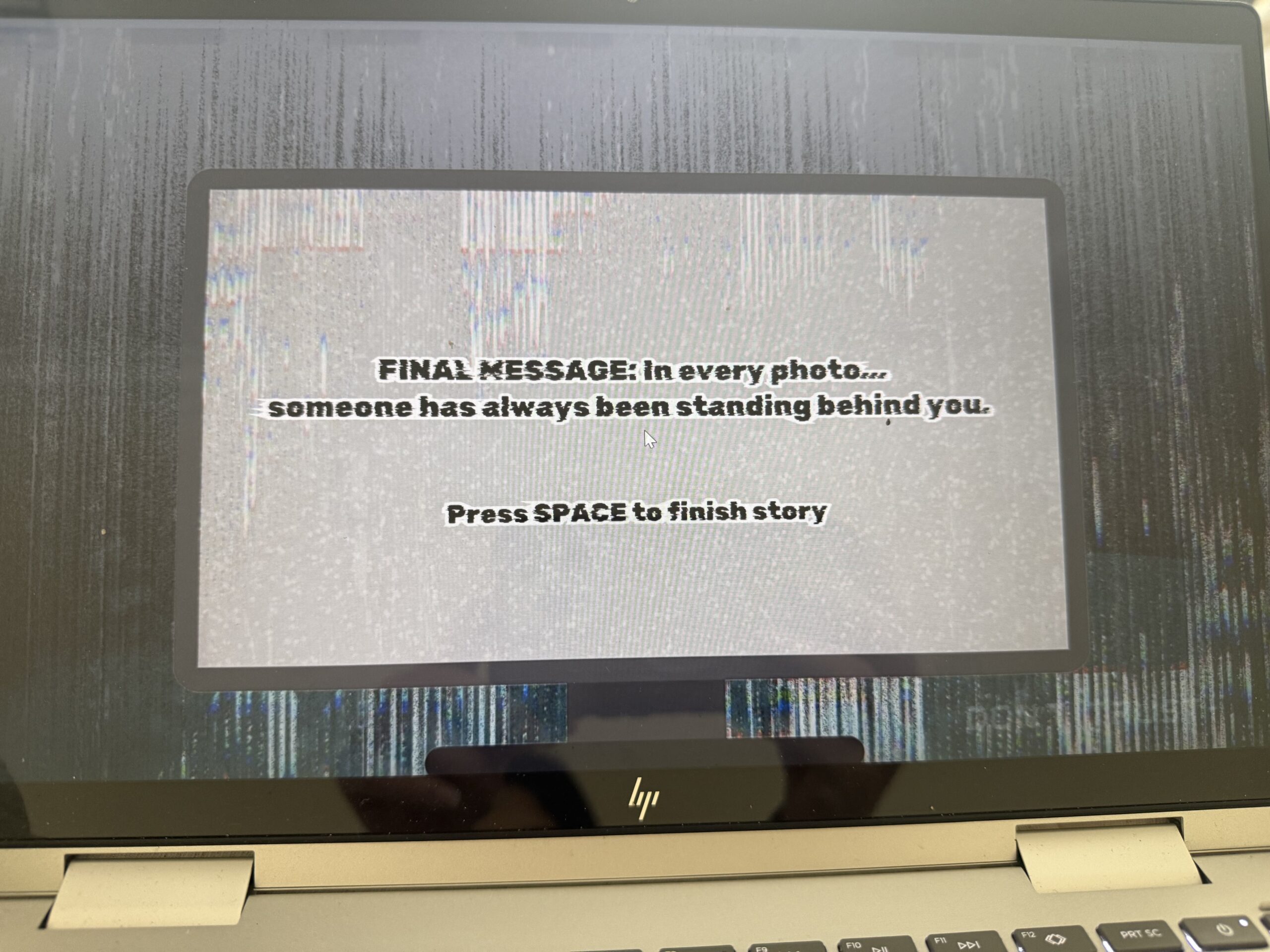
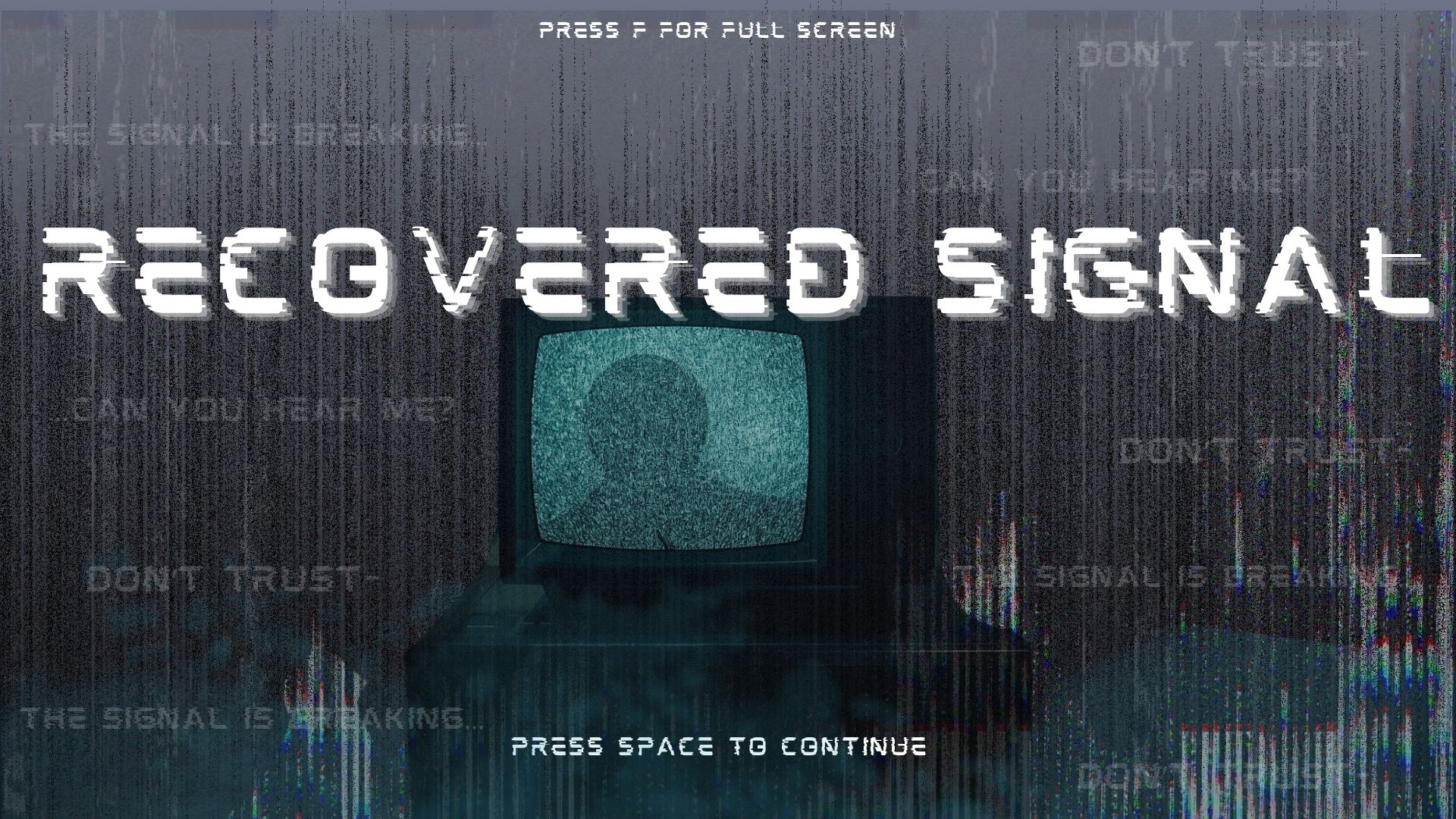
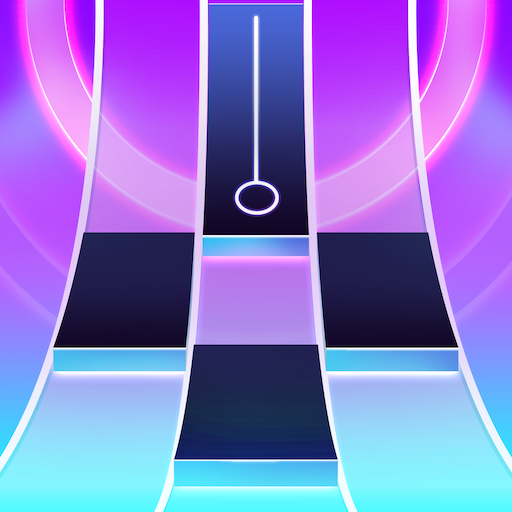
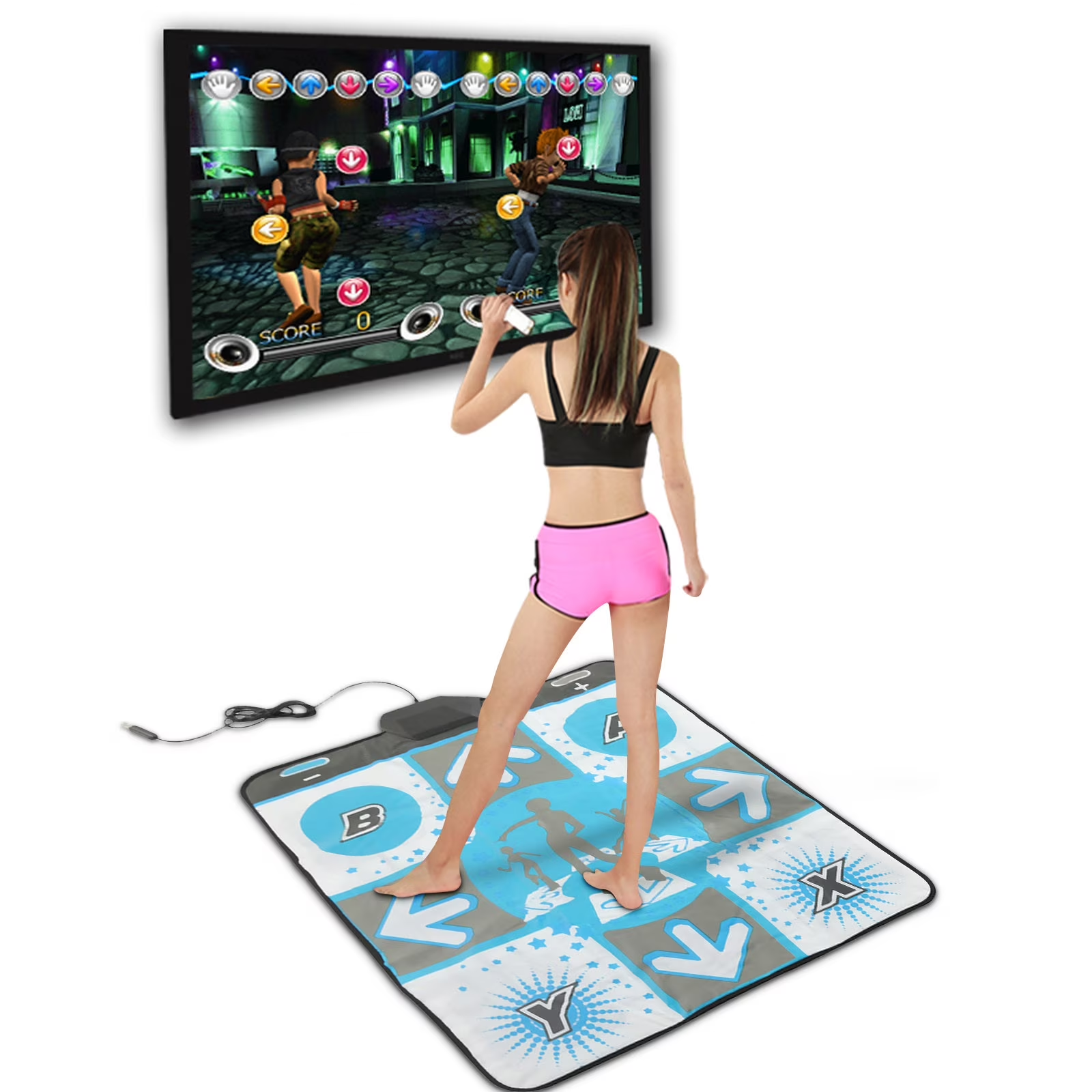
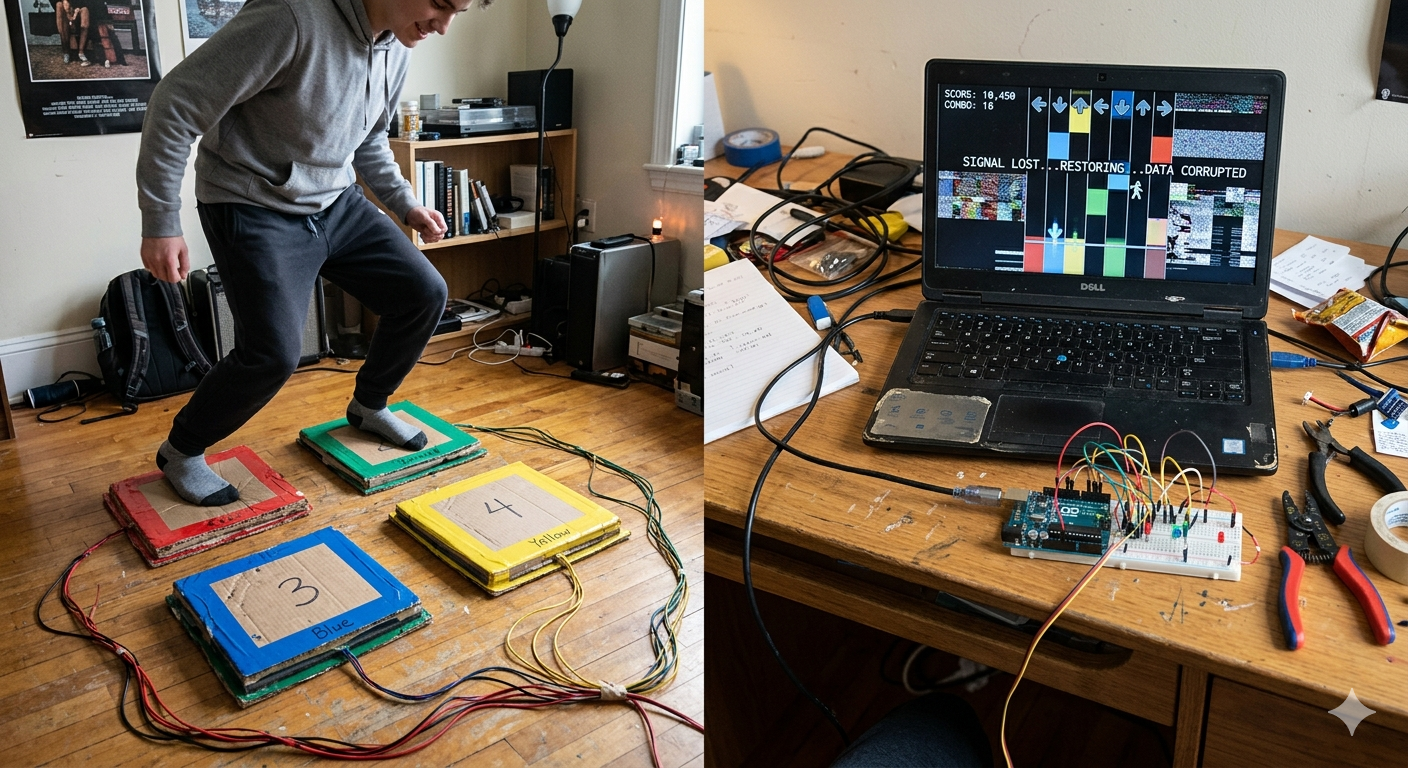
For my final project, I plan to create a physically interactive game where the player helps recover a corrupted digital signal of a story using their feet. The idea is inspired by games like Piano Tiles and Just Dance, but instead of simply playing for points, the user is actively uncovering a hidden message through their performance. By stepping on floor pads in time with visual cues, which I am thinking will be something similar to piano tiles and the Just Dance mat, the player will gradually restore a distorted audio/visual, which makes the experience into kind of like a mystery game:


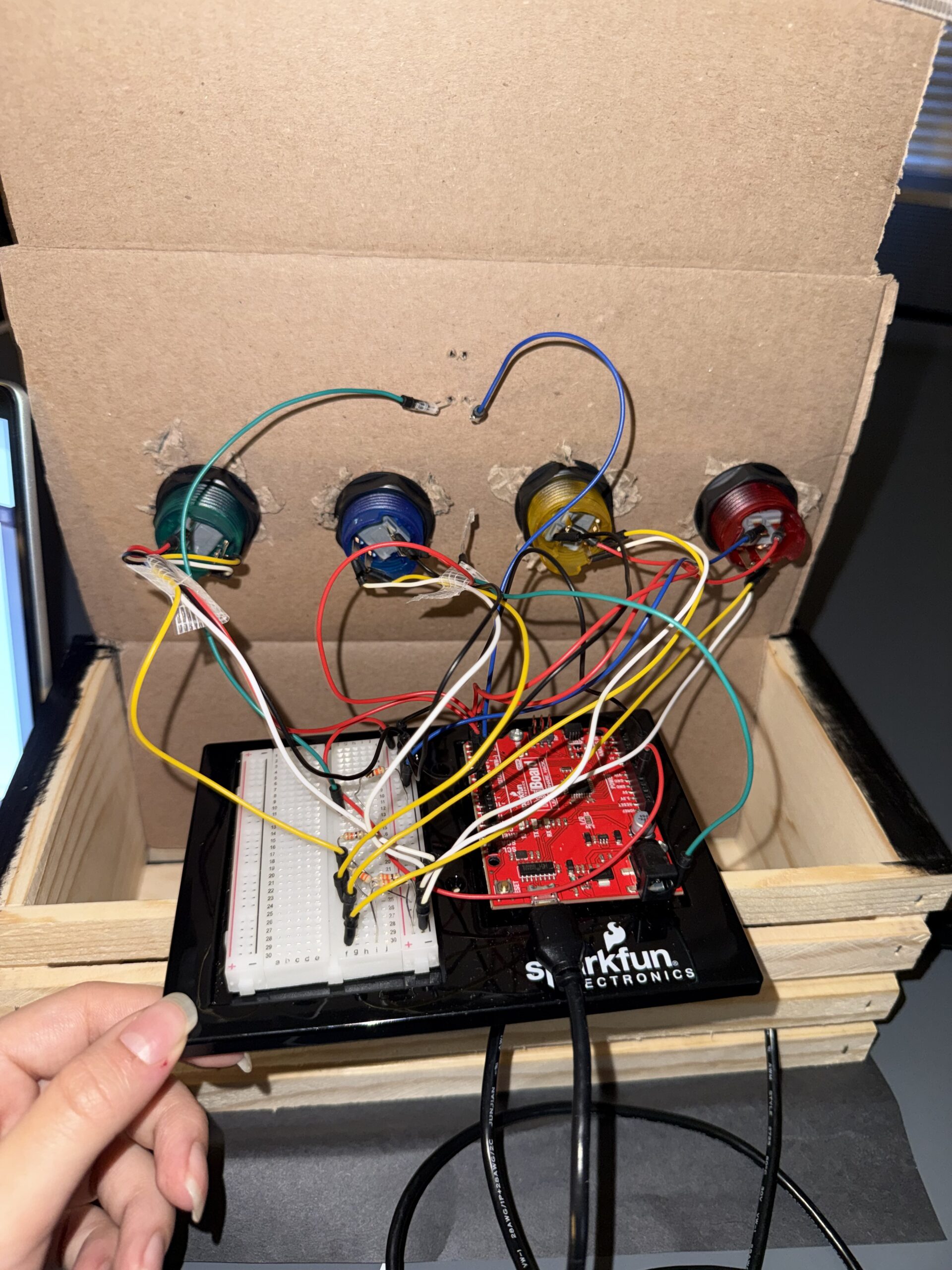
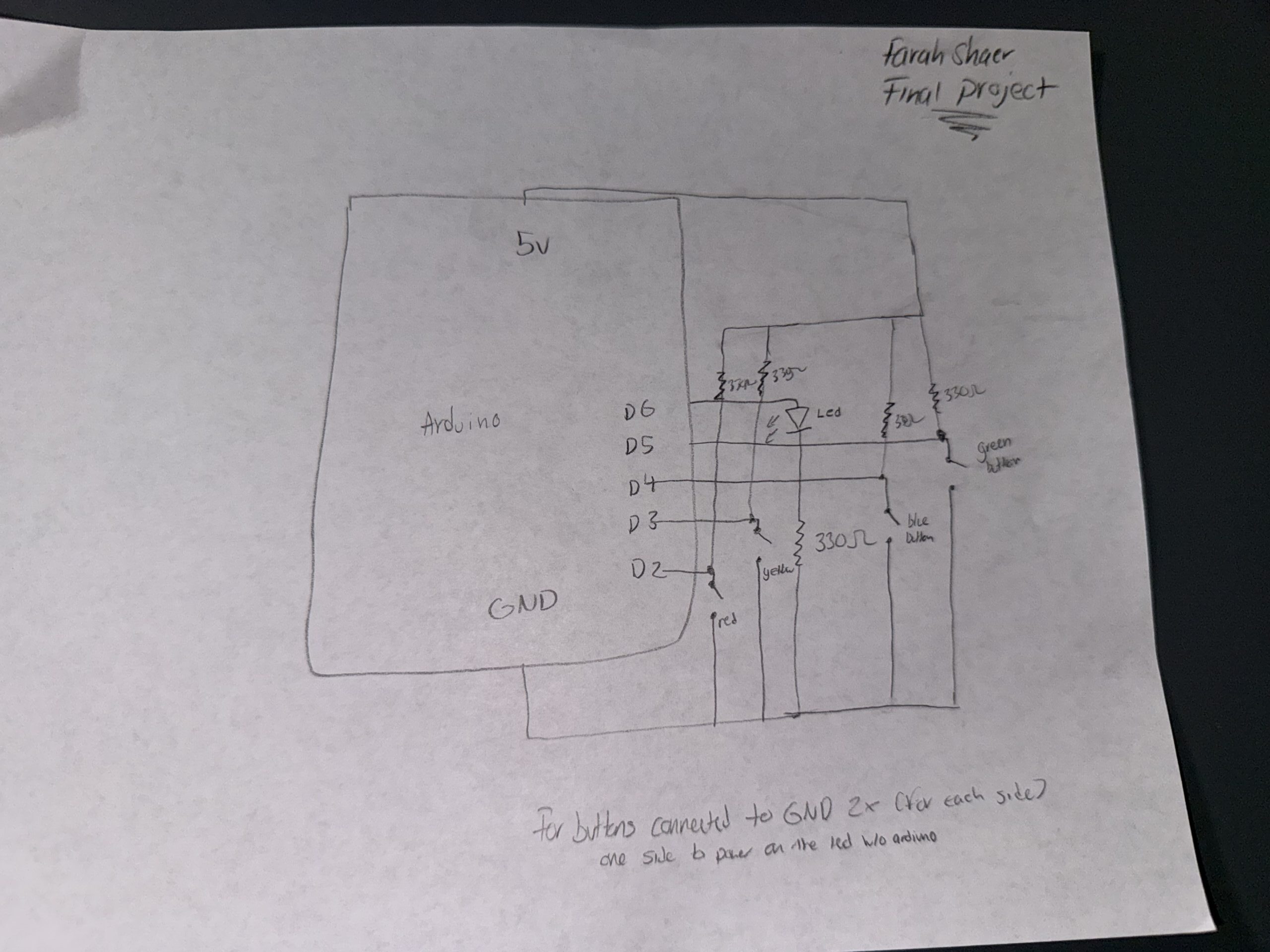
I will use Arduino to capture physical input and P5 to handle the visual and audio output. On the floor, there will be 4 pads made from materials like cardboard or foam with conductive layers inside (or if there is a better sensor for this idea, I will use it). Each pad will act as a button connected to the Arduino, and when someone steps on a pad, the circuit is completed, and the Arduino sends that input data to p5 through the serial communication.

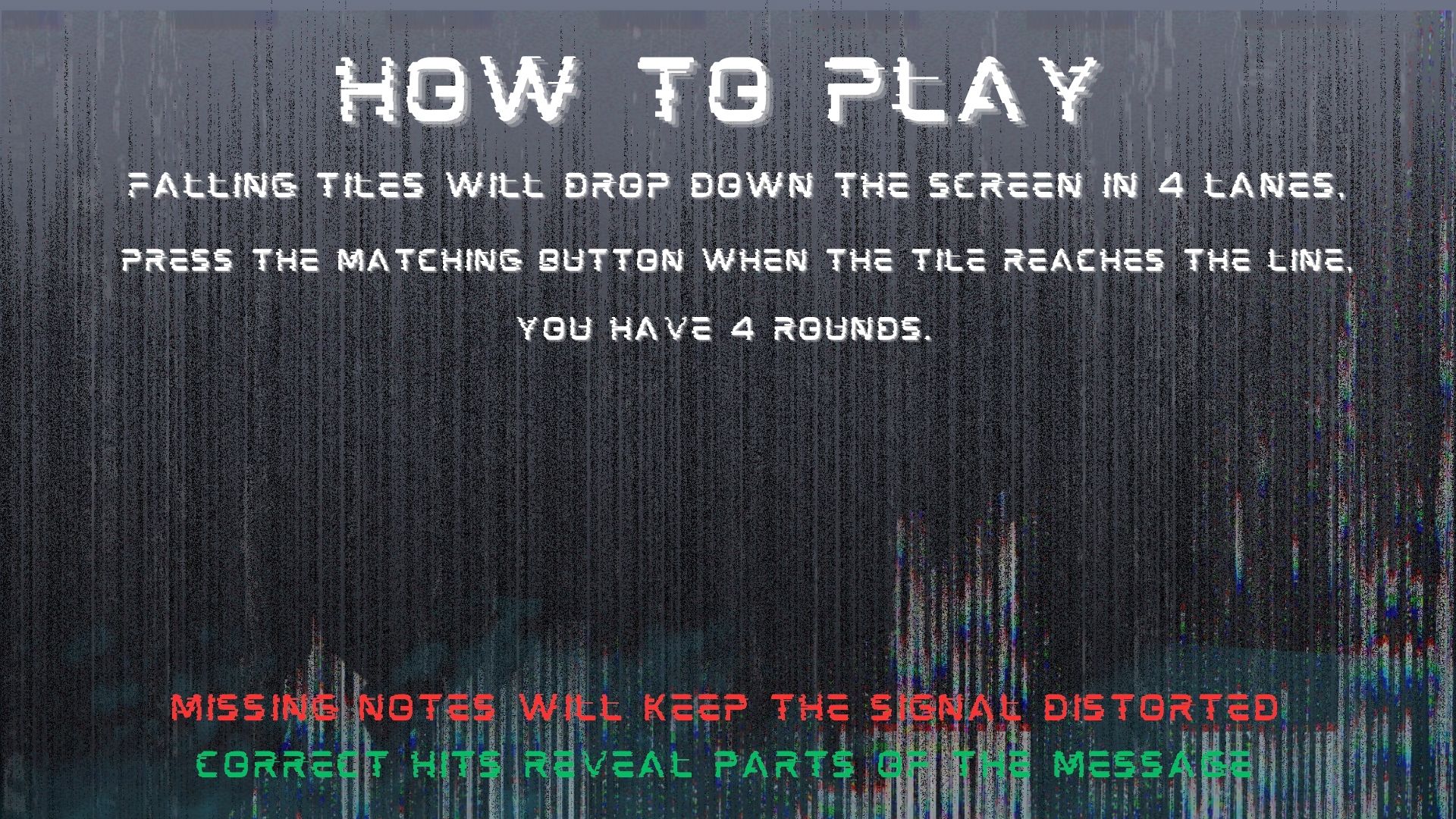
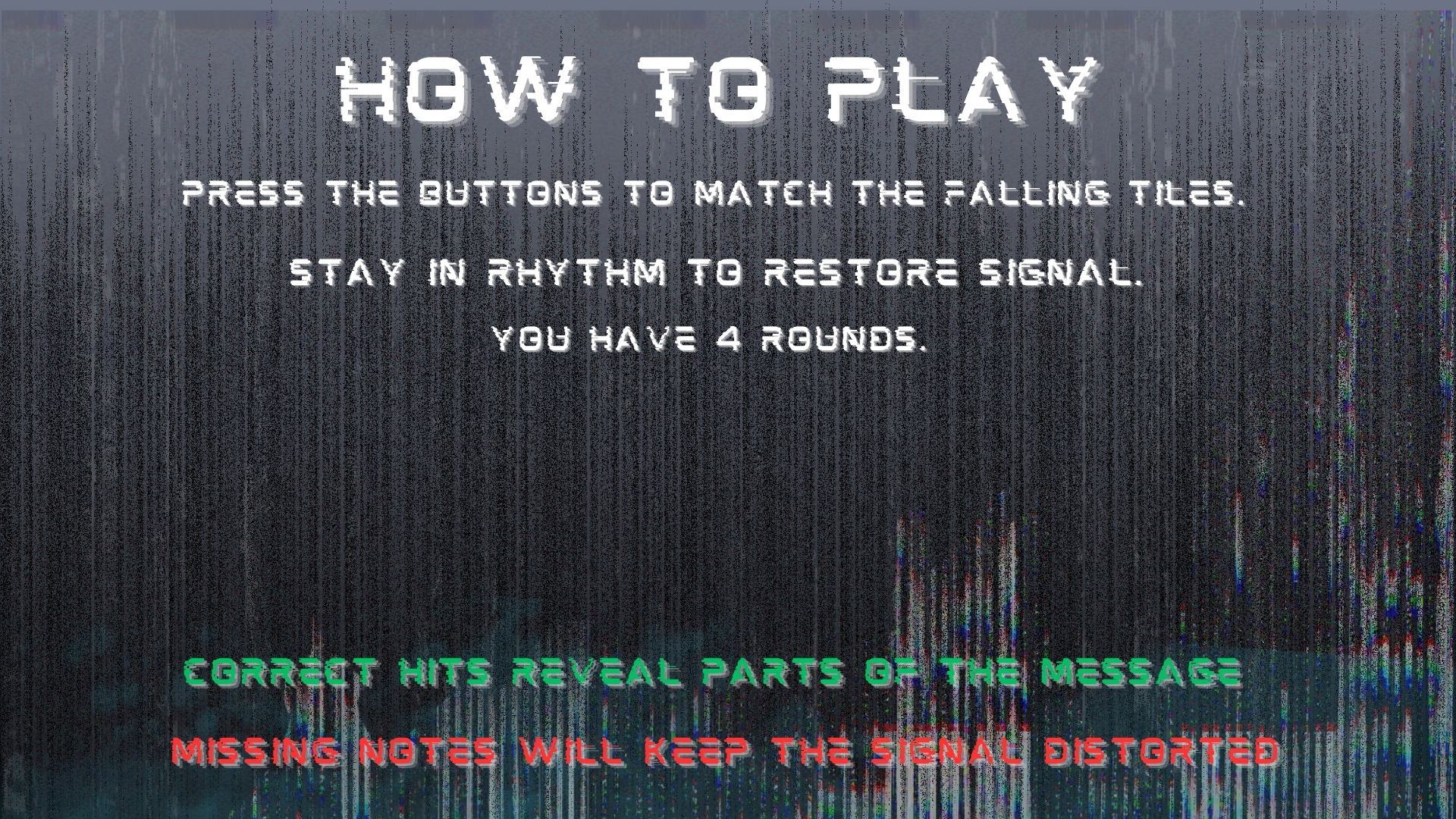
On the screen, p5 will display a rhythm like visuals with vertical lanes and falling tiles, like the piano tile game. The user must step on the pad at the correct time to match the falling tiles (which I am thinking will be color based, so it matches the floor tiles, and it is more obvious). For the visuals, it will initially appear distorted, with glitch effects, static, and broken text or images to represent a broken signal along with the tiles. As the player successfully hits notes on time, the system will respond immediately by reducing the distortion, sharpening visuals, and revealing fragments of audio or text of a story. I want it to gradually form a short narrative, such as a corrupted voicemail or like a partial conversation. But if the user misses notes, the distortion stays or I might back it to where it temporarily increases.

The game basically listens through the Arduino sensors, thinks by processing the timing and accuracy of the input in p5, and responds through changes in the visuals and sound. The player will then be paying attention and adjusting their movements based on the feedback they receive, especially when they start revealing more of the story.

I prompt Gemini AI to create a picture of the game, so you can get a vision of what I am trying to achieve:


Reading Reflection – Week 11

Design Meets Disability

This was an interesting read, especially the idea of discretion in disability design. I honestly realized I never really questioned it before, I just kind of assumed that making things invisible or less noticeable was automatically better, but the reading made me realize it is actually much more about culture and how people feel about themselves. The example of the Eames leg splint was interesting to me because I did not expect something medical to be described as a beautiful design. The idea that a medical object could actually lead to iconic furniture made me rethink the direction of influence in design. It does not just go from mainstream to disability, but the other way around, too.

The idea of discretion vs fashion also really changed how I think about assistive devices. I have definitely grown up seeing and hearing things like hearing aids or prosthetics as something you need to hide, so the idea that invisibility might actually reinforce shame really stuck with me. The comparison with the glasses made a lot of sense because I have never thought of glasses as medical, I sometimes see them as normal or even stylish. Which makes me wonder why other devices have not gone through the same shift yet.

I also found the discussion about simplicity really relatable, especially the iPod example. I have definitely experienced how too many features in a product can actually make it harder to use. The example of simple radios for people with dementia made me think about how inclusion is not just physical, but also about how easily something can be understood without stress. Overall, this reading has me thinking about how much design depends on who is involved in the process, especially considering it needs input from mainstream designers and artists because disability design does not have to be separate or special. It can actually shape what good design looks like for everyone.

Week 10 – Musical Instrument

Here are pics and videos:


Video link if not working:

https://drive.google.com/file/d/1pQPYnyUyf5OOBwbfCVHiDrsOvqDn_P3d/view?usp=sharing

Here is my GitHub link:
https://github.com/farahshaer/Intro-to-IM/blob/4ff1ee52b33d4edf72a1f905fc3d014cd8dfadb6/sketch_apr14a.ino 

Overall concept

So for this project, I built an interactive music system that plays two different songs (Jennifer’s Body by Ken Carson and Die with a Smile by Bruno Mars), and you can control the pitch of the melodies. I included a buzzer for the sound output, a button to switch between the songs, a potentiometer to change the pitch, and an LED that visually blinks along with the music. The main idea was to create something interactive where you can actually affect the sound while it is playing.

Code Highlight

One part of my code that I am particularly proud of is the if statements that switch between the two melodies and make the LED blink:

//mode 0 (melody 1)
  if (mode == 0) {

    int size1 = 15;                                      //number of notes in melody 1
    int noteDuration = 1000 / noteDurations1[thisNote];  //converts note type into time in milliseconds
    int finalPitch = melody1[thisNote] + pitch;          //combines the meoldy note and the knob turning (can adjust the note using the potentiometer)
    tone(buzzer, finalPitch, noteDuration);              //plays sound on buzzer
    digitalWrite(led, HIGH);                             //turns led on while the note is playing
    delay(noteDuration);                                 //waits for note to finish
    digitalWrite(led, LOW);                              //turns the led off between the notes and for blinking effect
    delay(noteDuration * 0.3);                           //short pause between the notes to make the melody clearer
    noTone(buzzer);                                      //stops sound before next note
    thisNote++;                                          //moves to next note in the melody
    if (thisNote >= size1) thisNote = 0;                 //if at the end of the melody go back to the start (loop song)
  }


  if (mode == 1) {
    int size2 = 23;                                      //number of notes in melody 2
    int noteDuration = 1000 / noteDurations2[thisNote];  //converts note into time (mill sec)
    int finalPitch = melody2[thisNote] + pitch;          //applys the pitch shift from the potentmeter
    tone(buzzer, finalPitch, noteDuration);              //plays sound
    digitalWrite(led, HIGH);                             //turns led on during the sound
    delay(noteDuration);                                 //wait for note
    digitalWrite(led, LOW);                              //led off
    delay(noteDuration * 0.3);                           //pause between notes
    noTone(buzzer);                                      //stops sound

    thisNote++;                           //go to the next note when done
    if (thisNote >= size2) thisNote = 0;  //loop back to start when song ends
  }
}

This is the core of my project because instead of playing an entire song at once, it processes one note at a time, which allows for real-time interaction through the button and the potentiometer. The code selects the current note, modifies pitch with the sensor input, and then outputs the sound plus the LED, while moving to the next state.

Reflection/future work

I cannot lie, I had trouble with the code, but the wiring was straightforward once I understood how each component connected to the Arduino. The buzzer is connected to digital pin 8, and outputs sound using the tone() function. The LED is connected to digital pin 9 with a resistor, and it provides visual feedback by blinking in sync with each note. The button is connected using INPUT_PULLUP, meaning it reads HIGH when not pressed and LOW when pressed, which required me to wire one side to ground so the logic would work correctly. The potentiometer is connected to analog pin A0, with one side connected to 5V, the other to ground, and the middle pin sending a variable signal that controls pitch in the code.

For the code, I used a variable called thisNote, which stores the current position in the melody array. Instead of using a for loop to play the entire song at once, the code plays one note per loop cycle, which allows for constant checking for input changes while the music is playing. At first, I used for loops, and it just was not working. The Arduino got stuck inside the loop, the button presses were ignored until the song finished, and the potentiometer did not update in real time, so switching to thisNote, it made the program run one note at a time inside the loop. So the Arduino can check the button constantly, and the song can change and pitch in real time.

I also had a problem with the button logic, because at first I wrote if (buttonState == LOW) and it caused it to continuously trigger while the button was held down, which made the song behave unpredictably. So I used chatgpt to debug and I learned to use lastButtonState with buttonState so the code only detects a transition from high to low (single press instead of holding), and because I used input_pullup, I also had to adjust my thinking since high is not pressed and low was pressed so it was confusing at first because it is the opposite of what I expected.

Overall, I learned that structure matters just as much as logic, especially when dealing with real-time input and output, because small details like button states and loop structure completely change how responsive the system feels. For future improvements, I would add more songs or more modes, and more LEDs or patterns to visualize the rhythm more creatively, and probably replace delay with millis for smoother control.

Here is my schematic:


References:

(I mainly used the lecture slides), but I also used these websites for a better understanding.
https://github.com/hibit-dev/buzzer/blob/e1442497e7c56cee0d5efe73304bdb922b3ab907/src/songs/ken_carson_jennifers_body/ken_carson_jennifers_body.ino

https://github.com/hibit-dev/buzzer/blob/e1442497e7c56cee0d5efe73304bdb922b3ab907/src/songs/die_with_a_smile/die_with_a_smile.ino

https://docs.arduino.cc/built-in-examples/digital/toneMelody/

https://docs.arduino.cc/built-in-examples/digital/InputPullupSerial/

Reading Reflection – Week 10

A Brief Rant on the Future of Interaction Design + follow-up

Reading this article made me rethink how I usually imagine the future of technology. I realized that I tend to accept touchscreens and the sleek interfaces without really questioning whether they actually improve human interactions. I really liked the author’s idea of pictures under glass, because it reframes devices like phones and tablets as limiting rather than advanced. I had never really considered how much tactile feedback shapes my everyday actions, like holding a cup or turning a page, and how it completely disappears when interacting with digital screens. This made me more aware of how much current technology prioritizes visual simplicity over physical engagement.

I wonder whether designers will continue to rely on interfaces that ignore the full capabilities of the human body. If our hands and bodies are so complex and expressive, why is most technology reduced to tapping and swiping? His point about finger blindness really is scary to think about, especially if we lose the ability to feel and understand our objects. This makes me wonder whether convenience and market trends are prioritized over innovation, or if designing for full-body interactions is simply too difficult to do for every single person. It is interesting to see how we adapt to our devices rather than devices adapting to us. Overall, the reading challenged my assumption that technological progress is always linear and improving.

I think the follow-up was quite interesting. I understand that his goal was to highlight a problem and push others to explore it. I am not sure why people expect an immediate answer rather than seeing critique as the starting point for innovation. I was also surprised that removing the body from interaction, like through voice or brain interfaces, might actually reduce human experience. I had not thought about how much physical interaction shapes understanding. To be honest, this made me reflect on how passive I have become in using technology and whether easier always means better.

Week 9 – Analog and Digital Sensors

Here are pictures and videos:

video demo

^ if that does not work here is the google drive link to the video:

https://drive.google.com/file/d/1cqjdY0IDc7IcCNzmsgcox7MWBKphB9yT/view?usp=sharing

Here is the GitHub link: https://github.com/farahshaer/Intro-to-IM/blob/56d1cd018f4c8af02c5288f277d48bbc5288f498/sketch_apr4a_20260404184101.ino 

Overall concept

So, for this project, I wanted to make a system where red and green LEDs react to the light in the environment. I used a photoresistor to detect the amount of light in the environment. When it’s dark, the red LED turns on, and when it’s bright, the green LED lights up. There is also a button that lets you make the LEDs blink if you want.

Code Highlight

One part of the code that I am particularly proud of is where the LEDs respond to the light and button input, basically the logic that decides which LED to turn on. I used digitalWrite for the red LED to turn it fully on or off, and analogWrite for the green LED for brightness control using PWM. It also makes the LEDs blink if the button is pressed. Here is the code snippet:

//Dark Environment
  if (sensorValue < 790) {        //if the light level is below the midpoint value = dark
    digitalWrite(greenLED, LOW);  //turns the green led off in the dark
    if (buttonState == HIGH) {    //and if the button is pressed make the red led blink
      digitalWrite(redLED, HIGH);
      delay(50);
      digitalWrite(redLED, LOW);
      delay(50);
    } else {
      digitalWrite(redLED, HIGH);  //if the button is not pressed keep the red led on
    }
  }
  //Bright Environment
  else {                                  //if the light level is above the midpoint value = light
    digitalWrite(redLED, LOW);            //turn off the red led in the light
    if (buttonState == HIGH) {            //if the button is pressed make the green led blink
      analogWrite(greenLED, brightness);  //to set the brightness based on the mapped sensor values
      delay(50);
      analogWrite(greenLED, 0);
      delay(50);
    } else {                              //if the button is not pressed keep the green led on
      analogWrite(greenLED, brightness);  //to set the brightness based on the mapped sensor values
    }
  }
}

Reflection/Future work

For the wiring, it was pretty straightforward. The photocell is connected to the analog pin A0 and reads the light level, and is connected to a 10k resistor. The red LED is connected to digital pin 8 because it only needs on/off control. The green LED is connected to PWM pin 9, allowing its brightness to be controlled through code using analogwrite. The button is connected to digital pin 2, and its state is read using digitalRead. In the code, the sensor values are first constrained to a usable range and then mapped to a PWM range of 0-255 using the map function. This allows the green LED’s brightness to adjust to the amount of light detected by the photocell. The code then checks whether it is dark or bright, turns the correct LED on, and makes it blink if the button is pressed.

This assignment was very helpful. I used the lecture slides for reference. It helped me learn how to combine the sensors leds and buttons. Using the PWM for the green LED allowed me to explore the brightness control instead of just turning the LED on and off. Also, looking at the photocell readings in the serial monitor helped me understand the sensor range and change it in the constrain and map functions.

For future improvements, I could add more LEDs and maybe make the blinking speed or brightness based on how dark or bright it is, or I could incorporate more sensors to make the system even more interactive.

Here is my hand-drawn schematic:

Reading Reflection – Week 9

Physical Computing’s Greatest Hits (and misses)

This was an interesting read, especially looking through all of the different projects. What stood out to me was the author’s point that many physical computing projects repeat the same themes every year. At first, this surprised me because I usually think that in creative fields, you are supposed to come up with something new and original. But reading this made me realize that originality does not always mean starting from scratch. It could be taking a familiar idea and just approaching it in a different way, which can still lead to something unique. I think this perspective makes me feel a bit better about the physical computing projects, because I was always afraid that my idea would have already been created or would be too similar to someone else’s concept. I also thought that these projects were too complex, but they actually come from simple concepts, some of which we even covered in class.

I also really liked the discussion about thescooby doo painting and the video mirror, where it was visually impressive but sometimes limited because people mostly just stand there and wave their hands. I thought this was interesting because it points out that something can look cool, but still does not create a very deep, meaningful interaction. Overall, I think this reading helped me think more about the relationship between creativity and physical interactions. It made me realize that the most interesting projects come from designing meaningful ways for people to interact with it. I think this reading also helped me get some inspiration from others for this week’s assignment.


Making Interactive Art: Set the Stage, Then Shut Up and Listen

This reading definitely made me think differently about what interactive art actually is. I loved how the author argued that artists should not interpret their own interactive work, it something I never thought about. I always assumed that explaining your concept was needed so the audience would understand what you mean, but it is the opposite. The artwork should allow people to form their own interpretations through their experience with the work. I found this idea interesting because it shifts the focus away from the artist and instead lets the audience become part of the creative process.

I also liked the way the author described interactive art as a conversation between the artwork and the participant. It reminds me of the constant point in my understanding IM class, where the artwork is not the finished piece, but it is only complete through the audience’s interaction. The end result of the artwork could be different for some people, even all of the small design choices, like whether something looks touchable or has indicators, can guide how people interact with the piece, and can influence the end result. So sometimes we should limit the guidance, if the goal is to make the experience full and meaningful for each person.

Week 8 – Unusual Switch

Here are pictures and videos of my unusual switch:

Video:

IMG_1353

Here is the GitHub link to my code:

https://github.com/farahshaer/Intro-to-IM/blob/3e682e9aebc9f598bbd09f61855eba49238cbf92/sketch_mar29.ino 

Overall concept
So for this project, I decided to create a foot-activated switch. When I press my foot on the pad I made with aluminium foil, tape, sponges, and cardboard, it completes the circuit and lights up the blinking LED. When I remove my foot, the LED turns off. I wanted something creative that uses the human body in a new way, and the foot switch, to me, felt unusual and fun to play with, even though it is a basic concept.

Code Highlight

The code that I am most proud of is the blinking effect. I wanted to incorporate it because we learned how to do it in class. I thought it wouldn’t be possible to put it in the if statement because I needed the light to turn off once you remove your foot. But by delaying it by 100 and turning the LED off and on quickly, it made a fast blinking effect when my foot presses the pad.

if (buttonState == HIGH) { //if the switch is pressed
digitalWrite (13,HIGH); //the LED turns on
delay(100); //cause a delay so I can produce a fast blinking effect
digitalWrite (13,LOW); //to turn the LED off for the blink effect
delay(100); //the fast delay to complete the blink full cycle
}

Reflection/Future work

To build the circuit, I implemented basically the same thing we discussed in class. For the LED circuit, I connected pin 13 of the Arduino to a 330 resistor, which then connects to the long leg of the LED. The short leg of the LED connects to the ground row. For the switch circuit, I made a simple foot pad switch, which I took reference from a website. I used two pieces of aluminium foil on cardboard pieces, and in between them two sponges so I can easily turn it on and off. and separate the aluminium foils. One foil connects to 5V, and the other connects to pin 2. I also added a 10k resistor between pin 2 and ground. The resistor keeps the input stable when the pads aren’t pressed, so the Arduino doesn’t get floating values and burn out. I put the wires in specific rows on the breadboard. For example, the green wire goes from pin 2 to the row shared with the resistor and one foil pad. The yellow wire connects the other foil pad to the same row. This makes sure that when my foot presses the pads, pin 2 gets 5V, and when not pressed, the resistor pulls it down to 0V.

For future improvements, I would make the foot pad a bit more stable and try using multiple LEDs to make a pattern so the concept gets more creative. I would also experiment with different blink patterns to make it more interesting.

Here is the website I took inspiration from to make the pressure board:
https://www.instructables.com/Pressure-Switch-for-Makey-Makey/

Here is the sketch of my board and circuit connection diagram:


Reading Reflection – Week 8

Emotion & Design: Attractive things work better

I found Norman’s reading quite interesting, especially his argument that emotions affect how well we use objects. From the previous readings we have done in this class, I just assumed good design was mainly about functionality and usability. I also thought that even if the object is not as aesthetically pleasing, if it works well, then everyone would use it. I did not realize how much emotional appeal plays a role in the design. Norman claims that attractive designs can actually improve how people think and solve problems. When people feel positive emotions, they are more flexible, while negative emotions make people more focused but also more stressed. This made me realize that design is not only about making something work well with clear directions, but also about how it makes people feel while using it.

I liked the example of the three teapots. Each of the teapots emphasized something different. Even though one of them is harder to use, he still keeps it because he enjoys how it looks. This made me understand that objects can have an emotional value. I started thinking about how many objects I own for the same reasons. I sometimes choose things because they look nice or match my mood, even if they are not the most practical option.

This reading also made me realize how much of the visual design, like the color and layout, might help determine how people interact with it, beyond just making it usable. The reading definitely changed how I think about design by showing that usability and aesthetics should be combined, especially to have that emotional appeal. But I wonder if something can ever be too beautiful, can an object’s attractiveness ever get in the way of its function?


Her Code Got Humans On The Moon — And Invented Software Itself

The reading about Margaret Hamilton’s work really inspired me. The fact that the concept of software did not even exist when she started working on the Apollo missions is crazy. I never thought about how much space travel depended on programming. It made me realize how much courage and creativity it must have taken to build something new, especially in a male-dominated environment and time, while even being a mother. Not only did she lead her team successfully, but she also fought to have her ideas heard, even when people initially dismissed her concerns.

I was amazed by the story of the Apollo 11 landing, where the computer started giving error messages. But because Hamilton designed it to prioritize the most important tasks, the module still landed safely. She showed how important it is to anticipate problems before they even happen.

This reading made me reflect on how many of the innovations we have today have been taken for granted and built by people who fought the system in their time. It also makes me wonder how many people today contribute to so much work but stay unrecognized, or their credit is handed over to someone else. Hamilton’s story shows the importance of visibility and persistence in tech and in life, something that we should all take note of.

Midterm Project

Here is the final sketch:

Examples of the evidence pieces: Overall Concept

For my midterm project, I created an interactive court trial simulation where the player takes on the role of a judge. The experience lets the player go through a courtroom scenario where they listen to the defendant’s and witness statements once you click on any of the characters, then examine 5 pieces of evidence, and decide whether the defendant is guilty or not guilty, and then you will get your result, whether you are correct or incorrect.

I wanted the project to feel immersive, as if you were inside a courtroom drama. Instead of just presenting information passively, I designed it so the player has to actively click through the dialogue, review the evidence using a slider, and make the final decisions. My goal was to combine the narrative, interaction, and sound design into one experience that feels like a small narrative game.

How the project works and what I’m proud of

The entire project is built with the state-based system that you showed us in class, which I found very useful to keep things organized. I used a global variable called state to control which screen is currently being duspayed and inside the main draw function, I check the value of state and call different functions, like drawcover, draw instruction, draw trial, draw evidence, draw verdict, and draw result. I also used oop for the clickable characters and for the different scenarios, which was useful because I can easily add or edit scenarios. I then created variables and uploaded images of evidence, in which I used a four-loop and arrays, that loop through every evidence item in the current case and create the image path using the case number and index, like 101_0.png, then store it into an array for the evidence. For the actual case randomizer, I used the random function currentCase = random(cases) and loadEvidenceForCase(currentCase). I made sure to name the evidence files in an index form with the case number, so the system can find them and match each piece of evidence with each case.

I am especially proud of how I structured the interaction system. On the trial screen, the player can click on any of the different characters (defendant, lawyer, witness) to open the statement pop-up. I used a Boolean variable popup to control the visibility and a counter variable popupstage to track the dialogue progression. This created a small dialogue that allows the statements to unfold step by step instead of appearing all at once, which i though made the game feel more controlled.

Another part I am proud of is the dynamic evidence loading system. Instead of manually loading each image one by one, I created a function that loops through the selected case evidence and builds the image file paths automatically. The images are stored in an array and displayed using a slider that lets the player scroll through them. This made the project more scalable because I could easily add more cases without rewriting a large portion of the code. Here is the code:

// load only the 5 evidence images for the current case
function loadEvidenceForCase(caseObj) {
  evidenceImages = []; // resets the evidenceimages array so old case images dont stay

  for (let i = 0; i < caseObj.evidence.length; i++) {
    //loop through every evidence item in the current case
    let imgPath = `evidence/${caseObj.caseNumber}_${i}.png`; //creates the image path using the case number and index, like 101_0.png
    loadImage(imgPath, (img) => {
      //load the image from that file path
      evidenceImages[i] = img; // when the image finishes loading, store it in the evidenceimages array
    });
  }
}

function preload() {
  coverImg = loadImage("cover.png");
  titleFont = loadFont("title font.otf");
  bodyFont = loadFont("body font.ttf");
  instructionsImg = loadImage("instructions background.png");
  trialImg = loadImage("trial.png");
  verdictImg = loadImage("verdict.png");
  correctverdictImg = loadImage("correct verdict.png");
  wrongverdictImg = loadImage("wrong verdict.png");
  clickSound = loadSound("clicking sound.wav");
  backgroundSound = loadSound("cover and instructions music.wav");
  gaspSound = loadSound("gasp.wav");
  gavelSound = loadSound("gavel sound.mp3");
  statementSound = loadSound("statement.wav");
  tickingSound = loadSound("tic.wav");
}

function setup() {
  createCanvas(windowWidth, windowHeight); //makes canvas fill entire screen

  backgroundSound.setVolume(0.4);

  // create characters
  defendant = new Character("Defendant", 417, 325, 1);
  lawyer = new Character("Lawyer", 500, 325, 1);
  witness = new Character("Witness", 840, 325, 1);

  //evidence button (which is hidden until trial screen)
  evidenceButton = createButton("View Evidence");
  evidenceButton.position(1050, 660); //
  evidenceButton.size(200, 50); // button width/height
  evidenceButton.style("background-color", "255");
  evidenceButton.style("color", "rgb(11,11,11)");
  evidenceButton.style("font", "tileFont");
  evidenceButton.style("font-size", "18px");
  evidenceButton.style("border-radius", "15px");
  evidenceButton.style("border", "3px solid black");
  evidenceButton.mousePressed(() => {
    if (currentCase) {
      // only open if a case is selected
      state = "evidence";
      evidencePopup = true;
      currentEvidenceIndex = 0;
      evidenceSlider.value(0); // reset slider
      justOpenedEvidence = true;
      evidenceButton.hide(); // hide it until trial screen
    }
  });
  //create slider for evidence (hidden until popup opens)
  evidenceSlider = createSlider(0, 4, 0, 1); // 5 pieces of evidence (0–4)
  evidenceSlider.position(550, 550);
  evidenceSlider.style("width", "200px");
  evidenceSlider.input(() => {
    currentEvidenceIndex = evidenceSlider.value();
  });
  evidenceSlider.hide();
}

function draw() {
  evidenceButton.hide();
  evidenceSlider.hide();

  //background music control depending on current game state
  if (
    state === "cover" ||
    state === "instructions" ||
    state === "trial" ||
    state === "evidence"
  ) {
    if (!backgroundSound.isPlaying()) {
      backgroundSound.loop();
    }
  } else {
    backgroundSound.stop();
  }

  //ticking sound that only plays during verdict decision
  if (state === "verdict") {
    if (!tickingSound.isPlaying()) {
      tickingSound.loop();
    }
  } else {
    tickingSound.stop();
  }

  //different screens depending on game state
  if (state === "cover") drawCover();
  else if (state === "instructions") drawInstructions();
  else if (state === "trial") drawTrial();
  else if (state === "evidence") drawEvidence();
  else if (state === "verdict") drawVerdict();
  else if (state === "result") drawResult();

  //tool to help me
  fill(255);
  textSize(16);
  textAlign(LEFT, TOP);
  text("X: " + mouseX + "  Y: " + mouseY, 10, 10);
}

Areas for improvement and problems

One of the biggest problems I ran into was managing alignment and the systems; at one point, changing the rectmode(CENTER) and textAlight (CENTER, CENTER) affected other parts of the code unexpectedly. So I had to learn how push and pop isolate the styling changes and where exactly to put them so they don’t affect the entire sketch. Another challenge was getting all of the evidence images to load correctly. Some of the files had different extensions like jpg or png, which caused loading errors because in the four loop, I only put the png extension. So I had to fix the file names and make sure the loading function matched the correct format. That taught me how sensitive the file paths are and how important consistency is. If I were to improve this project further, I would refine the visual design so it feels more polished and fix up the formatting of the buttons. I would also introduce a scoring system or a branching narrative so that the decisions feel even more impactful. The core system does work well, but I just think there is room to push it even further.

References and AI usage

I used this YouTube video and the reference page to better understand the scale function and implement it in my sketch, which I used for the characters: https://www.youtube.com/watch?v=pkHZTWOoTLM
https://p5js.org/reference/p5/scale/

I also used this P5 reference page to understand the drawingContext function, which I used to add shadows to my characters
https://p5js.org/reference/p5/drawingContext/

For Ai I mainly used ChatGPT. I sometimes ran into bugs where changing the position or layout of something in my sketch would unexpectedly affect other parts of the program. So ChatGPT helped me debug these issues by explaining what parts of the code might be interfering with each other and suggested ways to fix them. I also used chagpt to help me figure out a system for loading all of the evidence images into the game, since my project had around 100 pieces of evidence, and manually loading each image would have been inefficient. With ChatGPT’s help, I implemented the loop system that automatically loads evidence images from the evidence folder using the case number and image index. Another area where ChatGPT helped me was structuring my case scenario. It suggested using the const keyword when defining the cases so that the data could not accidentally be reassigned later. This helped keep the case info organized and protected from being changed while the game runs. It also provided some information on how to structure each case object, like adding a case number.

For the visual evidence, I used Gemini to generate the individual evidence images. All the coding decisions and implementations were done by me; the AI tools were used as guidance for debugging, structuring the code, and generating the visuals.