Week 11 – Thank you, my arduino or Alternatively: Recreating the Synthesizer in Thank you, my twilight (FLCL)

When I heard the sound of the button in class on Thursday, the intro of this song INSTANTLY popped in my head (first 10-15 seconds, becomes a repeating riff):

Hence, you can imagine where I’m going with this.

Concept:

This felt very self-indulgent, but I’m a piano/keyboard and electric guitar/bass player, hence I wanted to make something I could actually play by pressing things, like the instruments. While I didn’t originally have any intention for analog sensors, I thought I could use the potentiometer to control the “piano” sounds and make them vibrate a bit. I also wanted to be able to play the intro to this song with the notes, and also have an option to listen to it through the instrument (when I’m too lazy to play myself… haha). Usually I have more to say for the concept, but this time, I felt very monkey-brained, especially since I still get confused with arduino: I hear sound, I associate to something else, I make based on this, ta-daa!

Circuit Demonstrations (please ignore the fact that there’s no cursor, I recorded these on my iPad):

Song Button:

Individual Buttons:

Process:

This took me quite a while to do manually, but let’s go step-by-step.

ONE: Find the notes of the song (or part of the song) you want.

While I would have liked to do this with my piano, I 1) don’t have my piano with me and 2) don’t have enough time, so I went online and searched for a sheet music of the intro part of the song.

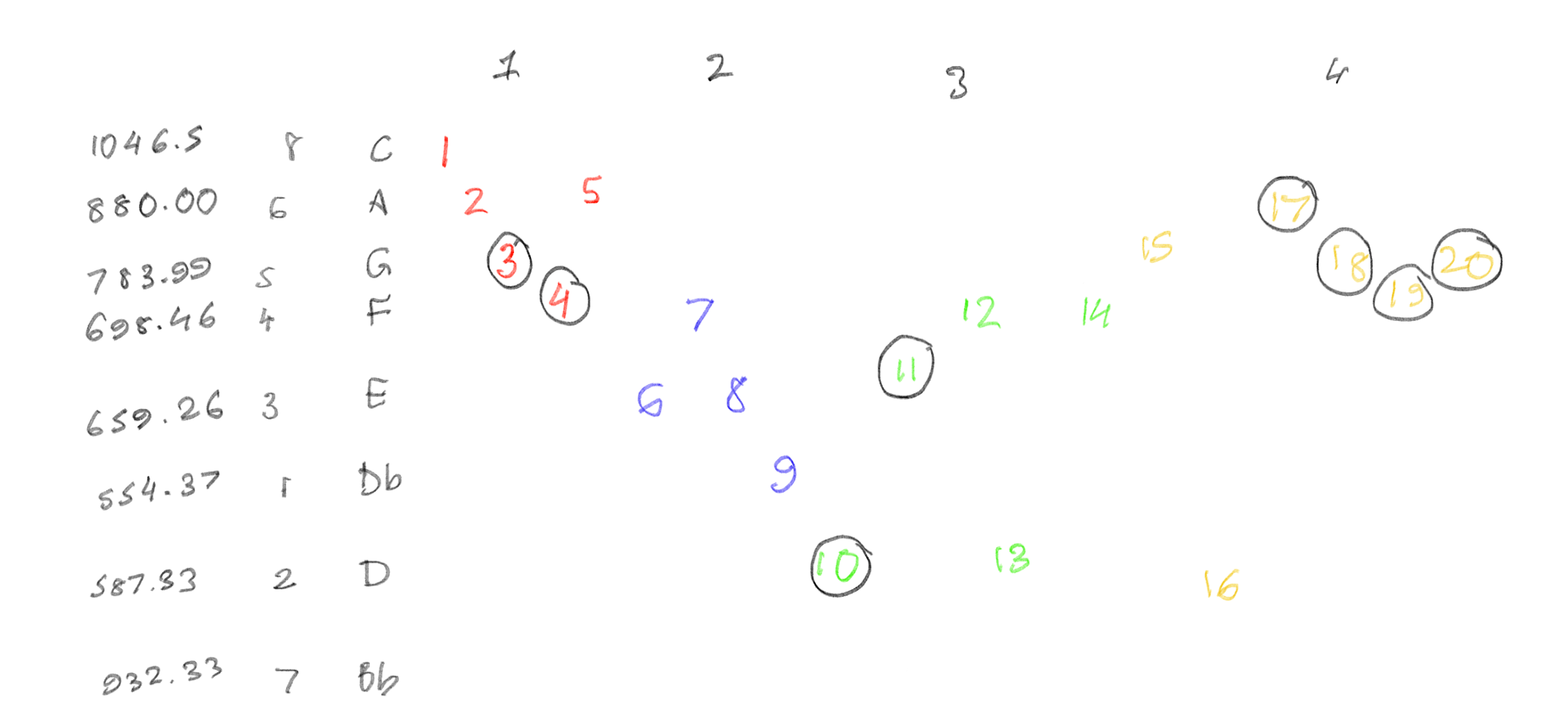
I found this on musescore, and found out how many notes were there (8 notes: C6, B♭5, A5, G5, F5, E5, D5 and D♭5). From there, I then wrote down the order in which each note came, and how long each note was.

I split each bar by color, and circled all the notes which were quavers (1/2 shorter than the un-circled notes). Then, using this chart, I also marked each frequency. After figuring this out, I then started creating the circuit.

TWO: … make the circuit.

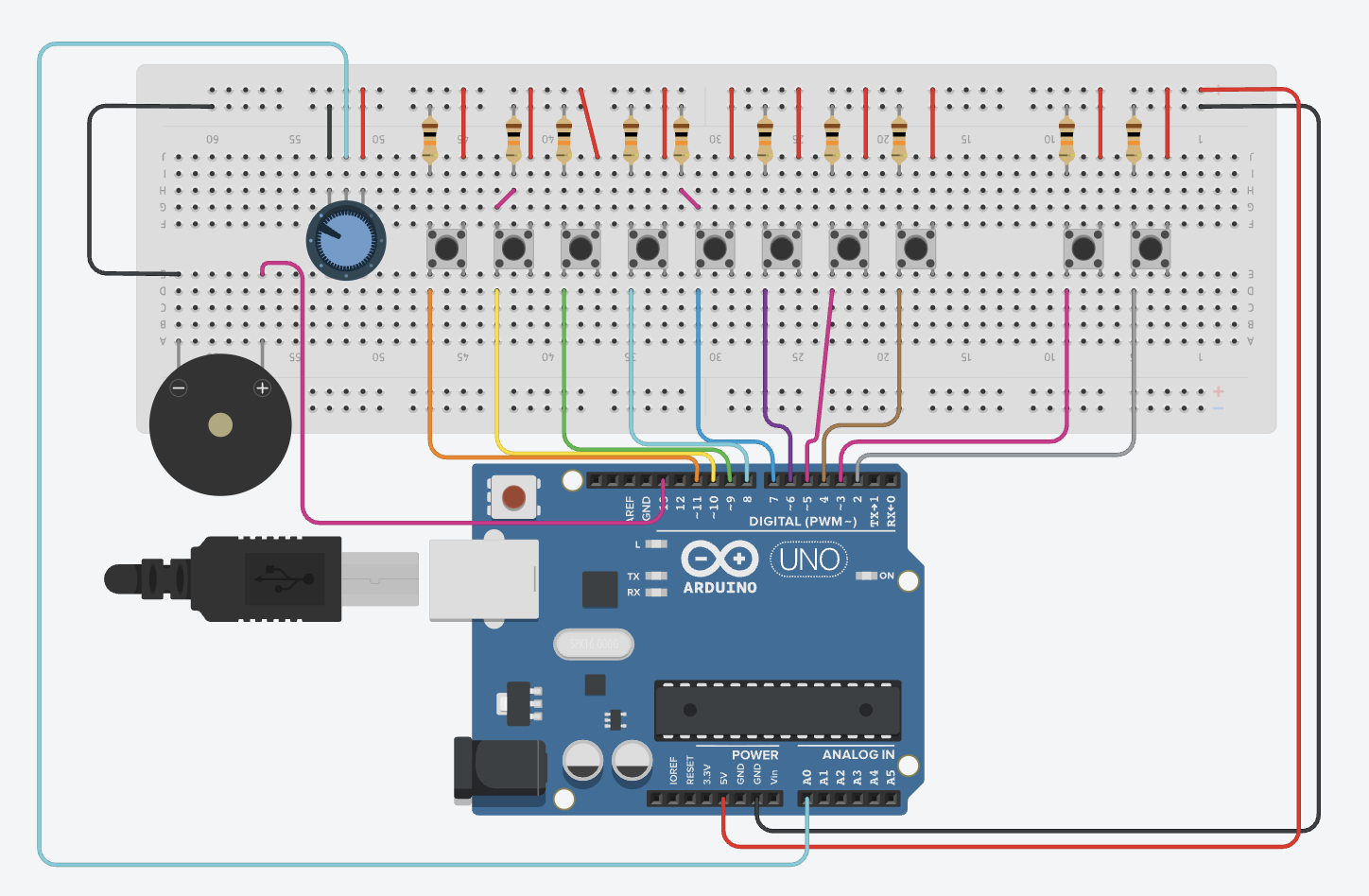
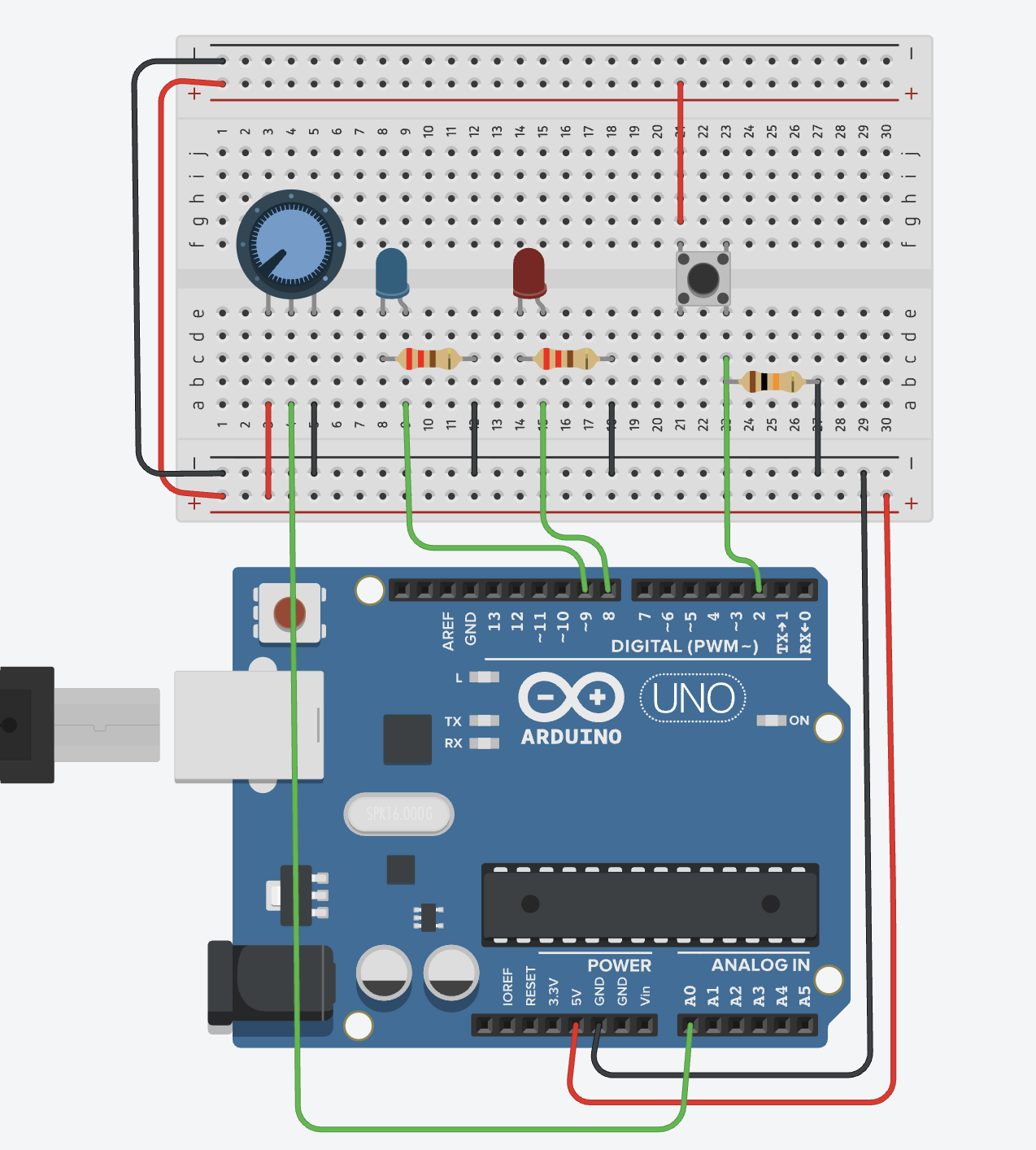
Making the circuit was pretty straightforward. I did opt for a larger breadboard than I usually do (just to fit all the keys), and one thing that did frustrate me was the spacing of the ground and voltage dots on the board (DIAGONAL WIRES???). I had to play around with the spacing of the buttons quite a lot, but otherwise, everything fit well.

THREE: Spend a few hours coding. And coding. And coding a bit more. Oh, wait, you missed a comma- I’ll break my code down lines-by-lines, mainly the parts that make this the instrument (or else I’ll end up breaking everything down).

I defined each frequency I calculated as the note to prevent me from having to type each decimal again and again. I used speedMultiplier because later on in the code, I messed up the speed at which to play the notes (so just temporarily ignore that). StaccatoMultiplier was so I could reduce the length of the note, as the original song has the sound very short and crisp for most notes. I then assigned all of the hardware attached to the Arduino.

#define C6 1046.5
#define B5 932.33
#define A5 880
#define G5 783.99
#define F5 698.46
#define E5 659.26
#define D5 587.33
#define DF5 554.37

float speedMultiplier = 0.9;
float staccatoMultiplier = 0.6;

const int buttons[8]      = {4, 5, 6, 7, 8, 9, 10, 11};
const int baseNotes[8]    = {C6, B5, A5, G5, F5, E5, D5, DF5};
const int PIEZO           = 13;
const int POT             = A0;
const int BTN_PLAY_INTRO  = 3;
const int BTN_STOP_INTRO  = 2;

I coded the song for the second last button (on the circuit). (I was really proud of this part) I had to write down the order of notes first, and then pick out durations for each note in ms. (400 is crotchets, 200 is quavers).

const int introNotes[] = {
  C6, A5, G5, F5, A5, 
  E5, F5, E5, DF5,
  D5, E5, F5, D5, F5, 
  G5, B5, A5, G5, F5, G5,
  C6, A5, G5, F5, A5, 
  E5, F5, E5, DF5,
  D5, E5, F5, D5, F5, 
  G5, B5, A5, G5, F5, G5
};

const int introDurations[] = {
  400, 400, 200, 200, 400,
  400, 400, 400, 400,
  200, 200, 400, 400, 400,
  400, 400, 200, 200, 200, 200,
  400, 400, 200, 200, 400,
  400, 400, 400, 400,
  200, 200, 400, 400, 400,
  400, 400, 200, 200, 200, 200
};

const int INTRO_LEN = 40; // total of 40 notes
int introTimings[40]; // array to store when each note starts
int totalIntroTime = 0;
bool playingIntro = false; // to make sure it doesn't play without pressing button
unsigned long introStartTime = 0;

For setup(), I made sure that the speaker was silent at startup. When I was originally coding, every time I would run the simulation, my ears would blast at the random sounds coming, and I needed to remove that. runningTime was when the song would start playing, and to calculate when to play each note after this, the code would calculate such that:

void setup() {
  noTone(PIEZO);
  for (int i = 0; i < 8; i++)
    pinMode(buttons[i], INPUT);
  pinMode(PIEZO, OUTPUT);
  pinMode(BTN_PLAY_INTRO, INPUT);
  pinMode(BTN_STOP_INTRO, INPUT);

  int runningTime = 0;
  for (int i = 0; i < INTRO_LEN; i++) { // for each of the 40 notes
    introTimings[i] = runningTime; // remember when THIS note starts
    runningTime += (int)(introDurations[i] * speedMultiplier); // because I needed to fix the speed LOL
  }
  totalIntroTime = runningTime;
}

I noticed I was having an issue where when I would play each note in the song, I would have a note in between which didn’t fit. To fix this, I used this:

int currentNote = -1; // start with no note
      for (int i = 0; i < INTRO_LEN; i++) {
        if (elapsed >= introTimings[i] && elapsed < (introTimings[i] + (int)(introDurations[i] * speedMultiplier * staccatoMultiplier))) {
          currentNote = i;
          break;
        }
      }
      
      if (currentNote == -1) {
        noTone(PIEZO); // silence if no note matches current time
      } else {
        tone(PIEZO, (int)introNotes[currentNote]);
      }

The loop would find a note that matches the current time for the next note, and if no note matches the time window for the specific note, it would continue not playing (remains -1) and make it silent until the next note.

Then, here, I edited the vibrato of the note with it (how shaky or pure the note is). This code has that, and also code to stop the song from playing if you play any other note on the piano. The vibrato is only heard on the individual button notes, not the programmed song.

// stopping the music 

for (int i = 0; i < 8; i++) {
      if (digitalRead(buttons[i]) == HIGH) {
        playingIntro = false;
        noTone(PIEZO);
        break;
      }
    }
  }
// individual button mode (no music)

if (!playingIntro) { //only not intro
    float vibratoHz = map(analogRead(POT), 0, 1023, 1, 20);
    float vibratoDepth = 20;

// calculate vibrato as a sine wave
    unsigned long now = millis(); // current time
    float offset = sin(2.0 * 3.14159 * vibratoHz * now / 1000.0) * vibratoDepth;
    // oscillate between -20 and +20, not too much
    bool anyPressed = false; // any piano note pressed
    for (int i = 0; i < 8; i++) { // look through which button is pressed
      if (digitalRead(buttons[i]) == HIGH) {
        int finalFreq = (int)(baseNotes[i] + offset); // play the note with vibrato
        tone(PIEZO, finalFreq);
        anyPressed = true;
        break;
      }
    }
    if (!anyPressed) noTone(PIEZO);
  }
}

Schematic:

Reflections:

I’m glad it came out well. I was worried I’d mess this up and wouldn’t be able to hear the sound, especially with all the fumbles in between such as loud sounds that weren’t coded, or bad timing of the notes. I’m also glad that not only the song worked, but so did the notes! I didn’t expect the vibrato to actually work out so you can actually hear it clearly. I had a lot of fun making this. ദ്ദി(。•̀ ,<)~✩‧₊

I do feel like I could have added more things for it to come out the way I would further envision it. I wanted to put LEDs to light up every time you press a button (but was worried about breadboard space), those LED displays to show something while the song played (but didn’t want to venture there just yet), and include a way for people to add on the rest of the song’s instruments, like the drums and guitar (but didn’t know how to do it on TinkerCad). Hopefully I can implement these in my final project! 🙂

Week 11’s Brief Reading Ran- Sorry, Response | A Brief Rant on the Future of Interaction Design

The Rant first:

Before I start dissecting, let me just put it out there that I agree with everything he’s saying here. Now, we proceed.

"A tool addresses human needs by amplifying human capabilities. A tool converts what we can do into what we want to do."

Always good to start with definitions everyone knows before diving in. He’s right about us hearing about our tools and our needs again and again. But, what makes a tool interesting? What makes one tool capable of replacing another tool? Maybe, it’s because it goes beyond what boxes we had made to determine our human capabilities for that specific task or item. The way my brain describes the core argument (in my notes) of the main article is,

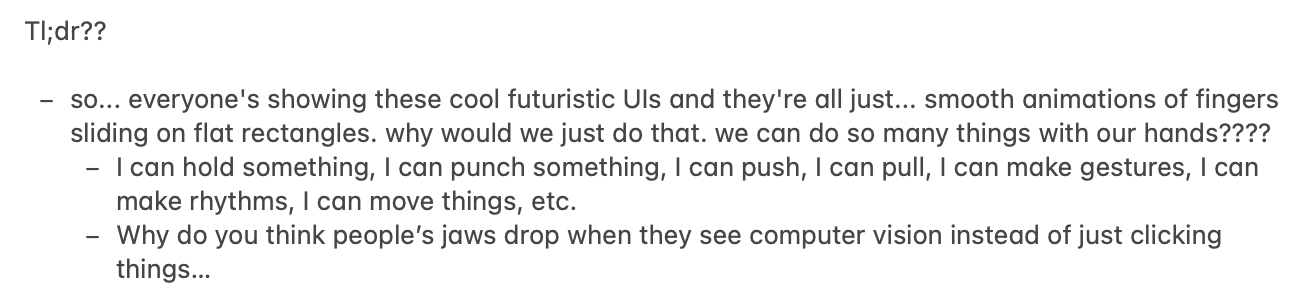
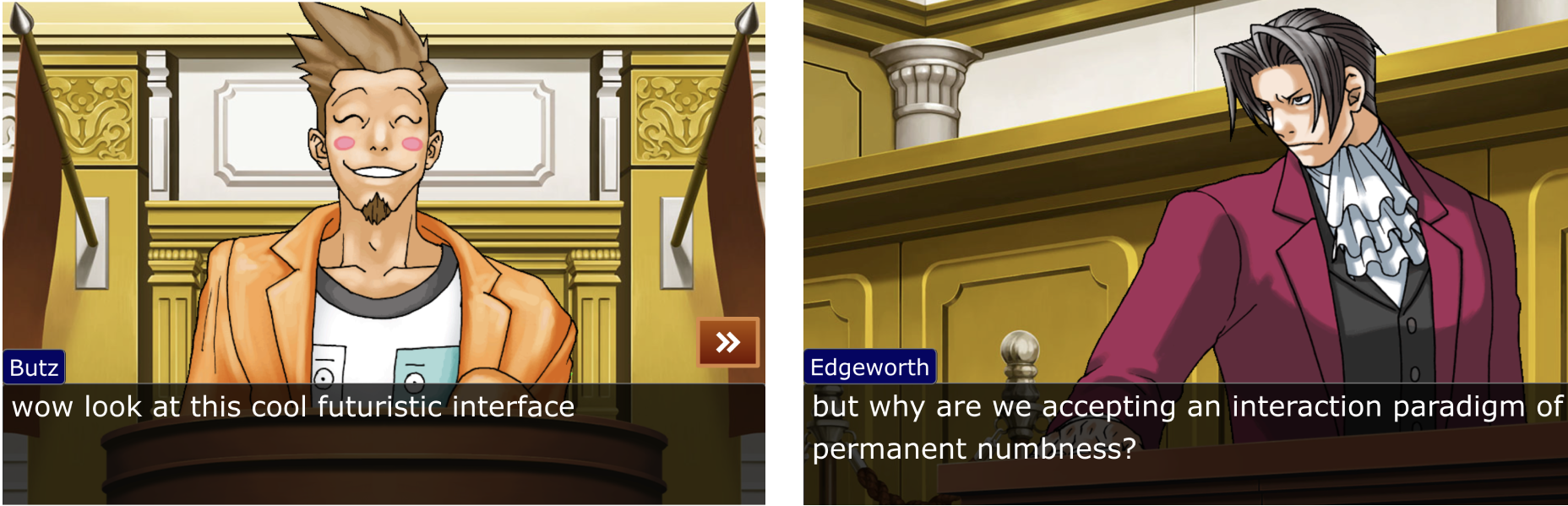
I’ve never read an article that talks, in a much-than-usual amount of detail, about the functions of hands this much before. Also, could we come up with ways to interact with things with other body parts too? (That’s a tangent, so I’ll leave it there). I really liked how he mentions that despite our insane amount of nerve endings, we still decide to go with everyone’s favorite, Pictures Under Glass. This was also super cool:

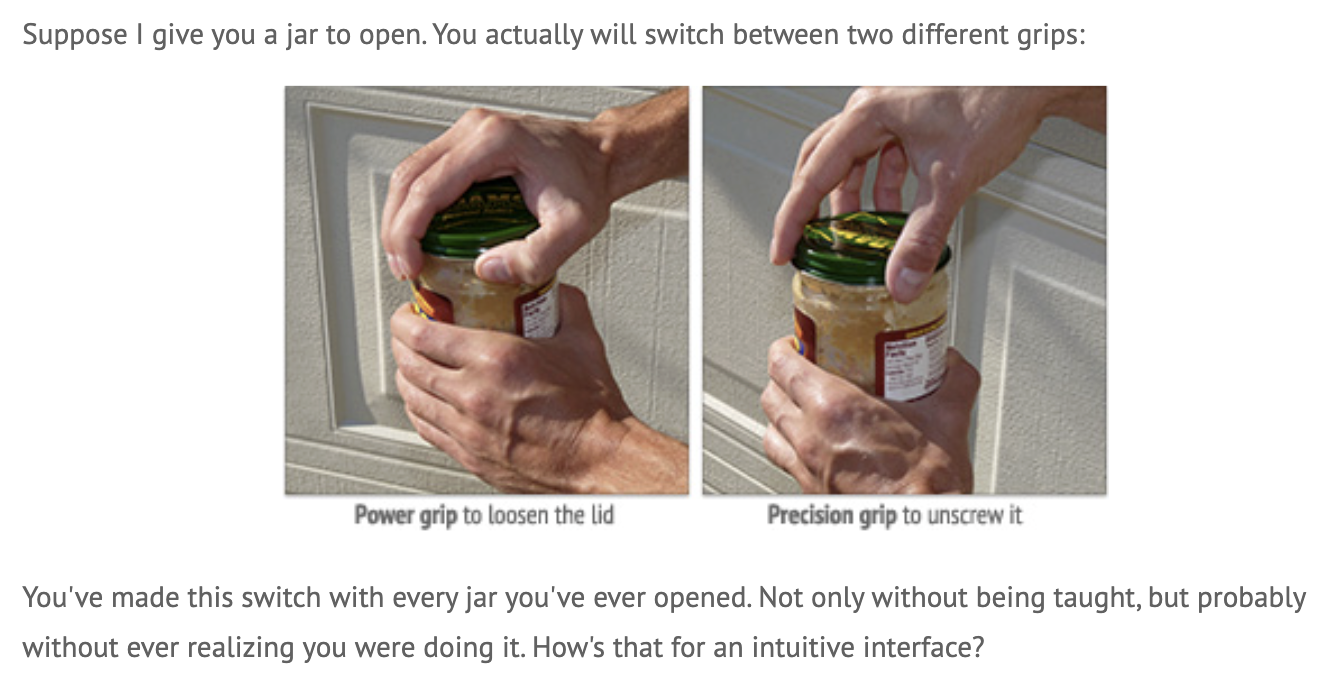
How do people just think of this? When I scroll with two fingers, my fingers curve, but when I scroll with four, my fingers start flattening. Depending on what you play in the guitar, you can manipulate how your fingers bend without even realizing (bar chords vs. non-bar chords, for example).

I also liked when he talked about Alan Kay and the iPad. He “chased that carrot through decades of groundbreaking research,” decades! If we can spend that long making an iPad with our lovely Pictures Under Glass, surely we can spend some time finding other ways to interact with our hands with technology.

What I found interesting was that he did what good media criticism does: he noticed the assumed thing nobody questions. I would have thought of this, but I wouldn’t have gone all the way to actually further test my theory.

Now… The follow-up. (Since when did ranting need justification?)

  • It’s funny how people say that he didn’t offer a solution. Come up with your own solution then? Sometimes, speaking things out in the void can also end up making change. (For example, we’re reading this, and we’re thinking about what he said, and we can choose to follow his belief and try and do something different.)
  • The second argument is good because it builds on the idea that we can take something good which is existing, and make it better. It doesn’t make it bad… you just add functions that can possibly remove problems that currently exist, or just make it easier to use.
  • “My child can’t tie his shoelaces, but can use the iPad.” Well.
  • He also rebuked my thought of waving hands in the air. Your hands think they’re somewhere different than where the computer thinks they are. No thank you.

What I got from this was that, when I design things, I should remember that there are many different ways we can interact with things around us. If my work only talks to eyes and fingers, I’m wasting the whole human body. I wonder how I could implement that with a video game that’s spread worldwide. How long do we think it will take before we actually live a lifestyle that he proposes?

Week 10 – Arduinooo (#1)

Due to the time crunch this week, I wanted to make something small which I would be able to achieve on time, so unfortunately, this won’t be as fun as usual. (߹ ᯅ ߹)

Concept:

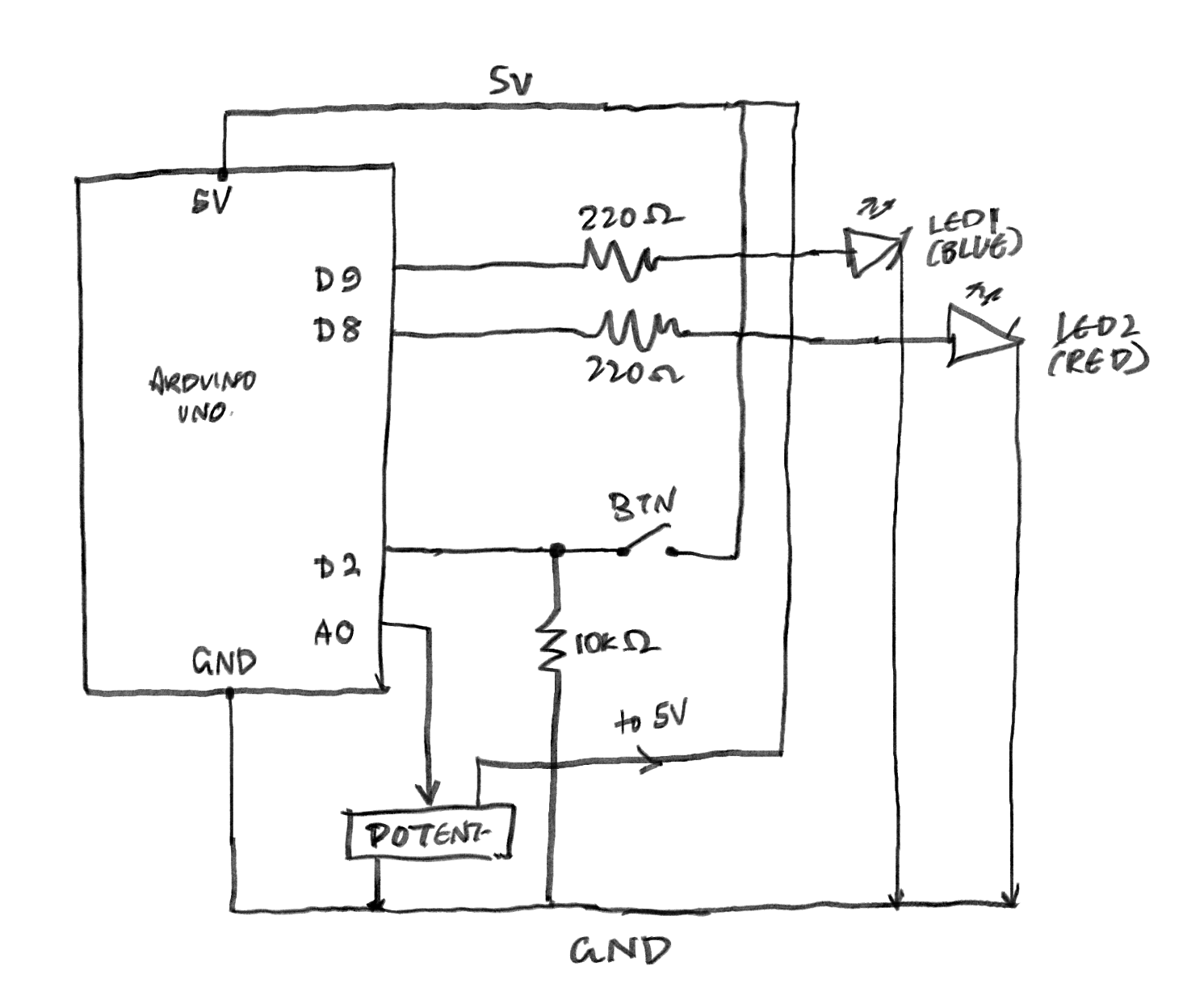
I thought I’d make a Mood Light with a Panic Button: the potentiometer (analog) controls a blue LED that fades smoothly, while a pushbutton (digital) triggers a red LED to blink rapidly, like an alert. I liked the contrast between the two, and I thought it would be fun to see if I could make it work. It kind of reminds me of an Ambulance, maybe.

Process:

Due to my wonderful wi-fi here, my internet kept disconnecting in class, so if there is content here that WAS covered in class but I struggled with, I’m assuming those were what were mentioned while I was fighting with the wi-fi and my data (sorry!). The first thing I had to understand was the pull-down resistor on the button. I kept seeing it in tutorials without really knowing what it was for, so I looked into it. I found that if I just wire a button between 5V and a digital pin, the pin has no defined state when the button isn’t pressed. It floats and picks up random electrical noise, which makes it read random HIGH and LOW values. A pull-down resistor (10k ohms in my case) connects the pin to GND through a high resistance, so when the button isn’t pressed, the pin reads LOW. When the button is pressed, it connects to 5V to show HIGH.

The rest of the circuit was pretty straightforward. In the beginning, I kept forgetting which was the cathode and anode in the LEDs and I had some issues with figuring out the wires (silly mistakes and TinkerCad creating wires when I wanted to click on something else).

The analog part reads the potentiometer using analogRead(), which returns a value between 0 and 1023. Since it expects a value between 0 and 255, I divide the reading by 4 to scale it to the right range. The digital part reads the button with digitalRead(), and if it’s HIGH (pressed), the blue LED alternates on and off with a short delay.

const int POT_PIN    = A0;
const int BUTTON_PIN = 2;
const int FADE_LED   = 9; //analog
const int BLINK_LED  = 8; // digital

void setup() {
  pinMode(BUTTON_PIN, INPUT);
  pinMode(FADE_LED, OUTPUT);
  pinMode(BLINK_LED, OUTPUT);
  Serial.begin(9600);
}

void loop() {
  // Analog, potentiometer controls fade LED brightness
  int potValue = analogRead(POT_PIN);
  int brightness = potValue / 4;       // 0–1023 → 0–255
  analogWrite(FADE_LED, brightness);

  // Digital, button triggers blink LED
  int buttonState = digitalRead(BUTTON_PIN);
  if (buttonState == HIGH) {
    digitalWrite(BLINK_LED, HIGH);
    delay(100);
    digitalWrite(BLINK_LED, LOW);
    delay(100);
  } else {
    digitalWrite(BLINK_LED, LOW);
  }

  Serial.print("Pot: "); Serial.print(potValue);
  Serial.print("  Button: "); Serial.println(buttonState);
}

One thing I initially got wrong: I had the fade LED on pin 7 and couldn’t figure out why it was only turning fully on or fully off with no in-between. Pin 7 doesn’t support PWM, and only pins with the ~ symbol can use analogWrite(), so I moved it to pin 9 and it started working. Good to know.

Schematic:

I don’t even know if this is right, so if it’s not, I am so sorry. I tried to look at class diagrams and went ?, so then I looked at TinkerCad’s schematic and went even more ???.

Circuit:

Reflection/Improvements:

  • Right now, the buttons just trigger one fixed blink pattern. It would be more interesting to have it cycle through different patterns on each press (slow blink, fast blink, heartbeat, etc.) using a counter variable. That would also give the panic button more character.
  • Next time, I’d want to do something much more ambitious. As long as I figure out the beginning things, I can try to make cooler projects with this. I do want to explore actions that aren’t just “a person pressing a thing” to make things interesting.
  • (I can’t wait to get my physical Arduino kit so I can try to make this IRL! (≧▽≦))

Reading Response #? (feat. not one, but TWO articles from Tom Igoe)

Physical Computing’s Greatest Hits (and Misses)

Reading this was humbling, to say the least. I expected to find a list with cool projects I could maybe borrow and try to make for myself, but what I got instead was more like a map of every “original” idea a beginner is likely to have. Theremins, gloves, floor pads, things you yell at, fields of grass, the endless lure of blinking LEDs, mirrors that are digital to easily wow every person with a limited understanding of technology (and even those who have more than a limited understanding of technology), things to hug. Everything has already been charted out and accounted for. I do like that the author mentions that some students, upon realizing their idea has been done before, just give up. which he thinks is exactly the wrong reaction. His take is that these themes keep coming back because they leave room for genuine variation, and the interesting part is never the concept itself but what a particular person does with it.

Something that stuck with me was how unflinching he is about each theme’s weaknesses. A theremin is fun, yeah, but congrats on waving your hand, I guess. What does it mean? What now? Video mirrors are beautiful and also happen to offer almost zero structured interaction (hah, screen savers). Meditation helpers can’t read minds. Remote hugs don’t actually feel like hugs. He isn’t dunking on any of these ideas, but is rather saying that the baseline, easy version of each one is surface-level, and real design work is whatever comes AFTER you’ve built that surface and started asking harder questions.

That reframing is how my thought process usually works. Rather than creating something and wondering only if it works, I also like to ask myself if the gesture I’m asking for is actually worth asking for. Why use a button instead of a pull, or a wave or a shout? What does this action feel like in my body, and does it match what I want the piece to be about? Ultimately, despite us all learning the same coding language and basics of Arduino, we all end up with different projects because of how we individually come up with ideas. As long as you know the basics, you can bend the rules after as much as you want.

Making Interactive Art: Set the Stage, Then Shut Up and Listen

This reading opens up with a pretty blunt rule, “Don’t interpret your own work,” and then spends the rest of it explaining why this rule exists. To Igoe, interactive art isn’t something you deliver to an audience, but rather, is a conversation you’re starting with them. If you stand next to your piece telling people what each element represents and how they should feel about it, you’ve already pre-written their experience, and at that point, there’s no reason for them to actually engage with what you made. (For this reason, I like to read museum labels for paintings AFTER I’ve engaged with the piece, so I can experience it twice. I found that it doesn’t usually work the other way… thank you, anchoring bias!)

The analogy that made this click was directing an actor. You can’t tell a performer what to feel and expect anything real to come out. Rather, you arrange the space, place the props, suggest intentions, and let them figure out the emotions themselves. An interactive piece works the same way: put a handle on what you want touched, make unapproachable things unapproachable, drop hints towards what you want discovered, and then (with all due respect), back off. The catch, though, is you need to genuinely trust the audience, and trust that what you built is legible enough to speak for itself (scary!) for it to work. Igoe’s point is also that these reactions are also data, not failures to argue with.

An interactive piece is never really “done”. The object you build is just a stage, and the audience finishes the work every time they walk up to it, slightly different each time. That’s a pretty different mental model from traditional art, and I suspect it’s one of those things that doesn’t fully sink in until you’ve actually watched strangers misuse something you made.

And…

Back-to-back, these two readings feel like they have similar arguments made from two angles. The first is about what to make, while the second is how to present what you made. Both converge on a single idea, that you kind of… aren’t the point (sorry). The gesture is the point, and the person performing it is the point. We’re really putting the interaction (between our performer and the gestures in between to communicate with the work) in interactive media. Hahaha. Sorry.

Week… 9? 10? – Reading Response

Since I don’t have that much time this week (staying with my Aunt means I do, in fact, need to go see all of her Cricket matches and record them), my reading responses are going to be significantly shorter than usual… sorry!

Her Code Got Humans On The Moon

  • Looking at the Artemis II mission is making me a bit sentimental.
  • Also she’s so cool, her programming job at MIT was a temporary thing… what…? And accidentally invented the concept of software engineering…?
  • Lauren once simulated playing astronaut and crashed it by hitting the wrong program, and then it got flagged as a real risk. Then, NASA said astronauts wouldn’t do that… and… well…
  •  This reading was pretty self-explanatory and easy to understand so I don’t. have anything to say which would not clash with the reading’s text, but she’s really, really cool. I was contemplating double majoring in IM and Mathematics and I think this confirmed it for me. 🙂

Emotion & Design: Attractive things work better

  • I would like to see all of his teapots… and why would he buy them if they weren’t that functional… Why would you make a Carelman pot impossible to use? What is the actual function of a tea pot? What makes a teapot desirable? Why would you buy a teapot that makes you work harder than you should? He uses all of these teapots too… (actually mood makes sense…)
  • “Usable but Ugly” does make sense. Would I rather have a cup that looks cute and takes me a bit longer to finish, or a cup that takes me very short to finish but looks really ugly? What if you find a solution that’s cute but also works well? 

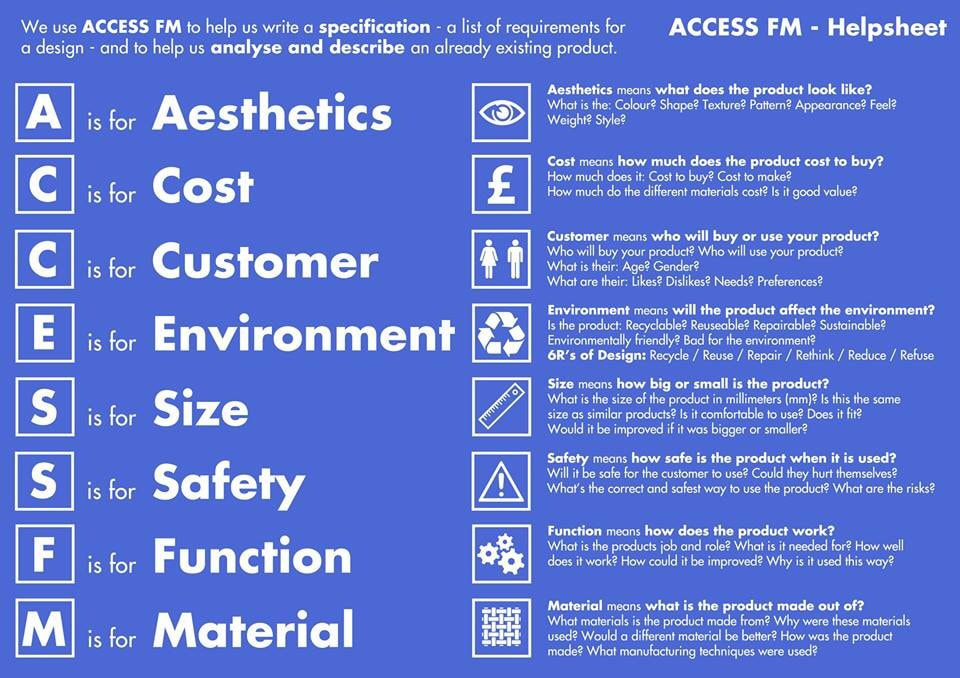
  • In MYP Product Design, we learnt about ACCESSFM when designing anything, which featured A(ccessibility) and F(unctionality). Why do we think we can compromise on either when we can find a solution that fits both at once? People DO judge books by their covers, so we should work towards that. 
  • Psychology is everywhere! You study what people like to make a product that they will use. I didn’t know we had a judgemental system that tells us what’s good or bad, so it’s cool how you can literally trigger positive affect by pleasing design. Pleasing design makes you feel more creative while negative design makes you focus less on the design and more on the contents. That’s probably why important signs are very basic.
  • There’s three levels – visceral (does it look/feel/sound good instantly), behavioral (is it actually usable) and reflective (what does owning this mean to me, what does it say about me). I never thought about the third one consciously. 
  • Norman wrote The Design of Everyday Things (yay!) and then admitted that he wrote it too focused on logic and missed the emotional side completely, and then wrote this to fix it HAHAHA.
  • I guess TL;DR is that pretty and functional are not opposites… and nice-looking things do perform/get treated better. That’s literally also how it works with people as well (unfortunately).

Week 7 means… MIDTERM! (╥ω╥)

You might need to open this on a different tab for the hand gestures and camera to work here! Aaaand this for phone (but some parts are a bit different.) The cursor still works on this though.

Preface…? (And Concept)

Before I actually get into my project, I’ll tell you about how terrible my process was, for the sake of transparency. I started off with making a visual novel: think if you combined Doki Doki Literature Club, Butterfly Soup, and Persona… or something (but not a shoujo one. That definitely did pop up in my head, though.) I had my laptop out and thumbnails ready to go…

Ryuji (Persona 5): "I'm an esteemed scholar (Just opened my laptop.)"

…and then I ended up moving between 5 houses, 2 countries and five states in the span of 3 weeks. Yippee! The weekend the crisis started was the weekend I was expected to cram my project, and so, the cramming did NOT happen.

Ryuji (P5): "Bad news about my academic career Guys (Just closed my laptop)"

During these three weeks, while jumping from one house to another, I was also jumping from idea to idea: 14-year-old me was geeking out because I had the time to actually make a video game… except now not in great circumstances and constant power cutouts. I gave up on the visual novel idea (despite having some sprites ready </3) and tried to make a rhythm game, and then the issue of (one) copyright and (two) not having my keyboard with me resulted in a bigger headache figuring out the music than the coding itself. I tried to make a pixel game, and then realized that it would take me a long time to translate my ideas into pixel art and be satisfied with the amount of time I had.

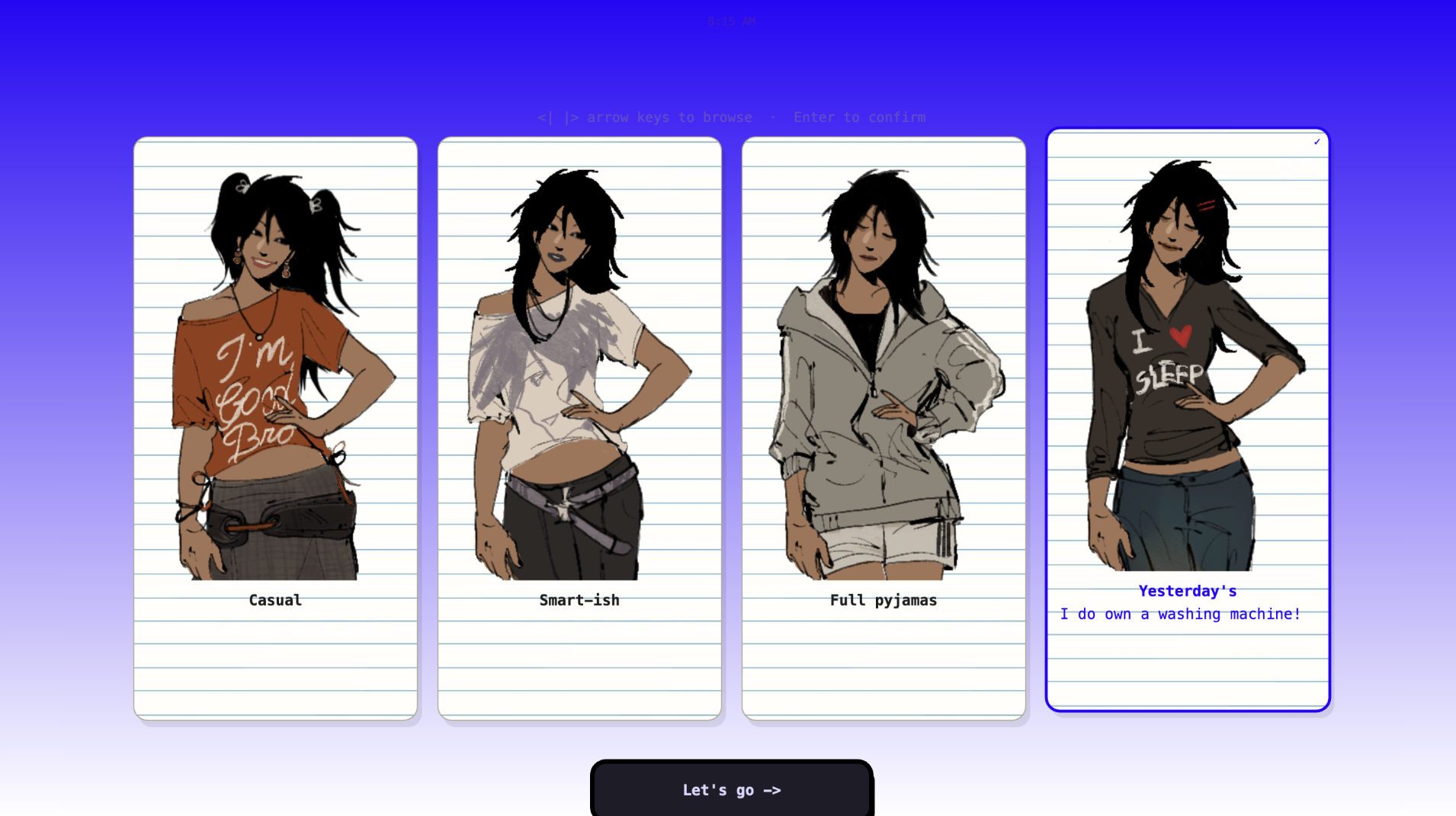
One thing I really did want to include in my project was my artwork, and I realized very late, that why don’t I make a dress-up game? I used to play those games religiously on my dad’s Dell laptop while he would sleep in the afternoons when I was a kid, and now, I could make my own! I love fashion and since I’ve been holed up in each of the houses I’m staying in (Indian families are huge), I’ve missed dressing up a lot. In some way, I might be projecting onto this project. So… my concept is:

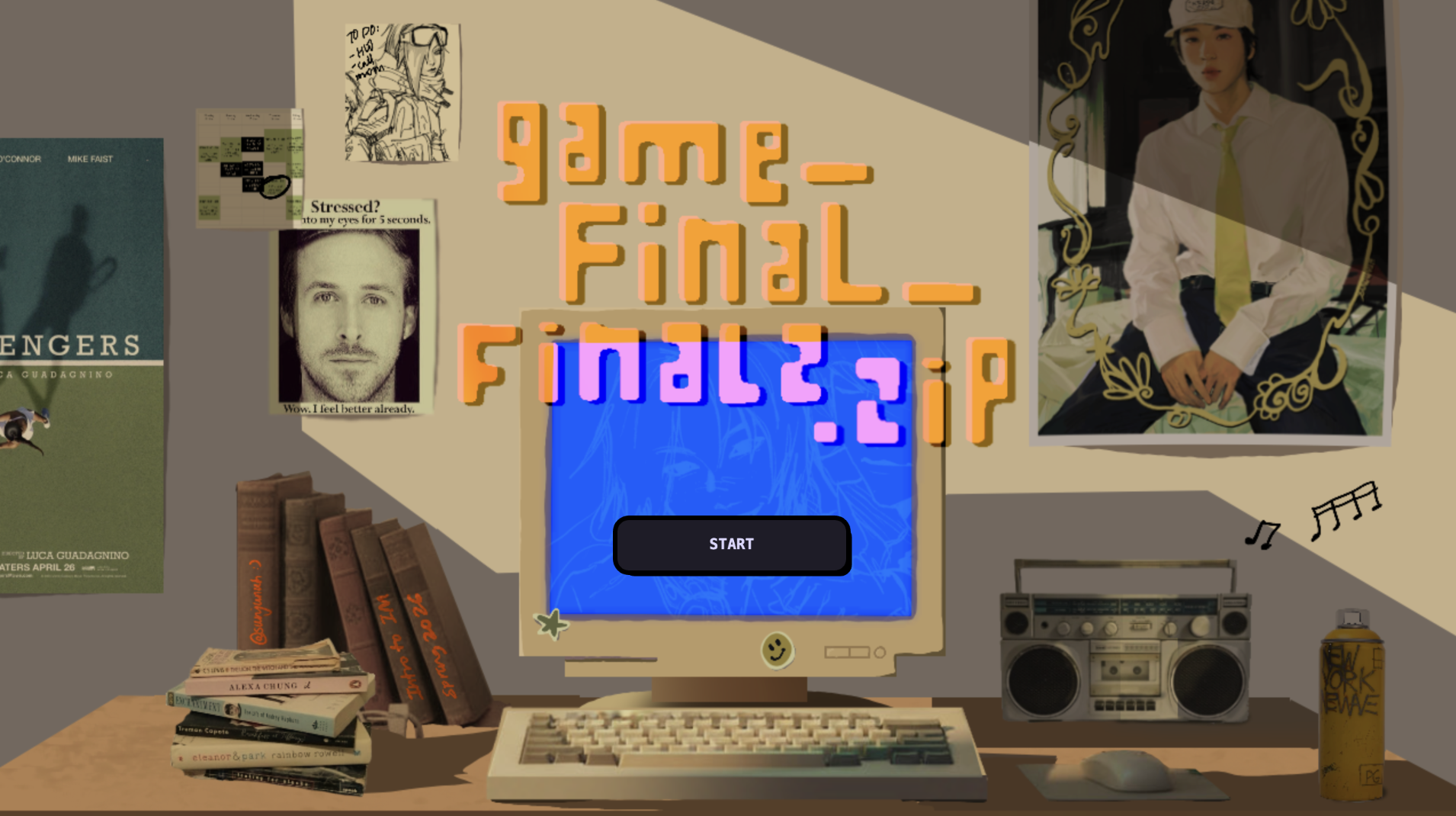
Short version: Hand-made Picrew with my own drawings and my own website code.

Long version: The short version explains it pretty well. I wanted the interface to be sketchy, as if I hand-drew it, and I wanted it to look very simplistic so that users would pay more attention to the character they were making. Then, you can also download your own version of the character! This would be a prototype for me to figure out how I could create this, and if it went well, I would reuse my code in the future to make a more extensive page (maybe even with backgrounds…).

Process

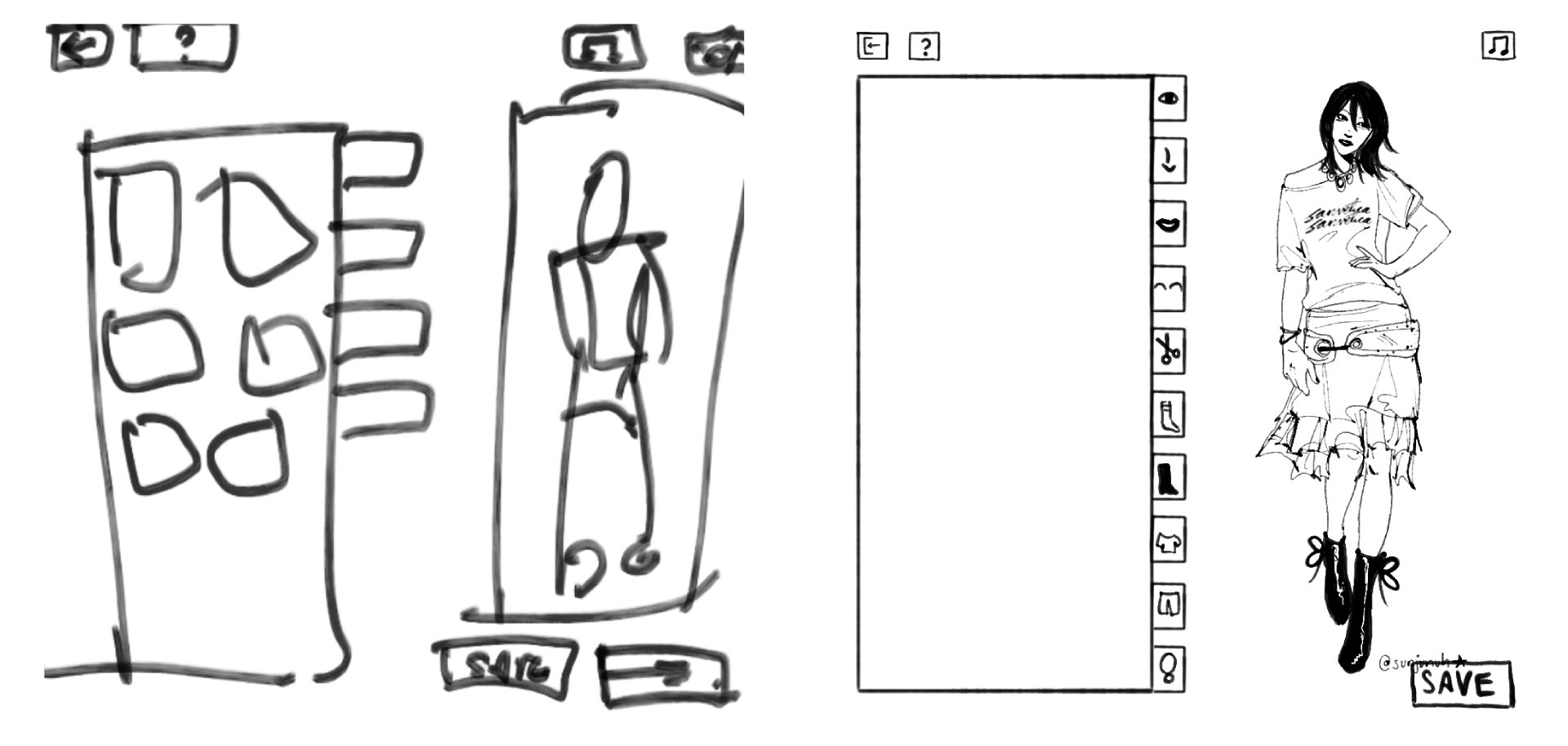
Firstly, I thumb-nailed. The first is before I started drawing the characters, and the second is after I finished all the elements for the characters. As you can see, I didn’t follow this exact layout, but it did help.

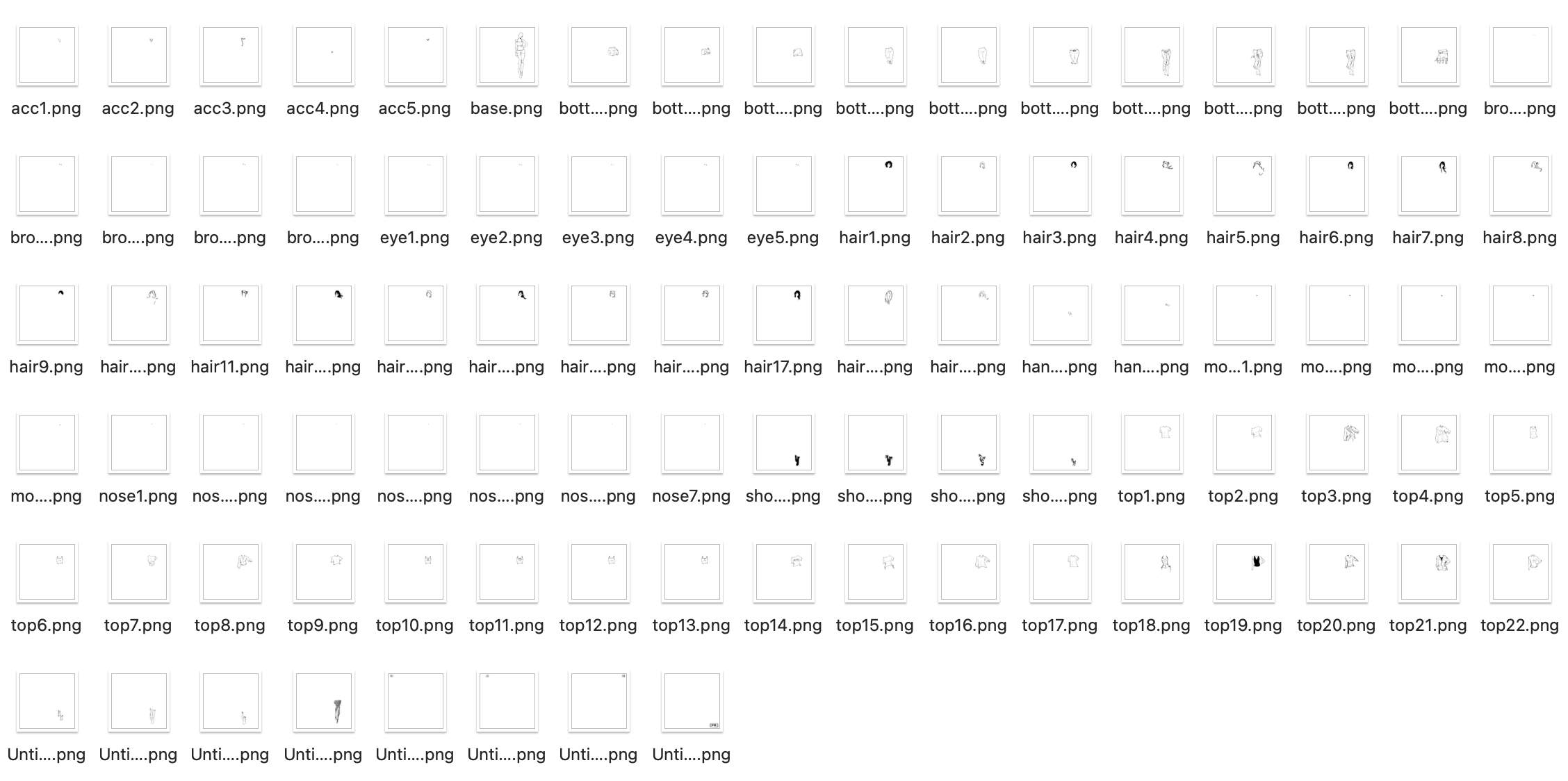
To make sure I didn’t end up spending too much time on this (since I didn’t have much time to begin with), I forced myself to set a fixed time restriction when drawing each element out on Procreate. I gave myself 3 hours, and here’s the results. You can see the elements much better on the game:

To make sure that when I layered each element over each other, you wouldn’t see the layers below, I made sure to color the lines with white in case. (Hence the lack of color… if I had more time I would have variations in color). To also make some cuter elements, I drew some more things out. .

Title! I tried to be consistent with my drawing style when I drew this.

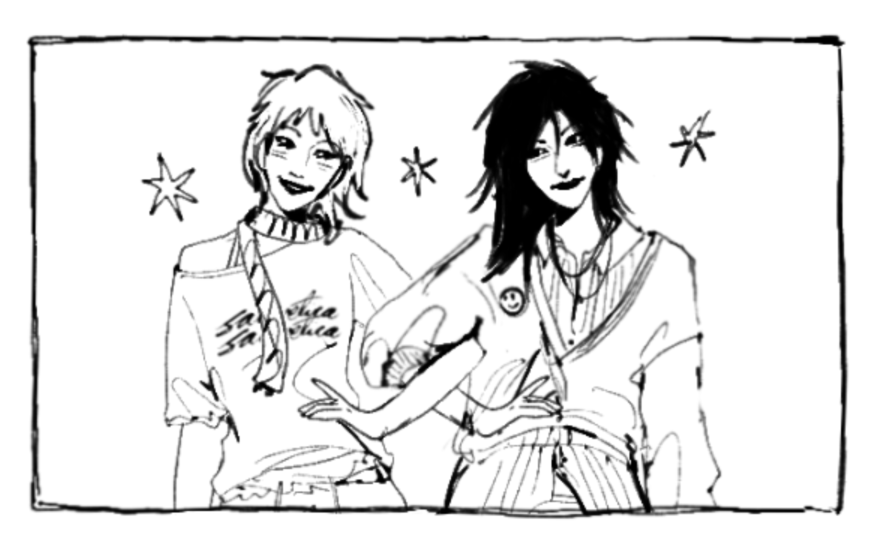
I just layered the elements I drew to make two characters. Easy Peasy.

I started by putting (and renaming) my elements into folders on p5.js for each category, and then establishing each category and the layer order they would be stacked in (since all images are .pngs).

const LAYER_ORDER = ["base", "socks", "shoes", "pants", "tops", 
                     "accessories", "eyebrows", "eyes", "noses", 
                     "mouths", "hair", "hands"];

From there, I started building the sidebar and the overall layout of the game.

While I struggled with the hand tracking interaction, I was somewhat happy with the outcome. Using ml5’s handPose, I tracked only the tip of the index finger and mapped it to the canvas.

let indexFinger = hands[0].keypoints[8];
let tx = map(indexFinger.x, 0, 640, 0, CW);
let ty = map(indexFinger.y, 0, 480, 0, CH);
fingerX = lerp(fingerX, tx, 0.3); 
fingerY = lerp(fingerY, ty, 0.3);

However, I struggled with how to “click” without a mouse, and so I used a hover timer system. If I held my finger over a box for long enough, it would trigger the action:

let foundID = getHoverID();
if (foundID !== null) {
  if (foundID !== currentHoverID) { 
    currentHoverID = foundID; 
    hoverTimer = 0; 
    isLocked = false; 
  }
  if (!isLocked) {
    hoverTimer++;
    if (hoverTimer >= clickDelay) { 
      triggerAction(); 
      isLocked = true; 
    }
  }
}

// the arc cursor:
if (hoverTimer > 0 && !isLocked) {
  let arcEnd = map(hoverTimer, 0, clickDelay, 0, TWO_PI);
  strokeWeight(4); 
  arc(fingerX, fingerY, 35, 35, -HALF_PI, arcEnd - HALF_PI);
}

I turned it to 55 frames: not too long or short. I also added a circle that fills around the cursor to see the timer count down, which made it easier for the user to understand.

For the sketchy feeling of the boxes, I drew it so the buttons redraw with slightly different lines every frame, and it made it look much more fun.

render() {
  push(); stroke(0); strokeWeight(this.isMain ? 4 : 2); 
  fill(this.isOver() ? 240 : 255);
  
  randomSeed(this.x + this.y + floor(millis()/150));
  beginShape();
  vertex(this.x + random(-3,3), this.y + random(-3,3));
  vertex(this.x + this.w + random(-3,3), this.y + random(-3,3));
  vertex(this.x + this.w + random(-3,3), this.y + this.h + random(-3,3));
  vertex(this.x + random(-3,3), this.y + this.h + random(-3,3));
  endShape(CLOSE);
  
  noStroke(); fill(0); textAlign(CENTER, CENTER);
  if(customFont) textFont(customFont);
  textSize(this.isMain ? 32 : 18);
  text(this.label, this.x + this.w/2, this.y + this.h/2 + (this.isMain ? 5 : 2));
  pop();
}

For sounds, I had different sounds loaded for different actions. I had background music, and three different click sounds (for buttons in the sidebar, anything other buttons, and any of the items individually):

bgMusic = loadSound("song1.mp3", () => {
  bgMusic.setVolume(0.6);
  assetLoaded();
});
sfxItem = loadSound("click_item.mp3", assetLoaded);
sfxUI = loadSound("click_ui.mp3", assetLoaded);
sfxSidebar = loadSound("click_sidebar.mp3", assetLoaded);

if (aid === "start_btn") { 
  sfxUI.play(); 
  appState = "HELP"; 
  if (bgMusic && !bgMusic.isPlaying()) bgMusic.loop(); 
}

To make sure that when I reset the game, it would ask me for confirmation (in case I accidentally put my hand on the reset button), I used this code:

function drawModal() {
  fill(255, 230); noStroke(); rect(0, 0, CW, CH); // translucent overlay
  drawStaticBox(CW/2-150, CH/2-100, 300, 200);
  fill(0); textAlign(CENTER, CENTER); textSize(26);
  
  if (modalState === "RESET_CONFIRM") {
    text("Are you sure?", CW/2, CH/2 - 40);
    new SketchButton(CW/2-110, CH/2+20, 100, 40, "YES").render();
    new SketchButton(CW/2+10, CH/2+20, 100, 40, "NO").render();
  }
}

// in triggerAction():
if (modalState === "RESET_CONFIRM") {
  if (aid === "mod_yes") { avatar.reset(); sfxUI.play(); modalState = "NONE"; }
  else if (aid === "mod_no") { sfxUI.play(); modalState = "NONE"; }
  return; // early return stops anything else from firing
}

To save the image of the avatar, I used p5’s get() to screenshot the avatar preview region of the canvas and save it as a .jpg.

else if (aid === "save_btn") { 
  sfxUI.play(); 
  get(382, TOP_H+2, 366, CH-TOP_H-BOT_H-4).save('doodle','jpg'); 
  modalState = "SAVE_DONE"; 
}

I calculated the coordinates to make sure this crops cleanly no matter what the avatar is wearing. However, I think I messed this up on the mobile version (⇀‸↼‶).

I was really proud of the UI and how everything looked (somewhat) cohesive with each other, even though I drew some parts and coded other parts. And… even though this isn’t a coding part… I’m also really proud of my drawings. I’ve been in art block for a bit, so this forced me to draw (which helped somehow). ( ⸝⸝´꒳`⸝⸝)

Improvements (and our favorite thing… problems):
  • Originally when making the cursor, I struggled because I thought I should use a pinch action to select each box. That did NOT work due to the size of each box. So, I changed it to an (as others referred to it) x-box loading cursor with the circle to show how long you’re holding it before it selects. Worked pretty well!
  • There’s no color… which I really did want to put but I didn’t have time. While I do like the sketchiness of this, it would have been cooler to have more options and colors.
  • Also I have a lack of body diversity (race, body shapes, even gender) so I am SOAnyone else have this problem? : r/picrew SORRY! This was not intentional at all… I probably can’t even make myself on this, to be honest. This IS a prototype so I promise if I make a proper version, it’ll be very diverse.
  • On the mobile version, I can’t do computer vision. It also took me an hour to figure out why my code (which I altered for mobile)  wasn’t working on itch.io, so I would say the mobile version is worse than the desktop version.
  • I struggled with computer vision for an embarrassingly long amount of time. I still think it’s wonky, because I have to move my hands in really absurd distances and places to hit just a few buttons. The mouse is so much easier to use.
  • One thing I DID resolve was that while I was arranging images in the sidebar, due to the canvas size of each image being 1000×1000, it ended up looking tiny in each box. To fix this, I sorted the categories based on where on the canvas they were located (face were top right, feet were bottom right, etc.):
let zone = ["eyes", "eyebrows", "noses", "mouths", "hair"].includes(catKey) ? FACE_ZONE : (["shoes", "socks"].includes(catKey) ? FEET_ZONE : BODY_ZONE);

…and used this code to individually zoom in:

const FACE_ZONE = { x: 700, y: 120, w: 70, h: 70 }, FEET_ZONE = { x: 600, y: 670, w: 200, h: 200 }, BODY_ZONE = { x: 600, y: 200, w: 300, h: 300 };

I have more I want to say but I think this may turn into an essay, so I’ll leave it at that.

I hope that, at least, you all enjoy this! (੭˃ᴗ˂)੭
Credits

The Sanderling Brush on Procreate | This instrumental for background music | This cute font | The JJK S3 OST (good work music) | MixKit for sound effects

Week 5 – Reading Response | COMPUTER VISION FOR ARTISTS AND DESIGNERS

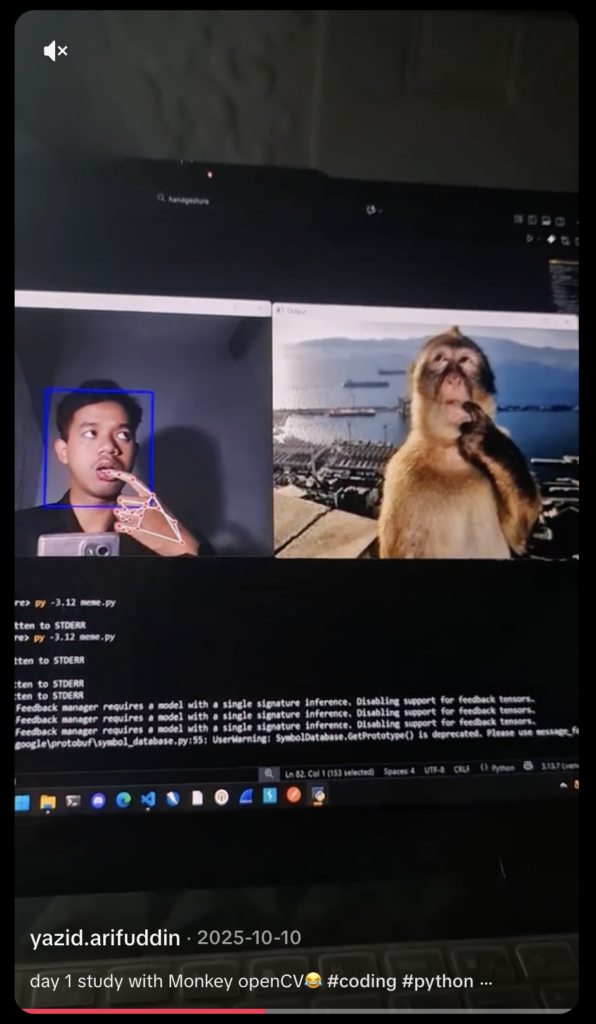
When I think of Computer Vision, the first thing that comes to my head is this coder called the Poet Engineer on social media who uses computer vision to create the most insane visuals purely from the camera capturing their hand movements. They have the coolest programs ever. I also love it when artists make videos of them creating cool things with their hands purely through code, and one of my favourite examples of using code to create art is Imogen Heap’s MiMu gloves. And, also, the monkey meme face recognizer I keep seeing everywhere (photo attached). It still baffles me that we can use our hands and our expressions to control things on a device that usually interacts with touch! So, this reading was one of my favourite readings so far, because it discussed one of the main concepts that hooked me into interactive media in the first place. 

From what I understood of the text, the primary difference between computer and human vision is that while a human observer can understand symbols, people or environmental context like whether it’s day or night, a computer (unless programmed otherwise) perceives video simply as pixels. Computer vision uses algorithms now to make assertions about raw pixels, and even then, designers need to optimize the physical environment to make it “legible” to the software, such as using backlighting to create silhouettes or using high-contrast and retroreflective materials. Despite these limitations, is it still not insane that we’ve evolved so much that we can make computers identify specific things now, despite it being a computer? The fact that now computers can have hardware that goes beyond our own capabilities, such as infrared illumination, polarizing filters and more is almost scary to think about. I’d also say that computer vision is much more objective than human vision. Is it possible for computers to suffer from inattentional blindness as much as we do? For example, when we enter a room and fail to see something and then we come back and the object is right there and it never moved, is a computer capable of the same thing?

I liked that this reading stated down the different techniques used in computer vision, because when I originally understood CV, I was overwhelmed by the amount of things it could sense. I understood these techniques (and I’m listing them down so I can refer to them later as well):

  1. Frame Differencing / Detecting Motion: Detects motion by comparing each pixel in a video frame to the corresponding pixel in the next frame.
  2. Background Subtraction / Detecting Presence: Detects the presence of objects by comparing the current video frame to a stored image of an empty background.
  3. Brightness Thresholding: Isolates objects based on luminosity, by comparing brightness to a set threshold. (I did an ascii project a few years ago, where it would capture your image, figure out the contrast and brightness and then replicate the live video input as letters, numbers and symbols. I would like to replicate that project with this concept now!)
  4. Simple Object Tracking: Program computer to find the brightest or darkest pixel in a frame to track a single point. 
  5. Feature Recognition: Once an object is located, the computer can compute specific characteristics like area or center of mass (this is CRAZY). 

There are definitely more techniques that are out there, but I’ll start off with the basics, since I’m a complete beginner at this. I did want to try using feature recognition paired with simple object tracking, something I noticed is used in hand tracking (and the monkey video. LOL).

I mentioned the objectivity of CV earlier, but what happens if the datasets that they are trained on are biased? What if the creator behind the program has their own biases that they implement into the program? I like how Sorting Daemon (2003) mentioned looking at the social and racial environment, because I was wondering about situations where CV could be programmed to unintentionally (or intentionally) discriminate against certain traits such as race, gender, or disabilities. Surveillance is a scary concept to me too, because what happens to the question of consent?  While computer vision could be used to reveal hidden data in environments that are often overlooked, create programs that can help people without the need for a human to be present (e.g. Cheese), and so many other cool things, it could also be used in a negative way. I need to make sure to find a way that any programs I create with CV are inclusive and not used for ill intent.

Week 4 – Reading Response | THE PSYCHOPATHOLOGY OF EVERYDAY THINGS

When I was younger, like every other midrange Gen-Z kid, I used to scroll on Buzzfeed as much as I could in class in middle school. The quizzes, the news, and the articles. I remember there would be lists of things in articles (25+ times X did Y! or 45+ gifts to get your X on Y!), and I’d find the ones about bad design choices really funny. Seeing the assignment for this reading response reminded me of these articles, so here are my own personal favourite (well, least favourite) bad design choices:

  • Microsoft Office’s “Save As” option. Schools here love using Office365, so we would use it for EVERYTHING. Class notes, essay drafts and final essays, powerpoints and even calling your friends during COVID. However, one thing that frustrated us throughout, was that in order for you to save your document, rather than letting you save it to your most active parent folders, it always, ALWAYS defaults to some remote directory, usually the OneDrive Cloud directory. Maybe I’m being dramatic, but this was a nightmare for us, because we were all living under a timer. Our schools would delete our OneDrives almost as soon as we would leave the school or graduate.

I get that this may be a marketing tactic to get people to use their products more, but maybe they could also consider getting people to LIKE the usability of their products more too. I’m not sure if they’ve made it easier now because I’ve switched and resorted to using Google sites more (easier sharing, easier saving, etc.). If I was to change this product in a non-marketing mindset, I would just make an option to save it to your folders next to the option to save it to your drive. If you want people to save it to OneDrive, you could just add that button first, but also have the other button there too.

  • Apple’s alarm sounds before iOS 17. I’m an avid user of Apple alarms, and I use Apple’s alarm sound that is literally titled “Alarm.” It sounds a lot like an alarm, in more of a ‘fire alarm, I need to run’ way and not a ‘wow, I could dance myself to be awake right now’, but it was one of Apple’s most used alarms nonetheless. Unfortunately, after updating my phone to iOS 17 (I had no choice), I realized that I couldn’t find that sound unless I scroll alllllll the way to the bottom of the list of alarm sounds, and then afterwards, you’d need to press on a button called “classic”, and THEN ONLY do you see the sound. As someone who is an avid alarm user every day and sleeps through them all (thus, the need for me to set 8-9 alarms every morning at varying times), I prefer having the same sound for all of them. It’s a hassle to individually change the sound each time.

Maybe it’s not as serious as I’m making it, and maybe the newer sounds are actually better. I haven’t listened to them yet. However, I don’t like the alarm sound interface in general. Regarding this problem in specific, however, would it not be easier to start off with two categories (‘new sounds’ and ‘old sounds’) and then users could decide whether they wanted the newer or the classic sounds? Rather than listing all the newer ones and then having to scroll and then click to see the older ones, it would be easier to sort it from the beginning.

The examples in this reading were very relatable, especially the example of the doors. I hate it when I push a door and it doesn’t push, so I need to pull it, but there is no way I could have known that it was a ‘pull’ door and not a ‘push’ door. I’ve bumped into the revolving doors at Galleria so often that now I need to stick my hands in front of me so I don’t hit my head. There were some principles that were mentioned in the text in regards to Human-Centered Design, which were affordances / signifiers / mapping / feedback / constraints. I was surprised that I hadn’t seen these principles before, because they made a lot of sense to me. It’s also one thing to understand a product, but you need to be able to discover the product well enough to understand it. If a product doesn’t follow HCD and we don’t understand it, what is the point? To apply the author’s principles of design to Interactive Media, maybe it’s a good idea to keep the user in mind. Rather than focusing on affordances of a product, I should focus on the signifiers instead, because they tell you how you can use the product the way it is meant to be used, not how to use the product for every possible use you can probably think up of. I want to look a bit more into UI/UX design in regards to mapping, because I think that would be much more useful. If I take all of these principles into account, I can make projects that are not only fun and interactive, but also understandable and used the way they are intended to.

Week 4 – Click to affirm, I guess? (Generative Text and Data Assignment)

Concept:

I really like Frutiger Aero, and I love things that are designed so badly that they just become funny and it actually works. I’ve fallen victim so many times to buying products with designs that were just so ugly and horrendous that it made me laugh. Lately, on my Pinterest, I keep seeing these stupid affirmation memes with really loud and emphatic text and completely random background and this horrendous gradient border. Naturally, I was so drawn to it, that now I have these stuck up on my wall back home. My parents are frustrated. My sister loves it.

I’m not a fan of making the same thing as something I see, but since I’m still a beginner to Javascript, I wanted to make something that I would enjoy making, especially in such a short period of time. So, I decided to make my own version of these. I hope you find this as funny as I do.

Artwork:

(I laughed a lot while making this.)

Process:

I had to make so many sections and so many functions and so many variables and etcetera, etcetera. Firstly, I had to import each image into the program, and I named each image by number so that importing them would be easier. I also made a list of affirmations I found online and through my friends onto a spreadsheet and imported it as a .csv file. Since I wanted the option of inputting your own affirmations, I made another list for user input.

function preload(){
  table = loadTable('Affirmations.csv','csv'); //csv file
  for (let i=0; i < totalImages; i++)
  {
    images.push(loadImage(i+'.jpg'));
  }
}

I loaded each row from the .csv file.

// load from csv file (I'm starting on row 2 because header lol)
 for (let r = 2; r < table.getRowCount(); r++){
   let line = table.getString(r,0);
   if (line) Affirmations.push(line); // prevent empty
)

After adding user input, I made a function to generate a new image every 3 seconds. There were multiple steps I had to take for this, which were:

FIRSTLY! Pick a random nature image:

let nextImgIndex;
  do {
    nextImgIndex = floor(random(images.length));
  } while (nextImgIndex == lastImgIndex);
  currentImg = images[nextImgIndex];
  lastImgIndex = nextImgIndex;

SECONDLY! Pick which list is currently active (the .csv file or the user input list):

let activeList;
if (modeCheckbox.checked() &&
   userAffirmations.length > 0) {
  activeList = userAffirmations;
} else {
  activeList = Affirmations;
}

THIRDLY! Pick a random affirmation from the chosen list:

if (activeList.length > 0){
   let nextTextIndex;
   do {
     nextTextIndex = floor(random(activeList.length));
   } while (nextTextIndex === lastTextIndex && activeList.length > 1);
   
   currentText = activeList[nextTextIndex];
   lastTextIndex = nextTextIndex;
 }

FOURTHLY! Add glow. Yay!

colorMode(HSB, 360, 100, 100);
 glowColor = color(random(360), 85, 100);
 colorMode(RGB);

For drawScene(), I used this code. I realized I could crop the nature images in the code (code is so cool… wow) so I did it in this.

function drawScene() {
  if (!currentImg || currentImg.width <= 1) return;

  // automatic crop image to square size
  let imgAspect = currentImg.width / currentImg.height;
  let canvasAspect = width / height;
  let sx, sy, sw, sh;
  if (imgAspect > canvasAspect) {
    sh = currentImg.height;
    sw = sh * canvasAspect;
    sx = (currentImg.width - sw) / 2;
    sy = 0;
  } else {
    sw = currentImg.width;
    sh = sw / canvasAspect;
    sx = 0;
    sy = (currentImg.height - sh) / 2;
  }
  
  image(currentImg, 0, 0, width, height, sx, sy, sw, sh);
  drawGlowBorders();

  // text style
  let txt = currentText;
  let maxWidth = width * 0.85;
  let fontSize = constrain(map(txt.length, 0, 50, 80, 40), 35, 90);

  push();
  translate(width / 2, height / 2);
  scale(1, 1.7); 
  textAlign(CENTER, CENTER);
  textFont('Arial');
  textStyle(BOLD);
  textSize(fontSize);

  drawingContext.shadowBlur = 30;
  drawingContext.shadowColor = glowColor.toString();
  fill(255);
  noStroke();
  
  text(txt, -maxWidth/2, -height/3.4, maxWidth, height/1.7);
  
  drawingContext.shadowBlur = 0;
  text(txt, -maxWidth/2, -height/3.4, maxWidth, height/1.7);
  pop();
}

I thought the glow borders at the very end were really funny to figure out, but this is what I ended up with.

function drawGlowBorders() {
  let bSize = 45;
  noFill();
  for (let i = 0; i < bSize; i++) {
    let alpha = map(i, 0, bSize, 180, 0);
    stroke(red(glowColor), green(glowColor), blue(glowColor), alpha);
    strokeWeight(1);
    rect(i, i, width - i*2, height - i*2);
  }
}

Reflection:

There’s a lot of things I want to improve. Obviously, with the current skill level and time that I have, I don’t think this would be feasible, but I wanted to make sure you could save your custom affirmations into a file you can download later. I also wanted to let you delete affirmations you didn’t like and add more (database management? I guess?).  I also found out that .csv files cannot store images, so I was limited to using only 21 images for now. I honestly made this so it could double not only as an assignment but also a funny thing for my friends to laugh at, so I think I achieved this, but I would like to play more with the generative aspect and data aspect of this. The text itself on the screen is not interactive (e.g. if I click it, nothing happens) and the data is not really visualized, more being used as a list to remove the need to individually type each affirmation into the code. I’m glad I figured out parts of the code that I know in Python though (like input) so hopefully that should make future projects easier.

Week 3 – Oops… cells!

Concept:

My mom is a Pathologist, and when I was younger, she was fascinated in showing me cells under a microscope from blogposts on Facebook (her feed was a very nice spectrum of plant care and medical studies). I never took biology in school (I’m more of a physics person), but I always found these images really fascinating. So, I thought I would try and recreate cells (very unrealistically) using Javascript. In middle school, when we were taught about cells, we saw cells as this blobby, almost round, jelly-looking circle with things inside of them. While I only remember a few organelles such as the mitochondria and the nucleus, I thought it would be interesting to include these when making the cells. These say skin cells but it’s the closest I can get to explaining what I have in mind:

Artwork:

(Click the screen to generate new cells!)

Process:

I experimented a lot this time, especially with the motion and shapes of the cells. I had two classes, one for the organelles and one for the cells themselves. This is the class code for the organelles:

class Organelle {
  constructor(type, relX, relY, hue) {
    this.type = type;
    this.relX = relX;
    this.relY = relY;
    this.hue = hue;
    this.angle = random(TWO_PI);
    this.spin = random(-0.02, 0.02);
  }

  display(px, py, radius) {
    push();
    translate(px, py);

    let floatX = this.relX + sin(frameCount * 0.02 + this.angle) * 5;
    let floatY = this.relY + cos(frameCount * 0.02 + this.angle) * 5;

    translate(floatX, floatY);
    rotate(frameCount * this.spin);
    noStroke();

    if (this.type === "nucleus") {
      // Hematoxylin stain: Deep purples/blues
      fill(280, 70, 40, 0.9);
      ellipse(0, 0, radius * 0.4);
      fill(280, 80, 20, 0.9);
      ellipse(0, 0, radius * 0.15);
    } else if (this.type === "mito") {
      // Eosin stain: Deeper pink
      fill(340, 60, 70, 0.8);
      ellipse(0, 0, 14, 8);
    } else if (this.type === "crystal") {
      // Hexagon shape in vibrant magenta
      fill(320, 80, 80, 0.7);
      beginShape();
      for (let a = 0; a < TWO_PI; a += PI / 3) {
        vertex(cos(a) * 8, sin(a) * 8);
      }
      endShape(CLOSE);
    } else if (this.type === "ring") {
      // Ring shape in light purple/pink
      noFill();
      stroke(300, 40, 60, 0.7);
      strokeWeight(2);
      circle(0, 0, 16);
    }
    pop();
  }
}

I used H&E staining as a reference for the color scheme to mimic cell scans. For this, there were multiple shapes I used:

  1. Nucleus (filled in circle at the center of the cell)
  2. Mitochondria (filled in ellipses)
  3. Rings and Hexagons for random organelles

These are then randomly generated in each cell.

This is the class code for the cells:

class Cell {
  constructor(x, y) {
    this.pos = createVector(x, y);
    this.baseRadius = random(40, 90);
    this.radius = this.baseRadius;
    
    // Constraint to Eosin spectrum (Pink/Magenta)
    this.hue = random(325, 350); 
    
    this.noiseOffset = random(1000);
    this.organelles = [];
    this.pulseSpeed = random(0.01, 0.03);
    this.rotation = random(TWO_PI);
    this.spin = random(-0.002, 0.002);

    this.organelles.push(new Organelle("nucleus", 0, 0, this.hue));

    let count = floor(random(3, 8));
    let types = ["mito", "crystal", "ring"];
    for (let i = 0; i < count; i++) {
      let angle = random(TWO_PI);
      let dist = random(this.baseRadius * 0.2, this.baseRadius * 0.7);
      let rx = cos(angle) * dist;
      let ry = sin(angle) * dist;
      this.organelles.push(new Organelle(random(types), rx, ry, this.hue));
    }
  }

  move() {
    this.pos.x += map(noise(this.noiseOffset), 0, 1, -0.8, 0.8);
    this.pos.y += map(noise(this.noiseOffset + 100), 0, 1, -0.8, 0.8);
    this.noiseOffset += 0.005;
    this.rotation += this.spin;

    // Breathing pulse
    this.radius = this.baseRadius + sin(frameCount * this.pulseSpeed) * this.baseRadius * 0.1;

    // Screen Wrap
    if (this.pos.x > width + this.radius) this.pos.x = -this.radius;
    if (this.pos.x < -this.radius) this.pos.x = width + this.radius;
    if (this.pos.y > height + this.radius) this.pos.y = -this.radius;
    if (this.pos.y < -this.radius) this.pos.y = height + this.radius;
  }

  display() {
    push();
    translate(this.pos.x, this.pos.y);
    rotate(this.rotation);

    // Soft Eosin cytoplasm layers
    for (let layer = 1.2; layer > 0.8; layer -= 0.1) {
      noStroke();
      fill(this.hue, 30, 95, 0.15); 
      beginShape();
      for (let a = 0; a < TWO_PI; a += 0.1) {
        let xoff = map(cos(a), -1, 1, 0, 1.5);
        let yoff = map(sin(a), -1, 1, 0, 1.5);
        let offset = map(noise(xoff, yoff, frameCount * 0.01), 0, 1, -10, 10);
        let r = (this.radius + offset) * layer;
        vertex(cos(a) * r, sin(a) * r);
      }
      endShape(CLOSE);
    }

    // Main Cell Membrane Outline
    noFill();
    stroke(this.hue, 50, 70, 0.6);
    strokeWeight(2);
    beginShape();
    for (let a = 0; a < TWO_PI; a += 0.1) {
      let xoff = map(cos(a), -1, 1, 0, 1.5);
      let yoff = map(sin(a), -1, 1, 0, 1.5);
      let offset = map(noise(xoff, yoff, frameCount * 0.01), 0, 1, -10, 10);
      let r = this.radius + offset;
      vertex(cos(a) * r, sin(a) * r);
    }
    endShape(CLOSE);
    pop();

    for (let o of this.organelles) {
      o.display(this.pos.x, this.pos.y, this.radius);
    }
  }
}

For the cells to breathe, move and change shape, I used Perlin Noise and sin() functions. I also included screen wrapping to make sure no cell would wander off screen. This part was difficult for me, so I did get some help from my friends. Making the constantly changing shape and boundary of the cell was also especially difficult for me but I’m glad it turned out the way it did.

Reflection:

I liked working with classes! It makes it much more organized (I think… as of now…) and I’m able to separate parts. It was definitely hard though, because I’m primarily a Python user so this threw me off, but it was a good challenge. I want to try and create more projects using OOP now, and try to link more of my interests to making projects like this. I did ask ask my mom for help with the colors and stains, so hopefully she approves of this! I want to experiment more with cell lifespans and cell shapes, maybe set a certain amount of time before a cell “dies” and disappears or set a condition to generate new cells every once in a while too.