Concept
My final project was is a memory-based reaction built with Ardruino. The game displays a growing sequence of coloured LEDs and the user is supposed to repeat the exact sequence by correctly pressing the corresponding buttons. With each successful round, the game becomes more challenging by increasing the length of the sequence by one. There are three difficulty levels of this game: easy, medium and hard. The difficulty mode determines how long the sequence is displayed for. The higher the level, the shorter the display time of the sequence. The level of the game is controlled with a potentiometer.
The motivation behind MindFlash comes from my interest in memory games and sequences. I also wanted explore how a user can recall sequential information in real time. Throughout this course, there have been a lot of readings and discussions on user feedback and making designs with users at the center of the design. This idea shaped my development of the game and I placed much emphasis on the feedback and interaction of the user such as giving each button its own distinct tone, flashing the corresponding LED on every press, and using a countdown sequence before each round. Every interaction is designed to keep the player informed and engaged.
Link to Project
Demo of Project
Implementation
Interaction design
MindFlash is designed around the principle of continuous and immediate feedback at every stage of interaction. When a player presses a button, the corresponding LED lights up and a unique tone plays simultaneously, creating a sensory confirmation that their input was registered. Each of the four buttons has its own distinct pitch, so players can begin to associate sounds with colors over time. Difficulty is controlled through a potentiometer, with three levels indicated by a bank of LEDs, giving the player a clear and persistent visual indicator of their current challenge setting. The game opens with a startup test and a countdown sequence, easing the player in rather than dropping them straight into action. A correct sequence is rewarded with an ascending two-tone chime, while wrong inputs trigger a distinctly different falling sound, making success and failure immediately distinguishable without the player needing to look away from the LEDs. The game over state further reinforces failure through a flashing all-LED pattern.
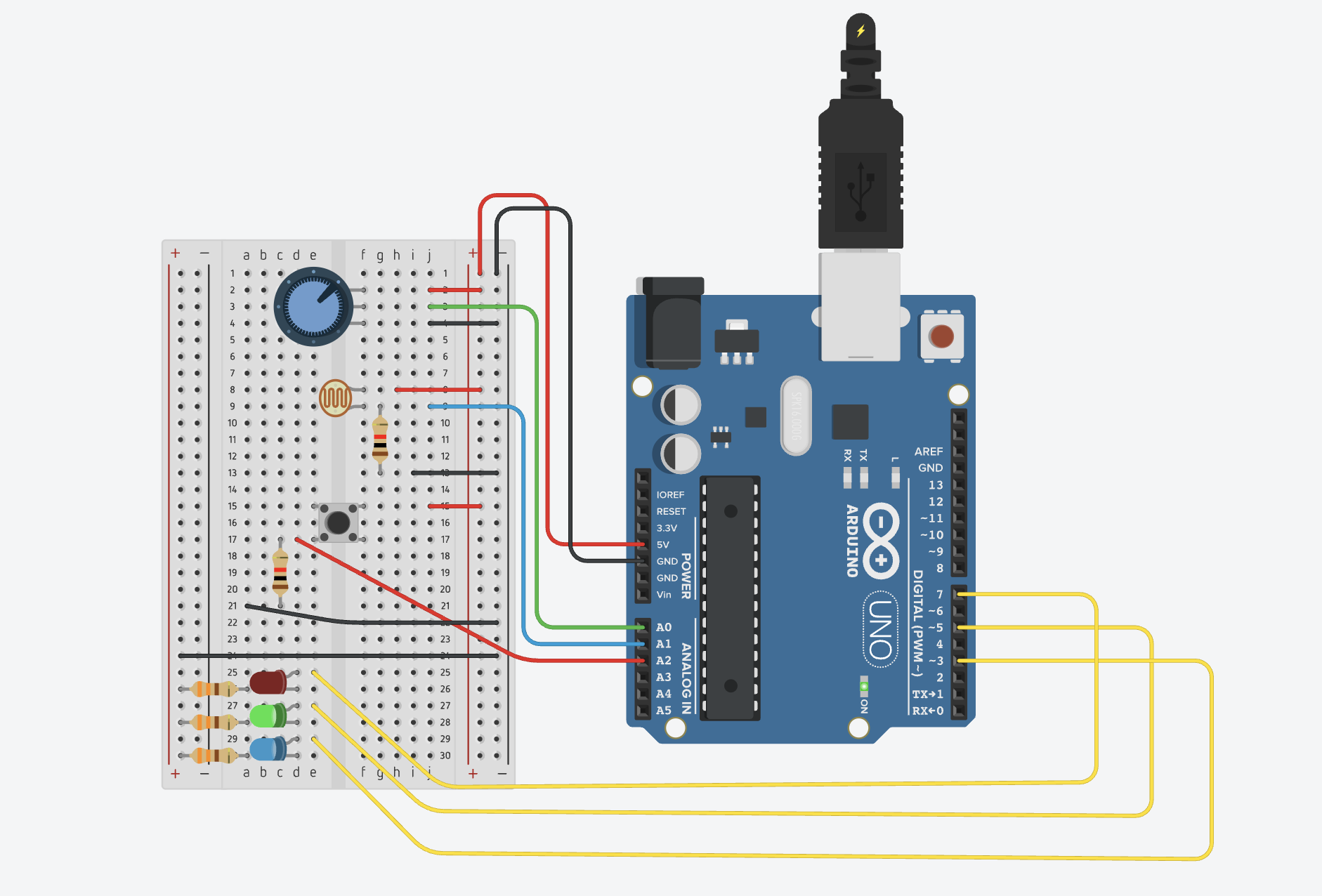
Sketch
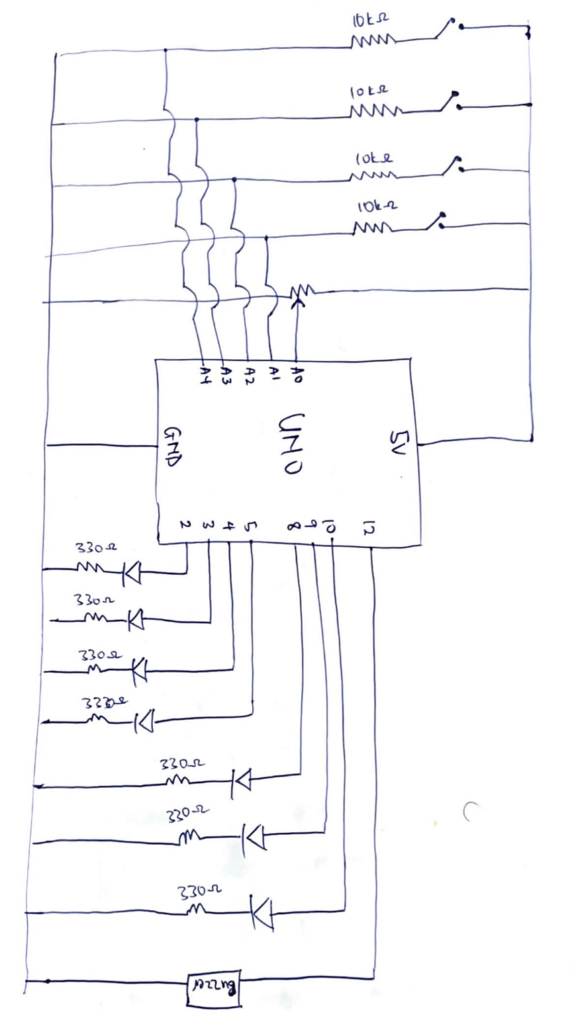
Ardruino code
/*
  MINDFLASH GAME

  OUTPUTS
  2  - Green LED
  3  - Yellow LED
  4  - Red LED
  5  - Blue LED
  8  - Level LED 1
  9  - Level LED 2
  10 - Level LED 3
  12 - Piezo buzzer
  INPUTS
  A0  - Potentiometer
  A1  - Button (S2)
  A2  - Button (S4)
  A3  - Button (S1)
  A4  - Button (S3)
*/

// PIN DEFINITIONS
const int LED_PINS[]   = {2, 3, 4, 5};
const int BTN_PINS[]   = {A1, A2, A3, A4};
const int LVL_LEDS[]   = {8, 9, 10};
const int BUZZ_PIN     = 12;
const int POT_PIN      = A0;
const int NUM_COLORS   = 4;
const int MAX_SEQ      = 20;

// BUTTON TONES
const int BTN_TONES[]  = {415, 310, 250, 210};

// GAME STATE
int sequence[MAX_SEQ];
int seqLen   = 1;
int flashDur = 500;

// SOUNDS
void beep(int freq, int dur) {
  tone(BUZZ_PIN, freq);
  delay(dur);
  noTone(BUZZ_PIN);
}
void correctSound() {
  beep(1000, 100); beep(1300, 200);
}
void wrongSound() {
  beep(330, 250);
  beep(220, 250);
  beep(147, 550);
}

// BUTTON FEEDBACK (light + sound together)
void buttonFeedback(int btnIdx) {
  tone(BUZZ_PIN, BTN_TONES[btnIdx]);   // start tone
  digitalWrite(LED_PINS[btnIdx], HIGH);
  delay(150);
  noTone(BUZZ_PIN);                    // stop tone
  digitalWrite(LED_PINS[btnIdx], LOW);
  delay(50);
}

// LIGHTS
void allLedsOff() {
  for (int i = 0; i < NUM_COLORS; i++) digitalWrite(LED_PINS[i], LOW);
}
void allLedsOn() {
  for (int i = 0; i < NUM_COLORS; i++) digitalWrite(LED_PINS[i], HIGH);
}
void flashLed(int idx, int dur) {
  tone(BUZZ_PIN, BTN_TONES[idx]);      // play tone during sequence flash too
  digitalWrite(LED_PINS[idx], HIGH);
  delay(dur);
  noTone(BUZZ_PIN);
  digitalWrite(LED_PINS[idx], LOW);
  delay(200);
}

// READ DIFFICULTY
void readMode() {
  int pm = analogRead(POT_PIN);
  if (pm >= 700) {
    digitalWrite(8,HIGH); digitalWrite(9,LOW);  digitalWrite(10,LOW);
    flashDur = 700;
  } else if (pm >= 350) {
    digitalWrite(8,HIGH); digitalWrite(9,HIGH); digitalWrite(10,LOW);
    flashDur = 500;
  } else {
    digitalWrite(8,HIGH); digitalWrite(9,HIGH); digitalWrite(10,HIGH);
    flashDur = 300;
  }
}

// SHOW SEQUENCE
void showSequence() {
  delay(1000);
  for (int i = 0; i < seqLen; i++) flashLed(sequence[i], flashDur);
  delay(300);
}

// WAIT FOR ONE BUTTON PRESS
int waitForButton() {
  while (true) {
    for (int b = 0; b < NUM_COLORS; b++) {
      if (digitalRead(BTN_PINS[b]) == HIGH) {
        delay(40);
        while (digitalRead(BTN_PINS[b]) == HIGH);
        return b;
      }
    }
  }
}

// GET USER INPUTS & VERIFY
bool getUserInputs() {
  for (int i = 0; i < seqLen; i++) {
    int btn = waitForButton();
    buttonFeedback(btn);
    if (btn != sequence[i]) return false;
  }
  return true;
}

// COUNTDOWN
void countdown() {
  for (int i = 3; i > 0; i--) {
    allLedsOn();
    beep(800 + (3 - i) * 150, 150);
    delay(700);
    allLedsOff();
    delay(200);
  }
  // GO!
  allLedsOn(); beep(1400, 200); allLedsOff();
  delay(400);
}

// GAME OVER
void showGameOver() {
  wrongSound();
  for (int b = 0; b < 4; b++) {
    allLedsOn();  delay(300);
    allLedsOff(); delay(300);
  }
  delay(800);
}

// SETUP
void setup() {
  Serial.begin(9600);
  for (int i = 0; i < NUM_COLORS; i++) {
    pinMode(LED_PINS[i], OUTPUT);
    pinMode(BTN_PINS[i], INPUT);
  }
  for (int i = 0; i < 3; i++) pinMode(LVL_LEDS[i], OUTPUT);
  pinMode(BUZZ_PIN, OUTPUT);
  // startup test
  allLedsOn();
  digitalWrite(8,HIGH); digitalWrite(9,HIGH); digitalWrite(10,HIGH);
  beep(1000, 400);
  delay(600);
  allLedsOff();
  digitalWrite(8,LOW); digitalWrite(9,LOW); digitalWrite(10,LOW);
  randomSeed(analogRead(A5));
}

// MAIN LOOP
void loop() {
  readMode();
  // wait for any button press to start
  bool started = false;
  for (int b = 0; b < NUM_COLORS; b++)
    if (digitalRead(BTN_PINS[b]) == HIGH) { started = true; break; }
  if (!started) return;
  // debounce the start press
  delay(50);
  while (digitalRead(BTN_PINS[0]) == HIGH ||
         digitalRead(BTN_PINS[1]) == HIGH ||
         digitalRead(BTN_PINS[2]) == HIGH ||
         digitalRead(BTN_PINS[3]) == HIGH);
  allLedsOff();
  seqLen = 1;
  readMode();
  countdown();
  while (seqLen <= MAX_SEQ) {
    sequence[seqLen - 1] = random(0, NUM_COLORS);
    Serial.print("Round "); Serial.println(seqLen);
    showSequence();
    if (getUserInputs()) {
      correctSound();
      seqLen++;
      delay(500);
    } else {
      showGameOver();
      seqLen = 1;
      break;
    }
  }
  allLedsOff();
  delay(500);
}
How It’s Made
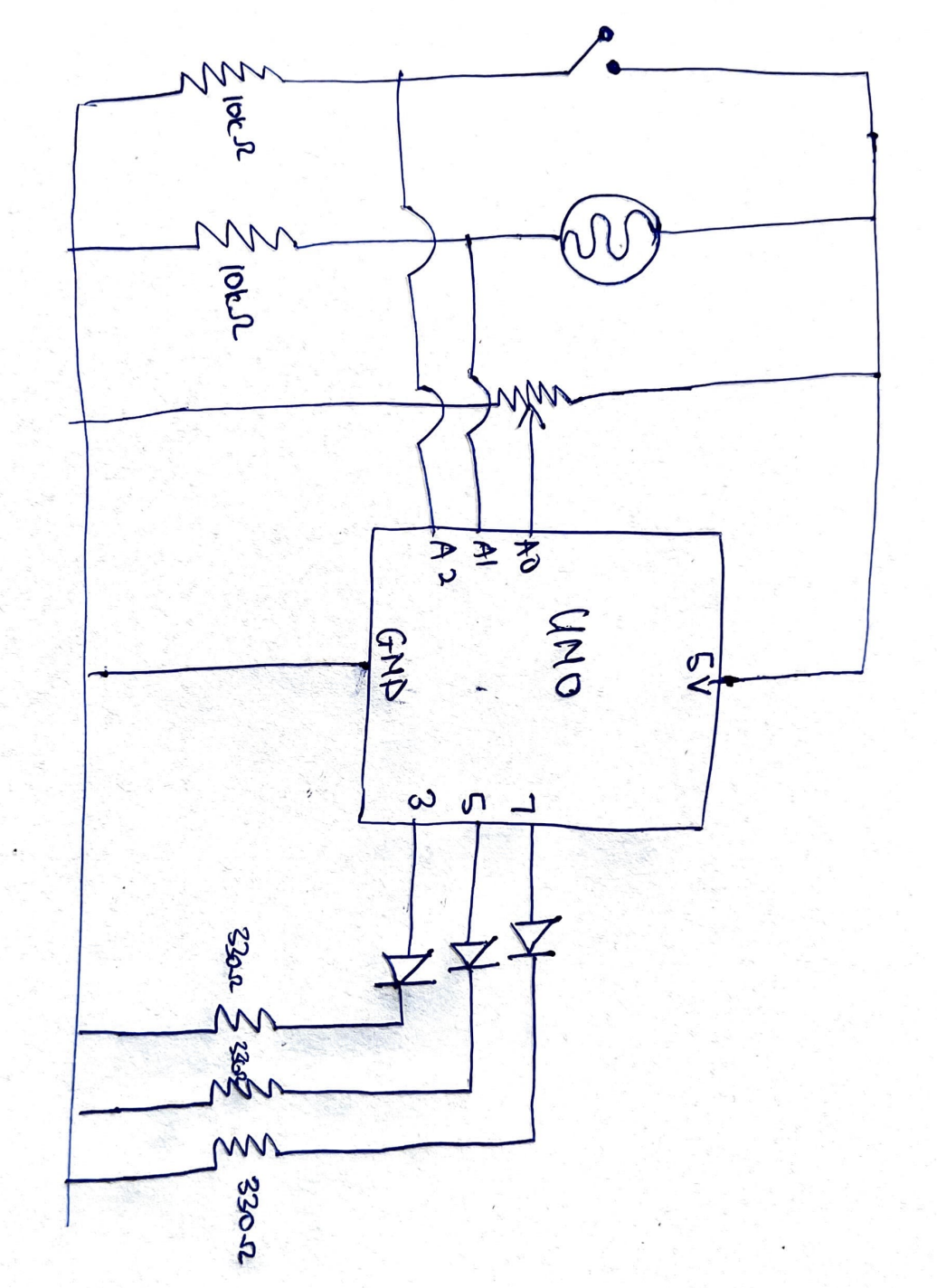
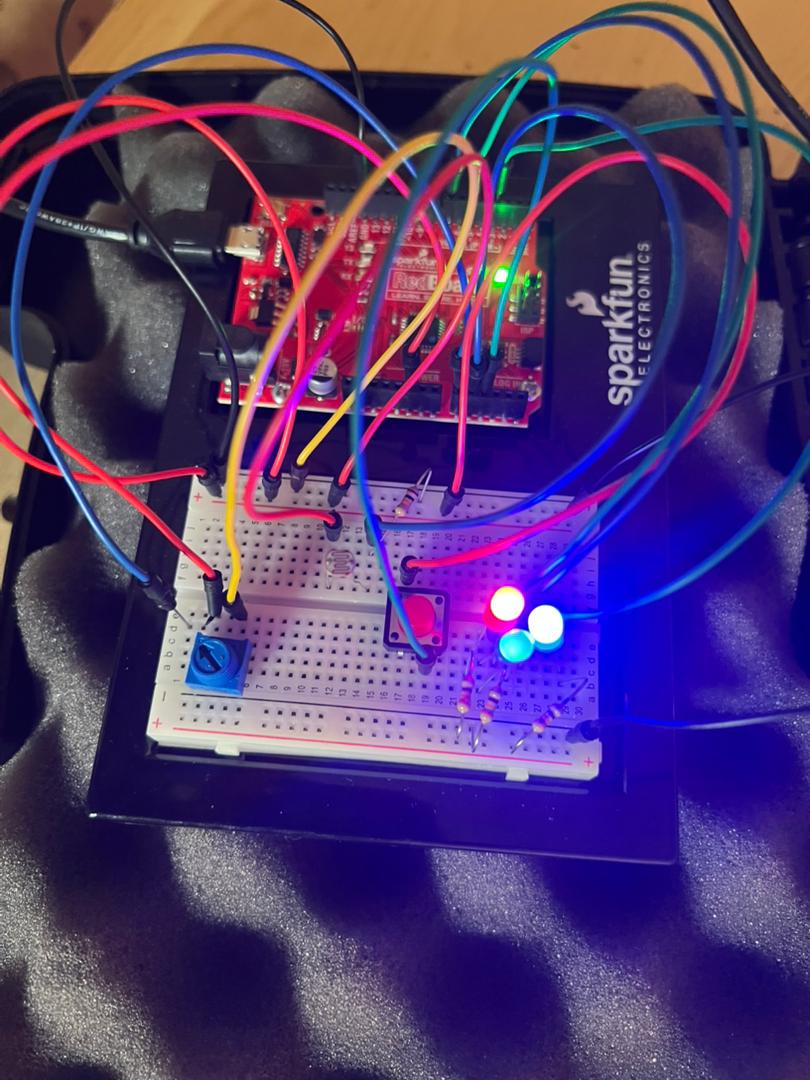
For this project, the inputs are push switches and a potentiometer. A potentiometer was connected to the 5V power source, an analog read pin and ground. The analog read pin reads the value of the potentiometer to control the level of the game. 4 push switches were connected in parallel to the 5V power source, an analog read pin and a pull down resistor of 10kΩ resistor to ground. The analog pins read the digital inputs of the push switches and that is used as the logic for matching the sequences.
The outputs of the project are a buzzer and sets of LEDs. The LEDs were connected to digital pins, a 330Ω resistor and ground. There are two sets of LEDs for this project. Set A is a set of 3 red LEDs and these LEDs indicate to the user the level of the game. The code reads the value of the potentiometer and maps it to one of the three level and this is reflected by the red LEDs. Easy mode lights up one LED, medium lights up two LEDs and hard lights up three LEDs. Set B is a set of 4 LEDs: red, yellow, blue, green. A random sequence is generate out of these colors and the user is supposed to match this using the push switches. The final output is a buzzer which is connected to a digital pin and ground. The buzzer makes sound for a countdown to start the game, makes a success sound, wrong sound and sounds specific to each color.
The pressing the push button lights up the corresponding LED bulb and makes a sound specific to that color. Chat GPT was used to generate the frequencies of sounds for the countdown, success sound, wrong and game over sound, and the sounds corresponding to each color.
Part of the project I’m proud of
The part of this project I’m particularly proud of is the code behind this project. The most difficult part of the project was writing my idea of the project into a working code and figuring it out made me very proud. The highlight of the code were the functions I made for the game.
void readMode() {
  int pm = analogRead(POT_PIN);
  if (pm >= 700) {
    digitalWrite(8,HIGH); digitalWrite(9,LOW);  digitalWrite(10,LOW);
    flashDur = 700;
  } else if (pm >= 350) {
    digitalWrite(8,HIGH); digitalWrite(9,HIGH); digitalWrite(10,LOW);
    flashDur = 500;
  } else {
    digitalWrite(8,HIGH); digitalWrite(9,HIGH); digitalWrite(10,HIGH);
    flashDur = 300;
  }
}
This is the function that controls the level of the game. The reason this is the highlight of the whole project for me is that writing this code was a breakthrough moment for me. Once I figured this part out, everything else seemed to follow and I was able to implement my ideas.
Reflection
Making this project was actually very fun. A new layer of complexity was added when implementing my ideas because as aside the code, I also had to figure out the connections of the circuits. I found myself placing LEDs at almost every point to check if the connections I had made were right in the testing phase. The LEDs were my debuggers for this project. I also played around a lot with the delay function in the project to ensure a smooth user interaction
The user testing opened me up to things I missed during my testing of the program and changed how I thought about the whole project. It made me add more feedback for the user especially being in a virtual space where a user could not physically feel a button, adding these feedbacks improved the overall project and I hope these feedbacks will be enough for a user in a virtual space.
Future improvements for this project is introducing a scoring system which is based on the time the user presses the buttons. This can expand the project from just testing memory to testing memory and reaction. The scoring system can also be used to create a leaderboard and it will be a fun game to play among friends.