Final Project: Pressure-Based Digital Musical Instrument

Preliminary Concept: Pressure-Based Digital Instrument

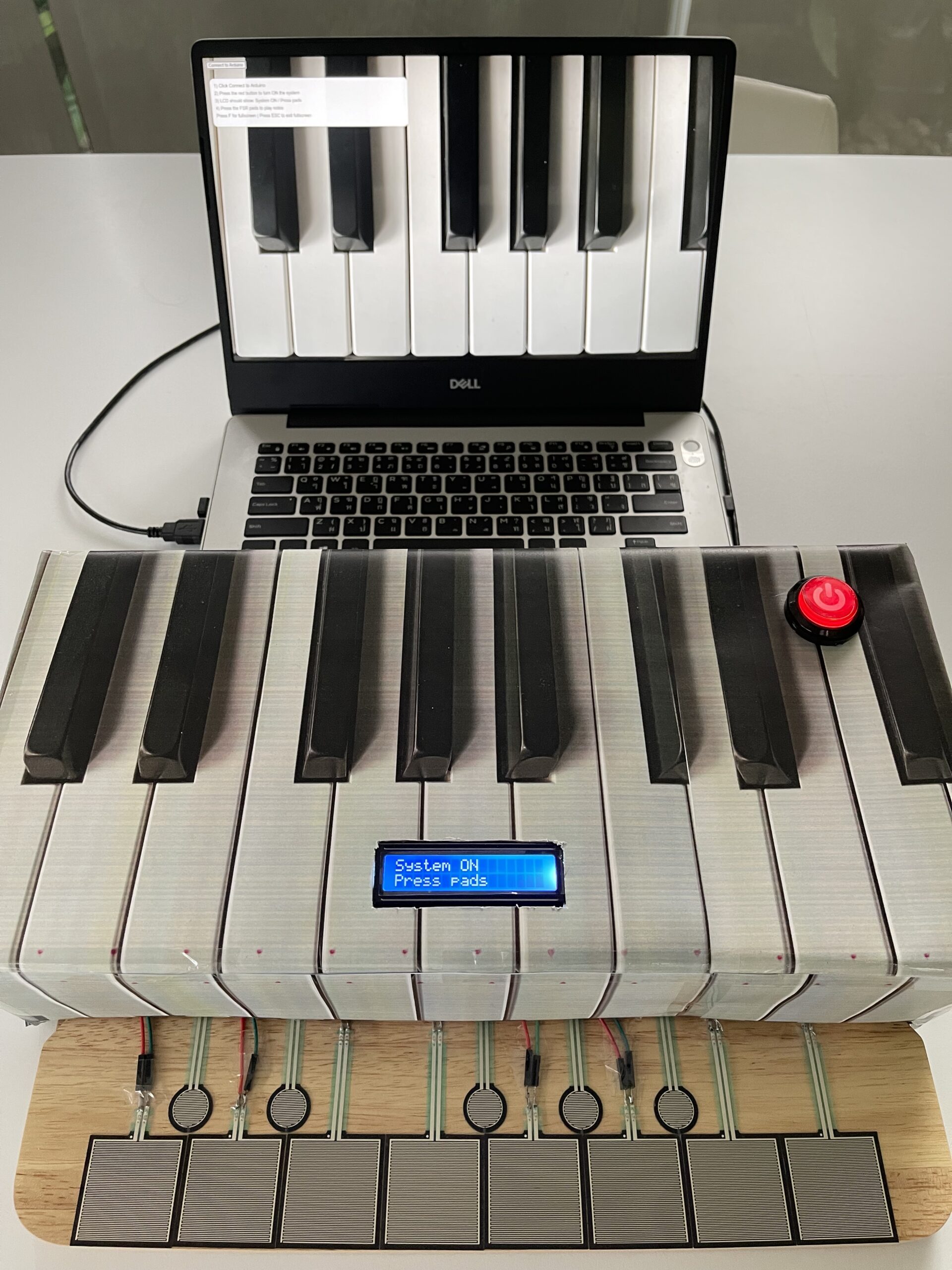
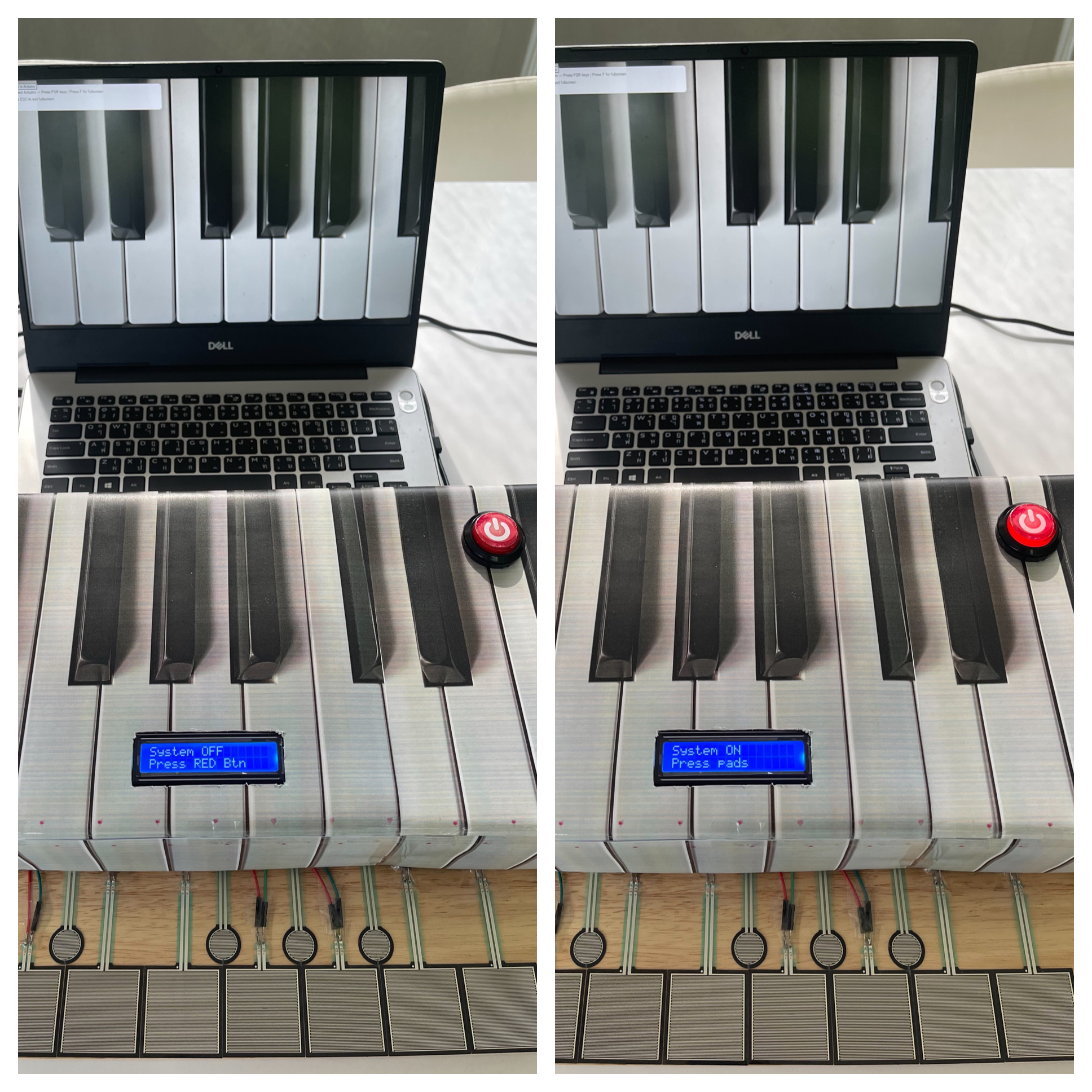
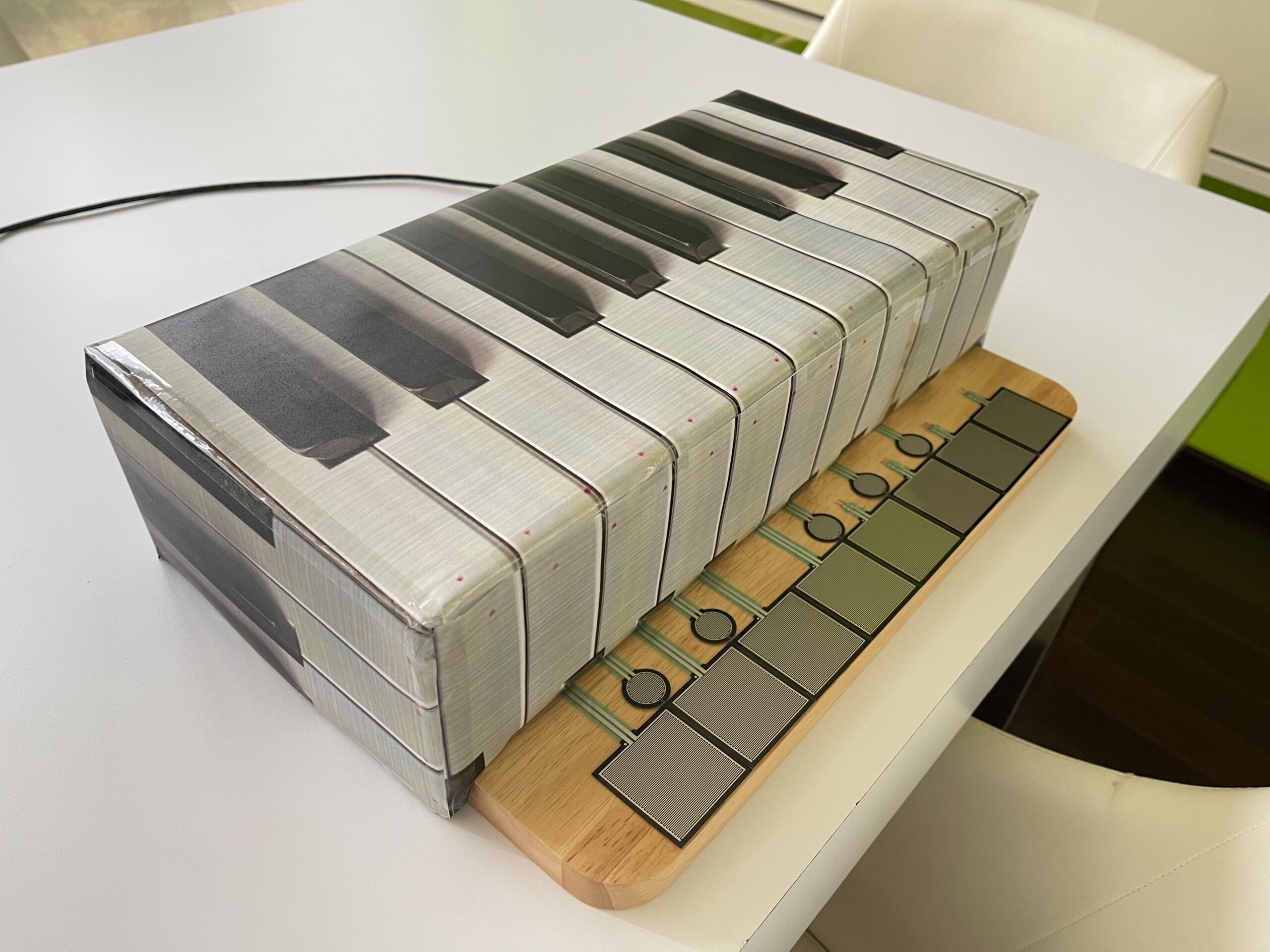
For my final project, I plan to create a physically interactive musical instrument using Arduino and p5.js. The idea is to build a simple keyboard-like interface where users can play notes by touching pressure sensors.

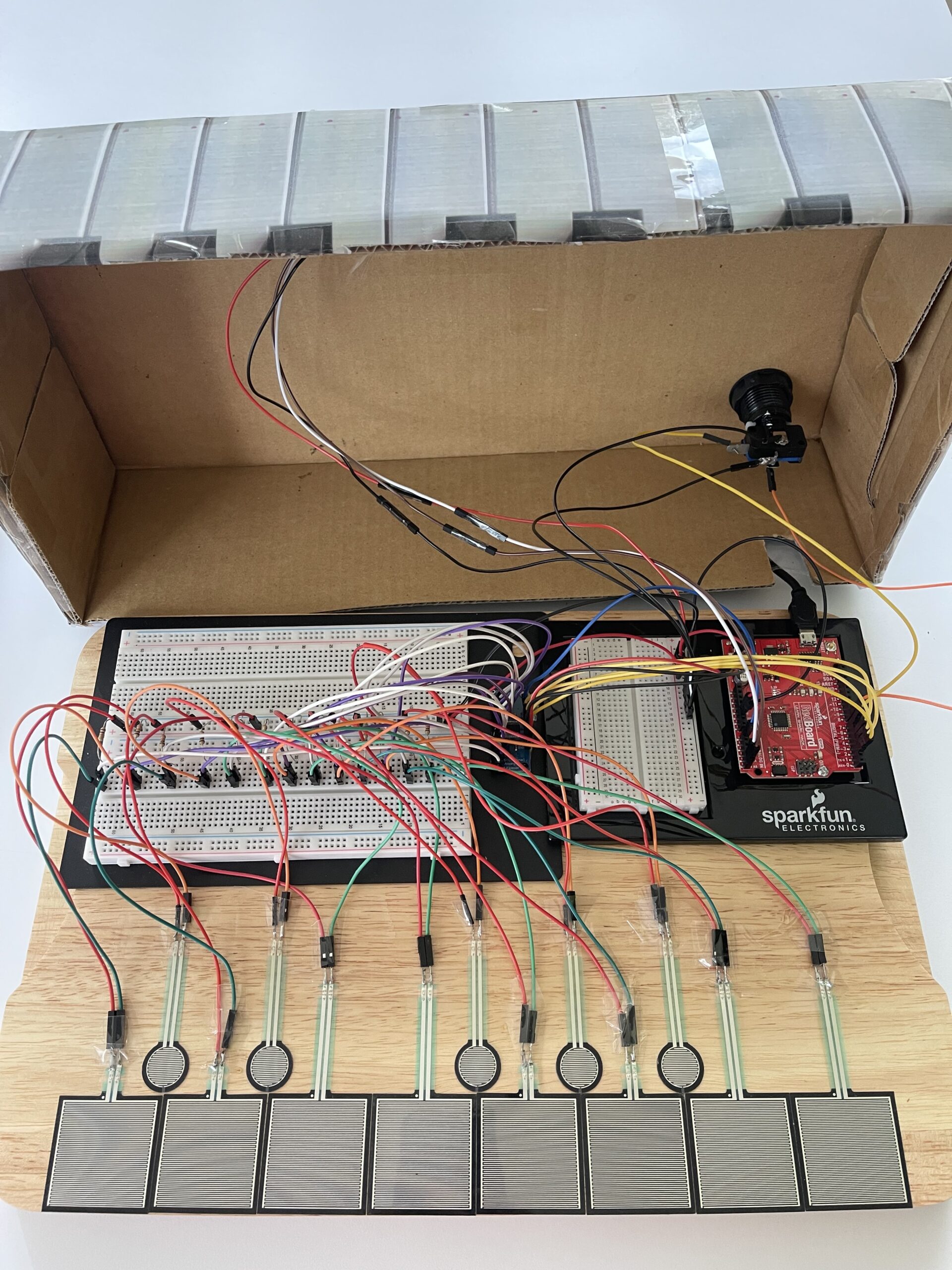
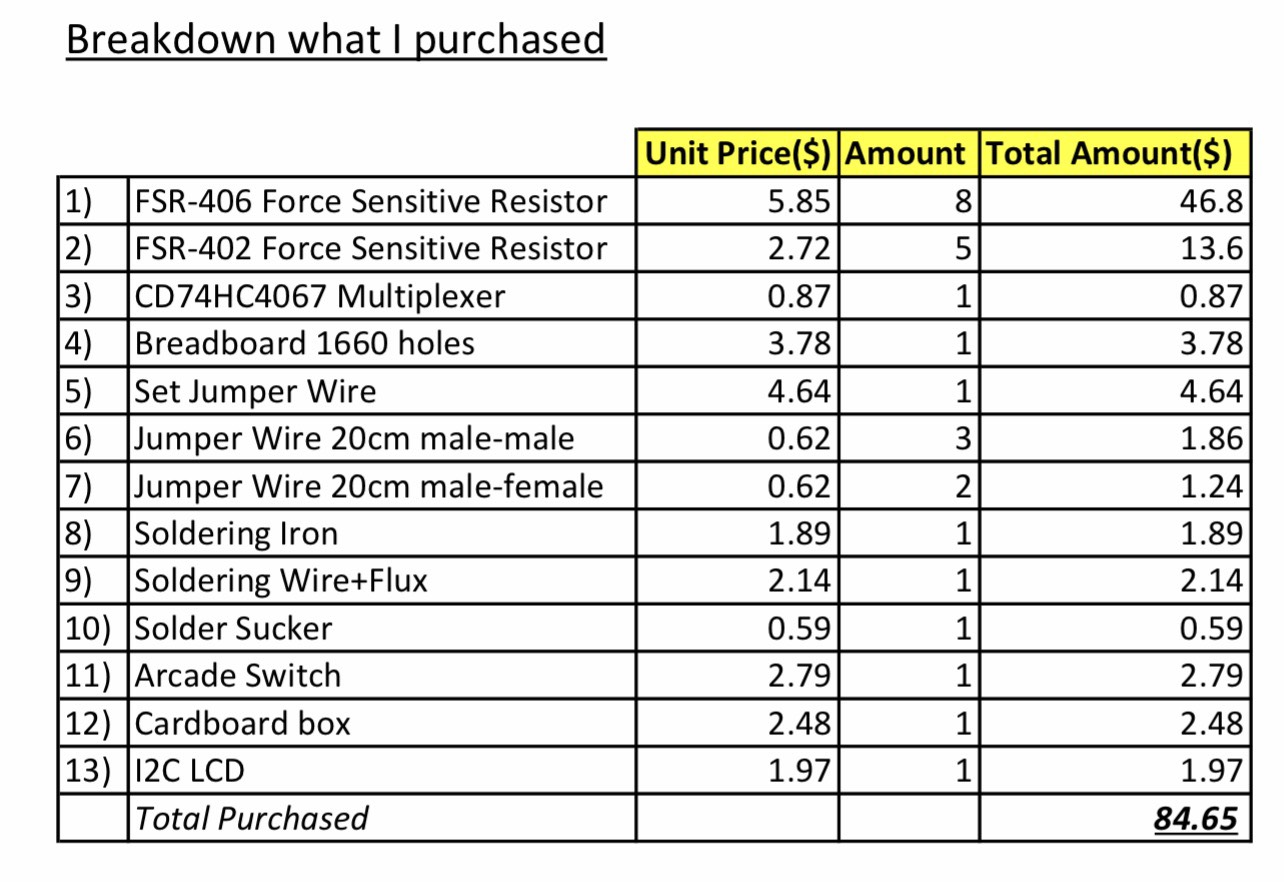
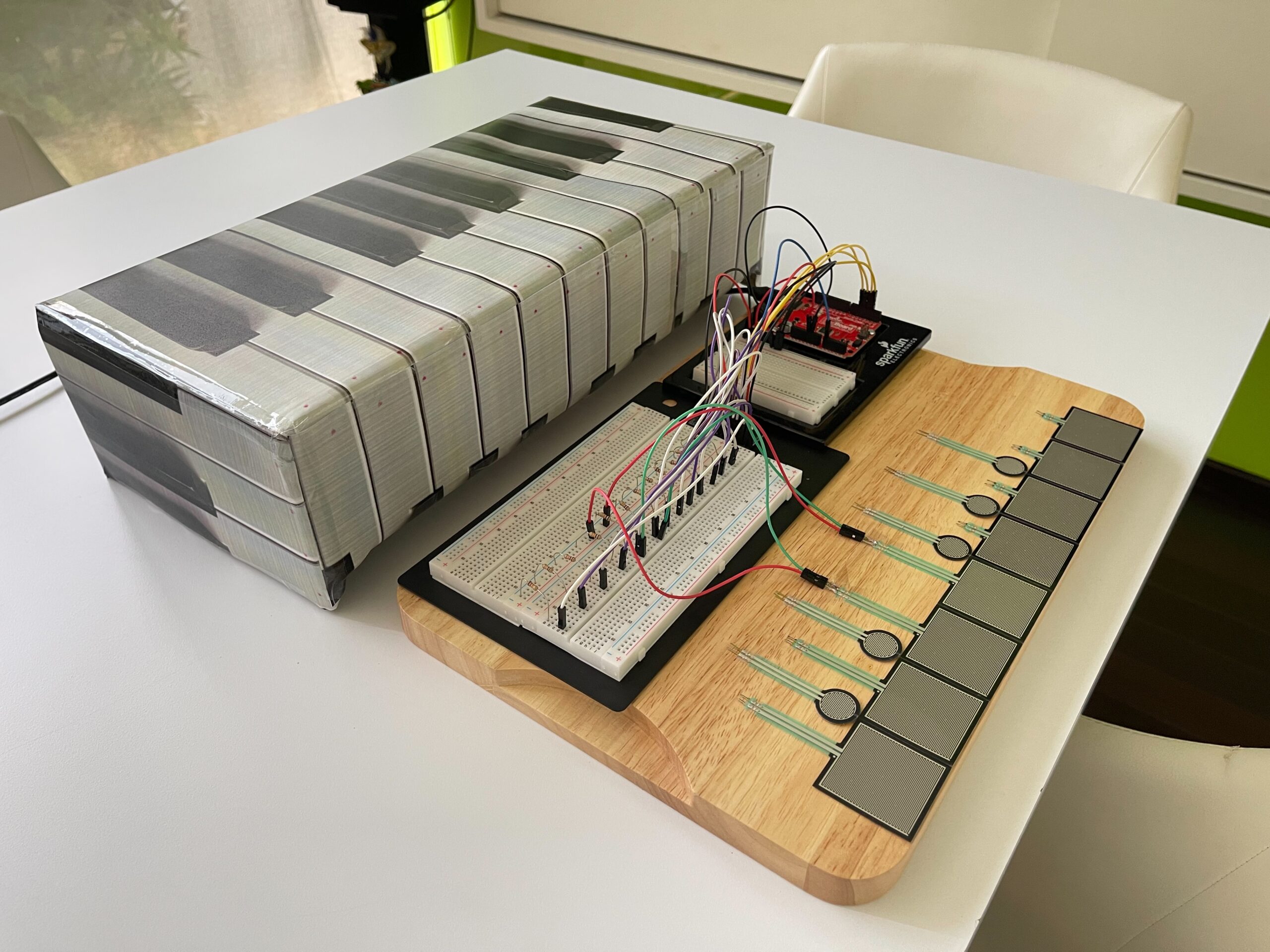
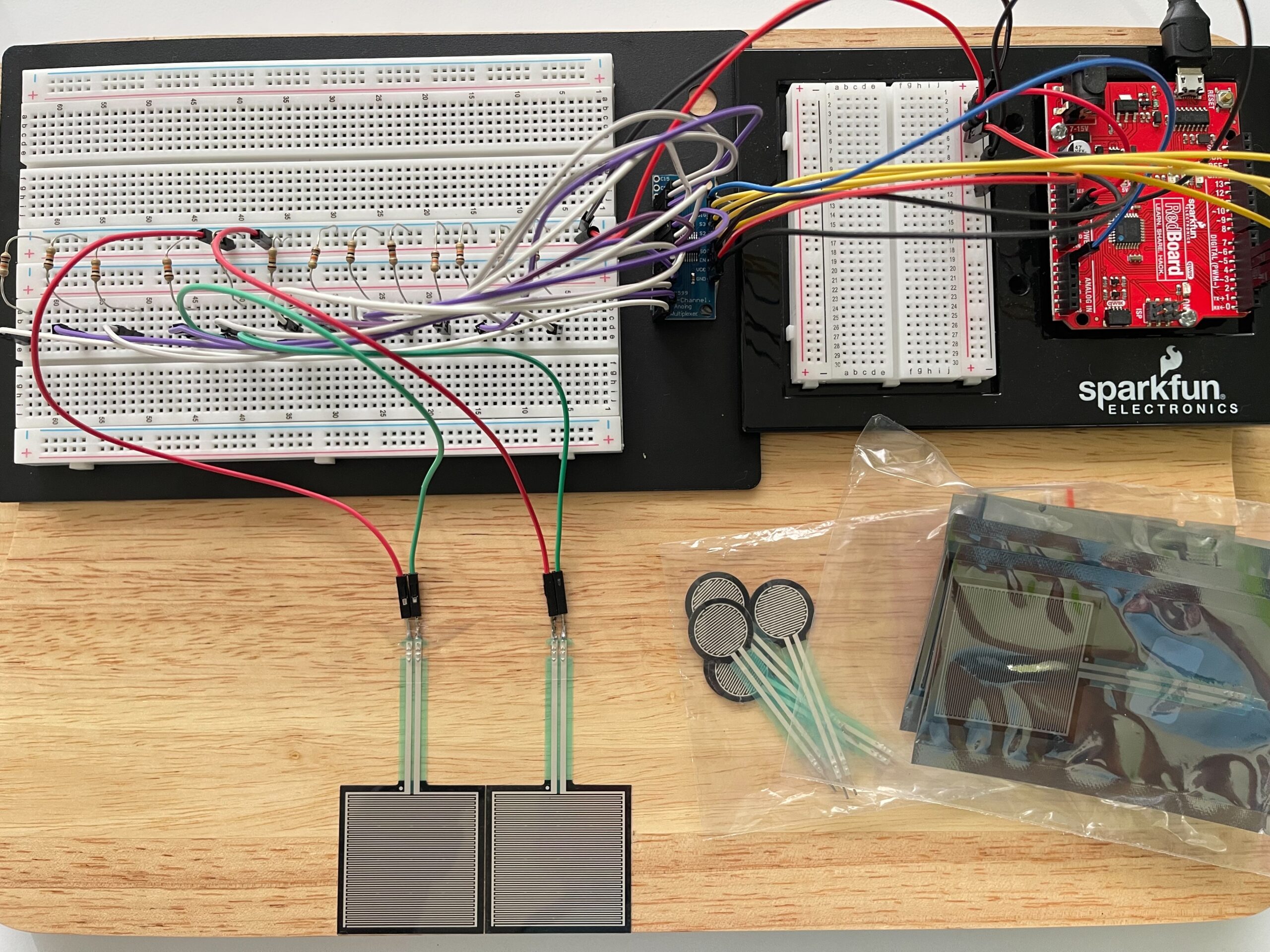
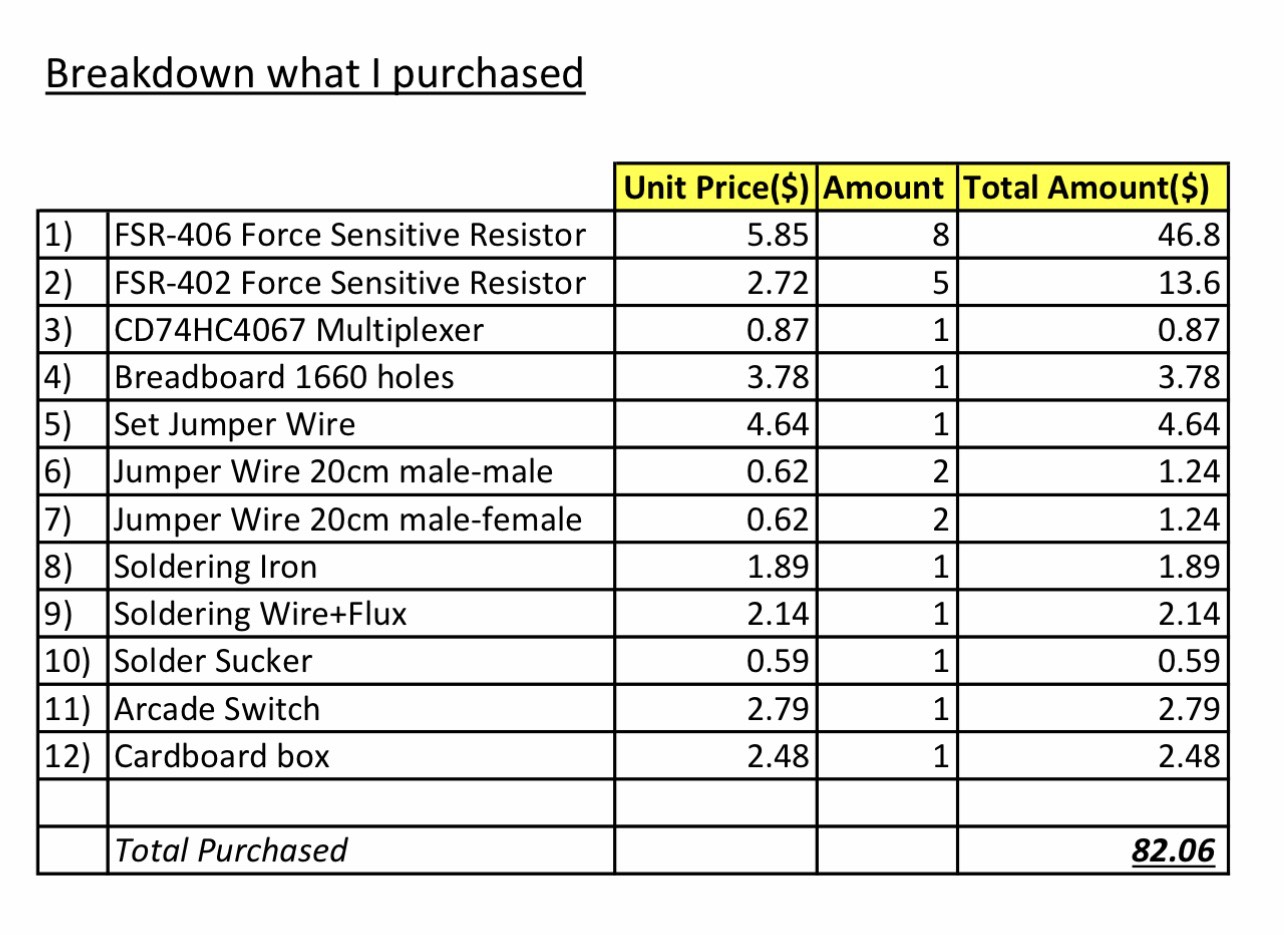
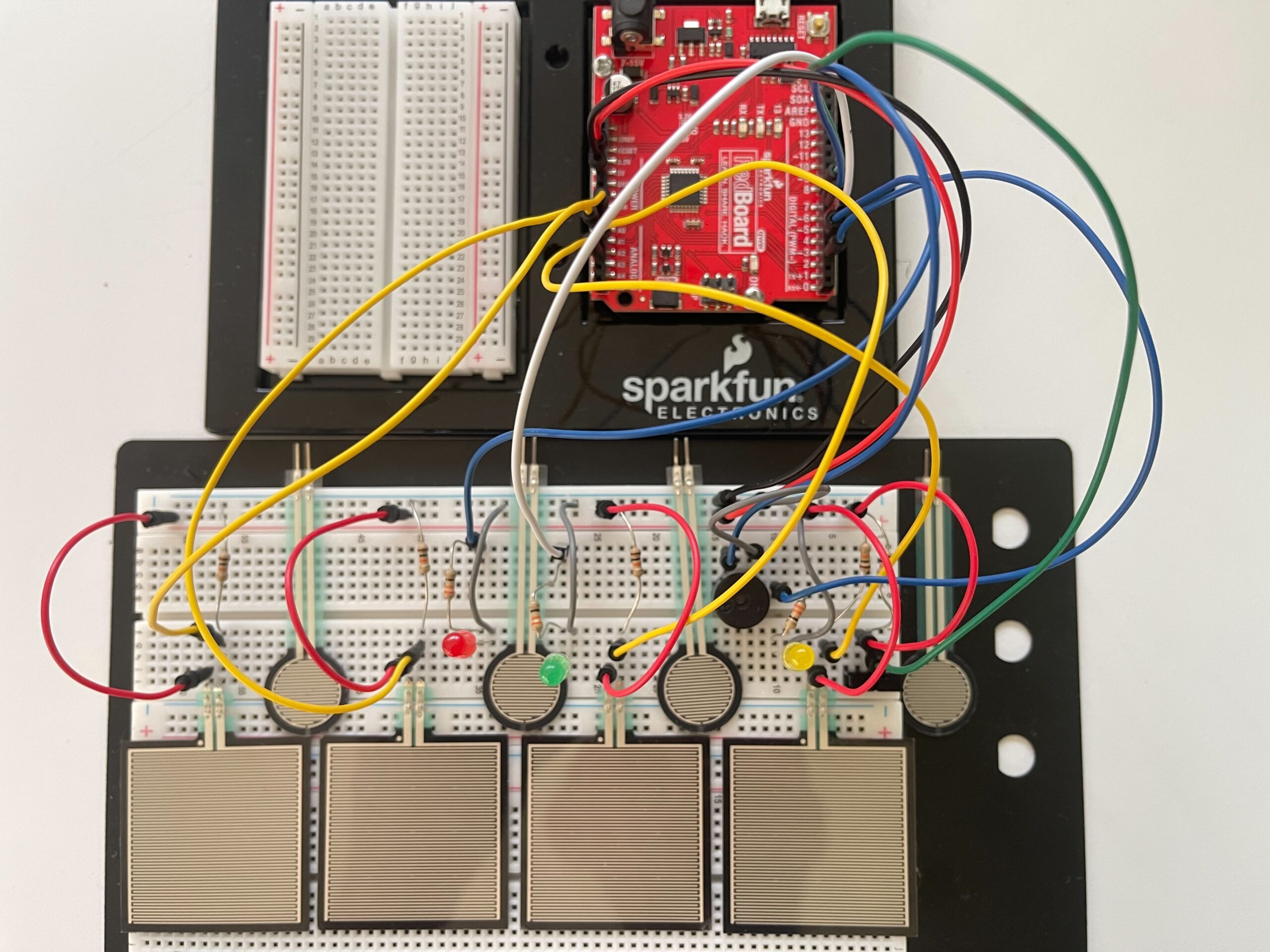
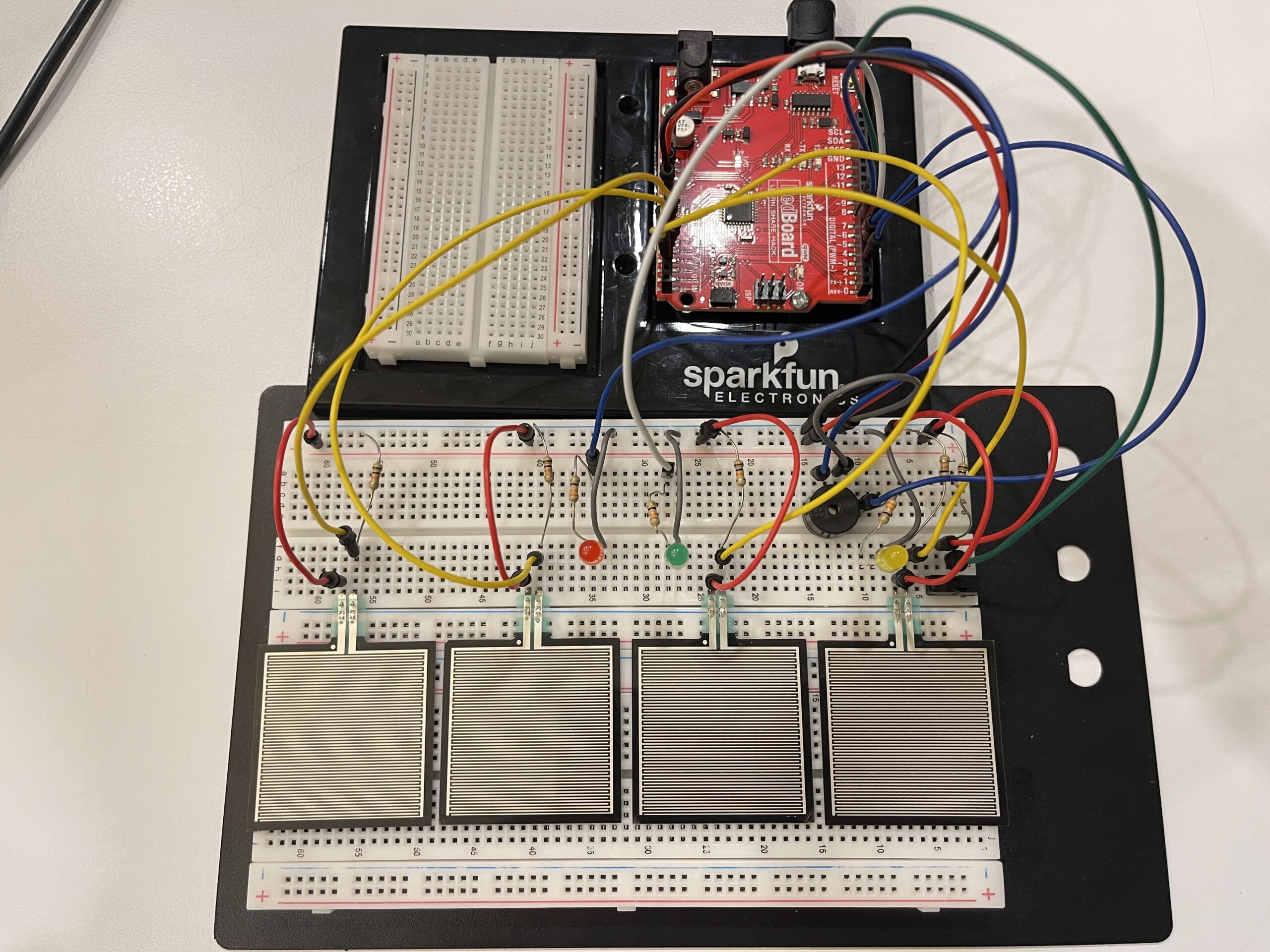
Instead of using buttons, I will use Force Sensitive Resistors (FSRs) so that the interaction feels softer and more natural, similar to placing fingers on a piano. Each sensor will represent one note (C, D, E, F, G, A, B, C, including sharps/flats).   Below picture will have only 4 FSR406 and 4 FSR402, I will buy them more and also 16 channel analog multiplexer to complete my project soon. 

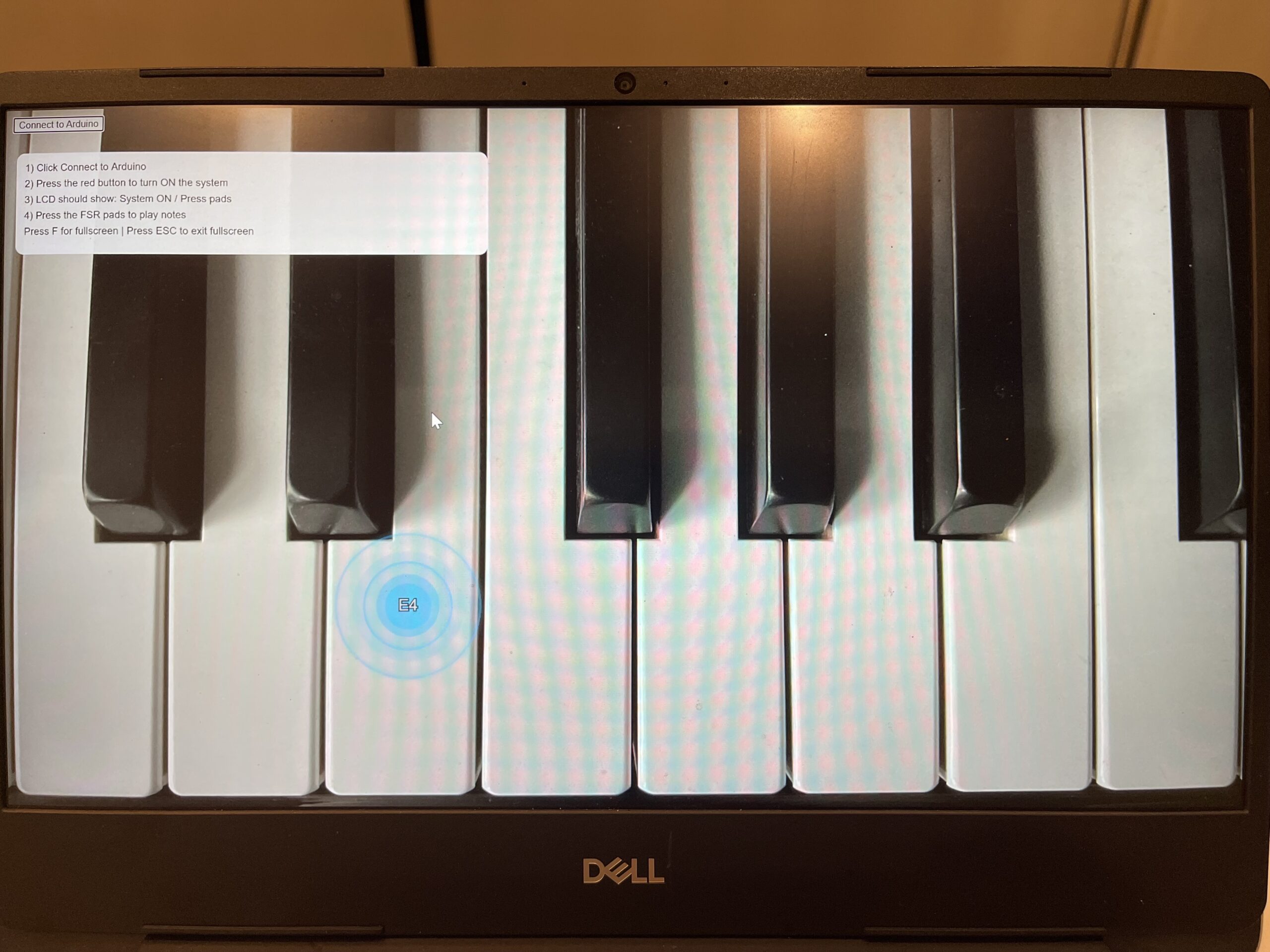
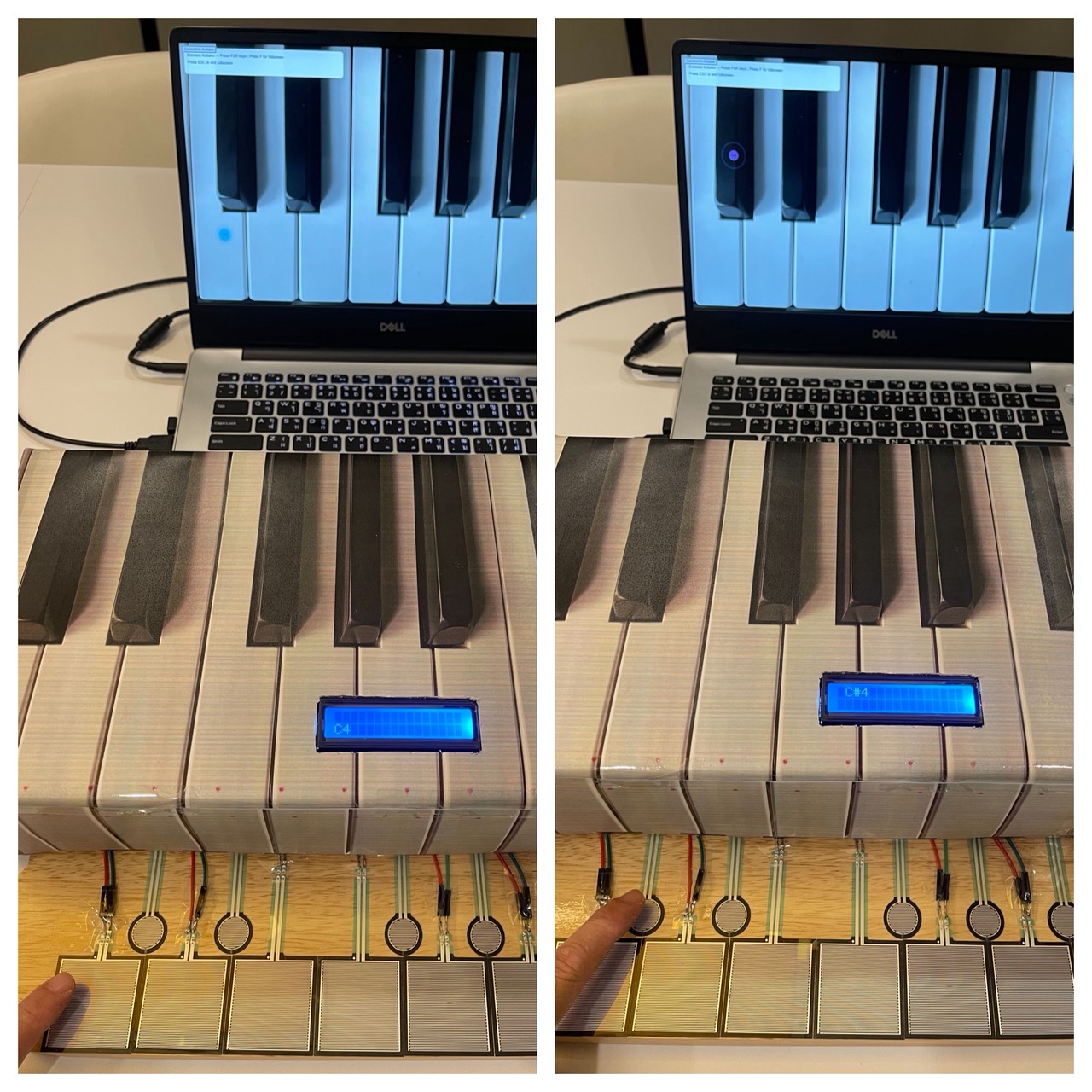
Arduino will read the sensor values and send the data to p5.js through serial communication. In p5, the input will be used to generate sound and simple visual feedback. I will use the computer’s speaker for audio output instead of a buzzer to improve sound quality.

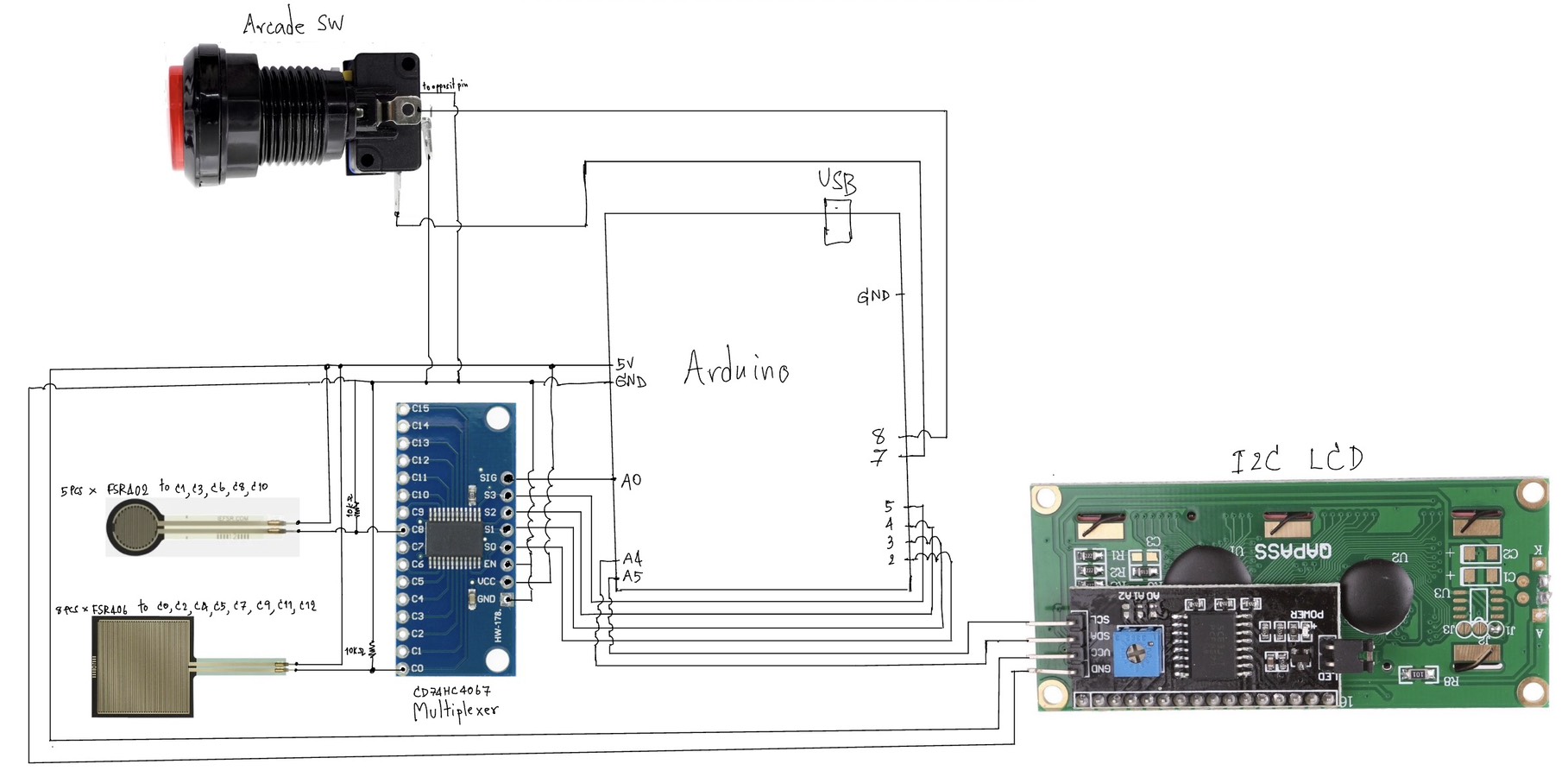
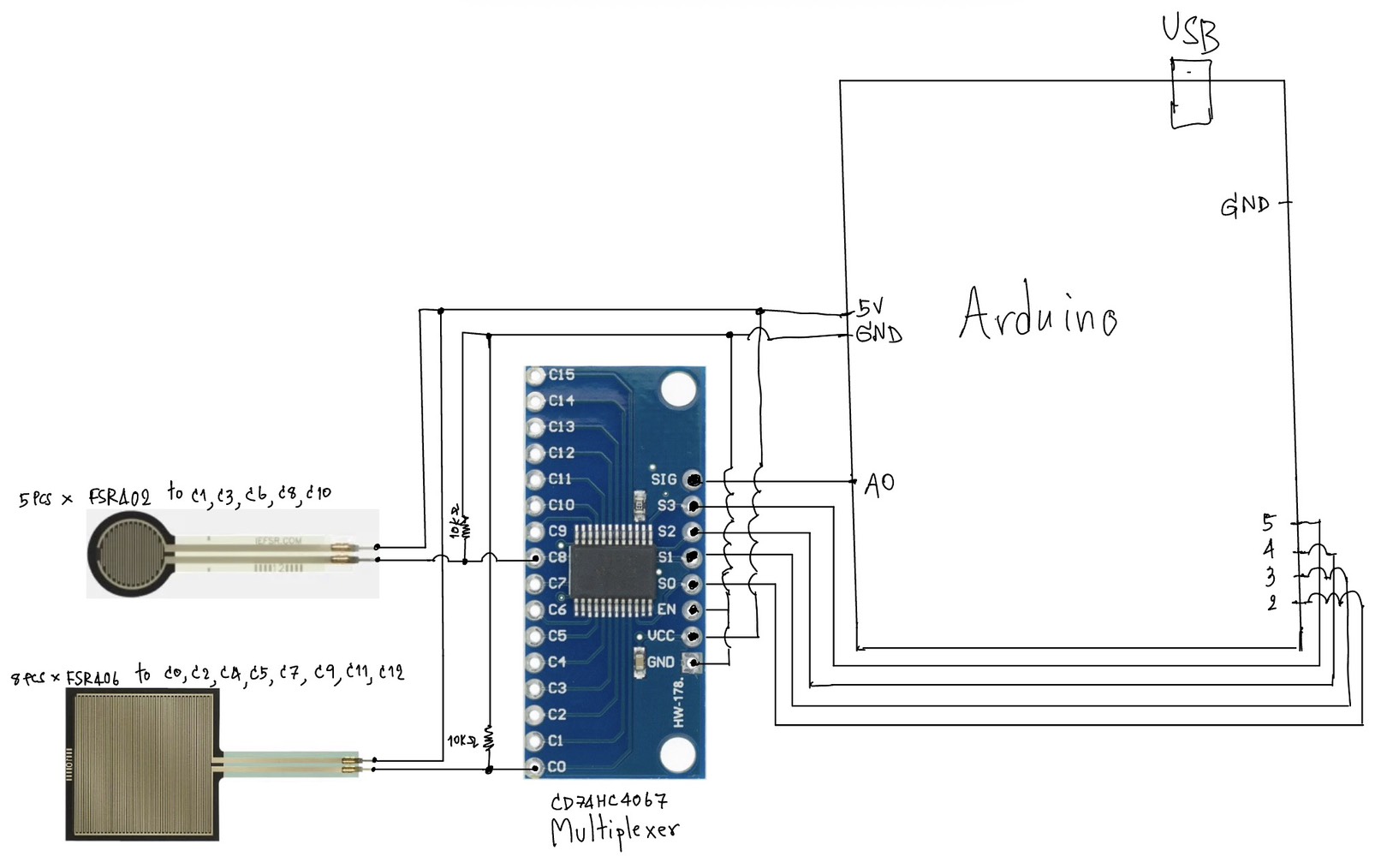
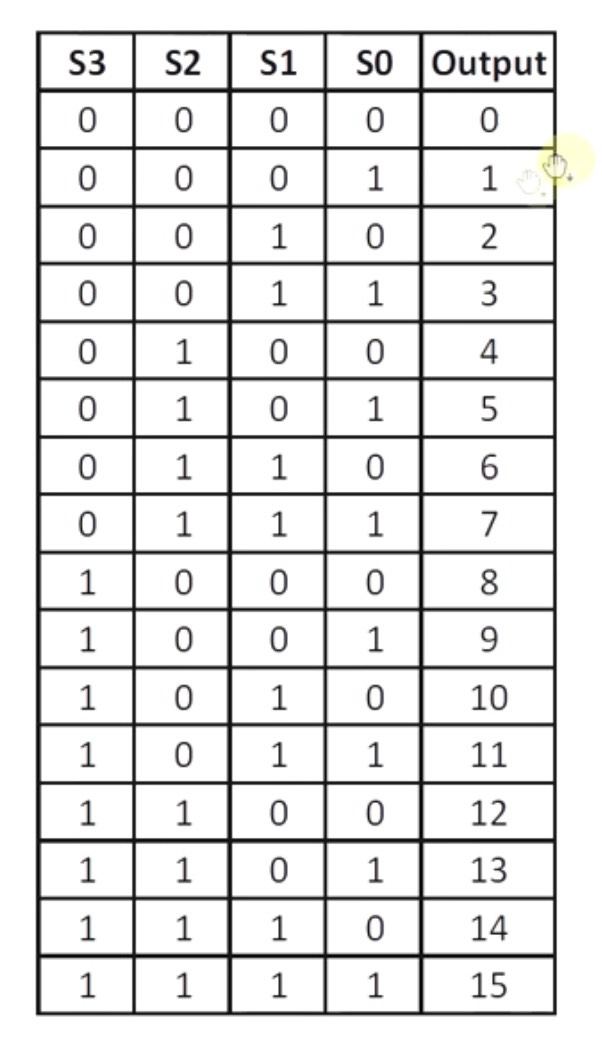
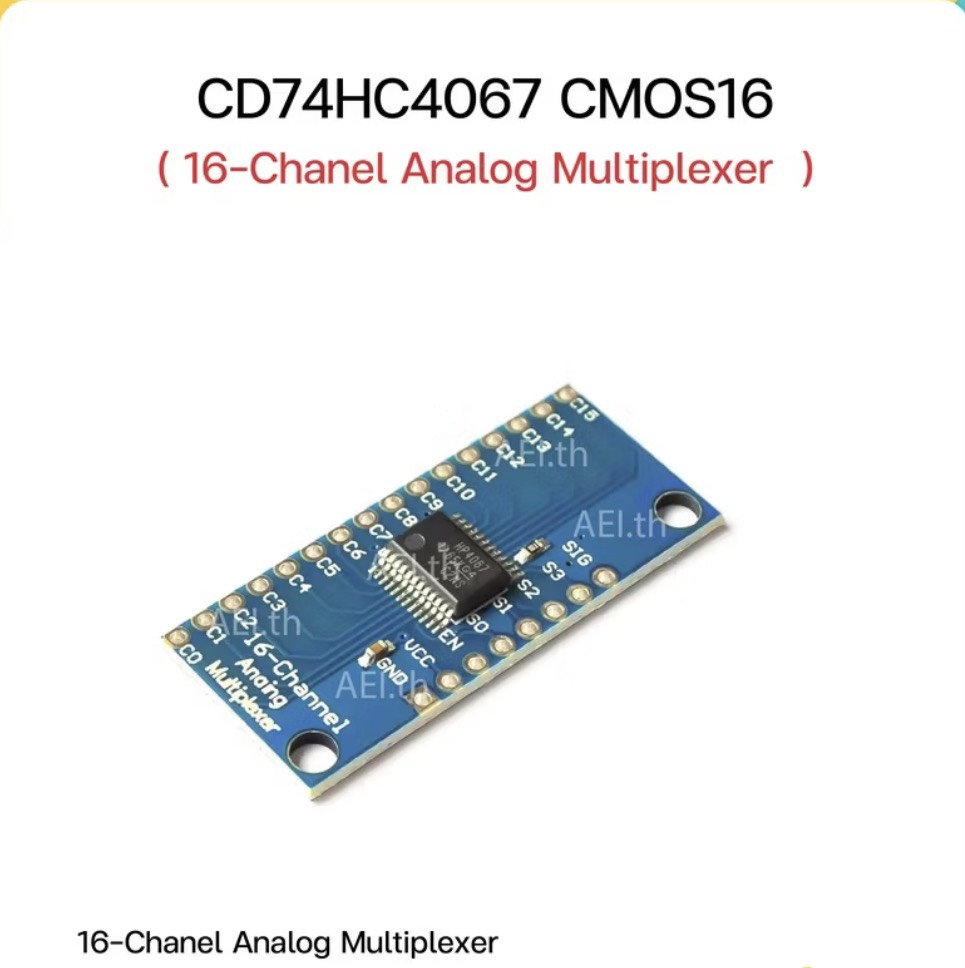
Since I need to use multiple sensors, I will use a CD74HC4067 multiplexer to expand the number of inputs. This allows Arduino to read many FSRs efficiently.

The system will also include a feedback loop. For example, when a note is played, p5 can send a signal back to Arduino to turn on an LED. This creates a simple two-way communication between Arduino and p5.

The goal of this project is to explore how physical touch can be translated into digital sound and visual feedback in a clear and responsive way.


Inspiration

This project is inspired by different types of interactive musical interfaces:

* Digital MIDI controllers and touch-based instruments
* Piano keyboards, especially the idea of soft and responsive touch
* Interactive installations where physical actions directly control sound
* Simple expressive systems that focus on user interaction rather than complexity

I am particularly interested in how small physical gestures, like lightly touching a surface, can create meaningful digital outputs such as sound.


References / Tutorials

Here are some references and tutorials that informed my idea:

* p5.js Sound Library (official reference)

https://p5js.org/reference/#/libraries/p5.sound

* Basic FSR (Force Sensitive Resistor) guide
https://learn.adafruit.com/force-sensitive-resistor-fsr

* Multiplexer (CD74HC4067) explanation
https://learn.sparkfun.com/tutorials/multiplexer-breakout-hookup-guide


Sketch Description

The system will be arranged like a simple keyboard:

* FSR406 → white keys (main notes)
* FSR402 → black keys (sharps/flats)

Reading Reflection – Week 9 Design meets disability

Reading Design Meets Disability made me rethink what I previously considered “good design.” I used to associate good design with aesthetics and general usability, but this reading challenged my assumption by showing how design is deeply tied to social attitudes toward disability. The section on “discretion” stood out to me, where assistive devices like hearing aids are designed to be hidden in order to avoid stigma. This made me question whether invisibility is actually a positive goal, or if it reinforces the idea that disability should be concealed. I found myself reflecting on how design choices are not neutral and that they reflect cultural values about what is considered “normal.” The tension between fashion and disability also left a strong impression on me. While making assistive devices more fashionable can empower users, it also risks emphasizing appearance over accessibility. This contradiction made me realize that design often operates between competing goals rather than clear solutions.

This reading also connected to my previous understanding of user-centered design but expanded it in a way I had not considered before. It made me realize that “the user” is often imagined as a narrow, able-bodied group, which doesn’t take into account many real experiences. The idea of “simple meets universal” raised an important question for me that is it actually possible to design something that works for everyone, or does inclusivity inevitably introduce complexity?   This challenges the assumption that simplicity is always better. Personally, this reading shifted my perspective from seeing design as purely functional problem-solving to understanding it as a more cultural and ethical practice that shapes how people are perceived and included. It also made me more aware of the limitations in the designs I encounter daily and how they really reflect broader biases rather than just technical decisions.

Week 11 Ex03 Bi-Directional Communication

Github:

https://github.com/skyorachorn/Intro-to-IM/blob/5c35d686b16c8ad6965f1755d6dd0e0c786ab2c4/Ex03_Bi_Directional_Com.ino


Youtube:

https://youtu.be/9bqEiR_zGJM?si=Mm7S7kV4fjWl15sk

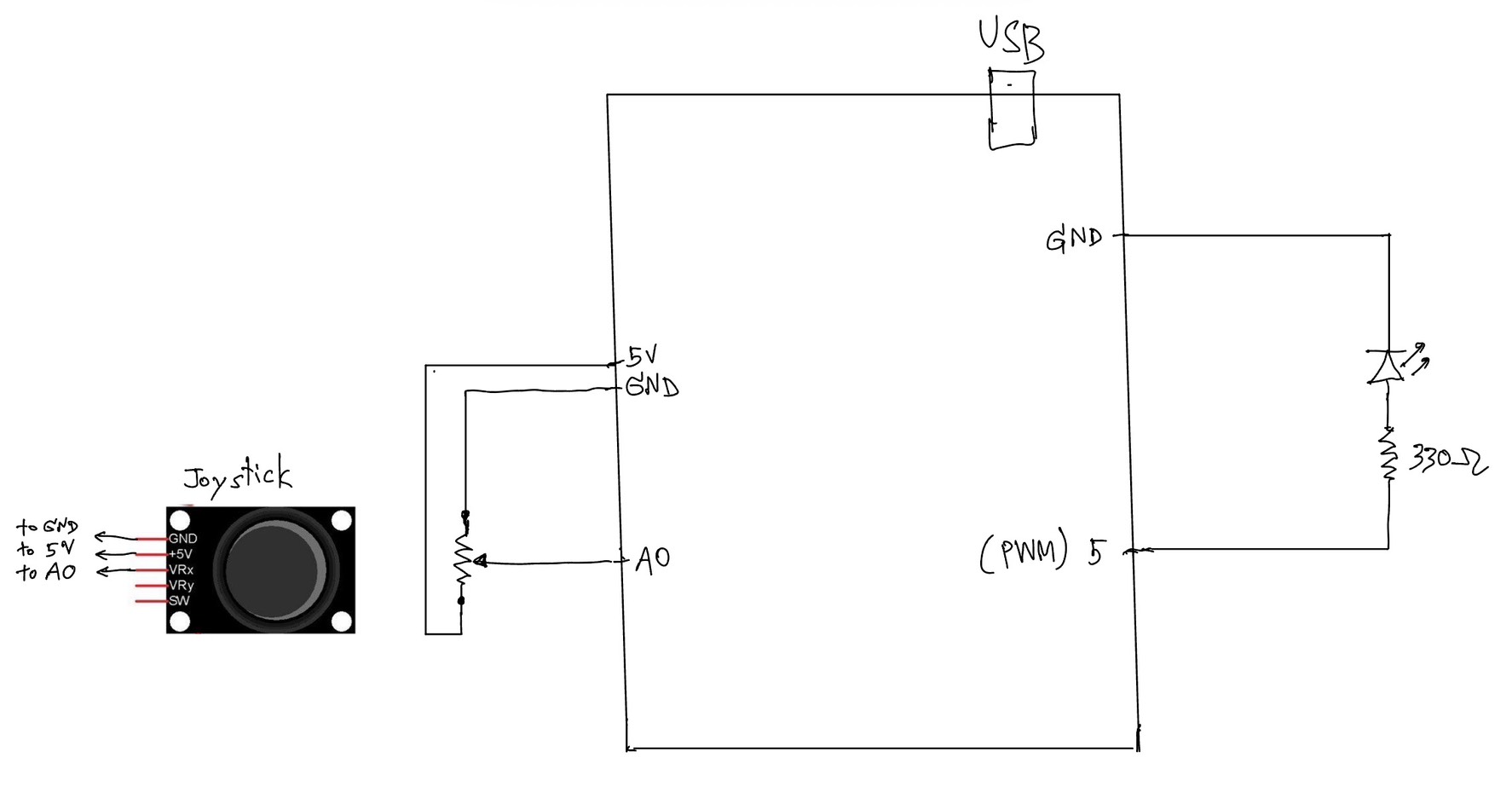
Circuit:


Hand Written Circuit:

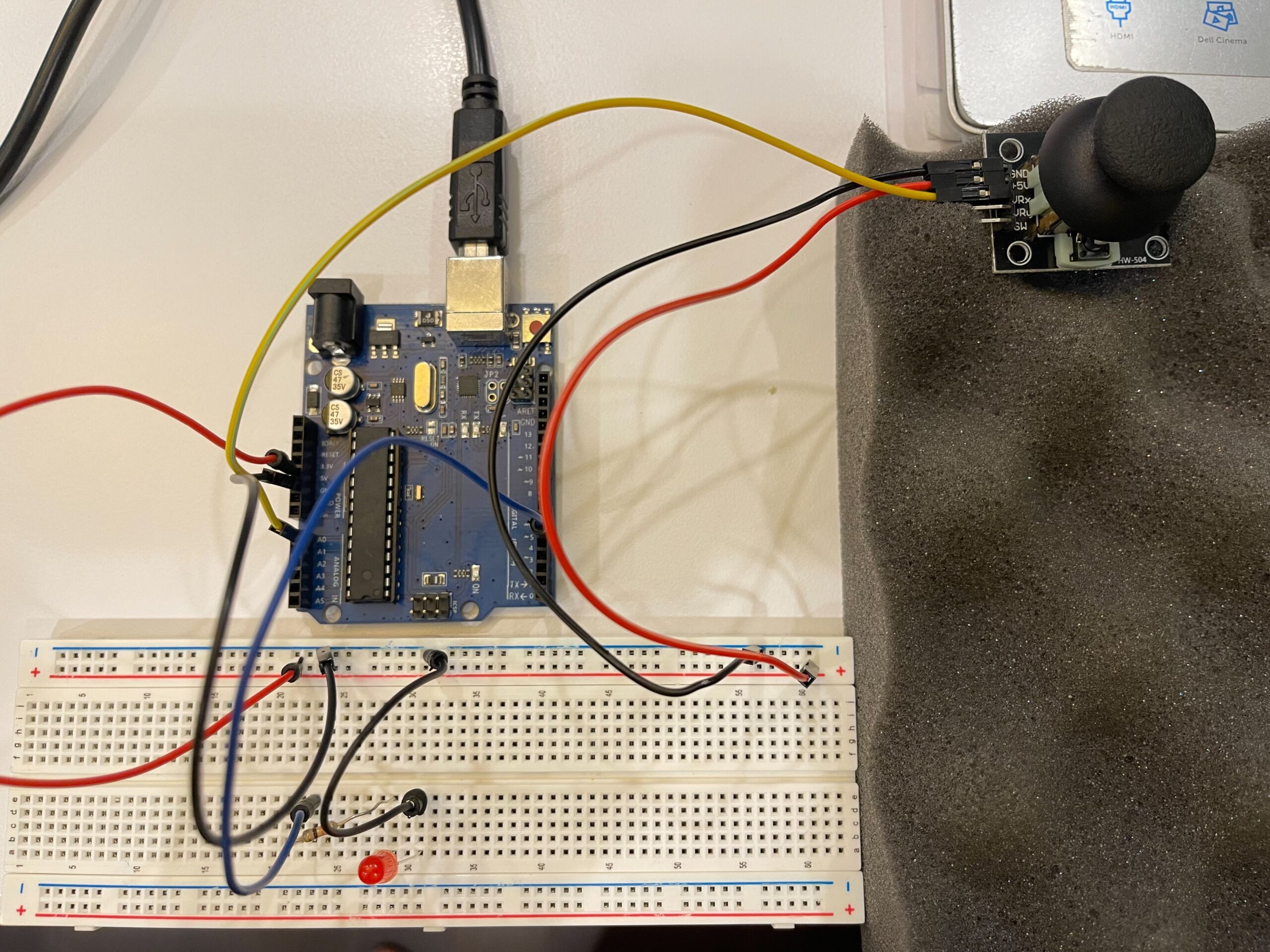
In this exercise, we extended our work from the previous tasks by implementing bi-directional communication between Arduino and p5.js. The goal was to use an analog sensor to control the wind force in a physics simulation, and at the same time send data back from p5 to Arduino to control an LED.

We started from the gravity and wind example provided in class and kept the structure mostly unchanged. Instead of using keyboard input to control the wind direction, we replaced it with a joystick connected to Arduino. The horizontal axis of the joystick was read using analogRead() and sent to p5 through serial communication.

On the p5 side, the incoming value was read using port.readUntil(“\n”), then converted into an integer. We mapped this value to a range between -1 and 1, which was used as the horizontal wind force. As a result, moving the joystick left or right directly influenced the movement of the ball in the simulation.

To complete the bi-directional interaction, we added a simple condition in p5 to detect when the ball bounces on the ground. Whenever a bounce occurs, p5 sends a value back to Arduino. On the Arduino side, this value is read using Serial.parseInt(), and the LED is turned on or off accordingly.

This allowed us to create a system where Arduino sends sensor data to p5, and p5 responds by sending control signals back to Arduino.

What We Learned:

* How to implement bi-directional serial communication
* How to use an analog sensor (joystick) to control a physics simulation
* How to send control signals from p5 back to Arduino
* How physical and digital systems can interact in both directions

Code I’m Proud Of:

One part we are particularly satisfied with is how the system detects a meaningful bounce and avoids triggering unnecessary signals.

p5.js (bounce detection + sending data)

let bounced = 0;
  let floorY = height - mass / 2;

  // bottom bounce
  if (position.y > floorY) {
    position.y = floorY;

    if (velocity.y > 2) {
      velocity.y *= -0.9;
      bounced = 1;
    } else {
      velocity.y = 0;
    }
  }

  // send LED state back to Arduino
  if (port.opened()) {
    port.write(bounced + "\n");
  }

This section is important because it defines what counts as a “real” bounce. By using a velocity threshold, we ensure that only stronger impacts trigger the LED, while small movements at the ground are ignored.

Arduino (receiving and controlling LED)

int ledState = Serial.parseInt();

    if (Serial.read() == '\n') {
      digitalWrite(ledPin, ledState);
    }

This part connects the digital signal from p5 to a physical output. It shows how a simple value sent through serial communication can directly control hardware.

Challenges:

One issue we encountered was that the LED flickered rapidly when the ball reached the ground. Even though the ball appeared to be at rest, the system continued to detect small movements due to gravity and drag.

At first, this made the LED stay on or flicker continuously, which was not the intended behavior.

To solve this, we introduced a simple velocity threshold. Instead of triggering a bounce whenever the ball touched the ground, we only considered it a valid bounce when the downward velocity was greater than a certain value. After testing, we found that using a condition of velocity.y > 2 provided a stable and clear result.

This helped us better understand how physics simulations can produce small continuous movements, and why additional conditions are sometimes needed to define meaningful events.

Future Improvements:

If we were to continue developing this project, we would consider:

* Adding a dead zone to the joystick to reduce unwanted drift
* Using both axes of the joystick to control more complex motion
* Adding more LEDs or outputs to represent different events
* Improving the visual feedback to better match the physical response


Reference:

https://youtu.be/6LkqhQ1-vJc?si=E_jhX4XUAnMQBCrY

https://youtu.be/pD2JUNUWJGU?si=xgiGR7X3Bhdkyi6W

Week 11 Ex02 P5 to Arduino Communication


Github:

https://github.com/skyorachorn/Intro-to-IM/blob/0f3767a9cc4fe21946d8b84a76a020a09abacbbd/Ex02_P5_to_Arduino_Com.ino


Youtube:

https://youtu.be/BT8Y9AafPIk?si=77WJciHPNwpz8n2J


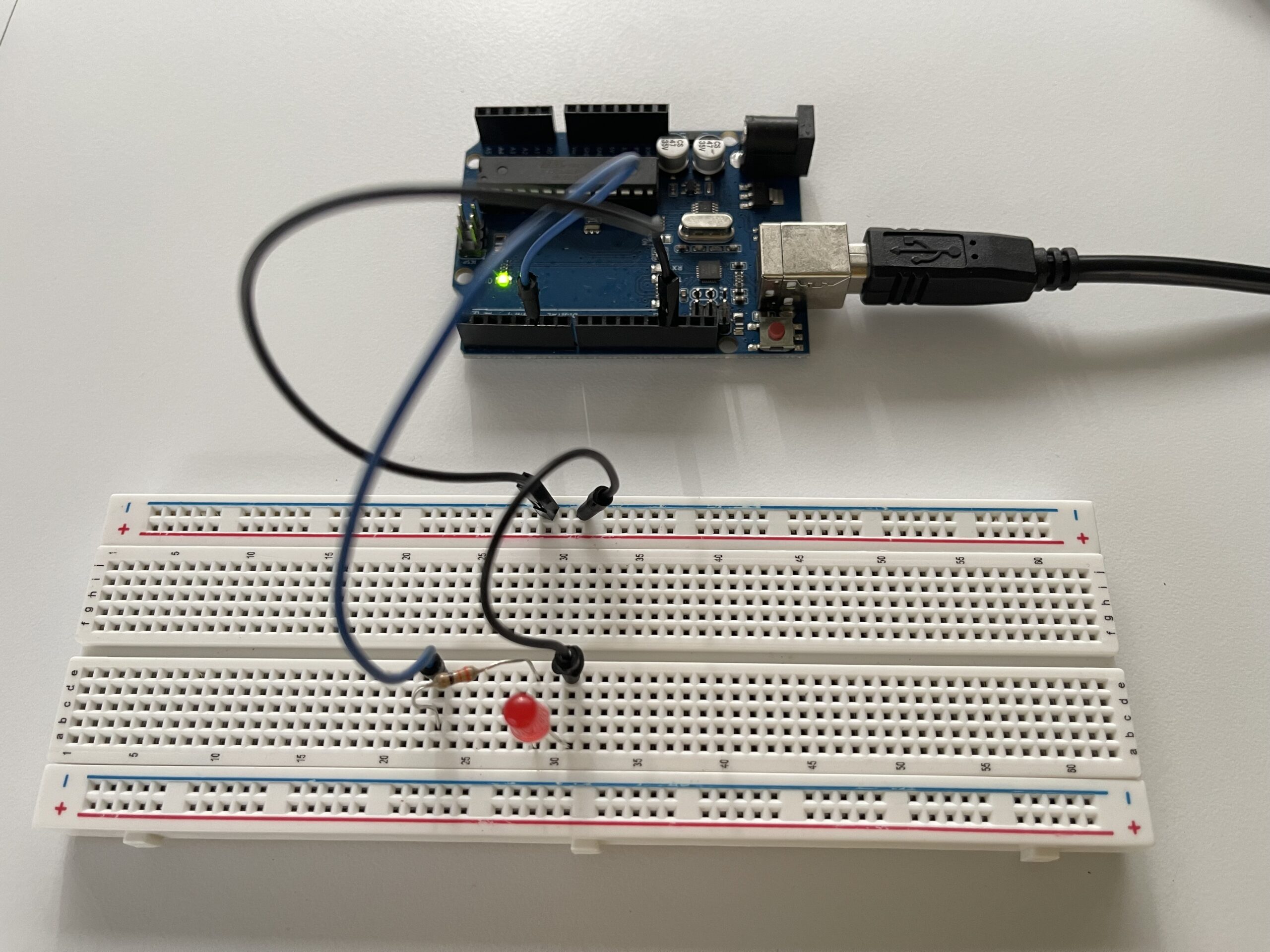
Picture of Circuit:

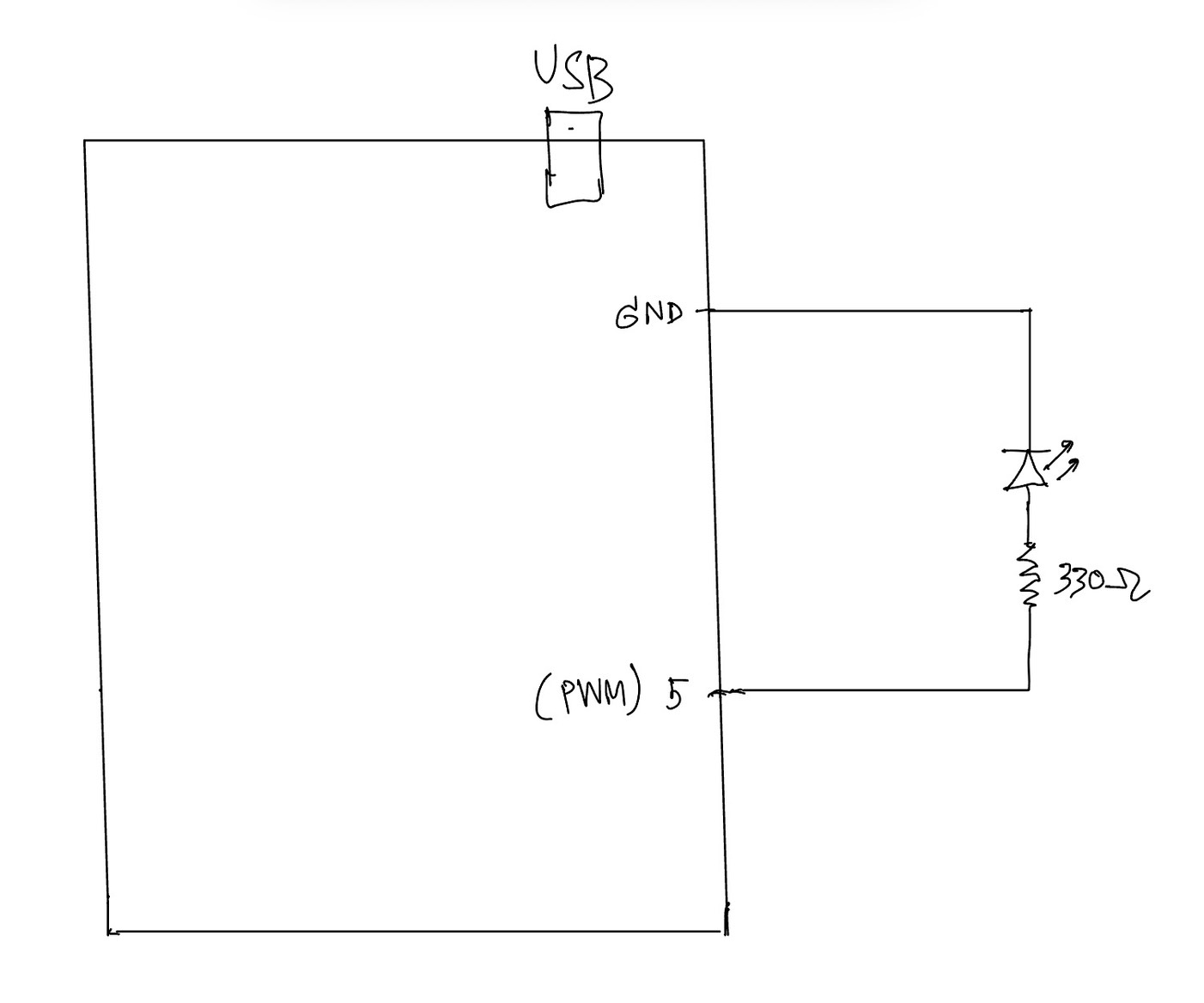
Hand Written Diagram:

In this exercise, we explored serial communication in the opposite direction, from p5.js to Arduino. The main objective was to control the brightness of an LED on Arduino using an interaction created in p5.

We again started from the class example and kept the overall structure close to what was introduced by professor Aya. However, for this exercise, we simplified the communication so that p5 sends only one value instead of multiple values. This made it easier to focus on the main idea of sending data from the browser to Arduino.

On the p5 side, we used the p5.webserial library and the same button-based connection method as in the previous exercise. Once the serial connection is opened, p5 continuously sends a brightness value based on the horizontal position of the mouse. This value is mapped into a range between 0 and 255, which matches the range used by analogWrite() on Arduino.

On the Arduino side, we used Serial.parseInt() to read the incoming integer sent from p5. After checking for the newline character \n, the value is applied to an LED connected to a PWM pin. This allows the LED to gradually brighten or dim instead of simply turning on and off.

This exercise helped us better understand how p5 can be used not only to receive data from Arduino, but also to actively control physical outputs on the hardware side. Compared to Exercise 01, this made the communication feel more interactive because the browser was no longer only displaying data, but also sending instructions back to Arduino.

Through this process, we gained a clearer understanding of how serial data can be used to control physical output in real time, and how important it is for both the code structure and the wiring to match the intended behavior.

What We Learned:

* How to send data from p5.js to Arduino through serial communication
* How to use Serial.parseInt() on the Arduino side
* How to control LED brightness with analogWrite()
* How browser-based interaction can directly affect hardware output

Code I’m Proud Of:

One part we are particularly satisfied with is how the p5 sketch and Arduino sketch work together to control LED brightness in real time. This section clearly shows how a visual interaction in the browser becomes a physical output on the Arduino side.

p5.js (sending brightness value)

let brightness = int(map(mouseX, 0, width, 0, 255));
  brightness = constrain(brightness, 0, 255);

  // show the current value on screen
  fill(brightness);
  rect(100, 150, 200, 100);

  fill(0);
  textSize(16);
  text("Brightness: " + brightness, 120, 130);

  if (port.opened()) {
    port.write(brightness + "\n");
  }

This part is meaningful because it translates a simple mouse movement into a numerical value that can be understood by Arduino. It also helped us see how p5 can act as the controlling side of the communication.

Arduino (receiving + controlling LED)

int brightness = Serial.parseInt();

    if (Serial.read() == '\n') {
      analogWrite(ledPin, brightness);
    }

We found this section especially important because it shows how Arduino receives a value from p5, processes it, and immediately applies it to a physical output. In this case, the output is the LED brightness controlled through PWM.

Problems We Encountered:

One issue we encountered was that the LED did not appear to brighten or dim smoothly at first. Even though the value on the p5 side was clearly changing, the LED response did not look correct. After checking both the code and the circuit, we realized that the LED needed to be connected to a PWM pin in order for analogWrite() to work as expected. Once we moved the LED to the correct pin, the brightness control became much more visible.

Another thing we paid attention to was keeping the communication format simple. Since this exercise only required brightness control, we kept the message to a single value followed by a newline character. This made the program easier to understand and reduced confusion while testing.

Future Improvements:

If we were to continue developing this exercise, we would consider:

* Replacing mouse control with a more interesting p5 interaction, such as dragging, key presses, or etc.
* Adding multiple LEDs and sending more than one value from p5
* Expanding the system into bi-directional communication so Arduino could also send sensor data back to p5
* Improving the visual design in p5 so that the screen feedback more closely matches the physical LED behavior

Week 11 Ex01 Arduino to P5 Communication

Github:

https://github.com/skyorachorn/Intro-to-IM/blob/38f5a920179feadd602c862571956198fbb9e0cf/Ex01_Arduino_to_P5_Com.ino


Youtube:

https://youtu.be/dvRseX6c4VU?si=mKZLcT-Lm9T1LGMQ

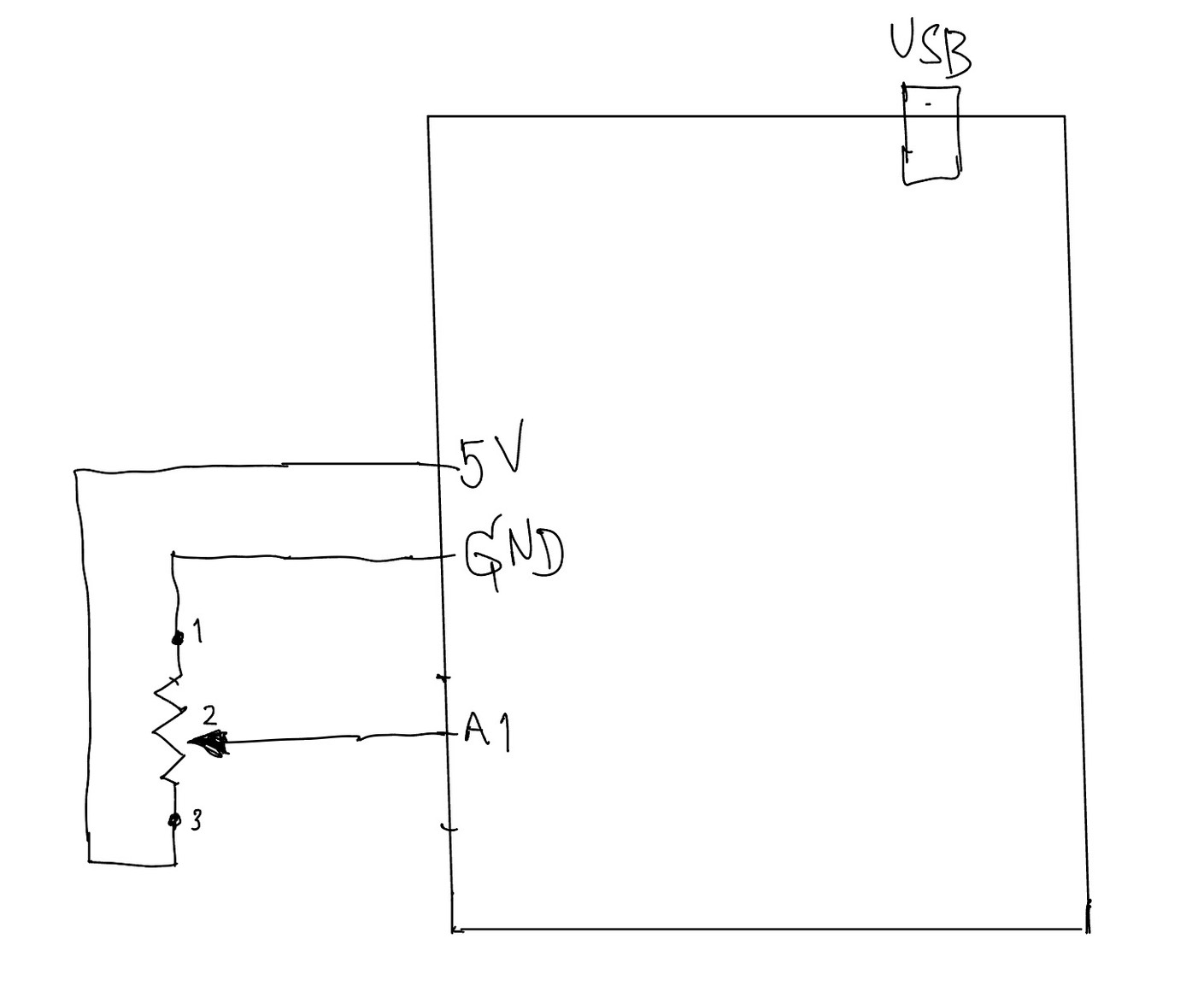
Handwritten Diagram:

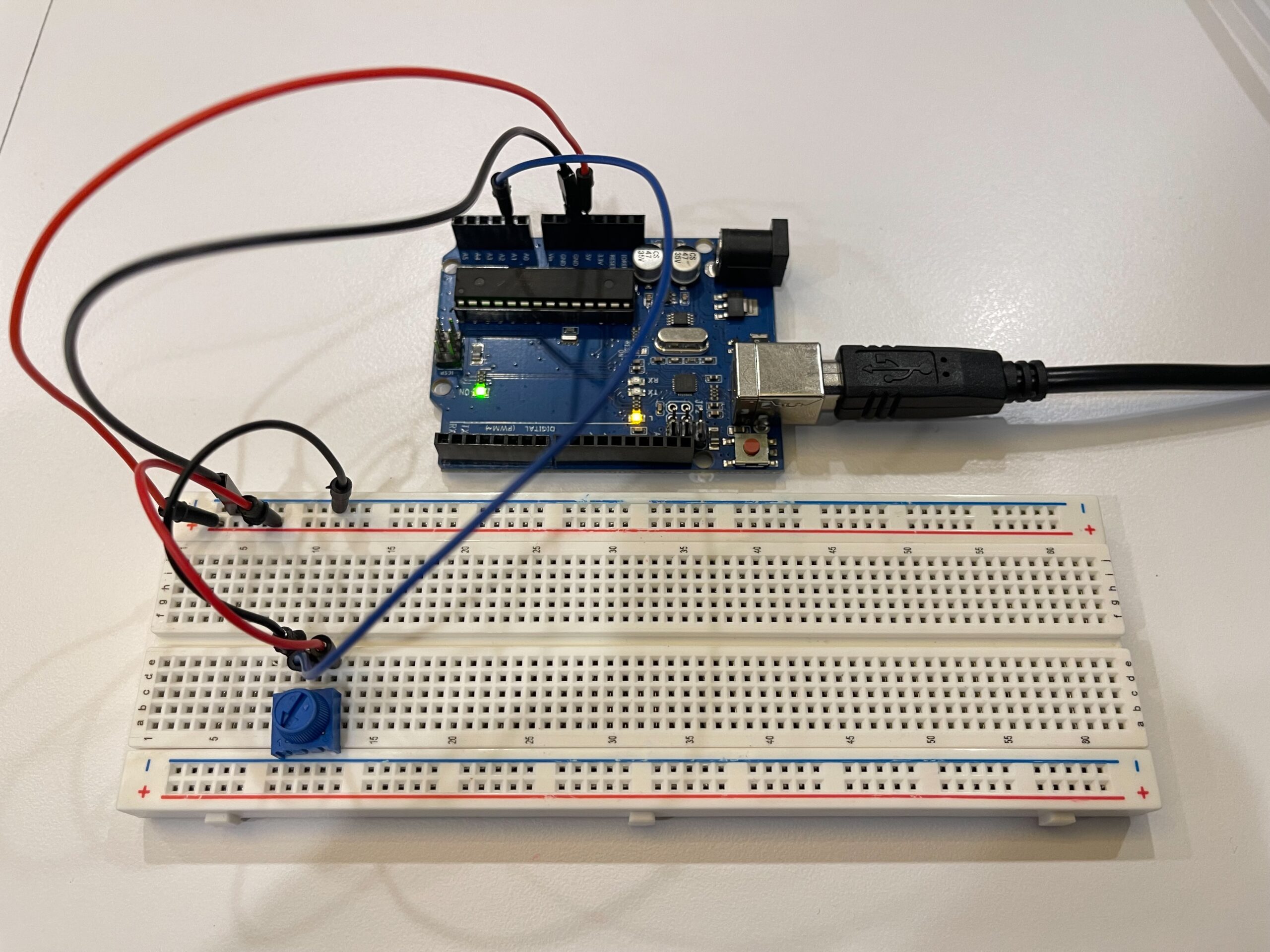
Picture of Circuit:

In this exercise, we explored serial communication between Arduino and p5.js. The main objective was to use a single sensor on Arduino and translate its input into visual movement in p5, specifically controlling an ellipse moving horizontally across the screen.

We began by following the example demonstrated in class and gradually adapted it to better understand the data flow. On the Arduino side, we used a potentiometer as an analog input. The sensor value (0–1023) was mapped to a smaller range (0–255) before being sent through the serial port using Serial.println(). This ensured that the data could be easily interpreted on the p5 side.

For p5.js, we adopted the structure introduced by professor Aya using the p5.webserial library. The connection process is handled through a button (connectBtn), and the serial port is opened using port.open(baudrate). This approach helped us clearly understand how communication between Arduino and the browser is initiated manually rather than automatically.

Inside the draw() loop, we used port.readUntil(“\n”) to read incoming serial data line by line. The received string is then cleaned and converted into a number using trim() and int(). We then used map() to convert this value into a position across the canvas width. As a result, the ellipse moves smoothly from left to right, and when the input value decreases, it naturally moves back from right to left, creating a responsive and continuous motion.

Through this process, we gained a clearer understanding of how physical input can directly influence digital visuals in real time. It also highlighted the importance of consistent data formatting and timing in serial communication.

What We Learned
• How to send analog data from Arduino using Serial.println()
• How to receive and interpret serial data in p5.js
• How to map sensor values into visual output
• How hardware and software can interact in real time

Code I’m Proud Of

One part we are particularly satisfied with is how the sensor data is processed and translated into visual movement. This section demonstrates how raw data from Arduino becomes meaningful interaction in p5.

int potentiometer = analogRead(A1);

 // map the value from 0-1023 to 0-255
 int mappedPotValue = map(potentiometer, 0, 1023, 0, 255);

 // send value to p5 as a string with newline
 Serial.println(mappedPotValue);

This part is important because it simplifies the raw sensor data into a range that is easier to use on the p5 side.

let str = port.readUntil("\n");

if (str.length > 0) {
  let val = int(trim(str));   // convert string → number

  // map value to screen position
  x = map(val, 0, 255, 0, width);
}

We found this section especially meaningful because it clearly shows the full pipeline: sensor → serial → processing → visual output.

Future Improvements

If we were to continue developing this project, we would consider:
• Using different sensors such as FSR or ultrasonic sensors for more dynamic interaction
• Adding smoothing to reduce noise in sensor readings
• Expanding the visuals to control multiple elements instead of a single ellipse
• Exploring bi-directional communication between Arduino and p5

Week 10 Mini Piano assignment

Arduino Mini Piano Using FSR Sensors (Analog & Digital Interaction)

Github:

https://github.com/skyorachorn/Intro-to-IM/blob/7363a1a2ac99fb91f95ab5c65de378ffd1688e4b/Week10_Piano_R4_assign.ino


Youtube:

https://youtu.be/HsH6VOBfLoQ?si=giDxkueRMkSCnZ7J


Picture of Mini Piano:


Concept

In this project, we created a simple interactive mini piano using Arduino. The system combines both analog and digital inputs to control LEDs and sound output. The main goal was to explore how analog sensor data can be translated into both visual and auditory feedback in a way that feels responsive and engaging.

The project brings together multiple components working at the same time:

  • Analog input through Force Sensitive Resistors (FSRs)
  • Digital input using a switch for overall control
  • Analog output through a PWM-controlled LED for brightness variation
  • Digital output using a red LED and a buzzer for clear feedback

Each FSR functions like a piano key. When pressure is applied, it changes the resistance, which affects the analog value being read. This value is then used to control both the pitch of the sound from the buzzer and the brightness of the LED, making the interaction feel more dynamic depending on how hard the user presses.

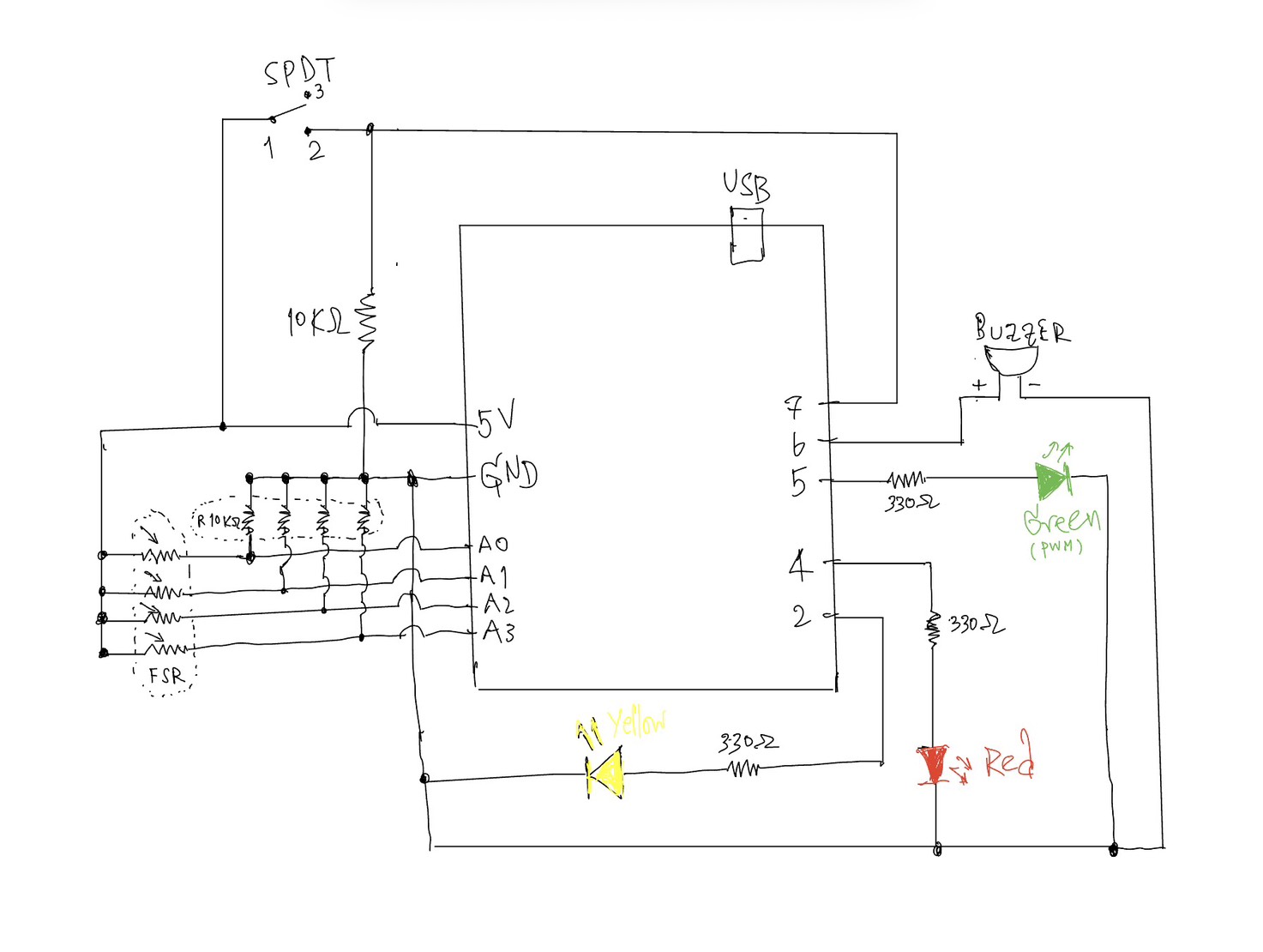
All FSRs are connected using a voltage divider with a 10kΩ resistor, and their values are read through analog pins A0 to A3. The system also includes several indicators:

  • The yellow LED shows when the system is turned on
  • The green LED represents the analog output, adjusting brightness based on input
  • The red LED lights up when a stronger pressure threshold is reached
  • The buzzer produces sound corresponding to the input
  • The switch acts as the main ON/OFF control

Circuit Design:

Each FSR is connected using a voltage divider with a 10kΩ resistor. The analog values are read from pins A0–A3.
• Yellow LED → System ON indicator
• Green LED → Analog output (PWM brightness)
• Red LED → Hard press indicator
• Buzzer → Sound output
• Switch → Turns system ON/OFF

The switch is connected with a 10kΩ pull-down resistor to ensure a stable digital input.

How It Works:

The system starts by checking the switch. When it is OFF, everything stays inactive, so no LEDs light up, and no sound is played. Once the switch is turned ON, the yellow LED lights up to show that the system is active, and the Arduino begins reading the values from all the FSR sensors. It then compares these readings to figure out which sensor is being pressed the most. Based on how much pressure is applied, the input is grouped into three levels: light, medium, and hard. Each level is mapped to a different note, where a lighter press produces a lower pitch and a stronger press produces a higher pitch. At the same time, the outputs respond to these changes. The green LED adjusts its brightness using PWM depending on the pressure, the red LED turns on when a strong press is detected, and the buzzer plays the corresponding note.

Tinkercad Link | Demo | Code


1. When the switch is OFF:
• All LEDs are off
• No sound is played
2. When the switch is ON:
• Yellow LED turns on
• Arduino reads all FSR values
3. The system finds the strongest pressed sensor
4. The pressure is divided into 3 levels:
• Light
• Medium
• Hard
5. Each level maps to a different note:
• Lower pressure → lower pitch
• Higher pressure → higher pitch
6. Outputs:
• Green LED brightness changes (analog)
• Red LED turns on if pressure is high
• Buzzer plays the corresponding note

Smoothing & Timing:

To improve stability:
• Sensor readings are averaged to reduce noise
• A smoothing formula is used:

smoothed = (old * 3 + new) / 4, which corresponds to 75% of the previous value and 25% of the new reading.

• millis() is used instead of delay() to control reading intervals (~8ms)

This allows continuous sensor reading without blocking the program.

Interaction Design:

This project demonstrates:
• Continuous analog interaction (pressure → brightness + sound)
• Discrete digital interaction (switch ON/OFF, red LED threshold)
• Real-time responsiveness using non-blocking timing

Code highlight:

This section of the code is the one I am most proud of, because it shows how analog input from the FSR sensors can be translated into both sound and LED behavior in real time.

// ---------- Find strongest press ----------
int strongestIndex = 0;
int strongestValue = smoothVals[0];

for (int i = 1; i < 4; i++) {
  if (smoothVals[i] > strongestValue) {
    strongestValue = smoothVals[i];
    strongestIndex = i;
  }
}

// ---------- No press ----------
if (strongestValue < PRESS_THRESHOLD) {

  analogWrite(GREEN_LED, 0);      // green LED off
  digitalWrite(RED_LED, LOW);     // red LED off
  noTone(BUZZER);                 // stop sound
  currentNote = 0;                // reset note

  return;
}

// ---------- Determine pressure level ----------
int level;

if (strongestValue <= LEVEL_1_MAX) {
  level = 0;   // light press
} 
else if (strongestValue <= LEVEL_2_MAX) {
  level = 1;   // medium press
} 
else {
  level = 2;   // hard press
}

// ---------- Select note ----------
int nextNote = NOTES[strongestIndex][level];

// ---------- Play sound ----------
if (nextNote != currentNote) {
  tone(BUZZER, nextNote);   // play note
  currentNote = nextNote;   // update
}

// ---------- Analog output (PWM LED) ----------
int clipped = constrain(strongestValue, PRESS_THRESHOLD, MAX_PRESS);  // limit range
int brightness = map(clipped, PRESS_THRESHOLD, MAX_PRESS, 0, 255);    // map to PWM
analogWrite(GREEN_LED, brightness);   // set brightness

// ---------- Red LED (hard press) ----------
if (strongestValue > HARD_THRESHOLD) {
  digitalWrite(RED_LED, HIGH);   // turn on red LED
} else {
  digitalWrite(RED_LED, LOW);    // turn off red LED
}

Reflection

We both thought about adding a piano-like element to our Arduino for this week’s project, so we then decided to move forward with that idea. It was really interesting to see how different inputs could change the sound and how that made the interaction feel more alive. Instead of just having one tone, being able to play different pitches made it feel more responsive and a bit more like an actual instrument.

We really enjoyed the whole process and how the project turned out. Setting up the code in Arduino and Tinkercad helped us see how the system fits together step by step. It was also fun to be able to actually try it out after, since we could clearly see and hear how our inputs directly affected the output.

Overall, this project gave us a better sense of how input values can be interpreted and used in different ways. It made us more aware of how even simple changes in input can lead to noticeable differences in how a system responds. Because of this, we would definitely consider integrating sound into our future projects as well.

Future Improvements:

There are several possible improvements for this project.

1) each FSR could have its own LED instead of using a single shared LED. This would provide clearer visual feedback for each key and make the interaction more intuitive.

2) the sound quality could be improved by using a better speaker module instead of a basic buzzer, which would produce a richer and more musical output.

3) the system could be expanded to support more notes or a full musical scale, allowing more complex songs to be played.

Conclusion:

This project shows how simple components like FSR sensors can create an interactive musical instrument. By combining analog and digital inputs and outputs, we can design expressive and responsive interfaces.

References:
• Arduino Documentation
https://www.arduino.cc/reference/en/
• Analog Input Tutorial
https://www.arduino.cc/en/Tutorial/BuiltInExamples/AnalogInput
• PWM (analogWrite)
https://www.arduino.cc/en/Tutorial/PWM
• Voltage Divider Explanation
https://learn.sparkfun.com/tutorials/voltage-dividers

https://docs.arduino.cc/language-reference/en/functions/time/millis/

https://youtu.be/JZ44h-jy0p4?si=LTeRxI9Gy2SYuQWJ

https://youtu.be/QYYigxRwXfc?si=fmBr9DmXWSOYV1rm

https://youtu.be/CvZ-SGJ8fGo?si=kRXJ7upESpJA1Qsh


Reading Response- Week 10 reflection A Brief Rant

In reading A Brief Rant on the Future of Interaction Design, I liked the author’s argument that current “visions of the future” are not truly innovative but instead reinforces a limited interaction entered on “pictures under glass”. This challenged my previous assumption that modern touchscreens represent cutting-edge interaction design. I always thought sleek, minimal interfaces with progress, but the reading made me realize that these designs may actually ignore a fundamental aspect of human capability being our sense of touch. The passage describing how hands “feel things and manipulate things” (page 4) resonated with me because it reframed interaction not as something just purely visual, but as something deeply understood. Reflecting from my own experience especially using devices for creative work such as  music or design so I now notice how limited these interactions feel compared to real-world engagement. This raises an important question for me which is Why does mainstream design continue to prioritize visual aesthetics over sensory cues? Even when it contradicts how humans naturally interact with the world.

At the same time, this reading expanded my understanding of what “innovation” in interaction design actually means. The author highlights on human capabilities, rather than just needs or technology, shifted my perspective toward a more human-centered framework. I found the example of hands performing more complex, such as intuitively opening a jar or making a sandwich. This is powerful evidence because it illustrates how sophisticated human interaction already is without digital mediation (page 8). This connects to my own work in interactive media, where I often think about how to make projects more engaging, yet I realize I have mostly relied on screens and visual outputs. The reading makes me question whether I am unconsciously limiting my designs by staying within familiar digital conventions. It also challenges me to think more ambitious way. As the author argues, then designers like myself have a responsibility to explore interfaces that incorporate touch, movement, and the full body.

Sky Orachorn- Week 10 Reading Reflection A Brief Rant on the future

Response A brief Rant on the Future

Reading Responses: A Brief Rant on the Future of Interaction Design made me rethink that my initial interpretation of the original word rant stood out as I think the author’s deliberate refusal to provide a clear solution, emphasizing instead that identifying the problem is a necessary first step toward meaningful innovation. At first, I found this frustrating because I tend to expect readings especially in terms of design to propose directions. This discomfort actually revealed an assumption I hold which is that good design thinking must always be solution-oriented. As the author challenges this by suggesting that premature solutions can limit imagination and that real breakthroughs actually come from long-term research driven by awareness and curiosity. This made me question my own approach in interactive media projects, where I often rush to “make something” rather than sit with the problem deeply. It raises an important question for me whether am I prioritizing productivity over genuinely understanding the limitations of current interaction algorithms?

Another idea that sparked my interest was the critique of alternative interaction methods such as voice, gesture, and even brain interfaces. The author argues that many of these still fail to match the richness of embodied interaction, particularly the role of the hands in creating and understanding spatial systems (page 2). This resonates with my own experience using voice assistants or gesture-based controls which feels convenient but rarely intuitive for more complex tasks. I found the comparison between adult tools and children’s “toys” (page 3) especially provocative, as it suggests that simplifying interaction to a single finger may actually reduce human capability rather than enhance it  . This connects directly to my current practice in digital design, where I rely heavily on screens and touch inputs. The reading encourages me think more critically about whether my work reinforces this limitation or challenges it. Ultimately, I now see interaction design not just as making interfaces easier, but as expanding what humans can do and this shift in perspective feels both challenging and motivating.

Week 9 – Analog Input & Output

https://github.com/skyorachorn/Intro-to-IM/blob/ddfcc6119f307d6458bb64e60c8dc3e2593dbedd/W9_Poten_SW_BZ_3LEDsAssign.ino

VDO:

https://youtu.be/dxPHEA3eniM?si=DXep_sax1CEpxgOV

Hand-Drawn Schematic:


Arduino Analog & Digital Interaction Project

Concept:

This project explores the use of both analog and digital inputs in Arduino by combining a potentiometer and a switch to control multiple outputs in a meaningful way. The goal was to clearly demonstrate the difference between discrete digital control (on/off) and analog control (gradual change) through LEDs and a buzzer.

The system is designed as a simple “alert level controller.” The switch acts as a master control, while the potentiometer simulates changing intensity levels.

Components Used:
• Arduino UNO
• Potentiometer (10K) – analog sensor
• SPDT Slide switch – digital sensor
• Yellow LED – digital output
• Green LED – analog output (PWM)
• Red LED – warning indicator
• Buzzer
• Resistors (330Ω for LEDs, 10KΩ for switch)
• Breadboard and jumper wires

How It Works:

1. Digital Control (Switch + Yellow LED)

The SPDT slide switch is connected using a resistor (10KΩ).
• When the switch is OFF → the system is inactive and all outputs are off.
• When the switch is ON → the system activates, and the yellow LED turns on.

This demonstrates a digital output(discrete), where the LED is either fully ON or OFF.

2. Analog Control (Potentiometer + Green LED)

Once the system is ON, the potentiometer is used to control the brightness of the green LED.
• The potentiometer outputs a value from 0 to 1023 using analogRead().
• This value is mapped to 0–255 using map() to control LED brightness.
• The green LED gradually becomes brighter as the potentiometer is turned.

This demonstrates an analog output, where brightness changes smoothly instead of instantly.

3. Threshold Behavior (Red LED + Buzzer)

When the potentiometer reaches a high value (above a defined threshold), the system enters a warning state:
• The green LED turns off
• The red LED turns on
• The buzzer starts to sound

This creates a clear transition from a normal state to a warning state, adding a more interactive and creative behavior to the system.

Code I proud of:

if (potValue < THRESHOLD) {
      // analog mode: dimmable green LED
      brightness = map(potValue, 0, THRESHOLD, 0, 255);
      analogWrite(GREEN_LED, brightness);

      digitalWrite(RED_LED, LOW);
      noTone(BUZZER);
    } 
    else {
      // if >= threshold -> green LED off, red LED on, buzzer sounds
      analogWrite(GREEN_LED, 0);
      digitalWrite(RED_LED, HIGH);
      tone(BUZZER, 1000);
    }


Reflection:

This project helped me clearly understand the difference between analog and digital signals in Arduino. The switch provided a stable binary input (HIGH/LOW), while the potentiometer allowed continuous control.

One important concept I learned is the voltage divider, which is used in both the potentiometer and the pull-down resistor setup. It ensures stable and readable input values.

I also learned that analog interaction is not always perfectly linear (as earlier I tried the other sensor like Press Sensor FSR402), which is why the potentiometer was a better choice for demonstrating smooth brightness control.

Overall, this project successfully combines multiple inputs and outputs into a simple but interactive system.

Conclusion:

By combining a digital switch and an analog potentiometer, this project demonstrates:
• Clear digital vs analog behavior
• Smooth LED fading using PWM
• Conditional logic with thresholds
• A simple interactive system design


Reference:

https://youtu.be/pki9sZHdaJ4?si=4ZJ96sHXm9DlFW6K

Reading Reflection- Week 9 Physical Computing’s Greatest Hits

One idea that stood out to me in Physical Computing’s Greatest Hits and misses is the author’s challenge to the assumption that how commonly used project ideas lack originality. Before reading, I often felt that repeating familiar interaction concepts such as sensors, mirrors, or gesture-based inputs was somehow “less creative.” However, the text argues the opposite that recurring themes actually provide a foundation for innovation, since variation and context are what make a project meaningful. This really shifted my perspective on creativity. Instead of just focusing on being completely original, I now see value in how a project frames interaction and meaning. For instance, the discussion of theremin-like instruments highlights how simple gestures (like waving a hand) can feel empty unless they are placed within a meaningful context. This made me reflect on my own projects, where I sometimes prioritize technical implementation over the meaning of interaction. The reading makes me think, am I designing interactions that actually “mean” something to the user, or just demonstrating functionality?

Another idea that I found particularly interesting is the critique of “low-structure interaction,” especially in examples like video mirrors or body-as-cursor systems. The author points out that while these projects are visually appealing, they often lack depth because they only mirror user input without really encouraging intentional or meaningful engagement. This made me rethink what really makes an interactive system successful. I used to assume that responsiveness alone such as tracking movement or generating visuals was enough. But now I realize that interaction design also requires structure, constraints, or a clear “language” of interaction, This connects to the guideline of reflecting critically rather than just describing, because it really challenges my assumption that having more technology = better interaction. But instead, the reading suggests that simplicity with intentional design can be more powerful. It leaves me with an important question: how can I design interactions that guide users toward meaningful experiences, rather than just reacting to their presence?