Week 11 – Arduino and p5 Exercises

Exercise 1

Arduino GitHub File

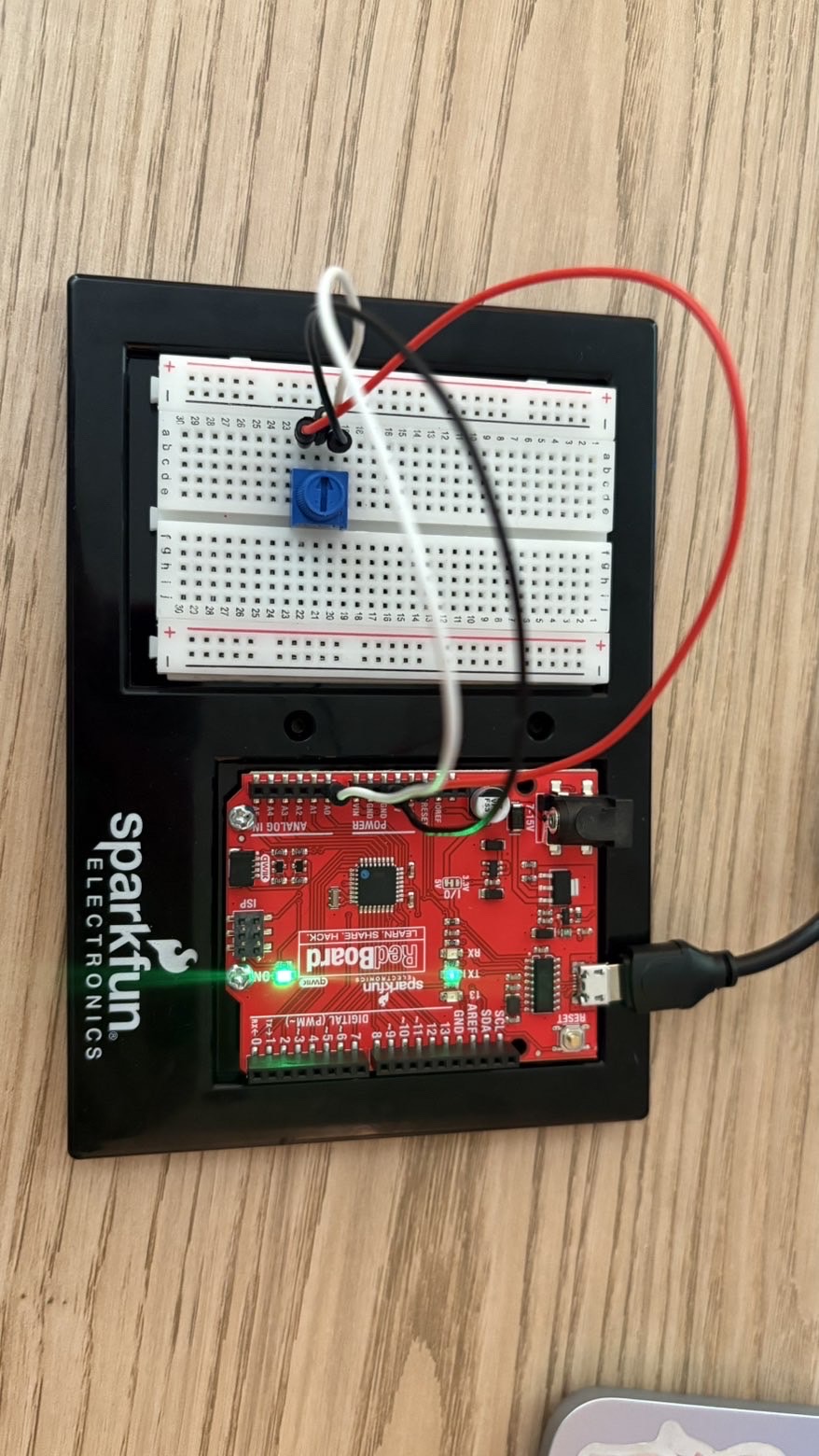
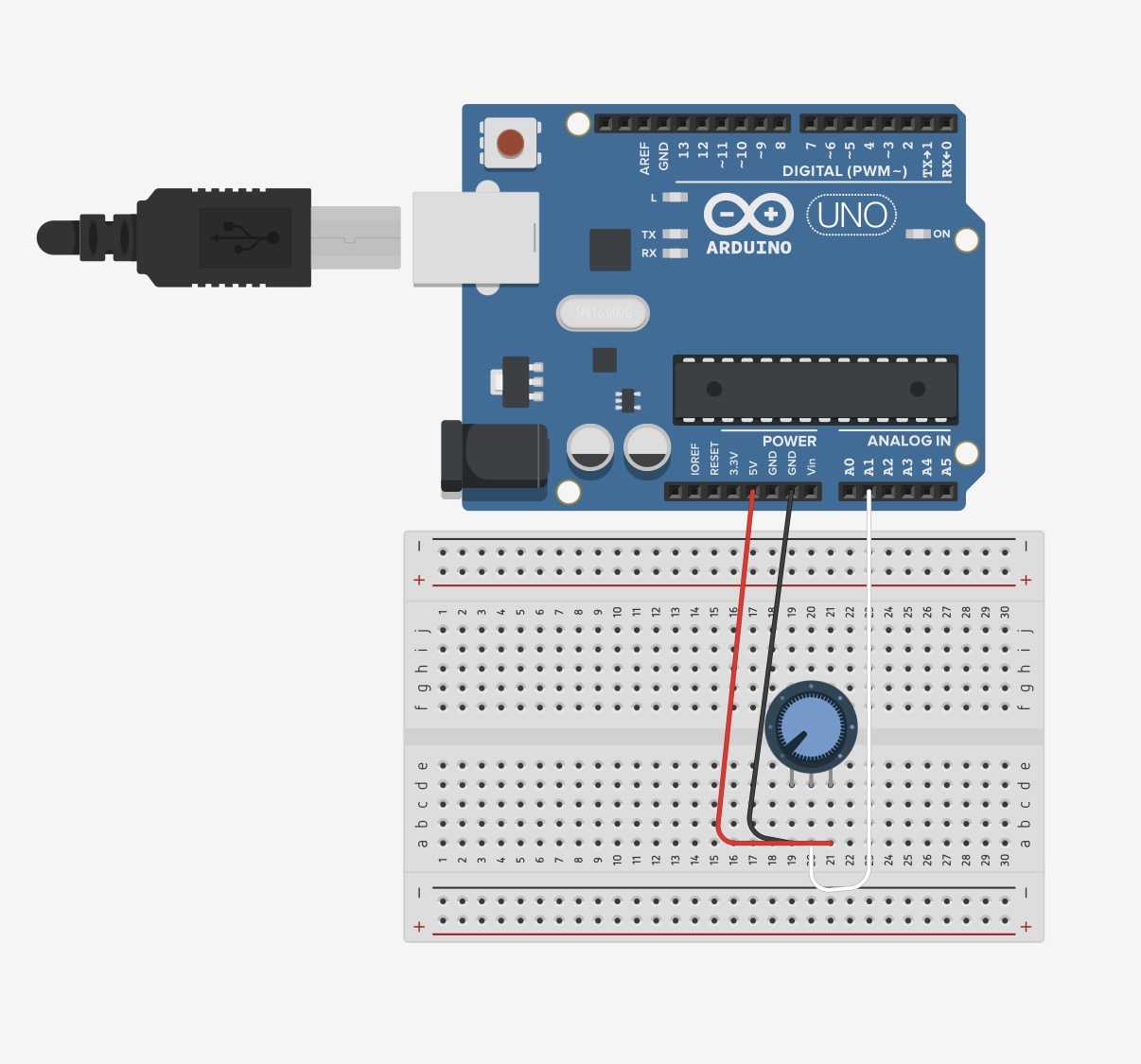
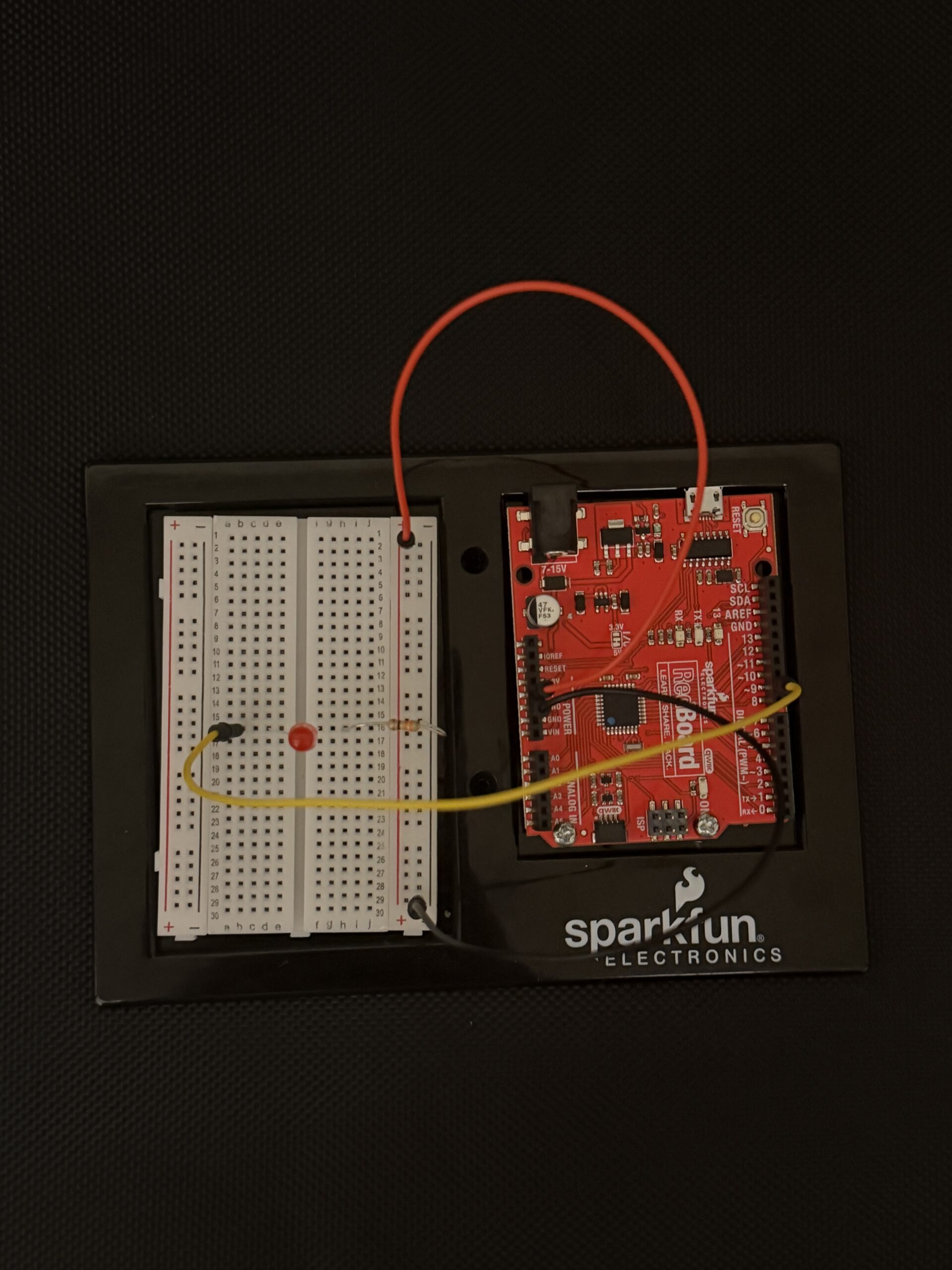
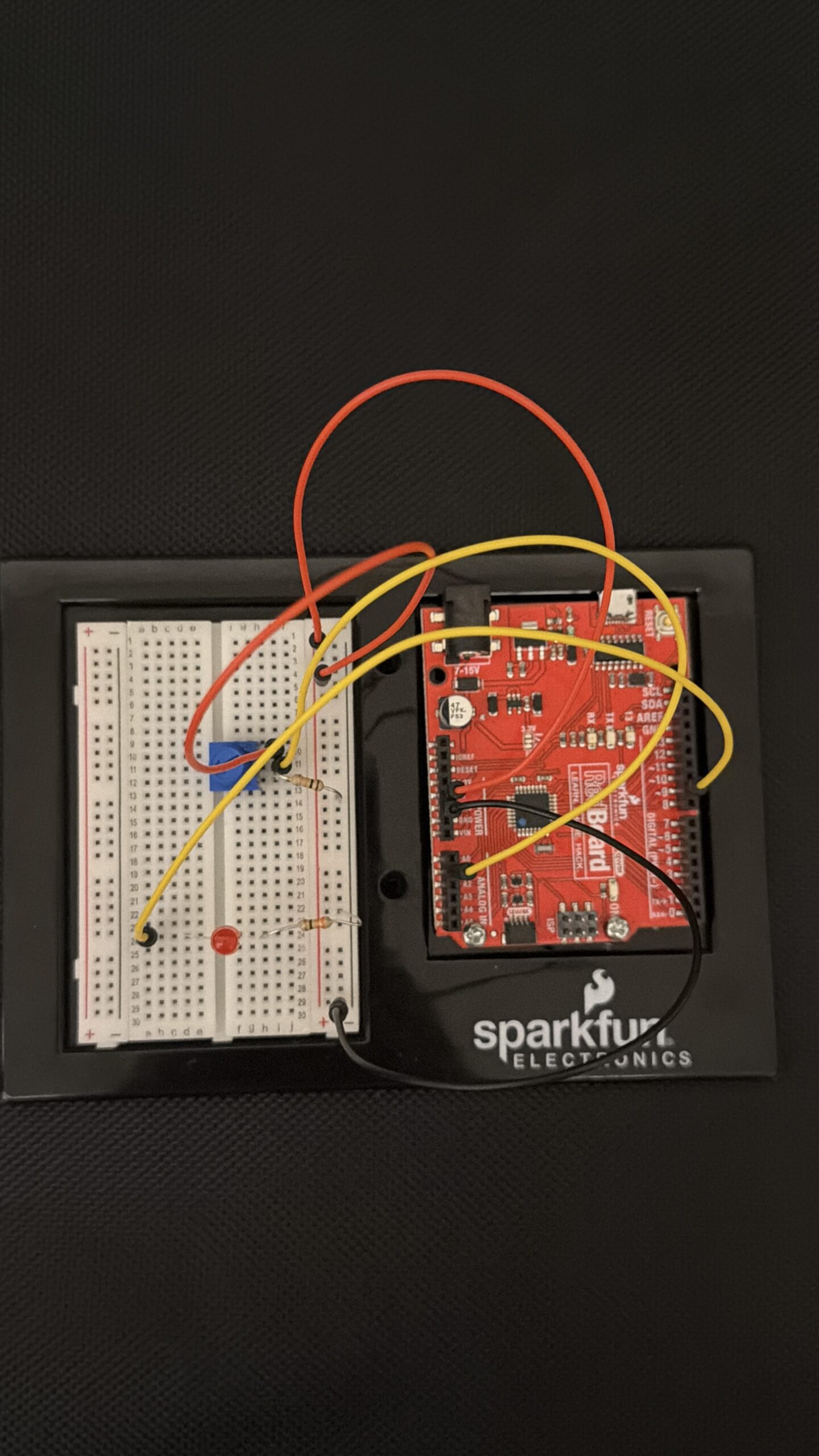
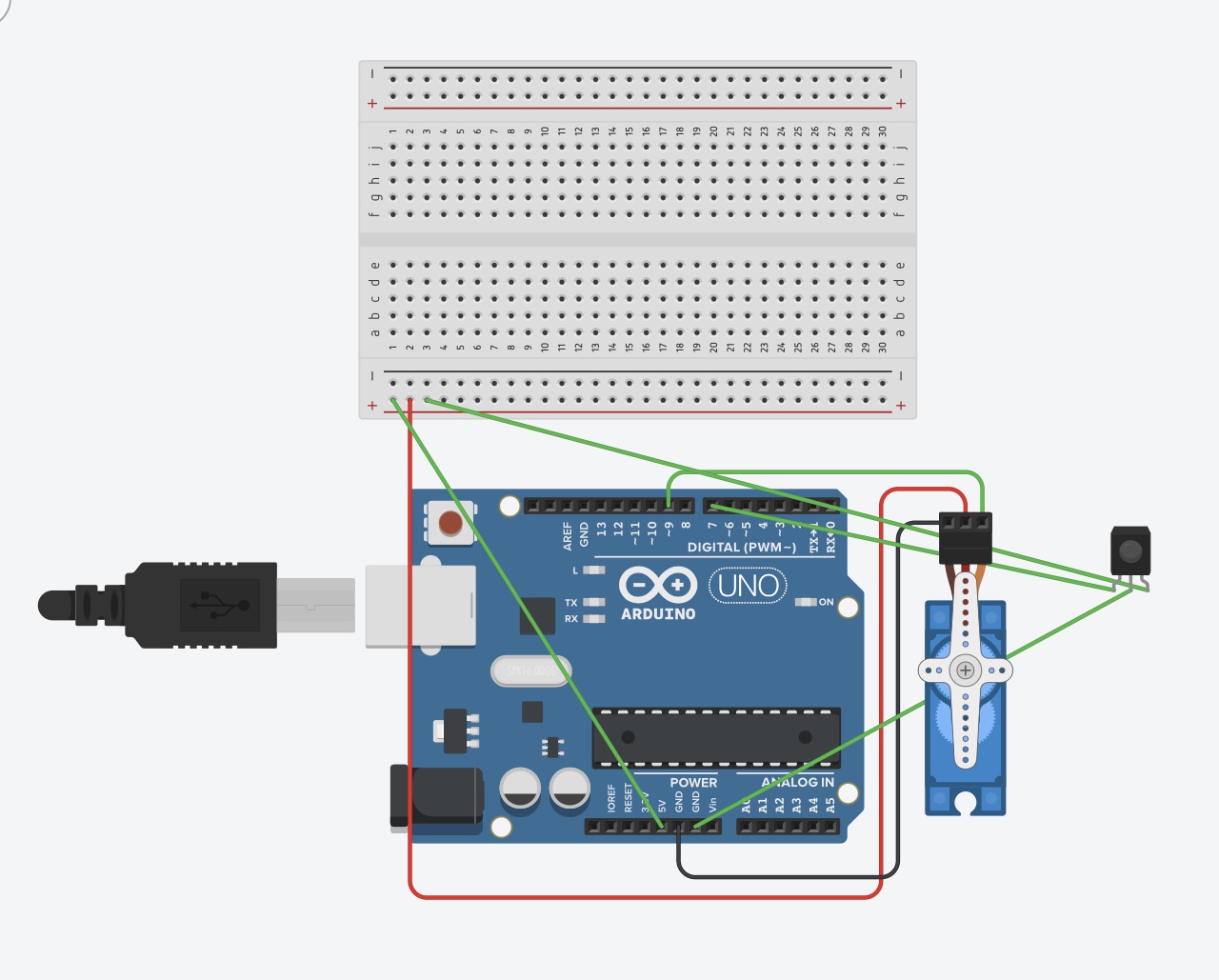
Arduino Set-up:

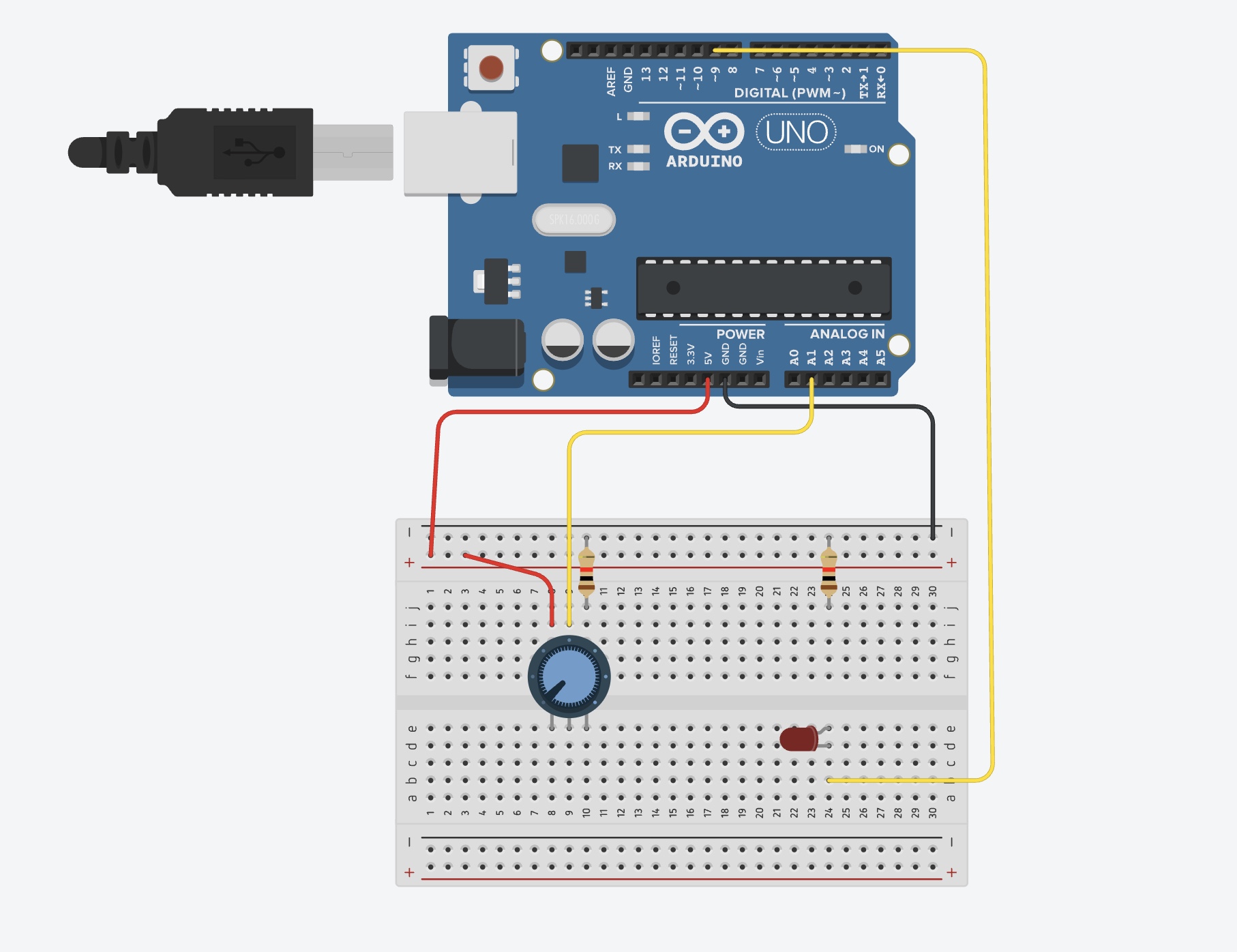
Arduino Illustration:

Project Demo:

A4411AE3-AC1F-4272-AE11-D085ADCABB95

Exercise 2

Arduino GitHub File

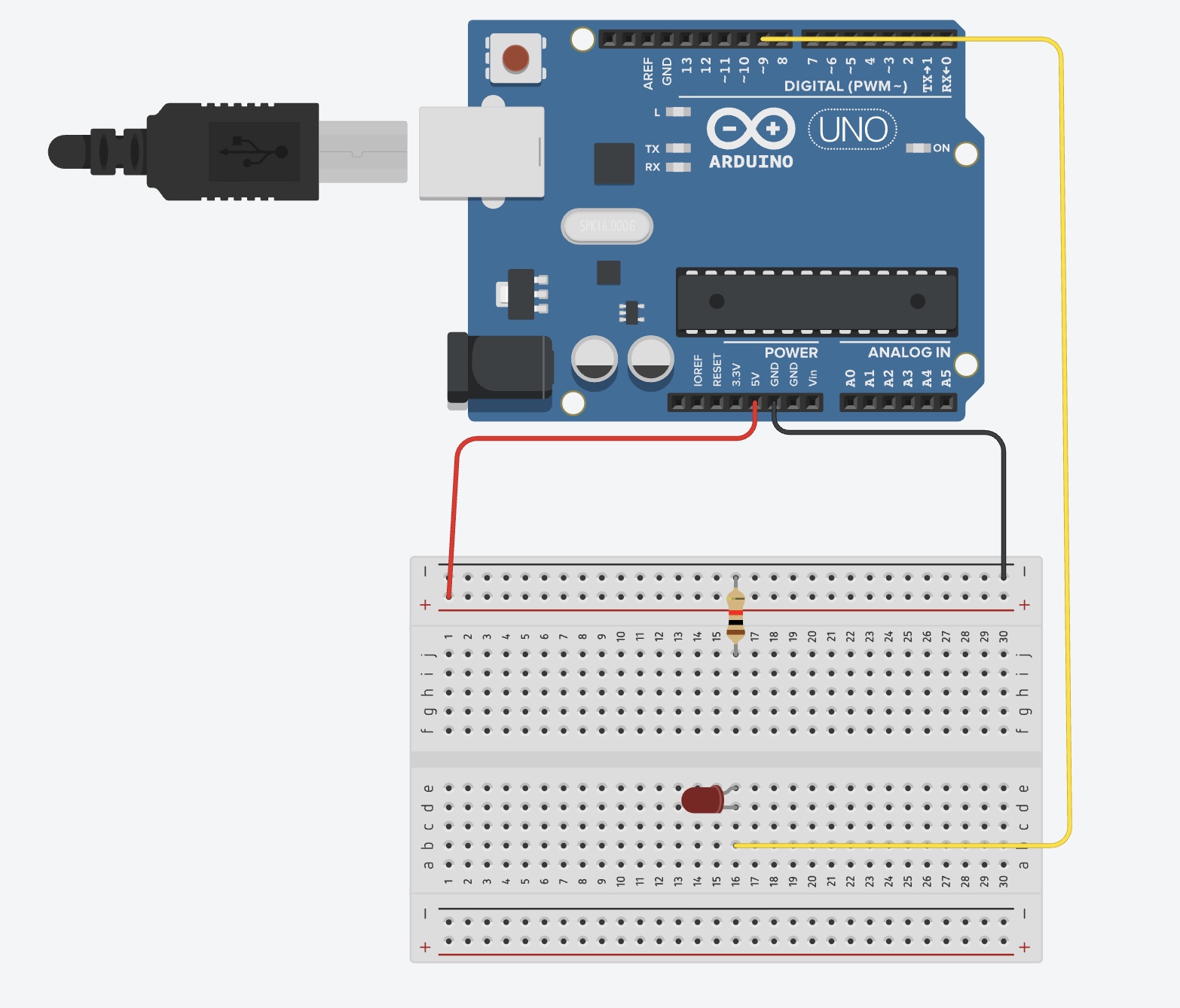
Arduino Set-up:


Arduino Illustration:

Project Demo:

IMG_1122

Exercise 3

Arduino GitHub File

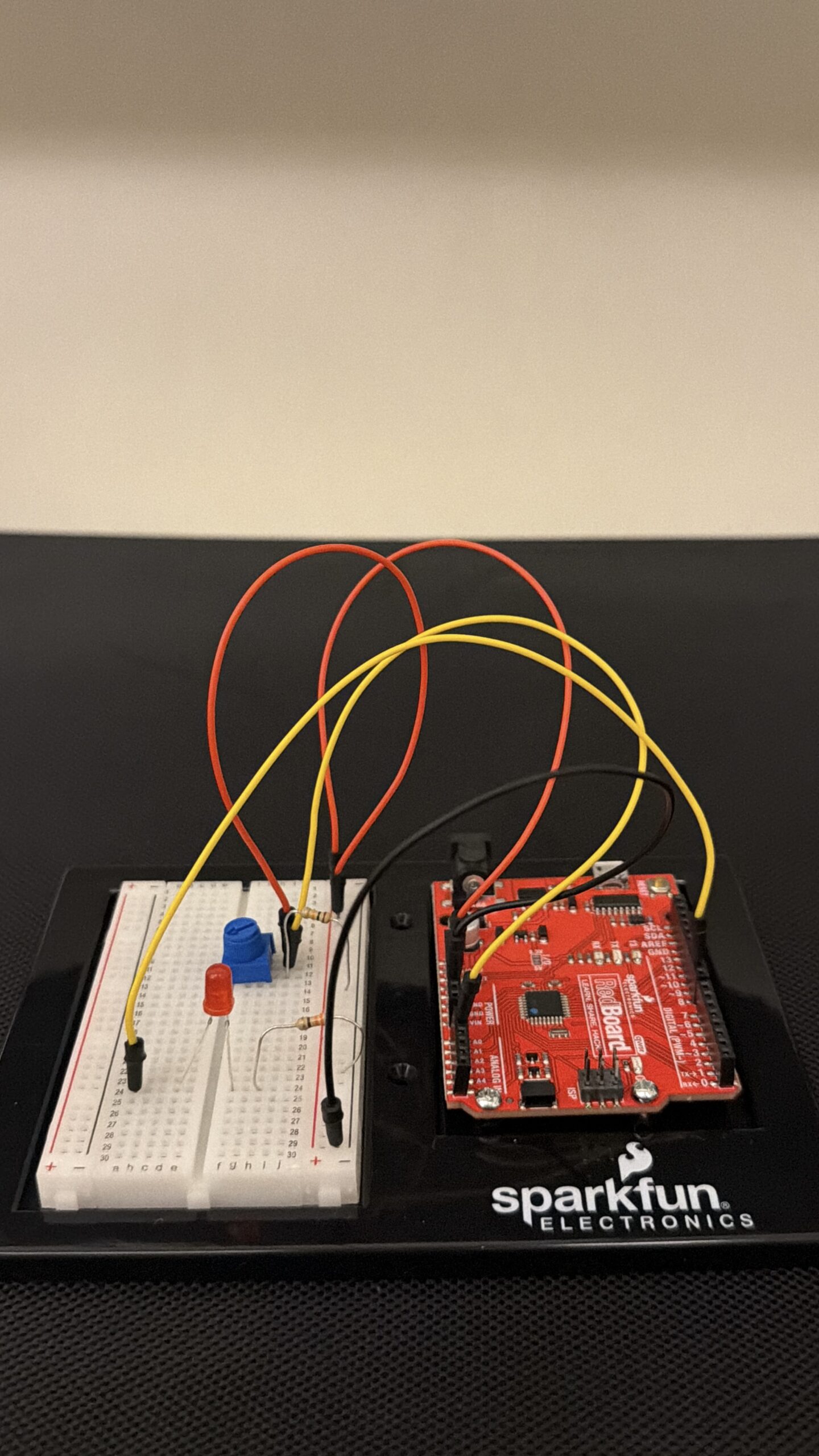
Arduino Set-up:

Arduino Illustration:

Project Demo:

IMG_1288

Concept

This week was all about making things communicate. Before this, everything we made stayed inside Arduino. This time, we connected Arduino to p5 so the physical and digital sides could talk to each other.

At first it sounded simple, but it ended up being one of the hardest things we’ve done so far. Not because of the ideas, but because getting everything to connect properly took a lot of trial and error.

Exercises

Across the three exercises, we explored different ways of communication.

In the first exercise, we sent data from Arduino to p5. We used the potentiometer to move a circle across the screen. This helped us understand how sensor values can control something visually.

In the second exercise, we reversed the direction. p5 controlled the LED on Arduino. This made us realize that communication goes both ways, and that sending data is just as important as receiving it.

In the third exercise, we combined both directions. The potentiometer controlled movement in p5, and when something happened on the screen, it sent a signal back to Arduino to turn on the LED. This was the most interesting part because everything was connected and reacting together.

Code Highlight

One part that really helped us was reading the sensor data correctly in p5

let str = port.readUntil("\n");

if (str.length > 0) {
  str = trim(str);
  let sensorValue = int(str);

  if (!isNaN(sensorValue)) {
    x = map(sensorValue, 0, 255, 0, width);
  }
}


This made sure we only used valid data and mapped it properly to the screen. Once this worked, everything became much smoother.

Problems Encountered

We had a lot of issues this week, mostly with the connection. The serial port wouldn’t open, or p5 wouldn’t receive any values. Sometimes things worked and then suddenly stopped working again.

We realized most of these problems were small things, like forgetting to close the Serial Monitor or not formatting the data correctly.

Reflection

This week helped us understand that interaction is not just about building something, but about connecting things together. Once the connection worked, everything felt more interactive and responsive.

It also made us more patient with debugging. We learned to check things step by step instead of assuming something bigger was wrong.

Collaboration

We worked on this together, which made a big difference. When one of us got stuck, the other could help figure out what went wrong. It also made debugging less frustrating because we weren’t trying to solve everything alone.

Working together helped us understand the system better and move forward faster.

References

p5.js Web Editorhttps://editor.p5js.orgp5 to Arduino

p5.js Web Editorhttps://editor.p5js.orgp5 to Arduino

p5.js and Arduino serial communication – Send a digital sensor to a p5.js sketchYouTube · Scott Fitzgerald28 Mar 2020

Week 11 – Final Project Preliminary Concept

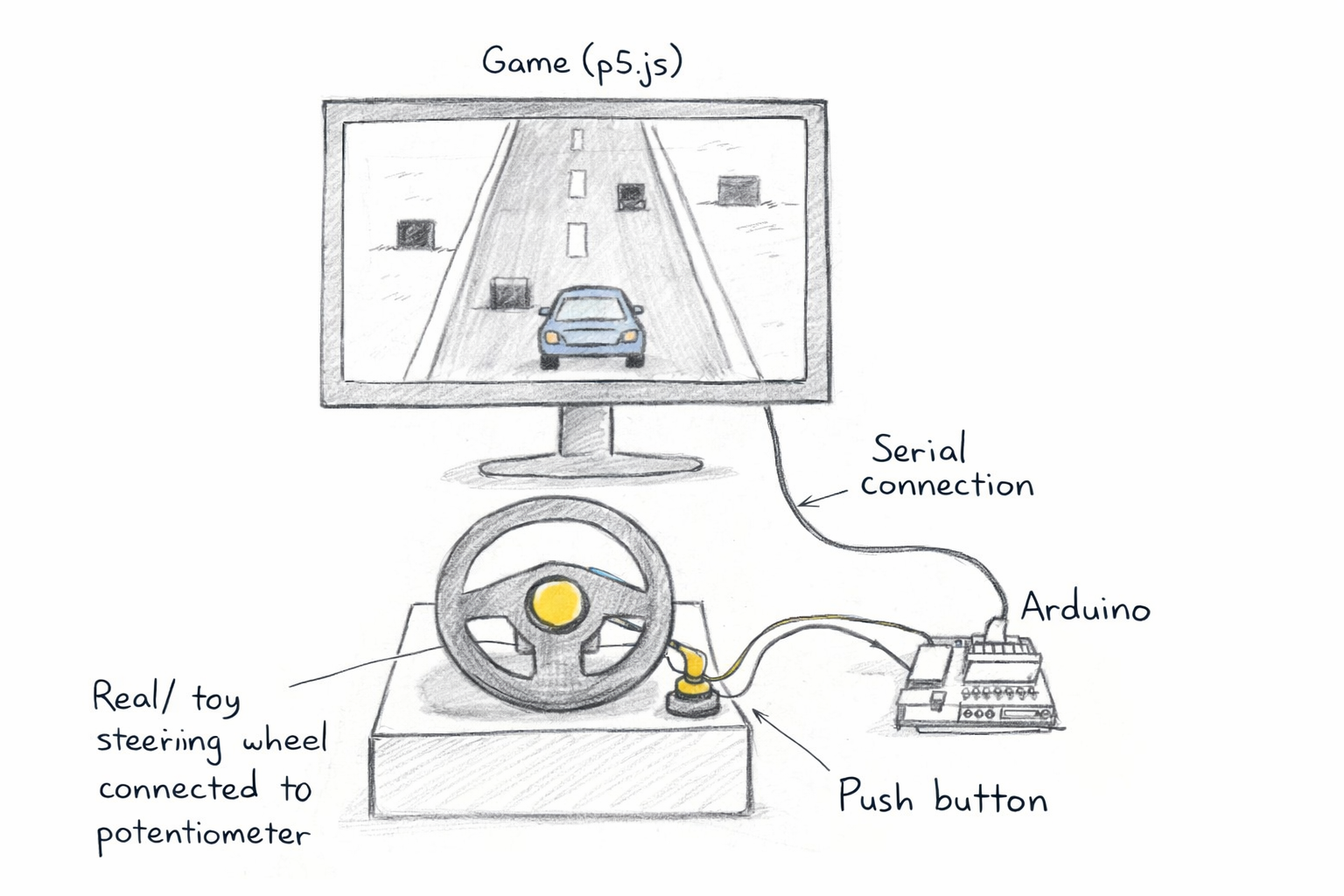
Driving Game with a Physical Steering Wheel (Steering Beyond the Keyboard)

For my final project, I want to create a simple driving game that is controlled using a real steering wheel instead of a keyboard. The idea is to change how we normally interact with games. Instead of pressing keys, the user will physically turn a steering wheel to control the car on the screen. I am interested in how this makes the experience feel more natural and more connected to the body.

I will be using an actual steering wheel that I can buy online and then connecting it to my Arduino setup. The steering wheel will be attached to a potentiometer so that when it rotates, the Arduino can read the change in position. This value will then be sent to p5.js using serial communication. I will also include a button that can be used to start or reset the game.

On the p5.js side, I will build a simple driving game. The player will control a car that can move left and right across the screen while the road moves forward. Obstacles will appear, and the player has to steer to avoid them. The position of the car will be directly linked to how much the steering wheel is turned, so the movement should feel smooth and responsive. I plan to include basic features like a score counter, a crash state, and a reset option.

The main focus of this project is not just the game itself, but the interaction. I want the system to feel clear and easy to understand. When the user turns the wheel, the car should immediately respond on the screen. This direct connection between input and output is important. It should feel like the user is actually controlling the movement in a physical way, not just pressing buttons.

I also want to make the setup look clean and intentional. I will build a simple base to hold the steering wheel and hide the wires. This will help the project feel more like a complete system rather than just loose components. I may also add small details like labels or lights to make the interaction clearer.

For inspiration, I looked at projects that use unconventional controllers and turn the interface into part of the experience. I also looked at previous student projects where the interaction was very clear and immediate. Those projects showed that even simple inputs can feel impressive if the response is well designed and easy to understand.

To build this, I will use basic Arduino tutorials for reading a potentiometer and sending data through serial communication. For p5.js, I will use examples that show how to read serial data and map values to movement on the screen. These will help me create a stable system before I focus on improving the visuals and overall experience.

Overall, this project is about making a simple but effective interactive system. By using a real steering wheel, I want to create a more engaging and physical way to play a digital game. The final result should feel responsive, intuitive, and easy for anyone to try without needing instructions.

Reading Reflection – Week 11

The Design Meets Disability reading made me rethink how I usually see design, because I realized I tend to treat accessibility as something separate from “good design,” like something added later to fix a problem instead of something considered from the start. Pullin challenges that idea by showing how assistive devices often aim to hide disability or make someone appear more “normal,” and I found myself questioning why that feels like the default goal. When I think about it, that approach says more about what society is comfortable with than what people need or want, and I had not really noticed how strong that assumption is until now.

What stayed with me is his focus on expression, because he suggests that assistive design does not have to disappear or blend in, it can reflect identity in a visible way, and that shift feels important. When I think about prosthetics designed to look exactly like a natural limb, I see how design tries to erase difference, but when I picture a prosthetic designed with color or shape or style, it changes the meaning of the object completely. It becomes something personal instead of something corrective. That made me realize how much design controls what gets seen as normal, and how easy it is to follow that without questioning it.

After reading this, I feel more aware of how I approach design decisions, even in small ways, because I see how choices about form, appearance, and function are never neutral. If you design for one type of user, you set a standard that excludes others without saying it directly, and I think that is what I will carry forward from this reading. I need to think about who is included from the beginning, not after, and I need to question why certain designs try so hard to hide difference instead of allowing it to exist openly.

Reading Reflection – Week 10

In A Brief Rant on the Future of Interaction Design, it honestly feels like Bret Victor is calling everyone out for settling. He’s basically saying that what we think is “advanced” interaction is actually kind of limited, and the line about an interface being “less expressive than a sandwich” made it sound funny at first but also a bit embarrassing once you think about it. Like our hands can do so much in real life, but then we go to screens and everything becomes flat, just tapping and swiping on what he calls “pictures under glass.” It made me realize how normal that feels even though it’s actually such a reduced version of interaction.

Then in Responses to A Brief Rant on the Future of Interaction Design, it feels more grounded because people are basically asking, okay but what now? And he admits that “the solution isn’t known,” which I actually liked because it didn’t feel like he was pretending to have everything figured out. It made the whole thing feel less like complaining and more like pushing people to think further instead of just accepting what already works. When he says things like the iPad is “good! For now!” it kind of shows that he’s not rejecting current tech, just refusing to treat it like the final version.

Putting both together, it feels less like he’s saying everything is wrong and more like we got comfortable too fast. The idea that “the future is a choice” stuck with me because it makes it feel like if interaction stays limited, it’s not by accident, it’s because people stopped questioning it.

Week 10 – Musical Instrument

Arduino GitHub File

(pitches.h) file

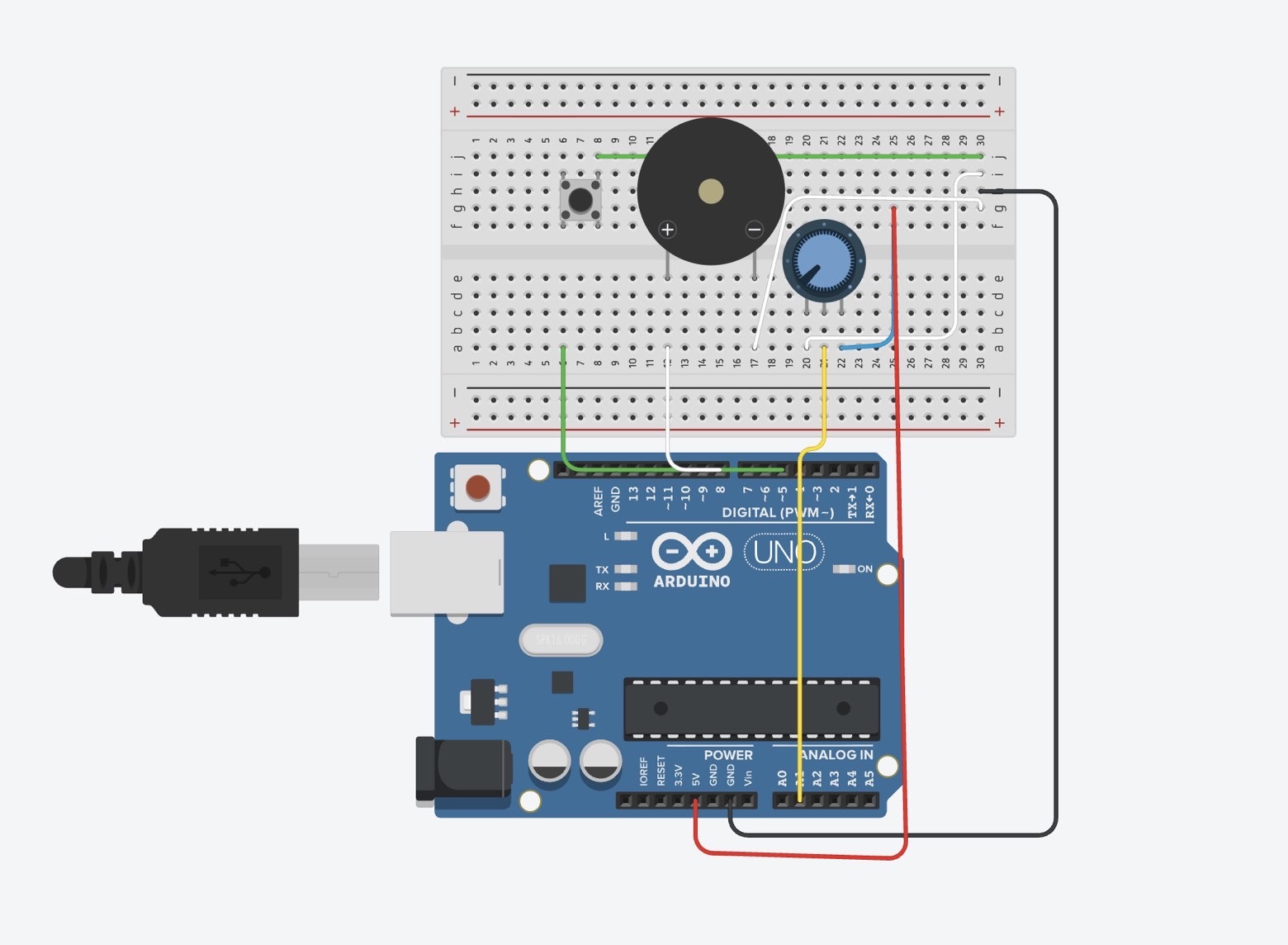
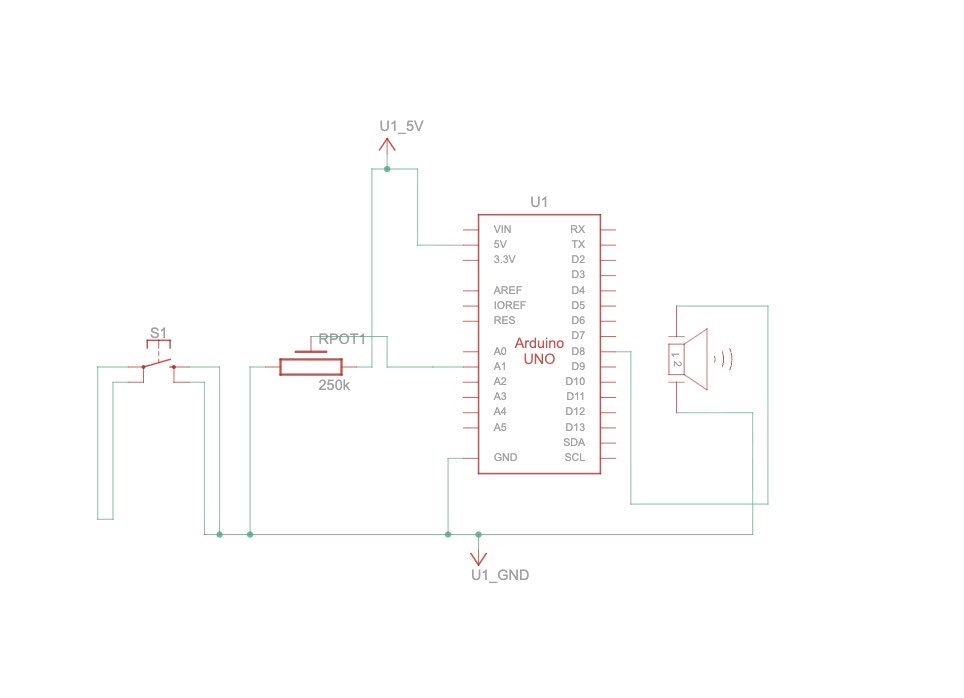
Arduino Set-up:

Arduino Illustration:

Project Demo:

IMG_0396

Concept

This project is a simple musical instrument that uses both digital and analog input at the same time.

The button acts as the digital sensor because it only has two states, either pressed or not pressed. When we press it, the sound plays, and when we release it, the sound stops.

The potentiometer acts as the analog sensor because it gives a continuous range of values instead of just two states. We used that range to select different musical notes, so turning the knob changes the pitch.

What we liked about this setup is that both inputs have completely different roles. The button controls when the instrument is played, while the potentiometer controls what sound is produced. It made the difference between digital and analog feel really clear and actually useful.

Code Snippet We’re Proud Of

int index = map(potValue, 0, 1023, 0, 7);

if (buttonState == LOW) {

  tone(buzzerPin, notes[index]);

} else {

  noTone(buzzerPin);

}

This part is where everything comes together. The potentiometer gives a value from 0 to 1023, and we use map() to convert that into a smaller range that matches the number of notes we have. Then we use that number to pick a note from the array.

At the same time, the button decides whether the note should actually play. So one input controls the pitch, and the other controls when the sound happens, which made it feel more like a real instrument instead of just a buzzer making random noise.

Problems Encountered

The biggest challenge was honestly the wiring. Even when everything looked right, one wire in the wrong row would break the whole circuit. We had to be really precise with the breadboard and double check every connection.

The button also gave us trouble at first. It either didn’t work or stayed on all the time, and we realized it was because of how it was placed across the gap and which rows we were using. Once we fixed that, it started behaving correctly.

Another challenge was understanding how the potentiometer connects to the sound. At first it felt random, but once we understood that the Arduino reads values from 0 to 1023 and that we needed to map that to our notes, it made a lot more sense.

Reflection

This project helped us actually understand the difference between digital and analog input instead of just memorizing it. The button made sense as something binary, while the potentiometer showed how values can change continuously.

It also made us more comfortable working with sound. Before this, the buzzer just felt like something that makes noise, but now we understand how pitch is controlled and how different inputs can affect it.

If we were to improve this project, we would probably expand the number of notes or organize them into a more structured scale so it feels more like a playable instrument.

Overall, it was a really successful assignment and working in pairs made it a lot easier to think and refine ideas and carry each other throughout the trial and error process of the entire project!

References 

https://projecthub.arduino.cc/SURYATEJA/use-a-buzzer-module-piezo-speaker-using-arduino-uno-cf4191

Arduino Project | Play Melody with Passive buzzer using Arduino UnoYouTube · IoT Frontier3 Jul 2023

YouTube · Tech Explorations1.3K+ views  ·  1 year ago[240] Arduino Getting Started: Make noise and beeps with the passive buzzer

Reading Reflection – Week 9

The first reading made me rethink what computing even is, because I feel like I’ve always thought of it as something very screen based, like typing, clicking, code on a laptop. But the way Tigoe describes it, starting from the body instead of the machine, kind of flips my idea completely. He says physical computing begins with “how humans express themselves physically,” and that idea stayed in my head because it makes computing feel less technical and more human which i really like actually. It’s not about controlling a computer, it’s about translating things like movement, light, or touch into something the computer can understand. I liked that shift, but at the same time it made me realize how limited most of our interactions with technology actually are. Like we’re so used to keyboards and screens, and we accept that as normal, even though it’s such a small part of how we actually exist in the world, especially alongside technology.

The second reading pushed my idea even further, especially when it talks about how computers usually only involve small, controlled movements, like just sitting and using your fingers, even though “that is not your whole life.” That line felt weirdly personal in a way because it made me think about how passive most digital interactions are. You’re just there, barely moving, and everything is basically just clicks. Physical computing on the other hand, is more about interactions like sensing and responding, almost like a conversation between the body and the system. I think what I liked about this reading is that it doesn’t treat technology as something separate from us and more as something that extends what we already do every day anyway. But at the same time, it also made me question whether we’ve gotten too used to limited forms of interaction, like we’ve accepted a very small version of what technology could actually be.

Putting both readings together, I felt like they were both kind of criticizing the way we already use technology without saying it directly. Both of them keep coming back to the idea that computers should connect more to the body, more to the real world, instead of staying stuck behind screens. And I think what made it interesting for me is that it made something like physical computing feel less like a special, hard field and more like what computing should have been all along. It kind of made everything else feel a bit limited in a way, like we’ve been interacting with technology in the smallest way possible when there was always, always more potential, which is kind of sad if you think about it.

Week 9 – Analog & Digital Sensors

Arduino file on GitHub

Arduino Set-up:

Arduino Illustration:

Project Demo:

249a2f5d7ff3421c96cd2bb558d8e46d

Concept

In this project, I combined both digital and analog inputs in one system, and the difference between them becomes really clear through how each LED is behaving.

The button is a digital input, so it only has two states. It’s either pressed or not pressed. Because of that, the red LED is either fully on or fully off, and there’s no in between state, which makes it binary and feel very direct.

The potentiometer works differently because It’s an analog input, so instead of just two states, it produces a whole range of values. That’s why the yellow LED doesn’t just turn on or off, it gradually changes brightness and dimness depending on how much I turn the knob.

Seeing both of these side by side made the difference between digital and analog feel a lot clearer. Basically, one is fixed, and the other is adjustable.

Code Snippet I’m Proud Of

int potValue = analogRead(potPin);
int brightness = map(potValue, 0, 1023, 0, 255);
analogWrite(yellowLed, brightness);

This part looks simple, but it took me a second to actually understand what was happening. The potentiometer gives a value from 0 to 1023, which is way bigger than what the LED can use. The map function basically translates that into a range the LED understands, from 0 to 255.

Once I understood that, the analog part finally clicked in my head.

Problems Encountered

Honestly, most of my problems came from the breadboard. Everything can look right, but if a wire is even one row off, nothing works. That was probably the most frustrating part because it’s such a small detail but it affects everything.

The button was also confusing at first. It didn’t respond at all, and I eventually realized it was because of how it was placed. The rotation and position of the button actually matters, and once I adjusted which rows I was using, it started working immediately.

The analog side was also a bit tricky. At one point the LED was just always bright, which made it seem like nothing was changing. That ended up being a problem with a mix of wiring and how the values were being read and mapped.

Reflection

This project was frustrating at times, but it definitely helped me understand what I’m doing instead of just following steps. The biggest thing I learned is how sensitive circuits are to small details.

I also feel like I understand the difference between digital and analog input way more now. Before, it was just a definition, but now I’ve actually seen how they behave differently in the same system.

If I were to improve this, I would make the wiring cleaner and more organized, because that would make debugging way easier, and also maybe try a more creative approach the more i get the hang od the ardunio board.

Overall, I feel like I moved from just trying to get it to work to actually understanding why it works, which I’m really proud of.

Refrences

https://docs.arduino.cc/tutorials/uno-rev3/AnalogReadSerial/

https://docs.arduino.cc/learn/electronics/potentiometer-basics/

AI Usage

ChatGPT was used to help identify what was going wrong when my LEDs wouldn’t turn on, and to address any confusion or debugging needed in my code.

Reading Reflection – Week 8

The Margaret Hamilton reading honestly made me think about how often people say “that would never happen” just because it’s easier than actually dealing with the possibility that it might. Like the people around her weren’t necessarily careless, but they were comfortable, and that comfort made them dismiss things that didn’t fit their expectations. What I liked about Hamilton is that she didn’t rely on that kind of thinking at all, she kept imagining worst-case scenarios even when no one else wanted to. When she talks about picturing “headlines in the newspapers… and it would point back to me,” it didn’t feel dramatic, it just felt like she understood responsibility in a very real way. It made me realize that being “good” at something isn’t just about skill, it’s also about how seriously you take the possibility of things going wrong. And I feel like we don’t really do that anymore, we trust things like apps and technology without thinking about what’s behind them or who had to sit there and think through all the ways things that could fail.

The Norman reading felt a bit weird to me at first because his whole idea that “attractive things work better” sounded almost too simple, like something you’d see on a Pinterest quote or something, but then the more I thought about it, the more I realized he’s not really talking about the object itself, but about us and how easily we’re affected by how something looks or feels. The part that actually stuck with me was when he says we “overlook design faults” when we’re in a positive emotional state because that just felt very true in an uncomfortable way. Like if something looks nice or feels smooth, we’re way less likely to question it, even if it’s not actually working properly. And that kind of made me disagree with him a little, because it’s not just that beauty helps, it also kind of distracts. It made me think about how often we trust things just because they look polished, and we don’t even realize we’re doing it.

When I put both readings together, they didn’t feel like they were saying the same thing at all, but they still connected in a weird way. Hamilton is so focused on not overlooking anything, even the smallest possible mistake, while Norman is basically saying that we, as people, do overlook things all the time, especially when something feels good or looks nice. And I think that difference between the two readings is what made this interesting for me, and at the same time created that connection in my head of the bigger picture of both readings.

Week 8 – Unusual Switch

Arduino file on GitHub

Arduino Set-up:

Arduino Illustration:

Project Demo:

IMG_9952

Concept

For this project, I wanted to create a switch that isn’t like a traditional button. Instead of pressing something with my fingers, I used my body as the interaction. I ended up designing a switch using my elbow.

The idea is simple. I placed two pieces of aluminum foil on both sides of my inner elbow. One piece is connected to pin 5, and the other is connected to ground. When my arm is straight, the two pieces of foil don’t touch, so the circuit is open and the LED stays off. When I bend my arm, the skin folds slightly and the two pieces of foil press together, turning the LED on.

Code Snippet I’m Proud Of

const int switchPin = 5;

void setup() {
  pinMode(switchPin, INPUT_PULLUP);
  pinMode(LED_BUILTIN, OUTPUT);
}

void loop() {
  int state = digitalRead(switchPin);

  if (state == LOW) {
    digitalWrite(LED_BUILTIN, HIGH);
  } else {
    digitalWrite(LED_BUILTIN, LOW);
  }
}

This part looks simple, but it took me a while to understand why it works. Using INPUT_PULLUP was the key because it keeps the input stable when nothing is touching it and flips to LOW when the foil is touched, connecting the pin to ground. Once I understood that LOW actually means pressed, everything started to make sense to me.

Problems Encountered

The biggest issue I had was that the LED kept blinking randomly, even when I wasn’t touching anything. At first, I thought my wiring was wrong, but the problem was actually the input pin floating. Without INPUT_PULLUP, the Arduino couldn’t decide whether the input was HIGH or LOW, so it kept switching between them.

Another problem was the foil itself. I initially wrapped the foil around the wires, which caused constant and unstable connections. This made the LED either stay on or flicker all the time. I had to learn to keep the foil flat and only tape the wire at one edge.

I also got confused by the lights on the board. I kept looking at the green power light instead of the LED connected to pin 13, which made debugging way harder than it needed to be.

Reflection

This project was definitely frustrating at first, but it helped me understand how circuits actually work. Before this, I didn’t fully understand how important small details are, like which row you use on a breadboard or how stable a connection needs to be.

If I were to improve this project, I would make the foil setup more durable, neater, and less sensitive to unintentional contact. It works now, but it can definitely be cleaner and more organized.

Overall, I feel like I for sure moved from just following instructions to actually understanding what I’m building, and I’m really proud of myself.

Midterm Project – Madame Digital

Embedded Sketch

Concept

Have you ever wanted to take a picture with a celebrity, but without the impossible chances of actually meeting one?That is basically the fantasy world Madame Digital captures!

My midterm project is basically inspired by the whole wax museum experience, but I wanted to turn it into something more personal and interactive instead of just something you look at. Instead of walking around and seeing celebrity figures from a distance, the user actually gets to choose a celebrity and then step into a digital photobooth with them. Once you pick who you want, the webcam turns on and you see yourself on screen next to the celebrity, almost like you’re actually standing there together. You can adjust yourself in the frame, see a live mirrored preview, and then take a photo that combines both of you into one image. The final result is like a little souvenir picture you can save, which was important to me because I wanted it to feel like you’re taking something away from the experience, not just clicking through it. I really liked the idea of taking something that normally exists in a physical place and turning it into something accessible on your screen, but still keeping that same excitement.

At the same time, I did not want it to feel like just another random app with buttons. I wanted it to feel like entering a space. Something a little theatrical, and a little staged in the best way possible. That is why I leaned into the red curtain background, gold touches, framed celebrity cards, and a series of screens that slowly guide the user through the experience, really giving them the museum vibe. The point of my project was not to try to be realistic. If anything, its charm comes from how intentionally artificial it is, just like a wax museum. Even though the whole thing is obviously digital and staged, the user still gets to walk away with a “memory.” That is what made the concept feel fun to me from the start, and that is what I wanted to preserve throughout the project.

How the Project Works

My project works as an interactive experience that guides the user through a digital version of a wax museum. When the user opens the project, they begin on a title screen and are led through instructions, a celebrity selection gallery, a live photobooth, and finally a souvenir screen. At each stage, the user interacts with the screen by clicking buttons or selecting options, which moves them forward in the experience. Once a celebrity is chosen, the webcam is activated and places the user next to their selected celebrity in a shared frame. The user can then take a photo, which combines both images into a single souvenir-style picture that they can view and also save at the end.

To make my project flow between the different stages, I used the state-based system we learned in class, where a variable called screenMode (also known as gameState from class) controls which screen is being displayed to the user. This was honestly one of the most important parts of the project because it keeps everything organized and prevents it from feeling messy and chaotic. Depending on the value of screenMode a different function runs which draws that specific screen.

if (screenMode === "start") {
  drawStart();
} else if (screenMode === "how") {
  drawHow();
} else if (screenMode === "gallery") {
  drawGallery();
} else if (screenMode === "booth") {
  drawBooth();
} else if (screenMode === "souvenir") {
  drawSouvenir();
}

I feel like this gameState system really shaped how my project came together. It really helped a lot with debugging, because if something wasn’t working, I could immediately tell which screen the problem was in.

Another part I am really proud of is how I built the gallery using arrays and loops instead of placing everything manually. Each celebrity is stored as an object, which made the whole system more flexible and easier for me to expand.

let celebrityList = [
  { name: "Taylor Swift", portraitFileName: "taylor.jpg" },
  { name: "Beyoncé", portraitFileName: "beyonce.jpg" },
  { name: "Timothée Chalamet", portraitFileName: "timothee.jpg" }
];
for (let i = 0; i < celebrityList.length; i++) {
  let x = 150 + i * 140;
  let y = 250;
  image(celebrityList[i].portraitImage, x, y, 120, 160);
}

I liked this part because it made the project feel more thought out technically. If I wanted to add more celebrities later, I wouldn’t have to redesign anything, I could just add more information, and it would work.

The part I am most proud of though, is the photobooth and souvenir feature because that is where the whole idea really comes together. Once the user selects a celebrity, the webcam turns on and places them in the same frame. I mirrored the webcam so it works like a normal selfie camera, which makes it feel more natural and less confusing. When the user clicks the snap button, the code creates a new image that combines both the webcam photo and the celebrity photo into one final photo.

souvenirPicture = createGraphics(photoWidth * 2 + 40, photoHeight + 40);

souvenirPicture.push();
souvenirPicture.translate(photoWidth, 20);
souvenirPicture.scale(-1, 1);
souvenirPicture.image(webcam, 0, 0, photoWidth, photoHeight);
souvenirPicture.pop();

souvenirPicture.image(
  chosenCelebrity.portraitImage,
  photoWidth + 20,
  20,
  photoWidth,
  photoHeight
);

This is my favorite part because it turns the interaction into something personal that the user can actually keep. It’s not just clicking through screens, instead you end up with a photo that feels like a souvenir from the experience. I also think the overall flow is something I am proud of. Even though the project is playful, the user is always being guided from one step to the next. Even small choices, like adding a music toggle (on and off button) and using the same museum-ish background style across screens helped make everything feel connected.

Challenges and Areas for Improvement

One of the biggest challenges I ran into was with the webcam. At first, it showed up twice, once as a default video element and once on the canvas. That was confusing because it looked like something was wrong with my drawing code, but it was actually just how p5 handles video by default. Hiding the original video element and manually drawing it solved the problem, but it definitely took some time to figure out. 

Another challenge I ran into was with the proportions and measurements. I had to deal with a lot of them at once, so it definitely got confusing at times. With coding in general, many challenges come up, so there were minor challenges throughout the code. However, with trial and error, I was able to fix them thankfully.

If I were to improve the project further, one thing I would really want to add is celebrity specific music. Right now the experience already has sound, but I think it would be way more immersive if each celebrity had their own audio choice attached to them. For example, if the user chooses Beyoncé, the background sound could shift into one of her songs, or when choosing Timothée Chalamet or Jennifer Aniston, a different sound could play that matches their overall vibe. I think this would make the gallery feel much more alive overall and more like each choice leads to a slightly different experience.

I would also like to add more customization to the final souvenir, like filters, or decorative frames, or maybe even different photobooth themes. The current version showcases the concept really well, but I can definitely imagine advancing it to make the experience feel even more personalized in a way.

References

Throughout this project, I used a mix of p5 examples, class slides, YouTube videos, and a previous student project to help me understand and implement different features.

These helped me figure out how to display the webcam inside the canvas and structure the photobooth layout.

I used these to understand different variables in order to flip the webcam so it works like a mirror.

These were important for learning how to use createGraphics and combine multiple elements into one image, and other just other image related code.

I also referenced a previous Intro to Interactive Media student project for this part. This helped me with the final image saving process.

These helped me understand how to create interactive buttons that respond to hover and clicks.

This example helped me structure the overall flow of my project and handle the different screens. I used a variable (screenMode) that works just like the in-class (gameState).

These helped me implement background music and button click sounds.

links that helped with general concepts and overall Object-oriented programming.

These helped me implement full-screen and understand the responsive canvas.

font 

Background Music

In addition to these references, I relied a lot on the class slides to understand the key concepts.

Usage of AI

I used ChatGPT mainly for the hardest parts of my project, especially when multiple things were happening at once and I couldn’t tell what exactly was going wrong. 

The most difficult part for me was the souvenir photo system. That part is not just simply “taking a picture,” it’s actually creating a completely new image, bringing the webcam photo, flipping it so it works like a mirror, placing it next to the celebrity image, and then saving everything together as one final frame. At first, I didn’t fully understand how that worked because it’s not the same as just drawing things on the screen. ChatGPT helped me understand that I was basically drawing on a separate hidden canvas and then displaying the result later. It also helped me understand how transformations work together, because if I flipped the webcam without positioning it correctly, it would either disappear or show up in the wrong place. That was one of the hardest parts because it required me to think about how everything is layered and combined, not just displayed.

Another difficult part was the celebrity gallery. I didn’t want to just place images randomly, I wanted it to feel like an actual selection screen with evenly spaced cards that respond to the mouse and adjust to different screen sizes. That meant I had to think about layout and proportions and spacing all at the same time. This part was actually more complicated than i thought because everything in my code is based on proportions like width 0.25 or height 0.16, so even small changes (like decimals) would completely change the layout in ways I didn’t expect. ChatGPT helped me understand how to think about these proportions more intentionally instead of just guessing numbers.

I also used ChatGPT to help me understand code that I was getting and adapting from references and other projects. Sometimes I would find an example that did something similar to what I wanted, but I didn’t fully understand how or why it worked. Instead of just copying it, I used ChatGPT to break it down and explain it to me, which helped me actually learn from it and adjust it to fit my own project.

Another thing I used AI for was generating some of my visuals. I used Gemini to create the celebrity images as well as the red curtain background, since I wanted a very specific “Madame Tussauds” style aesthetic and it was faster to generate and then refine them. 

Overall, I used AI more as a tool to understand and debug difficult parts of my project, and to generate some visuals, rather than to build the project itself obviously.