Week 2 Assignment: Artworks, patterns, and loops

My Sketch

My concept

When I first heard that the artwork can use loops to create a pattern, my mind jumps straight to the iconic terrazzo tiles that are used on the sidewalks of the streets in Hanoi, my home city. These tiles come in different patterns, and every Vietnamese, including myself, strangely finds nostalgia in these tiles because it is what we grew up with. Vietnam’s terrazzo tiles have a much deeper history than I could ever imagined: In the early 1990s, a project was set out to get rid of the bumpy concrete pavements. Inspired by the European, particularly Venice’s floral tiles, tile designers and suppliers decided to simplify them into designs of geometrical shapes. There are so many designs, each iconic in their own way, and I decided that for this assignment I wanted to draw one of these patterns on p5.
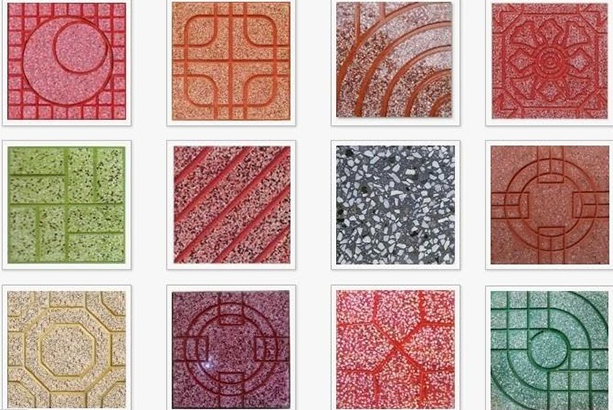
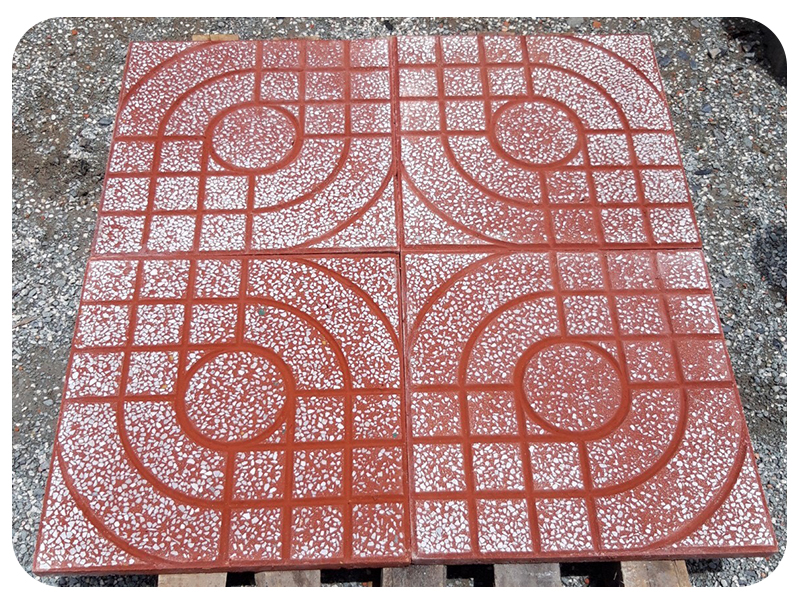
there are many terrazo tiles designs!
4 tiles together


My highlight code

for (let col = 0; col < numOfTiles; col++) {
    for (let row = 0; row < numOfTiles; row++) {

      push();
      if ((col%2==1 && row%2==0)||(col%2==0 && row%2==1)) {
        translate((col+1)*tileSize, row*tileSize);
        scale(-1, 1);
      } else {
        translate(col * tileSize, row * tileSize);
      }
      drawTile(numOfTiles);
      pop();
    }
  }

I draw each individual tile in the function drawTile() then in the main draw() function, I call drawTile() for a total of 16 times to create the 4×4 grid as shown above. I was especially proud of this section of code because instead of having to manually call drawTile() 16 times, I used a nested for loop to optimize the process! Within each iteration, I use a conditional statement to check whether I should flip the tile (basically creating a mirrored version of it) based on its position in the grid. The next section, “How this was made,” goes into detail of the algorithm and why I used certain functions. It also links to the tutorials and reference pages I used.

How this was made

This assignment was way harder than I had initially expected! I first explored on a default 400×400 canvas, where I created one single tile. I have also embed the sketch for it here, as this was a crucial step in my process. I tried to be as accurate as possible, while also challenging myself to use the different p5 primitives. While I could have just drawn the indented lines, I decided to challenge my approach and draw the shapes and blocks instead. I primarily used squares and arcs to create the geometric shapes.

Sketch for 1 single tile (hardcoded on 400×400 canvas):

One of the things I was being super cautious about was with the numbers and math. Symmetry is an important feature, so I had to make actual calculations with the coordinates to ensure everything aligns. I used nested for loops to create the small squares in the top-left and bottom-right, and also gave them some border-radius (this is different from the actual tiles).
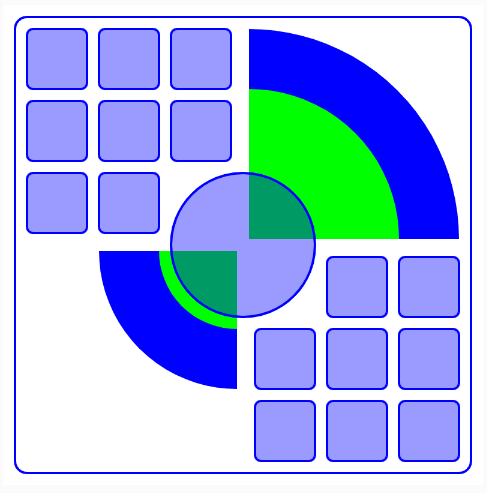
the blue part is the stroke; the green part is the fill. (I put green for demonstration but in the actual sketch I set it to noFill())

Then, for the curves in the top-right and bottom-left, I used arcs that are one quarter, make them transparent in the middle (noFill) and gave them a big stroke to create the curves.
For the curved triangle in the corners, they are actually squares, but an arc sits on top of each square, basically hiding half of it and giving it a curve hypotenuse. Overall, since the single tile is mirrored over y=-x, it was not difficult, I just had to be careful with the placement and order of the primitives.
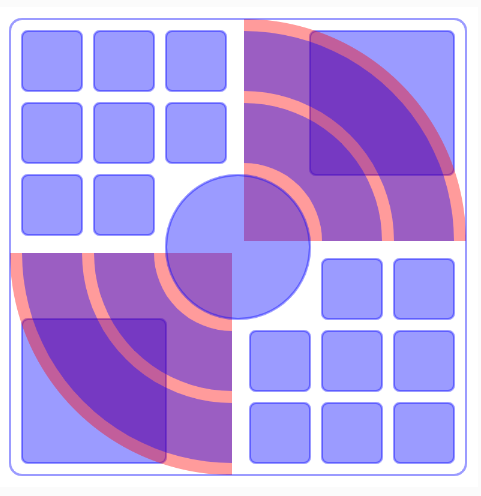
the red arcs sit on top of the top-right and left-bottom squares. later I set it to match the color of the background, hence “covering” half of the square

However, the real challenge really came when I wanted to put multiple tiles together to make a pattern. When I was drawing the single tile, I was hard-coding the coordinates for a 400×400 canvas. Therefore, I won’t be able to resize or place them next to each other easily. Then, I had to create a duplicate file of my single tile, and manually change the values to be responsive to the width and height of the canvas (it was a tedious process but the code wasn’t extremely long because I had used for loops to avoid redundancy). You can find the sketch for the responsive tile here. The hard-coded and responsive tile looks exactly the same on a 400×400 canvas, but they are massively different in the numbers and variables I used to draw them.

Once I have made the single tile responsive to the canvas dimensions, the next thing on the checklist is to put several of them together to create a pattern. I put all the primitives in a function drawTile(), then in draw(), I call drawTile() when I need to draw a tile. Notice that the pattern is created with the tiles and its flipped version (symmetry at y=-x and y=x). In order to create the flipped variations, I used scale(-1,1) to flip the tile over the y-axis. I watched The Coding Train’s “How to use scale() in p5.js” tutorial and also referenced the corresponding p5 reference. I also notice a pattern with the tiles that are to be flipped. If we do a 4×4 grid of the tiles, and have columns and rows numbered from 0-3, the flipped tiles would either:
– have even-numbered row + odd-numbered column; or
– have odd-numbered row + even-numbered column
I used an if statement here, evaluating odd/evenness using modulus 2. If it is one of the 2 scenarios above, I call scale(-1,1) before I call drawTile().
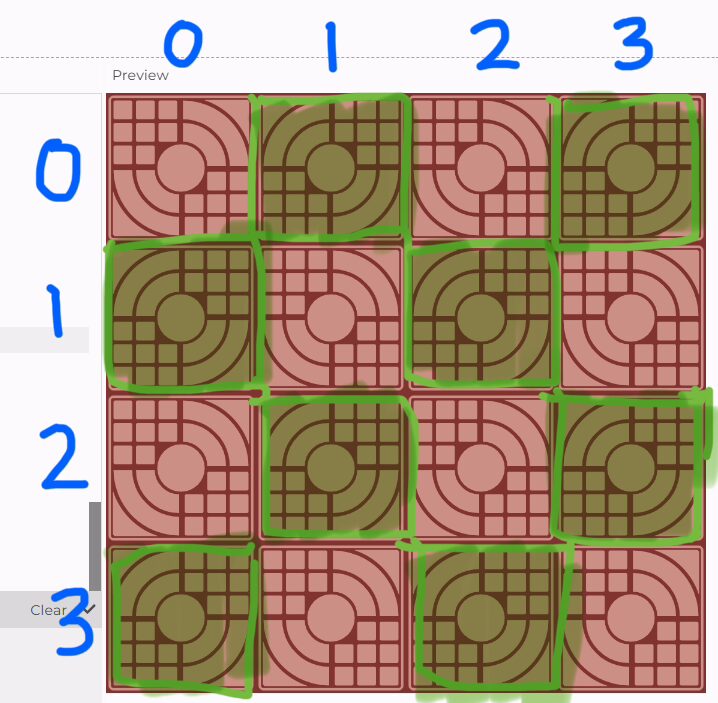
In order to place the tiles at the correct spots on the grid, I used the translate() function which allows me to set a new origin of (x,y) instead of the default (0,0). I watched this tutorial and looked at the p5 reference page for this function. One thing I noticed in the Youtube tutorial is that you have to use push() and pop() before and after translate(). While I haven’t fully understood how these 2 functions work, it appears that they sort of “resets” the origin to (0,0) after every tile is drawn, otherwise the next time I call translate(), it would be relative to the (x,y) arguments I last passed. I used nested for loops to create the 4×4 grid, then calls drawTile() after translating the origin.

Reflection

This tile is one of the more complicated designs but what made it especially so difficult is the diagonal symmetry. I took a lot more time than I had initially expected, but ultimately in the end, I think the pattern turned out really nice.

I basically had to do 3 steps: a tile on 400×400 canvas, making the coordinates relative & dynamic to the canvas dimensions, and printing the pattern. I feel like my current approach is definitely over-complicated and takes more time and effort than it needs to be. However, my experience with p5 is quite limited, so I tried my best with the knowledge and resources I have.

Also, if I had more time, I would want to play around with the colors. Maybe I can make the pattern changes color every couple seconds or when the end-user clicks on the canvas. I think that would add a very cool layer of interactivity to this otherwise static pattern.

Resources I Used

https://www.youtube.com/watch?v=pkHZTWOoTLM&t=56s
https://p5js.org/reference/p5/scale/
https://www.youtube.com/watch?v=maTfm84mLbo
https://p5js.org/reference/p5/translate/
[photo] https://topmatstore.vn/gach-terrazzo-p4501.html
[photo] https://gachngoihanoi.com/gach-via-he-terrazzo/gach-via-he-terrazzo-mat-nai-do-post239.html
all other screenshots and figures are my own

No Artificial Intelligence was used in the making of this sketch or its documentation.
Reading Reflection – Week 2

Before watching this weeks lecture, I thought randomness meant that something was completely uncontrolled and involved no human interactive but this reading changed my mind because I realized that randomness can actually be controlled through decisions and rules. I found it interesting how randomness can be used to create art and how adding a small amount of noise to certain rules and code can make it look better. I especially liked the example of Reas and his wife incorporating randomness into clothing because it showed me that interactive media and random art can be applied in everyday life, even to something as simple as clothing. This made me realize that randomness is used much more widely than I originally thought. It also made me think about my own work because I usually create things that are more repetitive and less random however I could add some randomness to my p5.js work to make the outcome more unique while still keeping the overall structure of my design.Also a key thing is that randomness can be mixed into different subjects, such as biology and embedded into daily life I didn’t expect it to be a option, and it was something that surprised me as I never taught of this.

I think the optimum balance between complete control and total randomness is somewhere is a mix and depends on the situation. I think having a purpose and knowing what want the artwork to look like, and then deciding where randomness could improve it. I think too much randomness could make an artwork look messy or take away from its purpose, while a small amount can make it more interesting and not overstimulating. However in the process 18 example the complete randomness did make the overall art work look good so the extent of randomness is depends on the case. I also think testing is important because you can change the amount of randomness and see what works best instead of trying to control every detail. This connects to the work we did this week because for example I repeated shapes as I was were creating using rules and loops, but adding random changes to the colors, sizes, or positions could create more variation. I don’t think complete control is given to the person creating it as the computer has a certain degree of control and thats what creates the art and randomness. Overall, the talk showed me that using randomness does not mean giving up control. Instead, the artist can control how much randomness is within the art and use it as another creative decision.

Week 2 – Animation, Conditionals, Loops

Concept

This week in class, we learned about conditionals, and I really wanted to incorporate this new concept into my assignment. One of the examples we looked at in class showed us how we could change color when the mouse interacted within a certain area of the screen; in that case, it was a square turning pink. I wanted to take this and make the color change happen across 50% of the screen.

My canvas is 600 x 600 pixels, so I knew that 50% of the width would be 300 pixels, and once the mouse went past 300, the colors would change, and if the mouse was before 300, the colors would change back. This created an effect where the colors appear to swap between the two sides of the canvas as i moved the mouse from right to left.

I also incorporated the last week’s colors and shapes we learnt, and I mixed that with this week’s for loop. I used the for loops to help with the squares repeating every 50 pixels; I did this with the + 50. This created a repeating pattern that filled the entire canvas. By combining the repeating squares with the conditional color change, I was able to create an interactive pattern that changes when I move the mouse.

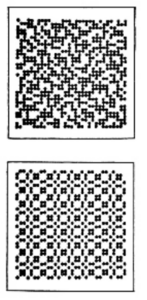
Overall, I wanted my artwork to demonstrate new concepts we learnt this week, while also the inspiration behind the look of the artwork was from the computer graphics artwork I saw in the August 1977 issue of Computer Graphics and Art as seen in the figure to the left  . (Hertlein, 1977)


Code particularly proud of

// Left half
     if (x < 300 && mouseX < 300) {
       fill('#ed0763');
     }
     // Right half
     else if (x >= 300 && mouseX >= 300) {
       fill('#ed0863');
     }
     // original colour
     else {
       fill('#f41aba');
     }

I was particularly proud of this code as it enabled the color change to take place. In this code, it says when the mouse is on the left and the squares on the left side, then the color will change; however, if it’s on the right, change again, but if it’s neither it will stay the otherwise, keep the original color. This code also allowed me specifically to practice carrying out conditional code.

How this was made

I started by setting the screen to 600 × 600 pixels. Then I created a for loop, which allowed the squares to repeat across the screen every 50 pixels. Each grid uses nested for loops, and I also added conditional statements. The if checks if the square is on the left half of the screen, meaning its squares are positioned where the x is less than 300, and if the mouse is also on the left half. If both things are true, the square changes color. I did the same thing for the right half of the screen. I also added an else code so that when the mouse is not on the same side as the square, the square stays its original color.

My sketch uses two overlapping grids of squares. In the first grid, the squares repeat every 50 pixels horizontally and vertically. In the second grid, they repeat every 40 pixels. The squares in both grids are 25 × 25 pixels. Because the spacing is different, the squares sometimes line up and sometimes overlap, creating a more layered pattern.

AI documentation 

I used AI to help me understand a problem with my conditional statements. While working on the sketch, I encountered an error and also noticed that only one side was changing colour inside of both. I asked for help understanding the else part of my code and how to give the squares their original colour when the conditions were not met.

I learned that else runs when the correct if and then else if conditions if both false. In my sketch, these conditions check whether the square and the mouse are on the same half of the canvas. When they are on opposite halves, the else sets the new colour.

I also learned that fill does not automatically return to an earlier colour. It stays active until another fill changes it. This helped me understand why each grid needs its new colour set before rect draws the square.

Reflection

In the future, I would like to create more complex designs, use different shapes, and incorporate animation, as that is something I did not do this time. However, I am overall impressed by how such simple code was able to create an interactive design. Next time, I would also like to learn how to repeat squares in specific parts of the screen instead of having them cover the whole screen. This would allow me to create more complex and interesting patterns.

Reference

Hertlein, G. C. (Ed.). (1977, August). Computer graphics and art (Vol. 2, No. 3). Berkeley Enterprises, Inc. https://doubleobelisk.s3.amazonaws.com/COMPUTER_GRAPHICS_AND_ART_Aug1977.pdf


Week 2 – Casey Reas Video Reflection


Casey Reas’ talk made me think about questions about authorship when chance and randomness are the producers of the final output. If a program “fips a coin” to generate an image, who truly owns the reuslting work? While generative experiments like the Commodore 64 maze patterns or the Simulation of the Conception Vehicles (as Reas called them) rely heavily on the randomness of the program, I think the code itselfreflectst human control. The artist still defines the rules, boundary conditions and the parameters of the system, and the only thing being done by the computer is listening to these inputs and actually generating an image. I think, an optimal balance lies in using randomness not to replace artiistic intent but to introduce unexpected images  or variations within the parameters designed by a human. Reas also mentions at the beginning of the video that they created a program for a show where they can “tailor and customise how much they want to leave it to chance,” and I think that this is a very good example of balance.  I would also love to include random elements in my work, especially with colours. I would love to give my work the chance to be randomly colourful, rather than me deciding on specific colours or objects.

On the other hand, I also think that it is very easy to lose control and authorship over these works and flip the balance. In my opinion, authorship includes the artist being able to express their emotions and desires through the art piece itself. If we leave the final output for a program, despite us owning the code, the product might not resonate with the artist and deliver the wrong message. I thought of this while watching the example of the Fractal Invaders. Until then, I felt really confident in myself, that it is completely okay to use a computer program for drawings. That, though, made me really wonder where the line could be. If I really let my program create something random, the chance that it will create something I don’t want to or can’t resonate with grows a lot and statistically will happen. Do I still own that even if I don’t resonate with it? I do, in my opinion. But do I want to? I think the balance is probably between letting the program execute my vision, but maybe not over and over again.

Week 2 – Reading Response: Casey Reas Presentation

Casey Reas’s talk really changed the way I think about art. I never thought that code and art could come together because they were really different in my eyes before, but after watching/listening to his presentation, I now see them as connected. I always saw code as more of a technical thing, while art felt free and expressive, so it was kind of mind blowing to see him combine the two. He talked about different artists and showcased a lot of their work, along with his own, and it was really interesting seeing how many different ways people have found to turn shapes and code into art. It reminded me a lot of what we do in class with p5, where we use simple shapes and basic code to build something more complex.

In my own work, I personally want to bring in randomness by setting a few simple rules for shapes or patterns, and then letting things like color, size, or placement change around a little. For example, I could have a circle that changes size every time, so its never quite the same shape twice. Thats also where the whole balance thing comes in for me, because in my opinion, total randomness or total control in code doesnt actually make good art by itself. Too much control can make the art piece feel like its missing something, but too much randomness can make it look like a mess with no direction. That said, being planned out isnt always a bad thing either, sometimes having more structure is exactly what a piece needs to actually work. But I feel like the balance really depends on the piece itself, overall its somewhere in the middle, enough structure so it still makes sense, but enough randomness that it stays unique and doesnt feel too planned out.

Week 1 Assignment – M7md

Concept

For this assignment, I created a self-portrait inspired by video game character select screens. Instead of trying to make it realistic, I represented myself as a simple character with stats such as energy, luck and focus. For the character itself, I took some inspiration from Nintendo Mii’s characters.

Default Miis - MiiWiki

Mii character reference – Nintendo

I also wanted to add some sort of twist, so every 15-20 seconds there is a chance for the screen to switch to a different one.

Code I like

The part I’m probably most proud of is the hair. At first, I thought it would be simple to make, but it ended up taking a lot of experimenting to get it to look the way I wanted.

I started with an ellipse behind the head to make the main shape of the hair. I then used several triangles for the strands at the front and the spikes on the side. A lot of it was just changing coordinates, seeing how it looked, and adjusting them again until I was happy with it.

//hair
  fill('black');
  triangle(116,251,132,247,124,269);
  triangle(130,247,149,244,140,272);
  triangle(147,244,165,244,156,268);
  triangle(163,244,182,247,173,272);
  triangle(180,247,198,253,188,268);

  triangle(123,238,90,244,120,263);
  triangle(115,260,87,263,112,287);

How Was This Made?

I made the portrait using basic shapes like rectangles, ellipses, triangles, arcs, and lines. I built the character piece by piece, starting with the head and body before adding the hair, face, and character information.

After finishing the normal character screen, I made a second version for the “YOU DIED” screen. I used a variable called isdead to decide which one should be shown. I then used the built-in functions, millis() to keep track of time and random() to give the sketch a chance to change between the two screens every 15–20 seconds. Most of the process was experimenting with values and coordinates and then looking at the result. If something looked wrong, I would change the numbers and try again.

Reflection

I enjoyed this assignment because I could make the self-portrait about something I like instead of just trying to recreate my actual appearance. Turning myself into a character-select screen made it feel more personal, and I liked adding the random “YOU DIED” screen as a small unexpected part of it.

The hair was probably the most annoying part to get right, but it also ended up being the part I was happiest with. If I were to improve the project, I would spend more time on the character itself by adding more details and making the body and face look better. I would also add more possible causes of death instead of always showing “Missed Deadline,” so that the death screen could be different each time. Another thing I would change is to make the text feel more “alive,” by making them blink instead of staying static.

edit: added image reference, sources for functions used, and made some minor improvements to text.

W1 – Self Portrait

Concept

This is my first IM class and my first time working with JavaScript and therefore this assignment took longer than expected. My aim was to create a self portrait of myself wearing my favourite light blue colored abaya and included elements like my glasses to make the character more realistic. I also wanted to include an interactive elements, which is why I added my glasses that appear when the mouse is clicked.

Highlighted code

strokeWeight(2)
stroke('#d17a7a')
fill('#ffb3be')
arc(280,428,40,25,PI,PI-PI);
arc(320,428,40,25,PI,PI-PI);
arc(300,428,80,35,PI+PI,PI)
line(260,429,340,429);

I am most proud of the mouth. Though it looks simple, it took me a while to try and figure out the coordinates, and it took especially longer trying to figure out the correct arc angle. I am proud of the outcome and I think I did a great job without relying on AI and by using the resources provided.


How this was made

I used the skills we learnt in class and the p5.js reference to help me create my self portrait. The main shapes where ellipse, used for the eyes, glasses, and hijab, and the arc, used for the nose and lips. I also experimented with adding an interactive elements using the if() tool. I added my glasses, which appear when the mouse is clicked, and I implemented what we learnt in class about colors and transparency to bring the glasses to life.

Reflection

Although it looks like a human, I don’t think it looks like me. If I had to do this again I would have a reference photo of myself to refer to as I was working instead of freestyling it. In the future, I would also like to add more details, like drawing the eyebrows arc and more realistic pupils. I would also love to experiment with interactive elements, like changing backgrounds or moving elements.

Assignment 1 – De Blob Portrait

De Blob

Concept:

Instead of going with my actual face I decided to make a video game character. Blob is a character from the game called De Blob, and I felt like this character has left an impact on me since I was a child and represented me better than my face ever will. The character,  Blob is a round blob that absorbs color and goes around putting color back into a world that’s been drained of color by an evil corporation and I felt like its a good character to pick for my first assignment even since I started with nothing but a blank canvas with no color and have to build everything up myself.

And he was also a pretty good fit for the assignment itself. He’s almost entirely made up of circles and rectangles and had and was easy to draw or get an idea of how to draw him. I used alot of ellipses, rectangles, quads, etc.

Highlighted Code:

// Smile

fill('#fffafa');
ellipse(250, 295, 190, 105);
fill('#c53127');
ellipse(250, 245, 202, 82);

I think one my favorites to tweak with or the most interesting one in my opinion is the smile itself. Because I made it by removing the shape instead of drawing it, I drew a big white ellipse, then a second one in the body color directly ontop of it and then made it so the second ellipse eats up the top half of the white one and whats left under it is the grin.

// Jelly from the inside of the body

fill('#c53127');
ellipse(250, 200, 196, 104);
rect(152, 200, 196, 170);
ellipse(250, 367, 196, 94);
fill('#bd3026');
ellipse(163, 306, 34, 150);
fill('#c23026');
ellipse(341, 303, 27, 145);

The other part I liked is the darker crimson jelly that filled him and make it like he’s actually a Blob and not just like a red thing. Essentially what I did is a darker red over the body and I did it in three pieces I did a rounded top, I did one straight down the middle and the rounded out bottom so the fill follows the body’s shape and isn’t just a flat out rectangle.

I think what I really want to point at though are the last two ellipses, they are tall and narrow and tucked against the left and right edges so they make it look curved instead of just flat.

I think what I learned from this was how connected these layers are actually are, how to put them one over the other properly. Like even while I was doing this I broke something so when I was filling the jelly fill to fill out the rest of the body it broke the the grin so it broke the smile and just showed up as a pale band across his face this was because the thing that carved the smile was still the old lighter red and the fix was just recoloring it to make it match the new fill instead of the old one.

How was this made?

Honestly at the start I didnt really have anything but just a rectangle and to lines at the top coming out of it for the ears and I was just kind of building the base and at that point it looked nothing like him.

I used a reference image and started to get to work and needed the body to become a bit rounder at the top and bottom and so I decided to built it out of a rectangle and I made it also with an ellipse on each end making the top and bottom look more squashed and blob like.

The biggest thing I had to learn while doing this is the order of things, I worked everything kind of like when your actually painting something so I put the shadow on the ground first like I had in my reference picture, then everything that was like behind the body or like poking out like the arms and the hands and the ears then the body andthen the face last. Honestly most of my bugs came from that, like a few times a shape I spent like so many minutes trying to position just completely disappeared and every single time its because I put something over it without thinking.

For the shapes themselves, the body and the hands and like the shading of it are all ellipses and rectangles and the arms and the fingers are quads because I needed shapes that could be kind of angled instead of just rectangles and the peace sign for the fingers are quads. Then the wink I used it like how you, the Professor, showed us in class by using an arc and I used PI and TWO_PI to get a half circle and its the only arc in the whole sketch the rest honestly is ellipses, rectangles or quad.

Reflection:

Honestly I’m pretty happy with how this came out with my first time using p5js for like an assignment and stuff it came out a lot closer to the reference image than I expected when I first started off. I think the most satisfying part of all this was just like seeing it all come together and starting to actually see the thing I envisioned and the thing I’m making become recognizable because for the longest time it was just a red rectangle with sticks coming out of it on top andthen the eyes, then the grin, then the wink, then the peace sign andthen it was clearly him.

Reference Image: de Blob. Blue Tongue Entertainment, THQ, 2008.

I think if I wanted to add anything in the future I think I’d want to make him move somehow like his ears swaying back and forth and make it so De Blob isn’t naturally winking at first but when they click the screen he winks and maybe it plays like a sound or something. And maybe a way to make it so he changes color every second because he absorbs any color around him or make it so the user picks what color he’d want De Blob to be from an RGB perspective.

Week 1 – Self Portrait, Shades On

My Concept

For my self-portrait, I wanted to create something that represented me through the colors and details I chose. I used some of my favorite colors especially blue and purple throughout the background, shirt, hearts and stars. I also added sunglasses because they are my favorite accessory and I wanted that to be one of the main details that represented my personality.

I used p5.js to code the sketch and built the character using basic shapes like ellipse(), rect(), arc() and line(). I used ellipses for the head, hair, eyes and sunglasses, rectangles for the shirt, arms and neck and lines for details like the eyebrows and nose. 

Code I am proud of

let glassesY = constrain(mouseY,150,230);
ellipse(225, glassesY, 40, 30);
ellipse(275, glassesY, 40, 30);
line(245, glassesY, 255, glassesY);
line(205,glassesY -2, 190, glassesY-8);
line(295,glassesY -2, 310, glassesY-8);

This code I am particularly proud of , the sunglasses. I didn’t want to keep them in one fixed position, so I decided to have them move up and down with the mouse. I used mouseY to control their vertical position and constrain() to keep them within a certain range on the face. The line glassesY = constrain(mouseY, 150, 230); was particularly helpful because it links the mouse movement to the sunglasses. Then I used glassesY for the lenses and for the lines that represent the arms of the glasses. This meant that the whole pair moved along when the mouse moved, giving the portrait more interactivity.

How this was made

I used the p5.js v1 Reference as an external source to help me understand the different functions and how to use them correctly. I also used a little bit of AI to help me figure out how to connect the sunglasses to the mouse and make them move up and down. I tried the code myself and made the final edits to best suit my design. I used external Unicode symbols for the hearts and stars and added them into the sketch using the text() function.

Reflection and ideas

In this project I had to experiment a lot to create the perfect picture. I had to modify the position, size, color, and order of each individual shape to create the complete picture. I often made small errors in my coding, but fixed them to build a better understanding of p5.js.

This project, overall, taught me that coding can be a creative and flexible process. It was fun to see how a character could be developed with the use of simple lines and shapes. I found that making the sunglasses interactive really enhanced a personalized component to the project and made it more enjoyable. If I were to do this project again, I would spend time developing more features of the project. This would include adding more animations to the character which could include making the character blink, and developing more movement to the character and the additional animations in this project.

Week 1 – Self Portrait

My Concept
My concept was to create a simple self-portrait using the shapes and colors we learned in class. My self-portrait includes a face, hair, eyes, a nose, a mouth, ears, and a blue shirt. I also added a red cap as the interactive part of the portrait. The cap follows the mouse as the user moves it around the canvas.

I kept the design simple because I am still learning how coordinates, shapes, and colors work in p5.js.


A Code Highlight
The part of my code that I am particularly proud of is the moving cap:

// Cap
fill(170, 25, 25);
ellipse(mouseX + 65, mouseY + 25, 100, 25);

// Cap moves with the mouse
noStroke();
fill(200, 40, 40);
ellipse(mouseX, mouseY, 180, 80);

I am proud of this section because it makes my portrait interactive. Instead of giving the cap a fixed position, I used “mouseX” and “mouseY”. This causes the cap to follow the horizontal and vertical position of the mouse. I added numbers to the brim’s position so it stays connected to the main part of the cap.

function setup() {
  createCanvas(500, 500);
}

function draw() {
  background(180, 220, 255);

  // Shirt/Top
  noStroke();
  fill(60, 120, 200);
  square(150, 380, 200);

  // Ears
  fill(195, 140, 100);
  ellipse(145, 270, 40, 70);
  ellipse(355, 270, 40, 70);

  // Head
  fill(195, 140, 100);
  ellipse(250, 270, 200, 240);

  // Hair
// Hair
fill(50, 30, 20);
arc(250, 220, 190, 160, PI, TWO_PI);

  // Eyes
  fill(255);
  ellipse(210, 260, 42, 28);
  ellipse(290, 260, 42, 28);

  // Pupils
  fill(40);
  circle(210, 260, 14);
  circle(290, 260, 14);

  // Nose
  stroke(110, 70, 50);
  strokeWeight(3);
  line(250, 275, 240, 310);
  line(240, 310, 255, 310);

  // Mouth
  stroke(100, 30, 30);
  strokeWeight(4);
  line(225, 330, 250, 340);
  line(250, 340, 275, 330);

  // Cap 
  noStroke();
  fill(200, 40, 40);
  ellipse(mouseX, mouseY, 180, 80);

  // Cap that moves with mouse movement
  fill(170, 25, 25);
  ellipse(mouseX + 65, mouseY + 25, 100, 25);

  //  The mouse coordinates in the console
  print(mouseX + "," + mouseY);
}


Embedded Sketch
<>

How This Was Made:
I made this project in the p5.js Web Editor. I built the portrait by combining simple shapes, including square(), circle(), ellipse(), line(), and arc(). I used fill() to give the shapes different colors. I also used stroke(), noStroke(), and strokeWeight() to control the outlines.

The code inside setup() creates the canvas once. The code inside draw() runs repeatedly, which allows the cap to update its position whenever the mouse moves. Additionally, the order of the code is important because shapes drawn later appear in front of earlier shapes.

I used the official p5.js reference pages provided in class to check how the drawing commands work. Additionally I used the course week 1 power points as it gives a clear and broad explaination of all functions and codes I had to use to complete the portrait. Chiefly, every part of the portrait was drawn directly with p5.js shapes and colors.


Reflection and Future Improvements
This project helped me understand how basic shapes can be combined to create a recognizable person. I also learned that coordinates control where each shape appears and that the order of the code affects which shapes appear in front. The most difficult part was placing the facial features and hair correctly. I had to adjust their coordinates and sizes until they fit the head. Making the cap follow the mouse also helped me understand how mouseX and mouseY can make a sketch interactive. In the future, I could improve the portrait by adding more details to the hair, clothing, and background. I could also make the eyes follow the mouse or add more movement after learning additional p5.js commands.