Week 1 – Self Portrait

Hello!! For my first assignment in Intro to IM, I made a self portrait using p5.js. I just combined basic shapes and a few lines for smaller details like the nose and glasses.

Embedded Sketch!!

How I made it!!

I started by making the body using a simple rectangle shape and then added an ellipse on top for the face. For the eyes, I created a wider white ellipse with a smaller black ellipse on top to create the pupil. For the hair, I used the arc() function set to only draw the top half of a circle so it sits like a dome over the head. I also added a moon in the night sky background and glasses over the eyes since I always wear glasses.

The main source I used to help me code was the p5js reference site to remind myself of the parameters of each shape especially for the arc.

Code Highlights

//glasses
    stroke(0);
    strokeWeight(4);
    noFill();
    ellipse(width/2.5, height/1.9, 45, 30);
    ellipse(width/1.66, height/1.9, 45, 30);
    line(width/2.5+22, height/1.9, width/1.66-22, height/1.9);
    line(width/2.5-22, height/1.9, width/2.5-40, height/1.9-5);
    line(width/1.66+22, height/1.9, width/1.66+40, height/1.9-5);

The glasses gave me the most trouble. I had to line up two more ellipses exactly on top of the eyes without covering the pupils so I used noFill() so I would get only an outline instead of a solid shape. Then I needed a bridge line connecting the two lenses and two more lines angled slightly outward on each side to look like the arms of the glasses. Getting all of them to actually connect at the same points took a lot of trial and error.

//moon
    fill(255, 255, 220);
    noStroke();
    ellipse(340, 50, 50, 50);
    fill('#464444');
    ellipse(352, 42, 45, 45);

I found that I could fake a crescent shape by drawing a full ellipse and then covering part of it with a second ellipse painted the exact same color as the background

Reflection and Ideas:

This assignment was fun and I found myself losing track of time while doing it, for future assignments I would love to go more in depth with p5.js and add animations and more detailed drawings.. I could have added more details in the background and maybe even designed the body to make it look more detailed.


Assignment 1: Portrait of SpongeBob SquarePants

Concept:

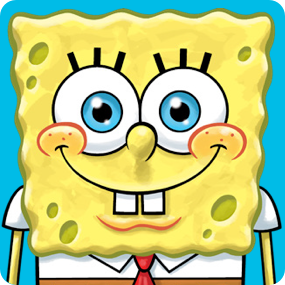
For this first assignment we were instructed to code a self-portrait. Instead, I thought it would be more interesting to code a childhood favorite character: SpongeBob SquarePants. For some reason, he was the first character that came to mind when we were told that we were allowed to code anything, not necessarily ourselves. When I googled SpongeBob to use as a reference image while I coded, I was able to analyze it and think of all the different shapes I could use for each part. I broke every part down into little pieces so I could visualize the shapes it needs, which helped me code it much more efficiently.
Highlighted Code:

// 4a. eyes + lashes
  // left eye
  fill('#2f2f2d'); // eyelashes
  stroke('#2f2f2d')
  strokeWeight(1.5)
  rect(141, 102, 5, 20)
  
  fill('#2f2f2d');
  stroke('#2f2f2d')
  strokeWeight(1.5)
  rect(156.5, 100, 5, 20)

  fill('#2f2f2d');
  stroke('#2f2f2d')
  strokeWeight(1.5)
  rect(172, 102, 5, 20)
  
  fill('#ffffff'); // eyeball
  stroke('#2f2f2d')
  strokeWeight(1.5)
  ellipse(162, 147, 70, 72)

  fill('#26B9C8'); // iris
  stroke('#2f2f2d')
  strokeWeight(1.5)
  circle(165, 147, 30)

  fill('#2f2f2d'); // pupil
  stroke('#2f2f2d')
  strokeWeight(1.5)
  circle(165, 147, 15)

  fill('#ffffff'); // "reflection"
  noStroke()
  circle(163, 140, 6)

  fill('#ffffff');
  noStroke()
  circle(170, 153, 3)

  // right eye
  fill('#2f2f2d'); // eyelashes
  stroke('#2f2f2d')
  strokeWeight(1.5)
  rect(216, 102, 5, 20)
  
  fill('#2f2f2d');
  stroke('#2f2f2d')
  strokeWeight(1.5)
  rect(230.5, 100, 5, 20)

  fill('#2f2f2d');
  stroke('#2f2f2d')
  strokeWeight(1.5)
  rect(245, 102, 5, 20)
  
  fill('#ffffff'); // eyeball
  stroke('#2f2f2d')
  strokeWeight(1.5)
  ellipse(233, 147, 70, 72)

  fill('#26B9C8'); // iris
  stroke('#2f2f2d')
  strokeWeight(1.5)
  circle(230, 147, 30)

  fill('#2f2f2d'); // pupil
  stroke('#2f2f2d')
  strokeWeight(1.5)
  circle(230, 147, 15)

  fill('#ffffff'); // "reflection"
  noStroke()
  circle(228, 140, 6)

  fill('#ffffff');
  noStroke()
  circle(235, 153, 3)

This is the code I wrote for the eyes. I am most proud of it because it looks almost identical to the actual SpongeBob character. It is the first thing that stands out when I look at the code. Also, the placement of the eyes is well-positioned for the face as well as the iris, pupils, and reflection spots. On top of that, both eyes are identical with the same structure and dimension. I also really like that I added the two small white circles that serve as reflection spots. I initially was not going to do it because I did not feel like it, honestly, but I am so glad I did. Those four little white circles made all the difference, as they made it seem like it was animated and lively. It really was the cherry on top.

I think an honorable mention would be the outline of SpongeBob’s face, as anyone could have easily just done a square, but I think the curves, though it took long to code, is what made it really look like SpongeBob after the eyes.

How This Was Made?

When I started the code, I just had a yellow rectangle (almost square) and a thin white rectangle under for the shirt and a thin brown rectangle under that for the pants. After I pulled up a reference image of SpongeBob to help me code, I realized that the shape of the head was not ideal, as it is more of a square cloud with the curves. For that, I used ellipses to create different circular shapes for the natural, uneven curved face. A mistake I noticed after reaching the bottom is that due to the face code being at the start, the shirt overlapped it, so I had to rearrange the code throughout the entire process in order of the correct layering.  This happened with the lashes too, so I had to have that first before the whole eye. It also happened with the shirt, where I had to have the code for the arms first as well.

For the eyes, I used an ellipse for the eyeball because it did not look like a perfect circle based on my reference image. The iris, pupil, and reflection spots were all circles. Then for the mouth, nose, and cheeks, I used PI and TWO_PI to create the half circles. The lashes, teeth, and black belt all just needed the rectangle shape but in different positions. For the collar, I used triangles and quads for the tie, as it starts with an upside-down trapezoid and then a sharp diamond. Finally, I just used a mix of circles and ellipses as the sponge marks SpongeBob has on his face to make it more identical with the animation.

This all wouldn’t have been done without the code that prints the mouse’s X and Y because that made positioning everything much easier and took less time.

The only source I used to help me code was the p5js reference site to remind myself of the parameters of each shape, especially for the arc. It is what made me realize that I could set PI as the starting point and have it end at TWO_PI to make an upside down half-circle for the cheeks and nose. I also used the website Color Hex Color Codes and SchemeColor to get the most accurate color palette of SpongeBob SquarePants.

Reflection:

Overall, I am super proud of how my code turned out. It was better than I had expected even though I had my doubts throughout the whole process. It was a really satisfying process seeing the image come to life as I code, edit, and make changes. It was also enjoyable, as I knew what to do to achieve the results I wanted but just needed the time and patience and trust in the process.

For improvements, I would definitely have to say the smile. SpongeBob actually has a much bigger smile with a deeper and taller curved smile that reaches all the way to his cheeks. Unfortunately, I was not sure on how to do that, and that is what made the final product slightly inaccurate. I tried having the half-circle shape as the mouth and two triangles on the side of each to pull them and make them more curved, but it did not work out due to the strokes. It also looked rigid and not smooth. If I wanted to add anything in the future, it would definitely be a SpongeBob-related background with all the fun colors and shapes.

Intro to IM Assignment 01


I made this usign mostly squares, rectangles and circles. I tried to add some ellipses and triangles but they’re kind of confusing to use, even with the guide. So maybe for future works I could use a wider variety of shapes.

//Torso
 fill("#c44f1c");
 rect(325,215,245,280,30);
 fill("#b14802");
 rect(365,265,10,400);
 fill("#b14802");
 rect(520,265,10,400);
 fill("#197624");
 triangle(450,290,400,340,500,340);
 fill("#40b329");
 ellipse(450,320,35,15);
 fill("#7ad011");
 ellipse(450,320,5,15);


Week 1 – Self Portrait

My Concept:

As this was my very first time coding in p5, I wanted to make sure I created a portrait that represented me but still simple enough to build with the coding skills I’m learning. I decided to incorporate my hijab in this assignment to really showcase my national identity. I wanted to emphasize on the shapes by making my portrait cartoon style. I’m pretty satisfied with the outcome and I’m glad it all came together at the end.

Highlight:

One of my favorite parts of my code has to be creating the eyeliner. Although it seems like a small detail, it took me a while to mirror it properly. I’m also not the best at triangles, so this really got me practicing. I really wanted to include the eyeliner into my portrait because it added some individuality to an otherwise simple portrait and made it feel more me. Anyone who knows me knows I love incorporating eyeliner into my look, so this made my portrait feel more personal. The lashes were also something I was proud of. Simply because I thought it elevated the eyes more.

// left lashes
line(151, 208, 145, 202);
line(156, 205, 153, 198);

// right lashes
line(249, 208, 255, 202);
line(244, 205, 247, 198);

//eyeliner
triangle (152,218,140,207,150,210);
triangle(248, 218, 260, 207, 250, 210);


Embedded Sketch:

How this was made: 

I mainly used what I learned in class to create my self portrait. I started with the ellipses to build the main parts, which include the body, the face, the eyes, and the hijab. I wanted the shapes to really be emphasized, so I tried my best to incorporate almost all of them. Sometimes I had to go back to p5’s reference page when I forgot how the coordinates go. (https://p5js.org/reference/)  I also looked at last years projects to help me better understand how to utilize the arc code. There was an error to my code which I couldn’t figure out, and that is when I used AI to help me fix it. Turns out I added one too many coordinates to one line. Overall, the portrait was built from what I learned and experminetd myself.

Reflection:

This assignment made me so much more comfortable with using coordinates and understanding how different shapes can come together. Something to reflect on is how time consuming mirroring can be. I wanted my portrait to be symmetrical and I tried my best to do so. In the future I’d like to experiment with a moving element and more complex shapes, and possibly some interaction. Overall, I am very satisfied with both the process and the final product.


Week 1 – Self Portrait

My Concept:

My concept for this assignment was to create a semi-realistic portrait of myself. I wanted to experiment with shapes and lines while also getting more comfortable with using p5 for the first time.

Pieces of Code I’m Proud of: 

//body
  fill('#394cac')
  arc(200,340,140,20, PI, PI + HALF_PI,) //left shoulder
  arc(240,340,140,20, PI + HALF_PI, TWO_PI) //right shoulder
  noStroke()
  square(130,340,70) //left side
  square(190,355,70) //middle
  square(240,340,70) //right side


  //neck
  fill('#f9e7c8')
  square(200,290,40)
  arc(220,330,80,60,0,PI)

  //Body part 2
  noFill()
  stroke(1.5)
  line(130,340,130,340) //left side half shoulder
  line(130,340,130,400) //left side lining
  line(180,350,180,400) //left side inner lining
  line(310,340,310,340) //right side half shoulder
  line(310,340,310,400) //right side lining
  line(260,350,260,400) //right side inner lining

I’m really proud of the neck and body of my portrait. This was probably the part that took me the longest because I found the arc() code really hard to understand at first. I didn’t really understand what all the different values meant or how changing each one would affect the arc. When I started using it to create the body/shirt, it became even more confusing because I had to think about not only the shape of the arc, but also its position and how it would connect with the neck.

There was a lot of trial and error. I kept changing the values in the arc() code and seeing what would happen until I slowly started to understand what each part was actually doing. I also struggled with getting the lower neck to connect properly to the shirt, so I had to keep changing the position of the code until I got the result I wanted.

The shirt lining was also really difficult because at first the line wasn’t showing at all. After playing around with the code, I realized that if I wanted to use the line as just an outline for the shirt, I needed to add noFill() and strokeWeight(1.5) so the line would actually show the way I wanted it to. This was something I didn’t know before, so being able to figure it out on my own through trial and error made me really proud of this part of my code.

How This Was Made:

I created this portrait using p5 and the knowledge I learned in class. While working on it, I also went back and reread the presentation that was shown in class whenever I needed to remember how certain parts of the code worked. I also used p5 reference links that were provided in the presentation, especially the line() and the arc() references, which helped me understand how to use them in my portrait.

References:

https://p5js.org/reference/p5/line/

https://p5js.org/reference/p5/arc/

My Reflection:

Overall, I’m really proud of how my portrait turned out, especially since this was my first time using p5. Even though it doesn’t look exactly like me, I’m happy with how I was able to use different shapes and code to create my own version of a portrait. There are definitely things I would want to improve next time. I would like to create a more fun and interactive background instead of keeping it simple, and I would also want to make the hair look more realistic and add more details to the portrait. But as a start to my p5 journey, I have to say I’m really proud of the final outcome and excited to see what else I can create with it.

Week #1 self_portrait

Concept

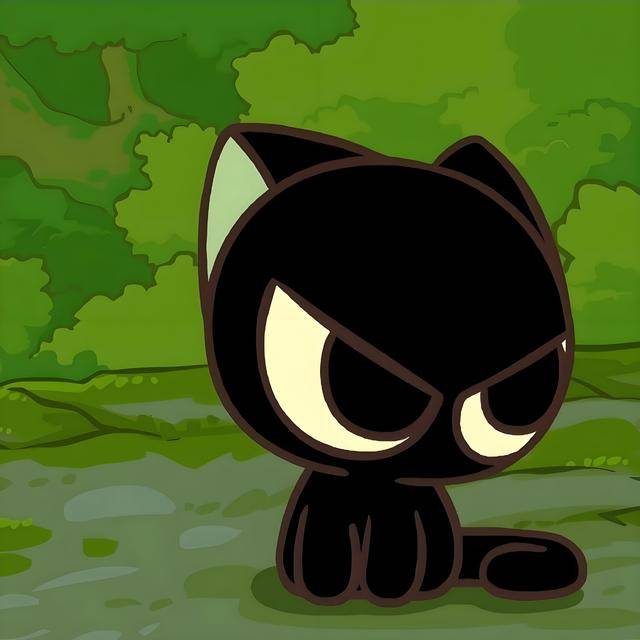
For this assignment, I chose to draw my favorite cartoon character “Luo xiaohei”, a black cat, as my spiritual character. At first, I was quite indecisive on which character best represents me as a self-portrait, but as I tried to look around, I just saw my xiaohei keychain and found myself thinking of how relatable (and adorable) he is. To fully utilize the skills acquired during class, and even further challenge myself, I decided to draw him being annoyed, where he would frown and his eyelids become slanted, forcing me to experiment/practice more with the arc function.

Some code that I’m really proud: 

The front legs where I did multiple experiments with the arc diameter, width, and height!

//legs
  arc(225, 353, 90, 170, PI, PI+QUARTER_PI);
  arc(210,350,90,170,PI+HALF_PI+QUARTER_PI,0);
  arc(183,356,64,160,PI+HALF_PI+QUARTER_PI,0);
  arc(251.5,353, 64, 163, PI, PI+QUARTER_PI);

As well as the ears, where I kept on experimenting with layers and arc values (as you can see the complex PI values, the QUARTER_PI/8, and the green part last)

//ears
 arc(270,175,90,130,PI+HALF_PI+QUARTER_PI/8, 0);
 arc(279,141,50,60,PI,PI+HALF_PI);
 arc(160,147,130,60,PI+HALF_PI,0);
 fill('#c1f0b7')
 arc(165,187,49,140, PI, PI+HALF_PI);

Embedded Sketch

How this was made

I started the assignment by drawing the sky and grass. Because Xiaohei is a young cat, he’s pretty small, so I made the grass section bigger than the sky to create this lower vision point. Originally, I started drawing the head first like how I’d usually do, but then realized drawing the head first makes drawing the torso difficult because I used arcs for the torso and it’d create a “hill” on top of the head, so I switched order and made the torso drawn first and then other body parts, so the torso could be “covered” and things would look more natural. After I was done with the body, I began to do the tail, where I gradually practiced my arc functions.

I drew the tail in 3 sections: one half oval for the tail connected to the body; one half circle as the tail turn; one half oval for tail end.

Then I began drawing the eyes and ears. With the eyes, I first drew 2 slanted lines for the “frown” and then experimented with the pupil and “white” part of the eyes in the way they are tilted. After I’m done figuring out the tiltness, I switched the order of the line and the eye part to make things more natural. Same applied to the ears: I kept experimenting with the width, height, and arc angles.

I referenced this picture “Xiaohei“ and also sought help from the p5js reference library “reference library”

Reflection and future improvements

I think one thing I could do better in the future is perhaps draft out the parts of the drawing and dissect the parts into orders of layers (which gets to drawn first and which last), so I can make the process a bit smoother, in the sense that I wouldn’t need to spend the time on that but rather on the finer details like the angle of the eyes and ears.

Assignment 1: Pikachu portrait

For my first assignment in Intro to Interactive Media, I decided to recreate Pikachu using p5.js. To build the sketch, I combined basic geometric shapes like circles, triangles, and quads with a few custom shapes for details like Pikachu’s unique tail.

How this was made

I started by making Pikachu’s body using a simple rectangle shape. Next, I added a circle for the head. I used smaller circles and arc function to draw the eyes, nose, mouth, and bright red cheeks. For the ears, I combined long arcs with sharp triangles at the tips to imitate Pikachu’s pointed look. I also used AI to get an explanation on how to use the rotate function properly so I could angle the ears correctly. The main problem was Pikachu’s tail, which has a unique zigzag shape that is hard to recreate with basic shapes. I explain more on how I managed to draw the tail in the next section.


Code highlight

//Tail  
  beginShape();
vertex(235, 216);
vertex(252, 210);
vertex(248, 195);
vertex(262, 190);
vertex(256, 172);
vertex(290, 160);
vertex(275, 126);
vertex(230, 150);
vertex(241, 183);
vertex(234, 186);
vertex(237, 197);
vertex(230, 200);
  endShape(CLOSE);
//Brown part of the tail
  beginShape();
fill('brown');
vertex(248, 199);
vertex(231, 204);
vertex(234,216);
vertex(252, 210);
  endShape(CLOSE);

After finishing this part of the code, I felt very satisfied with my work. At first, I drew the entire tail outline using line() functions. However, after finishing it, I realized that lines cannot be filled with color. I then searched through the p5.js reference page and discovered that I could use the beginShape() function to create any shape I want by plotting coordinate points. I utilized this function, plotting each vertex to finally make a shape that matched that specific zigzag pattern and filled it smoothly with yellow color.

This assignment turned out to be a bit more challenging than I initially expected. Still, I really enjoyed the process of figuring out different ways to draw the specific shapes I had in mind.
For future assignments, I would love to move toward more realistic sketches, and eventually start adding animation into my work.

Week 1 – Self Portrait

// eyes
fill('#ffffff');
ellipse(250, 175, 40, 24);
ellipse(350, 175, 40, 24);
fill('#44382c');
ellipse(250, 175, 22, 22);
ellipse(350, 175, 22, 22);
fill('#090806');
ellipse(250, 175, 12, 16);
ellipse(350, 175, 12, 16);

This week in class, we learned how to use basic shapes, colors, and drawing functions in p5.js. I started my self-portrait by creating the face using an ellipse to make an oval shape. After that, I worked on the hair. I realized that the hair looked better when I put its code before the face, because this allowed the hair to be behind the face. I then changed the order of my code.

For the hair, I used an arc for the top part and a rectangle to fill in the rest of the hair. I chose a brown color and used a color code with the ‘#’ to allow me to select a specific color instead of guessing colors with the numbers. For the face, I added a skin-tone color and then created the eyes. I used three ellipses for each eye to create the white part, the brown eye color, and the black for the pupil. For the nose, I used two simple lines. For the lips, I used two arcs and a line in the middle to create the shape of the mouth. Finally, I used a rectangle to create the neck.

A piece of code that I am particularly proud of is the code I used to create the eyes. Although it was basic, I was proud that I was able to make them and experiment with different colors and eye shapes. It took a lot of trial and error to get them the way I wanted, but I was happy with the final result.

I used AI for a small amount of help with creating the lips and eyebrows through this I was able to solidify my understanding of the two_Pi feature. I needed help understanding how to use arcs to create the shape I wanted. Other than that, I did not rely heavily on AI. I understood the basic concepts we learned in class and used them to create the portrait myself.

Reflecting upon this week’s tasks, I enjoyed learning how to code shapes and colors through p5.js. I feel my work is very basic, but for a start, I think it is okay. It has given me ideas for future work and improvements. I would like to become better at placement and using numbers, as I tend to guess the numbers rather than calculate them. I would also like to learn how to add motion and movement within my code and work.

Week 1 Self-portrait

The Concept:

I am ambivert by nature. What does this mean? I am the reserved, quiet person who listens to everyone in a room full of strangers. Yet, when you ask my friends and family, they will tell you I am the most energetic and outgoing person they know. I wanted to capture this concept for my self-portrait.

The idea was to create a character that looks like a normal person (aka the introverted self) at first, but once you get to know her, or rather take the time to get to know her, you discover another version. I thought a lot about what could create a stark difference between the introverted and outgoing self. The answer? My ‘Spiderman’ addiction. So, I made (or at least tried to recreate) a version of ‘SpiderGwen’ that is revealed underneath the normal person graphic as you hover the cursor around. I love the fact that the picture is revealed pixel by pixel since that represents “the effort” of getting to know me. To be honest, I am very proud of going for the idea itself (which some might say was very daring for someone who has never coded before.)

Embedded Sketch:

Implementation:

First, I played around with the different shapes and colors. In this process, the p5js website was really useful because it had visual examples alongside the code. One of my biggest achievements was discovering how to use “bezier()”. Along the way, I was inspired and learnt from the codes of several students who already had their self-portraits published.

For the sake of representing two selves, I had to create two different graphics so I could layer one on top of the other. Once my graphics were ready, I used the p5js website to write this part of code, which I am really proud of:

  //Drawing each version into the buffer
  drawNormalPerson(topImg);
  drawSuperhero(bottomImg);

  ///The interaction
  cursor(brush,0,0);

  // Load the top image
  image(topImg, 0, 0);
}

function mouseDragged() {
  copy(bottomImg, mouseX, mouseY, 20, 20, mouseX, mouseY, 20, 20);
}

Here, I used two global variables to load two different images into the buffer so they can be called when I want them to. The mouseDragged() is a special p5 function that automatically runs every time the mouse moves while a button is held down.

I am also proud of my lips and middle part because I took much time figuring out how to make them look good enough. Here is an extract for the middle part:

//middle part - hair
  img.fill('#2b1203');
  img.bezier(120,200,170,170,190,190,200,119.5);
  img.bezier(120,200.5,122,147,147,122,200,120);
  
  img.bezier(280,200,230,170,200,200,200,119.5);
  img.bezier(280,200.5,280,150,250,120,200,120);

Reflection:

For this assignment, time was my biggest enemy. I wanted to incorporate more things like building in the background of the introverted self and a sky with clouds for when the SpiderGwen appears. What I also tried doing was to replace the normal cursor with a spider (I think that would have been really cool). After countless trial, I could not do it. (I even asked Claude to help me figure this part out, but I still could not do it.) Nonetheless, I am very proud of my work and enjoyed every bit of the creative process I had behind the project. I hope my work inspires someone or reminds them of themselves (to my ambiverts out there!) and makes them smile.

Weel 1 Self Portrait photo

During my time of creating the self-portrait, I had to use the code practice from last class for reference; the reason being that the code would allow me to remember certain commands that I ended up using to make my portrait. For example, the commands from the practice code, “// Body fill(‘orange’) rect (etc.)” allowed me to get an idea of how I can create a body for my portrait which is then followed by creating said-rectangular body. This proved to be very helpful for me because what I was aiming for within my portrait was a kind of modern look; by modern look, I mean by how in most social media platforms, some people choose to have a blank profile picture that only depicts an almost rectangular body and circular head. It may sound boring, but I personally like to think of it as a reminder of how times around the world are so drastically different than how one can imagine. Speaking of circular head, i was originally going to use the “circle()” command to create my head, until I found out that the command best suitable for the requirement is the “ellipse” command since it had proven to me that it can create a far more accurate shape of the head for me. This wasn’t the only time I replaced a shape during the whole process, because when I was creating the nose, I almost went with an oval circular shaped nose. However, some part of me felt as if it were “too clownish” to say the least; hence why i decided to go with the triangle since it just felt more respectful with the nonchalant tone that i have been trying to keep up rather than a tone similar to that of an off-brand circus. As for eyes, my original goal was to create 2 big white circles and then create 2 smaller black circles that would be placed on top of the white ones in the middle; yet I remembered the “ellipse” command and how it would prove to be a more beneficial tool if it slipped horizontally, shrinked by eye-size, and then be placed in their respective spots all while the idea of 2 smaller black circles being centralized within the 2 white sclera of the eyes remained. Lastly, with the hair, this the most difficult for me, since I could not figure out which series of commands to use in order to replicate my hair as need be. Since I am not the most experienced artist in the room, I had no choice but to go forward with the decision to create those lines of hair that perhaps would at least resemble my short bangs.

Despite the headache from all the creation of shapes after shapes, a code series that I can’t help but feel happy about is the creation of the smiling mouth that you may see in the portrait. Before the mouth was even formed, I nearly went with the idea of using the “line()” command to form my mouth and perhaps stretch upwards. But of course, I would come to realize that the lines are meant to be nothing more than straight, thus enabling as incapable of being bent/altered further. When hope seemed lost, that is when I stumbled upon the command of “arc()” from the coding’s list of references. There, I would discover how certain arcs of line in this different command can be altered just in the way I desired! Thus, that is how I was able to get the smiling mouth as you would see here in the portrait!

Despite the work being done, I do want to mention that not only did I use the code practice and the coding site’s references as my guide, but I also had ai (one that I paid for), check my work to see if I must either change a coordinate or correct a common usually wrongly. This is because I saw that through my time working, my weakness has been second-guessing certain coordinates for certain shapes for too many unnecessary times. I just could not tell which coordinate was the right way to write in order to set the shape and/or color as I wanted. Therefore, that is why for each coordinate of each part of the portrait that I write, I would share it with the AI and simply hear its advice of what I can keep and what I must modify. Even though it has helped me recognize my mistakes, it still serve as a signal for me that what I should be working on for this class is a better understanding of how shapes must be correctly positioned/modified as for each project I work on. After all, this idea of improvement should help prepare me for possibly more complex projects that require more shapes somewhere in the future.

function setup() {
  createCanvas(640, 580);
}

function draw() {
  // background set-up
  background(135, 206, 235);
  // sun at the top right corner
  noStroke();
  fill("yellow")
  circle(40,40,180);

  // Head
  fill("tan");
  ellipse(300, 300, 250, 300);

  // Body
  noStroke();
  fill("green");
  rect(210, 430, 180, 220);
  
  // Hair 
  stroke("Black");
  strokeWeight(5);

  line(260, 190, 250, 150);
  line(280, 180, 275, 140);
  line(300, 175, 300, 135);
  line(320, 175, 320, 135);
  line(340, 180, 345, 140);
  line(360, 190, 370, 150);

  // Sclera of eyes
  fill("white");
  ellipse(250, 300, 65, 38);
  ellipse(350, 300, 65, 38);

  // Pupils of the eyes
  fill("black");
  circle(250, 300, 14);
  circle(350, 300, 14);

  // Nose
  fill("brown");
  triangle(300, 320, 285, 335, 315, 355);

  // Smiling mouth
  noFill();
  stroke("black");
  strokeWeight(5);
  arc(300, 370, 90, 60, 0, PI);
}