Week 3 – Functions, Arrays, and Object-Oriented Programming

Concept

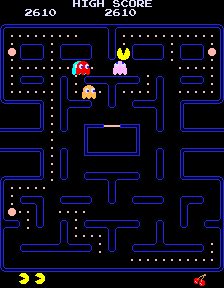
While I was reviewing The Coding Train videos on the topics we took in class this week, I was thinking about what to do for my assignment and how to implement OOP. I was specifically trying to figure out an object I could create multiple of. Then suddenly, the ghosts from the game Pac-Man popped into my head. I’m a huge fan of video games, so I immediately decided to use Pac-Man as inspiration for the assignment. I based my project on the design elements of the game, like the way the ghosts look, and had it so that when they’re moving around, they create a dotted line along their path, with the design being inspired by the dots Pac-Man eats around the map.
 

My Code


Process

I started my code by creating the ‘Ghost’ class, as that would be the main part of the project. Before starting any of the code, I watched ‘6.2: Classes in JavaScript with ES6 – p5.js Tutorial’ from The Coding Train as a refresher, and worked through creating the class myself.

Next, I began working on randomly spawning in the Ghosts when the program is run. To do this, I used a combination of the p5 reference site, searching on Google, and again the video ‘6.2: Classes in JavaScript with ES6 – p5.js Tutorial’ from The Coding Train.

Once I was able to get the ghost to spawn in properly, I began to work on getting them to move. I wasn’t sure where to start with this, so I looked for help on YouTube and came across a video titled “p5.js Coding Tutorial | Array of Bouncing Balls (OOP / mousePressed)” by Patt Vira. With the help of the video, I implemented the ‘moveGhost’ function and ‘checkBoundaries’ function, allowing the ghosts to move around the screen without going off of it. Additionally, I changed the dx and dy speed variable in the constructor allowing for variation in the speed between different ghosts.

Next, I decided to work on adding color to the ghosts, so I added an array holding a few colors for the ghosts. To give them a color, I added an argument to the constructor that would select a random color from the array when the ghost is created.

The next section of code ended up taking the longest to figure out. At first I tried to implement it by myself, but it wasn’t working out, so I looked through some of The Coding Train’s videos and found ‘9.7: Drawing Object Trails – p5.js Tutorial’. I used their help to implement an array that holds the vector location of each ghost and creates a point for each one.

Code I’m Proud Of

//creates vectors of the ghost position
    let v = createVector(this.x,this.y);
    this.history.push(v);   

    if (this.history.length > 500) {
      this.history.splice(0,1);
trail(){
  stroke(this.color);
  
  for (var i = 0; i<this.history.length; i=i+1) {
    var pos = this.history[i];
    ellipse(pos.x,pos.y,1,1)

The part of the code that allowed the ghosts to draw a path while they were moving was a completely new concept to me, so being able to learn how to do it was really exciting, and therefore it is also the code I am most proud of. I definitely plan to implement this in future projects as well.

Problems I Ran Into

The biggest problem I had during this assignment was definitely getting the ghosts to draw a path as they moved. Before, I looked for a video to help me; I ended up making it so that there were just lines connecting each of the ghosts, rather than them creating a line as they moved.

Additionally, when I added the colors to the ghosts, my first attempt resulted in them flickering between the color options rather than having one. This was because I put the color randomization in the ‘Show’ function, so every time the ghost was drawn, the color changed. I was able to fix this tho by moving the color selection into the constructor.

Reflection

Overall, I’m happy with what I was able to create for the assignment, and it helped me a lot with practicing the latest concepts we’ve learned during class. I was especially happy, I could inccorparte my love for videos games to some extent. Although figuring out how to get the ghosts to draw a trail along their path was a bit challenging at first, learning to implement the array capturing the positions of the ghosts was a really interesting and I hope to explore it’s capabilities further in future assignments and projects. In terms of improvements, I think adding a way for the eyes of the ghosts to change direction based on which way they’re moving would add another fun element to the work and make their behaviours more similar to the actual game.

Week 3 – Generative Art OOP

Concept:

The desert is a big part of the UAE’s landscape, and one thing I would always notice during desert trips was how bright the night sky was compared to in the city. I was also inspired by the nightsky timelapses where it showed the movement of the Earth and the various stars. I wanted to mimic that in my artwork, by randomizing the stars shape, size, speed and the positioning of stars with every click.

My Artwork:


Code that I am proud of:

// Move the stars across the sky
  update() {
    this.posX = this.posX + this.speed;

    // Move star back to the left when it leaves the canvas
    if (this.posX > width) {
      this.posX = 0;

The reason as to why I am proud of this code is because I used the update() function to make each star across the sky move not simultaneously, but across the sky with each having its own random speed. I also added an if statement that checks when a star would go past the edge of the canvas and moves it back to the beginning/left. I liked this as it helped solve the problem of how the stars would reappear as the sky would move.


Debugging/Issues:

My main struggle in the beginning was how the class, objects, and array all worked together because OOP is still a new concept to me. At first, I understood how to create one star, but I was confused about how I could use the same class to create multiple stars that each had their own position, size, speed, and color. I also had some issues with organizing my functions and understanding how drawSelf() and update() worked together to create the animation. I personally drew a lot of inspiration in the code from the Car class example we worked on in class, especially when creating the Star class and making the stars move. Using the same general structure helped me understand that I could take what we did with the cars and apply it in a completely different way for my own artwork. I also frequented The Coding Trains videos to fully understand the concepts and how they could be applied to my own code. I am still getting used to working with classes and objects, but building the artwork step by step definitely made the concept make more sense to me.
Reflection:

Interactive system reflection Week 3 by DG

When it comes to a strong interactive system, I like to consider the characteristics to be nothing more but representations of the system’s ability to LISTEN to a user. This is because if the interactive system is said to be involved in the “interactive” category of the arts, then it has to be the system’s obligation to stay true to its name via making sure that the communication between itself and the user is one-hundred-percent inline with each other. This includes the computer receiving the message depending on what the user manually activates on their own physical interface end and then actually ACTING upon whatever command it must have received. For example, let’s say that you were to be playing Five Nights at Freddy’s and you see an enemy outside your location in the game; your instinct would be to close the door right away to protect yourself. Only way to do that, however, is to have your hands interact with the hardware of the computer via moving the mouse so that your cursor would hover over the door button in the game, followed by left clicking your mouse so that the computer would respond to your action of left clicking your mouse by having the door in the game close under your command. Thus, this is an example of how an interactive system is supposed to work, with the computer giving you access to whatever it has to offer while also making it be your obligation to activate a certain command from your end that will reach into the computer system’s understanding and conduct a performance that will keep the interactive conversion strong as result of the computer “listening” to your inputs

With this understanding in mind, there are only a few ideas I can think of as of now. One idea that I wish to possibly figure out is how to create a series of coding that will let users control the position of certain objects/shapes from my sketches. Let’s say, for example, that if someone were to want to click on a triangle that could hypothetically be available in a sketch of mine, I would have to take it upon myself to write some coding instructions that would allow the user to either rotate the shape through simple clicks or, if possible, move the triangle to a different spot via holding and dragging with the mouse. Another idea I wish to figure out is how to hide certain phrases in my work.. only for them to reveal themselves upon being activated by the user interacting with my sketches. For instance, a user may be reveal a sketch of mine that would have them click on a random empty spot, only for the spot to show a transition of the words, “HHN”, fading into existence right before their eyes; this will be due to the hypothetical doing of me adding some coding instructions into my sketch that would allow said-words to fade into existence upon the user clicking on the designated empty spot with the mouse. After all, the concept of interactive art from my eyes should be known as art pieces where the observer him/herself is in control of what shall change within the sketch.

The main idea of interactive, from what I like to believe, is giving the art watcher their own mini controller that will let them change what is displayed within an art piece depending on a physical command from their end. Whether it be behind pressing a specific key on a keyboard or left clicking on a mouse that is connected to the computer display of the sketch, what matters most is if the user can communicate with the computer to change something in their favor. It must almost be like a conversation in real life, where one asks another a favor for something and the one who has been is obligated to fulfill said-favor. If it was the other-way around, where the sketch does nothing no matter what an observer touches to release a certain command, then it would simply be a normal artwork that may look stunning, but is missing something to give life to it. If you take it from me, a normal artwork may be good, but one can suppose that nothing is better than encountering artwork that just feels almost “alive” towards you and your presence.

Week 3 Generative Art by DG

let head;
let leftEar;
let rightEar;
let hat;

class BearObject{

  constructor(type, x, y, stopY, size){
    this.type = type;
    this.x = x;
    this.y = y;
    this.stopY = stopY;
    this.size = size;
    this.speed = 3;
    
  }

  update(){

    if (this.y < this.stopY){
       this.y = this.y + this.speed;
    } 
    
  }

  drawSelf(){

    // Head of Bear
    if (this.type == "head"){
      fill(255, 200, 0);
      circle(this.x, this.y, this.size);
    }

    // Bear Ear
    if (this.type == "ear"){
      fill(255, 200, 0);
      circle(this.x, this.y, this.size);

    }

    // Bear Hat
    if (this.type == "hat"){
      fill(0);
      rect(this.x, this.y, 80, 110);
    }
    
  }
  
}

function setup() {
  
  createCanvas(600, 600);

  // positioning of each object =
  
  head = new BearObject("head", 300, 0, 300, 250);

  leftEar = new BearObject("ear", 200, 0, 210, 70);

  rightEar = new BearObject("ear", 400, 0, 210, 70);

  hat = new BearObject("hat", 260, 0, 70, 100)
  
}

function draw() {
  
  background(220);

  console.log(head.type);
  console.log(head.size);

  head.update();
  head.drawSelf();

  leftEar.update();
  leftEar.drawSelf();

  rightEar.update();
  rightEar.drawSelf();

  hat.update();
  hat.drawSelf();

  
}

My goodness, this assignment was an absolute festival of stressful thinking. Firstly it requires not only looking back into some of our class notes, but as well as the example that was posted on the course website! It is simply because of the fact that generative digital art is not really my tempo and/or within my league. Nevertheless, I had to use the examples to the best of my ability to create this artwork inspired by this video-game franchise that I had always adored with all my heart. The franchise, in question, goes by the name of Five Nights at Freddy’s.


This franchise is a video-game series that I remember from my elementary school times, which has also resurfaced back into the present time period of my life! Since it has often brought a smile to my face upon interacting with it, i figured that i could maybe try generating a simple yet lovely art sketch based on the main Bear Mascot of the series; however, I went with the choice of coloring the sketch yellow as a way to pretend that it’s golden, because my memories with the series can be described as.. Golden.


Now, I was able to kind of familiarize with the concept of setting up the “class” of the objects in relation to the bear sketch and setting the rules within the class; however, my problem was figuring out how to get the circles actually moving down the sketch, which will almost make it look as if it is generating itself to life via visual movement from top to bottom. After some looking back into the reference sheet, as well as proofreading my mistakes with Ai, I realized that what I had to do was connect each object of the bear to the draw function; equivalent to connecting some cables together so that they would get a TV up and running without issue. In addition, I had to learn to connect the class to the draw function in a way that also required me to install an update command in my sketch, where it was responsible for making sure that the movement of the objects into their respective spots was possible. Right up there with the command of “drawSelf” that would assist in helping keep track of how the objects traveled down the X and Y coordinates until reaching the designated spot that the “setup” has advised them to stop at. It has been about setting the transitions up at the right time and right spots in order to ensure smooth transitions of the sketch coming into place to form the sketch of the bear mascot (but yellow) from Five Nights at Freddy’s. All in all, this still made me hope that I can look back into this sketch for reference if I ever need to work with more artworks that deal with transitional elements that when combined, will be able to form the artwork into one whole picture for all to see.

Week 3 – Object-Oriented Programming

My Concept:
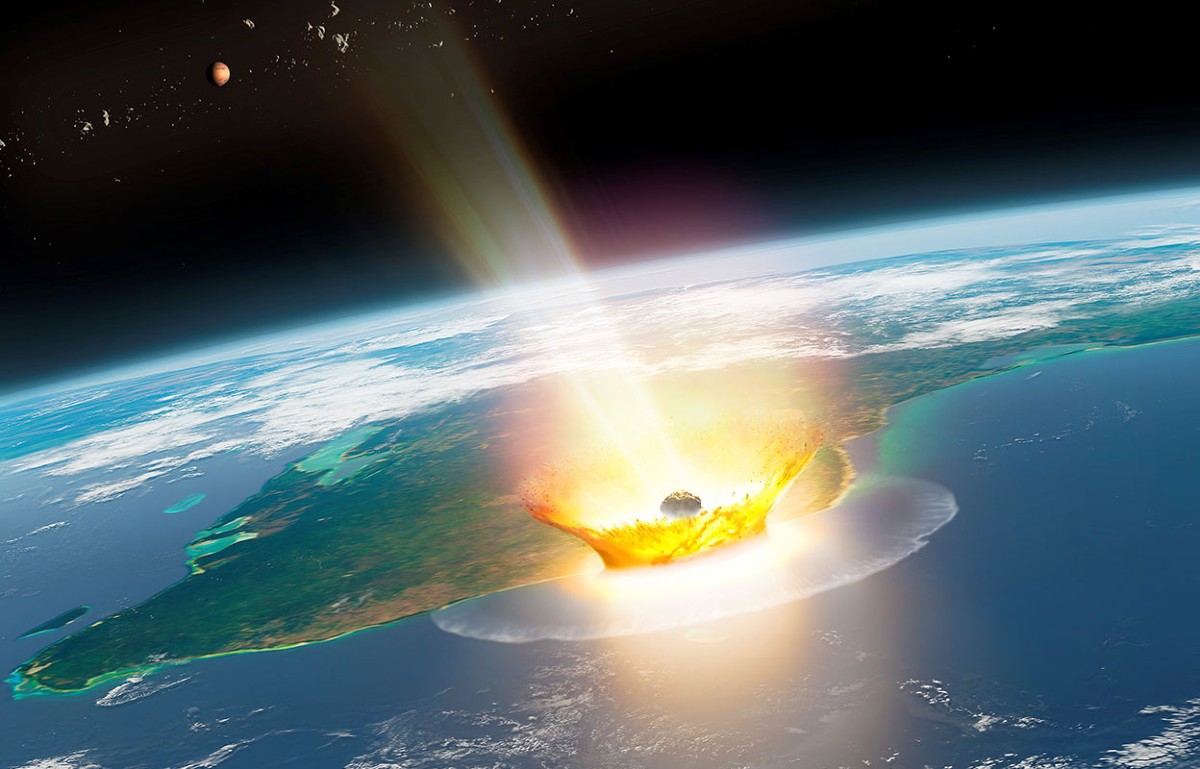
For some reason, the one thing in my head when I was making the code was the meteor that killed the dinosaurs, so I knew I  wanted to make something with that concept. I tried to stack the circles on top of each other and really liked how they looked when they were put together, and wanted to see what would happen if they started out from the same place but separated as part of the animation. Thus, my little art piece was born. And as I was playing around with the radius size, I managed to figure out the bursting effect.

Of course, the warm sun-like colors of the animation is meant to depict the fiery meteor, and the burst effect is the explosion when it reached earth.

Code I’m proud of

for (let i = 0; i< 100; i++){
  sun[i].move();
  sun[i].show();
  frameRate(25);
}
//second circle is smaller, is the inner layer
for (let i = 0; i< 90; i++){
  sun[i].move();
  sun[i].show();
  frameRate(15);
}

I was honestly really happy when I figured out how to do the bursting animation, and then adding to it by making a second loop so the impact feels bigger. Even if this isn’t the main part of the code, I was still happy with how it made the animation look.

Embedded Sketch

How this was made:
All of it was done by watching the Coding Train’s video. I watched the entirety of his lessons from 6.1 to 7.3. Anything that wasn’t explained in those videos I came up with myself (like the warm coloring and the explosion effect)

Reflection:
I wish I could’ve made the background a lot more fun! I was so focused on the animation itself that I couldn’t think of what the background should look like, so it is unfortunately just plain black.

I also wanted to add in a mouse clicked feature that would reset the animation, but I couldn’t figure out how to do it, and am very frustrated with my lack of progress with that specific function. Hopefully I’ll be able to add it into the next assignment.

Week 3 OOP Artwork

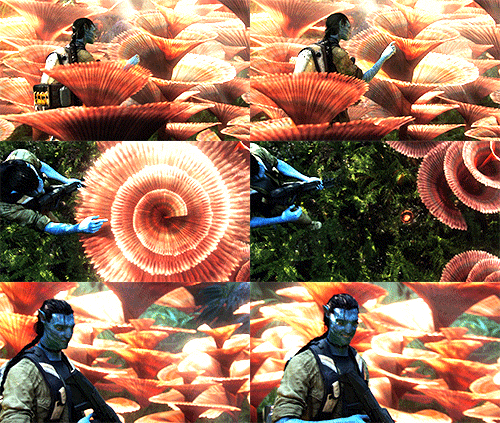
For my artwork, I decided to take inspiration from the Avatar movies and try to replicate Pandora’s bioluminescent plants using arrays and interactive functions that follow the mouse. I tried to recreate the plant’s behaviour from the scene below, where Jake Sully (the main character) tries to interact with the plants, which change size depending on touch.

The part that I am most proud of is how I used a class that acts as a blueprint in my code and stores information about plant sizes and positions, which are all randomized due to nature’s unpredictable tendencies. Moreover, it also controls the reactions to the mouse and how the plants become larger when the it gets closer

class GlowPlant {
constructor(x, y, size) {
this.x = x;
this.y = y;
this.size = size;
this.originalSize = size;
this.blue = random(180, 255);
this.green = random(80, 200);
}
// makes plants react to mouse
react() {
let distance = dist(mouseX, mouseY, this.x, this.y);

if (distance < 80) {
this.size = 35;
} else {
this.size = this.originalSize;
}
}
// plant shapes
display() {
fill(30, 180, 255, 40);
ellipse(this.x, this.y – this.size / 2, this.size / 2, this.size);
ellipse(this.x, this.y + this.size / 2, this.size / 2, this.size);
ellipse(this.x – this.size / 2, this.y, this.size, this.size / 2);
ellipse(this.x + this.size / 2, this.y, this.size, this.size / 2);

circle(this.x, this.y, this.size / 2);
fill(30, 180, 255);
ellipse(this.x, this.y – this.size / 2, this.size / 2, this.size);
ellipse(this.x, this.y + this.size / 2, this.size / 2, this.size);
ellipse(this.x – this.size / 2, this.y, this.size, this.size / 2);
ellipse(this.x + this.size / 2, this.y, this.size, this.size / 2);

circle(this.x, this.y, this.size / 2);
}

I created this code using object-oriented programming. I made a glowPlant class which stores the position and size of the objects, then used an array and a for loop to generate 40 randomly positioned plants with different sizes. Each plant has a display method and a react method to track the mouse, making them bigger or smaller depending on its position.

What I would like to improve on in the future are my artistic skills in making more realistic objects. I would also like to improve my code labeling and organization skills while learning how to do more complicated interactions with arrays.

Week 3 – Generative Art (OOP)

This week, I spent more time debugging than actually coding. After countless exasperated sighs and ‘break’ walks, I finally came up with something I am satisfied with. Looking back now, I feel like I got a better grasp of object-oriented programming after going through this debugging process.

Concept:

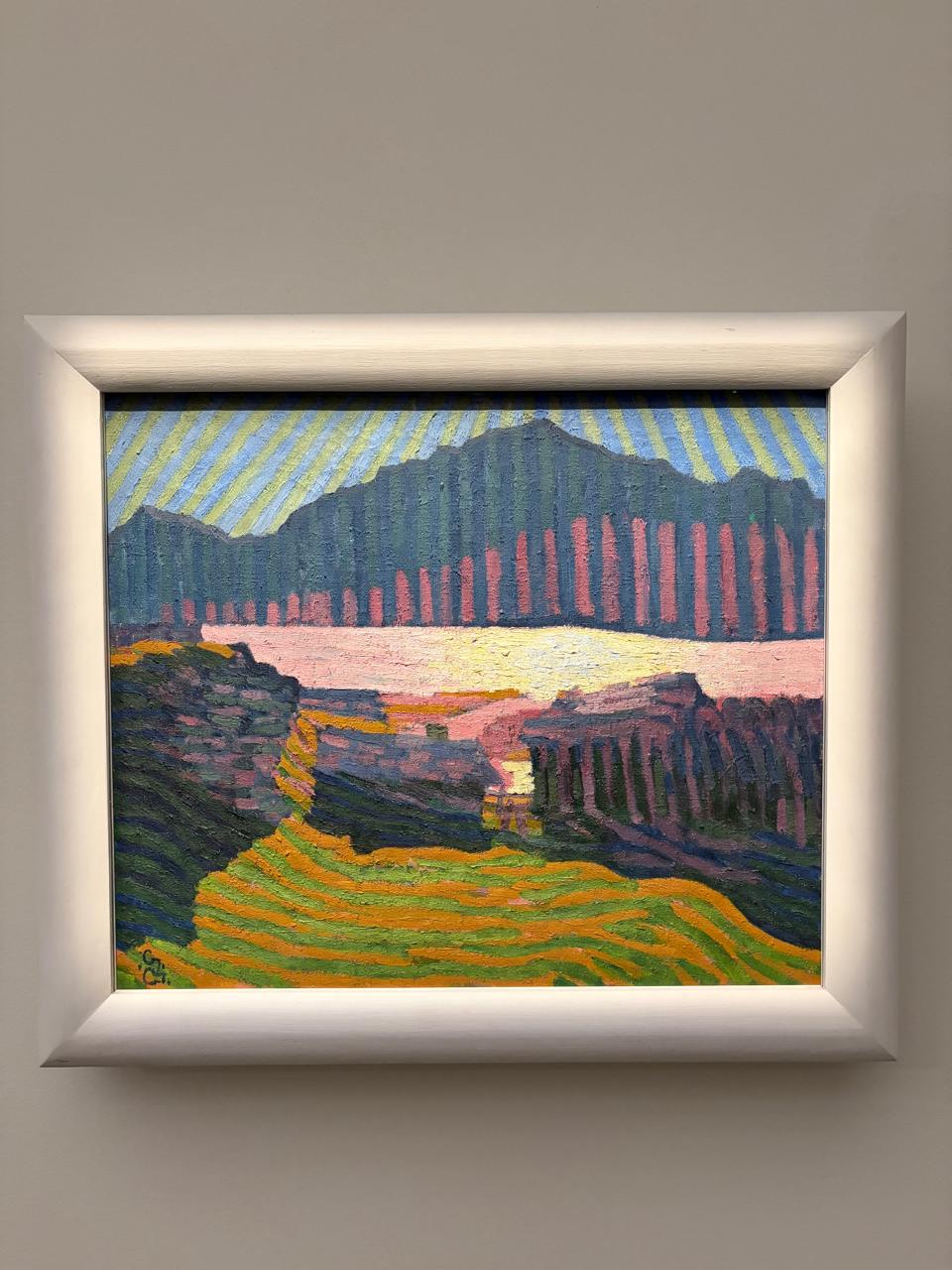
For this assignment, I was inspired by Giovanni Giacometti’s artwork, titled “Vue de Capolago” (View of Capolago). I came across this painting during my visit to Louvre Abu Dhabi. Its playful use of repeated, colorful lines stuck with me.

I tried to recreate the sky, mountain, and field in p5. Since we were assigned the Crawford reading this week, I also tried to incorporate some level of interactivity (‘fridge light level’, so it does not overpower my intention of staying true to the feelings evoked by the original painting). Therefore, I tried to create a change of hues as the user makes the sun set behind the mountains. Clicking anywhere regenerates the whole composition with new random stripe counts, widths, and heights, so each click produces a different but similarly-styled painting.

Embedded Sketch:

Process:

I had so many tabs open in the creation process of this week’s sketch. I referred to articles like this one (Link) and the p5 website in order to use functions like map. This Coding Train video (Link) and this Patt Vira video (Link) were particularly useful in exploring classes and changing gradients. Simply speaking, I built a small set of functions, each describing how to draw one shape given its size, position, and color. Then I used randomness to stamp out a bunch of these shapes with slightly different sizes and positions, and kept them all in lists. Every time, the program walks through each list and redraws every shape in it, but recalculates each shape’s color by blending two preset color sets together. What I am really proud of is how the blend ratio depends on where your mouse currently is on the screen. Clicking throws out all three lists and randomly generates a brand new set of shapes, so you get a totally different layout to look at. Here is a code excerpt of the color blend:

//Mixing the colors according to position of cursor
function drawSky(Mood, HorizonY) {
  background("#cfe3ea");
  for (const s of SkyStripes) {
    const from = color(SkyMidDay[s.ColorChoice % SkyMidDay.length]);
    const to = color(SkySunSet[s.ColorChoice % SkySunSet.length]);
    s.display(lerpColor(from, to, Mood), HorizonY);
  }
}

function drawMountain(Mood, HorizonY) {
  for (const r of MountainStripes) {
    const from = color(MountainMidDay[r.ColorChoice % MountainMidDay.length]);
    const to = color(MountainSunSet[r.ColorChoice % MountainSunSet.length]);
    r.display(lerpColor(from, to, Mood), HorizonY);
  }
}

It took me a while to figure out this logic. This is why I am so proud of it.

Reflection:

I would have loved to spend more than a week on this assignment. This is only because I believe it would have allowed me to experiment more with the aesthetics after having figured out the logic of things. For instance, I imagine changing the fields into a sea with wavy lines as the user clicks on the screen. Nonetheless, I believe I have learnt a lot through this assignment.

Week 3 – Functions, Arrays, and Object-Oriented Programming

Concept

For this project, I was honestly feeling a little lost at first because I did not know what I wanted to create. I was staring at my laptop wallpaper, which has jellyfish that slowly move around, and that gave me the idea to make my own version of it. I wanted to create a simple underwater scene with jellyfish floating upward. I made each jellyfish slightly different by giving it a random position, size, speed, and color. I also added a small interaction where clicking the screen creates another jellyfish.

(My wallpaper)

My Artwork – Jellyfish

Click the screen!

Code I’m Proud Of

I am most proud of the code I made for the jellyfish tentacles. At first, I was confused about how to place the lines so they would stay connected to the jellyfish when it moved. I used this.x and this.y with different numbers to place the three tentacles under the body. I like this part because it makes the jellyfish actually look like jellyfish instead of just being a circle.

// Draw the three tentacles underneath the body
  stroke(this.jellyColor);
  line(this.x - 8, this.y + 10, this.x - 8, this.y + 30);
  line(this.x, this.y + 10, this.x, this.y + 30);
  line(this.x + 8, this.y + 10, this.x + 8, this.y + 30);
}

Debugging

I struggled a lot with understanding how the class, objects, and array were connected because this was still pretty new to me. At first, I understood how to make one jellyfish, but I did not really understand how to make multiple jellyfish from the same class and have each one be different. I also got confused by this.x and this.y and what the numbers like +8, +10, and +30 were doing when I was making the tentacles. To help me, I went back to the car sketch code we did in class and looked at the way the class was structured. I also used the Ball Class Example 2 – using a class (p5editor) and Ball Class Example 3 – multiple instances using a class (p5editor) to understand how classes can be used to create objects and how multiple objects can exist at the same time. Looking at these examples helped me understand that each jellyfish can use the same class while still having its own position, size, speed, and color. I had to keep going back to the examples while coding because I am still getting used to this way of programming and it was quite frustrating.

Reflections

This project helped me understand objects and classes more because before this I was confused about how one class could create multiple things that are still different from each other. The bouncing ball example from class helped me understand how this.x and this.y belong to each individual object. I also struggled a little with understanding the array and how it connects to the objects, but once I understood that the array holds all the jellyfish it made more sense. I kept the artwork simple because I am still getting comfortable with coding, but I like that it still has movement, randomness, and interaction. If I continued working on it I would probably make the jellyfish look more realistic or add more interaction to their movement especially the tentacles.

Week 3 – Art Of Interactive Design Response

After reading The Art Of Interactive Design , I think a strongly interactive system is something that actually feels like a exchange between the user and the computer. The part that stood out to me most was the idea of listening, thinking, and speaking. I usually think of something as interactive if I can click on it or move something around, but the reading made me realize that this does not necessarily mean it is strongly interactive.

For example, if I click somewhere and a shape immediately appears there, the system is listening to me, but it is not really doing much with what I gave it. A stronger system would take my action, process it in some way, and then give me a response that makes me want to interact with it again. I think the most important part is that the user’s actions actually change what happens next. It should feel less like I am controlling a button and more like the system is responding to me.

This made me think about my own p5 sketches because most of the interaction I have made so far is pretty simple like clicking to change size and color or adding new objects or using the mouse to control an object. I think I could make my sketches more interactive by making the computer remember what I do instead of just responding to one action at a time.

For example in my previous laser sketch, I could make the lasers change depending on where I move my mouse including the speed of it or how many times I interact with the sketch. I could also make the lasers slowly react to my previous movements instead of immediately following the mouse. Another idea would be having the colors or movement change after I interact with the sketch a certain number of times. This would make it feel like the sketch is actually responding and changing over time.

I also think I could experiment with sound or other types of input eventually. I like the idea that the sketch could react to something I do without me just clicking a button. I want my sketches to feel like the computer is actually responding to me and giving me a reason to keep interacting with it.

Week 3 Reading response

A system is strongly interactive when the user can change its outcome. Crawford simplified interactivity as listening, thinking, and speaking, which can also be understood as input, processing, and output. For example, take a storybook. A book is not interactive, as the reader cannot influence anything that happens in its narrative. A video game, however, is interactive because the player can control the character with an input, altering its journey. In my opinion, this is what makes a strong interactive system: the user’s input has a noticeable impact on the system’s response.

While making future sketches, I plan to incorporate interactivity by using functions on P5.JS such as mousePressed and mouseX/mouseY to give my projects more interactivity. I have already started this in my last artwork, as I used mousePressed and a boolean variable to change the color of the piece.