Week 4 – Assignment

Text Generator – Matches Results

My Concept

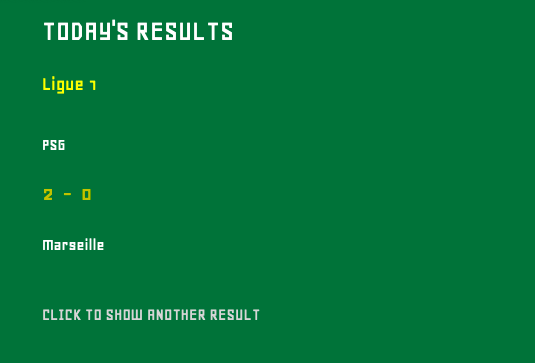
For this assignment, I decided to make a generative football results screen. Football is something I admire, so I wanted to connect the assignment to something personal instead of generating random poems or unrelated sentences.

The sketch displays a match result, the two teams, and the competition or in other words, the country league. When the user clicks the canvas, a different result appears. The green background represents a football pitch, while the yellow and white text make the information clear and easy to read. The results are sample results stored in my CSV file, not live results from the internet.

My Highlight Code

The part of the code I am most proud of is where the program randomly selects one match and separates its information:

  singleMatch = splitTokens(
matches[int(random(matches.length))],",");

random(matches.length) chooses a random position from the matches array. int() changes it into a whole number that can be used as an array index. The selected CSV row is then separated at every comma using splitTokens(). This allows me to access the teams, scores, and competition separately.

I also used:

function mouseClicked() {
  loop();
}

This allows draw() to run again after a click and display another match result.

My Embedded Sketch

You can click the sketch to display another result.

How This Was Made

I created a file called matches.csv. Every row contains the first team, its score, the second team, its score, and the competition/league. I loaded this file with loadStrings(), which stores its rows inside an array.

I assigned an index number to each category, such as TEAM1, SCORE1, and COMPETITION. After selecting and splitting a random row, I used these index numbers to retrieve the correct information.

I used loadFont() to load the Geo.ttf font that I chose and uploaded to the p5.js editor. I then used text(), textSize(), and fill() to design the results screen. Finally, noLoop() stops the results from changing automatically, while loop() allows a new result to appear after a mouse click.

I made this assignment fully based on the Week 4 class slides, and specifically the functions shown in each slide and the sketch examples given in the slides to see how everything works and use examples for ideas. Particularly, the generative poetry examples. I adapted the structure of such examples to display my football matches results texts.

Reflection

The biggest challenge was understanding how one CSV row becomes an array after using splitTokens(). At first, the index numbers were slightly confusing, but labeling them as TEAM1, SCORE1, TEAM2, SCORE2, and COMPETITION made the code easier to follow.

I also needed to make sure that the CSV and font filenames matched the filenames written in the code. If one letter was different, the file would not load. Whenever I had a problem, I returned to the week 4 slides because they explained the process step by step and in a very detailed way.

I am happy that I connected the assignment to football. In the future, I would like to learn how to load real match results automatically instead of entering sample results manually.

Week 4 Generative Text

For this week’s project, I used arrays and the random() function to create a Resident Evil-inspired quote generator. The program pulls quotes from different characters stored in the array and randomly displays them as text on the canvas.

A part that I am proud of in this program is my array, which stores the quotes. I used objects as well to connect each character to their quote so the program wouldn’t randomly display the wrong character and quote.

// Array with random quotes
let quotes = [
{
character: “Leon”,
quote: “Where’s everyone going? Bingo?”,
},
{
character: “Leon”,
quote: “No thanks, bro!”,
},
{
character: “Jill”,
quote: “You want S.T.A.R.S.? I’ll give you S.T.A.R.S.”,
},
{
character: “Claire”,
quote: “Hey, it’s up to us to take out Umbrella.”,
},
{
character: “Wesker”,
quote: “7 minutes. 7 minutes is all I can spare to play with you.”,
},
{
character: “Jake Baker”,
quote: “Welcome to the family, son.”,
},
];

I created this by using an array to store my quotes and using objects to link each quote to its respective character. I then used the random() function to select an object when the user clicks anywhere on the canvas. The selected quote and character are stored in a variable and displayed using the text() function. I also used different text styles and colors to make it more visually appealing.

One thing that I would like to improve on in my program is using different fonts than the ones already stored in p5js. I feel that would make it more recognizable. I would also like to experiment more with the background and maybe add some images too.

Week 4 Assignment – Data

This week, we learned about text and data visualization. I wanted to create my data visualization around Marvel movies and their Rotten Tomatoes scores based on the year they were released. At first, I was planning to create a fashion-themed data visualization, but I could not find the data I needed, so I decided to move on to movies, specifically Marvel movies. My initial idea was to use different tomato sizes to display the Rotten Tomatoes scores of Marvel movies across different years. At first, my tomatoes were all displayed in a line, but I later decided to arrange them in a more random-looking way so the visualization would be more visually interesting.

Concept

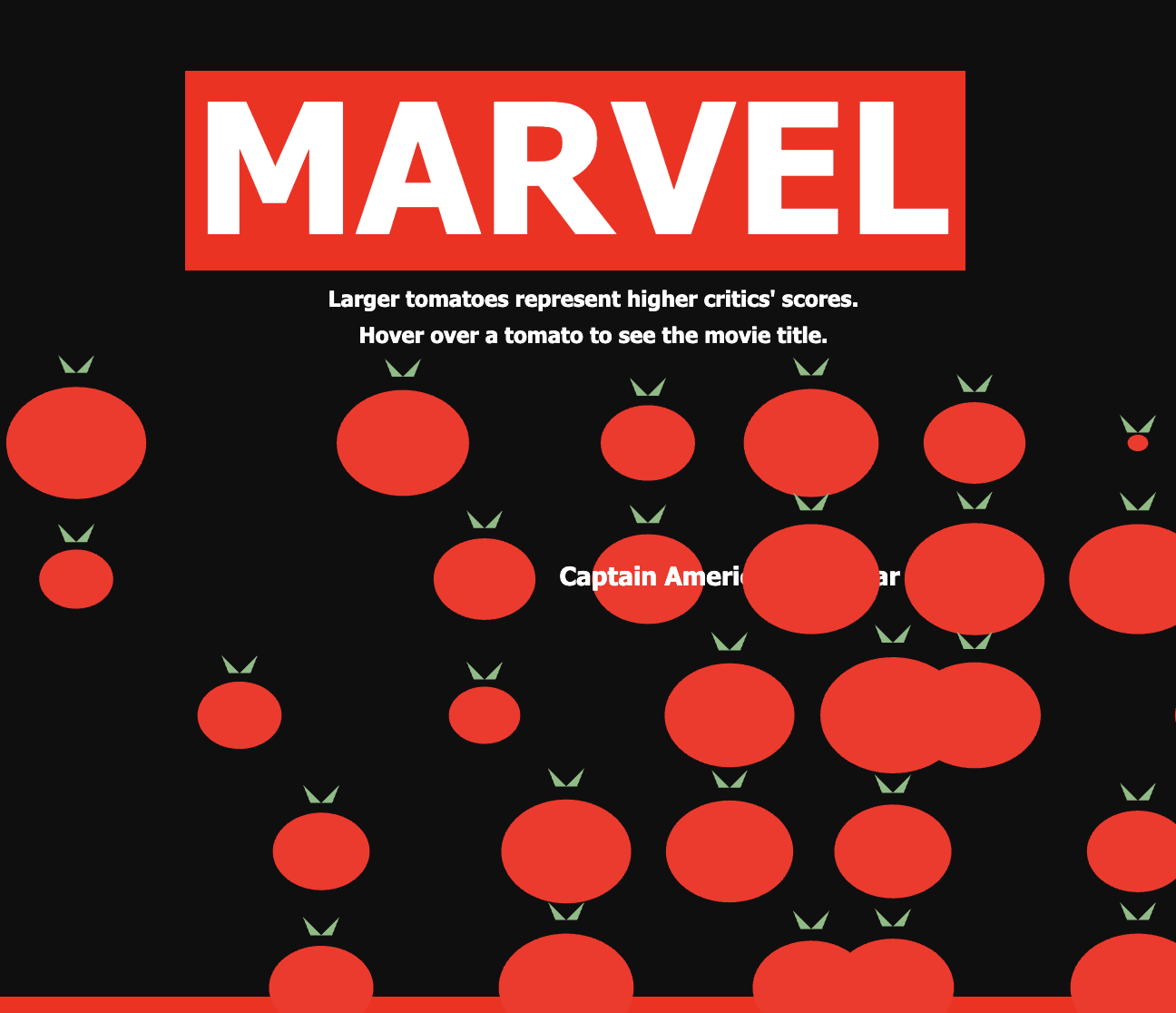
My concept is to visualize Marvel movies using tomatoes, with each tomato representing a different movie. The tomatoes are placed along a timeline from 2008 to 2024 based on the movie’s release year. Each tomato’s size represents its Rotten Tomatoes critics score, so movies with higher scores have larger tomatoes. I looped through each movie in the CSV file and used the movie’s data to determine the tomato’s position and size. I also used different rows to organize the tomatoes and make the visualization easier to read. My goal is to create a simple and visual way to see how Marvel movies have been rated over time.

I first used the shapes and text that we learned in Lesson One to create the Marvel sign at the top and the timeline at the bottom. I then created a class for the tomatoes so that instead of using simple circles, the tomatoes appear on the canvas to represent the Rotten Tomatoes ratings.

After that, I uploaded my data in the form of a CSV file. When editing the data, I chose to include only three pieces of information: the movie name, the release year, and the Rotten Tomatoes score. The image below shows a snippet of the data:
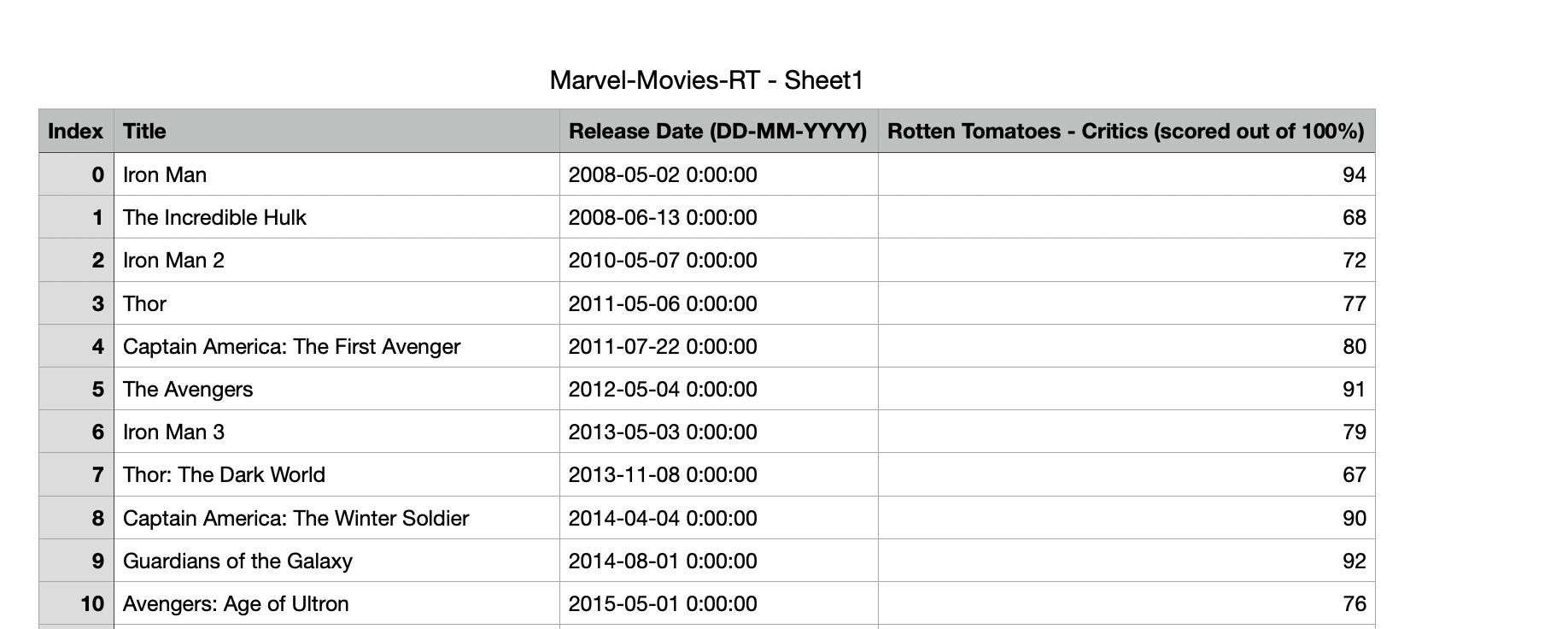
Then I used let numRows = marvel.getRowCount (), which allows me to count how many rows or movies are in my CSV file. I then collected the release dates and Rotten Tomatoes scores from the CSV. I also used the Float function, which changes the values into numbers so JavaScript can use them for calculations. I then used the minimum and maximum Rotten Tomatoes scores to determine the size of each tomato. Finally, I used the movie’s release year to position each tomato along the timeline and created different rows so the tomatoes would not all overlap.

The code I was most proud of was

let x = map(year, 2008, 2024, 50, width - 50);

 let size = map(rottenTomatoes[i], rottenMIN, rottenMAX, 10, 80);

I was proud of this code because I was able to use the data from my CSV file to map out the tomatoes visually. The first line uses the movie’s release year to decide where the tomato should be placed on the timeline. The map function takes the years from 2008 to 2024 and changes them to fit across the width of my canvas, from 50 pixels to width -50. This means that movies released earlier are placed closer to the left side of the timeline, while movies released later are placed closer to the right side.

The second line uses the Rotten Tomatoes score to decide the size of each tomato. It takes the lowest and highest Rotten Tomatoes scores in my data and maps them to tomato sizes between 10 and 80. This means that a movie with a lower score will have a smaller tomato, while a movie with a higher score will have a larger tomato. I was proud of this because I was able to take actual data and turn it into visual elements, rather than just displaying the numbers as text.

Reflection

For next time, I would like to make my visualization more interactive by having the name of the movie appear when I hover over each tomato. I think this would make the data easier to understand because the viewer could see the Rotten Tomatoes score through the size of the tomato while also being able to identify the movie. One part of my code that I found difficult to understand was how the tomatoes could be placed into different rows. In particular, I did not fully understand the code :

for (let i = 0; i < numRows; i++) {
   let year = int(releaseDate[i].substring(0, 4));

and how the I was used to change each tomato’s position. I used AI to help me understand this part of the code and fix it, since the tomatoes originally appeared in a straight line and then moved randomly. In the future, I want to be able to understand and create this type of code more independently instead of relying on AI when I get stuck.

Reflection – Trying to embed the mouse press on names

I wanted to try and make the mouse press work so that when I clicked on one of the tomatoes, the name of the movie would appear. I first tried using mousePressed() to display a movie’s name when I clicked on its tomato, but I couldn’t get it working. I was confused about how to connect the mouse position to a specific tomato and its corresponding row in the CSV.

I used AI to help me understand how dist could check whether the mouse was close to a tomato’s centre and how getString could retrieve its movie title. My attempt used “Movie” as the column name, although the actual column was called “Title”.

Although I tried adjusting the code, the click interaction still did not work as intended. I later changed to a hover interaction that displays the movie title in a fixed position.

In response to the feedback, I worked on correcting the error and making the connection between each tomato and its movie clearer. I first increased the canvas from 600 × 600 to 800 × 700 pixels because the original layout felt too crowded. I then adjusted the text positions and added a description to help viewers understand the visualization and how to interact with it.

The old layout :
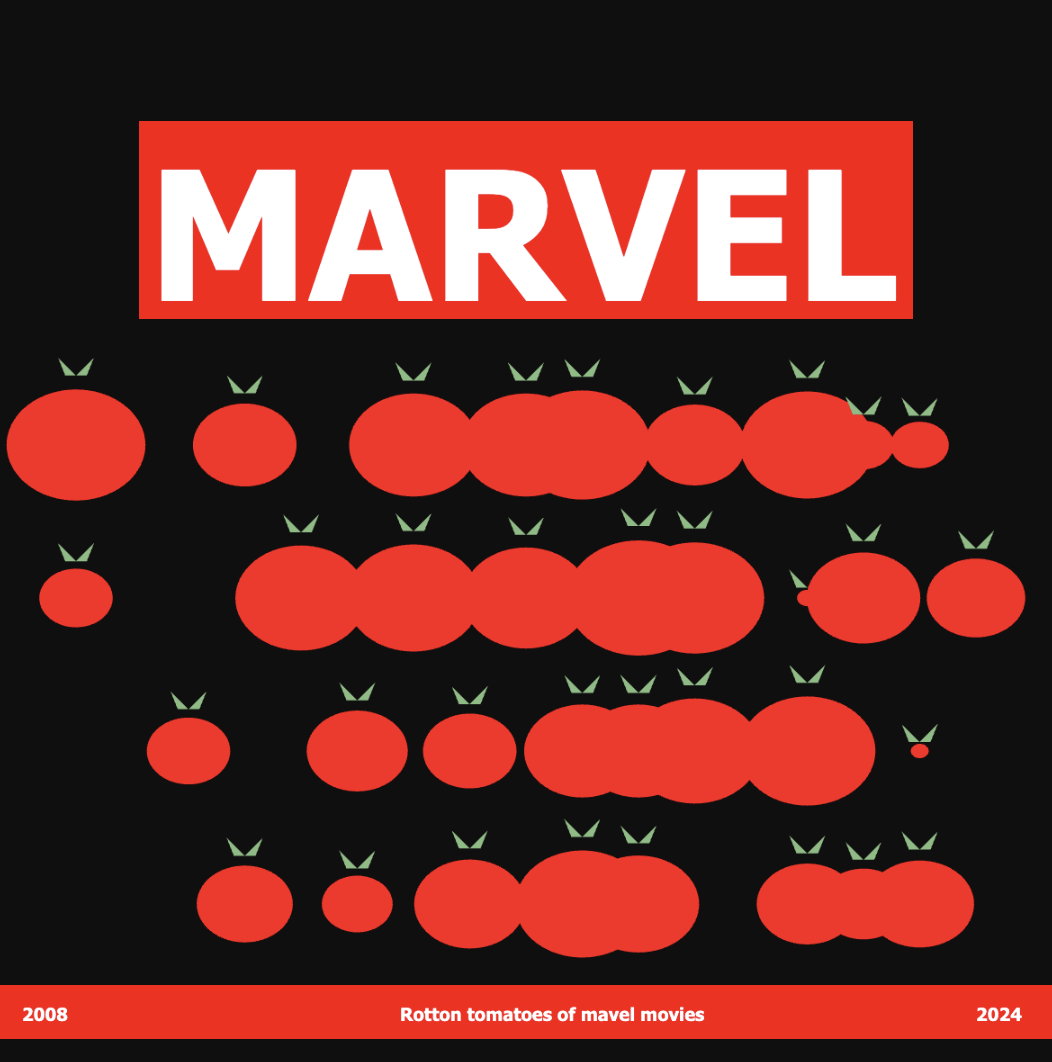
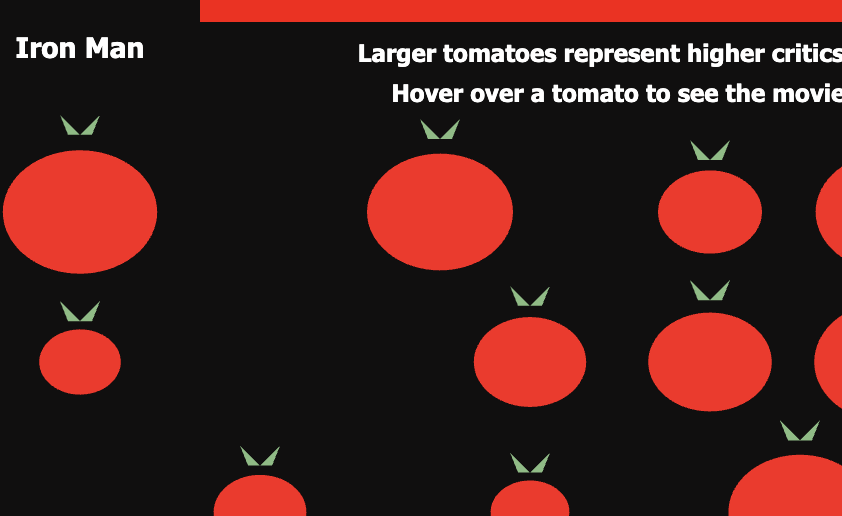
I added a hover interaction so viewers could identify the movie represented by each tomato. Initially, the movie titles appeared near the tomatoes, but some of the text overlapped with other elements and made the visualization harder to read. I changed the label from a position based on the tomato’s x and y coordinates to a fixed position. Now, hovering over a tomato displays its movie title in the same area of the canvas. I also changed the label to red and increased its text size to 20.

Texts overlapping :
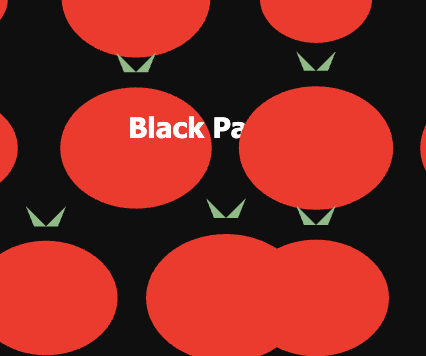


These edits helped me think about how the layout supports the information being presented. The tomatoes communicate the scores visually, while the movie titles help viewers identify the individual films. Giving the title a consistent location makes the interaction easier to follow.

Current look of the data being represented:
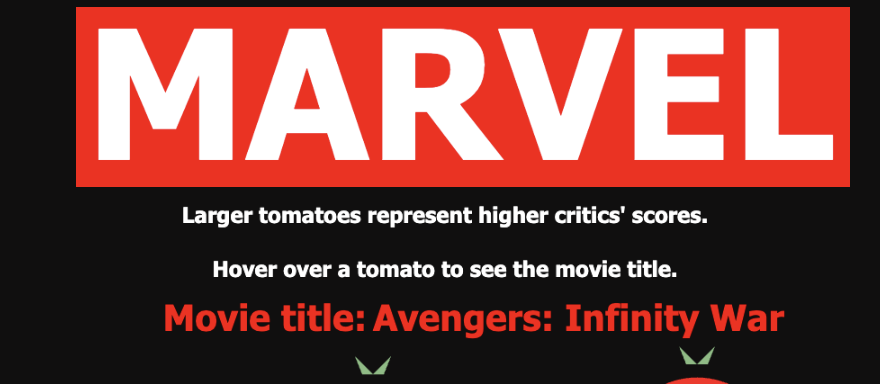
AI description

I used ChatGPT to help me understand and debug the movie-title interaction. I was encountering errors and needed help connecting the titles in my dataset to the tomato objects. ChatGPT provided explanations and code examples, including a complete revised version of the two JavaScript files. The specific parts it helped me with were the data check, creating tomato objects with movie titles, and displaying a title when the mouse is near a tomato.

Specific code that AI was used for is the following. The first one was !marvel. I learned that this checks if the Marvel data is available. If it is not, return stops the rest of the draw function. This stops the code from trying to use data that is not there yet, but it does not fix a problem with loading the file.

if (!marvel) {
  return;

The next code I learned was that this creates a tomato using the position, size, and movie name. The x and y decide where it goes, and size decides how big it is. The movieNames[i] gives it the name of the movie from that row in my CSV. Then tomato.show() draws the tomato and checks if the mouse is over it.

This was where I had been getting an error because I was asking the code to show a movie name without having the data it in the tomato first. I needed to code the name into the file and store it as this.movieName so the code knew which name to show.

let tomato = new Tomato(x, y, size, movieNames[i]);
   tomato.show();

Lastly, I learned that the dist function checks how far the mouse is from the middle of the tomato. If the distance is less than half its size, the movie name appears. I used fill to make the text red and textSize to make it bigger.

At first, the names appeared near the tomatoes, but they overlapped with other things on the canvas. I changed the position to (360, 190) so the names would appear in the same place and be easier to read. I also learned that pop brings back the drawing settings saved by push, so these changes do not affect the rest of my sketch.

if (dist(mouseX, mouseY, this.x, this.y) < this.size / 2) {
    fill("#ff0000");
    textSize(20);
    text(this.movieName, 360, 190);
  }

  pop();

During the revision, I adjusted the canvas dimensions, text placement, and label appearance to make the visualization clearer.

Reference 

Week 4 – Assignment


Concept

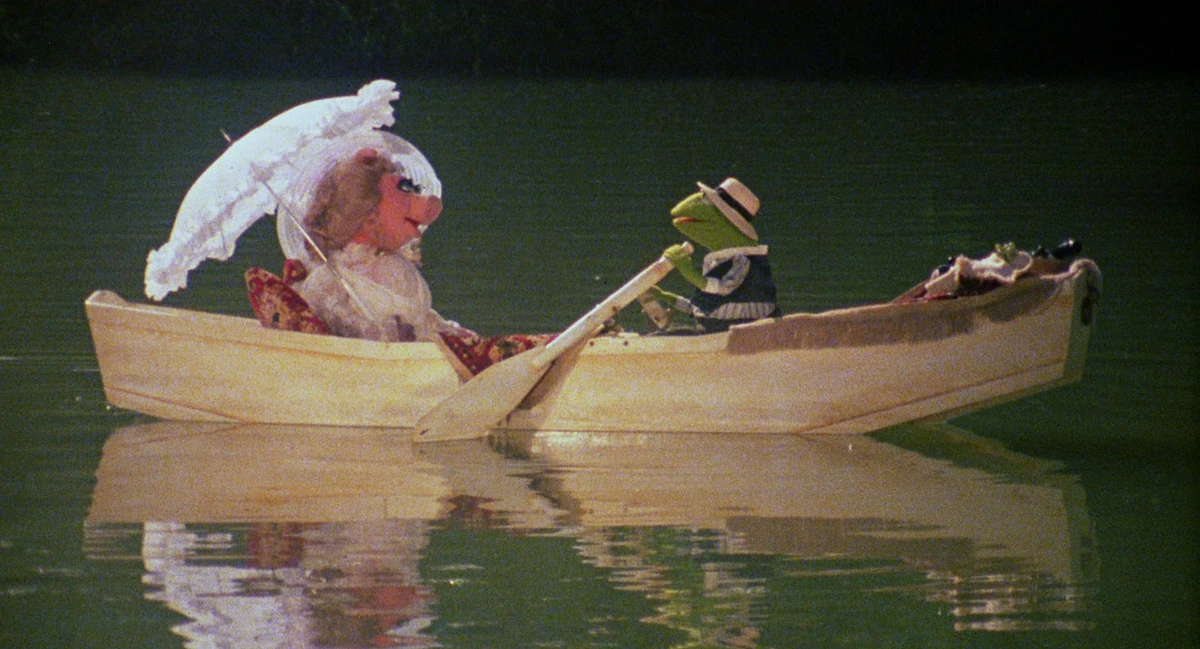
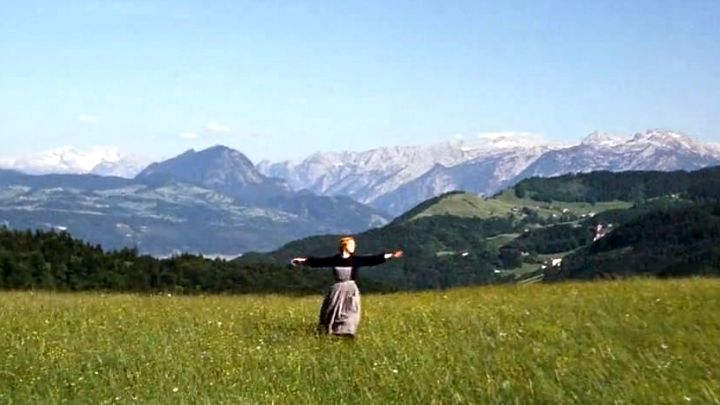
For this assignment, I decided to create a random movie quote generator. I chose three of my favorite movies, The Muppets, Toy Story, and The Sound of Music, and picked two quotes from each movie. The project starts with a main screen that asks the user to click anywhere to begin. Every time the user clicks, one of the three movies is randomly selected along with one of its two quotes. I also wanted each movie to have its own screen theme rather than only changing the text, so that every generated quote feels connected to the movie it comes from.

Code Im Proud Of

I think the part I am most proud of is the river gradient for The Muppets screen. I wanted to challenge myself a little more instead of making the river one solid color, so I decided to try using paletteLerp(). I looked at the p5 reference for paletteLerp() and used it as a guide for creating the gradient. I also searched for a combination of river colors that would work well together and used those colors for the gradient. I liked being able to figure out how to put these different parts together to create the river I had in mind.

//river
noStroke();

//river gradient 
for (let i =270; i < 400; i++) {
  let amount = map(i, 270, 400, 0 , 1);
  let riverColor = paletteLerp(riverColors, amount);
fill(riverColor);
  rect(0, i, 400, 1);
}

How This Was Made

I created this project using p5. While working on it, I referred to different p5 references whenever I needed help remembering how to use certain functions or wanted to try something new. I also used Google Fonts, which is where I found the DM Mono font that I used throughout my project. For the visuals, I looked at images from each of the movies as references and used them as inspiration when creating my own versions in p5. I also used ChatGPT for help with the stars on the main screen. I originally searched online for how to create a star in p5, but most of the examples I found used more complicated code than what I was looking for. I asked ChatGPT how I could create a simple star in p5, and it suggested using the ✦  symbol as text. This made it much simpler for me to create the look I wanted for the starting screen.

References: 

hex colors for river gradient 4 colors in p5   – for some reason, the colors that I got are not showing in this link

https://p5js.org/reference/p5/paletteLerp/

https://editor.p5js.org/cs105/sketches/iCmF693Ps

https://editor.p5js.org/hychu31/sketches/7HvwXXVTK

https://fonts.google.com/specimen/DM+Mono?preview.script=Latn

ChatGPT –  for the stars

Photo References:

Reflection:

Overall, I am very happy with how this project turned out, and I am proud of myself for what I was able to create. I think I challenged myself more with this assignment and was able to create something that matched the idea I originally had in mind. However, one thing I would change for next time is giving myself more time to work on my assignment. I think this shows when comparing the three screens because The Muppets screen has a lot more detail than the Toy Story and The Sound of Music screens. If I had given myself more time, I think I could have added more detail to those two screens. For the next assignment, I want to give myself at least three to four days to work on it so that I can take my time and develop my ideas more fully.

Assignment #4 reading response

Creative Reading Response:

I think one recurring answer for me on the topic of “difficult tech/design” would be Notion. I’ve repeatedly given myself and Notion a “second-try”, which really went on to be more than two tries, just so I can get on the “trend” and make use of all the great, highly productive, convenient, and efficient functions that it’s known for. However, it’s exactly its variety of functions that trips me over and frustrates me immensely. Whenever I’m trying to customize my pages, it’s just confusing, then I turn to templates which work for a while but then becomes confusing again when I wish to edit some features to better suit my habits and lifestyle. The “advanced” functions also made me feel “inferior” in the sense that even if I watch tutorials and follow other people in making my own templates, I just can’t seem to “figure it out” and make the experience less like untangling a yarn ball, while the other people, who are the reason I wish to use Notion, just seem like they’ve got it all figured out and under control. Talking about control, that’s also something I find really important in my experience with Notion. Oftentimes, when I’m exploring or setting up pages and links, they just suddenly become messy and “wrongly organized” and hard to “undo”, which makes me feel very “powerless” and frustrated. However I do think it could be improved, or perhaps some products are just not meant for everyone, which brings me to my opinion on what the text mentioned about how consumers shouldn’t accommodate products but rather products should accommodate consumers.

While I totally agree with this point, I also see the difficulty in juggling an advanced variety of features in the product and consumer experience. I think it’s almost like calculators, you need a certain level of “knowledge” to know how to use it and make it to the full use, like me and Notion: yes, you can stop with the basics of 1+1 but once you know there’s tools for graphs and derivatives, you just can’t help but to want more from the product and end up struggling with it. Or perhaps I‘m wrong and that Notion could in fact be better in accommodating consumers like me but who am I to say that when people are doing just fine with it. Or perhaps it’s the “peer pressure” getting to me and that people don’t actually find the experience that enjoyable but I wouldn’t know and frankly, I’m just fine without Notion.

Exploring this opinion really made me reflect on myself both personally and academically: am I too comfortable with what’s already in the “market” and am I lacking opinions in the way I see popular designs and tools? Perhaps that’s what I should learn: to have a stronger opinion, and believe that things could always be better even if they’re widely accepted, just like the unreasonable doors.

Overall, I find the text very interesting, and very closely tied to our previous reading on what’s interactive. Both made me realize the importance of “experience” and that a good design should be enjoyable. Looking back, many of the products mentioned in the text have given me a difficult time yet I never really thought about the way it could be better and in fact, what factor is lacking. I really enjoy the idea of signifiers and affordance in the way that it ties to the human mind’s “modelling”. For instance, when he mentioned the sliding doors and how the door handle in fact gave a signal of push or pull but instead worked as a slide. This made me think of how it could’ve been better so the signifier is natural and leads to discovering the affordance, and I thought perhaps it should’ve made a vertical dent where people can place their fingers to grasp and slide the door, which was a thought that surprised me and made me feel good. 🙂

Assignment 4: Unknown Texts

Concept:

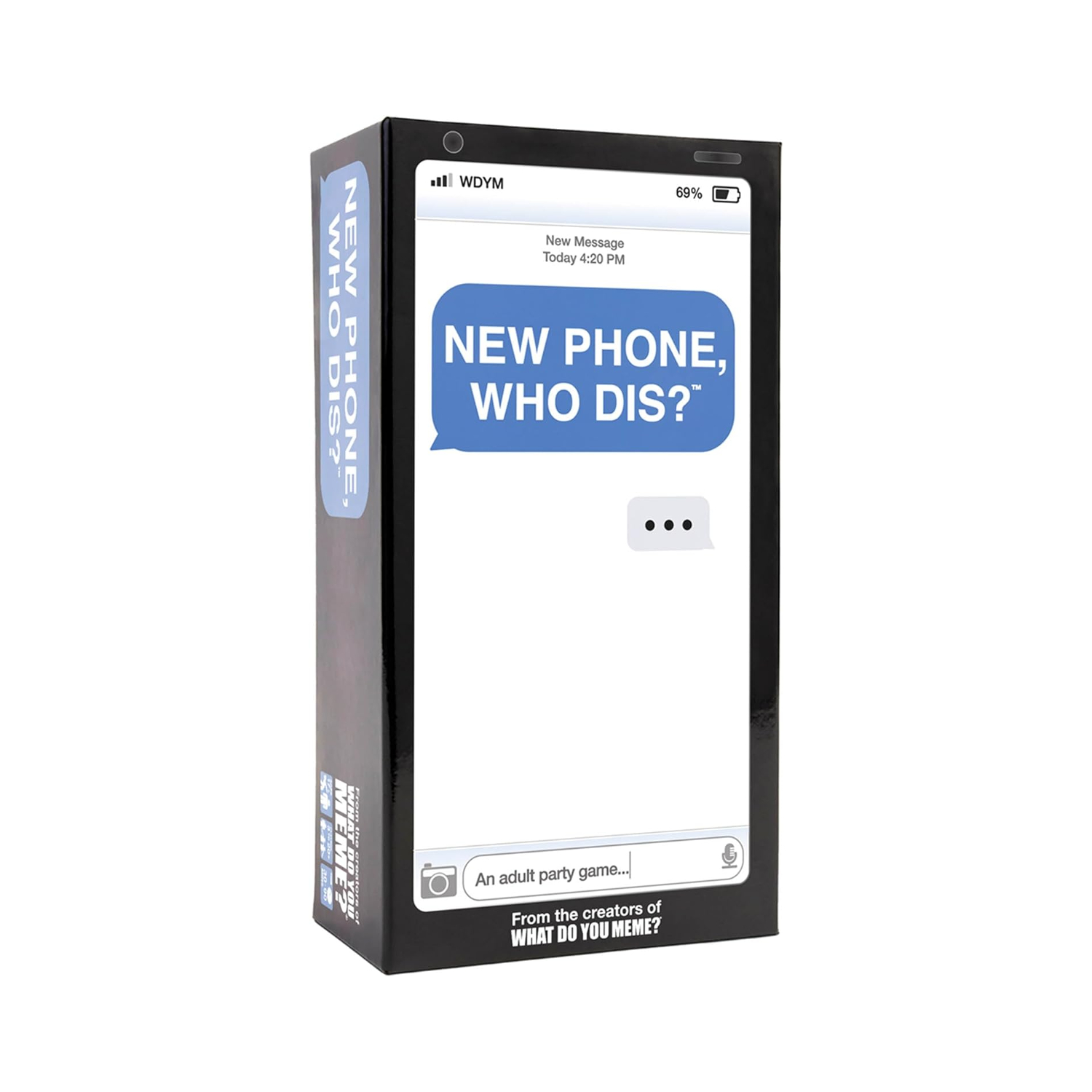
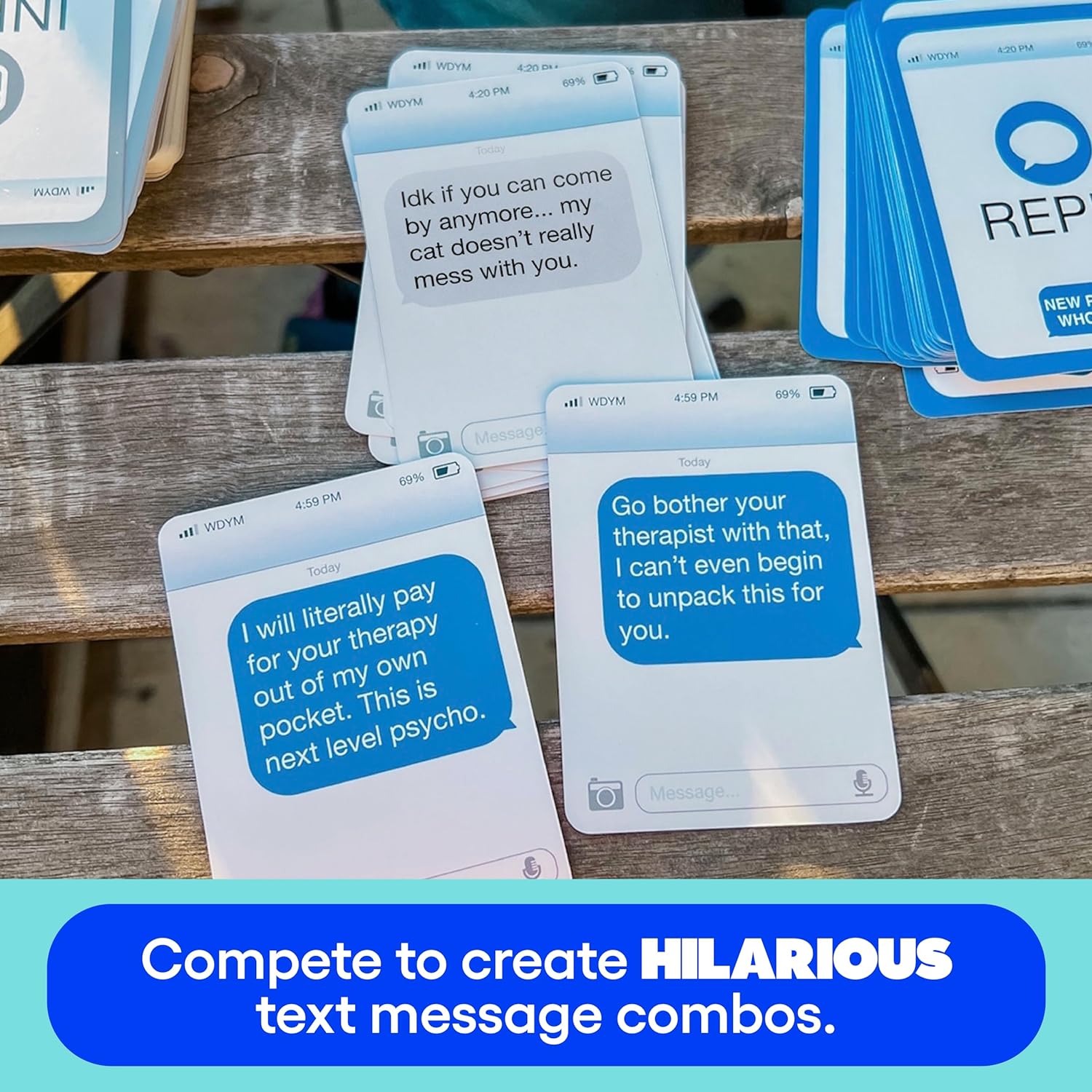
For this assignment, I initially thought of doing the Super Mario lucky block and have it display random text like “+3 Coins!” everytime it was clicked, but I could not brainstorm anything more after that and I felt stuck. I also thought of doing something with a Marvel characters dataset I found on Kaggle like pick 4 superheroes, display their logos, and showcase their information on the side from the data when the user clicks it, but I felt that it was too simple and I also could not visualize it. Ultimately I was stuck at this point, so I went back to our classwork to see if that could spark something, and it did! I was playing around with the generative poem and it reminded me of the New Phone, Who Dis? card game because the responses are always random and sometimes funny. The way the game works is you have an inbox card or prompt and the players compete by placing the funniest reply card to it.

I used that same concept but instead of players choosing the card, the system randomly generates the prompt, reply, response, and ending from the CSV file I created. I wrote down 9 points for each of the 4 categories that are random yet still work together seamlessly so each combination is unexpected and funny, but not confusing either. That was the one thing I did not like about the classwork we did, so I made sure all the points worked with each other but still provided funny outcomes that could mean multiple different things and stories. 9 to the power of 4 is 6,561, so that is how many different combinations of conversations there are!

hello???,who is this?????,you know what you did,i’m going back to sleep
are you awake,why are you texting me?,i thought you knew,i regret texting back
don't panic but,leave me alone bruh,your mom knows..,see you in court stalker
we need to talk,i don’t care.,LET ME EXPLAIN,goodbye forever!!!
i’ve got bad news…,can you send me 50dhs?,that's not important,i'll deal with this tomorrow
DID YOU HEAR?,oh-oh are you mad at me?,please stay calm,DON’T TELL ANYONE.
you owe me 1000dhs btw,WHATTTT?!!,i’m outside,this conversation never happened
you forgot my birthday,i’m scared…,it’s over.,abcdefg i have to go
WHERE ARE YOU? YOU’RE LATE,i will block you btw,you’re in biggg trouble,one sec i just need to block you

The interaction works when the user clicks the screen and then it generates a different conversation combination. It is supposed to look like the actual Messages app just like the cards in the game. I put the contact information up top, including the service bars and battery percentage that is usually seen there. Below that is the actual message chain with grey as the recipient and blue as the sender. I also made sure to include the text box and send button so that it is more realistic.

Highlighted Code:

let INBOX = 0;
let REPLY = 1;
let RESPONSE = 2;
let END = 3;


function draw() {
  background(245);

  let singleRow = [];

  // random first grey text
  singleRow = splitTokens(strings[int(random(strings.length))], ",");
  let greeting = singleRow[INBOX];

  // random first blue reply
  singleRow = splitTokens(strings[int(random(strings.length))], ",");
  let reply = singleRow[REPLY];

  // random second grey response
  singleRow = splitTokens(strings[int(random(strings.length))], ",");
  let response = singleRow[RESPONSE];

  // random second blue end
  singleRow = splitTokens(strings[int(random(strings.length))], ",");
  let ending = singleRow[END];

I am proud of this code that creates the different text conversation combinations because I understood the work we did in class and was able to implement it easily because of that. It was a satisfying feeling. I first assigned INBOX, REPLY, RESPONSE, and END the right column indexes because in each line in the CSV file, it is separated by first a prompt/inbox then a reply then a response to that and finally an ending. Then, I have the empty array, singleRow, that temporarily holds the strings. These strings are chosen by random(strings.length) that picks a random row from the file by making sure to put int so that it is not a float number or else it would not work. Then it takes those strings in that row and using splitTokens, it splits the row into separate strings from the comma and places them all in singleRow. Then, for example, singleRow[INBOX] would be assigned to greeting, where it would be the first string since we previously said that we assigned them each the column index they would be in. This process is repeated 3 more times for the 3 other texts. These are the core codes that make the whole project work.

How This Was Made?

The majority of the code was made using what we learned in class. I relied on the Week 4 Generative Poem example whenever I needed to go back and check if I used splitTokens correctly.

I came up with the phrases for each message and put them in a CSV file. I had to ask ChatGPT for help with this because Google Sheets was not functioning for me. It told me to open up TextEdit, format it to plain text, paste my messages, and save/name the file messages.csv.

As for the basic layout, I searched up “New Phone, Who Dis?” on Google and used the image of the cards as a reference to try to imitate. For example, I included the service bars, which are just small rectangles, and a text that says “WDYM” like the cards right next to it. I also did the same for the battery on the top right side.

For the contact icon, I went into my phone’s Messages app and copied the design of the icon which is simply one big grey circle for the background, one small white circle for the head, and finally an ellipse for the body that blended with the background even though it is outside of the circumference of the big grey circle.

The text messages and text boxes are just rounded rectangles by 15. I also put tiny ellipses in the bottom corner to copy that text bubble look. The text box initially said “iMessage” just like how it actually is on Messages, but after reading this week’s creative reading, I changed it to “ Click for new messages” because the author was highlighting how interactive elements should clearly show what actions can be done, where, and how. By indicating exactly how to make the code function without sacrificing the visual appearance, it makes the project well-designed and avoids user error due to bad design.

One issue I had was the fact that sometimes some messages would be much longer than others, so it would go out of the canvas. I had to keep playing around with it to make sure each text was contained within the message box, and I would widen the rectangle and reposition the text until it fit all the possible inputs.

For final touches, I wanted to make the ending look as close as a real text message chain, so I searched for the font that Apple uses for messages, which is SF Pro, but I could not find it. So, I searched Google what the closest font is to SF pro and Reddit recommended Inter, which I found on Google Fonts and installed in my assignment using the Week 4 example as a guide. I also searched for a text messages color palette to get the blues and greys as close as possible to the real thing.

Reflection:

Overall, I am pretty happy with how it turned out because I think that I achieved what I had in mind. I really like how the visual design ended up looking like because it is so similar to how the actual Messages app does, so I am proud of that. The small details like the rounded text bubbles, the typing box, the contact, the service bars, and battery all made it look more like the actual interface.

In the future, I could make the text bubbles size change based on the random message length selected just because some of the text messages had big gaps. If I had more time I would definitely have added an if statement that checks the length of each string and in accordance gives the text bubble the right width. Another thing I could have done was add more messages to the CSV so that there are more fun combinations. I also thought of having the message notification sound effect play every time the user clicks so it feels like the user is actually texting. I am excited to learn how to do that next week!

References:

Card game reference images: https://corners.ge/eng/product/new-phone-who-dis/

WK4 Generative text class example: https://editor.p5js.org/Aya_Riad/sketches/fIy61R_jf

WK4 Font class example: https://editor.p5js.org/Aya_Riad/sketches/Y28fO79o4

“Inter” font: https://fonts.google.com/specimen/Inter?query=inter + Reddit post: https://www.reddit.com/r/AfterEffects/comments/12mz22f/commercial_usable_font_that_looks_like_apples_sf/

Text messages color palette: https://www.color-hex.com/color-palette/13071

WK4 Creative Reading

The reading talks about how everyday objects can be confusing and frustrating due to bad design rather than user issues. Don Norman notes after the swinging door example that “the relevant components must be visible, and they must communicate the correct message: What actions are possible?; Where and how should they be done?” This made me realize that for my last assignment, where the bubbles are added through key presses and popped by a mouse click, a new user would not know because I have not indicated anything. This is an error on my part because I did not take into account new students possibly browsing ideas for this class in the future or the professor when grading. Therefore, after reading that sentence, I immediately went back to my code for this week’s assignment—where the text messages change every mouse click—and added a text that says “Click for new messages.” The change made much more sense now and checks of the “discoverability” and “signifier” boxes that Norman mentions. It is also how I was able to apply some of the author’s principles of design to my interactive media assignments. In the future I could also consider the other 5 fundamental psychological concepts: affordances, constraints, mappings, feedback, and conceptual models. Mapping could be useful for the second part of Interactive Media when we are building our project to make sure that if I create something that requires a sensor or button to be pressed, then it should make sense and match what actually happens. A quick yet not obnoxious beep could play immediately after to show the user that it has worked, which is the feedback Norman was talking about. Lastly, the conceptual model, I think, is the most important because when the user looks at my p5.js project or my final IM project, they should have a mental picture of how it works without having to look at the code or figure it out.

On a more relatable note, this reading was extremely satisfying to me; having someone understand the frustration when it comes to design errors felt so validating. Something, though, that drives me crazy and was not mentioned in the way I wanted to is public washroom sinks. There is not just one that was memorable (in a bad way), but many. This specific one I remember was in a mall in Dubai, and from afar the washroom looks really clean, new, and functional. However, when I came to use the sink, I could not find the soap! The cleaner had to point it out to me that it was under the mirror. That is when I noticed the barely noticeable icons for the soap, tissues, and dryer. It does not stop here because when I put my hand under the soap icon directly, the soap was dispensing a little more to the right, so some of it ended up falling on the tabletop. On top of that, there was no light or sound to indicate that soap was currently being dispensed, or if there was, it was not loud enough for a crowded public Dubai mall washroom. For it to be improved, they should not sacrifice the easy functionality for the clean look, or if they really want to, then the icons need to be in a different color than the color scheme of the washroom or have it placed in a bordered box so that it is more visible against the mirror. To fix the issue of the indication that soap is being dispensed, they could first have a light shining right next to where it gets dispensed so they know where to place their hand and second have the light blink lightly when the sensor detects a hand so that the user does not move while the soap is being dispensed. Overall, this was a very fun read and an even more enjoyable analysis that will definitely make me think twice on my future projects to ensure no bad design and avoidable user error.

Week 4: Reading Reflection

Two weeks ago, I got really bored of the food in the D2 dining hall and knew it was time to finally explore new horizons, so I made my way to D1. But unlike D2, where you just pick your food and pay at the end, the system in D1 was totally different and a lot more complicated. First, you walk through the different food sections looking at the menus and decide what you want to order. Then you go to the payment place at the end, where you place your order, pay, get a pager, and receive your receipt. But it turns out that is not the end. You also have to bring that receipt back to the food station that cooks your meal and hand it over, and only then do they start cooking. I had no idea about any of this, and nothing in the place made it obvious, so I was sitting there with my pager waiting for my bao buns that nobody had started making. Later, I found out that many of my friends went through a similar experience during their first time at D1.

The problem is that there were no signifiers to guide me through the ordering process. Adding some arrows or signs that show where to go would be a good start. For the payment and receipt part, there are two possible solutions. The first is easier to implement, while the second would make things more convenient. My first solution is to add a sign at the cashier that tells customers to hand their receipt over to the food station. The second solution is to automate the process by having the cashier send the order directly to the kitchen. Of course, I have no clue how the system works behind the scenes in dining halls, so these are just my simple suggestions.

Also, looking back at my sketches in p5.js, I realize that I barely give any signifiers in them. In my Beatles vinyl record sketch, I don’t think I gave a strong signifier that the disc is spinning, since the hoops are all symmetric and because of this the rotation is barely visible. The viewer cannot even tell that the whole disc is spinning. Even a simple visible indicator, like a small dot placed near the edge of the disc, could work as a signifier. Since the viewer could watch that dot move around the center and understand that the whole record is rotating. The same problem is in my fireflies sketch, where nothing tells the viewer that they can interact with the fireflies by moving the mouse over the canvas. Someone opening the sketch might just watch the fireflies float around and never discover that they react to the mouse cursor.

Reading Reflection Week 04

  • What’s something (not mentioned in the reading) that drives you crazy and how could it be improved?
    I bought an alarm clock from IKEA back in Marhaba Week, and to this day, I have no idea how it works. I kind of figured out how to set the time correctly, but the alarm part is the problem. The alarm clock has two small knobs on the back. With no words in them, just two extremely vague symbols. One is for setting the time (I think) and the other is probably for the alarm, but there’s no indicator that the alarm was set, or at what time or anything really. I believe it could be improved simply by adding a small text explaining how it works.
  • How can you apply some of the author’s principles of design to interactive media?
    I think interactive media should go along HCD and also prioritize (but never limit itself to) the affordances, the signifiers and the feedback principles mostly when coming up with something.

Assignment 4 – Displaying text, Beach finder

Concept: 

My project is called the Beach Finder, it randomly creates items for the user to search for when they are at the beach. I came up with this idea because I visit the beach frequently, so I thought of making something related to what I love doing. The items, descriptions, and locations will be combined randomly in order to produce prompts such as “Look for a colorful seashell by the shore.” The user gets a different beach find each time they click on the screen, I also designed the sketch with fish, a surfboard, and beach colors to match the theme.

Final Sketch:

Code I am proud of:

// Puts the random words together into one sentence
  let message =
    "Find a " + description + " " + object + " " + place + ".";

I’m most proud of this part because it brings all the random words together to create the final beach prompt. I like how every time I click, the object, description, and place can change, so I keep getting different things to find at the beach.

// Picks a random row and splits the words at each comma
  singleRow = splitTokens(
      strings[int(random(strings.length))], ","
  );

  // Gets the object from that random row
  let object = singleRow[OBJECT];

I’m also proud of this part because it randomly chooses a row from my CSV file and separates the words using the commas. Then it takes the object from that row. I used this same idea for the description and place, which is what makes every beach prompt different when I click.

How I Made It:

I started by creating the design for my Beach Finder using blue as the background color, brown as the border of the frame, a surfboard, and fish in different colors. For the fish, I made an array of different colors and used a for loop to make the six fish rather than doing them one by one. Next, I made the CSV file containing three categories that were an object, a description, and a place. I used loadStrings() to load the CSV file and splitTokens() to separate the words using the commas. I used random() function to choose random objects, descriptions, and places and make a sentence such as “Find a colorful seashell near the shore.” I used noLoop() to keep the sentence on the screen, and mouseClicked() and loop() functions to generate a new sentence whenever the user clicks the mouse anywhere on the sketch. Lastly, I used the font called “Original Surfer” which I got from google fonts and thought fit the beach theme. Along with the title “BEACH FINDER” and a small instruction to let the users know they can click for a new beach find.

Reflection (problems and improvement for the future):

Problems I ran into:

One problem I ran into was making sure the random words from my CSV file always made sense together. As both the object, description, and the place were selected randomly, not all combinations resulted in logical sentences at the beginning. Some words were altered to ensure that the combinations actually made sense no matter what.

Another problem was that for some of the generated sentences, they were very long, so the words were going under the surfboard. In order to solve this issue, I added maximum width to the text by modifying the code from:

This: text(message, 90, 150); 

To this:  text(message, 90, 150, 330);

Here, the 330 sets a limit on how much the text can spread out, that’s why in case it is very wide the words move to another line rather than being written under the surfboard.

Also since all my code was inside draw(), the random generated sentence kept changing very quickly but I wanted my sentence to remain the same until the user clicked it. I fixed it by adding this at the end of draw():

// Stops draw() so the text does not keep changing
noLoop();

noLoop() stops draw() from continuously repeating, so the generated sentence stays on the screen.

And to actually make it change when I press with the mouse I had to add:

// Generates a new sentence when the mouse is clicked
function mouseClicked() {
  loop();
}

loop() allows draw() to run again when I click, which generates a new random sentence. Then noLoop() stops it again.

Overall, I’m satisfied with the result of my Beach Finder because I managed to combine the knowledge of generative text and relate it to the beach, which I like. It was fun for me to learn how to work with a CSV file using loadStrings(), splitTokens(), and random() functions to create sentences that change every time. I also enjoyed creating the visual part of the project and making it interactive. For my future projects of this kind, I would try to add more words and categories in the CSV file and create more combinations of sentences. Also, I would consider adding some interactions and animations to the beach setting.

References:

https://p5js.org/reference/p5/loadStrings/

https://p5js.org/reference/p5/splitTokens/

https://p5js.org/reference/p5/random/

https://p5js.org/reference/p5/textFont/

https://p5js.org/reference/p5/loadFont/

https://fonts.google.com/selection?preview.layout=sample&preview.script=Latn

The coding train – 2.4: random() Function – p5.js Tutorial

The coding train – 1.5: JavaScript String Object – Programming with Text

I used AI to help me notice that some of my randomly generated sentences didn’t make sense because the words were being mixed from different rows. It helped me adjust the words in my CSV file so that any random combination would still make sense.