
Golden Goal
Click here for Game Tutorial
press “f” for fullscreen mode
Project Concept
For my midterm project, I created a football penalty game called Golden Goal. I chose this concept because I love football and used to play a game called Penalty Shootout Multi League when I was younger. I wanted to create my own simpler version while adding some ideas that make it more personal, interactive, and challenging.
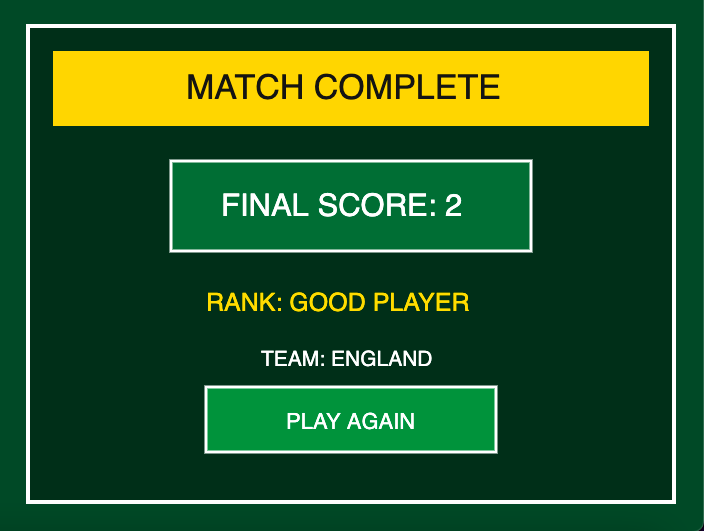
The player first reads the instructions and chooses between France, Italy, England, Germany, and Brazil. The character’s uniform changes depending on the selected team. The player then has five penalty attempts and only five seconds to take each shot. The goalkeeper moves from side to side and becomes faster after every attempt. On the fifth attempt, a golden target appears inside the goal. Hitting it gives the player two points instead of one. At the end, the player level will appear after he played, it will be star player, good player, or bad player, depending on how they score.
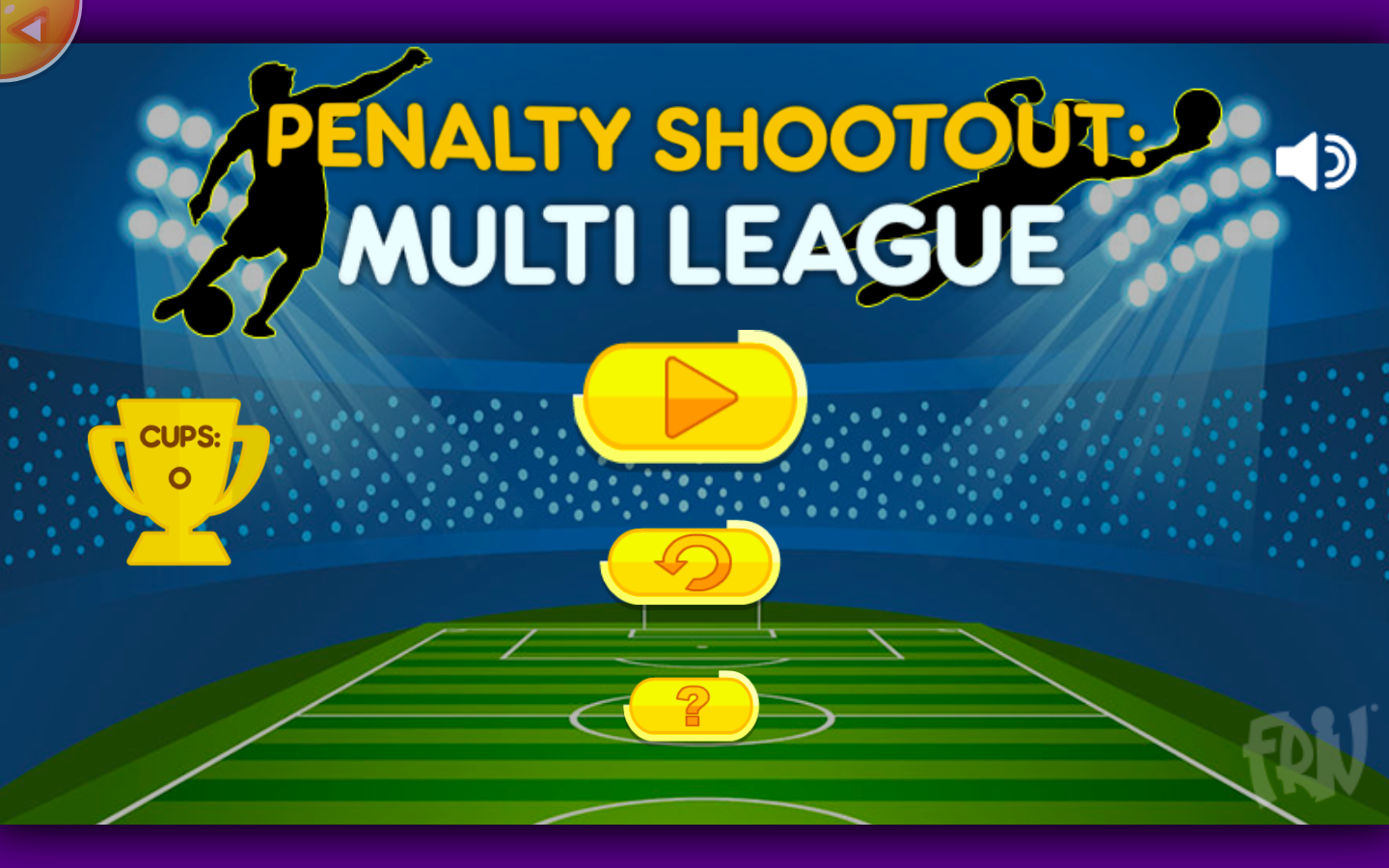
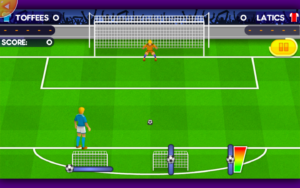 Inspiration Game
How the Project Works & What I Am Proud Of
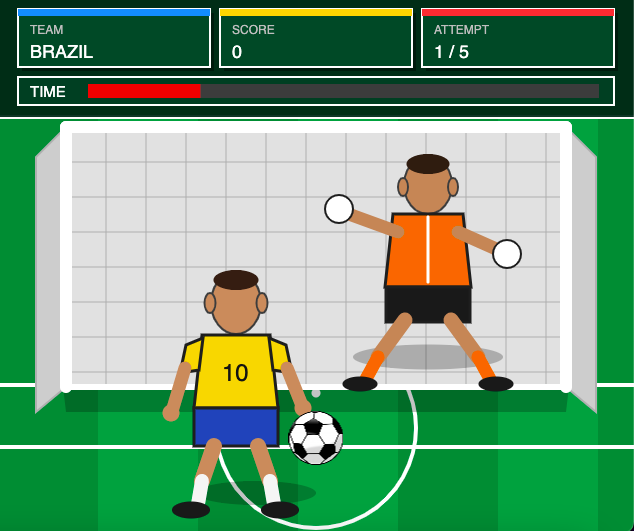
The game uses different screen numbers to control which part of the experience is displayed. Screen 0 shows the instructions, screen 1 shows team selection, screen 2 is the game, screen 3 shows the result of a shot, and screen 4 shows the final score. Conditional statements check the current screen number and display the correct part of the game. This helped me keep the different sections organized inside one sketch.
function draw() {
  if (screenNumber == 0) {
    displayInstructions();
  }
  else if (screenNumber == 1) {
    displayTeamSelection();
  }
  else if (screenNumber == 2) {
    displayGame();
  }
  else if (screenNumber == 3) {
    displayShotResult();
  }
  else {
    displayFinalScreen();
  }
}
I am especially proud of the golden target because it is my own addition to the normal penalty-game idea. It only appears during the final attempt. The code uses dist() to check the distance between the ball and the target. If the distance is less than 50, the player receives two points.
else if (
  (attemptNumber == 5) &&
  (dist(ball.x, ball.y, goldenX, goldenY) < 50)
) {
  score = score + 2;
  resultMessage = "GOLDEN GOAL! +2 POINTS";

  goalSound.stop();
  goalSound.play();
}
I also used Object-Oriented Programming by creating a separate Ball class inside Ball.js. The class stores information about the ball and contains functions for moving, displaying, shooting, and resetting it. Separating the ball code from the main sketch made the program more organized. I also added sound effects for kicking the ball, scoring, and clicking interface buttons. The player can press F to enter or leave fullscreen mode.
Another important feature is the restart system. After all five attempts, the player can select “Play Again” without pressing the p5.js Play button. The restart function returns the important variables to their original values and takes the user back to team selection.
function restartGame() {
  score = 0;
  attemptNumber = 1;
  shotTimer = 300;

  keeperX = width / 2;
  keeperSpeed = 7;

  selectedTeam = "";
  resultMessage = "";

  ball.startX = width / 2;
  ball.startY = height - 95;
  ball.x = ball.startX;
  ball.y = ball.startY;
  ball.moving = false;
  ball.reset();

  chooseGoldenTarget();

  screenNumber = 1;
}
Problems and Areas for Improvement
One problem I experienced was organizing the game for like the different screen modes. Some text and game elements were not positioned correctly when the browser size changed. I improved this by using windowWidth, windowHeight, width, and height, along with a windowResized() function, and applied this also to every screen function as well to make every screen adjusted with the screen mode. I also had difficulties resetting the ball and attempt number when the player selected “Play Again.” This taught me that restarting a game requires resetting every variable and object that changed during the previous session.
I also had some problems with sound. Some sounds were delayed, while background sounds made the sketch take too long to load. I decided to remove the menu and crowd sounds and keep only the sounds that were important to the interaction. Also, for example, the mouse click sound was very delayed, it played 3 seconds after the click, so I asked AI what was the problem, and it told me it would be better to use a .wav file for the sound better than .mp3 for faster sound loading. If I continued developing the project, I would improve the shooting animation and create more realistic movements for the player and goalkeeper. I would also like to add different difficulty levels, more team designs, and a system where the player can control the direction and power of the shot separately.
References
My main reference was the class slides, especially the lessons about functions, arrays, Object-Oriented Programming, conditionals, images, text, sound, and mouse interaction. I also used the official p5.js Reference when I needed to check how specific p5.js functions worked. My visual and gameplay inspiration was Penalty Shootout Multi League, from Friv. However, I created my own drawings, team-selection system, five-second timer, increasing goalkeeper speed, and golden target challenge.
I used AI as a support tool during the development process. Whenever I received an error that I did not understand, I gave the error message to AI and explained what my game was supposed to do. AI helped explain the meaning of errors and identify which part of the code was causing them. I also sometimes provided AI with the material and examples covered in class and asked which taught function would be most suitable for a particular feature that I wanted to do. I used this to understand my choices instead of introducing unrelated libraries or techniques. I reviewed and tested the suggestions inside the p5.js editor, made changes based on the results, and continued adjusting the game until the interactions worked as I wanted.