Week 4 – Generative Text Output

Concept

For this project, I decided to create a Football Player Stats program because I really love football and I am also really interested in individual player statistics. I wanted to make something that was not only interactive but also connected to something I personally enjoy. The program allows the user to click on different football players and view their all-time goals, assists, and appearances.

I used a CSV file to store the player information and then displayed the information in p5.js. My goal was to make the program simple to use while still making it interactive. Instead of displaying every player’s statistics at the same time, I made buttons for each player so the user can select the player they are interested in.

Code I Am Proud Of

The part of the code I am most proud of is the mousePressed() function because it is what makes the player buttons actually work.

function mousePressed() {
  // Check each player button to see if it was clicked
  for (let i = 0; i < players.length; i++) {
    
    let x = 50 + i * (buttonWidth + spacing);

    // Check if mouse is inside the rectangle(current button)
    if (
      mouseX > x &&
      mouseX < x + buttonWidth &&
      mouseY > buttonY &&
      mouseY < buttonY + buttonHeight
    ) {
      // Store the index of the clicked player
      selectedIndividual = i;
    }
  }

I am proud of this because I had to understand how the mouse position relates to the position and size of each button. The program checks whether the mouse is inside the boundaries of a button and then stores the index of that player. This index is later used to display the correct statistics.

Using a loop made things a bit easy because I did not have to write separate code for every player. The same code works for all of the players in the CSV file.

Implementation

I first created an array called players to store the information from the CSV file. But it was hard getting the CSV file to load correctly. It was really tough to find a method that worked with the latest version of p5.js. I searched online and watched YouTube videos, but I could not get the methods I found to work. I kept getting error messages. To solve this, I thought to asked ChatGPT “How to load things from a CSV file on the latest version of p5.js?” I pasted the error message I was getting when I used one of the methods I found online. From this, I learned how async, await, and fetch can be used together to load an external file. I also learned that “await response.text()” takes the contents of the CSV file and converts them into text that the program can use. This experience taught me that sometimes the code from an older tutorial may not work exactly the same way with a newer version of a library.

I then used .split() to separate the CSV into rows and values. After loading the data, I created a button for each player using a for loop. The position of each button is calculated based on its index, which allows the buttons to be placed next to each other without manually positioning every button. When a player button is clicked, selectedIndividual is changed to that player’s index. The draw() function then uses that index to find the player’s information and display their name, goals, assists, and appearances.

Reflection

Another challenge I faced was making the buttons actually select the correct player. At first, I thought I would have to manually set the values and positions of each button and then check whether the mouseX and mouseY were over each individual button. However, I realized that this would make the code much longer and more complicated. Then it clicked that I could use the same calculations I was already using to create the buttons. Since the for loop already calculates the x-position of each button using the player’s index, I could use that same x-position in mousePressed() and check whether the mouse was inside the button’s boundaries. I used mouseX and mouseY to compare the mouse position with the button’s x and y positions. Once I detected which button was clicked, I stored its index in selectedIndividual, which allowed the program to display the correct player’s statistics.

Overall, I am happy with this project because I was able to create something based on one of my interests while also learning more about arrays, loops, mouse interaction, and external data. If I continued developing this project, I would add more players and statistics and improve the visual design. I could also add player photos, positions, teams, or a feature that allows the user to compare two players. This would make the program more interactive and give the user more ways to explore the football statistics.
Week 4 – Reading Response – The Design of Everyday Things

What stuck with me most about Norman’s chapter isn’t the terminology itself but his point that struggling with a simple object like a door is a design failure, not personal stupidity. That felt oddly validating because I think most of us walk around quietly blaming ourselves for these tiny daily failures, when really we’re just reacting normally to objects that were never designed to communicate clearly with us in the first place.

What’s something that’s not mentioned in the reading but drives me crazy is the motion sensors in soap dispensers in public bathrooms. There’s no signifier at all, no marked spot to wave your hand under, no light indicating the sensor even exists, so you end up doing this awkward hovering ritual in front of a sink hoping something happens. Half the time people assume it’s broken and move to the next one, when really the person standing in the exact invisible zone the sensor is calibrated to detect. It’s a perfect example of an affordance (motion detection) existing with basically zero signifier attached to it. I think this issue could be fixed by putting a small laser light that always points where your hand should go. This would

Applying this to interactive media, I feel that usability isn’t just about clear individual buttons, it depends on whether the user builds an accurate mental model of how the entire system is organized. Take an app with swipe versus tap gestures: if swiping left archives an email but swiping right deletes it, and there’s no visual cue distinguishing the two outcomes beforehand, users are essentially relying on trial and error. That means even if each gesture technically works fine, the app still feels confusing unless the user has a clear, accurate picture of how all the gestures fit together. So Norman’s principles apply here too: good design isn’t just about signifiers on individual elements, it’s about making sure the whole system builds a conceptual model the user can actually predict and rely on.

Week 4_Data Visualization

Concept

As a big movie lover, I decided to visualize the popularity of movies released this year by creating a movie theater. I used worldwide box-office gross as a measure of popularity, with each audience member representing a fixed amount of revenue. Therefore, the higher the movie’s gross, the larger the audience in the theater.

Progress

I started by splitting the data into the movie name and its gross revenue, then adding them to the movies array I created. After that, I began working on the visuals, such as the seats and projector. I also added yellow light coming from the projector to make it more cinematic. I then created the circles that represent the audience and had them spawn on random seats. I did not want the audience to look too messy, so I used specific Y-coordinates that are chosen randomly, which keeps the circles organized while still making their positions feel random.

To make it easier to distinguish the large number of audience members, I also changed the color range of the circles instead of having them all be the same color. Finally, I calculated the number of circles based on each movie’s gross revenue by dividing it by 10 million. I felt that this was a reasonable scale because it allowed the differences in revenue to be visible without creating an overwhelming number of circles.

My Code Highlight

What I am most proud of is the interactive part of the project. It was a bit tricky, especially figuring out the calculations and making the number of audience circles change depending on which movie is selected. I used conditions based on where the mouse was clicked to determine which movie was selected. To make the interaction more obvious, I also changed the button color when it was clicked so it is clear which movie is currently selected.

One cool thing I learned was how to add my own font. I had to add the font link to the index.html file, and then I was able to use the font in my p5.js project.

//////CHANGE NUMBER OF AUDIENCE WHEN CLICKING ON A MOVIE//////
function mouseClicked() {
  for (let i = 0; i < movies.length; i++) {
    let x;
    let y;

    if (i < 3) {
      x = 45 + i * 185;
      y = 40;
    } else {
      x = 140 + (i - 3) * 185;
      y = 140;
    }
    if (mouseX > x && mouseX < x + 140 && mouseY > y && mouseY < y + 70) {
      selectedMovie = i;
/////RESET CIRCLES AND DRAW NEW ONES WHEN CLICKING ON A MOVIE//////
audience = [];
drawAudience();
    }
  }
}

Reflection

I’m really proud of this project, and I think I utilized the things I learned in a good way. If I were to improve it in the future, I would spend more time making the visuals more detailed, such as adding more realistic theater elements and improving the layout and typography. I would also like to give the user more options, such as adding more movies to choose from or allowing them to interact with the audience in different ways.

Generative Text Output – Week 4

Concept:

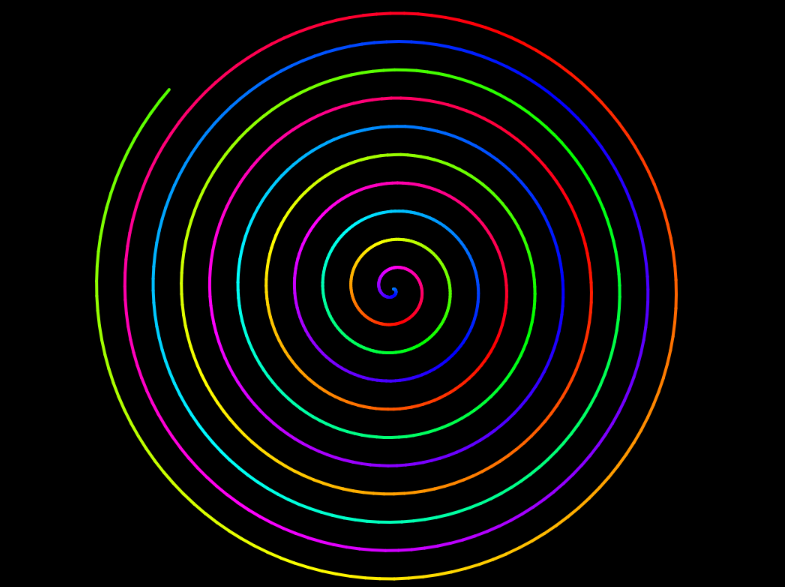
The idea of generating a sketch from text intimidated me at first. I started playing around with random text movements and then came across a cool spiral design (link). This inspired me to create a text spiral. For this project, I used a (‘cringy’) poem called “Middle” that I had written when I was fourteen. It is about a woman trapped in stasis: rooted in place, silenced, and stuck “in the middle of it all” while everything around her keeps changing. I thought that it really fits the spiral imagery, as this shape never closes into a loop. It can keep extending outward indefinitely. Then, I wanted to incorporate this idea of constant change, which is why I added a text box where the user could add words that they want. The user can reset the spiral with the reset button.

Embedded Sketch:

Process:

To make the spiral, I referred to this link as well as the p5 reference page. Following my reference image,


I tried to change the colours of each word slightly in order to create a rainbow effect. I also added some movement by using frame rate. For the buttons, I was inspired by the work of a previous student, Adit Chopra) on the IM website (Link). In my code, I managed to allow the user to add however many words they would like, and it would still appear as a spiral not going outside the canvas. Here is some code I am really proud of:

let newWords = raw.split(/\s+/); //supports adding more than one word at once!!
for (let i = 0; i < newWords.length; i++) {
let wordHue = (words.length * 27) % 360;
words.push(new WordModel(newWords[i], words.length, wordHue));
HueShift = (HueShift + 22) % 360; //Shifts the color of every word already present as the new word is added
}
input.value("");
}

I catered for the user entering multiple words at once. I used Claude’s help to be able to do this. But, to be honest, I am happy to have been able to even do a spiral with changing hues.

//The words are smaller at the start and grow progressively bigger
let h = (this.hue + HueShift) % 360;

noStroke();
fill(h, 55, 92);

if (this.index < ShrinkCount) {
  BaseSize = map(this.index, 0, ShrinkCount, 4, 9)
}
textSize(BaseSize * this.scale);
text(this.txt, 0, 0);
pop();

In the beginning, the words at the center were overwriting each other because of how little space they had. Then, I used ShrinkCount to make the ones at the center smaller and allowed the words to grow bigger towards the end of the spiral.

Reflection:

I like what I did for this assignment, especially that it reminded me of young Leyanah. I am grateful that I have been able to “interact” with her through my work. Still, on a more technical basis, next, I would work on ensuring that none of the words overlap. Right now, some very long words are slightly overlapping with others. On a side note, I am glad that I have tried to apply Norman’s signifiers (adding a reset and add button) to my work, since none of my previous work prompted the user. I hope that some people play around with my spiral and add in words that could continue the poem, or really just be experimental and make something cool (maybe entering many $ signs to make a design? Why not?)

week4–generative text output

Concept

The idea for this project came from a hilarious clip I watched of The Tonight Show Starring Jimmy Fallon, where Jimmy played a word-association game with Benedict Cumberbatch (who plays Doctor Strange). In the game, Jimmy would ask random, nonsensical questions, and Benedict had to shout out random words—verbs, nouns, adjectives—without thinking. In the end, all those completely unrelated words were stuffed into a pre-written script, creating a surprisingly funny and absurd little story.

I loved how something as simple as pulling random words out of context could instantly create unexpected comedy. That made me wonder: Can I recreate that same feeling of hilarious randomness using code?

By setting up three separate word banks—subjects, verbs, and objects—and picking one from each using p5.js’s random()function, this project acts as a mini story generator. Every time you click, it stitches together a completely unpredictable sentence, turning basic code into a fun, surreal storytelling game.

How this was made?

The overall logic of this program is very clean and straightforward, without any unnecessary complexity. First, I stored 20 words into three separate arrays for subjects, verbs, and objects. Next, I set up mousePressed() so that every time you click, the code uses random() to pull one random item from each of those three arrays.

To make it look more polished, I played around with typography, positioning, and color. I arranged the three parts vertically using specific Y-coordinates, picked a nice clean font, and made the middle verb bright red so it stands out as the action of the sentence.

Reflection

To be honest, this project was relatively simple, and I intentionally kept my approach straightforward without overcomplicating things. I focused on building a clean, functional logic that works reliably rather than wrestling with complex algorithms.

However, looking at the finished piece, I definitely see room to make the user experience much richer in the future:Adding subtle, soft typing sound effects whenever a new sentence is generated to give the clicks better tactile feedback.Or experimenting with fade-in effects or gentle motion trails so the words slide in smoothly instead of just abruptly popping onto the screen.

week4–Reading

1.What’s something (not mentioned in the reading) that drives you crazy and how could it be improved?

A great example of bad design in daily life is the automatic faucet in public restrooms. Designers like to hide the sensor inside the shiny metal tap to make it look clean and nice. However, this removes all visual signifiers. Users cannot see where the sensor is. They have to wave their hands around blindly to guess the right spot. This causes a lot of frustration.

To make things worse, the water often comes out with a short delay. In good design, feedback must be fast. Because of the delay, users think the faucet did not see them. They pull their hands away. At that exact moment, the water shoots out. This breaks the user’s simple conceptual model. They expect water to flow as soon as their hands are under the tap.

We can fix this problem very easily. First, designers can print a simple dot or hand icon on the tap. This gives a clear signifier for the sensor area. Second, a small light can turn on the instant the sensor detects a hand. This gives immediate feedback. Users will know the water is coming, so they will not pull their hands away.

2.How can you apply some of the author’s principles of design to interactive media?

To apply Norman’s principles to interactive media, we must change how we design user actions, system feedback, and layouts.

First, we apply signifiers by making active elements stand out from background elements. Since digital surfaces are flat, we must use visual contrast, lighting, or motion to guide the user’s eyes. This clearly shows users what can be changed and where to click.

Second, we apply natural mapping by matching system movements with real-world physics. For example, dragging an object up should increase power, and moving it right should move to the next step. When controls follow natural space, users do not need to memorize rules.

Third, we apply feedback by designing immediate visual or audio responses for every action. The system should never leave the user waiting in silence. Even a tiny color change or a brief sound confirms that the system received the input.

Finally, we build a clear system image by keeping the rules and layout consistent across the entire platform. When the design logic stays the same, users can quickly form a correct conceptual model and master the system without training.

Week 4 – Loading Data, Displaying text

The Concept

For this piece, I wanted to build something that felt more moving, with text that reacts to the viewer instead of just sitting there. One Arabic word appears in the center of the canvas, and when you click it, it “explodes” into two dozen flying copies of itself. Each copy moves in a random direction, shrinks, and fades out until the last one disappears. Then, a new word and background color appear, waiting for the next click. The words I used were سلام (peace), حب (love), أمل (hope), نور (light), فرح (joy), and حلم (dream). I chose these words because they are short, meaningful, and visually strong in Arabic script, which made them a good fit for a generative piece based on repetition and motion. For the font, I copied the P5 GS that we discussed in class, which showed an example of Arabic text. The Arabic font was already included in the file, so I used that part and added my own code to create the interaction and animation.

Highlight: The Code I’m Proud Of

The part of this sketch I’m happiest with is the Word class. Early drafts of this project tracked every flying copy using a pile of separate arrays, one for x position, one for y position, one for speed, one for size, one for transparency and so on and keeping all of them in sync by index got messy fast. Rewriting it as a class cleaned everything up so now each flying copy is a single self-contained object that knows its own position, speed, size and fade level and knows how to move and draw itself.

class Word {
  constructor(x, y, speedX, speedY, size, word) {
    this.x = x;
    this.y = y;
    this.speedX = speedX;
    this.speedY = speedY;
    this.size = size;
    this.alpha = 255;
    this.word = word;
  }

  move() {
    this.x = this.x + this.speedX;
    this.y = this.y + this.speedY;
    this.alpha = this.alpha - 2;
  }

  show() {
    textSize(this.size);
    fill(255, 255, 255, this.alpha);
    text(this.word, this.x, this.y);
  }

  isFinished() {
    return this.alpha <= 0;
  }
}
Embedded Sketch

How Was This Made

This sketch combines several things I learned in the first few weeks of class. I used arrays and objects to keep track of the words as they explode, similar to the Ball Class examples we worked on in class. I also made a Word class, using the same object-oriented programming idea from the Ball and Car class examples. I used random() to choose the word, background color, and different speeds and sizes for the copies. The mouseClicked() function makes the explosion happen when the canvas is clicked, and draw() continuously updates the position and fading of each word to create the animation. For the Arabic text, I used the Noto Kufi Arabic font from Google Fonts because Arabic needs to be displayed correctly with its connected letters. I followed the font method we discussed in class which uses HTML and CSS instead of loadFont().

Reflection and Future Ideas

I like how simple the idea is, but I think I could make it more interesting. I would like to add trails behind the words, allow multiple explosions at the same time, and make each word look different based on its meaning. I could also add a sound when the words explode if that works.

Week 4 – Creative Reading

Reading Don Norman made me think more critically about the projects we have done in class. In previous projects, we focused a lot on making something work, but Norman made me realize that something working does not always mean it is well designed. A user should not have to stop and think about what to click, press or do next. This connects to our own projects because even a simple interactive project can become confusing if the design does not clearly communicate how it works. I think this is something I sometimes overlook because I focus more on the code and the final result than on how another person experiences it.

Something everyday that annoys me a lot is my car doors. I have a Tesla, and the car doors are designed to be one with the door, which annoys me, especially as a commuter. I usually have a lot of things in my hands during long days, so opening the door requires a completely empty hand. One time, I had a bottle of water in my hand and wanted to open the door but I had just gotten a fresh manicure. My fresh manicure was ruined, and I had to go inside the salon to fix it. I ended up having to put the bottle on top of the car just so I could open the door.

What I found most interesting was Norman’s idea that designers should not blame users when something is confusing. It made me question how much responsibility we have as creators to make our projects understandable. For our previous class projects, we usually know how our own work functions because we made it, but a new user does not have that same knowledge. This makes me think that testing our projects with other people is just as important as creating them. Going forward I want to pay more attention to whether my projects are actually intuitive to someone who has never seen them before, instead of assuming that if I understand it, everyone else will too.

Week4_Reading_Response

Response

Something that drives me crazy is the newer car door handles, like the ones on a Tesla. Most of us grew up with the same idea of how a car door works. You grab the handle and pull. The newer handles break that idea completely. There’s nothing sticking out to grab and no clear sign of where to press, so people end up standing at the door confused about how to get in. I think part of the problem is the design, because it chooses a sleek look over being easy to figure out. But part of it is also just habit. People have used the old handle for decades and it works for them, so any change takes time to get used to. Maybe one day people will find the new handles normal and the old ones will feel strange. Still, I don’t think we should just wait for everyone to adjust. A small cue like a subtle dent or a light showing where to press would help a lot, and the design could still move forward while respecting what people already know.

Norman’s ideas fit right into interactive media, because making an interactive piece is really just another kind of design. When I make an interactive artwork, the way I picture people using it is often very different from how they actually see it. That’s the same gap Norman talks about between what the designer has in mind and what the user understands. I can’t stand next to every person and explain my work, so the piece has to explain itself. That can mean the cursor changing or something reacting when you hover over it. It can also mean giving feedback so people know their click did something, or making movements feel natural, like moving the mouse up to make something rise. After this reading I always ask myself two questions when I make something. What are its signifiers, and what idea of how it works does it give the person using it?

Week 4_Reading Respone


While reading The Design of Everyday Things, I found the author’s principles of good design agreeable, but I felt that he was a bit biased. He mainly put the blame on the machine and the design, including the engineers and designers, but said little about the user. I think everyone contributes to a product’s efficiency because there are many people who can be oblivious to simple instructions and fail to utilize the product properly. However, some of his examples were exaggerated. For instance, he made the door example seem like a bigger problem than it actually is. On top of that, he kept repeating many of the same points, which felt distracting to me.

One of the design failures that drives me crazy is oversimplification. The author touched on it, but I want to dive deeper into it. I think minimalism is one of the reasons for this. It has become a new aesthetic to avoid having many labels and other visual elements, which can lead to little to no signifiers. You can barely find symbols on some devices, let alone clear instructions. Because of this, I think simple designs do not necessarily equal effective designs. We need to move away from prioritizing the minimalist aesthetic and instead include understandable signifiers. It may not result in the simplest-looking design, but it would make the design more understandable.

I think the principles mentioned in the reading are incorporated directly into interactive media because having good design means creating a better interactive experience, as long as those principles are applied correctly. Feedback, for example, directly relates to interactivity because it makes the system seem like it is responding to the user’s input. It can be applied through audio, or through a visual change, which enhances the overall experience and satisfaction. But to me, discoverability is the most important one because if this principle is not applied correctly, then everything that comes after loses importance. If you never understand how the device is supposed to work, then why would you give attention to the other principles? This is especially important in interactive design, where mutual understanding is an important factor to consider.