Week 11 Ex02 P5 to Arduino Communication


Github:

https://github.com/skyorachorn/Intro-to-IM/blob/0f3767a9cc4fe21946d8b84a76a020a09abacbbd/Ex02_P5_to_Arduino_Com.ino


Youtube:

https://youtu.be/BT8Y9AafPIk?si=77WJciHPNwpz8n2J


Picture of Circuit:

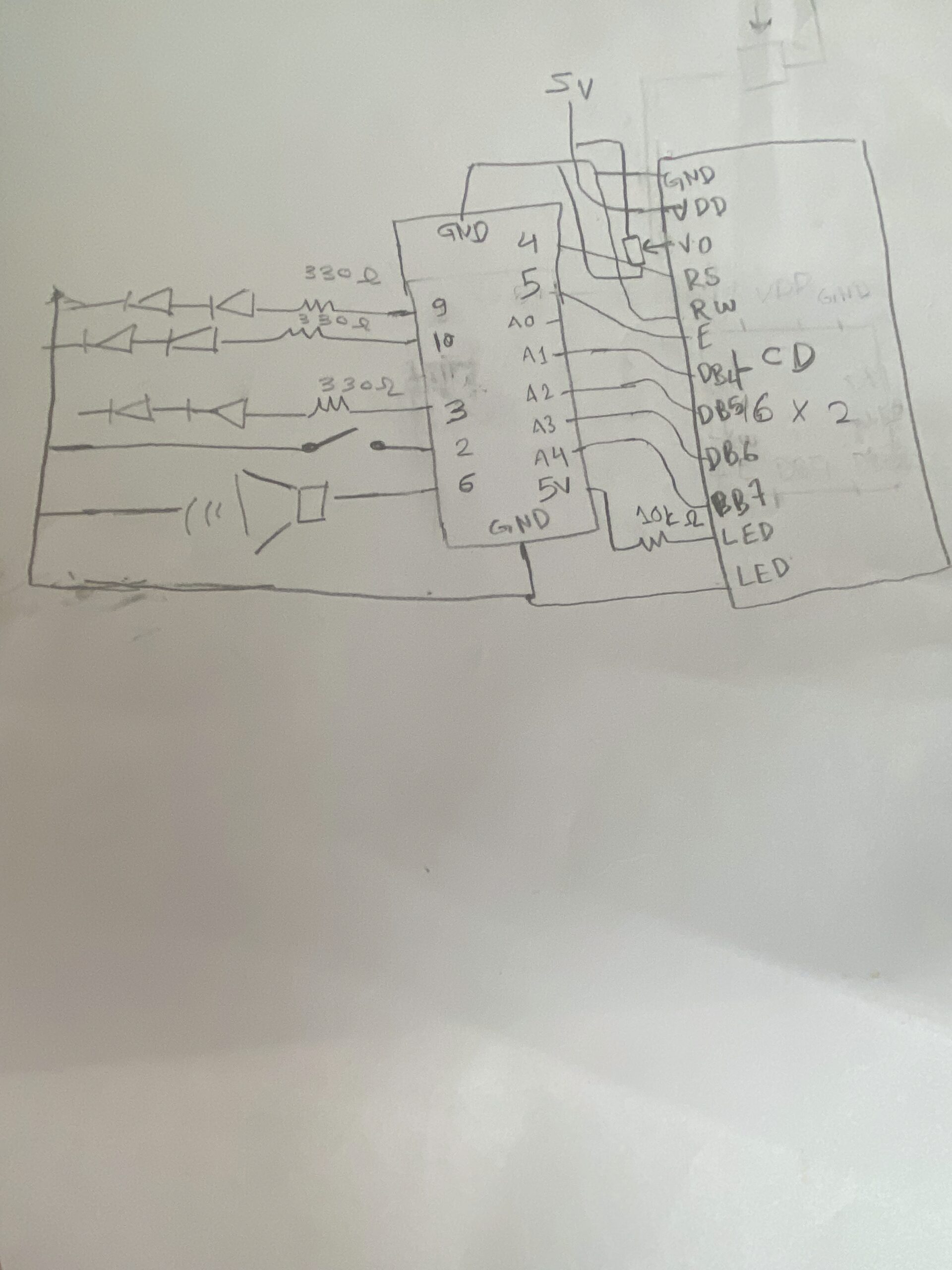
Hand Written Diagram:

In this exercise, we explored serial communication in the opposite direction, from p5.js to Arduino. The main objective was to control the brightness of an LED on Arduino using an interaction created in p5.

We again started from the class example and kept the overall structure close to what was introduced by professor Aya. However, for this exercise, we simplified the communication so that p5 sends only one value instead of multiple values. This made it easier to focus on the main idea of sending data from the browser to Arduino.

On the p5 side, we used the p5.webserial library and the same button-based connection method as in the previous exercise. Once the serial connection is opened, p5 continuously sends a brightness value based on the horizontal position of the mouse. This value is mapped into a range between 0 and 255, which matches the range used by analogWrite() on Arduino.

On the Arduino side, we used Serial.parseInt() to read the incoming integer sent from p5. After checking for the newline character \n, the value is applied to an LED connected to a PWM pin. This allows the LED to gradually brighten or dim instead of simply turning on and off.

This exercise helped us better understand how p5 can be used not only to receive data from Arduino, but also to actively control physical outputs on the hardware side. Compared to Exercise 01, this made the communication feel more interactive because the browser was no longer only displaying data, but also sending instructions back to Arduino.

Through this process, we gained a clearer understanding of how serial data can be used to control physical output in real time, and how important it is for both the code structure and the wiring to match the intended behavior.

What We Learned:

* How to send data from p5.js to Arduino through serial communication
* How to use Serial.parseInt() on the Arduino side
* How to control LED brightness with analogWrite()
* How browser-based interaction can directly affect hardware output

Code I’m Proud Of:

One part we are particularly satisfied with is how the p5 sketch and Arduino sketch work together to control LED brightness in real time. This section clearly shows how a visual interaction in the browser becomes a physical output on the Arduino side.

p5.js (sending brightness value)

let brightness = int(map(mouseX, 0, width, 0, 255));
  brightness = constrain(brightness, 0, 255);

  // show the current value on screen
  fill(brightness);
  rect(100, 150, 200, 100);

  fill(0);
  textSize(16);
  text("Brightness: " + brightness, 120, 130);

  if (port.opened()) {
    port.write(brightness + "\n");
  }

This part is meaningful because it translates a simple mouse movement into a numerical value that can be understood by Arduino. It also helped us see how p5 can act as the controlling side of the communication.

Arduino (receiving + controlling LED)

int brightness = Serial.parseInt();

    if (Serial.read() == '\n') {
      analogWrite(ledPin, brightness);
    }

We found this section especially important because it shows how Arduino receives a value from p5, processes it, and immediately applies it to a physical output. In this case, the output is the LED brightness controlled through PWM.

Problems We Encountered:

One issue we encountered was that the LED did not appear to brighten or dim smoothly at first. Even though the value on the p5 side was clearly changing, the LED response did not look correct. After checking both the code and the circuit, we realized that the LED needed to be connected to a PWM pin in order for analogWrite() to work as expected. Once we moved the LED to the correct pin, the brightness control became much more visible.

Another thing we paid attention to was keeping the communication format simple. Since this exercise only required brightness control, we kept the message to a single value followed by a newline character. This made the program easier to understand and reduced confusion while testing.

Future Improvements:

If we were to continue developing this exercise, we would consider:

* Replacing mouse control with a more interesting p5 interaction, such as dragging, key presses, or etc.
* Adding multiple LEDs and sending more than one value from p5
* Expanding the system into bi-directional communication so Arduino could also send sensor data back to p5
* Improving the visual design in p5 so that the screen feedback more closely matches the physical LED behavior

Week 11 Ex01 Arduino to P5 Communication

Github:

https://github.com/skyorachorn/Intro-to-IM/blob/38f5a920179feadd602c862571956198fbb9e0cf/Ex01_Arduino_to_P5_Com.ino


Youtube:

https://youtu.be/dvRseX6c4VU?si=mKZLcT-Lm9T1LGMQ

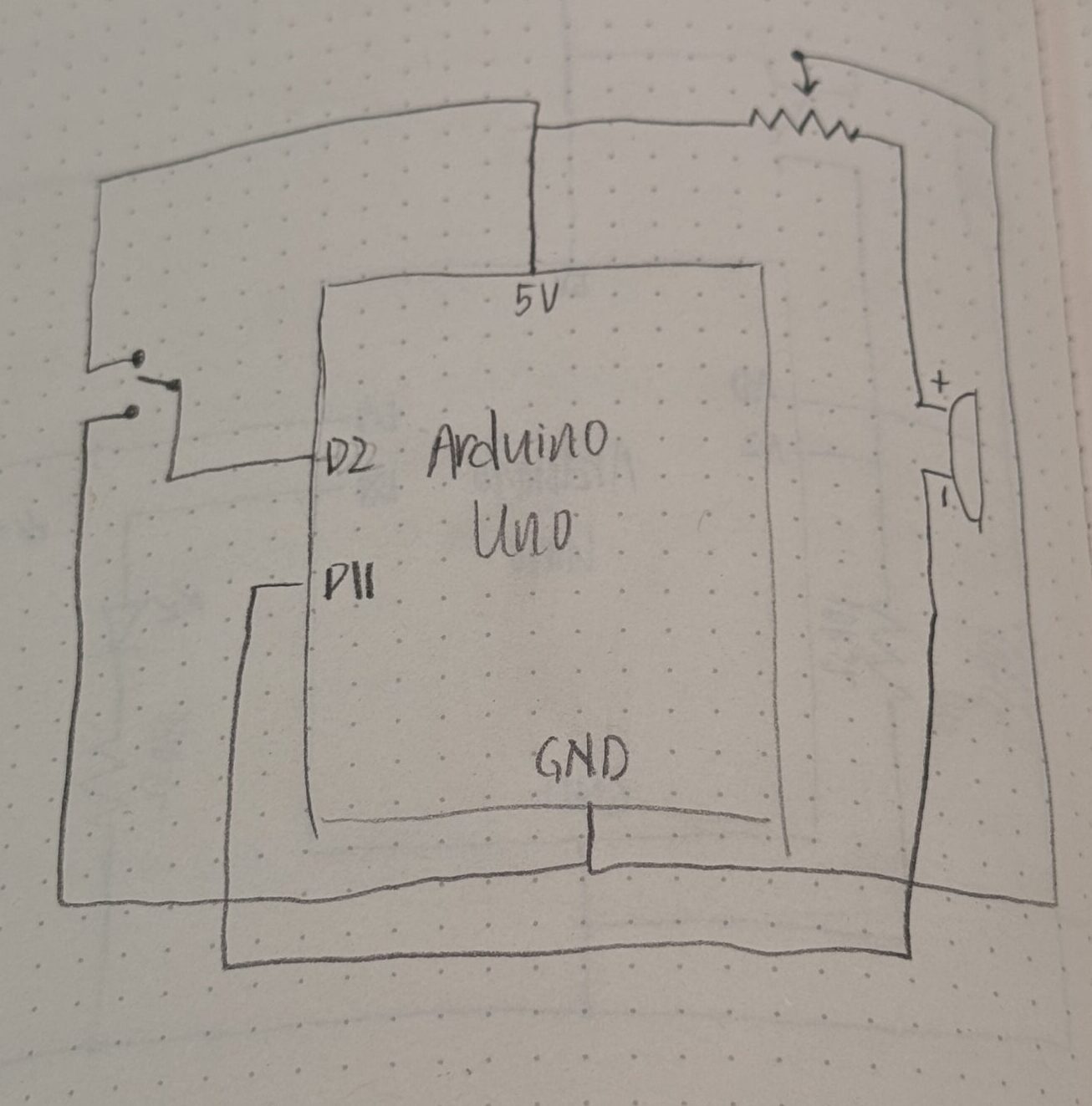
Handwritten Diagram:

Picture of Circuit:

In this exercise, we explored serial communication between Arduino and p5.js. The main objective was to use a single sensor on Arduino and translate its input into visual movement in p5, specifically controlling an ellipse moving horizontally across the screen.

We began by following the example demonstrated in class and gradually adapted it to better understand the data flow. On the Arduino side, we used a potentiometer as an analog input. The sensor value (0–1023) was mapped to a smaller range (0–255) before being sent through the serial port using Serial.println(). This ensured that the data could be easily interpreted on the p5 side.

For p5.js, we adopted the structure introduced by professor Aya using the p5.webserial library. The connection process is handled through a button (connectBtn), and the serial port is opened using port.open(baudrate). This approach helped us clearly understand how communication between Arduino and the browser is initiated manually rather than automatically.

Inside the draw() loop, we used port.readUntil(“\n”) to read incoming serial data line by line. The received string is then cleaned and converted into a number using trim() and int(). We then used map() to convert this value into a position across the canvas width. As a result, the ellipse moves smoothly from left to right, and when the input value decreases, it naturally moves back from right to left, creating a responsive and continuous motion.

Through this process, we gained a clearer understanding of how physical input can directly influence digital visuals in real time. It also highlighted the importance of consistent data formatting and timing in serial communication.

What We Learned
• How to send analog data from Arduino using Serial.println()
• How to receive and interpret serial data in p5.js
• How to map sensor values into visual output
• How hardware and software can interact in real time

Code I’m Proud Of

One part we are particularly satisfied with is how the sensor data is processed and translated into visual movement. This section demonstrates how raw data from Arduino becomes meaningful interaction in p5.

int potentiometer = analogRead(A1);

 // map the value from 0-1023 to 0-255
 int mappedPotValue = map(potentiometer, 0, 1023, 0, 255);

 // send value to p5 as a string with newline
 Serial.println(mappedPotValue);

This part is important because it simplifies the raw sensor data into a range that is easier to use on the p5 side.

let str = port.readUntil("\n");

if (str.length > 0) {
  let val = int(trim(str));   // convert string → number

  // map value to screen position
  x = map(val, 0, 255, 0, width);
}

We found this section especially meaningful because it clearly shows the full pipeline: sensor → serial → processing → visual output.

Future Improvements

If we were to continue developing this project, we would consider:
• Using different sensors such as FSR or ultrasonic sensors for more dynamic interaction
• Adding smoothing to reduce noise in sensor readings
• Expanding the visuals to control multiple elements instead of a single ellipse
• Exploring bi-directional communication between Arduino and p5

Week 11 – Thank you, my arduino or Alternatively: Recreating the Synthesizer in Thank you, my twilight (FLCL)

When I heard the sound of the button in class on Thursday, the intro of this song INSTANTLY popped in my head (first 10-15 seconds, becomes a repeating riff):

Hence, you can imagine where I’m going with this.

Concept:

This felt very self-indulgent, but I’m a piano/keyboard and electric guitar/bass player, hence I wanted to make something I could actually play by pressing things, like the instruments. While I didn’t originally have any intention for analog sensors, I thought I could use the potentiometer to control the “piano” sounds and make them vibrate a bit. I also wanted to be able to play the intro to this song with the notes, and also have an option to listen to it through the instrument (when I’m too lazy to play myself… haha). Usually I have more to say for the concept, but this time, I felt very monkey-brained, especially since I still get confused with arduino: I hear sound, I associate to something else, I make based on this, ta-daa!

Circuit Demonstrations (please ignore the fact that there’s no cursor, I recorded these on my iPad):

Song Button:

Individual Buttons:

Process:

This took me quite a while to do manually, but let’s go step-by-step.

ONE: Find the notes of the song (or part of the song) you want.

While I would have liked to do this with my piano, I 1) don’t have my piano with me and 2) don’t have enough time, so I went online and searched for a sheet music of the intro part of the song.

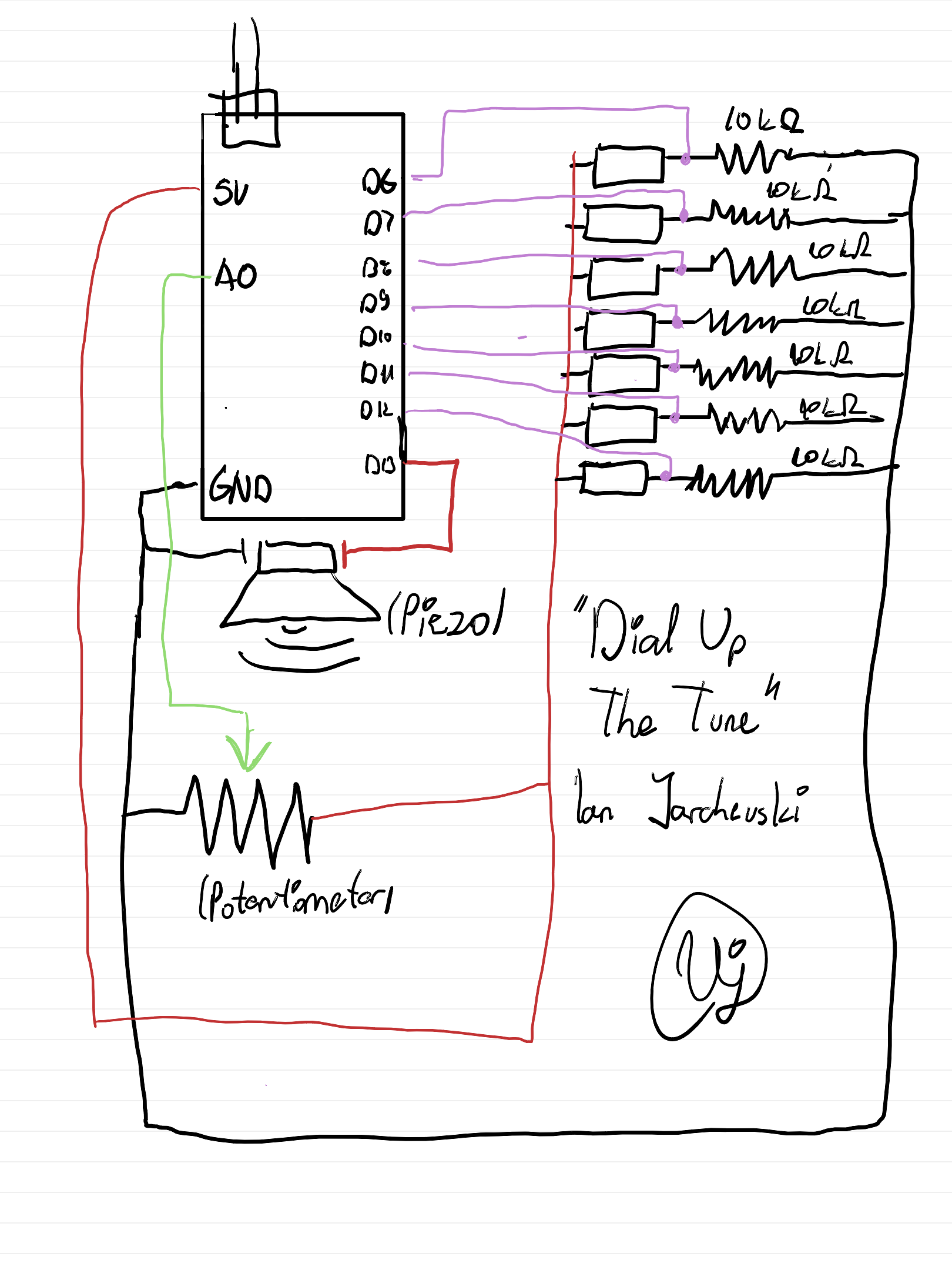
I found this on musescore, and found out how many notes were there (8 notes: C6, B♭5, A5, G5, F5, E5, D5 and D♭5). From there, I then wrote down the order in which each note came, and how long each note was.

I split each bar by color, and circled all the notes which were quavers (1/2 shorter than the un-circled notes). Then, using this chart, I also marked each frequency. After figuring this out, I then started creating the circuit.

TWO: … make the circuit.

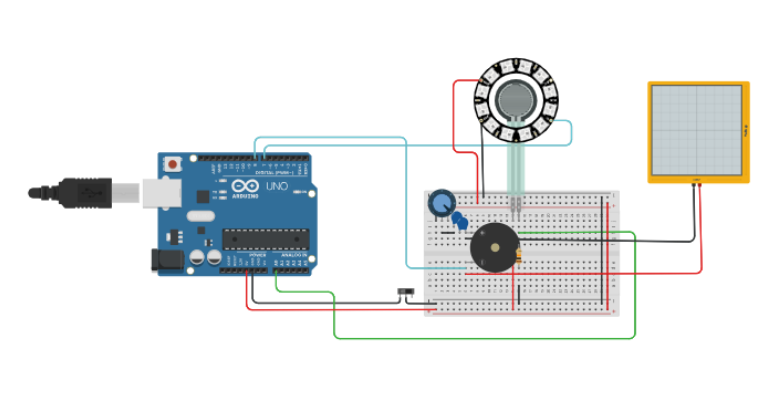
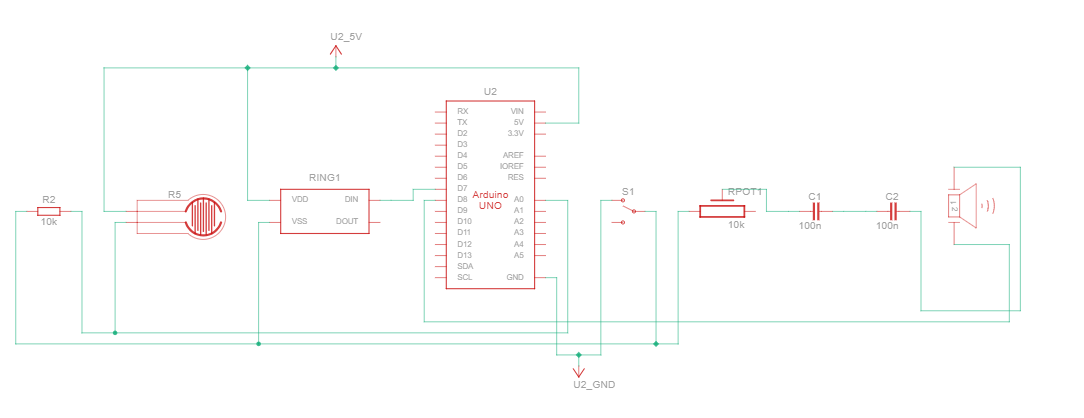
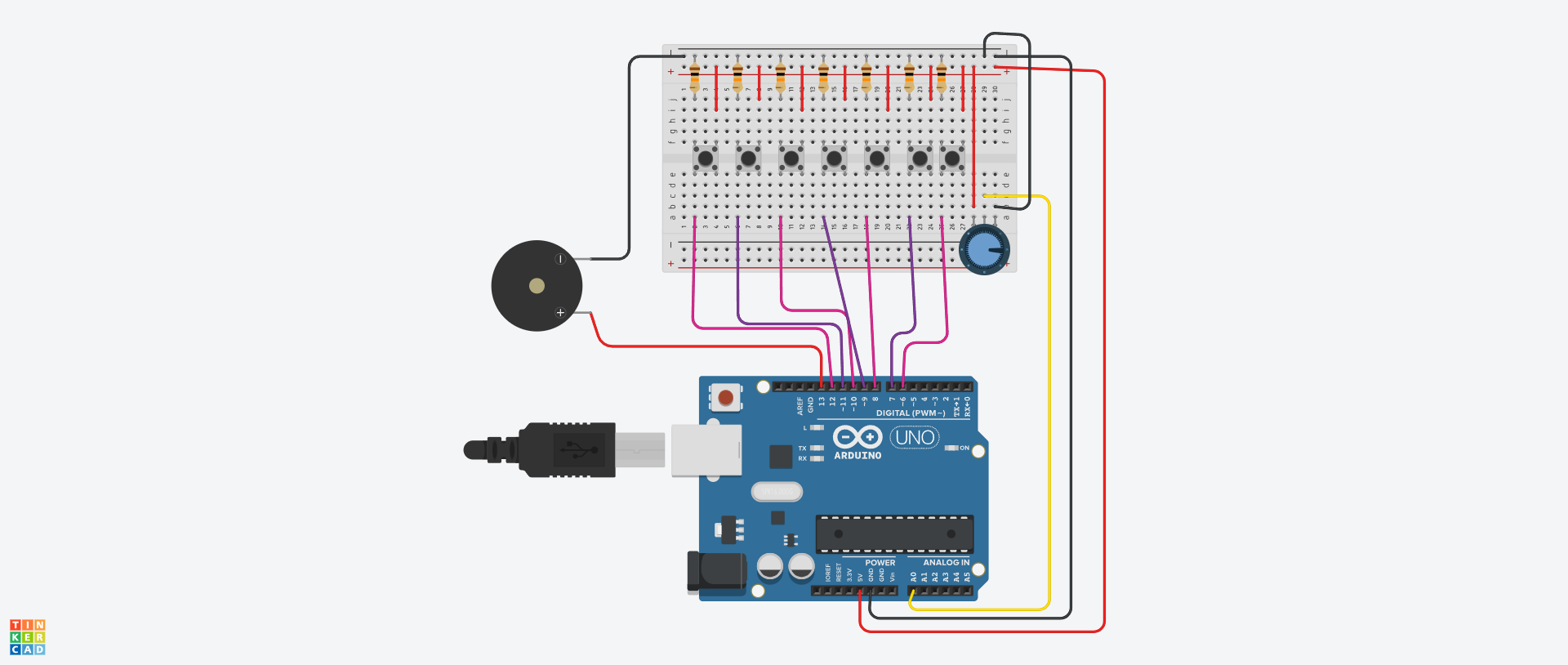
Making the circuit was pretty straightforward. I did opt for a larger breadboard than I usually do (just to fit all the keys), and one thing that did frustrate me was the spacing of the ground and voltage dots on the board (DIAGONAL WIRES???). I had to play around with the spacing of the buttons quite a lot, but otherwise, everything fit well.

THREE: Spend a few hours coding. And coding. And coding a bit more. Oh, wait, you missed a comma- I’ll break my code down lines-by-lines, mainly the parts that make this the instrument (or else I’ll end up breaking everything down).

I defined each frequency I calculated as the note to prevent me from having to type each decimal again and again. I used speedMultiplier because later on in the code, I messed up the speed at which to play the notes (so just temporarily ignore that). StaccatoMultiplier was so I could reduce the length of the note, as the original song has the sound very short and crisp for most notes. I then assigned all of the hardware attached to the Arduino.

#define C6 1046.5
#define B5 932.33
#define A5 880
#define G5 783.99
#define F5 698.46
#define E5 659.26
#define D5 587.33
#define DF5 554.37

float speedMultiplier = 0.9;
float staccatoMultiplier = 0.6;

const int buttons[8]      = {4, 5, 6, 7, 8, 9, 10, 11};
const int baseNotes[8]    = {C6, B5, A5, G5, F5, E5, D5, DF5};
const int PIEZO           = 13;
const int POT             = A0;
const int BTN_PLAY_INTRO  = 3;
const int BTN_STOP_INTRO  = 2;

I coded the song for the second last button (on the circuit). (I was really proud of this part) I had to write down the order of notes first, and then pick out durations for each note in ms. (400 is crotchets, 200 is quavers).

const int introNotes[] = {
  C6, A5, G5, F5, A5, 
  E5, F5, E5, DF5,
  D5, E5, F5, D5, F5, 
  G5, B5, A5, G5, F5, G5,
  C6, A5, G5, F5, A5, 
  E5, F5, E5, DF5,
  D5, E5, F5, D5, F5, 
  G5, B5, A5, G5, F5, G5
};

const int introDurations[] = {
  400, 400, 200, 200, 400,
  400, 400, 400, 400,
  200, 200, 400, 400, 400,
  400, 400, 200, 200, 200, 200,
  400, 400, 200, 200, 400,
  400, 400, 400, 400,
  200, 200, 400, 400, 400,
  400, 400, 200, 200, 200, 200
};

const int INTRO_LEN = 40; // total of 40 notes
int introTimings[40]; // array to store when each note starts
int totalIntroTime = 0;
bool playingIntro = false; // to make sure it doesn't play without pressing button
unsigned long introStartTime = 0;

For setup(), I made sure that the speaker was silent at startup. When I was originally coding, every time I would run the simulation, my ears would blast at the random sounds coming, and I needed to remove that. runningTime was when the song would start playing, and to calculate when to play each note after this, the code would calculate such that:

void setup() {
  noTone(PIEZO);
  for (int i = 0; i < 8; i++)
    pinMode(buttons[i], INPUT);
  pinMode(PIEZO, OUTPUT);
  pinMode(BTN_PLAY_INTRO, INPUT);
  pinMode(BTN_STOP_INTRO, INPUT);

  int runningTime = 0;
  for (int i = 0; i < INTRO_LEN; i++) { // for each of the 40 notes
    introTimings[i] = runningTime; // remember when THIS note starts
    runningTime += (int)(introDurations[i] * speedMultiplier); // because I needed to fix the speed LOL
  }
  totalIntroTime = runningTime;
}

I noticed I was having an issue where when I would play each note in the song, I would have a note in between which didn’t fit. To fix this, I used this:

int currentNote = -1; // start with no note
      for (int i = 0; i < INTRO_LEN; i++) {
        if (elapsed >= introTimings[i] && elapsed < (introTimings[i] + (int)(introDurations[i] * speedMultiplier * staccatoMultiplier))) {
          currentNote = i;
          break;
        }
      }
      
      if (currentNote == -1) {
        noTone(PIEZO); // silence if no note matches current time
      } else {
        tone(PIEZO, (int)introNotes[currentNote]);
      }

The loop would find a note that matches the current time for the next note, and if no note matches the time window for the specific note, it would continue not playing (remains -1) and make it silent until the next note.

Then, here, I edited the vibrato of the note with it (how shaky or pure the note is). This code has that, and also code to stop the song from playing if you play any other note on the piano. The vibrato is only heard on the individual button notes, not the programmed song.

// stopping the music 

for (int i = 0; i < 8; i++) {
      if (digitalRead(buttons[i]) == HIGH) {
        playingIntro = false;
        noTone(PIEZO);
        break;
      }
    }
  }
// individual button mode (no music)

if (!playingIntro) { //only not intro
    float vibratoHz = map(analogRead(POT), 0, 1023, 1, 20);
    float vibratoDepth = 20;

// calculate vibrato as a sine wave
    unsigned long now = millis(); // current time
    float offset = sin(2.0 * 3.14159 * vibratoHz * now / 1000.0) * vibratoDepth;
    // oscillate between -20 and +20, not too much
    bool anyPressed = false; // any piano note pressed
    for (int i = 0; i < 8; i++) { // look through which button is pressed
      if (digitalRead(buttons[i]) == HIGH) {
        int finalFreq = (int)(baseNotes[i] + offset); // play the note with vibrato
        tone(PIEZO, finalFreq);
        anyPressed = true;
        break;
      }
    }
    if (!anyPressed) noTone(PIEZO);
  }
}

Schematic:

Reflections:

I’m glad it came out well. I was worried I’d mess this up and wouldn’t be able to hear the sound, especially with all the fumbles in between such as loud sounds that weren’t coded, or bad timing of the notes. I’m also glad that not only the song worked, but so did the notes! I didn’t expect the vibrato to actually work out so you can actually hear it clearly. I had a lot of fun making this. ദ്ദി(。•̀ ,<)~✩‧₊

I do feel like I could have added more things for it to come out the way I would further envision it. I wanted to put LEDs to light up every time you press a button (but was worried about breadboard space), those LED displays to show something while the song played (but didn’t want to venture there just yet), and include a way for people to add on the rest of the song’s instruments, like the drums and guitar (but didn’t know how to do it on TinkerCad). Hopefully I can implement these in my final project! 🙂

Week 11’s Brief Reading Ran- Sorry, Response | A Brief Rant on the Future of Interaction Design

The Rant first:

Before I start dissecting, let me just put it out there that I agree with everything he’s saying here. Now, we proceed.

"A tool addresses human needs by amplifying human capabilities. A tool converts what we can do into what we want to do."

Always good to start with definitions everyone knows before diving in. He’s right about us hearing about our tools and our needs again and again. But, what makes a tool interesting? What makes one tool capable of replacing another tool? Maybe, it’s because it goes beyond what boxes we had made to determine our human capabilities for that specific task or item. The way my brain describes the core argument (in my notes) of the main article is,

I’ve never read an article that talks, in a much-than-usual amount of detail, about the functions of hands this much before. Also, could we come up with ways to interact with things with other body parts too? (That’s a tangent, so I’ll leave it there). I really liked how he mentions that despite our insane amount of nerve endings, we still decide to go with everyone’s favorite, Pictures Under Glass. This was also super cool:

How do people just think of this? When I scroll with two fingers, my fingers curve, but when I scroll with four, my fingers start flattening. Depending on what you play in the guitar, you can manipulate how your fingers bend without even realizing (bar chords vs. non-bar chords, for example).

I also liked when he talked about Alan Kay and the iPad. He “chased that carrot through decades of groundbreaking research,” decades! If we can spend that long making an iPad with our lovely Pictures Under Glass, surely we can spend some time finding other ways to interact with our hands with technology.

What I found interesting was that he did what good media criticism does: he noticed the assumed thing nobody questions. I would have thought of this, but I wouldn’t have gone all the way to actually further test my theory.

Now… The follow-up. (Since when did ranting need justification?)

  • It’s funny how people say that he didn’t offer a solution. Come up with your own solution then? Sometimes, speaking things out in the void can also end up making change. (For example, we’re reading this, and we’re thinking about what he said, and we can choose to follow his belief and try and do something different.)
  • The second argument is good because it builds on the idea that we can take something good which is existing, and make it better. It doesn’t make it bad… you just add functions that can possibly remove problems that currently exist, or just make it easier to use.
  • “My child can’t tie his shoelaces, but can use the iPad.” Well.
  • He also rebuked my thought of waving hands in the air. Your hands think they’re somewhere different than where the computer thinks they are. No thank you.

What I got from this was that, when I design things, I should remember that there are many different ways we can interact with things around us. If my work only talks to eyes and fingers, I’m wasting the whole human body. I wonder how I could implement that with a video game that’s spread worldwide. How long do we think it will take before we actually live a lifestyle that he proposes?

Week 11 – Reading Reflection

A Brief Rant on the Future of Interaction Design

I really liked this text, and I strongly agree with the author. The fact that a lot of people envision our future of interaction and technology as just super-powerful phones and laptops isn’t really encouraging. I believe that even now we have so much technologies and innovative interactive things, that saying that in the future, the superior one, it’s just a phone is really not right.

Even now people use a lot of motion, body, voice driven technology. For instance, scrolling using your head, if I recall it correctly, you bow your head up and down to control the screen. Of course, it’s not the most creative, and obviously not the best way to interact but it is still more interesting than just tapping. Voice input is also really crazy that by commanding we can control devices, even if they’re as simple as smart speakers. This just shows that there’re a lot of ways to interact beside simple “tap here, tap there”.

I also find the author’s point on touching and physical response really interesting. This is true that the senses we have in our hands is something we shouldn’t ignore, since it allows for so many ways to interact and so much new technology and art. However, I find it hard to imagine what exactly “useful” or widespread, as smartphones, we can do using these sensations. Maybe it is the reason the author talks about the future and not the present.

This part about hands made me remember some technologies from Professor Eid’s lab once again. As I wrote in the last week’s reading response, they have a device that also triggers vibrations on the fingertips of the user if they touch the object in the VR.

They also had a really cool technology I think can be expanded a lot and that fit the idea of the author perfectly: there was some kind of a handle, and an app where you can choose a texture, for instance, some kind of hard jelly. So, the handle controls a ball that you see on the screen. As you move the handle, the ball moves also. And the thing is, that this handle was also “mimicing” the texture: when you try to push the ball through the jelly, you have some resistance and even that “bouncy” feeling, and when it finally comes through — lightness and 0 resistance. I find it to be SO COOL, and the fact that it’s made using only one handle is mind-blowing. I think if it’s possible to expand this technology to make this object-control dependent on the hands, and passing these sensations to the hands, it will be exactly what the author of the text was describinng.


*This is a short video I filmed of using this device so you can see how it works

Week 11 – Musical Device

Concept

I really liked the Ultrasonic Distance Sensor, and I really love the idea of using the outer environment and motion capturing. First, I wanted just to make a device controlled by buttons/potentiometer, but then the idea of using something less obvious came to me. I thought that trying to play sound without touching anything can be really interesting. I decided to use Distance Sensor and Photoresistor for this device.

The musical device is pretty simple: the photoresistor has a threshold of 900 (basically the light that it gets if you point the flashlight right at it), and if it receives light that is higher than this value, it will make the device play. Otherwise it will be silenced. The distance sensor converts the distance into frequency: the farther the object is from it, the lower frequency will be played.

Code

The code is pretty simple. It assigns global variables, has some local variables assigned in the loop() (like the distance and the frequency). Frequency that will be output by the buzzer is determined by the distance. I used distance = duration * 0.0343 / 2; to convert the distance to cm depending on the output of the Ultrasonic device, and then freq = map((int)distance, 5, 200, 800, 200); to map the distance to frequency, so that the distance from 5 to 200 is assigned to frequencies from 800 to 200.

There’s a small block in the beggining of my loop() part to turn off and on the buzzer. It’s made like that so it can change the frequency that it will be outputting.

int lightVal = 0;
bool lightOn = false;

int trigPin = 6;
int echoPin = 5;
long duration;
float distance;
int freq;

int soundPin = 8;

void setup() {
  pinMode(trigPin, OUTPUT);
  pinMode(echoPin, INPUT);
  Serial.begin(9600);
}

void loop() {
  Serial.println(lightVal);
  digitalWrite(trigPin, LOW);
  delayMicroseconds(2);

  digitalWrite(trigPin, HIGH);
  digitalWrite(trigPin, LOW);

  duration = pulseIn(echoPin, HIGH);
  // Calculate distance in cm
  distance = duration * 0.0343 / 2;
  freq = map((int)distance, 5, 200, 800, 200);

  lightVal = analogRead(A0);
  lightOn = lightVal > 950;

  if (lightOn) {
    tone(soundPin, freq);
  } else {
    noTone(8);
  }
}

I was mainly referencing tutorials on Arduino website, like this one for the distance sensor and this one for the photoresistor, to figure out how do I mke them work.

Schematic & Preview

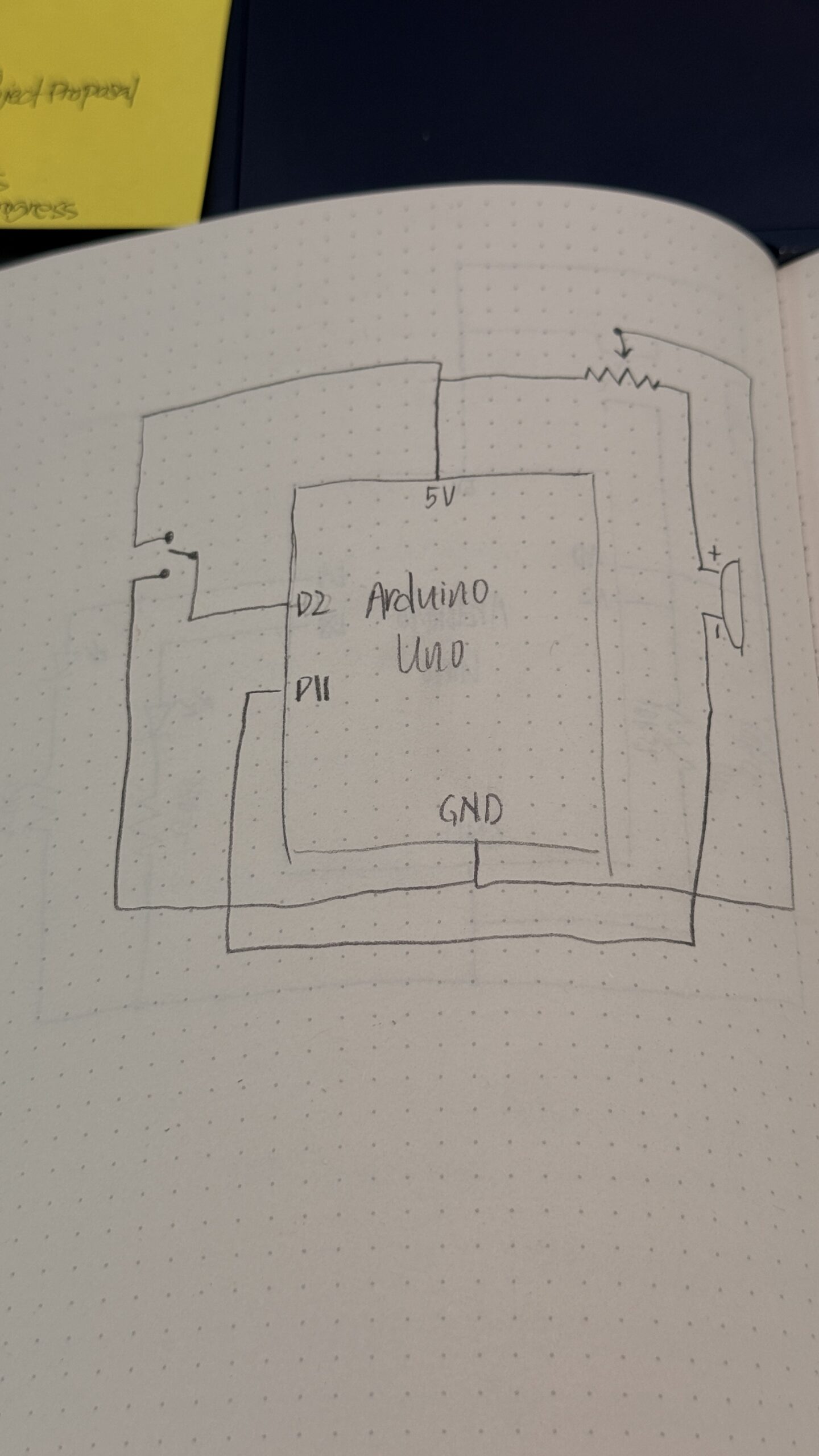
The schematic of the device looks like this (I tried my best to draw it correctly):

This is how it looks in real life:

And this is how it works:

Reflection

I really like how it turned out. My main goal was to use the components of Arduino we haven’t worked in the class with, so I achieved this objective. I also like the fact that I can actually “play” this instrument without even touching it – I think it’s pretty cool.

For further improvement, I believe I can make the device more “usable” because right now pointing the phone right in the middle of bunch of wires doesn’t seem too good. Also, I think I can work with the short delays the device has because now if I flicker the light, it wouldn’t catch it being turned off.

Preliminary Concept for Final project

For my final project, I plan to create a physically interactive game where the player helps recover a corrupted digital signal of a story using their feet. The idea is inspired by games like Piano Tiles and Just Dance, but instead of simply playing for points, the user is actively uncovering a hidden message through their performance. By stepping on floor pads in time with visual cues, which I am thinking will be something similar to piano tiles and the Just Dance mat, the player will gradually restore a distorted audio/visual, which makes the experience into kind of like a mystery game:


I will use Arduino to capture physical input and P5 to handle the visual and audio output. On the floor, there will be 4 pads made from materials like cardboard or foam with conductive layers inside (or if there is a better sensor for this idea, I will use it). Each pad will act as a button connected to the Arduino, and when someone steps on a pad, the circuit is completed, and the Arduino sends that input data to p5 through the serial communication.

On the screen, p5 will display a rhythm like visuals with vertical lanes and falling tiles, like the piano tile game. The user must step on the pad at the correct time to match the falling tiles (which I am thinking will be color based, so it matches the floor tiles, and it is more obvious). For the visuals, it will initially appear distorted, with glitch effects, static, and broken text or images to represent a broken signal along with the tiles. As the player successfully hits notes on time, the system will respond immediately by reducing the distortion, sharpening visuals, and revealing fragments of audio or text of a story. I want it to gradually form a short narrative, such as a corrupted voicemail or like a partial conversation. But if the user misses notes, the distortion stays or I might back it to where it temporarily increases.

The game basically listens through the Arduino sensors, thinks by processing the timing and accuracy of the input in p5, and responds through changes in the visuals and sound. The player will then be paying attention and adjusting their movements based on the feedback they receive, especially when they start revealing more of the story.

I prompt Gemini AI to create a picture of the game, so you can get a vision of what I am trying to achieve:


COMPOSER OF THE OPERA – Final Project Proposal

Concept

For my final project I had an idea inspired by the musical/film The Phantom of the Opera minus the obviously really weird creepy part. The idea is that you are a composer at an opera, and you have to be able to compose at least a good amount of the music while jump scares happen in the game.

I will be using my Arduino to create and connect the composer’s batons to my code and will connect the batons’ position to certain notes or volume or pitches or tempo (still unsure about what I want to do with this since its very complex) so when you try to move the sticks the position will translate to musical notes.

I will use p5 to code the design and the UI of the game and translate motion of the batons to actual events in the game.

I’m still unsure if I want to keep the jump scare component or if I want to keep it so that you just try to compose the music,  but for now this is the main concept I have in mind.

Visuals


Reading Reflection – Week 11

Reading Design Meets Disability made me think differently about how society treats disability devices. One part that stayed with me says that trying to hide these devices can show “a lack of self confidence that can communicate an implied shame.” This made sense to me because I believe disability devices should be shown proudly. There is nothing to hide, and people should feel free to embrace what makes them unique. The reading helped me understand that hiding something can sometimes send a negative message, even if people do not mean it that way.

Another idea that surprised me was how design for disability can inspire mainstream design. The text explains how the Eames leg splint influenced famous furniture. I never expected a medical object to shape everyday design. This showed me that disability centered design can be creative and important, not only functional.

The reading also changed how I think about the look of medical devices. When Aimee Mullins chooses “off the chart glamorous” prosthetics, it shows how fashion can help people feel confident. If I had to wear a hearing aid or prosthetic, I would want it to be unique and fashionable too. Something that stands out in a good way and can influence others to do the same. This is why I think fashion designers, especially designer brands, should help create these devices. It would make people feel included and inspire many other small businesses and brands globally.

Overall, the reading taught me that disability and design do not need to focus on hiding. They can focus on expression, creativity and how each person shows their own personality with something so unique.

week 9: mood lamps

For this assignment, I tried to create two lighting options using one analog sensor, one digital sensor, and two LEDs. One option acts like a simple lamp that turns on and off, while the other acts more like a mood lamp whose brightness can be adjusted. I used the potentiometer as the analog input and the button as the digital input. I used the yellow LED as the on and off indicator for the system, and I used the blue LED as the mood light. I liked this idea because it was simple, but it still made the difference between digital and analog input and output very clear.

Week9

The way it works is that the button turns the system on and off, which the yellow LED shows. When the system is on, the blue LED changes brightness based on the potentiometer. That means the yellow LED works in a digital way, because it is either fully on or fully off, while the blue LED works in an analog way because its brightness changes gradually. In that sense, the project feels like choosing between two lighting options: a basic on and off lamp, and a second lamp that can be adjusted.

Arduino File on GitHub

For the code, I used one variable to store the button state, another to store the last button state, and a variable called systemOn to remember whether the lamp is on or off. I used INPUT_PULLUP for the button, so the button normally reads HIGH and becomes LOW when pressed. Then I used an if statement to check if the button had just been pressed, and if it had, I changed the system state. After that, I used analogRead() to get the potentiometer value, and map() to convert that value from 0 to 1023 into a brightness range of 0 to 255. That brightness value is then sent to the blue LED using analogWrite().

The part of the code I am most proud of is where the potentiometer reading gets turned into brightness for the blue LED, while the button still controls the overall on and off state of the lamp. I like this part because it made the project feel more intentional. The blue LED does not just turn on randomly. It only works when the system is on, and then its brightness changes based on the potentiometer. That made the whole lamp feel more organized and easier to understand.

if (buttonState == LOW && lastButtonState == HIGH) {
   if (systemOn == 0) {
     systemOn = 1;
   } else {
     systemOn = 0;
   }
   delay(200);  
 }
 lastButtonState = buttonState;
 

 int sensorValue = analogRead(A0);
 
 
 if (systemOn == 1) {
  
   digitalWrite(yellowLed, HIGH);
   int brightness = map(sensorValue, 0, 1023, 0, 255);
   analogWrite(blueLed, brightness);
 } else {
   digitalWrite(yellowLed, LOW);
   analogWrite(blueLed, 0);
 }

I am proud of this part because it brings the whole project together. The button controls the digital state of the system, and the potentiometer controls the analog brightness of the blue LED. I think this made the assignment much easier to understand in a practical way, because it clearly separated the role of the digital input and the analog input.

One thing I liked about this assignment is that it made the difference clear. The yellow LED is either fully on or fully off, while the blue LED can be dim, medium, or bright depending on the potentiometer. If I had more time, I would probably make the mood lamp more visually expressive, maybe by adding another color.