week 9: mood lamps

For this assignment, I tried to create two lighting options using one analog sensor, one digital sensor, and two LEDs. One option acts like a simple lamp that turns on and off, while the other acts more like a mood lamp whose brightness can be adjusted. I used the potentiometer as the analog input and the button as the digital input. I used the yellow LED as the on and off indicator for the system, and I used the blue LED as the mood light. I liked this idea because it was simple, but it still made the difference between digital and analog input and output very clear.

Week9

The way it works is that the button turns the system on and off, which the yellow LED shows. When the system is on, the blue LED changes brightness based on the potentiometer. That means the yellow LED works in a digital way, because it is either fully on or fully off, while the blue LED works in an analog way because its brightness changes gradually. In that sense, the project feels like choosing between two lighting options: a basic on and off lamp, and a second lamp that can be adjusted.

Arduino File on GitHub

For the code, I used one variable to store the button state, another to store the last button state, and a variable called systemOn to remember whether the lamp is on or off. I used INPUT_PULLUP for the button, so the button normally reads HIGH and becomes LOW when pressed. Then I used an if statement to check if the button had just been pressed, and if it had, I changed the system state. After that, I used analogRead() to get the potentiometer value, and map() to convert that value from 0 to 1023 into a brightness range of 0 to 255. That brightness value is then sent to the blue LED using analogWrite().

The part of the code I am most proud of is where the potentiometer reading gets turned into brightness for the blue LED, while the button still controls the overall on and off state of the lamp. I like this part because it made the project feel more intentional. The blue LED does not just turn on randomly. It only works when the system is on, and then its brightness changes based on the potentiometer. That made the whole lamp feel more organized and easier to understand.

if (buttonState == LOW && lastButtonState == HIGH) {
   if (systemOn == 0) {
     systemOn = 1;
   } else {
     systemOn = 0;
   }
   delay(200);  
 }
 lastButtonState = buttonState;
 

 int sensorValue = analogRead(A0);
 
 
 if (systemOn == 1) {
  
   digitalWrite(yellowLed, HIGH);
   int brightness = map(sensorValue, 0, 1023, 0, 255);
   analogWrite(blueLed, brightness);
 } else {
   digitalWrite(yellowLed, LOW);
   analogWrite(blueLed, 0);
 }

I am proud of this part because it brings the whole project together. The button controls the digital state of the system, and the potentiometer controls the analog brightness of the blue LED. I think this made the assignment much easier to understand in a practical way, because it clearly separated the role of the digital input and the analog input.

One thing I liked about this assignment is that it made the difference clear. The yellow LED is either fully on or fully off, while the blue LED can be dim, medium, or bright depending on the potentiometer. If I had more time, I would probably make the mood lamp more visually expressive, maybe by adding another color.


Week 11 Reading Reflection

Design Meets Disability

The first thing I thought of when reading the text is when Chinese jewelry brand YVMIN designed prosthetics for the Chinese model Xiao Yang. They were honestly like no other prosthetic I had ever seen attached below are only some of the designs:

This text coupled with my memory of the model made me think about how inclusivity, design, and functionality should be combined in a product. A lot of the times people with disabilities face problems with self-esteem and self-image, so incorporating incredible designs to me feels like an important aspect of building any product. Especially when looking at how glasses are seen as fashionable items; I even remember hearing people tell me about how they would fake not being able to read letters at the doctor’s office to get glasses.

Nonetheless, I feel that a product without all three elements is incomplete. A lot of the times you see certain elements incorporated into a product for the sake of aesthetics that just end up making using the product much more difficult. Or sometimes the design just looks ugly altogether.

This reading was really eye-opening and made me reflect on how I should incorporate all three elements into my designs to make them most effiicient and accessible.

Also yes I forgot to mention, including fashion with products made for disabilities is brilliant whether its in glasses, hearing aids, prosthetics, or bionics.

Week 10: Digital (Slide Switch) and Analog (Sound Sensor)

Concept

I wanted to make a lightning system where sound controls the brightness. For my digital sensor, I used a slide switch to turn the LEDs on and off. As for my analog sensor, I used a sound sensor where every time it detects a sound, the LEDs get dimmer. I’m quite interested in sound-activated lights and even though it didn’t come with the kit, I still wanted to give it a try and I got the KY-037 from Amazon.

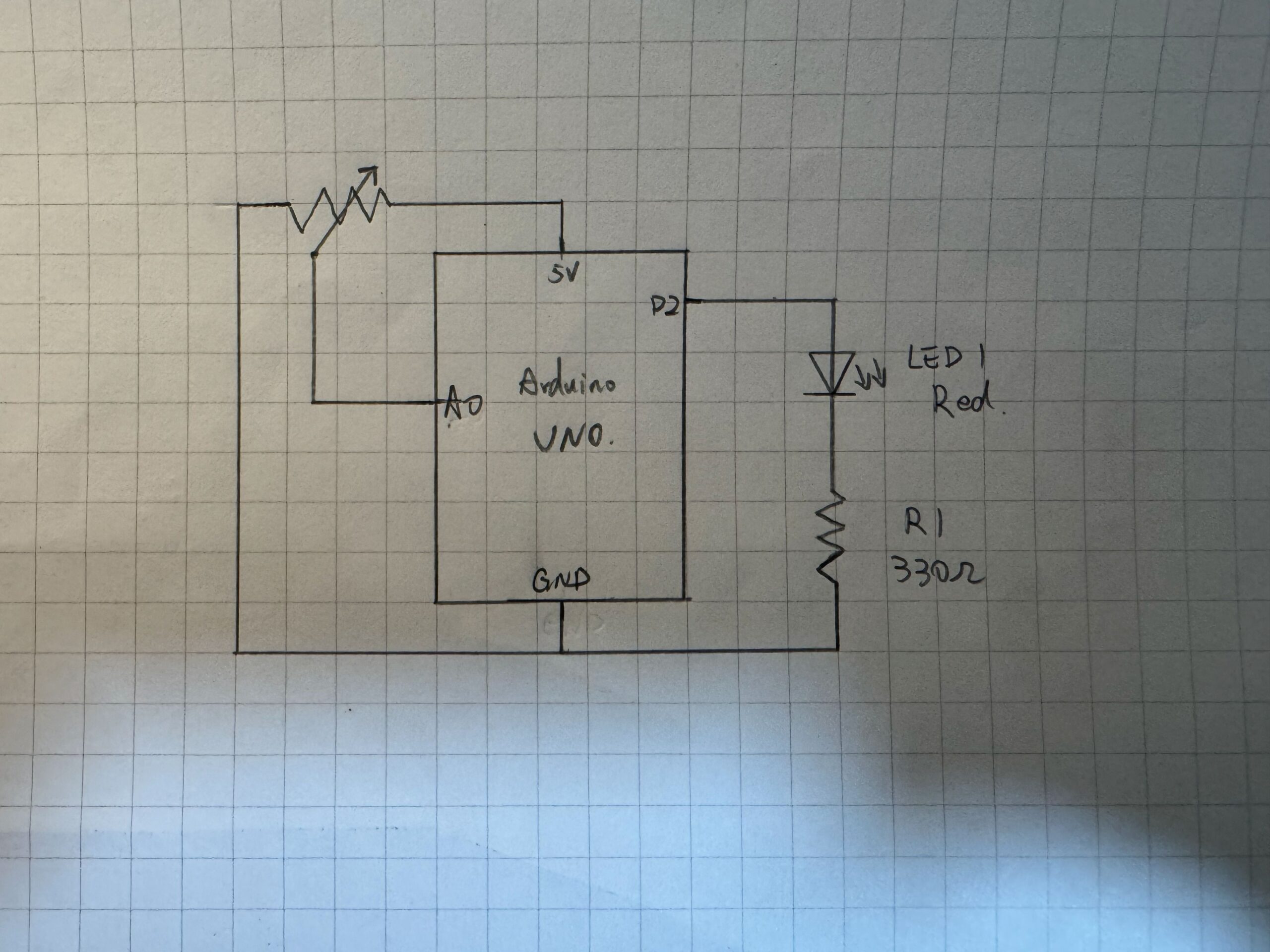
Full Code | Video Demo | Schematics

Code that I’m proud of

int soundValue = analogRead(soundPin);
 int change = abs(soundValue - 512);

 if (change > threshold) {
   brightness = brightness - 50; // drop brightness by 50 each sound
   Serial.println("Lowering brightness.."); // debug to make sure sound is going through and brightness lowering
   delay(200);
 }

I’m proud of this part because I had to actually understand what the sound sensor was giving me. I thought it would just tell me loud or quiet (HIGH/LOW), but it outputs a number between 0 and 1023 and in silence it sits around 512 (which is about half of that range). I also added the Serial.println myself because I had no idea if claps were even registering so I wanted to confirm it was working in the Serial Monitor before trusting the LEDs and as reassurance.

How this was made

I started with the slide switch wired to pin 2 with a 10kΩ pull-down resistor to GND, the reason for the higher Ω used was to prevent the pin from floating and giving random readings when the switch is open. When it reads LOW, both LEDs turn off and brightness resets to 255 (maximum brightness) so it starts fresh every time. I had to learn how the sound sensor worked and wired it myself. It outputs a continuous number between 0 and 1023 of the volume, sitting around 512 (mid-range value) in silence, and every loop the code reads that value, subtracts 512, and takes the absolute value to get the amplitude. If that crosses my threshold of 70 the brightness drops by 50. I had a problem with sensitivity at first as it kept triggering on background noise or missing claps and I found out that the module has a small dial you adjust with a screwdriver. I also added Serial.println debug line so I could confirm in the Serial Monitor that claps were actually registering before trusting the LEDs. The two LEDs on pins 9 and 10 each have a 330Ω resistor to GND and receive the brightness value through analogWrite using PWM.

Reflection & Future Improvements

This was quite a challenging assignment because I heavily insisted on using a sound sensor. Even though the sound sensor was new to me and not something we covered in class, I was able to apply a lot of the analog concepts we already learned (things like analogRead, analogWrite, and PWM) and it translated over and made it easier to grasp. I went back to the class notes and a few tutorials online (referenced below) to piece it together. If I were to keep going I’d add more brightness steps so the dimming feels smoother, and I’d revisit an earlier idea where the two LEDs go in opposite directions where one dims while the other brightens based on the same concept of having live sound adjusts that. Nevertheless, I’m happy with my output and how it turned out.

References

https://github.com/liffiton/Arduino-Cheat-Sheet

https://docs.arduino.cc/language-reference/

Arduino Sound Sensor: Control an LED with Sound

Reading Reflection – Week 11

Design Meets Disability

This was an interesting read, especially the idea of discretion in disability design. I honestly realized I never really questioned it before, I just kind of assumed that making things invisible or less noticeable was automatically better, but the reading made me realize it is actually much more about culture and how people feel about themselves. The example of the Eames leg splint was interesting to me because I did not expect something medical to be described as a beautiful design. The idea that a medical object could actually lead to iconic furniture made me rethink the direction of influence in design. It does not just go from mainstream to disability, but the other way around, too.

The idea of discretion vs fashion also really changed how I think about assistive devices. I have definitely grown up seeing and hearing things like hearing aids or prosthetics as something you need to hide, so the idea that invisibility might actually reinforce shame really stuck with me. The comparison with the glasses made a lot of sense because I have never thought of glasses as medical, I sometimes see them as normal or even stylish. Which makes me wonder why other devices have not gone through the same shift yet.

I also found the discussion about simplicity really relatable, especially the iPod example. I have definitely experienced how too many features in a product can actually make it harder to use. The example of simple radios for people with dementia made me think about how inclusion is not just physical, but also about how easily something can be understood without stress. Overall, this reading has me thinking about how much design depends on who is involved in the process, especially considering it needs input from mainstream designers and artists because disability design does not have to be separate or special. It can actually shape what good design looks like for everyone.

Week 10 Assignment

Concept

My project is a simple interactive lighting system using one analog sensor and one digital sensor. I used a potentiometer as the analog sensor and a pushbutton as the digital sensor. The idea is that the potentiometer controls the brightness of one LED, while the button controls whether the other LED turns on or off. I wanted to make a small circuit that shows two different ways Arduino can read input and control output. This project is simple, one LED changes gradually, while the other only has two states, on and off.

How I made it:

const int potPin = A0;      // potentiometer connected to analog pin A0
const int buttonPin = 2;    // pushbutton connected to digital pin 2
const int ledDigital = 13;  // LED controlled by the button
const int ledAnalog = 9;    // LED with adjustable brightness

void setup() {
  pinMode(buttonPin, INPUT_PULLUP);  // use the internal pull-up resistor for the button
  pinMode(ledDigital, OUTPUT);       // set digital LED as output
  pinMode(ledAnalog, OUTPUT);        // set analog LED as output
}

void loop() {
  // read the potentiometer value from 0 to 1023
  int potValue = analogRead(potPin);

  // convert the potentiometer value into a brightness value from 0 to 255
  int brightness = map(potValue, 0, 1023, 0, 255);

  // control the brightness of the LED on pin 9
  analogWrite(ledAnalog, brightness);

  // read the button state
  int buttonState = digitalRead(buttonPin);

  // when the button is pressed, turn on the digital LED
  // when the button is not pressed, turn it off
  if (buttonState == LOW) {
    digitalWrite(ledDigital, HIGH);
  } else {
    digitalWrite(ledDigital, LOW);
  }
}

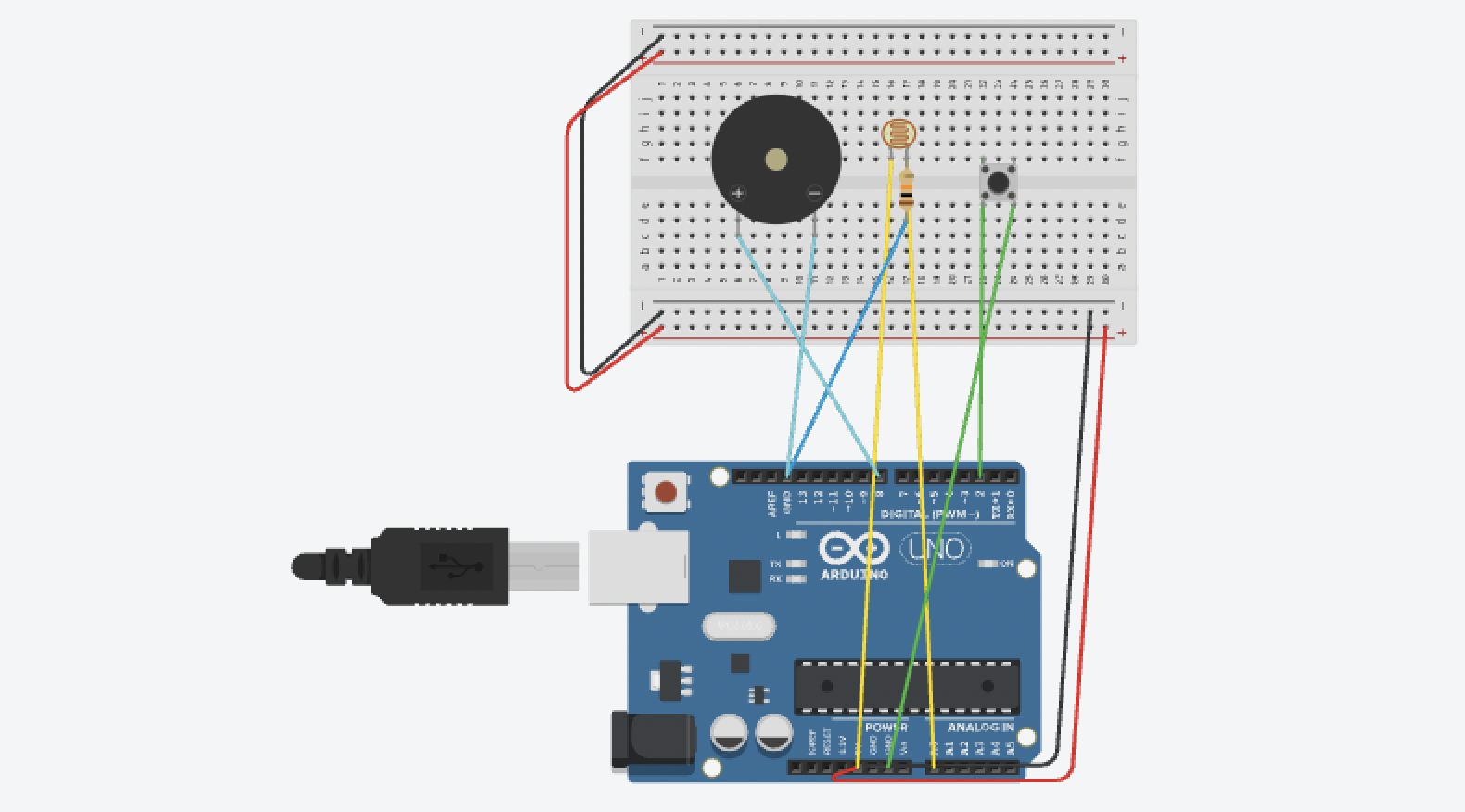
First, I built the circuit in Tinkercad because I do not have a physical Arduino with me right now. I added an Arduino Uno, a potentiometer, a pushbutton, two LEDs, and resistors. Then I connected the potentiometer to 5V, GND, and A0 so Arduino could read its analog value. After that, I connected the pushbutton to pin 2 and GND so it could work as a digital input.

Next, I connected one LED to pin 13 for simple on and off control, and another LED to pin 9 so I could control its brightness with PWM. In the code, I used analogRead() to read the potentiometer value and map() to change that value into a brightness level from 0 to 255. Then I used analogWrite() to change the brightness of the LED on pin 9. For the button, I used digitalRead() to check whether it was pressed, and then I turned the LED on pin 13 on or off.


What I’m proud of

I am proud that I solved a problem by checking my circuit carefully. At the beginning, I placed the button incorrectly, so LED2 could not light up. At first, I thought the code might be wrong, but later I realized the problem was in the button connection. After fixing the button placement, the circuit worked correctly.

This mistake helped me learn that in Arduino projects, the wiring is just as important as the code. Even if the code is correct, the circuit will not work if one part is connected incorrectly. I think this was an important learning moment for mebecause I am still new to Arduino.

Conclusion

Overall, this project helped me understand the basic difference between analog input and digital input. I learned how a potentiometer can control LED brightness and how a pushbutton can control an LED in a simple on/off way. I also learned how important it is to test carefully and fix mistakes step by step. However, this is my very fist time to learn Arduino, so this project might be a bit lack of creativity. But during the process, I learned the basics of Arduino.

Week 10 – Musical Instrument

Here are pics and videos:


Video link if not working:

https://drive.google.com/file/d/1pQPYnyUyf5OOBwbfCVHiDrsOvqDn_P3d/view?usp=sharing

Here is my GitHub link:
https://github.com/farahshaer/Intro-to-IM/blob/4ff1ee52b33d4edf72a1f905fc3d014cd8dfadb6/sketch_apr14a.ino 

Overall concept

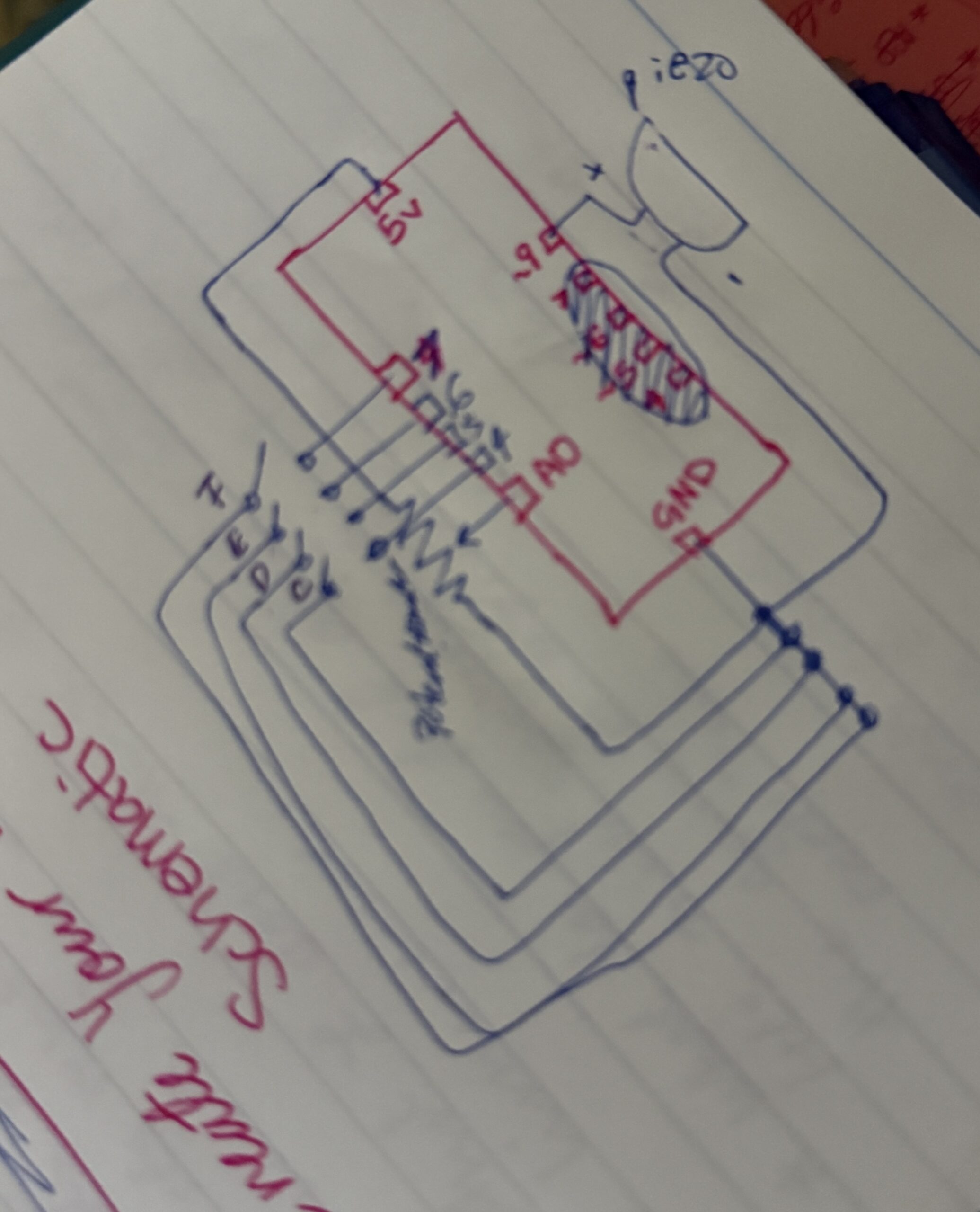
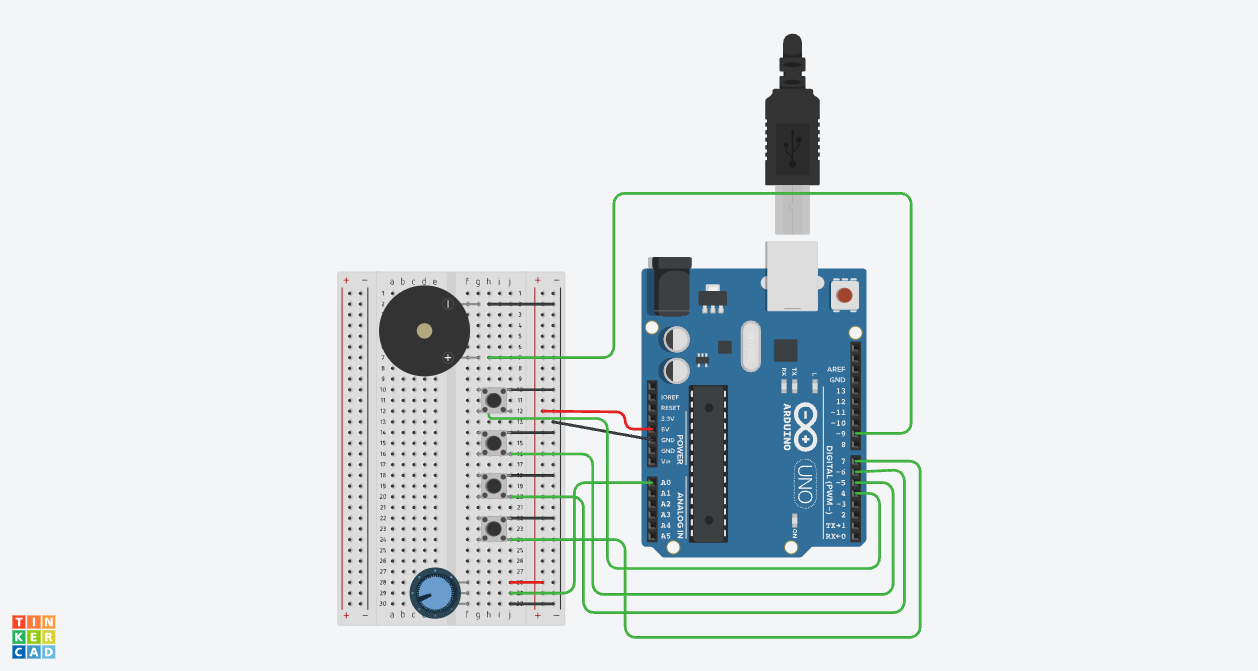
So for this project, I built an interactive music system that plays two different songs (Jennifer’s Body by Ken Carson and Die with a Smile by Bruno Mars), and you can control the pitch of the melodies. I included a buzzer for the sound output, a button to switch between the songs, a potentiometer to change the pitch, and an LED that visually blinks along with the music. The main idea was to create something interactive where you can actually affect the sound while it is playing.

Code Highlight

One part of my code that I am particularly proud of is the if statements that switch between the two melodies and make the LED blink:

//mode 0 (melody 1)
  if (mode == 0) {

    int size1 = 15;                                      //number of notes in melody 1
    int noteDuration = 1000 / noteDurations1[thisNote];  //converts note type into time in milliseconds
    int finalPitch = melody1[thisNote] + pitch;          //combines the meoldy note and the knob turning (can adjust the note using the potentiometer)
    tone(buzzer, finalPitch, noteDuration);              //plays sound on buzzer
    digitalWrite(led, HIGH);                             //turns led on while the note is playing
    delay(noteDuration);                                 //waits for note to finish
    digitalWrite(led, LOW);                              //turns the led off between the notes and for blinking effect
    delay(noteDuration * 0.3);                           //short pause between the notes to make the melody clearer
    noTone(buzzer);                                      //stops sound before next note
    thisNote++;                                          //moves to next note in the melody
    if (thisNote >= size1) thisNote = 0;                 //if at the end of the melody go back to the start (loop song)
  }


  if (mode == 1) {
    int size2 = 23;                                      //number of notes in melody 2
    int noteDuration = 1000 / noteDurations2[thisNote];  //converts note into time (mill sec)
    int finalPitch = melody2[thisNote] + pitch;          //applys the pitch shift from the potentmeter
    tone(buzzer, finalPitch, noteDuration);              //plays sound
    digitalWrite(led, HIGH);                             //turns led on during the sound
    delay(noteDuration);                                 //wait for note
    digitalWrite(led, LOW);                              //led off
    delay(noteDuration * 0.3);                           //pause between notes
    noTone(buzzer);                                      //stops sound

    thisNote++;                           //go to the next note when done
    if (thisNote >= size2) thisNote = 0;  //loop back to start when song ends
  }
}

This is the core of my project because instead of playing an entire song at once, it processes one note at a time, which allows for real-time interaction through the button and the potentiometer. The code selects the current note, modifies pitch with the sensor input, and then outputs the sound plus the LED, while moving to the next state.

Reflection/future work

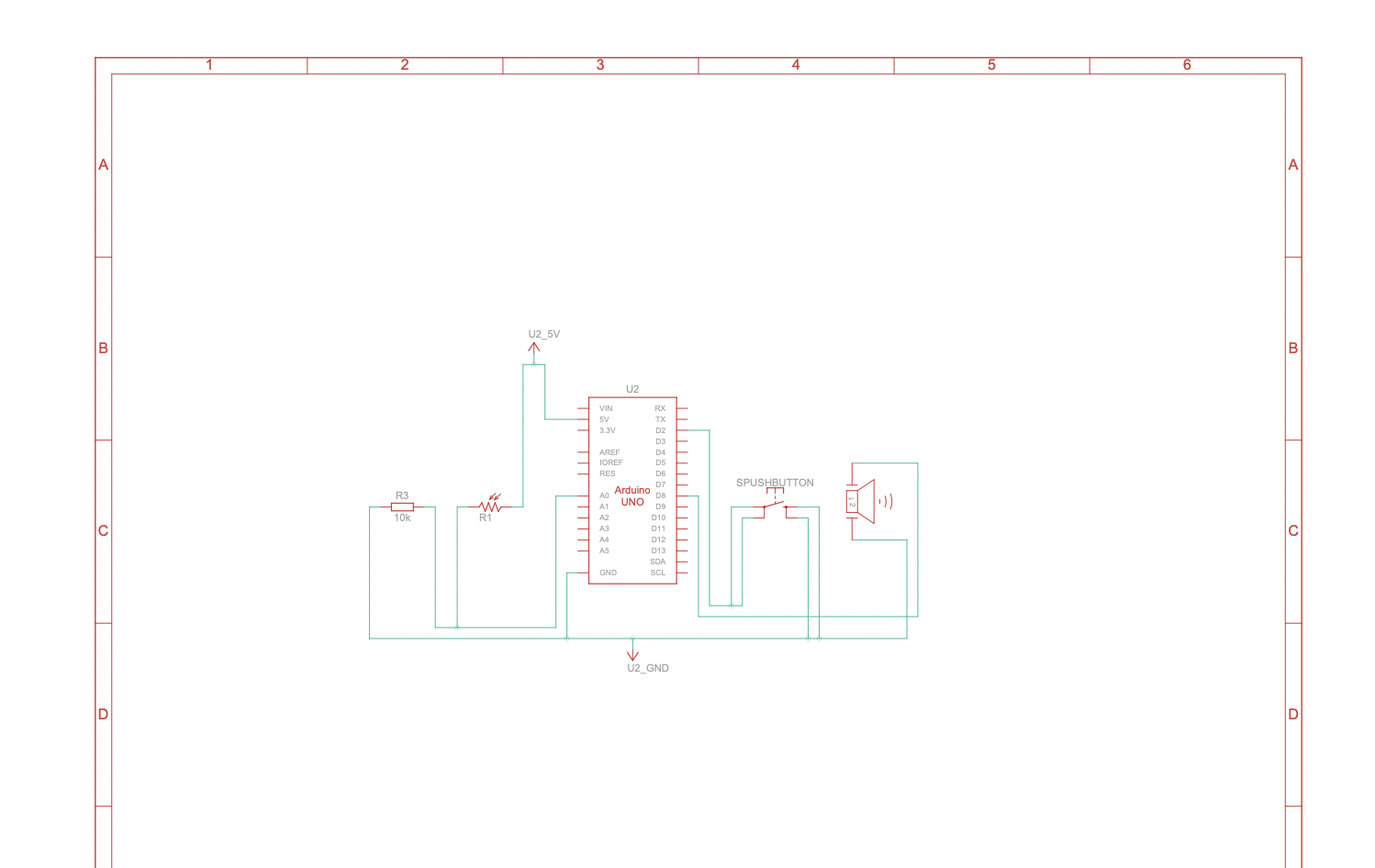
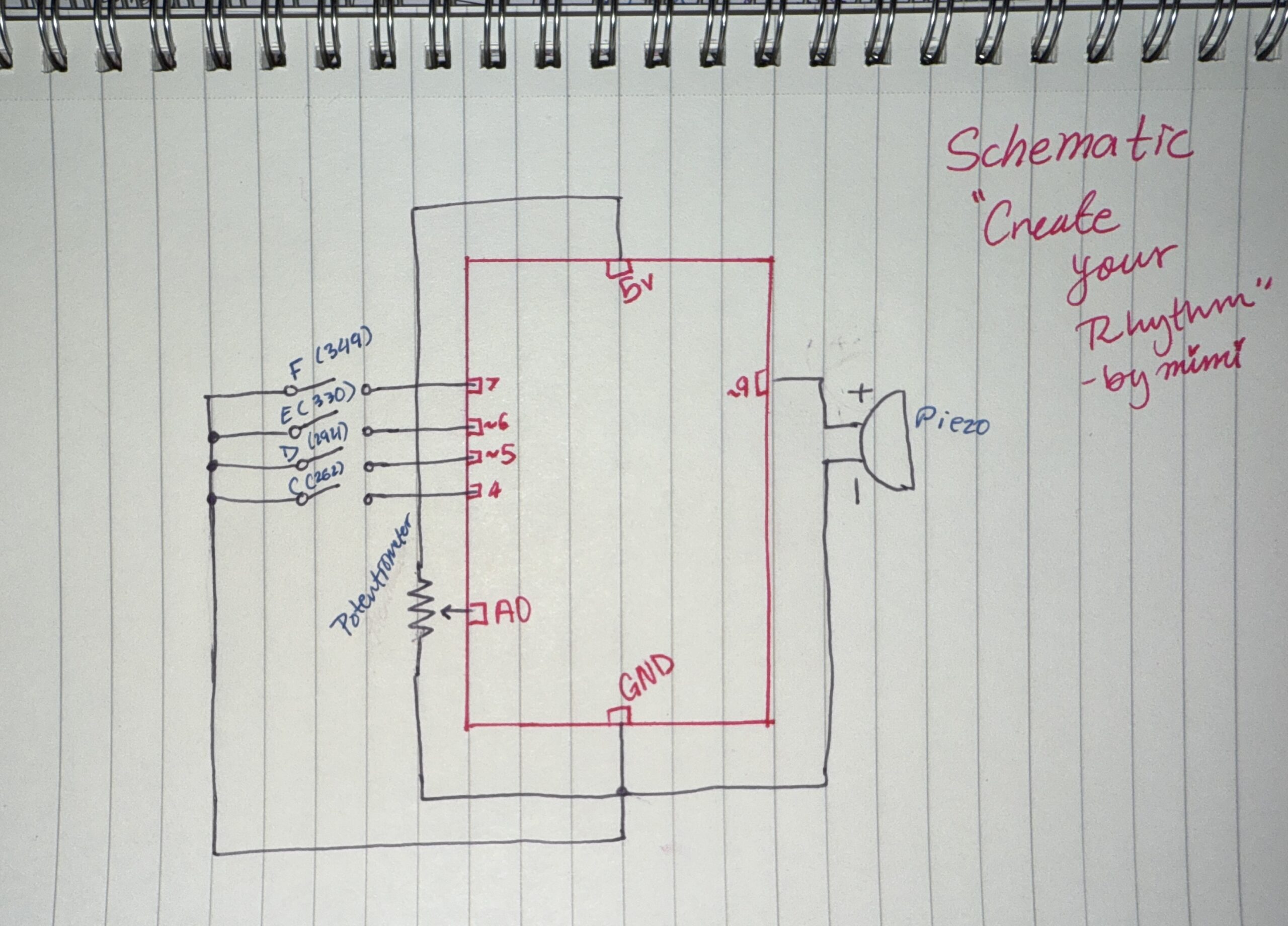
I cannot lie, I had trouble with the code, but the wiring was straightforward once I understood how each component connected to the Arduino. The buzzer is connected to digital pin 8, and outputs sound using the tone() function. The LED is connected to digital pin 9 with a resistor, and it provides visual feedback by blinking in sync with each note. The button is connected using INPUT_PULLUP, meaning it reads HIGH when not pressed and LOW when pressed, which required me to wire one side to ground so the logic would work correctly. The potentiometer is connected to analog pin A0, with one side connected to 5V, the other to ground, and the middle pin sending a variable signal that controls pitch in the code.

For the code, I used a variable called thisNote, which stores the current position in the melody array. Instead of using a for loop to play the entire song at once, the code plays one note per loop cycle, which allows for constant checking for input changes while the music is playing. At first, I used for loops, and it just was not working. The Arduino got stuck inside the loop, the button presses were ignored until the song finished, and the potentiometer did not update in real time, so switching to thisNote, it made the program run one note at a time inside the loop. So the Arduino can check the button constantly, and the song can change and pitch in real time.

I also had a problem with the button logic, because at first I wrote if (buttonState == LOW) and it caused it to continuously trigger while the button was held down, which made the song behave unpredictably. So I used chatgpt to debug and I learned to use lastButtonState with buttonState so the code only detects a transition from high to low (single press instead of holding), and because I used input_pullup, I also had to adjust my thinking since high is not pressed and low was pressed so it was confusing at first because it is the opposite of what I expected.

Overall, I learned that structure matters just as much as logic, especially when dealing with real-time input and output, because small details like button states and loop structure completely change how responsive the system feels. For future improvements, I would add more songs or more modes, and more LEDs or patterns to visualize the rhythm more creatively, and probably replace delay with millis for smoother control.

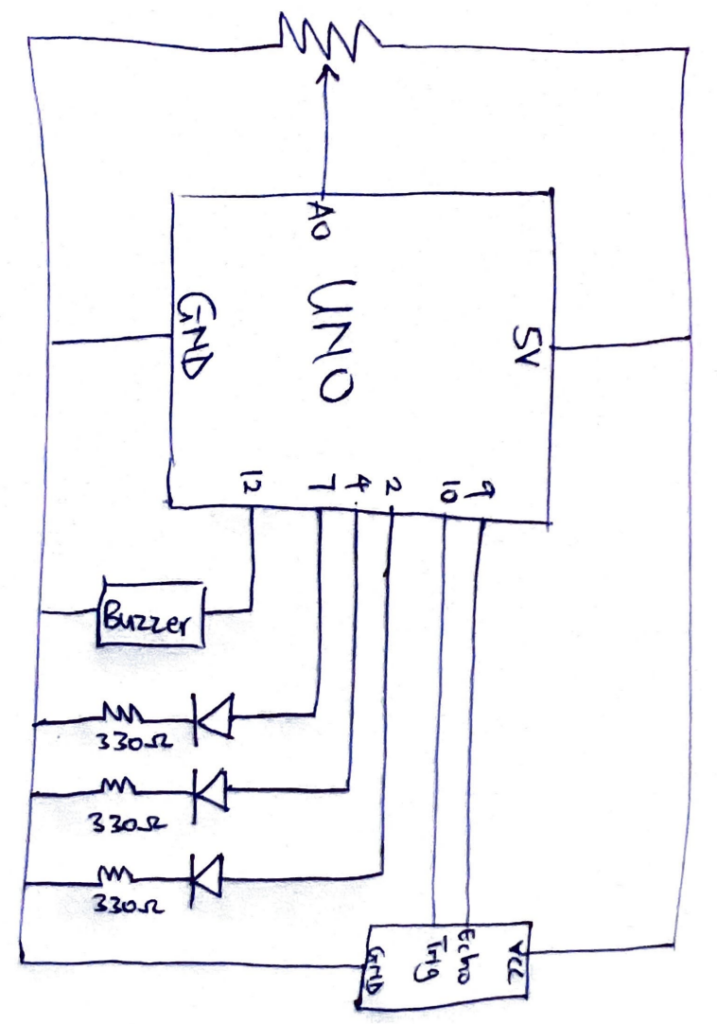
Here is my schematic:


References:

(I mainly used the lecture slides), but I also used these websites for a better understanding.
https://github.com/hibit-dev/buzzer/blob/e1442497e7c56cee0d5efe73304bdb922b3ab907/src/songs/ken_carson_jennifers_body/ken_carson_jennifers_body.ino

https://github.com/hibit-dev/buzzer/blob/e1442497e7c56cee0d5efe73304bdb922b3ab907/src/songs/die_with_a_smile/die_with_a_smile.ino

https://docs.arduino.cc/built-in-examples/digital/toneMelody/

https://docs.arduino.cc/built-in-examples/digital/InputPullupSerial/

Week 10 – Arduinooo (#1)

Due to the time crunch this week, I wanted to make something small which I would be able to achieve on time, so unfortunately, this won’t be as fun as usual. (߹ ᯅ ߹)

Concept:

I thought I’d make a Mood Light with a Panic Button: the potentiometer (analog) controls a blue LED that fades smoothly, while a pushbutton (digital) triggers a red LED to blink rapidly, like an alert. I liked the contrast between the two, and I thought it would be fun to see if I could make it work. It kind of reminds me of an Ambulance, maybe.

Process:

Due to my wonderful wi-fi here, my internet kept disconnecting in class, so if there is content here that WAS covered in class but I struggled with, I’m assuming those were what were mentioned while I was fighting with the wi-fi and my data (sorry!). The first thing I had to understand was the pull-down resistor on the button. I kept seeing it in tutorials without really knowing what it was for, so I looked into it. I found that if I just wire a button between 5V and a digital pin, the pin has no defined state when the button isn’t pressed. It floats and picks up random electrical noise, which makes it read random HIGH and LOW values. A pull-down resistor (10k ohms in my case) connects the pin to GND through a high resistance, so when the button isn’t pressed, the pin reads LOW. When the button is pressed, it connects to 5V to show HIGH.

The rest of the circuit was pretty straightforward. In the beginning, I kept forgetting which was the cathode and anode in the LEDs and I had some issues with figuring out the wires (silly mistakes and TinkerCad creating wires when I wanted to click on something else).

The analog part reads the potentiometer using analogRead(), which returns a value between 0 and 1023. Since it expects a value between 0 and 255, I divide the reading by 4 to scale it to the right range. The digital part reads the button with digitalRead(), and if it’s HIGH (pressed), the blue LED alternates on and off with a short delay.

const int POT_PIN    = A0;
const int BUTTON_PIN = 2;
const int FADE_LED   = 9; //analog
const int BLINK_LED  = 8; // digital

void setup() {
  pinMode(BUTTON_PIN, INPUT);
  pinMode(FADE_LED, OUTPUT);
  pinMode(BLINK_LED, OUTPUT);
  Serial.begin(9600);
}

void loop() {
  // Analog, potentiometer controls fade LED brightness
  int potValue = analogRead(POT_PIN);
  int brightness = potValue / 4;       // 0–1023 → 0–255
  analogWrite(FADE_LED, brightness);

  // Digital, button triggers blink LED
  int buttonState = digitalRead(BUTTON_PIN);
  if (buttonState == HIGH) {
    digitalWrite(BLINK_LED, HIGH);
    delay(100);
    digitalWrite(BLINK_LED, LOW);
    delay(100);
  } else {
    digitalWrite(BLINK_LED, LOW);
  }

  Serial.print("Pot: "); Serial.print(potValue);
  Serial.print("  Button: "); Serial.println(buttonState);
}

One thing I initially got wrong: I had the fade LED on pin 7 and couldn’t figure out why it was only turning fully on or fully off with no in-between. Pin 7 doesn’t support PWM, and only pins with the ~ symbol can use analogWrite(), so I moved it to pin 9 and it started working. Good to know.

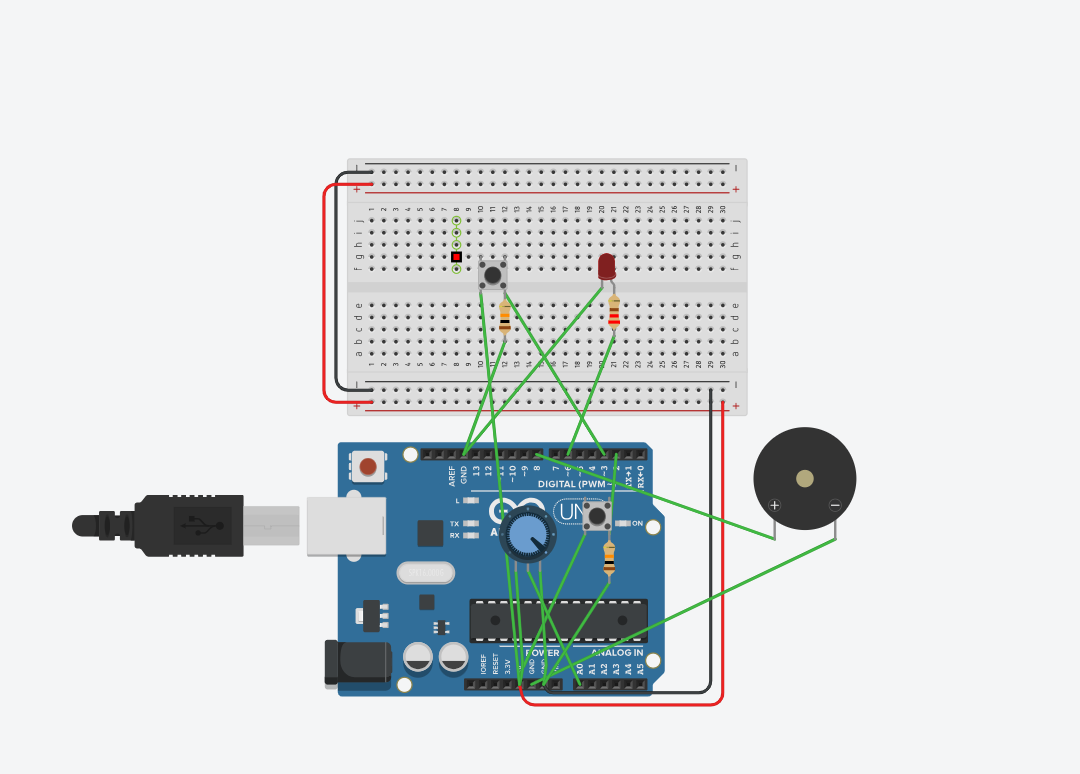
Schematic:

I don’t even know if this is right, so if it’s not, I am so sorry. I tried to look at class diagrams and went ?, so then I looked at TinkerCad’s schematic and went even more ???.

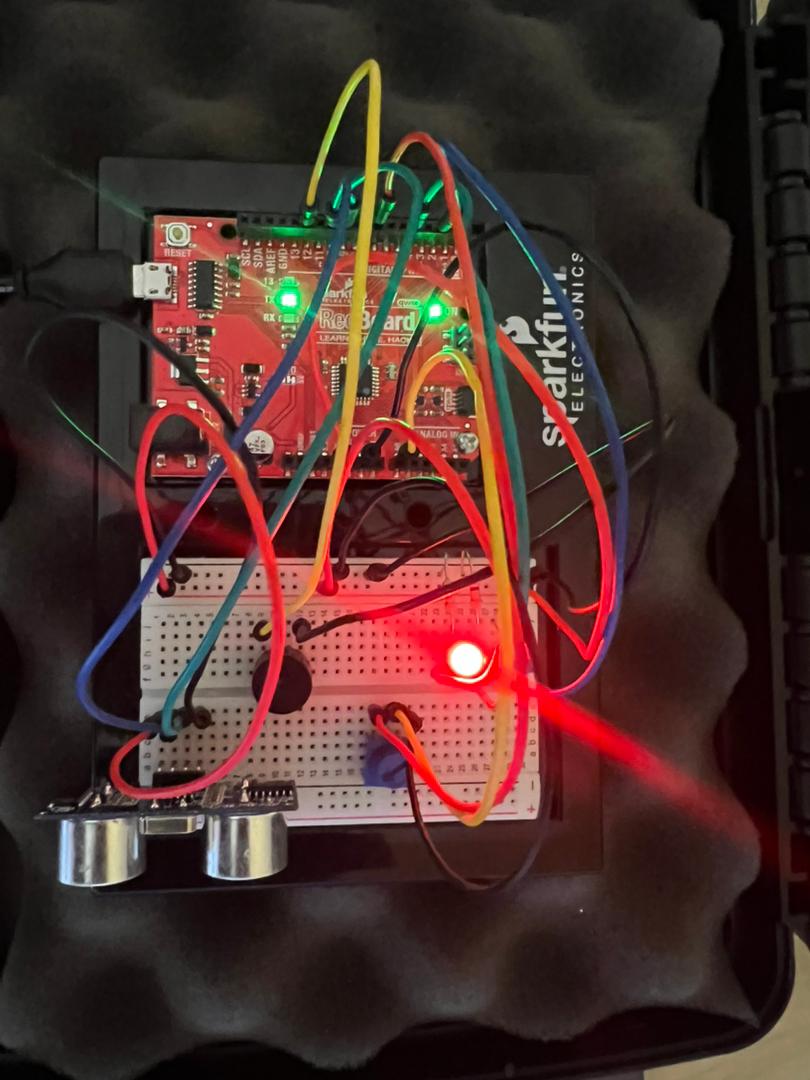
Circuit:

Reflection/Improvements:

  • Right now, the buttons just trigger one fixed blink pattern. It would be more interesting to have it cycle through different patterns on each press (slow blink, fast blink, heartbeat, etc.) using a counter variable. That would also give the panic button more character.
  • Next time, I’d want to do something much more ambitious. As long as I figure out the beginning things, I can try to make cooler projects with this. I do want to explore actions that aren’t just “a person pressing a thing” to make things interesting.
  • (I can’t wait to get my physical Arduino kit so I can try to make this IRL! (≧▽≦))

Week_10_Assignment

Concept

The requirement of creating a musical instrument with electrical components made me think of the Theremin, but I didn’t want to copy the logic comletely. So I dicided to use the ultrasonic distance sensor to imitate the change by hand movement. I also wanted to make the instrument a beat generater, because beats can be manipulated in their pitch, tempo and even rhythm pattern. This allows much more variation. So the ultimate design concept was to have the ultrasonic distance sensor acts as a pitch controller, where the player can move thir hand away or closer to the sensor to control pitch, the potentialmeter controls the tempo, and the toggle switch allows alternation between rythm patterns.

Video Demo

https://drive.google.com/file/d/1FMsPLRa6d30ubt3L1F19-kvFab5APs4L/view?usp=drive_link

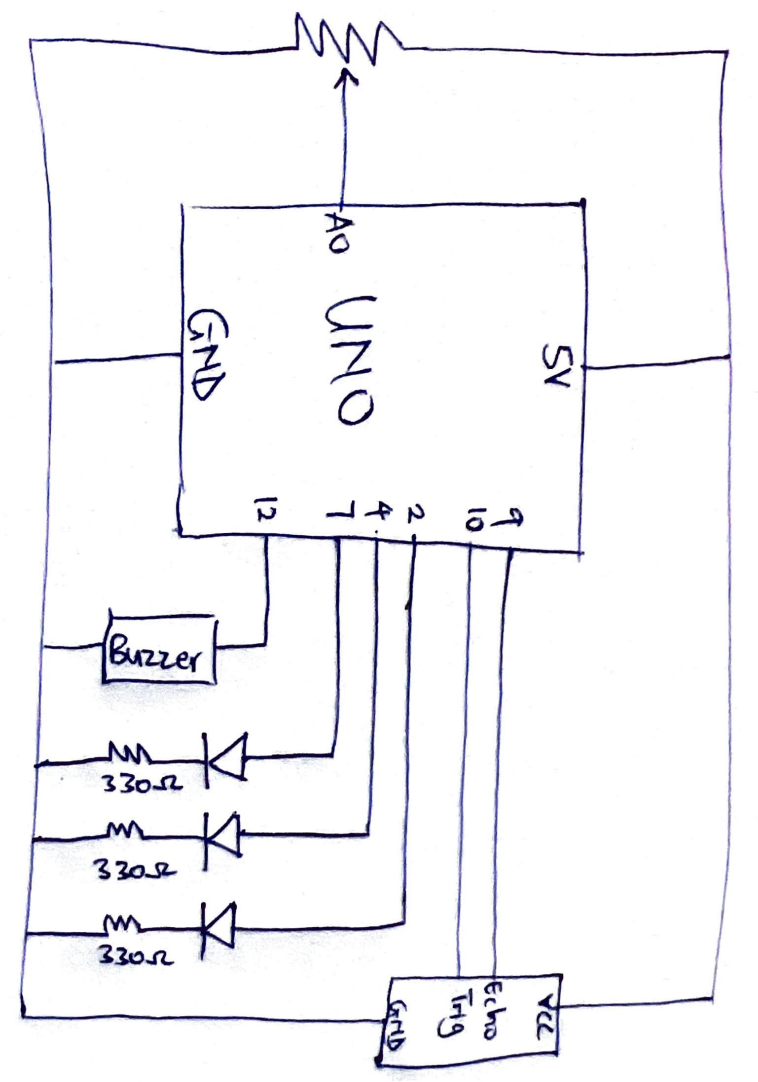
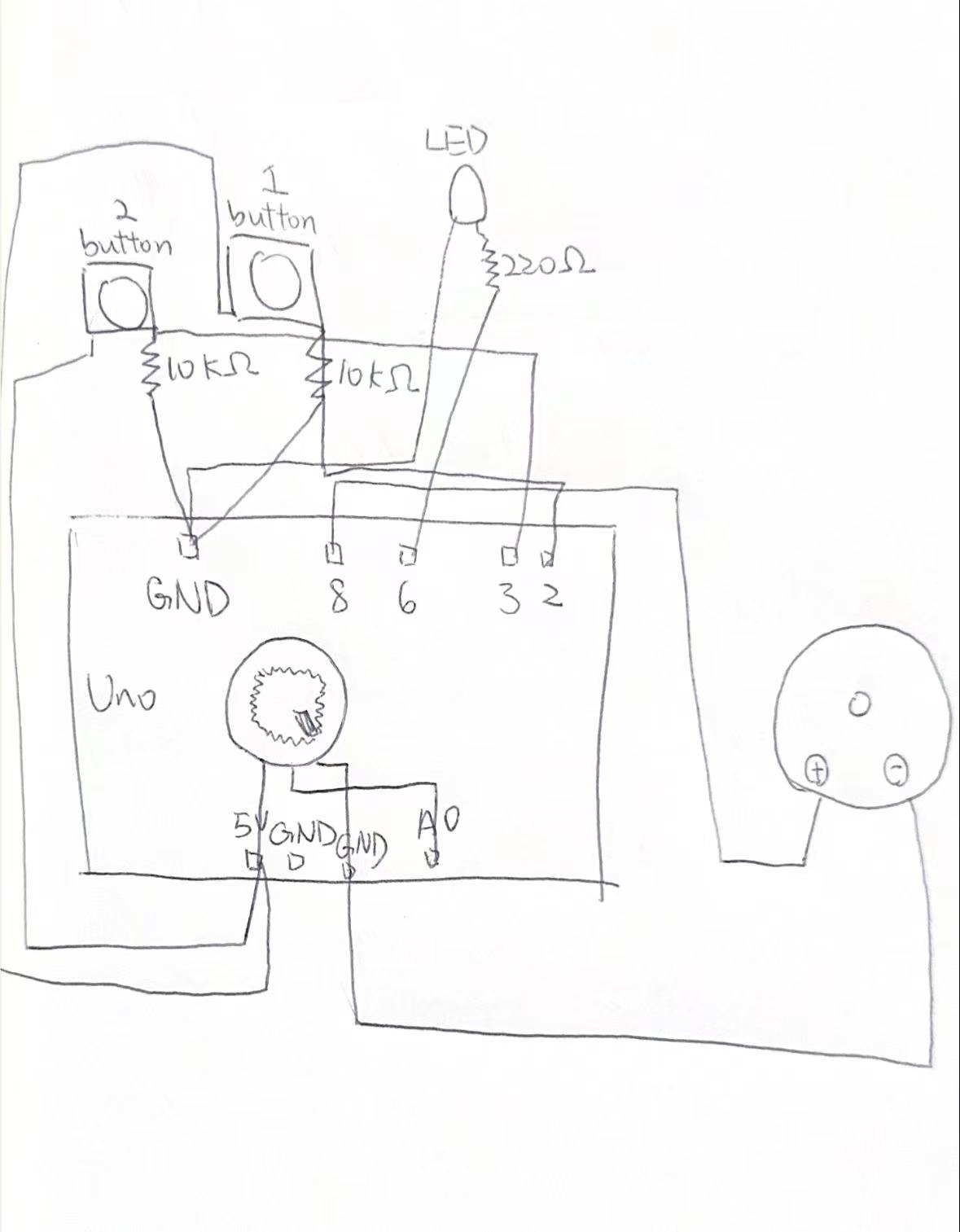
Schematics

Code Snippet

https://github.com/JingyiChen-jc12771/Intro-to-IM/blob/e15f6f3478d8937ba91372ab2eed7e34a691b2b8/Week_10_assignment/Week_10_assignment.ino

int scale[]={NOTE_C4, NOTE_D4, NOTE_E4, NOTE_G4, NOTE_A4, 
  NOTE_C5, NOTE_D5, NOTE_E5, NOTE_G5, NOTE_A5};

The code shown above is the note array. It is used so not every single sound in the range of the distance to pitch mapping is used. This removes the more irritating pitches and leaves the actual notes, just to make the instrument sound better.

long duration,cm;
int switchState = digitalRead(switchPin);
//measuring chunk for the ultrasonic distance sensor
digitalWrite(distPin,LOW);
delayMicroseconds(2);
digitalWrite(distPin, HIGH);
delayMicroseconds(10);
digitalWrite(distPin, LOW);
//records the time between output of ultrasound and echo. 10000 sets a limit in case there is not close enought object, it prevents the program from stopping completely by setting cm to 0.
duration=pulseIn(echoPin,HIGH,10000);
//uses the convertion function to convert the time to distance
cm = microsecondsToCentimeters(duration);
//if the distance of object is further than 50cm away treat it as 50cm, this limits the range of distance.
if(cm==0||cm>50){cm=50;}
//map the distance to the array of notes, 2 is the reliable begining measurement of the sensor
int noteIndex = map(cm, 2, 50, 0, numNotes - 1);
int currentNote=scale[noteIndex];
//the function to convert time to distance, 10000 time would result in 0cm
long microsecondsToCentimeters(long microseconds) {
  return microseconds / 29 / 2;
}

This is the chunk where the distance sensor is activated and does its measuring, and the measurements are mapped to the note array. The code for initiating ultrasound release and receiving echos are referenced from a tutorial for 4 pin ultrasonic sensors on the Arduino project hub and the Arduino IDE Ping example for 3 pin ultrasonic sensors. The code tells the sensor to be quiet for 2 microseconds, emit ultrasound for 10 microseconds, and then stops so the echo can be listened for. Then the time it took for the echo to get back is assigned to the duration variable, which is converted to distance in cm used the function i found in the Arduino Ping example. The distancer is then mapped to the indexes of the note array, so distance would corresopond to note.

if (currentMillis - startMillis >= tempo) {
    startMillis = currentMillis; 
    beatStep++;
    //the beat generation
    //switch controls two states, one where the beats play at a steady tone
    if(switchState==HIGH){
      tone(buzzerPin,currentNote,50);
      //In the other state the beat is deeper at even beats and lighter at odd beats
    }else{if(beatStep%2==0){
      tone(buzzerPin,100,50);
    }else{
      tone(buzzerPin,currentNote,50);
    }
  }
}

This code snippet is the part that times the beats and controls the button alternation between the two rythm styles. The timer uses the same logic as the timer we have done in p5. Time passed is recorded in millis. the time the last beat was played was assigned to “startMillis”, and current time is “currentMillis”. When time interval between the two millis exceed the tempo, the next beat is played.

One of the switch state plays a steady tone, where the beat is played at the pitch defined by the redings of the distance sensor all the time. The other state plays an alternating pattern.  if(beatStep%2==0) results in even beats playing at a hard coded 100Hz, and odd beats at the distance influenced pitch. This can also be modified. The even beat can be made half the frequency, double the frequency, or pitch desired.

Reflection

The biggest challenge was with the timer. Initially we tried to use delay as we did in all our previou codes and the whole unit would freeze and not work at all. Thinking back to our P5 experience we figured using a background timer of millis would allow the unit to keep running between beats. The end result was good and the beats flowed smoothly. Something we could have done better might be to expand the array so the pitches are not that limited. Something else that would have been fun but a bit less feasible is adding more push buttons, and make the pitch or overall style change when the button is pushed, like a groove box. But that would work better if the output was not limited to a piezo speaker. That would allowe a wider variety of sounds and might even create some DJ effects.


Week 10 – Reading Reflection

Making Interactive Art: Set the Stage, Then Shut Up and Listen

I strongly agree with the author of this text especially about the fact that the artist should let the audience to experience, interpret, and feel the artwork without any instructed guidance.

Ideally they will understand what you’re expressing through that experience“. I really believe that if the artist wants the audience to really engage with the artwork on a deeper level, they should give them some space. Through the interaction, through emotions and reactions most of them who really make this interaction thoughtful will get the feeling or at least abstract idea behind the artwork, while still having their own interpretation and emotional feeling attached to that. Instructions kill the emotions, and personally I believe that artworks in the first place should make people feel.

What I noted down, it is really important to set up and design the experience in the way that will make people do the interactions that you want them to do. It goes back to our previous readings, and having this concept mentioned again only amplifies its importance.

Physical Computing’s Greatest Hits (and misses)

What’s great about the themes that follow here is that they allow a lot of room for originality

I believe that the “core” concepts that are used in many physical computing works are just like the core concepts and principles of any science or form of traditional art. “Everything is a remix” is basically telling the same thing: core concepts that artists are inspired by becomes the basis to which they add new unique ideas.

As for the works provided in the text, I really like “gloves” concept. I really like the idea of interacting with art and tech with your body, either it’s a projection, or something else, but I find this idea of just using your limbs to produce something without any additional “parties”. I know a lot of projects that are dependent on this technology, or that use kind of similar technique, not only for art but for more practical use. If I recall correctly, in NYUAD at Professor Eid’s Lab around a year ago I saw a project that was basically some training for children with CP transferred from offline to online VR experience. To keep the “senses” in the hands while completing the exercise, they made a technology that sends vibrations to the fingers when you touch something in VR, and depending on the touch, the vibrations frequency and power was adjusted. This is just another example of how the “gloves” concept was used in physical computing, even though it’s not really about art. However, I believe that the same “vibration” or mimicking a certain touch-sense technology can be really wisely applied in immersive and interactive art — letting the user to interact with the object while also letting them “feel” the object even if it’s not real is a really strong and impressive idea one could apply.


Week 10: Reading Response

Physical Computing’s Greatest Hits (and misses)

This article goes through a recurring list of physical computing project themes that show up in classes every year, and I found it quite fascinating how the author encourages students to pursue repeated ideas. That resonated with me because I sometimes catch myself thinking of a project idea only to search if it has been done and end up just not going through with it with the mindset of someone has already done it and even better that what I would’ve done. I think that has stunted my growth and exploration that I probably could’ve learned a lot from. This also reminded me of how in traditional art, everyone paints a still life or draws a figure at some point. Nobody tells you not to draw a bowl of fruit because it has been done before. These things become a learning stepping stone in your work and I think that is just as valuable.

Making Interactive Art: Set the Stage, Then Shut Up and Listen

This article felt like a continuation of that idea and here the main argument linked interactive art to a beginning of a conversation and not so much a finished statement like a painting or a sculpture, and the moment you over-explain what something means or how someone is supposed to feel about it, you have already ended that conversation before it started. Coming from a background where I spent some time exploring traditional art, where the work is usually a fixed object that speaks for itself, I found this shift in thinking genuinely difficult to wrap my head around at first. A painting hangs on a wall and you bring yourself to it. Interactive work is different because the piece is actually incomplete until someone engages with it, and what they do becomes part of what the work is.  I resonated with his comparison to a theater director working with actors. He says you can give an actor props and suggest intentions but you cannot tell them how to feel, they have to find it themselves. I think that is a really honest way of describing what good interactive design should do, you are building the conditions for something to happen.. And I think that is harder than it sounds because there is a natural instinct when you make something to want people to get it the way you intended. I feel that every time I finish a project and immediately want to stand next to it and explain it to whoever walks by. Reading this made me realize that impulse, as understandable as it is, is actually working against the experience I am trying to create.