Week 10 – Analog and Digital Input

Concept

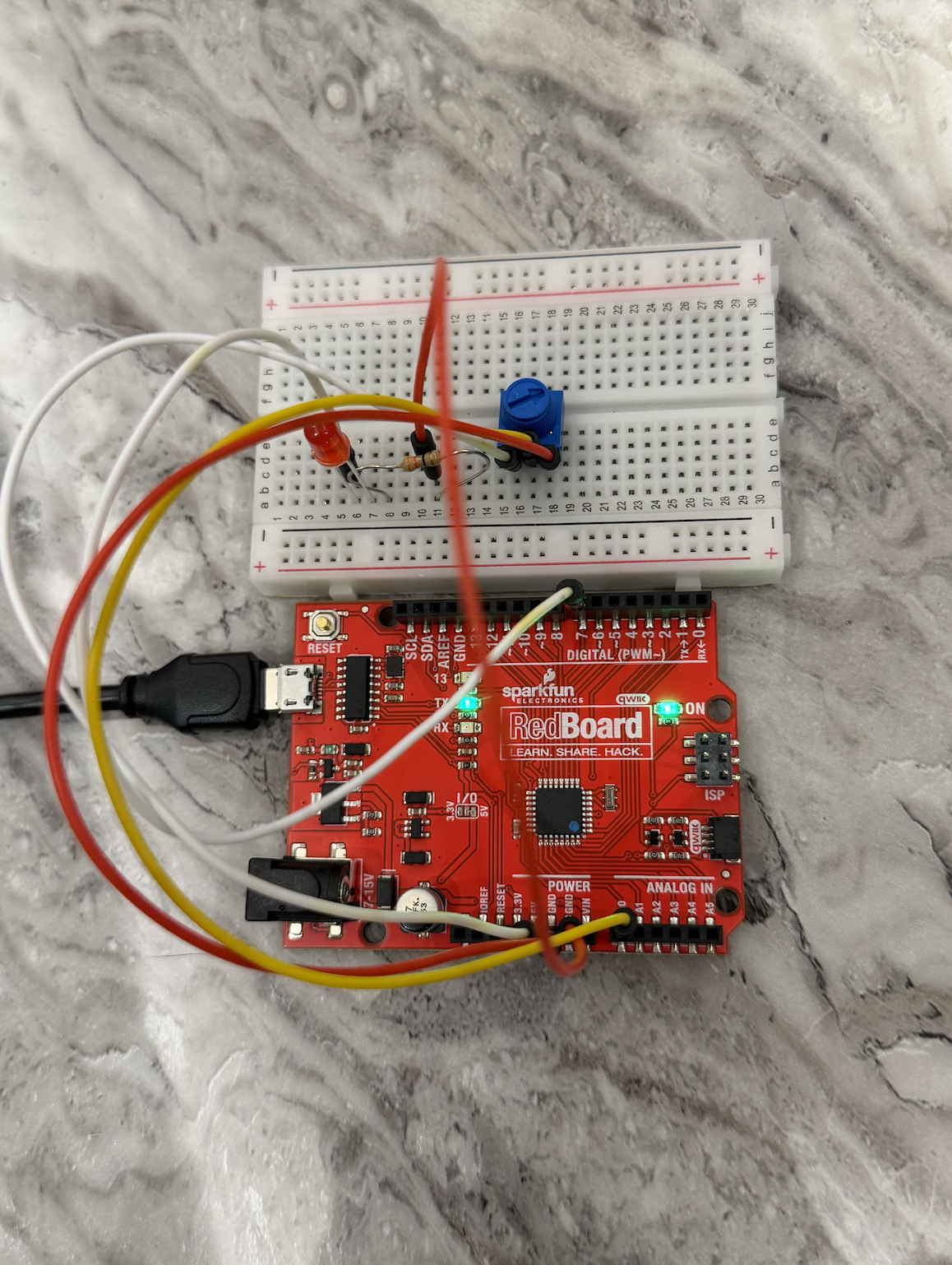
I wanted to create something we haven’t done yet with potentiometer and multiple LEDs. I thought that it would be cool if I manage to create a circuit that will control multiple LEDs through one input that was mainly used for only one LED. This circuit takes the analog input from potentiometer, and depending on its value chooses which LED to light up, so when you spin it they all light up one by one. If you press a button, all LED light up. This circuit reminded me of DJ-board with these switches and button you can press anytime, so by tinkering with this some nice sequence of lights can be created.

How this was made

To make this circuit, I googled how potentiometer works and what values it can output, and then I reffered to Week 9 tutorials on TinkerCad for references on how to connect buttons and potentiometer, and to remind myself on how this works in code.

// C++ code
//
int sensorValue = 0;
int buttonState = 0;

void setup()
{
  pinMode(A0, INPUT);
  pinMode(2, INPUT);
  pinMode(13, OUTPUT);
  pinMode(12, OUTPUT);
  pinMode(11, OUTPUT);
  pinMode(10, OUTPUT);
}

void loop()
{
  sensorValue = analogRead(A0);
  buttonState = digitalRead(2);


  if (buttonState == HIGH) {
    digitalWrite(12, HIGH);
    digitalWrite(11, HIGH);
    digitalWrite(13, HIGH);
    digitalWrite(10, HIGH);
  } else {
    if (sensorValue >= 0 && sensorValue < 256) {
      digitalWrite(12, LOW);
      digitalWrite(11, LOW);
      digitalWrite(10, LOW);
      digitalWrite(13, HIGH);
    }
    
    else if (sensorValue >= 256 && sensorValue < 512) {
      digitalWrite(13, LOW);
      digitalWrite(11, LOW);
      digitalWrite(10, LOW);
      digitalWrite(12, HIGH);
    }
    else if (sensorValue >= 512 && sensorValue < 768) {
      digitalWrite(12, LOW);
      digitalWrite(13, LOW);
      digitalWrite(10, LOW);
      digitalWrite(11, HIGH);    
    }
    else {
      digitalWrite(12, LOW);
      digitalWrite(11, LOW);
      digitalWrite(13, LOW);
      digitalWrite(10, HIGH);
    }
  }
}

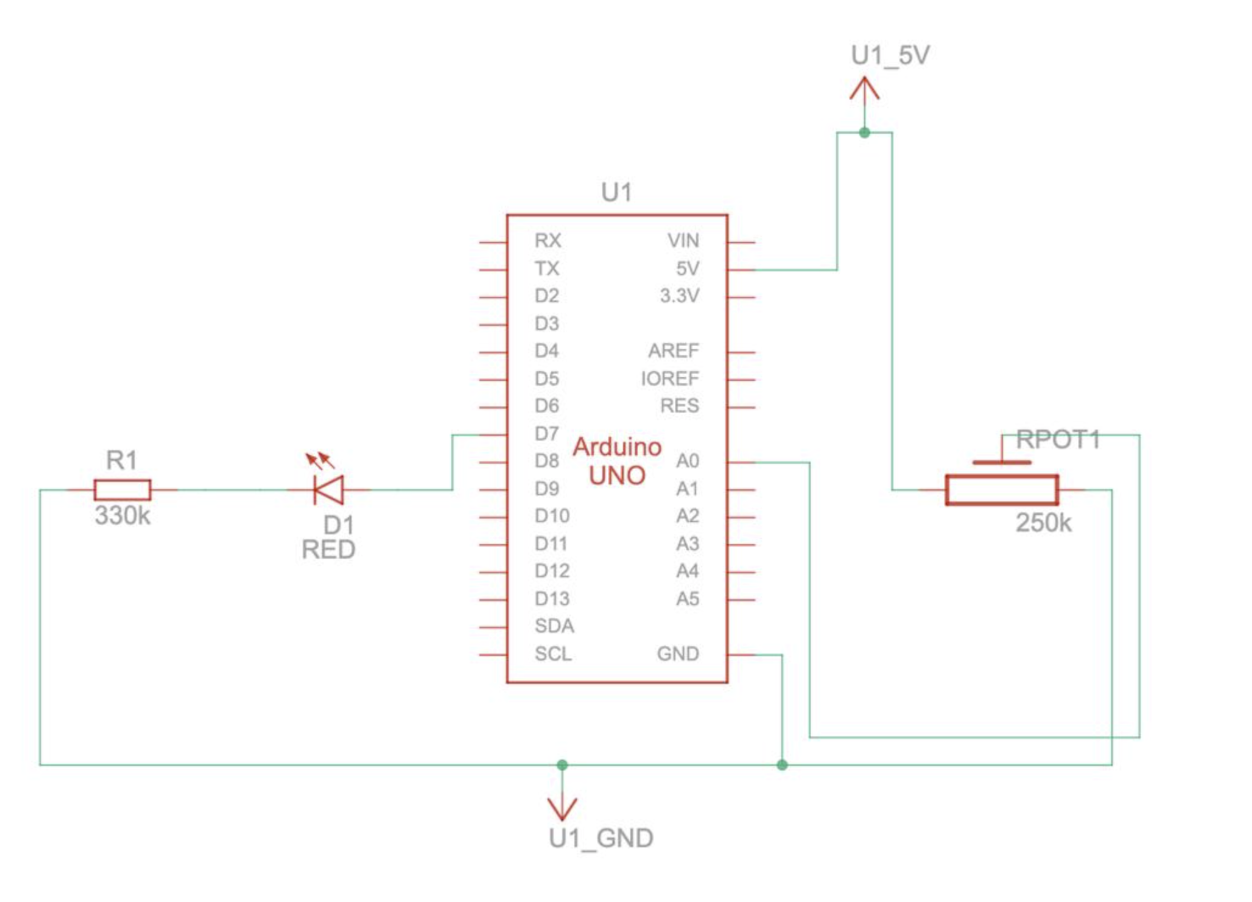
To control 4 LEDs with potentiometer, I wrote a sequence of if-else blocks that light up certain LED depending on the value the potentiometer outputs, and turns off all the other LEDs. These if-else blocks are wrapped into a bigger if-else: if the button is not pressed, these blocks execute, otherwise — all LEDs switch up.

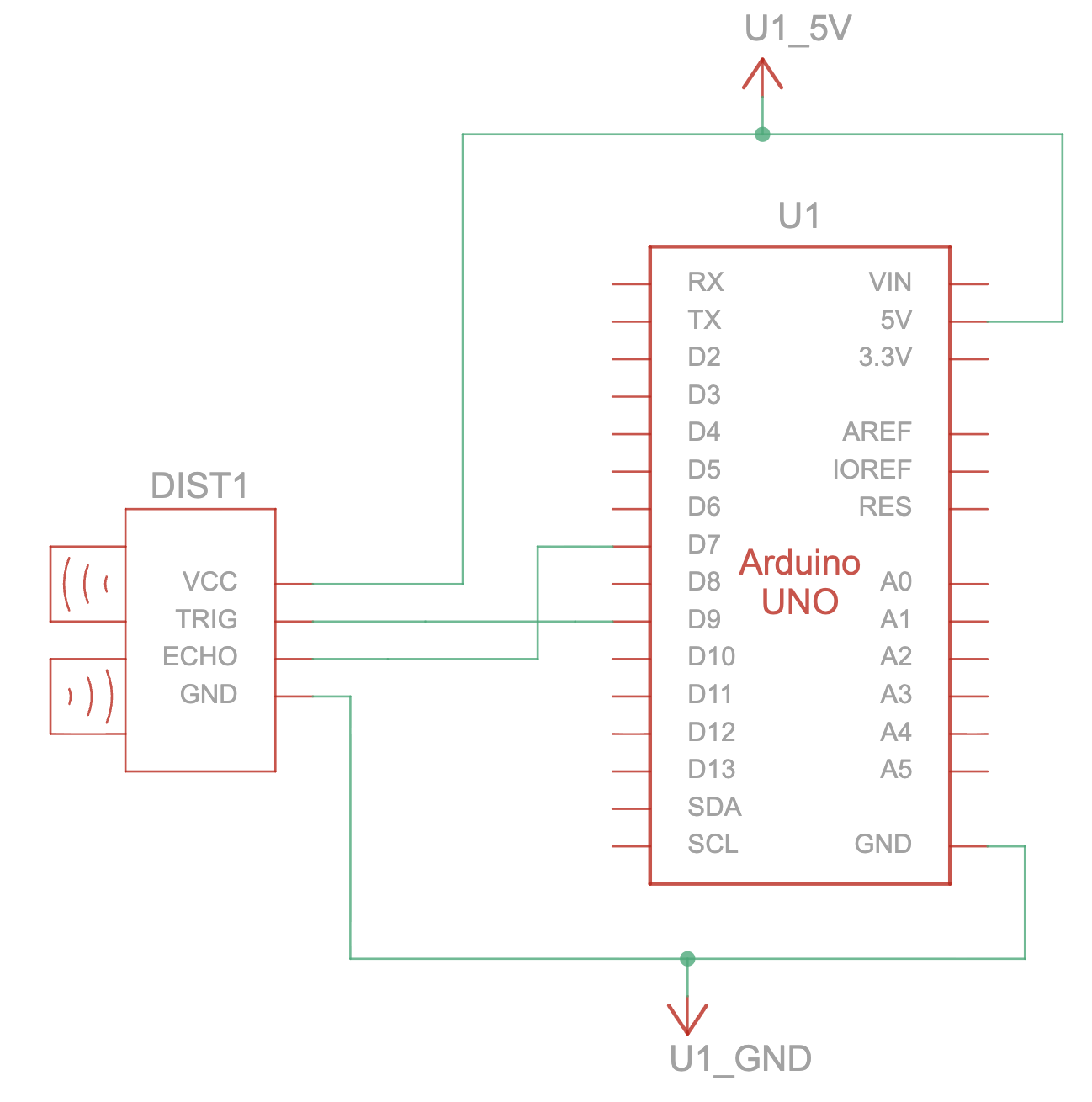
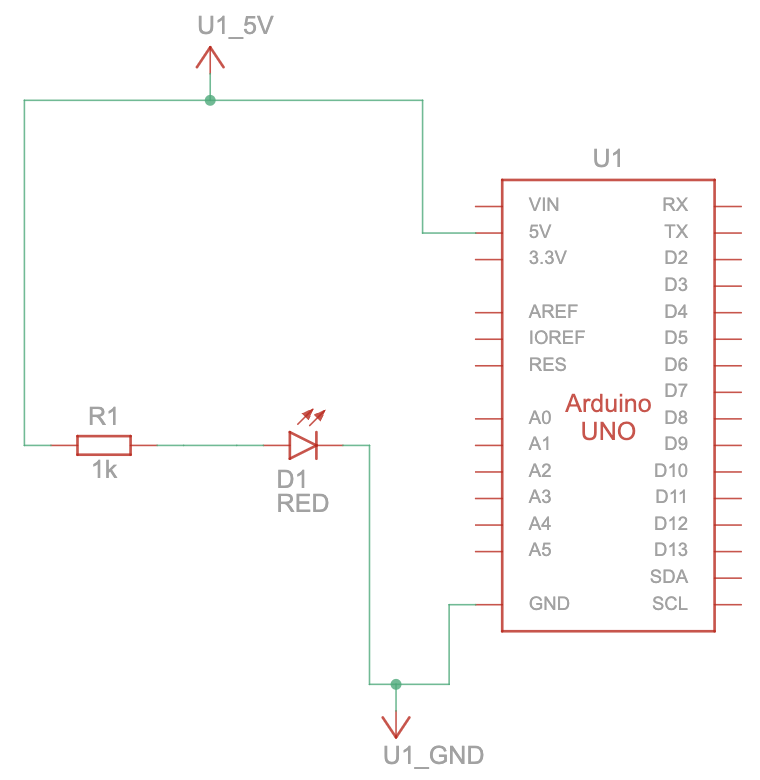
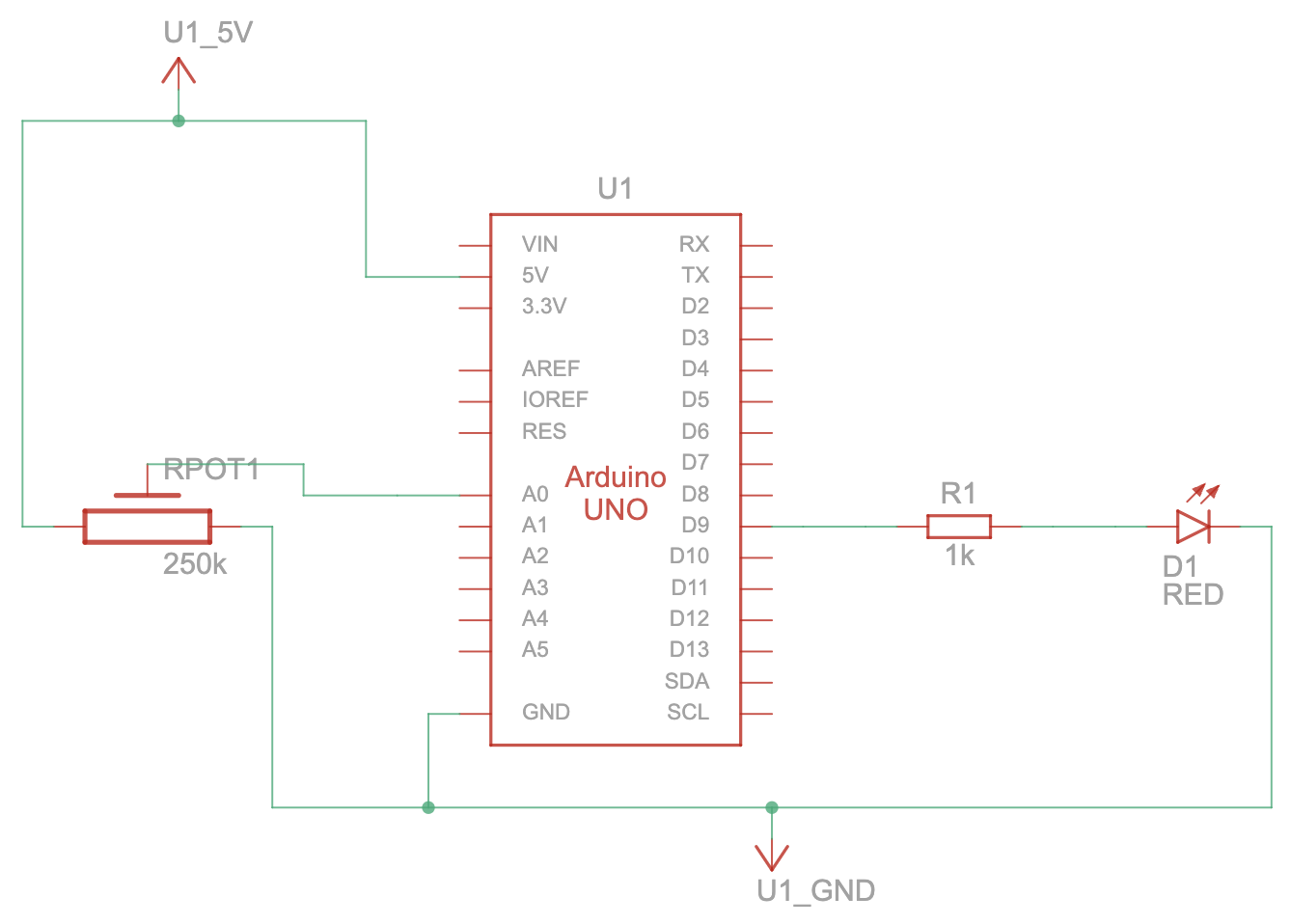
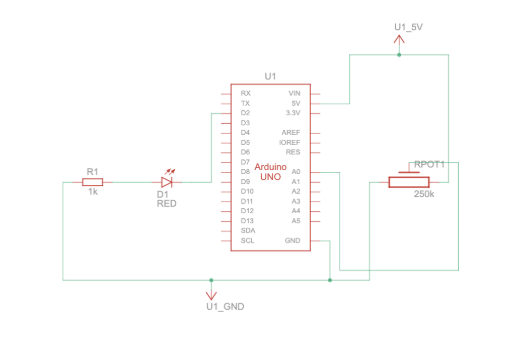
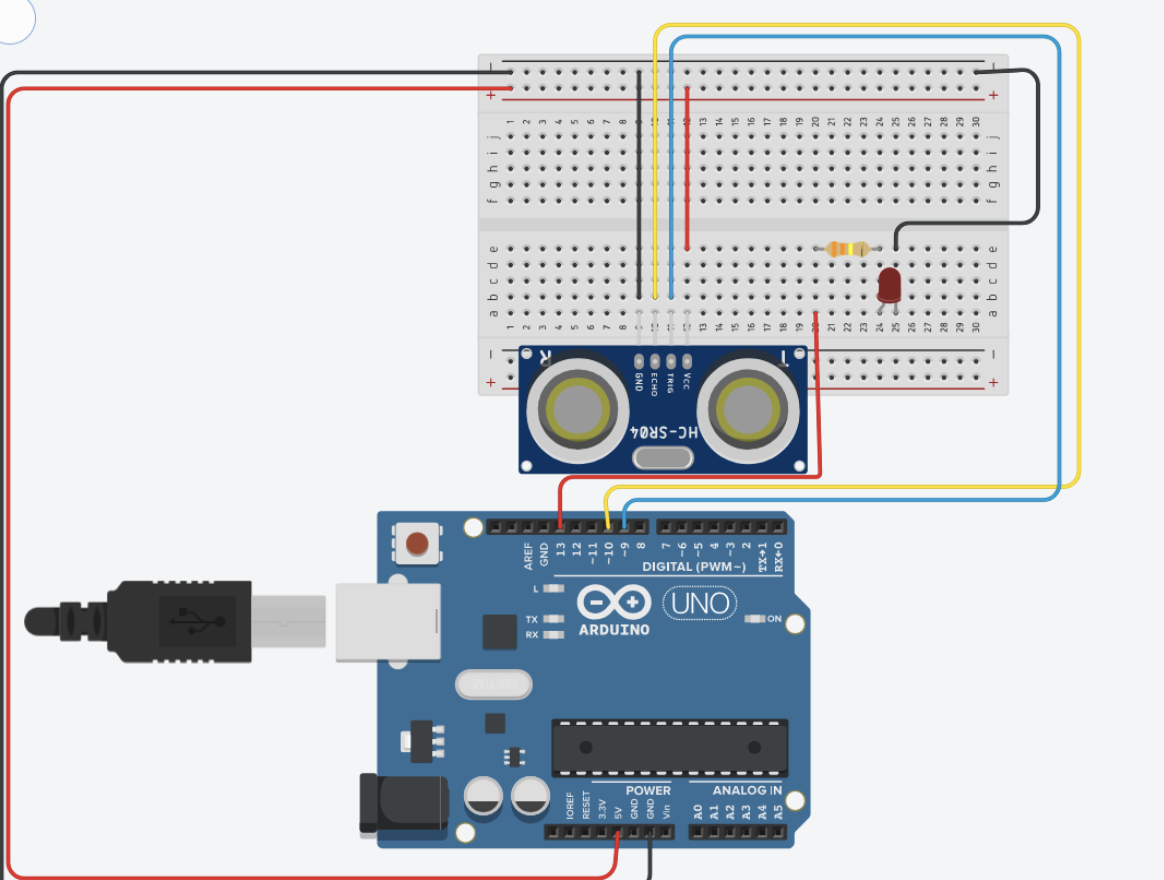
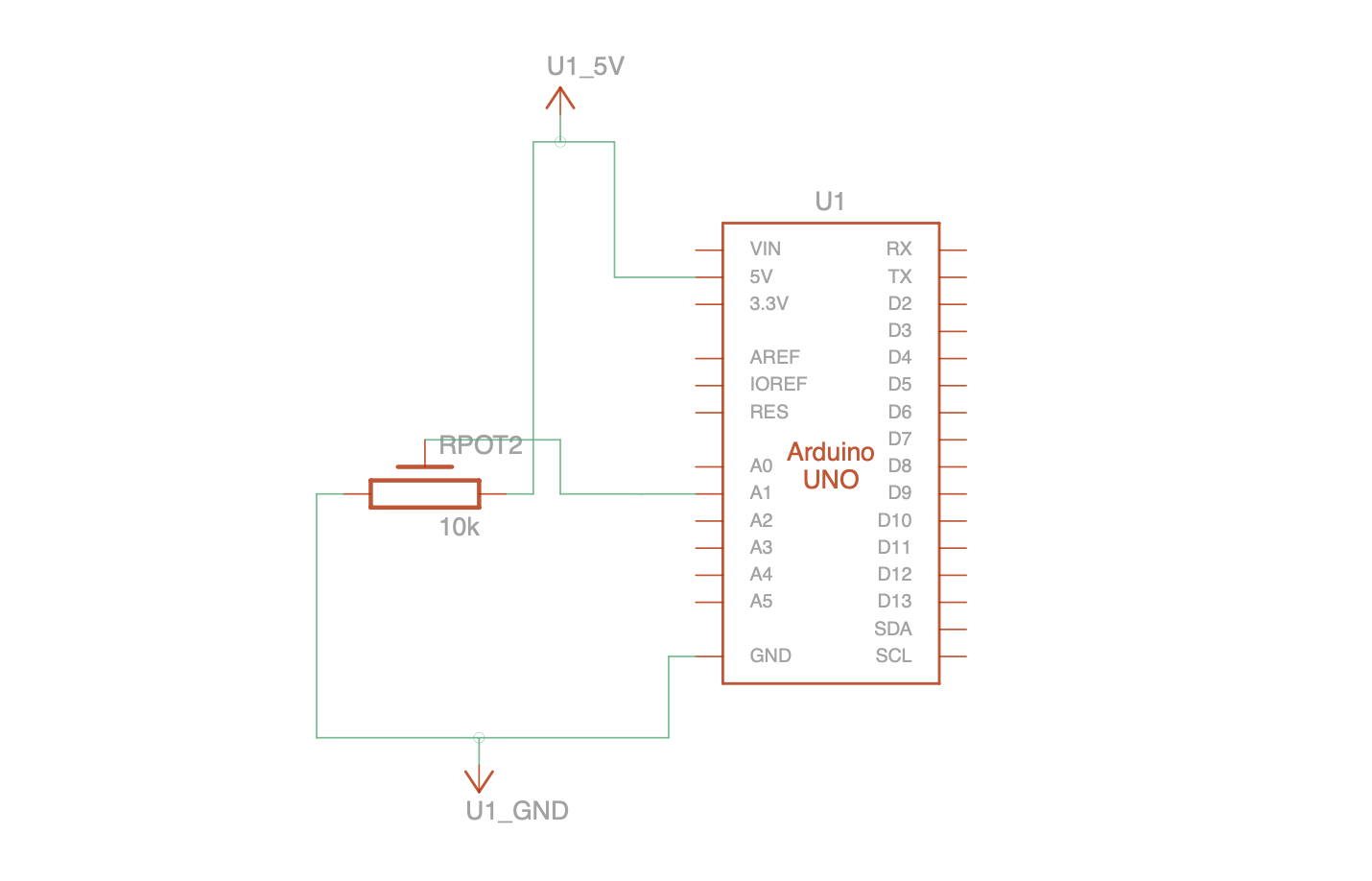
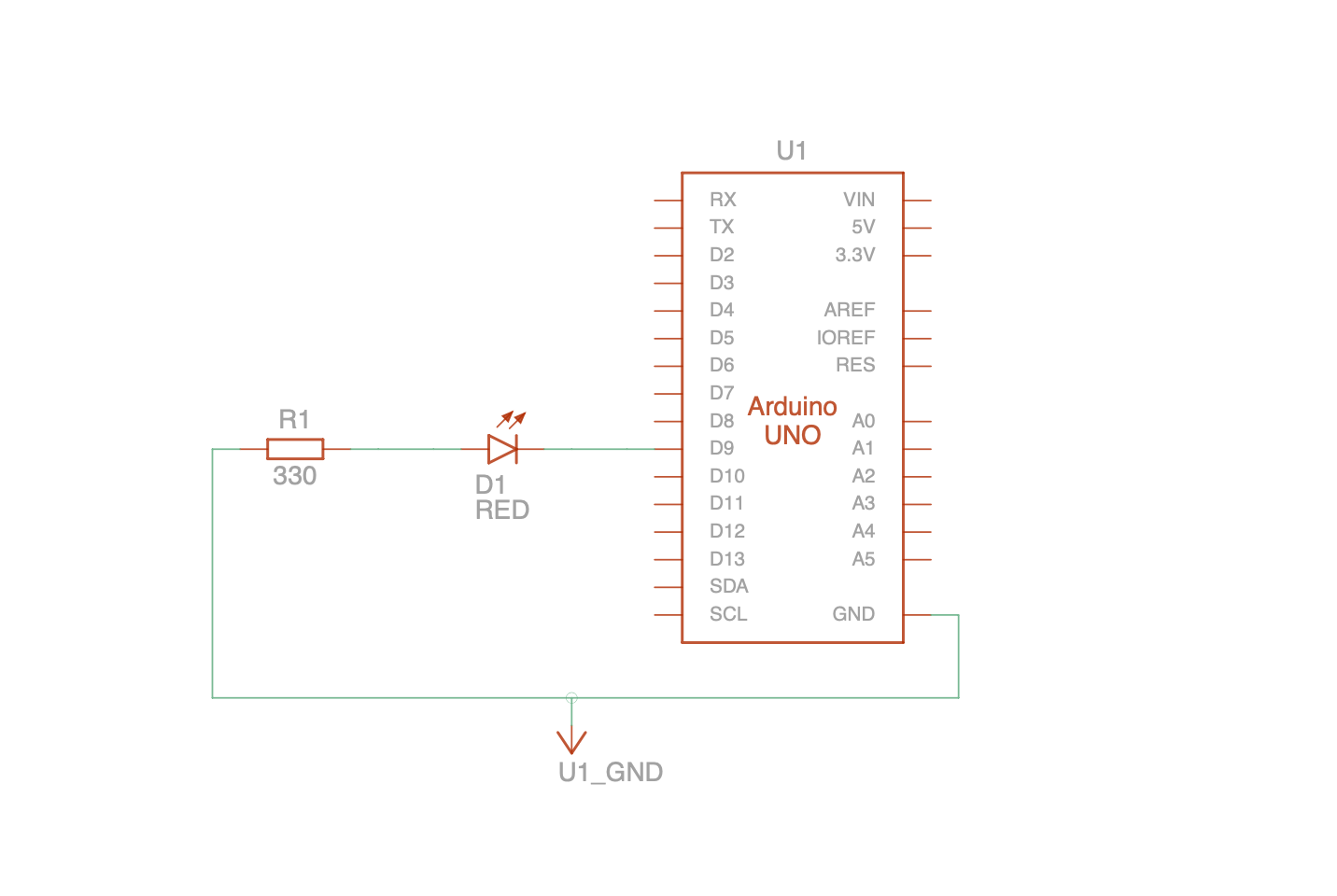
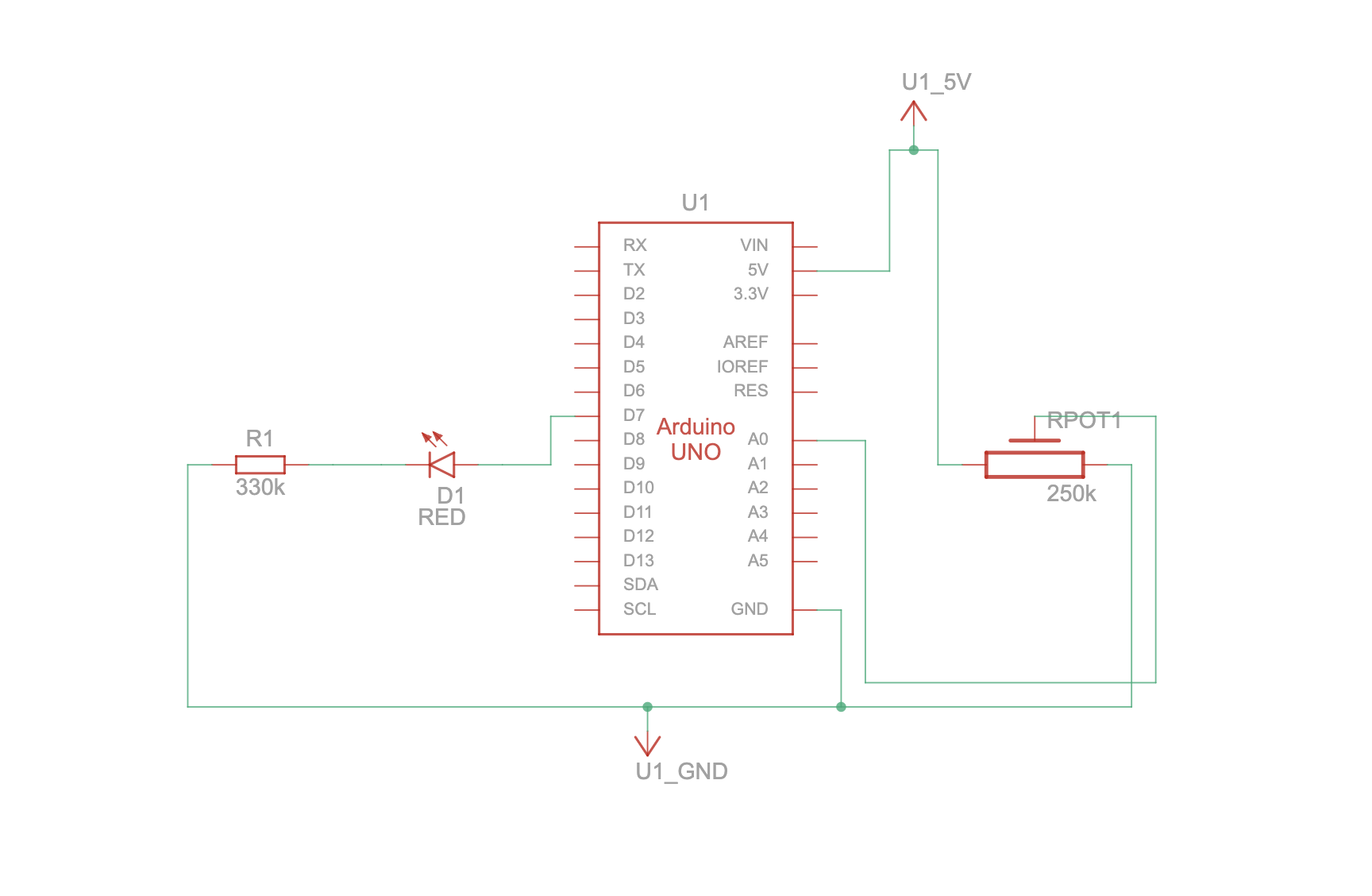
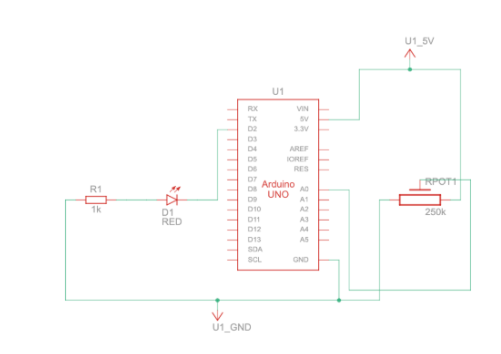
My schematics look the following way:


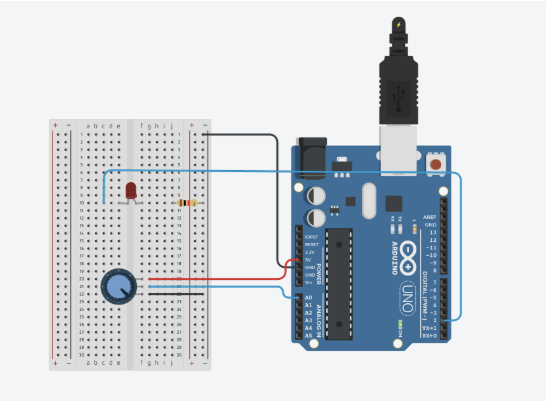
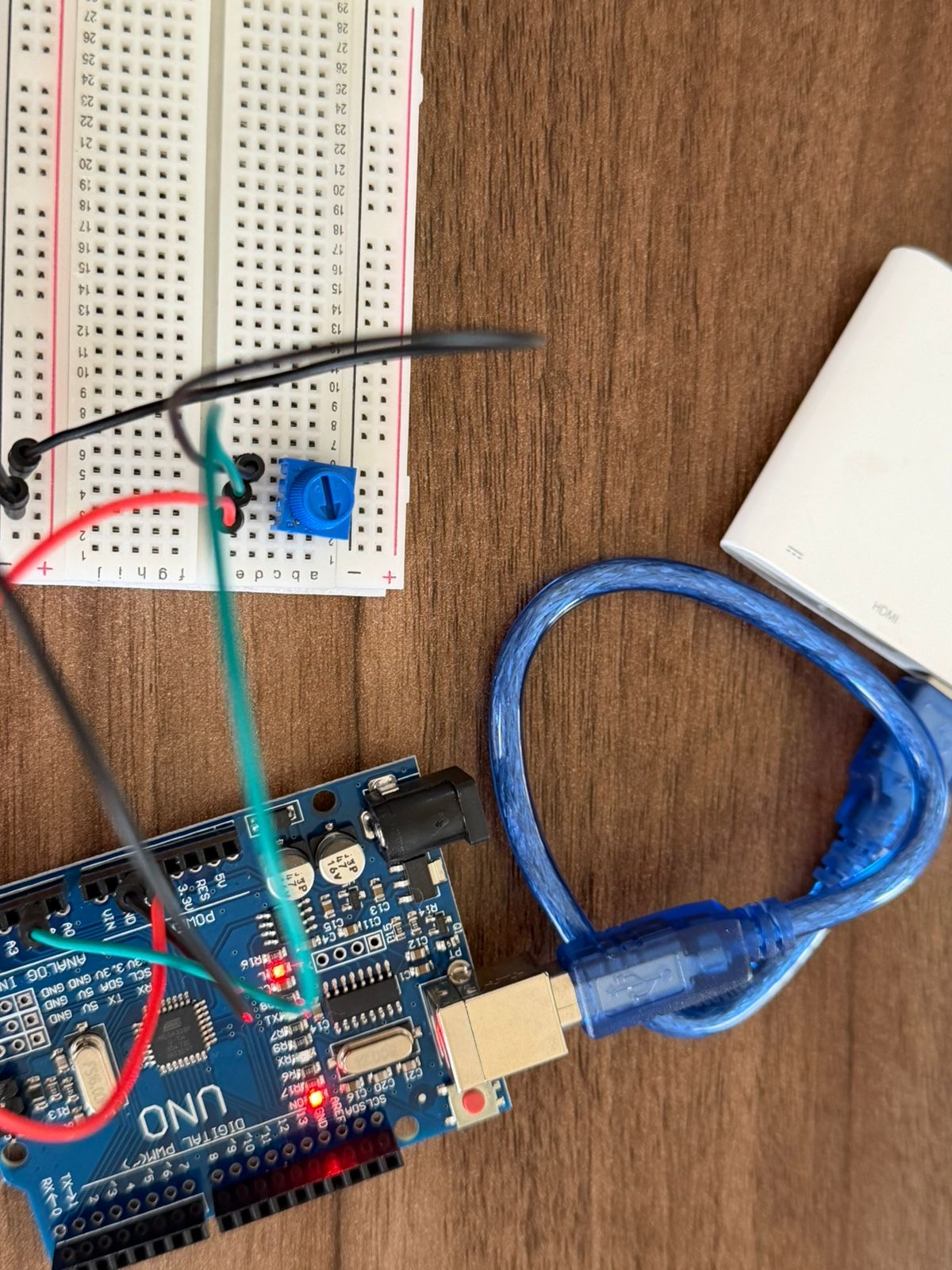
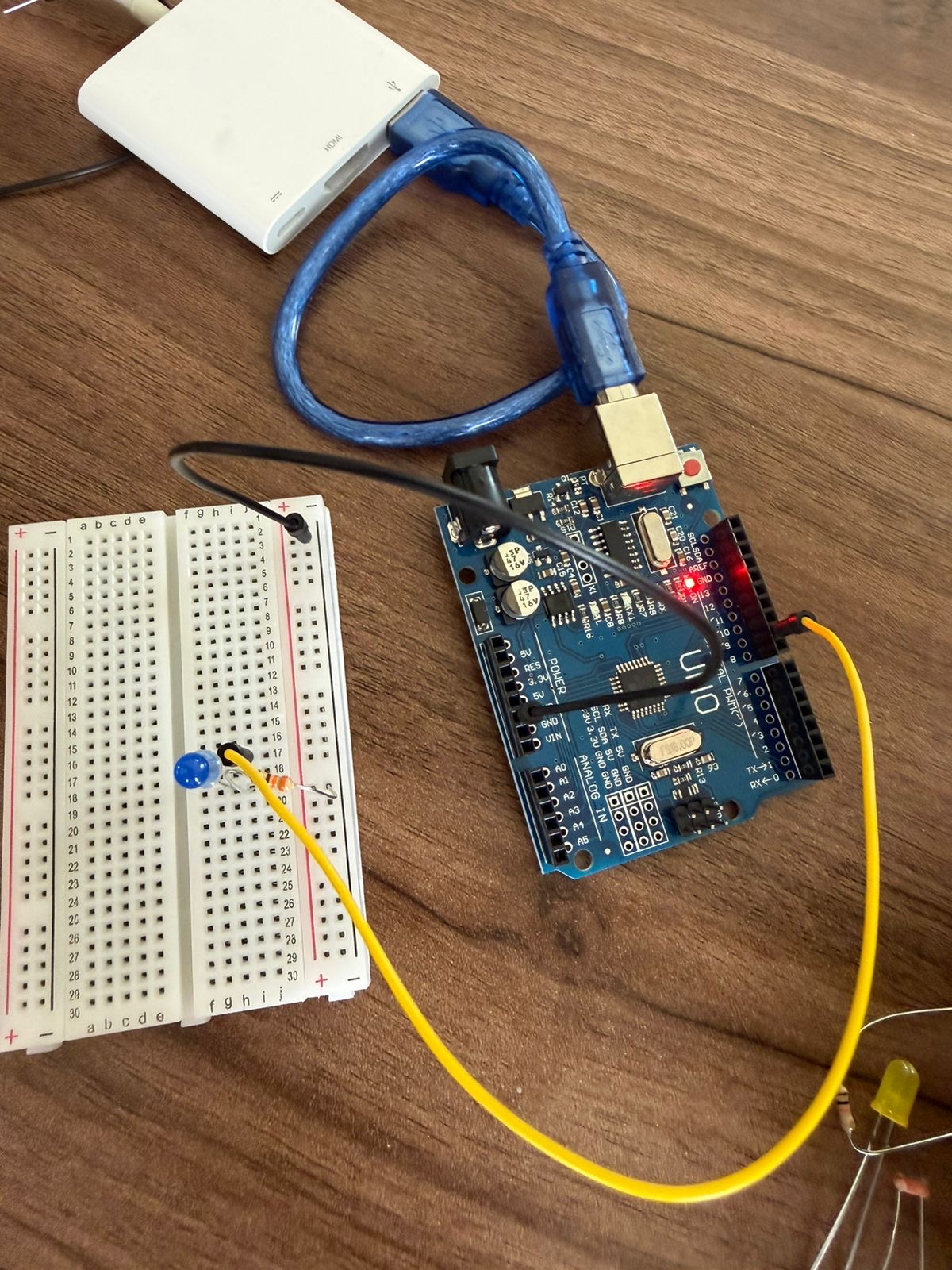
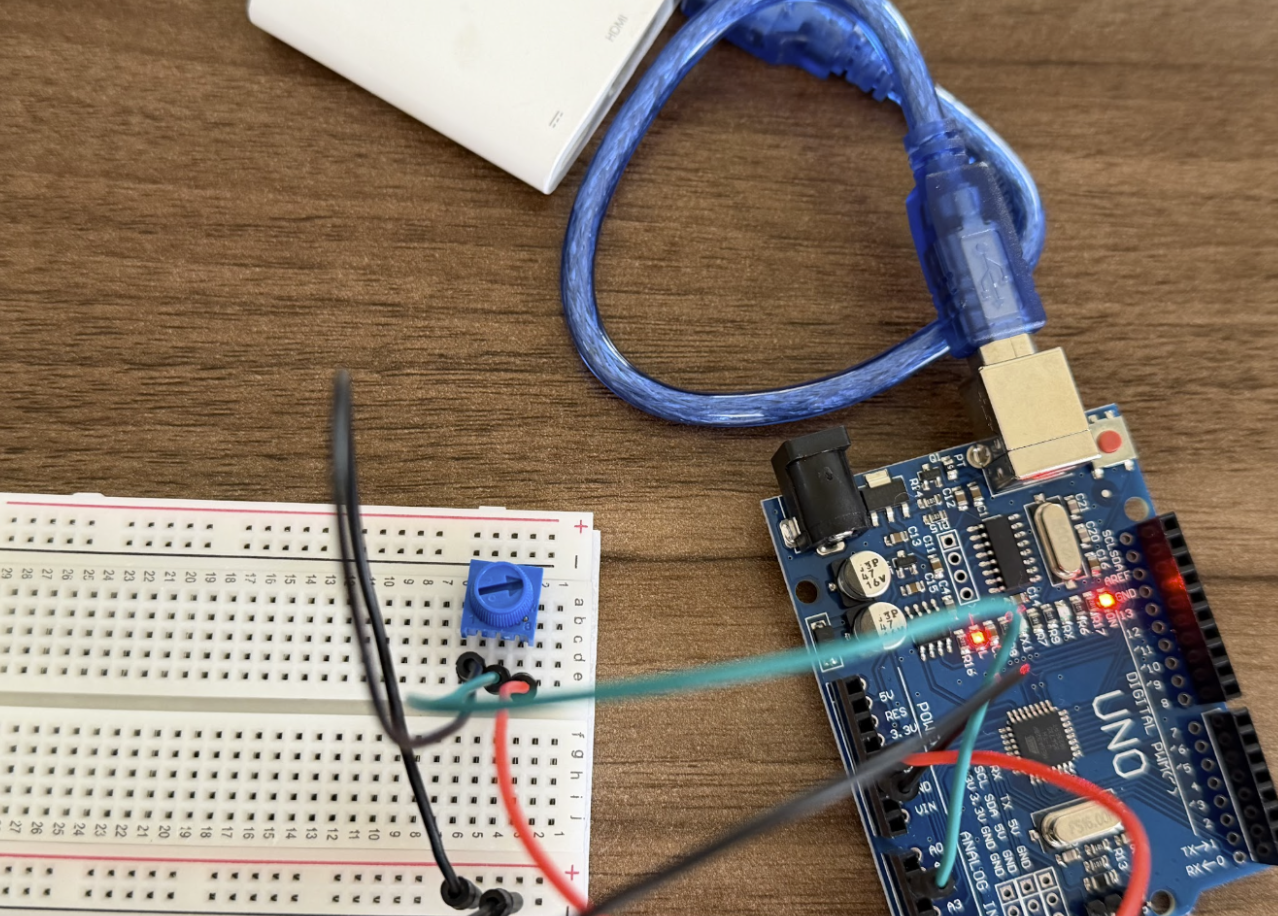
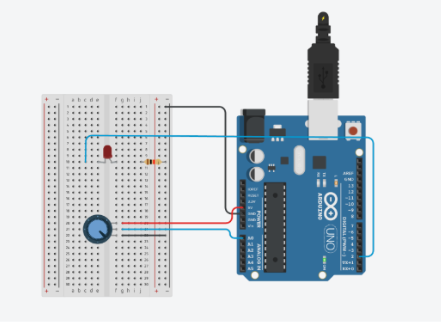
And here’s the simulation and how it works on physical Arduino:

Reflection

I’m really happy of how it turned out and that I was able to do both online and real version of this small task. It was a bit hard to assenble it all on the Arduino because all the parts are really small, but it works so I’m happy. For further improvement, I wonder if there is a more efficient way with less wires to assemble this project because right now it looks a bit messy.

Week 10 – Reading response

Making Interactive Art Text challenged my view about art. I used to see art as an aggregations of different elements and ideas that allow an artist to tell a story. I assumed interactive art was the same way were although the user takes part in the art, they will be an actor in the play of the artist. This texts challenges my notion and tells me that the artist must only set the stage and allow the user to explore. I like this idea but my questions comes to, what are the bounds of exploration and if there are bounds of exploration does the artist still not control the narrative. Take for instance open world games. There are many things you can do in the open world but not all things are allowed. There are specific characters one can interact with and are aligned towards a central theme of the story line of the game. As I explore interactive media more, I look forward to finding the line between user exploration and artist control in interactive arts

In the Physical computing greatest hits text, we see various examples of physical computing art. What specifically catches my eye is the direct bodily feedback machines such as the gloves and the cursor devices. In my opinion they give user more sense of control and more immersed into the art than objects that just measure inputs from the environment such as the field of grass. This also raises the question about the measure of interactiveness. Can one say one art is more interactive than another passed on the feedback of the control parameters of the art and can this affect the judgement and interpretation of the work.

Week 10- Reading Response

As I consider Videogames – a topic of my interest – to be a form of digital and interactive art, I shall invoke it in my comprehension of the reading as often as I fathom appropriate.

The write asserts in the concluding paragraph of ‘Making Interactive Art: Set the Stage, Then Shut Up and Listen’: “So if you’re thinking of an interactive artwork, don’t think of it like a finished painting or sculpture.  Think of it more as a performance.”

He has verily spoken what I comprehended, but failed to formulate into words for far too long. And interaction has three parts, the subject or ‘user’ engaging with the ‘mechanism’ through which a result (or nothing) is brought about. What better learning is there, when one is relieved of an instruction manual, and may engage with games or interactive art as if their own narrative is etched into their flesh and their mind.

Users will always be unpredictable, unique. We’re not robots, after all. A definite sculpture has a start to its creative process, and an end. But interactive art is boundless in this regard. Thus, the two are most certainly not analogous to one another. As the writer rightfully asserts, interactive art, like Videogames, are performances you have absolutely no preparation for, beyond setting the stage and inviting participants from all walks of life. Interactive art can be like a circus without a ringmaster, a classroom where everyone could be a teacher.

Furthermore, what makes a good performance (in my opinion) is that where the director makes the plot and narrative specific enough for the audience to follow along, but open and general enough for the audience to fill in the gaps with whatever they desire.

If I made a Videogames where people had no free will to interpret and engage independently, then it would never be ‘game’ or a work of ‘interactive art’ in its truest sense. What I gauge from this reading is that interactive art is perfect on part of its imperfections: let the users explore without becoming a dictator, it’s okay if they do something you didn’t anticipate!

Week 10 – Reading Response

Reading these back-to-back was honestly a bit of a reality check. I went into the “Greatest Hits” list thinking I might find some cool, niche ideas to borrow, but instead I realized that almost every “original” thought I’ve had as a beginner like: digital mirrors, the MIDI gloves is already something established. It’s a bit humbling but I really liked the author’s idea that it’s not about being the first person to use a sensor, it’s about what you actually do with it after the “wow” effect of the tech wears off.

It made me rethink my own process. Because just because I can make someone wave their hand to trigger a sound doesn’t mean it’s meaningful. If the physical action doesn’t match the emotion of the piece it just feels like a tech demo than art.

In the second reading, I loved the actor/director analogy. You don’t tell an actor exactly how to feel, you give them the props, the lighting, and the space, and let them find the emotion themselves. Our job in physical computing is basically to be the stage manager. Also, what thing that really stood out to me was that I usually see someone using the data wrong as a failure on my part, but now I’m trying to see it as a conversation. If they’re confused, that’s not really a bug, it’s actually a reflection of the design which is extremely helpful.

Week 10 – Assignment

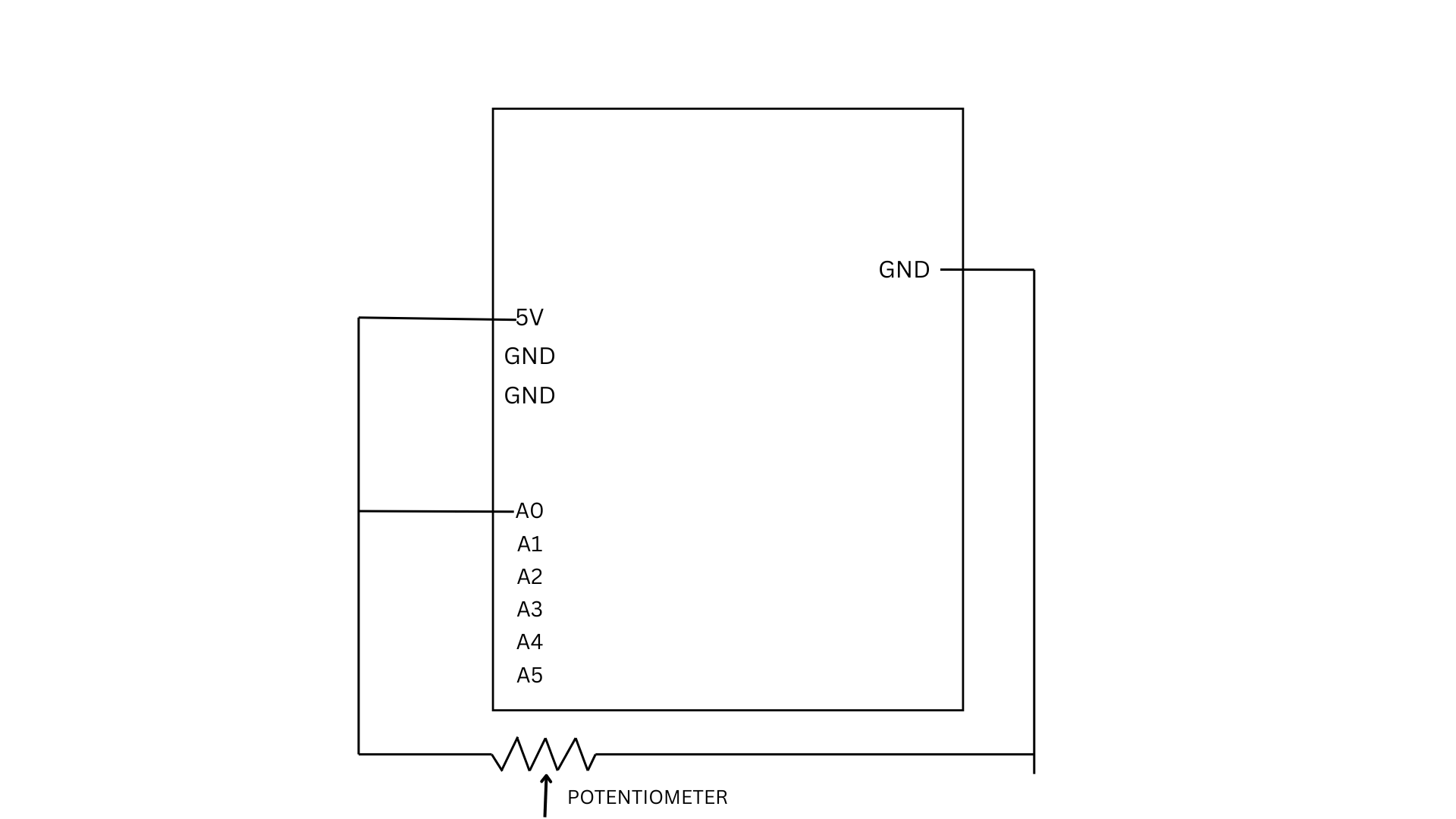
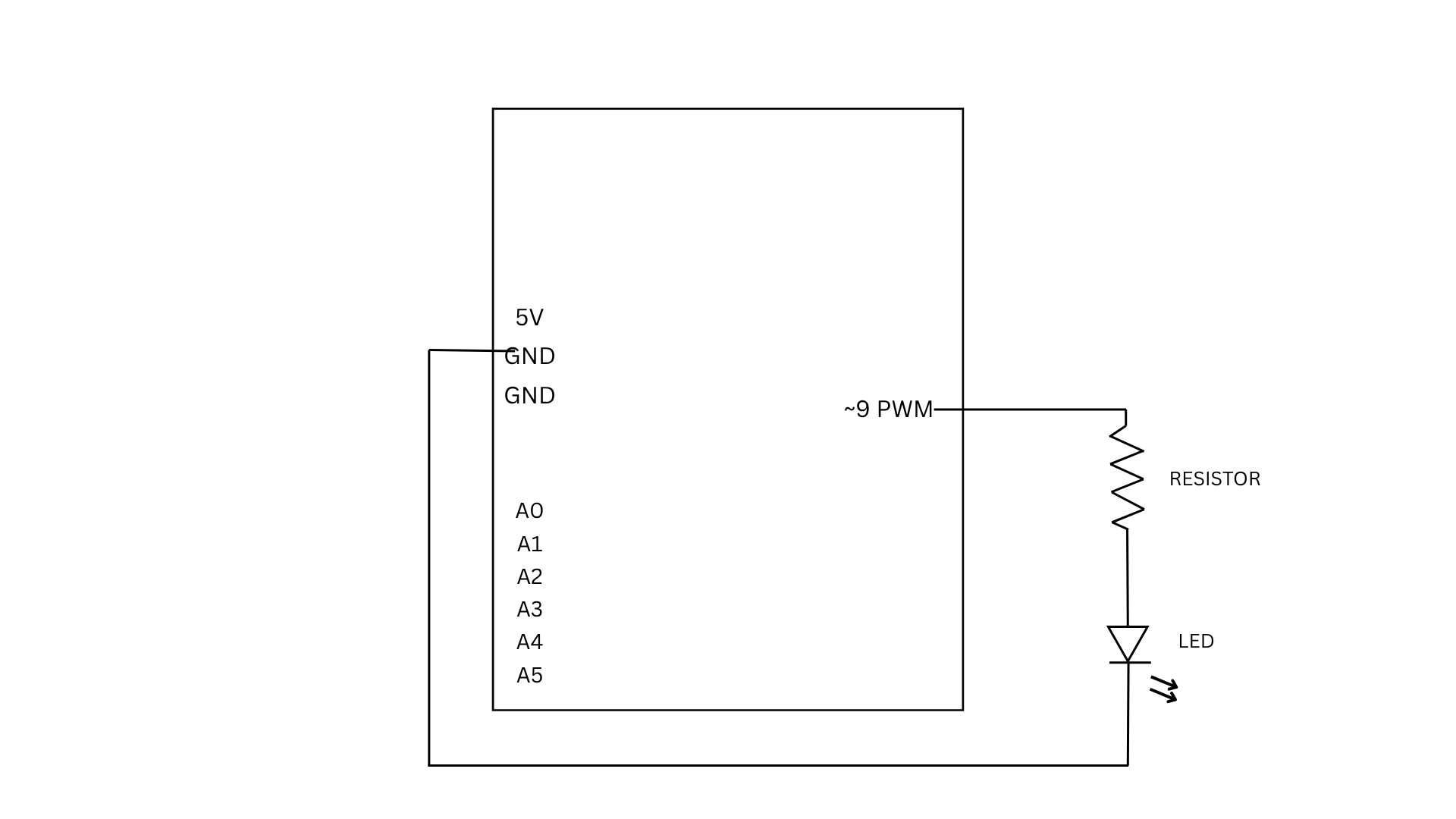
Get information from at least one analog sensor and at least one digital sensor (switch), and use this information to control at least two LEDs, one in a digital fashion and the other in an analog fashion, in some creative way. Include a hand-drawn schematic in your documentation.

Hand-drawn schematic:

I decided to test my design and code in Tinkercad before implementing it into the actual Arduino board to ensure there is no issues with the connectivity or code to help with the debugging. I am glad that I did that because it seems that I made error and when running the simulation is short circulated and showed an image or animation of an explosion, when clicking the push button.

How this code is made:

I added constants for the pins, which represent fixed connections between the Arduino and the components. I also defined lightLimit and darkLimit to set the range where the LDR reading is mapped into LED brightness. In the loop, the LDR value is read and converted into a brightness level using map(), then constrained to stay within 0–255. This makes the LED respond smoothly to changes in light. When the button is pressed, a random jitter is added to the brightness to create a fluctuating effect. Otherwise, the LED follows the normal smooth brightness based on the sensor. The serial monitor is used to track the sensor values and output for debugging.

The part I am most proud of :

// jitter Button

if(buttonPressed){

// Multiply the jitter

// We pick a random number between negative base and positive base

// to create extreme fluctuations around the current brightness level.

int jitterAmount = random(-baseBrightness, 255);

int finalOutput = constrain(baseBrightness + jitterAmount, 0, 255);


analogWrite(ledPin, finalOutput);


// Very fast delay to make the jitter

delay(random(5, 30));

}else{

// Normal smooth operation

analogWrite(ledPin, baseBrightness);

delay(30);

}


Reflection and Future Improvements:

I also tried my project wiring, connections, and code on the Tinkercad before the physical board, because I was worried about burning my board. Overall, I liked my project and I think it has a lot potential and there is a lot I could add to it . I think I might use it for next week’s assignment musical instruments to make like an orchestra with LED lights. I think it will be a really fun experiment.


Week 10 – Production Assignment

Concept

This project demonstrates how an arduino system uses both analog and digital inputs to control outputs in different ways. A digital sensor like a button provides simple on or off input to control an LED, while an analog sensor like a potentiometer provides a range of values that are mapped to adjust another LED’s brightness using PWM. So in simple words, the project shows how real world data can be read, processed and translated into responsive visual feedback.

Sketch

Code

const int ANALOG_SENSOR_PIN = A0;  // Potentiometer or photoresistor
const int DIGITAL_SENSOR_PIN = 2;  // Button/switch
const int DIGITAL_LED_PIN = 13;    // LED controlled digitally
const int ANALOG_LED_PIN = 9;      // LED controlled with PWM 

int analogValue = 0;
int digitalValue = 0;
int ledBrightness = 0;

void setup() {
  pinMode(DIGITAL_SENSOR_PIN, INPUT_PULLUP); 
  pinMode(DIGITAL_LED_PIN, OUTPUT);
  pinMode(ANALOG_LED_PIN, OUTPUT);
  
  Serial.begin(9600);
}

void loop() {
  analogValue = analogRead(ANALOG_SENSOR_PIN);
  
  digitalValue = digitalRead(DIGITAL_SENSOR_PIN);
  
  if (digitalValue == LOW) {  
    digitalWrite(DIGITAL_LED_PIN, HIGH);
  } else {
    digitalWrite(DIGITAL_LED_PIN, LOW);
  }

  ledBrightness = map(analogValue, 0, 1023, 0, 255);
  analogWrite(ANALOG_LED_PIN, ledBrightness);
  
  // Debug output
  Serial.print("Analog: ");
  Serial.print(analogValue);
  Serial.print(" | Digital: ");
  Serial.print(digitalValue);
  Serial.print(" | Brightness: ");
  Serial.println(ledBrightness);
  
  delay(10); // Small delay for stability
}

How it was made 

I built this project using an arduino, a button, a potentiometer, and two LEDs on a breadboard. The potentiometer was connected as an analog sensor to control the brightness of one LED, while the button was used as a digital sensor to turn the second LED on and off. I wrote the code to read both inputs, then used analog(Write) to adjust the LED brightness and digital(Write) to control the on/off LED. I also used the serial monitor to display the values for testing and debugging.

Reflection

Honestly, doing this project was very fun. Through this project, I learned how to use both analog and digital inputs with an arduino. I understood that analog inputs give a range of values which can be used to control things like brightness, while digital inputs only have two states. If I did this project again, I would try to make it more creative by adding more sensors or different types of outputs.

Week 10 – Production Assignment

Your concept

I created an arduino that responds to light using the photolight sensor. When the room is dark, the LEDs automatically turn on. Alternatively, the user can also press on the button to turn on the LEDs, however, they only remain lit up as long as the user presses on the button.

Schematic

Video of the circuit
IMG_7822
How this was made

I referred to the class notes and schematics to create the photolight sensor part of the circuit. Similarly, for the switch, I also referred to class notes. In order to get the response of the LEDs when the room gets dark, I put a specific threshold in the code, and when the the sensor reading is below that threshold, the LEDs turn on. The switches responsiveness was similar to exercises we did in class.

Code
int photoresistor = 0;              // this variable will hold a value based on the brightness of the ambient light
int threshold = 500;                // if the photoresistor reading is below this value the the light will turn on

void setup()
{
  Serial.begin(9600);              // starts a serial connection with the computer
  pinMode(A2, INPUT);             
  pinMode(8, OUTPUT);
  pinMode(9, OUTPUT);             // set pin 8 & 9 as an output that can be set to HIGH or LOW
  pinMode(13, OUTPUT);            // used pin 13 to troubleshoot since sometimes my LEDs wouldn't be connected correctly
}

void loop()
{
  //read the brightness of the ambient light
  photoresistor = analogRead(A0);   // sets photoresistor to a number between 0 and 1023 based on how bright the ambient light is
  int switchPosition = digitalRead(A2);

  Serial.println(photoresistor);    // print the value of photoresistor in the serial monitor on the computer

  if (switchPosition == HIGH || photoresistor < threshold) {
    digitalWrite(8, HIGH);   // turn the LED on (high voltage)
    digitalWrite(9, HIGH); 
    digitalWrite(13, HIGH);
  } else  { 
    digitalWrite(8, LOW); // turn the LED off by making the voltage LOW
    digitalWrite(9, LOW);
    digitalWrite(13, LOW);
  }
}


Reflection and ideas for future work or improvements

I’m proud that I was able to get the circuit to actually work and be responsive! As simple as it seems, I was really struggling to do a simple circuit with a switch and one LED, my connections were all not working and it was not being responsive at all. Hence, I’m really happy I was able to incorporate multiple inputs and outputs in the end.

There are a few improvements I can think of for this circuit. For starters, I think I should’ve used different components and edited the code so that when the user presses on the switch, the LEDs stay on until user presses again. Another possible improvement is allowing the user to turn off the LEDs using the switch when they’re on due to the photoresistor. I think this would require me to play around with the code more and possibly user others components from the kit. I also hope to get more creative with my circuits and have more unusual interactions in the future.

Week 10 – Production Assignment

Concept

The concept of this project is to create an system can make light of any colour using rgb values. In the last class we learnt about analogue and digital input and output. Using this concept, I created a circuit that uses analogue input to control the brightness of a red, green and blue led to obtain a specific color, just as we could pick specific colors when coding in p5js.

A photo-resistor, potentiometer and push switch are used to control the rgb values of the LEDs and the lights were physically merged together so as to give the idea they were producing one light of a specified color.

Sketch

Code

// A0 = Potentiometer input
// A1 = Photoresistor input
// A2 = Push switch input
// 3 = Blue LED to resistor to GND
// 5 = Green LED to resistor to GND
// 7 = Red LED to resistor to GND

void setup() {
  pinMode(3, OUTPUT);
  pinMode(5, OUTPUT);
  pinMode(7, OUTPUT);

  // flash all LEDs
  digitalWrite(3, HIGH);
  digitalWrite(5, HIGH);
  digitalWrite(7, HIGH);
  delay(1000);

  digitalWrite(3, LOW);
  digitalWrite(5, LOW);
  digitalWrite(7, LOW);
}

void loop() {
  int potentiometer = analogRead(A0);
  int photoresistor = analogRead(A1);
  int pSwitch = digitalRead(A2);
  int pm = map(potentiometer, 0, 1023, 0, 255);
  int pr = map(photoresistor, 0, 1023, 155, 255);
  analogWrite(3, pr);
  analogWrite(5, pm);
  digitalWrite(7, pSwitch);
}

How It’s made

A potentiometer, photo resistor and a push switch were connected to 5V terminal. The analog input of each of these devices were read by the analog in pins A0, A1 and A2. LEDs were connected to pins 3, 5 and 7. The inputs from the potentiometer, photo resisters and push switches can be tuned to obtain the desired effect.

Physical Circuit

Digital Circuit

Reflection

This work was really fun to create. I enjoyed playing around with analog inputs and outputs. Possible improvements in the future are including codes to cause some flashing effects to show different color and state. More analog inputs can be included also to create different physical effects. More LEDs can also be added to create more visual effects.

Week 10 – Reading Response

Reading “Physical Computing’s Greatest Hits (and Misses)” made me feel exposed in a funny way, because I recognized so many of my own “original” project ideas in his list. I have thought about wearable sensors, glowing LEDs that react to touch, and emotional “helper” objects as if they were fresh directions, and seeing them framed as patterns that show up every semester forces me to admit how predictable I am as a beginner. At the same time, I agree with Igoe that giving up once you discover a similar project is a weak response, because what matters is the specific gesture, the context, and the meaning you build around a pattern, not the bare pattern itself. I think he is a bit biased toward downplaying the emotional impact of “shallow” projects like video mirrors or remote hugs, because for someone encountering them for the first time those can still feel meaningful, even if the interaction structure is simple. Still, his critique of projects that start and end at “wave your hand and watch something blink” matches what I have seen in exhibitions and online: I often remember the visual trick but not what I was supposed to feel or think. The reading pushes me to treat “greatest hits” gestures as starting points instead of endpoints, and to ask earlier in my own process what kind of bodily action I am inviting and why that action fits the idea, not only whether the sensor–actuator chain works.

“Making Interactive Art: Set the Stage, Then Shut Up and Listen” challenged a habit I have of over‑explaining my work to classmates. I go into detail about the concept, the symbolism, and the “correct” way to interact, because I am afraid people will miss what I intended, but Igoe argues that this kind of control kills the interaction and turns the piece into a lecture. I find his rule “do not interpret your own work” a bit extreme, and I do think he is biased toward audience freedom over author intention, yet his comparison to directing an actor makes sense to me. I have seen how different people behave in front of the same sketch or installation, and their “wrong” uses often reveal more interesting possibilities than my original script. This reading changes my view of success: instead of asking whether people understood my planned narrative, I want to pay more attention to the patterns of behavior that appear around my work, and treat those as data that should inform the next version rather than mistakes to correct. It also raises practical questions for me: how much ambiguity is productive before people give up, and when is a short label useful support rather than an unwanted explanation.

Reading reflection and thoughts

One thought is that this article changes the role of the artist. Usually, we think the artist’s job is to express a clear message. But in this reading, the artist is more like a designer of experience. The artist builds the situation, and the audience helps finish the work through their actions.

Another idea is that interactive art is not fully complete until people engage with it. This makes the artwork feel alive and open, not fixed like a painting with one meaning. I think this is interesting because it gives more power to the audience.

I also thought about the phrase “set the stage, then shut up.” It sounds strong, but the meaning is important. The artist should guide people through space, objects, and hints, but should not explain too much. Too much explanation can limit people’s feelings and reactions.

The article also made me think that misunderstanding is not always failure. If people use the work in unexpected ways, that can still be part of the conversation. Their confusion or surprise may reveal something important about the design.

Another idea is that interactive art needs good affordance. If you want people to touch something, the object should invite touch. If you do not want touch, it should not look touchable. So meaning is not only in words, but also in design, placement, and behavior.

I also thought this reading connects interactive art to performance. The audience is not just watching; they are acting. This makes the artwork closer to theatre or rehearsal, where meaning is discovered through action, not just given in advance.