Week 8: Unusual Switch

GitHub Code  |  Demonstration Vid & Photos

CONCEPT

When I was thinking about what to do for this assignment, I remembered watching a TV game show called Family Feud. That’s where I got the idea to recreate their buzzer system. I was curious about how it worked, so I wanted to try making something similar using Arduino. However, the instructions said that we needed to create a switch that uses the human body, but not the hands. So instead of just using a push button to turn on an LED, I decided to modify the idea. I used foil to act as my switch, since it can open and close a circuit when touched.

I created two foil setups with two LED lights, similar to how two players compete in the game show. Each player has their own side, and whoever activates their side first lights up their LED. To make it more interesting, I used a round foil and a flat foil instead of a regular button. The idea is that players drop the round foil onto the flat foil, which completes the circuit and turns on the LED. Whichever LED lights up first means that player gets to go first, just like in the game. So instead of pressing a button directly with my hands, the interaction happens through contact between 2 foil surfaces. When that contact happens, the circuit is completed, turning on the LED, and determines who goes first.

CODE I’M PROUD OF

I feel like my code is simple, but I enjoyed experimenting with the buzzer and how it responds when someone activates the foil. Even though the logic is straightforward, it works well for what I wanted to achieve. Here’s my code snippet:

if (digitalRead(foil1) == LOW) { 

    digitalWrite(ledYellow, HIGH);
    tone(buzzer, 1000);
    delay(500);
    noTone(buzzer);

    resetAll();
  }

  else if (digitalRead(foil2) == LOW) {

    digitalWrite(ledGreen, HIGH);
    tone(buzzer, 1000);
    delay(500);
    noTone(buzzer);
PROBLEMS I ENCOUNTERED

I followed a tutorial on YouTube by SunFounder Maker Education, but the tutorial used multiple push buttons. Because of that, I had to experiment with how to replace the buttons with foil and make it behave the same way. I first looked at my classmates’ and previous students’ blog posts about how to connect the foil using jumper wires. From that, I learned that the wires connect well to the foil if I wrap them around it securely. However, I initially just followed the tutorial and directly replaced the buttons with foil and tried to “press” the foil the same way as a button. That didn’t work, and my Arduino wasn’t responding properly.

During class, I learned that I needed to use a 10k resistor to stabilize the input. After adding the 10k ohm resistor, it still didn’t work, so I asked ChatGPT for help. It guided me through debugging and gave me a checklist of things to double check in both my code and Arduino setup. Through that process, I realized that I needed two separate foil pieces for each LED, one connected to the pin and the other to GND. At first, I was only using one piece of foil, which was the main problem. After adjusting this, the setup started working properly. Now, when the round foil is dropped onto the flat foil, it completes the circuit correctly and allows the LED to turn on and function the way I wanted it to.

REFLECTION

I really enjoyed the process, and I’m happy with how everything turned out. It took me a while to get to this finished assignment because I had to change my idea after finishing my first draft. I realized I didn’t fully follow the instructions, so I had to rethink and come up with a better approach. Next time, I’ll make sure to read the instructions more carefully from the start, since that would have saved me a lot of time. I also realized that working with Arduino isn’t as difficult as I thought. I actually enjoy it. I loved the feeling of satisfaction when my circuit and code finally worked the way I wanted them to.

REFERENCES

https://www.youtube.com/watch?v=_DjONeQnseo , class slides, https://github.com/liffiton/Arduino-Cheat-Sheet/blob/master/Arduino%20Cheat%20Sheet.pdf

handless Switch

Github

For this assigment the most difficult part was figuring out, how to send a signal without hands, I tried to chatgpt this but most of the ways need a an aluminium  foil to conducct electricity which i didn’t have. The next one was using my body as a conductor but I assume beacuase of the  resistance it counldn’t. After that I looked in to the kit to find something that I can use. I found the ultrasonic sensor. I looked it up to see what it does exaclty. It seemed fairly simple so  I decide to make a switch that turns once it detects something at a certain distance.

This where I got the most about it the sensor
https://projecthub.arduino.cc/Isaac100/getting-started-with-the-hc-sr04-ultrasonic-sensor-7cabe1

It had mulitple code sinipets about its usage, I put all of those to chatgpt and asked it explain each line by line in order to understand its basics. I got most of it except why we are using serial.begin(9600). I don’t get why we used this specific number. I kept it as it is(clarified in class).

Work

I kept the orginal from last class where we made the reverse swtich. The idea was as following; “I have the led asking for an input already in place, all I need to do is give a HIGH signal from somewhere”. Next I step the ultra sonice sensor, I tried to follow the semnitic from the above arduino project hub. In order to check if it is working properly I put the print statements to check which prints the distance

if (distance != -1) {
  Serial.print("Distance: ");
  Serial.print(distance);
  Serial.println(" cm");
once It was working, all I had to do was to put an if block in the loop(), if it detects something in the distance it will send a trigger for the light and turn it on.
Challenging and the part I am most proud of it

For this assignment coding was relatively easy. There wasn’t any challenging part specifically. I believe it because of the way I approched learning about of the new sensor. This is also the part Im most proud of because I didn’t have any difficulty while setting it up. I was also suprised by how straight forward it was. The whole thing took me 15 minutes to accomplish. later on I was just playing with distance and trying put as an intruder detector in my room.

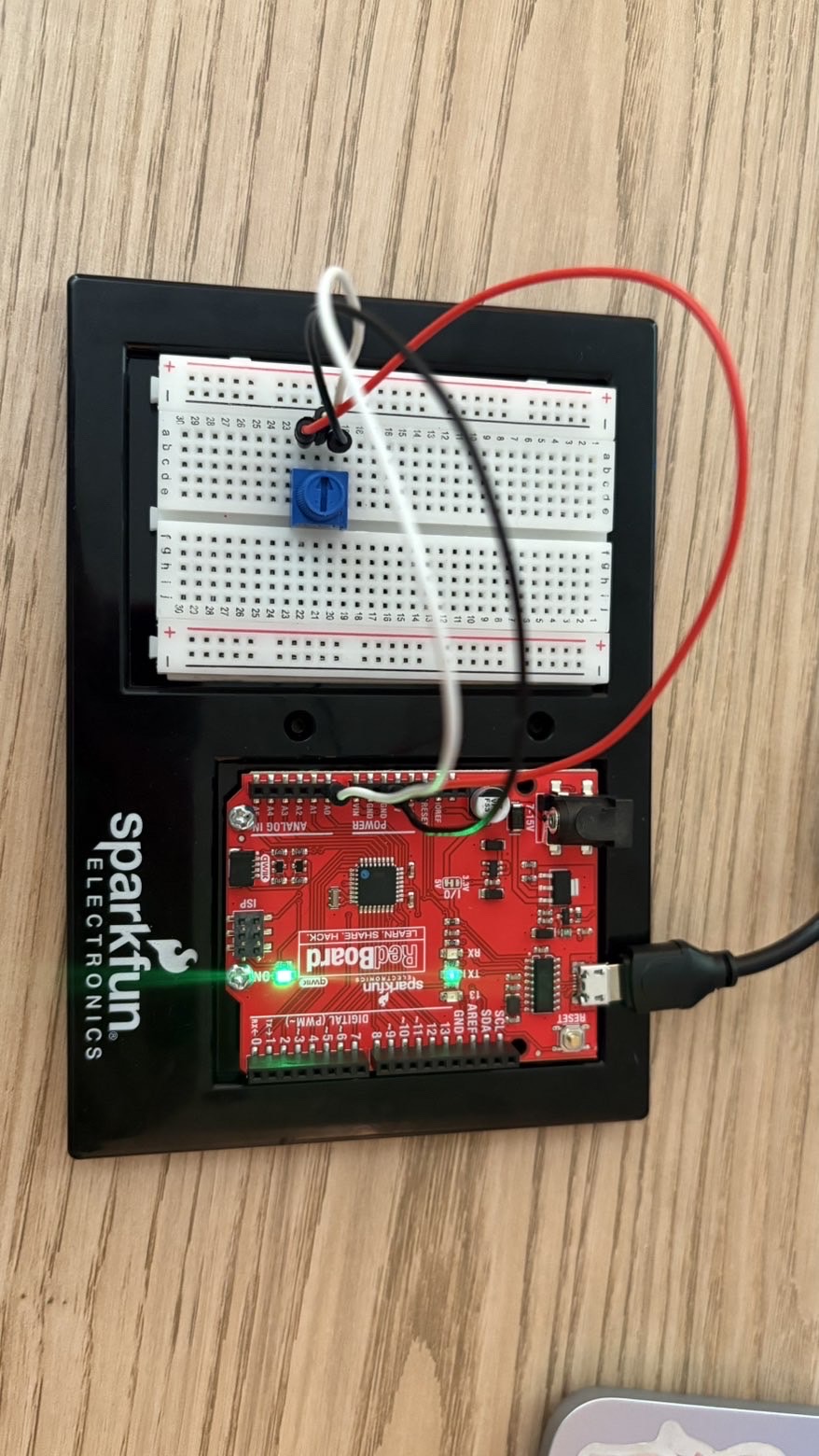
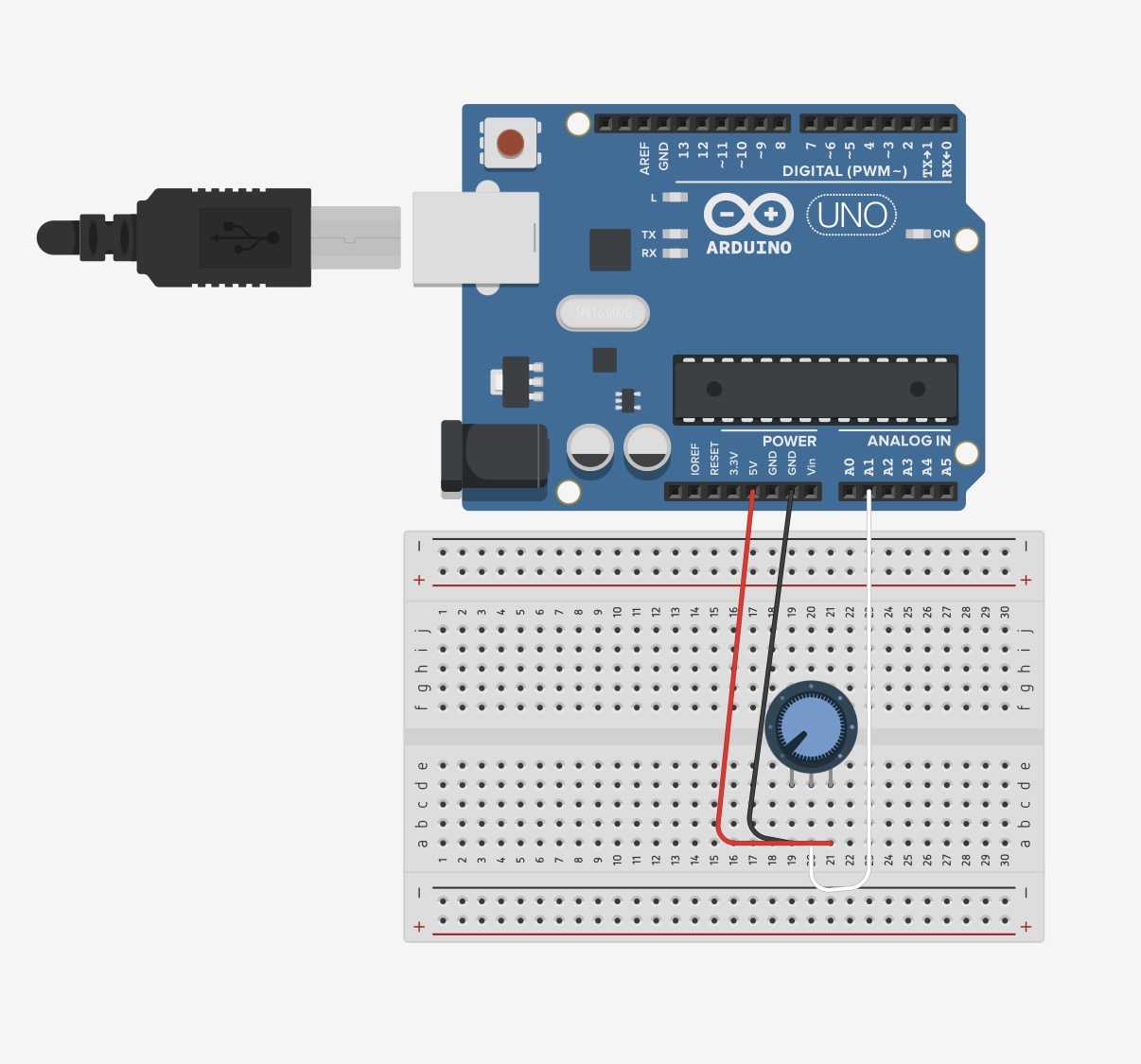
here is the circuit sketch

One of the the ways I  could use to detect how close Im to the screen, I set the distance to 70cm, and this is result


Week 8 Assignment- Creative Switch

Concept:

For this week’s assignment, I decided to create a system to help me remember to sit with a straight posture and to avoid slouching. The system works using two sheets of aluminum foil connected to a buzzer. When the aluminum foils are connected (i.e. your back is touching the chair meaning you are sitting up straight), the buzzer is silenced. When the aluminum foils are separated, meaning you are slouching and your back is off the chair, then the buzzer gives tone, reminding you to sit up straight.

Demo + Setup:


Implementation:

To create my foil switch, I taped two thin sheets of foil to a dish washing sponge. This works as a compression switch, so when you press the foils together they close the circuit, and when pressure is released, the sponge between them separates the foils and opens the circuit.

I connected one tin foil to digital pin 2, and the other foil to GND. This functions as the switch, so when the foils are touching they close the circuit, and when they are not the circuit is open.

For the buzzer, I connected its -ve leg to GND, and its +ve leg to digital pin 8.

void setup() {
  pinMode(foilPin, INPUT_PULLUP);
}

For the code, I used a new pinMode called INPUT_PULLUP. I found it while I was doing some research about Arduino coding, and essentially it just uses Arduino’s internal pull up resistors so you do not have to add a physical resistor into the circuit. I wanted to test this out to explore a bit with the code.

if (state == HIGH){ //foils not touching (slouching)
    delay(1500); //wait 2 seconds in case person is just moving
    if(digitalRead(foilPin)==HIGH) { //read input again, if person is still slouched
      tone(buzzer, 1000); //tone
    }
  }

I set an if-else statement so when the state of the foil switch is high, meaning the foils are not touching and the circuit is open, the buzzer will wait a few seconds before giving tone to account for when the user might just be adjusting their sitting position. After 2 seconds, there is another check to see if the foils are in fact still not touching, and then the buzzer gives tone. Else, as long as the circuit is closed, and the foils are touching, then there is no tone produced.

Reflection:

Overall, I am quite proud of my project and the usefulness behind its idea. It was also really exciting and fun to work with Arduino and I really enjoyed the concept of physical work combined with coding.

For the future, I would like to have longer wires so that I can set the Arduino and breadboard setup on my table when the foils are taped to my chair. I considered taping the entire setup to the chair, but that would then make it uncomfortable for the person sitting on the chair.

References:

Week 8: Unusual Switch

Concept:

For my first Arduino assignment, I had to create an LED light switch that worked without any direct contact with the hands. I got the idea of creating one that does not need direct contact with any part of the body, so no contact at all. I was interested in the sensor function when we were introduced to the kit, so I chose to experiment with it and see if I could create a switch using a motion sensor.

My switch almost works like a distance-check system: when any motion is detected close to the sensor, 10 cm or less, the green light turns on, almost as if it is in the perfect position. When motion is detected farther from the sensor, more than 10 cm, the red light turns on, signaling that it is too far away from the sensor. Although there is no physical contact, the ultrasonic sensor acts as a switch by detecting distance and controlling whether the circuit behaves as open or closed.

This idea brings to mind different real-world applications, such as mall parking lots, where you see a red light on top if a space is occupied and green if the parking spot is empty.

Link to Code:

Arduino File on GitHub

Demonstration:

unusualswitch

Setup:

For the Arduino setup, I started by placing the sensor and connecting four wires, each aligned with one of its pins. The red wire connects to 5 volts, the black to ground, and the blue and green wires are assigned to numbers to trigger and receive the echo pulse for the lights. Then I placed the two LEDs, with a wire of the same color aligned with one pin, which connects to an assigned Arduino pin, and a 330 ohm resistor aligned with the other pin. I then added a red wire that connects the negative side to the ground, and on that same row, I placed one side of both resistors.

Code:

My code, in general, is straightforward. I assign variables, and the code is designed to know when to accept and receive inputs and outputs. All explanations are included directly in the code itself.

One part of the code I found particularly important is using digitalWrite with LOW to ensure that the lights turn off when they are not called by the commands. Without this, the lights would stay on the whole time, no matter where I placed my hand, since the program wasn’t being instructed to turn them off again.

digitalWrite(trigPin,HIGH); // Send pulse to trigger sensor
delay(1000); // One second delay to trigger sensor 
digitalWrite(trigPin,LOW); // End trigger pulse

digitalWrite(led1,LOW); // Return green light to initial state before going into if else condition
digitalWrite(led2,LOW); // Return red light to initial state before going into if else condition

Additionally, the if-else statement is the most crucial part, as it tells the lights when to turn on and off based on the distance. I can also adjust it to suit whatever distances and measurements I want.

if (distance<=10){
  digitalWrite(led1, HIGH); // If distance from sensor is equal or less than 10 cm, green light on
}
else if (distance>10){
  digitalWrite(led2, HIGH); // If distance is more than 10 cm, light up led 2, red light on
}

Diagram:

Reflection:

Overall, I am satisfied with my work on this first assignment. Before starting, I was really overwhelmed and thought I would struggle a lot to make it work. However, as soon as I began understanding what each wire and piece of code does, I started to actually enjoy it and had fun experimenting with different colors.

I did get a little confused during the wiring process because of all the colors of the wires. The sensor and LEDs were placed on opposite sides from their wires, so I moved them, and everything made more sense, both on the board and in the code.

For future improvements, I feel like I could add more LEDs at different distances, or even make it more advanced. For example, instead of sensing simple hand waves, it could sense a specific area of walking.

References:

I first went over the class slides to recap what we learned, and I also reviewed parts of the Zoom recording for guidance on plugging in and uploading code.

I found a tutorial on using a motion sensor, which I followed along with, making sure I understood every step and the code needed to make it work:

https://youtu.be/7zPbEEPAwQA?si=mkxxcjrJ8M2CU19C 

I also used links to specific code references on the official Arduino website to recap what each function does:

https://docs.arduino.cc/language-reference/en/functions/digital-io/pinMode/

https://docs.arduino.cc/language-reference/en/functions/digital-io/pinMode/

https://docs.arduino.cc/language-reference/en/functions/advanced-io/pulseIn/

Week_8 Reading Response

The article “Her Code Got Humans On The Moon” centers around the story of Margaret Hamilton. She was an outlier in a field which was very male-dominant at the time, bringing her daughter to the lab and supporting her husband who was going to law school. She contributed to the Apollo mission by implementing human centered peogramming and coding to give space for human error. NASA ignored her at first until the fatal error appeared in Apollo 8 and proved her correct. Her program also landed Apolo 11 safely on the moon by using asynchronus processing.

The article “Emotion&Design: Attractive things work better” caners on the psychologyu of user experiewnce. Usefulness and beaty was thought to be non-compatible. But the affect of beauty on mood showed that the beauty of products can allow some of its flaws to be ignored, making the design more useful. But it all eventually comes down to a balance of the two, because mood can influence the effect of the product. The design needs to adhere to its function. Designes used in high stress environments need to be easy and intuitive, while those made for leisure and pleasure can have more focus on beaty. Ultimately, design shound be centered around human need.

Week 8 Reading Response

Design and Usability

The main Idea of the reading was, a positive effect can make people  worry less about minor discerpencies and make them think out of the box which is called “breadth-first” thinking. On the other hand, a negative effect results in “depth-first'” thinking which in essentialya a more narrow and  conecentrated approach.  The author elaborated this point, by examples of his teapot set and stress situations. A good asthetic might become an obstacle when the task at hand needs to be done in a hurry. I was thinking about can there be a case where both, usabiltiy and design, can be a problem. The first thought was gift packaging. In  situation where some one gives you a present in rather fancy packaging at your birthday, a bunch of people are sitting there waiting  for you to open to see what is inside. But that ancy athetic box doesn’t seem to have an opening. its top and bottom are both the same. This leads me to think that why it is preassummed in the reading that the more we lean to the asthetic side, we are losing usabitly. A good example  to my argument is fancy coffee machine. it has only two user interactions i.e. putting the cup and pressing the dessired button. Now no matter how glamorous the coffee making is happening (imagine there are long glass canals all over the place which alll fall in to you cup.) if the the two user interactions are easy to access, then we have both a good design and usbailty.


Hamilton

The article demonsatrated her foundational role in the Apollo 11 mission. She introduced the idea of Software Engineering. I was surprised by the fact that at that time they didn’t that software engineering as a key factor as there was no budget for it. Her failsafe mechanisms and asynchrousus modelling proved to be a saviour during the mission. it also reflected a gender bias. Despite her work, not a lot of acknowledgement was given.

The key take away from it was how people interact with systems and how the system should be ready of exceptional circumstances within the given resources. Most of the time when I have written some for a  program and I let a friend use it, they come up with use cases I have never thought before. A system can crash, they do normally but there should be a way to recover from it. This reading gave an insight about how anticipation of faliure is just half of the work.

Week 8: hair-clip switch

For this assignment, I made a physical switch out of a hair clip and foil. Since the assignment was about creating an unusual switch, I wanted to build one out of simple materials that could still work clearly as a circuit. I used the hair clip and foil as the two conductive parts, and when they touched, the circuit closed and the LED responded.

At first, I tried a few different ideas, like using a necklace or a headband as one of the conductive parts, but that did not work because of the wire length and the physical arrangement. After thinking through different options, I realized that a hair clip made more sense because it already has a natural opening and closing action. That made it easier to turn it into a working switch. I attached the hair clip to the end of the shirt, as shown in the video. Ideally, I wanted to place it on the head, but because the wires were too short, I decided to keep it in close proximity to the board instead. I used foil as the second conductive contact, so when the clip touched the foil, the circuit closed.

hairclip-switch

The way the project works is that one side of the switch is connected to the hair clip, and the other side is connected to the foil. These are wired to the Arduino so that when the two conductive parts touch, the circuit closes and the switch state changes. I used digitalRead() to read the switch, and I connected the output to an LED. At first, the LED only stayed on while the conductive parts were touching, but I changed the code so that one touch turned the LED on and the next touch turned it off. I liked that version more because it felt more intentional and more like a real switch.

One part I found difficult was the physical setup. The challenge was not only the code, but also making the conductive parts line up in a way that worked. I originally tried to use the RedBoard, but I ended up using my own Arduino Uno instead because I was more familiar with it from using it in high school. Since I had already worked with the Uno in the Arduino app before, it was easier for me to use the board I already understood.

Code I’m proud of:

void loop() {
  buttonState = digitalRead(switchPin);

  if (buttonState == LOW && lastButtonState == HIGH) {
    if (ledState == LOW) {
      ledState = HIGH;
    } else {
      ledState = LOW;
    }

    digitalWrite(ledPin, ledState);
    delay(200);
  }

  lastButtonState = buttonState;
}


This is the part of the code I am most proud of, because it instead of just lighting up while the conductive parts were touching into a toggle system. So, one touch turns the LED on, and the next touch turns it off. I like this part because it made the switch feel more complete.

I am happy with this project because it was a refresher for me in using Arduino, but in a creative way that made me think about the function of each LED, wire, resistor, and connection. The materials were simple, but the project still made me think about both the physical interaction and the code logic.


Reading Reflection:

One of the most important parts of Margaret Hamilton’s work was not just writing code, but understanding that people make mistakes and that systems should be built with that in mind. I think that idea interested me more than just the fact that she helped get humans to the moon. The reading made me feel like her work mattered not only because it was impressive, which it was, but because she was thinking in a more realistic way than the people around her. The fact that her concerns were dismissed because astronauts were expected to be too well-trained to make mistakes especially stood out to me, because that feels like a very unrealistic way of thinking. The reading is not only praising Hamilton, but also showing how software and careful planning were underestimated until they proved how necessary they were.

I do agree with Norman’s point, but not completely. I think attractive things can work better because people are usually more open, patient, and comfortable when something looks nice or appealing. If something looks good, people are often more willing to give it a chance instead of immediately getting frustrated by it. At the same time, I do not think attractive design automatically means good design. Something can look beautiful and still be confusing or badly made, and we can see that in our daily life. So for me, it’s not just that beauty matters, but that beauty and function should work together. I also think this depends a lot on context. In a calm situation, something attractive might make the experience better, but in a stressful situation I think clarity or practicality matters much more than appearance.

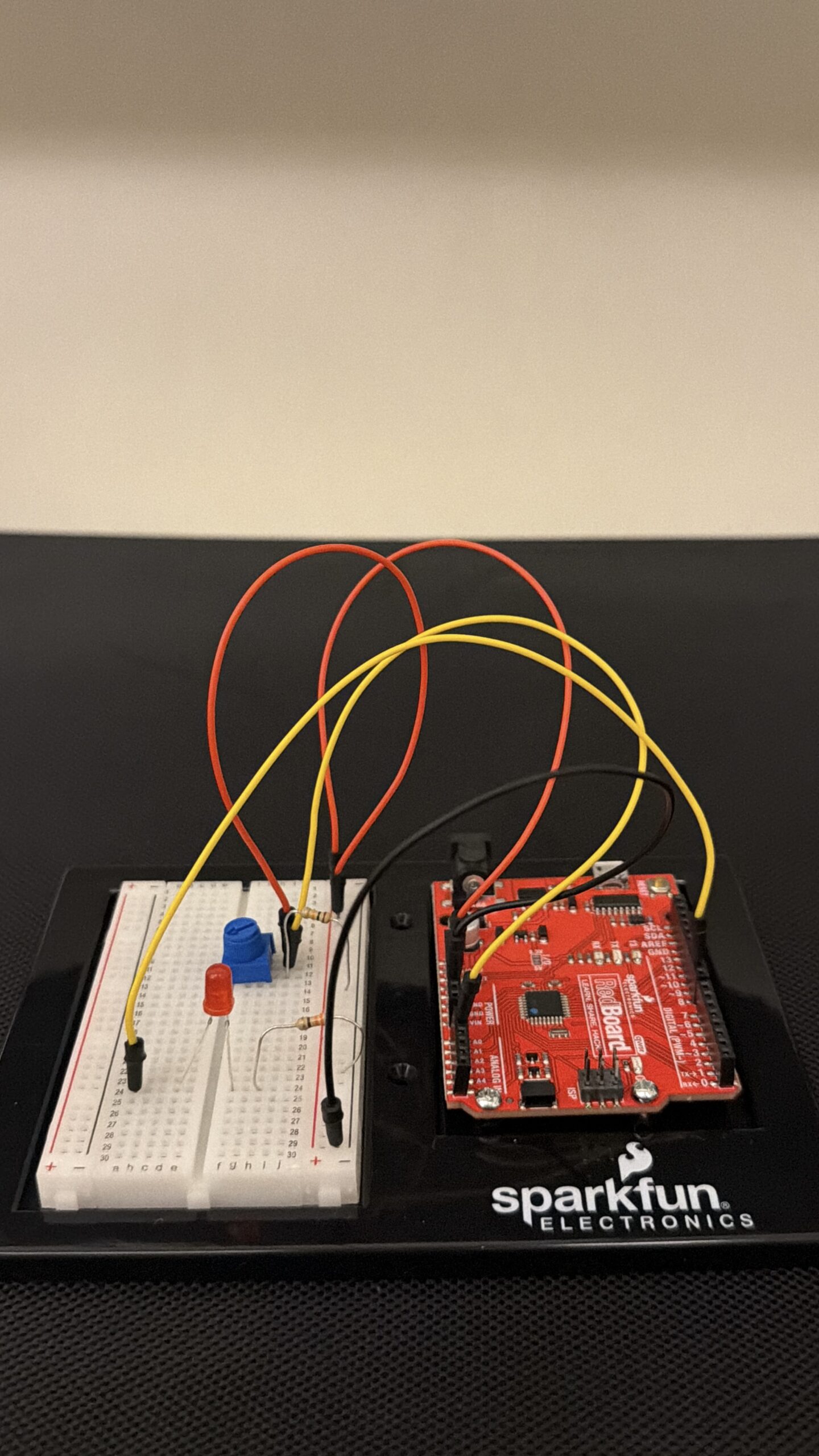
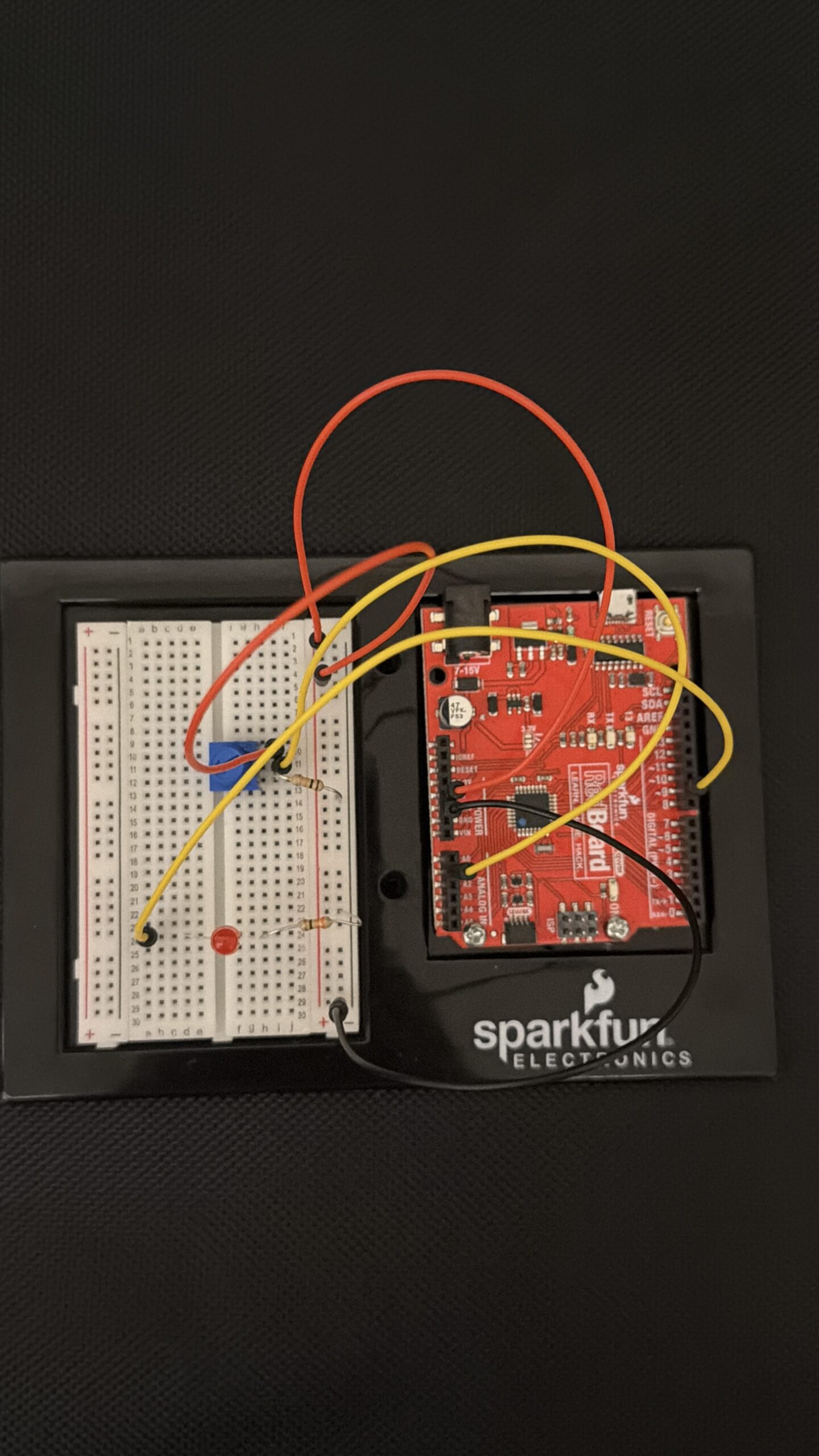
Week_8_assignment

Concept

I forget to drink water really often and always end up thirsty and dehydrated. So I thought of making a switch related to drinking water. This would make hydrating fun and mightg help people like me drink more water.

Here is my code

https://github.com/JingyiChen-jc12771/Intro-to-IM/blob/301c1448abf22661b1033a517ff53e9c13ab22f5/Week_8_assignment.inohttps://github.com/JingyiChen-jc12771/Intro-to-IM/blob/9e60105408124b158475443086f933d8e62a9231/Week_8_assignment.ino

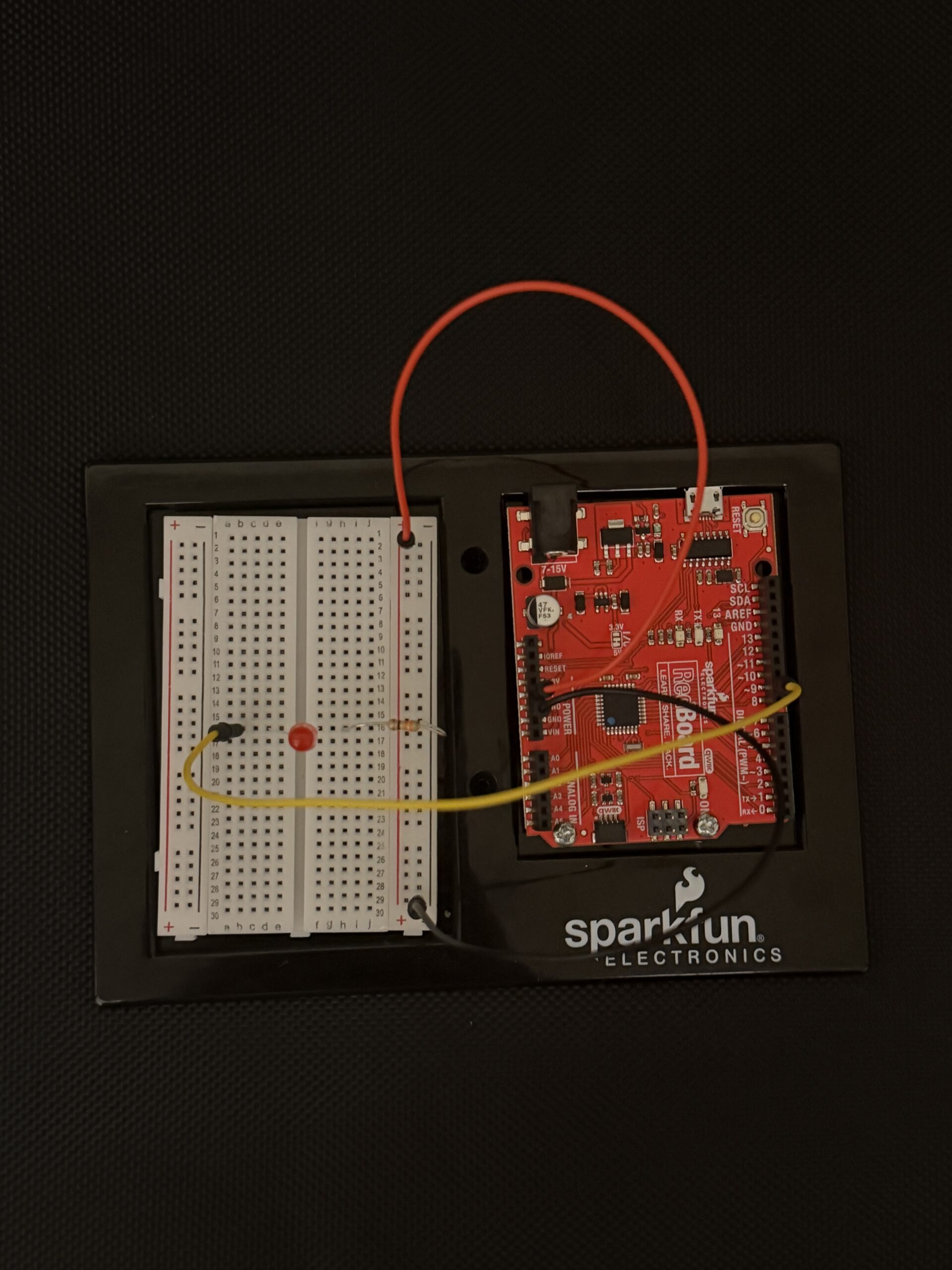
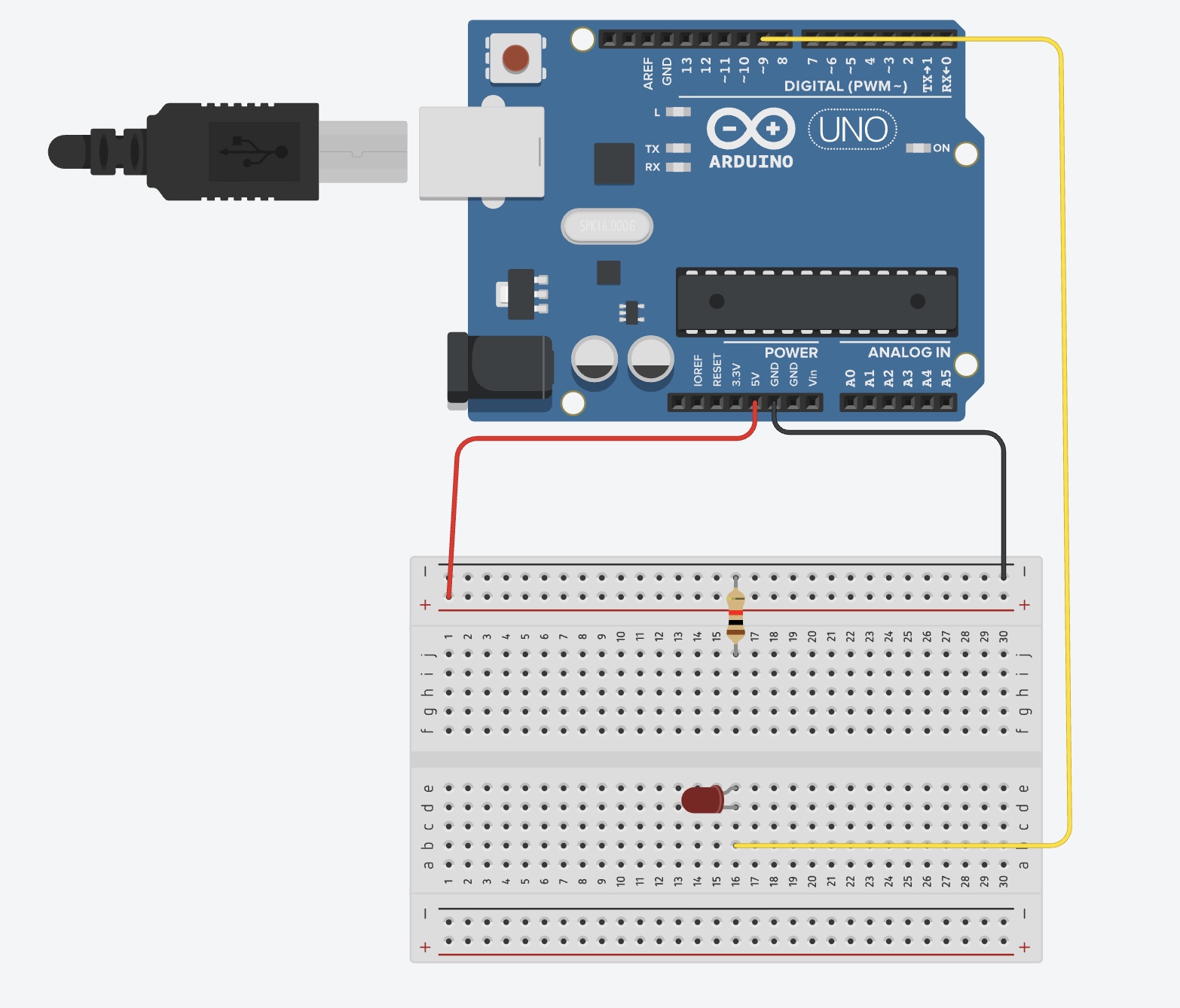
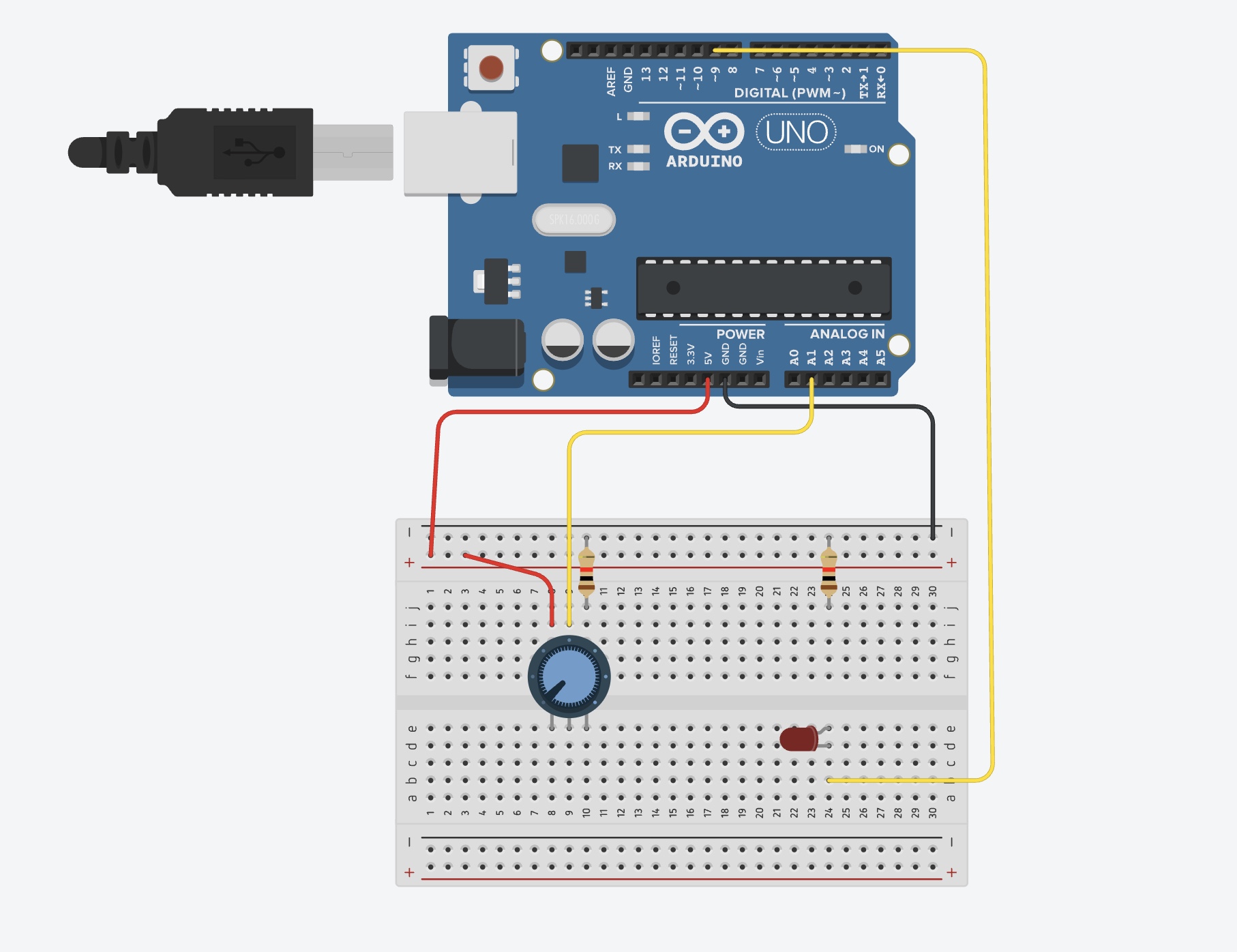
My ciurcuit:


Demonstration video

Code snippetvoid

void setup() {
  // put your setup code here, to run once:
  pinMode(13, OUTPUT);
  pinMode(A2, INPUT);
}

void loop() {
  // put your main code here, to run repeatedly:
 int buttonState = digitalRead(A2);

  if (buttonState == HIGH) {
    //Not repeating the code uses the void loop and makes the LED blink as long as the circuit is connected.
    digitalWrite(13, HIGH);
    delay(200);             
    digitalWrite(13, LOW);
    delay(200); 
  } else  {
    digitalWrite(13, LOW);    
  }
}

I used pin 13 as output to the LED and pin A2 as input from the switch circuit. The circut structure was the same as our practice input structure in class, except changing the switch to the  cup. The 5v end was connected to one aluminum foil on the cup. the other piece of foil was inputted into pin A2 and connected to a 10k$\Omega$ pull down resistor. The LED was connected using normal circuit from pin 13. 

The switch is connected when there is water conducting the electricity between the two aluminum foils, which is what happens when I drink water. This results in buttonState==HIGH and the LED running the code to blink. When the water is removed the circuit is disconnected, resulting in buttonState == LOW

Reflection

The first time I buit the circuit I put the foils too close to each other so water drops would stick between them even if I am not drinking, causing the circuit to be connected all the time. I  solved this by moving the foil apart and also adding tape layer on top of the foils on bottom corner of the inside of the cup of where I would sip. This secured the foil in place and also served as a insulation for any small amounts of residue water whithout affecting the actual initiation of the circuit.

Week 8 — Reading Response

Norman’s central argument (that positive affect broadens thinking and makes people more tolerant of minor design flaws, while negative affect narrows it) is intuitive and reasonably well-supported by the psychological research he cites. The distinction between depth-first and breadth-first thinking is genuinely useful, and it reframes stress not as uniformly bad but as a cognitive mode that suits certain situations. That said, Norman is not entirely without bias. The essay reads partly as a self-correction, an attempt to walk back the “usability over beauty” reputation he’d earned from The Design of Everyday Things, and his anecdotal framing around his teapot collection, while charming, does a lot of heavy lifting for what is supposed to be a scientific argument. More importantly, he treats aesthetic pleasure as relatively universal without interrogating whose standards of beauty are being applied — a significant gap when design operates across cultures and contexts.

McMillan’s portrait of Hamilton is compelling and the Apollo 8 anecdote is particularly striking: Hamilton identifies a realistic failure scenario, NASA dismisses it as impossible, and then it happens on a live mission anyway. It’s a clean illustration of institutional overconfidence and the cost of ignoring people closest to the problem. However, the piece leans hagiographic — Hamilton is framed almost as a lone genius, while the broader collaborative effort, including the Raytheon seamstresses who physically hardwired the memory and engineers like Don Eyles, gets quietly sidelined. The bias is an understandable corrective given how long Hamilton’s contributions went unrecognized, but it’s worth naming. What the two readings share is an underlying tension about whose judgment gets trusted within institutions, and both suggest that the people with the clearest view are often the ones being overruled.

Read together, both texts circle the same problem: institutions tend to trust hierarchy over proximity. Norman’s supervisors dismissed color displays as scientifically valueless; NASA dismissed Hamilton’s error-checking as unnecessary. In both cases, the person closest to the work had the clearest picture. Norman resolves this through neuroscience — affect shapes judgment in ways we don’t always consciously recognize. McMillan resolves it through biography — one person’s persistence against institutional resistance changed the course of history. The question both readings leave open is how to build systems, whether design processes or space programs, that actually listen to the people who see the problems first.

Week 8 — Unusual Switch

1. Repository

Repository

2. Overview

For this assignment, I built a hands-free switch that uses the human body as a conductor. The project uses two aluminum foil patches — one taped to the floor, one to the sole of a shoe — to open and close a circuit through the act of jumping. An Arduino reads the state of the switch using digitalRead and communicates over USB serial to a Python script running on a laptop, which plays and stops a song based on the jumping rhythm. The music only plays while jumps are happening in close sequence, stopping if the user pauses for more than 1.5 seconds.

3. Concept

My goal was to turn the whole body into an instrument of interaction, removing the hands entirely and replacing them with something more physical and committed. The initial inspiration came from an unexpected source: my baby nephew, who kept interrupting my work sessions. Rather than fighting the disruption, I decided to include him in the project. Babies and toddlers are defined by their movement — bouncing, jumping, stomping — so building a switch that is activated by jumping felt like a natural way to design around him and his abnormal enthusiasm for dancing. The idea became about handing control to someone who couldn’t operate a traditional switch at all.
The music-as-reward mechanic adds another layer that felt personally fitting: the music only survives as long as the jumping continues, stopping if the user pauses for more than 1.5 seconds. For a restless toddler this creates an instinctive feedback loop between movement and sound. Stop jumping and the music dies. Keep going and it lives.

4. Process and Methods
    • I began with the physical circuit, using the INPUT_PULLUP mode on Pin 2 to avoid needing an external resistor. This keeps the pin held HIGH when the circuit is open, and pulls it LOW when the foil patches make contact through the body.
    • To filter out noise and false triggers — particularly the pin floating when only one foil patch was touched — I implemented a two-stage debounce. The code waits 50ms after detecting a change, then re-reads the pin to confirm the state change was real before acting on it.
    • On the software side, I wrote a Python script that listens on the serial port for LANDED and JUMP messages. Rather than toggling the music on a single event, I used a timeout system: every landing resets a timer, and the music stops only when that timer expires without a new landing.
    • The serial communication bridge between the Arduino and the laptop uses the pyserial library, and audio playback uses Mac’s built-in afplay command via Python’s subprocess module, keeping dependencies minimal.
5. Technical Details
    • The core of the switch detection relies on INPUT_PULLUP, which activates an internal ~50kΩ resistor inside the Arduino chip. This pulls Pin 2 to 5V (HIGH) by default. When the foil patches make contact, they create a conductive path through the human body to GND, pulling the pin LOW.
pinMode(jumpPin, INPUT_PULLUP);
    • The debounce reads the pin twice, separated by a 50ms delay, to confirm that a state change is genuine and not electrical noise or foil flutter on contact:
// Only act if the state has changed since the last loop
if (currentSwitchState != lastSwitchState) {

  // Wait 50ms before reading again — debouncing — one landing could trigger dozens of false readings.
  delay(50);
  currentSwitchState = digitalRead(jumpPin);

  // Re-check that the state still differs after the debounce delay.
  // If the reading went back to the original state, it was just noise — ignore it.
  if (currentSwitchState != lastSwitchState) {

    if (currentSwitchState == LOW) {
      // Foil patches are touching — the circuit is complete — user has landed
      digitalWrite(ledPin, HIGH);       // turn LED on as visual confirmation
      Serial.println("LANDED");        // notify the Python script to start music
    } else {
      // Foil patches are separated — the circuit is open — user is in the air
      digitalWrite(ledPin, LOW);        // turn LED off
      Serial.println("JUMP");          // notify the Python script
    }

    // Save the current state so we can detect the next change
    lastSwitchState = currentSwitchState;
  }
}
    • The Python timeout logic uses time.time() to track the moment of the last landing. The music continues as long as landings arrive within the threshold window:
    if line == "LANDED":
        # Foil patches made contact — reset the timer and start music
        last_landing = time.time()
        start_music()

# If music is playing but no landing has come in within TIMEOUT seconds, stop
if playing and (time.time() - last_landing > TIMEOUT):
    stop_music()


6. Reflection

This project pushed me to think about interaction in a much more physical way than usual. The main technical challenge was dealing with pin floating — when only one foil patch was touched, the unconnected pin would pick up ambient electrical noise from the environment and the body, triggering false readings. Understanding why INPUT_PULLUP solves this (by giving the pin a definite default state rather than leaving it undefined) was the key insight. The two-stage debounce was also a lesson in how unreliable physical contacts can be at the moment of touch — foil crinkles and makes intermittent contact before settling, and reading the pin twice filtered that out cleanly. Physically, the strain relief on the wires (taping them to the leg with slack at the ankle) turned out to be just as important as the electronics, since a pulled wire mid-jump would break the circuit unpredictably.

One thing I should have considered more carefully from the start was my nephew’s impatience. The whole project was inspired by him, but toddlers don’t wait; if the music doesn’t start immediately or cuts out too quickly between jumps, the experience breaks down fast. In hindsight, I would have tuned the TIMEOUT value with him in mind from the beginning, giving a little more grace time between landings to account for the unpredictable rhythm of a small child jumping rather than calibrating it around an adult’s pace.

7. Resources