Reading Reflection – Week 8

When I read Norman’s idea that attractive things “work better,” I realized it actually matches how I react to design in my everyday life. I do feel more drawn to things that look nice, whether it is a cute device, a clean app layout, or even good packaging. When something looks appealing, I automatically feel more positive toward it, and I am more patient when it has small issues. At the same time, I do not think beauty should be more important than usability. I believe designers need to balance both, because something that looks good but does not function well is frustrating, and something that works well but looks boring is not enjoyable either. His point made sense to me, but I also think he focuses a lot on emotion, and not every situation works that way.

The reading about Margaret Hamilton made me think about how different the tech world is today compared to her time. I personally have not felt underestimated in technical classes, and I do not feel like there is discrimination toward women in the spaces I am in now. But I know that fifty years ago it would have been a very different experience, and her story shows how much pressure she worked under. It also connects to Norman’s idea about emotion. She had to work in a very stressful environment, and that pressure probably forced her to be extremely focused and careful, which is what Norman describes when he talks about how negative emotions narrow thinking. Her story made me think about how serious and impactful technical work can be, and how much responsibility goes into writing code that other people depend on.

Reading Reflection – Week 9

The first reading made me rethink what computing even is, because I feel like I’ve always thought of it as something very screen based, like typing, clicking, code on a laptop. But the way Tigoe describes it, starting from the body instead of the machine, kind of flips my idea completely. He says physical computing begins with “how humans express themselves physically,” and that idea stayed in my head because it makes computing feel less technical and more human which i really like actually. It’s not about controlling a computer, it’s about translating things like movement, light, or touch into something the computer can understand. I liked that shift, but at the same time it made me realize how limited most of our interactions with technology actually are. Like we’re so used to keyboards and screens, and we accept that as normal, even though it’s such a small part of how we actually exist in the world, especially alongside technology.

The second reading pushed my idea even further, especially when it talks about how computers usually only involve small, controlled movements, like just sitting and using your fingers, even though “that is not your whole life.” That line felt weirdly personal in a way because it made me think about how passive most digital interactions are. You’re just there, barely moving, and everything is basically just clicks. Physical computing on the other hand, is more about interactions like sensing and responding, almost like a conversation between the body and the system. I think what I liked about this reading is that it doesn’t treat technology as something separate from us and more as something that extends what we already do every day anyway. But at the same time, it also made me question whether we’ve gotten too used to limited forms of interaction, like we’ve accepted a very small version of what technology could actually be.

Putting both readings together, I felt like they were both kind of criticizing the way we already use technology without saying it directly. Both of them keep coming back to the idea that computers should connect more to the body, more to the real world, instead of staying stuck behind screens. And I think what made it interesting for me is that it made something like physical computing feel less like a special, hard field and more like what computing should have been all along. It kind of made everything else feel a bit limited in a way, like we’ve been interacting with technology in the smallest way possible when there was always, always more potential, which is kind of sad if you think about it.

Week 9 – Analog & Digital Sensors

Arduino file on GitHub

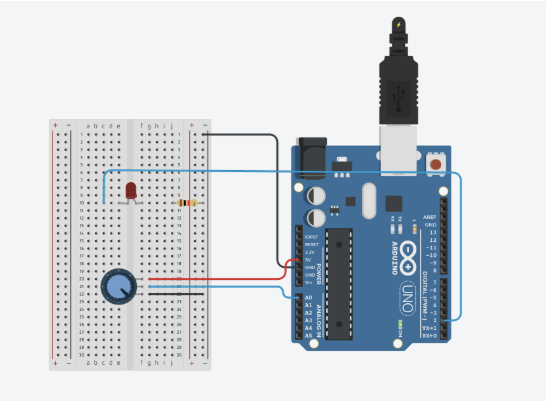
Arduino Set-up:

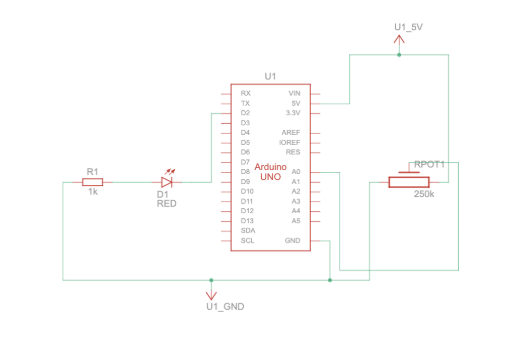
Arduino Illustration:

Project Demo:

249a2f5d7ff3421c96cd2bb558d8e46d

Concept

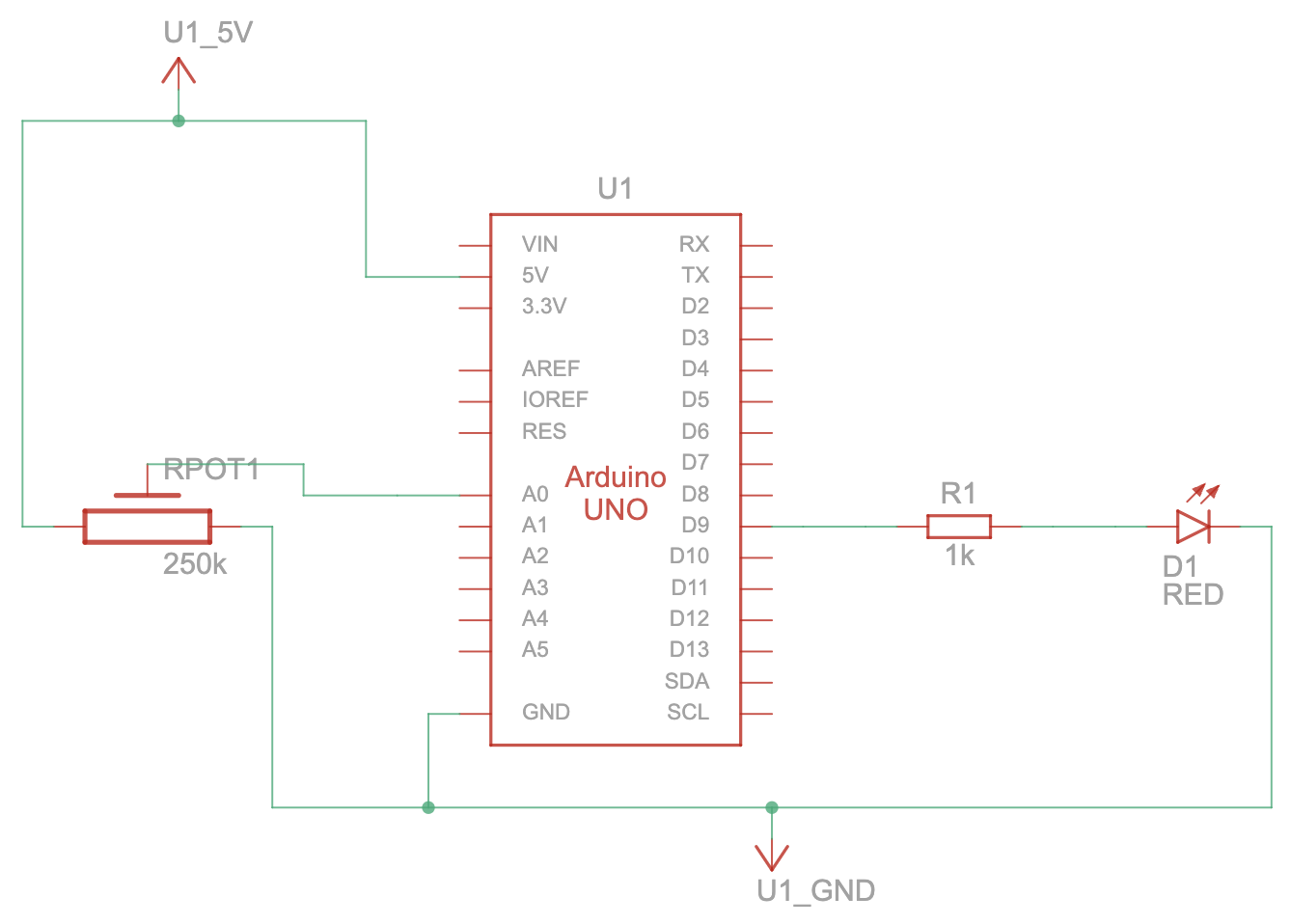
In this project, I combined both digital and analog inputs in one system, and the difference between them becomes really clear through how each LED is behaving.

The button is a digital input, so it only has two states. It’s either pressed or not pressed. Because of that, the red LED is either fully on or fully off, and there’s no in between state, which makes it binary and feel very direct.

The potentiometer works differently because It’s an analog input, so instead of just two states, it produces a whole range of values. That’s why the yellow LED doesn’t just turn on or off, it gradually changes brightness and dimness depending on how much I turn the knob.

Seeing both of these side by side made the difference between digital and analog feel a lot clearer. Basically, one is fixed, and the other is adjustable.

Code Snippet I’m Proud Of

int potValue = analogRead(potPin);
int brightness = map(potValue, 0, 1023, 0, 255);
analogWrite(yellowLed, brightness);

This part looks simple, but it took me a second to actually understand what was happening. The potentiometer gives a value from 0 to 1023, which is way bigger than what the LED can use. The map function basically translates that into a range the LED understands, from 0 to 255.

Once I understood that, the analog part finally clicked in my head.

Problems Encountered

Honestly, most of my problems came from the breadboard. Everything can look right, but if a wire is even one row off, nothing works. That was probably the most frustrating part because it’s such a small detail but it affects everything.

The button was also confusing at first. It didn’t respond at all, and I eventually realized it was because of how it was placed. The rotation and position of the button actually matters, and once I adjusted which rows I was using, it started working immediately.

The analog side was also a bit tricky. At one point the LED was just always bright, which made it seem like nothing was changing. That ended up being a problem with a mix of wiring and how the values were being read and mapped.

Reflection

This project was frustrating at times, but it definitely helped me understand what I’m doing instead of just following steps. The biggest thing I learned is how sensitive circuits are to small details.

I also feel like I understand the difference between digital and analog input way more now. Before, it was just a definition, but now I’ve actually seen how they behave differently in the same system.

If I were to improve this, I would make the wiring cleaner and more organized, because that would make debugging way easier, and also maybe try a more creative approach the more i get the hang od the ardunio board.

Overall, I feel like I moved from just trying to get it to work to actually understanding why it works, which I’m really proud of.

Refrences

https://docs.arduino.cc/tutorials/uno-rev3/AnalogReadSerial/

https://docs.arduino.cc/learn/electronics/potentiometer-basics/

AI Usage

ChatGPT was used to help identify what was going wrong when my LEDs wouldn’t turn on, and to address any confusion or debugging needed in my code.

Week 9 – Analog Input & Output

https://github.com/skyorachorn/Intro-to-IM/blob/ddfcc6119f307d6458bb64e60c8dc3e2593dbedd/W9_Poten_SW_BZ_3LEDsAssign.ino

VDO:

https://youtu.be/dxPHEA3eniM?si=DXep_sax1CEpxgOV

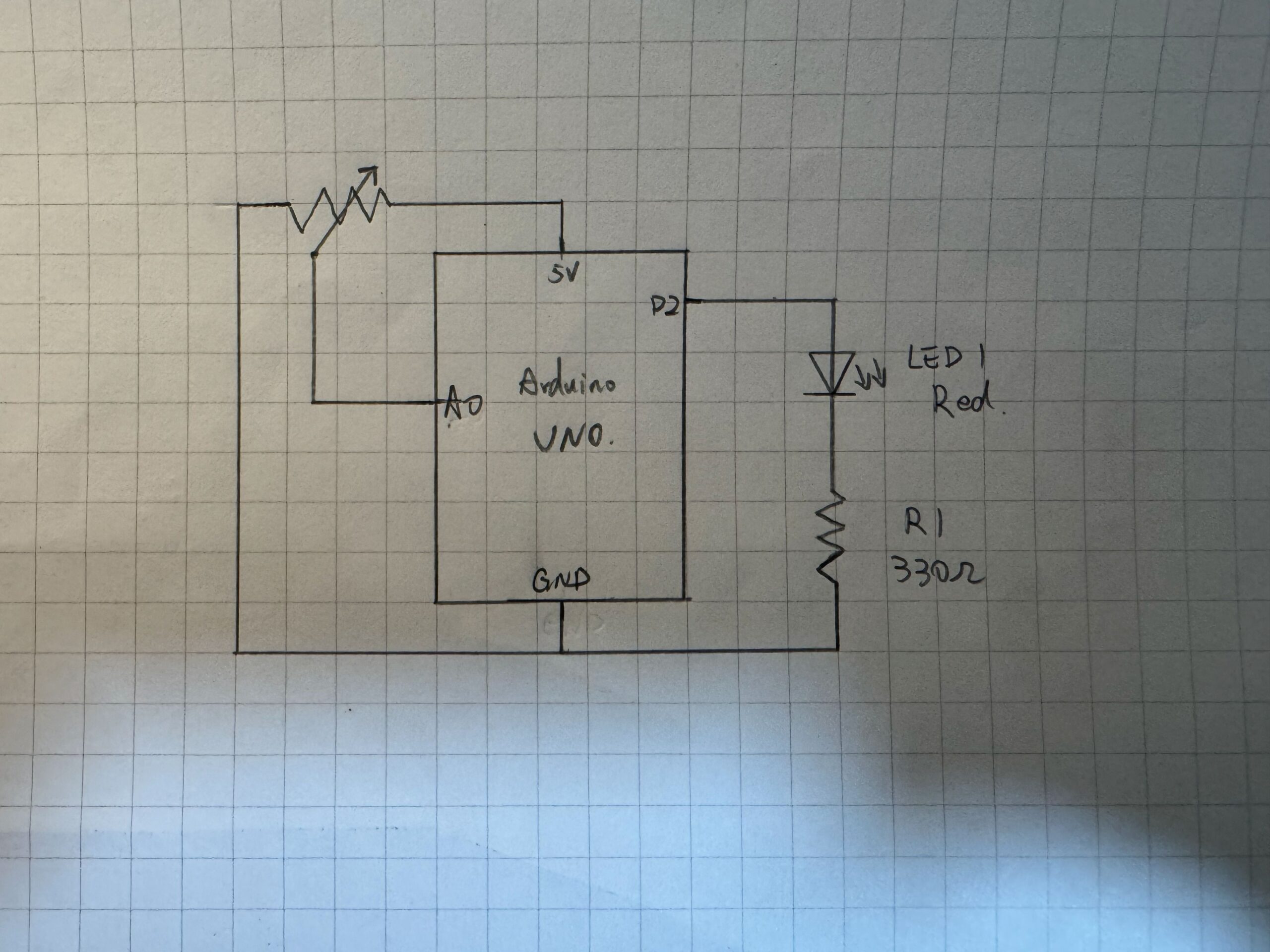
Hand-Drawn Schematic:


Arduino Analog & Digital Interaction Project

Concept:

This project explores the use of both analog and digital inputs in Arduino by combining a potentiometer and a switch to control multiple outputs in a meaningful way. The goal was to clearly demonstrate the difference between discrete digital control (on/off) and analog control (gradual change) through LEDs and a buzzer.

The system is designed as a simple “alert level controller.” The switch acts as a master control, while the potentiometer simulates changing intensity levels.

Components Used:
• Arduino UNO
• Potentiometer (10K) – analog sensor
• SPDT Slide switch – digital sensor
• Yellow LED – digital output
• Green LED – analog output (PWM)
• Red LED – warning indicator
• Buzzer
• Resistors (330Ω for LEDs, 10KΩ for switch)
• Breadboard and jumper wires

How It Works:

1. Digital Control (Switch + Yellow LED)

The SPDT slide switch is connected using a resistor (10KΩ).
• When the switch is OFF → the system is inactive and all outputs are off.
• When the switch is ON → the system activates, and the yellow LED turns on.

This demonstrates a digital output(discrete), where the LED is either fully ON or OFF.

2. Analog Control (Potentiometer + Green LED)

Once the system is ON, the potentiometer is used to control the brightness of the green LED.
• The potentiometer outputs a value from 0 to 1023 using analogRead().
• This value is mapped to 0–255 using map() to control LED brightness.
• The green LED gradually becomes brighter as the potentiometer is turned.

This demonstrates an analog output, where brightness changes smoothly instead of instantly.

3. Threshold Behavior (Red LED + Buzzer)

When the potentiometer reaches a high value (above a defined threshold), the system enters a warning state:
• The green LED turns off
• The red LED turns on
• The buzzer starts to sound

This creates a clear transition from a normal state to a warning state, adding a more interactive and creative behavior to the system.

Code I proud of:

if (potValue < THRESHOLD) {
      // analog mode: dimmable green LED
      brightness = map(potValue, 0, THRESHOLD, 0, 255);
      analogWrite(GREEN_LED, brightness);

      digitalWrite(RED_LED, LOW);
      noTone(BUZZER);
    } 
    else {
      // if >= threshold -> green LED off, red LED on, buzzer sounds
      analogWrite(GREEN_LED, 0);
      digitalWrite(RED_LED, HIGH);
      tone(BUZZER, 1000);
    }


Reflection:

This project helped me clearly understand the difference between analog and digital signals in Arduino. The switch provided a stable binary input (HIGH/LOW), while the potentiometer allowed continuous control.

One important concept I learned is the voltage divider, which is used in both the potentiometer and the pull-down resistor setup. It ensures stable and readable input values.

I also learned that analog interaction is not always perfectly linear (as earlier I tried the other sensor like Press Sensor FSR402), which is why the potentiometer was a better choice for demonstrating smooth brightness control.

Overall, this project successfully combines multiple inputs and outputs into a simple but interactive system.

Conclusion:

By combining a digital switch and an analog potentiometer, this project demonstrates:
• Clear digital vs analog behavior
• Smooth LED fading using PWM
• Conditional logic with thresholds
• A simple interactive system design


Reference:

https://youtu.be/pki9sZHdaJ4?si=4ZJ96sHXm9DlFW6K

Week 8 Assignment

My concept

For week 8’s assignment, we were asked to create a switch that uses the human body to complete a circuit, but without using our hands. I wanted something simple but still interesting, so I decided to build a foil‑based touch switch that activates an LED when my elbow connects two pieces of aluminum foil. The idea behind my switch is that the body can act as a conductor: when the two foil pads are separated, the circuit is open, and when my elbow touches both at the same time, the circuit closes and sends a HIGH signal to the Arduino. I liked this idea because it felt playful and intuitive,  instead of pressing a button, I’m using a part of my body that normally isn’t used for electronics. Once everything was wired correctly, the LED lighting up from just a touch of foil felt surprisingly satisfying.

The demo and setup

Video: IMG_3331

Photo: https://intro.nyuadim.com/wp-content/uploads/2026/04/IMG_3322.heic

Photo:  https://intro.nyuadim.com/wp-content/uploads/2026/04/IMG_3319.heic

The sketch: https://intro.nyuadim.com/wp-content/uploads/2026/04/IMG_3332.heic

The code I’m proud of 

The part of the code I’m most proud of is the core logic that actually makes the switch work. Even though it looks simple, this was the section I spent the most time understanding and debugging. It reads the input from the foil and decides whether the LED should turn on or off. Once the wiring was correct, this logic worked instantly and reliably.

int state = digitalRead(switchPin);   

if (state == HIGH) {                  
  digitalWrite(ledPin, HIGH);         
} else {                              
  digitalWrite(ledPin, LOW);          
}

This snippet represents the entire interaction: the Arduino constantly checks the state of the foil switch, and the LED responds in real time. After all the debugging I went through, seeing this simple logic finally work felt incredibly rewarding.


Github link: https://github.com/mhraalnuaimi/week8assignment/blob/main/foil_switch.ino 

Problems I faced

This assignment ended up being much more challenging than I expected, not because of the code, but because of the wiring. At first, nothing happened when I touched the foil, the LED stayed off no matter what I did. I kept adjusting the foil, retaping wires, and trying different ways of touching it, but the Arduino wasn’t detecting anything. I assumed the foil wasn’t conductive enough or that my body wasn’t completing the circuit properly.

Eventually, I started debugging step‑by‑step. The most important test was touching the bare wire from pin 2 directly to the 5V pin. When I did that, the LED turned on immediately. That moment told me that the code, the LED, and the Arduino were all working perfectly. The problem had to be somewhere in the breadboard wiring.

After more testing, I discovered the real issue: the second GND wire connected to the resistor row was pulling the signal LOW permanently. Because of that, pin 2 could never go HIGH, even when the foil was touched. Removing that incorrect GND connection instantly fixed the problem. Once the wiring was corrected, the foil switch worked exactly the way it was supposed to.

I also rebuilt the foil pads so that the bare metal of the wire touched the bare foil directly, which made the connection much more reliable. After that, the LED responded perfectly every time my elbow bridged the two foil pieces.

Reflection 

This assignment taught me a lot about how sensitive breadboard wiring can be. I realized that most Arduino problems aren’t caused by the code, they’re caused by one wire being in the wrong row or one resistor being connected incorrectly. Debugging forced me to slow down and test each part of the circuit logically instead of guessing. The moment I isolated the issue and saw the LED turn on from the foil switch felt incredibly rewarding.

I also enjoyed experimenting with different ways of activating the switch, like using a metal pen instead of my elbow. Overall, I’m proud of how much I learned from this process. Even though it was frustrating at times, it made me more confident in reading circuits, understanding pull‑down behavior, and debugging systematically. Next time, I’ll double‑check my wiring before assuming the code is wrong, it would have saved me a lot of time.

References 

Arduino Documentation: digitalRead()

https://docs.arduino.cc/language-reference/en/functions/digital-io/digitalread/ I used this page to understand how the Arduino interprets HIGH and LOW signals from my foil switch.

Arduino Documentation: pinMode()

https://docs.arduino.cc/language-reference/en/functions/digital-io/pinmode/ I used this reference to confirm how to correctly set pin 2 as an INPUT so it could read the foil connection.

Arduino Documentation: Digital Pins

https://docs.arduino.cc/learn/microcontrollers/digital-pins I used this explanation to understand how input pins behave electrically, especially how they float without a proper pull‑down or pull‑up resistor.

Arduino Tutorial: Digital Input Pull-Up

https://docs.arduino.cc/tutorials/generic/digital-input-pullup I used this tutorial to compare my physical pull‑down resistor setup with Arduino’s internal pull‑up option and understand why my circuit needed stabilization.

Class slides

I used the class slides to review how switches work, how breadboard rows connect, and where resistors should be placed in a circuit.

Arduino cheat sheet

I used the cheat sheet to quickly double‑check syntax for digitalRead(), digitalWrite(), and pinMode() while writing and editing my code.

AI  usage debugging (ChatGPT)

I used AI to help me debug the circuit step‑by‑step, especially to isolate the issue with the misplaced GND wire and confirm that the code itself was working correctly.

Week 9: Reading Response

This week’s first reading, Physical Computing’s Greatest Hits (and Misses), made me think a lot about different physical computing themes, some that are around me, and the things that I could integrate and do with them. A sentence that stood out to me was at the start, “Sometimes when people learning about physical computing hear that a particular idea has been done before, they give up on it, because they think it’s not original,” as I related to it both during our p5 sketches work and now with Arduino, where I pressure myself to try to create something completely different. I was really interested as I read more, and some of the things that came to my mind that I could relate to were things I have already encountered, such as the floor pad games that exist in many arcades today in different styles, and the “Fields of Grass” theme that is used in places like TeamLab and museums, where you run your hand over sensors and experience an interaction. Interestingly, the dolls and pets theme reminded me of Build-A-Bear teddies I made when I was younger, where I would press a part of the bear and hear recorded audio. While reading, I found myself thinking about my Arduino and all the different sensors I have, and I think all the ideas mentioned are great inspiration and encouraged me to look deeper and find new ways to integrate them into my projects.

This week’s second reading, Making Interactive Art: Set the Stage, Then Shut Up and Listen, brought my attention to an aspect of interactive artworks that I had not considered before, and that feels different from what people usually say. I feel like it made a lot of sense to me that users who encounter something interactive should feel comfortable giving inputs based on their instincts. What I took away from the reading is that it is important to guide the user and give them context about what they are experiencing, but not to completely tell them exactly what to do, in order to maintain the purpose of “interactivity” in the artwork. The concluding example of a director working with actors really clarified this idea and made it more convincing.

All together, I feel like both readings are well aligned with each other and added to my knowledge and understanding of interactive artworks and programming. The first reading felt more like a collection of examples and structures of how a project could be, while the second reading added to it by focusing on the user experience and interaction within that same project. The knowledge I gained connects clearly to the work I have done and will continue to do in this course, and I feel like both readings gave me ideas, inspiration, and awareness of what I should consider moving forward.

Week 9 Documentation

CONCEPT

For my project this week, I wanted to create a “Luck Spectrum” using an analog sensor, two LEDs, and a digital sensor. The potentiometer acts as the analog input, where the player “chooses” their luck by twisting it. Before pressing the button, which will be my digital sensor, they can adjust the potentiometer as a way of testing or setting their luck. Once the button is pressed, a short suspense moment happens where the LEDs flicker first before showing their ‘luck.’ After that, the system reveals the result: if the LED turns green, it means the player is lucky, with the brightness showing how strong their luck is. If it turns red, then they’re not in luck, and again, the brightness reflects the intensity of that outcome.

CODE HIGHLIGHT

I used YouTube tutorials to help me set up my Arduino since I needed a refresher on the wiring. After that, I started working on the code itself. One part that I’m most proud of is how I used randomness to generate the “luck” result. The line below creates a random number, which I then use to decide if the result is lucky or unlucky.

int chance = random(0, 100); // generates a random number from 0-99, to decide whether it's green (lucky) or red (unlucky)

If the number is below 50, the green LED turns on (lucky). If not, the red LED turns on (unlucky). This is the core part of my project, as it represents whether someone is lucky enough to get a green light or ends up with a dim red one.

if (chance < 50) { // decides if lucky or unlucky, LEDs will not turn ON at the same time
     analogWrite(greenLed, brightness);
     analogWrite(redLed, 0);
   } else {
     analogWrite(redLed, brightness);
     analogWrite(greenLed, 0);
   }
PROBLEM I ENCOUNTERED

At first, I had a problem with the potentiometer. I wanted it to control both the “luck” and the brightness using it, but instead, it ended up directly controlling the brightness. So whenever I turned the knob, it didn’t really feel like it was affecting the ‘luck’, it just changed how bright the LED was. To fix this, I changed the system into three clear brightness levels: dim, bright, and very bright. This also made the brightness differences more obvious. 

int potLevel = map(potValue, 0, 1023, 0, 2); // gives 3 brightness settings = 0,1,2
    int randomShift = random(0, 2); // randomizes the brightness setting
    int level = constrain(potLevel + randomShift, 0, 2); // brightness randomness, this keeps the brightness level between 0 (dim), 1 (bright), and 2 (very bright)

    int brightness;

    if (level == 0) { // levels of brightness
      brightness = 20;   // dim
    } else if (level == 1) {
      brightness = 140;  // bright
    } else {
      brightness = 255;  // very bright
    }
REFLECTION

After working on the midterm project, I realized that I enjoy creating small interactive experiences, especially ones that feel like a mini game where users are not just interacting but are actually engaged and curious about what will happen next. That realization led me to this idea. This “mini game” is not meant to measure or define someone’s real-life luck. Instead, it focuses on creating a moment of suspense and enjoyment, where the outcome feels exciting even if it is random.

Overall, I really enjoyed the whole process and how everything turned out. I started by experimenting in Tinkercad since I didn’t have my Arduino kit with me at the time and was still figuring out what I wanted to do for the project. I actually found Tinkercad really helpful and more organized, especially when it came to wiring, which made it easier to test ideas without getting overwhelmed. Because of that, I think I’ll keep using it as a starting point for future projects before moving on to the actual board. If I had more time in the future, I would like to incorporate a buzzer to make the mini game more engaging and immersive.

GitHub Code  |    Demo   |   Try it on TinkerCad   

REFERENCES

https://www.youtube.com/watch?v=yBgMJssXqHY

https://www.youtube.com/watch?v=DLCDGCe7FRA

https://docs.arduino.cc/tutorials/generic/digital-input-pullup/ 

USAGE OF AI

I used ChatGPT to help debug my code whenever I encountered errors or confusion. It assisted me in identifying issues such as missing semicolons, incorrect brackets, and inconsistencies in values, allowing me to fix problems more efficiently.

Week 9 – Reading Reflection

Physical Computing’s Greatest Hits (and misses)

This reading made me realize that I have interacted with way more physical computing projects/products in my life than I initially realized. While reading each example the author gives, I began remembering different projects I have experienced or come across. I started reflecting on how these projects might have been implemented and how I can draw inspiration from them to build something new.

The reading mentions the Wii remote, specifically its tilty controlling abilities. This brought back some great memories for me as I grew up playing Wii. It specifically reminded me of Mario Kart, which relies on the tilting sensors of the remote to control the car.

The “multitouch interfaces” example reminded me of an interactive sand experience I saw in the Science Park in Spain.

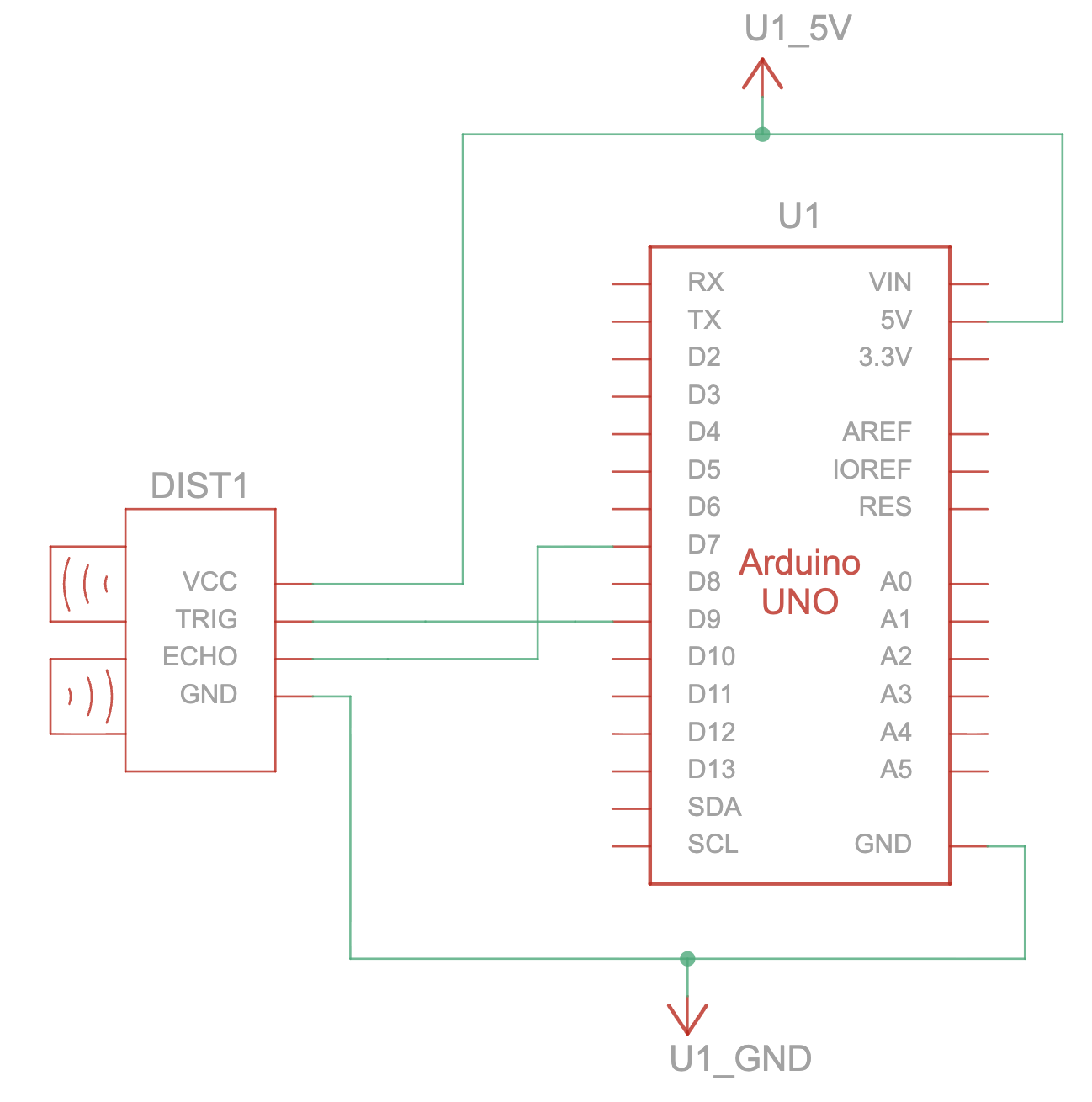
The projected image on the sand changes based on the height of the sand in a certain area. For instance, if you create a mini sand hill, the projected image on that hill will be an island. In areas with less sand, they will show as surrounding sea water. The design changes as you change the sand. This got me thinking about its implementation. I predict it probably uses sensors from the top, which measure the distance between the sand and the sensor, to determine what should be displayed at that point. If the distance is shorter, then it shows the top of the island, and as the distance gets longer, it displays a transition from the top of the island into the ocean.

Making Interactive Art: Set the Stage, Then Shut Up and Listen

I found that this reading kind of goes hand-in-hand with a previous reading we did in the semester about good design being obvious. To be able to act on this readings advice and allow the users to take full control of their interaction with your work, you must have designed it to be self-explanatory. It would be difficult to throw someone into an interaction with no context on it and controls that are difficult to understand. Therefore, in order to allow people to fully immerse in your experience, as the reading suggests, it is crucial to ensure you have a good design.

 Reading Response-Making Interactive Art

The part about artists telling the participant what each element means instantly brought me back to my installation art class, where we talked a lot about the moment you have to let go of the work and allow the user to take over. The reading’s point that once you start explaining everything, you re basically telling the participant how to think and act felt very familiar. In class, we discussed how the artwork should guide the user through visual cues, placement, and logic, not through the artists explanations. The reading frames this as the beginning of a conversation you set the context, arrange the space, and design the behaviors, but then you step back. That idea aligns with what I learned before about trusting the user to make sense of the work on their own terms.

The emphasis on listening to how people interact with the piece also reminded me of earlier readings about the relationship between creator and audience. The author describes how the user’s actions whether they understand, misunderstand, or reinterpret what you designed become part of the artwork itself.

That perspective made me think about what makes a “proficient conversation” between the work and the user: clear affordances, intentional choices, and removing anything that distracts from the interaction. It reinforced the idea that interactive art isn’t a finished statement but an ongoing exchange, where the audience completes the work through what they do and how they respond.

Reading Response: Physical Computing’s Greatest Hits (and misses)

The floor pad section reminded me strongly of my own midterm project, not because of dance, but because of the game like logic of stepping onto the correct color at the right moment. That mechanic simple, instinctive, and satisfying made me realize how powerful familiar actions can be in interactive design. Reading about how common these themes are in physical computing made me want to keep this in mind if I ever develop my project further. I’ve been thinking about exploring Al driven speech, so the idea of having the color appear on a screen and be spoken aloud feels like a natural extension. It could make the interaction more accessible, more dynamic, and more playful. I’m also open to developing completely new ideas, but this reading helped me see how my earlier work fits into a broader category of physical interaction games, and it introduced a perspective that encourages me to build on what I already created rather than dismiss it as “too simple.”

As someone who enjoys art and painting, the discussion about originality resonated with me on a personal level. In visual art, people constantly revisit the same subjects, styles, and techniques, yet each artist brings something distinct through their interpretation. I see the same pattern in interactive media: even if a theme has been explored many times, the expression is still unique because it reflects the designer’s perspective, intentions, and sensibilities. This reading made me think about how I can translate the mindset I use in painting experimenting, layering meaning, trusting my instincts into physical computing. Instead of worrying about whether an idea is new, I’m more interested in how my artistic intuition can shape the interaction, the atmosphere, and the emotional tone of a project. It makes me excited to explore how creativity moves across mediums, from canvas to sensors to screens.