Week 14 – Final Project (PawPortion)

🐾 PawPortion🐾 Smart Pet Feeding Assistant

Concept

I started this project from a very simple everyday problem: feeding a pet on time. It sounds like something that should be easy to remember, but in real life, routines can get busy, and small responsibilities can be delayed or forgotten. I did not want to make a fully automatic feeder because that would remove the user from the process completely. Instead, I wanted to create a system that supports the user while still keeping them involved in the act of care.

PawPortion is an interactive pet feeding assistant that combines an Arduino-controlled physical feeder with a p5.js digital dashboard. The system keeps track of feeding time, reminds the user when it is time to feed, and responds when the feeding action is completed. The project is not just about dispensing food. It is about creating a clear relationship between the user, the interface, and the physical machine.

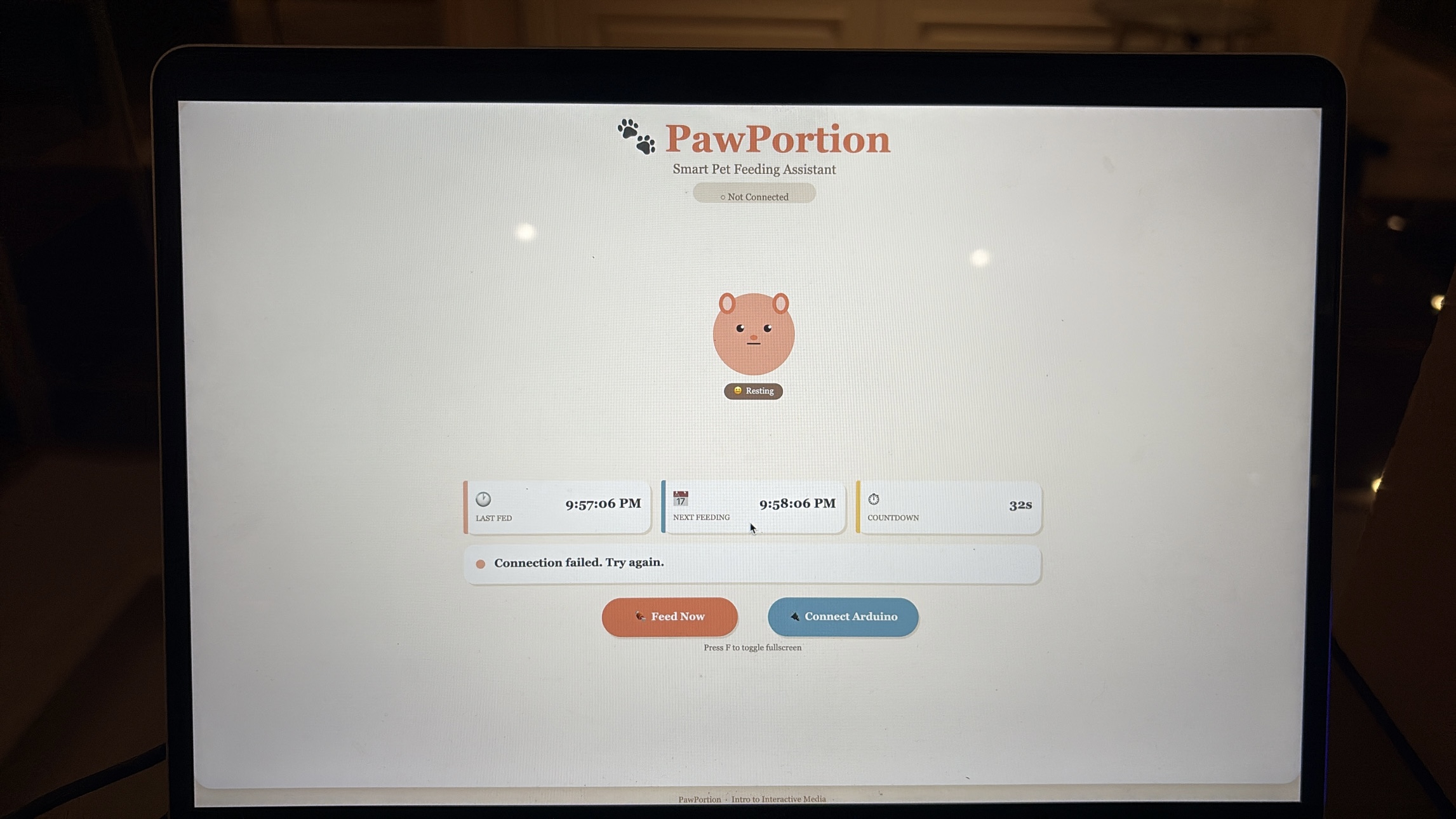
The main idea behind PawPortion is assisted responsibility. The system does not take over the task entirely, but it helps make the task more visible, structured, and responsive. The user can see when the pet was last fed, when the next feeding should happen, and whether the feeding has been missed. The pet’s mood on the screen also changes depending on the state of the system, which makes the interaction feel more emotional and less robotic.

Video of Project

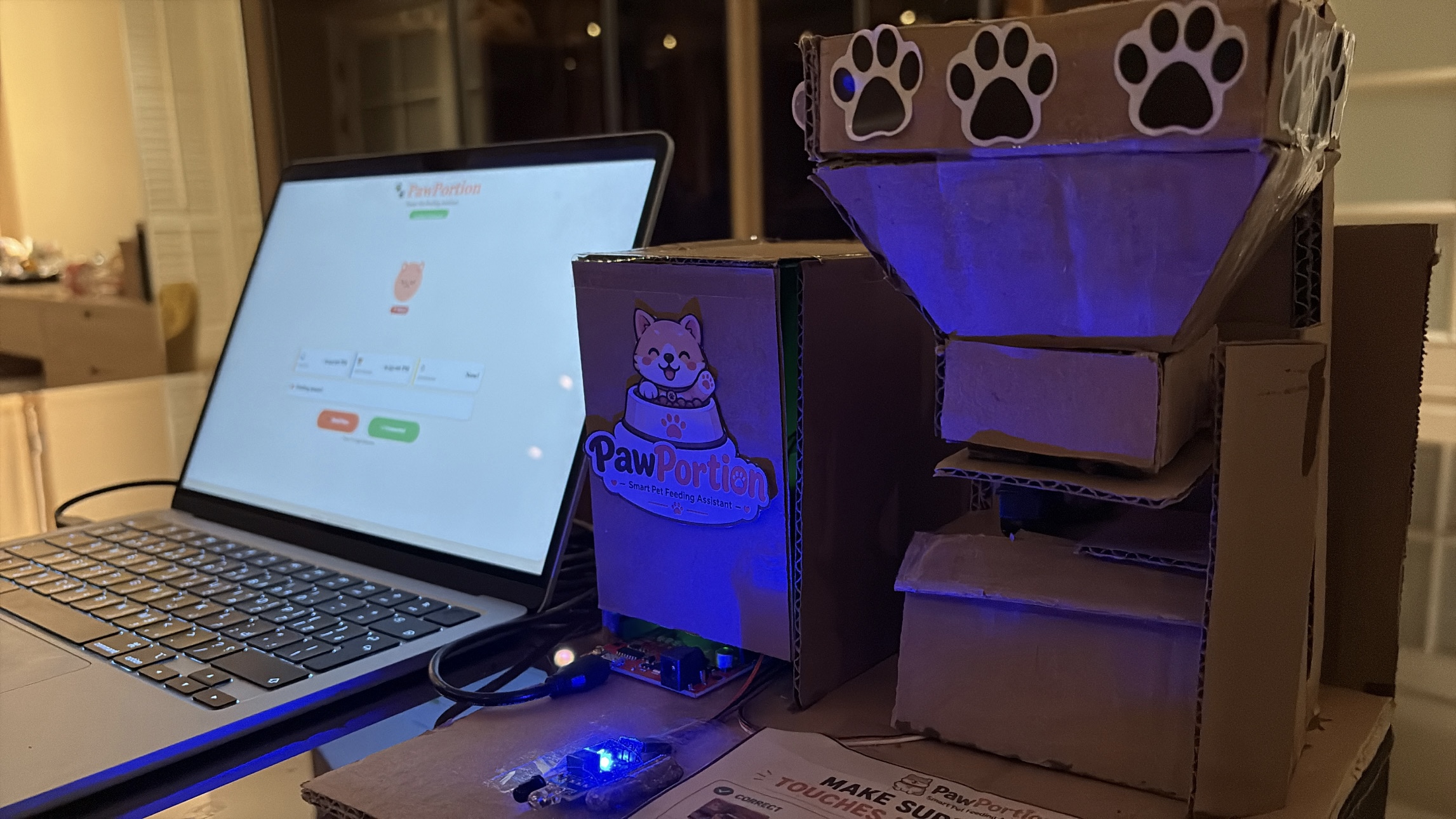
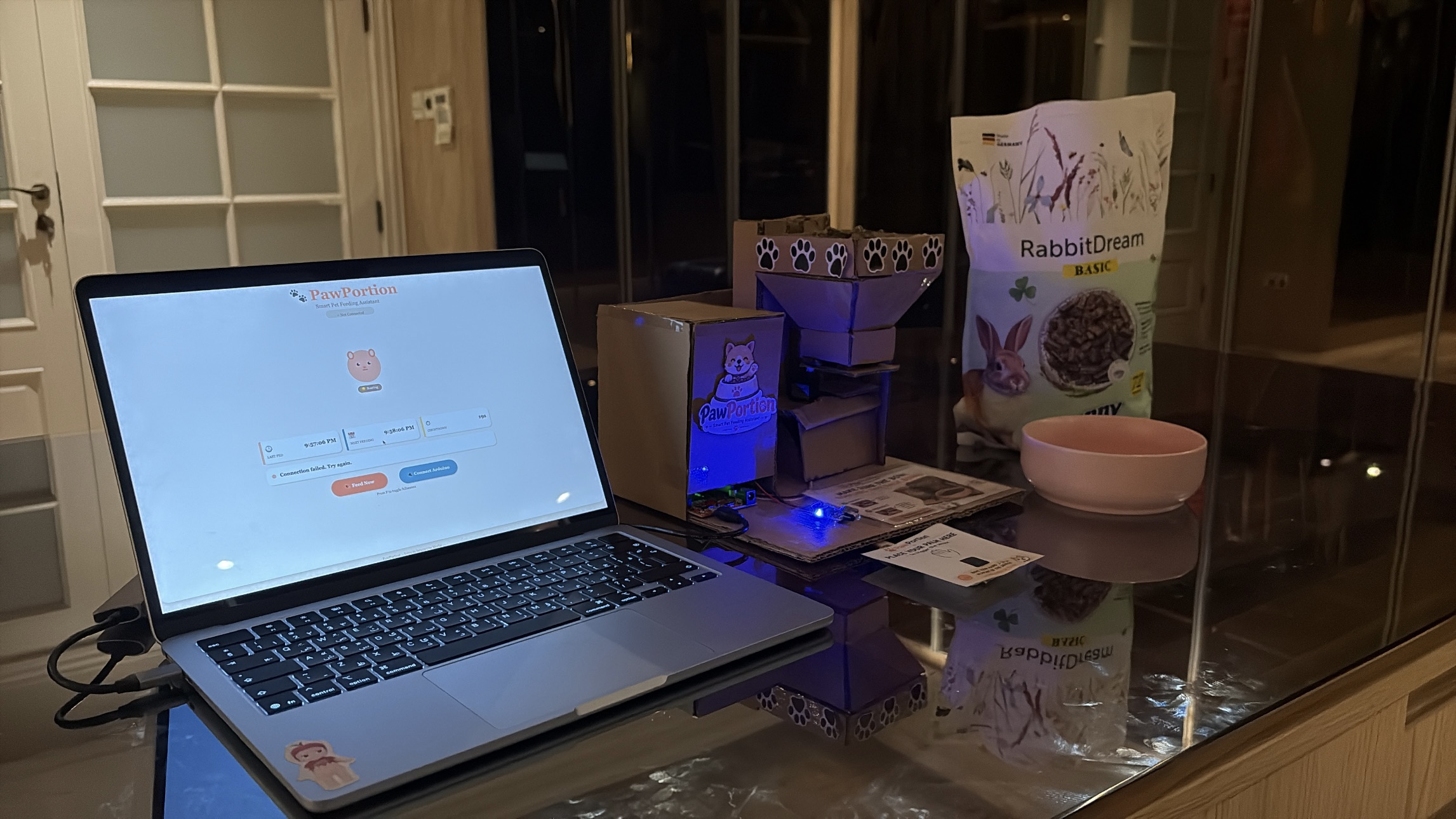
Images of Project

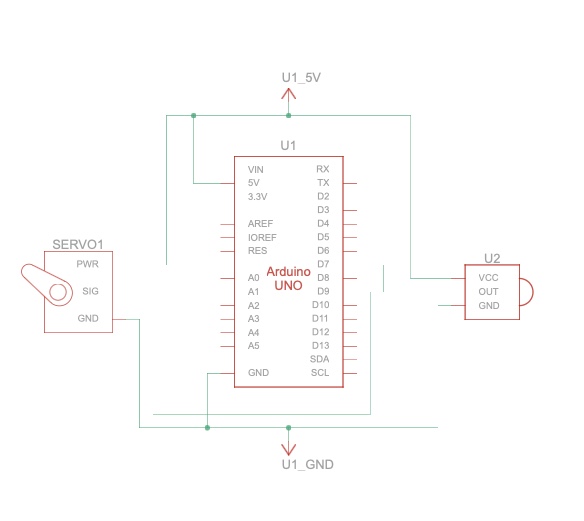
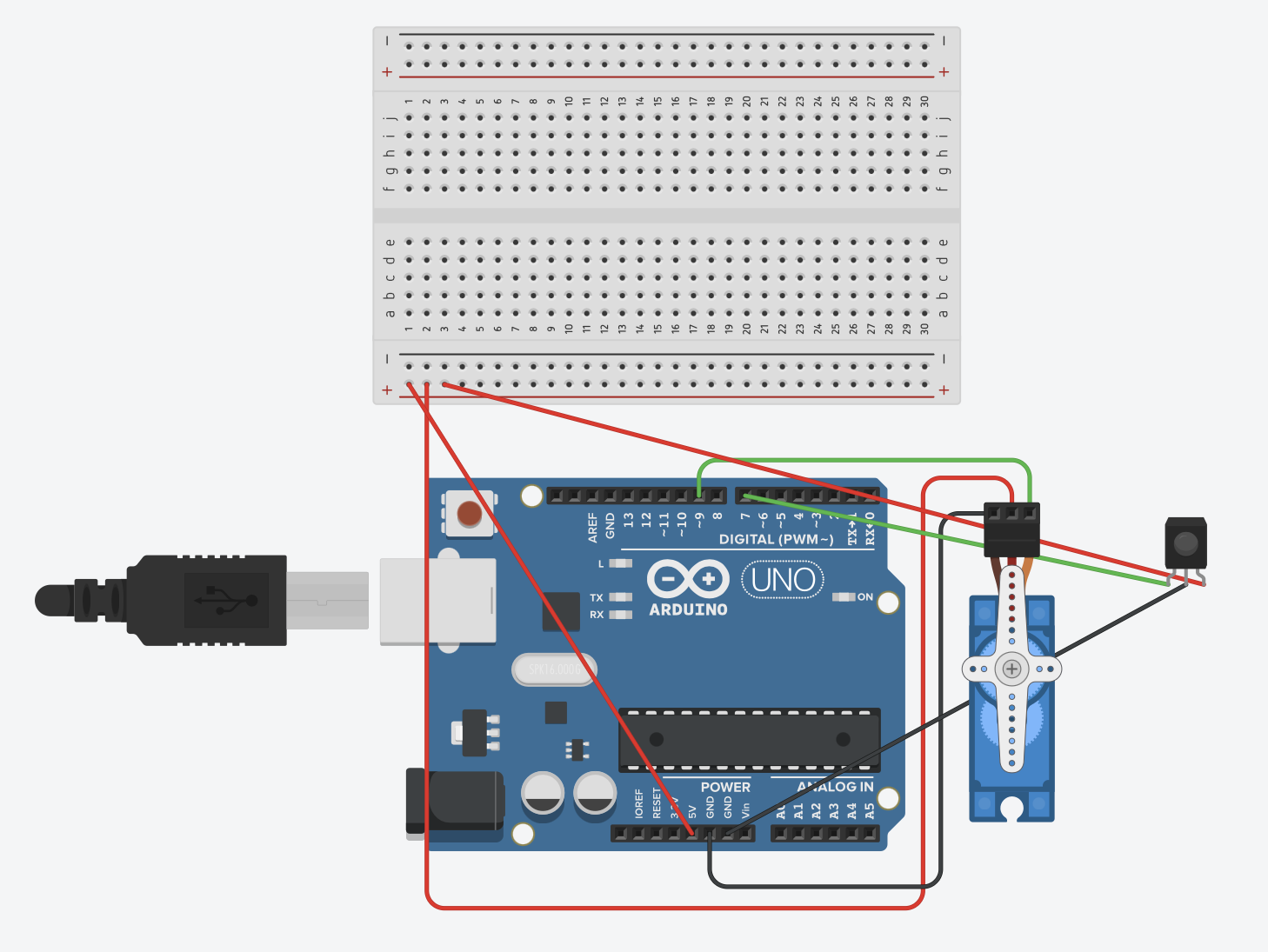
Schematic


Assembly Instructions 

User Testing Videos

During user testing, I wanted to see whether people could understand the system without me explaining every step. The main interaction was mostly clear. Users understood that the p5 dashboard was giving them feeding information, and they were able to recognize the “Feed Now” button as the main action. Once the servo moved and food was released, the connection between the digital interface and the physical feeder became much clearer.

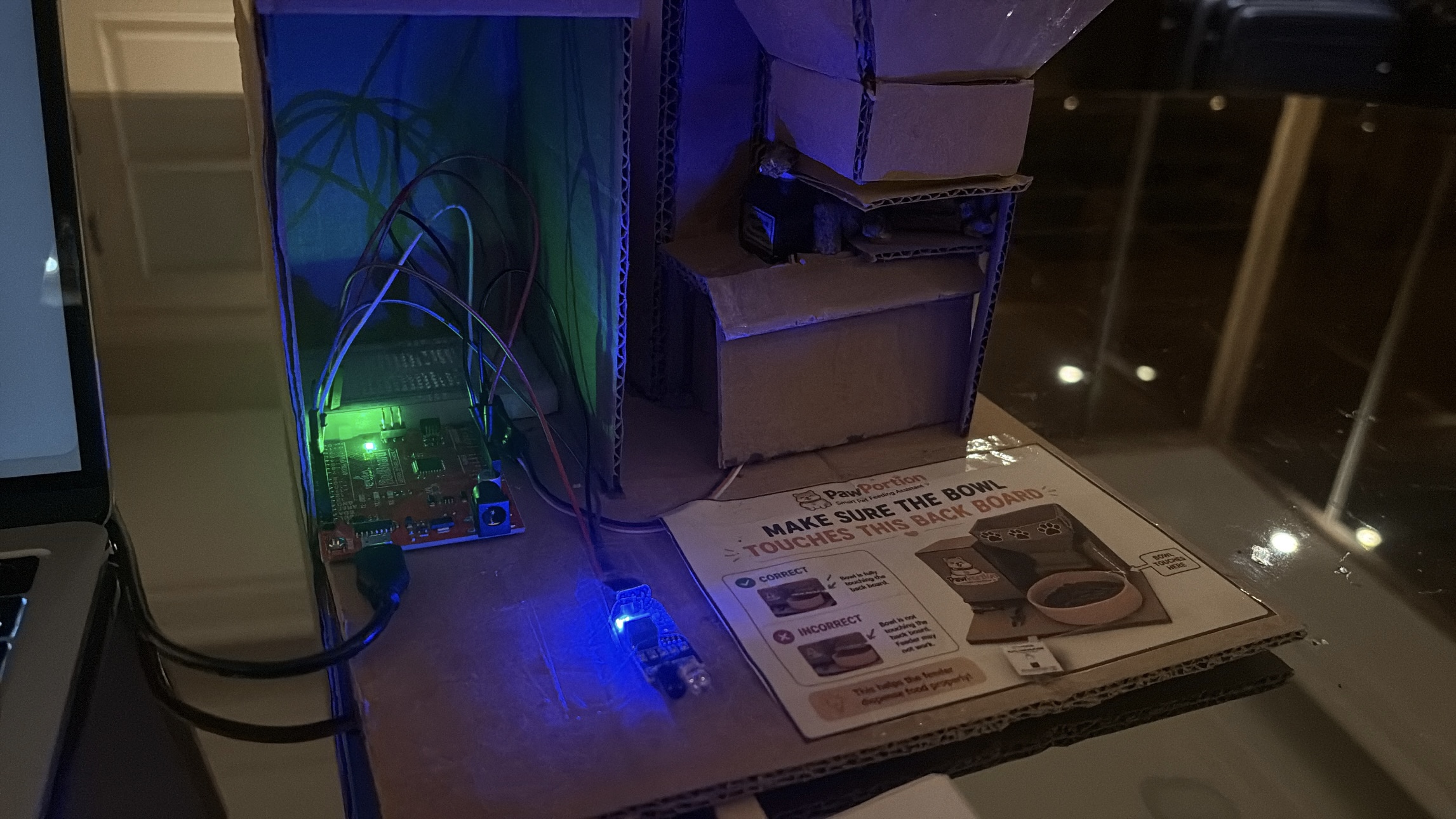
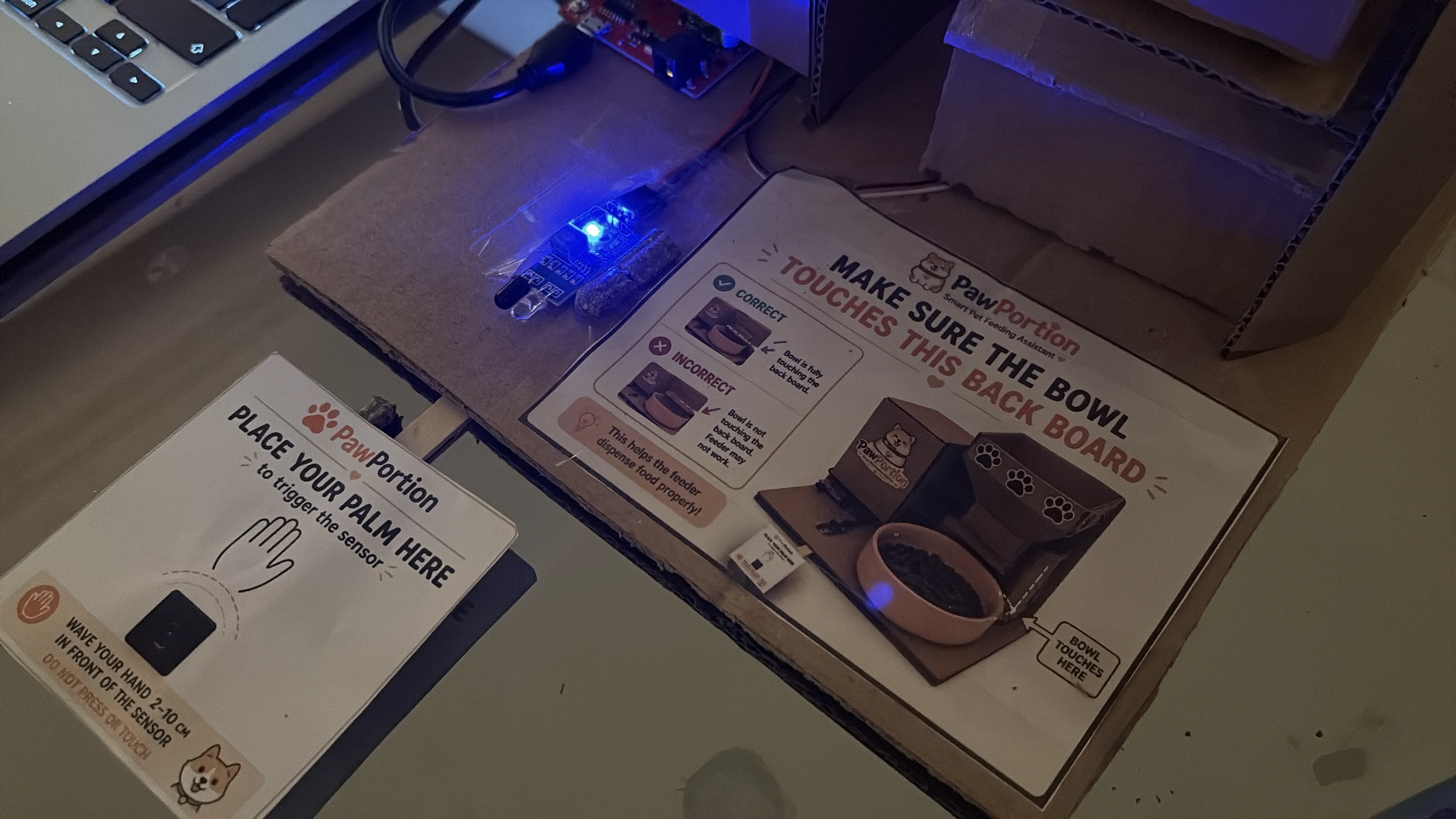
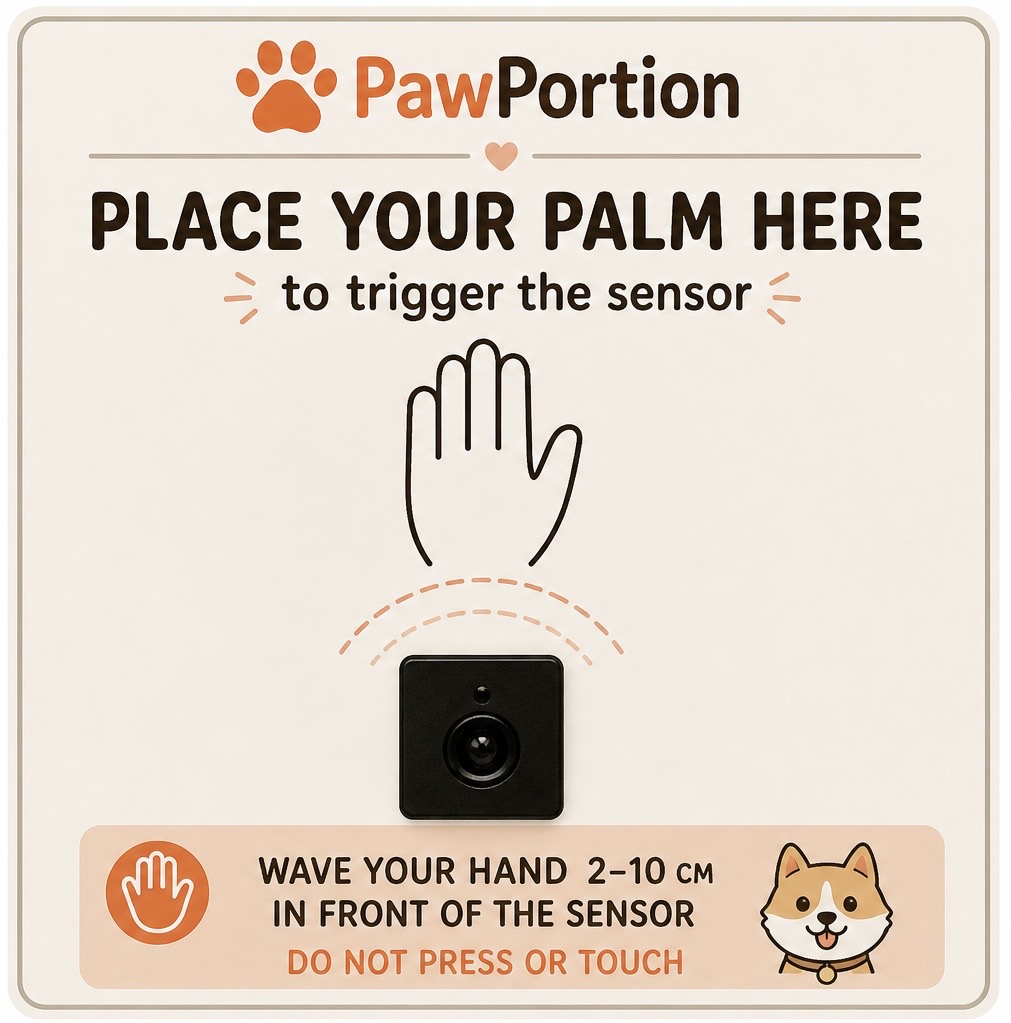
One important issue appeared during testing with the IR sensor. I had placed a printed image near the sensor to guide the user, but the image made some people interpret the IR sensor as a physical button. Instead of triggering it by placing something near it, they tried to press it directly. The problem was not that the sensor failed. The problem was that my visual instruction gave the wrong impression.

This taught me that physical interaction is not only about whether the circuit works. It is also about how the user reads the object. A small label, icon, or printed sign can completely change how someone understands what they are supposed to do. After seeing this confusion, I changed the printed label so it was clearer that the sensor detects presence rather than pressure. This made the interaction easier to understand and reduced the need for verbal explanation.
How Does the Implementation Work?

Description of Interaction Design

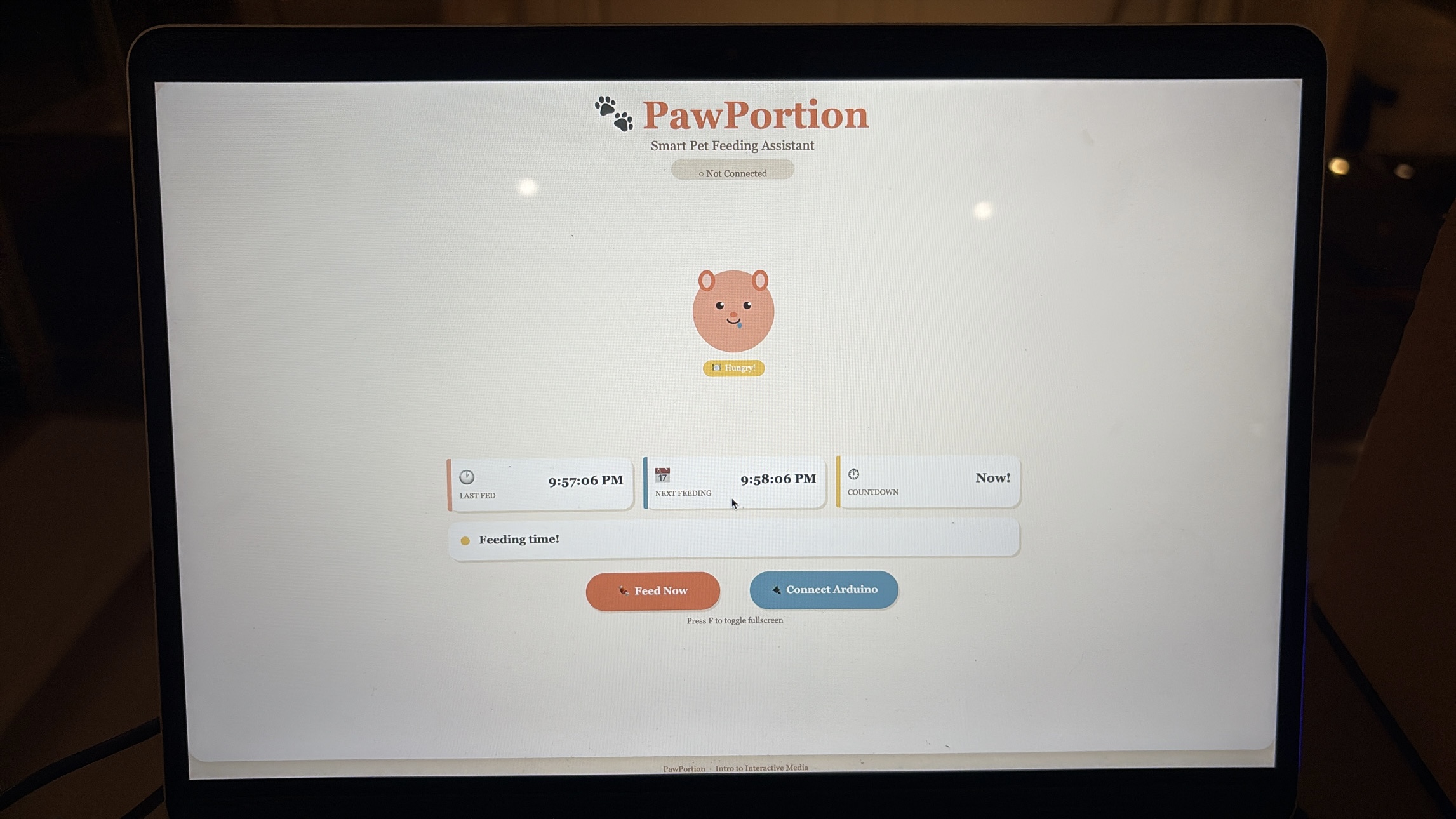
The interaction is built around a cycle between the user, p5, and Arduino. First, the p5 dashboard tracks time and displays the feeding schedule. The user can see when the pet was last fed, when the next feeding is due, and how much time is left. This makes the system readable before anything physical happens.

When feeding time arrives, the dashboard changes state. The pet becomes hungry, and the status message tells the user that it is feeding time. This is meant to guide the user instead of forcing the system to act automatically. The user then presses the “Feed Now” button on the p5 interface, which sends a command to Arduino.

Arduino receives the command and moves the servo motor. The servo acts like a small door or gate that opens to release food, then closes again. When Arduino finishes dispensing, it sends a message back to p5. After p5 receives that message, the dashboard updates the last feeding time, resets the countdown, and changes the pet’s mood to happy.

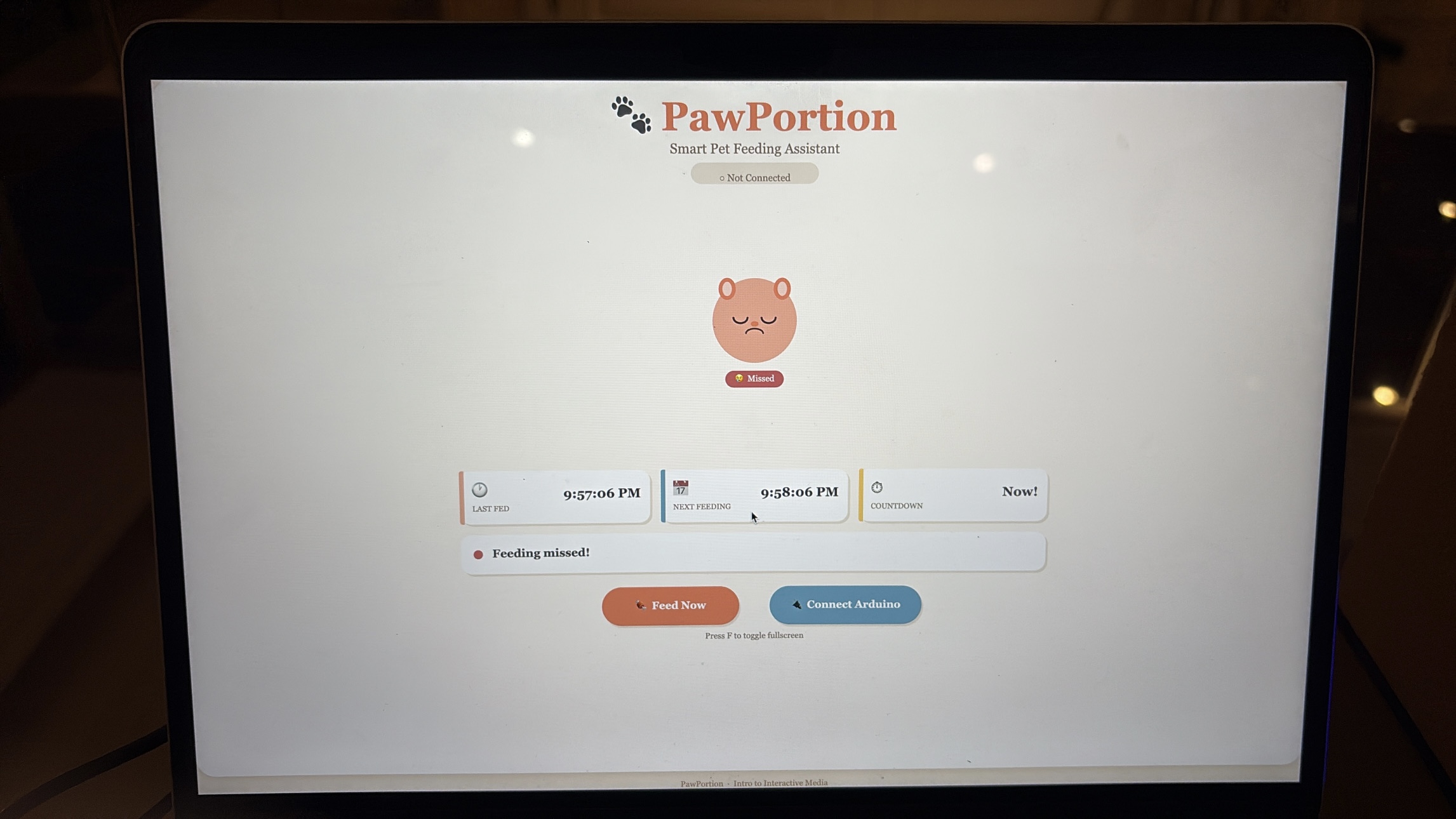
If the user does not feed within the grace period, the system marks the feeding as missed. The pet becomes sad, which makes the missed action more visible. I wanted this to feel gentle, not dramatic, but still noticeable enough that the user understands the consequence of ignoring the schedule, and that they should probably feed their pet.

Description of Arduino Code

Github Full Code

The Arduino code controls the physical side of the project. It is responsible for reading the IR sensor, controlling the servo motor, and communicating back to p5 when feeding is complete. I used named constants for the pins instead of random numbers, which makes the code easier to understand and edit later.

Snippet: defining the sensor pin, servo pin, and servo object.

#include <Servo.h>

const int SENSOR_PIN = 7;

const int SERVO_PIN  = 6;

Servo tap_servo;

The main function in the Arduino code is dispenseFood(). This function opens the servo, waits while food is released, closes the servo, and then sends “DONE” to p5. This message is important because it tells the dashboard that the physical feeding action has finished.

Snippet: the feeding function that opens the servo, closes it, and sends confirmation to p5.

void dispenseFood() {

  isDispensing = true;

  tap_servo.write(110);

  delay(2000);

  tap_servo.write(0);

  delay(300);

  lastFedTime = millis();

  isDispensing = false;

  Serial.println("DONE");

}

The Arduino also listens for serial messages from p5. When p5 sends “FEED”, Arduino immediately calls the feeding function. This is what connects the digital button to the physical movement.

Snippet: receiving the FEED command from p5.

if (Serial.available() > 0) {

  String cmd = Serial.readStringUntil('\n');

  cmd.trim();

  if (cmd == "FEED") {

    dispenseFood();

  }

}

I also added a cooldown so the IR sensor does not trigger repeatedly if something stays in front of it. Without this, the servo could keep dispensing again and again. The cooldown makes the physical interaction more controlled.

Description of p5.js Code


The p5.js code controls the digital dashboard. It handles the schedule, the pet mood, the buttons, and the communication with Arduino. The dashboard shows the last feeding time, the next feeding time, and a countdown. It also shows the pet’s mood, which changes depending on what is happening.

Snippet: timing values for the feeding schedule.

const FEED_INTERVAL_SEC = 60;

const MISSED_GRACE_SEC = 15;

The main schedule logic checks whether feeding time has arrived. If there is still time left, the pet stays neutral. If feeding time has arrived but is still within the grace period, the pet becomes hungry. If the grace period passes, the pet becomes sad.

Snippet: schedule logic that updates the pet mood.

if (secUntilFeed > 0) {

  petMood = "neutral";

  if (serialConnected) {

    statusMsg = "Waiting for next feeding";

  }

} else if (secUntilFeed > -MISSED_GRACE_SEC) {

  petMood = "hungry";

  statusMsg = "Feeding time!";

} else {

  petMood = "sad";

  statusMsg = "Feeding missed!";

}

When the user clicks “Feed Now,” p5 sends the word “FEED” to Arduino through serial communication. I used a newline at the end because it helps Arduino read the command as one complete message.

Snippet: sending the FEED command to Arduino.

const encoder = new TextEncoder();

const writer = port.writable.getWriter();

await writer.write(encoder.encode("FEED\n"));

writer.releaseLock();

The p5 code also listens for messages from Arduino. When it receives “DONE”, it updates the dashboard. This is what makes the interface respond only after the physical action finishes.

Snippet: checking for DONE from Arduino.

if (line === "DONE") {

  onFeedingDone();

}

I also added fullscreen functionality using the F key. This makes the dashboard easier to present during the final demo and makes it feel more like a complete interface rather than just a small sketch window. The course documentation specifically mentions fullscreen and responsive resizing as part of final project programming considerations.

Description of Communication Between Arduino and p5.js

The communication between Arduino and p5.js is one of the most important parts of the project. The system works through a two-way serial communication loop. p5 sends “FEED” to Arduino, Arduino moves the servo to dispense food, and then Arduino sends “DONE” back to p5.

This means the dashboard does not simply assume that feeding happened. It waits for Arduino to confirm that the physical action was completed. This made the project feel more reliable because the screen and the machine were connected through actual feedback.

This was also one of the hardest parts of the project because if the serial communication failed, the entire interaction felt broken. The dashboard could look fine, and the Arduino could work alone, but the project only felt complete when both sides were speaking to each other correctly.

Aspects Of The Project I’m Proud Of 

One of the strongest parts of this project is how far it goes compared to where I started at the beginning of the course. If I had seen this project in week one, I genuinely would not have believed that I could build it. It combines physical computing, serial communication, a digital dashboard, user interaction, timing logic, an animated interface, and a mechanical feeding system. That feels ambitious for me, and I am proud that I was able to execute it in a way that actually works.

I am also proud of how complete the project feels as an experience. It is not just Arduino moving a servo, and it is not just a p5 interface on a screen. The two parts depend on each other. The dashboard guides the user, the Arduino performs the physical action, and the screen updates after receiving confirmation. That connection makes the project feel like a full interactive system.

Another part that I think worked well is the personality of the interface. The pet mood makes the system feel more alive, and it helps communicate the feeding state without needing complicated instructions. The sad, hungry, happy, and resting states make the dashboard easier to understand and more engaging.

I am also proud that I improved the project through user testing. The IR sensor confusion could have been ignored, but I used it as a design lesson. Changing the printed label made the interaction clearer, which showed me that the physical design and the code are equally important.

Resources Used

p5.js

https://p5js.org/reference/ https://p5js.org/tutorials/get-started/ https://www.youtube.com/watch?v=c3TeLi6Ns1E

Serial Communication

https://itp.nyu.edu/physcomp/labs/labs-serial-communication/lab-webserial-input-to-p5-

js/https://itp.nyu.edu/physcomp/labs/labs-serial-communication/lab-webserial-output-from-p5-

js/https://makeabilitylab.github.io/physcomp/communication/p5js-serial.html

https://medium.com/@yyyyyyyuan/tutorial-serial-communication-with-arduino-and-p5-js-cd39b3ac10ce

Servo Motor

https://docs.arduino.cc/tutorials/generic/basic-servo-control/

https://learn.adafruit.com/adafruit-arduino-lesson-14-servo-motors/overview

https://www.youtube.com/watch?v=1mDnaiEytAI

IR Sensor

https://arduinogetstarted.com/tutorials/arduino-infrared-obstacle-avoidance-sensor

https://projecthub.arduino.cc/aboda243/obstacle-detector-using-ir-module-tutorial-101320

https://www.youtube.com/watch?v=vi4hkrrkwkY

https://www.youtube.com/watch?v=ESqhOKgKt5c

AI Usage

I used AI as a support tool during the development of this project. The most important use was debugging my p5.js code, especially because this was one of my first larger coding projects involving serial communication between Arduino and p5. Debugging was difficult because problems could come from the Arduino code, the p5 code, the serial connection, or the browser. AI helped me break down the problem and understand where the issue might be coming from.

AI also helped me understand how to structure parts of the p5 dashboard, especially the schedule logic, and serial communication. I still tested, adjusted, and integrated the code myself to make sure it worked with my actual Arduino setup.

if (secUntilFeed > 0) {
  petMood = "neutral";

  if (serialConnected) {
    statusMsg = "Waiting for next feeding";
  }

} else if (secUntilFeed > -MISSED_GRACE_SEC) {
  petMood = "hungry";
  statusMsg = "Feeding time!";

} else {
  petMood = "sad";
  statusMsg = "Feeding missed!";
}

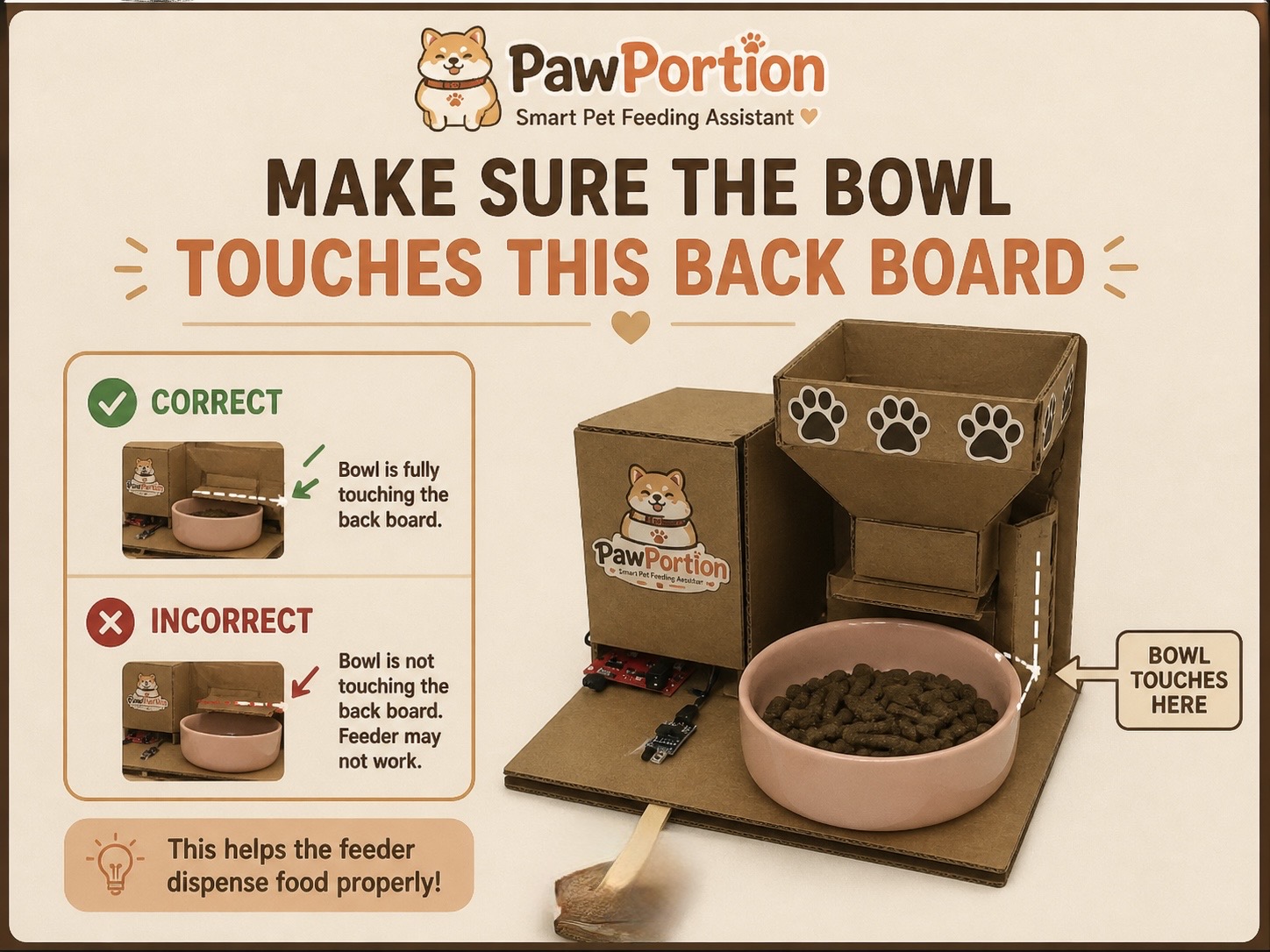
I also used AI to generate visual design elements for the project, including the PawPortion logo and printable signs for the physical machine. These visuals helped make the project feel more polished and easier for users to understand.
Challenges Faced and How I Tried to Overcome Them

The biggest challenge was serial communication between Arduino and p5. This was one of the first times I worked on a larger project where hardware and software had to communicate continuously. When something did not work, it was hard to know whether the problem was in the Arduino code, the p5 code, the USB connection, or the browser’s serial port.

I overcame this by testing each part separately. First, I tested the servo on Arduino by itself. Then I tested whether p5 could connect to the Arduino. Then I tested sending one simple command. After that, I tested receiving “DONE” back from Arduino. Breaking it into smaller steps made the project less overwhelming.

Another challenge was making the interaction clear to users. The IR sensor confusion showed me that a working sensor does not automatically mean a clear interaction. Users interpreted the printed image as a button because that was the visual language I accidentally created. I fixed this by changing the label and making the physical instruction clearer.

A third challenge was making the project feel polished. Since the project includes both physical and digital parts, it needed to look intentional from both sides. I worked on the dashboard design, printable labels, and project logo so the final setup felt like one system rather than separate pieces.

Future Improvements

If I had more time, I would improve the physical build of the feeder. I would make the container more stable, the food release cleaner, and the overall structure more durable. Right now, the prototype communicates the idea, but a more refined version could look and function more like a real product.

I would also improve the interface by adding sound feedback. For example, a small sound could play when feeding time arrives, when food is dispensed, or when feeding is missed. This would make the system more noticeable and more satisfying to use.

Another future improvement would be adding more customization to the schedule. Instead of using a short demo interval, the user could choose real feeding times, like morning and evening. This would make the system more practical outside of the class demo.

I would also conduct more user testing with people who have not seen the project before. Watching how people understand the physical setup, the IR sensor, and the dashboard would help me refine the interaction even more.

Overall, I am very very proud of how far i’ve come and can confidently say that this class was a very formative step for me in my university journey and the first step to taking on my passion for Interactive Media. 

Stipend Breakdown (50$):

Total Spend: 47.92$

Final Project – User Testing

I’ve made a few changes to my project as I worked through the coding and circuit building. Since I couldn’t get Force-Sensitive Resistors in my hometown quickly, I decided to use foil sensors instead. I also chose to remove the “black rule” (the ignore part) from my code because it was difficult to integrate, and I don’t think it changes the game much. I’ve settled on three levels, each with three randomized sequences. The flow is simple: the screen shows a sequence, and then a timer starts to give the player time to input what they saw. It gets much harder, and the time limits get tighter as you reach the third level.

For user testing, I let my cousin try the game out. She understood the intro and instructions well, though I realized I forgot to update my text after changing the rules. This caused a bit of confusion at first, she wasn’t sure if she should press the board while the sequence was showing or wait for the timer. While the first level worked perfectly, most of them had a hard time getting past the second level. I discovered that as the sequences get more complicated, my Arduino and p5.js struggle to talk to each other fast enough. Even when my cousins did the right thing, the game wouldn’t always register it.

Moving forward, my main goal is to fix the lag in levels two and three, so the game plays smoothly. I want to make sure the players actually enjoy the challenge rather than fighting with the controls. I also plan to improve the UI by adding more sound effects, especially for when a player levels up, to make the whole experience feel more polished and fun.

Final Project: My Secret Combination

“My secret combination, it’s a mystery for you.” Kalomira at the Grand Final of the Eurovision Song Contest 2008

Concept:

For my Final Project, I was very much inspired by my love for escape rooms. I love going to them and trying to figure out their unique puzzles. One thing I’ve always noted in escape rooms is that usually, you’re tasked to complete a few puzzles, and you’ll get a code, for which you twist the numbered padlock to escape. I wanted to take that concept and flip it, where you have to twist the dial, in order to get the code and escape.

Which is why, for my Final Project, I’ve created a game, which asks the player to figure out and enter the correct combination in order to win. The player needs to spin the potentiometers (which will be referred to as dials from this point onwards) and see at what value do the LEDs turn on. With all three LEDs, the player will get the secret code and can use to win! This project was mainly designed as a proof of concept of flipping the classic escape room idea, and hopefully escape room makers can implement it in the future!

Demo of the Final Project:

Design:

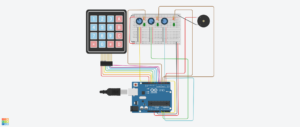
Link to the Tinkercad!

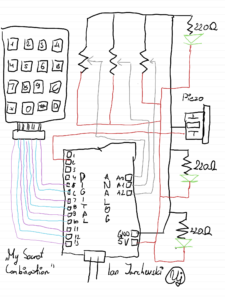
Hand Drawn Schematic:

How does the Project work:

For the beginning of the code, we need to create our own custom Digital Keypad, using the Keypad.h library. For this section a special mention and credits goes to Domingo Martinez, for explaining the code and helping me understand how to use the library. Using the keypad library, we can make a 2D array where we can define each key of the keypad. And then we can use the Keypad function to create our own keypad based on the number of columns, rows and also the aforementioned 2D array.

//Adding in the relevant library for the Keypad
#include <Keypad.h>

//Defining the number of Rows and Columns for our Keypad
//Credit to Domingo Martinez for explaining the code for Keypads: https://youtu.be/sPhcOm3FdOQ
const byte ROWS = 4;   
const byte COLS = 4;   

//Creating a 2D Array for our Keypad as that's how it is structured
char hexaKeys[ROWS][COLS] = {  
  {'1','2','3','A'},  
  {'4','5','6','B'},  
  {'7','8','9','C'},  
  {'*','0','#','D'}  
};  

//Here we're saying to which pins the Keypad is connected to
byte rowPins[ROWS] = {13,12,11,10}; 
byte colPins[COLS] = {9,8,7,6};     

//Creating our own custom Keypad Map
Keypad customKeypad = Keypad(makeKeymap(hexaKeys), rowPins, colPins, ROWS, COLS);

Then we need to define the pins which we’re using for the LEDs, Piezo and the Dials. I’ve discovered you can define multiple of them in a list so I went with that approach. Also I took the liberty of creating our secret code here, being the target numbers, and also the last dial values. These numbers will be updated constantly as the user twists the dials and saves them so that the program can later use them.

//Here we can define some constants for each of our connected pins
const int dials[3] = {A0, A1, A2};
const int leds[3] = {5, 4, 3};   
const int piezo = 2;

//This will be the secret code the player needs to get
const int targetNumbers[3] = {4, 7, 2}; 

//This is a list which will update based on the values that the user gets from twisitng the dials
int lastDialValues[3]   = {0, 0, 0}; 
String enteredCode = "";

Created a small function for the Piezo, as we need to dynamically update its frequency, duration and tone, for our different sounds.

//A simple function just to define the sound for the Piezo
void tonePiezo(int freq, int duration) {
  tone(piezo, freq);
  delay(duration);
  noTone(piezo);
}

Within the Setup function, I’ve defined the serial communication, and to constantly loop in order to check the output for the LEDs and the Piezo. Also wrote a little starting message for the player in the serial monitor and kinda gives off a notification to the user that the game has started.

//Our main setup function, starting off with the serial communication
void setup() {  
  Serial.begin(9600);
  
  //A for loop which checks for each LED its output as we want to constantly update
  for (int i = 0; i < 3; i++) {
    pinMode(leds[i], OUTPUT);
  }
  pinMode(piezo, OUTPUT);
  
  //Just prints a text saying the user can start to crack the code
  Serial.println("Unlock the Code!! Twist dials to find the code.");
}

Now, we get our handy loop function. In the first part of it, I’ve created a big for loop as I want it constantly check each of the three potentiometers and see their values update. Firstly, we read the Dials’ values, then we create mapped values for each dial, using the map function. This will simply take the values of the dials, and turn them into numbers from 1 to 9, so they can be used for our keypad later. As the user twists the dial, the code checks the current mapped dial value with the previous one and updates the serial monitor with some text accordingly. This is so the user is aware what the current value of the dial is. The finally, if the mapped dial value is the same as one of the target number values, or our code, then the LED will flash, indicating to the user that they’ve gotten it correct.

//Here is where the meat of it will happen,
void loop() {  
  //Using a for loop to check for all three Potentiometers
  for (int i = 0; i < 3; i++) {
    
    //We read each potentiometer and get its value
    analogRead(dials[i]); 
    delay(5);
    int dialValue = analogRead(dials[i]);
    
    //Then we map its value using the map function
    int dialMap = map(dialValue, 0, 1023, 1, 9);
    
    //Now for each Dial, we just check if its the same as the previous value and update it with the current value
    if (dialMap != lastDialValues[i]) {
      Serial.print("Dial ");
      Serial.print(i + 1);
      Serial.print(" is now at: ");
      Serial.println(dialMap);
      lastDialValues[i] = dialMap; 
    }
    //If the value that we are on the potentiometer is the same as the value of the secret code, then the LED turns on
    if (dialMap == targetNumbers[i]) {
      digitalWrite(leds[i], HIGH);
    } else {
      digitalWrite(leds[i], LOW);
    }
  }

Now the second part of the loop function is purely dedicated to the keypad. We take our custom keypad we built above and use it for various different things. Firstly we need to give feedback to the user that they’ve pressed a button on the keypad, which is done by virtue of the first if statement. Then we add that pressed key to our string, which is used for a few things in order to check if the played got the code or not. Firstly it checks for its length, which must be three for three dials. Then we check if the string is the same as the target numbers of our secret code. If the player got the right code, we output a victory message with a happy sound effect, if not, then a error message with a buzzing sound to indicate the player is wrong.

  //From the custom keypad we make a character from the key pressed, so it will displayed
char customKey = customKeypad.getKey();

//A simple if statement that prints out the key for the user, and also uses for the ente
if (customKey) {  
  Serial.print("Key Pressed: ");
  Serial.println(customKey);
  
  //This adds the character that came from the keypad to the string
  enteredCode += customKey; 
  
  //This is just a short sound from the Piezo which is meant to serve as like feedback for the user
  tonePiezo(500, 50); 
  
  //Checks if the code is 3 characters
  if (enteredCode.length() == 3) {
    //And here we check if the secret code is the same as what the user entered
    String secretCode = String(targetNumbers[0]) + String(targetNumbers[1]) + String(targetNumbers[2]);

    //Checks if the entered code is correct or not
    if (enteredCode == secretCode) {
      Serial.println("You have guessed the combination! You win!");
      playVictorySound();
    } else {
      Serial.println("That's wrong! Try again.");
      tonePiezo(200, 500); 
    }
    //Resets the player inputted code so they can try again
    enteredCode = ""; 
  }
}

This final part is our victory sound function. I’ve used Google Gemini for this part as I had no knowledge at all of how to create it. But it was useful to understand as the way it’s done is with a list that plays each sound frequency in order, with a bit of a delay between each sound so that the sounds can be propely heard.

//Plays a happy congratulatory sound
//Used Google Gemini to figure out the melody as I didn't understand how to make a melody 
void playVictorySound() {
  int melody[] = {262, 330, 392, 523}; 
  int duration = 150;
  
  //A for loop that goes through all the notes and plays them
  for (int i = 0; i < 4; i++) {
    tonePiezo(melody[i], duration);
    delay(50); 
  }
}

Parts that I’m quite proud of:

Honestly I think the part I’m most proud of was playing around with the keypad. I didn’t have any understanding intially as when I placed the keypad in, I actually I thought it would work automatically. But after watching that video that explained it I saw that you actually have to define a full on custom keypad for your own project. Also getting to know the map function was actually something I’m proud of to know now. In one of my previous projects, I’ve used the potentiometer but I needed to fiddle around with it in the code as it had a bit of noise. But understanding this, it really helped to have a specific concrete value for each part of the potentiometer and worked perfectly in the sense of making a keypad work functionally, with not much deviation.

Areas of Future Improvements:

I think probably the biggest area of improvement is implementing it in a p5js sketch so that it can look visually appealing. Of course the limitation in Tinkercad was definitely a factor but I think I could definitely build this and make a sketch in p5js so that the player can have a visual experience with it. Another approach I was going for initally was with an LCD panel, but I had a few issues in understanding the LCD panel on its own, and also I didn’t have enough pins on my Arduino so I can add it in. Definitely one possible way to improve it as while the serial monitor does do it justice, this would be a much more visually appealing way to go about it.

Reflecting on the Final Project:

I’m very pleased that the entire project in the end worked overall correctly and all parts that I’ve put worked synchronously. And I think getting rid of the buttons actually made more sense as there is an element of discovery for the player and I think giving a button to confirm it kinda ruins the magic of figuring out what the dial and subsequent LED lighting means. I’m quite gutted that I couldn’t implement the LCD panel into it due to issues I’ve had with it. If I had extra time, I could probably figure out some sort of way to implement it with some sort additional pins to the Arduino and get it working, but time is of the essence at the moment.

But this project has really taught me how escape rooms kind of balance an equilibrium of interactivity with the player, but also not being as very obvious and letting the player discover parts on their own. Even looking back at the puzzles I’ve done in escape rooms, I can understand clearly why the main aim is discovery of the puzzles and to have an interactive design so it sparks the curiousity for the player. For this project’s user testing, I believe I’ve gotten that approach, as my tester figured out some of the components. They were able to discover their functions and with a little curiousity, were able to figure out what was needed to be done to solve the puzzle.

Thoughts overall for this course:

While this section isn’t needed I thought I’d give a bit of a paragraph of thought for this introductory course. Going into it I had no idea what I’m getting myself into as I didn’t understand what Interactive Media represented. But I think the course really captured that idea of how with a little code, creativity and interacting with different tools, we can craft some fun experiences for anyone to enjoy. The readings as well gave me a very nice and different way of thinking when it comes to how we design and interact with various different products. Genuinely I really enjoyed this course and I want to extend a heartfelt thanks to Prof Mang for his support and constant love for getting us to become curious thinkers and interactive designers. Even with the course moving remotely, I think genuinely appreciate having supplementary options to still follow along and be a part of the course. I can only hope to take more Interactive Media courses in the future!

Signing off for Intro to IM, Spring 2026 with Prof Mang, I wish all of you an amazing summer break, and make sure to take care of yourselves, keep being curious and make sure to stay awesome always!

Ian Jarchevski

Full source Code:

//My Secret Combination
//Ian Jarchevski 04.05.2026
//Intro to IM, Final Project

//Adding in the relevant library for the Keypad
#include <Keypad.h>

//Defining the number of Rows and Columns for our Keypad
//Credit to Domingo Martinez for explaining the code for Keypads: https://youtu.be/sPhcOm3FdOQ
const byte ROWS = 4;   
const byte COLS = 4;   

//Creating a 2D Array for our Keypad as that's how it is structured
char hexaKeys[ROWS][COLS] = {  
  {'1','2','3','A'},  
  {'4','5','6','B'},  
  {'7','8','9','C'},  
  {'*','0','#','D'}  
};  

//Here we're saying to which pins the Keypad is connected to
byte rowPins[ROWS] = {13,12,11,10}; 
byte colPins[COLS] = {9,8,7,6};     

//Creating our own custom Keypad Map
Keypad customKeypad = Keypad(makeKeymap(hexaKeys), rowPins, colPins, ROWS, COLS);  

//Here we can define some constants for each of our connected pins
const int dials[3] = {A0, A1, A2};
const int leds[3] = {5, 4, 3};   
const int piezo = 2;

//This will be the secret code the player needs to get
const int targetNumbers[3] = {4, 7, 2}; 

//This is a list which will update based on the values that the user gets from twisitng the dials
int lastDialValues[3]   = {0, 0, 0}; 
String enteredCode = "";

//A simple function just to define the sound for the Piezo
void tonePiezo(int freq, int duration) {
  tone(piezo, freq);
  delay(duration);
  noTone(piezo);
}

//Our main setup function, starting off with the serial communication
void setup() {  
  Serial.begin(9600);
  
  //A for loop which checks for each LED its output as we want to constantly update
  for (int i = 0; i < 3; i++) {
    pinMode(leds[i], OUTPUT);
  }
  pinMode(piezo, OUTPUT);
  
  //Just prints a text saying the user can start to crack the code
  Serial.println("Unlock the Code!! Twist dials to find the code.");
}  

//Here is where the meat of it will happen,
void loop() {  
  //Using a for loop to check for all three Potentiometers
  for (int i = 0; i < 3; i++) {
    
    //We read each potentiometer and get its value
    analogRead(dials[i]); 
    delay(5);
    int dialValue = analogRead(dials[i]);
    
    //Then we map its value using the map function
    int dialMap = map(dialValue, 0, 1023, 1, 9);
    
    //Now for each Dial, we just check if its the same as the previous value and update it with the current value
    if (dialMap != lastDialValues[i]) {
      Serial.print("Dial ");
      Serial.print(i + 1);
      Serial.print(" is now at: ");
      Serial.println(dialMap);
      lastDialValues[i] = dialMap; 
    }
    //If the value that we are on the potentiometer is the same as the value of the secret code, then the LED turns on
    if (dialMap == targetNumbers[i]) {
      digitalWrite(leds[i], HIGH);
    } else {
      digitalWrite(leds[i], LOW);
    }
  }
    //From the custom keypad we make a character from the key pressed, so it will displayed
  char customKey = customKeypad.getKey();
  
  //A simple if statement that prints out the key for the user, and also uses for the ente
  if (customKey) {  
    Serial.print("Key Pressed: ");
    Serial.println(customKey);
    
    //This adds the character that came from the keypad to the string
    enteredCode += customKey; 
    
    //This is just a short sound from the Piezo which is meant to serve as like feedback for the user
    tonePiezo(500, 50); 
    
    //Checks if the code is 3 characters
    if (enteredCode.length() == 3) {
      //And here we check if the secret code is the same as what the user entered
      String secretCode = String(targetNumbers[0]) + String(targetNumbers[1]) + String(targetNumbers[2]);

      //Checks if the entered code is correct or not
      if (enteredCode == secretCode) {
        Serial.println("You have guessed the combination! You win!");
        playVictorySound();
      } else {
        Serial.println("That's wrong! Try again.");
        tonePiezo(200, 500); 
      }
      //Resets the player inputted code so they can try again
      enteredCode = ""; 
    }
  }
  
  delay(10); 
}
//Plays a happy congratulatory sound
//Used Google Gemini to figure out the melody as I didn't understand how to make a melody 
void playVictorySound() {
  int melody[] = {262, 330, 392, 523}; 
  int duration = 150;
  
  //A for loop that goes through all the notes and plays them
  for (int i = 0; i < 4; i++) {
    tonePiezo(melody[i], duration);
    delay(50); 
  }
}

for scrolling all the way down, here’s a cat spinning on a record player 😀


Final Project: Pressure-Based Digital Piano (Pressyr)

Concept of project:

This project explores how physical pressure can be translated into sound and visual feedback through an interactive system. I created a simple piano-like device using force-sensitive resistors (FSR), where users can press pads to generate different notes while also seeing corresponding visuals on the screen.

Rather than using traditional keys, the system relies on pressure-based input, making the interaction feel more experimental and expressive. I also included an arcade button to control when the system starts, giving users a clear entry point before interacting with the instrument.

To connect the physical and digital aspects, I used p5.js to generate real-time visuals that respond to each input. When a pad is pressed, it triggers both sound and visual feedback simultaneously, creating a more engaging and responsive experience.

Overall, the project focuses on how simple physical input can be transformed into a combined audio-visual interaction that feels intuitive while still allowing room for exploration.

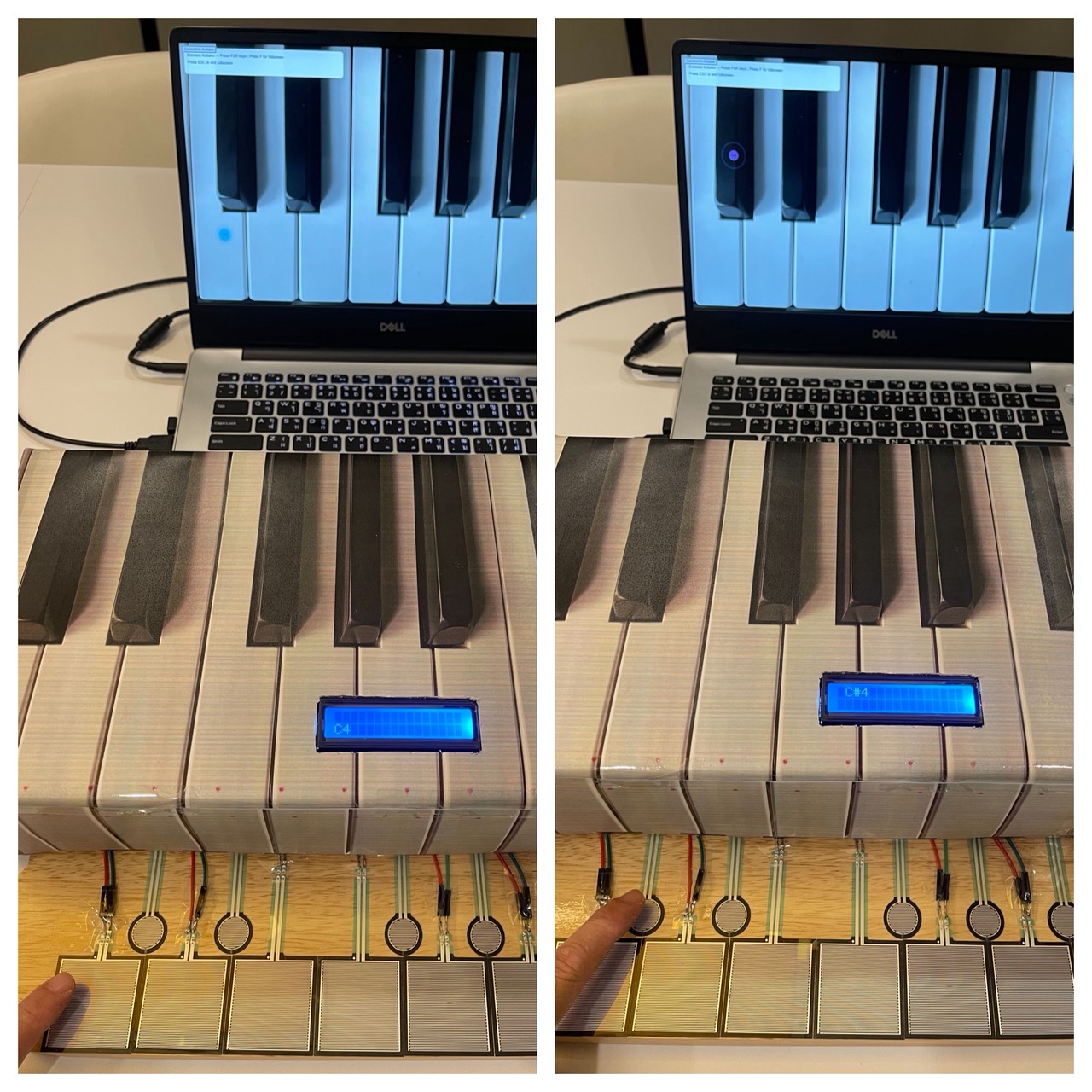
Pictures of Project:

VDO of project:

https://youtu.be/PZ8KxiPyQQQ?si=CkNlTvbEHZVMZ3Hm

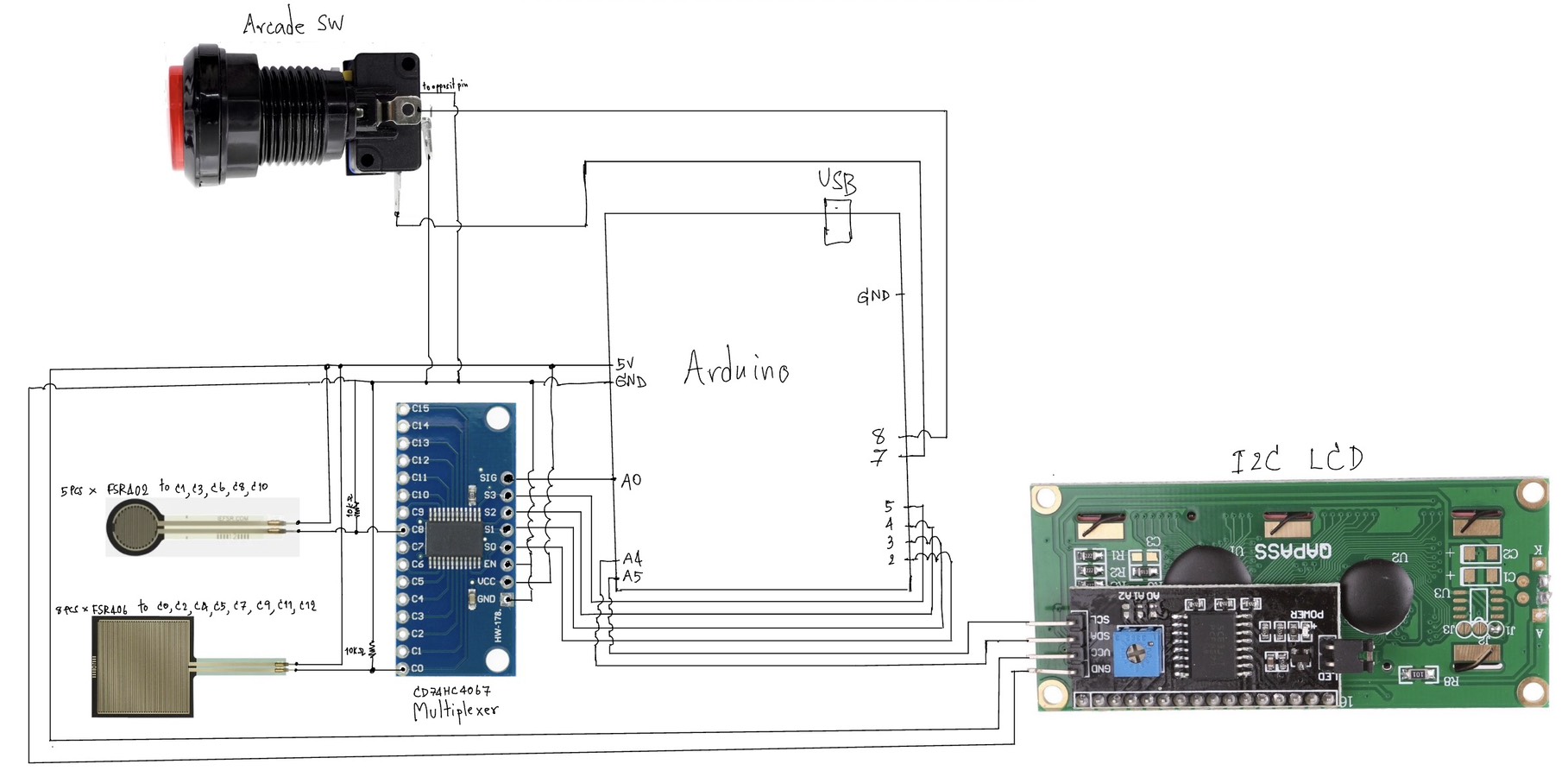
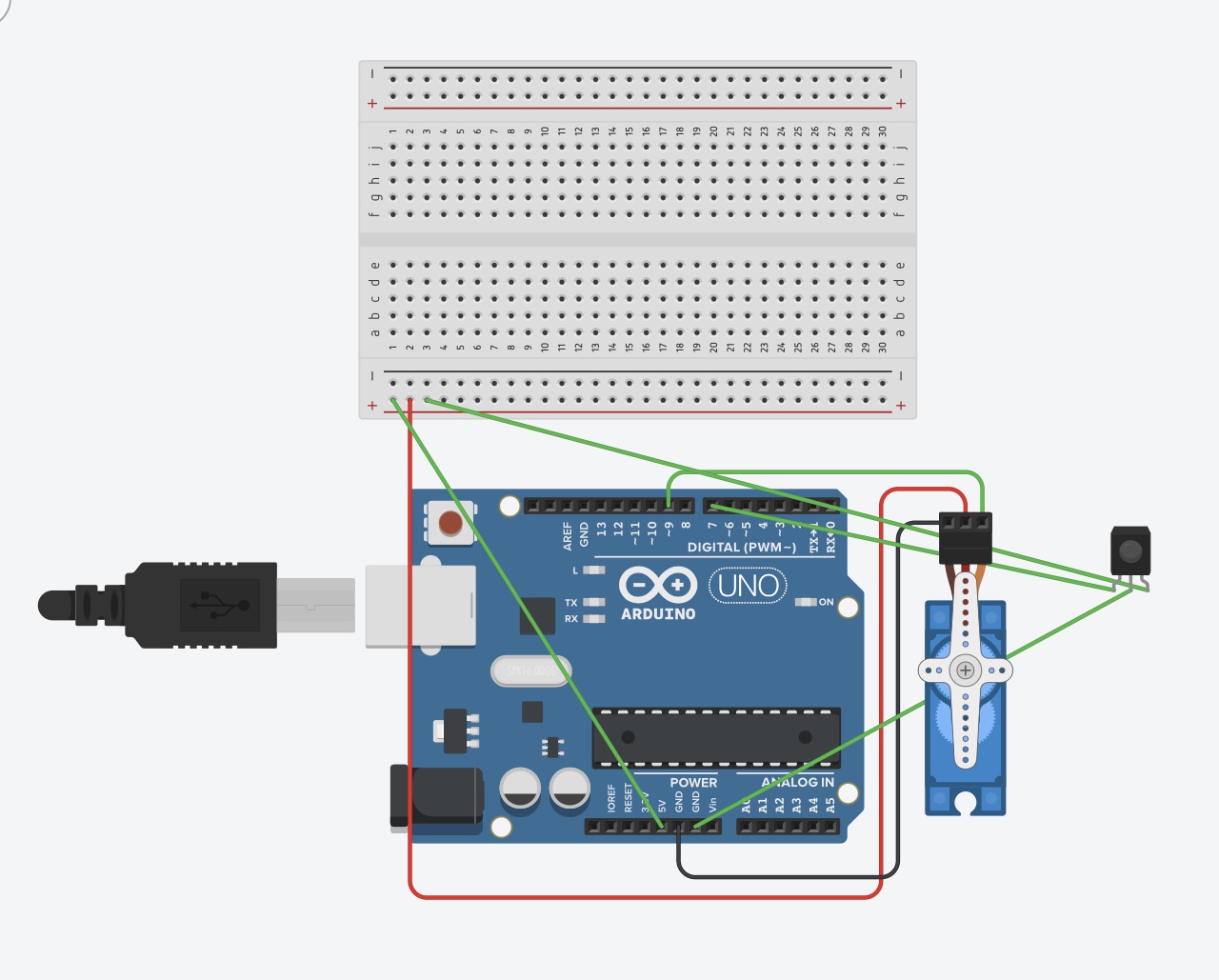
Schematic:

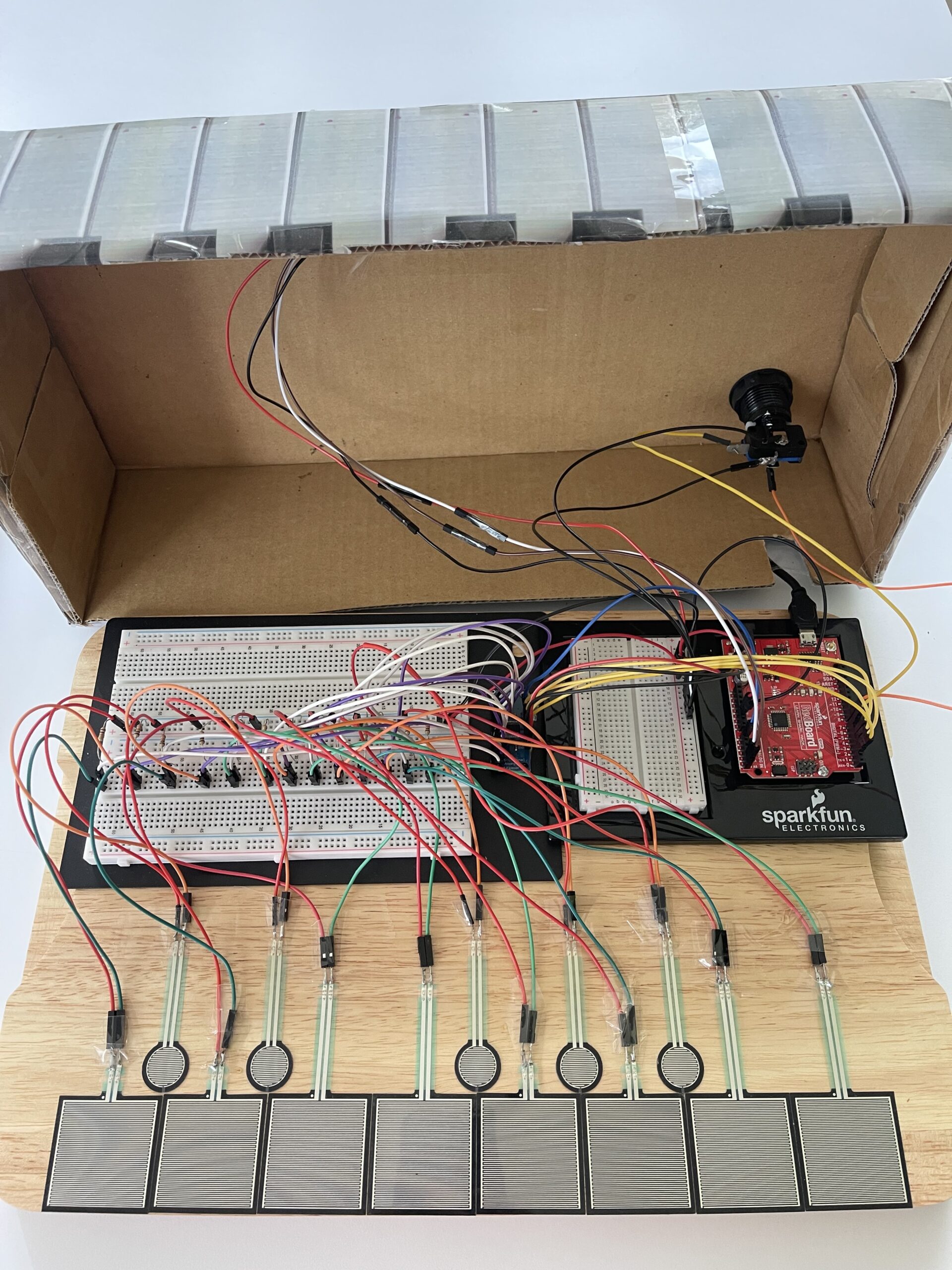
Wiring inside the cardboard box:

VDO of user testing(without giving any instruction):

https://youtu.be/GeI6QWZyzsk?si=tPqhPQI3fib59SSb


Interaction Design:

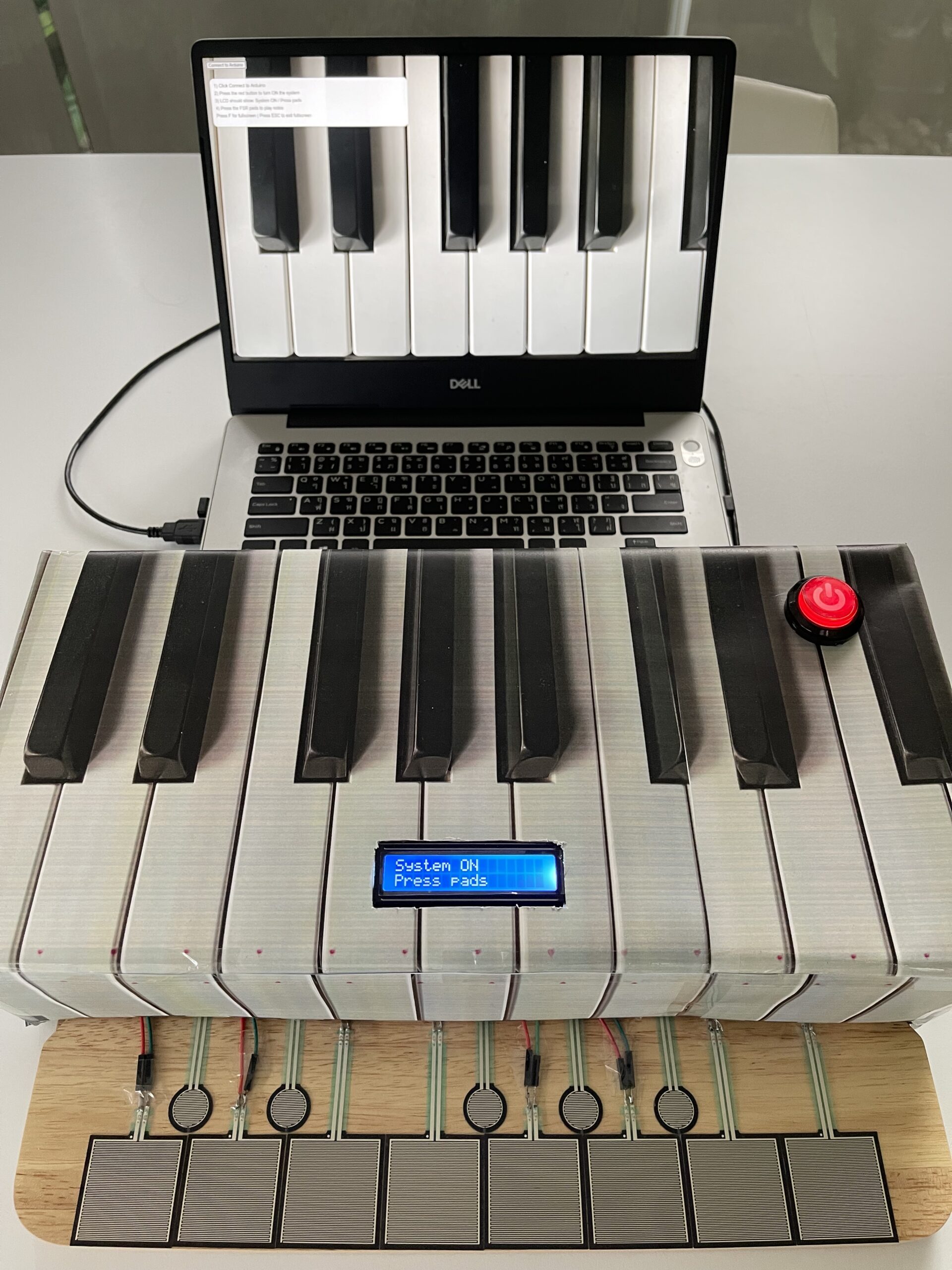
The interaction starts when the user presses the red arcade button. This turns the system ON, which is also shown on the LCD screen. The LCD then guides the user by displaying “Press pads”.

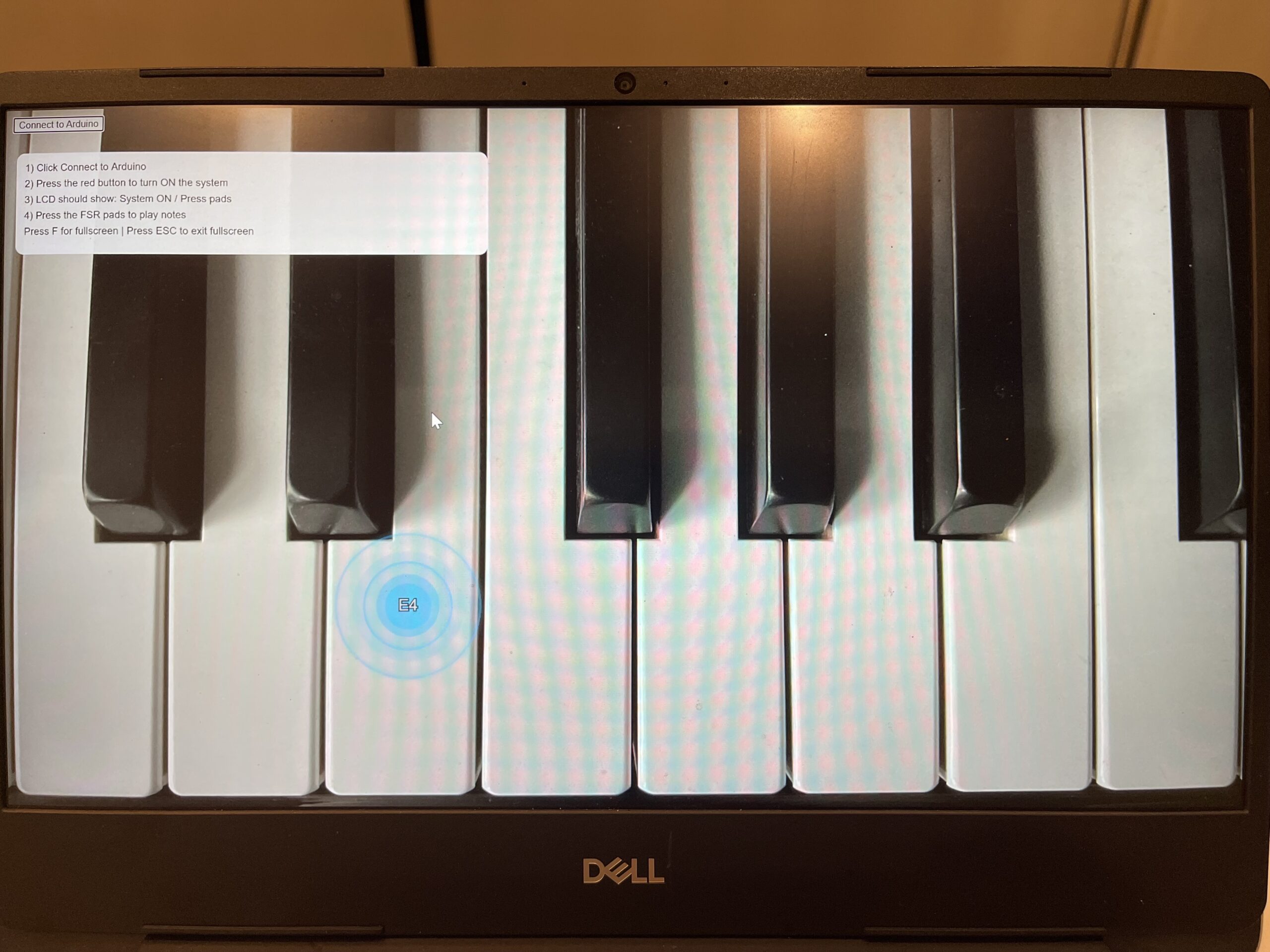
After that, the user can press any of the pressure sensors (FSR). Each sensor corresponds to a musical note (C4, D4, etc.). When a pad is pressed, the system sends the signal to p5.js, which plays a sound and shows a visual effect on the screen.

If no interaction happens for a few seconds, the system resets back to the default state, which helps new users understand what to do next.


Arduino code:

The Arduino is responsible for reading input from multiple FSR sensors using a CD74HC4067 multiplexer. This allows me to read many sensors using only one analog pin.

Each FSR is connected using a voltage divider with a resistor to produce stable analog values. The Arduino checks whether the value is above a threshold to determine if a pad is being pressed.

When a pad is pressed, the Arduino sends the index of the key through Serial communication to p5.js. It also receives note names back from p5.js and displays them on the I2C LCD screen.

The arcade button is used to control whether the system is ON or OFF, and the LED inside the button provides visual feedback.

Codes snippets:

(1) Multiplexer reading

// Select channel on multiplexer
digitalWrite(S0, bitRead(channel, 0));
digitalWrite(S1, bitRead(channel, 1));
digitalWrite(S2, bitRead(channel, 2));
digitalWrite(S3, bitRead(channel, 3));

int sensorValue = analogRead(SIG);

This part selects which FSR is being read through the multiplexer and reads its analog value.

(2) Threshold logic

if (sensorValue > threshold) {
  Serial.println(channel);
}

This checks if a pad is being pressed and sends the index to p5.js.

(3) LCD display

lcd.setCursor(0, 0);
lcd.print("System ON");
lcd.setCursor(0, 1);
lcd.print("Press pads");

The LCD provides instructions to guide the user.

Arduino and p5.js GitHub:

https://github.com/skyorachorn/Intro-to-IM/tree/a7a5972712776f5ea0d3234a5193a3694f5a07d0/Final_Project


p5.js code:

The p5.js program receives data from Arduino using serial communication. When it receives a key index, it maps it to a specific note and plays the corresponding sound using an oscillator.

At the same time, a visual effect is generated at the position of the key. The visual consists of expanding circles with glow effects and fading animation.

I also added instructions on the screen to guide the user, especially for first-time interaction. The canvas is responsive and can switch to full screen mode for a better experience.

Codes snippets:

(1) Serial receive

let str = port.readUntil("\n");

if (str.length > 0) {
  let keyIndex = int(trim(str));
}

p5.js reads incoming data from Arduino.

(2) Trigger sound

osc.freq(note.freq);
env.triggerAttack(osc);

This plays the sound when a pad is pressed.

(3) Visual effect

balls.push({
  x: sx,
  y: sy,
  size: 28,
  alpha: 255
});

This creates the visual feedback on screen.

Communication between Arduino and p5.js:

The communication between Arduino and p5.js is done through Serial communication.

Arduino sends:
– Key index (0–12) when a pad is pressed
– -1 when the key is released

p5.js sends:
– The note name (e.g. C4, D#4) back to Arduino

This allows Arduino to display the correct note on the LCD screen while p5.js handles sound and visuals.


What I am proud of:

One part I am particularly proud of is how the physical and digital systems are connected together. The interaction feels responsive, and the combination of sound, visuals, and LCD feedback creates a complete experience.

I am also proud of the user guidance system using the LCD and on-screen instructions, which helps users understand what to do without needing verbal explanation.

Finally, I think the visual effects in p5.js improved the overall experience, making the interaction more engaging.


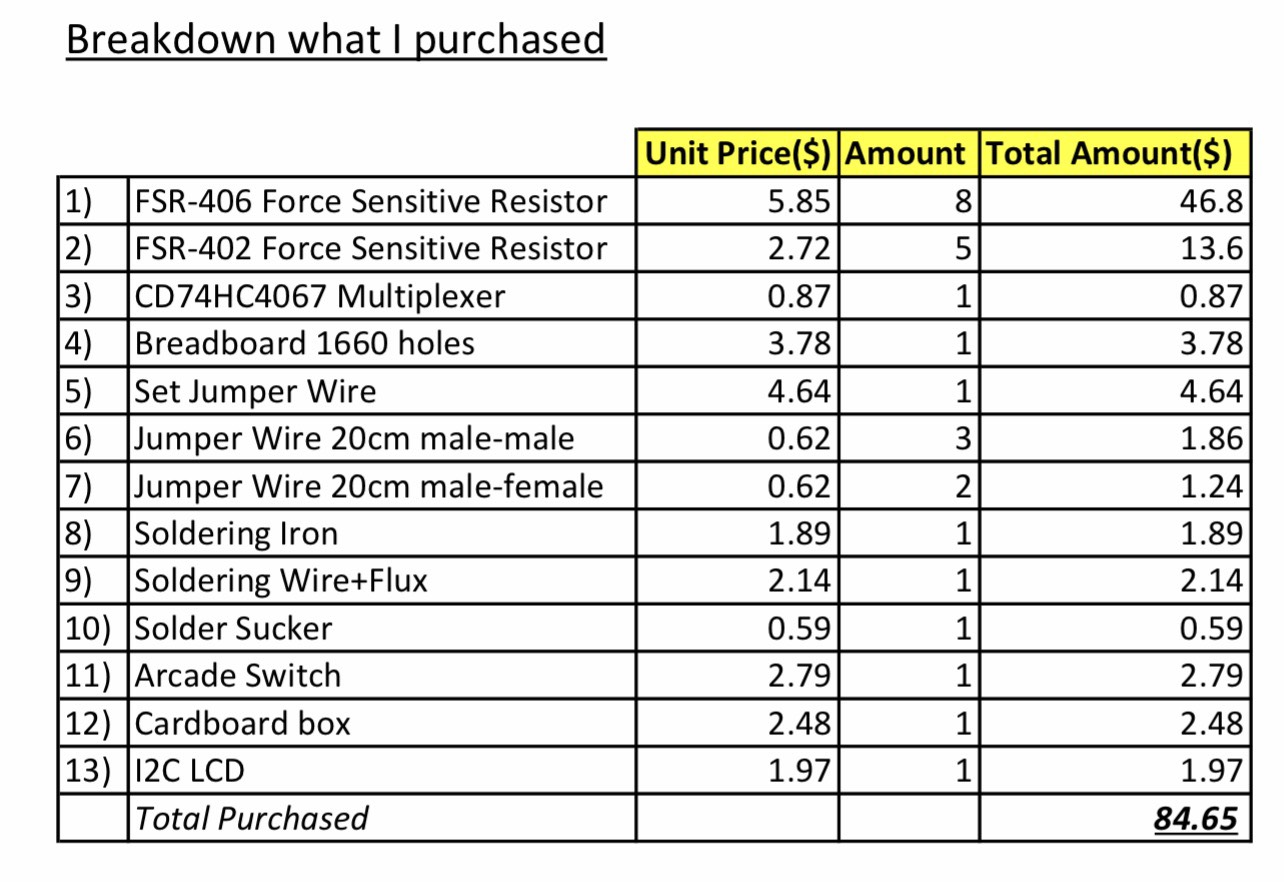
Breakdown cost:


Resources and References:

I used online resources such as YouTube tutorials to understand how to use the I2C LCD and arcade button wiring. I also referred to Arduino and p5.js documentation for serial communication and sound generation.

Some tutorials were used as references and then adapted to fit my project.

p5.js Sound Library (official reference)

https://p5js.org/reference/#/libraries/p5.sound

Basic FSR (Force Sensitive Resistor) guide
https://learn.adafruit.com/force-sensitive-resistor-fsr

Multiplexer(CD74HC4067)

https://learn.sparkfun.com/tutorials/multiplexer-breakout-hookup-guide

Multiplexer(CD74HC4067)

https://youtu.be/XAOo8DEbvck?si=oO7VKZ046IhJgHwh

Sounds

https://youtu.be/b_MMGJiUcbM?si=z7di2mc-pPGQBt1R

Triangle wave

https://kjh.ypj.mybluehost.me/glossary/triangular-wave/

I2C LCD

https://youtu.be/4o9VM7Nl9Os?si=hwz3Y6-QvSkRbGje

https://youtu.be/-jiHul1kQh4?si=WqZlRTMM3psv217o

https://youtube.com/watch?v=QIdERbxDVuM&feature=shared

Arcade button

https://youtu.be/Pkm8nRCSsIY?si=sFWSKIZpOXYXWQXT


AI assisting:

AI tools were used mainly to assist with debugging and improving code structure, especially for serial communication between Arduino and p5.js.

However, the overall design, concept, wiring, and implementation decisions were developed and tested by myself. I also modified and adapted any suggestions to fit my own project requirements.


Challenges:

One challenge was reading multiple FSR sensors reliably. Using a multiplexer required careful wiring and debugging to ensure each channel worked correctly.

Another challenge was the communication between Arduino and p5.js. At first, the data was inconsistent, but after adjusting the threshold and improving the logic, it became stable.

I also faced challenges in user experience, since users were initially confused about what to do. This led me to add instructions on the LCD and on the screen.


Future Improvements:

In the future, I would improve the design of the pads to be closer in size and spacing to a real piano keyboard, since some users mentioned that the pads felt too large.

I would also improve the visual system by making it more noticeable or adding more variation, so users might pay more attention to the screen.

Additional future improvement would focus on the hardware setup. The current prototype uses many exposed wires and breadboards, which can be messy and less stable. In the future, I would organize the wiring more cleanly and integrate the components into a more compact and durable enclosure.

Another improvement would be making the system wireless or more compact, instead of relying on a wired connection to a laptop.


User Testing

I built the most part of my project, and now I just need to tune up the visual aesthetics of it on the screen, and to mount the controls up on the panel that is external to the breadboard.

I asked my mom to test my project, but I can’t say that the this is really representative because language was a bit of a barrier in understanding this experience.

However, I tested it anyways and I also gained some insight. It was obvious even on the breadboard with no labels at all that you need to click, rotate, tune and just keep doing something with the controls to run the experience. My mom sat down and immediately started tryng to hold, press, toggle, rotate different buttons and the potentiometer, so I think this is really obvious but I will need to label the buttons with “HOLD” or “PRESS ONCE” because it was not really intuitive.

I also noticed that she mostly was looking at the breaboard and controls and didn’t pay much attention to the screen or music there, probably waiting for some physical output. To fix that I think I will need to position the panel and the screen in a certain way, so the panel feels like the “keyboard” for the screen and the user understands that they need to look at the screen in order to understand what happens. Also, maybe having earphones as a part of the experience also will make the user pay more attention to the sound and audio changes.

The fact that it is a musical instrument that controls audio and some particles on the screen. It was not obvious that these particles produce the sound though. So, I realized I need to have some animation on the screen when the note is triggered so it is more obvious.

As I said, I don’t think my user was too focused, but this also gave me the insight of making the experience more isolated: to have screen and panel on in one place and close to each other, and offering headphones so the user is actually paying attention to the project and don’t ignore it.

Also, labeling the controls with “HOLD” or “PRESS ONCE” but maybe avoid labeling what they directly do and label it more vaguely. I feel like my mom was actually curious to figure out what each thing does so she kept tinkering with it so I guess this is a nice part of the experience I didn’t expect.

I needed to explain in the end what’s the idea of the experience, so I figured that maybe I need to run some “intro” on the screen, so the user gets the idea of what is happening, and then run the experience itself. And also more visual feedback would be a big change because it will give the user the idea of how what they do is impacting the sound I think.

I will work on the p5 visual part for now to make the design visually responsive, and add LEDs and button labels on the physical panel once new knobs and some additional equipment arrive.

Video on Google Drive

Week 13 – User Testing – Kamila Dautkhan

During the user testing, some people felt confused at the beginning. They didn’t understand that the big number in the center was the real, live Bitcoin  price updating from the internet. Some thought the sound was just random background music and didn’t realize their mouse movement was controlling the pitch and volume. They also didn’t know that the sound changing from smooth to rough was connected to market volatility. Overall, the project felt fun but needed clearer explanations about what the price, mouse controls, and sound changes actually represented. I think this experience clearly showed that without knowing its real market data, people enjoy it as a generative toy but miss the deeper meaning. Here is the video:

IMG_4224

Week 13 Project test – Zere

I have conducted user testing with my initial version of the project. The user tested my game twice, without instruction and with instruction later. Videos are attached below.

  1. Are they able to figure it out? Where do they get confused and why? Do they understand the mapping between the controls and what happens in the experience?

On the first trial, the user had trouble understanding the point system and the order of the very first two mini-games. In my opinion, this happened due to the lack of a button/indicator that would instruct what to do next. Control mapping was understood, and the user has managed to figure out that the game is mouse-controlled, which is pretty straightforward, as he happens to be a frequent laptop/technology user. Yet, in a case where a person is not familiar with technology, control mapping can be difficult, which means that in further versions, I need to be clearer on the intent and instructions of the game.

2. What parts of the experience are working well? What areas could be improved?

I feel like the overall design of the game works pretty well, in user’s opinion it is aesthetically pleasing. What could be worked on, both from my brainstorming and user’s feedback, is the back/forth buttons that let you progress through the game, and more clarity of instructions, as well as clarity of the point system.

3. What parts of your project did you feel the need to explain? How could you make these areas clearer to someone who is experiencing your project for the first time?

After the initial testing, I had to explain that as soon as the user is done with the mini-games in that particular scene, the user has to click the bottom right button in order to progress to the next scene. In my opinion, I need to be clearer on the instruction of the game, for example including a brief overview of how the game works on the introductory page, or having a mini-tutorial on how the control works. It is also worth noting that the user took 1 minutes and 30 seconds to complete the game on the first try, while on the second try, after my instruction, the user took only 30 seconds to complete all of the tasks. The efficiency/time of completion increased x4, which means that providing valuable instructions is extremely important for a smooth user experience.


First trial of the game:

IMG_2807 2

Second trial of the game:

IMG_2809


Final Project feedback and progress

I asked my parents to try my Arduino project without giving them any prompts or instructions at first, to see if they could understand how to use it by themselves.
At the beginning, they could not figure out what the project was or what they needed to do. They did not know they needed to clap to trigger the LED light effect. They were confused about the relationship between the sound sensor and the changing lights. There was no clear visual clue to tell them what action would make the project work, so they did not understand the mapping between their behaviour and the project’s reaction.
Even though they did not understand it at first, they thought the project was new, interesting and fun after I showed them how it worked. The part that worked well was the light reaction: once they clapped, the LED changed colour immediately, and they could easily see the interactive effect clearly.
The main parts I had to explain to them were what the project was for and what action they needed to take to trigger the lights. To make it clearer for first-time users, I want to improve the project in two main ways.
First, I will improve the physical packaging and appearance of my project, so it looks more complete and clearer to understand at a glance. Second, I want to make the project functions more complex and more entertaining, so the interaction is more fun for users.
One important reason why my project is still simple is that my real Arduino board only arrived recently. Before this, I only practiced on Tinkercad. I found that virtual simulation on Tinkercad is very different from using real Arduino hardware, so I needed extra time to adapt and test the actual circuits and code. In the next steps, I will continue to upgrade my project to make the overall experience more interesting and interactive.
https://vimeo.com/1189334984

Week 13 – User Testing

My game is a two-player game, so I tested it on my younger brother and my mom. I gave them only brief instructions to give them some context, I informed them that it’s a two-player game, that they would use the buttons for the first 2 mini-games and the joysticks for the last game. For the first game, I just read out the text on the screen (TAP FAST) and they found it easy from there. I think what helped here is the feedback from the LEDs as well as their score going up live on the screen. Having some kind of responsive feedback reassures the user that they’re doing it correct. For the second game, I also read out the text on the screen (REACT FAST) and explained what they were reacting to (the LEDs lighting up). This explanation was sufficient for them to get the idea of the game. In addition, the responsive feedback from the LEDs and the text on the screen did guide them through the game.

The final game, and the one that probably needs the most improvements, is the maze. For this game, I did have to explain a bit more, specifically that they would need to move their characters using the joystick. A problem I’ve been having with the joysticks is that when they’re not held correctly, the movement direction is all messed up. That’s something I hope to fix by fixing how my project is presented, and manually orienting the joystick correctly so that it works as expected. Despite this, my mom was able to cross the maze and get to the other side. One other thing that I need to fix is the p5.js sketch for this specific game, I think the maze needs to be a lot bigger in size and probably have just one valid path so that it’s a speed-based competition to match the vibe of the other games.

I think adding brief instructions on the p5.js screen would guide my users better. Overall, my p5.js sketch is not fully complete yet, I’m still planning to change the aesthetics of the game and make the whole experience more seamless. There’s also some miscoordination between the which player is on which side, depending on how I orient the breadboard. So, in addition, changing the presentation of my arduino would also solve a few issues and make the game look more fun and less intimidating.

Video of my mom and brother attempting my game, I’ve just included short clips from each mini-game: user testing

User Testing

I tested my project by asking my younger sister to try it out. I just opened the Tinkercad simulation without giving her any instructions. I just told her to explore it while I observed to see if the interaction was clear without any required instructions.

The first thing I noticed was that she pressed on the board and on everything randomly -this is because she doesn’t have any experience with Arduino or Tinkercad which is interesting because I haven’t thought of that. Her confusing and randomly clicking made it clear to me that not everyone understands these things. Anyways while she was experimenting she clicked on the dial and started experimenting with it and when she turned it on the LCD screen changed between the different stations of the cafe, rain, etc. So then she figured out everything overall.

She was also confused when experimenting because the RGB LED wasn’t very obvious to her at first. She saw it change color based on the different locations but she didn’t immediately connect it to the mood of each station she just thought it was light. Also the piezo buzzer was also a bit unclear because the sound is very basic and kind of weird on Tinkercad, so she was kind of confused… which makes me wonder if I should change my project a bit to make it sound differently.

Overall  this experiment allowed me to reflect and realize things I would have missed. I realized that the LCD screen is the strongest part of my project because it gives clear and direct feedback in which they can easily understand. I also think that it guides the entire experience but the sound and lighting need improvement because they are supposed to support the mood, not confuse them. So I’ll try to make the sounds better and try to make the colors more intentional so the user can understand the atmosphere without relying only on the text. Also I think adding the project name would be beneficial for participants to know at least what is happening or get a hint. Since it’s on Tinkercad of course it’s sad to know that I can’t really decorate and design it because while the actual product works I think design plays a huge role overall.

Video