Week 11 Assignment – Partner work Mhara Al Nuaimi & Maryam Alremeithi

Concept:

In this series of exercises, we explored how Arduino and p5.js can talk to each other through serial communication. Each exercise focused on a different direction of data flow. First, Arduino sent information to p5.js. Then we switched it so p5.js controlled something on the Arduino. Finally, we combined both directions to create a full bi‑directional system. Doing these three tasks helped us understand how physical sensors and digital visuals can work together to create interactive experiences.

For the first exercise, we made a sketch where a circle in p5 moves left and right based on a potentiometer connected to Arduino. The potentiometer is the only sensor being used here, and its value controls the horizontal position of the circle while the circle stays in the middle of the screen vertically. On the Arduino side, the potentiometer value is read and sent through serial communication. On the p5 side, that value is read from the serial port and used to control the x position of the circle.

For the second exercise, we made a sketch where p5 controls the brightness of an LED on Arduino. Instead of Arduino sending data to p5, p5 sends a value to Arduino. I used a slider in p5, and moving that slider changed the brightness of the LED. The slider sends a value through the serial port, and Arduino reads that value and uses analogWrite() to control the LED brightness. Since brightness needs a gradual range, the LED had to be connected to a PWM pin.

For the third exercise, we combined both directions into one interactive system. We used the gravity‑wind example from class and connected it to both Arduino and p5.js. The potentiometer controlled the wind force in the p5 sketch, so turning it left or right pushed the falling ball in that direction. At the same time, p5 sent a message back to Arduino every time the ball hit the bottom of the screen. This made the LED blink with each bounce, creating a small physical reaction that matched the animation. Seeing the LED flash at the exact moment the ball hit the ground made the connection between the screen and the hardware feel much stronger. This exercise showed how both sides can respond to each other in real time.

Code:

P5 exercise 1: 

P5 exercise 2:

P5 exercise 3:

Arduino Github Link Exercise 1: https://github.com/mhraalnuaimi/exercise1week11/blob/main/W11..01_serial_simple_potentiometer.ino 

Arduino Github Link Exercise 2: https://github.com/mhraalnuaimi/exercise2week11/blob/main/W11_02_Bidirectional_Com.ino 

Arduino Github Link Exercise 3:  https://github.com/mhraalnuaimi/exercise3week11/blob/main/exercise3week11.ino 


Setup:

Exercise 1:

Exercise 2:

Exercise 3: 

Demonstration:

Exercise 1:

Exercise 2: 

Exercise 3: 

Schematic:

Exercise 1:

Exercise 2:

Exercise 3:

Process:  

During these exercises, we followed the same steps for each project: wiring the components, writing the Arduino code, and then connecting everything to p5.js using WebSerial. For Exercise 1, we wired a potentiometer and tested the analog readings in the serial monitor before using them in p5. In Exercise 2, we focused on sending values from p5 to Arduino, so we tested the slider and made sure the LED responded smoothly. Exercise 3 was the most detailed because it used both directions of communication. We had to make sure the potentiometer values were clean, the wind force felt natural, and the LED blinked at the right moment. We also learned that adding a newline at the end of each serial message made the communication much more stable. Overall, the process helped us understand how to connect physical sensors with digital visuals step by step.


Code We Are Proud Of:

Code Snippet:

port.write("1");
setTimeout(() => port.write("0"), 100);

This is the part of the code we are most proud of because it shows the moment when p5.js talks back to Arduino. When the ball hits the bottom of the screen, p5 sends a “1” to turn the LED on and then sends a “0” to turn it off again. This creates a quick flash that matches the bounce.


Reflection and Areas of Improvement:

Working through these three exercises helped us understand how Arduino and p5.js can communicate in different ways. In Exercise 1, we learned how to read an analog value from Arduino and use it to control something in p5.js. In Exercise 2, we learned how p5.js can send values back to Arduino to control hardware like an LED. In Exercise 3, we combined both directions and created a full interactive loop where both sides respond to each other. This final exercise felt like the most complete example of how serial communication can be used in creative projects. If we continued building on these ideas, we could make more complex interactions such as small games, musical tools, or installations that react to multiple sensors. Overall, these exercises helped us build a strong understanding of serial communication and how physical and digital elements can work together. 

If we were to improve these exercises, we would try adding more sensors or combining different types of inputs to make the interactions more interesting. For example, we could add buttons, sound sensors, or even an ultrasonic sensor to create more complex reactions in p5. We could also improve the visuals by adding animations or smoother movement to the ball. Another improvement would be organizing the code better by separating the serial functions from the physics code to make everything easier to read. These changes would help make the projects feel more polished and closer to real interactive installations.


References:

All the concepts we used in these exercises came from the Week 11.1 and Week 11.2 lecture slides. These slides explained how serial communication works, how to use WebSerial in p5.js, and how to send and receive data between Arduino and p5.  

Week 11: Group Exercises (Maryam Alremeithi, Mhara Al Nuami)

Concept:
In this series of exercises, we explored how Arduino and p5.js can talk to each other through serial communication. Each exercise focused on a different direction of data flow. First, Arduino sent information to p5.js. Then we switched it so p5.js controlled something on the Arduino. Finally, we combined both directions to create a full bi‑directional system. Doing these three tasks helped us understand how physical sensors and digital visuals can work together to create interactive experiences.

For the first exercise, we made a sketch where a circle in p5 moves left and right based on a potentiometer connected to Arduino. The potentiometer is the only sensor being used here, and its value controls the horizontal position of the circle while the circle stays in the middle of the screen vertically. On the Arduino side, the potentiometer value is read and sent through serial communication. On the p5 side, that value is read from the serial port and used to control the x position of the circle.

For the second exercise, we made a sketch where p5 controls the brightness of an LED on Arduino. Instead of Arduino sending data to p5, p5 sends a value to Arduino. I used a slider in p5, and moving that slider changed the brightness of the LED. The slider sends a value through the serial port, and Arduino reads that value and uses analogWrite() to control the LED brightness. Since brightness needs a gradual range, the LED had to be connected to a PWM pin.

For the third exercise, we combined both directions into one interactive system. We used the gravity‑wind example from class and connected it to both Arduino and p5.js. The potentiometer controlled the wind force in the p5 sketch, so turning it left or right pushed the falling ball in that direction. At the same time, p5 sent a message back to Arduino every time the ball hit the bottom of the screen. This made the LED blink with each bounce, creating a small physical reaction that matched the animation. Seeing the LED flash at the exact moment the ball hit the ground made the connection between the screen and the hardware feel much stronger. This exercise showed how both sides can respond to each other in real time.

p5 Code:

P5 exercise 1: https://editor.p5js.org/MaryamAlremeithi/full/yCY7LOF5F
P5 exercise 2: https://editor.p5js.org/MaryamAlremeithi/full/34Nhzf7WZ
P5 exercise 3: https://editor.p5js.org/mharaalnuaimi/full/-E_JsjCiX

Arduino Github Link Exercise 1: Exercise 1
Arduino Github Link Exercise 2: Exercise 2
Arduino Github Link Exercise 3: Exercise 3

Setup:
Exercise 1:

Exercise 2:

Exercise 3:

Demonstration:
Exercise 1: exercise1
Exercise 2: exercise2
Exercise 3: exercise3

Schematic:
Exercise 1:

Exercise 2:

Exercise 3:

Process:
During these exercises, we followed the same steps for each project: wiring the components, writing the Arduino code, and then connecting everything to p5.js using WebSerial. For Exercise 1, we wired a potentiometer and tested the analog readings in the serial monitor before using them in p5. In Exercise 2, we focused on sending values from p5 to Arduino, so we tested the slider and made sure the LED responded smoothly. Exercise 3 was the most detailed because it used both directions of communication. We had to make sure the potentiometer values were clean, the wind force felt natural, and the LED blinked at the right moment. We also learned that adding a newline at the end of each serial message made the communication much more stable. Overall, the process helped us understand how to connect physical sensors with digital visuals step by step.

Code We Are Proud Of:

port.write("1");
setTimeout(() => port.write("0"), 100);


This is the part of the code we are most proud of because it shows the moment when p5.js talks back to Arduino. When the ball hits the bottom of the screen, p5 sends a “1” to turn the LED on and then sends a “0” to turn it off again. This creates a quick flash that matches the bounce.

Reflection and Areas of Improvement:

Working through these three exercises helped us understand how Arduino and p5.js can communicate in different ways. In Exercise 1, we learned how to read an analog value from Arduino and use it to control something in p5.js. In Exercise 2, we learned how p5.js can send values back to Arduino to control hardware like an LED. In Exercise 3, we combined both directions and created a full interactive loop where both sides respond to each other. This final exercise felt like the most complete example of how serial communication can be used in creative projects. If we continued building on these ideas, we could make more complex interactions such as small games, musical tools, or installations that react to multiple sensors. Overall, these exercises helped us build a strong understanding of serial communication and how physical and digital elements can work together.

If we were to improve these exercises, we would try adding more sensors or combining different types of inputs to make the interactions more interesting. For example, we could add buttons, sound sensors, or even an ultrasonic sensor to create more complex reactions in p5. We could also improve the visuals by adding animations or smoother movement to the ball. Another improvement would be organizing the code better by separating the serial functions from the physics code to make everything easier to read. These changes would help make the projects feel more polished and closer to real interactive installations.

References:
All the concepts we used in these exercises came from the Week 11.1 and Week 11.2 lecture slides. These slides explained how serial communication works, how to use WebSerial in p5.js, and how to send and receive data between Arduino and p5.

Week 11 – Serial Communication

Exercise 1:

P5 code:

https://editor.p5js.org/farahshaer/sketches/K1ETNJevI 

Arduino code:

https://github.com/farahshaer/Intro-to-IM/blob/15f03b7108b0eead04ecc8fbade23e0703c774e4/sketch_apr16a.ino 

Reflection/process:

So for the first part, it was a one way communication between arduino and p5 with the idea of taking an input from a sensor on arduino and using that data to control the circle on p5. I used a potentiometer as my sensor because it gives a smooth range of values which makes it easier to control the movement on the screen. The arduino reads the values and sends it to p5 using serial.prin1n(). Then in p5 I used readUntil(“\n”) to receive the data and once I got that value I cleaned it using trim() and converted it into a number using int(). Then I map it from the sensor range to the width of the canvas so it can control the x position of the ellipse. As I turn the potentiometer, the circle moves left and right on the screen. 


Exercise 2:

P5 Code:

https://editor.p5js.org/MariamAlameri/sketches/oWfNkocIc 

Arduino Code:

https://github.com/mariam9766/Intro-to-IM/blob/736de2e50c777dff22b3545885aebfa6cce33cfd/BidirectionalCommunicationExercise2_mariam.ino 

Reflection/process:

The second exercise involved bidirectional communication between p5 and Arduino, where we were asked to control the Arduino from p5. I wanted to create a p5 sketch that allows the user to control the brightness of an LED on the Arduino board. I chose to use a slider in the sketch, as it provides an intuitive and suitable way to adjust brightness. I also referred to the exercises completed in class and adjusted them to meet the purpose of this assignment. In the Arduino code, I used two if statements to ensure that the LED responds when data is received from p5, and to constrain the brightness value within the range of 0–255 for proper PWM control. In the p5 sketch, I implemented the slider using createSlider, adjusted its position and appearance, and used port.write to send the brightness value to the Arduino, allowing accurate control of the LED.


Exercise 3:

Concept:

After completing the first two exercises and creating communication between the p5 sketch and the Arduino code and board back and forth, in this exercise, we had to combine both. When the ball in the p5 sketch bounces on the ground, the LED on the board flashes on and off, and when we use the potentiometer, which is the analog sensor on our Arduino board, we control the wind in the sketch and move the ball left and right.

P5 Code:

https://editor.p5js.org/farahshaer/sketches/hAwlRZjXM 

Arduino Code:

https://github.com/mariam9766/Intro-to-IM/blob/9f561f01e2719a784d6c54e8d43e4bbc998a6608/BidirectionalCommunicationExcercise3_mariam.ino 

Demonstration:

Circuit:

Schematic:

Code we’re proud of:

One part of the code that we are proud of is the bounce detection and how it connects to the Arduino:

//the bounce detection
  if (position.y > height - mass / 2) {
    //check if the ball hits the ground
    velocity.y *= -0.9; // A little dampening when hitting the bottom (reverse the direction when it hits)
    position.y = height - mass / 2; //keep it above the floor
    bounce = 1; //to mark that the bounce happened
  }
  //send to arduino
  let sendToArduino = bounce + "\n"; //send the bounce value 1 or 0 and the "\n" tells ardunio the message is done
  port.write(sendToArduino);
  // reset bounceafter it sends
  bounce = 0;
}

We are proud of this part because it turns the ball bouncing into a signal that affects something physical (the LED). It also only sends the signal once per bounce, which makes the interaction feel more intentional instead of constant.

Reflection/future work:

So in this version of the gravity and wind example, I added serial communication so the sketch can interact with an Arduino on p5. Instead of controlling the wind using the keyboard like in the original example, the wind now comes from an analog sensor (like a potentiometer) connected to the Arduino. The Arduino sends that sensor value to p5, and I map it to a wind force so it pushes the ball left or right. I also added a bounce signal that goes the other way. Every time the ball hits the bottom of the canvas, I set a variable to 1 and send it to the Arduino. This tells the Arduino to briefly turn on an LED, then it gets reset back to 0, so the signal only happens once per bounce. Most of the original physics code stayed the same, but the main changes were adding serial setup, reading sensor data to control wind, and sending a bounce message back to control the LED.

For the Arduino side, I worked on the Arduino code to align with the p5 sketch we have and create serial communication from the Arduino board to the p5 sketch and vice versa. I set it up so the Arduino sends the analog sensor value from A0 to control the wind on the ball in the sketch, and receives a bounce signal from p5 when the ball hits the ground. When this signal is received, the Arduino briefly turns on an LED to indicate the bounce, and then resets the value so the LED only activates once every time it touches the ground. I also made sure the serial communication was properly structured so both inputs and outputs work smoothly together at the same time, allowing interaction between the physical sensor and the digital sketch.

This exercise helped us understand how bidirectional communication actually works, instead of just sending data one way. It was interesting to see how the Arduino and p5 sketch can influence each other at the same time. One challenge we ran into was getting the potentiometer to properly control the wind. Even though the LED response worked, the sensor input was inconsistent, which made it harder to debug whether the issue was in the Arduino code or the p5 code. This made us realize how important timing and serial communication structure are, especially when both sides are sending and receiving data continuously.

If we had more time, we would focus on possibly smoothing the wind movement so it feels less jumpy. We would also experiment with adding more physical outputs, like multiple LEDs or different types of sensors, to make the interaction more dynamic, but we just wanted to stick with the assignment instructions for now to get a grasp of the concept.

Week 11 Exercises

EXERCISE 01: ARDUINO TO P5 COMMUNICATION

For this exercise, we used a potentiometer as our sensor to control an ellipse in p5.js. As the knob is turned, the Arduino reads the changing analog values and sends them to p5 through serial communication. 

let x = map(sensorValue, 0, 255, 50, width - 50);
  ellipse(x, height / 2, 50, 50);
}

The values are mapped to the x-position of the ellipse, allowing it to move horizontally across the screen while staying centered vertically.

P5 Code | Demo  | Github

We also did another version of it, which basically uses an ultrasonic sensor. The P5 code is the same for both, just the mapping is different. You comment out the one user using it for a smoother response. The ball movement corresponds to the distance detected by the sensor.

Github

EXERCISE 02: P5 TO ARDUINO COMMUNICATION

For Exercise 2, we used a slider in p5 to control the brightness of an LED connected to the Arduino. As the slider moves, it sends values from 0 to 255 through serial communication. The Arduino reads these incoming values and uses them to adjust the LED brightness using PWM, making the LED appear dimmer or brighter depending on the slider position.

if (Serial.available() > 0) {
int brightness = Serial.parseInt();
analogWrite(9, brightness);
}

This part of the code checks if there is incoming data from p5. When a value is received, it reads the number using parseInt() and uses it to control the LED brightness through analogWrite, which determines how bright or dim the LED will be.

P5 Code | Demo | Github

EXERCISE 03: BI-DIRECTIONAL COMMUNICATION

For Exercise 3, we used a simple setup of an LED, a 330 ohm resistor, and an ultrasonic sensor. The core logic is that the LED is on by default and turns off for a split second when the ball touches the ground, giving a blinking effect. The wind is mapped to the distance detected by the sensor. A distance of less than 40 cm causes left winds and vice versa. The wind strength is proportional to the distance. The ball is meant to bounce off the walls. 

The Arduino code is rather simple, if an object is detected, the distance is written to the serial communication, and if an input is read on the serial communication, the light is blinked. The most interesting part about the Arduino code is how the distance is measured using the pulse

long duration = pulseIn(ECHO, HIGH, 30000); // 30 ms timeout

On the P5 ending, smoothening of the input by the distance sensor was important because otherwise the signal was getting abrupt

latestData = lerp(latestData, val, 0.2);

This was suggested by ChatGPT. It defines a number that basically gets an average, but using linear interpolation. 

The most challenging part of the code was managing the movement of the ball when the bounce is dying off. In the last second, there were a lot of bounces happening. We dealt with that by, instead of blinking the LED on each bounce, we kept the LED on and just turned it off when the ball was in contact with the ground.

P5 Code | Demo | Github


Week 11 – Final Project

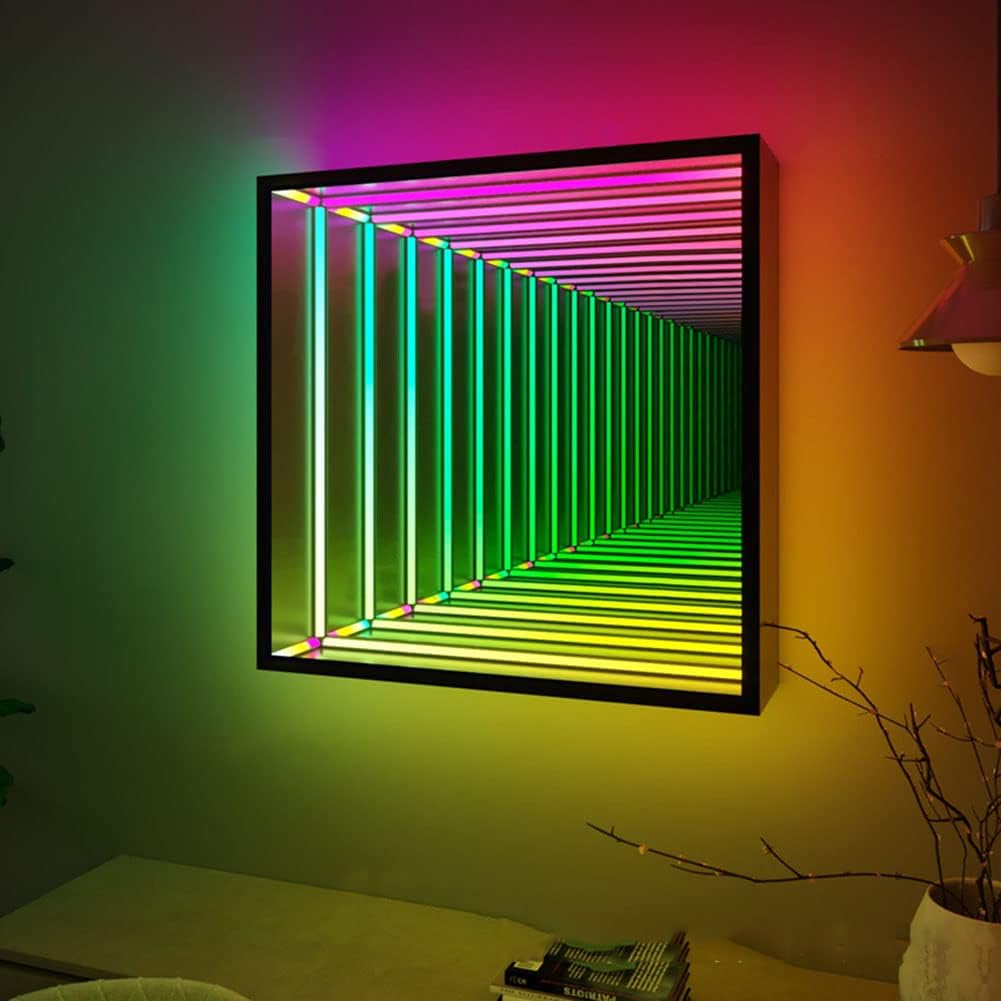
For the final project, I was thinking of mixing in one of my old p5 assignments, assignment 2 if I remember correctly, the one with conway’s game of life, now, I want to make an infinity mirror, but what you see inside is the process of conway’s game of life instead of standard colors, with some buttons or some external stuff to change how the cells behave and add some variety.

This will require me to buy a picture frame, for the frame and the acrylic, and also get a one way window film to attach to create that infinity mirror effect, along with buying LED lights also. I plan on adding a lot of interactivity with the user to change how the cells live and die so its less of just a show and more of something interactive. The p5js will handle the processing of the game of life, and maybe provide a UI to handle it or I might pivot towards using hands with ml5js. The Arduino will take the data from p5js and turn on the led’s when they need to be turned on.

Week 11- PRELIMINARY CONCEPT BLOGPOST

Concept

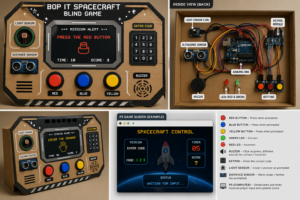
This project is a fast reaction game where the user controls a spacecraft without seeing the controls directly. The screen gives instructions like “press red, “flip switch,” or actions using Arduino sensors like “cover the light sensor” or”move closer.” The user has to read the command and quickly do the action on a physical console. It’s timed, so you need to react fast and accurately I might add more elements like once you get over 10 points youll have to start memorizing three tasks at the same time or have new rules added. If you’re right, the game continues, and if not, you lose. The idea is to make simple actions feel intense and engaging using both physical controls and sensor based interaction.

How it uses Arduino

Arduino handles all the physical interaction. It reads inputs from buttons, a switch, a knob, and sensors like a light or distance sensor. For example, if the user presses a button or covers the light sensor, Arduino detects that and sends the data to p5. It also controls LEDs to give feedback, like turning on a light when the user is correct.

How it uses p5.js

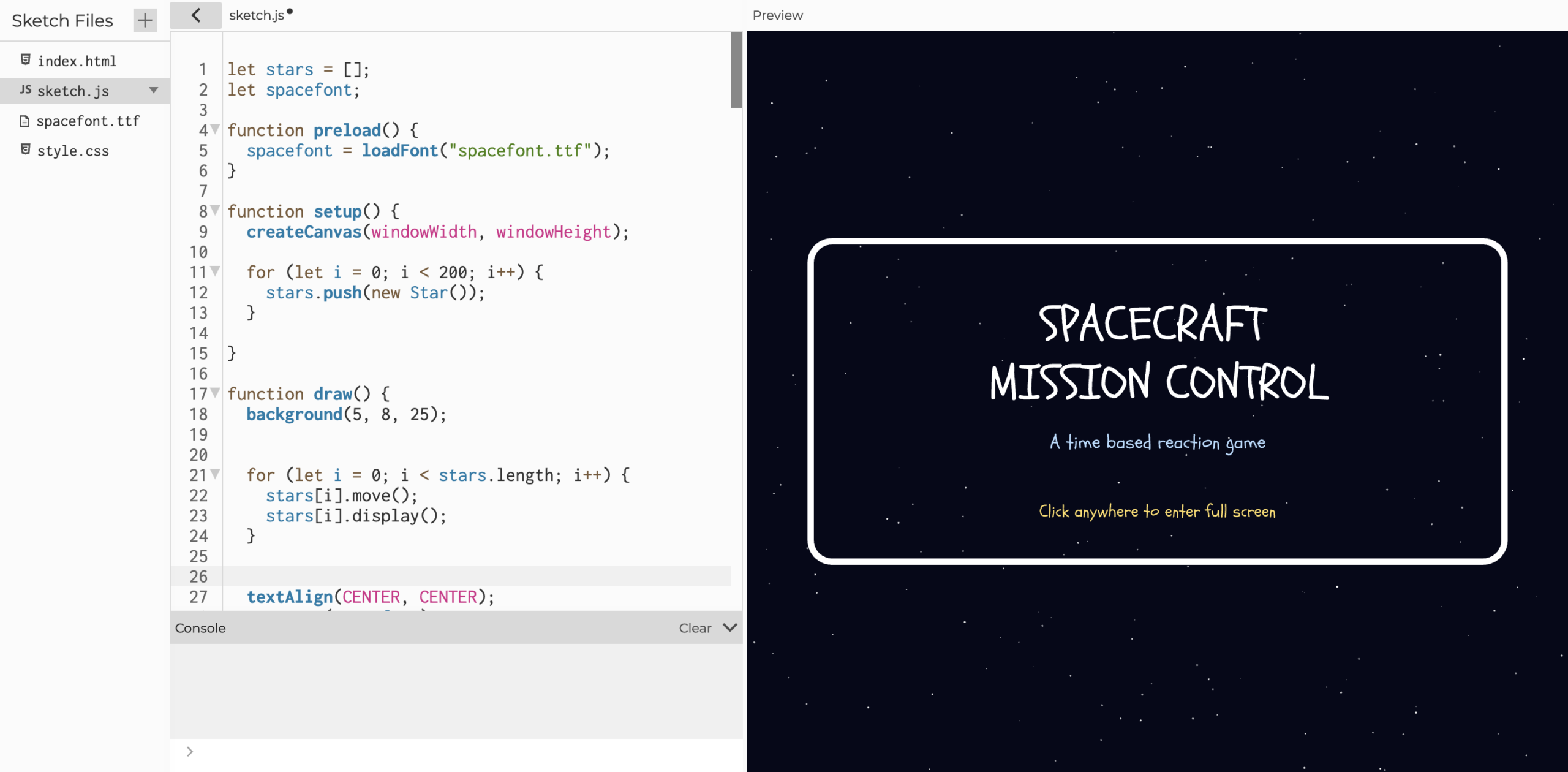
p5 is the visual and logic part of the project. It shows instructions on the screen like “PRESS RED” or “MOVE CLOSER.” It randomizes the commands so the game changes every time its still early on on the project so I might hav ethe commands show on screen or on an actual screen next to the control panel or both i’ll decide on which to go with on both depending on what works best. It also checks if the user did the correct action and controls the flow of the game, like score, timing, and game over. It can also send signals back to Arduino for feedback.

Interaction Design

The system works in a loop. First, the screen shows a command. Then the user reacts using the console or sensors. Arduino reads that input and sends it to p5. p5 checks if it’s correct and responds with the next step or a fail. This repeats quickly, so the user is always reacting and the system is always responding.

Inspiration and Originality

This idea is inspired by Bop It, where you follow quick commands like “twist it” or “Spin It” I liked how simple actions become intense when you have to react fast. It’s also inspired by Project Hail Mary, especially the scene where the character is pressing buttons and flipping switches to control the spacecraft under pressure. My project builds on this by adding different sensors, like light and motion, so the interaction is more varied and not just buttons.

Visual and Aesthetic Direction

The visuals will be simple and slightly retro, like an old spacecraft system. The screen will have big, clear text so the user can quickly read what to do. I won’t focus on complex graphics, just clean visuals that support fast interaction and make the game feel intense.

Why this project works

This project works because it combines physical interaction with fast response. The user is actively doing actions, not just watching. It uses Arduino for sensing and p5 for visuals and logic, so both are important. It also gives clear feedback and keeps the user engaged through speed and randomness.

Generated sketch :


Examples and tutorials found:

https://www.instructables.com/The-Task-Giving-Arduino-Machine-aka-Making-Your-Ow/

https://projecthub.arduino.cc/Jerepondumie/make-an-arduino-memory-game-c9c093

Week 11 – Arduino and p5 Exercises

Exercise 1

Arduino GitHub File

Arduino Set-up:

Arduino Illustration:

Project Demo:

A4411AE3-AC1F-4272-AE11-D085ADCABB95

Exercise 2

Arduino GitHub File

Arduino Set-up:


Arduino Illustration:

Project Demo:

IMG_1122

Exercise 3

Arduino GitHub File

Arduino Set-up:

Arduino Illustration:

Project Demo:

IMG_1288

Concept

This week was all about making things communicate. Before this, everything we made stayed inside Arduino. This time, we connected Arduino to p5 so the physical and digital sides could talk to each other.

At first it sounded simple, but it ended up being one of the hardest things we’ve done so far. Not because of the ideas, but because getting everything to connect properly took a lot of trial and error.

Exercises

Across the three exercises, we explored different ways of communication.

In the first exercise, we sent data from Arduino to p5. We used the potentiometer to move a circle across the screen. This helped us understand how sensor values can control something visually.

In the second exercise, we reversed the direction. p5 controlled the LED on Arduino. This made us realize that communication goes both ways, and that sending data is just as important as receiving it.

In the third exercise, we combined both directions. The potentiometer controlled movement in p5, and when something happened on the screen, it sent a signal back to Arduino to turn on the LED. This was the most interesting part because everything was connected and reacting together.

Code Highlight

One part that really helped us was reading the sensor data correctly in p5

let str = port.readUntil("\n");

if (str.length > 0) {
  str = trim(str);
  let sensorValue = int(str);

  if (!isNaN(sensorValue)) {
    x = map(sensorValue, 0, 255, 0, width);
  }
}


This made sure we only used valid data and mapped it properly to the screen. Once this worked, everything became much smoother.

Problems Encountered

We had a lot of issues this week, mostly with the connection. The serial port wouldn’t open, or p5 wouldn’t receive any values. Sometimes things worked and then suddenly stopped working again.

We realized most of these problems were small things, like forgetting to close the Serial Monitor or not formatting the data correctly.

Reflection

This week helped us understand that interaction is not just about building something, but about connecting things together. Once the connection worked, everything felt more interactive and responsive.

It also made us more patient with debugging. We learned to check things step by step instead of assuming something bigger was wrong.

Collaboration

We worked on this together, which made a big difference. When one of us got stuck, the other could help figure out what went wrong. It also made debugging less frustrating because we weren’t trying to solve everything alone.

Working together helped us understand the system better and move forward faster.

References

p5.js Web Editorhttps://editor.p5js.orgp5 to Arduino

p5.js Web Editorhttps://editor.p5js.orgp5 to Arduino

p5.js and Arduino serial communication – Send a digital sensor to a p5.js sketchYouTube · Scott Fitzgerald28 Mar 2020

Week 11 – Creative Reading

This reading shifted my understanding of accessible design by challenging my assumption that discretion is the ultimate goal when designing for disabilities. Previously, I always believed that successful medical devices were those that blended in, much like the “pink plastic” hearing aids the author talks about. However, the text highlights how prioritizing invisibility subtly reinforces a culture of shame. Understandably so, a lot of the texts I read during my first year writing seminar talked about how invisibility can be used to have power over certain groups of people or take away power from such groups, although not exactly the same, the negative connotation is there even with disability. I was particularly struck by the discussion of Aimee Mullin’s intricately carved wooden prosthetic legs. It led me to the realization that when designers move beyond mere clinical problem-solving, they allow users to project a bold, positive image. By treating prostheses as a canvas for self-expression rather than deficit to conceal, design becomes an empowering tool.

A pretty popular design I can think of that follows the author principles is Nike’s FlyEase sneaker line. It was originally engineered to help people with mobility disabilities put on shoes hand-free. Because the design is sleek and fashionable, it became a mainstream success desired by the public. It makes me wonder, if fashion and visibility are so crucial to de-stigmatizing disability, how do we convince competitive consumer markets to prioritize aesthetic investment in specialized products without commodifying the disability itself?

Week 11 Assignment

Exercise 1:

Demo:

Schematic:

Implementation:

I used an ultrasound sensor for this exercise, so the ellipse moves depending on how close or far my hand is from the sensor.

void loop() {
  // Trigger the sensor
  digitalWrite(trigPin, LOW);
  delayMicroseconds(2);
  digitalWrite(trigPin, HIGH);
  delayMicroseconds(10);
  digitalWrite(trigPin, LOW);

  // Measure the bounce back time
  long duration = pulseIn(echoPin, HIGH);
  
  // Calculate distance
  int distance = duration * 0.034 / 2;

  // Send just the number to p5.js
  Serial.println(distance); 

  delay(50);
}

The code for using the sensor is pretty standard, trigger it so often, measure the duration using the formula (speed * time), and then send that to p5js.

Speed is the speed of sound (0.034 cm per microsecond) and time is duration / 2 since it is a round trip.

// Read from serial
    let str = port.readUntil("\n");
    if (str.length > 0) {
      let val = int(str);
      // Validate value
      if (!isNaN(val)) {
        sensorValue = val;
      }
    }


    // Map the value
    let xPos = map(sensorValue, 5, 50, 0, width);
    // Constrain the ellipse to canvas
    xPos = constrain(xPos, 0, width);

    fill(0, 255, 200);
    noStroke();
    ellipse(xPos, height / 2, 50, 50);

From p5js side, we take the value, validate it, then create a mapping of the value to x position as well as constraining it, then finally draw the ellipse.

Exercise 2:

Demo:

Schematic:

Implementation:

In p5js, I have 3 sliders, 1 for R, 1 for G, and 1 for B, I am using an RGB LED, so we can switch around the sliders to get our custom color from the LED.

// Read the three integers sent from p5.js
// parseInt() looks for digits and skips non-digits
int r = Serial.parseInt();
int g = Serial.parseInt();
int b = Serial.parseInt();

// Look for the newline character to confirm the end of the message
if (Serial.read() == '\n') {
  // Apply the brightness to each pin
  analogWrite(redPin, r);
  analogWrite(greenPin, g);
  analogWrite(bluePin, b);

On the Arduino side the code is pretty simple, just read each color and write it to the LED.

// Send to Arduino
port.write(r + "," + g + "," + b + "\n");

This is really what’s doing the work, it takes the values from the slider and sends them to the Arduino in such a format that it could read it easily.

Exercise 3:

Demo:

Schematic:

Implementation:

I copied the basic implementation of the wind mechanics from the code, however instead of left and right buttons, I switched out with a potentiometer:

let windForce = map(sensorValue, 0, 1023, -0.5, 0.5);

I have 2 RGB LED’s, and each light up depending on what side of the “wall” the ball hits.

// Left Wall
if (position.x < mass/2) {
velocity.x *= -0.9;
position.x = mass/2;
sendColor("L");
}
// Right Wall
if (position.x > width - mass/2) {
velocity.x *= -0.9;
position.x = width - mass/2;
sendColor("R");
}

The code to send the colors itself to the Arduino is:

// Sending color + direction
function sendColor(side) {
  if (port.opened()) {
    let r = floor(random(255));
    let g = floor(random(255));
    let b = floor(random(255));
    // Sending: Side,R,G,B (e.g., "L,255,0,0")
    port.write(side + "," + r + "," + g + "," + b + "\n");
  }
}

We create a random number for each color and then send it to the Arduino along with the direction.

if (side == 'L' || side == 'R') {
  Serial.read(); // Skip the comma
  int r = Serial.parseInt();
  int g = Serial.parseInt();
  int b = Serial.parseInt();

  if (side == 'L') {
    flash(L_red, L_green, L_blue, r, g, b);
  } else {
    flash(R_red, R_green, R_blue, r, g, b);
  }
}

From the Arduino side, we read the colors like how we read it in exercise 2, then depending on the side we light up the left or right side.

P5js code

GitHub Code

Week11- Exercise 1, 2, and 3

Exercise 1

Arduino GitHub File:

https://github.com/MouzaAlMheiri/Intro-to-IM/blob/main/week11-exercise1

Arduino Set-up:

Arduino Illustration:

Screenshot

Project Demo:

A4411AE3-AC1F-4272-AE11-D085ADCABB95

Exercise 2

Arduino GitHub File:

https://github.com/MouzaAlMheiri/Intro-to-IM/blob/main/week11-exercise2

Arduino Set-up:


Arduino Illustration:

Project Demo:

IMG_1122

Exercise 3

Arduino GitHub File:

https://github.com/MouzaAlMheiri/Intro-to-IM/blob/main/week11-exercise2

Arduino Set-up:

Arduino Illustration:

Project Demo:

IMG_1288

Concept

This week was all about making things communicate. Before this, everything we made stayed inside Arduino. This time, we connected Arduino to p5 so the physical and digital sides could talk to each other.

At first it sounded simple, but it ended up being one of the hardest things we’ve done so far. Not because of the ideas, but because getting everything to connect properly took a lot of trial and error.

Exercises

Across the three exercises, we explored different ways of communication.

In the first exercise, we sent data from Arduino to p5. We used the potentiometer to move a circle across the screen. This helped us understand how sensor values can control something visually.

In the second exercise, we reversed the direction. p5 controlled the LED on Arduino. This made us realize that communication goes both ways, and that sending data is just as important as receiving it.

In the third exercise, we combined both directions. The potentiometer controlled movement in p5, and when something happened on the screen, it sent a signal back to Arduino to turn on the LED. This was the most interesting part because everything was connected and reacting together.

Code Highlight

One part that really helped us was reading the sensor data correctly in p5

let str = port.readUntil("\n");

if (str.length > 0) {

  str = trim(str);

  let sensorValue = int(str);

  if (!isNaN(sensorValue)) {

    x = map(sensorValue, 0, 255, 0, width);

  }

}

This made sure we only used valid data and mapped it properly to the screen. Once this worked, everything became much smoother.

Problems Encountered

We had a lot of issues this week, mostly with the connection. The serial port wouldn’t open, or p5 wouldn’t receive any values. Sometimes things worked and then suddenly stopped working again.

We realized most of these problems were small things, like forgetting to close the Serial Monitor or not formatting the data correctly.

Reflection

This week helped us understand that interaction is not just about building something, but about connecting things together. Once the connection worked, everything felt more interactive and responsive.

It also made us more patient with debugging. We learned to check things step by step instead of assuming something bigger was wrong.

Collaboration

We worked on this together, which made a big difference. When one of us got stuck, the other could help figure out what went wrong. It also made debugging less frustrating because we weren’t trying to solve everything alone.

Working together helped us understand the system better and move forward faster.

References

p5.js Web Editorhttps://editor.p5js.orgp5 to Arduino

p5.js Web Editorhttps://editor.p5js.orgp5 to Arduino

p5.js and Arduino serial communication – Send a digital sensor to a p5.js sketchYouTube · Scott Fitzgerald28 Mar 2020