Final Project Showcase Zere

Day in the Life of Luna: Final Project by Zere Kystaubayeva

Demo Video YouTube Link

Concept

Luna is a cat living on Maple Lane. You spend one full day as her: waking up, playing, eating, exploring outside, and causing chaos at night. The game is built in p5.js and takes inspiration from the cozy aesthetic of Animal Crossing. Each scene flows into the next automatically once you complete the interaction, so it feels like a continuous day rather than a menu-driven game. The base of this project was taken from my midterm. I have made substantial changes both to the design and to the flow of the game.

Interaction Design

The game uses five different input methods across its scenes:

  1. Mouse click: tossing yarn between paws, eating from the bowl
  2.  Mouse hover/proximity: chasing the butterfly (you move your cursor close to catch it, it flies away if you get too close too fast)
  3. Keyboard (WASD / arrow keys): navigating Luna through a maze to find the yarn ball
  4. Microphone/speech: making noise to scare birds off a fence one by one
  5. Drag and drop: placing poop on specific spots on the bed

Each interaction gives clear feedback: a glowing ring shows the butterfly catch progress, a mic volume bar shows when your voice is being picked up, dashed circles show where to drag the poop, and a success sound plays on every completion. There is also a yellow glow on clickable objects so users know what to interact with before clicking.

How It Works

  1. The game is structured around a gameState string that switches between scenes. A goTo() function handles transitions with a soft cream fade. Each scene has its own draw function called from the main draw() loop.
  2.  Backgrounds, furniture, trees, flowers, and characters are all drawn in code using p5.js shapes. This decision was made by me after using AI-generated background images in my midterm project. I felt that using the simpler but still not AI-generated images would be much better this time. The cat sprite in the maze is rendered from a sprite sheet PNG using image() with a cropped source region.
  3. The butterfly uses a flee algorithm, which is different from the way a user would catch the butterfly in the initial version of the game. Now, when your cursor gets within 150px, it calculates the angle away from you and moves in that direction. A catch progress arc fills up when you sustain proximity under 70px.
  4. The mic scene uses p5.AudioIn to read the microphone volume each frame. When volume exceeds a certain threshold, one bird gets scared off one by one.

How This Was Made

The game was built from scratch in p5.js with several versions, starting from a midterm project and substantially expanding it. I used Claude to help generate the maze. I was struggling to write the grid-based collision detection myself, so I prompted Claude with: “I have a 2D array maze grid where 1 is a wall, and 0 is a path. Luna is a character with a bounding box. Write a p5.js function that checks if moving to a new x/y position would collide with any wall tile, using the cell size and origin offset.” Claude produced the mazeTileBlocked() function and the movement logic.

Media Assets I used:

  • Cat sprite: downloaded from itch.io free pixel art cat sprite pack
  • Bowl PNG, paw PNGs, butterfly PNG, poop PNG: from the original midterm project
  • Wall texture PNG: from a free cozy interior tileset on itch.io
  • Background music: sourced from freemusicarchive.org
  • Success sound: downloaded from freesound.org
  • Meow sound: from the original midterm project
  • Font: pixel.ttf, sourced from itch.io

All of the media assets I used were free!!!

What I’m Proud Of

Each scene has an interaction that makes sense for what Luna would actually be doing, so I am not forcing interactive design where it would look unnecessary.  The butterfly chase in particular turned out well this time, as during my midterm submission, I felt like this scene needed work. The proximity-based catch mechanic with the progress arc is more satisfying than just clicking. I’m also happy with how the backgrounds look entirely in code; in my opinion, it gives off a cohesive, cozy feel without any background AI-generated images.

Areas for Improvement

  1. I feel like the maze could be more visually polished, right now it’s functional but plain. I would like the maze to be more complicated, so the game would feel more interesting.
  2. The microphone sensitivity could be adjustable, so it works better in different environments.
  3. Adding a Luna character sprite to more scenes, not just the maze and birds, would make it feel more alive, but for now, I was okay with the idea of the user playing the game from the POV of Luna in the rest of the scenes.

Final Project – Arcade

Describe your concept

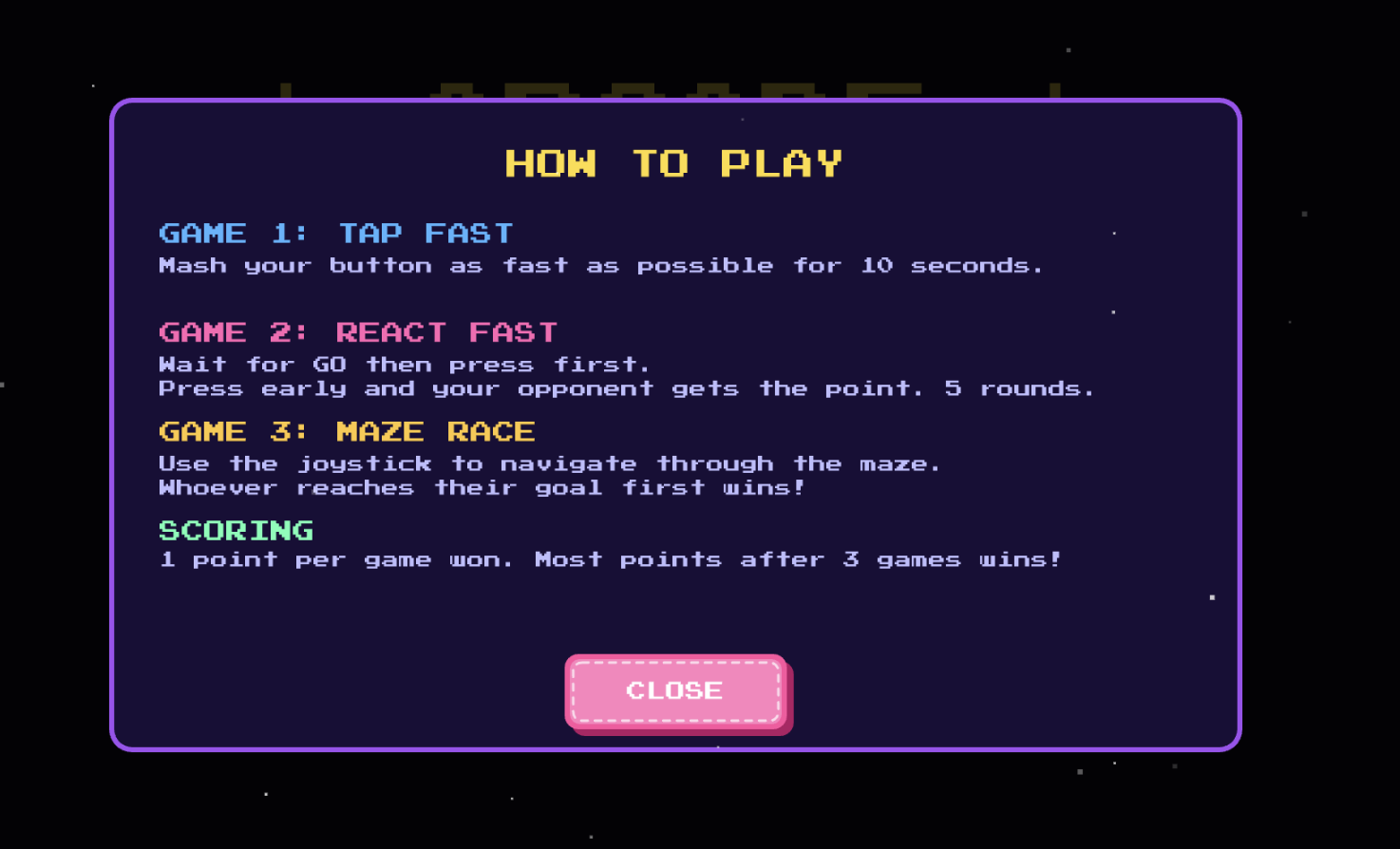
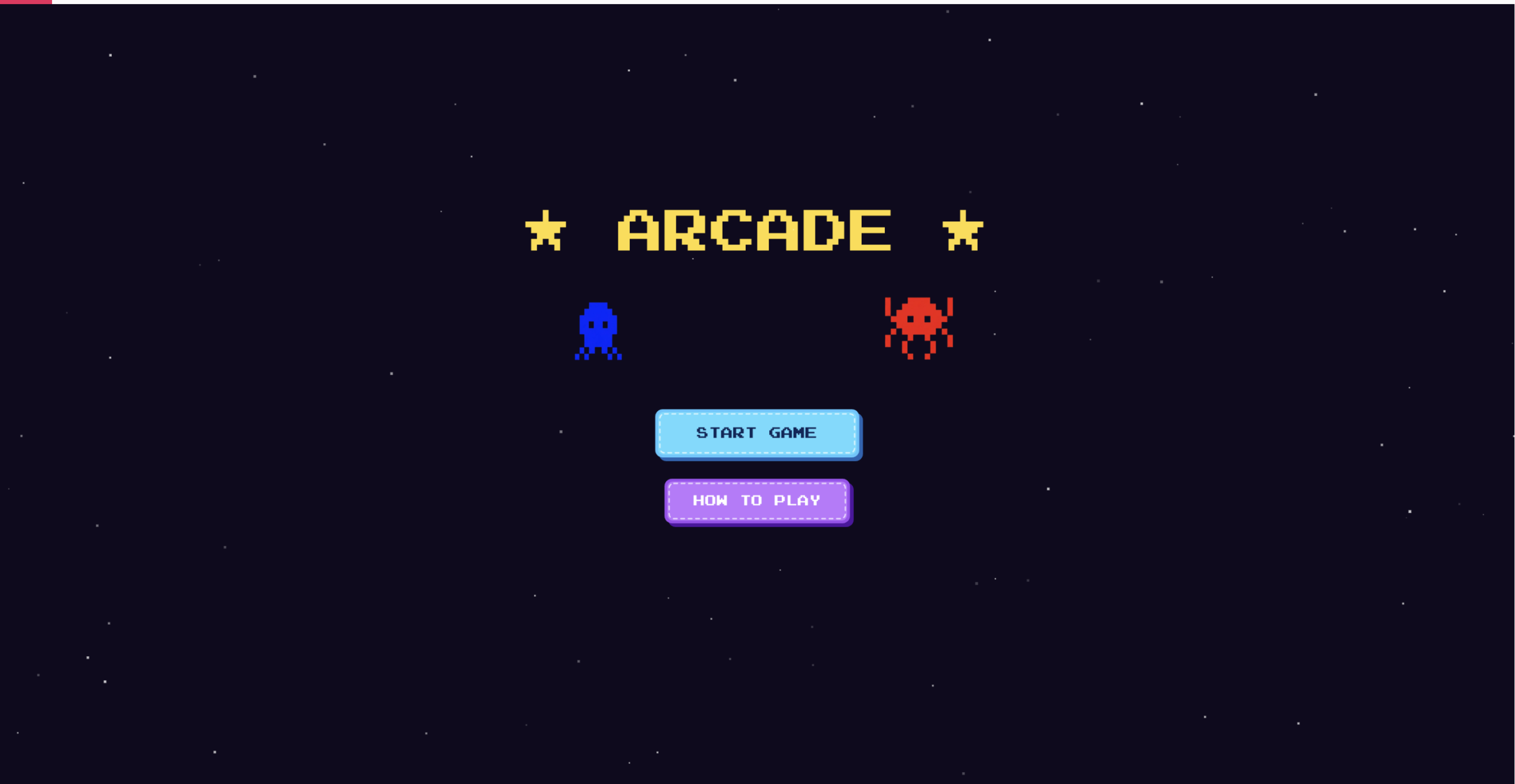
My project is an arcade-style multi-player game. The project consists of 3 mini-games, a tap fast game where the player who presses their button the most is the winner, react fast where the player who presses their button first after the LEDs light up is the winner, and finally a maze race where players race to the other side of the screen using joysticks.

My project is an Arduino + p5.js project. The users only interact with the Arduino components which includes a button and joystick for each player. There’s also an LED to support the games functionality. The p5.js sketch shows each player’s scores and displays the maze for the final game.

The final game has stayed mostly the same since my initial proposal, the main difference is that I did remove the memory game. This was because it required too many buttons, and the wires we’re getting really confusing to follow. It also did require at least 4 LEDs, and honestly I wasn’t even sure if there was enough pins on the Arduino Uno to include all these components. Hence, I ended up settling for the react fast game since I could reuse the same button from tap fast! I also came to be really really grateful that I made this decision early on because when I was trying to put my components into a cardboard box, the buttons were the most difficult and were constantly getting disconnected, so truly I would’ve lost it if I had to deal with FIVE buttons PER player.

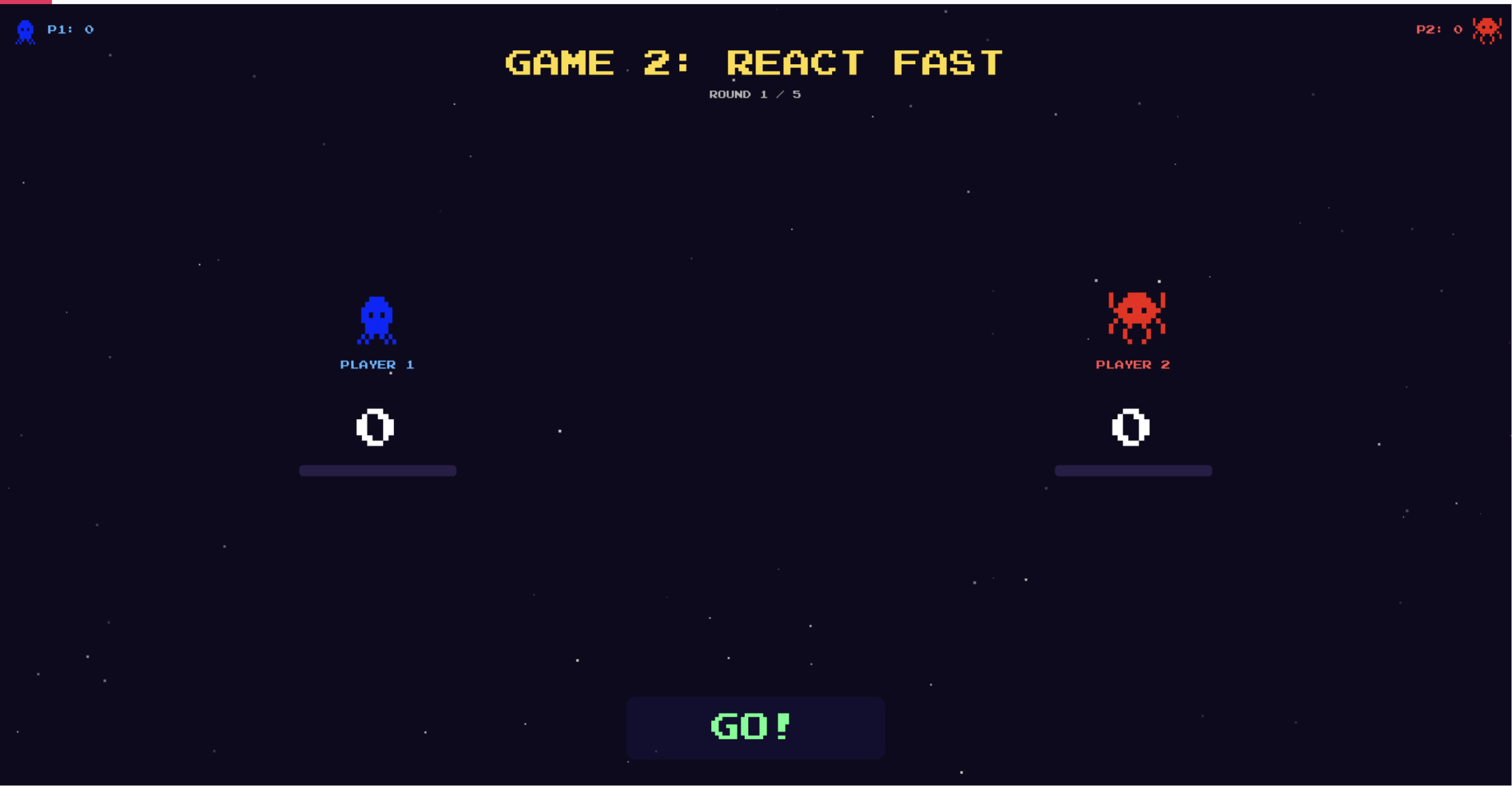
Pictures & screenshots of my physical game and the p5.js sketch
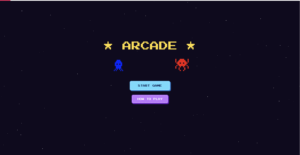
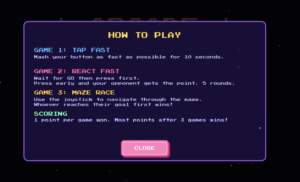
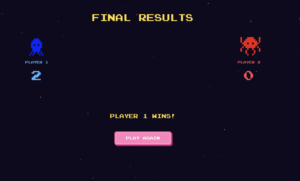
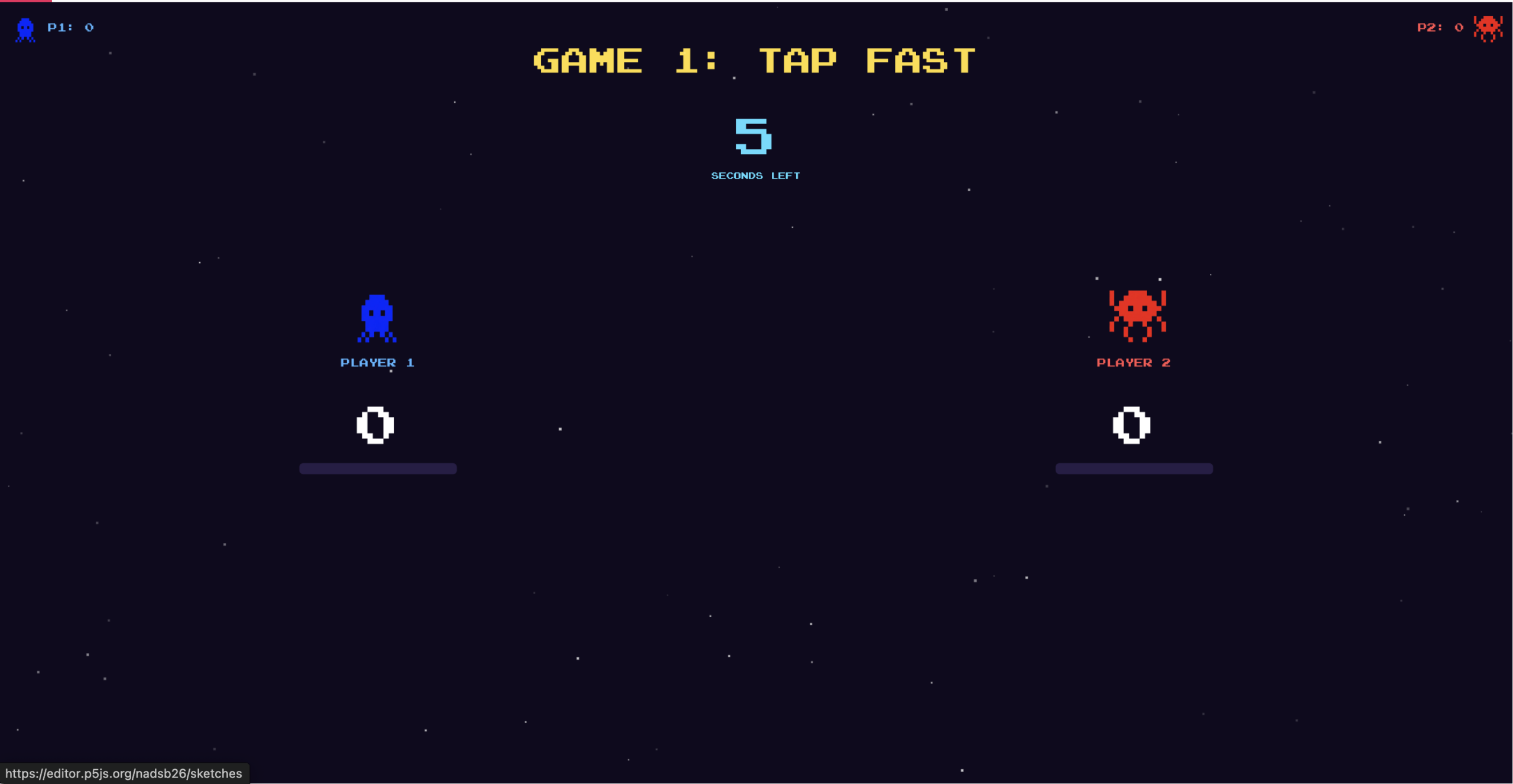
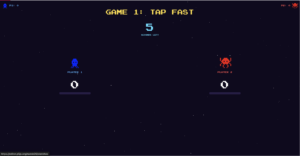
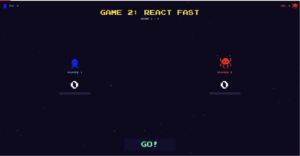
The layout for games 1 & 2 is very similar, however, there are few minor details (that are not very visible below but are more noticeable when you play the game). For game 1, there is a timer in top center that counts down from 10 seconds, when it reaches 3 seconds, the text color changes to red. In game 2, there is a signal box at the bottom that has instructions. When the LEDs are lit up, the signal box also says GO. There are a few other states such as, waiting, timeout (when neither player presses for 3 seconds), early (if either player presses before the LEDs light up), win, and gameover. In both games, there is a scorebar below the character figures that fill up when the players get points in each game.
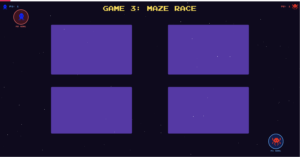
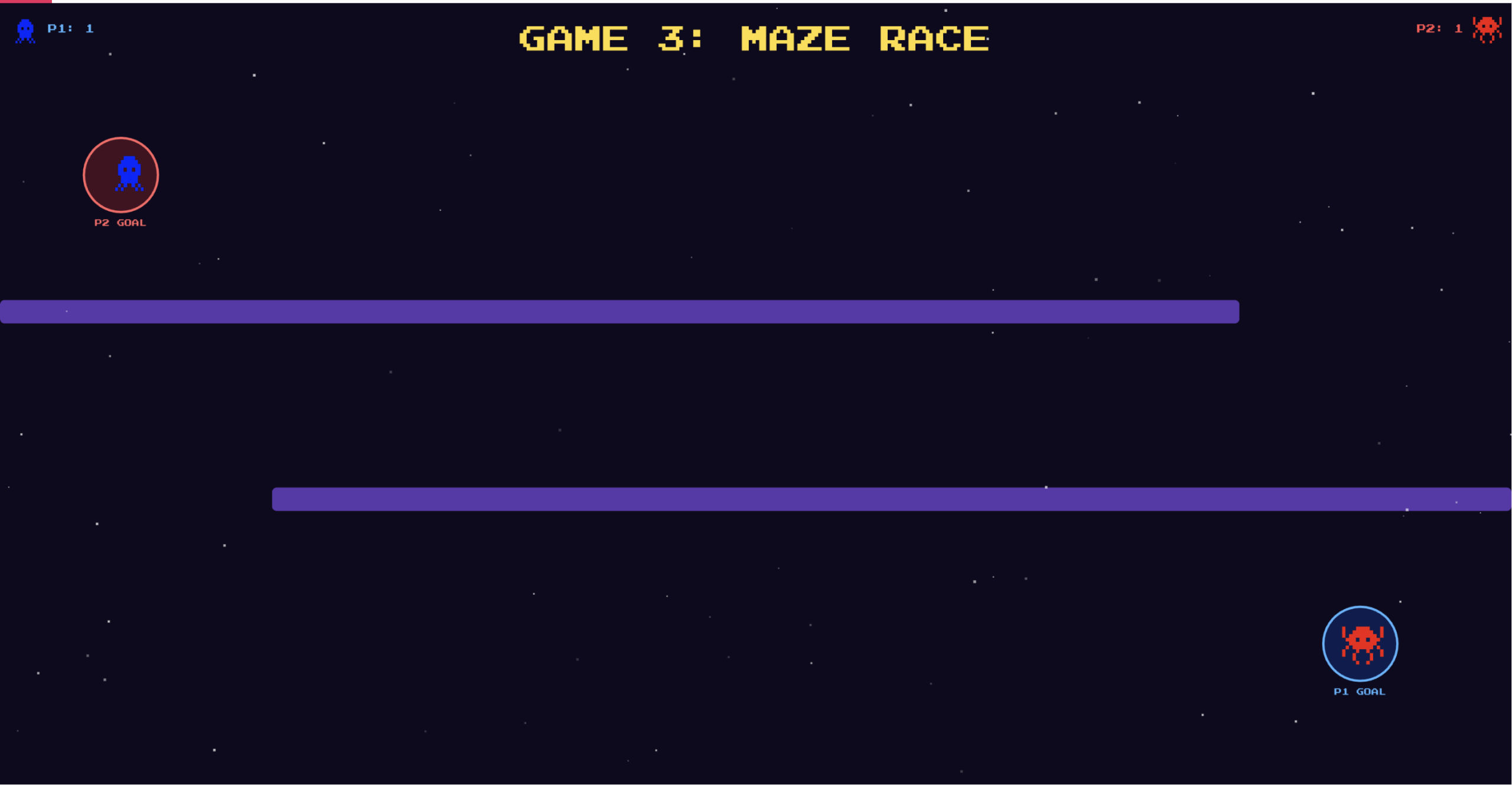
There are three different possible maze layouts, these are randomized each game. You can see how each one looks below:
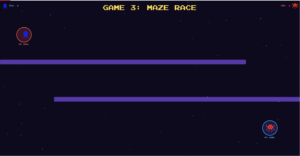
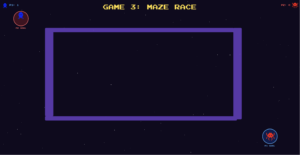
You can see more of how the physical game works through the video demo
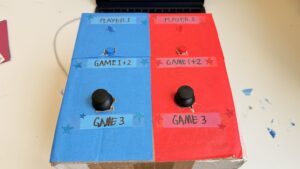
Video demo: https://stream.nyu.edu/media/IMG_8479.MOV/1_tv06av9s 
Full Arduino source code
// pins: 
const int button1 = 2; // blue 
const int led1 = 4; // blue

const int button2 = 3;  // red
const int led2 = 5; // red

const int joy1_x = A0;
const int joy1_y = A1;

const int joy2_x = A2;
const int joy2_y = A3;

// state
int gamePhase = 0;   // 0 = waiting, 1 = game1, 2 = game2, 3 = game3
int scoreP1 = 0, scoreP2 = 0;

// game 1
// number of presses of each player 
int countP1 = 0, countP2 = 0;

// last state of each button 
int lastP1 = HIGH;
int lastP2 = HIGH;

unsigned long g1Start = 0;
const unsigned long g1Duration = 10000;
bool g1Running = false;

// game 2
// score of each player
int g2ScoreP1 = 0, g2ScoreP2 = 0;
int g2Round = 0; // game 2 has multiple rounds
const int totalRounds = 5;
bool g2WaitingForPress = false;
bool earlyPress = false;   // if pressed before GO signal
unsigned long goTime = 0;

// game 3
// joystick data is just sent to p5.js every frame
// p5.js handles all game logic and sends WIN when done
bool g3Running = false;

void setup() {
  Serial.begin(9600);

  pinMode(button1, INPUT_PULLUP);
  pinMode(button2, INPUT_PULLUP);
  pinMode(led1, OUTPUT);
  pinMode(led2, OUTPUT);

  allOff();
  Serial.println("READY");
}

void loop() {
  // reads serial commands from p5.js
  if (Serial.available() > 0) {
    String cmd = Serial.readStringUntil('\n');
    cmd.trim();
    handleCommand(cmd);
  }

  if (gamePhase == 1 && g1Running) {
    runGame1();
  }
  if (gamePhase == 2 && g2WaitingForPress) {
    runGame2();
  }
  if (gamePhase == 3 && g3Running) {
    runGame3();
  }
}

void handleCommand(String cmd) {
  if (cmd == "START" && gamePhase == 0) {
    startGame1();
  }

  // RESET is sent by p5.js when the user clicks "play again"
  // resets all scores and puts Arduino back to the waiting state
  if (cmd == "RESET") {
    scoreP1 = 0;
    scoreP2 = 0;
    gamePhase = 0;
    g1Running = false;
    g3Running = false;
    g2WaitingForPress = false;
    allOff();
    Serial.println("READY"); // confirms reset to p5.js
  }

  // p5.js tells us game 3 is over
  if (cmd.startsWith("G3:WIN:") && gamePhase == 3) {
    int winner = cmd.substring(7).toInt();
    endGame3(winner);
  }
}

// helper functions:
void allOff() {
  digitalWrite(led1, LOW);
  digitalWrite(led2, LOW);
}

// used at the end of game 2 & 3
void flashLED(int times, int ms) {
  for (int i = 0; i < times; i++) {
    digitalWrite(led1, HIGH); 
    digitalWrite(led2, HIGH);
    delay(ms);

    digitalWrite(led1, LOW);  
    digitalWrite(led2, LOW);
    delay(ms);
  }
}

// game 1: tap fast
void startGame1() {
  gamePhase = 1;
  countP1 = 0; countP2 = 0;
  lastP1 = HIGH; lastP2 = HIGH;

  Serial.println("GAME:1");
  
  g1Start = millis(); // saves start time for game 1
  g1Running = true;
}

// this function runs repeatedly as long as game 1 is active
void runGame1() {
  // checks how much time has passed since game 1 started
  unsigned long elapsed = millis() - g1Start;
  if (elapsed >= g1Duration) {
    endGame1();
    return;
  }

  // current button states
  int s1 = digitalRead(button1);
  int s2 = digitalRead(button2);

  // if button was pressed, increase player's count and led is lit up
  // the logic is opposite since we are using INPUT_PULLUP, to avoid using resistors
  if (s1 == LOW && lastP1 == HIGH) {
    countP1++;
    digitalWrite(led1, HIGH);

    Serial.print("G1:A:"); 
    Serial.println(countP1);

  } else if (s1 == HIGH) {
    digitalWrite(led1, LOW);
  }

  if (s2 == LOW && lastP2 == HIGH) {
    countP2++;
    digitalWrite(led2, HIGH);

    Serial.print("G1:B:"); 
    Serial.println(countP2);
  } else if (s2 == HIGH) {
    digitalWrite(led2, LOW);
  }

  // save the current state for the next loop
  lastP1 = s1;
  lastP2 = s2;

  delay(8); // reduces button bouncing
}

void endGame1() {
  g1Running = false;
  allOff(); // turns leds off 

  int winner = 0;
  if (countP1 > countP2) {
    winner = 1;
    scoreP1++;
  } else if (countP2 > countP1) {
    winner = 2;
    scoreP2++;
  }

  // print winner
  Serial.print("G1:WIN:"); Serial.println(winner);

  // print score of each player
  Serial.print("SCORE:"); Serial.print(scoreP1);
  Serial.print(","); Serial.println(scoreP2);

  if (winner > 0) {
    // flash winner's LED
    for (int i = 0; i < 4; i++) {
      if (winner == 1) {
        digitalWrite(led1, HIGH);
        delay(150);
        digitalWrite(led1, LOW);
        delay(150);
      } else if (winner == 2) {
        digitalWrite(led2, HIGH);
        delay(150);
        digitalWrite(led2, LOW);
        delay(150);
      }
    }
  }

  flashLED(4, 150);
  delay(2000);
  startGame2();
}

// game 2: react fast
void startGame2() {
  gamePhase = 2;
  g2ScoreP1 = 0; 
  g2ScoreP2 = 0;
  g2Round = 0;

  Serial.println("GAME:2");
  delay(1000);
  nextReactionRound();
}

void nextReactionRound() {
  // game 2 ends when all rounds are complete
  if (g2Round >= totalRounds) {
    endGame2();
    return;
  }

  g2Round++;
  earlyPress = false;
  g2WaitingForPress = false;

  Serial.print("G2:ROUND:"); Serial.println(g2Round);

  // wait a random time before 'go'
  int waitMs = random(1500, 4000);
  unsigned long waitStart = millis();

  // during wait, check for early presses (penalty)
  while (millis() - waitStart < waitMs) {
    if (digitalRead(button1) == LOW || digitalRead(button2) == LOW) {
      earlyPress = true;

      // find who pressed early
      int earlyPlayer;

      if (digitalRead(button1) == LOW) {
        earlyPlayer = 1;
        g2ScoreP2++;
      } else if (digitalRead(button2) == LOW) {
        earlyPlayer = 2;
        g2ScoreP1++;
      }
      
      Serial.print("G2:EARLY:"); Serial.println(earlyPlayer); // who pressed early
      Serial.print("G2:SCORE:"); Serial.print(g2ScoreP1);
      Serial.print(","); Serial.println(g2ScoreP2);

      delay(1000);
      nextReactionRound();
      return;
    }

    delay(10);
  }

  // Fire GO signal
  digitalWrite(led1, HIGH); 
  digitalWrite(led2, HIGH);

  Serial.println("G2:GO");

  goTime = millis();
  g2WaitingForPress = true;
}

void runGame2() {
  // times out after 3 seconds if no one presses
  if (millis() - goTime > 3000) {
    allOff();
    g2WaitingForPress = false;
    Serial.println("G2:TIMEOUT");
    delay(500);
    nextReactionRound();
    return;
  }

  int s1 = digitalRead(button1);
  int s2 = digitalRead(button2);

  // if someone presses after go 
  if (s1 == LOW || s2 == LOW) {
    allOff();
    g2WaitingForPress = false;

    int winner;

    // if both press at the same time, Player 1 wins by default
    if (s1 == LOW && s2 == LOW) {
      winner = 1;
    } else if (s1 == LOW) {
      winner = 1;
    } else if (s2 == LOW) {
      winner = 2;
    }

    if (winner == 1) { 
      g2ScoreP1++; 
      digitalWrite(led1, HIGH); 
    }
    else { 
      g2ScoreP2++; 
      digitalWrite(led2, HIGH); 
    }

    Serial.print("G2:WIN:"); Serial.println(winner);
    Serial.print("G2:SCORE:"); Serial.print(g2ScoreP1);
    Serial.print(","); Serial.println(g2ScoreP2);

    delay(800);
    allOff();
    delay(600);
    nextReactionRound();
  }
}

void endGame2() {
  int winner = 0;
  if (g2ScoreP1 > g2ScoreP2) { 
    winner = 1; 
    scoreP1++; 
  }
  else if (g2ScoreP2 > g2ScoreP1) { 
    winner = 2; 
    scoreP2++; 
  }

  Serial.print("G2:GAMEOVER:"); Serial.println(winner);
  Serial.print("SCORE:"); Serial.print(scoreP1);
  Serial.print(","); Serial.println(scoreP2);

  flashLED(4, 150);
  delay(2000);
  startGame3();
}

// game 3: dodge
// p5.js handles all collisions/game logic, arduino just sends joystick values
// p5.js sends back G3:WIN:<#> when game ends
void startGame3() {
  gamePhase = 3;
  g3Running = true;
  Serial.println("GAME:3");
  delay(500);
}

void runGame3() {
  int x1 = analogRead(joy1_x);
  int y1 = analogRead(joy1_y);

  int x2 = analogRead(joy2_x);
  int y2 = analogRead(joy2_y);

  Serial.print("G3:JOY:");
  Serial.print(x1); Serial.print(",");
  Serial.print(y1); Serial.print(",");
  Serial.print(x2); Serial.print(",");
  Serial.println(y2);

  delay(33); // ~30fps
}

void endGame3(int winner) {
  g3Running = false;
  allOff();

  if (winner > 0) {
    if (winner == 1) {
      scoreP1++;    
    }
    else {
      scoreP2++;
    }
  }

  Serial.print("SCORE:"); Serial.print(scoreP1);
  Serial.print(","); Serial.println(scoreP2);

  int overall = 0;
  if (scoreP1 > scoreP2) {
    overall = 1;
  }
  else if (scoreP2 > scoreP1) {
    overall = 2;
  }

  flashLED(5, 200);

  Serial.print("OVERALL:"); Serial.println(overall);
  gamePhase = 0;
}
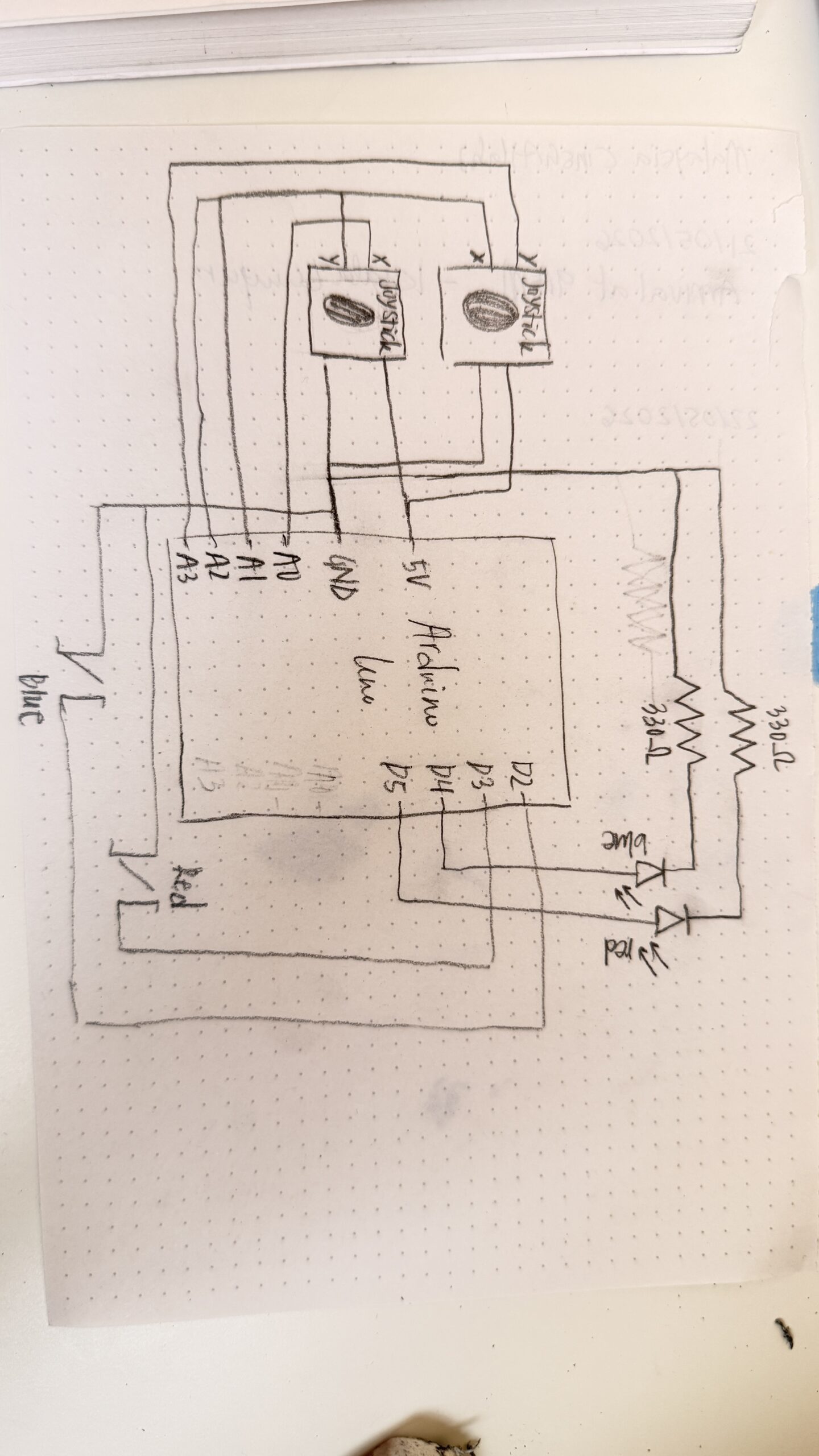
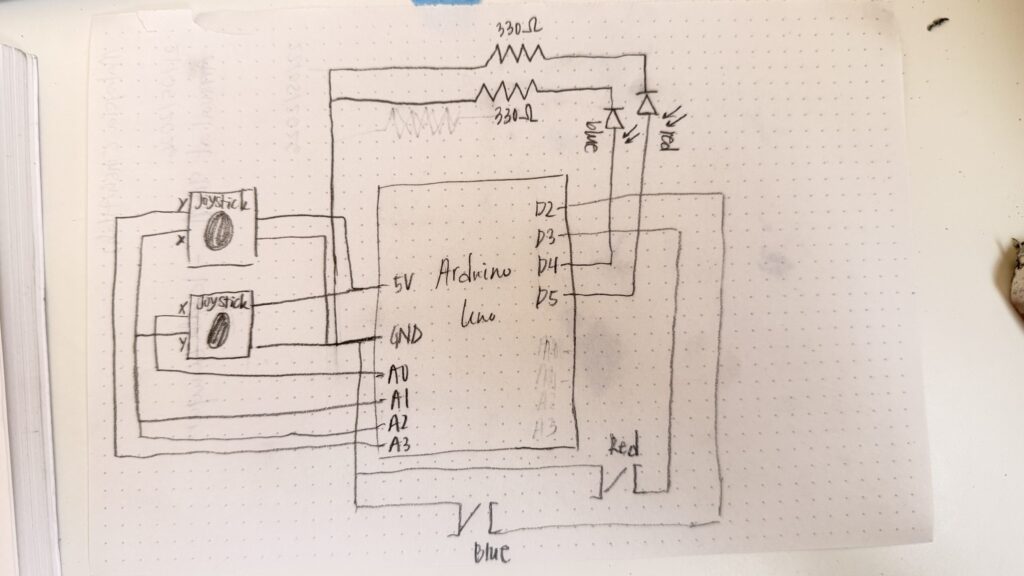
Hand-drawn schematicp5.js sketch
“How this was made” section explaining how the code was made and sources of media assets (i.e. use of tools, libraries, online sources, and AI)

I started working on the Arduino first. I experimented with different games, and followed online tutorials as well as the Starter Kit book to implement a few games to get me started.

To get familiar with the joysticks, I referred to this video. I referred to this to implement tap fast. There was probably a few other videos that I referred to here and there to resolve minor issues, however, I cannot find the links for them now.

Once I got the hang of each component individually and mastered a few games as one-player games, I started working on creating each game as a two-player game and connecting everything with p5.js. To get started with this, I followed the recording where you went over serial communication and made sure everything worked before jumping to my own games. Luckily, this wasn’t as difficult as I expected it to be!

In my game, arduino handles all the physical inputs such as button presses, joystick movements, and runs the timing logic. These results are sent over serial to the p5.js sketch to be able to align the visuals, the different screens for each game, score updates, game states, and character movements. To manage the different phases of the game, I had an integer gamePhase which decided which screen to show at any point, 0 represents the main menu, 1,2,3 represents each mini-game, and 4 represents the final result screen. draw() checks the gamePhase variable at every frame and calls the right function to start that specific game, or switch to the main menu / final screen.

// current screen is based on the gamePhase
function draw() {
  
  // print(mouseX, mouseY);
  
  background(15, 10, 30);
  readSerial();

  if (gamePhase === 0) 
    drawMenu();
  else if (gamePhase === 1) 
    drawGame1();
  else if (gamePhase === 2) 
    drawGame2();
  else if (gamePhase === 3) 
    drawGame3();
  else if (gamePhase === 4) 
    drawOverall();

  if (gamePhase >= 1 && gamePhase <= 3) 
    drawScoreBar();
  if (showInstructions) 
    drawInstructions();
  
  // draw stars, each one pulses slightly using sin wave
  noStroke();
  for (let s of stars) {
    let alpha = 120 + 80 * sin(frameCount * 0.02 + s.x);
    fill(255, 255, 255, alpha);
    rect(s.x, s.y, s.s, s.s);
  }

  // serial communication
  function readSerial() {
    while (port.available() > 0) {

      let msg = port.readUntil("\n");
      if (msg) 
        handleSerial(msg.trim());
    }
  }
}

Also in the draw() function is the readSerial() function. This function reads any messages being send from the Arduino and sends it to handleSerial() which actually checks the text. Using JavaScript’s startsWith() and substring(), I extracted the needed data from each message.

// handles the serial messages between the arduino IDE and p5.js
function handleSerial(msg) {
  if (!msg || msg === "READY") 
    return;

  if (msg === "GAME:1") { 
    // assigns gamePhase to 1, and sets all related variables to starting values
    gamePhase = 1; 
    countP1 = 0; 
    countP2 = 0; 
    g1Winner = -1; 
    g1Start = millis(); 
    
    return; 
  }
  if (msg === "GAME:2") { 
    gamePhase = 2; 
    g2ScoreP1 = 0; 
    g2ScoreP2 = 0; 
    g2Round = 0; 
    g2Winner = -1; 
    g2State = "waiting";
    
    return; 
  }
  if (msg === "GAME:3") { 
    gamePhase = 3; 
    startGame3(); 
    
    return; 
  }

  // game 1 serial communication: 
  if (msg.startsWith("G1:A:"))     { 
    // gets the number after G1:A: which holds the player 1 count
    countP1 = int(msg.substring(5)); 
    return; 
  }
  if (msg.startsWith("G1:B:"))     { 
    // gets the number after G1:B: which holds player 2 count
    countP2 = int(msg.substring(5)); 
    return; 
  }
  if (msg.startsWith("G1:WIN:"))   { 
    // to store the winner of game 1 (1/2)
    g1Winner = int(msg.substring(7)); 
    return; 
  }
  
  // game 2 serial comms
  if (msg.startsWith("G2:ROUND:")) { 
    
    g2Round = int(msg.substring(9)); // gets round number
    g2State = "waiting";  
    
    return; 
  }
  if (msg === "G2:GO") { 
    
    g2State = "go"; // players can react now
    goTime = millis(); 
    
    return; 
  }
  if (msg.startsWith("G2:WIN:")) { 
    
    g2Winner = int(msg.substring(7)); // gets which player won
    g2State = "win"; 
    return; 
  }
  if (msg.startsWith("G2:EARLY:")) { 
    
    earlyPlayer = int(msg.substring(9)); // gets player who pressed early
    g2State = "early"; 
    return; 
  }  
  if (msg === "G2:TIMEOUT") { 
    
    g2State = "timeout"; // round timed out
    return; 
  }
  if (msg.startsWith("G2:SCORE:")) { 
    
    let s = msg.substring(9).split(","); // splits score into two values
    g2ScoreP1 = int(s[0]);  // first value is p1's score
    g2ScoreP2 = int(s[1]);  // second value is player 2
    return; 
  }
  if (msg.startsWith("G2:GAMEOVER:")) { 
    g2Winner = int(msg.substring(12)); // gets final winner for game 2
    g2State = "gameover"; // ends game 2
    return; 
  }
  
  // game 3 serial comms
  if (msg.startsWith("G3:JOY:")) { 
    
    let v = msg.substring(7).split(","); // splits joystick values
    
    // player 1 & 2 joystick values:
    joy1_x = int(v[0]); 
    joy1_y = int(v[1]); 
    joy2_x = int(v[2]); 
    joy2_y = int(v[3]); 
    
    return; 
  }
  
  // overall
  if (msg.startsWith("SCORE:")) { 
    let s = msg.substring(6).split(","); // splits total score
    scoreP1 = int(s[0]); // player 1 score
    scoreP2 = int(s[1]); // player 2 score
    return; 
  }
  if (msg.startsWith("OVERALL:"))  { 
    overallWinner = int(msg.substring(8)); // gets overall winner
    gamePhase = 4; // shows final screen
    return; 
  }
}

When the message “GAME:1” is sent, the game phase switches and shows each player’s character, their score, and the 10-second countdown begins. The Arduino reads button presses for each player and sends the updated score every time a button is pressed. p5.js displays these scores everytime it is updated.

The timer is calculated in p5.js using millis(); the start time of the game is stored in g1Start and then each frame the timeLeft is computed. When the time is up, the Arduino determines the winner and send the respective message. p5.js then displays the winner overlay and shows that winner.

// calculates how much time is left in the game
  // millis() gives the current time since the program started & g1Start is the time when game 1 started
  let timeLeft = max(0, g1Duration - (millis() - g1Start));
  
  // converts milliseconds to seconds
  let secs = ceil(timeLeft / 1000);

Game 2 starts when “GAME:2” is sent from the Arduino. Game 2 is a reaction time game played over 5 rounds. The Arduino controls the timing; it sends a “WAIT” state, and after a random delay sends “G2:GO” which updates the signal box. This matches up with the LEDs lighting up as well, so the players can look at either the LEDs or the p5.js sketch. Whoever presses first wins the round, however, if either player presses early, the other player gets the point (and if both players don’t press, neither player gets a point)

Game 3 probably took me the most time to build, and I did get some help from Claude for debugging purposes since it was getting a bit confusing. Almost all the functionality of game 3 is handled within p5.js. The players still use the physical joysticks to move their characters. The Arduino just sends the joystick values as four numbers (0-1023) and the p5.js handles the movements of the characters on the screen. Every frame, the joystick values are read converted to movement. To handle wall collision, I treated each character as a circle of 10 pixel radius. The circleRect() function checks if the closest point on the rectangle to the circle’s center is less than the radius of the circle. If so, then it calls resolveWalls() which handles the collision response. It checks horizontal and vertical movements separately. The goal zone for each player is the opposite player’s spawn point. I check if the players reach their goal using the dist() function, if the character is within 40 pixels of the goal’s centers, they win. If both players somehow reach at the same exact time, then it’s a draw.

// this function was written with some help from claude, mainly for debugging purposes
// checks the proposed new position (nx, ny) against all walls 
// returns [safeX, safeY] that doesn't overlap any wall
function resolveWalls(oldX, oldY, nx, ny) {
  let safeX = nx;
  let safeY = ny;

  // check the player against every wall
  for (let wall of walls) {

    // check horizontal movement
    // test new X, but keep the old Y
    if (circleRect(safeX, oldY, PLAYER_R, wall)) {
      // if nx > oldX, movement was to the right
      if (nx > oldX) {
        // places character back slightly to the left of the wall
        safeX = wall.x - PLAYER_R;
      } 
      else {
        // otherise, left movement; put player to the right of the wall 
        safeX = wall.x + wall.w + PLAYER_R;
      }
    }

    // checks vertical movement
    if (circleRect(safeX, safeY, PLAYER_R, wall)) {

      // downward movement
      if (ny > oldY) {
        // put the player just above the wall
        safeY = wall.y - PLAYER_R;
      } 
      else {
        // otherwise, upward movement; put the player just below the wall
        safeY = wall.y + wall.h + PLAYER_R;
      }
    }
  }

  // Return the corrected safe position
  return [safeX, safeY];
}
 
// returns true if a circle (cx, cy, radius r) overlaps rectangle w
function circleRect(cx, cy, r, w) {
  
  // closest point on wall to circle center
  let closestX = constrain(cx, w.x, w.x+w.w);
  let closestY = constrain(cy, w.y, w.y+w.h);
  
  let dx = cx - closestX;
  let dy = cy - closestY;
  
  // if distance is less than the radius, collision reported
  return (dx*dx + dy*dy) < (r*r);
}

I designed three different maze layouts, and the layout is randomized every game. Each layout uses fractional coordinates instead of fixed values to ensure it scales properly on any screen size. When the game starts, startGame3() converts the fractions to actual pixel sizes based on the current canvas size. If the user changes the screen-size during this specific game, the game restarts.

// convert fractional wall definitions to actual pixel rectangles
  walls = layout.walls.map(w => ({
    x: w.x * width,
    y: w.y * height,
    w: w.w * width,
    h: w.h * height,
  }));

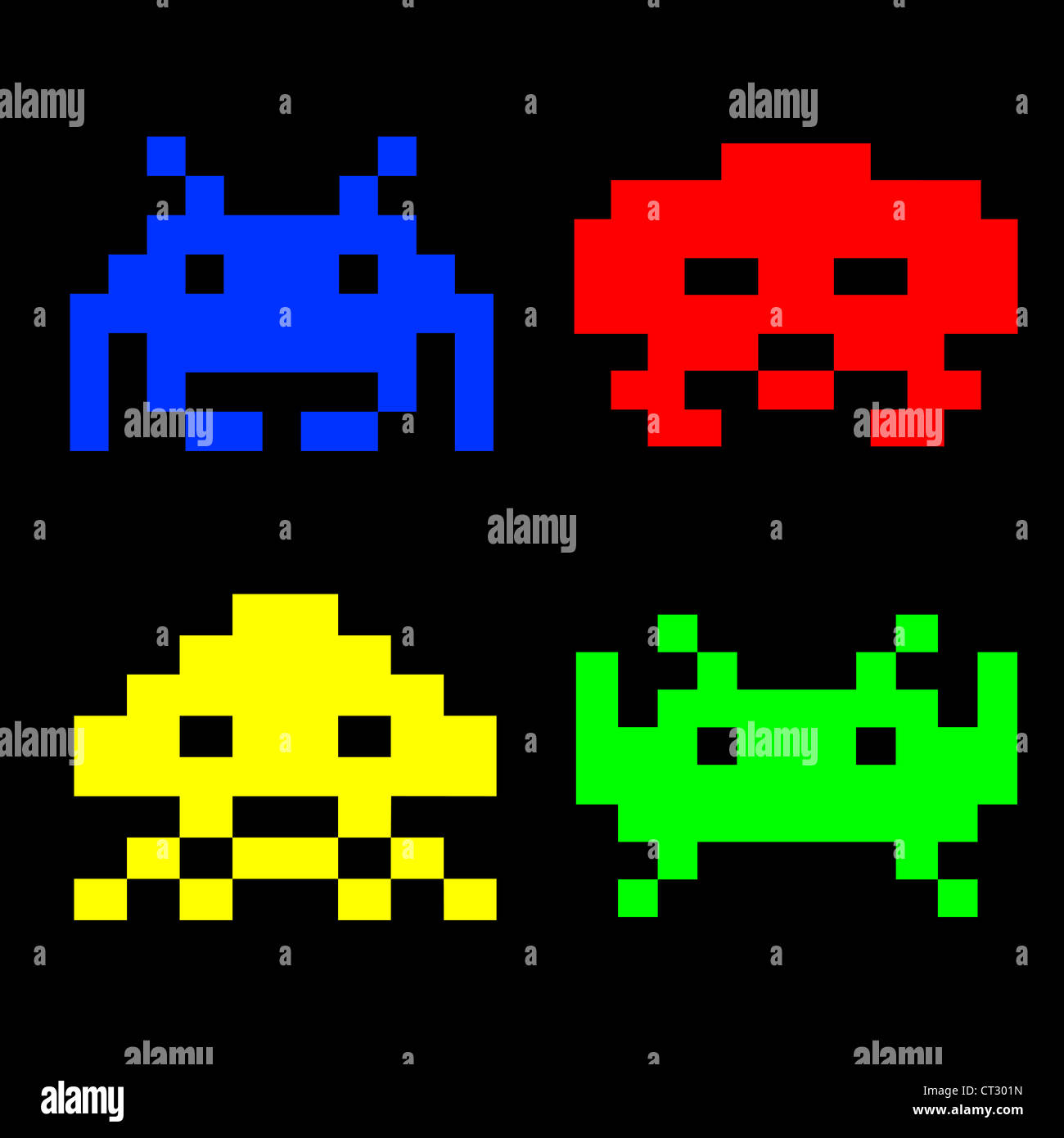
As for the visual design of the project, the characters were inspired by the below image. I gave this image as a reference to Gemini and told it to generate just a red and blue character in a similar aesthetic (since I couldn’t remove the watermark).  Retro game characters Stock Photo - Alamy
The font I used was from font space. The font, Press Start 2P, matched the arcade game aesthetic I was going for. For the buttons, I gave Claude an inspo pic from Google and it generated the buttons using code.
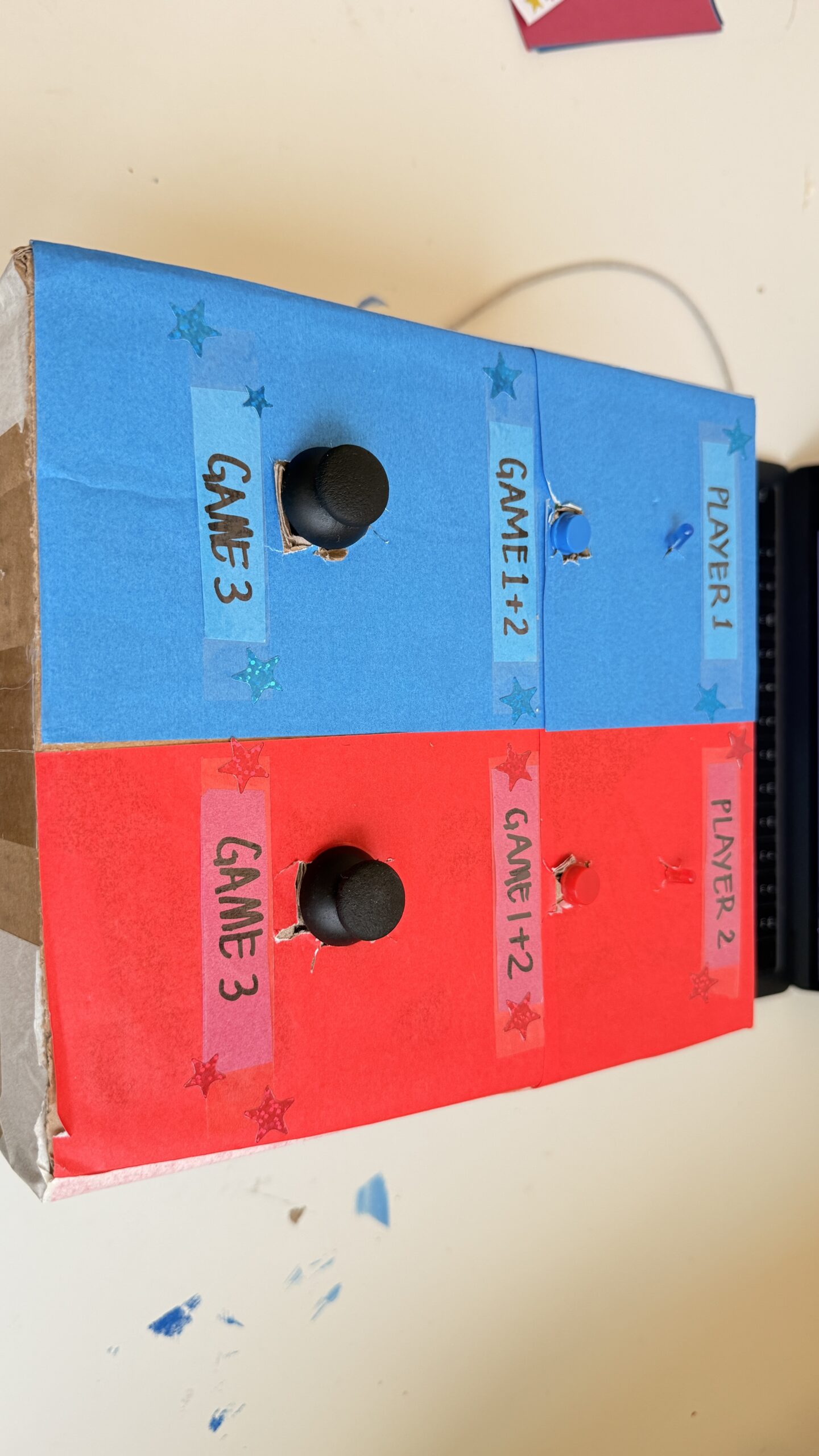
And for the physical aspect, I just used a cardbox I had at home, I used red paper on the right for player 1 and blue paper for player 2. I made “X” shaped cuts for each component that needed to be exposed and taped everything up from the back. I added labels to make it more intuitive and added some stars to match the faint stars in the background of my game.

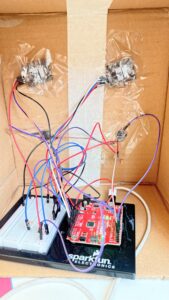
This is what the box looks like from the back
What are some aspects of the project that you’re particularly proud of?

The main things I’m proud of for this project is the physical aspects. Arduino seemed really intimidating in the beginning, and I also really wanted to create a game that would actually be fun and easy to use. I expected the joystick component to be really difficult to work with, which it was in the start, but I was really excited when I got the hang of it and especially when everything connected to the p5.js sketch as well. Writing the code for so many components also felt intimidating but it actually turned out to be much easier than I thought, they’re all functions we’ve used individually before just combined into one game.

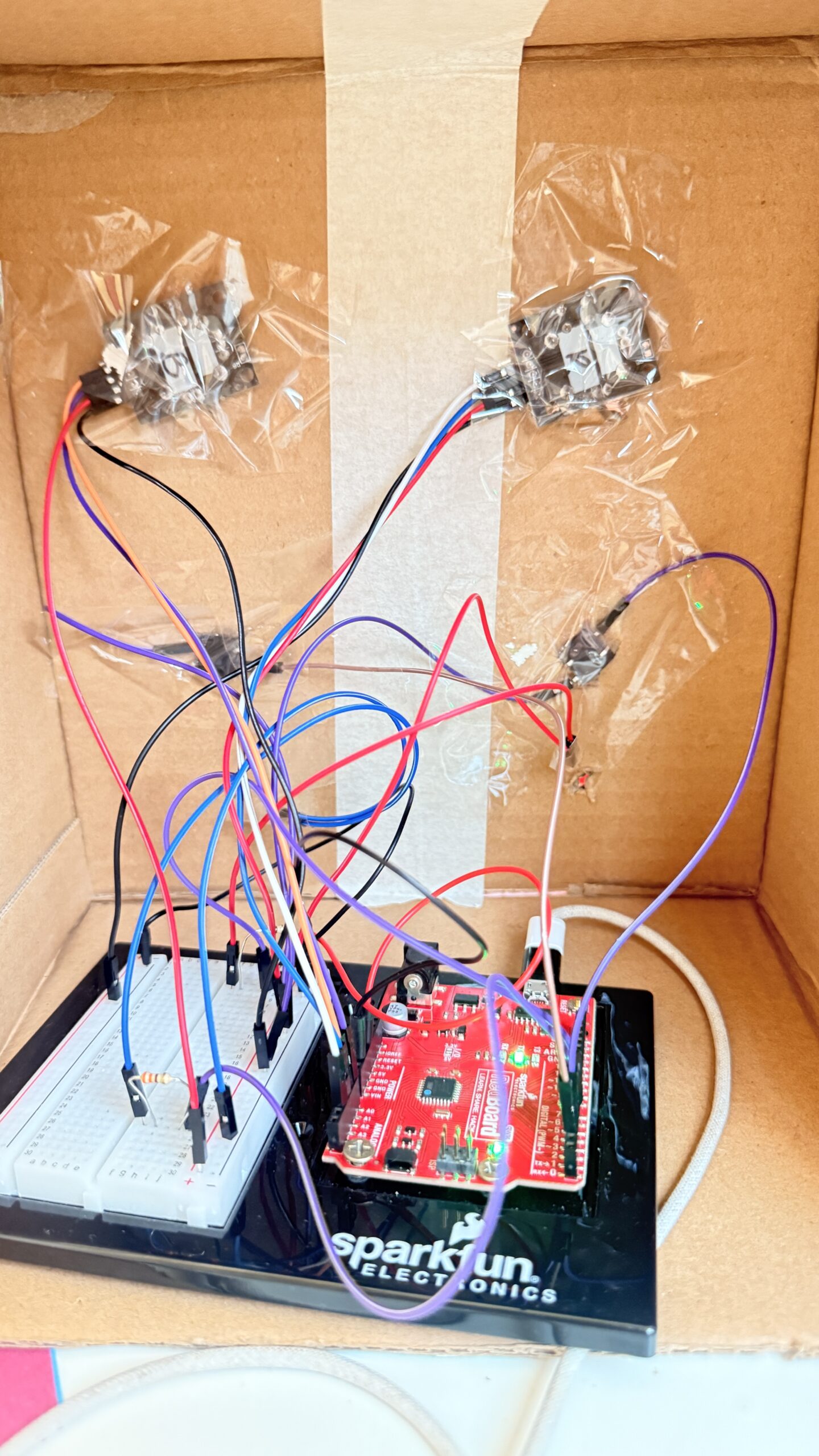
I was initially planning on just leaving my components on the breadboard with the wires exposed. However, the joysticks only working in a specific orientation motivated me to actually put all the components in a box to ensure the game is easy to use. Putting everything in the box was SO difficult, everything kept falling, the tape wouldn’t stick properly and it was a bit annoying to reconnect everything (I used male to female wires for this). However, I’m happy with how the final result came out and it definitely looks like something I would play in the IM Showcase!

What are some areas for future improvement?

I would’ve loved to also get the arcade look on my physical game to make everything look cohesive. I also had more ideas from my p5.js sketch to personalize the design more and maybe draw my own characters, allow the players to choose between different characters, and so on. I would also love to add more mini-games and the memory game! I was really excited about implementing the memory game when I did in as a one-player game, but it was too complicated for two-players. I also did initially have buzzer, which added to the experience since there was an audio feedback, however, unfortunately my buzzer broke at the last minute (one of the pins broke). I think this could be resolved by either adding another buzzer OR using audio on the p5.js sketch. However, for now, it was difficult to find different, appropriate audios in a short-time frame, but this could be something for future imrpovements.

Inside Your Mind – Interactive Fluid Typography Experience and User Testing

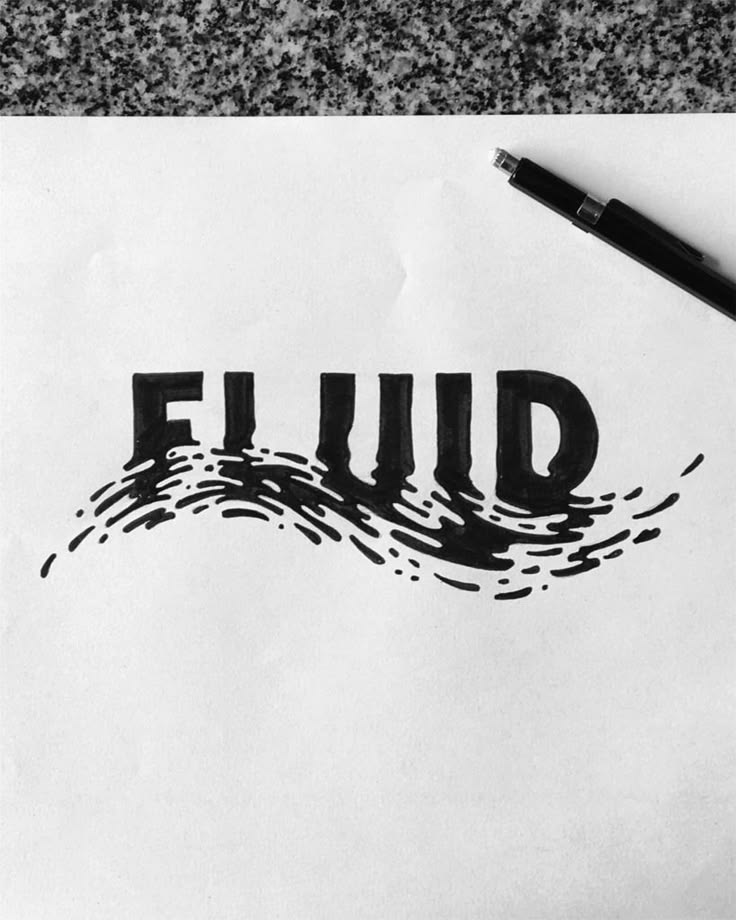
As I was experimenting with m project, I built Inside Your Mind – a second-person psychological narrative experience created in p5.js. I felt like with the creativity I developed in the class Tinkercad would not be enough to show my ideas, altough I tried to make a project on Tinkercad I did not open fully with it, so I chose to do my interactive experinec in p5. The project moves away from game mechanics and goals, and toward something more expressive and open-ended: a guided journey through four emotional stages of the mind, rendered through fluid particle typography and sound.

The experience opens with a kinetic typography intro sequence a personal greeting, a typewriter reveal, a search bar that types “inside your mind” — before transitioning into the main particle world. From there, users navigate different stages of mind, noise, overthink, break and finally silence.

User Testing

User testing was conducted with participant who experienced the full interactive sequence from the intro through all four stages. My little brother.  Participant were observed interacting freely with no instructions given beyond “explore it.”

The response was overwhelmingly positive.

Tester consistently described the experience as something they hadn’t encountered before, not a game, not a website, something in between that felt genuinely immersive. My brother spent more time in the experience than expected, going back and forth between stages to compare how the particles moved differently in each one. The fluid typography was the element that resonated most strongly. Tester were drawn to how the text was simultaneously readable and alive. The sound design was a notable highlight. Tester immediately noticed that each stage sounded different, and several remarked that the cursor sounds made the experience feel tactile, like they were touching something. The wind sound in Stage 1, the water drops in Stage 2, the glitch crackle in Stage 3, and the bell chimes in Stage 4 each reinforced the emotional tone of that chapter which made it more cohesive.

Link to user testing video: https://drive.google.com/file/d/1y8koBlJ7WqWSgiGLDeGFhjZYJn5P-0Ib/view?usp=drivesdk

Areas noted for potential refinement:

I am considering to add an introduction to the experience explaining more about the interactivness, I am inspired by motion design, lately have been watching different motion design ad proposals for brands and I enjoyed the animations, so I would want to implement it to my project by learning and applying it.

Final Project: Flame Keeper

Flame Keeper is a browser-based game controlled by a physical Arduino. A potentiometer and a push button are the only inputs. There is no keyboard, no mouse, no touchscreen. Your hands are on hardware, and what happens on screen responds directly to what you do with them.

The goal is simple: keep a candle flame alive as long as possible. The flame slowly dies if you neglect it and gets destroyed quickly when wind gusts hit. Your job is to manage both threats at the same time using two very different physical actions.

Demo Video

Concept

A candle flame is fragile. It responds to the air around it, flickers under pressure, and goes out if conditions get bad enough. I wanted to recreate that fragility as a game mechanic where the player feels like they are genuinely tending to something.

The project is meant for anyone who picks it up with no instructions. The two inputs are immediately physical and tactile. Turning a knob and pressing a button are things people already know how to do. The challenge is learning what those actions mean on screen, and then staying coordinated under pressure.

It is a single-player survival game. There is no finish line. You survive as long as you can and your best time is saved so you can try to beat it.

How It Works

The system has two parts: an Arduino that reads sensors and sends data, and a p5.js sketch running in the browser that receives that data and runs the game.

The Arduino reads a potentiometer on pin A0 and a push button on pin 2. Every 30 milliseconds it sends the potentiometer value as POT:value over serial. When the button is pressed or released it sends PRESS or RELEASE. The browser connects to the Arduino using the Web Serial API, available in Chrome and Edge. No app or driver is needed beyond a USB cable.

Inside the game, the potentiometer value maps to a cursor on a horizontal bar. A green zone moves slowly back and forth across that bar. If the cursor is inside the green zone, the flame heals. If it drifts out, the flame slowly loses health. Every 2 to 4 seconds a wind gust arrives. During a gust the flame loses health rapidly unless the player holds the button. Holding the button raises a shield that blocks all gust damage. Difficulty increases over time as gusts come more frequently.

Interaction Design

The two inputs are intentionally asymmetric. The potentiometer requires continuous attention and fine motor control. The button requires a fast reaction to a visual cue. During a gust the player must do both at once, which is where the tension of the game lives.

Feedback is layered so the player always knows what is happening without reading text. The flame shrinks visually as health drops. The screen edges pulse red when damage is being taken. Wind lines fly across the screen during gusts. Animated rings appear around the flame when the shield is active. A status pill at the top of the screen confirms the current threat and whether the shield is up.

The start screen shows both controls and what they do before the game begins, so no explanation from me is needed. The game over screen shows the player’s score and their all-time best, which gives a reason to replay.

Arduino Source Code

Full source code is on GitHub: github.com/EnockMagara/IM_FINAL

const int BUTTON_PIN = 2;
const int POT_PIN    = A0;

bool wasPressed = false;

void setup() {
  pinMode(BUTTON_PIN, INPUT_PULLUP);
  Serial.begin(9600);
}

void loop() {
  bool pressed = (digitalRead(BUTTON_PIN) == LOW);

  if (pressed && !wasPressed)  Serial.println("PRESS");
  if (!pressed && wasPressed)  Serial.println("RELEASE");
  wasPressed = pressed;

  Serial.print("POT:");
  Serial.println(analogRead(POT_PIN));

  delay(30);
}

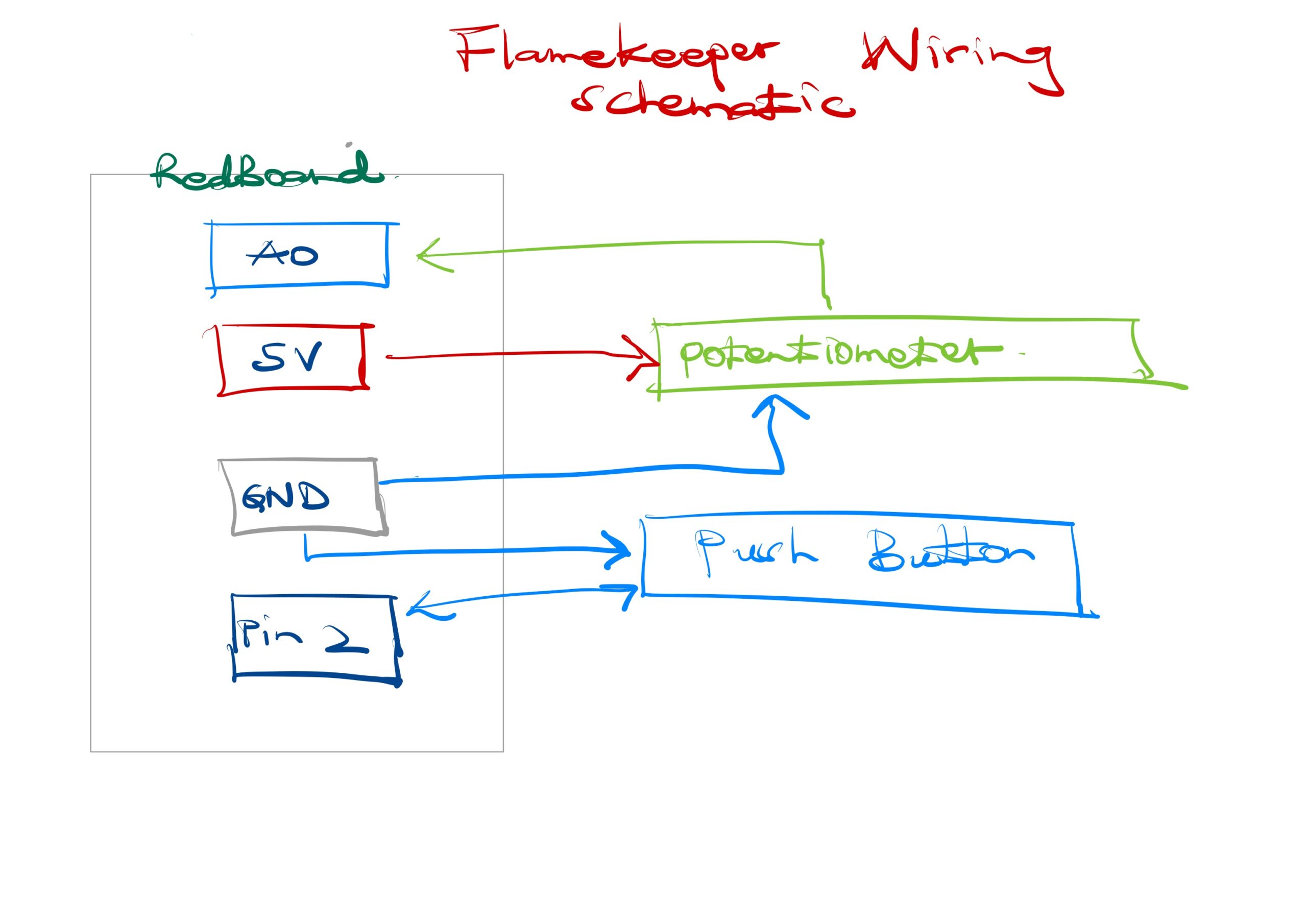
Wiring Schematic


How This Was Made

The game runs entirely in the browser using p5.js 1.9.3 and the p5.sound addon, both loaded from CDN. The Web Serial API handles communication between the browser and the Arduino with no additional libraries.

The flame is drawn each frame using layered ellipses with positions driven by Perlin noise, which gives it organic flickering motion. The glow effect is a series of concentric ellipses drawn from the outside in with decreasing opacity. The shield uses sine-wave-animated rings. All color is in HSB mode so hue shifts naturally as flame health changes from red to amber to gold.

The sweet spot bar maps the raw potentiometer value (0 to 1023) to a pixel position on screen. The green zone has a target position that slowly lerps toward a new random target every four seconds, creating the moving challenge.

Audio uses two p5.Oscillator instances. A sine wave plays as an ambient hum tied to flame health. A sawtooth wave plays during gusts. Both are initialized on the first user click to satisfy browser autoplay policy.

Best score is stored in localStorage so it persists across page reloads without a server.

Libraries used: p5.js, p5.sound. Fonts: Cinzel and Cinzel Decorative from Google Fonts. Web Serial API documentation from MDN. AI (GitHub Copilot) was used throughout development for debugging serial communication, structuring the game loop, and designing the UI layer.

What I Am Proud Of

The physical-to-digital mapping feels genuinely tight. When you turn the potentiometer, the cursor on screen moves exactly as fast as your hand does. There is no noticeable lag. That responsiveness is what makes the interaction feel real rather than simulated.

I am also proud of how the difficulty curve works without any explicit levels. The gust interval shrinks by five frames every time you survive a gust, so the game gets harder the longer you last without me having to design separate stages.

The start screen and the game-over card both came together better than I expected. Having the controls explained before the game starts removed the need for me to stand next to it and explain anything, which was the main lesson from user testing.

Areas for Future Improvement

The potentiometer-to-cursor mapping is linear, which means the sweet spot is equally difficult everywhere on the bar. A nonlinear mapping that makes the center zone slightly easier and the edges harder would create more interesting tension.

I would add a second visual reading of flame health beyond the bar. Right now the flame shrinks as health drops, but that change is subtle. A visible glow radius that shrinks more dramatically would communicate danger faster.

The button currently has one function: shield during gusts. A second mechanic tied to a short button tap versus a long hold would add depth without adding more hardware.

The game has no sound design beyond two oscillators. Real flame crackling and wind sound effects would make the experience significantly more immersive.

Reflection

The biggest thing I learned is that physical input is unforgiving in a way that keyboard input is not. A keyboard always registers. A breadboard button that is rotated 90 degrees reads as permanently pressed and the game never starts. Debugging hardware and debugging software at the same time is a different skill from debugging software alone.

User testing taught me that what is obvious to the maker is not obvious to the user. I knew what the sweet spot bar meant because I built it. My tester had never seen it before. Adding one line of explanatory text on the start screen solved the confusion completely. It cost almost nothing to add and made the project function without me in the room.

If I had two more weeks I would add a two-player mode where one person controls the potentiometer and the other controls the button, forcing coordination between two people instead of one person managing both inputs alone.

Week 14 – Final Project! – Megan

Music Producer — Final Project

“Music gives a soul to the universe, wings to the mind, flight to the imagination, and life to everything.” — Plato

Concept

I truly love music. I actually realized, while looking at my past projects, that I have implemented music in many of then as a core element. I think it’s maybe because of my surroundings and how I grew up playing so many instruments, and for my final project, I wanted others to feel this unique connection to music too. I wanted to give a space for users to experiment with sound and visuals so that they would want to create music, which is very different than only listening to it. So, that is how my project was born.

“The only way to do great work is to love what you do.” — Steve Jobs

In general, I wanted to build something that actually feels like a creative tool and not just a demo. The idea is that you are a music producer. You start by recording your own voice, and then you build a whole song on top of it using different instruments like piano, drums, and bass, all controlled through physical buttons connected to an Arduino. Everything you play gets layered and looped, and at the same time the system generates a live visual artwork based on what you are creating.

I wanted to make something where every single action has a visual response, so that by the end you do not just have a song, you have something that looks like a living piece of art. The kind of thing where even if you have no idea how to make music, you can still produce something that feels like yours.

It is designed for anyone who wants to experiment with sound and visuals in a fun and intuitive way. The controls are simple enough that you do not need to be a musician, but expressive enough that if you are, you can actually do something interesting with it.

How It Works

Interaction Design

The whole experience is split into three modes: Piano, Drums, and Bass. In each mode, the four Arduino buttons trigger different sounds, piano notes, drum hits, or bass notes. The potentiometer controls the playback speed of any loops you have selected. A green LED on the Arduino lights up when you are recording and goes red when you stop.

On the screen you have a recordings panel that you can toggle open and close, recording buttons, and mode selectors. The center of the screen always shows a Siri-like wave visualization that responds to everything playing. And depending on which mode you are in, a different kind of art generates in the background as you play. Subtle drifting lines for piano, glowing expanding circles for drums, and thickening colored waves for bass.

The flow is: record your voice, pick a mode, play sounds on top, record the whole thing as a loop, loop it, and keep building on top of that.

Arduino

The Arduino does only one thing and that is reading the physical inputs and sending them to p5.js. It does not make any decisions about what the sounds mean. It sends the state of all four buttons and the potentiometer value every 50 milliseconds, formatted as b1,b2,b3,b4,pot. It also listens for messages back from p5 to control the LEDs. LED:1 turns the green on and LED:0 goes back to red.

I kept the Arduino side as clean and minimal as possible on purpose. So that the user gets that p5.js is the brain and Arduino is just the hands.

You can find the full Arduino source code here

p5.js

The sketch handles literally everything else: the audio system, the visuals, the UI, the serial communication, and the art generation. It has multiple screens (menu, instructions, main), a full recording and playback system using p5.SoundRecorder and p5.SoundFile, an FFT analyzer for the wave visualization, a particle system for the art, and a styled HTML button system injected directly from JavaScript.

You can also see the full p5.js source code here

How This Was Made

The starting point for the audio visualization was the Sound Visualization: Frequency Analysis with FFT video by Daniel Shiffman on The Coding Train. I had never used p5.FFT before and that video really broke it down in a way I could actually follow. From there I understood how fft.waveform() gives you the time domain signal and fft.getEnergy() gives you the overall loudness, which is exactly what I needed to make the wave lines spread based on how loud the audio is. I spent a lot of time with that one and went back to it probably like four or five times throughout the project.

For understanding how p5.SoundRecorder and p5.SoundFile worked together I went back to The Coding Train’s p5.Sound library series starting from episode 11.1. The documentation alone was not enough for me, I needed to see it in action to understand the difference between what the recorder does versus what the SoundFile stores and when it is actually ready to use.

For the HTML buttons inside p5, like styling them with CSS classes and using createButton() and addClass(), I found The Coding Train’s p5.js DOM tutorials really useful. I did not know you could inject a style tag directly from JavaScript in setup and have it affect your buttons in real time. That one I kind of figured out by going through the p5.js reference library and experimenting a lot, but the DOM series gave me the foundation to even know that was possible.

For the particle system, the piano lines, the drum circles, I referenced The Coding Train’s Nature of Code series on particle systems for how to structure a particle with a life, a decay, and properties that change over time. I had seen it before but applying it here in a way that felt musical and not just random took a lot of trial and error honestly.

For the serial communication between Arduino and p5.js I followed what we learned in class.

I also used ChatGPT AI, mainly for debugging. A big portion of the time I spent on this project was debugging, and having something I could explain the problem to and get a clear answer helped a lot. I always made sure I understood what it was suggesting before implementing it, because if I did not understand it I could not fix the next thing that broke on top of it.

What I’m Proud Of

The Mode System

The thing I am most proud of conceptually is how the same four buttons completely change meaning depending on which mode you are in. In piano mode they are notes, in drums mode they are different drum hits, in bass mode they are bass lines. And all of that switches with one click, no lag, no confusion. Building that felt simple in theory but getting the visual art to also switch correctly, and making sure the wave visualization responded differently in bass mode, that took a lot of coordination between different parts of the code. This is the core of the whole interaction design and I think it works really well.

The Recordings Panel

The recordings panel was one of the more technically satisfying things I built. It is a slide-in panel inside the canvas, not a separate screen, where you can see all your recordings, click to play or stop them, double click to rename them, and delete selected ones. What makes it tricky is that all the interaction has to be calculated manually because it is drawn on the canvas and not a real HTML element. So I had to make sure the coordinates in drawRecordingsPanel() matched exactly with the hit detection in mousePressed(), otherwise clicking a recording would trigger the wrong one or nothing at all.

// y has to match exactly between drawing and clicking
let y = 196 + i * 46;
if (mouseX < 252 && mouseY > y - 14 && mouseY < y + 24) {

Also managing the selectedRecordings array, tracking which ones are playing, and deleting them in descending order so the indexes do not shift mid-loop, that took me more debugging than I expected and I was very happy when it finally worked correctly.

The Voice Wave

The wave visualization is honestly the thing I am most proud of technically. The idea is that all 9 lines overlap in the center when it is quiet and spread apart as the audio gets louder. I had to figure out a math system where each line gets a t value from -1 to 1, and the amplitude of that line is abs(t) times baseAmp, so the outermost lines spread the most and the center line never moves. Then I flip the direction for the top half versus the bottom half so they mirror each other like a reflection.

let t   = map(k, 0, N - 1, -1, 1);
let amp = abs(t) * baseAmp;
let dir = t >= 0 ? 1 : -1;
And in bass mode the lines that belong to the note you are pressing get thicker using lerp() so the thickness transitions smoothly instead of snapping. Getting that to feel right took a lot of tweaking. At first it looked too dramatic, then too subtle. I think where I landed feels good because it is noticeable without being distracting.

The Art Per Mode

Making every sound trigger a different visual response was something I really cared about from the beginning. For piano it is thin drifting lines that appear across the screen and slowly fade. For drums the circles are sized by drum type, the kick spawns big glowing circles and the hihat spawns tiny ones. For bass the wave lines thicken in the color that belongs to the note you are pressing. None of it is random in a meaningless way, every parameter was chosen to match the feeling of that sound. That intentionality is something I am really proud of.

Areas for Future Improvement

Honestly one of the biggest things missing right now is the ability to export your final song as an audio file. You can loop everything and listen to it but there is no way to actually save what you made and share it with someone, which feels like a pretty big missing piece for a tool that is supposed to be about music production.

I would also love to add volume control per recording. Right now all selected recordings play at the same level, which means if you stack too many loops it gets muddy and hard to hear what is what. Being able to raise or lower individual loops would make it way more usable as an actual production tool.

The piano art could also be a lot more interesting. Right now the lines just drift horizontally and fade, but I wanted them to feel more like a magic keyboard that reacts specifically to which note you are pressing, not just that a note was pressed. I did not get there in time.

And if I had another two weeks I would probably add some kind of BPM sync so that the loops actually stay in time with each other instead of playing freely. Right now if you start two recordings at slightly different moments they drift out of sync pretty fast, which limits how musical the final result can actually be.

Overall I am really proud of this project. It is the most complex thing I have built so far and it actually works the way I imagined it when I first wrote down the concept. That does not always happen so it feels good when it does.

SCHEMATIC

IMAGES

VIDEO DEMO

Final Project: MindFlash

Concept

My final project was is a memory-based reaction built with Ardruino. The game displays a growing sequence of coloured LEDs and the user is supposed to repeat the exact sequence by correctly pressing the corresponding buttons. With each successful round, the game becomes more challenging by increasing the length of the sequence by one. There are three difficulty levels of this game: easy, medium and hard. The difficulty mode determines how long the sequence is displayed for. The higher the level, the shorter the display time of the sequence. The level of the game is controlled with a potentiometer.

The motivation behind MindFlash comes from my interest in memory games and sequences. I also wanted explore how a user can recall sequential information in real time. Throughout this course, there have been a lot of readings and discussions on user feedback and making designs with users at the center of the design. This idea shaped my development of the game and I placed much emphasis on the feedback and interaction of the user such as giving each button its own distinct tone, flashing the corresponding LED on every press, and using a countdown sequence before each round. Every interaction is designed to keep the player informed and engaged.

Link to Project

MINDFLASH

Demo of Project

Implementation

Interaction design

MindFlash is designed around the principle of continuous and immediate feedback at every stage of interaction. When a player presses a button, the corresponding LED lights up and a unique tone plays simultaneously, creating a sensory confirmation that their input was registered. Each of the four buttons has its own distinct pitch, so players can begin to associate sounds with colors over time. Difficulty is controlled through a potentiometer, with three levels indicated by a bank of LEDs, giving the player a clear and persistent visual indicator of their current challenge setting. The game opens with a startup test and a countdown sequence, easing the player in rather than dropping them straight into action. A correct sequence is rewarded with an ascending two-tone chime, while wrong inputs trigger a distinctly different falling sound, making success and failure immediately distinguishable without the player needing to look away from the LEDs. The game over state further reinforces failure through a flashing all-LED pattern.

Sketch

Ardruino code

/*
  MINDFLASH GAME
  
  OUTPUTS
  2  - Green LED
  3  - Yellow LED
  4  - Red LED
  5  - Blue LED
  8  - Level LED 1
  9  - Level LED 2
  10 - Level LED 3
  12 - Piezo buzzer
  INPUTS  
  A0  - Potentiometer
  A1  - Button (S2)
  A2  - Button (S4)
  A3  - Button (S1)
  A4  - Button (S3)
*/

// PIN DEFINITIONS
const int LED_PINS[]   = {2, 3, 4, 5};       
const int BTN_PINS[]   = {A1, A2, A3, A4};   
const int LVL_LEDS[]   = {8, 9, 10};
const int BUZZ_PIN     = 12;
const int POT_PIN      = A0;
const int NUM_COLORS   = 4;
const int MAX_SEQ      = 20;

// BUTTON TONES 
const int BTN_TONES[]  = {415, 310, 250, 210};

// GAME STATE
int sequence[MAX_SEQ];
int seqLen   = 1;
int flashDur = 500;

// SOUNDS 
void beep(int freq, int dur) {
  tone(BUZZ_PIN, freq);
  delay(dur);
  noTone(BUZZ_PIN);
}
void correctSound() {
  beep(1000, 100); beep(1300, 200);
}
void wrongSound() {
  beep(330, 250);
  beep(220, 250);
  beep(147, 550);
}

// BUTTON FEEDBACK (light + sound together)
void buttonFeedback(int btnIdx) {
  tone(BUZZ_PIN, BTN_TONES[btnIdx]);   // start tone
  digitalWrite(LED_PINS[btnIdx], HIGH);
  delay(150);
  noTone(BUZZ_PIN);                    // stop tone
  digitalWrite(LED_PINS[btnIdx], LOW);
  delay(50);
}

// LIGHTS
void allLedsOff() {
  for (int i = 0; i < NUM_COLORS; i++) digitalWrite(LED_PINS[i], LOW);
}
void allLedsOn() {
  for (int i = 0; i < NUM_COLORS; i++) digitalWrite(LED_PINS[i], HIGH);
}
void flashLed(int idx, int dur) {
  tone(BUZZ_PIN, BTN_TONES[idx]);      // play tone during sequence flash too
  digitalWrite(LED_PINS[idx], HIGH);
  delay(dur);
  noTone(BUZZ_PIN);
  digitalWrite(LED_PINS[idx], LOW);
  delay(200);  
}

// READ DIFFICULTY 
void readMode() {
  int pm = analogRead(POT_PIN);
  if (pm >= 700) {
    digitalWrite(8,HIGH); digitalWrite(9,LOW);  digitalWrite(10,LOW);
    flashDur = 700;
  } else if (pm >= 350) {
    digitalWrite(8,HIGH); digitalWrite(9,HIGH); digitalWrite(10,LOW);
    flashDur = 500;
  } else {
    digitalWrite(8,HIGH); digitalWrite(9,HIGH); digitalWrite(10,HIGH);
    flashDur = 300;
  }
}

// SHOW SEQUENCE 
void showSequence() {
  delay(1000);
  for (int i = 0; i < seqLen; i++) flashLed(sequence[i], flashDur);
  delay(300);
}

// WAIT FOR ONE BUTTON PRESS
int waitForButton() {
  while (true) {
    for (int b = 0; b < NUM_COLORS; b++) {
      if (digitalRead(BTN_PINS[b]) == HIGH) {
        delay(40);                                
        while (digitalRead(BTN_PINS[b]) == HIGH); 
        return b;
      }
    }
  }
}

// GET USER INPUTS & VERIFY 
bool getUserInputs() {
  for (int i = 0; i < seqLen; i++) {
    int btn = waitForButton();
    buttonFeedback(btn);
    if (btn != sequence[i]) return false;
  }
  return true;
}

// COUNTDOWN 
void countdown() {
  for (int i = 3; i > 0; i--) {
    allLedsOn();
    beep(800 + (3 - i) * 150, 150);
    delay(700);
    allLedsOff();
    delay(200);
  }
  // GO!
  allLedsOn(); beep(1400, 200); allLedsOff();
  delay(400);
}

// GAME OVER 
void showGameOver() {
  wrongSound();
  for (int b = 0; b < 4; b++) {
    allLedsOn();  delay(300);
    allLedsOff(); delay(300);
  }
  delay(800);
}

// SETUP 
void setup() {
  Serial.begin(9600);
  for (int i = 0; i < NUM_COLORS; i++) {
    pinMode(LED_PINS[i], OUTPUT);
    pinMode(BTN_PINS[i], INPUT);   
  }
  for (int i = 0; i < 3; i++) pinMode(LVL_LEDS[i], OUTPUT);
  pinMode(BUZZ_PIN, OUTPUT);
  // startup test
  allLedsOn();
  digitalWrite(8,HIGH); digitalWrite(9,HIGH); digitalWrite(10,HIGH);
  beep(1000, 400);
  delay(600);
  allLedsOff();
  digitalWrite(8,LOW); digitalWrite(9,LOW); digitalWrite(10,LOW);
  randomSeed(analogRead(A5)); 
}

// MAIN LOOP 
void loop() {
  readMode();
  // wait for any button press to start
  bool started = false;
  for (int b = 0; b < NUM_COLORS; b++)
    if (digitalRead(BTN_PINS[b]) == HIGH) { started = true; break; }
  if (!started) return;
  // debounce the start press
  delay(50);
  while (digitalRead(BTN_PINS[0]) == HIGH ||
         digitalRead(BTN_PINS[1]) == HIGH ||
         digitalRead(BTN_PINS[2]) == HIGH ||
         digitalRead(BTN_PINS[3]) == HIGH);
  allLedsOff();
  seqLen = 1;
  readMode();
  countdown();
  while (seqLen <= MAX_SEQ) {
    sequence[seqLen - 1] = random(0, NUM_COLORS);
    Serial.print("Round "); Serial.println(seqLen);
    showSequence();
    if (getUserInputs()) {
      correctSound();
      seqLen++;
      delay(500);
    } else {
      showGameOver();
      seqLen = 1;
      break;
    }
  }
  allLedsOff();
  delay(500);
}


How It’s Made

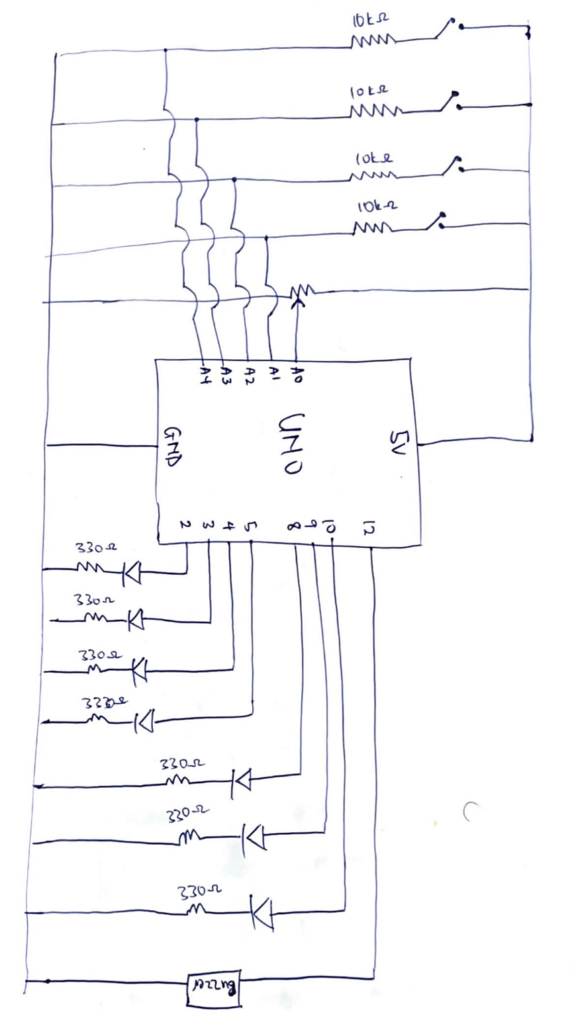
For this project, the inputs are push switches and a potentiometer. A potentiometer was connected to the 5V power source, an analog read pin and ground. The analog read pin reads the value of the potentiometer to control the level of the game. 4 push switches were connected in parallel to the 5V power source, an analog read pin and a pull down resistor of 10kΩ resistor to ground. The analog pins read the digital inputs of the push switches and that is used as the logic for matching the sequences.

The outputs of the project are a buzzer and sets of LEDs. The LEDs were connected to digital pins, a 330Ω resistor and ground. There are two sets of LEDs for this project. Set A is a set of 3 red LEDs and these LEDs indicate to the user the level of the game. The code reads the value of the potentiometer and maps it to one of the three level and this is reflected by the red LEDs. Easy mode lights up one LED, medium lights up two LEDs and hard lights up three LEDs. Set B is a set of 4 LEDs: red, yellow, blue, green. A random sequence is generate out of these colors and the user is supposed to match this using the push switches. The final output is a buzzer which is connected to a digital pin and ground. The buzzer makes sound for a countdown to start the game, makes a success sound, wrong sound and sounds specific to each color.

The pressing the push button lights up the corresponding LED bulb and makes a sound specific to that color. Chat GPT was used to generate the frequencies of sounds for the countdown, success sound, wrong and game over sound, and the sounds corresponding to each color.

Part of the project I’m proud of

The part of this project I’m particularly proud of is the code behind this project. The most difficult part of the project was writing my idea of the project into a working code and figuring it out made me very proud. The highlight of the code were the functions I made for the game.

void readMode() {
  int pm = analogRead(POT_PIN);
  if (pm >= 700) {
    digitalWrite(8,HIGH); digitalWrite(9,LOW);  digitalWrite(10,LOW);
    flashDur = 700;
  } else if (pm >= 350) {
    digitalWrite(8,HIGH); digitalWrite(9,HIGH); digitalWrite(10,LOW);
    flashDur = 500;
  } else {
    digitalWrite(8,HIGH); digitalWrite(9,HIGH); digitalWrite(10,HIGH);
    flashDur = 300;
  }
}

This is the function that controls the level of the game. The reason this is the highlight of the whole project for me is that writing this code was a breakthrough moment for me. Once I figured this part out, everything else seemed to follow and I was able to implement my ideas.

Reflection

Making this project was actually very fun. A new layer of complexity was added when implementing my ideas because as aside the code, I also had to figure out the connections of the circuits. I found myself placing LEDs at almost every point to check if the connections I had made were right in the testing phase. The LEDs were my debuggers for this project. I also played around a lot with the delay function in the project to ensure a smooth user interaction

The user testing opened me up to things I missed during my testing of the program and changed how I thought about the whole project. It made me add more feedback for the user especially being in a virtual space where a user could not physically feel a button, adding these feedbacks improved the overall project and I hope these feedbacks will be enough for a user in a virtual space.

Future improvements for this project is introducing a scoring system which is based on the time the user presses the buttons. This can expand the project from just testing memory to testing memory and reaction. The scoring system can also be used to create a leaderboard and it will be a fun game to play among friends.

Week 13: User Testing for Final Project

I had a slight change of plans for my final project, but I’ll still be using the same components (buttons and sound sensor), except for the ultrasonic distance sensor which I have swapped to use the photoresistor sensor instead. Initially, I wanted to do a Philippine-style Jeepney game, but I found that it would take too long to make the graphics and would cause for more complicated game mechanics as well as the Jeepney physical controller being more time-consuming. My new idea is a Philippine-style ice cream Sorbetes game, which is a rhythm game, similar to guitar hero. On p5.js, there will be four lanes with different colors and in the game, they’re the different ice cream flavors. The four lanes represent four different buttons on the Arduino and you have to click it when there’s that colored-circle falling down. The player earns more money (Pesos), the more they catch and they get three lives for missed ones.

USER INTERACTION VIDEO

I made my mom play the game and it was pretty clear to her as it has very simple and quite known mechanics. The game has clear functions that let you know when you catch or didn’t catch ice cream, I still do wanna add sound effects to make it better in this aspect, though. As per the Arduino, although she said that it was registering her moves well, she did find it a bit overwhelming with the wires and the buttons were too small and sometimes would disconnect from the breadboard.

The interaction between p5.js and Arduino worked really well, the buttons clicked right on time and it reflected on the p5.js. The game is quite a simple rhythm game and pretty easy to follow. However, at the time of filming, I didn’t have the photoresistor or sound sensor to test out yet. I will be adding more mechanics to make it more challenging using the two sensors. The controller is also a huge part of my project and I’m working on designing and ordered the things I’ll need for it, thanks to the stipend given. I got female-to-male jumper wires, bigger buttons, and some decorative pieces for the controller.


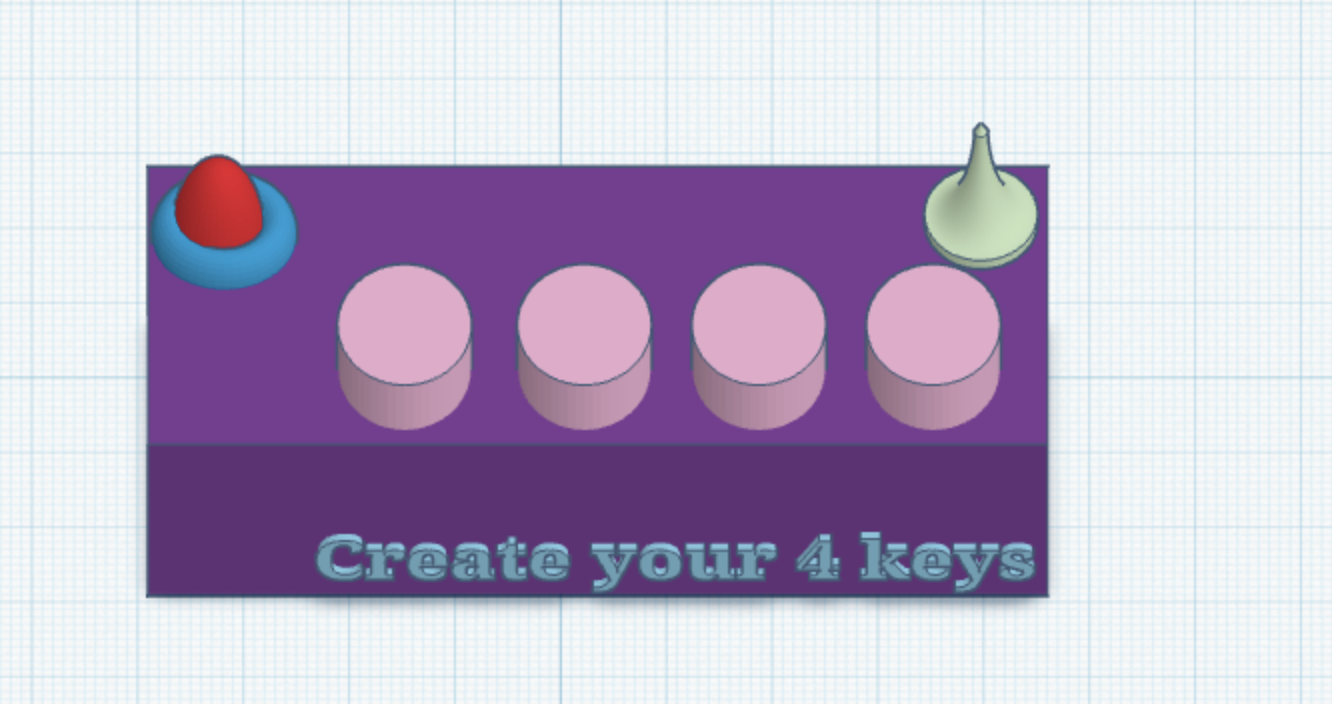
Create your 4 keys – Final project

Concept:
Create Your 4 Keys is an interactive music experience that allows participants to create their own rhythms and sound patterns using only four buttons. Each button acts like a musical key that plays a different note when pressed. The potentiometer allows the user to control and change the pitch of the sounds, making the notes lower or higher. I wanted to explore the idea of creating a simple music instrument for example Pianos usually have (from what I’ve seen) a lot of keys and sometimes it feels overwhelming, especially for people who are not musicians -like me and just want to learn!

So I started asking myself what can someone create with only four keys? Instead of focusing on every key and sound, I wanted to focus on only 4 keys for this project for experiments, rhythm, repetition, and just playing and having fun overall! Even with a limited number of buttons, the participant can still create many different patterns depending on the order, timing, and pitch of the notes they create.

The project of course is designed for anyone, even people with no musical background, because the interaction is meant to feel fun. Once the participant presses a button, the system responds instantly with sound which shows the action and feedback. The potentiometer also shows the interaction because it changes how the notes sound in real time, participants can change it and make it sound different.

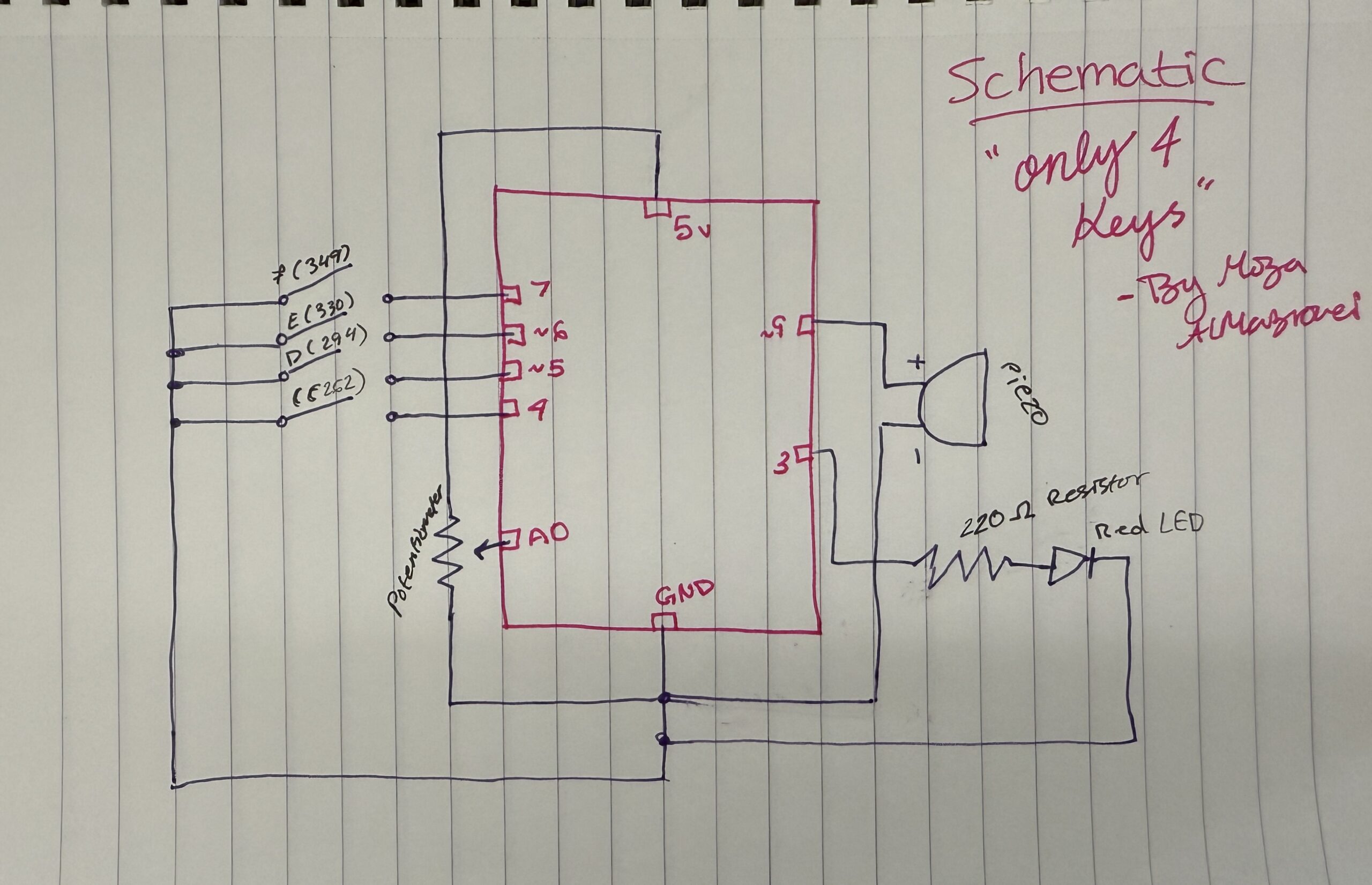
Hand-drawn schematic:

How this was made:
Schematics became easy for me to draw now after so many tries and practices in the old projects we created!!!

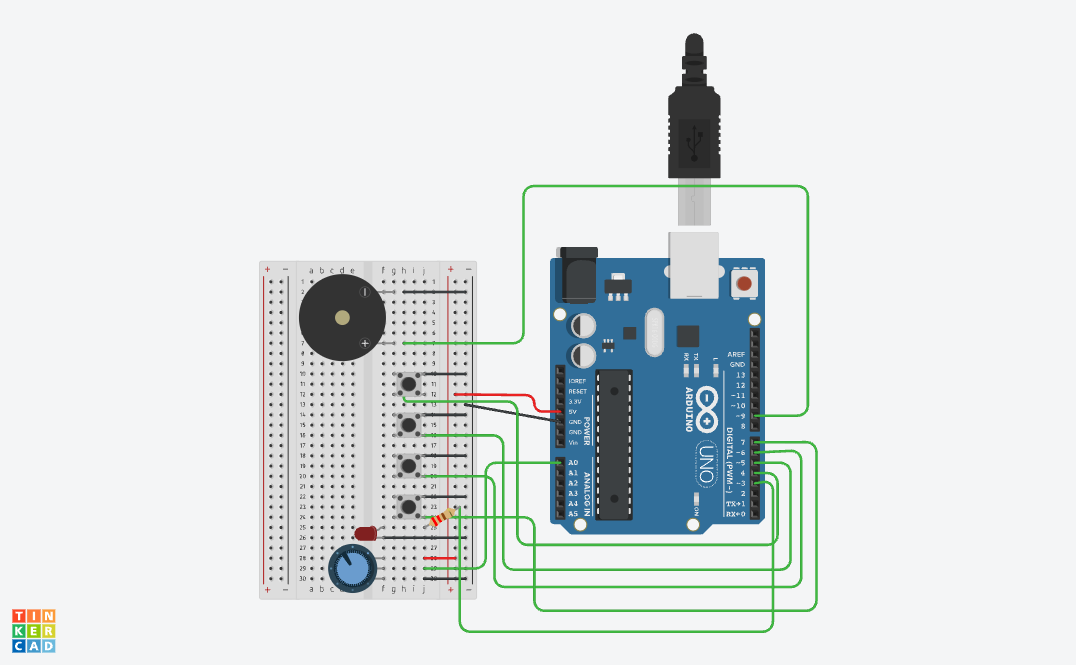
Image: Link to TC and Link to the video demo

How this was made:
I really wanted to create something on tinkercad using sound! and I did! I really love how it turned out because not only can I personally explore and try different things but also I can create different music, sounds, etc.
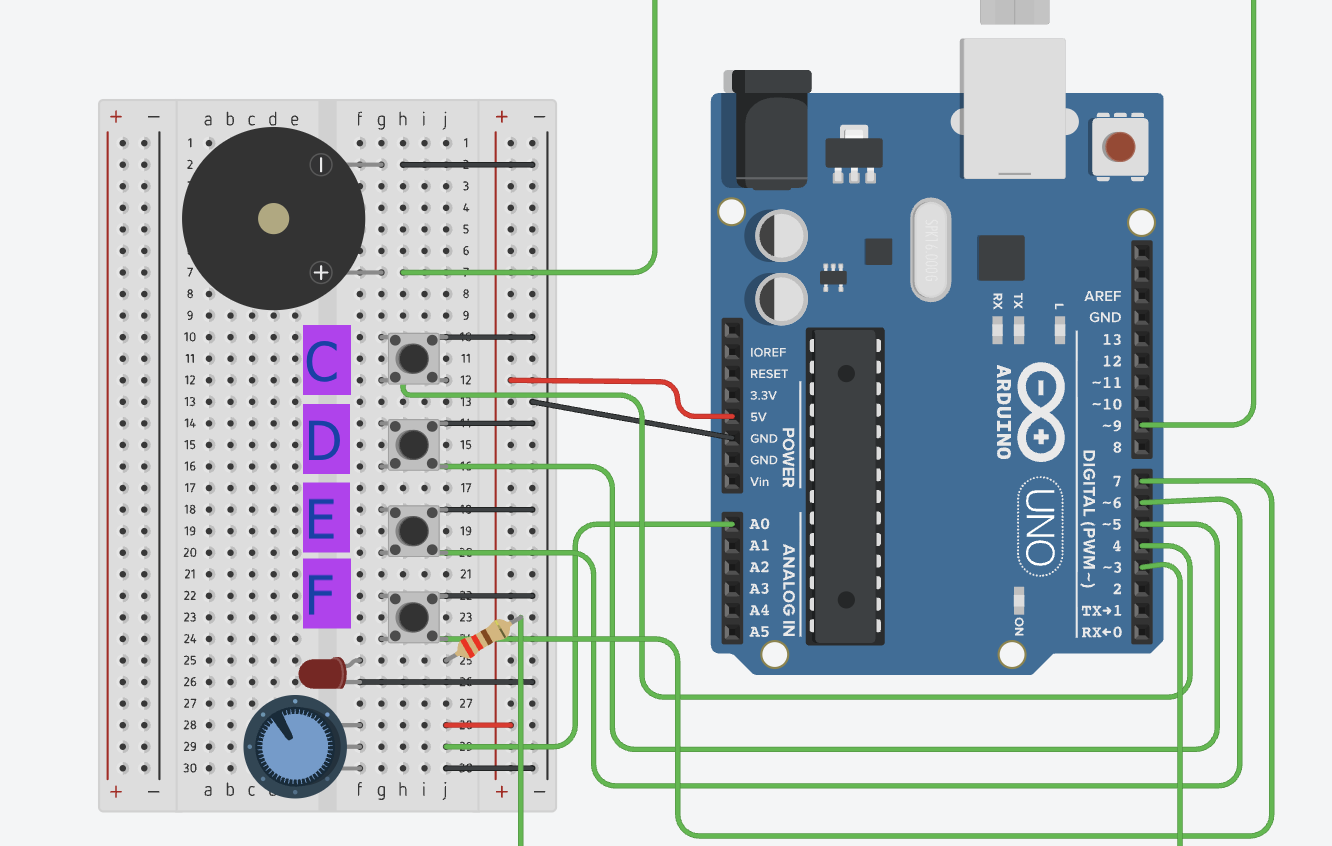
I started by building my project based on the the past projects I created and everything I learned. I wanted to improve and create something conceptually stronger and fun! I added the Piezo by connecting the positive side (h7) to pin ~9 using a green wire. I specifically used pin ~9 because it’s a PWM pin, which we learned in class is important for creating different sound frequencies and tones overall. Then I connected the negative side of the piezo (h2) to the negative side using a black wire. After making sure the GND was connected to the negative side and the 5V was connected to the positive rail, I moved on to the buttons. I added 4 buttons across the middle of the breadboard to act like mini piano keys. Each button plays a different note: Button 1 plays Note C, Button 2 plays Note D, Button 3 plays Note E, and Button 4 plays Note F. I connected one side of each button to the negative rail with black wires, while the other side connected to digital pins 4, 5, 6, and 7 using green wires. I also lined them up because I wanted the interaction to feel similar to pressing keys on a real keyboard or piano and also because of my actual design plan. For my final touch, I added a red LED as a visual indicator so that the interaction feels more alive instead of only relying on sound. I also placed the anode in f25 and the cathode in f26 then I connected a 220Ω resistor from the same row as the anode to Pin 3, and connected the cathode row to the negative rail with a black wire. THEN I shifted the potentiometer a little to the side so there would be enough space for the buttons while still keeping it close enough to work as the “tuning” dial for the notes. (overall the hardest part is always the placement because when we learn in class everything looks small but on the tinkercad it looks way bigger!)

Code:

// C++ code
//

void setup() {
  pinMode(9, OUTPUT); //the piezo speaker
  pinMode(3, OUTPUT); //red light
  
  //all the buttons
  pinMode(4, INPUT_PULLUP); //button 1=Note C
  pinMode(5, INPUT_PULLUP); //button 2=Note D
  pinMode(6, INPUT_PULLUP); //button 3=Note E
  pinMode(7, INPUT_PULLUP); //button 4=Note F
}

void loop() {
  int sensor = analogRead(A0);
  //changing the dial to a small number for the pitch
  int multi = map(sensor, 0, 1023, 1, 4); 

  //checking each button
  if (digitalRead(4) == LOW) {
    tone(9, 262 * multi); //play C
    digitalWrite(3, HIGH); //light turns on
  } 
  else if (digitalRead(5) == LOW) {
    tone(9, 294 * multi); //play D
    digitalWrite(3, HIGH);
  } 
  else if (digitalRead(6) == LOW) {
    tone(9, 330 * multi); //play E
    digitalWrite(3, HIGH);
  } 
  else if (digitalRead(7) == LOW) {
    tone(9, 349 * multi); //play F
    digitalWrite(3, HIGH);
  } 
  else {
    noTone(9); //silence when nothing is pressed
    digitalWrite(3, LOW); //light off
  }

  delay(10); //slow 10ms delay
}

How this was made:

For my code, in the setup first I highlighted pin 9 because that’s for the Piezo, my speaker which is the most important part of the project. I also set up pin 3 as an output for my Red LED, which is for the visual signal whenever a note is played and it becomes lighter and darker based on the button pressed. Then I set up pins 4, 5, 6, and 7 for my buttons while using INPUT_PULLUP so I wouldn’t have to add any extra resistors or wires on the breadboard since I can easily use Tinkercad’s built-in resistors. Then I created a loop and used analogRead(A0) to first check the sensor and then inside, because the dial gives a number from 0 to 1023, I used the map function (which I learned from ARDUINODOCS) to change that number into a small number that goes from 1 to 4. I called this multi (short for multiply) which allows me to change the pitch higher just by turning the dial. For the music, I used the if/else because again its familiar -p5.js. Because I wanted to create keys, I followed the musical notes of button 1 = 262 (a C note) and it goes on (of course I checked the music notes to do this). Inside each if statement, I also added digitalWrite(3, HIGH) so that the Red LED (connected with a 220Ω resistor to protect it) lights up at the exact same time the sound plays. I basically ended the code with else { noTone(9); digitalWrite(3, LOW); } so when no button is pressed, the sound stops and the light turns off. Like always, I added a 10ms delay at the bottom just to keep the loop from running too fast and making the sound glitchy.

Resources:

I just took tips from class, from youtube, from Professor Mang and Professor Aya’s notes!!

My creativity! Link to TC and Link to video

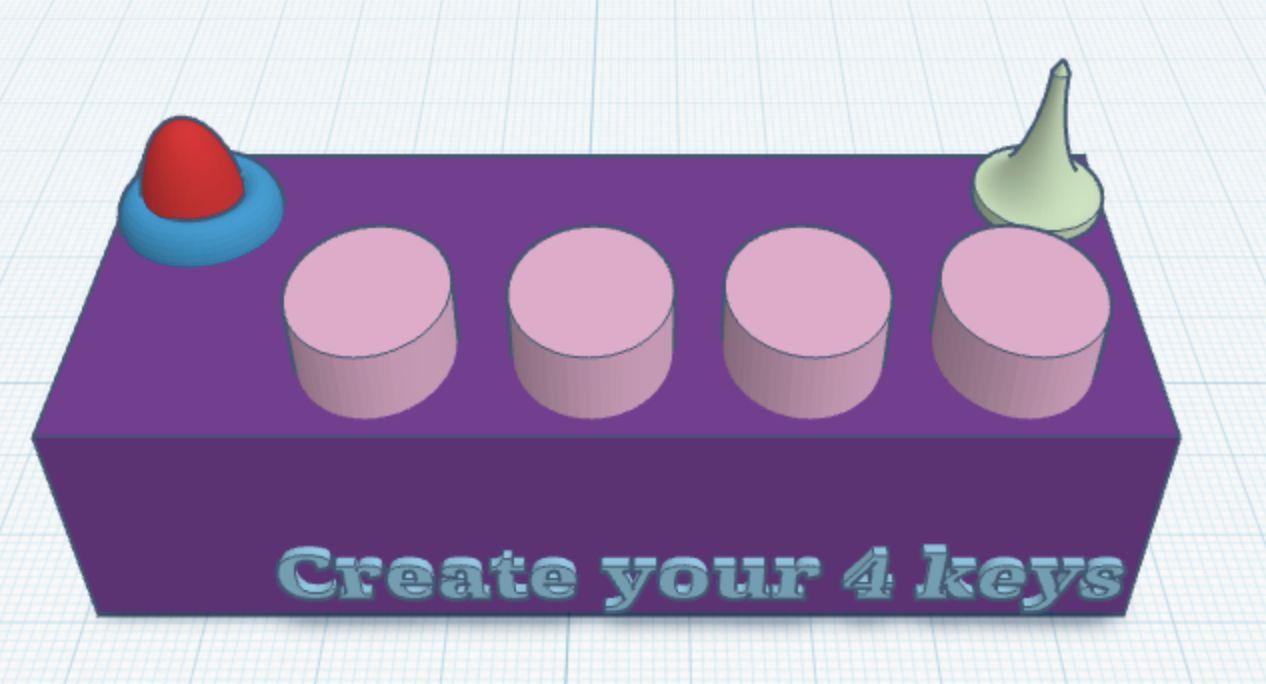
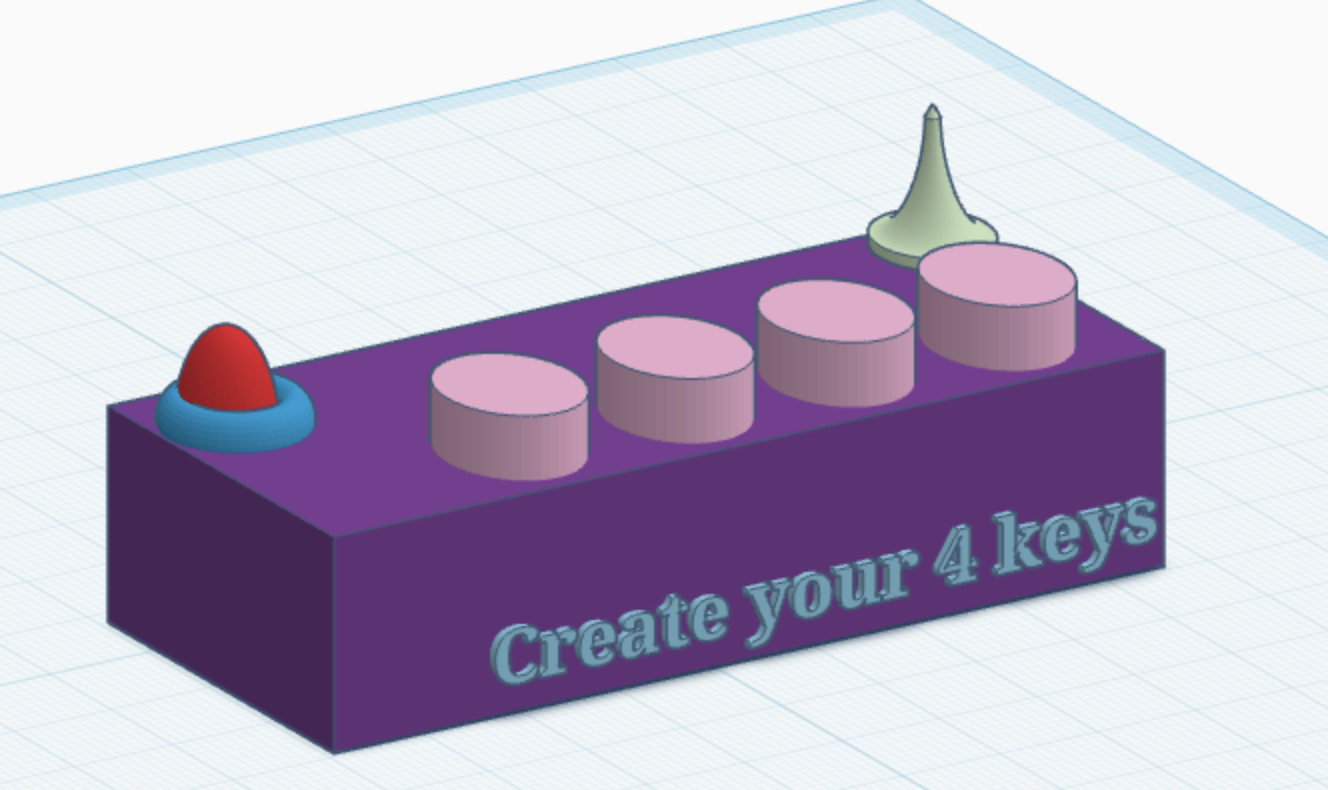
How this was made:
So of course, because I don’t have the actual kit 🙁 I had to use Tinkercad, and at first I was honestly sad because I felt limited when it came to creativity and design. But after Professor Mang told us that we could actually design the setup ourselves, I started exploring more inside Tinkercad and tried creating what I imagined the project would look like. Of course it’s still a bit different from how I would make it physically, but honestly that’s okay.

Overall what can you play -my experiment:

Mary Had a Little Lamb: E-D-C-D-E-E-E then D-D-D then E-E-E
Hot Cross Buns: E-D-C then E-D-C then C-C-C-C, D-D-D-D
Ode to Joy: E-E-F-F-E-D-C-C-D-E-E-D-D

Final reflection:
Honestly, I’m really proud of how this project turned out. At the beginning, everything felt confusing and overwhelming, especially because I didn’t have the physical Arduino kit and had to use Tinkercad -also with everything happening in the country 🙁 so overall the process wasn’t easy at all!

At first, I felt limited and thought it would make the experience less creative, but then I realized I could still experiment, design, and create something personal even in a simulation. Comparing myself from when I first started struggling through simple tutorials to now building an interactive project with buttons, sound, LEDs, and pitch control, I can honestly see how much I improved throughout the semester. What makes me happy  is that this project feels connected to me personally. I’ve always loved music, so creating my own mini “instrument” with only four keys was actually really fun. I also want to start finding a new hobby and learn piano! I also like that the project is simple but still allows people to experiment and create different patterns depending on how they interact with it. Even though it only has four buttons, it still allows people to show their creativity and curiosity.

I think one of the biggest things I learned from this project is that interaction design is not just about making something work technically, it’s about making the experience feel clear, engaging, and enjoyable for the person using it. I first did my project draft but after my sister played around with it she gave me feedback that allowed me to focus on specific user designs for my final. For future improvements, I would definitely want to expand the project by adding more notes, different sound effects, stronger visual feedback. Overall, I’m really happy I pushed myself further with this final instead of staying with something too simple, and I honestly want to keep experimenting more with Arduino and interactive design in the future.

Interactive Fluid Typography Experience Idea

For my final project, I will create an interactive fluid typography experience built in p5.js. For my midterm I made a game, so for the final I want to move in a different direction away from rules and goals, and toward something more expressive and open-ended. The project will let users interact with text that behaves like a physical, fluid material, responding to their cursor and input in real time. Letters and words will be broken down into particles that scatter, stretch, and reform based on mouse movement and clicks. The user won’t be trying to win anything, they’ll explore what happens when language loses its fixed shape.

Tools & Approach

  • p5.js for rendering and interaction

  • Font path decomposition to turn letters into manipulable point clouds

  • A particle system with spring forces so letters distort and snap back

  • Smooth morphing between words or phrases over time

Why This Project

This is a natural evolution idea from my midterm project, I’ve explored interactivity through game mechanics, now I want to explore it through pure experience design. Typography as material.

Final Project Post

Concept

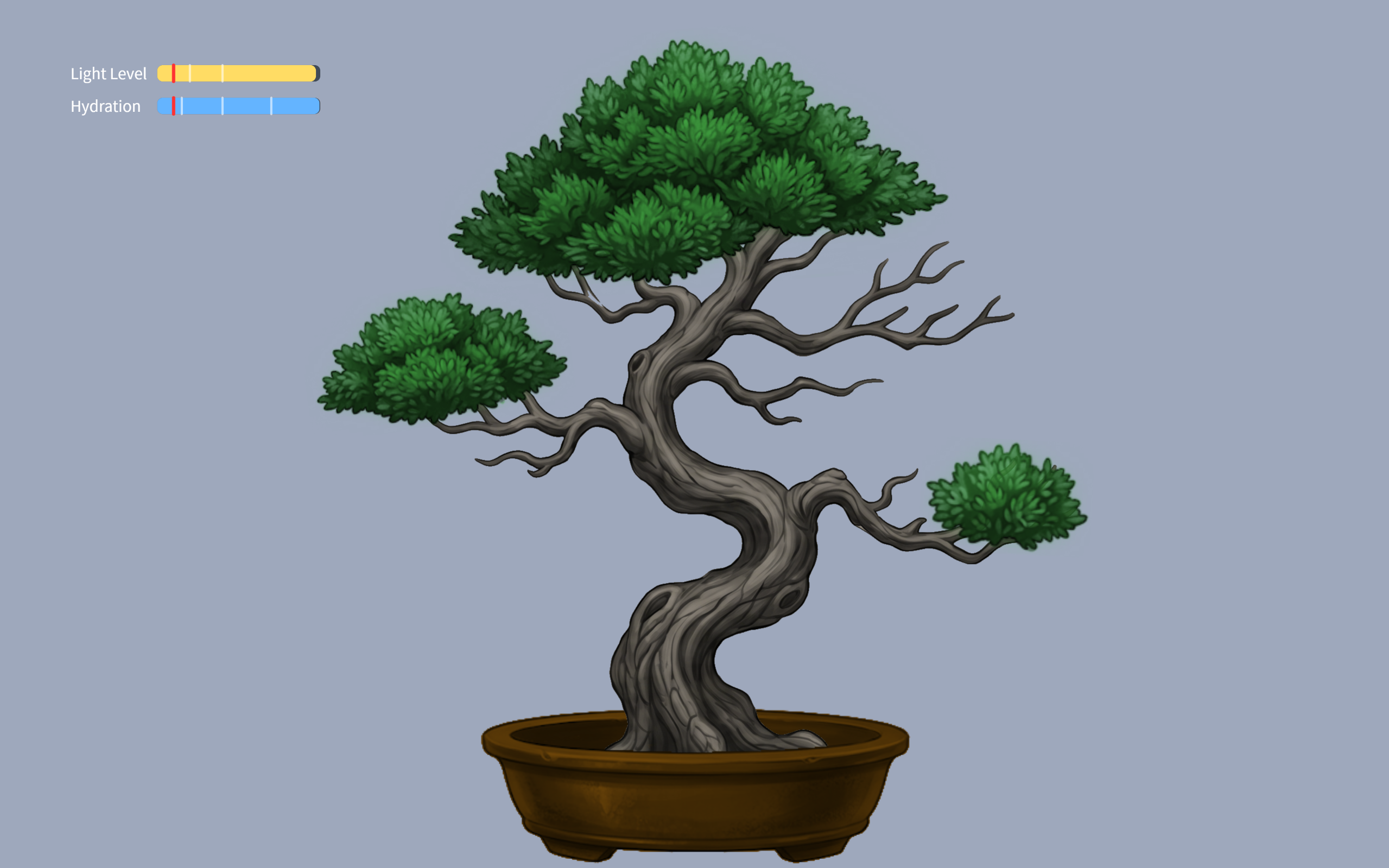
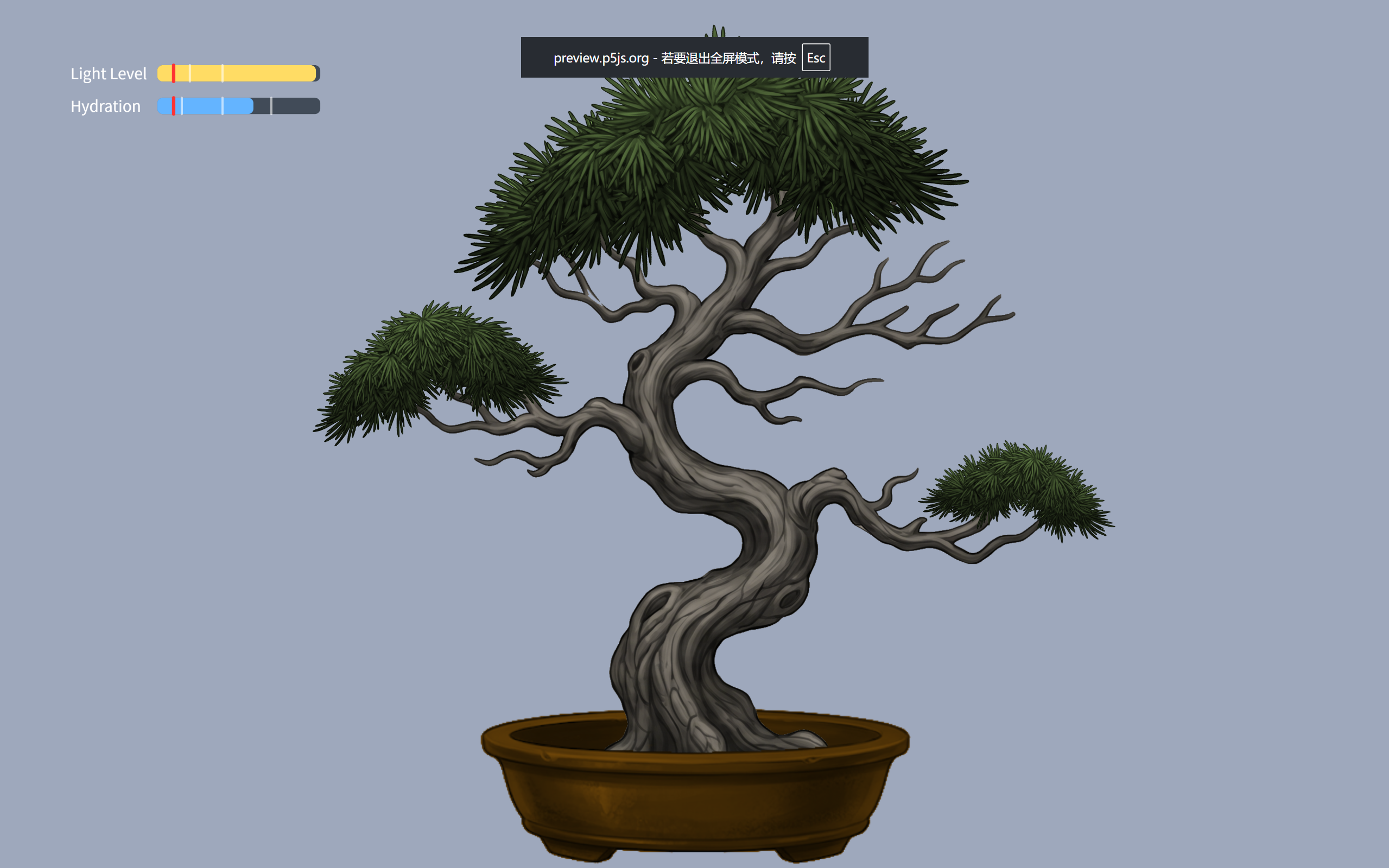
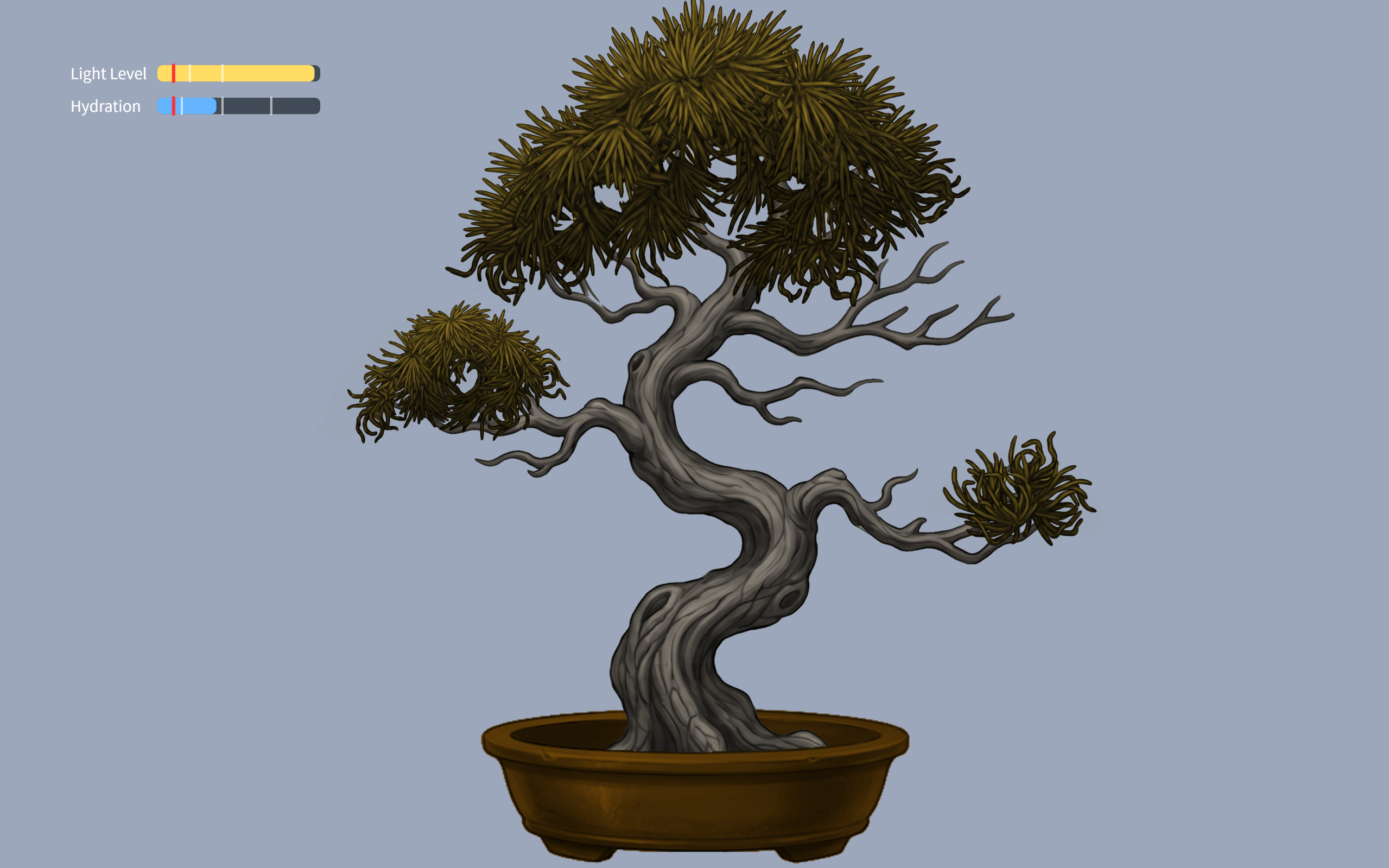
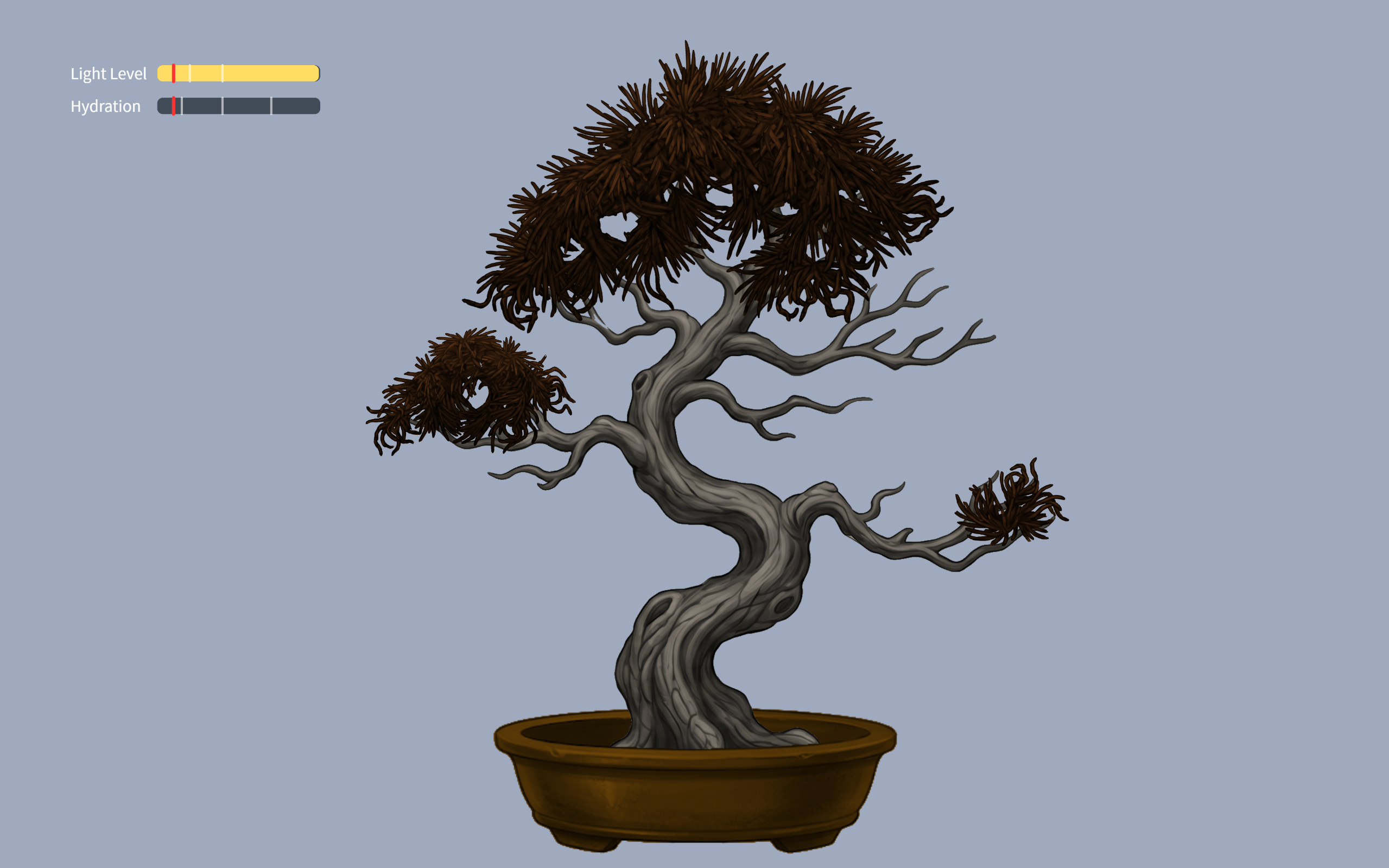
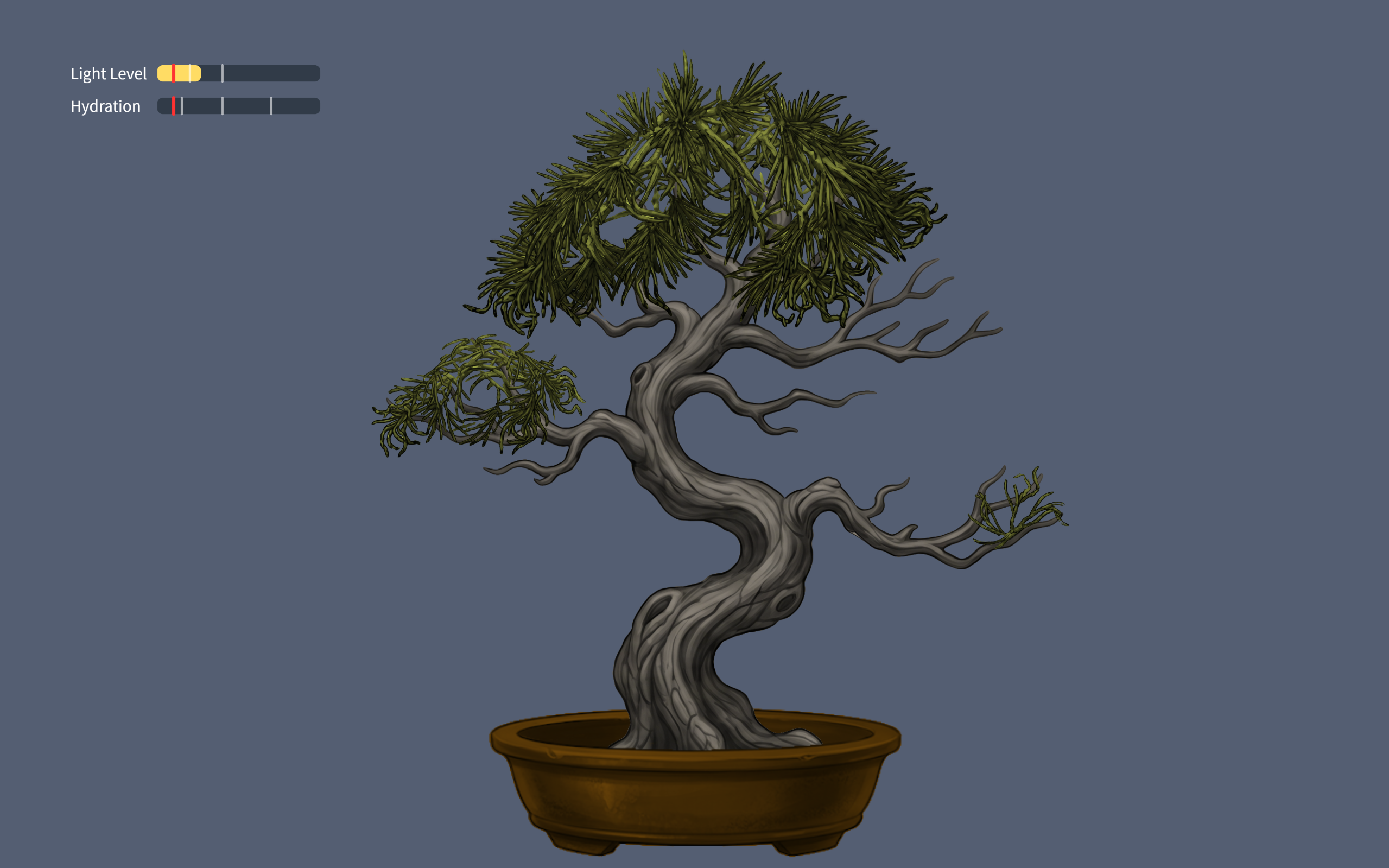
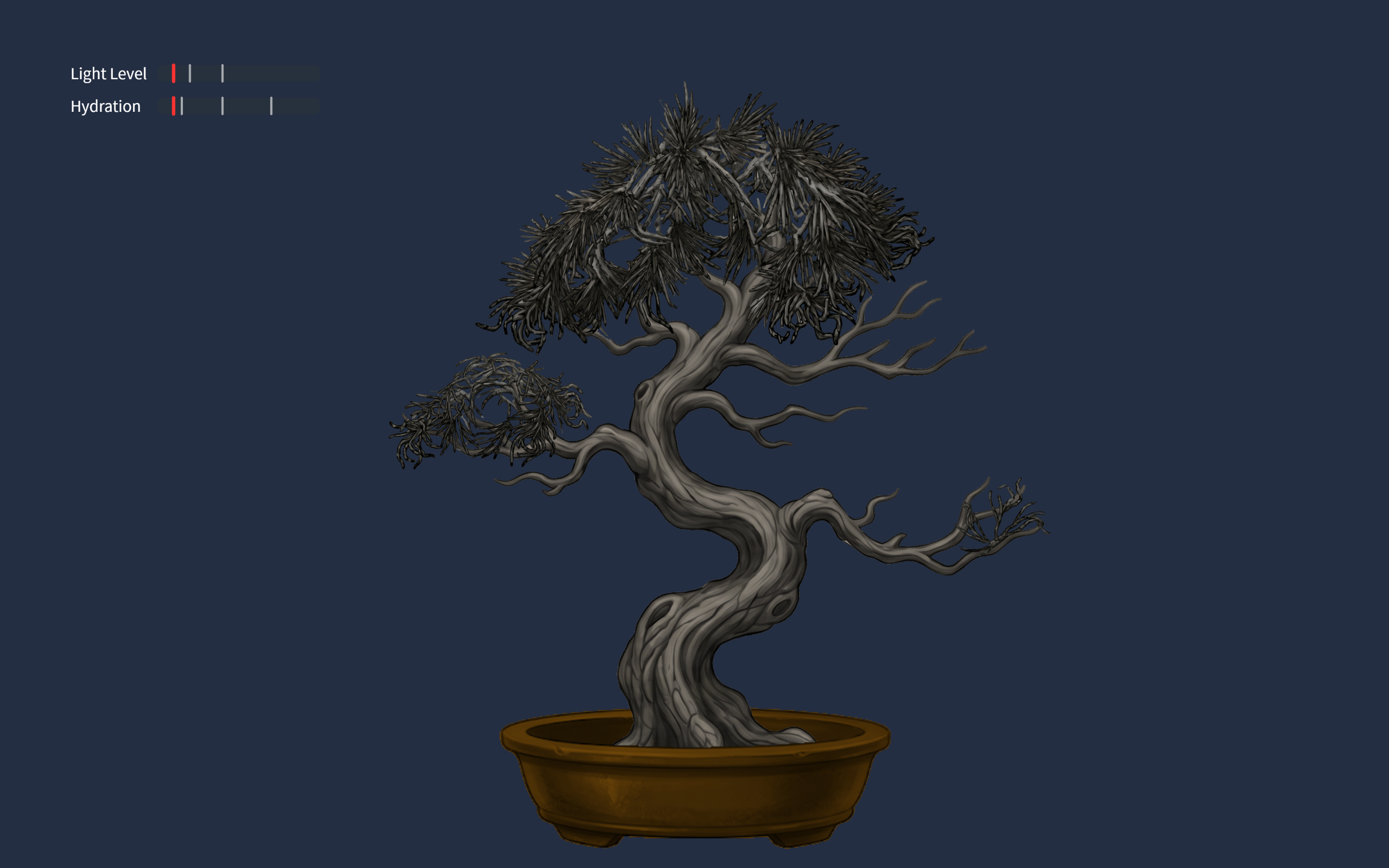
The final project is an interactive experience where the users physical body state and actions of caring for themselves will be interpreted to the growth of a digital Bonsai tree. The users breathing are monitored, to which the tree syncronizes, are interpreted into the growth of the tree. The act of drinking water will serve as hydration of the tree. The physical light conditions of the user’s environment will be reflected on the tree’s lighting conditions. This experience visualizes meditation and self care, turning it into something tangible and fun.

Images of experience

100-70% hydration tree70-40% hydration tree40-15%hydration tree15-0%hydration tree40-20% light tree
0-20% light tree

User testing

Implementations

The design is based on self care of a person, so I need to convert human actions to inputs to the interface. Inputs include the users breathing (analog input), user drinking (digital input), lighting (analog input).

  • Arduino code: My arduino code was realitively simple, it only inlcuded sensors sensing the inputs, and the bidirectional communication handshake.
if (Serial.read() == '\n') {
  digitalWrite(lightLedPin, lightState);
  digitalWrite(breathLedPin, breathState);
  digitalWrite(waterLedPin, waterState);

  // SEND TO P5
  int breathing = analogRead(A0);
  delay(5); 
  int light = analogRead(A1);
  delay(5);
  int sipping = digitalRead(2);
  int buttonState = digitalRead(buttonPin);
    
  Serial.print(breathing);
  Serial.print(',');
  Serial.print(light);
  Serial.print(',');
  Serial.print(sipping);
  Serial.print(',');             
  Serial.println(buttonState);
}

This is just the chunk for sending the data to p5.

github link: https://github.com/JingyiChen-jc12771/Intro-to-IM/blob/bc4afa47ce3d8aa52541bd046100ab28d2794849/final_project.ino

  • p5 code: p5 code is very illuistration heavy, all the animations are in p5. I included callibration to users breathing conditions, the change of tree appearance when parametera changed, and all special effects triggered when drinking or focusing for a certain amount of time.
if (gameState === "instructions") {
  if (breathingValue < userBreathMin) {
    userBreathMin = breathingValue;
  }
  if (breathingValue > userBreathMax) {
    userBreathMax = breathingValue;
  }
}

This is a simple chunk of code where I calibrate the upper and lower limits of users breath strength to each indicidual player behind the instructions. this allows the tree pulsiong to work for everyone, and no one has to worry about being too much a fast breather.

the communication between p5 and arduino is basically arduino sensors sensing the suroundings and sendinbg them to p5 to apply to the art, and when p5’s math calculates that parameters are below 10%, it sends signals to arduino to light up the corresponding LED.

Some aspects that I am proud of

function checkFlowState() {
  if (lightPercent > 80 && hydrationLevel > 80) {
    return true;  
  } else {
    return false;
  }
}
if (checkFlowState() === true) {
   isFlowing = true;
   spawnOrbs();
   growTreeToMax();
} else {
   isFlowing = false;
}

I am sort of proud of this piece of code. I am also proud of the breathing calibraation. This code here is the little “Easter Egg” effect I coded for player who are doing well. As long as they keep themselves and the tree in a good state, little magical balls of forest magic will flout up the screen, as an unexpected surprise.

Sources

https://www.youtube.com/watch?v=WDRokF_ZW9A

https://www.sciencebuddies.org/science-fair-projects/project-ideas/HumBio_p054/human-biology-health/train-belly-breathing?ytid=WDRokF_ZW9A&ytsrc=description

https://www.youtube.com/watch?v=KkyIDI6rQJI

https://www.youtube.com/watch?v=Qf4dIN99e2w

google gemini for image generation

AI use

Google gemini pro 3 helped me with: lerp() to create smoothing of breathing signals, virtual canvas to keep image sizes proportional, fade in fade out effects, understanding the breathing sensor reference code I found, finding correct speeds for parameters, and most importantly finding the cause of bugs.

Challenges

The most difficult part is actually debugging. It was not first writing the code itslef, it is how everything started failing once I initiated the running of the code. The serial communication produced some unexpected problems like not communicating at all or p5 and arduino screaming at each other and calsing the whole game to freeze. the fact that I am relatively new to both, especially arduino, makes it really hard to figure out what is going on in the code.

Future Improvement

What I would want to imporove in the future might be the animations. My current experience is based on images generated by gemini, and the fade in/ fade out effects were not the mast ideal. Though the tree pulses with the user this lack of animation stilkl makes the experience feel less lively. I would hope to ba able to upgrade that to make it more immersive.