Week 10 – Reading Response

I found this week’s readings quite eye-opening. The video at the beginning of the article was accurately how I imagine the “future” of technology: exactly what it is now, but unlocks more gesture possibilities and projects onto anything. This reminds me of a rumored concept for the iPhone 6 that I got quite excited over in 2013, deeming it to be innovative and futuristic.

Video: iPhone 6 concept with Three-Sided Display that Apple will never  build - iPhone Hacks | #1 iPhone, iPad, iOS Blog — WordPress

While I was upset that Apple did not end up releasing this concept as the iPhone 6, this article made me hope they never release such a phone.

I feel like the article made me realize innovation has kind of paused in the last few years. My friends and I often discuss this question of “if we wanted to invent something new, what could we invent?” because we feel like everything we need, that has a realistic solution, has already been invented. However, this article made me think, what if videos and visions like the ones presented in the article are the reason we are unable to think outside of the box and invent new ideas. The vision for the future often consists of simply combining different existing technologies into one, or expanding current technologies, halting the invention of ground-breaking inventions. It almost feels like phones with a touch screen was the last time humanity witnessed a truly impressive and shocking invention.

Reading Reflection Week 10: Reboot it and Mute it

Tom Igoe really presents some interesting messages surrounding about our own projects. Firstly, a core message of not being discouraged if an idea has “been done before”. I like a lot of his submissions that he showed off and how we require the limitations part of our projects (and also the feedback that Mang presents for us 😊). I can see this in this in light of my own work in content creation for YouTube.

Much of the time I struggle with determining an idea for a video, especially in the niche community that I’m in where most ideas have already been “made before”. But sometimes I like taking a different approach and look at an idea from a different prism. It helps me build on the ideas that the original creator has made, and of course providing credit, whilst injecting my own spin on the idea and creating a different product in the end. Our imagination isn’t a limitation, the critical thinking we don’t do is.

And his next message is around not interpreting our own work. Honestly, after visiting multiple art galleries and even being an usher for Abu Dhabi Art Exhibition 2025 for an Interactive Media artist, I can definitely agree with this.

For some context, I was a volunteer for the Abu Dhabi Art Exhibition 2025, held at the Manarat Al Saadiyat Gallery, with my task being to usher people to an exhibition hosted by reImagined Art. Now, even though the person there only gave me the responsibility to usher people, I also decided to talk to the guests about the artworks and give them a bit of background.

The artworks mainly revolved around the Ethirium blockchain and represented it in different forms (I’ll upload some pictures below 😉). And as guests were coming in, they were astounded by some artworks. I didn’t want to intrude into their experience of the artworks and wanted to give them time to sink in.

Later, some would come up to me and ask for me to explain to them what the artwork meant. I gave them a decent rundown but also was a bit ambivilous as most aren’t tech savy to know about blockchain (I mean they hear crypto or bitcoin and everyone goes “ahh”). Still I can say that they definitely felt astounded as to how something like a ledger for records can be art.

And I think with this, I let more so the guests the agency to interpret the work, rather than letting me being the post it note describing it in detail. So definitely we should be a bit ambivilous in what we say about our work and let others experience it. That in of itself is the crux of imagination, seeing our world from a different prism of thought.

Reading Response-Follow Up

It was interesting to see that the author wasn’t trying to provide a solution, but instead wanted to raise awareness of the problem and push further research. He emphasizes that current tools aren’t fully taking advantage of human capabilities, and when discussing things like physical keyboards or styluses, he dismisses them as not being “dynamic mediums.” This made me think about interactive media, where we experiment with more dynamic forms of interaction by combining physical inputs, sensors, and outputs to create systems that respond in real time.

However, I don’t fully agree with his view on voice. While he limits it to simple commands, I think voice has potential as a more dynamic form of interaction, especially when combined with other inputs. When he talks about the three categories of gestures, it reminded me of things like voice assistants, where we use a kind of “vocabulary” to communicate with the system, similar to saying commands like “Hey Siri.” The idea of spatial gestures at a distance also connects to examples we briefly saw in class, where movement controls objects on a screen, even if it can feel indirect. The last example, directly manipulating a virtual 3D space like Iron Man, was a bit confusing to me, but it shows a more ambitious and futuristic idea of interaction. Overall, even though he critiques these methods, I think they still have potential, especially when combined together, rather than being dismissed individually.

Reading Response-The future of interaction design

What stood out to me was the idea that tools should be designed around what humans are actually capable of doing, not just what technology can do. When he said “if a tool isn’t designed to be used by a person, it can’t be a very good tool” it made me think about how often we accept interfaces that don’t fully match how we naturally interact with the world.

For example, with touchscreens, most interactions are reduced to tapping or sliding, which feels limited compared to how expressive our hands actually are.

This connects to what we’ve been doing in class with circuits and Arduino, where interaction feels more physical and responsive. When building circuits, we’re not just coding something to appear on a screen we’re creating systems where human actions, like touching foil or changes in light, directly affect outputs like LEDs. In my project, I used inputs and conditions to map real world interactions to responses, which felt more aligned with how we naturally engage with objects. This reflects the idea of amplifying human capabilities, because the system responds to touch and environmental changes rather than limiting interaction to a flat surface. It also made me realize that even simple projects like ours explore more meaningful interaction than typical touchscreen interfaces, since they involve feedback, physical input, and a closer connection between the user and the technology.

Week 10- Group Assignment

Arduino GitHub File:

https://github.com/MouzaAlMheiri/Intro-to-IM/blob/main/sketch_ap12_Week10.2.ino

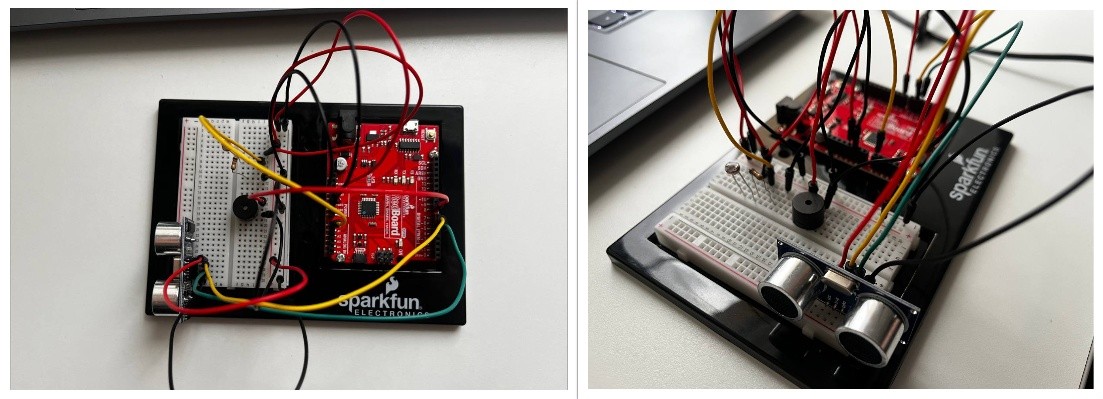
Arduino Set-up:


Project Demo:

IMG_0334

Images

Concept

This project is a simple musical instrument that uses both digital and analog input at the same time.

The button acts as the digital sensor because it only has two states, either pressed or not pressed. When we press it, the sound plays, and when we release it, the sound stops.

The potentiometer acts as the analog sensor because it gives a continuous range of values instead of just two states. We used that range to select different musical notes, so turning the knob changes the pitch.

What we liked about this setup is that both inputs have completely different roles. The button controls when the instrument is played, while the potentiometer controls what sound is produced. It made the difference between digital and analog feel really clear and actually useful.

Code Snippet We’re Proud Of

int index = map(potValue, 0, 1023, 0, 7);

if (buttonState == LOW) {

  tone(buzzerPin, notes[index]);

} else {

  noTone(buzzerPin);

}


This part is where everything comes together. The potentiometer gives a value from 0 to 1023, and we use map() to convert that into a smaller range that matches the number of notes we have. Then we use that number to pick a note from the array.

At the same time, the button decides whether the note should actually play. So one input controls the pitch, and the other controls when the sound happens, which made it feel more like a real instrument instead of just a buzzer making random noise.

Problems Encountered

The biggest challenge was honestly the wiring. Even when everything looked right, one wire in the wrong row would break the whole circuit. We had to be really precise with the breadboard and double check every connection.

The button also gave us trouble at first. It either didn’t work or stayed on all the time, and we realized it was because of how it was placed across the gap and which rows we were using. Once we fixed that, it started behaving correctly.

Another challenge was understanding how the potentiometer connects to the sound. At first it felt random, but once we understood that the Arduino reads values from 0 to 1023 and that we needed to map that to our notes, it made a lot more sense.

Reflection

This project helped us actually understand the difference between digital and analog input instead of just memorizing it. The button made sense as something binary, while the potentiometer showed how values can change continuously.

It also made us more comfortable working with sound. Before this, the buzzer just felt like something that makes noise, but now we understand how pitch is controlled and how different inputs can affect it.

If we were to improve this project, we would probably expand the number of notes or organize them into a more structured scale so it feels more like a playable instrument.

Overall, it was a really successful assignment and working in pairs made it a lot easier to think and refine ideas and carry each other throughout the trial and error process of the entire project!

References

https://projecthub.arduino.cc/SURYATEJA/use-a-buzzer-module-piezo-speaker-using-arduino-uno-cf4191

Arduino Project | Play Melody with Passive buzzer using Arduino UnoYouTube · IoT Frontier3 Jul 2023

YouTube · Tech Explorations1.3K+ views  ·  1 year ago[240] Arduino Getting Started: Make noise and beeps with the passive buzzer

Week 10 – Musical Instrument

Arduino GitHub File

(pitches.h) file

Arduino Set-up:

Arduino Illustration:

Project Demo:

IMG_0396

Concept

This project is a simple musical instrument that uses both digital and analog input at the same time.

The button acts as the digital sensor because it only has two states, either pressed or not pressed. When we press it, the sound plays, and when we release it, the sound stops.

The potentiometer acts as the analog sensor because it gives a continuous range of values instead of just two states. We used that range to select different musical notes, so turning the knob changes the pitch.

What we liked about this setup is that both inputs have completely different roles. The button controls when the instrument is played, while the potentiometer controls what sound is produced. It made the difference between digital and analog feel really clear and actually useful.

Code Snippet We’re Proud Of

int index = map(potValue, 0, 1023, 0, 7);

if (buttonState == LOW) {

  tone(buzzerPin, notes[index]);

} else {

  noTone(buzzerPin);

}

This part is where everything comes together. The potentiometer gives a value from 0 to 1023, and we use map() to convert that into a smaller range that matches the number of notes we have. Then we use that number to pick a note from the array.

At the same time, the button decides whether the note should actually play. So one input controls the pitch, and the other controls when the sound happens, which made it feel more like a real instrument instead of just a buzzer making random noise.

Problems Encountered

The biggest challenge was honestly the wiring. Even when everything looked right, one wire in the wrong row would break the whole circuit. We had to be really precise with the breadboard and double check every connection.

The button also gave us trouble at first. It either didn’t work or stayed on all the time, and we realized it was because of how it was placed across the gap and which rows we were using. Once we fixed that, it started behaving correctly.

Another challenge was understanding how the potentiometer connects to the sound. At first it felt random, but once we understood that the Arduino reads values from 0 to 1023 and that we needed to map that to our notes, it made a lot more sense.

Reflection

This project helped us actually understand the difference between digital and analog input instead of just memorizing it. The button made sense as something binary, while the potentiometer showed how values can change continuously.

It also made us more comfortable working with sound. Before this, the buzzer just felt like something that makes noise, but now we understand how pitch is controlled and how different inputs can affect it.

If we were to improve this project, we would probably expand the number of notes or organize them into a more structured scale so it feels more like a playable instrument.

Overall, it was a really successful assignment and working in pairs made it a lot easier to think and refine ideas and carry each other throughout the trial and error process of the entire project!

References 

https://projecthub.arduino.cc/SURYATEJA/use-a-buzzer-module-piezo-speaker-using-arduino-uno-cf4191

Arduino Project | Play Melody with Passive buzzer using Arduino UnoYouTube · IoT Frontier3 Jul 2023

YouTube · Tech Explorations1.3K+ views  ·  1 year ago[240] Arduino Getting Started: Make noise and beeps with the passive buzzer

Week 10 Reading Response

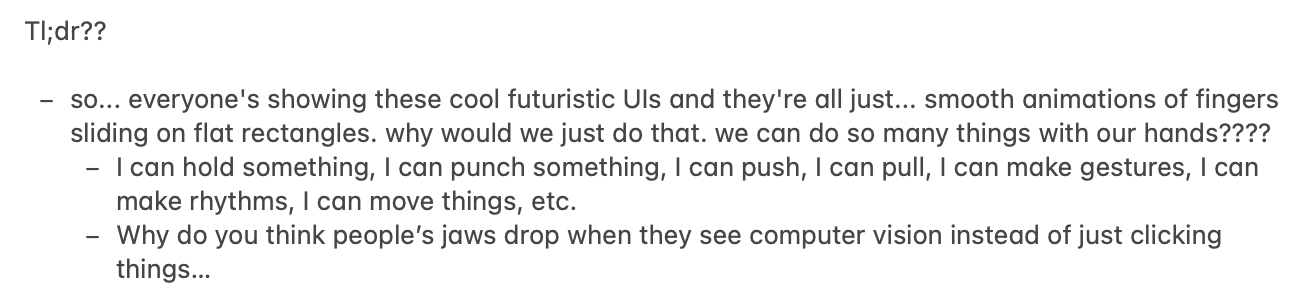
When I watched the 6-minute video from the article, I immediately thought of a scene from an Avengers movie. In that scene, Tony Stark, also known as Iron Man, works with his technology. He manipulates a floating, transparent screen that he can see through and control with his hands. When I was younger, I remember imagining myself owning the same technology from the movie. I also wondered how many years I would have to wait for that kind of technology to be released, especially since technology keeps evolving so quickly. I almost forgot the article’s main point: technology becomes more meaningful when we can interact with it ourselves, rather than just swiping or looking at it. 

As Bret Victor explains, our hands are meant to feel and handle things, not just tap on a flat surface. I liked the examples he gave about how there is almost nothing in the natural world that we interact with by just sliding. In real life, we do not just slide our hands on things. We hold them, adjust our grip, and feel their weight, which helps us control them better. That kind of interaction is missing when we only slide on a flat screen.

Thinking about it now, even if something like Iron Man’s interface existed, it might still feel limited if it only relied on gestures in the air without any real sense of touch or resistance. This led me to think that even if something looks advanced, it can still miss the deeper idea of creating something that we can fully see, feel, and physically interact with.

WEEK 10 Group Assignment

Concept

In this project, a simple interactive mini piano was created using Arduino. The system combines both analog and digital inputs to control LEDs and sound output. The main goal was to explore how analog sensor data can be translated into both visual and auditory feedback in a way that feels responsive and engaging.

The project brings together multiple components working at the same time: 

  • Analog input through Force Sensitive Resistors (FSRs)
  • Digital input using a switch for overall control
  • Analog output through a PWM-controlled LED for brightness variation
  • Digital output using a red LED and a buzzer for clear feedback

Each FSR functions like a piano key. When pressure is applied, it changes the resistance, which affects the analog value being read. This value is then used to control both the pitch of the sound from the buzzer and the brightness of the LED, making the interaction feel more dynamic depending on how hard the user presses.

All FSRs are connected using a voltage divider with a 10kΩ resistor, and their values are read through analog pins A0 to A3. The system also includes several indicators:

  • The yellow LED shows when the system is turned on
  • The green LED represents the analog output, adjusting brightness based on the input
  • The red LED lights up when a stronger pressure threshold is reached
  • The buzzer produces a sound corresponding to the input
  • The switch acts as the main ON/OFF control


How It Works

The system starts by checking the switch. When it is OFF, everything stays inactive, so no LEDs light up, and no sound is played. Once the switch is turned ON, the yellow LED lights up to show that the system is active, and the Arduino begins reading the values from all the FSR sensors. It then compares these readings to figure out which sensor is being pressed the most.

This core logic, added by my group partner, is what allows the system to function like a piano:

// ---------- Read + smooth sensors ----------
for (int i = 0; i < 4; i++) {
  int raw = readAverage(FSR_PINS[i]);   // read sensor
  smoothVals[i] = (smoothVals[i] * 3 + raw) / 4;   // smoothing
}

// ---------- Find strongest press ----------
int strongestIndex = 0;
int strongestValue = smoothVals[0];

for (int i = 1; i < 4; i++) {
  if (smoothVals[i] > strongestValue) {
    strongestValue = smoothVals[i];
    strongestIndex = i;
  }
}
// ---------- Determine pressure level ----------
 int level;

 if (strongestValue <= LEVEL_1_MAX) {
   level = 0;   // light press
 } 
 else if (strongestValue <= LEVEL_2_MAX) {
   level = 1;   // medium press
 } 
 else {
   level = 2;   // hard press
 }

 // ---------- Select note ----------
 int nextNote = NOTES[strongestIndex][level];

 // ---------- Play sound ----------
 if (nextNote != currentNote) {
   tone(BUZZER, nextNote);   // play note
   currentNote = nextNote;   // update
 }

Based on how much pressure is applied, the input is grouped into three levels: light, medium, and hard. At the same time, the outputs respond to these changes. The green LED adjusts its brightness using PWM depending on the pressure, the red LED turns on when a strong press is detected, and the buzzer plays the corresponding note.

Tinkercad Link | Demo | Code

Reflection

At first, my partner and I both thought about adding a piano-like element to our Arduino for this week’s project, so we then decided to move forward with that idea. It was really interesting to see how different inputs could change the sound and how that made the interaction feel more alive. Instead of just having one tone, being able to play different pitches made it feel more responsive and a bit more like an actual instrument.

I really liked how the project turned out. Setting up the code both in Arduino and Tinkercad helped us see how the system fits together step by step. It was also fun to be able to actually try it out after. Overall, this project gave us a better sense of how input values can be interpreted and used in different ways. It made us more aware of how even simple changes in input can lead to noticeable differences in how a system responds. Because of this, I would definitely consider integrating sound into my future projects as well.

References

• Arduino Documentation
https://www.arduino.cc/reference/en/
• Analog Input Tutorial
https://www.arduino.cc/en/Tutorial/BuiltInExamples/AnalogInput
• PWM (analogWrite)
https://www.arduino.cc/en/Tutorial/PWM
• Voltage Divider Explanation
https://learn.sparkfun.com/tutorials/voltage-dividers

https://youtu.be/JZ44h-jy0p4?si=LTeRxI9Gy2SYuQWJ

https://youtu.be/QYYigxRwXfc?si=fmBr9DmXWSOYV1rm

https://youtu.be/CvZ-SGJ8fGo?si=kRXJ7upESpJA1Qsh

Week 10 Mini Piano assignment

Arduino Mini Piano Using FSR Sensors (Analog & Digital Interaction)

Github:

https://github.com/skyorachorn/Intro-to-IM/blob/7363a1a2ac99fb91f95ab5c65de378ffd1688e4b/Week10_Piano_R4_assign.ino


Youtube:

https://youtu.be/HsH6VOBfLoQ?si=giDxkueRMkSCnZ7J


Picture of Mini Piano:


Concept

In this project, we created a simple interactive mini piano using Arduino. The system combines both analog and digital inputs to control LEDs and sound output. The main goal was to explore how analog sensor data can be translated into both visual and auditory feedback in a way that feels responsive and engaging.

The project brings together multiple components working at the same time:

  • Analog input through Force Sensitive Resistors (FSRs)
  • Digital input using a switch for overall control
  • Analog output through a PWM-controlled LED for brightness variation
  • Digital output using a red LED and a buzzer for clear feedback

Each FSR functions like a piano key. When pressure is applied, it changes the resistance, which affects the analog value being read. This value is then used to control both the pitch of the sound from the buzzer and the brightness of the LED, making the interaction feel more dynamic depending on how hard the user presses.

All FSRs are connected using a voltage divider with a 10kΩ resistor, and their values are read through analog pins A0 to A3. The system also includes several indicators:

  • The yellow LED shows when the system is turned on
  • The green LED represents the analog output, adjusting brightness based on input
  • The red LED lights up when a stronger pressure threshold is reached
  • The buzzer produces sound corresponding to the input
  • The switch acts as the main ON/OFF control

Circuit Design:

Each FSR is connected using a voltage divider with a 10kΩ resistor. The analog values are read from pins A0–A3.
• Yellow LED → System ON indicator
• Green LED → Analog output (PWM brightness)
• Red LED → Hard press indicator
• Buzzer → Sound output
• Switch → Turns system ON/OFF

The switch is connected with a 10kΩ pull-down resistor to ensure a stable digital input.

How It Works:

The system starts by checking the switch. When it is OFF, everything stays inactive, so no LEDs light up, and no sound is played. Once the switch is turned ON, the yellow LED lights up to show that the system is active, and the Arduino begins reading the values from all the FSR sensors. It then compares these readings to figure out which sensor is being pressed the most. Based on how much pressure is applied, the input is grouped into three levels: light, medium, and hard. Each level is mapped to a different note, where a lighter press produces a lower pitch and a stronger press produces a higher pitch. At the same time, the outputs respond to these changes. The green LED adjusts its brightness using PWM depending on the pressure, the red LED turns on when a strong press is detected, and the buzzer plays the corresponding note.

Tinkercad Link | Demo | Code


1. When the switch is OFF:
• All LEDs are off
• No sound is played
2. When the switch is ON:
• Yellow LED turns on
• Arduino reads all FSR values
3. The system finds the strongest pressed sensor
4. The pressure is divided into 3 levels:
• Light
• Medium
• Hard
5. Each level maps to a different note:
• Lower pressure → lower pitch
• Higher pressure → higher pitch
6. Outputs:
• Green LED brightness changes (analog)
• Red LED turns on if pressure is high
• Buzzer plays the corresponding note

Smoothing & Timing:

To improve stability:
• Sensor readings are averaged to reduce noise
• A smoothing formula is used:

smoothed = (old * 3 + new) / 4, which corresponds to 75% of the previous value and 25% of the new reading.

• millis() is used instead of delay() to control reading intervals (~8ms)

This allows continuous sensor reading without blocking the program.

Interaction Design:

This project demonstrates:
• Continuous analog interaction (pressure → brightness + sound)
• Discrete digital interaction (switch ON/OFF, red LED threshold)
• Real-time responsiveness using non-blocking timing

Code highlight:

This section of the code is the one I am most proud of, because it shows how analog input from the FSR sensors can be translated into both sound and LED behavior in real time.

// ---------- Find strongest press ----------
int strongestIndex = 0;
int strongestValue = smoothVals[0];

for (int i = 1; i < 4; i++) {
  if (smoothVals[i] > strongestValue) {
    strongestValue = smoothVals[i];
    strongestIndex = i;
  }
}

// ---------- No press ----------
if (strongestValue < PRESS_THRESHOLD) {

  analogWrite(GREEN_LED, 0);      // green LED off
  digitalWrite(RED_LED, LOW);     // red LED off
  noTone(BUZZER);                 // stop sound
  currentNote = 0;                // reset note

  return;
}

// ---------- Determine pressure level ----------
int level;

if (strongestValue <= LEVEL_1_MAX) {
  level = 0;   // light press
} 
else if (strongestValue <= LEVEL_2_MAX) {
  level = 1;   // medium press
} 
else {
  level = 2;   // hard press
}

// ---------- Select note ----------
int nextNote = NOTES[strongestIndex][level];

// ---------- Play sound ----------
if (nextNote != currentNote) {
  tone(BUZZER, nextNote);   // play note
  currentNote = nextNote;   // update
}

// ---------- Analog output (PWM LED) ----------
int clipped = constrain(strongestValue, PRESS_THRESHOLD, MAX_PRESS);  // limit range
int brightness = map(clipped, PRESS_THRESHOLD, MAX_PRESS, 0, 255);    // map to PWM
analogWrite(GREEN_LED, brightness);   // set brightness

// ---------- Red LED (hard press) ----------
if (strongestValue > HARD_THRESHOLD) {
  digitalWrite(RED_LED, HIGH);   // turn on red LED
} else {
  digitalWrite(RED_LED, LOW);    // turn off red LED
}

Reflection

We both thought about adding a piano-like element to our Arduino for this week’s project, so we then decided to move forward with that idea. It was really interesting to see how different inputs could change the sound and how that made the interaction feel more alive. Instead of just having one tone, being able to play different pitches made it feel more responsive and a bit more like an actual instrument.

We really enjoyed the whole process and how the project turned out. Setting up the code in Arduino and Tinkercad helped us see how the system fits together step by step. It was also fun to be able to actually try it out after, since we could clearly see and hear how our inputs directly affected the output.

Overall, this project gave us a better sense of how input values can be interpreted and used in different ways. It made us more aware of how even simple changes in input can lead to noticeable differences in how a system responds. Because of this, we would definitely consider integrating sound into our future projects as well.

Future Improvements:

There are several possible improvements for this project.

1) each FSR could have its own LED instead of using a single shared LED. This would provide clearer visual feedback for each key and make the interaction more intuitive.

2) the sound quality could be improved by using a better speaker module instead of a basic buzzer, which would produce a richer and more musical output.

3) the system could be expanded to support more notes or a full musical scale, allowing more complex songs to be played.

Conclusion:

This project shows how simple components like FSR sensors can create an interactive musical instrument. By combining analog and digital inputs and outputs, we can design expressive and responsive interfaces.

References:
• Arduino Documentation
https://www.arduino.cc/reference/en/
• Analog Input Tutorial
https://www.arduino.cc/en/Tutorial/BuiltInExamples/AnalogInput
• PWM (analogWrite)
https://www.arduino.cc/en/Tutorial/PWM
• Voltage Divider Explanation
https://learn.sparkfun.com/tutorials/voltage-dividers

https://docs.arduino.cc/language-reference/en/functions/time/millis/

https://youtu.be/JZ44h-jy0p4?si=LTeRxI9Gy2SYuQWJ

https://youtu.be/QYYigxRwXfc?si=fmBr9DmXWSOYV1rm

https://youtu.be/CvZ-SGJ8fGo?si=kRXJ7upESpJA1Qsh


Reading Response- Week 10 reflection A Brief Rant

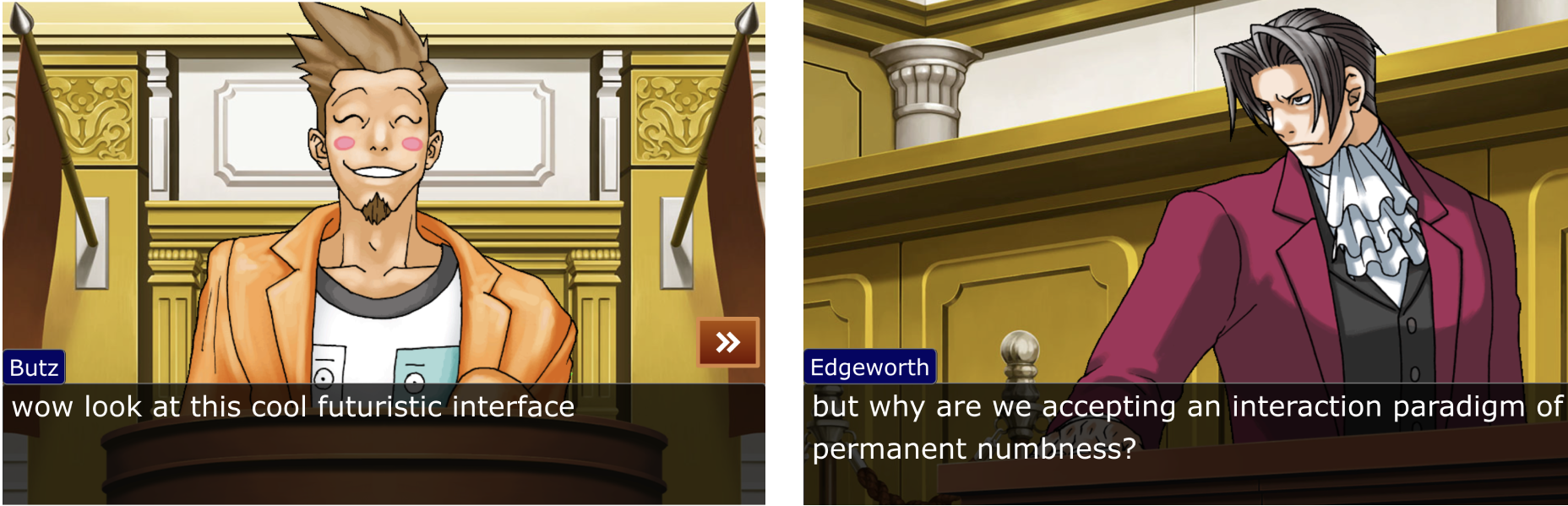
In reading A Brief Rant on the Future of Interaction Design, I liked the author’s argument that current “visions of the future” are not truly innovative but instead reinforces a limited interaction entered on “pictures under glass”. This challenged my previous assumption that modern touchscreens represent cutting-edge interaction design. I always thought sleek, minimal interfaces with progress, but the reading made me realize that these designs may actually ignore a fundamental aspect of human capability being our sense of touch. The passage describing how hands “feel things and manipulate things” (page 4) resonated with me because it reframed interaction not as something just purely visual, but as something deeply understood. Reflecting from my own experience especially using devices for creative work such as  music or design so I now notice how limited these interactions feel compared to real-world engagement. This raises an important question for me which is Why does mainstream design continue to prioritize visual aesthetics over sensory cues? Even when it contradicts how humans naturally interact with the world.

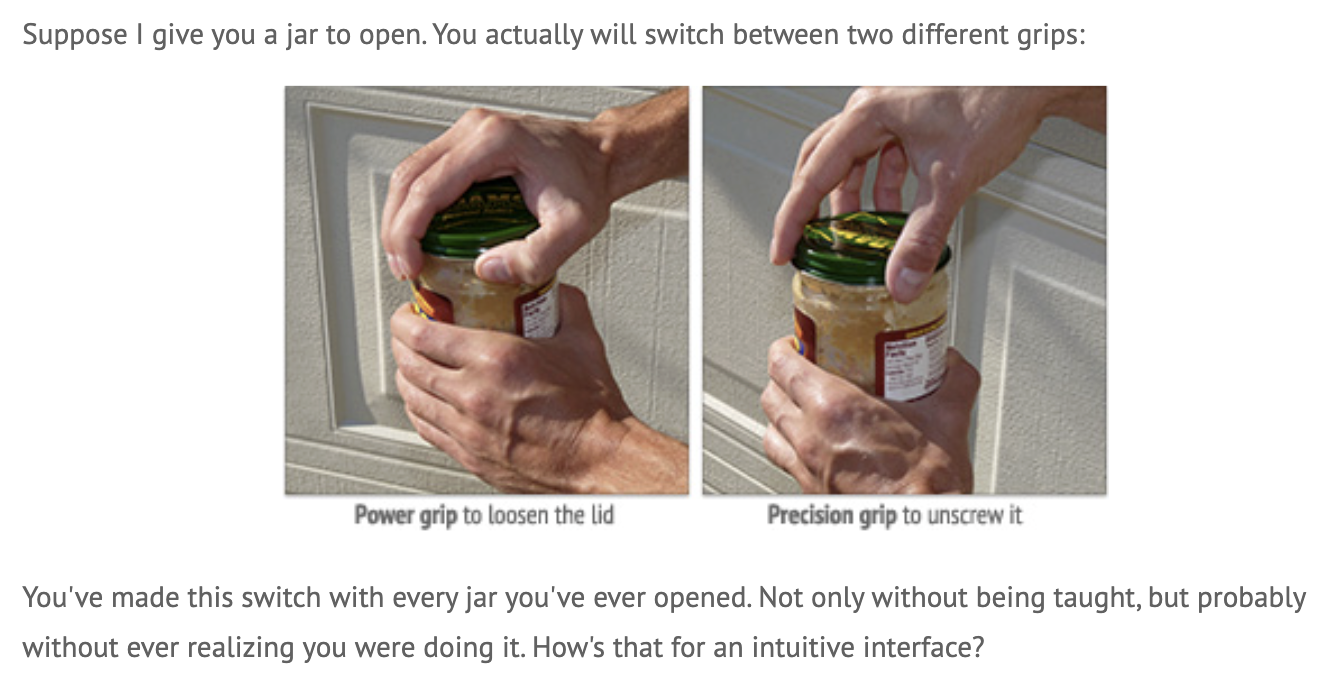
At the same time, this reading expanded my understanding of what “innovation” in interaction design actually means. The author highlights on human capabilities, rather than just needs or technology, shifted my perspective toward a more human-centered framework. I found the example of hands performing more complex, such as intuitively opening a jar or making a sandwich. This is powerful evidence because it illustrates how sophisticated human interaction already is without digital mediation (page 8). This connects to my own work in interactive media, where I often think about how to make projects more engaging, yet I realize I have mostly relied on screens and visual outputs. The reading makes me question whether I am unconsciously limiting my designs by staying within familiar digital conventions. It also challenges me to think more ambitious way. As the author argues, then designers like myself have a responsibility to explore interfaces that incorporate touch, movement, and the full body.