Week 7 means… MIDTERM! (╥ω╥)

You might need to open this on a different tab for the hand gestures and camera to work here! Aaaand this for phone (but some parts are a bit different.) The cursor still works on this though.

Preface…? (And Concept)

Before I actually get into my project, I’ll tell you about how terrible my process was, for the sake of transparency. I started off with making a visual novel: think if you combined Doki Doki Literature Club, Butterfly Soup, and Persona… or something (but not a shoujo one. That definitely did pop up in my head, though.) I had my laptop out and thumbnails ready to go…
Ryuji (Persona 5): "I'm an esteemed scholar (Just opened my laptop.)"

…and then I ended up moving between 5 houses, 2 countries and five states in the span of 3 weeks. Yippee! The weekend the crisis started was the weekend I was expected to cram my project, and so, the cramming did NOT happen.
Ryuji (P5): "Bad news about my academic career Guys (Just closed my laptop)"

During these three weeks, while jumping from one house to another, I was also jumping from idea to idea: 14-year-old me was geeking out because I had the time to actually make a video game… except now not in great circumstances and constant power cutouts. I gave up on the visual novel idea (despite having some sprites ready </3) and tried to make a rhythm game, and then the issue of (one) copyright and (two) not having my keyboard with me resulted in a bigger headache figuring out the music than the coding itself. I tried to make a pixel game, and then realized that it would take me a long time to translate my ideas into pixel art and be satisfied with the amount of time I had.

One thing I really did want to include in my project was my artwork, and I realized very late, that why don’t I make a dress-up game? I used to play those games religiously on my dad’s Dell laptop while he would sleep in the afternoons when I was a kid, and now, I could make my own! I love fashion and since I’ve been holed up in each of the houses I’m staying in (Indian families are huge), I’ve missed dressing up a lot. In some way, I might be projecting onto this project. So… my concept is:

Short version: Hand-made Picrew with my own drawings and my own website code.

Long version: The short version explains it pretty well. I wanted the interface to be sketchy, as if I hand-drew it, and I wanted it to look very simplistic so that users would pay more attention to the character they were making. Then, you can also download your own version of the character! This would be a prototype for me to figure out how I could create this, and if it went well, I would reuse my code in the future to make a more extensive page (maybe even with backgrounds…).

Process

Firstly, I thumb-nailed. The first is before I started drawing the characters, and the second is after I finished all the elements for the characters. As you can see, I didn’t follow this exact layout, but it did help.
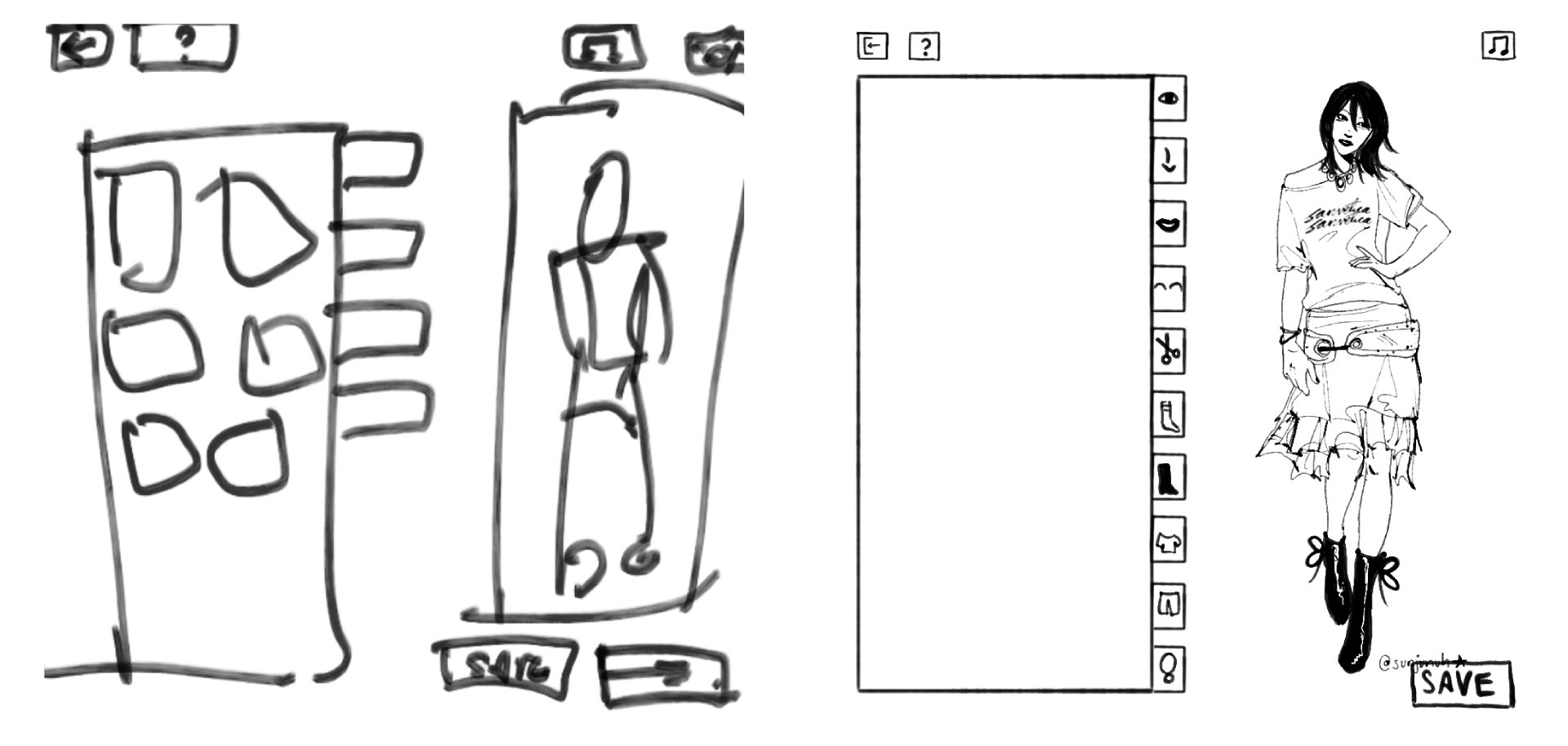
To make sure I didn’t end up spending too much time on this (since I didn’t have much time to begin with), I forced myself to set a fixed time restriction when drawing each element out on Procreate. I gave myself 3 hours, and here’s the results. You can see the elements much better on the game:
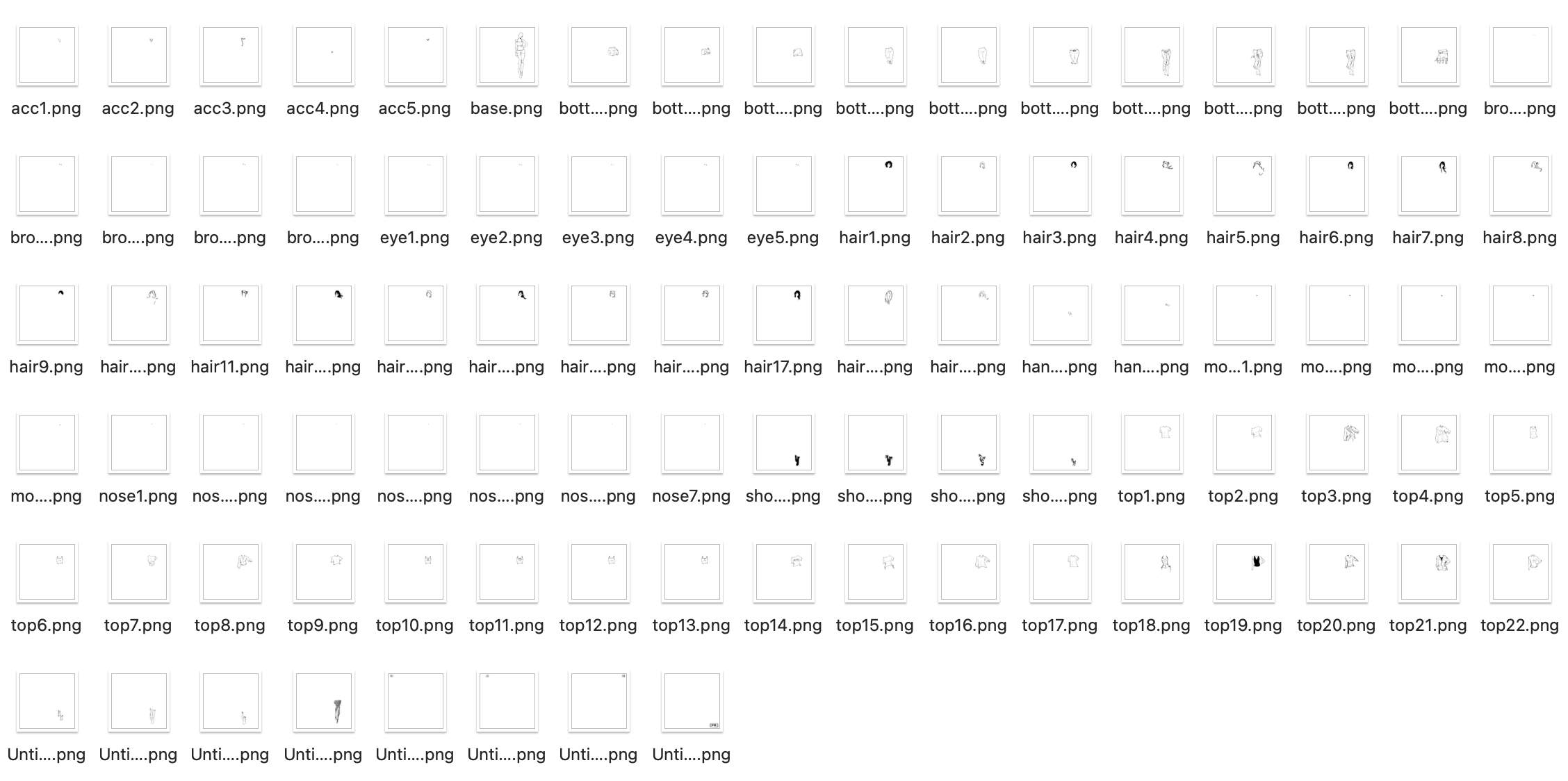
To make sure that when I layered each element over each other, you wouldn’t see the layers below, I made sure to color the lines with white in case. (Hence the lack of color… if I had more time I would have variations in color). To also make some cuter elements, I drew some more things out. .

Title! I tried to be consistent with my drawing style when I drew this.
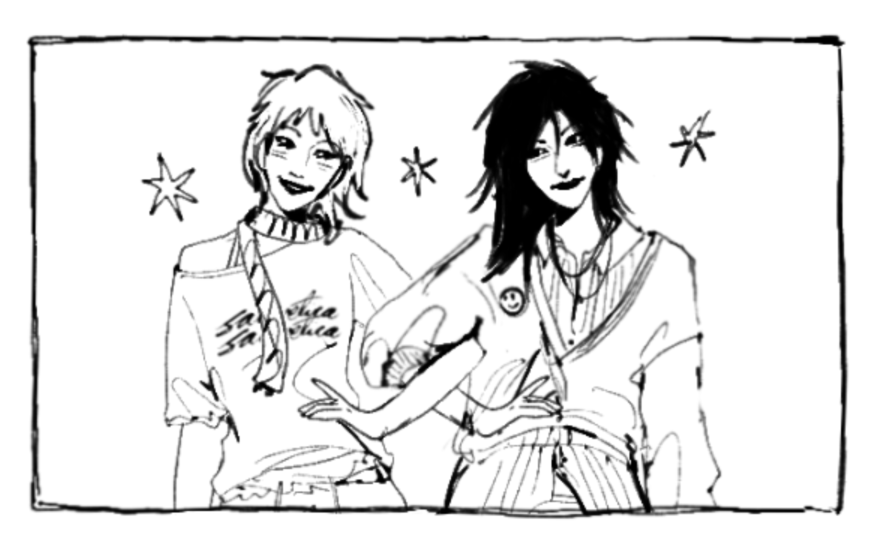
I just layered the elements I drew to make two characters. Easy Peasy.

I started by putting (and renaming) my elements into folders on p5.js for each category, and then establishing each category and the layer order they would be stacked in (since all images are .pngs).

const LAYER_ORDER = ["base", "socks", "shoes", "pants", "tops", 
                     "accessories", "eyebrows", "eyes", "noses", 
                     "mouths", "hair", "hands"];

From there, I started building the sidebar and the overall layout of the game.

While I struggled with the hand tracking interaction, I was somewhat happy with the outcome. Using ml5’s handPose, I tracked only the tip of the index finger and mapped it to the canvas.

let indexFinger = hands[0].keypoints[8];
let tx = map(indexFinger.x, 0, 640, 0, CW);
let ty = map(indexFinger.y, 0, 480, 0, CH);
fingerX = lerp(fingerX, tx, 0.3); 
fingerY = lerp(fingerY, ty, 0.3);

However, I struggled with how to “click” without a mouse, and so I used a hover timer system. If I held my finger over a box for long enough, it would trigger the action:

let foundID = getHoverID();
if (foundID !== null) {
  if (foundID !== currentHoverID) { 
    currentHoverID = foundID; 
    hoverTimer = 0; 
    isLocked = false; 
  }
  if (!isLocked) {
    hoverTimer++;
    if (hoverTimer >= clickDelay) { 
      triggerAction(); 
      isLocked = true; 
    }
  }
}

// the arc cursor:
if (hoverTimer > 0 && !isLocked) {
  let arcEnd = map(hoverTimer, 0, clickDelay, 0, TWO_PI);
  strokeWeight(4); 
  arc(fingerX, fingerY, 35, 35, -HALF_PI, arcEnd - HALF_PI);
}

I turned it to 55 frames: not too long or short. I also added a circle that fills around the cursor to see the timer count down, which made it easier for the user to understand.

For the sketchy feeling of the boxes, I drew it so the buttons redraw with slightly different lines every frame, and it made it look much more fun.

render() {
  push(); stroke(0); strokeWeight(this.isMain ? 4 : 2); 
  fill(this.isOver() ? 240 : 255);
  
  randomSeed(this.x + this.y + floor(millis()/150));
  beginShape();
  vertex(this.x + random(-3,3), this.y + random(-3,3));
  vertex(this.x + this.w + random(-3,3), this.y + random(-3,3));
  vertex(this.x + this.w + random(-3,3), this.y + this.h + random(-3,3));
  vertex(this.x + random(-3,3), this.y + this.h + random(-3,3));
  endShape(CLOSE);
  
  noStroke(); fill(0); textAlign(CENTER, CENTER);
  if(customFont) textFont(customFont);
  textSize(this.isMain ? 32 : 18);
  text(this.label, this.x + this.w/2, this.y + this.h/2 + (this.isMain ? 5 : 2));
  pop();
}

For sounds, I had different sounds loaded for different actions. I had background music, and three different click sounds (for buttons in the sidebar, anything other buttons, and any of the items individually):

bgMusic = loadSound("song1.mp3", () => {
  bgMusic.setVolume(0.6);
  assetLoaded();
});
sfxItem = loadSound("click_item.mp3", assetLoaded);
sfxUI = loadSound("click_ui.mp3", assetLoaded);
sfxSidebar = loadSound("click_sidebar.mp3", assetLoaded);

if (aid === "start_btn") { 
  sfxUI.play(); 
  appState = "HELP"; 
  if (bgMusic && !bgMusic.isPlaying()) bgMusic.loop(); 
}

To make sure that when I reset the game, it would ask me for confirmation (in case I accidentally put my hand on the reset button), I used this code:

function drawModal() {
  fill(255, 230); noStroke(); rect(0, 0, CW, CH); // translucent overlay
  drawStaticBox(CW/2-150, CH/2-100, 300, 200);
  fill(0); textAlign(CENTER, CENTER); textSize(26);
  
  if (modalState === "RESET_CONFIRM") {
    text("Are you sure?", CW/2, CH/2 - 40);
    new SketchButton(CW/2-110, CH/2+20, 100, 40, "YES").render();
    new SketchButton(CW/2+10, CH/2+20, 100, 40, "NO").render();
  }
}

// in triggerAction():
if (modalState === "RESET_CONFIRM") {
  if (aid === "mod_yes") { avatar.reset(); sfxUI.play(); modalState = "NONE"; }
  else if (aid === "mod_no") { sfxUI.play(); modalState = "NONE"; }
  return; // early return stops anything else from firing
}

To save the image of the avatar, I used p5’s get() to screenshot the avatar preview region of the canvas and save it as a .jpg.

else if (aid === "save_btn") { 
  sfxUI.play(); 
  get(382, TOP_H+2, 366, CH-TOP_H-BOT_H-4).save('doodle','jpg'); 
  modalState = "SAVE_DONE"; 
}

I calculated the coordinates to make sure this crops cleanly no matter what the avatar is wearing. However, I think I messed this up on the mobile version (⇀‸↼‶).

I was really proud of the UI and how everything looked (somewhat) cohesive with each other, even though I drew some parts and coded other parts. And… even though this isn’t a coding part… I’m also really proud of my drawings. I’ve been in art block for a bit, so this forced me to draw (which helped somehow). ( ⸝⸝´꒳`⸝⸝)

Improvements (and our favorite thing… problems):
  • Originally when making the cursor, I struggled because I thought I should use a pinch action to select each box. That did NOT work due to the size of each box. So, I changed it to an (as others referred to it) x-box loading cursor with the circle to show how long you’re holding it before it selects. Worked pretty well!
  • There’s no color… which I really did want to put but I didn’t have time. While I do like the sketchiness of this, it would have been cooler to have more options and colors.
  • Also I have a lack of body diversity (race, body shapes, even gender) so I am SOAnyone else have this problem? : r/picrew SORRY! This was not intentional at all… I probably can’t even make myself on this, to be honest. This IS a prototype so I promise if I make a proper version, it’ll be very diverse.
  • On the mobile version, I can’t do computer vision. It also took me an hour to figure out why my code (which I altered for mobile)  wasn’t working on itch.io, so I would say the mobile version is worse than the desktop version.
  • I struggled with computer vision for an embarrassingly long amount of time. I still think it’s wonky, because I have to move my hands in really absurd distances and places to hit just a few buttons. The mouse is so much easier to use.
  • One thing I DID resolve was that while I was arranging images in the sidebar, due to the canvas size of each image being 1000×1000, it ended up looking tiny in each box. To fix this, I sorted the categories based on where on the canvas they were located (face were top right, feet were bottom right, etc.):
let zone = ["eyes", "eyebrows", "noses", "mouths", "hair"].includes(catKey) ? FACE_ZONE : (["shoes", "socks"].includes(catKey) ? FEET_ZONE : BODY_ZONE);

…and used this code to individually zoom in:

const FACE_ZONE = { x: 700, y: 120, w: 70, h: 70 }, FEET_ZONE = { x: 600, y: 670, w: 200, h: 200 }, BODY_ZONE = { x: 600, y: 200, w: 300, h: 300 };

I have more I want to say but I think this may turn into an essay, so I’ll leave it at that.

I hope that, at least, you all enjoy this! (੭˃ᴗ˂)੭
Credits

The Sanderling Brush on Procreate | This instrumental for background music | This cute font | The JJK S3 OST (good work music) | MixKit for sound effects
“you have no idea how ALONE you are” : Midterm Project

We know.
We know music can alter the state of the human mind. When you’re happy, a sad song can sway your happiness. When you’re sad, a joyful song can sway the latter. Music can make you feel alone, it brings out parts of your personality that may otherwise be hidden.

Music can shape us, but what if it could shape the environment around us?

“you have no idea how ALONE you are” is the title of my midterm project.

 *Graphics & Memory intensive. 4GB RAM is advised.

Space is so unfathomably vast, that we are but like atoms to mountains amid it. Thus, it is only natural for feelings of solitude and loneliness to be invoked in this alien world beyond our blue horizons. This is exactly the emotion the project targets: to invoke feelings of this loneliness, one that we all have felt at some point in our lives.

And what could accentuate that feeling, or perhaps evoke it from slumber to wake? One avenue is certainly music. The music I have chosen for this project is aligned with the genres of science fiction, of terror and upbeat, and of solace and emotion.

I was inspired by the timelessness of the Temple of Karnak (Egypt), with towering pillars making us feel small and very much alone.

Favorite Code Snippet:

let half = {
  x: boxSize.x / 2,
  y: boxSize.y / 2,
  z: boxSize.z / 2
};
let closest = {
  x: constrain(spherePos.x, boxPos.x - half.x, boxPos.x + half.x),
  y: constrain(spherePos.y, boxPos.y - half.y, boxPos.y + half.y),
  z: constrain(spherePos.z, boxPos.z - half.z, boxPos.z + half.z)
};

let dx = spherePos.x - closest.x;
let dy = spherePos.y - closest.y;
let dz = spherePos.z - closest.z;

let distanceSq = dx*dx + dy*dy + dz*dz;

return distanceSq <= radius * radius;

As the game is 3D, I decided to implement collision detection (wouldn’t be much of a game otherwise).

This uses Axis Aligned Bounding Boxes (AABB) as extended upon in the book Real Time Collision Detection.

I really loved how simple yet effective this part of the logic was. It really helped save resources (as compared to my other, independent and failed attempts).

The Toughest Part:

I had absolutely no idea how the final project would look like until 3 days before submission. The reason: I had to script in my own game engine and graphics rendering pipeline, shaders, etc. before attempting to even build anything in the map. That was a significant amount of trust I had to place inside of my own capabilities, and I’m glad I trusted myself. The final result wasn’t what I initially planned for, but it looks awesome!

Known problems:

Unfortunately, with this project came a lot of problems. Firstly, any graphics, interfaces, etc. that I attempted to implement continued to fail. Thus, I was unable to implement any interfaces to tutorials.

Furthermore, the collision detection works properly, but I use a dumbed down version of collision handling. This was so as to prevent the browser consuming egregious amounts of memory, and to reduce lag spikes. There are some points where stuff glitches, but those are few and far between.

Development Process:

The development process entailed me working on the entirety of the project (unless otherwise stated). I wrote the code, sourced PBR textures from PolyHaven (free textures!) and audio from PixaBay (free with credit!) I used google to search for collision detection algos, and came across the book on collision detection on google. AI was used for only sourcing out textures and audio files. I didn’t fancy it too much beyond that.

Week 7: Midterm Project

Concept

Ella’s Panaderya is an interactive experience set inside a Filipino bakery, also called a panaderya. The piece invites users to explore the space, click on pastries to learn about them, control the music playing on the radio, and interact with a pot of champurado. My goal was to create something that felt warm and nostalgic to Filipino while informative for those  who aren’t.

Final Sketch!

How This Was Made

The sketch was built in p5.js using a game state system to manage which scene is displayed at any given time. Each state has its own draw function that renders the appropriate graphics. The bakery scene uses a photo background with clickable regions mapped onto the pastries and interactive objects in the image. To find the correct coordinates for each pastry, I used a temporary debug line was added inside drawBakery() that displayed live mouse x and Y values on the canvas as the mouse moved. It was easier to pinpoint the top-left and bottom-right corners of each item and calculate the width and height of each clickable zone. I just removed debug line  once all coordinates were set.

Temporary DeBug line:

fill(255, 0, 0);
textSize(10);
text(mouseX + ", " + mouseY, mouseX, mouseY);

Each pastry is a class that has its position, dimensions, name, and description. I made it so when you click a pastry, a popup displays that information. The champurado pot has its own layer with a top-down bowl drawn using shapes, a stirring animation, and a milk interaction that lightens the color of the champurado. The radio buttons are mapped to coordinates on the bakery image  (same as the pastries) and control three songs using the song functions learned from the class.

Reflection & Future Improvements

This project came together under a time crunch, so there are a few things I would have liked to develop further. The biggest one is the fan: the original plan was to make it interactive, cycling through speed settings with a sprite-based spinning animation to show the blades actually turning. Given more time, that would have added another layer of life to the bakery scene. I also would have liked to refine the popup sizing and positioning across all pastries, and possibly add a zoomed-in image for each one rather than just text. Overall though, I think the piece  succeeded in creating a small, explorable slice of a Filipino bakery that feels interactive and grounded in real cultural context.

Week 8 – Midterm Project

Sketch link!

Describe the overall concept of your project (1-2 paragraphs)

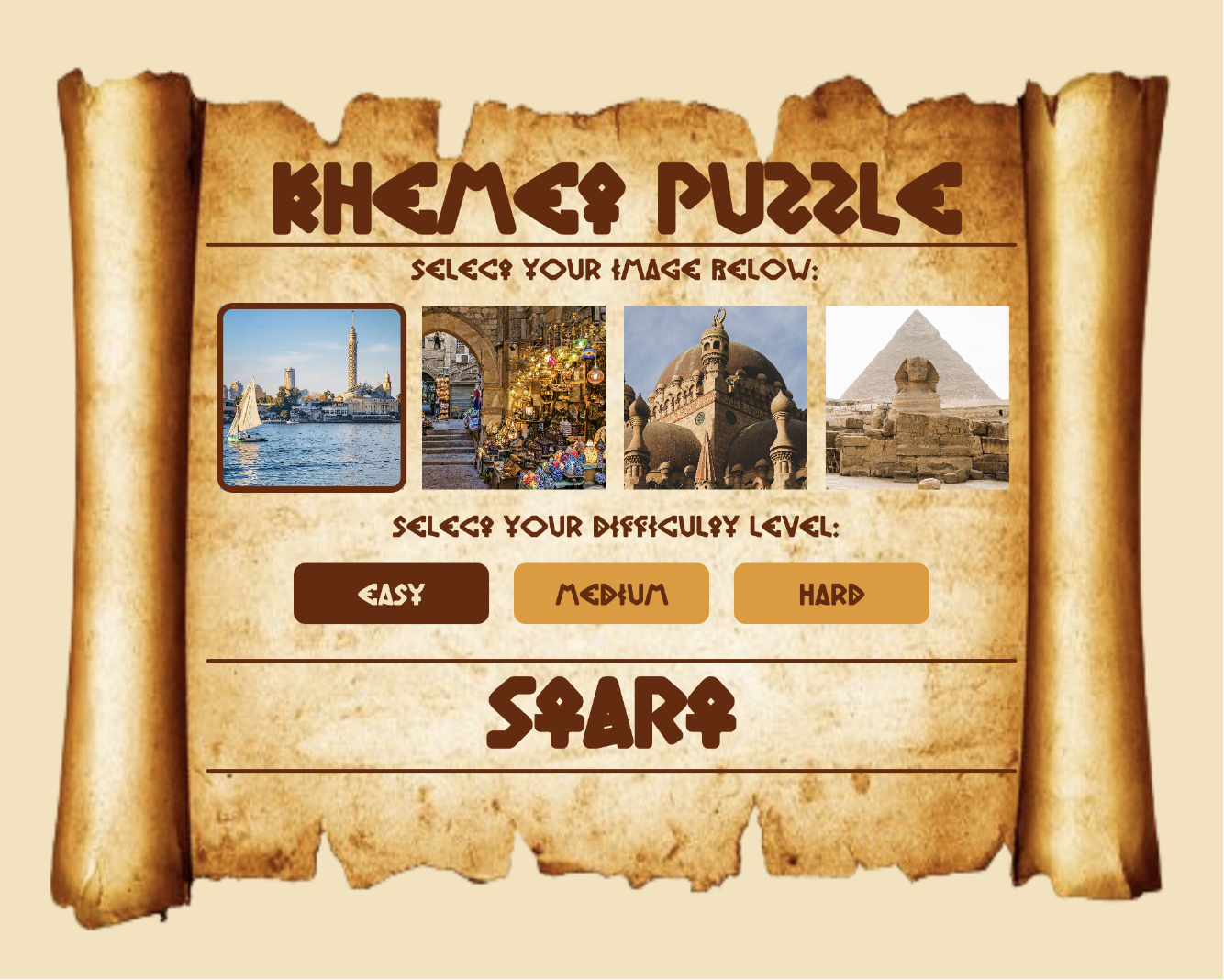
My project is a puzzle solving game with an “Ancient Egypt” theme. I wanted to have theme that related to me and since I’m Egyptian, this theme only made sense. Initially, I planned to use cartoon-like images of landmarks in Egypt, but I couldn’t find any images online of what I wanted or there wasn’t enough variety. I also can’t draw so I ended up just using realistic images instead (which I think I found through a website called freepik, but it was so long ago that I don’t even remember anymore). I had a rough plan of how I wanted the different screens within the game to look like in Canva (included in my midterm progress documentation), most things stayed the same in my final project. I found a font online called “khamenet,” which I decided to use throughout. I feel that this really added to the vibe of my project. 

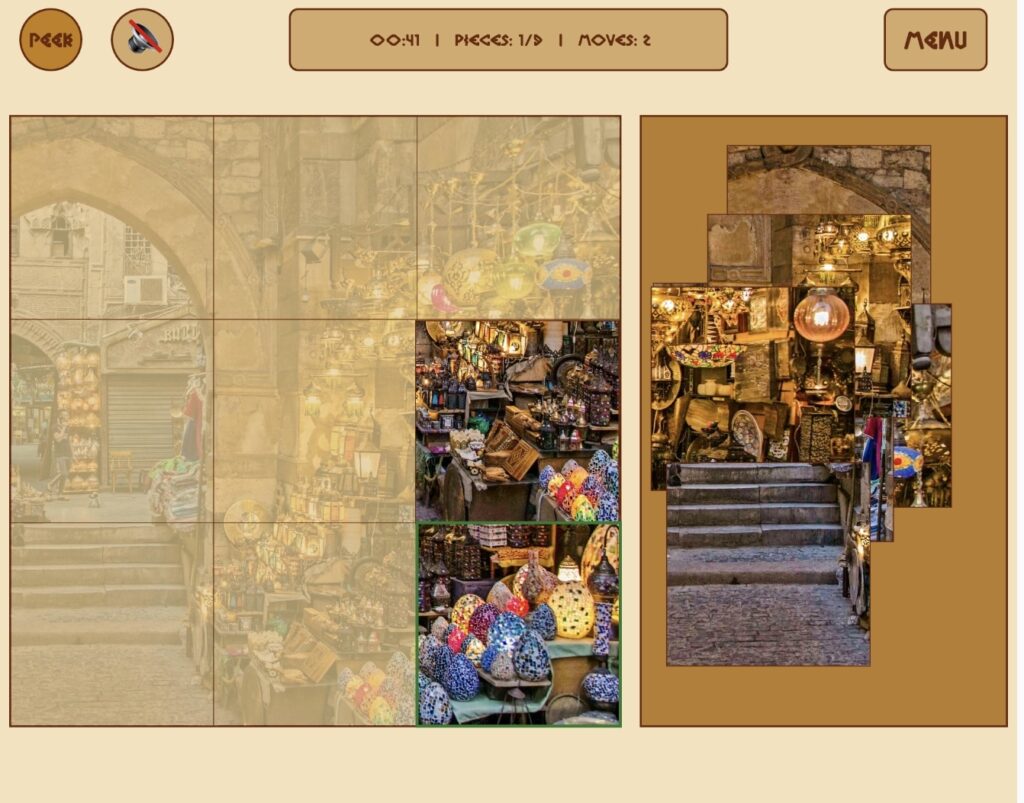
As for the game aspect, I settled on having each piece just be a square, rather than actual puzzle shaped since that would’ve been too difficult to code. The user can move the pieces around using their mouse. I didn’t add any instructions for my game as I felt it was self-explanatory, I tested it with my siblings and they both were able to play the game without any instructions. The only thing that I needed to point out was the ‘peek’ button. The peek button allows the user to see a preview of what the image they’re putting together looks like on the board itself. Initially, I was planning to just have a small reference image at the bottom of the screen, however, the peek overlay option ended up being more helpful and looks more seamless than having something in the corner. While the user plays, there’s background music and a ‘ding’ whenever a piece is placed correctly, if the user turns of the sound, both of these audio elements are muted/stopped. In addition, while the user plays, the game keeps track of the time taken, number of pieces placed, and number of moves taken. Finally, at any point, if the user gives up, they can press the menu button at top right to go back to the main menu. If they do not give up and complete the puzzle successfully, there’s a victory cheer (called a zaghrouta) that plays as well as an ending screen with their time taken. They can press anywhere to restart.

Describe how your project works and what parts you’re proud of (e.g. good technical decisions, good game design) 2-3 paragraphs

For the start screen, the main interactions are choosing the image and the difficulty level. The user can select each of these elements by clicking on them using the mouse. If the user presses within the coordinates of the element, their choice is recorded and the game proceeds accordingly. By default, if the user does not click on anything, the first image is selected and the difficulty is easy. The user can see which option is selected as the selected image has a border around it and selected difficulty is darker in color. Finally, the user starts the game by pressing within the boundaries of the lines around the work “START”. As long as the user is on the start screen, there is some music in the background.

I’m really proud of the aesthetic and the look of my start screen, since I wasn’t sure how closely I would be able to match the idea I had put together on Canva. However, luckily everything came together really nicely. I was really happy with the visual feedback to the user selecting the image and difficulty.

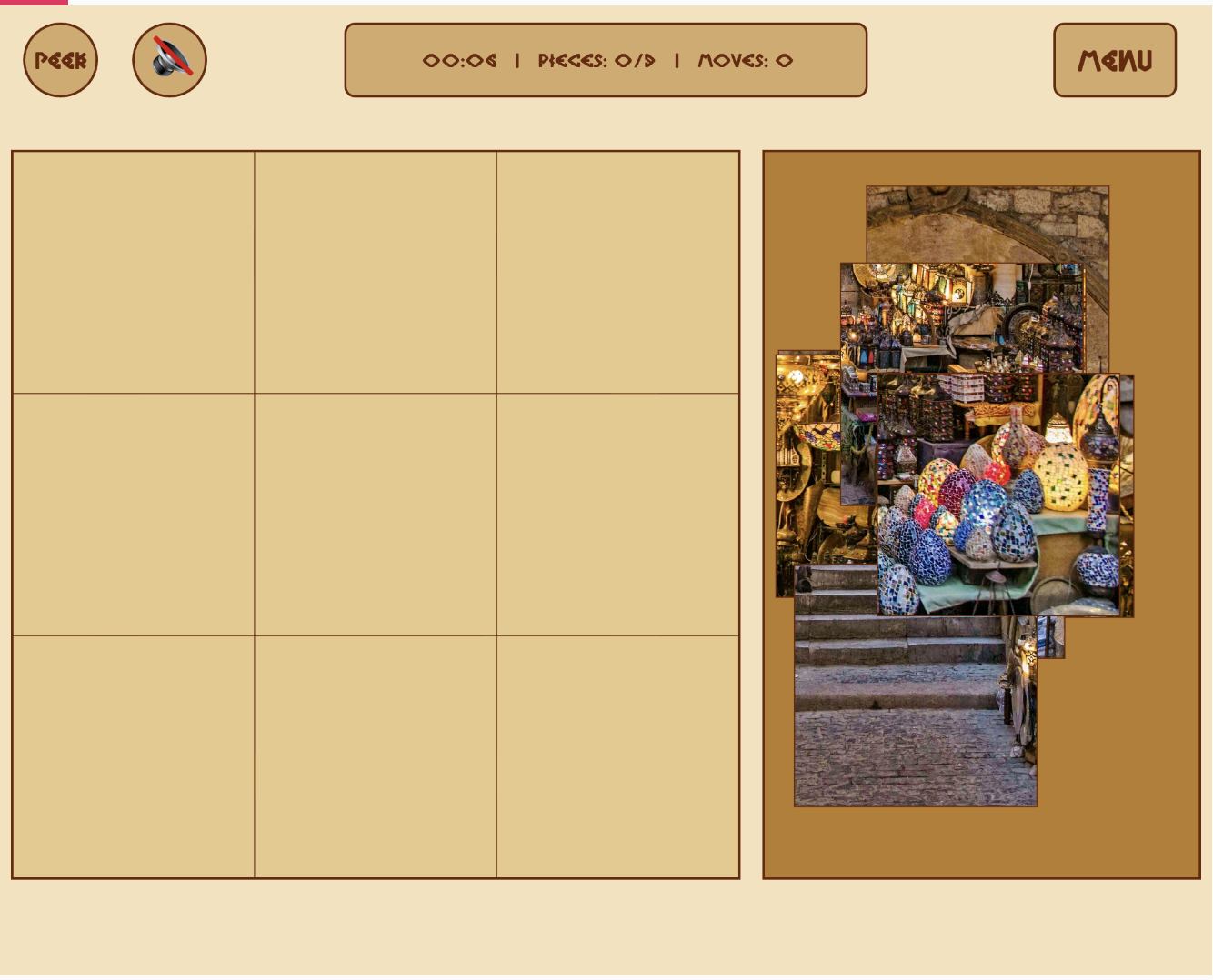
On the game screen, there’s a puzzle board on the left where the user puts the pieces together, a piece tray on the right where all the pieces start out scattered, and a few buttons at the top to control different things. First, top left, there’s the peek button. This button (as described earlier) allows the users to see a light preview of the full image overlaid on the puzzle board. I’m really proud of this element since I didn’t really have a plan of how I wanted to display the preview, so the fact that in the end, it ended up being something so simple is really nice.

// shows a preview of the image being solved, as a background 
function drawPeekOverlay() {
  let img = getSelectedImage();
  if (img) {
    push();
    tint(255, 70);
    imageMode(CORNER);
    image(img, 10, 120, 600, 600);
    pop();
  }
}

Next to the peek button is the volume button which simply either toggles all the sound on or off, which includes the correct ding sound and the background music. A possible improvement is keeping the ding sound audible even when the user silences the music since I feel like that audible feedback can be more helpful.

In the middle at the top there’s an info bar that tracks the time elapsed, how many pieces have been placed out of the total, and the number of moves taken. The time elapsed is tracked by calculating the difference between millis() and the startTime that was recorded when the puzzle began, and counts placed pieces by looping through the pieces array each frame. Finally, on the top right, there’s a menu button which simply takes the user back to the start screen at any point.

As for the actual puzzle, when buildPuzzle() is called it creates a PuzzlePiece  object for every cell in the grid and scatters each one at a random position inside the tray using random(). Each piece stores which row and column it belongs to, so it knows its exact target position on the board. The drag and drop system uses three separate p5.js mouse functions working together: mousePressed() picks up the topmost unplaced piece the user clicked on by looping backwards through the array, mouseDragged() updates the piece’s position to follow the mouse every frame, and mouseReleased() drops it and calls trySnap() which checks if the piece landed within 30 pixels of its correct target — if it did, it locks into place exactly and the border around it turns green. The dragged piece is always moved to the end of the pieces array so it draws on top of everything else. When all pieces are placed, the background music stops, the zaghrouta audio plays, and the state switches to WIN which triggers the win screen on the next frame.

class PuzzlePiece {

  constructor(id, col, row, cols, img) {
    this.id = id;
    this.col = col;
    this.row = row;
    this.cols = cols;
    this.img = img;
    
    // calculate piece size based on the no. of cols and board size
    this.w = 600 / cols;
    this.h = 600 / cols;

    // current position, updated in buildPuzzle
    this.x = 0;
    this.y = 0;
    
    // target position (where the piece actually belongs on the board)
    this.targetX = 10 + col*this.w;
    this.targetY = 120 + row*this.h
    this.isPlaced = false;
}
draw() {
    push();
    // draw the actual image slice
    if (this.img) {
      let sliceW = this.img.width / this.cols;
      let sliceH = this.img.height / this.cols;
      let sliceX = this.col * sliceW;
      let sliceY = this.row * sliceH;

      imageMode(CORNER);
      // draw slice at current this.x and this.y
      image(this.img, this.x, this.y, this.w, this.h, sliceX, sliceY, sliceW, sliceH);
    }
    // draw border based on 'state'
      noFill();
      if (this.isPlaced) {
      stroke("#2a7a2a"); // green, if correct
      strokeWeight(3);
    } else if (this === dragging) {
      stroke("#e59828"); // orange, if being moved
      strokeWeight(3);
    } else {
      stroke("#6b2705");
      strokeWeight(1);
    }
      rect(this.x, this.y, this.w, this.h);
      pop();
    }

    // check if the mouse is touching this specific piece
   contains(mx, my) {
    return mx > this.x && mx < this.x + this.w && my > this.y && my < this.y + this.h;
  }
// snap logic
  trySnap() {
    let d = dist(this.x, this.y, this.targetX, this.targetY);
    if (d < 30) {
      this.x = this.targetX;
      this.y = this.targetY;
      this.isPlaced = true;
      return true;
    }
    return false;
  }
}
Describe some areas for improvement and problems that you ran into (resolved or otherwise) (1-2 paragraphs)

I think one main area for improvement is having actual puzzle shaped pieces rather than just squares. I think that would’ve definitely my idea across more, however, considering my skill set and based on tutorials and p5.js reference page, square seemed more feasible. I think adding instructions to clarify what the peek button does would’ve also been helpful, but my hope was that the user would just play around with the buttons and eventually discover it themselves (or ask me how to view a preview and I would guide them to use the button). I also would’ve loved to add some visual animations associated with the background music and also have different music/audio for each picture, but I completely forgot about the sound requirement till the last minute so there was a bit of a time constraint there.

I ran into a few problems throughout writing the code for this project, however, at this point, most of the problems have slipped my mind. One thing that I do remember since it was added last minute is that when I added audio files, my code was stuck in an endless loading loop. I was stuck on that for around 10 minutes, thinking maybe the files are just taking longer than usual to load, before I checked back through our class notes and realized I needed to add the sound library to my index.html file. Luckily, that wasn’t too big of an issue. Whenever I did run into any problems with my code (debugging) or was stuck with how to begin or how to proceed with specific features, I did get some help from Gemini as it would guide me on what topics to cover, give me links to videos to refer to, and what pages would helpful from the p5.js reference so I felt that I learnt a lot more that way.

Midterm project : Bakkar Ramadan Game

Concept:

Oy, “Hello” in the Nubian language , My concept is my favorite Ramadan series teaching students new lessons everyday in the holy month of Ramadan offering wisdom and importance of community as well ass offering awareness to children and adults since it the series was a great success in Egypt and The Arab World. It is also the first 100% created Egyptian cartoon series started in 1998. It also introduces the Nubian culture which on of the rich, unique, and strongly continuing cultures in Egypt.

Bakkar (TV Series 1998– ) - IMDb

So how does it work and what am I proud of:

Initializing all images and assets

let startImg, homeImg, bakkarImg, hassonaImg, mapImg, mapSceneImg;
let teacherImg, rashidaImg, friend1Img, shalabiImg, friend2Img, shalabi2Img;
let storeShelfImg, storeAsset1Img, storeAsset2Img, bagImg, shopSignImg;
let button;
let homeMapStartTime = 0;


Hassona is Bakkar friend guiding him through the game. I added Typetext message. HassonaStoreIdx and hassonaMapIdx starts at 0 and counts up to the full length of the map and home  scene text, making it appear letter-by-letter.

let homeTypeText = "حسونه: يا بكار يلا نجمع فلوس الزينة رمضان\nHassona: Yalla Bakar Lets collect the money for the Ramadan decorations";
let homeTypeIdx = 0;

const hassonaMapText = "حسونة: اضغط Space للتكلم مع أصحابنا والجيران!\nHassona: Press Space to Talk to our Friends and Neighbors!";
const hassonaStoreText = "حسونة: اسحب الأغراض للشنطة عشان تشتري!\nHassona: Click & Drag objects to the Bag to Buy!";
let hassonaMapIdx = 0;
let hassonaStoreIdx = 0;


This is the pinned message at the top giving instruction. I added a white speech box to make it more clear to see the message.

fullText.substring(0, idx) slices the full string to only show characters up to idx, creating the typewriter effect.

function drawHassonaBanner(fullText, idx) {
noStroke();

// Dark semi-transparent backing strip
fill(0, 150);
rect(0, 0, width, BANNER_H);

// Hassona avatar
image(hassonaImg, ICON_PAD, ICON_PAD, ICON_SIZE, ICON_SIZE);

// White speech box
fill(255);
rect(BOX_X, ICON_PAD, BOX_W, BANNER_H - ICON_PAD * 2, 8);

// Typewriter text inside box
fill(0);
textAlign(LEFT);
textSize(14);
text(fullText.substring(0, idx), BOX_X + 12, ICON_PAD + 18, BOX_W - 22, BANNER_H - ICON_PAD * 2 - 10);
}


This function draws the Hassona intro banner on the home screen. It waits 2 seconds after the scene starts. I used Chatgbt to learn more about how to use time countdown before it shows an image or an object as well as typer style of text banner. Also there is a debugMode to help with seeing where the collision boxes are I got it form Claude because I struggle to envision where everything goes.

function drawHomeTypewriter() {
if (millis() - homeMapStartTime < 2000) return;
image(hassonaImg, 10, 10, 100, 100);
fill(255); rect(120, 20, 650, 100, 10);
fill(0); textAlign(LEFT);
text(homeTypeText.substring(0, homeTypeIdx), 140, 50, 600);
if (frameCount % 2 === 0 && homeTypeIdx < homeTypeText.length) homeTypeIdx++;
}


Every frame, updateRashidaTrail saves Bakkar’s current position to a history array, trims it to TRAIL_DELAY frames long, then positions Rashida at the oldest saved position — making her follow Bakkar with a slight delay. drawRashida simply draws her sprite at that calculated position.

function updateRashidaTrail() {
posHistory.push({ x: x, y: y });
if (posHistory.length > TRAIL_DELAY + 1) posHistory.shift();
if (posHistory.length > 0) {
rashidaX = posHistory[0].x - RASHIDA_W * 0.5;
rashidaY = posHistory[0].y + (charH - RASHIDA_H) * 0.5;
}
}

function drawRashida() {
image(rashidaImg, rashidaX, rashidaY, RASHIDA_W, RASHIDA_H);
}


For the collision I used a fixed hitboxoffset  so when my character collides with an object it gets detected, and the it either stops the object from going through the object or transitions to the next scene

The moveCharacter function moves using arrows and it minus the amount of steps towards a specific direction like x or y in negative which the left side or positive side which to the right side. If moving horizontally doesn’t cause a collision, it applies the new X; if moving vertically doesn’t cause a collision, it applies the new Y. This way the player can slide along a wall instead of getting completely stuck when hitting it diagonally.

function checkCollision(cx, cy, ox, oy, ow, oh) {
return (
cx + hitboxOffsetX < ox + ow &&
cx + hitboxOffsetX + hitboxW > ox &&
cy + hitboxOffsetY < oy + oh &&
cy + hitboxOffsetY + hitboxH > oy
);
}

function collidesWithList(nx, ny, list) {
for (let obs of list) {
if (checkCollision(nx, ny, obs.x, obs.y, obs.w, obs.h)) return true;
}
return false;
}

function moveCharacter(obstacles) {
let nx = x, ny = y;
if (keyIsDown(LEFT_ARROW)) nx -= step;
if (keyIsDown(RIGHT_ARROW)) nx += step;
if (keyIsDown(UP_ARROW)) ny -= step;
if (keyIsDown(DOWN_ARROW)) ny += step;
nx = constrain(nx, 0, width - charW);
ny = constrain(ny, 0, height - charH);
if (!collidesWithList(nx, y, obstacles)) x = nx;
if (!collidesWithList(x, ny, obstacles)) y = ny;
}


In the store scene it shows the amount of money collected in the variable  moneyTotal and then we have an object bag with a specific x,y,w, and h to drop object in the bag.

function drawStoreScene() {
image(storeShelfImg, 0, 0, width, height);

image(bagImg, bagZone.x, bagZone.y, bagZone.w, bagZone.h);
fill(255); textAlign(CENTER); textSize(14);
text("Drop to Buy", bagZone.x + 90, bagZone.y + 30);

// Money HUD sits below the banner
fill(0, 180); rect(0, BANNER_H, width, 48);
fill(255, 215, 0); textSize(20); textAlign(CENTER);
text("Money: " + moneyTotal + " EGP", width / 2, BANNER_H + 33);


It loops through storeItems and draws each one that hasn’t been bought or placed yet, then if the player is currently dragging an item it draws it following the mouse. Finally it handles the error message, dialogue, back button, and draws the Hassona banner last so it always appears on top of everything else.

for (let itm of storeItems) {
if (!itm.inBag && !itm.placedOnMap) {
image(itm.img, itm.px, itm.py, 100, 100);
fill(255); textSize(18); text(itm.name, itm.px + 50, itm.py - 10);
}
}
if (dragging && scene === 'store_scene') {
image(storeItems[dragging.idx].img, mouseX - 50, mouseY - 50, 100, 100);
}
if (millis() < statusTimer) { fill(255, 0, 0); text(statusMessage, width / 2, height / 2); }

drawDialogueUI();

fill(255); textSize(18); text("Press 'B' to Return to Map", width / 2, height - 30);

// Hassona banner drawn last — always on top
drawHassonaBanner(hassonaStoreText, hassonaStoreIdx);
if (frameCount % 2 === 0 && hassonaStoreIdx < hassonaStoreText.length) hassonaStoreIdx++;
}


drawBakar draws the player , drawDoor draws a brown rectangle for the home door, drawStoreEntrance draws the shop sign image, and startGame switches to the home scene, hides the start button, records the start time, and resets Rashida’s position and trail history.

function drawBakar() { image(bakkarImg, x, y, charW, charH); }
function drawDoor() { fill(101, 67, 33); rect(doorX, doorY, doorW, doorH, 5); }
function drawStoreEntrance() {
image(shopSignImg, storeDoor.x, storeDoor.y, storeDoor.w, storeDoor.h);
}
function startGame() {
scene = "home_map";
button.hide();
homeMapStartTime = millis();
rashidaX = x - RASHIDA_W - 10;
rashidaY = y;
posHistory = [];
}


Draws a small semi-transparent dark badge in the top-right corner just below the Hassona banner, displaying the player’s current cash total in gold text.

function drawMoneyHUD() {
// In map_scene, cash badge sits just below the Hassona banner
fill(0, 180); rect(width - 190, BANNER_H + 8, 170, 40, 10);
fill(255, 215, 0); textSize(16); textAlign(CENTER);
text("Cash: " + moneyTotal, width - 105, BANNER_H + 30);
}


with each interaction with each store asset and their x,y positions, name, and image that was initialized in the beginning of the code.

function initStoreItems() {
storeItems = [
{ name: "Lantern", img: storeAsset1Img, cost: 10, shelfX: 100, shelfY: 300, px: 100, py: 300, inBag: false, placedOnMap: false, mapX: 0, mapY: 0 },
{ name: "Decor", img: storeAsset2Img, cost: 15, shelfX: 300, shelfY: 300, px: 300, py: 300, inBag: false, placedOnMap: false, mapX: 0, mapY: 0 }
];
}


I wrote the dialogue  with each interaction with each character  and their x,y positions, name, and image that was initialized in the beginning of the code.

function initNPCs() {
npcs = [
{ name: "Teacher", img: teacherImg, x: 100, y: 200, completed: false,
greet: "Bakar! Help with Ramadan decorations?",
opts: [{ text: "Yes! (Collect 10 EGP)", reward: 10, reply: "Good luck!" }] },

{ name: "Friend", img: friend1Img, x: 200, y: 600, completed: false,
greet: "Bakar! I saved some money for the decorations!",
opts: [{ text: "Thanks! (Collect 15 EGP)", reward: 15, reply: "Yalla habibi!" }] },

{ name: "Friend2", img: friend2Img, x: 380, y: 600, completed: false,
greet: "Hey Bakar! I have some money for decorations!",
opts: [{ text: "Thanks! (Collect 15 EGP)", reward: 15, reply: "Happy Ramadan!" }] },

{ name: "Shalabi", img: shalabi2Img, x: 560, y: 200, completed: false,
greet: "Bakar ya basha! Khawd el floos!",
opts: [{ text: "Shukran! (Collect 25 EGP)", reward: 25, reply: "Ramadan Kareem!" }] }
];
}

Sketch:

Areas I would like to improve:

I would to improve a lot of things like the quality of the pixelated, adding more assets to ramadan decoration, more interaction between Bakkar and the NPCs. I honestly, had an idea in mind to make an interactive immersive game, but due to circumstance it was a bit difficult to create it. There so much more things I think I could have added it to my project to make it more unique. I feel the most unique part of it is a simple introduction to Egyptian community and culture. I could also add the music effects from the music series. I also did not end the game because I want to work on improving it and make it into a true RBG game similar to starview valley and add different quests and games. Therefore, I would like to add more dialogues between the character to learn about them and there role and stories in the series.


Midterm – Zere Kystaubayeva

View only link: https://editor.p5js.org/lunaland/full/lguzYiIJr

1. Concept of the game: I decided to create an interactive piece called “Day in the Life of a Cat”, where the user gets to experience normal cat stuff that cats get to do throughout their days.

  • I have a hairless cat, Luna. I miss her a lot since she lives with my grandparents, and I decided to remind myself of her by creating this interactive experience. Everything that the game includes is pretty much all she does every day – eat, play with random things, terrorize insects outside, and poop.
  • What and how: The user gets to experience morning, day, and night as a cat, clicking on different items and discovering what they can do with them. I decided to keep the interface very simple, since overcomplicating things would make it hard for me personally to produce a good interactive experience. Each part of the day has its own mini-game to complete in order to transition into the next part of the day. The user collects points for completing the mini games. You get 30 points in total. You can play the game again after finishing it.
  • Additional stuff: Initially, I wanted to draw all of the backdrops myself or create them using code, using simple shapes and colors. Then I remembered a game I always wanted to play called Animal Crossing, and wanted to create a similar atmosphere – cute and simple background decor. I wanted to use images from the internet, but none were “flat” enough for a backdrop, and I couldn’t insert my own images in there due to a lack of space. In the end, I decided to generate Animal Crossing and other cute mini-games-inspired backdrops, as well as all of the items that are needed to complete the game. I generated everything through ChatGPT image generation.

2. Code that I’m proud of and why

The part of my code that I am most proud of is the scene system and the way the game moves from one part of the day to another. I used different game states like the instruction screen, morning scene, day scene, night scene, and ending scene. This made the project feel real and interactive, as if it’s truly a cat that goes about its day. I am proud of this because it helped me organize the game clearly and made it easier to control what the user sees at each moment.

3. What I found challenging

The most challenging part for me was making the different scenes connect smoothly. At first, I struggled with where the player should go after each interaction. I had to think carefully about how to move from the instruction screen to the morning scene, then to mini-game scenes, then back again, and finally to the ending, without making it confusing for the user and me. This taught me that you need to have both the idea and the execution planned to detail before starting the process, because I had to redo a lot of stuff to create mini-game scenes in between the bigger scenes.

Midterm “Nebula Chase” Game – Kamila Dautkhan

Sketch

The Concept

I wanted to make something that felt exciting and had that arcade game tension where you’re always on edge. The idea came from thinking about those old falling-object games, but I wanted to add my own twist, for example, what if the game itself reacted to how much time you have left? What if it got harder as you played? And what if the music changed when things got intense? So Nebula Chase became this space game where you’re flying through a nebula collecting stars while dodging bombs. Simple concept, but I put a lot of work into making it feel engaging.

The Game in Action

Start Screen: 

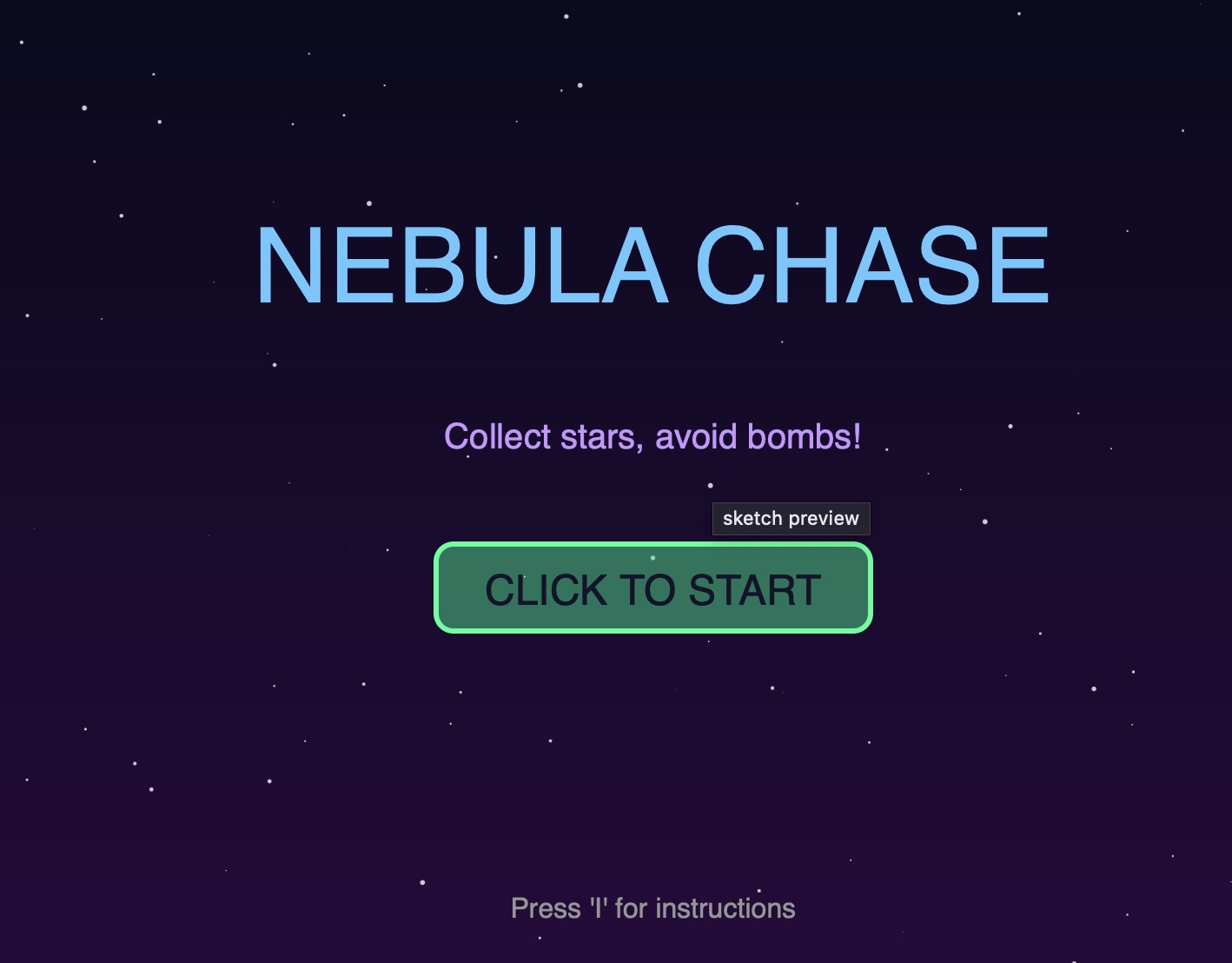
When you first load the game, you see the title with this “CLICK TO START” button. I made the title bounce a little using a sine wave. And in order to make it easier for the user to understand the instructions of the game, they can press ‘I’ to see them. 

Gameplay:

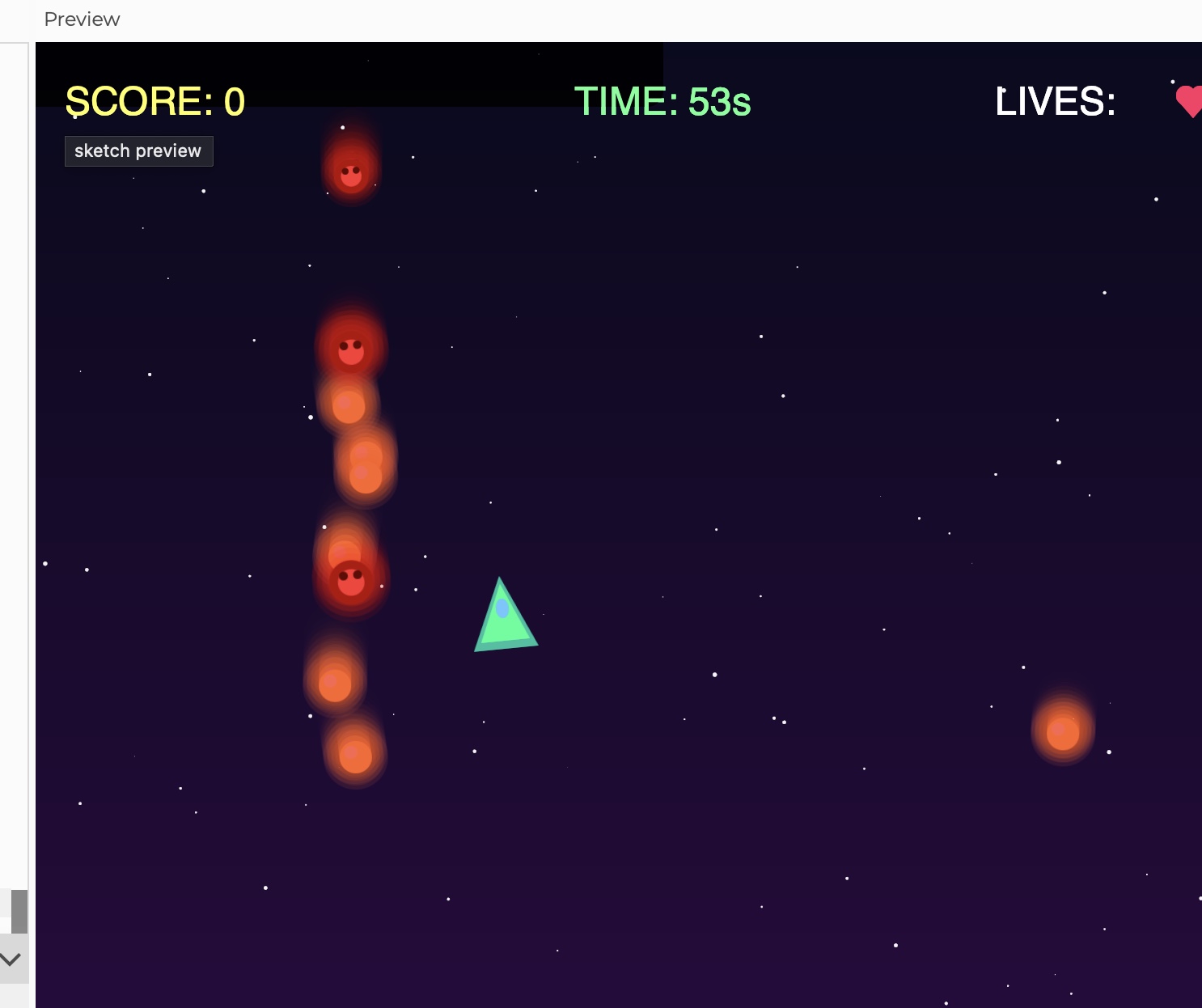
Once you’re playing, the screen gets busy very fast. Yellow stars fall down, those are the good ones, and red bombs come at you too. Your ship follows your mouse, and you will have only 60 seconds to grab as many stars as possible without hitting bombs. The UI at the top shows your score, timer, and lives. I made the timer turn red and the whole screen flash when you’re under 10 seconds. 

Object-Oriented Design

I used three classes to organize everything:

  1. Star Class 
  2. class Star {
      constructor() {
        this.x = random(width);
        this.y = random(-600, -50);
        this.speed = random(2, 4) * difficulty;
        this.wobble = random(TWO_PI);
      }
      
      move() {
        this.y += this.speed;
        this.wobble += 0.05;
        if (this.y > height + 50) {
          this.y = -50;
          this.x = random(width);
        }
      }
      
      display() {
        push();
        translate(this.x + sin(this.wobble) * 10, this.y);
        tint(255, tintAmount, tintAmount);
        image(starImg, -20, -20);
        pop();
      }
    }
    

    Each star wobbles side to side as it falls which makes them really hard to catch. The speed multiplies by the difficulty variable, so as the game goes on, everything gets faster and it makes everything harder for the user. 

    1. Bomb Class – The obstacles
    class Bomb {
      constructor() {
        this.x = random(width);
        this.y = random(-600, -50);
        this.speed = random(3, 5) * difficulty;
        this.rotation = 0;
        this.pulsePhase = random(TWO_PI);
      }
      
      move() {
        this.y += this.speed;
        this.rotation += 0.05;
        this.pulsePhase += 0.1;
        if (this.y > height + 50) {
          this.y = -50;
          this.x = random(width);
        }
      }
      
      display() {
        push();
        translate(this.x, this.y);
        rotate(this.rotation);
        let pulseSize = 1 + sin(this.pulsePhase) * 0.15;
        scale(pulseSize);
        image(bombImg, -22, -22);
        pop();
      }
    }

    I made the bombs rotate and pulse to make them feel dangerous. They also move slightly faster than stars on average, which created the pressure for the player. 

  3. Particle Class
class Particle {
  constructor(x, y, col) {
    this.x = x;
    this.y = y;
    this.vx = random(-3, 3);
    this.vy = random(-3, 3);
    this.life = 255;
    this.col = col;
  }
  
  update() {
    this.x += this.vx;
    this.y += this.vy;
    this.vy += 0.1;  // Gravity
    this.life -= 5;
  }
  
  display() {
    fill(red(this.col), green(this.col), blue(this.col), this.life);
    ellipse(this.x, this.y, this.size);
  }
}

Whenever you collect a star or hit a bomb, it creates approx 15 particles that spray out in random directions. They fade out over time and fall slightly from gravity. I made this just to make the interactions feel way more satisfying. 

The Spaceship:

I didn’t want to use basic shapes for everything, so I made custom graphics using p5’s createGraphics():

playerImg = createGraphics(60, 60);
// Outer glow
playerImg.fill(0, 255, 200, 100);
playerImg.triangle(30, 5, 10, 50, 50, 50);
// Main body
playerImg.fill(0, 255, 150);
playerImg.triangle(30, 10, 15, 45, 45, 45);
// Cockpit detail
playerImg.fill(100, 200, 255);
playerImg.ellipse(30, 25, 8, 12);

Since to come up with this code was very challenging for me, I used these resources to help me navigate:

https://www.deconbatch.com/2022/01/blendmode-add.html

https://www.youtube.com/watch?v=pNDc8KXWp9E

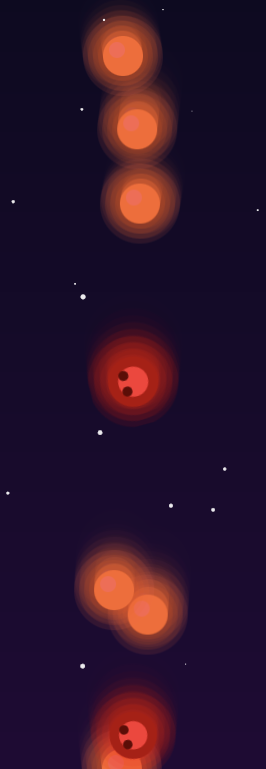
As you can see the stars and bombs have this glowing effects  because I drew multiple overlapping circles with decreasing opacity to create that glow. The stars are yellow or white and the bombs are red with a darker center that kind of looks like a skull.

The code I’m proud of:

It is definitely the sound system since I didn’t want to just upload the mp3 because I didn’t find the suitable one. So, I decided to generate it myself , that’s the reason why I spent a lot of time on it.

function updateBackgroundMusic() {
  if (timer > 10) {
    // Calm ambient music
    bgMusic.amp(0.15, 0.5);
    bgMusic.freq(220 + sin(frameCount * 0.02) * 20);
    bassLine.amp(0.1, 0.5);
    urgentMusic.amp(0, 0.5);
  } else {
    // DRAMATIC URGENT MUSIC FOR FINAL 10 SECONDS
    bgMusic.amp(0.05, 0.3);
    urgentMusic.amp(0.25, 0.3);
    urgentMusic.freq(110 + sin(frameCount * 0.1) * 30);
    bassLine.amp(0.2, 0.3);
  }
}

For most of the game you hear this calm wave that wavers slightly (that’s the sin(frameCount * 0.02) * 20 part, it creates a slow sound in pitch). There’s also a quiet bass line. But when you hit 10 seconds left the music completely changes.  The bass gets louder and the calm music fades. I just wanted to make feel the pressure for the user.

Reflection

I’m really happy with how this game turned out. The music transition at 10 seconds is probably my favorite part because it genuinely makes the game feel more intense and interesting. The particle effects were also surprisingly easy to implement but it added so much to the feel of the game. The biggest thing I learned was about game balance. It’s one thing to make mechanics work, but making them feel good for the user is way harder. I probably spent as much time tweaking numbers like how fast things fall and etc. as I did writing the actual code.


Midterm Project – SignSprint

Sign Sprint

Concept

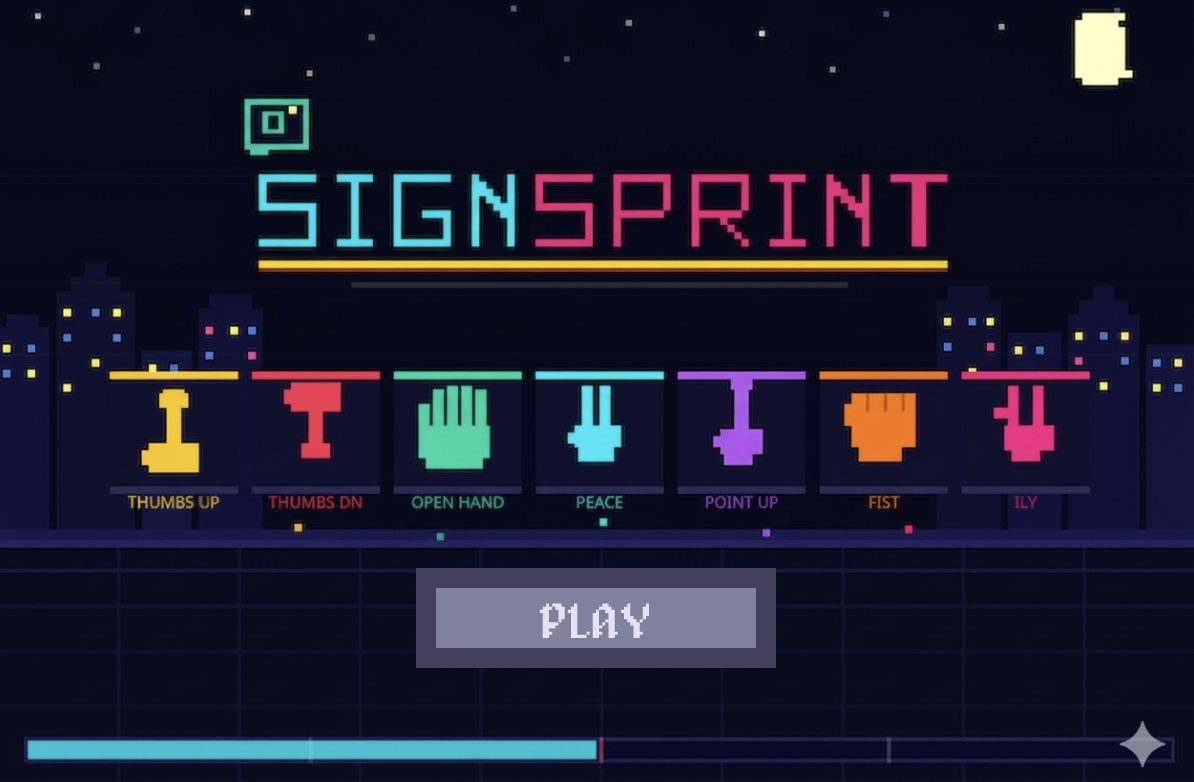
SignSprint is a game based on computer vision that recognizes 7 different hand gestures which are Thumbs up, Thumbs down, Victory, Pointing Up, Victory, Closed Fist, I love you and Open Palm. The game works on a gesture recognition machine learning model by Google AI for Developers through MediaPipe Studio. The model can be tried out here.

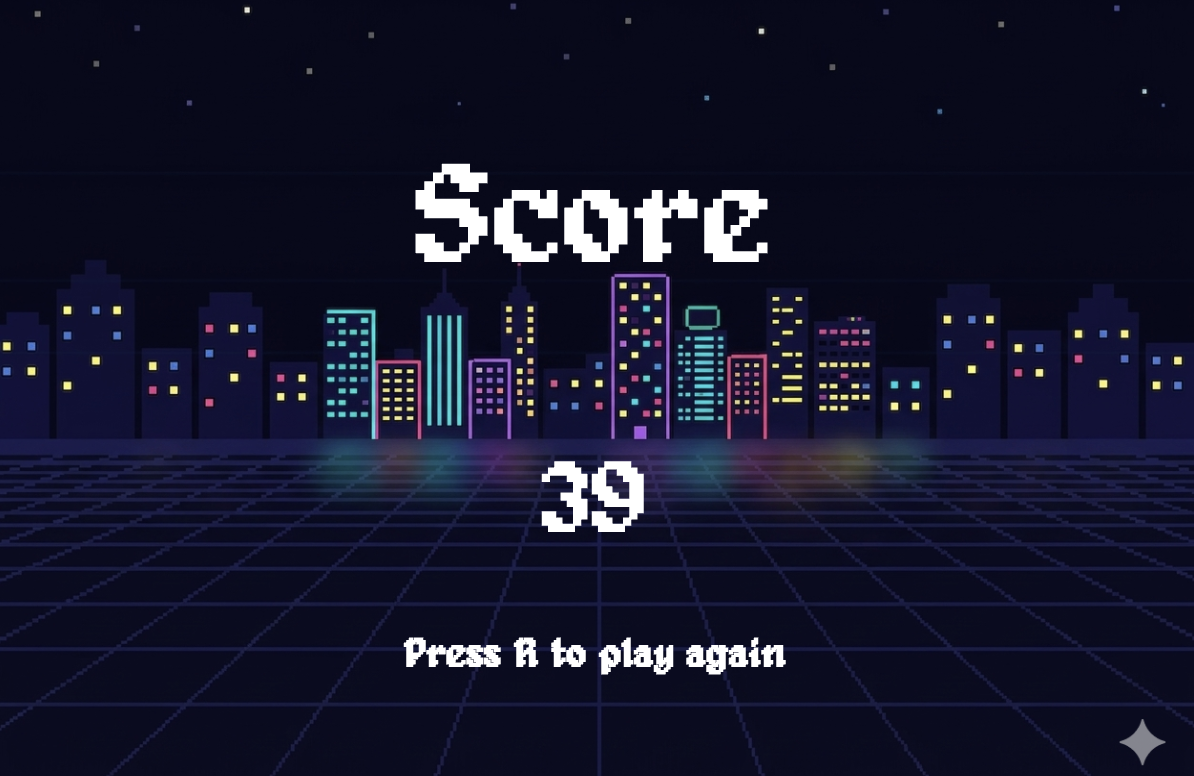
The whole concept of the game is to make as many signs within a specified time period. An array of the possible hand gestures is created and one is randomly displayed at a time and the user is meant to make the hand gesture corresponding to the gesture being displayed. The score of the user is recorded and displayed at the end of the designated time period. The ML model uses measurements to accurately estimate a hand gesture and detect it. A validation condition is used to check if the detected gesture is exactly as the the target gesture and only then will the target gesture change. The model has also been set to detect one hand at a time so using multiple hands will cause the gesture not to be detected.

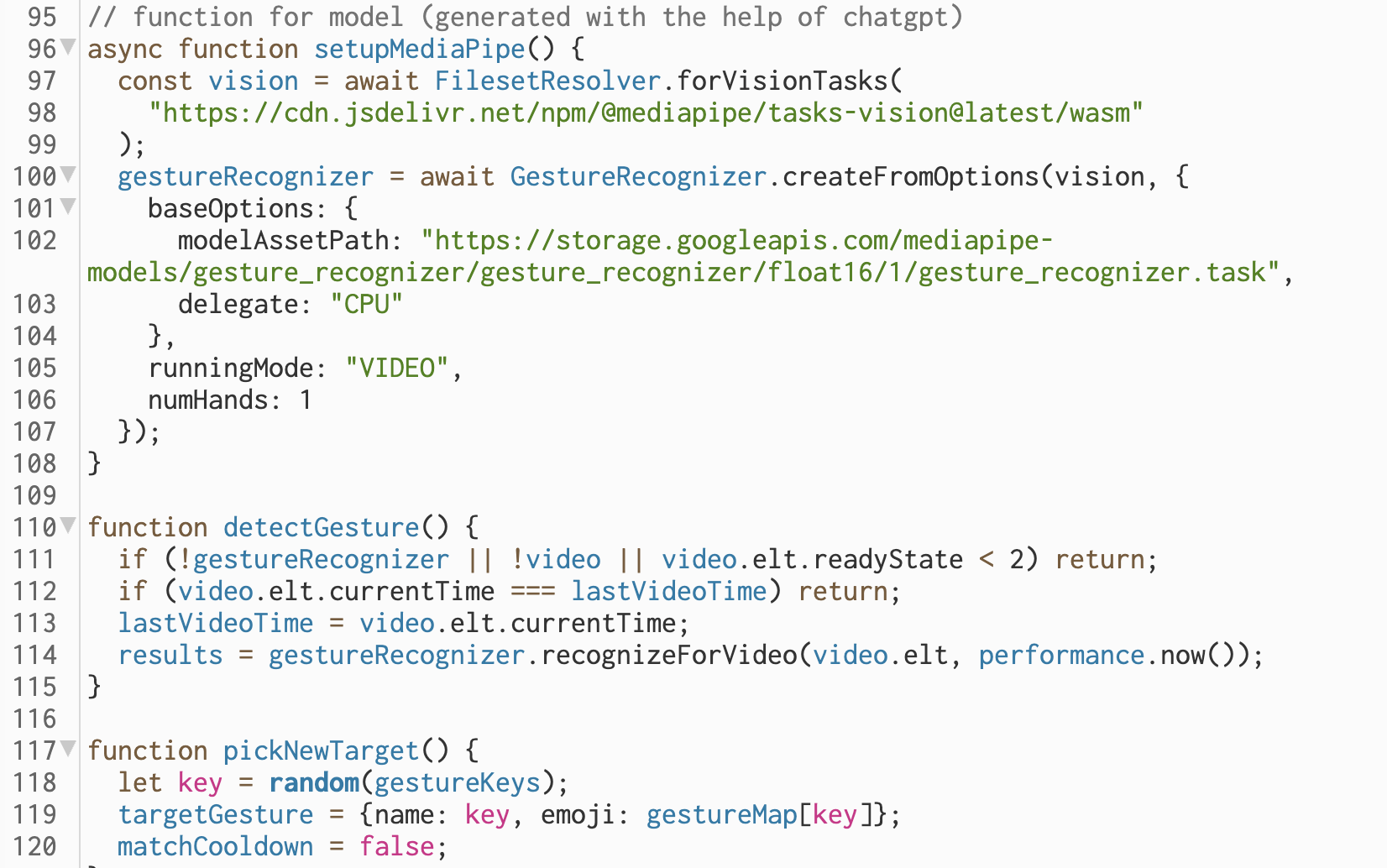
The main function sets up the machine learning model, detects gesture and randomly selects a target gesture


Code I am proud of

function drawGame() {
  background(0);
  image(video, 0, 0, width, height);
  
  // Timing game
  let elapsed = (millis() - startTime)/1000;
  if (elapsed >= gameTime) {
    gamestate = "end";
    }
  
  // Gesture detected & scoring
  let detectedName;
  let detectedEmoji;
  
  if (results && results.gestures && results.gestures.length > 0) {
    detectedName = results.gestures[0][0].categoryName;
    detectedEmoji = gestureMap[detectedName];
    
    if (targetGesture.name == detectedName && !matchCooldown) {
      score++;
      // sound for feedback
      matchCooldown = true;
      correct.play();
      pickNewTarget();
      }
    }
  
  // Target Emoji
  if (targetGesture) {
    textFont("OpenSans");
    textAlign(CENTER, TOP);
    textSize(70);
    text(targetGesture.emoji, width/2, 30);
  }
  
  // Score
  textFont(font);
  fill(255);
  textAlign(RIGHT, TOP);
  textSize(30);
  textFont("OpenSans")
  text("⭐", width-55, height-45);
  textFont(font);
  text(score, width-20, height-45);
  
  // Time remaining
  textSize(40);
  text(ceil(gameTime-elapsed), width-20, 20)  
}

The code I am proud of is the drawGame function. This is the function that contains the bulk of the game mechanism. It first shows the camera output of the the program, shows the target gesture as an emoji, detects the gesture of the player through the camera and checks if it is the same as the required gesture. If the detected and target emojis are the same, it increases the score and creates a new target. The function also displays the time left and the current score on the screen. Finally the function has a condition that automatically switches the game to the end screen when the specified time is elapsed.

How it was made

The game mainly runs on the the hand gesture machine learning model which was stated above. The biggest challenge in making this game was importing the gesture recognition model in p5js. I used cluade AI to help in this process. With the help of AI, I was able to modify the html file and create functions in order to import the right model into the p5js file which enables us to run the game. Claude AI was also used in the making of the setupMediaPipe and detectGesture() function to enable the game run the scoring system.

The game code was mostly composed of if conditions and booleans for the game logic. The start and end screen background was fully generated by Gemini AI and the sounds for the game, which are the theme sound and the correct matching sound were obtained from Freesound.

Reflection

This was a really fun game to create. I got to explore all the concepts deal with class and I got a greater understanding of decisions structures and also learn how import models into p5js. A possible improvement in the increasing the number of hands that can be in the game and the hand gesture can be further developed to remotely control other computer devices to generate art and just express creativity. I see this project as stepping stone to explore my interest in computer vision and its possible application in interactive media and I am excited to see how I can blend this knowledge and skill with physical computing.

Midterm Project: A Handful of Color

Project:

Concept:

The main concept behind this project was my 3rd production assignment “Colorful Concoction“. Ever since that asssignment I’ve wanted to build up on it and create something generative to the user and interactive in the same sense. So when I found out that we had access to tools such as hand tracking and face tracking, I knew I wanted to go deeper into creating something that would truly give a fun feeling to the user.

I decided to create a simple project where the user could generate balls of different color and with the user’s hand, they are able to decide the size of the given ball. So if the user chooses to make a screen filled with tiny balls, they are able to. Or if they want larger ones they can as well. It gives that sense of variety for the user. And then they are able to interact with the balls using their own hands by flicking them around and pushing them. This was the main highlight of what I wanted to do to make it truly fun for the user.

So how does it work and what am I proud of:

The program starts with an instructions screen I whipped up in Canva, waiting for the user to click to start the actual program. Going from my own game that I’ve made for a different course, it was done using different states for when the program should be starting, and when it should be played (which is why they’re named game state).

function draw() {
  //Different state for Start, to show the instructions screen
  if (gameState === "START") {
    //Displays the instruction screen
    image(instructionsImg, 0, 0, width, height);
    
  } 
//Starts the actual program
  else if (gameState === "PLAY") {

    background(0);

Now in order for the user to actually create the ball, they must firstly allow camera access and then present their hand to the camera so it can track their position of their thumb and index finger. The tracking was done simply with ml5.js’ hand tracking library which was of course the main part of the whole project. Now in terms of the size of the ball, that was simply done with seeing the distance between the points of the thumb and index finger, and from there we can generate a simple circle. Also to note all of the balls were added to an array so that it can be dynamically updated when needed.

let finger = hand.index_finger_tip;
        let thumb = hand.thumb_tip;

        //Finds the midpoint between the thumb and index finger
        currentX = (finger.x + thumb.x) / 2;
        currentY = (finger.y + thumb.y) / 2;
        
        //Based off the distance, it determines the size of the ball
        currentPinch = dist(finger.x, finger.y, thumb.x, thumb.y);

        //This makes a new random color for the cursor on screen, or in this case the ball
        cursorColor = color(random(255), random(255), random(255), 200);
        
        //Creating the random colored ball
        fill(cursorColor); 
        stroke(255);
        strokeWeight(2);
        circle(currentX, currentY, currentPinch);

Problems and how I solved them:

The main part of the program was also the main problem that I faced. Getting the hands to be displayed on screen while also giving the balls a notion that they should think of the hands as a wall was a bit tricky to write. Not to mention that doing hand tracking with a camera isn’t as smooth as it could be so it took a good amount of time before I got it working.

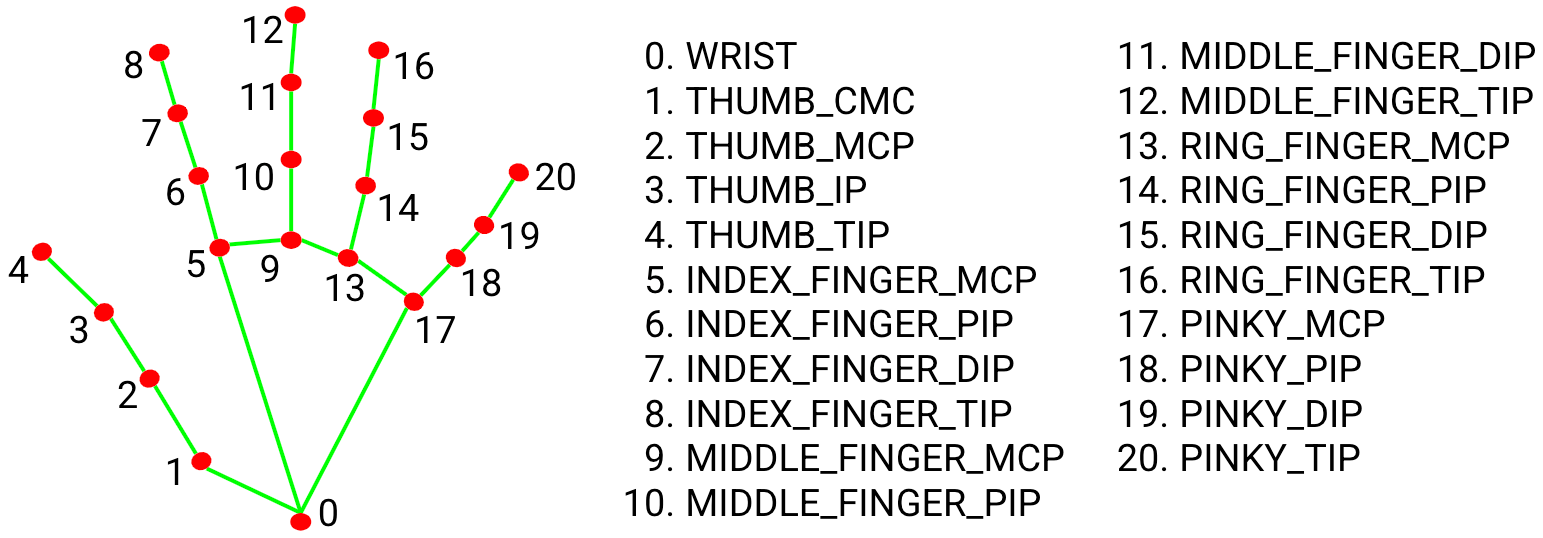
Firstly, using the ml5js reference, all of the joints of the hand were marked with numbers. Using this, I made an array where all of the joints can be loaded and I could then dynamically add lines to them and dots to signify the joints of the hand. handPose keypoints diagram

This was done using a for loop that constantly loads the lines and joints depending on where the hand is, so that it is actively updating where the hand is on the screen instead of just, having a static image. I used Google Gemini to help me out with this part as I struggled with how I would conenct the hands using lines and create the skeleton.

//This draws the lines for the skeleton of the hand
for (let i = 0; i < connections.length; i++) {
  let pointBase = hand.keypoints[connections[i][0]];
  let pointEnd = hand.keypoints[connections[i][1]];
  line(pointBase.x, pointBase.y, pointEnd.x, pointEnd.y);
}

//This draws the joins as white dots
fill(255);
noStroke();
for (let i = 0; i < hand.keypoints.length; i++) {
  circle(hand.keypoints[i].x, hand.keypoints[i].y, 10);
}

And after that it was simple as to just adding vectors to the balls and having them repeal off the canvas’ wall and also off the hand as well. Finally after a good while, I managed to get it to work. Now your mileage may vary, as some camera’s capture it better than other (I myself was stuck with an older, bit blurry camera).

Areas of Improvement:

Most of all I think the main area of improvement for me is just probably to add more customization should I want to. I was debating on having some way for the user to change color, but time constraints sort of hampered that notion. I was thinking even this by itself can be enough as adding too much can drown out the simple nature of the project.

I think another area is making it seemless for the user to interact with the program fully with their hands. I tried but I wasn’t getting the results I desired and ultimately I decided just to stick with keyboard inputs for most things which is unfortunate. Possibly it could be a nice idea to have it so the other hand can be clamped and the ball could spawn or somehow find a gesture with a hand that could change modes. But overall I’m happy with how it turned out in the end.

Midterm: Morocco’s Door Studio

Overall concept:

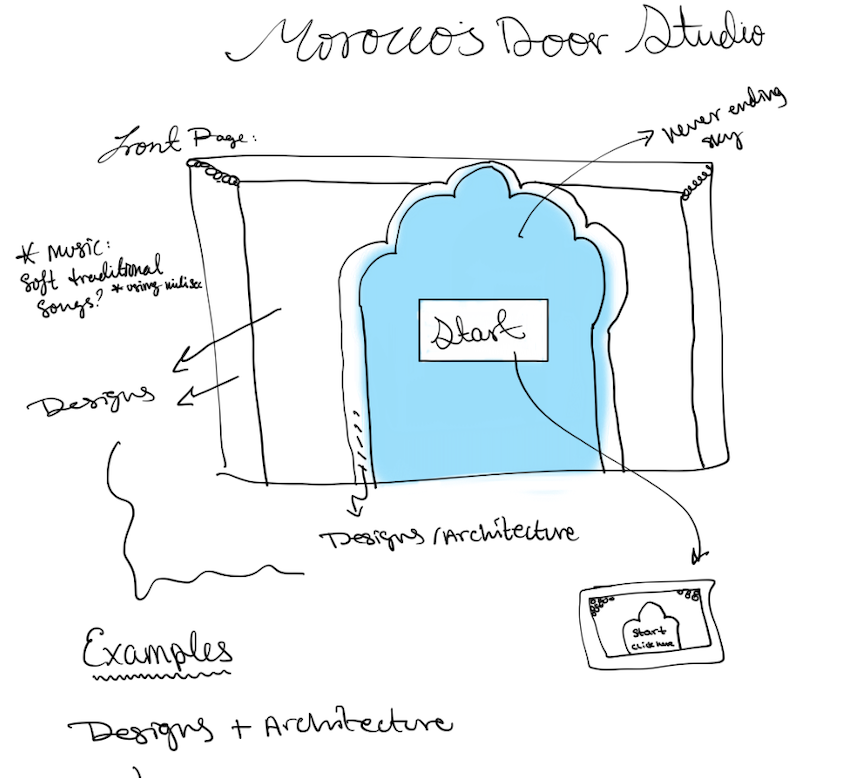
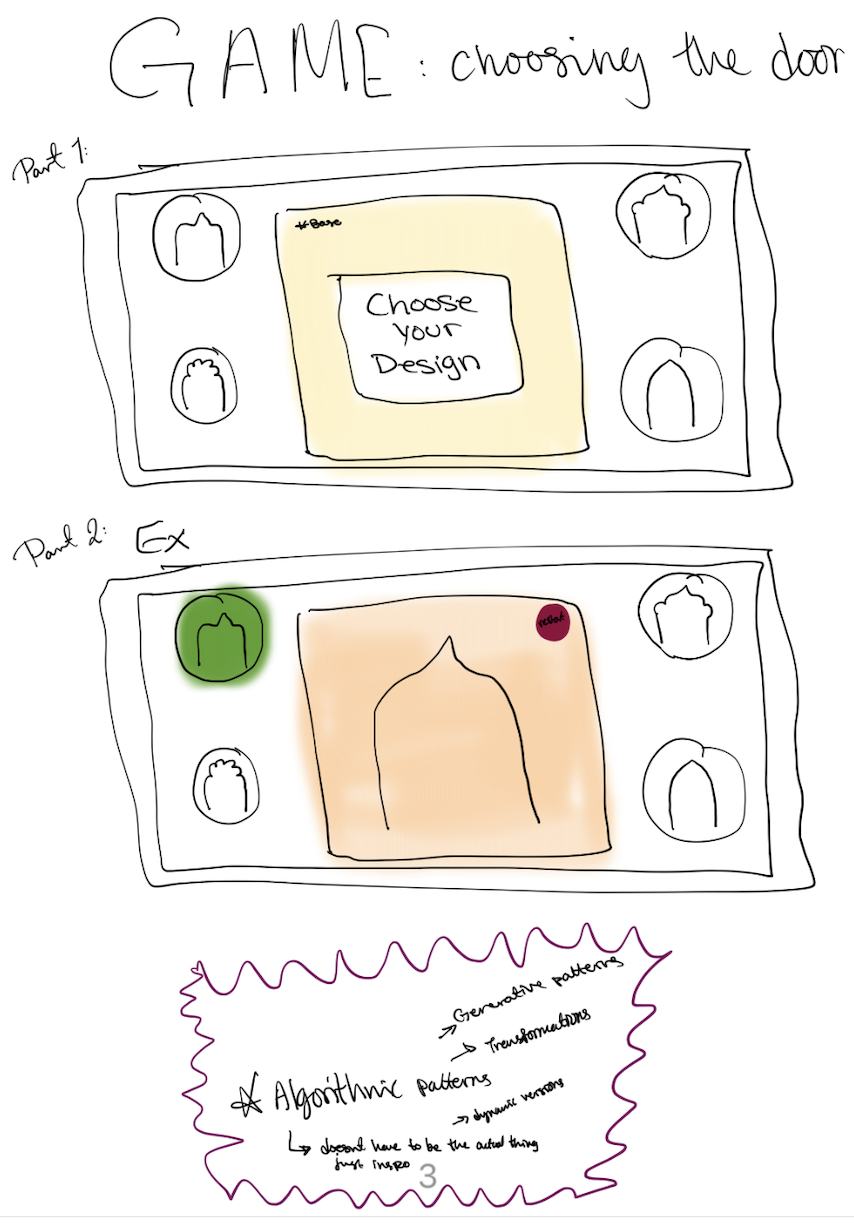
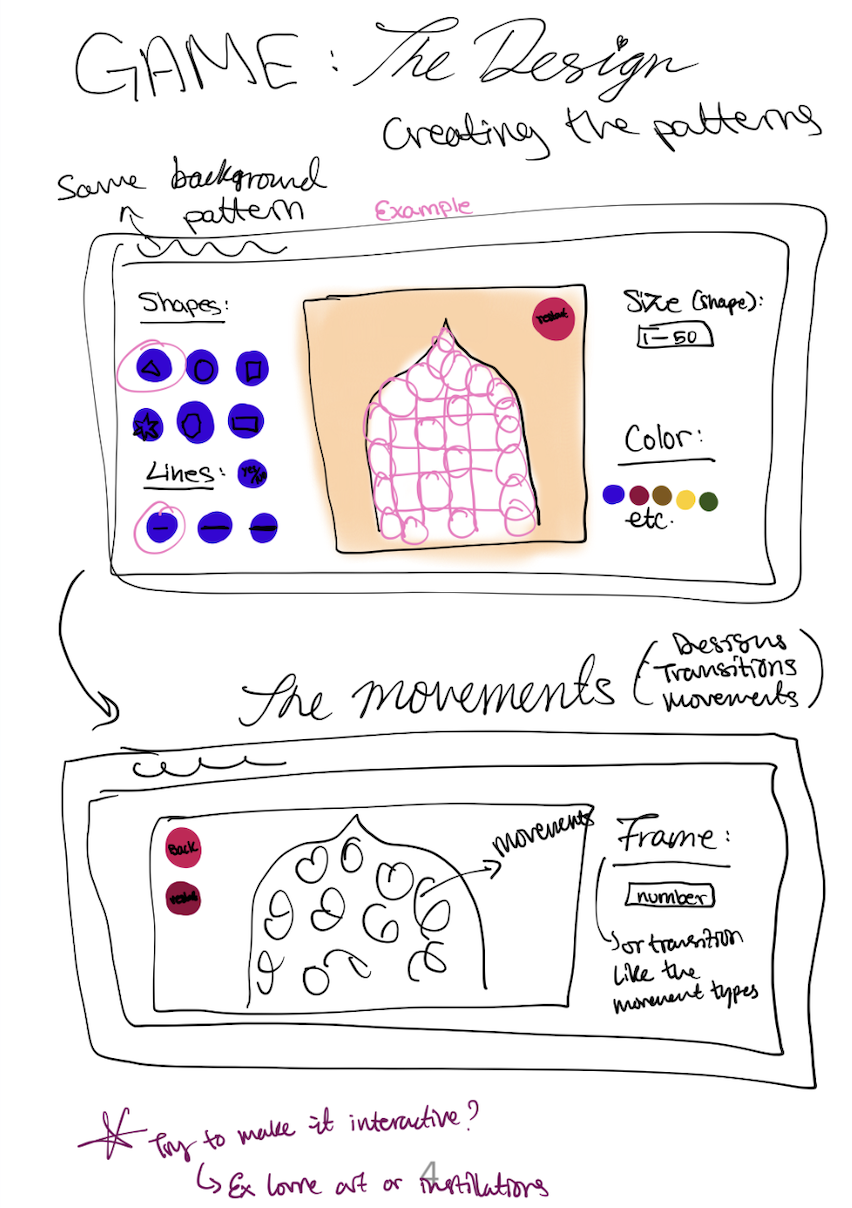
THE DESIGNING GAME! The main reasons why I created this game is because I love designing, and I have been learning on my own throughout the years (I have helped friends and family members with their businesses since design is an important factor in this field). With this background I wanted to create something for people who have the same interest, and for those who want to explore. The second reason is that since I am half Moroccan, I wanted to include a personal touch to my work and connect it to my culture. I decided to create a game where users can design one of my favorite elements of Moroccan architecture, which is the doors. Instead of simply creating a game that includes templates and colors, after speaking to Professor Mang, I decided to make it more interactive and generative. This way players can add their own shapes, change colors, and control the speed of the patterns. The shapes are also randomly generated, which is one of my favorite parts because my game includes randomness but at the same time it makes every design unique and unpredictable.

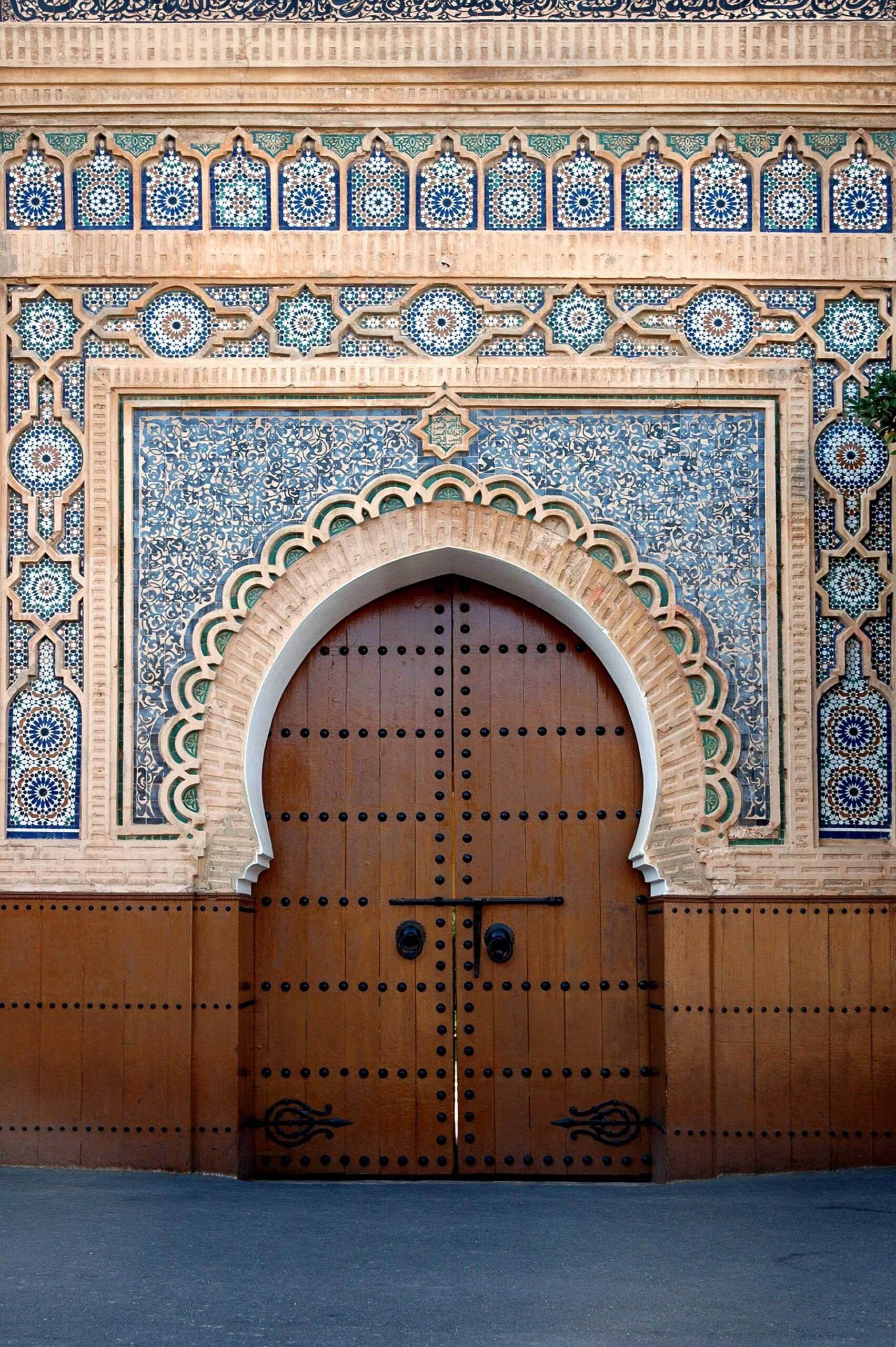
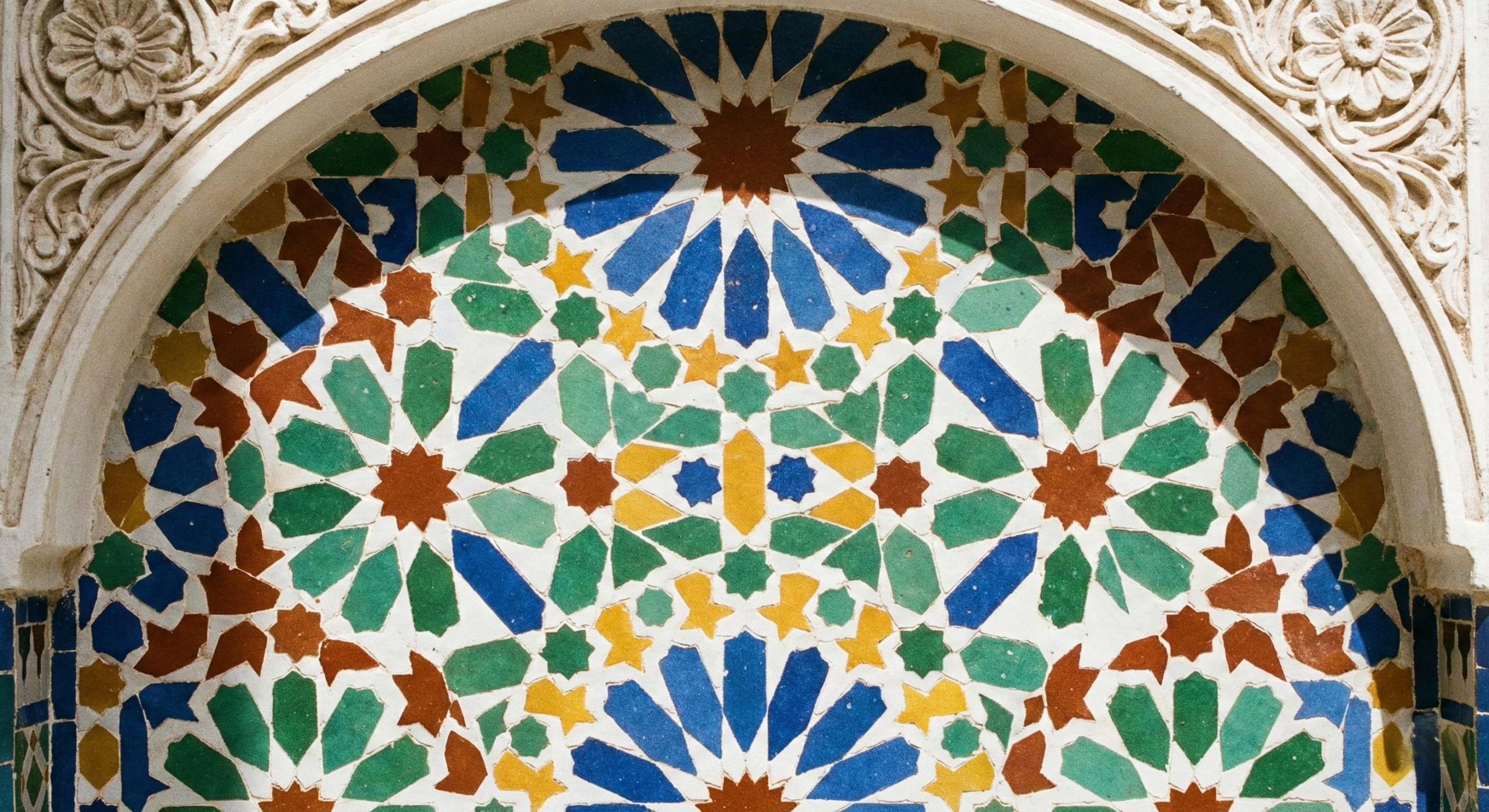
In Moroccan architecture, the Riyad is one of my favorite styles because of the level of detail and craftsmanship. It’s known for its intricate patterns, zellige tiles, and carefully designed spaces. What I find most interesting is how much time and effort goes into creating these details by hand, sometimes taking weeks or even months and up to years depending on the piece. I also grew up seeing these designs in my own home in Morocco, especially in fountains, tiled walls, and stairs which inspired me to recreate this experience digitally. I realized that there aren’t many games that focus on cultural design, especially Moroccan culture, so I wanted to create something that represents it in an interactive and modern way.

I started this project with an idea, although I had multiple ideas and sketches I decided to stay with this one. I mainly feared that it would be hard to create but in fact although it was challenging (starting before spring break and then with everything happening it was confusing to go back to unfinished work so a part of me wanted to start everything all over again and even change the concept but I didnt!) I loved every part of it because the concept truly speaks to me.

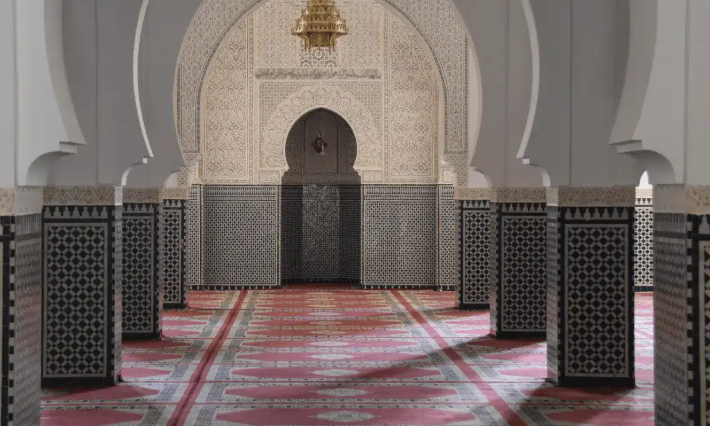
Inspo from Moroccan Architecture: 

Embedded sketch: (click to start!) [for full screen click here]


How it was made/how it works:

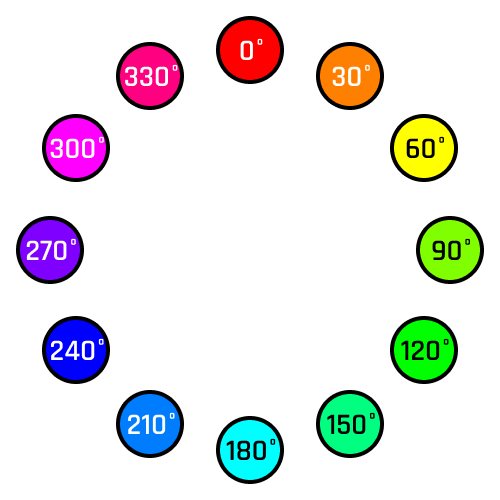
The project is built using a state-based system (a system where it changes, operates, or makes decisions based on the current “state” of the process), where the player moves through five different screens or pages as I call them: the home screen, help screen, info page, door selection, and finally the interactive “studio.” Each page is controlled by a variable that updates depending on where the user clicks, making the navigation simple but effective. I’ve always liked using Canva which is why I decided to create shapes and patterns to make something inspired by Moroccan architecture while still keeping it visually aesthetic and aligned with the overall concept. I also decided to look at Aya’s class since they finished their midterms, I got inspired to generate an image using Gemini which pushed me to experiment more with tools like Gemini. Instead of just using basic images, I uploaded my own references and used Gemini to help generate and refine visuals for the first three pages (home, intro, and instructions). So while the first 3 pages (home page, intro, and instructions) are generated by ai using an original existing image that I uploaded I still did lots of the designing myself in the other pages. When it comes to the doors I used a base vector from Vecteezy, but since the quality was low, I enhanced and clarified the design using Gemini so it would look clean and detailed in the final game. For the sound, I wanted something that matched the cultural vibe of my project and game so I searched for Moroccan-style audio on TikTok. I wanted to find a sound I can play in the background and a nice click sound effect, the click sound I found actually reminded me of games I used to play as a kid (friv, roblox, blocks). When I found the sounds I liked I had to convert the files into MP3 format since p5.js does not support formats like MOV or MP4. After that, I uploaded all the files into the sketch, I initially thought this would be the hardest part, but it turned out to be one of the easiest since it mainly involved organizing and dropping files correctly. I also added some the px size next to the size of the shapes because of my background in coding, I also added the HSB slider numbers 0-360° but I think in the future having buttons for it to be easy for people would be better. This game is not meant for everyone, but specifically for people interested in design and creative exploration.

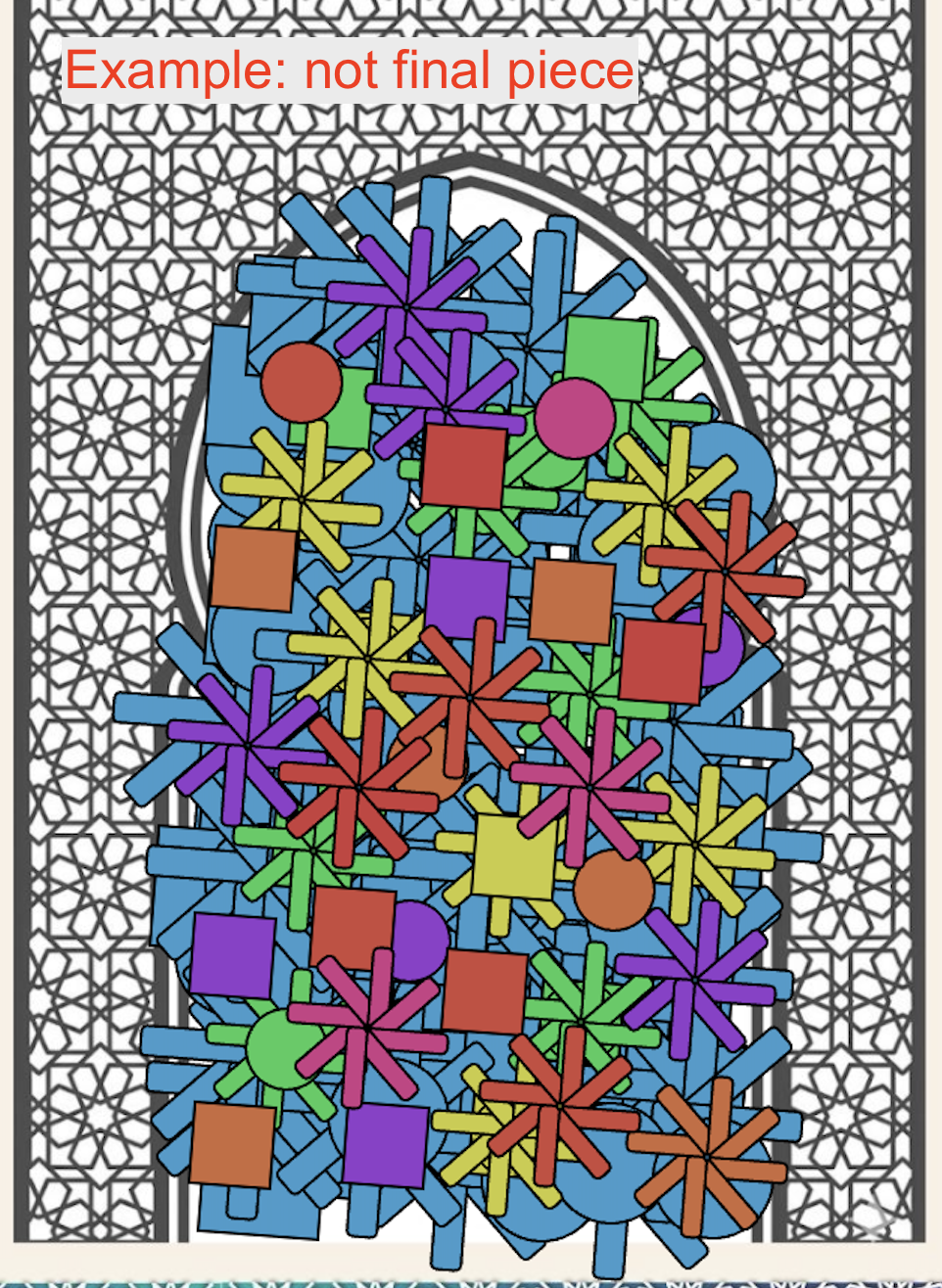
When it comes to coding, (the fun part!) I mainly relied on class lecture notes from Professor Mang and Professor Aya because the material and examples available are always extremely helpful and always makes my process a lot smoother. For the main interaction, I used Object-Oriented Programming by creating a Tile class so every time the player clicks inside the door area (the white part), a new tile (which are the shapes) is created and added to an array. Each tile is independent so it stores its own size and color based on the slider values at the exact moment it is placed but for the speed slider, all the tiles change accordingly. One part I’m especially proud of is the geometric pattern system, specifically the 8-point star. I created this using a loop that rotates shapes by PI / 4 (45 degrees) around a central point. By repeating this rotation, I was able to recreate patterns inspired by traditional Moroccan zellige designs. Even though the code itself is relatively simple, the final result looks detailed and visually complex. I also focused on the user interface. I used createDiv() along with .parent() to group the canvas and sliders into one container, which keeps everything centered and organized. This idea came from researching how to structure UI elements because I thought I needed to research it a bit more. By doing this, the sliders stay aligned with the canvas and the whole project feels more like a complete application rather than just a basic sketch. The sliders allow users to control size, color, and speed, making the experience interactive and personalized instead of static.

Resources:

From p5.js:

  • parent() + createDiv(): I used this to attach my sliders and canvas to a single createDiv(). I had to use this to keep my UI organized and in position on the page.
  • this. learning how to use the [this.] function I used this.s inside a constructor function for a specific class.
  • colorMode(HSB): I used HSB (Hue, Saturation, Brightness) so that my color slider could be used as a 360 degree rainbow wheel since the game is a design studio.

    Other:
  • The Coding Train: How to Rotate Shapes in p5.js (translate, rotate, push, pop): This helped me understand how to use push() and pop() in my Tile class so that the rotation of one star wouldn’t affect the rest.
  • MDN Web Docs (Early Return): I used return in my mousePressed function to stop the code once a button was clicked. This helped me fixed an issue (the bug) where a tile would accidentally be placed behind the “Home” or “Screenshot” buttons.
  • Vecteezy Moroccan Door Vector: For the architectural doors which I then refined and cleared up using Gemini AI.
  • Aya Riad lecture notes: Anytime I forgot how to use a concept like PI or OOP and most specifically the mouse functions because I was able to go back and look at the slides which is always helpful!
  • Mang lecture notes: I always referred to the lecture notes for writing the code and functions as well understanding the bug in my code by checking the examples.
  • Gemini’s images: creating and clearing up images
  • Converter: to convert images and sound files
  • Canva: used to help create all the pages
  • Click sound from TikTok
  • Moroccan oud sound from TikTok

    Code:

 for (let i = 0; i < 8; i++) { //option 3: star pattern using rotated rectangles. i got help from ai for this part
rotate(PI / 4); 
rect(0, 0, this.s, this.s / 4,2); } //rotates 45 degrees for each of the 8 petals
}

This part of the code creates one of the more complex patterns in my project, which is the 8-point Moroccan star inspired by Zellige designs. Instead of drawing it manually, I used a loop that runs 8 times and rotates the shape by 45 degrees each time. With the help of AI, I was able to better understand how this pattern works and use it to create a repeating rotational design. Even though the code itself is simple, the result looks detailed and reflects real Moroccan geometric design.

class Tile {
constructor(x, y, type) { //constructor to allow the tiles to appear
this.x = x; //remembers where the user clicked horizontally
this.y = y; //remembers where the user clicked vertically
this.type = type; //remembers the type/shape
//captures the current slider values at the exact moment of placement
this.hue = colorSlider.value(); //color
this.s = sizeSlider.value(); //size
}

This constructor is what makes each tile unique! When a tile is created, it stores the exact position, type, size, and color based on the slider values at the moment the user clicks. This means that even if the user changes the sliders later, the old tiles stay the same instead of updating. Basically, each tile “remembers” how it was created, which makes the design feel more layered and personalized instead of everything changing at once.

 //Home button: house icon which will be used to go back to the home screen
let homeBtn = dist(mouseX, mouseY, 745, 356); //the center of the house icon location is x:745, y:356
if (homeBtn < 55) { //if the click is within 55 pixels the home button will be triggered 
clickSound.play(); //sound effect
currentPage = 2; //return to the main home screen
tiles = []; //clear canvas
hideSliders(); //sliders removed to avoid overlap
return; //pauses/stops the function
}

The ‘Early Return’ problem I faced. This part of the code solved one of my biggest issues because before adding this, whenever I clicked the Home button, it would also place a tile behind it, which messed up the design. By using return, the function stops immediately after detecting the button click, so no extra code runs after that. This makes sure the button works properly without triggering other actions at the same time.

Personal Sketches:

Code I am proud of + Areas for improvements and problems I ran into:

One of the biggest problems I ran into was when I clicked the “Home” or “Screenshot” buttons in the arch design pages, the program would accidentally place a tile on the door behind the button. This kept happening, and I didn’t know how to fix it until I used Early Return logic. Now, when the code detects a click on a button, it immediately stops the rest of the function, so no extra tiles are placed and the interaction works properly. Another issue I faced was when pressing the Home button on the arch design page, it would take me back to the home screen, but the sliders would still be visible, which made the interface confusing. I fixed this by explicitly hiding the sliders when leaving the studio page, so they only appear where they’re actually needed.

Overall, the idea of creating a game sounded scary at first. Before entering Intro to Interactive Media, I didn’t think I would be able to build something like this, let alone make it personal and meaningful. I’m really proud that I was able to create a full interactive experience and connect it to my culture. Once again this game is a designing game, its for people who love design and want to create something close to those historic designs but online. However, there are still areas I would improve. For example, I would expand the variety of shapes instead of only having a few options. I could also add an information button where users can learn about Moroccan architecture, the purpose of the game, and cultural facts. Another improvement would be giving users direct control over shape selection (like buttons for each shape) instead of relying only on randomness and sliders, which would make the experience feel more intentional and user-controlled.