Week 8 – Readings Response

Emotion & Design:

Reading Don Norman’s “Emotion & Design: Attractive things work better” shifted my perspective on what makes an interactive project successful. I used to think usability was strictly about clear logic and zero errors. However, Norman argues that positive affect actually broadens our thought processes, making us more creative and more tolerant of minor design faults.

This applies to everything, one example I can bring up is satisfactory.  An automation based game, so you already know it is going to have a lot of problem solving to automate materials efficiently. However, I strive to make my factories and farms aesthetic, I spend more time on aestheticizing the factory rather than just building a bare bone factory. The scenario I’m going to provide applies to practically anything.

When you look at a factory that is aesthetic and well-organized, your affective system sends positive signals. This puts you in a “breadth-first” state of mind, which Norman says is perfect for the creative, “out-of-the-box” thinking needed to solve complex automation loops.

The “bare-bones” factory focuses only on the math and the belts. While functional, if a problem arises and the environment is ugly or stressful, you might fall into “depth-first” processing. This leads to tunnel vision where you can’t see the simple solution because you are too focused on the “danger” of the inefficiency.

It isn’t just about looks, it creates a positive mental state, which can lead to better problem solving and making things more functional and work better rather  than if you just went for pure functionality.

Her Code Got Humans Into the Moon:

The arrogance of the 1960s tech world was the belief that perfect engineering could override human nature. Hamilton’s higher-ups dismissed her error-checking code because they were blinded by the myth of the perfect astronaut who would never make a mistake. This was not just a technical disagreement. It was a fundamental misunderstanding of how people interact with systems. By allowing her daughter to play with the simulators, Hamilton gained a perspective her colleagues lacked: if a crash is physically possible, it is eventually inevitable.

What actually saved the Apollo 11 mission was Hamilton’s move toward asynchronous processing. In an era where computers were expected to just execute a linear list of tasks, she designed a system that could decide what was important. When the hardware was being overwhelmed by a documentation error during the moon landing, the software did not just freeze. It prioritized the landing maneuvers and ignored the rest. She essentially invented the concept of a fail safe for software, shifting the industry from just making things work to making things survive the people using them.

She paved the way for the mindset of never settling on bare minimum, and to go above and beyond so that no mistake could possibly happen, and to cover every case there is, whether it is a case you know about or you don’t know about.

Week 8 – Unusual Switch

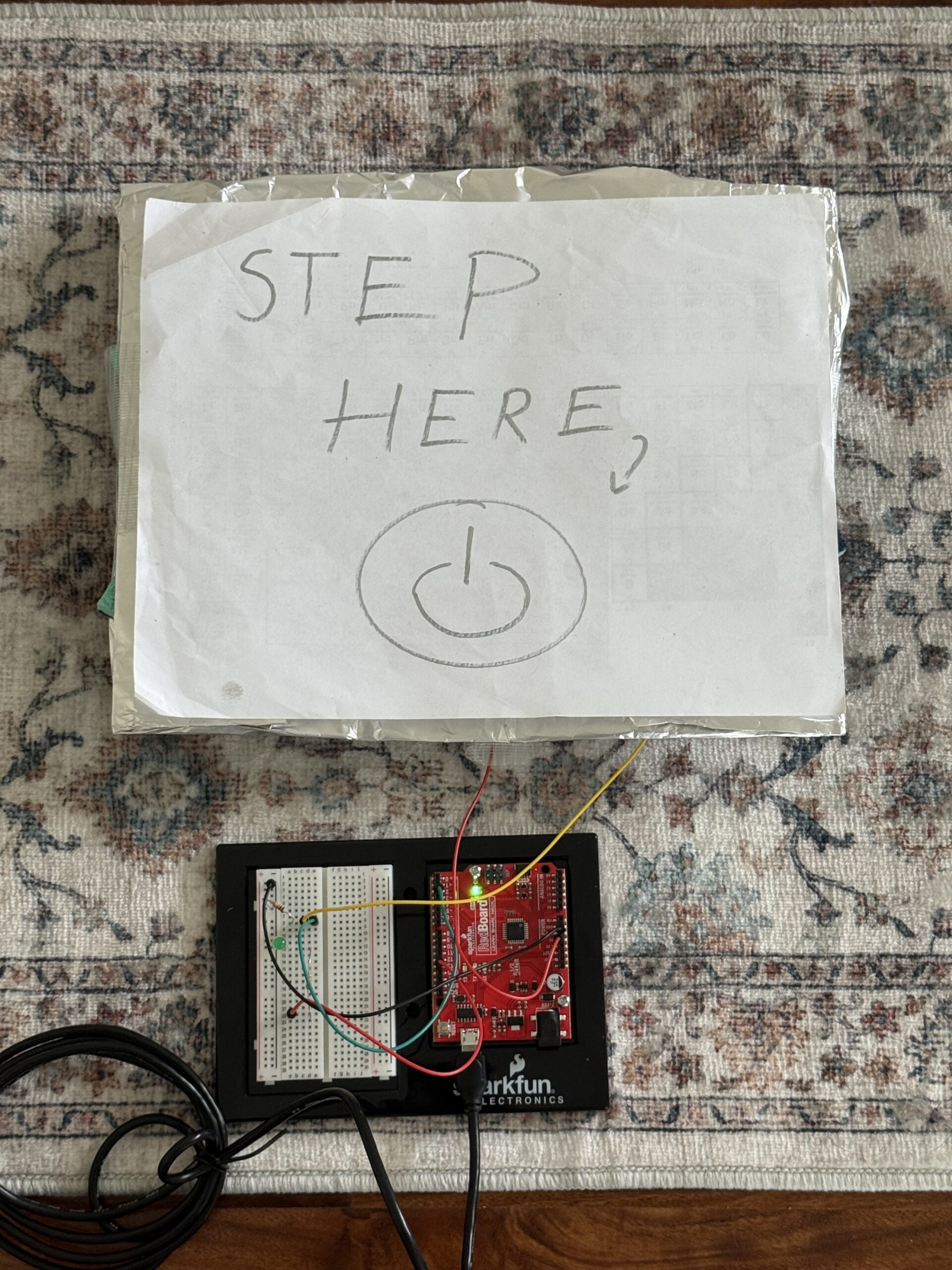
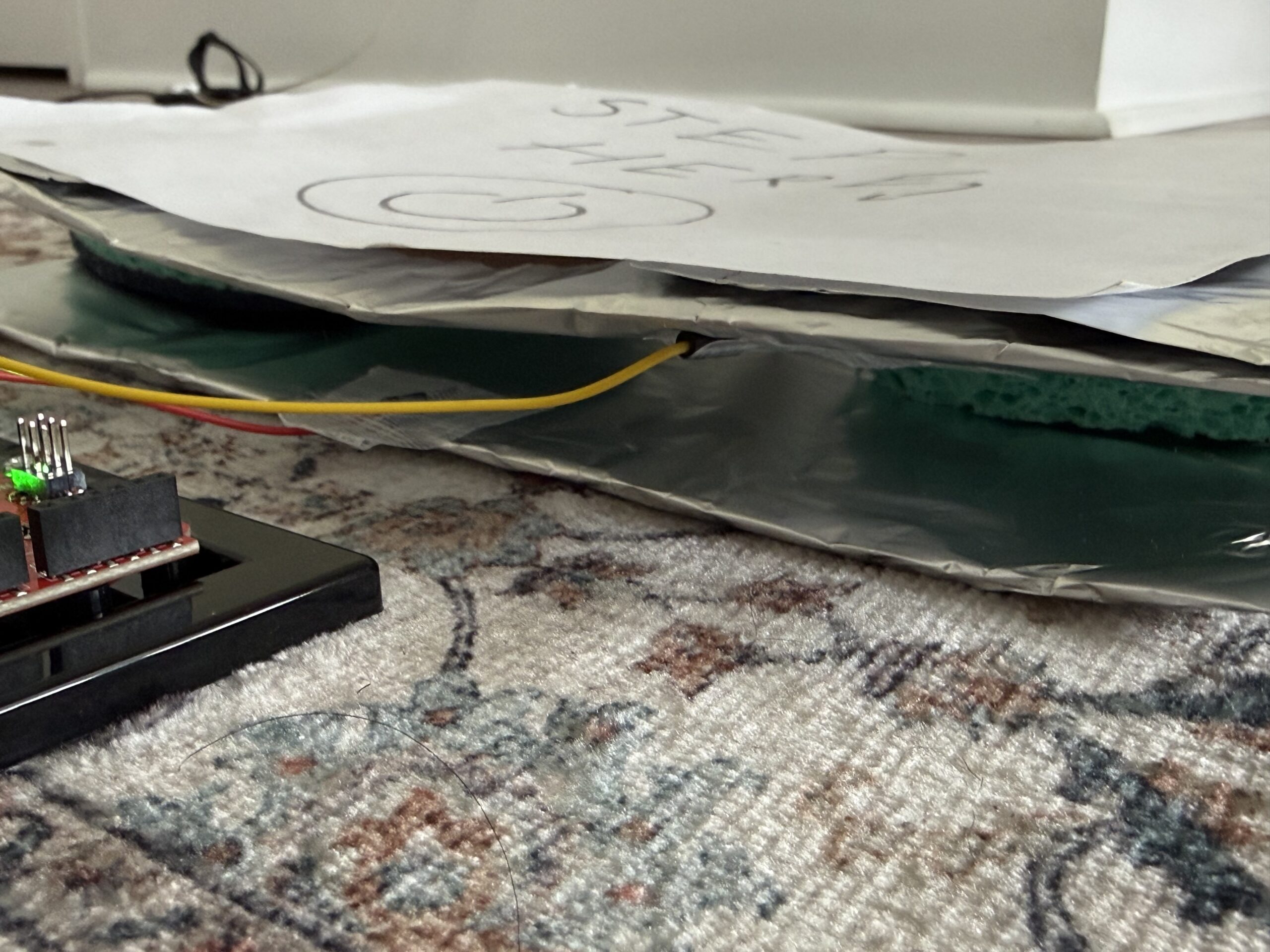
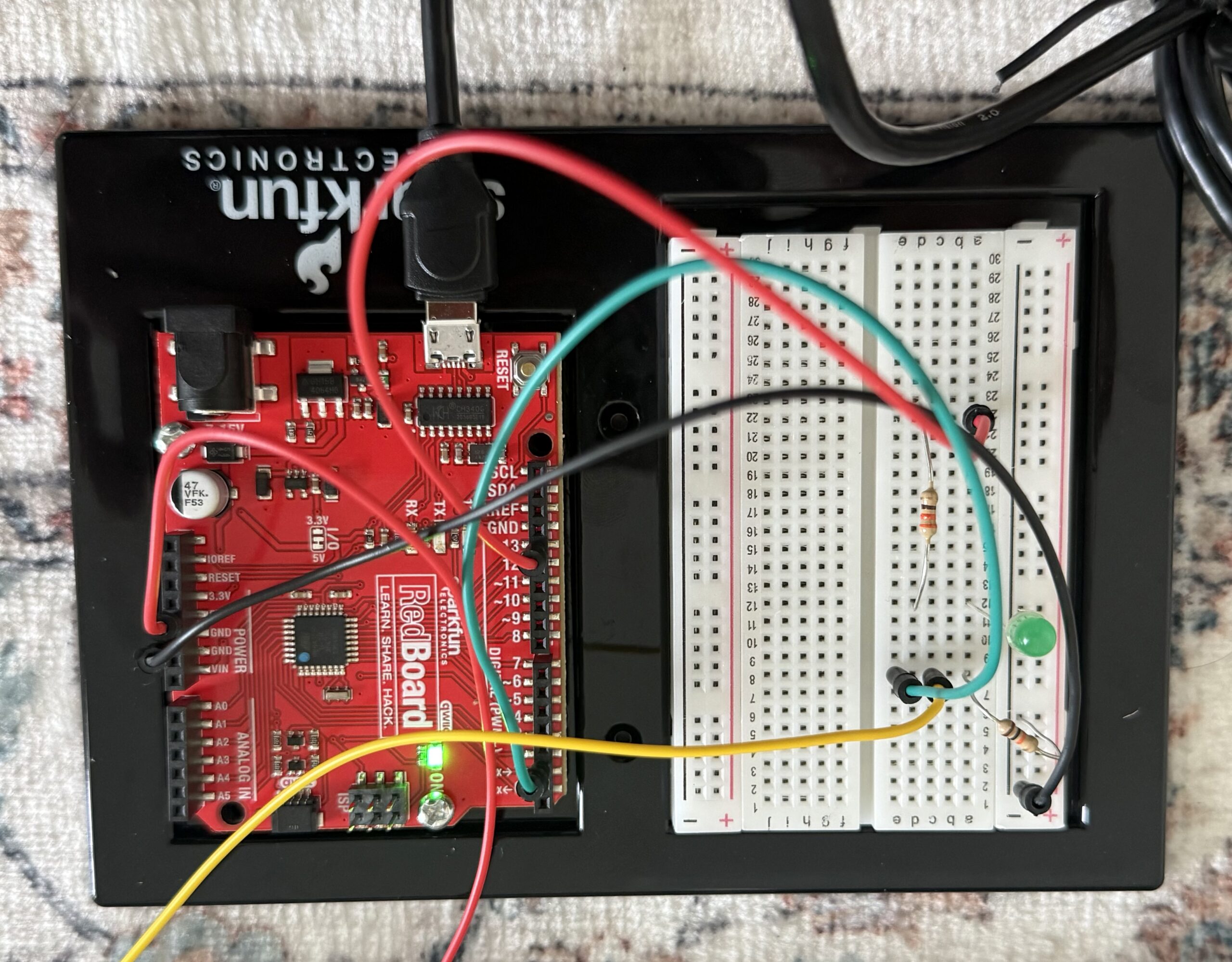
Here are pictures and videos of my unusual switch:

Video:


Here is the GitHub link to my code:

https://github.com/farahshaer/Intro-to-IM/blob/3e682e9aebc9f598bbd09f61855eba49238cbf92/sketch_mar29.ino 

Overall concept
So for this project, I decided to create a foot-activated switch. When I press my foot on the pad I made with aluminium foil, tape, sponges, and cardboard, it completes the circuit and lights up the blinking LED. When I remove my foot, the LED turns off. I wanted something creative that uses the human body in a new way, and the foot switch, to me, felt unusual and fun to play with, even though it is a basic concept.

Code Highlight

The code that I am most proud of is the blinking effect. I wanted to incorporate it because we learned how to do it in class. I thought it wouldn’t be possible to put it in the if statement because I needed the light to turn off once you remove your foot. But by delaying it by 100 and turning the LED off and on quickly, it made a fast blinking effect when my foot presses the pad.

if (buttonState == HIGH) { //if the switch is pressed
digitalWrite (13,HIGH); //the LED turns on
delay(100); //cause a delay so I can produce a fast blinking effect
digitalWrite (13,LOW); //to turn the LED off for the blink effect
delay(100); //the fast delay to complete the blink full cycle
}

Reflection/Future work

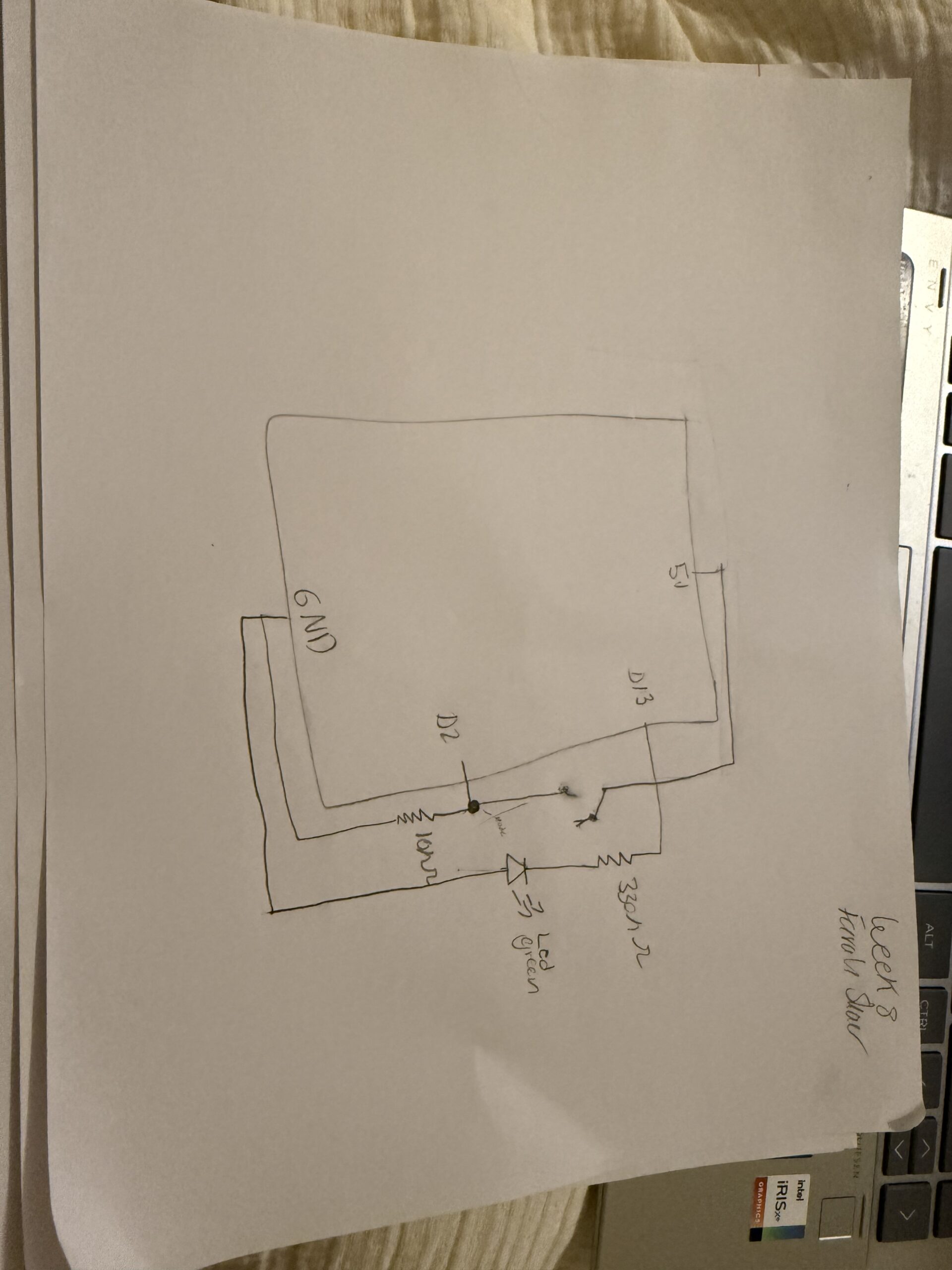
To build the circuit, I implemented basically the same thing we discussed in class. For the LED circuit, I connected pin 13 of the Arduino to a 330 resistor, which then connects to the long leg of the LED. The short leg of the LED connects to the ground row. For the switch circuit, I made a simple foot pad switch, which I took reference from a website. I used two pieces of aluminium foil on cardboard pieces, and in between them two sponges so I can easily turn it on and off. and separate the aluminium foils. One foil connects to 5V, and the other connects to pin 2. I also added a 10k resistor between pin 2 and ground. The resistor keeps the input stable when the pads aren’t pressed, so the Arduino doesn’t get floating values and burn out. I put the wires in specific rows on the breadboard. For example, the green wire goes from pin 2 to the row shared with the resistor and one foil pad. The yellow wire connects the other foil pad to the same row. This makes sure that when my foot presses the pads, pin 2 gets 5V, and when not pressed, the resistor pulls it down to 0V.

For future improvements, I would make the foot pad a bit more stable and try using multiple LEDs to make a pattern so the concept gets more creative. I would also experiment with different blink patterns to make it more interesting.

Here is the website I took inspiration from to make the pressure board:
https://www.instructables.com/Pressure-Switch-for-Makey-Makey/

Here is the sketch of my board and circuit connection diagram:


Reading Response-Apollo Mission

One idea from the reading that really stood out to me is how Margaret Hamilton’s work highlighted the importance of accounting for human error in design. Her insistence on adding error checking systems even when others believed “that would never happen” ultimately helped prevent serious failures and showed how crucial software was to the Apollo mission.

A moment that stuck with me was when “the software realized it didn’t have enough room to do all the functions it was supposed to be doing, it went through its error detection process and focused on the highest priority job.” This shows how the system was designed to think logically under pressure, prioritizing what mattered most instead of failing completely.

This really connects to how we write code in interactive media. For example, when we use it/ else statements, we’re also creating systems that make decisions based on different conditions basically preparing for different possible outcomes, including errors. It’s a similar mindset of anticipating what could go wrong and guiding the system to respond correctly.

I also found it interesting how they had to “simulate everything before it flew,” which reminds me of how we test our projects, especially with Arduino. Before fully running a system, we constantly test and debug to make sure everything works as expected. It shows that even at a much larger scale, the same fundamental process of testing, refining, and preparing for failure is essential.


Reading Response -Emotion and Design

One idea from the reading that really caught my eye is that products designed for relaxed situations can enhance usability through pleasant aesthetic design basically, that aesthetics matter. It made me think about how people often assume users only care about function, but in reality, there are emotional responses that aren’t always explicitly stated.

Even if something works perfectly, its appearance still affects how we experience it.

This connects to the idea that objects aren’t just functional they can also act as sculptural works that give satisfaction through their appearance. So design isn’t just about usability it’s also about how something feels to interact with.

I think this is especially relevant in interactive media. The visual design of a website or digital experience shouldn’t be chaotic or ignored it should be intentional and curated in a way that supports the user. Good aesthetics don’t distract from usability; they actually enhance it by making the experience more engaging and easier to navigate.


Week 8 – Unusual Switch


Permalink: https://github.com/MouzaAlMheiri/Intro-to-IM/blob/2a11704a3c43a2422ec9b5d6ffcf3127369edbcd/sketch_mar28a_Week8unsualswitch.ino

Concept:

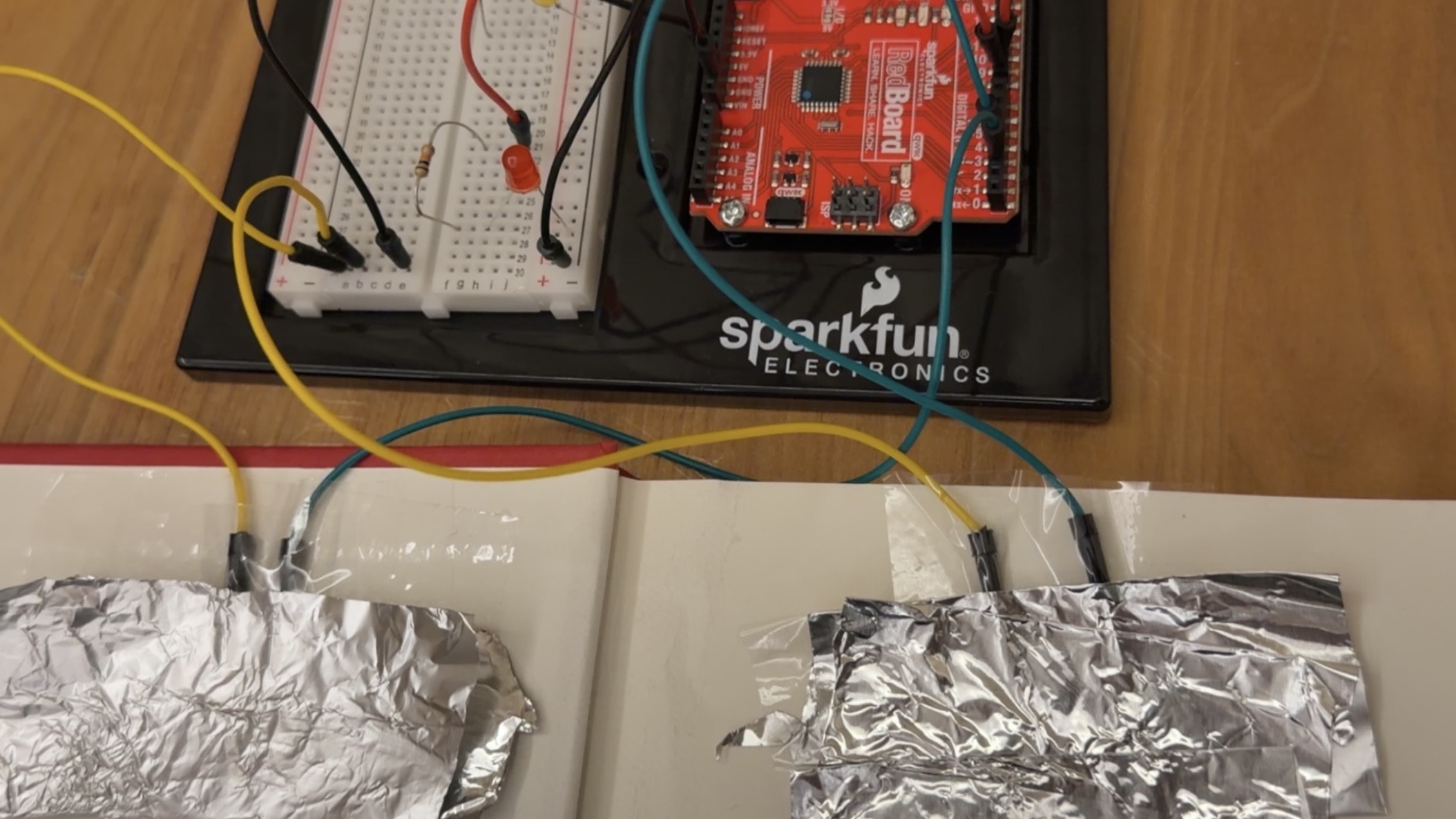
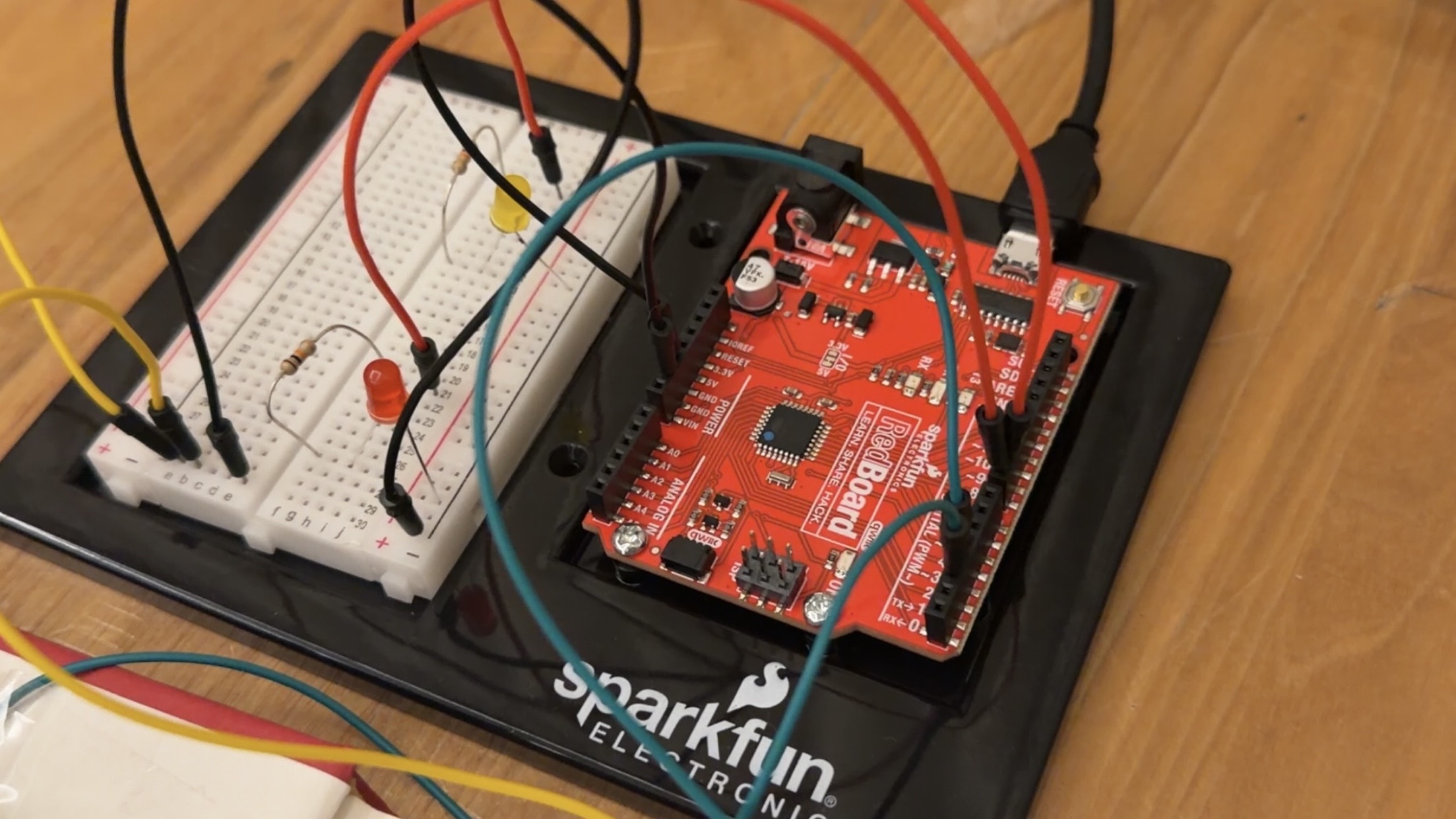
For this project, I designed a hands free switch instead of using hands, the interaction is activated by stepping on conductive foil placed inside a spare book I had. I used two separate foil areas to create two independent switches. Stepping on the left side triggers the red LED, while stepping on the right side triggers the yellow LED. Each LED has a different blinking pattern, with the red LED blinking faster and the yellow LED blinking slower. This creates a clear distinction between the two inputs. I was able to open and close a circuit without traditional interaction methods. By shifting control from hands to feet, the switch becomes more unusual and interactive.

How is works:

Each foil is connected to a digital input pin and configured with INPUT_PULLUP, which means the default state is HIGH. When the foil is not being touched, the circuit remains open and the input reads HIGH. When a person steps on the foil, their body helps complete the circuit by connecting the foil to ground (GND). This changes the input from HIGH to LOW. The Arduino detects this change and uses it to control the LEDs.

Each foil controls a different LED.Stepping on the left foil triggers the red LED connected to pin 8 Stepping on the right foil triggers the yellow
LED connected to pin 9. The LEDs are programmed with different blinking patterns using delay (). The red LED uses a shorter delay, causing it to blink faster, while the yellow LED uses a longer delay, making it blink slower. These different delay values create distinct visual responses for each input. Overall, the Arduino continuously reads the state of each foil switch and updates the LEDs in real time based on whether the input is HIGH (off) or LOW (activated).

Code Snippet:

Code I’m proud of:

  // LED 1 blinking pattern
  if (state1 == LOW) { // touching foil 1
    digitalWrite(led1, HIGH);// LED on
    delay(300);   //faster blink
    digitalWrite(led1, LOW); //LED off
    delay(300);
  } else {
    digitalWrite(led1, LOW);// Keep off when not touched
  }

  // LED 2 different blinking pattern
  if (state2 == LOW) { // touching foil 2
    digitalWrite(led2, HIGH); // on when touched
    delay(1000);  // slower blink
    digitalWrite(led2, LOW); //LED off
    delay(2000);
  } else {
    digitalWrite(led2, LOW); // :LED off
  }
}

The part of the code I am most proud of is the if statement that controls each LED. Initially, I programmed both LEDs to behave the same way, but I wanted to experiment more and make the interaction more interesting. I adjusted the delay times so that each LED has a different blinking pattern, with one blinking faster and the other slower. Through this process, I was able to better understand how if statements work in Arduino. I learned how the program checks the input state and decides whether to turn each LED on or off. This helped me see how simple logic can control different outputs and create variation in behavior.

Photos:

Video:

Arduino Setup:

Reflection:

This was my first time working with Arduino for a project independently, so it was really interesting to learn how digital pins function and how they can be used to control different parts of a circuit. One thing I found especially interesting was realizing that I could create two separate circuits within the same setup, where each foil input controlled a different LED. I also learned how the physical components and the code are connected. The foil acts as an input, which is read by the Arduino, and then the code determines how the LEDs respond through the breadboard. Seeing how a physical action, like stepping on the foil, could travel through the circuit and be translated into a digital response helped me better understand how hardware and software work together. Overall, this project helped me build confidence in using Arduino and understand how combing hardware and software can help create interactive elements.

References:

For INPUTPULLUP and genral code concept to understand more:

https://docs.arduino.cc/tutorials/generic/digital-input-pullup/

Tin foil and how to connect it to setup:

Materials used:

Old book, Tape, Tin Foil, Materials from Kit.

Week 8 – Reading Reflection

A paragraph that stood out to me in the reading on Margaret Hamilton was the one discussing how programmers used to write, run, and test code. Nowadays, we simply use a text editor to write code, compile it, and run it in a matter of seconds. Back then, however, code had to be punched into paper cards, fed into a machine to be compiled and run, which could take hours, and then, to insert the code into the spaceship, wires had to be hand-woven through rings. This made me reflect on how far the software industry has advanced since then.

As a current computer science student, I cannot imagine how difficult my university experience would have been if I were a student in the 1960s. Today, I can easily make changes to my code and test them immediately, which allows me to focus on efficiency, functionality, and aesthetics. Reflecting on the second reading about how attractive things work better, I imagine that in the 1960s, since code was much more difficult to develop, software engineers likely had to prioritize functionality over aesthetics. If they had to prioritize both, it would have made their work even more challenging than it already was.

Additionally, a large part of making software aesthetically pleasing involves constantly editing and testing the placement and design of elements such as buttons and images. Adjusting even a single button can require hundreds of recompilations and test runs. This process would have been extremely difficult in the 1960s, when every small change required going through the entire process of punching holes into cards, feeding them into a machine, and waiting hours for results.

The software industry is constantly evolving and improving. More recently, we have seen groundbreaking advancements in generative AI, which can assist in developing and running code. Many software engineers now use AI to address the challenge Don Norman discusses in “Attractive Things Work Better.” By using AI to help build the front end, they can shift more of their focus toward the functionality and theoretical aspects of software. This also speeds up the development process by providing a visual starting point.

Week 8 – Reading Response

I really enjoyed reading Norman’s text, especially his idea that things that look pleasing actually work better, are easier to learn, and lead to a better result. That idea really stuck with me, because I also noticed this in my own habits. When my space is messy or cluttered, I can’t focus well, so I usually clean up first and make everything feel more comfortable. Once things look better, I feel more organized and a lot more productive. It becomes easier for me to work, think clearly, and learn better when I’m studying. I also liked how he talked about how a design needs to match its purpose rather than just looking good. In more serious or stressful situations, design should not be too complicated because it can slow someone down or get in the way, making things harder and disrupting their progress.

McMillan’s story about Margaret Hamilton and the Apollo mission connects to Norman’s text in a different but just as meaningful way. Her work showed how important it is to think ahead and build systems that actually help people. The software she worked on wasn’t just meant to function. It was thoughtfully designed to handle mistakes and still keep everything running smoothly, even when things didn’t go as planned. After reading both of the texts, I realized that good design isn’t just about how something looks. It’s also about how well it works and how efficient it is for people in different situations. Whether it’s something small like fixing my space or something much bigger, what really matters is understanding people’s needs and being thoughtful about what will help them succeed.

MIDTERM GAME: Laundry Day!

Play in full screen :  https://jamayccaaa.github.io/Midterm_IntroToIM-Moreno/

Github Link 

CONCEPT

While thinking about a concept for this project, I initially wanted to create something like a puzzle game with character movement. I explored multiple ideas before deciding on this one, mainly because it felt more doable while still being engaging. I chose to go with a chill vibe because I wanted the game to be child-friendly, something players can easily understand, explore, and enjoy. The interface is designed in a way that encourages players to read and follow the instructions first. Without doing so, they could lose the game right away or even win without fully understanding how.

The main goal of the game is to hang exactly 10 pieces of clothing on a clothesline before the 1 minute is up, without exceeding the line’s strict weight limit of 2000 grams. Each piece of clothing has a different weight. Hoodies weigh 400 grams, pants weigh 300 grams, shirts weigh 200 grams, and shorts weigh 100 grams. Players will not know in advance which item they will get from the laundry basket, which adds unpredictability and requires careful decision-making. If they are unsure, they can temporarily place a piece of clothing in the “for later” basket. However, this basket can only hold up to 6 items, and exceeding that limit will also result in a loss.

HOW THE PROJECT WORKS AND WHAT PARTS I’M PROUD OF

The project works by placing the player in a timed game where their decision-making is challenged. They must select and hang pieces of clothing while managing both a strict weight limit and limited storage. The player should interact with the items from a laundry basket and decide whether to hang them on the clothesline or save them for later. In order to win, the player must hang exactly 10 pieces of clothing before the timer runs out, without exceeding the clothesline’s maximum capacity. Going beyond the limit will cause the line to snap, resulting in a loss.

Even though some parts of my original concept did not go as planned, I am still proud of how the game turned out. The part I am most proud of is the dragging mechanic, especially how the clothes snap and stick onto the clothesline. This took a lot of trial and error, and I spent a lot of time experimenting, searching for tutorials, and studying sample codes to make it work properly. It was challenging but also one of the most interesting parts of the process. I am also proud of the overall visual design of the game. I worked on everything using Canva, p5.js, and VS Code, and I like how the final output looks polished. Seeing all the elements come together after all the revisions made the process feel worth it.

PROBLEMS AND IMPROVEMENTS

One of the main ideas I originally wanted to include was a character holding the basket, along with a rain feature that would appear halfway through the game. The plan was for it to start raining after 40 seconds, requiring the player to control the character and move to a shaded area. The rain would also increase the weight of both the clothes and the clothesline, adding another layer of challenge. However, due to time constraints, I was not able to do this feature. Instead, I adjusted the game by shortening the timer and lowering the clothesline capacity to maintain a level of difficulty. If I were given more time, I would like to revisit this idea and add more challenges to make the game more engaging and competitive, as I do believe that there is a lot to improve to make the game better.

Another challenge I faced was designing the “for later” basket. My initial idea was to have the clothes disappear into the basket while still keeping track of how many items were stored. However, this required more complex logic than I expected, and I had to spend additional time researching and looking for tutorials. To manage my time better, I decided to simplify the feature. Instead of hiding the items, I made the clothes stack visibly on top of the basket. If the stack reaches more than 6 items, the player immediately loses the game. I think this solution still communicates the rule clearly and reinforces the importance of following the instructions.

REFERENCES

Tutorials:

https://www.youtube.com/watch?v=h8dHw1-WbAY – timer tutorial

https://www.youtube.com/watch?v=4fWStxYepE0 – drag and snap tutorial

https://www.youtube.com/watch?v=YcezEwOXun4&list=PLRqwX-V7Uu6aFcVjlDAkkGIixw70s7jpW&index=2 – sound explanation

https://www.youtube.com/watch?v=7A5tKW9HGoM – mouseX, mouseY explanation

Other References:

https://ko-fi.com/s/b7b1607f14 – Where I got the music

https://p5js.org/reference/ 

Class Slides & Past Classworks

USAGE OF AI

A. ClothesLine – Together with the Drag and Snap tutorial by Rob Duarte, I initially had a hard time figuring out how to properly place the clothesline and make the clothes snap to it horizontally, since the snapping in the tutorial was different. To solve this, I asked ChatGPT for help in creating fixed “slots” where each clothing item can align, giving the visual of the clothes being snapped onto the clothesline.

What I understood from the code is that instead of relying on the clothesline image, I needed to set exact positions in the code. So I created an array to store these positions and set a starting point (startX) along with a fixed y value so everything stays in one horizontal line. The code also includes a loop that creates multiple slots across the clothesline, with equal spacing so they form a straight line from left to right. With this, each clothing item can detect and snap to the nearest slot, making the placement look more organized instead of in random places.

clothesLine = []; //clothes array


 let startX = width / 2 - 200; // where the clothesline snap starts
 let y = height/ 2;
 let maxSlots = 10; // 10 clothes only on the line
 let spacing = 60;


 for (let i = 0; i < 10; i++) { // 10 slots in the clothes line
 clothesLine.push(createVector(startX + i * 80, y));
}

For the snapping part, I also asked ChatGPT for help in figuring out how to compute which part of the clothesline the clothing should snap to. From the code, I understood that it first checks which slot is closest to the clothing by looping through all the points in the clothesLine array and measuring the distance. It keeps track of the nearest one by comparing the distances.

Then, it checks if the clothing is within the snap range. If it is close, the code counts how many clothes are already placed on the line to make sure it doesn’t exceed the limit. Once there’s space, it positions the clothing based on the next available slot using consistent spacing, while also adjusting the y position so it sits properly on the line. If the clothing is too far, it doesn’t snap and just stays where it is. This helped me understand how snapping works more clearly, especially how distance and positioning are used.

//finding the closest point on the line
   let closest = null;
   let minDist = 9999;

   for (let p of clothesLine) {
     let d = dist(c.x, c.y, p.x, p.y);

     if (d < minDist) {
       minDist = d;
       closest = p;
     }
   }

   // if the clothes are close, it will snap onto the clothesline
   if (minDist < 80) {

     // count how many are already placed
     let placed = game.clothes.filter(cl => cl.onLine).length;

     if (!c.onLine && placed < maxSlots) {

       let startX = clothesLine[0].x;
       c.x = startX + placed * spacing;
       c.y = closest.y - c.size / 2;

       c.onLine = true;
     }

   } else {
     c.onLine = false;
   }

B. Fixing errors and debugging – For checking errors and debugging, I used ChatGPT when my code started getting too long and I couldn’t figure out which part was causing the game to break. When I transferred everything to Visual Studio Code, it took me a while to identify what was not working because I was more used to p5.js, where errors are shown more directly. In VS Code, I had to rely more on the console, which I wasn’t as familiar with.

Because of that, I asked ChatGPT to help check my code and explain the errors in the console whenever I didn’t understand them. It also helped point out possible causes of the issue, which made it easier for me to track down what was breaking the game and fix it step by step.

C. Game Idea – For the game idea, ChatGPT helped me both in completing and brainstorming the concept. It suggested different ideas, and as I continued developing the game and adding my own, it also guided me on what was possible to implement. It helped me think through important parts like the winning and losing conditions, which made the overall design clearer and more structured.

Reading Reflection – Week 8

The Margaret Hamilton reading honestly made me think about how often people say “that would never happen” just because it’s easier than actually dealing with the possibility that it might. Like the people around her weren’t necessarily careless, but they were comfortable, and that comfort made them dismiss things that didn’t fit their expectations. What I liked about Hamilton is that she didn’t rely on that kind of thinking at all, she kept imagining worst-case scenarios even when no one else wanted to. When she talks about picturing “headlines in the newspapers… and it would point back to me,” it didn’t feel dramatic, it just felt like she understood responsibility in a very real way. It made me realize that being “good” at something isn’t just about skill, it’s also about how seriously you take the possibility of things going wrong. And I feel like we don’t really do that anymore, we trust things like apps and technology without thinking about what’s behind them or who had to sit there and think through all the ways things that could fail.

The Norman reading felt a bit weird to me at first because his whole idea that “attractive things work better” sounded almost too simple, like something you’d see on a Pinterest quote or something, but then the more I thought about it, the more I realized he’s not really talking about the object itself, but about us and how easily we’re affected by how something looks or feels. The part that actually stuck with me was when he says we “overlook design faults” when we’re in a positive emotional state because that just felt very true in an uncomfortable way. Like if something looks nice or feels smooth, we’re way less likely to question it, even if it’s not actually working properly. And that kind of made me disagree with him a little, because it’s not just that beauty helps, it also kind of distracts. It made me think about how often we trust things just because they look polished, and we don’t even realize we’re doing it.

When I put both readings together, they didn’t feel like they were saying the same thing at all, but they still connected in a weird way. Hamilton is so focused on not overlooking anything, even the smallest possible mistake, while Norman is basically saying that we, as people, do overlook things all the time, especially when something feels good or looks nice. And I think that difference between the two readings is what made this interesting for me, and at the same time created that connection in my head of the bigger picture of both readings.

Week 8 – Unusual Switch

Arduino file on GitHub

Arduino Set-up:

Arduino Illustration:

Project Demo:

Concept

For this project, I wanted to create a switch that isn’t like a traditional button. Instead of pressing something with my fingers, I used my body as the interaction. I ended up designing a switch using my elbow.

The idea is simple. I placed two pieces of aluminum foil on both sides of my inner elbow. One piece is connected to pin 5, and the other is connected to ground. When my arm is straight, the two pieces of foil don’t touch, so the circuit is open and the LED stays off. When I bend my arm, the skin folds slightly and the two pieces of foil press together, turning the LED on.

Code Snippet I’m Proud Of

const int switchPin = 5;

void setup() {
  pinMode(switchPin, INPUT_PULLUP);
  pinMode(LED_BUILTIN, OUTPUT);
}

void loop() {
  int state = digitalRead(switchPin);

  if (state == LOW) {
    digitalWrite(LED_BUILTIN, HIGH);
  } else {
    digitalWrite(LED_BUILTIN, LOW);
  }
}

This part looks simple, but it took me a while to understand why it works. Using INPUT_PULLUP was the key because it keeps the input stable when nothing is touching it and flips to LOW when the foil is touched, connecting the pin to ground. Once I understood that LOW actually means pressed, everything started to make sense to me.

Problems Encountered

The biggest issue I had was that the LED kept blinking randomly, even when I wasn’t touching anything. At first, I thought my wiring was wrong, but the problem was actually the input pin floating. Without INPUT_PULLUP, the Arduino couldn’t decide whether the input was HIGH or LOW, so it kept switching between them.

Another problem was the foil itself. I initially wrapped the foil around the wires, which caused constant and unstable connections. This made the LED either stay on or flicker all the time. I had to learn to keep the foil flat and only tape the wire at one edge.

I also got confused by the lights on the board. I kept looking at the green power light instead of the LED connected to pin 13, which made debugging way harder than it needed to be.

Reflection

This project was definitely frustrating at first, but it helped me understand how circuits actually work. Before this, I didn’t fully understand how important small details are, like which row you use on a breadboard or how stable a connection needs to be.

If I were to improve this project, I would make the foil setup more durable, neater, and less sensitive to unintentional contact. It works now, but it can definitely be cleaner and more organized.

Overall, I feel like I for sure moved from just following instructions to actually understanding what I’m building, and I’m really proud of myself.