Midterm Project: A Handful of Color

Project:

Concept:

The main concept behind this project was my 3rd production assignment “Colorful Concoction“. Ever since that asssignment I’ve wanted to build up on it and create something generative to the user and interactive in the same sense. So when I found out that we had access to tools such as hand tracking and face tracking, I knew I wanted to go deeper into creating something that would truly give a fun feeling to the user.

I decided to create a simple project where the user could generate balls of different color and with the user’s hand, they are able to decide the size of the given ball. So if the user chooses to make a screen filled with tiny balls, they are able to. Or if they want larger ones they can as well. It gives that sense of variety for the user. And then they are able to interact with the balls using their own hands by flicking them around and pushing them. This was the main highlight of what I wanted to do to make it truly fun for the user.

So how does it work and what am I proud of:

The program starts with an instructions screen I whipped up in Canva, waiting for the user to click to start the actual program. Going from my own game that I’ve made for a different course, it was done using different states for when the program should be starting, and when it should be played (which is why they’re named game state).

function draw() {
  //Different state for Start, to show the instructions screen
  if (gameState === "START") {
    //Displays the instruction screen
    image(instructionsImg, 0, 0, width, height);
    
  } 
//Starts the actual program
  else if (gameState === "PLAY") {

    background(0);

Now in order for the user to actually create the ball, they must firstly allow camera access and then present their hand to the camera so it can track their position of their thumb and index finger. The tracking was done simply with ml5.js’ hand tracking library which was of course the main part of the whole project. Now in terms of the size of the ball, that was simply done with seeing the distance between the points of the thumb and index finger, and from there we can generate a simple circle. Also to note all of the balls were added to an array so that it can be dynamically updated when needed.

let finger = hand.index_finger_tip;
        let thumb = hand.thumb_tip;

        //Finds the midpoint between the thumb and index finger
        currentX = (finger.x + thumb.x) / 2;
        currentY = (finger.y + thumb.y) / 2;
        
        //Based off the distance, it determines the size of the ball
        currentPinch = dist(finger.x, finger.y, thumb.x, thumb.y);

        //This makes a new random color for the cursor on screen, or in this case the ball
        cursorColor = color(random(255), random(255), random(255), 200);
        
        //Creating the random colored ball
        fill(cursorColor); 
        stroke(255);
        strokeWeight(2);
        circle(currentX, currentY, currentPinch);

Problems and how I solved them:

The main part of the program was also the main problem that I faced. Getting the hands to be displayed on screen while also giving the balls a notion that they should think of the hands as a wall was a bit tricky to write. Not to mention that doing hand tracking with a camera isn’t as smooth as it could be so it took a good amount of time before I got it working.

Firstly, using the ml5js reference, all of the joints of the hand were marked with numbers. Using this, I made an array where all of the joints can be loaded and I could then dynamically add lines to them and dots to signify the joints of the hand. handPose keypoints diagram

This was done using a for loop that constantly loads the lines and joints depending on where the hand is, so that it is actively updating where the hand is on the screen instead of just, having a static image. I used Google Gemini to help me out with this part as I struggled with how I would conenct the hands using lines and create the skeleton.

//This draws the lines for the skeleton of the hand
for (let i = 0; i < connections.length; i++) {
  let pointBase = hand.keypoints[connections[i][0]];
  let pointEnd = hand.keypoints[connections[i][1]];
  line(pointBase.x, pointBase.y, pointEnd.x, pointEnd.y);
}

//This draws the joins as white dots
fill(255);
noStroke();
for (let i = 0; i < hand.keypoints.length; i++) {
  circle(hand.keypoints[i].x, hand.keypoints[i].y, 10);
}

And after that it was simple as to just adding vectors to the balls and having them repeal off the canvas’ wall and also off the hand as well. Finally after a good while, I managed to get it to work. Now your mileage may vary, as some camera’s capture it better than other (I myself was stuck with an older, bit blurry camera).

Areas of Improvement:

Most of all I think the main area of improvement for me is just probably to add more customization should I want to. I was debating on having some way for the user to change color, but time constraints sort of hampered that notion. I was thinking even this by itself can be enough as adding too much can drown out the simple nature of the project.

I think another area is making it seemless for the user to interact with the program fully with their hands. I tried but I wasn’t getting the results I desired and ultimately I decided just to stick with keyboard inputs for most things which is unfortunate. Possibly it could be a nice idea to have it so the other hand can be clamped and the ball could spawn or somehow find a gesture with a hand that could change modes. But overall I’m happy with how it turned out in the end.

Midterm: Morocco’s Door Studio

Overall concept:

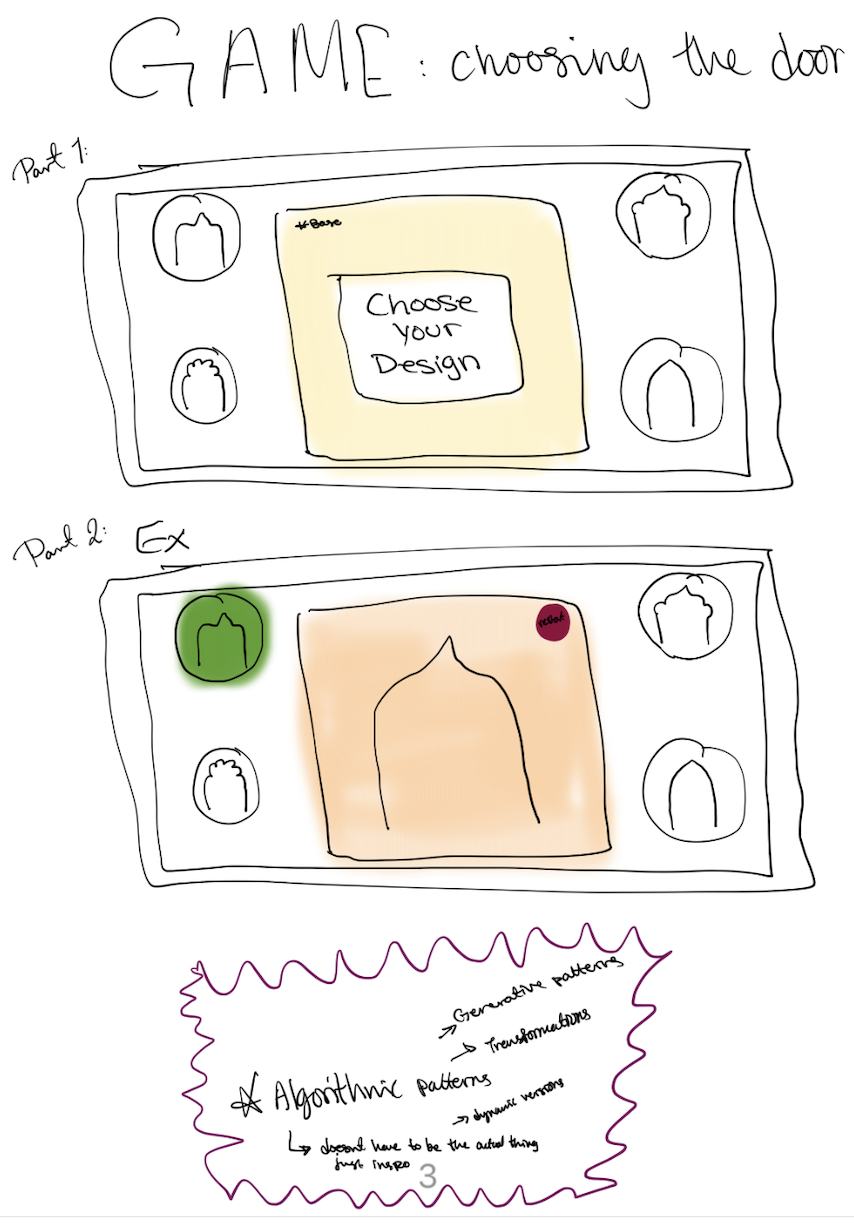
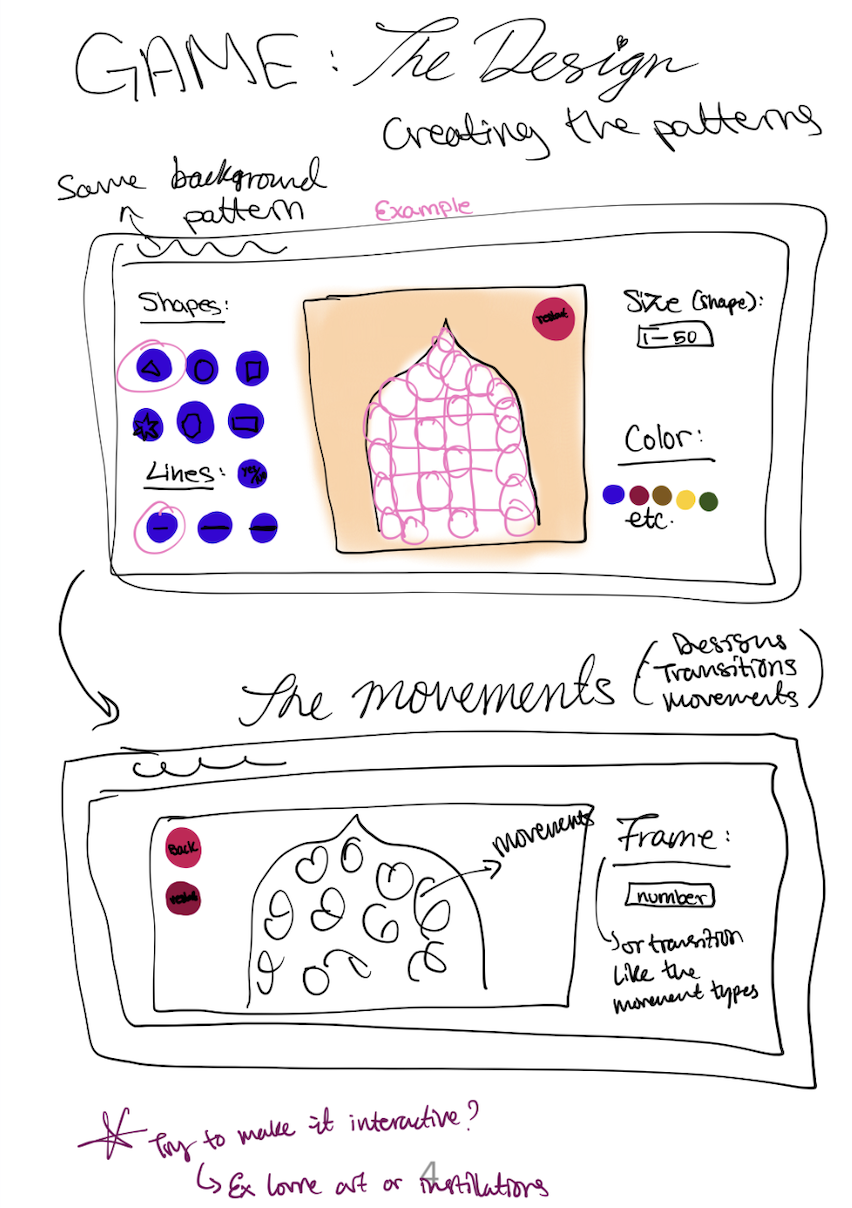
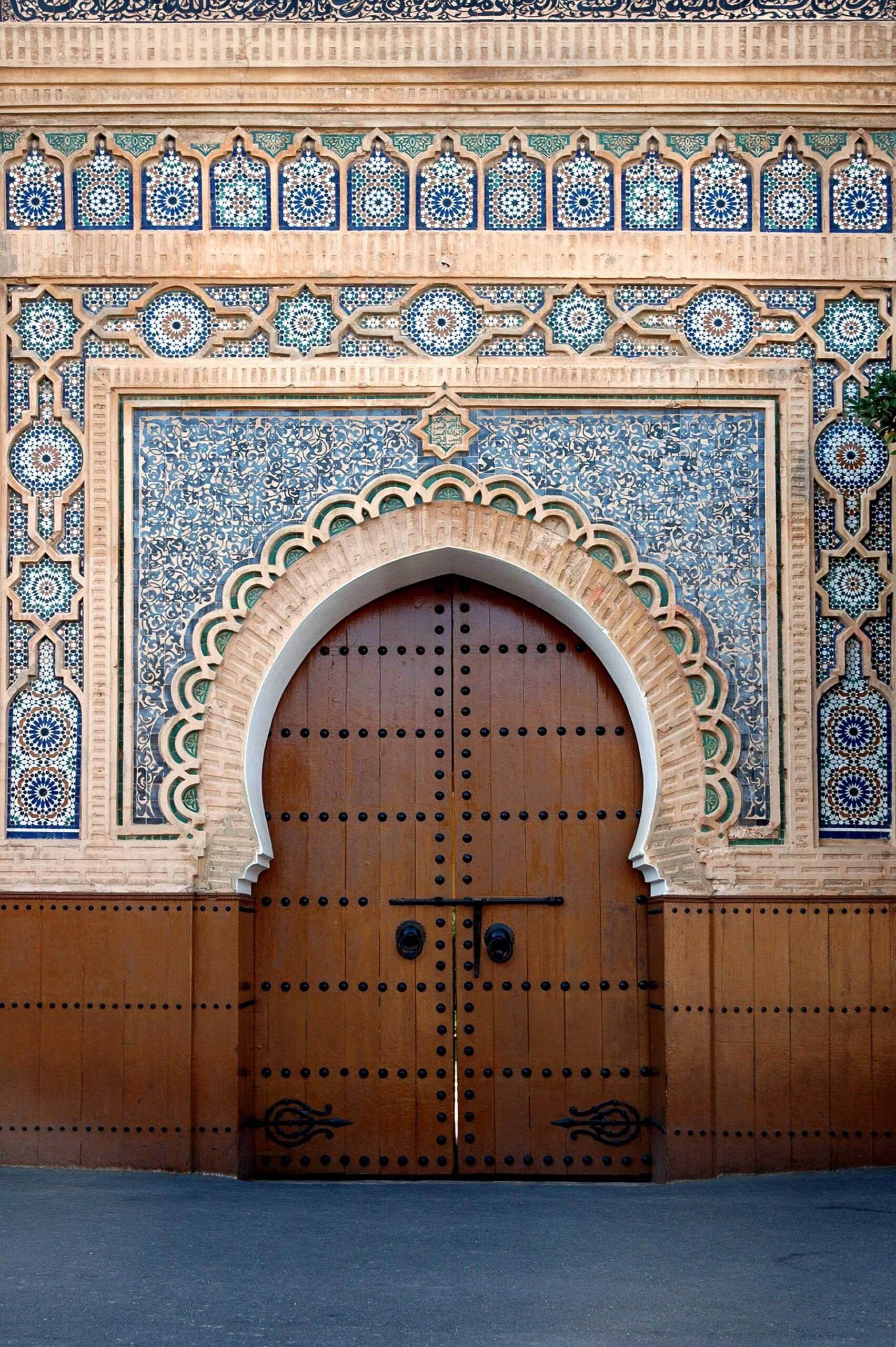
THE DESIGNING GAME! The main reasons why I created this game is because I love designing, and I have been learning on my own throughout the years (I have helped friends and family members with their businesses since design is an important factor in this field). With this background I wanted to create something for people who have the same interest, and for those who want to explore. The second reason is that since I am half Moroccan, I wanted to include a personal touch to my work and connect it to my culture. I decided to create a game where users can design one of my favorite elements of Moroccan architecture, which is the doors. Instead of simply creating a game that includes templates and colors, after speaking to Professor Mang, I decided to make it more interactive and generative. This way players can add their own shapes, change colors, and control the speed of the patterns. The shapes are also randomly generated, which is one of my favorite parts because my game includes randomness but at the same time it makes every design unique and unpredictable.

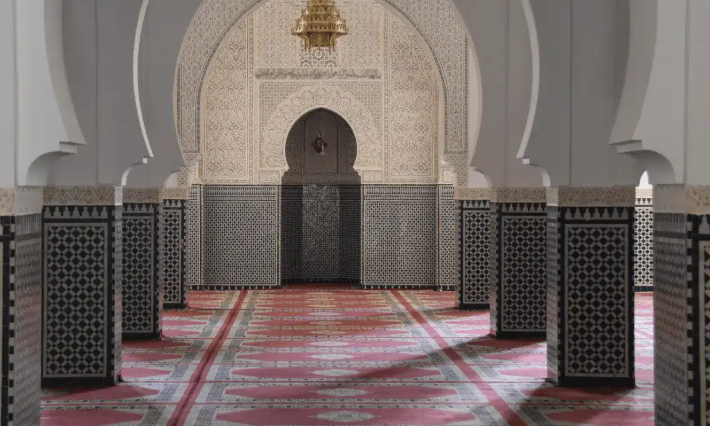
In Moroccan architecture, the Riyad is one of my favorite styles because of the level of detail and craftsmanship. It’s known for its intricate patterns, zellige tiles, and carefully designed spaces. What I find most interesting is how much time and effort goes into creating these details by hand, sometimes taking weeks or even months and up to years depending on the piece. I also grew up seeing these designs in my own home in Morocco, especially in fountains, tiled walls, and stairs which inspired me to recreate this experience digitally. I realized that there aren’t many games that focus on cultural design, especially Moroccan culture, so I wanted to create something that represents it in an interactive and modern way.

I started this project with an idea, although I had multiple ideas and sketches I decided to stay with this one. I mainly feared that it would be hard to create but in fact although it was challenging (starting before spring break and then with everything happening it was confusing to go back to unfinished work so a part of me wanted to start everything all over again and even change the concept but I didnt!) I loved every part of it because the concept truly speaks to me.

Inspo from Moroccan Architecture: 
Embedded sketch: (click to start!) [for full screen click here]


How it was made/how it works:

The project is built using a state-based system (a system where it changes, operates, or makes decisions based on the current “state” of the process), where the player moves through five different screens or pages as I call them: the home screen, help screen, info page, door selection, and finally the interactive “studio.” Each page is controlled by a variable that updates depending on where the user clicks, making the navigation simple but effective. I’ve always liked using Canva which is why I decided to create shapes and patterns to make something inspired by Moroccan architecture while still keeping it visually aesthetic and aligned with the overall concept. I also decided to look at Aya’s class since they finished their midterms, I got inspired to generate an image using Gemini which pushed me to experiment more with tools like Gemini. Instead of just using basic images, I uploaded my own references and used Gemini to help generate and refine visuals for the first three pages (home, intro, and instructions). So while the first 3 pages (home page, intro, and instructions) are generated by ai using an original existing image that I uploaded I still did lots of the designing myself in the other pages. When it comes to the doors I used a base vector from Vecteezy, but since the quality was low, I enhanced and clarified the design using Gemini so it would look clean and detailed in the final game. For the sound, I wanted something that matched the cultural vibe of my project and game so I searched for Moroccan-style audio on TikTok. I wanted to find a sound I can play in the background and a nice click sound effect, the click sound I found actually reminded me of games I used to play as a kid (friv, roblox, blocks). When I found the sounds I liked I had to convert the files into MP3 format since p5.js does not support formats like MOV or MP4. After that, I uploaded all the files into the sketch, I initially thought this would be the hardest part, but it turned out to be one of the easiest since it mainly involved organizing and dropping files correctly. I also added some the px size next to the size of the shapes because of my background in coding, I also added the HSB slider numbers 0-360° but I think in the future having buttons for it to be easy for people would be better. This game is not meant for everyone, but specifically for people interested in design and creative exploration.
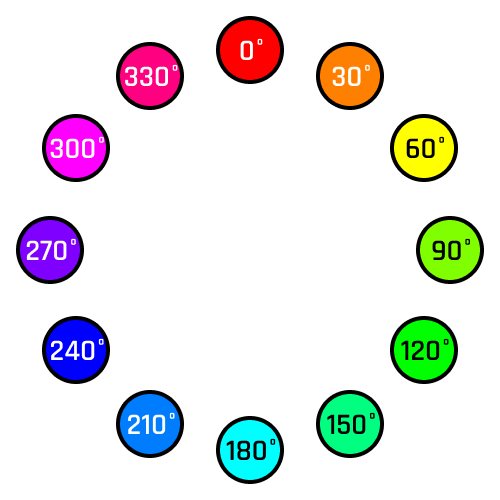
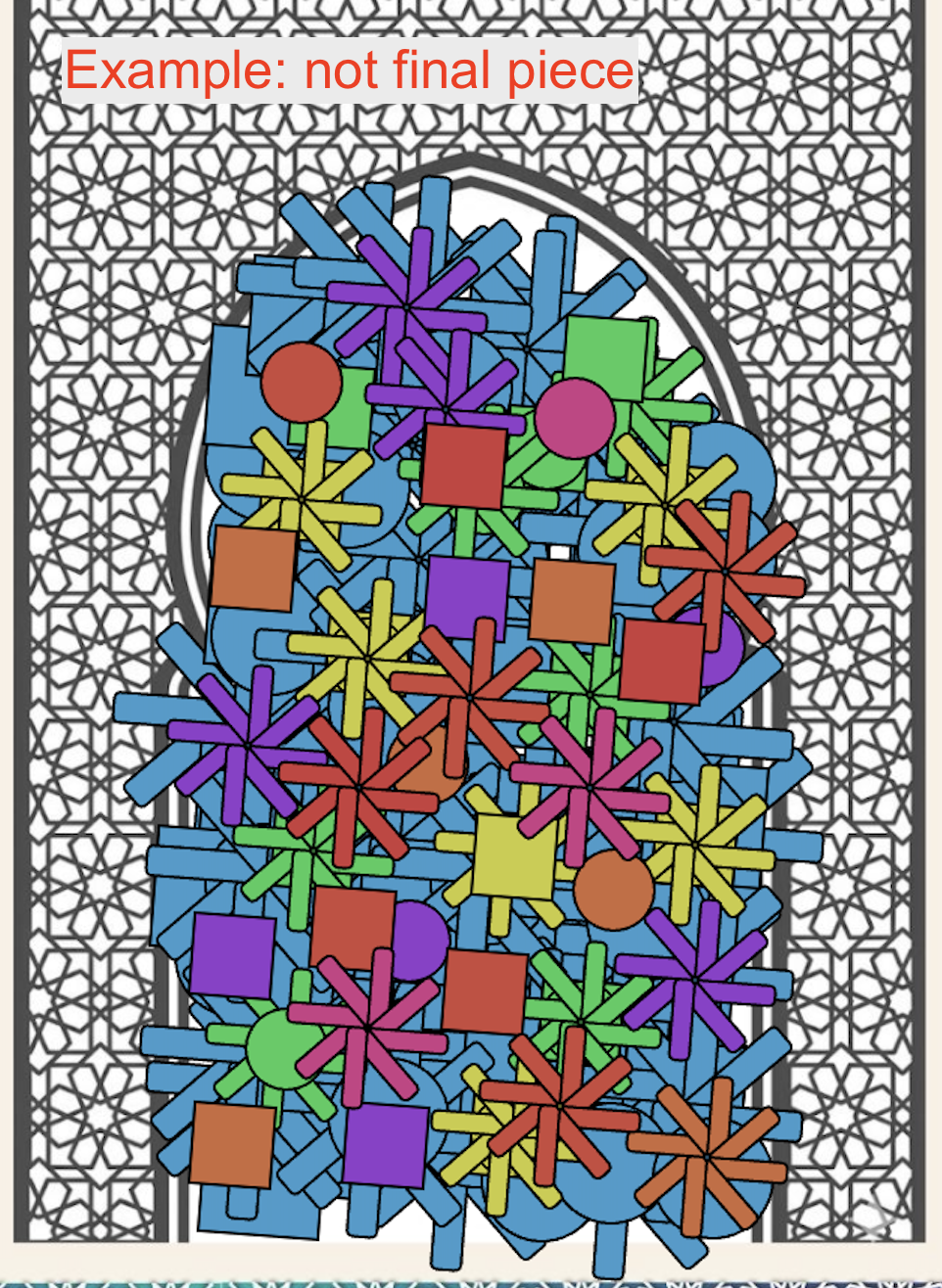
When it comes to coding, (the fun part!) I mainly relied on class lecture notes from Professor Mang and Professor Aya because the material and examples available are always extremely helpful and always makes my process a lot smoother. For the main interaction, I used Object-Oriented Programming by creating a Tile class so every time the player clicks inside the door area (the white part), a new tile (which are the shapes) is created and added to an array. Each tile is independent so it stores its own size and color based on the slider values at the exact moment it is placed but for the speed slider, all the tiles change accordingly. One part I’m especially proud of is the geometric pattern system, specifically the 8-point star. I created this using a loop that rotates shapes by PI / 4 (45 degrees) around a central point. By repeating this rotation, I was able to recreate patterns inspired by traditional Moroccan zellige designs. Even though the code itself is relatively simple, the final result looks detailed and visually complex. I also focused on the user interface. I used createDiv() along with .parent() to group the canvas and sliders into one container, which keeps everything centered and organized. This idea came from researching how to structure UI elements because I thought I needed to research it a bit more. By doing this, the sliders stay aligned with the canvas and the whole project feels more like a complete application rather than just a basic sketch. The sliders allow users to control size, color, and speed, making the experience interactive and personalized instead of static.

Resources:

From p5.js:

  • parent() + createDiv(): I used this to attach my sliders and canvas to a single createDiv(). I had to use this to keep my UI organized and in position on the page.
  • this. learning how to use the [this.] function I used this.s inside a constructor function for a specific class.
  • colorMode(HSB): I used HSB (Hue, Saturation, Brightness) so that my color slider could be used as a 360 degree rainbow wheel since the game is a design studio.

    Other:
  • The Coding Train: How to Rotate Shapes in p5.js (translate, rotate, push, pop): This helped me understand how to use push() and pop() in my Tile class so that the rotation of one star wouldn’t affect the rest.
  • MDN Web Docs (Early Return): I used return in my mousePressed function to stop the code once a button was clicked. This helped me fixed an issue (the bug) where a tile would accidentally be placed behind the “Home” or “Screenshot” buttons.
  • Vecteezy Moroccan Door Vector: For the architectural doors which I then refined and cleared up using Gemini AI.
  • Aya Riad lecture notes: Anytime I forgot how to use a concept like PI or OOP and most specifically the mouse functions because I was able to go back and look at the slides which is always helpful!
  • Mang lecture notes: I always referred to the lecture notes for writing the code and functions as well understanding the bug in my code by checking the examples.
  • Gemini’s images: creating and clearing up images
  • Converter: to convert images and sound files
  • Canva: used to help create all the pages
  • Click sound from TikTok
  • Moroccan oud sound from TikTok

    Code:

 for (let i = 0; i < 8; i++) { //option 3: star pattern using rotated rectangles. i got help from ai for this part
rotate(PI / 4); 
rect(0, 0, this.s, this.s / 4,2); } //rotates 45 degrees for each of the 8 petals
}

This part of the code creates one of the more complex patterns in my project, which is the 8-point Moroccan star inspired by Zellige designs. Instead of drawing it manually, I used a loop that runs 8 times and rotates the shape by 45 degrees each time. With the help of AI, I was able to better understand how this pattern works and use it to create a repeating rotational design. Even though the code itself is simple, the result looks detailed and reflects real Moroccan geometric design.

class Tile {
constructor(x, y, type) { //constructor to allow the tiles to appear
this.x = x; //remembers where the user clicked horizontally
this.y = y; //remembers where the user clicked vertically
this.type = type; //remembers the type/shape
//captures the current slider values at the exact moment of placement
this.hue = colorSlider.value(); //color
this.s = sizeSlider.value(); //size
}

This constructor is what makes each tile unique! When a tile is created, it stores the exact position, type, size, and color based on the slider values at the moment the user clicks. This means that even if the user changes the sliders later, the old tiles stay the same instead of updating. Basically, each tile “remembers” how it was created, which makes the design feel more layered and personalized instead of everything changing at once.

 //Home button: house icon which will be used to go back to the home screen
let homeBtn = dist(mouseX, mouseY, 745, 356); //the center of the house icon location is x:745, y:356
if (homeBtn < 55) { //if the click is within 55 pixels the home button will be triggered 
clickSound.play(); //sound effect
currentPage = 2; //return to the main home screen
tiles = []; //clear canvas
hideSliders(); //sliders removed to avoid overlap
return; //pauses/stops the function
}

The ‘Early Return’ problem I faced. This part of the code solved one of my biggest issues because before adding this, whenever I clicked the Home button, it would also place a tile behind it, which messed up the design. By using return, the function stops immediately after detecting the button click, so no extra code runs after that. This makes sure the button works properly without triggering other actions at the same time.

Personal Sketches:
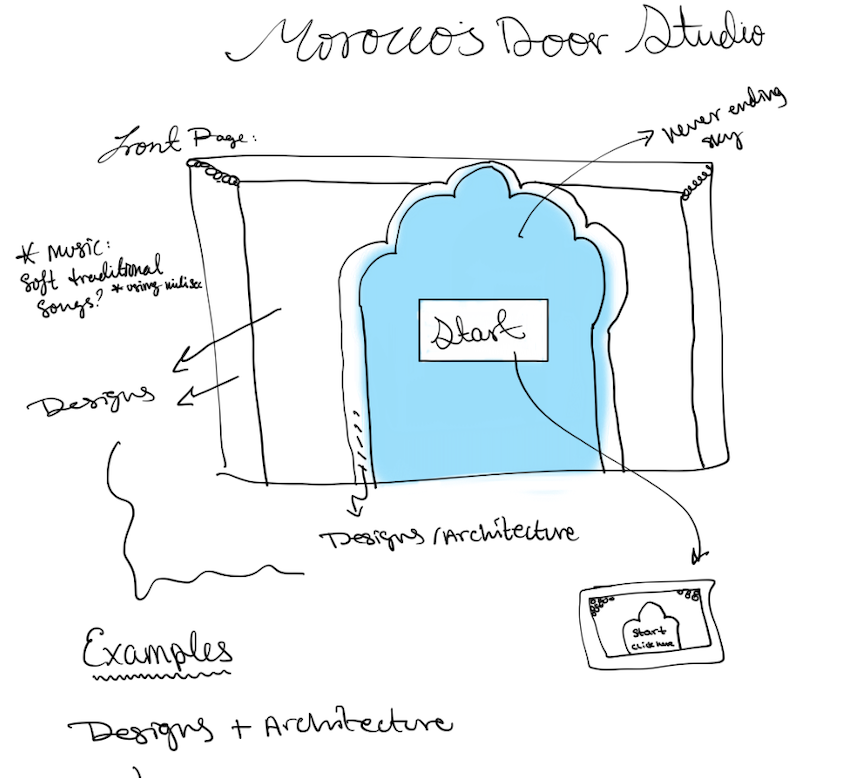
Code I am proud of + Areas for improvements and problems I ran into:

One of the biggest problems I ran into was when I clicked the “Home” or “Screenshot” buttons in the arch design pages, the program would accidentally place a tile on the door behind the button. This kept happening, and I didn’t know how to fix it until I used Early Return logic. Now, when the code detects a click on a button, it immediately stops the rest of the function, so no extra tiles are placed and the interaction works properly. Another issue I faced was when pressing the Home button on the arch design page, it would take me back to the home screen, but the sliders would still be visible, which made the interface confusing. I fixed this by explicitly hiding the sliders when leaving the studio page, so they only appear where they’re actually needed.

Overall, the idea of creating a game sounded scary at first. Before entering Intro to Interactive Media, I didn’t think I would be able to build something like this, let alone make it personal and meaningful. I’m really proud that I was able to create a full interactive experience and connect it to my culture. Once again this game is a designing game, its for people who love design and want to create something close to those historic designs but online. However, there are still areas I would improve. For example, I would expand the variety of shapes instead of only having a few options. I could also add an information button where users can learn about Moroccan architecture, the purpose of the game, and cultural facts. Another improvement would be giving users direct control over shape selection (like buttons for each shape) instead of relying only on randomness and sliders, which would make the experience feel more intentional and user-controlled.
Midterm Project: Where is the ghost?

Concept 
This project is a small “ghost hunting” camera game inspired by Identity V. In Identity V, a detective enters a mysterious place and slowly discovers clues. I borrowed that detective-in-a-secret-castle feeling and turned it into an interactive p5.js experience. The player is a brave “ghost catcher” who explores an ancient castle at night, hears strange whispers, and tries to help the people living there by collecting evidence.

I also wanted to change the usual mood of ghosts. Ghosts don’t always have to be terrifying. In my game, the ghosts are faint and mysterious in the live scene, but when you successfully capture one in a photo, it becomes cute and playful (with a tongue-out expression). I like this because it matches how cameras work in real life: people often want to look “better” in front of the camera, and the photo becomes a different version of reality.

How the project works + what I’m proud of 
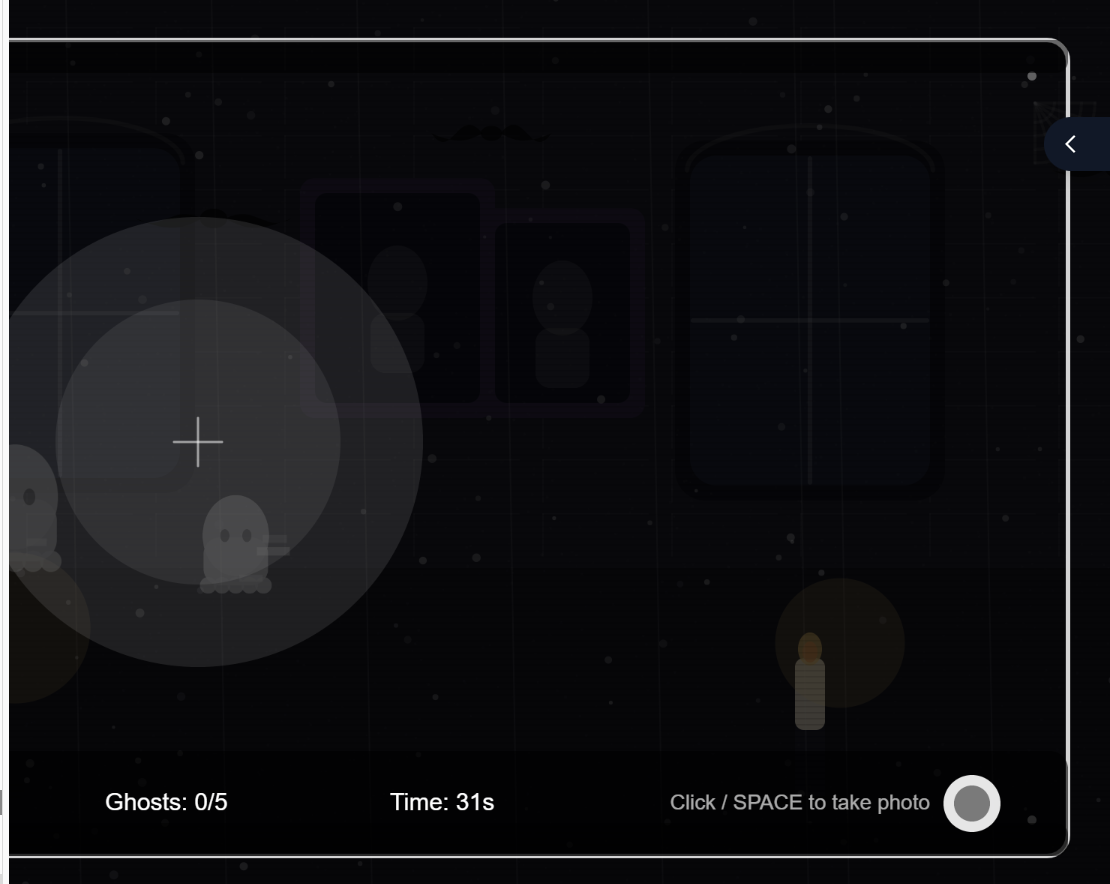
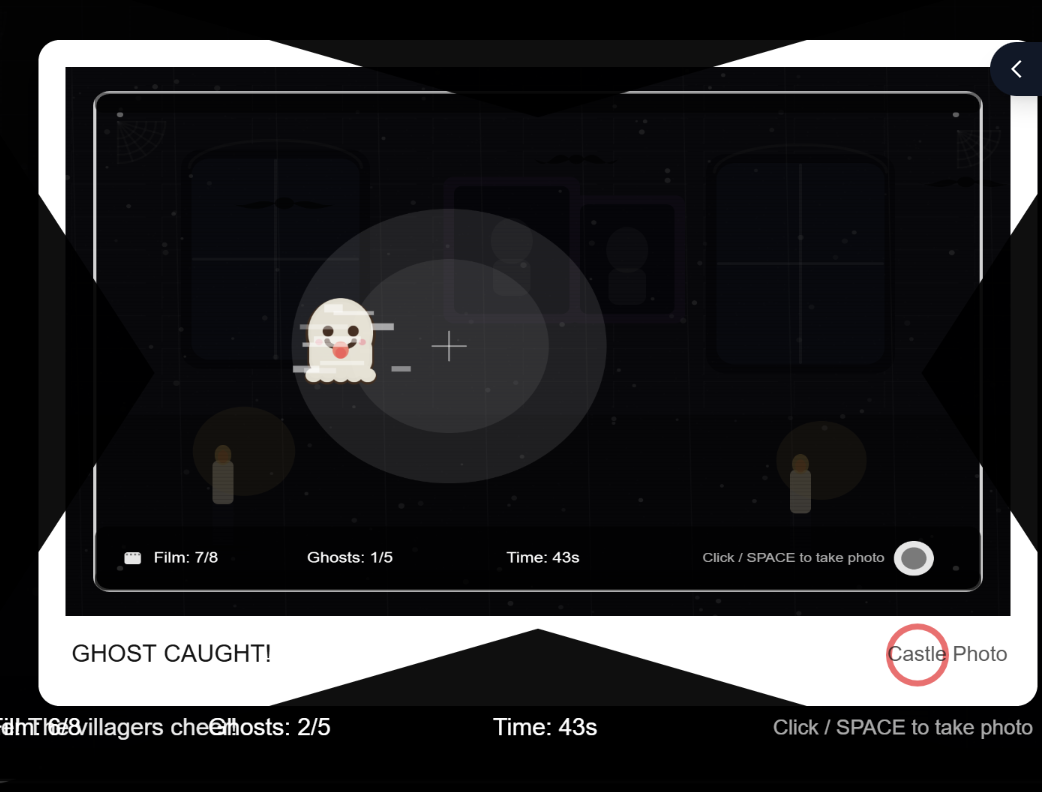
The game starts on an instruction screen with a short story setup, then waits for the player to press a key or click a start button. During gameplay, the mouse controls a flashlight that reveals the scene. Ghosts appear only sometimes, and they are only visible when they are inside the flashlight area. To “capture” a ghost, the player takes a photo (click or space) while a ghost is inside the light. The photo preview shows the captured frame like a polaroid, and if a ghost was caught, it displays a special “cute ghost” version. The game ends when the player captures enough ghosts, runs out of time, or runs out of film, and then it offers a restart without refreshing.

I separated “live view” from “photo view.” In the live scene, ghosts only count if they are currently visible AND inside the flashlight radius (so the player must aim and time it). Then, after a successful capture, I draw a special “tongue ghost” onto the captured image buffer (photoImage). This makes the camera feel meaningful: it doesn’t just add score, it changes the ghost’s personality in the “photo reality,” matching my concept that people want to look better on camera.

let capturedGhost = null;
for (let g of ghosts) {
  if (g.isVisibleNow() && g.isInsideFlashlight(mouseX, mouseY)) {
    capturedGhost = g;
    break;
  }
}

Then I did the important trick: I made a separate “photo layer” instead of drawing everything directly on the main screen. I create a new graphics canvas for the photo, and I copy the current screen into it. That’s what makes the photo feel like it’s frozen in time:

photoImage = createGraphics(width, height);
photoImage.image(get(), 0, 0);

After that, if I really did capture a ghost, I draw the cute tongue ghost onto the photo layer (not the live game). And I add to my capture count:

capturedGhost.drawTongueStrongOn(photoImage);
ghostsCaptured++;

Once I got this working, the whole game started to make sense. The live view stays spooky and subtle, but the photo becomes the “evidence,” and the ghost looks cuter in the picture—kind of like how people also want to look better when a camera points at them.

Areas for improvement + problems I ran into 
One area to improve is balancing and clarity. Sometimes players may miss ghosts too easily, depending on timing and where the flashlight is. I want to tune the ghost visibility timing and the capture conditions so it feels fair but still challenging. I also want to add clearer feedback when a ghost is nearby so the player can learn the game faster.

Adding sound was harder than I expected because browsers don’t just let a game play audio whenever it wants. In p5.js, if you try to play sound automatically when the page loads, most browsers will block it. They only allow audio after a real user action, like a click or pressing a key. At first this felt confusing, because my code was “correct,” but nothing played. So the challenge wasn’t only choosing sounds—it was designing the game flow so sound is unlocked in a clean way.

To fix that, I made sure audio starts only after the player begins the game on purpose. When the player presses SPACE (or clicks START), I call my audio setup function ensureAudioStarted(). Inside that function I use userStartAudio() (from p5.sound) to unlock audio, then I start my sound sources (an oscillator and a noise generator) at zero volume so they’re ready but not making noise.

Unusual Switch

https://github.com/da3755-ui/intro-to-im/blob/84cc7d7002b1b2e0cfad3839631bc4e4fa16566c/UnusualSwitchAssignment_IntroToIM.ino


The Concept

For this assignment I had two attempts and changed my concept. my first concept was a switch that lights up when you put glasses on. I ended up changing it to a led that lights up when a book is closed.

The Process

I used the same process for both concepts. Connected to my breadboard was an led with a jumper wire connected from the longer leg to a digital pin, and from the shorter leg a resistor then a wire connecting to ground.

For my conductor I used aluminum foil. I put aluminum foil on two pages of the book and placed a jumper wires on each foil. the first wire is connected to ground while the second to a digital pin. When the book closes, the foils touch the led lights up.

Challenges

The main challenge was in my glasses concept. ALthough my wiring and code were correct, I had a problem with connecting the foils and the wires together and getting them to light up the LED. After removing the wires from the foils and putting them towards each other I realized the issue. To fix this for my book concept, I made sure the tips of the wires were properly secured to the foil to ensure proper conduction for the foils.

I also  had to watch many Youtube videos after my failed attempt to get a full understanding of the difference between digital pins and power, understanding how LEDs work, and how circuits open and close with the arduino. I also watched many tutorials on digital read, write, and inputs to understand how it works. I also rewatched the lectures and decided to switch my code from using INPUT to INPUT_PULLUP after I heard someone  in class say it helps since arduino already has a built in resistor and this makes it mroe stable.

Code snippet

  if (state == LOW) {   
    digitalWrite(ledPin, HIGH);
  } else {
    digitalWrite(ledPin, LOW);
  }
  // digitalWrite(ledPin, HIGH);
}

I am actually most proud of the commented out code. This code is what helped me understand whether the problem in my failed attempt was because of wiring or because of the foils. After commenting out almost everythung out, leaving only relevant code, and adding this final line of code, I realized the led was working and the issue was with the foil.

Reflection

For future works I would love to create something with other forms of sensors like a sound sensor so the switch can light up with sound.

References

I also cant figure out how to move the code to github so here is the code

int book = 2;
int ledPin = 13;

void setup() {
  pinMode(book, INPUT_PULLUP);
  pinMode(ledPin, OUTPUT);
}

void loop() {
  int state = digitalRead(book);

  if (state == LOW) {   
    digitalWrite(ledPin, HIGH);
  } else {
    digitalWrite(ledPin, LOW);
  }
  // digitalWrite(ledPin, HIGH);
}


Week 8: Unusual Switch

GitHub Code  |  Demonstration Vid & Photos

CONCEPT

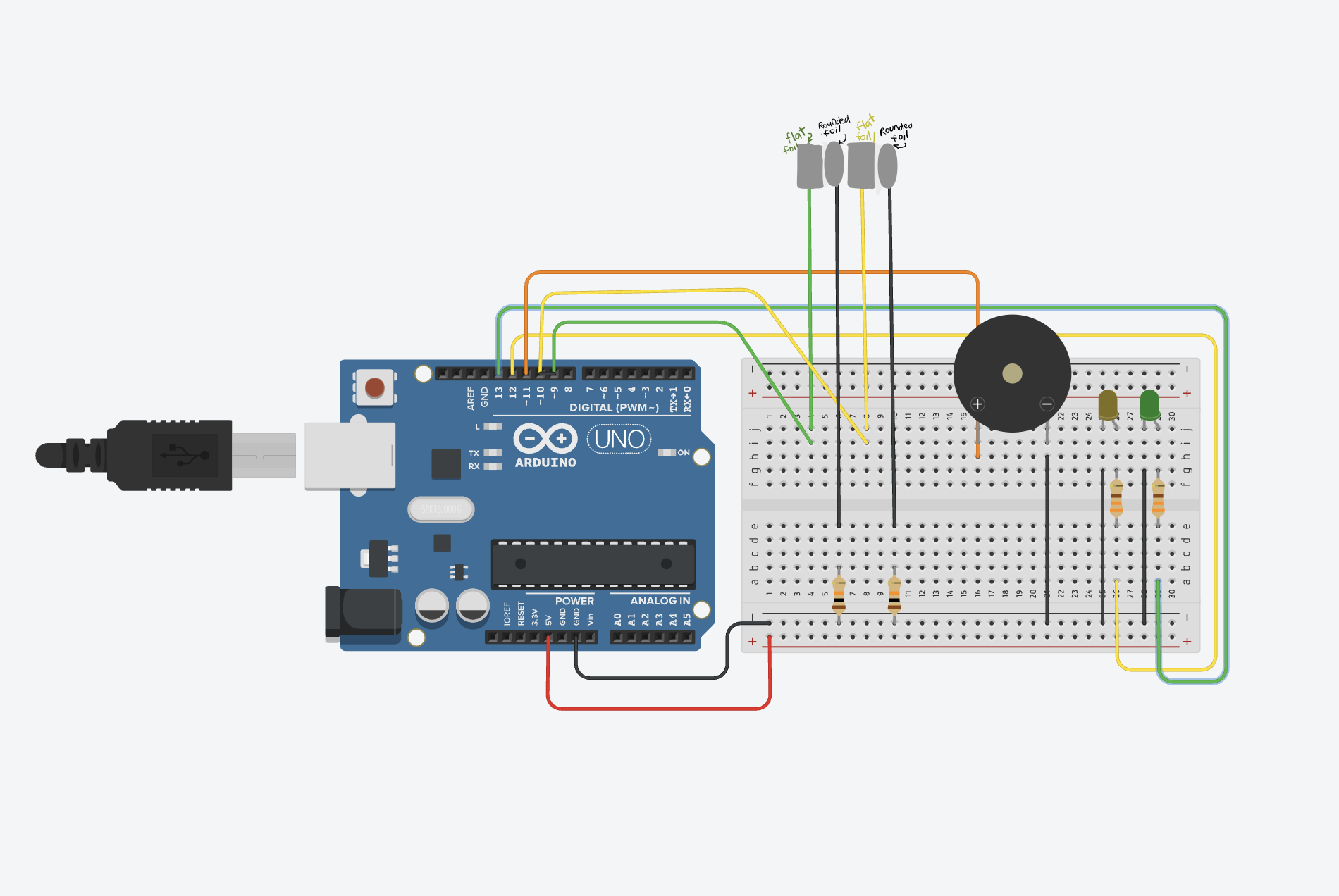
When I was thinking about what to do for this assignment, I remembered watching a TV game show called Family Feud. That’s where I got the idea to recreate their buzzer system. I was curious about how it worked, so I wanted to try making something similar using Arduino. However, the instructions said that we needed to create a switch that uses the human body, but not the hands. So instead of just using a push button to turn on an LED, I decided to modify the idea. I used foil to act as my switch, since it can open and close a circuit when touched.

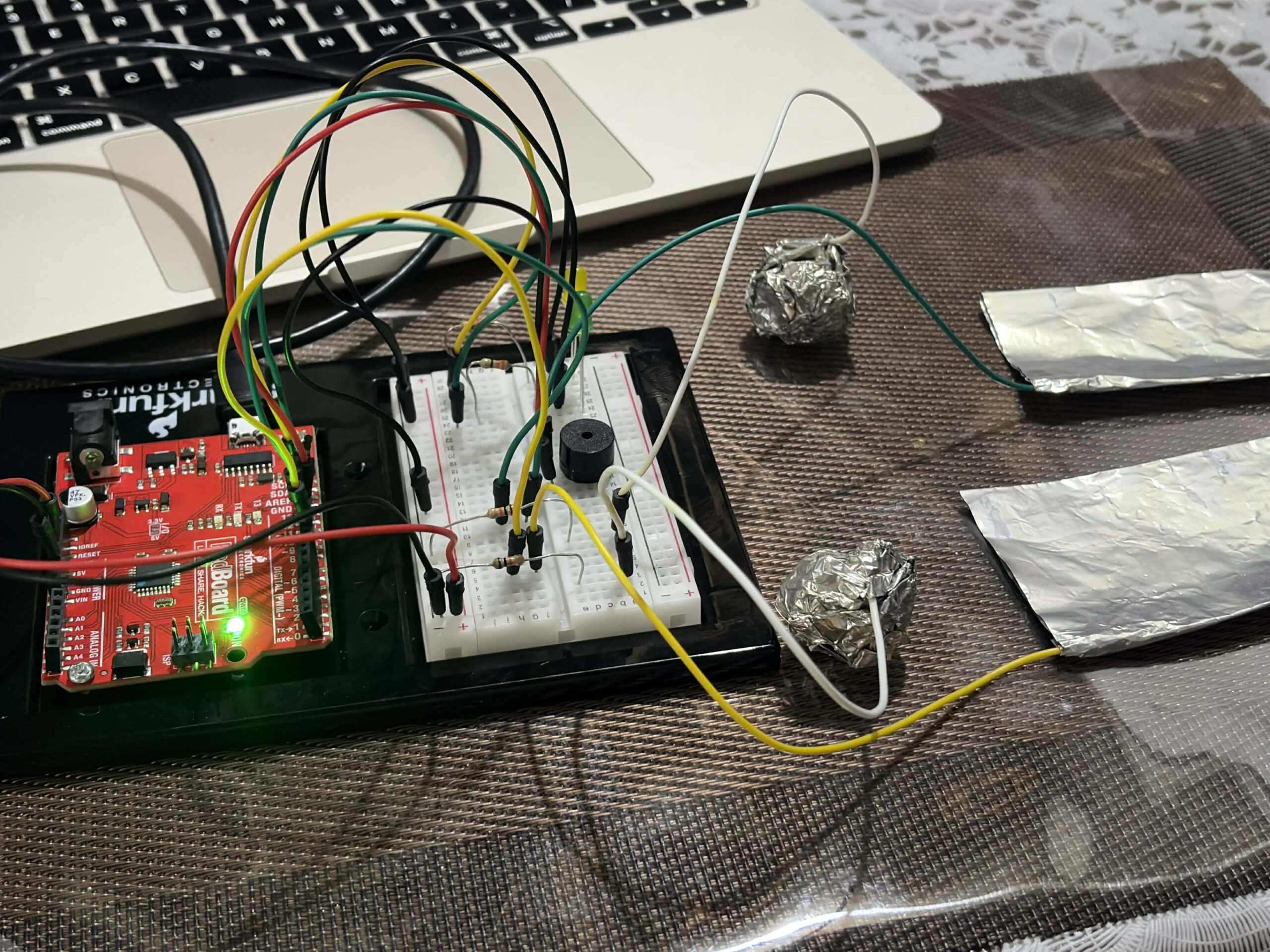
I created two foil setups with two LED lights, similar to how two players compete in the game show. Each player has their own side, and whoever activates their side first lights up their LED. To make it more interesting, I used a round foil and a flat foil instead of a regular button. The idea is that players drop the round foil onto the flat foil, which completes the circuit and turns on the LED. Whichever LED lights up first means that player gets to go first, just like in the game. So instead of pressing a button directly with my hands, the interaction happens through contact between 2 foil surfaces. When that contact happens, the circuit is completed, turning on the LED, and determines who goes first.

CODE I’M PROUD OF

I feel like my code is simple, but I enjoyed experimenting with the buzzer and how it responds when someone activates the foil. Even though the logic is straightforward, it works well for what I wanted to achieve. Here’s my code snippet:

if (digitalRead(foil1) == LOW) { 

    digitalWrite(ledYellow, HIGH);
    tone(buzzer, 1000);
    delay(500);
    noTone(buzzer);

    resetAll();
  }

  else if (digitalRead(foil2) == LOW) {

    digitalWrite(ledGreen, HIGH);
    tone(buzzer, 1000);
    delay(500);
    noTone(buzzer);
PROBLEMS I ENCOUNTERED

I followed a tutorial on YouTube by SunFounder Maker Education, but the tutorial used multiple push buttons. Because of that, I had to experiment with how to replace the buttons with foil and make it behave the same way. I first looked at my classmates’ and previous students’ blog posts about how to connect the foil using jumper wires. From that, I learned that the wires connect well to the foil if I wrap them around it securely. However, I initially just followed the tutorial and directly replaced the buttons with foil and tried to “press” the foil the same way as a button. That didn’t work, and my Arduino wasn’t responding properly.

During class, I learned that I needed to use a 10k resistor to stabilize the input. After adding the 10k ohm resistor, it still didn’t work, so I asked ChatGPT for help. It guided me through debugging and gave me a checklist of things to double check in both my code and Arduino setup. Through that process, I realized that I needed two separate foil pieces for each LED, one connected to the pin and the other to GND. At first, I was only using one piece of foil, which was the main problem. After adjusting this, the setup started working properly. Now, when the round foil is dropped onto the flat foil, it completes the circuit correctly and allows the LED to turn on and function the way I wanted it to.

REFLECTION

I really enjoyed the process, and I’m happy with how everything turned out. It took me a while to get to this finished assignment because I had to change my idea after finishing my first draft. I realized I didn’t fully follow the instructions, so I had to rethink and come up with a better approach. Next time, I’ll make sure to read the instructions more carefully from the start, since that would have saved me a lot of time. I also realized that working with Arduino isn’t as difficult as I thought. I actually enjoy it. I loved the feeling of satisfaction when my circuit and code finally worked the way I wanted them to.

REFERENCES

https://www.youtube.com/watch?v=_DjONeQnseo , class slides, https://github.com/liffiton/Arduino-Cheat-Sheet/blob/master/Arduino%20Cheat%20Sheet.pdf

handless Switch

Github

For this assigment the most difficult part was figuring out, how to send a signal without hands, I tried to chatgpt this but most of the ways need a an aluminium  foil to conducct electricity which i didn’t have. The next one was using my body as a conductor but I assume beacuase of the  resistance it counldn’t. After that I looked in to the kit to find something that I can use. I found the ultrasonic sensor. I looked it up to see what it does exaclty. It seemed fairly simple so  I decide to make a switch that turns once it detects something at a certain distance.

This where I got the most about it the sensor
https://projecthub.arduino.cc/Isaac100/getting-started-with-the-hc-sr04-ultrasonic-sensor-7cabe1

It had mulitple code sinipets about its usage, I put all of those to chatgpt and asked it explain each line by line in order to understand its basics. I got most of it except why we are using serial.begin(9600). I don’t get why we used this specific number. I kept it as it is(clarified in class).

Work

I kept the orginal from last class where we made the reverse swtich. The idea was as following; “I have the led asking for an input already in place, all I need to do is give a HIGH signal from somewhere”. Next I step the ultra sonice sensor, I tried to follow the semnitic from the above arduino project hub. In order to check if it is working properly I put the print statements to check which prints the distance

if (distance != -1) {
  Serial.print("Distance: ");
  Serial.print(distance);
  Serial.println(" cm");
once It was working, all I had to do was to put an if block in the loop(), if it detects something in the distance it will send a trigger for the light and turn it on.
Challenging and the part I am most proud of it

For this assignment coding was relatively easy. There wasn’t any challenging part specifically. I believe it because of the way I approched learning about of the new sensor. This is also the part Im most proud of because I didn’t have any difficulty while setting it up. I was also suprised by how straight forward it was. The whole thing took me 15 minutes to accomplish. later on I was just playing with distance and trying put as an intruder detector in my room.

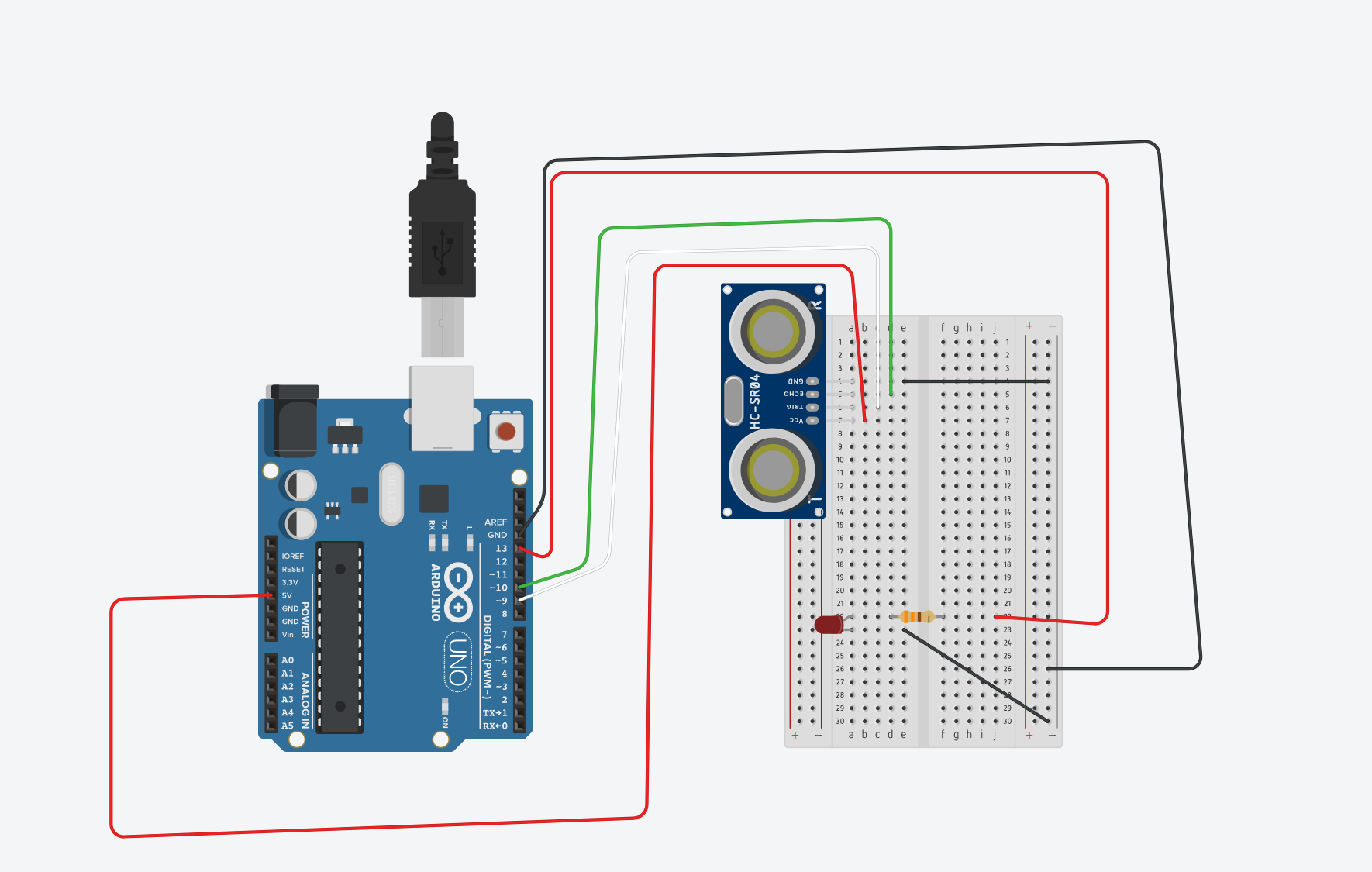
here is the circuit sketch

One of the the ways I  could use to detect how close Im to the screen, I set the distance to 70cm, and this is result


Week 8 Assignment- Creative Switch

Concept:

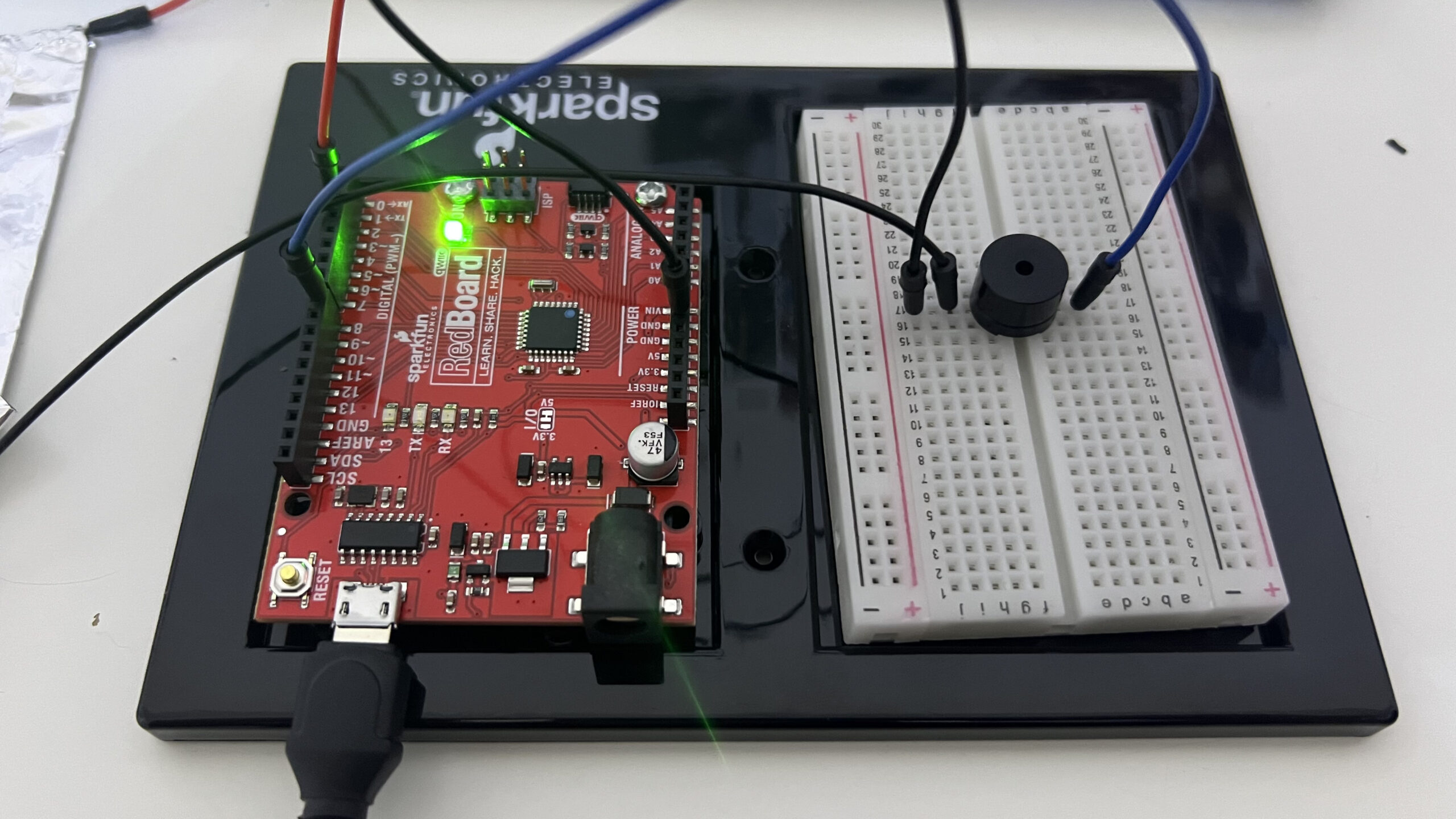
For this week’s assignment, I decided to create a system to help me remember to sit with a straight posture and to avoid slouching. The system works using two sheets of aluminum foil connected to a buzzer. When the aluminum foils are connected (i.e. your back is touching the chair meaning you are sitting up straight), the buzzer is silenced. When the aluminum foils are separated, meaning you are slouching and your back is off the chair, then the buzzer gives tone, reminding you to sit up straight.

Demo + Setup:


Implementation:

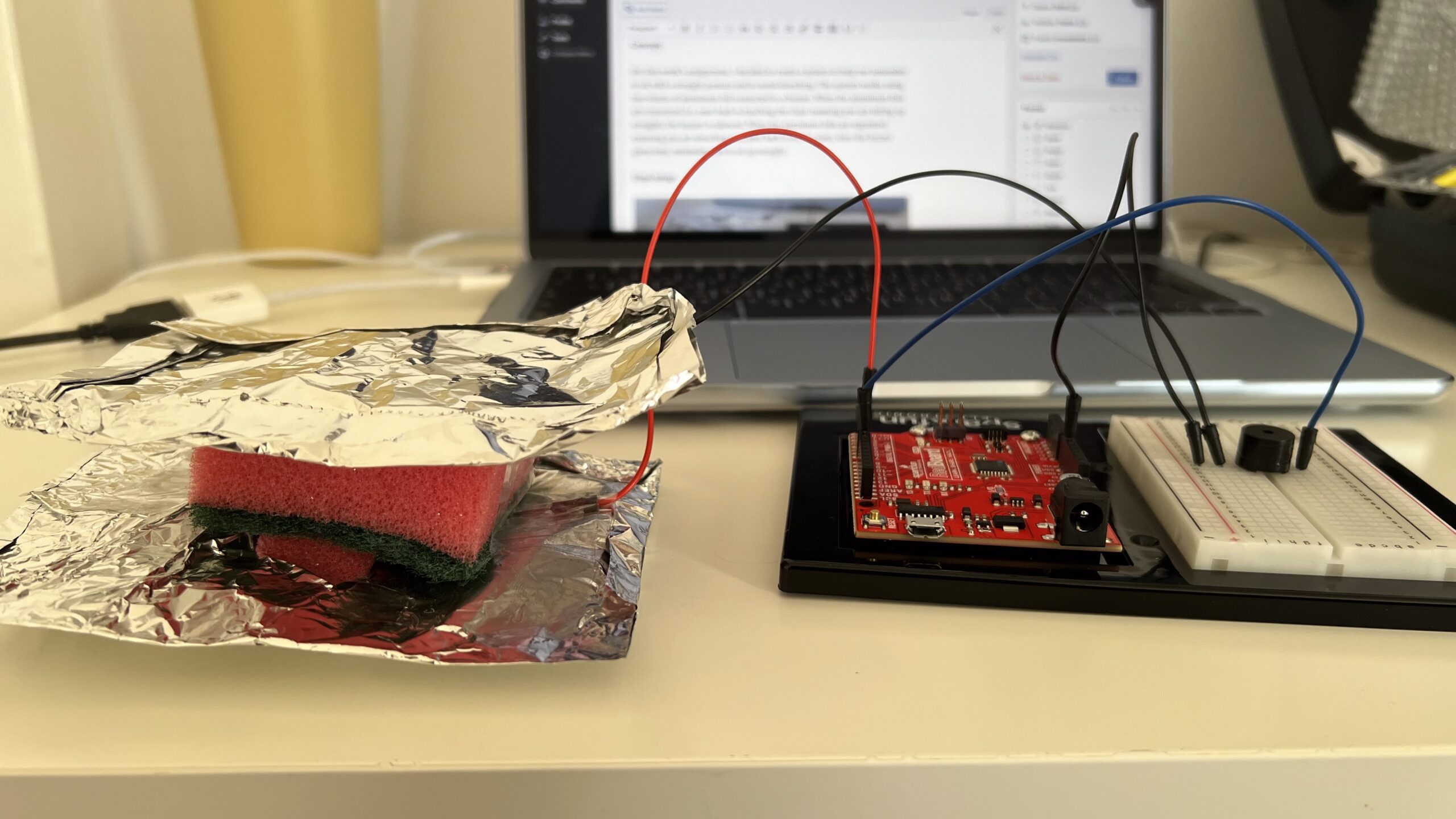
To create my foil switch, I taped two thin sheets of foil to a dish washing sponge. This works as a compression switch, so when you press the foils together they close the circuit, and when pressure is released, the sponge between them separates the foils and opens the circuit.

I connected one tin foil to digital pin 2, and the other foil to GND. This functions as the switch, so when the foils are touching they close the circuit, and when they are not the circuit is open.

For the buzzer, I connected its -ve leg to GND, and its +ve leg to digital pin 8.

void setup() {
  pinMode(foilPin, INPUT_PULLUP);
}

For the code, I used a new pinMode called INPUT_PULLUP. I found it while I was doing some research about Arduino coding, and essentially it just uses Arduino’s internal pull up resistors so you do not have to add a physical resistor into the circuit. I wanted to test this out to explore a bit with the code.

if (state == HIGH){ //foils not touching (slouching)
    delay(1500); //wait 2 seconds in case person is just moving
    if(digitalRead(foilPin)==HIGH) { //read input again, if person is still slouched
      tone(buzzer, 1000); //tone
    }
  }

I set an if-else statement so when the state of the foil switch is high, meaning the foils are not touching and the circuit is open, the buzzer will wait a few seconds before giving tone to account for when the user might just be adjusting their sitting position. After 2 seconds, there is another check to see if the foils are in fact still not touching, and then the buzzer gives tone. Else, as long as the circuit is closed, and the foils are touching, then there is no tone produced.

Reflection:

Overall, I am quite proud of my project and the usefulness behind its idea. It was also really exciting and fun to work with Arduino and I really enjoyed the concept of physical work combined with coding.

For the future, I would like to have longer wires so that I can set the Arduino and breadboard setup on my table when the foils are taped to my chair. I considered taping the entire setup to the chair, but that would then make it uncomfortable for the person sitting on the chair.

References:

Week 8: Unusual Switch

Concept:

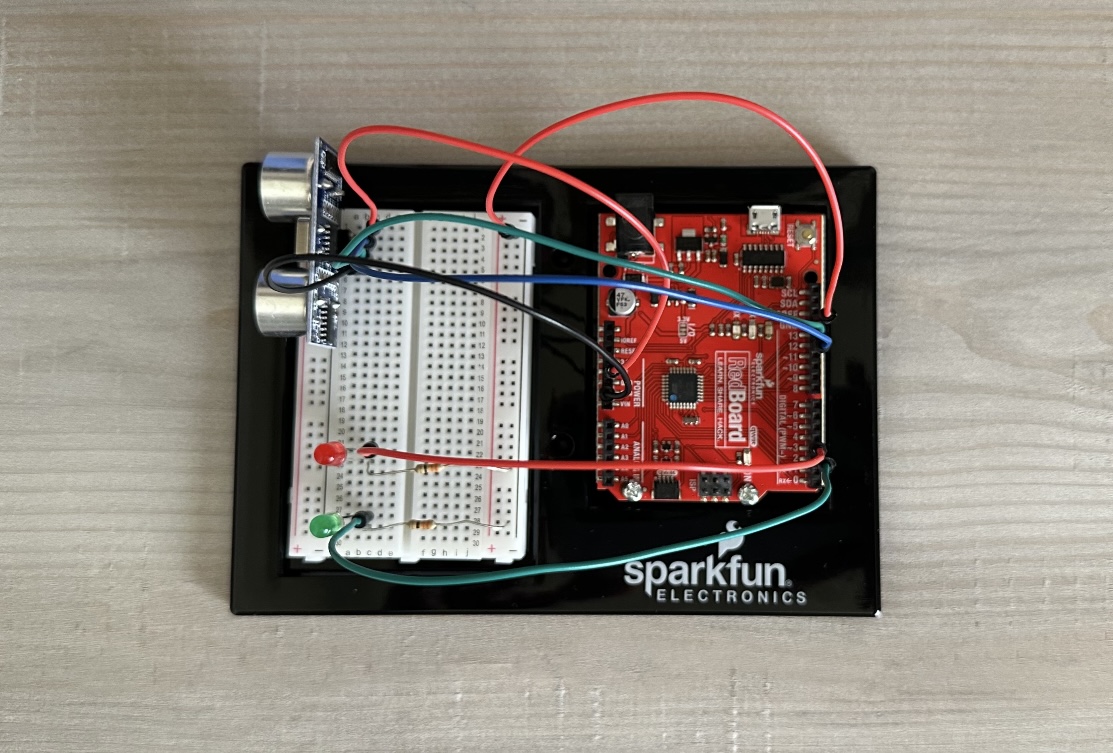
For my first Arduino assignment, I had to create an LED light switch that worked without any direct contact with the hands. I got the idea of creating one that does not need direct contact with any part of the body, so no contact at all. I was interested in the sensor function when we were introduced to the kit, so I chose to experiment with it and see if I could create a switch using a motion sensor.

My switch almost works like a distance-check system: when any motion is detected close to the sensor, 10 cm or less, the green light turns on, almost as if it is in the perfect position. When motion is detected farther from the sensor, more than 10 cm, the red light turns on, signaling that it is too far away from the sensor. Although there is no physical contact, the ultrasonic sensor acts as a switch by detecting distance and controlling whether the circuit behaves as open or closed.

This idea brings to mind different real-world applications, such as mall parking lots, where you see a red light on top if a space is occupied and green if the parking spot is empty.

Link to Code:

Arduino File on GitHub

Demonstration:

unusualswitch

Setup:

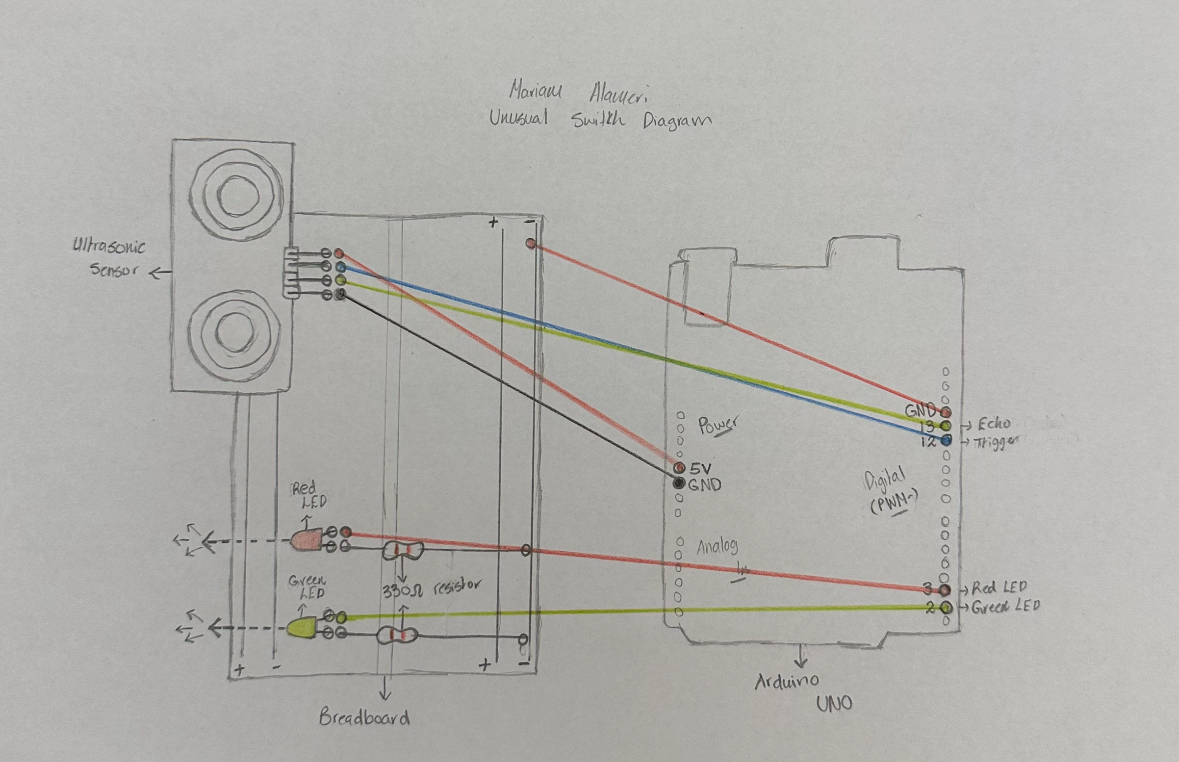
For the Arduino setup, I started by placing the sensor and connecting four wires, each aligned with one of its pins. The red wire connects to 5 volts, the black to ground, and the blue and green wires are assigned to numbers to trigger and receive the echo pulse for the lights. Then I placed the two LEDs, with a wire of the same color aligned with one pin, which connects to an assigned Arduino pin, and a 330 ohm resistor aligned with the other pin. I then added a red wire that connects the negative side to the ground, and on that same row, I placed one side of both resistors.

Code:

My code, in general, is straightforward. I assign variables, and the code is designed to know when to accept and receive inputs and outputs. All explanations are included directly in the code itself.

One part of the code I found particularly important is using digitalWrite with LOW to ensure that the lights turn off when they are not called by the commands. Without this, the lights would stay on the whole time, no matter where I placed my hand, since the program wasn’t being instructed to turn them off again.

digitalWrite(trigPin,HIGH); // Send pulse to trigger sensor
delay(1000); // One second delay to trigger sensor 
digitalWrite(trigPin,LOW); // End trigger pulse

digitalWrite(led1,LOW); // Return green light to initial state before going into if else condition
digitalWrite(led2,LOW); // Return red light to initial state before going into if else condition

Additionally, the if-else statement is the most crucial part, as it tells the lights when to turn on and off based on the distance. I can also adjust it to suit whatever distances and measurements I want.

if (distance<=10){
  digitalWrite(led1, HIGH); // If distance from sensor is equal or less than 10 cm, green light on
}
else if (distance>10){
  digitalWrite(led2, HIGH); // If distance is more than 10 cm, light up led 2, red light on
}

Diagram:

Reflection:

Overall, I am satisfied with my work on this first assignment. Before starting, I was really overwhelmed and thought I would struggle a lot to make it work. However, as soon as I began understanding what each wire and piece of code does, I started to actually enjoy it and had fun experimenting with different colors.

I did get a little confused during the wiring process because of all the colors of the wires. The sensor and LEDs were placed on opposite sides from their wires, so I moved them, and everything made more sense, both on the board and in the code.

For future improvements, I feel like I could add more LEDs at different distances, or even make it more advanced. For example, instead of sensing simple hand waves, it could sense a specific area of walking.

References:

I first went over the class slides to recap what we learned, and I also reviewed parts of the Zoom recording for guidance on plugging in and uploading code.

I found a tutorial on using a motion sensor, which I followed along with, making sure I understood every step and the code needed to make it work:

https://youtu.be/7zPbEEPAwQA?si=mkxxcjrJ8M2CU19C 

I also used links to specific code references on the official Arduino website to recap what each function does:

https://docs.arduino.cc/language-reference/en/functions/digital-io/pinMode/

https://docs.arduino.cc/language-reference/en/functions/digital-io/pinMode/

https://docs.arduino.cc/language-reference/en/functions/advanced-io/pulseIn/

Week_8 Reading Response

The article “Her Code Got Humans On The Moon” centers around the story of Margaret Hamilton. She was an outlier in a field which was very male-dominant at the time, bringing her daughter to the lab and supporting her husband who was going to law school. She contributed to the Apollo mission by implementing human centered peogramming and coding to give space for human error. NASA ignored her at first until the fatal error appeared in Apollo 8 and proved her correct. Her program also landed Apolo 11 safely on the moon by using asynchronus processing.

The article “Emotion&Design: Attractive things work better” caners on the psychologyu of user experiewnce. Usefulness and beaty was thought to be non-compatible. But the affect of beauty on mood showed that the beauty of products can allow some of its flaws to be ignored, making the design more useful. But it all eventually comes down to a balance of the two, because mood can influence the effect of the product. The design needs to adhere to its function. Designes used in high stress environments need to be easy and intuitive, while those made for leisure and pleasure can have more focus on beaty. Ultimately, design shound be centered around human need.

Week 8 Reading Response

Design and Usability

The main Idea of the reading was, a positive effect can make people  worry less about minor discerpencies and make them think out of the box which is called “breadth-first” thinking. On the other hand, a negative effect results in “depth-first'” thinking which in essentialya a more narrow and  conecentrated approach.  The author elaborated this point, by examples of his teapot set and stress situations. A good asthetic might become an obstacle when the task at hand needs to be done in a hurry. I was thinking about can there be a case where both, usabiltiy and design, can be a problem. The first thought was gift packaging. In  situation where some one gives you a present in rather fancy packaging at your birthday, a bunch of people are sitting there waiting  for you to open to see what is inside. But that ancy athetic box doesn’t seem to have an opening. its top and bottom are both the same. This leads me to think that why it is preassummed in the reading that the more we lean to the asthetic side, we are losing usabitly. A good example  to my argument is fancy coffee machine. it has only two user interactions i.e. putting the cup and pressing the dessired button. Now no matter how glamorous the coffee making is happening (imagine there are long glass canals all over the place which alll fall in to you cup.) if the the two user interactions are easy to access, then we have both a good design and usbailty.


Hamilton

The article demonsatrated her foundational role in the Apollo 11 mission. She introduced the idea of Software Engineering. I was surprised by the fact that at that time they didn’t that software engineering as a key factor as there was no budget for it. Her failsafe mechanisms and asynchrousus modelling proved to be a saviour during the mission. it also reflected a gender bias. Despite her work, not a lot of acknowledgement was given.

The key take away from it was how people interact with systems and how the system should be ready of exceptional circumstances within the given resources. Most of the time when I have written some for a  program and I let a friend use it, they come up with use cases I have never thought before. A system can crash, they do normally but there should be a way to recover from it. This reading gave an insight about how anticipation of faliure is just half of the work.