
“My secret combination, it’s a mystery for you.” – Kalomira at the Grand Final of the Eurovision Song Contest 2008
Concept:
For my Final Project, I was very much inspired by my love for escape rooms. I love going to them and trying to figure out their unique puzzles. One thing I’ve always noted in escape rooms is that usually, you’re tasked to complete a few puzzles, and you’ll get a code, for which you twist the numbered padlock to escape. I wanted to take that concept and flip it, where you have to twist the dial, in order to get the code and escape.
Which is why, for my Final Project, I’ve created a game, which asks the player to figure out and enter the correct combination in order to win. The player needs to spin the potentiometers (which will be referred to as dials from this point onwards) and see at what value do the LEDs turn on. With all three LEDs, the player will get the secret code and can use to win! This project was mainly designed as a proof of concept of flipping the classic escape room idea, and hopefully escape room makers can implement it in the future!
Demo of the Final Project:
Design:
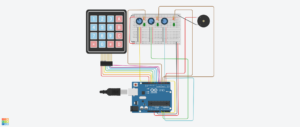
Link to the Tinkercad!
Hand Drawn Schematic: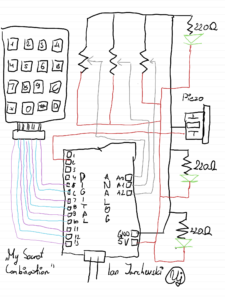
How does the Project work:
For the beginning of the code, we need to create our own custom Digital Keypad, using the Keypad.h library. For this section a special mention and credits goes to Domingo Martinez, for explaining the code and helping me understand how to use the library. Using the keypad library, we can make a 2D array where we can define each key of the keypad. And then we can use the Keypad function to create our own keypad based on the number of columns, rows and also the aforementioned 2D array.
//Adding in the relevant library for the Keypad
#include <Keypad.h>

//Defining the number of Rows and Columns for our Keypad
//Credit to Domingo Martinez for explaining the code for Keypads: https://youtu.be/sPhcOm3FdOQ
const byte ROWS = 4;
const byte COLS = 4;

//Creating a 2D Array for our Keypad as that's how it is structured
char hexaKeys[ROWS][COLS] = {
  {'1','2','3','A'},
  {'4','5','6','B'},
  {'7','8','9','C'},
  {'*','0','#','D'}
};

//Here we're saying to which pins the Keypad is connected to
byte rowPins[ROWS] = {13,12,11,10};
byte colPins[COLS] = {9,8,7,6};

//Creating our own custom Keypad Map
Keypad customKeypad = Keypad(makeKeymap(hexaKeys), rowPins, colPins, ROWS, COLS);
Then we need to define the pins which we’re using for the LEDs, Piezo and the Dials. I’ve discovered you can define multiple of them in a list so I went with that approach. Also I took the liberty of creating our secret code here, being the target numbers, and also the last dial values. These numbers will be updated constantly as the user twists the dials and saves them so that the program can later use them.
//Here we can define some constants for each of our connected pins
const int dials[3] = {A0, A1, A2};
const int leds[3] = {5, 4, 3};
const int piezo = 2;

//This will be the secret code the player needs to get
const int targetNumbers[3] = {4, 7, 2};

//This is a list which will update based on the values that the user gets from twisitng the dials
int lastDialValues[3]   = {0, 0, 0};
String enteredCode = "";
Created a small function for the Piezo, as we need to dynamically update its frequency, duration and tone, for our different sounds.
//A simple function just to define the sound for the Piezo
void tonePiezo(int freq, int duration) {
  tone(piezo, freq);
  delay(duration);
  noTone(piezo);
}
Within the Setup function, I’ve defined the serial communication, and to constantly loop in order to check the output for the LEDs and the Piezo. Also wrote a little starting message for the player in the serial monitor and kinda gives off a notification to the user that the game has started.
//Our main setup function, starting off with the serial communication
void setup() {
  Serial.begin(9600);

  //A for loop which checks for each LED its output as we want to constantly update
  for (int i = 0; i < 3; i++) {
    pinMode(leds[i], OUTPUT);
  }
  pinMode(piezo, OUTPUT);

  //Just prints a text saying the user can start to crack the code
  Serial.println("Unlock the Code!! Twist dials to find the code.");
}
Now, we get our handy loop function. In the first part of it, I’ve created a big for loop as I want it constantly check each of the three potentiometers and see their values update. Firstly, we read the Dials’ values, then we create mapped values for each dial, using the map function. This will simply take the values of the dials, and turn them into numbers from 1 to 9, so they can be used for our keypad later. As the user twists the dial, the code checks the current mapped dial value with the previous one and updates the serial monitor with some text accordingly. This is so the user is aware what the current value of the dial is. The finally, if the mapped dial value is the same as one of the target number values, or our code, then the LED will flash, indicating to the user that they’ve gotten it correct.
//Here is where the meat of it will happen,
void loop() {
  //Using a for loop to check for all three Potentiometers
  for (int i = 0; i < 3; i++) {

    //We read each potentiometer and get its value
    analogRead(dials[i]);
    delay(5);
    int dialValue = analogRead(dials[i]);

    //Then we map its value using the map function
    int dialMap = map(dialValue, 0, 1023, 1, 9);

    //Now for each Dial, we just check if its the same as the previous value and update it with the current value
    if (dialMap != lastDialValues[i]) {
      Serial.print("Dial ");
      Serial.print(i + 1);
      Serial.print(" is now at: ");
      Serial.println(dialMap);
      lastDialValues[i] = dialMap;
    }
    //If the value that we are on the potentiometer is the same as the value of the secret code, then the LED turns on
    if (dialMap == targetNumbers[i]) {
      digitalWrite(leds[i], HIGH);
    } else {
      digitalWrite(leds[i], LOW);
    }
  }
Now the second part of the loop function is purely dedicated to the keypad. We take our custom keypad we built above and use it for various different things. Firstly we need to give feedback to the user that they’ve pressed a button on the keypad, which is done by virtue of the first if statement. Then we add that pressed key to our string, which is used for a few things in order to check if the played got the code or not. Firstly it checks for its length, which must be three for three dials. Then we check if the string is the same as the target numbers of our secret code. If the player got the right code, we output a victory message with a happy sound effect, if not, then a error message with a buzzing sound to indicate the player is wrong.
  //From the custom keypad we make a character from the key pressed, so it will displayed
char customKey = customKeypad.getKey();

//A simple if statement that prints out the key for the user, and also uses for the ente
if (customKey) {
  Serial.print("Key Pressed: ");
  Serial.println(customKey);

  //This adds the character that came from the keypad to the string
  enteredCode += customKey;

  //This is just a short sound from the Piezo which is meant to serve as like feedback for the user
  tonePiezo(500, 50);

  //Checks if the code is 3 characters
  if (enteredCode.length() == 3) {
    //And here we check if the secret code is the same as what the user entered
    String secretCode = String(targetNumbers[0]) + String(targetNumbers[1]) + String(targetNumbers[2]);

    //Checks if the entered code is correct or not
    if (enteredCode == secretCode) {
      Serial.println("You have guessed the combination! You win!");
      playVictorySound();
    } else {
      Serial.println("That's wrong! Try again.");
      tonePiezo(200, 500);
    }
    //Resets the player inputted code so they can try again
    enteredCode = "";
  }
}
This final part is our victory sound function. I’ve used Google Gemini for this part as I had no knowledge at all of how to create it. But it was useful to understand as the way it’s done is with a list that plays each sound frequency in order, with a bit of a delay between each sound so that the sounds can be propely heard.
//Plays a happy congratulatory sound
//Used Google Gemini to figure out the melody as I didn't understand how to make a melody
void playVictorySound() {
  int melody[] = {262, 330, 392, 523};
  int duration = 150;

  //A for loop that goes through all the notes and plays them
  for (int i = 0; i < 4; i++) {
    tonePiezo(melody[i], duration);
    delay(50);
  }
}
Parts that I’m quite proud of:
Honestly I think the part I’m most proud of was playing around with the keypad. I didn’t have any understanding intially as when I placed the keypad in, I actually I thought it would work automatically. But after watching that video that explained it I saw that you actually have to define a full on custom keypad for your own project. Also getting to know the map function was actually something I’m proud of to know now. In one of my previous projects, I’ve used the potentiometer but I needed to fiddle around with it in the code as it had a bit of noise. But understanding this, it really helped to have a specific concrete value for each part of the potentiometer and worked perfectly in the sense of making a keypad work functionally, with not much deviation.
Areas of Future Improvements:
I think probably the biggest area of improvement is implementing it in a p5js sketch so that it can look visually appealing. Of course the limitation in Tinkercad was definitely a factor but I think I could definitely build this and make a sketch in p5js so that the player can have a visual experience with it. Another approach I was going for initally was with an LCD panel, but I had a few issues in understanding the LCD panel on its own, and also I didn’t have enough pins on my Arduino so I can add it in. Definitely one possible way to improve it as while the serial monitor does do it justice, this would be a much more visually appealing way to go about it.
Reflecting on the Final Project:
I’m very pleased that the entire project in the end worked overall correctly and all parts that I’ve put worked synchronously. And I think getting rid of the buttons actually made more sense as there is an element of discovery for the player and I think giving a button to confirm it kinda ruins the magic of figuring out what the dial and subsequent LED lighting means. I’m quite gutted that I couldn’t implement the LCD panel into it due to issues I’ve had with it. If I had extra time, I could probably figure out some sort of way to implement it with some sort additional pins to the Arduino and get it working, but time is of the essence at the moment.
But this project has really taught me how escape rooms kind of balance an equilibrium of interactivity with the player, but also not being as very obvious and letting the player discover parts on their own. Even looking back at the puzzles I’ve done in escape rooms, I can understand clearly why the main aim is discovery of the puzzles and to have an interactive design so it sparks the curiousity for the player. For this project’s user testing, I believe I’ve gotten that approach, as my tester figured out some of the components. They were able to discover their functions and with a little curiousity, were able to figure out what was needed to be done to solve the puzzle.
Thoughts overall for this course:
While this section isn’t needed I thought I’d give a bit of a paragraph of thought for this introductory course. Going into it I had no idea what I’m getting myself into as I didn’t understand what Interactive Media represented. But I think the course really captured that idea of how with a little code, creativity and interacting with different tools, we can craft some fun experiences for anyone to enjoy. The readings as well gave me a very nice and different way of thinking when it comes to how we design and interact with various different products. Genuinely I really enjoyed this course and I want to extend a heartfelt thanks to Prof Mang for his support and constant love for getting us to become curious thinkers and interactive designers. Even with the course moving remotely, I think genuinely appreciate having supplementary options to still follow along and be a part of the course. I can only hope to take more Interactive Media courses in the future!
Signing off for Intro to IM, Spring 2026 with Prof Mang, I wish all of you an amazing summer break, and make sure to take care of yourselves, keep being curious and make sure to stay awesome always!
Ian Jarchevski
Full source Code:
//My Secret Combination
//Ian Jarchevski 04.05.2026
//Intro to IM, Final Project

//Adding in the relevant library for the Keypad
#include <Keypad.h>

//Defining the number of Rows and Columns for our Keypad
//Credit to Domingo Martinez for explaining the code for Keypads: https://youtu.be/sPhcOm3FdOQ
const byte ROWS = 4;
const byte COLS = 4;

//Creating a 2D Array for our Keypad as that's how it is structured
char hexaKeys[ROWS][COLS] = {
  {'1','2','3','A'},
  {'4','5','6','B'},
  {'7','8','9','C'},
  {'*','0','#','D'}
};

//Here we're saying to which pins the Keypad is connected to
byte rowPins[ROWS] = {13,12,11,10};
byte colPins[COLS] = {9,8,7,6};

//Creating our own custom Keypad Map
Keypad customKeypad = Keypad(makeKeymap(hexaKeys), rowPins, colPins, ROWS, COLS);

//Here we can define some constants for each of our connected pins
const int dials[3] = {A0, A1, A2};
const int leds[3] = {5, 4, 3};
const int piezo = 2;

//This will be the secret code the player needs to get
const int targetNumbers[3] = {4, 7, 2};

//This is a list which will update based on the values that the user gets from twisitng the dials
int lastDialValues[3]   = {0, 0, 0};
String enteredCode = "";

//A simple function just to define the sound for the Piezo
void tonePiezo(int freq, int duration) {
  tone(piezo, freq);
  delay(duration);
  noTone(piezo);
}

//Our main setup function, starting off with the serial communication
void setup() {
  Serial.begin(9600);

  //A for loop which checks for each LED its output as we want to constantly update
  for (int i = 0; i < 3; i++) {
    pinMode(leds[i], OUTPUT);
  }
  pinMode(piezo, OUTPUT);

  //Just prints a text saying the user can start to crack the code
  Serial.println("Unlock the Code!! Twist dials to find the code.");
}

//Here is where the meat of it will happen,
void loop() {
  //Using a for loop to check for all three Potentiometers
  for (int i = 0; i < 3; i++) {

    //We read each potentiometer and get its value
    analogRead(dials[i]);
    delay(5);
    int dialValue = analogRead(dials[i]);

    //Then we map its value using the map function
    int dialMap = map(dialValue, 0, 1023, 1, 9);

    //Now for each Dial, we just check if its the same as the previous value and update it with the current value
    if (dialMap != lastDialValues[i]) {
      Serial.print("Dial ");
      Serial.print(i + 1);
      Serial.print(" is now at: ");
      Serial.println(dialMap);
      lastDialValues[i] = dialMap;
    }
    //If the value that we are on the potentiometer is the same as the value of the secret code, then the LED turns on
    if (dialMap == targetNumbers[i]) {
      digitalWrite(leds[i], HIGH);
    } else {
      digitalWrite(leds[i], LOW);
    }
  }
    //From the custom keypad we make a character from the key pressed, so it will displayed
  char customKey = customKeypad.getKey();

  //A simple if statement that prints out the key for the user, and also uses for the ente
  if (customKey) {
    Serial.print("Key Pressed: ");
    Serial.println(customKey);

    //This adds the character that came from the keypad to the string
    enteredCode += customKey;

    //This is just a short sound from the Piezo which is meant to serve as like feedback for the user
    tonePiezo(500, 50);

    //Checks if the code is 3 characters
    if (enteredCode.length() == 3) {
      //And here we check if the secret code is the same as what the user entered
      String secretCode = String(targetNumbers[0]) + String(targetNumbers[1]) + String(targetNumbers[2]);

      //Checks if the entered code is correct or not
      if (enteredCode == secretCode) {
        Serial.println("You have guessed the combination! You win!");
        playVictorySound();
      } else {
        Serial.println("That's wrong! Try again.");
        tonePiezo(200, 500);
      }
      //Resets the player inputted code so they can try again
      enteredCode = "";
    }
  }

  delay(10);
}
//Plays a happy congratulatory sound
//Used Google Gemini to figure out the melody as I didn't understand how to make a melody
void playVictorySound() {
  int melody[] = {262, 330, 392, 523};
  int duration = 150;

  //A for loop that goes through all the notes and plays them
  for (int i = 0; i < 4; i++) {
    tonePiezo(melody[i], duration);
    delay(50);
  }
}
for scrolling all the way down, here’s a cat spinning on a record player 😀