
Concept
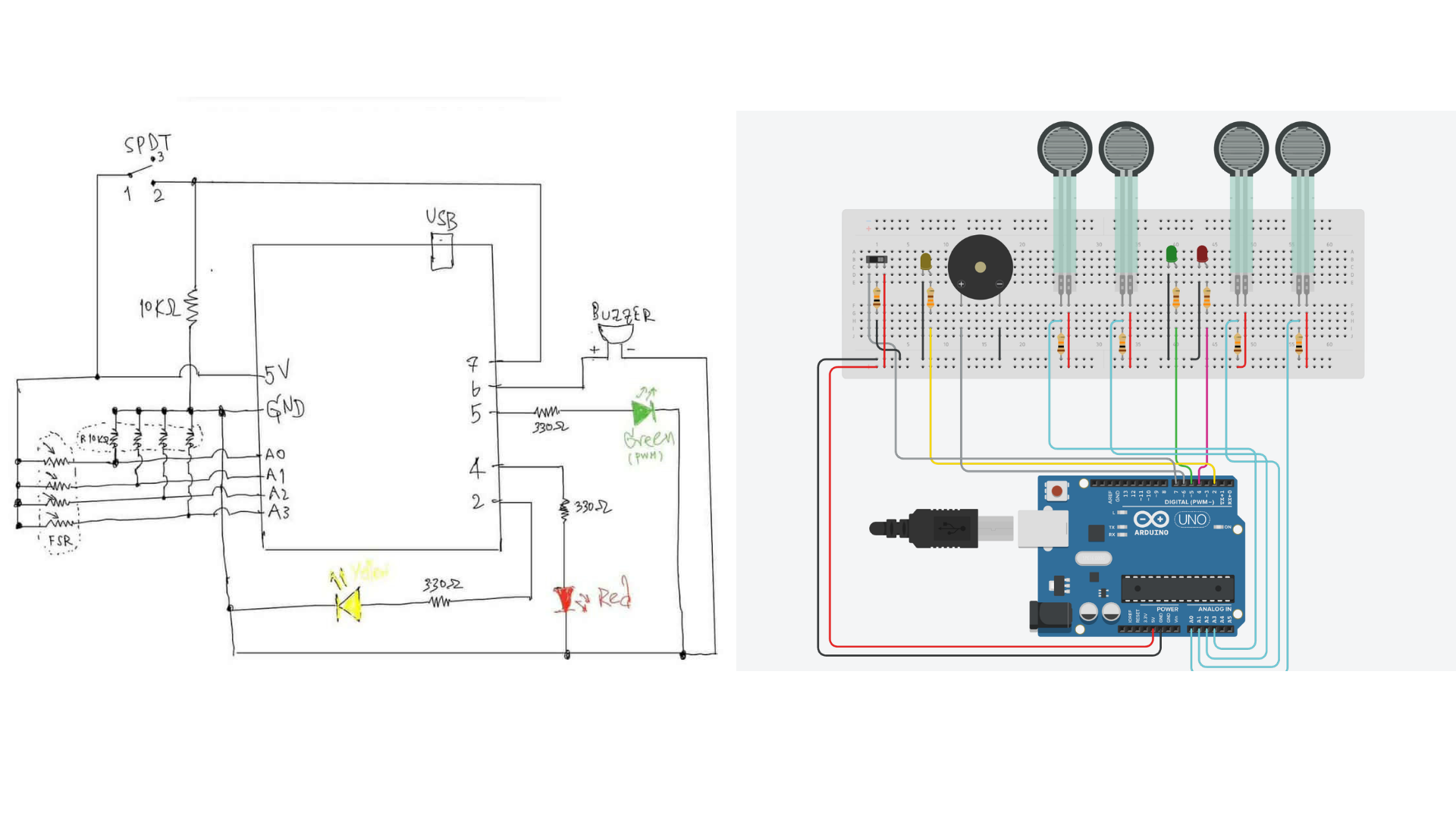
In this project, a simple interactive mini piano was created using Arduino. The system combines both analog and digital inputs to control LEDs and sound output. The main goal was to explore how analog sensor data can be translated into both visual and auditory feedback in a way that feels responsive and engaging.
The project brings together multiple components working at the same time:
- Analog input through Force Sensitive Resistors (FSRs)
- Digital input using a switch for overall control
- Analog output through a PWM-controlled LED for brightness variation
- Digital output using a red LED and a buzzer for clear feedback
Each FSR functions like a piano key. When pressure is applied, it changes the resistance, which affects the analog value being read. This value is then used to control both the pitch of the sound from the buzzer and the brightness of the LED, making the interaction feel more dynamic depending on how hard the user presses.
All FSRs are connected using a voltage divider with a 10kΩ resistor, and their values are read through analog pins A0 to A3. The system also includes several indicators:
- The yellow LED shows when the system is turned on
- The green LED represents the analog output, adjusting brightness based on the input
- The red LED lights up when a stronger pressure threshold is reached
- The buzzer produces a sound corresponding to the input
- The switch acts as the main ON/OFF control
How It Works
The system starts by checking the switch. When it is OFF, everything stays inactive, so no LEDs light up, and no sound is played. Once the switch is turned ON, the yellow LED lights up to show that the system is active, and the Arduino begins reading the values from all the FSR sensors. It then compares these readings to figure out which sensor is being pressed the most.
This core logic, added by my group partner, is what allows the system to function like a piano:
// ---------- Read + smooth sensors ----------
for (int i = 0; i < 4; i++) {
  int raw = readAverage(FSR_PINS[i]);   // read sensor
  smoothVals[i] = (smoothVals[i] * 3 + raw) / 4;   // smoothing
}

// ---------- Find strongest press ----------
int strongestIndex = 0;
int strongestValue = smoothVals[0];

for (int i = 1; i < 4; i++) {
  if (smoothVals[i] > strongestValue) {
    strongestValue = smoothVals[i];
    strongestIndex = i;
  }
}
// ---------- Determine pressure level ----------
 int level;

 if (strongestValue <= LEVEL_1_MAX) {
   level = 0;   // light press
 }
 else if (strongestValue <= LEVEL_2_MAX) {
   level = 1;   // medium press
 }
 else {
   level = 2;   // hard press
 }

 // ---------- Select note ----------
 int nextNote = NOTES[strongestIndex][level];

 // ---------- Play sound ----------
 if (nextNote != currentNote) {
   tone(BUZZER, nextNote);   // play note
   currentNote = nextNote;   // update
 }
Based on how much pressure is applied, the input is grouped into three levels: light, medium, and hard. At the same time, the outputs respond to these changes. The green LED adjusts its brightness using PWM depending on the pressure, the red LED turns on when a strong press is detected, and the buzzer plays the corresponding note.
Reflection
At first, my partner and I both thought about adding a piano-like element to our Arduino for this week’s project, so we then decided to move forward with that idea. It was really interesting to see how different inputs could change the sound and how that made the interaction feel more alive. Instead of just having one tone, being able to play different pitches made it feel more responsive and a bit more like an actual instrument.
I really liked how the project turned out. Setting up the code both in Arduino and Tinkercad helped us see how the system fits together step by step. It was also fun to be able to actually try it out after. Overall, this project gave us a better sense of how input values can be interpreted and used in different ways. It made us more aware of how even simple changes in input can lead to noticeable differences in how a system responds. Because of this, I would definitely consider integrating sound into my future projects as well.
References
• Arduino Documentation
https://www.arduino.cc/reference/en/
• Analog Input Tutorial
https://www.arduino.cc/en/Tutorial/BuiltInExamples/AnalogInput
• PWM (analogWrite)
https://www.arduino.cc/en/Tutorial/PWM
• Voltage Divider Explanation
https://learn.sparkfun.com/tutorials/voltage-dividers
https://youtu.be/JZ44h-jy0p4?si=LTeRxI9Gy2SYuQWJ