week 8 reading response – attractive things work better

The author discussed two types of information processing: “affect” and cognition. Of course, these aren’t exact neuroscientific terms (as he mentions himself: “to avoid the technical debate … I use the reasonably neutral term of ‘affect'”), but I really appreciated his interpretation of this concept, as it reflects a very real biological mechanism that significantly impacts our day-to-day lives.

Neuroscientists understand that, to some extent, our reasoning can come after we make a decision. As animals first and foremost, we fundamentally operate on instinct and unconscious processes, especially in faster or emotionally salient situations.

Take a simple example — trying to escape a hazardous situation. Suppose that fleeing people encounter a door that wont open. The anxiety-produced response is to try again harder. When the first push doesn’t open the door, press harder, kick, and even throw the body against it

This is illustrated beautifully by studies on subjects with a severed corpus callosum: when one half of a subject’s brain is asked to explain an action that was triggered and carried out by the other half (thus completely outside its control and awareness), the subject may provide a reasonable rationale and experience the temporal illusion that this reasoning came first.

But all this thinking comes after the fact: the affective system works independently of thought. Your thoughts are occurring after the affective system has released its chemicals.

Affect, as described by the author, is an instinctual gut reaction, while cognition comes afterward. You can see this pattern emerge especially in fields such as philosophy. In fact, I think philosophy – particularly ethics – is a perfect example. There is an almost universal, intuitive sense of right and wrong among our species: a gut feeling that assigns value judgments, just as the author describes (this idea is controversial, but I’m referring to instinctual affect applied to and affected by our species’ advanced social environment.) Ethical philosophy emerges when someone attempts to construct a cognitive framework through which these gut value judgments can be derived. Of course, since these judgments are instinctual, there is no inherent logical framework underlying moral affect, which is why there is no universal agreement on which ethical philosophy is most reliable or “true” (as far as I know).

Each system impacts the other: some emotions — affective states — are driven by cognition, and cognition is impacted by affect.

Week 8 – Unusual Switch

Demo Below:

 Concept:

I have an extra Arduino I got years ago, so I decided to scour through the parts to see if I can find something to use, which I did! The switch here is more functional rather than unusual, but its hand-less nonetheless. The 2 main players here is an RFID reader and a dot matrix module. The RFID reader reads the card in your pocket while you walk through the door. If the card matches the accepted card(s), a green LED will flash and a smiley face will be shown on the dot matrix module. However if a person with the wrong card passes through the door, the red LED will flash and the dot matrix will show a huge X.

Implementation:

void loop() {
  if (!mfrc522.PICC_IsNewCardPresent() || !mfrc522.PICC_ReadCardSerial()) {
    return;
  }
...
}

We begin our loop code with this, and what this does is just check if the RFID module can read a card at all, if it can’t the rest of the code won’t run at all.

// Long green flash when correct card and show smile.
if (match) {
  Serial.println("ACCESS GRANTED");
  digitalWrite(GREEN_LED_PIN, HIGH);
  showSmile();
  delay(3000); 
  digitalWrite(GREEN_LED_PIN, LOW);
}

Here if the card scanned matches the card we give access to, we turn on the green pin and show the smile on the dot matrix module, this lasts for 3 seconds before turning things off.

else {
    Serial.println("ACCESS DENIED - ALARM");
    showX();
    
    // Repeated red flashing
    for(int i = 0; i < 5; i++) {
      digitalWrite(RED_LED_PIN, HIGH);
      delay(100);
      digitalWrite(RED_LED_PIN, LOW);
      delay(100);
    }
  }

If the card that is read does not match the card we want, then we will show the X on the dot matrix and repeatedly flash the red LED 5 times.

// Reset visuals
lc.clearDisplay(0);
lc.setLed(0, 0, 0, true); 
mfrc522.PICC_HaltA();
mfrc522.PCD_StopCrypto1();

At the end of the loop, we just turn on a singular dot that is top left of the dot matrix, to show that it is currently on standby.

ShowX and ShowSmile are functions that simply turn on the correct dots in the matrix to show the image we want to show.

GitHub Code is here.

Reflection:

The only thing I would really add here is maybe a buzzer with 2 different sounds for either granting access or rejecting access.


Week 8 Reading Reflection

Emotion & Design: Attractive things work better

This was definitely an interesting reading, which, in summary, discussed the positive relationship between aesthetics and usability. Norman makes the point that although aesthetics do not play a role in the function of a certain design, they allow the user to forgive or overlook certain shortcomings in a design.

I will admit, initially, I was skeptical about his idea. I assumed that it doesn’t matter if a design is aesthetically pleasing; if it works, then that’s what matters. But my perspective shifted when one of the lines mentioned a clean versus a dirty lookng car, especially since cars are things I look at much more frequently than I analyze designs. That made me realize that even without realizing it, we are drawn to more aesthetically pleasing designs and are almost tricked into thinking that something works better when it looks better. As I think back on my mid-term project, I also make a connection where if I had included more graphics and visual elements, I would have been able to overlook certain drawbacks in the game.

Overall, I gradually got more and more convinced by his idea the more I read, and I fully believe in his idea.

Her Code Got Humans on the Moon

I really appreciated how this reading highlighted the idea of Hamilton being the backbone of software programming and space exploration, especially the part that emphasized that she and the team were practically inventing key concepts of programming.

One of the things I particularly liked was the labelling of her as a positive radical and her ability to foresee certain mistakes before they happen. It really portrayed her passion towards programming and that she took it as more than just a career. It also still made me think about her motivations when programming and her meticulous nature. Especially since she faced ridicule as she mentioned for being a working mother. It made me question whether her detail-oriented nature was a result of her passion or fear of further ridicule and facing even further criticisms and blame.

I thought the text was concise, straight to the point, and delivered an important message in a beautiful way. I loved how it didn’t stop at just the process of Hamilton programming before the Apollo launch, but even mentioned what happened during the Apollo launch and how Hamilton had to quickly find a way to fix the error that occurred despite her constant warnings. It focused on both the process and the outcome.

remy midterm project


Embedded sketch:
Overall concept:

My goal with this midterm was to create a demo of a video game – one that I’m planning to expand on in a future opportunity. The concept I had in mind for this demo was a retro-style horror pixel game that takes place in a lab. The player will experience a cutscene and then be placed into an environment where they must interact with the setting in some way.

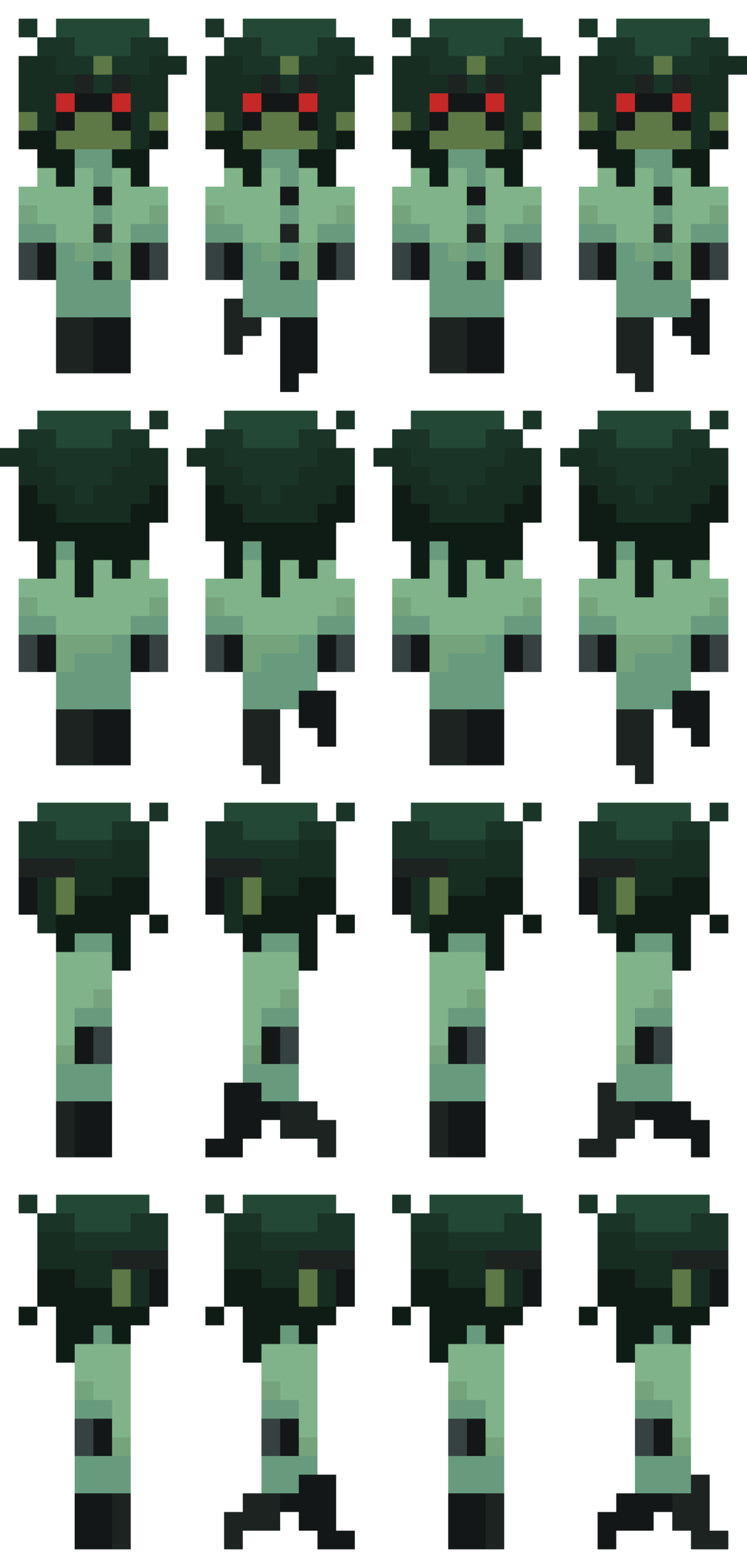
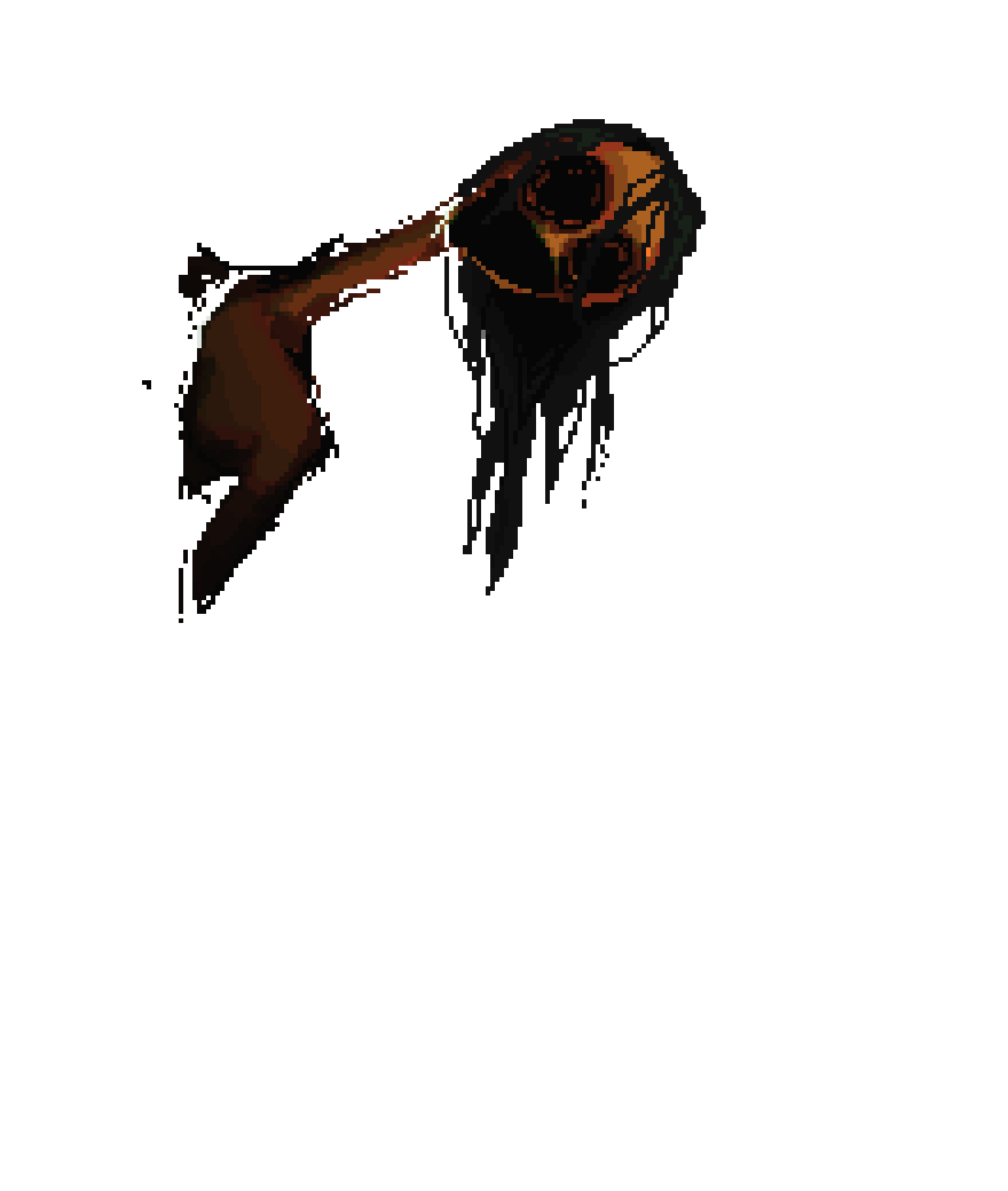
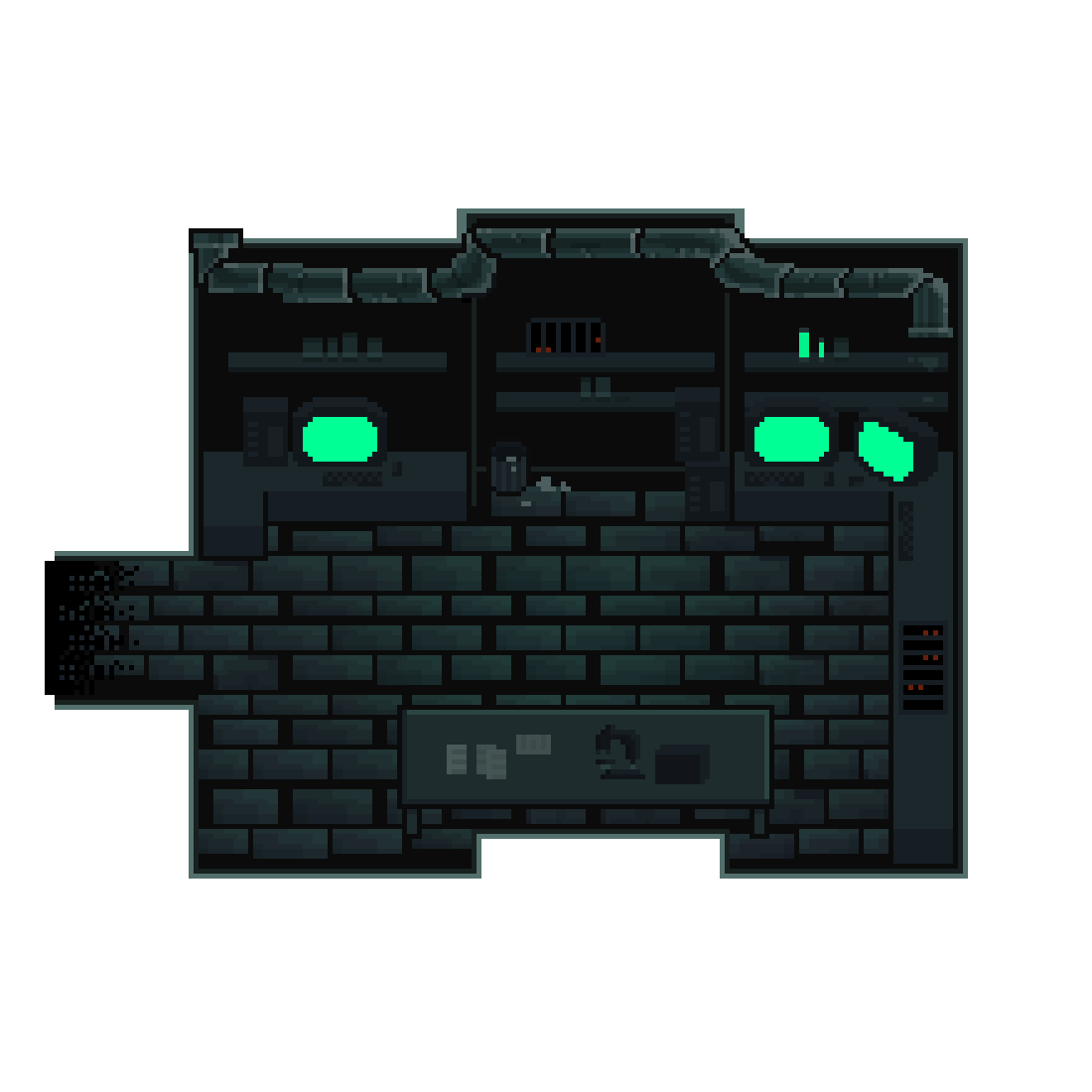
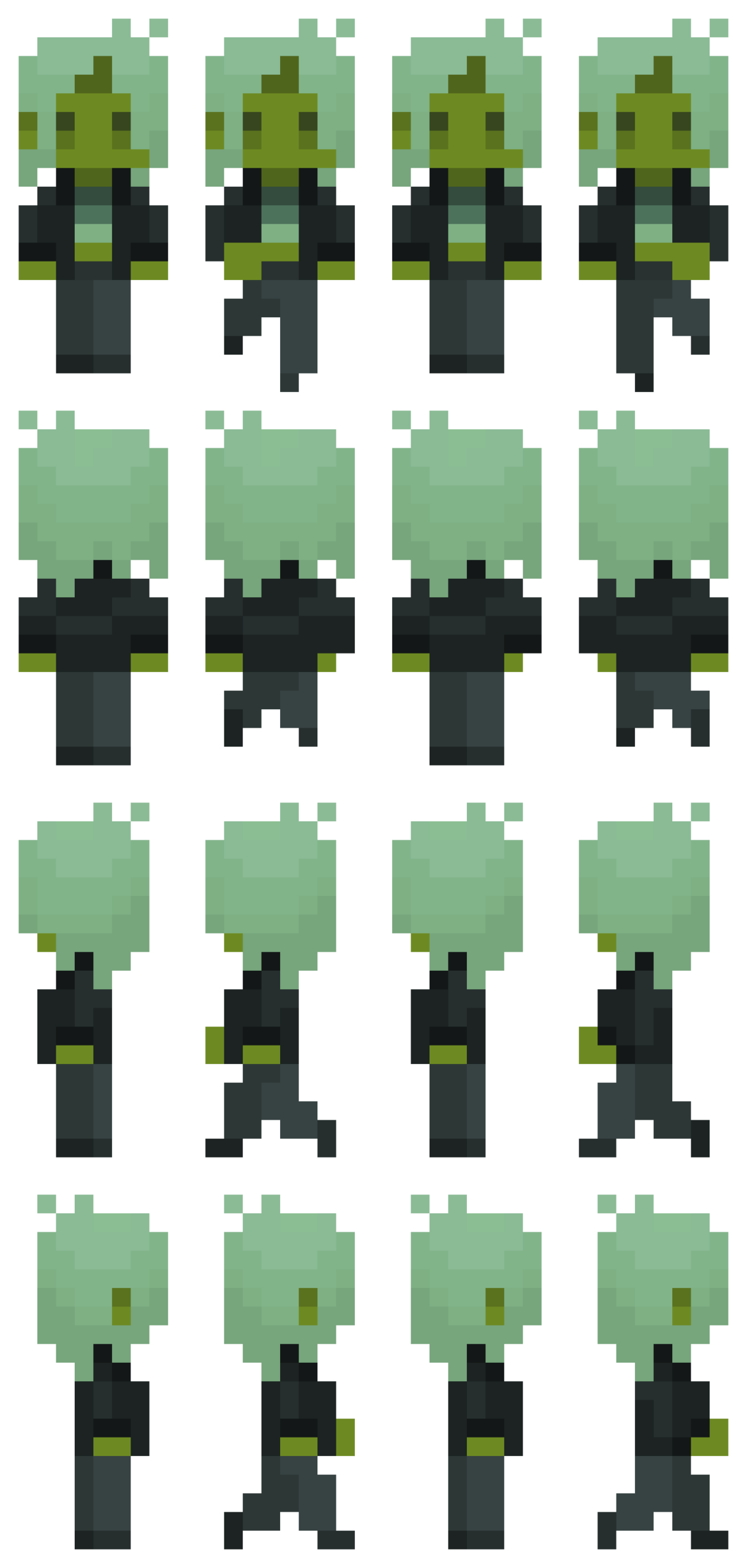
The story, which isn’t really relevant in the demo version, is supposed to follow a young woman (the player character) working a late-night shift in a laboratory, where she begins to see things in the dark. Below are some of the sprites and assets (used and unused) I created for this project.

player character sprite sheet

unused non-player character sprite sheet

cutscene art


laboratory background

How it works and what I’m proud of:

To start with the assets and how I obtained them: all visual elements were drawn by me using the online pixel-art program Pixilart.com. All the sound effects and background noise were downloaded and cut from copy-right free YouTube sounds.

As for the code, rest-assured there was absolutely no ChatGPT usage or any other form of ai-coding. I did attempt to go to two friends – one CS major senior and one graduated CS major – and they somehow only managed to make things worse. I figured everything out myself through either research or agonizing tear-inducing Vyvanse-fueled trial and error.

Below I’ll share and briefly describe snippets of code I’m proud of.

//item toggling; ensuring you need to be within a certain distance, facing the item to interact with it, and the item is still in its initial state
if (keyIsDown(ENTER)) {
  //pc1
  if (
    pc1Opacity == 0 &&
    x > midX - bgWH / 2 + 220 &&
    x < midX - bgWH / 2 + 300 &&
    y == midY - bgWH / 2 + 390 &&
    direction === 1
  ) {
    pc1Opacity = opaque;
    inRange = true;
    //pc2
  } else if (
    pc2Opacity == 0 &&
    x > midX + bgWH / 2 - 280 &&
    y == midY - bgWH / 2 + 390 &&
    direction === 1
  ) {
    inRange = true;
    pc2Opacity = opaque;
    //pc3
  } else if (
    pc3Opacity == 0 &&
    x > midX + bgWH / 2 - 280 &&
    y == midY - bgWH / 2 + 390 &&
    direction === 3
  ) {
    inRange = true;
    pc3Opacity = opaque;
    //trash
  } else if (
    trashCanOpacity == 0 &&
    x > midX + bgWH / 2 - 460 &&
    x < midX + bgWH / 2 - 440 &&
    y == midY - bgWH / 2 + 390 &&
    direction === 1
  ) {
    inRange = true;
    garbageOpacity = 0;
    trashCanOpacity = opaque;
  } else if (
    tableOpacity == 0 &&
    x < midX + bgWH / 2 - 290 &&
    x > midX - bgWH / 2 + 310 &&
    y == midY + bgWH / 2 - 320 &&
    direction === 0
  ) {
    inRange = true;
    tableOpacity = opaque;
  } else {
    inRange = false;
  }
  //playing the toggle sound every time all parameters are met
  if (inRange) {
    toggle.setVolume(0.1);
    toggle.play();
  }
}

Okay, so I won’t say I’m exactly too proud of this one because it’s really clunky and a bit repetitive, and I’m sure I would’ve found a much more efficient way to put it had I been more experienced. It does, however, do it’s job perfectly well, and for that I think it deserves a place here. It’s probably one of the parts I struggled with the least given how straightforward it is.

for (let j = 0; j < 4; j++) {
  sprites[j] = [];
  for (let i = 0; i < 4; i++) {
    sprites[j][i] = spritesheet.get(i * w, j * h, w, h);
  }
}

//cycling through sprite array and increments by the speed value when arrow keys are pressed. %4 resets it back to the first sprite in the row (0)
if (keyIsDown(DOWN_ARROW)) {
  direction = 0;
  y += speed;
  step = (step + 1) % 4;
} else if (keyIsDown(LEFT_ARROW)) {
  direction = 2;
  x -= speed;
  step = (step + 1) % 4;
} else if (keyIsDown(UP_ARROW)) {
  direction = 1;
  y -= speed;
  step = (step + 1) % 4;
} else if (keyIsDown(RIGHT_ARROW)) {
  direction = 3;
  x += speed;
  step = (step + 1) % 4;
  //when no key is being pressed, sprite goes back to the standing position (0,j)
} else {
  step = 0;
}

//keeping the sprite from walking out of bounds
if (y >= midY + bgWH / 2 - 320) {
  y = midY + bgWH / 2 - 320;
}
if (y <= midY - bgWH / 2 + 390) {
  y = midY - bgWH / 2 + 390;
}
if (x >= midX + bgWH / 2 - 180) {
  x = midX + bgWH / 2 - 180;
}
if (x <= midX - bgWH / 2 + 175) {
  x = midX - bgWH / 2 + 175;
}

I probably included this snippet in my progress post, since it’s the code I worked on before anything else. Everything else was kind of built around this. (keep in mind that in the actual sketch, the array is created in the setup function and the rest is in the draw function. I just combined them here for simplicity.)

function cutScene1() {
  background(0, 8, 9);
  jumpscare.setVolume(1);
  spookyNoise.setVolume(0.05);
  spookyNoise.play();
  
  //having the creature jitter randomly 
  let y = randomGaussian(midY + 50, 0.4);
  let wh = bgWH;

  tint(255, doorwayOpacity);
  image(doorway, midX, midY + 55, wh, wh);
  noTint();

  //creature fading in
  if (a >= 0) {
    a += 0.5;
    tint(255, a);
    image(creature, midX, y, wh, wh);
    noTint();
  }

  // triggering jumspcare once opacity reaches a certain value
  if (a >= 50) {
    jumpscare.play();
  }

  //ending the function
  if (a > 54) {
    doorwayOpacity = 0;
    background(0);
    spookyNoise.stop();
    jumpscare.stop();
    START = false;
    WAKE = true;
  }
}

This is one of the last functions I worked on. I actually messed this one up quite a bit because my initial attempts really overcomplicated the animation process, and I didn’t know how to make sure the code executed in a certain order rather than at the same time. I tried using a for() loop for the creature fading in, and honestly I really hate for() and while() loops because they keep crashing for some goddamn reason and I kept losing so much progress. It didn’t occur to me at first that I could just… not use a for() loop to increment the opacity. It also took a few tries to get the timing right. One thing I’ll improve on here if I can is add a visual element to the jump scare. I’d probably have to draw another frame for that.

Another thing I’d improve on is adding some dialogue and text-narration to the sequence so that the player has a better idea of what’s going on. I was also planning on implementing some dialogue between the player character and the doctor right after the cutscene, though I unfortunately didn’t have the time for that.

Overall, I’m mostly proud of the visual elements (I’ll be honest, I spent MUCH more time on the visual elements and designing the assets over the rest), because I think I managed to make everything look balanced and consistent – integrating the sprite well with the environment, while having the interactions remain, as far as I’m aware, bug free.

Complete Midterm

Complete  midterm:

Since the project neeed to be interactive, I was inspired by multiple souces that I have experience, like the interactive haunted Queren Mary story and the film “Night at the Museum”.  I deciede to do an interactive storytelling about a spooky story based in the museum setting. I enabled the player to make choices at multiple points in the stories, leading to different endings accordingly. I wrote the story myself and and organized the branching so seemingly safe choices can have unexpected turns.

Surprisingly though, the most difficult part of my project was not actually the coding but having AI genertate images for me. With coding I was able to see  what was wrong and physically fix it, and as long as I code it correctly it will do its job. But with AI generating images it sometimes just doesn’t get what I am saying. And since AI don’t actually see the images it really has difficulty when I want it to edit or make changes to the image it generated.

The way my project works is that I put all my scenes in the “playing” gamesate in a giant object called storyData, and made them nested objects. The storyData is coded in an individual .js file. This allows the main code to be organized since it only fetches the  information. The properties of the scenes, including: nnames of scenes, their relations,  the audio, visual, duration, text, delays and choices for individual parameters are all in the storyData file. Example is below.

storyData.scene1_part3 = {
  text: "In the darkness, you hear laughter in the corridors...",
  duration: 5000,
  textDelay: 1500,
  visual: "booth_dark",
  audio: "girl_laughter",
  choices: [
    { label: "Investigate", next: "scene2_part1" },
    { label: "Stay", next: "scene3_part1" },
  ],
};

This object file functions throught my drawCurrentScene  function, which I am sort of proud of.

function drawCurrentScene() {
  background(0);
  let scene = storyData[currentSceneId];
  //image
  if (myImages[scene.visual]) {
    let currentImg = myImages[scene.visual];
    let aspectRatio = min(
      windowWidth / currentImg.width,
      windowHeight / currentImg.height
    );
    let drawWidth = currentImg.width * aspectRatio;
    let drawHeight = currentImg.height * aspectRatio;
    image(currentImg, windowWidth / 2, windowHeight / 2, drawWidth, drawHeight);
  }
  //timer
  let elapsedTime = millis() - sceneStartTime;
  //audio mechanism for deplayed audio. Undelayed audio mechanism is with the changeScene function
  if (
    scene.audioDelay &&
    elapsedTime > scene.audioDelay &&
    lateSoundPlayed === false //If the scene has audio delay and time is more than delay and the delayed sound has not been played
  ) {
    mySounds[scene.audio].play(); //play the sound and indicate the delayed sound has been played
    lateSoundPlayed = true;
  } //This state mechanism for sound prevents if from playing every time draw runs
  //text (subtitle) display
  let delayTime;
  //if the scene has text delay make the delay time that, if not make it 0
  //The undelayed text cannot go in changeScene like the audio because it needs to be drawn every frame constantly. It must be in draw.
  if (scene.textDelay) {
    delayTime = scene.textDelay;
  } else {
    delayTime = 0;
  }
  //if time has passed delay,
  if (elapsedTime > delayTime) {
    //draw the background box for subtitles
    rectMode(CENTER);
    fill(0, 0, 0, 200);
    rect(
      windowWidth / 2,
      windowHeight * 0.85,
      windowWidth * 0.7,
      windowHeight * 0.1,
      10
    );
    //drawing the text
    fill(255);
    noStroke();
    textAlign(CENTER, CENTER);
    textSize(windowHeight * 0.04);
    // 4th parameter limits the max width of the text, keeping it from going out of the box
    text(scene.text, windowWidth / 2, windowHeight * 0.85, windowWidth * 0.7);
  }

  //scene change logic
  if (elapsedTime > scene.duration) {
    if (scene.autoNext) {
      changeScene(scene.autoNext); //If the scener has an automatic connecting scene, change it to next scene
    } else {
      rectMode(CORNER);
      fill(0, 0, 0, 100);
      rect(0, 0, windowWidth, windowHeight);
      if (choicesDisplayed == false) {
        //If it does not have automatic next scene but has choices, draw the black veil and display the choices
        displayChoices();
      }
    }
  }
}

The drawCurrentScene function was written so it would work for every scene that has information in the storyData file. It draws the image fulfilling the current window size,  creates the scene timer, uses that timer to operate audio and visual delays and scene duration and decide how to change the scene to the next scene based on the parameters of the scene. This allows a smooth flow of the game as if it is a video when the player does not need to interact. When the player does need to make choices, it allows unlimited time on the choice page. Because every scene needs to go through all these processes, coding it in this way allows 50 scenes to go through one function instead of having 50 processes, making the code much easier and much more organized.

It actually also allows super easy editing. If you don’t like any part of the story or want to add or delete anything, because of the existance of this function, you would only need to change or add or delete things in storyData. And since storyData is only storing infotmation, it follows less strict order and organization rules than the main code. Making changes to it would be a lot closer to human language and easier.

I am also quite proud of my logic for updating element position when the canvas is resized. The code actually encorporates multiple functions

function windowResized() {
  resizeCanvas(windowWidth, windowHeight);
  //resize and reposition button accordingly
  //start button
  if (gameState === "start" && startBtn) {
    //size
    let startWidth = max(200, windowWidth * 0.15);
    let startHeight = max(50, windowHeight * 0.08);
    let startFont = max(20, windowWidth * 0.02);
    startBtn.size(startWidth, startHeight);
    //positionn
    startBtn.position(windowWidth / 2 - startWidth / 2, windowHeight / 2 + 50);
    startBtn.style("font-size", startFont + "px");
  }
  //same for return button
  if (gameState === "credits" && returnBtn) {
    let btnWidth = max(200, windowWidth * 0.15);
    let btnHeight = max(50, windowHeight * 0.08);
    let btnFont = max(20, windowWidth * 0.02);
    returnBtn.size(btnWidth, btnHeight);
    returnBtn.position(windowWidth / 2 - btnWidth / 2, windowHeight * 0.85);
    returnBtn.style("font-size", btnFont + "px");
  }
  //game button
  if (choicesDisplayed && choiceButtons.length > 0) {
    for (let i = 0; i < choiceButtons.length; i++) {
      let btn = choiceButtons[i];
      updateButton(btn, i, choiceButtons.length);
    }
  }
}

I not only changed the canvas size according to window size in this code. I also included the button elements and repositioned them accordingly. I found out when I tried my code the HTML elements do not move like the texts do. They dont stay in the same position relative to the canvas. So I actively coded them to calculate new size and position when the canvas is resized. This function is then called in the buttonFunction function so they would be ready to act every time a button is created.

function buttonFunction() {
  //take the value from the button and give it to variable nextScene
  let nextScene = this.value();
  for (let i = 0; i < choiceButtons.length; i++) {
    //remove the buttons from the screen
    choiceButtons[i].remove();
  }
  //empty buttons array for new round of choices
  choiceButtons = [];
  //reset choice display state
  choicesDisplayed = false;
  //If next scene is credits
  if (nextScene === "credits") {
    //change game state in the state mechanism
    gameState = "credits";
    //display the restart button
    returnBtn.show();
    //use the windowResized function for reorganizing text and buttons for the credits screen.
    windowResized();
  } else if (nextScene === "restart") {
    //same logic as above
    gameState = "start";
    startBtn.show();
    windowResized();
  } else {
    //If it is just a choice in the story go with the story logic, the button doesnt need extra function.
    changeScene(nextScene);
  }
}

windowResized is called after the button is told to show. This way the buttons will always be in the right place no matter when or how the screen size is changed.

function startGame() {
  fullscreen(true);
  gameState = "playing";
  startBtn.hide();
  //input any scene here and its a quick portal to the scene
  changeScene("intro");
}

I also wanted to mention this code snippet that I found could also serve as a “maitainance platform”. This was originally written to changethe scene from start to intro and game state from start to playing. But change “intro” to any scene name that is in storyData and this serves as a portal to that scene. Without it I would have to needed to go through the whole story every time I changed something and wan to see the effect.

Some areas for improvement include adding fade in/out effects and more animation. When I looked through the game I felt that some scenes may need a gradual introduction effectr which fade in would perfectly suit. I wasn’t able to add that due to the limit of time. I tried to code it but bugs got in the way and I did not have enough time to trouble shoot the whole thing so I just deleted it. The game would also look better with more animation. But it would be near impossible to reproduce the shapes of spirits and ghosts in my current images with p5 code. The better way would be just make the plot a video, and code choices in between. But that would make it diverge from the goal for the midterm.

AI was used to some extent in this work. All the images used in this work was generated by Google Gemini accoirding to my requirements. For code, Gemini helped me with button styling. Because HTML objects were new to me I had trouble figuring out how to style them. Gemini introduced the different codes for button styling and I wrote the styling codes according to the examples provided. It also provided me with the idea of using an array for the buttons on the scene so they can easily be added and removed (line 433-436). (I originally only had array for choices so the buttons just got stuck on the screen). It also helped me with writing “not” in the if function (line 490) because I remembered it as || which was actually “or” and the code failed to work. Gemini also assisted my when I needed to find sound effect and voiceovers. It suggested using Freesound and Elevenlabs for these needs and gave me tutorials on how to use them. At the end ofc my project I also used Gemini for debugging once or twice when I encountered no councel error messages but the game crashing, because it was difficult for me to pick out the error among hundreds of lines of code. AI was used for help and assistance and did not write the code. The code was written based on an understanding of what was taught in class and what AI explained to me.

Midterm Project – The Maze Captures

Concept:

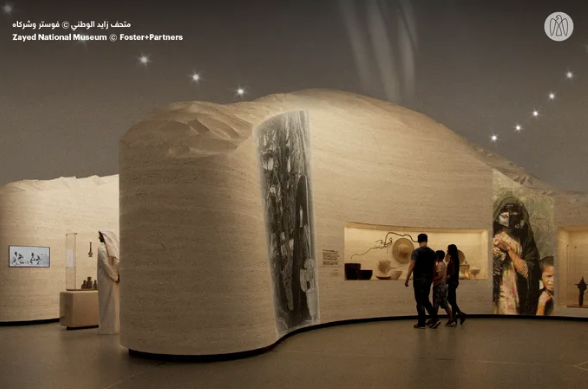
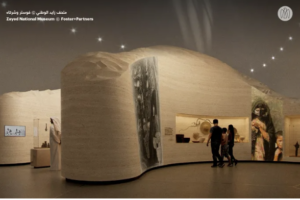
My midterm project is designed as a new interactive game that combines both an artistic experience and an enjoyable gameplay element. The Maze Captures is inspired by the Sheikh Zayed Museum and the Qasr Al Hosn Festival in Abu Dhabi. The artistic aspect comes from the museum, which is modern in design while maintaining a strong historical and cultural connection to the United Arab Emirates. I then developed the game aspect based on the Qasr Al Hosn Festival, which featured a culturally themed escape room, but I adapted this idea into my own concept.

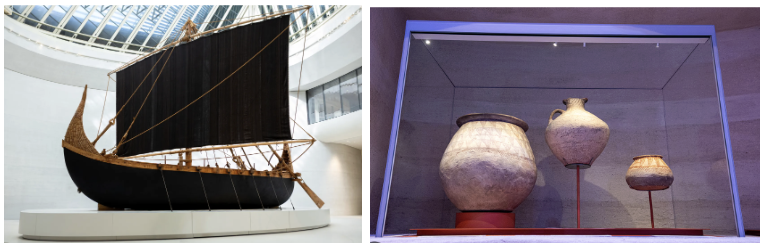
Here is an image that demonstrates my inspiration from the Sheikh Zayed National Museum in Abu Dhabi:
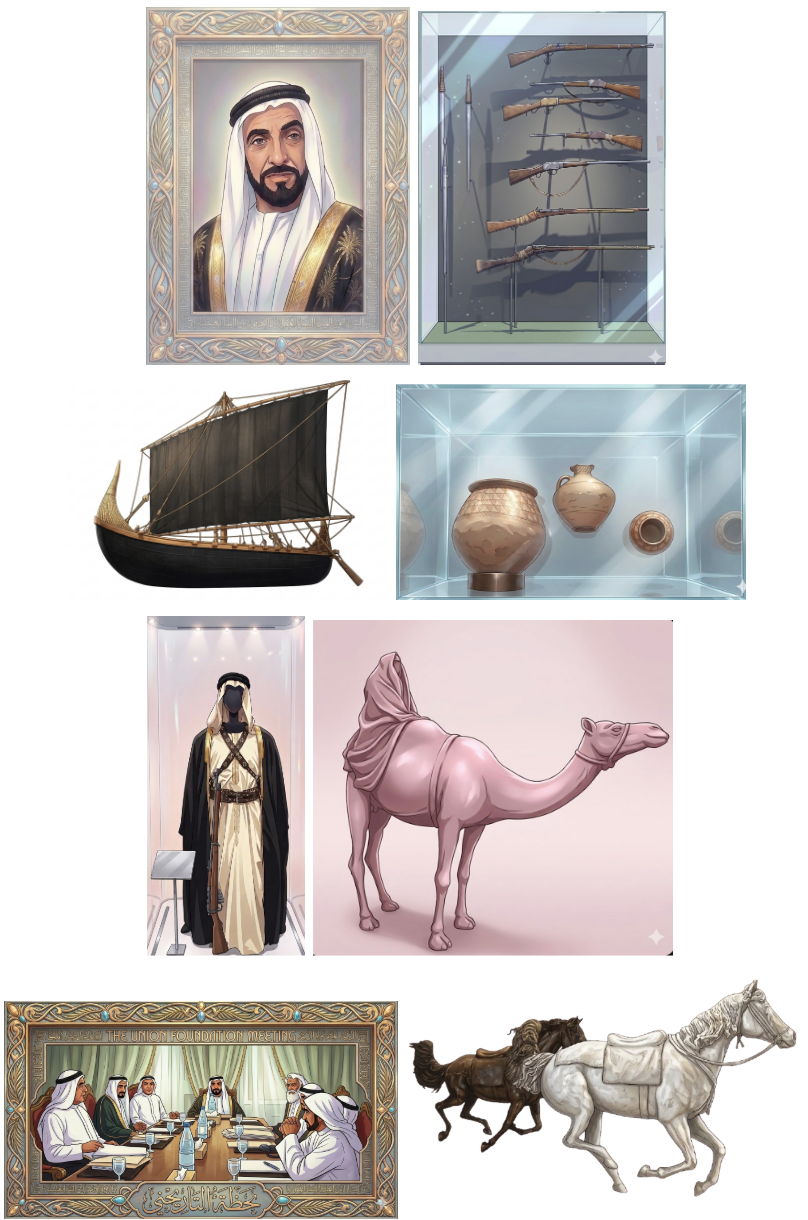
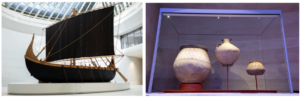
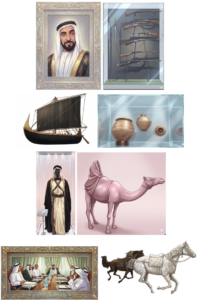
The concept of the game is to allow the player to walk around and experience a museum-like environment filled with Emirati cultural artworks. These artworks are AI-generated interpretations of real pieces found in the Sheikh Zayed Museum. Each time an object is spotted, the player must position it within their camera lens frame and capture it within a specified time to increase their score. Below are two of the 8 actual references used to create the artworks in my game:
Embedded Sketch:

How it works:

The game begins with an instruction screen, allowing the user to understand what is expected for the game to function properly. When the player presses the space bar, they are positioned at the start of the maze. The player uses the arrow keys to move smoothly and the mouse pad to look around, allowing for easier navigation and a more immersive experience. The maze is structured to provide multiple paths, similar to a traditional maze, with various types of objects, ranging from artworks to cultural items, placed throughout the space. I also included background music inspired by a song about Sheikh Zayed to reinforce the cultural theme and atmosphere of the museum. When an object is spotted, it must be centered within the camera lens frame and captured using the Enter key. A capture sound effect is played to enhance interactivity and create a sense of realism. Each time an object is captured, the player’s score increases depending on how much time remains, the earlier the capture, the higher the score. Once the timer ends, the player can view their final score and press the space bar to restart the game.

In terms of code organization, I used Object-Oriented Programming by creating two classes: one for walls and one for objects. Since these elements are repeated multiple times in different positions, using classes allowed me to keep the code organized and reusable by simply calling them in the sketch and adjusting their positions as needed. I then structured the main sketch using the three game states we covered: a start screen, the gameplay screen, and an end screen where the user can return to the beginning. I handled user interaction through functions such as keyPressed() for keyboard input and mouseDragged() for camera movement. Additionally, I incorporated audio elements, including a capture sound effect and background music, to enhance the realism and overall experience of the game. I also implemented collision detection to ensure that the player cannot walk through walls, which helps maintain the structure and realism of the maze. The project was built using WEBGL mode, which allowed me to create a 3D environment and simulate a first-person perspective using a camera system.

Parts I am proud of:

I am particularly proud of creating the movement of the player, as it initially started as a problem, but I was able to overcome it in the best way possible. The issue was that the arrow keys were not aligned with the movement and would keep switching directions, meaning that sometimes the forward key would move the player backwards and vice versa. I also couldn’t properly look around to decide which direction I was walking in. I then realized that I needed to use sine and cosine to control the direction, and carefully adjust the positive and negative values for each key. This allowed each movement key to function correctly without conflicting with the others. I also used the mouseDragged() function, which we covered in class, to allow the player to look around left and right.

// Allow user to look around left and right, using mouse
  function mouseDragged() {
  angle += movedX * 0.01;
}

// Move forward using the up arrow key
  if (keyIsDown(UP_ARROW)) {
    nextX += sin(angle) * speed;
    nextZ -= cos(angle) * speed;
  }

  // Move backward using the down arrow key
  if (keyIsDown(DOWN_ARROW)) {
    nextX -= sin(angle) * speed;
    nextZ += cos(angle) * speed;
  }

  // Move left the left arrow key
  if (keyIsDown(LEFT_ARROW)) {
    nextX -= cos(angle) * speed;
    nextZ -= sin(angle) * speed;
  }

  // Move right using the right arrow key
  if (keyIsDown(RIGHT_ARROW)) {
    nextX += cos(angle) * speed;
    nextZ += sin(angle) * speed;
  }

Another part I am proud of, which was also challenging at first, was preventing the player from walking through walls. This issue made the game feel unrealistic and not function as intended. By following tutorials on movement in WEBGL, I was able to implement collision detection using a loop and a detection function to stop the player from passing through walls. I also applied this logic to prevent the player from moving outside the boundaries of the game floor. However, I acknowledge that this system is not 100% accurate, as moving too close to a wall can sometimes allow the player to slightly see through it. This is something I would improve in the future.

In the walls class:

//Setup collision detection code to check if user is near a wall
  detect(px, pz, size) {
    return (
      px + size > this.x - this.w / 2 &&
      px - size < this.x + this.w / 2 &&
      pz + size > this.z - this.d / 2 &&
      pz - size < this.z + this.d / 2
    );
  }

In sketch:

let blocked = false;

  // For loop to check collision with all walls
  for (let wall of walls) {
    if (wall.detect(nextX, nextZ, playerSize)) {
      // check position
      blocked = true; // if blocked by wall, stop movement
      break;
    }
  }

  //Prevent moving outside game floor area

  // Floor is centered
  let half = floorSize / 2;

  if (nextX < -half + playerSize || nextX > half - playerSize) blocked = true; // check left and right movement on floor
  if (nextZ < -half + playerSize || nextZ > half - playerSize) blocked = true; // check forward and backward movement on floor

  // Update position of player if no collision
  if (!blocked) {
    player.x = nextX;
    player.z = nextZ;
  }

The part I am most proud of is placing the walls and objects within the maze. Since the project is built in a 3D environment, I had to continuously move around the space to check the positioning, orientation, and visibility of each element. This included making sure that walls were correctly aligned, objects were facing the right direction, and everything was visible and accessible to the player. After several adjustments and iterations, I became much more confident and was able to place elements exactly where I wanted them.

//Layout of the maze

  //Starting hallway
  walls.push(new Wall(-150, 500, 20, 280, 1000)); // left wall
  walls.push(new Wall(150, 500, 20, 280, 1000)); // right wall

  //Split to right and left
  walls.push(new Wall(-290, -10, 300, 280, 20)); //connected to the left
  walls.push(new Wall(290, -10, 300, 280, 20)); //connected to the right
  walls.push(new Wall(0, -190, 530, 280, 20)); // far end at the front

  //Top walls
  walls.push(new Wall(-450, -90, 20, 280, 180)); // left end
  walls.push(new Wall(450, -90, 20, 280, 180)); // right end

  //First room on the left
  walls.push(new Wall(-525, -380, 150, 280, 20)); // bottom wall
  walls.push(new Wall(-590, -280, 20, 280, 200)); // back wall
  walls.push(new Wall(-525, -170, 150, 280, 20)); // top wall

  //First room on the right
  walls.push(new Wall(525, -170, 150, 280, 20)); // bottom wall
  walls.push(new Wall(590, -280, 20, 280, 200)); // back wall
  walls.push(new Wall(525, -380, 150, 280, 20)); // top wall

  //Inner hallways - connected to the centered wall
  walls.push(new Wall(260, -405, 20, 280, 450)); //right hallway
  walls.push(new Wall(-260, -405, 20, 280, 450)); //left hallway

  //Far right section
  walls.push(new Wall(450, -610, 20, 280, 480)); // extended wall

  //Far left section
  walls.push(new Wall(-590, -550, 20, 280, 590)); // long back wall
  walls.push(new Wall(-525, -600, 150, 280, 20)); // divide that wall

  //Inner center section
  walls.push(new Wall(-90, -500, 20, 280, 350)); //vertical wall towards the right
  walls.push(new Wall(0, -330, 200, 280, 20)); // horizontal wall to divide that wall
  walls.push(new Wall(200, -620, 100, 280, 20)); // seperate horizontal wall from the other side

  //Far back wall at the end of the maze
  walls.push(new Wall(70, -850, 1500, 280, 20));

  //Layout of the artworks in the maze

  //Each image placed at a specific (x,z), last value to custom the direction of the artwork

  artworks.push(new ArtWork(0, -179, img1, PI)); // center front wall
  artworks.push(new ArtWork(-500, -300, img2, HALF_PI)); // first left room
  artworks.push(new ArtWork(249, -400, img3, HALF_PI)); // inner center, left wall
  artworks.push(new ArtWork(0, -341, img4, PI)); // inner center, horizontal wall
  artworks.push(new ArtWork(-510, -500, img5, -HALF_PI)); // second left room
  artworks.push(new ArtWork(-510, -700, img6, -HALF_PI)); // third left room
  artworks.push(new ArtWork(-155, -220, img7, 0)); // inner center, main wall towards the right
  artworks.push(new ArtWork(500, -280, img8, HALF_PI)); // first right room
}


Another simple but meaningful aspect I am proud of is my design decisions. I chose to use actual artworks from the museum as references, recreate them as visual elements in the game, and combine them with background music related to Sheikh Zayed. I believe these choices added cultural value and depth to the overall experience.
Problems I ran into:

This project was a real challenge, and I had to work through most of the steps independently. As mentioned above, I struggled with player movement, interaction within the 3D space, and the placement of objects throughout the maze, but I was able to resolve these issues through testing and adjustments.

However, there were two features from my initial plan that I decided to leave for future development, as they were slowing down my progress. The main challenge was adding a 2D camera frame that would include the timer and score. I wanted these elements to remain stable and fixed on the player’s screen, but since the project uses WEBGL, it was difficult to achieve. Every attempt resulted in issues such as the player moving through the frame or the timer and score appearing unstable or misplaced. I experimented with different approaches, including using resetMatrix() and attempting to switch between 2D and 3D rendering based on available resources, but I was unable to achieve the desired result within the time I had. Instead, I adapted this limitation into a design decision by encouraging players on the start screen to move quickly in order to achieve a higher score within the 30-second limit, and by displaying the final score at the end of the game.

Areas for improvement:

Overall, I am proud of my project. Working with WEBGL required a significant amount of effort, and I believe I successfully challenged myself and managed to achieve a strong outcome. However, there are several areas I would like to improve in the future, particularly in terms of visual design and graphics. 

One key improvement would be implementing the features I originally planned, such as a camera frame with a visible timer and score during gameplay. In addition, I would like to enhance the environment by adding more detailed and advanced visual elements, such as decorative features or more refined structures, to make the experience feel more realistic and immersive. I would also like to expand the environment beyond the interior of the maze by designing an exterior view of the museum, allowing players to explore both inside and outside spaces. Another potential improvement would be adding more interactive elements, such as objects that trigger sounds or actions when interacted with, to further engage the player.

References:

I began by learning about WEBGL mode in order to create my project in the way I envisioned, using the following resources:

https://p5js.org/reference/p5/WEBGL/ 

https://youtu.be/nqiKWXUX-o8?si=tSUSM77-Ie64E13u 

To meet the assignment requirements, I also used the slides covered in class, particularly those from Week 6, which included useful concepts for the project. I referred back to these materials whenever I had specific questions.

Go into fullscreen:

https://p5js.org/reference/p5/fullscreen/ 

Since I worked in WEBGL mode, I followed tutorials and reference links for different parts of the project:

Setting up the maze, with the floor and walls:
https://youtu.be/6TPVoB4uQCU?si=LFsx9b4IhB0HOYoW 

Allowing the player to move around:

https://youtu.be/BW3D9WwalQE?si=144ULyiZDN_HCjMr

https://p5js.org/reference/p5/camera/

https://p5js.org/reference/p5/sin/

https://p5js.org/reference/p5/cos/

Add images and objects in the maze:

https://youtu.be/O1mYw-3Wl_Q?si=4ENHn11BepkQGdqX

https://p5js.org/reference/p5/texture/

https://p5js.org/reference/p5/rotate/

https://p5js.org/reference/p5/rotateY/

https://p5js.org/reference/p5/translate/

Through these videos, I found a sample of a 3D game, which I used as a reference for specific aspects such as object placement and movement. This was discovered through the following video:

Through this video:
https://youtu.be/VoFsB0toORk?si=TB3XRVKkrED6CbsE

I found this code:

https://github.com/jrc03c/queasycam/blob/master/examples/MazeRunner/Maze.pde

I used Gemini to generate the visual assets in my project, including the start page and the artworks. For the artworks, I uploaded images of real pieces and asked for regenerated versions in a specific style, aiming for a modern, clean, anime-inspired aesthetic. For the start page, I specified the text, font, colors, and overall layout I wanted.

I also used ChatGPT throughout my development process to assist with challenges I faced when I could not find solutions through other resources, particularly for debugging and problem-solving as the code became more complex. Below are some clear examples of how I used it:

When working on the placement of walls in the maze, I became confused about positive and negative coordinates. I was guided using the following diagram to better understand the WEBGL coordinate system:

              -Z (forward)

                  ↑

                  |

                  |

– X (left) ← —— (0,0) —— → +X (right)

                  |

                  |

                  ↓

              +Z (back)

I also wanted to view the maze from above to better understand the layout and avoid duplicating paths. A temporary solution was suggested, which allowed me to toggle between a first-person and top-down view using a key. I implemented this feature during development and removed it afterward. This helped me understand how to switch perspectives in WEBGL using the keyPressed() function. The code used was:

let topView = false;

In keyPressed();
if (key === 'T' || key === 't'){
topView = !topView;
}

In runGame();
if (topView){
  camera(0, -800, 0, 0, 0, 0, 0, 0, -1);
} else {
  camera(
    player.x,
    -50,
    player.z,
    player.x + sin(angle) * 100,
    -50,
    player.z - cos(angle) * 100,
    0,
    1,
    0
  );
}

Finally, when completing the project, I encountered an issue where pressing the space bar at the end of the game would immediately restart gameplay instead of returning to the start screen. I learned that this was because both game states were using the same key input. I resolved this by restructuring the condition to first check for the key press, and then use if and else if statements to assign different outcomes depending on the current game state.

Midterm Project: Salama’s Nail Salon

For my midterm project, I made an interactive nail salon game in p5.js called Salama’s Nail Salon. The idea of the game is that a customer gives a short line that hints at the kind of color they want, and the player has to choose a nail polish color that matches it. I wanted it to feel simple and cute, but still have actual game logic behind it, so I used mood-based color matching instead of making it just about choosing any random color. Then, the player uses a hue slider to test different shades, and the game gives a result out of five stars depending on how close the chosen color is to the customer’s intended mood.

To build the project, I first split it into three main screens, which helped me organize the whole game better. I made a start screen with instructions, a playing screen where the customer gives their line and the player chooses a nail color, and a result screen that gives feedback and has a restart button in case the player would like to try again. Structuring the project this way made it much easier for me to understand the logic of the game and the logic of the code.

For the visuals, I used AI to produce my background image of a nail salon, and I added a font and soft pink buttons so the overall style fit a nail salon game. One part I spent a lot of time on was the nail itself. Instead of drawing the full finger, I used a finger image and drew a nail shape with the chosen color directly on top of it so the player could see the polish update on the actual nail. This took a lot of trial and error, because the shape had to be positioned and rounded carefully to fit inside the nail correctly. I also added a glossy highlight so it looked more like actual nail polish instead of just a flat shape.

I am especially proud of the result system, because the result compares the chosen color to the target color for the customer’s mood and then gives a star rating from one to five. At first, I was showing more technical feedback, like how far the player was from the target color, but when I made my sister Salama try the game, I realized that the results did not fit the tone of the game very well. Since the game is meant to feel playful and easy to understand, I changed the result screen so it gives simple reactions and color-based hints instead, and I think this made the game feel much more natural and kid-friendly. However, I did use AI to help with this part, and I explain exactly how I used it at the end of my blog.

function resultFeedback() {
  if (stars === 5) {
    resultTitle = "Perfect match!";
    resultHint = "The customer loved this color.";
  } else if (stars === 4) {
    resultTitle = "So close!";
    resultHint = colorHint(correctMood);
  } else if (stars === 3) {
    resultTitle = "Nice try!";
    resultHint = colorHint(correctMood);
  } else if (stars === 2) {
    resultTitle = "Not quite yet!";
    resultHint = colorHint(correctMood);
  } else {
    resultTitle = "Oops!";
    resultHint = "That color was far from what the customer wanted.";
  }
}

function colorHint(mood) {
  if (mood === "Happy") {
    return "The customer wanted a brighter, sunnier color.";
  } else if (mood === "Calm") {
    return "The customer wanted a softer, more bluish color.";
  } else if (mood === "Confident") {
    return "The customer wanted a bolder, more purple color.";
  } else if (mood === "Sad") {
    return "The customer wanted a deeper, darker color.";
  } else {
    return "Try a different shade next time.";
  }
}


Another part I am happy with is that I included multiple customer moods and randomized phrases, so the game does not feel exactly the same every time. I also used object-oriented programming by making a Customer class. Each round creates a customer object that stores the customer’s mood and phrase, and this helped me organize the dialogue part of the game more clearly. I used arrays of phrases for each mood and randomly selected one for each round. I also used buttons, a slider, text, images, shapes, and sound, so the final sketch combines a lot of the tools we have learned. Even though the game looks simple, there is a lot of structure behind it, and I’m really proud of how I organized it.

One challenge I ran into was figuring out how to make the game feel visually complete without making it too complicated. I originally was not sure how to show the nail color in a way that looked convincing, and I had to test many different values before the color shape finally fit the nail properly. Another challenge was deciding what kind of feedback to show on the result screen. I did not want it to feel too technical, so I had to rethink the wording and make it fit the tone of the game better. I also had to think a lot about spacing and layout so the nail image would not overlap with the hue spectrum and the controls. 

AI Use:

I used AI in two specific parts of this project. First, I used AI to generate the background image for the game. I explained that I wanted a background image for a nail salon game, described how I wanted it to look visually, and explained that it would be used across all of the screens in the game. I generated the AI background image when I was working on the midterm progress stage, and I decided to keep it because it matched the theme I wanted better than the images I found online. I chose to do this because I wanted a background that looked soft, cute, and clearly related to a nail salon.

The second place where I used AI was for the wording of the result screen. My original result feedback system was much more technical. In my code, the result was based on comparing the player’s chosen hue to the target hue for the customer’s mood. I used functions like hueDistance() to measure how close the chosen color was to the target color, starsFromDistance() to convert that distance into a star rating from one to five, and computeResult() to calculate the final result. Because the logic of the system was based on color distance, my first version of the result screen also showed that technical logic more directly. It included the star result, the predicted mood, and feedback about how far the chosen hue was from the target hue. From a coding perspective, that made sense to me because it matched how I had built the scoring system.

However, after I had my sister Salama test the game, I realized that this version of the result feedback did not fit the tone of the project very well. She did not really understand what the technical feedback meant in the context of a playful nail salon game, and it felt too logic-based for the kind of experience I wanted. Because of that, I used AI specifically to help me rethink how the result should be communicated to the player. AI helped me revise the wording and presentation of the result. I changed the result screen in the code by replacing the more technical feedback with the variables resultTitle and resultHint, and by adding the functions resultFeedback() and colorHint(mood) to generate simpler and more natural feedback for the player. Instead of showing technical information, the result screen now gives simpler reactions such as “Perfect match!” or “Nice try!” and follows them with clearer color-based hints, such as saying the customer wanted something brighter, softer, darker, or more bluish. So my logic for the result system stayed the same, but AI helped me change the way that result was expressed, so it made more sense to the player and matched the tone of the game better. I also then edited it and added phrases on my own, and kept fixing or changing the wording.

Resources:

 My font: https://fonts.google.com/specimen/Emilys+Candy?categoryFilters=Feeling:%2FExpressive%2FCute&preview.script=Latn 

My Background Sound: https://pixabay.com/music/beats-chill-lofi-music-background-358420/

Images used:

I used p5.js library and p5.sound library

I used the course slides to copy parts like input, fullscreen, and window resizing. I also used ideas from the class for structuring the game into different screens and organizing the game logic. 

I used AI to generate the background image, and to fix the results feedback.

My sister Salama was the main testing participant and also the inspiration for this game, which is why I felt it was fitting to call it Salama’s Nail Salon.

I also received major help from my brother with the coding logic of the game. I had it structured weirdly, and he helped me understand how to organize it.


Midterm Project – F1 Pitstop Game

Concept:

Inspired by pit stops in Formula 1, the goal of this game is to change tires in the correct order as quickly as possible.

There are 3 rounds per game. In each round, the car enters your garage, and you are given a random order to change the tires. The order changes every round. At the top of the screen in the red banner, you see the tire you have to change. You must click that tire on the car to “change” it. The game not only requires speed but correctness. Each wrong tire you press costs you a 2-second penalty, adding to your total time at the end.

Once all 3 rounds are complete, you can see your final time and the time taken during each round. The game also tracks your high score, even when you restart the sketch, so you can come back to beat your high score at any time!

Final Game + Code:

*For the best experience, open the sketch in a new tab and play the game in full screen

Implementation:

I began by creating the audio files I needed for the game. I went to YouTube to find the F1 theme song to use on the start and results pages, and I also found a video demonstrating a real pit stop to use for the wheelgun and engine sounds. Then, I converted each video to an MP3 file, and I used an audio cutting website to cut the audio so I only took the wheelgun and engine sounds, and I had to shorten the F1 theme audio since it was too big to upload to the p5 editor.

Then, I gathered all my images. I asked ChatGPT to create a cartoon-ish pitlane image with arrows and lines to use in my game since I could not find the exact image I needed online. I also found a cartoon F1 car with a transparent background.

I also chose a font to use from Google Fonts and uploaded that as well.

Then, I researched different functions I knew I needed. First, as the professor suggested, I wanted to implement a high score tracking feature, where the user’s highest score is saved even when they restart the sketch. I found the function storeItem(), which does exactly that. I also needed a time tracking function for the timer, so I found the millis() function, which returns the number of milliseconds since the sketch started running. Finally, I needed a way to shuffle the order of the tires. My initial idea for implementing the shuffling was to randomly generate a number between 0 and 3, and each time the number is used, it cannot be used again. These numbers are then used to access the tire at that index in the array and is displayed to the player; however, I realized this would make it more complicated to track the tire and if the user clicked the correct one, and is also very inefficient. So, I referred to Google to find a function that shuffles items in an array and found the shuffle() function.

The game was built around 4 classes. First is the GameManager class which controls everything. It tracks which screen should currently be displayed from the 4 screens: start, instructions, playing, or results. It also manages the progression between the three rounds, calculates the total pit stop time, compares it against the stored high score, and handles the mute state for the background music in the main and results screens. The high score is stored using the storeItem() function, which stores a certain value with a label you give it in the browser’s localStorage. For retrieval, you use the getItem() function. Initially, I did not have a mute button, but after having my friends test my game, one of them suggested it due to the song’s loud volume and how it can become annoying after listening to it for a while.

The Car class handles how the car drives into and out of the pit box. It has three properties that control its movement: y which is its current position, targetY which is where it needs to stop, and two boolean flags called arrived and exiting that track what stage of the animation it is in. Every frame the update() method runs and uses

lerp(this.y, this.targetY, 0.04)

to move the car smoothly toward the center. lerp() works by taking 4% of the remaining distance each frame, which means the car moves fast at first and naturally slows down as it gets closer, creating a deceleration effect. I only used lerp() for the entrance of the car because logically when the car accelerates to the top of the screen it is leaving the garage to go back on track, so it must leave the screen quickly to give that effect. Once the difference between the current position and the target is less than 1 pixel, the car snaps exactly to the center and arrived is set to true. When the pit stop is complete, exiting is set to true and the car moves upward until it disappears off the top edge. To draw the car, I used imageMode(CENTER) with translate(), so the image is always perfectly centered on the car’s current coordinates.

The PitStop class controls the main gameplay logic. At the start of every round the start() method calls shuffle() on the array storing the tire labels to generate a random sequence, and the variable currentStep keeps track of which position in that sequence the player is currently on. The timer only starts counting when the car has fully arrived, using a boolean flag timerStarted so that millis() is only recorded as startTime the moment the banner appears. The elapsed time is calculated every frame as

(millis() - this.startTime) / 1000 + this.penalty

because dividing by 1000 converts milliseconds to seconds and penalty adds any two second penalties from wrong clicks. When a wrong tire is clicked, wrongFlash is set to true and wrongTimer records the exact millisecond it happened, then in update() the code checks if 500 milliseconds have passed since then and resets the flash.

The Tire class handles each of the four individual tires, and each tire is an instance of the Tire class. Each tire stores its position as offsetX and offsetY, which are fractions of the canvas size, and the actual pixel coordinates are calculated every frame using getX() which returns gameManager.car.x + this.offsetX * width and getY() which returns gameManager.car.y + this.offsetY * height. I created functions to calculate the tire’s X and Y positions rather than giving them a static value in the constructor so they can be resized with the car when the window size is changed. Each tire also has a state property that is set to either ‘waiting’, ‘active’, ‘done’, or ‘wrong’, and the draw() method uses these states to determine the color it should display each tire with. Click detection in isClicked() works by checking whether the mouse coordinates fall within the rectangle representing the tire.

Parts I am proud of:

The feature I am most proud of is definitely the high score. When I initially heard the idea, I didn’t think I would be able to implement it, assuming it might be too complicated. However, I am glad I found the storeItem() and getItem() functions and that they were extremely simple to use.

This is where the high score is retrieved in the reset()/constructor function of the GameManager.

//load the saved high score from browser storage
//if nothing has been saved yet, default to 0
this.highScore = getItem("pitStopHighScore") || 0;

And here, it checks whether the player achieved a new high score or not to update the variable. It also changes a boolean flag which helps determine if the player achieve a new high score to display a new high score message in the results screen.

//check if this is a new high score
          if (this.highScore == 0 || this.totalTime < this.highScore) {
            //new best. save it to browser storage
            this.highScore = this.totalTime;
            storeItem("pitStopHighScore", this.highScore);
            this.isNewBest = true;
          } else {
            this.isNewBest = false;
          }

I am also generally proud of the graphics and sounds used in the game. It ended up looking way better than I imagined I would be able to make it.

Challenges and Areas for Improvement:

One bug I ran into was that the timer was starting at around 2 seconds instead of 0 at the beginning of each round. I realized this was because I was starting the timer the moment the round began in startRound(), so it was not accounting for the fact that the car still needed to move in from the bottom of the screen before the player could actually do anything. So, by the time the tires appeared, the timer had already been counting for however long the entry animation took. I fixed this by adding a boolean flag called timerStarted to the PitStop class and a startTimer() method that only records the start time if the timer hasn’t begun yet. Instead of starting the timer in start(), I call startTimer() inside drawPlaying() in the GameManager, but only once car.arrived is true, so that the timer starts at exactly the same moment the banner and tires appear on screen.

For the future, I would like to add more complexity to the game, perhaps more rules or different game modes. I also thought of this later on, but a great feature to implement, which would’ve allowed players to score lower times would be to show the sequence of tires that they need to click for that round. This would allow players to anticipate the next tire they have to click and click it faster.

References:

Pitlane Background:

Audio:

Function References:

Font:

MidTerm: A Journey Into the Body

Concept

I wanted to make an experience that wasn’t just a sketch but a narrative. What I had in mind was an interactive exploration of the human body and its hidden stories. Think of it as stepping into a cyberpunk scanner; each part of the body reveals a facet of personality and capability. The head sparks ideas, the heart pulses with emotion, hands create, and legs propel forward. The inspiration was from a portfolio website, where instead of convnetional text boxes, there is skeleton and you scroll into it with a zooming effect. Any part you scroll into, the attribitues of it a revealed. This could be tranformed to a mulitfold story telling from a basic achievement deck.

The journey begins with a “scan in progress” message, setting a cinematic tone. Clicking on any part of the body leads the user deeper into the system. Images, sound, and written text combine to create a multi-sensory experience

How it Works

The backbone of the project is OOP.  Each body part is represented by a BodyPart object, which stores its position, clickable area, description, associated image, and sound. This modular approach made the project easy to maintain and extend.

class BodyPart {
  constructor(name, xRatio, yRatio, r, info, soundName) {
    this.name = name; // e.g., "head"
    this.xRatio = xRatio; // relative horizontal position
    this.yRatio = yRatio; // relative vertical position
    this.r = r; // clickable radius
    this.info = info; // description text
    this.soundName = soundName; // linked sound effect
  }

  get x() { return width * this.xRatio; }
  get y() { return height * this.yRatio; }

  clicked() {
    let d = dist(mouseX, mouseY, this.x, this.y);
    if (d < this.r / 2) {
      currentPart = this;
      state = "part";
      playSound(this.soundName);
    }
  }
}

The sketch scales dynamically to fullscreen. The portrait, interactive zones, and text all resize proportionally, making it consistent across resolutions.

Another highlight is the typewriter text effect with blinking cursor, inspired by coding interfaces in movies. It gives the impression that the system is alive and responding in real time. Neon panels and glitch text effects reinforce the cyberpunk aesthetic, enhancing immersion.

The core working of the skethc in the potrait. Every body part has its own personality and story. Clicking triggers an image, descriptive text, and sound effect. As for now I have made 5 interactable part which are

    • Head.
    • Heart
    • Ears
    • Hands
    • Legs

Coding Highlights

The sketch includes animated rain, interactive portrait, and Dynamic Typewriter Text.

function drawRain() {
  stroke(0, 255, 255);
  strokeWeight(2);
  for (let drop of rain) {
    line(drop.x, drop.y, drop.x, drop.y + 12);
    drop.y += drop.speed;
    if (drop.y > height) {
      drop.y = 0;
      drop.x = random(width);
    }
  }
}

The combination of visuals, interactivity, and sound was a technical challenge but creates a unified, immersive experience.

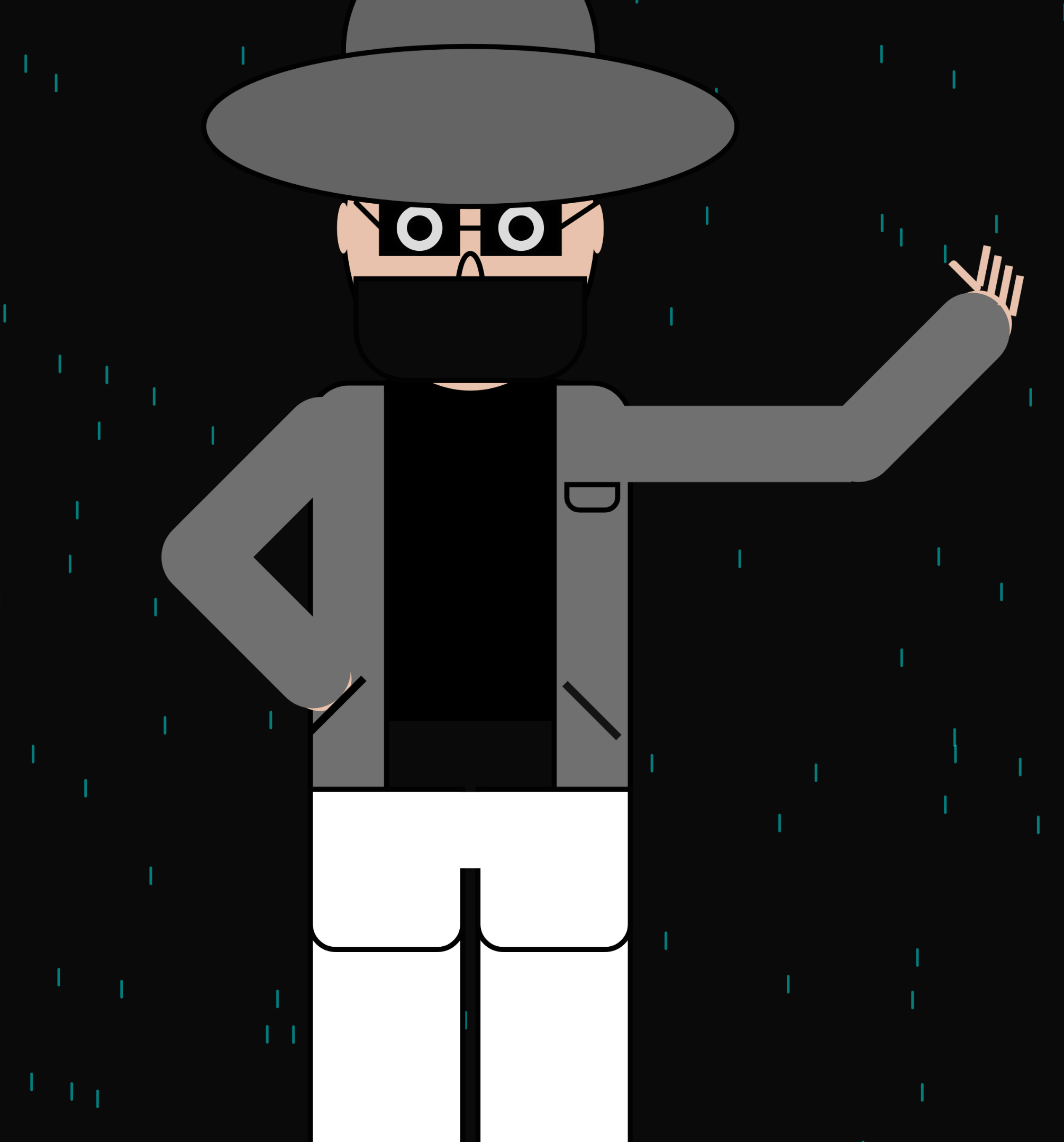
Screenshot

The Potrait

For the remaining screenshots, I am leaving them out of the post so that they can discoverd along with their sounds in the sketch

Challenges & Lessons Learned

Building this project was a journey in itself. I ran into mutlpiple issues  like assets failing to load, the portrait wouldn’t render properly in fullscreen, and the rain would appear but stay static  I solved these by:

  • Ensuring preloading of images and sounds with reasonable file sizes. I found out that p5,js doesn;t let me upload files wiht more tha 5mb so i had to look for small loopable audios instead of voiceovers
  • Using relative positioning and scaling for the portrait and body parts. I didn’t considered this to be a problem but when I had a few constant moving elements i.e. rain and typewriting. I had to fix it by keeping track of orignal window size

Areas for future improvement:

  • Animated transitions
  • Custom portrait illustrations
  • Additional hover and sound effects
  • Expand body part descriptions with deeper storytelling
AI Usage

AI partiulary helped in developing my potrait. I helped me keep track on of my origin point as I have used multiple rotations init. I believe I could achieve the same reuslt by hit and trial but that would have consumed a lot more time. Another place where AI was helpful was the additon of neon panel. It added a major asthetic to the project. lastly I tried using AI to add comments but they were mostly generaic and self explanatory from the code. So, I decided to leave them out. Generally I didn’t use AI to write a lot of code for me but keep track of the moving elements. As shifting screen sizes did prove to be a challenge. Most cases I noticed that I have been using a lot of variable to keep track of previous states but AI came up with calculations like

typewriterText(intro, windowWidth/2-100, windowHeight*0.3, windowWidth*0.4, LEFT);

to save memory. This did add on to the tidiness of code eventually

Conclusion

This project is both technical and artistic; a small interactive narrative exploring human form, identity, and emotion. Each element, from clickable body parts to typewriter text, contributes to a cohesive experience. The goal was immersion: to make the user feel like they are interacting with a living digital system rather than a static sketch specially with sounds and texts.


Midterm Project – The Grove

1. Sketch and Code

2. Concept

I wanted to make something that felt more physical than most browser games. The idea was simple: instead of clicking a button and having a resource appear, you actually go and get it. You walk to the river to fill a bucket. You dig in the forest and carry the clay back. You hold your mouse on a pottery wheel until the shape changes. The whole game is built around making you move between spaces and handle things directly, rather than managing numbers in a menu.

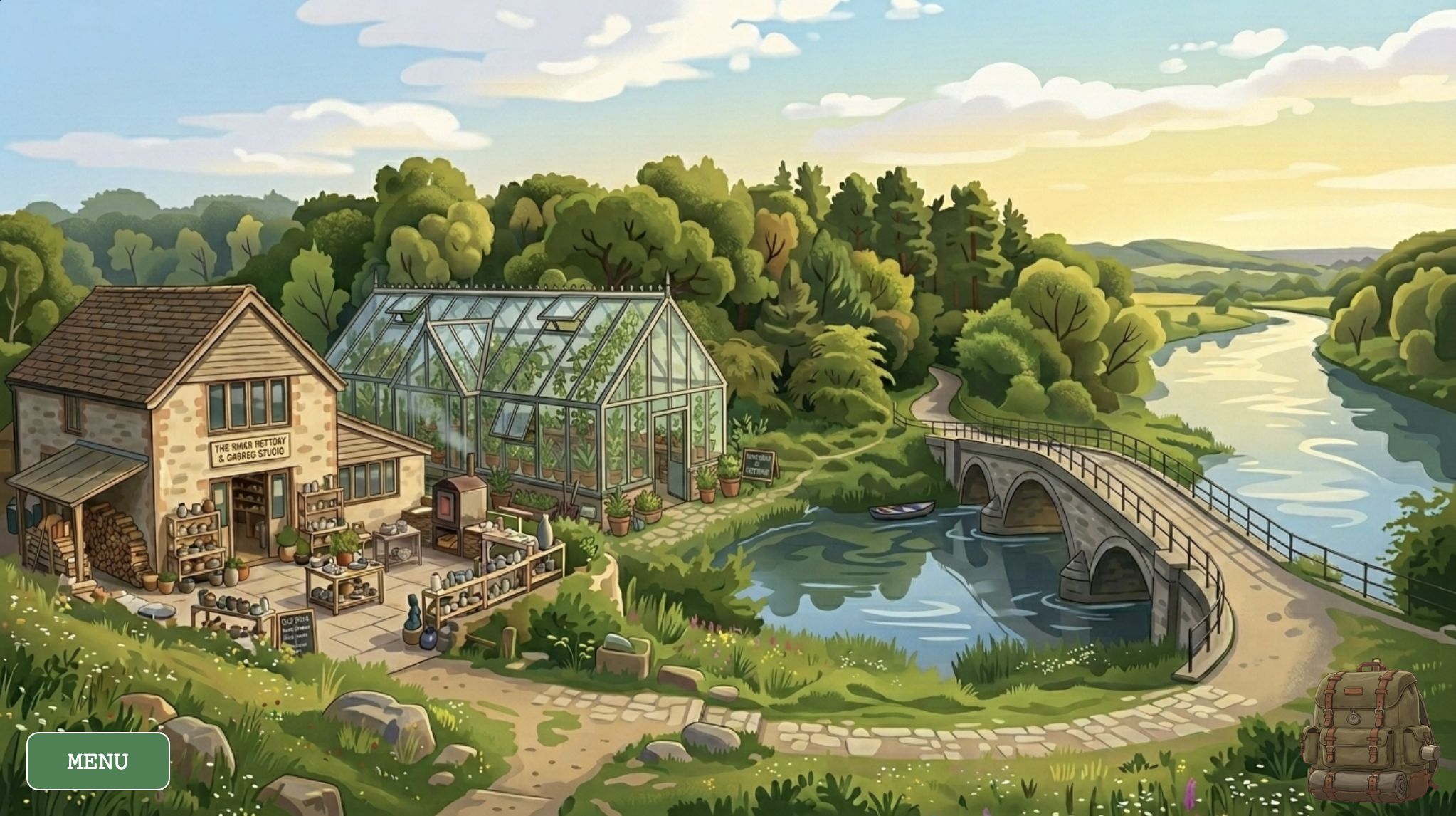
The game has five locations — a world map, a river, a forest, a pottery studio, and a greenhouse — each with its own interaction logic and its own music track. You start with five seeds and no other resources, and the loop is: collect clay and water, make a pot in the studio, bring it to the greenhouse with soil and a seed, and wait for the plant to grow. The cursor changes depending on where you are and what you’re carrying, so you can always tell what you’re holding without opening an inventory screen. The visual style came from wanting it to feel lo-fi and cozy, loosely inspired by games like Stardew Valley but much smaller in scope.

The world map – each region is a hand-mapped pixel boundary
3. How it Works

The entire game runs on two parallel state variables stacked on top of each other. gameState controls the meta-level — which screen the player is on (title, instructions, gameplay, or pause). currentLayer controls the world-level — which physical location the player is standing in. Every frame, the draw() loop reads both and routes rendering and input accordingly. This separation means that pausing the game, for instance, simply renders the pause menu on top of an already-drawn scene without tearing anything down. A new layer can be added to the game without touching any existing screen logic.

Navigation between scenes is handled by a rectClick() helper that checks whether the mouse landed inside a manually defined pixel rectangle. The world map coordinates were discovered by logging mouseX and mouseY to the console while clicking over the background image — a reliable form of coordinate mapping. Two rectangles per scene allow irregular regions of the map to be approximated without any polygon math.

/*
 * Detects which map region was clicked and navigates to that layer.
 * Regions are defined as bounding rectangles over the map background art.
 */
function checkMapClick() {
    if (rectClick(0, 190, 260, 470) || rectClick(240, 330, 380, 430)) {
        currentLayer = "STUDIO";
    } else if (rectClick(240, 200, 500, 260) || rectClick(300, 260, 510, 360)) {
        currentLayer = "GREENHOUSE";
    } else if (rectClick(260, 110, 780, 200) || rectClick(520, 200, 780, 290)) {
        currentLayer = "FOREST";
    } else if (rectClick(525, 365, 840, 450) || rectClick(790, 215, 1025, 450)) {
        currentLayer = "RIVER";
    }
}

Plants must keep living regardless of which scene the player is viewing. They are stored in a global activePlants array and updated on every frame via updateGlobalPlants(), called unconditionally at the top of draw(). This means a seedling keeps aging while the player is away collecting water at the river. Growth is tracked using millis() rather than frameCount, making it completely frame-rate independent.

// Called every frame; promotes the stage when enough time has passed. 
update() {
    let age = millis() - this.birthTime;
    if (age > this.growthDuration && this.stage < 2) {
        this.stage++;
        this.birthTime = millis();          // Reset timer for the next stage

        // Play the "fully grown" sound once
        if (this.stage === 2 && !this.hasPlayedGrowthSfx) {
            sfxGrowing.play();
            this.hasPlayedGrowthSfx = true;
        }
    }
}
4. Technical Decisions
The Pottery Wheel — Hold-to-Craft

The most deliberate design decision in the project was rejecting an instant “Make Pot” button in favor of a hold-to-craft interaction. The pottery wheel tracks how long the player’s mouse has been in contact with it and advances a shapingFrame counter every five seconds, visually pulling the clay through four distinct silhouettes. During contact, a looping wheel sound plays and the pot sprite is mirrored horizontally on alternating frames to suggest rotation. Release the mouse and the sound cuts immediately — the wheel stops the moment you lift your hand. The entire sequence takes fifteen seconds of sustained attention, which is long enough to feel like real effort and short enough not to become tedious.

// ── Pottery Wheel ──
if (wheelState !== 'EMPTY' && !isDraggingFromWheel) {
    let isTouching = mouseIsPressed && dist(mouseX, mouseY, wheelX, wheelY) < 70;

    if (wheelState === 'SHAPING') {
        if (isTouching) {
            // Keep wheel sound looping while the player holds the wheel
            if (!sfxWheel.isPlaying()) sfxWheel.loop();

            // Advance the pot shape frame every 5 seconds of contact
            if (millis() - shapingTimer > 5000) {
                shapingFrame = min(shapingFrame + 1, 3);
                shapingTimer = millis();
            }
        } else {
            sfxWheel.stop(); // Stop sound when mouse is lifted
        }

        // Once fully shaped, transition to draggable state
        if (shapingFrame === 3) {
            wheelState = 'READY_TO_DRAG';
            sfxWheel.stop();
        }
    }

    // Draw the pot on the wheel, mirroring every 10 frames to suggest spinning
    push();
    imageMode(CENTER);
    translate(wheelX, wheelY);
    if (wheelState === 'SHAPING' && isTouching && frameCount % 20 < 10) scale(-1, 1);
    drawPotFrame(0, 0, shapingFrame, 200, 200);
    pop();
}
The Furnace — Time as Stakes

Once a shaped pot is dragged into the furnace, a four-phase timer begins. There is a ten-second window to retrieve a perfect pot, then a five-second grace period where the pot is visibly burnt but still removable (though broken), then five more seconds before it crumbles to ash entirely. This makes the act of pot-making carry real risk: leave the studio to collect other resources and you may return to nothing. The time-management tension it creates between the furnace and the wider world loop was a late addition to the design, but it became one of the most important decisions in the whole game — it’s what makes the studio feel dangerous rather than merely mechanical.

// ── Furnace ──
if (furnaceState !== 'EMPTY' && !isDraggingFromFurnace) {
    let elapsed = (millis() - furnaceStartTime) / 1000; // Seconds since firing started

    if (elapsed < 10) {
        furnacePotFrame = 3;
        furnaceState = 'FIRING';
        if (!sfxFurnace.isPlaying()) sfxFurnace.loop();
    } else if (elapsed < 15) {
        furnacePotFrame = 4;
        furnaceState = 'READY_TO_DRAG'; // Pot is done — player can pick it up
        sfxFurnace.stop();
    } else if (elapsed < 20) {
        furnacePotFrame = 5;
        furnaceState = 'BURNT'; // Left too long — pot is cracked
    } else {
        furnacePotFrame = 6;
        furnaceState = 'ASH';  // Completely destroyed
        sfxFurnace.stop();
    }

    imageMode(CENTER);
    drawPotFrame(205, 237, furnacePotFrame, 70, 70);
}
The Cursor as a Physical Inventory

Rather than displaying abstract resource counts in a HUD panel, physical resources are communicated directly through the cursor. In the forest, the shovel sprite changes to show clay or soil clinging to the blade the moment something is dug up. At the river, the bucket visually fills. Resources are deposited by carrying them to the backpack icon in the corner — the act of storing something is the same gesture as moving it there.

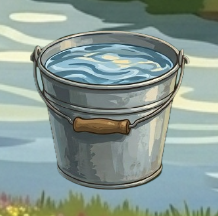
Bucket cursor fills visually after clicking the river surface
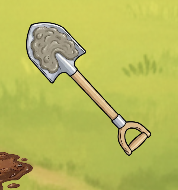
Cursor becomes a clay-caked shovel after digging a deposit
5. Challenges
Double-Firing Buttons

The most persistent bug in the project was button clicks firing twice from a single physical interaction. p5.js triggers both mousePressed and mouseClicked in sequence for the same click event, and because several buttons triggered state changes or inventory mutations, the same action would execute twice — opening and immediately closing the inventory, or incrementing a counter twice in one tap. The fix was a lastMenuClickTime debounce guard: every button action stamps the current timestamp, and any input arriving within 250 milliseconds of that stamp is silently discarded. Setting mouseIsPressed = false inside the button handler also “eats” the event before any downstream listener can see it.

// Fire the action on click, preventing double-firing with a debounce timestamp
if (hover && mouseIsPressed) {
    sfxButton.play();
    lastMenuClickTime = millis();
    mouseIsPressed = false; // Consume the press so nothing else reacts to it
    action();
}
The Cursor Bleeding Over UI Buttons

A subtler issue emerged from the custom cursor system: the shovel and bucket sprites would remain active when hovering over the “Return to Map” and “Menu” buttons in the forest and river scenes. This made the buttons feel broken — the system’s hand cursor never appeared, and the sprite image obscured the button labels. The fix required duplicating the button bounding-box logic inside drawCustomCursor() and explicitly reverting to cursor(ARROW) whenever the mouse entered a UI button’s region. It’s not the most elegant solution, since the same coordinates appear in two places, but it is simple, clear, and reliable.

6. Areas for Improvement

The most obvious missing layer of feedback is what happens when a planting action fails. If the player clicks a greenhouse slot without the right resources, nothing happens. A brief wobble on the backpack icon or a soft error tone would communicate the missing ingredient without interrupting the lo-fi calm. The furnace has the same problem: because there is no visible countdown, the “BURNT” outcome surprises players on a first run through the studio. A subtle color shift on the furnace door as elapsed time crosses into the danger zone would be enough to telegraph urgency without resorting to a numerical timer on screen.

Structurally, the game currently has no win condition or narrative arc beyond the resource loop itself. A concrete goal — growing five plants to full harvest, for instance — would give the loop a sense of closure and make the opening seeds feel like the start of something rather than an arbitrary starting point. Beyond that, the pottery wheel’s hold-to-craft timer could become adaptive: longer contact for a more durable pot, shorter contact for a fragile one that breaks after a single use. That single change would introduce meaningful trade-offs to what is currently a single fixed path through the studio, without adding any new systems

On the technical side, every scene coordinate in the codebase is a hard-coded pixel value sniffed by hand from a 1024×576 canvas. If the canvas size ever changes, every boundary needs to be remapped manually. Normalizing all coordinates to proportions of width and height and then multiplying at render time would make every scene scale to any canvas size automatically — a straightforward refactor that would future-proof the entire coordinate system.

6. Resources
Inspiration

Some of the interaction design was also influenced by this p5.js sketch, which was linked as an example and I came across while exploring what direct, hands-on interaction could look like inside a browser canvas.

Libraries
    • p5.js (v1.11.11) — core rendering, input handling, and sprite-sheet animation via image().
    • p5.SoundloadSound(), loop()setVolume(), and isPlaying() for all BGM cross-fades and per-action sound effects.
Visual Assets
    • All backgrounds, sprites, and sprite sheets were generated using Google Gemini and subsequently edited by hand — cropped, trimmed to transparency, and sliced into equal-width frames for use with p5’s source-rectangle API.
Audio
    • All audio is managed through p5.Sound. BGM transitions are handled by manageBGM(), which compares a targetBGM reference against currentBGM each frame and only swaps when the target has changed — preventing the track from restarting on every draw call.
    • Background Music — each location in the game has its own assigned instrumental track, chosen to match the mood of that space:
      • Main Menu               Supernatural               NewJeans
      • Instructions             ASAP                               NewJeans
      • Map                             The Chase                     Hearts2Hearts
      • River                           Butterflies                     Hearts2Hearts
      • Forest                         Ditto                                NewJeans
      • Studio                        Right Now                     NewJeans
      • Greenhouse             OMG                                NewJeans
      • Pause Menu             Midnight Fiction        ILLIT
    • Sound Effects — all SFX (wheel spinning, bucket fill, shovel dig, furnace fire, etc.) were sourced from Pixabay and other royalty-free libraries.