Concept:
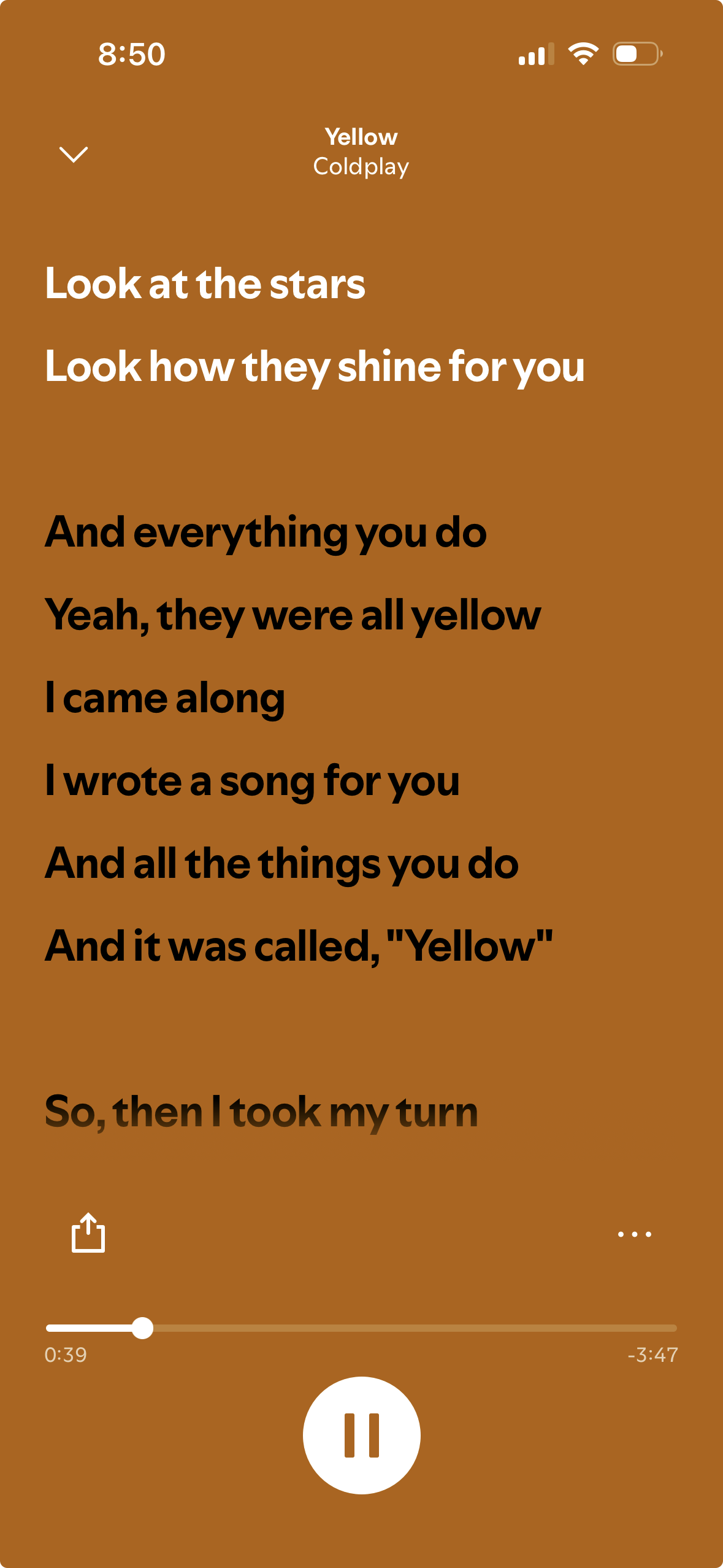
For this project, I wanted to experiment with text functions while learning and applying different codes to create a scrolling lyrics display similar to Spotify, Apple Music, and YouTube. When I first looked at the assignment, I immediately wanted to recreate the full music interface that includes the album cover and the timeline of the song at the bottom. But instead, I decided to focus only on the scrolling lyrics to make it more creative and manageable.
I chose the song Yellow by Coldplay because it reminds me of my last bus ride after a field trip in senior year. It was our last day of school after finishing our final exams, and on the way back from IMG everyone in my class was saying goodbye to each other at the final stoplight before we all went home. That moment felt nostalgic and emotional which is why I wanted to incorporate that feeling into my work.
Inspo from Spotify:
Embedded sketch: (try pressing on the screen)
How it was made:
I usually start by building the background and adding simple codes that I know like the colored box and the title text at the top, the background, the size of the canvas, etc. After that, I started off by creating an array to store the lyrics so I could easily reference each line later in the code.
Then I created the scroll variable so the lyrics would begin at the bottom of the screen. Using translate() along with push() and pop(), I was able to make the lyrics scroll upward. While working on this part, I kept experimenting because sometimes the text wouldn’t move the way I wanted it to move. I also had to adjust the speed because it was first set to 0.3 but since I included the full lyrics of the song, I felt that 0.3 was too slow. I decided to change it to 0.6 which made the movement feel more reasonable.
I used this loop:
for (let i = 0; i < lyrics.length; i++) { //going through the lyrics line by line
  let yPos = i * 40; //each line is 40 pixels below the previous one -using the name yPos for the positioning of lines vertically (y-axis)
This allowed the lyrics to display line by line with 40 pixels of spacing between each one. That spacing helped create a smoother scroll and prevented the lines from looking crowded.
For interactivity, I added the mouseIsPressed function with the if/else functions so that when the mouse is pressed, the scroll speed increases to 30. When it’s not pressed, it goes back to the normal pace of 0.6. I liked adding this because it made the project more engaging instead of just automatically scrolling.
Resources:
Push and pop functions: (all the resources helped me understand how push and pop work through examples and descriptions I was able to make my own transformation)
https://www.youtube.com/watch?v=KSo_VEbsWks
https://www.youtube.com/watch?v=o9sgjuh-CBM
https://p5js.org/reference/p5/push/
Translate:
https://p5js.org/reference/p5/translate/ (in order for my lyrics to scroll and keep moving up from their starting point I had to use the translate function)
Text:
https://p5js.org/tutorials/loading-and-selecting-fonts/ (learning how to use text fonts and functions)
https://p5js.org/reference/ (Typography section to understand the types of text functions)
I also kept going back to Professor Aya’s slides, Week 4.1 and Week 4.2
I also used Musixmatch to get the lyrics of the song Yellow by Coldplay
Hardest Part of the Code (and the Part I’m Most Proud Of):
 //First layer of the lyrics
push(); //starting a "transformation state" - using 'push' to save the current canvas settings
translate(10, height - scroll); //starting to move the original position 0,0 to 10 pixels from the left and being close to the bottom of the canvas

for (let i = 0; i < lyrics.length; i++) { //going through the lyrics line by line
  let yPos = i * 40; //each line is 40 pixels below the previous one -using the name yPos for the positioning of lines vertically (y-axis)

  //black txt if below the middle and white if above
  let currentY = (height - scroll) + yPos;//used to figure out the positions of the line
  if (currentY < height / 2) { //checking if the lyric is above the middle half, if it is it will change color
    fill(255); //the color of the text -white
  } else { //if it is below the screen it will..
    fill(0);
  }

  textSize(18); //text size of the lyrics
  textStyle(BOLD); //adding bold text
  text(lyrics[i], 0, yPos, 280); //in order for the long lyrics to not go off the screen -lyrics is drawn inside this 280 sized pixel
}
pop(); //concluding the end of the transformation so the other header doesnt move too
The hardest part was understanding how push(), pop(), and translate() all worked without affecting the rest of my design. The push() allowed me to save the current canvas settings before transforming it. Then with [translate(10, height – scroll);] I was able to shift the origin point so the lyrics would start near the bottom and move upward as the scroll value increased.
Inside the loop, [let yPos = i * 40;] this function made each lyric line 40 pixels below the previous one which keeps everything equal and smooth.
Then I used [let currentY = (height – scroll) + yPos;] to calculate the piston of each line on the canvas so that I can check where the lyric is positioned which will determine if it would change from black text to white (similar to Spotify). If the lyric was above the middle of the screen, it changed to white and if not it remained black until it reaches that point.
Similar to the issues I faced before, I had a hard time keeping the text inside the canvas because it would always go out. I decided to use [text(lyrics[i], 0, yPos, 280);] that draws each lyric at the x-position 0 and y-position yPos while being inside a 280-pixel text box so long lines wouldn’t overflow off the screen.
I’m proud of this section because even though it took time to understand, I was able to control the translation without changing the rest of my code. At one point I accidentally deleted the entire section, which was frustrating because it took me a while to feel confident in it, but since I practiced it before, I was able to rewrite it again.
Issues I faced:
At first, the lyrics started in the middle of the canvas and would bleed outside the frame which was a struggle because I couldn’t figure out how to fix it for a second. I remembered Professor Mang explaining how small positioning errors can happen when centering the text exactly in the middle because it will start exactly there instead of being all on the center. I also carefully adjusted the placement using translate() and the text box width: [text(lyrics[i], 0, yPos, 280);] that helped keep everything within the screen and made the scrolling smoother.
Final code:
let lyrics = [//using the name lyrics for the array/list
  //adding all the lyrics of the song from Yellow -Coldplay
  "Look at the stars",
  "Look how they shine for you",
  "And everything you do",
  "Yeah, they were all yellow",
  "I came along",
  "I wrote a song for you",
  "And all the things you do",
  "And it was called, \"Yellow\"",
  "So, then I took my turn",
  "Oh, what a thing to have done",
  "And it was all yellow",
  "Your skin, oh yeah, your skin, and bones",
  "Turn into something beautiful",
  "And you know, you know I love you so",
  "You know I love you so",
  "I swam across",
  "I jumped across for you",
  "Oh, what a thing to do",
  "'Cause you were all yellow",
  "I drew a line",
  "I drew a line for you",
  "Oh, what a thing to do",
  "And it was all yellow",
  "And your skin, oh yeah, your skin, and bones",
  "Turn into something beautiful",
  "And you know, for you, I'd bleed myself dry",
  "For you I'd bleed myself dry",
  "It's true",
  "Look how they shine for you",
  "Look how they shine for you",
  "Look how they shine for-",
  "Look how they shine for you",
  "Look how they shine for you",
  "Look how they shine",
  "Look at the stars",
  "Look how they shine for you",
  "And all the things that you do"
];

let scroll = 0; //letting the lyrics start scrolling vertically

function setup() {
  createCanvas(300, 500); //canvas size
  textAlign(LEFT, TOP);  //postion of the text
  textFont('Helvetica'); //text font
}

function draw() {
  background(158, 91, 28); //background color 'burnt orange'

   //First layer of the lyrics
  push(); //starting a "transformation state" - using 'push' to save the current canvas settings
  translate(10, height - scroll); //starting to move the original position 0,0 to 10 pixels from the left and being close to the bottom of the canvas

  for (let i = 0; i < lyrics.length; i++) { //going through the lyrics line by line
    let yPos = i * 40; //each line is 40 pixels below the previous one -using the name yPos for the positioning of lines vertically (y-axis)

    //black txt if below the middle and white if above
    let currentY = (height - scroll) + yPos;//used to figure out the positions of the line
    if (currentY < height / 2) { //checking if the lyric is above the middle half, if it is it will change color
      fill(255); //the color of the text -white
    } else { //if it is below the screen it will..
      fill(0);
    }

    textSize(18); //text size of the lyrics
    textStyle(BOLD); //adding bold text
    text(lyrics[i], 0, yPos, 280); //in order for the long lyrics to not go off the screen -lyrics is drawn inside this 280 sized pixel
  }
  pop(); //concluding the end of the transformation so the other header doesnt move too

  //The scrolling movement
  scroll += 0.6; //Speed of the scroll to make it a little faster since its the full song being used

  //Restarting the lyrics loop
  //checking if the scroll distance is greater > than the total height of the list
   if (scroll > (lyrics.length * 40) + height) { //calculation of height from the number of lines multiplied by 40 pixels each
   scroll = 0; //restarting the loop so the lyrics can come back from the bottom
  }

  //The title on the top
  noStroke(); //removing the outline of the rect
  fill(158, 91, 28); //color of background
  rect(0, 0, width, 100); //adding a rect so that the lyrics can go under it -similar to spotify

  fill(255); //color of the text 'yellow'
  textAlign(CENTER); //adding it to the center of the frame
  textStyle(NORMAL);
  textSize(14); //size of text
  text("Yellow", width / 2, 45); //name of text + size

  textSize(12); //size of the second text of the band
  fill(255, 200); //color of the text -making it a little less white
  text("Coldplay", width / 2, 65); //name of text + size

  //Interactivity
  //when the mouse doesn't click, the lyrics move normally
  //if mouse is clicked and stays on the canvas the lyrics will speed up
  if (mouseIsPressed) { //mouse pressed function
    scroll += 30; //move fast
  } else {
    scroll += 0.6; //move at the normal speed
  }

}
Future improvements:
Even though this is my first time coding and creating generative text, I’m proud of how it turned out especially because of the scrolling effect and how similar it feels to Spotify’s lyrics feature. In the future, I’d like to add the time duration of the song at the bottom, along with play and pause buttons to make it feel more realistic. I also want to add small music note icons and experiment with the spacing between specific lines to match the original lyrics.