Week 4 – Reading Response | THE PSYCHOPATHOLOGY OF EVERYDAY THINGS

When I was younger, like every other midrange Gen-Z kid, I used to scroll on Buzzfeed as much as I could in class in middle school. The quizzes, the news, and the articles. I remember there would be lists of things in articles (25+ times X did Y! or 45+ gifts to get your X on Y!), and I’d find the ones about bad design choices really funny. Seeing the assignment for this reading response reminded me of these articles, so here are my own personal favourite (well, least favourite) bad design choices:

  • Microsoft Office’s “Save As” option. Schools here love using Office365, so we would use it for EVERYTHING. Class notes, essay drafts and final essays, powerpoints and even calling your friends during COVID. However, one thing that frustrated us throughout, was that in order for you to save your document, rather than letting you save it to your most active parent folders, it always, ALWAYS defaults to some remote directory, usually the OneDrive Cloud directory. Maybe I’m being dramatic, but this was a nightmare for us, because we were all living under a timer. Our schools would delete our OneDrives almost as soon as we would leave the school or graduate.

I get that this may be a marketing tactic to get people to use their products more, but maybe they could also consider getting people to LIKE the usability of their products more too. I’m not sure if they’ve made it easier now because I’ve switched and resorted to using Google sites more (easier sharing, easier saving, etc.). If I was to change this product in a non-marketing mindset, I would just make an option to save it to your folders next to the option to save it to your drive. If you want people to save it to OneDrive, you could just add that button first, but also have the other button there too.

  • Apple’s alarm sounds before iOS 17. I’m an avid user of Apple alarms, and I use Apple’s alarm sound that is literally titled “Alarm.” It sounds a lot like an alarm, in more of a ‘fire alarm, I need to run’ way and not a ‘wow, I could dance myself to be awake right now’, but it was one of Apple’s most used alarms nonetheless. Unfortunately, after updating my phone to iOS 17 (I had no choice), I realized that I couldn’t find that sound unless I scroll alllllll the way to the bottom of the list of alarm sounds, and then afterwards, you’d need to press on a button called “classic”, and THEN ONLY do you see the sound. As someone who is an avid alarm user every day and sleeps through them all (thus, the need for me to set 8-9 alarms every morning at varying times), I prefer having the same sound for all of them. It’s a hassle to individually change the sound each time.

Maybe it’s not as serious as I’m making it, and maybe the newer sounds are actually better. I haven’t listened to them yet. However, I don’t like the alarm sound interface in general. Regarding this problem in specific, however, would it not be easier to start off with two categories (‘new sounds’ and ‘old sounds’) and then users could decide whether they wanted the newer or the classic sounds? Rather than listing all the newer ones and then having to scroll and then click to see the older ones, it would be easier to sort it from the beginning.

The examples in this reading were very relatable, especially the example of the doors. I hate it when I push a door and it doesn’t push, so I need to pull it, but there is no way I could have known that it was a ‘pull’ door and not a ‘push’ door. I’ve bumped into the revolving doors at Galleria so often that now I need to stick my hands in front of me so I don’t hit my head. There were some principles that were mentioned in the text in regards to Human-Centered Design, which were affordances / signifiers / mapping / feedback / constraints. I was surprised that I hadn’t seen these principles before, because they made a lot of sense to me. It’s also one thing to understand a product, but you need to be able to discover the product well enough to understand it. If a product doesn’t follow HCD and we don’t understand it, what is the point? To apply the author’s principles of design to Interactive Media, maybe it’s a good idea to keep the user in mind. Rather than focusing on affordances of a product, I should focus on the signifiers instead, because they tell you how you can use the product the way it is meant to be used, not how to use the product for every possible use you can probably think up of. I want to look a bit more into UI/UX design in regards to mapping, because I think that would be much more useful. If I take all of these principles into account, I can make projects that are not only fun and interactive, but also understandable and used the way they are intended to.

Week 4 – Generative Text Assignment (Updated)

Concept:

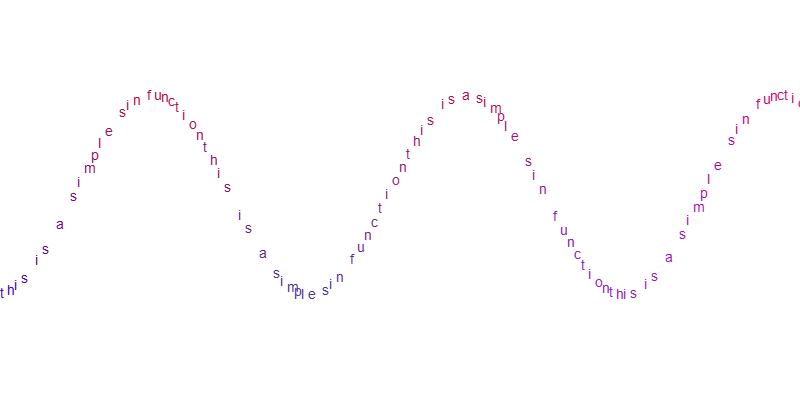
I sought a degree of inspiration from Camillie Utterback’s Text Rain. One key difference, while Utterback made text fall under ‘gravity’ and react to people’s silhouette, I decided to map text onto continuous mathematical functions (see example below)
*The image above depicts a sine curve with the text ‘this is a simple sin function’.

Core Functionality and Features

The program contains a class appropriately called ‘fun’ (abbreviation for ‘function’) that contains attributes and methods, including a ‘display’ method to draw the curve onto the canvas. ‘fun’ also contains methods for changing the type of function – example from a ‘sin’ to a ‘log’ – and a method for fetching the function’s value from the parameter ‘t’ which in this case, spans the width of the canvas.

The ‘fun’ class once instantiated into an object contains data that alters how the drawn function appears. For example, the ‘sin’ function has the following ‘fun.function_data’:

let SineFunction = new fun("sin");

SineFunction.function_data[0] = 100;    // AMPLITUDE 'a'
SineFunction.function_data[1] = 0.01;   // Frequency 'r'
SineFunction.function_data[2] = 10;     // X Translation 'x'
SineFunction.function_data[3] = 200;    // Y Translation 'y'

/*
SineFunction.getF(t) {
  return a * Math.sin( r * t - x ) + y
}
*/

There are 7 basic types of mathematical functions that ‘fun’ can represent, namely sine (sin), cosine (cos), tangent (tan), hyperbolic sine (sinh), hyperbolic cosine (cosh), hyperbolic tangent (tanh), logarithmic (log).

Additionally, for more advanced generation, there is an additional class ‘algebricF’, that is used in a very similar way to ‘fun’, except that it can store up to two ‘fun’ or ‘algebricF’ classes in it, and performs a variety of specified algebraic operations on the class. Please do not mind the spelling mistake in the name of the class. The operations include addition, subtraction, multiplication, and division.

For interesting visuals, each drawn function’s text is assigned a color. The color is blue near the bottom of the screen, red near the top, and then this is blended with linear interpolation based on its ‘y’ position divided by the canvas ‘height’. A second linearly interpolated color is then chosen for the lateral span, from green at the left and purple (updated 20:20 GST, 16 FEB) at the right. The result of this interpolation is then linearly interpolated with the color of the vertical component, to grant a final color. The vertical color component gets priority because of how the third interpolation is carried out.

Demo

There are 3 demonstrations built into the code itself (courtesy of myself). They can be alternated between by pressing the keys ‘1’, ‘2’, ‘3’, or ‘0’ to disable all demonstrations. Click the screen to toggle whether the drawing moves or is paused.

Settings & Configurable Components

Certain settings and components may be configured in the Configuration section at the absolute top of the sketch. It is recommended that you read the comment or description given to each setting before playing around. It is also highly recommended to NOT alter any code beyond this unless you know what you are doing.

To create your own equations, declare an empty variable just before the setup function, and instantiate the correct ‘fun’ or ‘algebricF’ object inside of the setup function itself. Then, call its display method inside of the draw function. You may need to play around with the various components that constitute towards the function, especially amplitude and the y-translation.

Known Bugs

While there is a toggleable variable called ‘ADJUST_SCREEN’ in the Configuration section – which strives to adjust the screen to capture off-screen parts of the graph – it does not work correctly for all cases, thus it is recommended to use functions that stay within the screen if it is so that you actually want to see stuff.

Code & Additional Credits

As no external media or assistance (exception below) was used, I (Raja Qasim Khan) am the sole author and developer of the project’s code.

(Exception): https://p5js.org/reference/ was used for parts such as fetching date and time (for the canvas capture functionality) and the syntax of certain keywords in the language. No additional sources were employed.

Notes from the developer: I began by starting with the absolute basics of the project in the Processing 3 IDE for Python. Once the basics were done with, I re-wrote the code in JavaScript in p5.js and finished most of the remaining features there.

Please find the code below.

// CONFIGURATION
let TEXT_SIZE = 14; // size of the displayed text
let POINT_INCREMENT = 7; // the increment of character positioning in the display

// The gradient of colors in the Y axis
let MIN_COLOR_Y;
let MAX_COLOR_Y;

// The gradient of colors in the X axis
let MIN_COLOR_X;
let MAX_COLOR_X;

let MOVE_RESISTANCE = 1.2; // The resistance coefficient in moving the graph across the screen. -ve for backwards motion.

let ADJUST_SCREEN = false; // If the screen should translate to include outside points.

let PREBUILT_DISPLAY_NUMBER = 2; /*

Prebuilt by me for demo purposes:

0: don't display any demo.
1 : single 'cos' function.
2: multiple function demo.
3: algebric function demo.
4 show credit information.

*/

let OVERLAY_ENABLED = true; // whether the information overlay is enabled or not.

let BACKGROUND_COLOR = [255, 255, 255, 255]; // the background color RGBA

// GLOBALS
let current_offset = 0;
let isMoving = false;

// MAIN CODE

let F1;
let F2;

let F3;
let F4;

let FUN1;
let FUN2;
let FUN3;

let AF12;
let AF;

let CR;

function setup() {
  frameRate(30);
  createCanvas(800, 400);
  
  background(color(BACKGROUND_COLOR[0], BACKGROUND_COLOR[1], BACKGROUND_COLOR[2], BACKGROUND_COLOR[3]));
  
  F1 = new fun("cos");
  
  F1.function_data[0] = 100;
  F1.function_data[1] = 0.02;
  
  F1.function_data[2] = 0;
  F1.function_data[3] = 200;
  
  F2 = new fun("cos");
  
  F2.function_data[0] = -100;
  F2.function_data[1] = 0.02;
  
  F2.function_data[2] = 0;
  F2.function_data[3] = 200;
  
  F3 = new fun("tan");
  
  F3.function_data[0] = 20;
  F3.function_data[1] = 0.02;
  
  F3.function_data[2] = 0;
  F3.function_data[3] = 370;
  
  F4 = new fun("tan");
  
  F4.function_data[0] = 20;
  F4.function_data[1] = 0.02;
  
  F4.function_data[2] = 0;
  F4.function_data[3] = 30;
  
  FUN1 = new fun("sin");
  FUN1.function_data[0] = 100;
  FUN1.function_data[1] = 0.02;
  
  FUN1.function_data[2] = 0;
  FUN1.function_data[3] = 200/3;
  
  FUN2 = new fun("sin");
  FUN2.function_data[0] = 50;
  FUN2.function_data[1] = 0.04;
  
  FUN2.function_data[2] = 0;
  FUN2.function_data[3] = 200/3;
  
  FUN3 = new fun("cos");
  FUN3.function_data[0] = 100/3;
  FUN3.function_data[1] = 0.06;
  
  FUN3.function_data[2] = 0;
  FUN3.function_data[3] = 200/3;
  
  AF12 = new fun("algebricF");
  AF12.eq.fun1 = FUN1;
  AF12.eq.fun2 = FUN2;
  
  AF = new fun("algebricF");
  AF.eq.fun1 = AF12;
  AF.eq.fun2 = FUN3;
  
  CR = new fun("sin");
  
  CR.function_data[0] = 10;
  CR.function_data[1] = 0.005;
  
  CR.function_data[2] = 0;
  CR.function_data[3] = 200;
  
  MIN_COLOR_Y = color(0, 0, 255);
  MAX_COLOR_Y = color(255, 0, 0);
  
  MIN_COLOR_X = color(0, 255, 0);
  MAX_COLOR_X = color(255, 0, 255)
}

class algebricF {
  constructor() {
    /*
    (None) -> None
    
    A custom computation that MUST be an algebric combination of two 'fun's.
    
    can also be made of two algebricF's, or one algebricF.
    
    Operators: "+", "-", "/", "*"    
    */
    this.operator = "+";
    
    this.fun1 = "null";
    this.fun2 = "null";
  }
  
  getF(t) {
    if (this.operator == "+") {
      return this.fun1.getF(t) + this.fun2.getF(t);
      
    } else if (this.operator == "-") {
      return this.fun1.getF(t) - this.fun2.getF(t);
      
    } else if (this.operator == "/") {
      return this.fun1.getF(t) / this.fun2.getF(t);
      
    } else if (this.operator == "*") {
      
      return this.fun1.getF(t) * this.fun2.getF(t);
    }
  }
}

class fun {
  constructor(function_type) {
    /*
    (str) -> None
    
    Creates a new, displayable function.
    function_type s:
        "sin", "cos", "tan", "sinh", "cosh", "tanh", "log"
    */
    
    this.function_type = function_type;
    this.function_data = [];
    this.eq = new algebricF();
  }
  
  getF(t) {
    /*
    (float) -> float
    
    Returns the result of the function at 't'.
    */
    
    // Please do not mind the atrocity below. That is how I normally code else..if statements before deciding to switch to more readable ones for the sake of this class.
    
    if (this.function_type == "sin") {
      
      let a = this.function_data[0];
      let r = this.function_data[1];
      let x = this.function_data[2];
      let y = this.function_data[3];
      
      return a * Math.sin(r * t - x) - y;
    } else {
      
      if (this.function_type == "cos") {
        let a = this.function_data[0];
        let r = this.function_data[1];
        let x = this.function_data[2];
        let y = this.function_data[3];
      
        return a * Math.cos(r * t - x) - y;
      } else {
        
        if (this.function_type == "sinh") {
          let a = this.function_data[0];
          let r = this.function_data[1];
          let x = this.function_data[2];
          let y = this.function_data[3];
      
          return a * Math.sinh(r * t - x) - y;
        } else {
          
          if (this.function_type == "cosh") {
            let a = this.function_data[0];
            let r = this.function_data[1];
            let x = this.function_data[2];
            let y = this.function_data[3];
      
            return a * Math.cosh(r * t - x) - y;
          } else {
            
            if (this.function_type == "tan") {
              let a = this.function_data[0];
              let r = this.function_data[1];
              let x = this.function_data[2];
              let y = this.function_data[3];
      
              return a * Math.tan(r * t - x) - y;
            } else {
              
              if (this.function_type == "tanh") {
                let a = this.function_data[0];
                let r = this.function_data[1];
                let x = this.function_data[2];
                let y = this.function_data[3];
      
                return a * Math.tanh(r * t - x) - y;
              } else {
                
                if (this.function_type == "log") {
                  let b = this.function_data[0];
                  let r = this.function_data[1];
                  let x = this.function_data[2];
                  let y = this.function_data[3];
      
                  return r * Math.log(t - x) / Math.log(b) - y;
                } else {
                  
                  if (this.function_type == "algebricF") {
                    return this.eq.getF(t);
                  }
                }
              }
            }
          }
        }
      }
    }
  }
  
  changeTo(new_function_type) {
    /*
    (str) -> None
    
    Changes the function type and replaces all function_data with default values.
    */
    
    this.function_type = new_function_type;
    
    if (this.function_type == "sin" || this.function_type == "cos" || this.function_type == "sinh" || this.function_type == "cosh" || this.function_type == "tan" || this.function_type == "tanh" || this.function_type == "log") {
      this.function_data = [
        10,
        0.1,
        0,
        50
      ];
    } else if (this.function_type == "algebricF") {
      this.function_data = [];
      this.eq = new algebricF();
    }
  }
  
  display(txt) {
    /*
    (str) -> None
    
    Draws the function on screen using characters from txt.
    */
    
    let entry = -this.getF(current_offset * MOVE_RESISTANCE);
    let exit = -this.getF(width + current_offset * MOVE_RESISTANCE)
    
    let Y_OFFSET = (entry + exit) / 2
    
    if (Y_OFFSET < 0) {
      // pass
    } else if (Y_OFFSET > height) {
      // pass
    } else {
      Y_OFFSET = 0;
    }
    
    if (!ADJUST_SCREEN) {
      Y_OFFSET = 0;
    }
    
    for (let i = 0; i <= Math.trunc(width / POINT_INCREMENT); i++) {
      
      let Y = -this.getF(i * POINT_INCREMENT + current_offset * MOVE_RESISTANCE) - Y_OFFSET; // Inverted because of the coordinate system.
      
      if (isNaN(Y)) {
        continue;
      }
      
      let selected_char = txt[Math.trunc(i) % txt.length];
      
      fill(lerpColor(lerpColor(MAX_COLOR_Y, MIN_COLOR_Y, abs(Y) / height), lerpColor(MIN_COLOR_X, MAX_COLOR_X, i * POINT_INCREMENT / width), abs(i*Y * POINT_INCREMENT)/(width*height)));
      textSize(TEXT_SIZE);
      text(selected_char, i * POINT_INCREMENT, Math.trunc(Y));
    }
  }
}

function draw() {
  background(color(BACKGROUND_COLOR[0], BACKGROUND_COLOR[1], BACKGROUND_COLOR[2], BACKGROUND_COLOR[3]));
  
  if (PREBUILT_DISPLAY_NUMBER == 2) {
    
    F1.display("from nothing we were raised and with nothing we return");
    F2.display("from nothing we were raised and to everything we built");
  
    F3.display("and return to gardens we may");
    F4.display("and return to flames we will");
  } else if (PREBUILT_DISPLAY_NUMBER == 3) {
    
    AF.display("this is an algebric function");
  } else if (PREBUILT_DISPLAY_NUMBER == 1) {
    
    F1.display("this is a simple sin function");
  } else if (PREBUILT_DISPLAY_NUMBER == 4) {
    
    CR.display("Raja Qasim Khan (rk5260)")
  }


  if (isMoving) { // This translates the graph to create a cool moving illusion.
    
    current_offset++; // a tanslation for the lateral movement of the function(s).
  } else if (OVERLAY_ENABLED) {
    
    // display overlay menu.
    fill(color(255-BACKGROUND_COLOR[0], 255-BACKGROUND_COLOR[1], 255-BACKGROUND_COLOR[2])); // the inverse color
    textSize(14);
    
    text("Click to toggle.", 100, 20);
    text("Demo (press key): ", 100, 34);
    text("0: Disable demo.", 100, 48);
    text("1: Single cos demo.", 100, 62);
    text("2: Multi-function demo.", 100, 76);
    text("3: Algebric demo.", 100, 90);
    text("4: Credits info", 100, 104);
    text("T: Disable overlay!", 100, 118);
    text("C: Capture canvas (image).", 100, 132);
  }
}

function mouseClicked() {
  
  isMoving = !isMoving;
}

function keyPressed() {
  
  // Switch displayed prebuilt simulation.
  if (keyCode == 48) {
    
    PREBUILT_DISPLAY_NUMBER = 0;
  } else if (keyCode == 49) {
    
    PREBUILT_DISPLAY_NUMBER = 1;
  } else if (keyCode == 50) {
    
    PREBUILT_DISPLAY_NUMBER = 2;
  } else if (keyCode == 51) {
    
    PREBUILT_DISPLAY_NUMBER = 3;
  } else if (keyCode == 52) {
    
    PREBUILT_DISPLAY_NUMBER = 4;
  } else if (keyCode == 84) {
    
    OVERLAY_ENABLED = !OVERLAY_ENABLED;
  } else if (keyCode == 67) {
    
    // capture screenshot of canvas.
    saveCanvas("rqk_TextualGraphics_HH" + hour().toString() + "_MM" + minute().toString() + "_SS" + second().toString() + "_dd" + day().toString() + "_mm" + month().toString() + "_yyyy" + year().toString())
  }
}

Link to project: https://editor.p5js.org/rk5260/sketches/Y8JIsLCxj

Week 4 – Click to affirm, I guess? (Generative Text and Data Assignment)

Concept:

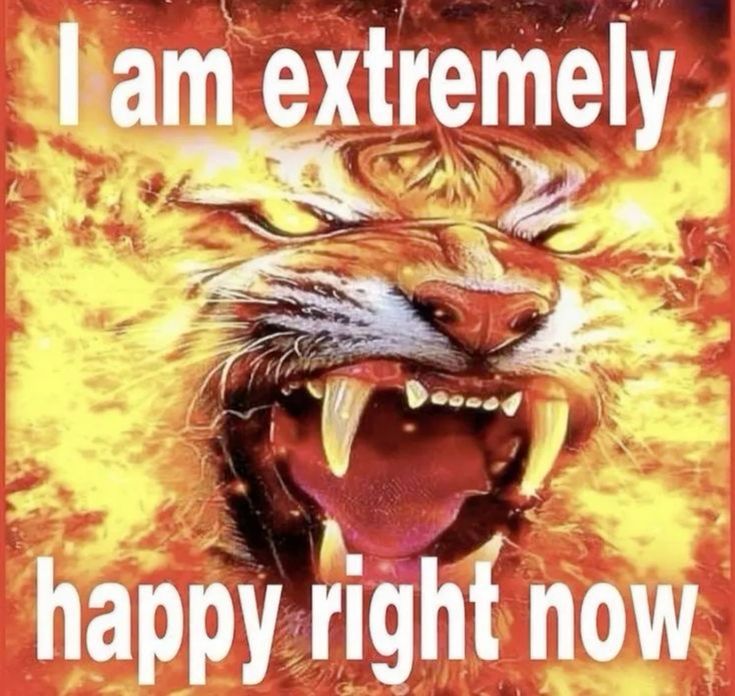
I really like Frutiger Aero, and I love things that are designed so badly that they just become funny and it actually works. I’ve fallen victim so many times to buying products with designs that were just so ugly and horrendous that it made me laugh. Lately, on my Pinterest, I keep seeing these stupid affirmation memes with really loud and emphatic text and completely random background and this horrendous gradient border. Naturally, I was so drawn to it, that now I have these stuck up on my wall back home. My parents are frustrated. My sister loves it.

I’m not a fan of making the same thing as something I see, but since I’m still a beginner to Javascript, I wanted to make something that I would enjoy making, especially in such a short period of time. So, I decided to make my own version of these. I hope you find this as funny as I do.

Artwork:

(I laughed a lot while making this.)

Process:

I had to make so many sections and so many functions and so many variables and etcetera, etcetera. Firstly, I had to import each image into the program, and I named each image by number so that importing them would be easier. I also made a list of affirmations I found online and through my friends onto a spreadsheet and imported it as a .csv file. Since I wanted the option of inputting your own affirmations, I made another list for user input.

function preload(){
  table = loadTable('Affirmations.csv','csv'); //csv file
  for (let i=0; i < totalImages; i++)
  {
    images.push(loadImage(i+'.jpg'));
  }
}

I loaded each row from the .csv file.

// load from csv file (I'm starting on row 2 because header lol)
 for (let r = 2; r < table.getRowCount(); r++){
   let line = table.getString(r,0);
   if (line) Affirmations.push(line); // prevent empty
)

After adding user input, I made a function to generate a new image every 3 seconds. There were multiple steps I had to take for this, which were:

FIRSTLY! Pick a random nature image:

let nextImgIndex;
  do {
    nextImgIndex = floor(random(images.length));
  } while (nextImgIndex == lastImgIndex);
  currentImg = images[nextImgIndex];
  lastImgIndex = nextImgIndex;

SECONDLY! Pick which list is currently active (the .csv file or the user input list):

let activeList;
if (modeCheckbox.checked() &&
   userAffirmations.length > 0) {
  activeList = userAffirmations;
} else {
  activeList = Affirmations;
}

THIRDLY! Pick a random affirmation from the chosen list:

if (activeList.length > 0){
   let nextTextIndex;
   do {
     nextTextIndex = floor(random(activeList.length));
   } while (nextTextIndex === lastTextIndex && activeList.length > 1);
   
   currentText = activeList[nextTextIndex];
   lastTextIndex = nextTextIndex;
 }

FOURTHLY! Add glow. Yay!

colorMode(HSB, 360, 100, 100);
 glowColor = color(random(360), 85, 100);
 colorMode(RGB);

For drawScene(), I used this code. I realized I could crop the nature images in the code (code is so cool… wow) so I did it in this.

function drawScene() {
  if (!currentImg || currentImg.width <= 1) return;

  // automatic crop image to square size
  let imgAspect = currentImg.width / currentImg.height;
  let canvasAspect = width / height;
  let sx, sy, sw, sh;
  if (imgAspect > canvasAspect) {
    sh = currentImg.height;
    sw = sh * canvasAspect;
    sx = (currentImg.width - sw) / 2;
    sy = 0;
  } else {
    sw = currentImg.width;
    sh = sw / canvasAspect;
    sx = 0;
    sy = (currentImg.height - sh) / 2;
  }
  
  image(currentImg, 0, 0, width, height, sx, sy, sw, sh);
  drawGlowBorders();

  // text style
  let txt = currentText;
  let maxWidth = width * 0.85;
  let fontSize = constrain(map(txt.length, 0, 50, 80, 40), 35, 90);

  push();
  translate(width / 2, height / 2);
  scale(1, 1.7); 
  textAlign(CENTER, CENTER);
  textFont('Arial');
  textStyle(BOLD);
  textSize(fontSize);

  drawingContext.shadowBlur = 30;
  drawingContext.shadowColor = glowColor.toString();
  fill(255);
  noStroke();
  
  text(txt, -maxWidth/2, -height/3.4, maxWidth, height/1.7);
  
  drawingContext.shadowBlur = 0;
  text(txt, -maxWidth/2, -height/3.4, maxWidth, height/1.7);
  pop();
}

I thought the glow borders at the very end were really funny to figure out, but this is what I ended up with.

function drawGlowBorders() {
  let bSize = 45;
  noFill();
  for (let i = 0; i < bSize; i++) {
    let alpha = map(i, 0, bSize, 180, 0);
    stroke(red(glowColor), green(glowColor), blue(glowColor), alpha);
    strokeWeight(1);
    rect(i, i, width - i*2, height - i*2);
  }
}

Reflection:

There’s a lot of things I want to improve. Obviously, with the current skill level and time that I have, I don’t think this would be feasible, but I wanted to make sure you could save your custom affirmations into a file you can download later. I also wanted to let you delete affirmations you didn’t like and add more (database management? I guess?).  I also found out that .csv files cannot store images, so I was limited to using only 21 images for now. I honestly made this so it could double not only as an assignment but also a funny thing for my friends to laugh at, so I think I achieved this, but I would like to play more with the generative aspect and data aspect of this. The text itself on the screen is not interactive (e.g. if I click it, nothing happens) and the data is not really visualized, more being used as a list to remove the need to individually type each affirmation into the code. I’m glad I figured out parts of the code that I know in Python though (like input) so hopefully that should make future projects easier.

Week 4 – Reading Reflection

Thinking after Norman’s ideas, as a student two objects that annoy me is the the AC system in the Baraha common rooms and the tiny sinks. In Baraha, the AC is set around 21°C, and when I press the buttons to increase the temperature, the system promises a gradual change, but you have to wait for a long time and I do not feel that the temperature is increasing (and sometimes it is indeed is not), so the interface gives me an illusion of control instead of real control. The tiny sinks have the same problem in a physical way: For me the sinks we have in the dorms are small. The faucet sits so close to the basin that there is almost no space for my hands, and water splashes everywhere, even though the sink looks normal. Both cases show broken mapping: what I do and what actually happens do not match my expectations, and the design never clearly tells me what is really possible. To improve them, the AC interface should not take so long for temperature change and should show honest information about how the centralized system works, and the sinks should be redesigned with more vertical space for more comfortable hand-washing.

For interactive media, I apply Norman’s principles by treating mapping, and conceptual models as the core of how I design my p5 sketches. As an interactive media student, I know that users understand a piece through the system image in front of them, not through my code, so I need clear signifiers on the screen that show what can be clicked, spoken, or dragged. I design interactions so the layout of elements matches their effects, and I give immediate feedback when the user does something, instead of delaying them, like the AC does. When I build a sketch, I test whether someone new can guess what to do in the first few seconds and form a simple model of how the piece behaves, because for a user that understanding is key for deeper, more emotional experience rather than leaving them stuck in trial .

Reading Reflection Week 4: The Experience of the Interactivity

This reading made me question more so the everyday designs that are prominent in our lives in terms of usability and understanding. I feel as if, the more modern and contemporary a design is, the less funcationality and even instructions behind it are. I mean, just as a real life example, when I go to Galleria mall, the bathroom was quite confusing to use. They had some new faucets, where they output water, soap, and also you can blow dry your hands. Of course, this is great in terms of efficiency and spacing, in order to have all you could need at your fingertips. But not only was it, a little odd to understand, it was also a bit inconsistent, as depending on where you put your hands, you could get splashed with water when you wanted to blow dry them, or soap when you wanted water. I applaud of course the ease of convience for it, but simply put, better labelling and also a bit of a larger design would be appreicated.

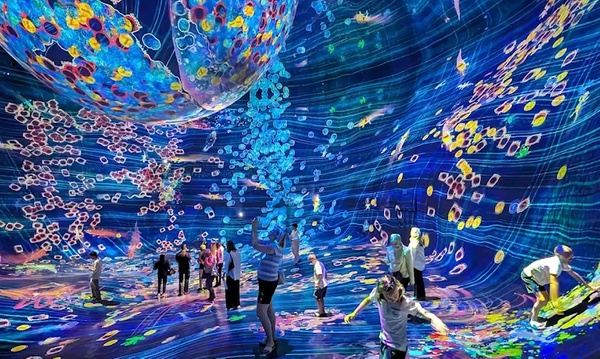
In terms of interactive media, I would agree with the three design concepts he presents and I’d go as far as to say that, more emphasis should be on the  experience design. When I notice think about interactive media, it is paramount that interactivity is a key part of designing a enagaging and unique bit of media. But if I’m honest, most of the time, I feel a bit underwhelmed from the experience I get from most interactive designs, say in museums or art galleries. It’s not to say there is a lack of interactivity, but I’d argue that memorability of the given piece of interactive media matters a lot, especially if you want to be remembered. One person I can name who I’d say masters the experience is Scott Snibe’s Boundary Functions . You still interact but also take in the experience behind the art, and the actual meaning as well. Another place I’d say is places like TeamLab, where you truly are surrounded by this experience of art that I think you can lose yourself in it as easily as you can interact with it. Even theme parks like Super Nintendo World have a lot of interactive games, where you can feel challenged but also enjoy the experience.

To close off, I would say it matters a lot in how you frame the experience of interactivity. It needs to speak to our human emotion and to really provoke us to get the feeling of which the curator of that bit of media, was trying to convey.

Week 3: Reading Response

I think a strongly interactive system is one where users feel like their actions genuinely matter and produce meaningful responses. The interaction goes beyond just getting any reaction, and to actually getting responses that feel thoughtful and varied based on what you actually do. A strongly interactive system gives you agency almost like you feel like you’re having a conversation with it rather than just triggering pre-programmed effects. The fridge light example really clicked for me here. Sure, the light turning on is necessary for seeing inside, but what would make it strongly interactive is if different lights indicated whether the fridge is full, running low on food, or out of ice. That kind of communication transforms a basic function into something that actually responds to your needs in a meaningful way.

Honestly, I’ve been prioritizing aesthetics way too much with my designs, and I want to flip that relationship entirely. I want interaction to be the main focus, with visuals supporting it rather than the other way around. I also really want to give users actual choice in what they interact with. I could add memory too, where the sketch remembers your previous interactions and elements behave differently based on that history. I want the goal is to surpass just making pretty things that happen to be clickable and instead create experiences where meaningful interaction is actually the heart of the piece.

Week 3- OOP Assignment


Your concept:

I was inspired by my house cats, who always bring joy and happiness when I play with them or when they decide to sit on my lap. I wanted to include them, but wasn’t sure how, so I decided to base it on Nyan Cat, which I used to play when I was younger, when I had to wait for my friends to arrive, didn’t have access to the internet, or just wanted to give my brain a break.

Nyan Cat (Music Video 2011) - IMDb

Code:

I prompted Gemini to add the particles, it used blendMode(ADD) is what makes the magic particles look like they are made of light.

let segments = 8; 
let segLength = 12;
let x = [], y = [];
let fireParticles = [];

const COLORS = {
fur: [255, 235, 245], 
ears: [255, 180, 200],
eyes: [100, 200, 255],
magic: ['#FFD1DC', '#FFECB3', '#B2E2F2', '#D1FFD7', '#E0BBE4']
};

function setup() {
createCanvas(windowWidth, windowHeight);
// Initialize segment positions
for (let i = 0; i < segments; i++) {
x[i] = mouseX; 
y[i] = mouseY;
}
background(0); 
angleMode(RADIANS);
}

function draw() {
// Semi-transparent black rect creates the generative trail
blendMode(BLEND);
fill(0, 0, 0, 30); 
rect(0, 0, width, height);

let mouseSpeed = dist(mouseX, mouseY, pmouseX, pmouseY);

//Follow Logic
dragSegment(0, mouseX, mouseY);
for (let i = 0; i < x.length - 1; i++) {
dragSegment(i + 1, x[i], y[i]);
}

let headAngle = atan2(mouseY - y[1], mouseX - x[1]);
let emissionRate = map(mouseSpeed, 0, 50, 1, 8);

if (mouseIsPressed || mouseSpeed > 2) {
for(let i = 0; i < emissionRate; i++) {
fireParticles.push(new MagicParticle(x[0], y[0], headAngle, mouseSpeed));
}
}


// Tail
drawTail(x[segments-1], y[segments-1]);

// Body
for (let i = x.length - 1; i > 0; i--) {
drawCatBody(x[i], y[i], i);
}

// Glowing Particles
// We use ADD blend mode to make them pop on black
blendMode(ADD);
for (let i = fireParticles.length - 1; i >= 0; i--) {
fireParticles[i].update();
fireParticles[i].display();
if (fireParticles[i].isDead()) fireParticles.splice(i, 1);
}
blendMode(BLEND);

//Head always on top
drawCatHead(x[0], y[0], headAngle);
}

function dragSegment(i, xin, yin) {
let dx = xin - x[i];
let dy = yin - y[i];
let angle = atan2(dy, dx);
x[i] = xin - cos(angle) * segLength;
y[i] = yin - sin(angle) * segLength;
}

function drawCatBody(posx, posy, index) {
push();
translate(posx, posy);
fill(COLORS.fur);
noStroke();
ellipse(0, 0, 50 - index, 45 - index);
pop();
}

function drawTail(tx, ty) {
push();
translate(tx, ty);
stroke(COLORS.fur);
strokeWeight(12);
noFill();
let wag = sin(frameCount * 0.2) * 25;
bezier(0, 0, -15, wag, -30, -wag, -45, 0);
pop();
}

function drawCatHead(hx, hy, angle) {
push();
translate(hx, hy);
rotate(angle);

fill(COLORS.fur);
noStroke();
ellipse(10, 0, 55, 50); // Face

// Ears
fill(COLORS.ears);
triangle(-5, -20, 5, -45, 20, -20); 
triangle(10, -20, 25, -45, 40, -20); 

// Mouth
fill(255, 150, 150);
arc(30, 5, 22, 22, 0, PI);

// Eyes
fill(COLORS.eyes);
ellipse(15, -5, 10, 12);
ellipse(35, -5, 10, 12);
fill(255); 
ellipse(17, -7, 4, 4);
ellipse(37, -7, 4, 4);

// Whiskers
stroke(255, 200);
strokeWeight(1);
line(40, 2, 60, -5);
line(40, 5, 60, 5);
line(40, 8, 60, 15);
pop();
}

class MagicParticle {
constructor(x, y, angle, speed) {
this.pos = createVector(x, y);
// Spread the magic out
this.vel = p5.Vector.fromAngle(angle + random(-0.5, 0.5));
this.vel.mult(speed * 0.2 + random(1, 4));
this.lifespan = 255;
this.c = color(random(COLORS.magic));
this.size = random(2, 7);
}

update() {
this.pos.add(this.vel);
this.vel.mult(0.96); 
this.lifespan -= 4;
}

display() {
noStroke();
let alpha = map(this.lifespan, 0, 255, 0, 200);
fill(red(this.c), green(this.c), blue(this.c), alpha);
ellipse(this.pos.x, this.pos.y, this.size);

// Sparkle effect
if (random(1) > 0.95) {
fill(255, 255, 255, alpha);
ellipse(this.pos.x, this.pos.y, this.size * 0.6);
}
}

isDead() { return this.lifespan < 0; }
}

function windowResized() {
resizeCanvas(windowWidth, windowHeight);
background(0);
}
      • Embedded sketch


    Reflection and ideas for future work or improvements:

  • In the future, I might add interactions or obstacles to make it like an interactive fun game, but I want to be unique and something that have been done previously.

Week 3 – Flower Garden

My project is an interactive generative artwork featuring a digital garden where flowers bloom and fade over time while butterflies move toward them. The user can interact by clicking anywhere on the canvas to plant new flowers.

My inspiration came from teamLab Phenomena in Abu Dhabi I visited, where there was an immersive environment allowing people to draw butterflies, snakes, and other animals that then came to life in a shared space. That experience brought me back to childhood memories of imagination, and I wanted to capture a similar feeling through code. In future versions, I plan to expand this project by adding sound elements for the atmosphere to be richer and more immersive. I also hope to introduce more types of creatures and possibly explore touch or motion-based interaction.

Inside teamLab Phenomena Abu Dhabi | Condé Nast Traveller Middle East

Explore TeamLab Phenomena General Admission for Adults and Youths - Pt Tourism | Groupon

The program begins in the setup() function, which creates the canvas and spawns an initial set of flowers and butterflies in random positions across the screen. The draw() loop serves as the heartbeat of the sketch. It first draws a smooth vertical gradient sky using the lerpColor() function, transitioning from soft blue at the top to gentle green near the bottom. Then, it updates all active flowers, allowing each one to grow and eventually fade as time passes. Meanwhile, the butterflies search for nearby flowers, moving toward them. The sketch also displays basic information such as the number of flowers and user instructions on planting new ones.

// Arrays to store objects
let flowers = [];
let butterflies = [];

function setup() {
  createCanvas(700, 600);
  
  // start flowers
  for (let i = 0; i < 8; i++) {
    flowers.push(new Flower(random(width), random(height)));
  }
  
  // start butterflies
  for (let i = 0; i < 6; i++) {
    butterflies.push(new Butterfly(random(width), random(height)));
  }
}


function draw() {
  // Draw gradient sky background
  for (let y = 0; y < height; y++) {
    let c = lerpColor(color(135, 206, 235), color(180, 220, 160), y / height);
    stroke(c);
    line(0, y, width, y);
  }
  
  // Update and draw flowers
  for (let i = flowers.length - 1; i >= 0; i--) {
    flowers[i].grow();
    flowers[i].display();
    
    // Remove old flowers
    if (flowers[i].age > flowers[i].lifespan) {
      flowers.splice(i, 1);
    }
  }
  
  // Update and draw butterflies
  for (let butterfly of butterflies) {
    butterfly.moveTowardFlowers();
    butterfly.display();
  }
  
  // Instructions
  fill(255, 200);
  noStroke();
  fill(60);
  textSize(14);
  text("Click to plant flowers", 20, 30);
  text(`Flowers: ${flowers.length}`, 20, 45);
}

// mouse interaction

function mousePressed() {
  flowers.push(new Flower(mouseX, mouseY));
}

// flower class

class Flower {
  constructor(x, y) {
    // Position
    this.x = x;
    this.y = y;
    
    // Size (starts small, grows)
    this.size = 0;
    this.maxSize = random(30, 60);
    
    // colors (random pastels)
    this.petalColor = color(random(200, 255), random(100, 200), random(200, 255));
    this.centerColor = color(random(200, 255), random(180, 220), random(50, 100));
    
    // Life
    this.age = 0;
    this.lifespan = random(600, 1000);
    
    // Look
    this.petalCount = floor(random(5, 9));
    this.angle = random(TWO_PI);
  }
  
  // make flower grow each frame
  grow() {
    this.age++;
    if (this.size < this.maxSize) {
      this.size += 0.5;
    }
    this.angle += 0.005; // Slow rotation
  }
  
  // draw the flower
  display() {
    push();
    translate(this.x, this.y);
    rotate(this.angle);
    
    // Fade out when old
    let alpha = 255;
    if (this.age > this.lifespan * 0.7) {
      alpha = map(this.age, this.lifespan * 0.7, this.lifespan, 255, 0);
    }
    
    // draw petals
    fill(red(this.petalColor), green(this.petalColor), blue(this.petalColor), alpha);
    noStroke();
    for (let i = 0; i < this.petalCount; i++) {
      let angle = (TWO_PI / this.petalCount) * i;
      let px = cos(angle) * this.size * 0.4;
      let py = sin(angle) * this.size * 0.4;
      push();
      translate(px, py);
      rotate(angle);
      ellipse(0, 0, this.size * 0.6, this.size * 0.3);
      pop();
    }
    
    // draw center
    fill(red(this.centerColor), green(this.centerColor), blue(this.centerColor), alpha);
    ellipse(0, 0, this.size * 0.4);
    pop();
  }
}

// butterfly class

class Butterfly {
  constructor(x, y) {
    // Position
    this.x = x;
    this.y = y;
    
    // movement
    this.vx = random(-1, 1);
    this.vy = random(-1, 1);
    this.speed = 1.5;
    
    // wings
    this.wingAngle = 0;
    this.wingSize = random(15, 25);
    
    // colors (random)
    this.wingColor = color(random(150, 255), random(100, 200), random(150, 255));
  }
  
  // move toward nearest flower
  moveTowardFlowers() {
    // Find closest flower
    let closestFlower = null;
    let closestDist = 999999;
    
    for (let flower of flowers) {
      let d = dist(this.x, this.y, flower.x, flower.y);
      if (d < closestDist && flower.size > 20) {
        closestDist = d;
        closestFlower = flower;
      }
    }
    
    // move toward it if close enough
    if (closestFlower && closestDist < 200) {
      let dx = closestFlower.x - this.x;
      let dy = closestFlower.y - this.y;
      this.vx += dx * 0.0002;
      this.vy += dy * 0.0002;
    }
    
    // randomness
    this.vx += random(-0.1, 0.1);
    this.vy += random(-0.1, 0.1);
    
    // limit speed
    let currentSpeed = sqrt(this.vx * this.vx + this.vy * this.vy);
    if (currentSpeed > this.speed) {
      this.vx = (this.vx / currentSpeed) * this.speed;
      this.vy = (this.vy / currentSpeed) * this.speed;
    }
    
    // update position
    this.x += this.vx;
    this.y += this.vy;
    
    // wrap around edges
    if (this.x < 0) this.x = width;
    if (this.x > width) this.x = 0;
    if (this.y < 0) this.y = height;
    if (this.y > height) this.y = 0;
    
    // flap wings
    this.wingAngle += 0.2;
  }
  
  // draw the butterfly
  display() {
    push();
    translate(this.x, this.y);
    
    // point in direction of movement
    let angle = atan2(this.vy, this.vx);
    rotate(angle);
    
    // wing flapping (0 to 1)
    let flap = sin(this.wingAngle) * 0.5 + 0.5;
    let wingHeight = this.wingSize * (0.5 + flap * 0.5);
    
    // wings
    fill(this.wingColor);
    noStroke();
    ellipse(-5, -wingHeight, 12, wingHeight * 1.5);
    ellipse(-5, wingHeight, 12, wingHeight * 1.5);
    
    // body
    fill(40);
    ellipse(0, 0, 8, 15);
    
    pop();
  }
}


Every flower is represented by an instance of the Flower class. Each flower starts small and increases in size frame by frame until it reaches its maximum. Colors are chosen randomly from pastel ranges to keep the palette gentle. Each flower contains several petals arranged uniformly in a circle and slowly rotates over time. The petals fade as the flower ages. The Butterfly class handles behavior for each butterfly’s movement, which combines randomness with directed motion toward flowers.

One of the challenges I encountered was controlling butterfly motion. At first, they moved too chaotically. By adjusting acceleration toward flowers and capping their speed, I achieved a more graceful flying style. I also experimented with the fading  for flowers to make the transition from bright color to transparency appear gradual and organic.

Visually, the project is calm and immersive as I wanted it to be. The background gradient,  flower and butterflies all work together to create an environment that feels alive yet peaceful.

Week 3 – Snake Game

Describe the overall concept of your artwork

The idea for my artwork came from a conversation with my friend, I felt that I wanted to start looking into gamifying my code and so she gave me the idea to do the snake game! I looked for photos online to kind of get an idea of what it would look like. Below is one of the photos that I used as inspiration.

Ngu Update #1: A twist to the classic Snake game - Home

This photo made the concept feel more approachable as I knew I could just use built-in shape functions for the snake, adding more as the snake gets larger. I did want to add some of my own touch so I decided to use fruit images for the food. I imported 4 pictures, orange, strawberry, apple, and banana, and randomly spawned the fruits for the snake to eat. Including an array in my code was easy as I used it to store the 4 images of the fruits. I also knew that I would use a class for the snake as it had many functions unique to it, however, I did struggle a bit to get started on the code for the class. I started by watching the videos on Classes by The Coding Train which helped me wrap my mind around the idea. I also found that he had a video where he coded the snake game as well, so I watched a bit of it and used his code as reference for a few of the snake functions. I also referred to the p5.js reference page to understand the built-in functions he used in his code, and also made some of my own edits and changes to the food aspect of the game.

Embedded Sketch

Use your arrow keys to move the snake!

Week 3 – Written response

In the text I found a new meaning to the term interactive. I understood what will make a work interactive and how I can possibly apply it to my work. The author focused a lot on using feedback from the user to change the work. In other words, the work should be able to react to the user. When it comes to computers, how can we tell if computer is using our feedback to do some work or just following a set of instructions.