Week 2 – Reading Reflection

The video was based on the use of randomness or disorder to create art. The classical way is that art should be ordered, create patterns or should be in a certain way to represent or express something. The video taught us that controlled randomness can also be art and illustrated this with intricate examples. The randomness could be in the form of using a set of numbers, a dice roll or even biological systems. The video also drew my attention to the evolution of “random art” with the improvements in computing capabilities. As computers got better, more control and dimensions could be added to this form of art.

This video raised an interesting question. Is there true randomness? In the artworks, if the software was allowed to run long enough, there was evident convergence and patterns forming. Order could be created from the chaos of randomness and this somewhat contradicts with the message or creating disordered art as a form of expression.  Another concern is the determining the line between art created by an artist and a computer. All the examples required an artist to write some code (or give instructions) and rely on the computer to generate the art. With the onset of AI, where will this line be drawn and at what point does the artist become alien to their own work and relinquish the title of artist to the computer.


Week 2 – Generative Artwork

Concept:

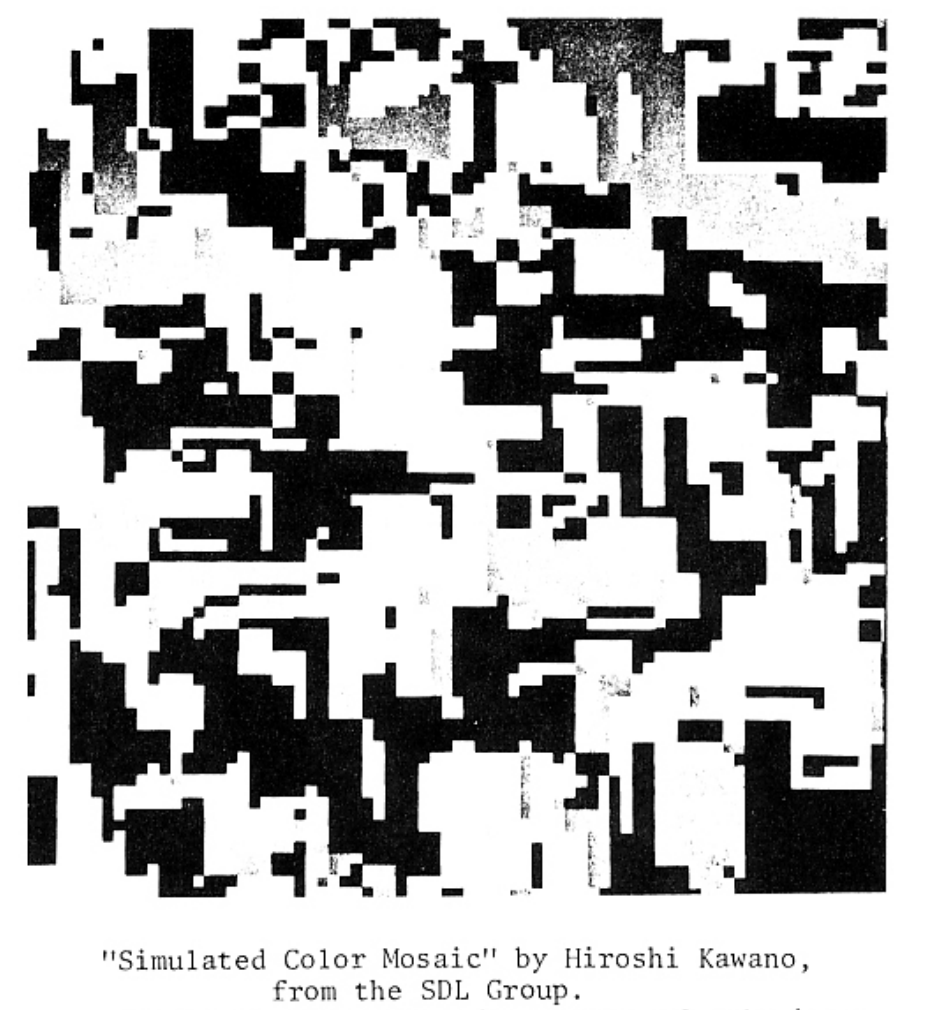
I’m very new to the concept of generative art, and so I found myself struggling to come up with an idea for this project. Upon scrolling through some of the resources provided to us, I was inspired by this one artwork in Computer Graphics And Art (May, 1978), “Simulated Color Mosaic” by Hiroshi Kawano, and I liked how randomized the blocks were. Thus, I wanted to try and create an algorithm that would allow for a different randomized result at each run or click. No two patterns would look the same (hopefully). In order to create these blocks to be randomized, however, I needed to find an algorithm that would let me create blocks randomly, or at least have some planned out randomness (reference to the reading… haha).

Artwork:

(Click the screen to create a new pattern!)

Process:

To create this, I had to first come up with how to create a different pattern each time. Thus, I decided to create the variable blocks, so I could perform actions on it. It was an array, so it could hold many blocks that would be generated on each run. The block then had specific elements (blocks.push({ x: 0, y: 0, sz: 600, black: false })); it would start off at a size bigger than the canvas (to create bigger blocks) and then have a condition of black:false to edit the color of each block.

Afterwards, to draw the blocks, it would firstly go through every square, staring with a block and then targeting it to split it in half and so on. For this, I used this condition:

function draw() {
  background(randomColor);

  // go through every square
  for (let i = blocks.length - 1; i >= 0; i--) {
    let b = blocks[i];

    rect(b.x, b.y, b.sz, b.sz);

    if (blocks.length < 400 && b.sz > 30 && random(1) < 0.05) {
      splitBlock(i);
    }
  }
}

function splitBlock(index) {
  let b = blocks[index];
  let newSz = b.sz / 2;

  blocks.splice(index, 1);

  for (let x = 0; x < 2; x++) {
    for (let y = 0; y < 2; y++) {
      blocks.push({
        x: b.x + x * newSz,
        y: b.y + y * newSz,
        sz: newSz,
        black: random(1) < 0.4 ? !b.black : b.black
      });
    }
  }
}

It draws the block, and then to split the block, it checks the array and size to make sure it splits blocks of a certain size (not too big nor small boxes) and under the limit of 400 blocks in the screen (not too high to lag but also at a lower size so you can see more variation in size of bigger blocks). There’s many random possibilities for the blocks splitting to make sure that the pattern is different each time.

Then, to reset the artwork when it is pressed, I used a different function:

function mousePressed() {
  blocks = [{ x: 0, y: 0, sz: 600, black: false }];
}

Originally, I was planning on keeping the artwork black and white (similar to the inspiration). However, after creating the code, I decided to add color to it. However, instead of just having the same color each time, I added code to change color on every reset.

I added two more variables, randomColor and randomColor2. In setup(), before starting to add the blocks, I set the colors to random with this code:

randomColor = color(random(255), random(255), random(255));
randomColor2 = color(random(255), random(255), random(255));

After, I also set this condition:

if (b.black) {
     fill(randomColor2);
   } else {
     fill(randomColor);
   }

I wrote in the code earlier, black: random(1) < 0.4 ? !b.black : b.black. This was to change the colors of some blocks randomly so it wouldn’t all accidentally end up the same color. Finally, I also added the random code again in mousePressed(), so it would reset into different colors again.

This is the final code:

let blocks = [];
let randomColor;
let randomColor2;

function setup() {
  createCanvas(500, 500);
  noStroke();

  randomColor = color(random(255), random(255), random(255));
  randomColor2 = color(random(255), random(255), random(255));

  blocks.push({ x: 0, y: 0, sz: 600, black: false });
}

function draw() {
  background(randomColor);

  // go through every square
  for (let i = blocks.length - 1; i >= 0; i--) {
    let b = blocks[i];

    if (b.black) {
      fill(randomColor2);
    } else {
      fill(randomColor);
    }

    rect(b.x, b.y, b.sz, b.sz);

    if (blocks.length < 400 && b.sz > 30 && random(1) < 0.05) {
      splitBlock(i);
    }
  }
}

function splitBlock(index) {
  let b = blocks[index];
  let newSz = b.sz / 2;

  blocks.splice(index, 1);

  for (let x = 0; x < 2; x++) {
    for (let y = 0; y < 2; y++) {
      blocks.push({
        x: b.x + x * newSz,
        y: b.y + y * newSz,
        sz: newSz,
        black: random(1) < 0.4 ? !b.black : b.black
      });
    }
  }
}

// reset when press screen
function mousePressed() {
  randomColor = color(random(255), random(255), random(255));
  randomColor2 = color(random(255), random(255), random(255));

  blocks = [{ x: 0, y: 0, sz: 600, black: false }];
}
Reflection

The loops were confusing. I spent a a while trying to figure this out (much longer than I would have liked) and I think the outcome is okay, but I definitely want to explore creating more artworks that are more complex. The logic took more time to create than the actual code, but it was fun nonetheless. Next time, I would like to work a bit more with colors and shapes, and create a more interesting animation. It’s okay right now but it could be so much better. I really do like the color combinations I’ve been getting! Maybe I could make a color palette generator for my artworks later… or add more colors to this… we’ll see. I’m still not completely confident about loops and conditionals in Javascript, so I hope to get better with more practice.

Week 2 – Blurry Starry Night

Concept

This work was inspired by painting of famous Dutch painter Vincent van Hogh’s painting, The Starry Night. The Starry Night painting is the background image of this program. Using curves and colors, an illusion of the blurriness is created. For and while loops where used to create the curves. The mouse can be pressed to switch between two modes: Random mode and Controlled mode. In the natural state, the work in the a random state where translucent curves are randomly placed on the painting to create the illusion effect. When the mouse is pressed, the image changes into controlled state where the user can control the parts of the painting to blur by moving the mouse.


Code I’m proud of

This is the function used to create the controlled and random translucent curves. In the controlled curves, the mouse input is used to control the movement of the curves and in the random curves, random numbers are generated to shape the curve.

// Controlled curves in the y axis
function create_curves_y(startx) {
  let a = mouseX;
  let b = mouseY;
  noFill()
  strokeWeight(20)
  stroke(c)
  bezier(startx, 0, a, b, (a + startx), (b + startx), startx, 400);
}

// Curves in the x axis
function create_curves_x(startx) {
  let a = mouseX;
  let b = mouseY;
  noFill()
  strokeWeight(20)
  stroke(c)
  bezier(0, startx, a, b, (a + startx), (b + startx), 600, startx);
}

// Random curves in the y axis
function r_create_curves_y(startx) {
  let a = random(600);
  let b = random(400);
  noFill()
  strokeWeight(20)
  stroke(c)
  bezier(startx, 0, a, b, (a + startx), (b + startx), startx, 400);
}

// Random curves in the x axis
function r_create_curves_x(startx) {
  let a = random(600);
  let b = random(400);
  noFill()
  strokeWeight(20)
  stroke(c)
  bezier(0, startx, a, b, (a + startx), (b + startx), 600, startx);
}


Code

Here is the work of art I created:

Reflection

The code can be improved by mapping colors to the curves to make the translucent effect stand out more. More shapes and curves can be added to enhance the effect. This can method can also be transferred to other images.

Week 2 – Generative Art

Concept

Generative art seems very modern and new to me: creating art using your computer and element of randomness sounds like something that has no association with older times.

I wanted to create a minimalistic piece that will carry the atmosphere of the age when a laptop at home was a rare find, and when old Windows 7 and DVD players were considered super cool.

I found my inspiration in Klim Type Foundry art-piece and wanted to recreate something similiar.

I decided to make my art minimalistic and more “mathematical”: I have only two colors, blue and white, strokes and lines, shapes, and a lot of numbers which display the coordinates of the figures.

The computer randomly chooses the type and the coordinates of the figure and draws it, then randomly connecting it with other figures by making it either the endpoint of the bezier curve, or the endpoint of its control line. The figures and lines appear slowly, and move around, displaying their coordinates on top.

Code

Implementing the animation of line drawing was the most difficult part for me, so I want to highlight it:

//draw connections between objects
for (let c of connections) {
  // animate t from 0 to 1 
  // existing lines stay at 1 (fully drawn)
  c.t = min(c.t + 0.02, 1); 

  noFill();
  stroke(255);
  strokeWeight(1);

  beginShape();
  // draw the curve based on the current value of t
  //the loop will increment t, therefore moving (x,y) to the second enpoint, allowing a smooth animation
  for (let t = 0; t <= c.t; t += 0.02) {
    let x = bezierPoint(c.a0.x, c.p0.x, c.p1.x, c.a1.x, t); 
    let y = bezierPoint(c.a0.y, c.p0.y, c.p1.y, c.a1.y, t); //save coordinates of a segment of the curve being drawn
    vertex(x, y); //add x,y up to which the curve will be drawn
  }
  endShape();
  
  //do the same for the control lines: it also will be drawn slowly based on t
  let h1x = lerp(c.a0.x, c.p0.x, c.t);
  let h1y = lerp(c.a0.y, c.p0.y, c.t);
  line(c.a0.x, c.a0.y, h1x, h1y);

  let h2x = lerp(c.a1.x, c.p1.x, c.t);
  let h2y = lerp(c.a1.y, c.p1.y, c.t);
  line(c.a1.x, c.a1.y, h2x, h2y);
}

To animate the connections smoothly, I used a normalized time variable, t. Here, t = 0 is the start of the path, and t = 1 is the end. Every frame, value of t of every connection is being incremented by 0.02, revealing 2% more of the path.

For the straight lines I used method lerp(), and for the curves I used bezierPoints(). In the loop coordinates of the current endpoint are slowly increasing from 0 to 1, in the end connecting the first point with the last one, as the coordinates of incremented moving point become the same as the endpoint’s. This creates the illusion of the curve being drawn over time.

Beside that, the structure of the code is pretty simple. I created a class for the figures with methods to create, draw, and move the figures around. After that I connected the figures with lines, and stored all the objects and connections between them in arrays. There’s a lot of randomness in the code: the choice of the velocity of the figure, its shape and which figures it will be connected with lies on the computer, not the user.

Reflection

I find this minimalistic and simple art piece very hypnotizing and interesting. Even though it’s super simple, I can feel the emotions and atmosphere I wanted it to have.

However, I think that improving connection between figures and making it more smooth and less crunchy would be great. Also, finding an algorithm that would allow these figures to move around without overlapping would make the art less messy.

For further improvement, I think that adding sound effects and gravitating the points and lines in a certain pattern that creates some clear shapes of animals/objects would be extremely cool.

Reading Reflection- Week 2

Before watching the video, I assumed that “randomness” in art meant something purely spontaneous—an idea that suddenly appears in an artist’s mind. After watching it, I started to understand randomness differently. In generative work, the artist often writes a set of rules or instructions for a computer (or a system) to follow. The computer then runs those rules, and the final image can turn out in ways the artist didn’t fully predict. That surprise is part of the point.

But this also makes me wonder: is this still “randomness”? If the artist designs the rules, then the outcome isn’t completely uncontrolled. At the same time, the result can still feel unpredictable. The projects shown in the video seem to hold both chaos and structure at once—patterns emerging from something that still looks messy—and that combination is what confuses me.

This connects to a larger debate about whether AI-generated work counts as “real” art, and if it does, who the artist actually is. Is it the person who sets the prompts and constraints, or the AI that produces the final output? Generative art raises a similar question. The human chooses the system, the limits, and the type of randomness, but the machine carries out the process and generates the final form. In a way, the artwork is created through collaboration between human intention and machine unpredictability.

At the same time, I keep coming back to the purpose of this kind of work. Are we amazed mainly because a system can produce something that looks complex and meaningful from simple rules? And what happens if nothing surprising appears—if the output feels flat, repetitive, or uninteresting? Would it still count as art, or would it just feel like a technical exercise? These questions make me realize that “randomness” in generative art isn’t the absence of control—it’s more like a tool the artist uses to invite uncertainty, so that structure and surprise can exist together.

In my project, I think I have to set up some boundaries, but at the same time leave the computer some spaces that it can actually have options. But I am still very confused about what counts as a success in such an art project? This kinds of process is confusing: we are doing something logical and follow the instructions but we expected something unpredictable and surprising.

Reading Reflection Week 2: Order and Complexity in Digital Art

Going into Reas’ talk about the length of using order or complexity in a digital artwork, I find it striking just how different the artworks are made depending on the level of randomness used. I mean looking at the Commodore 64 program, it’s very clear that logic and clearly defined patterns are sort of the bedrock of the artwork. Whilst there is a slight bit of randomness in terms of the direction of the lines, it’s interesting that the core of it, is quite literally a random coin flip. Starting from a random coin flip and then giving it symmetry, it’s clear that while on the surface there is a sense of unity and structure to it, the very first base layer is randomness. The level of randomness used is certainly not as heightened as other art pieces but I find it interesting how it is still present.

Whereas for the art piece “Articulate” there is a much higher level of randomness and noise, but the bedrock level is actually a unifrom, straight line. The artwork starts out from logic, in the form of a line, but then it branches out in random directions. It doesn’t have any sense where it goes to and what’s even more interesting is that it is able to make an art piece with actual depth to it. This is vehemently clear as some parts of the artwork are lighter than others, giving a pop feel and something that can be more so passed off as an art piece. So even still, it is possible to have a coherent art piece even if the starting layer is randomness.

For my own art, I would utilise the second approach. I’d start perhaps even with a uniform pattern of dots or lines, and then really go from there. I’ve used this practice even for drawings with acrylic colours, as it gives me more of a lovely sense of chaos as the drawing progresses. I feel like that’s what we sort of strive for in art, as we feel as though throughout the drawing process, we need a sense of rebellion to get our emotions across.

But how do we balance chaos and order? Personally I believe we need a good amount of intial grounding at the beginning of our drawing. And then as we go, we should have a very good degree of randomness. But not so much it actively ruins our order. Translating it into percentages, I would say a good 5-10% of order at the beginning, with a decent sized 70% randomness and 30% of order throughout the drawing process. But of course, at the end we are our own artist, so we set our limits and I’d always welcome more randomness.

Madina – my first p5.js self portrait

For my first Intro to Interactive Media assignment, I created a simple self-portrait using p5.js and basic geometric 2D shapes. My goal was to capture a few key things about myself: my long brown hair, pale skin, brown eyes, and my favorite color. I chose soft colors and a minimal one-color background so the focus stays on the face and shoulders, which feel the most “me.” One of my favorite parts of the code is how I drew the shoulders and upper body using an arc() instead of a rectangle. The code looks like this:

 // shoulders/body
fill("pink"); 
arc(300, 600, 400, 260, PI, 0);

At first I was not sure how to draw the upper body in a way that looked rounded and soft instead of like a flat block. While exploring “The Coding Train” Youtube tutorial’s reference for shapes, I found the arc() function and realized I could use it as a big curved shape at the bottom of the screen to suggest shoulders. The last two numbers in arc() are angles in radians: I used PI as the start angle and 0 as the end angle to draw a half-circle shape for the shoulders. As i learned, in p5.js, PI is a built-in constant that represents the mathematical value of π (about 3.14159), which is the ratio of a circle’s circumference to its diameter. By using PI and 0,  the arc draws from the left side of the circle to the right side, creating a smooth curved top edge that looks like a rounded shoulder line. I like this part because it looks nicer than a rectangle,  also because I filled it with pink, which is my favorite color, so this area feels very personal and represents my personality as a light color lover.

Embedded Portrait:

I built the self-portrait with shapes 2D drawing functions in p5.js such as ellipse(), rect(), line(), arc(). The face and eyes are made from ellipses, the body and neck use rectangles and the pink arc for the shoulders, and the hair is constructed from overlapping rectangles and ellipses to suggest long brown hair. I also adjusted the fill () colors for the skin tone, hair, and clothing, somewhere I used colors just typing them, other ones such as the shoulders, skin and hair I  tested different RGB values until the skin looked pale, the hair read as brown, and the pink for the shoulders matched the color I had in mind.

For learning how to code the portrait, I mainly used the official p5.js tutorials and followed Youtube tutorials from “The Coding Train” channel to get more comfortable with the general structure of a p5.js sketch. This assignment helped me get more comfortable with thinking in coordinates and breaking down a portrait into geometric shapes. Discovering that I could use arc() and the PI constant to create a curved shoulder shape was a small but important moment, because it made me realize how much control I have over shapes. In the future, I would like to add small details like accessories or texture in the hair using more line () and ellipse() shapes, experiment with simple interactivity, changing background colors or facial expressions when the mouse is pressed. Overall, the portrait is still quite minimal, but I feel it already captures some of my identity through the color choices and the simplified representation of my face and shoulders.

Week 1 – self-portrait

my concept: My self-portrait is a very simple one, I’ve gotten the idea of the shape from the koala example we’ve seen in class. I wanted to make it look cool (even though it didn’t go that well), so I added an interaction where a sword shows up. I’ve gotten this idea while playing a video game called “Elden Ring” where one of the characters would make swords show up.

A section of the code I feel a bit proud of is this:

if (hasSword && swordPosY < swordStopY) swordPosY += 6;
if (!hasSword && swordPosY > -200) swordPosY -= 6;

it was quite confusing getting it to work right, and took time for me to find a good position and make it work the way I want it.

How was this made: I tried keeping the portrait simple, so I mostly used things like ellipse, arc and rect from the references section on the p5 website. I also used AI to look for functions I could use with the swords, cause it seemed faster than me looking them up, it ended up giving me some functions that were quite new and complicated. from AI I ended up using the mousePressed() function to move the sword, which I remember we did see soemthing similar being used in last week’s class. Another function it suggested was lerp() which I didn’t use.

Reflection: I’ve never used Js before, so this was a new experience to me especially with the p5 library, where I got to learn how to arrange shapes and manage coordinates. Making a portrait from such basic things was really fun. If I had more time I would’ve tried adding another animation with the sword instead of it just dropping down. Another thing I could’ve done was making the facial expression more personal and less goofy. The last thing was making a better background like it being night with the moon and stars up there.

Week 1 – Self-Portrait

Your concept

For my self-portrait, I had two main ideas I wanted to portray. First, I wanted to include something from Egypt. I landed on including the Pyramids as the background of the portrait. I really like how it looks and how it’s a subtle detail in the background that gets my idea across. The other detail I wanted to include some interactivity to do with taking off/putting on my glasses, since I recently started wearing contacts. I was showing my friend the self-portrait, when she gave me the idea to also change the background when I added the glasses, which I decided to incorporate. During the day, I included clouds as well as the sun in the background, at night, it’s replaced with stars and the moon (in addition to adding glasses on my face)!

A highlight of some code that you’re particularly proud of
// glasses
if (mouseIsPressed) {

strokeWeight(2);
fill(211, 211, 211, 100);
stroke("brown");
circle(305, 256, 50)
circle(378, 256, 50)

line (330, 253, 352, 253)
line(280, 253, 271, 246)
line(403, 253, 410, 246)
}

I’m proud of the code to add the glasses on my face. The code is pretty simple but I was excited to add something interactive to my code, so I like that the user can press to change up somethings in the portrait. After adding the glasses code, I added the code to change up the background (day/night).

// pyramids
  let s = color ("#D6BF6F");
  let c = color('#e2ca76');
  fill(c);
  stroke(s);

  // pyramid of khufu
  triangle(436, 400, 586, 166, 720, 377);
  
  // pyramid of khafre
  triangle(139, 390, 342, 40, 575, 400);
  
  // pyramid of menkaure
  triangle(0, 386, 147, 140, 298, 390);

I’m also proud of my code for the Pyramids, as simple as it may seem, it took me a while to get all the coordinates right. What I found especially helpful was using the cursor & printing the values of the coordinates to find where I should place each point of the triangles. I really like how the pyramids overlap over each other and I like that the outline becomes more visible at night.

Embedded sketch

How this was made

The first thing I completed was the Pyramids and sand in the background. Initially, I had place this code in the setup() function, rather than the draw() function, since I wasn’t planning to change the background. However, after deciding to have an interaction of changing the background between day and night, I moved the code to the draw() function. Throughout the code, the most helpful thing to figure out coordinates was definintely the print(mouseX, mouseY) line (which is commented out at the end of my code).

After completing the Pyramids, I started working on the actual portrait. I was a bit unsure on how I wanted to do my hijab, and I landed on an ellipse with a rectangle at the bottom. I also added a semi-circle with a rectangle at the bottom to mimic my body. For the face, I used ellipses, circles, semi-circles, triangles, lines, and rectangles, to complete all the features. Something that I found so tedious was the eyelashes. It was a bit to annoying to manually find the coordinates for each point on the line, especially since it was so small, so it took more time than I expected. I expected that drawing my eyebrows would be a bit difficult as I wasn’t sure how to draw a curve, and a line would’ve been too thin. However, after looking through the references, I realized I can just edit the stroke weight so that was helpful. The glasses were what I was most excited for in this portrait, and I love how they turned out since they look very similar to my current glasses.

The clouds, stars, sun, and moon were the last few details that I added. At first, I was struggling with getting the cloud shape correct as I was trying to do using an ellipse and the circles on the outside., but it didn’t look right. I decided to just find a YouTube tutorial and as soon as I started the video, I realized I was overcomplicating it for myself. I just used three circles for each cloud, the left and right circles are smaller and similar in size, while the middle circle is bigger than both circles. As for the sun, it was just a simple yellow circle, I just decided to add the transculent circle in the background as I thought it looked pretty. For the stars, I wanted to play around with the random() feature  so that each star would be randomly placed everytime the user pressed the mouse. However, it didn’t really go as expected as the stars were just moving around instead. I tried playing around with some functions but it didn’t really work the way I wanted so in the end, I just manually wrote around 10 random coordinates for each star. The moon was pretty simple, I just placed it at the same location as the sun but just made it a tad bit smaller.

Throughout the code, I mostly referred to the p5.js reference page and just trial-and-error to get everything looking the way I wanted. I also used Google to find hex codes for everything, as well as also just selecting directly from the color gradients.

Code
function setup() {
  createCanvas(700, 600);
}

function draw() {
  
  // background is blue sky & sand at the bottom
  // sky
  if (mouseIsPressed) {
      background('#00022e')
  } else {
    background('#448ee4');
  }
  
  if (mouseIsPressed) {
    // moon
    fill("white");
    stroke("white");
    circle(601, 79, 130)
      
    color("white")
    strokeWeight(5);
    point(23,45);
    point(100,76);
    point(500,25);
    point(340,132);
    point(265,156);
    point(45,190);
    point(650,200);
    point(130,10);
    point(123,143);
    point(600,12);
    point(696,109);
    point(210, 63)
    point(462, 97)
    point(484, 148)
    point(318, 27)
    
  } else {
    // clouds
    fill("white");
    stroke("white");
    circle(75, 67, 60)
    circle(128,55, 80)
    circle(176, 59, 60)

    circle(275,111, 80)
    circle(337,110, 120)
    circle(407, 111, 80)

    // sun
    fill("orange");
    stroke("orange");
    circle(601, 79, 150)

    fill(255, 255, 0, 50);
    stroke(255, 255, 0 , 50);
    circle(601, 79, 170)
  } 
  
  // pyramids
  let s = color ("#D6BF6F");
  let c = color('#e2ca76');
  fill(c);
  stroke(s);

  // pyramid of khufu
  triangle(436, 400, 586, 166, 720, 377);
  
  // pyramid of khafre
  triangle(139, 390, 342, 40, 575, 400);
  
  // pyramid of menkaure
  triangle(0, 386, 147, 140, 298, 390);
  
  // sand 
  // i added the code for the sand after the pyramids to cover the bottom outline of the pyramids
  fill(c);
  stroke(c);
  rect(0, 389, 700, 600);
  ellipse(118, 388, 264, 20);
  ellipse(263, 429, 500, 100);
  ellipse(577,400, 264, 50);
  ellipse(646,400, 400, 60);
  
    strokeWeight(1);
  
    // hijab 
    let h = color("#808080");
    fill(h);
    stroke(h);
    ellipse(340, 310, 200, 280);
    rect(241, 335, 198, 100);
  
    // face
    let f = color("#f3c37e");
    fill(f);
    stroke(f);
    ellipse(340, 290, 150, 210);
    
    // eyes
    fill("white");
    stroke("white");
    ellipse(305, 256, 40, 15);
    ellipse(378, 256, 40, 15);
  
    fill("#371d10");
    stroke("black");
    circle(305, 256, 15);
    circle(378, 256, 15);
  
    // eyelashes
    line(292,250,289, 243);
    line(297, 248, 295, 241);
    line(302, 247, 301, 240);
    line(307, 247, 307, 240);
    line(312, 248, 313, 240);
    line(317, 249, 319, 242);
  
    line(366, 249, 362, 242);
    line(370, 248, 369, 240);
    line(375, 248, 374, 240);
    line(380, 249, 380, 240);
    line(384, 248, 386, 241);
    line(388, 249, 392, 242);
  
    // eyebrows
    strokeWeight(8);
    line(320, 230, 294, 228);
    line(282, 234, 294, 228);
  
    line(360, 230, 388, 228);
    line(398, 234, 388, 228);
  
    strokeWeight(1);
    
    // nose
    fill ("#DAB073");
    stroke("#DAB073");
    triangle(331, 311, 340, 280, 350, 311);
  
    // body
    let b = color("#800080");
    fill(b);
    stroke(b);
    arc(340, 490, 210, 150, PI, TWO_PI);
    rect(235, 490, 210, 110);
  
    // mouth
    fill("#a90830")
    stroke("#a90830")
    arc(340, 328, 85, 80, 0, PI);
  
    // teeth
    fill("white")
    stroke("rgb(240,235,235)")
    rect(305, 328, 9, 10);
    rect(314, 328, 9, 10);
    rect(322, 328, 9, 10);
    rect(331, 328, 9, 10);
    rect(340, 328, 9, 10);
    rect(349, 328, 9, 10);
    rect(358, 328, 9, 10);
    rect(367, 328, 9, 10);
  
    rect(324, 357, 9, 10);
    rect(334, 358, 9, 10); 
    rect(343, 358, 9, 10);
    rect(353, 356, 9, 10); 
  
    // glasses
    if (mouseIsPressed)  {
    
      strokeWeight(2);
      fill(211, 211, 211, 100);
      stroke("brown");
      circle(305, 256, 50)
      circle(378, 256, 50)

      line (330, 253, 352, 253)
      line(280, 253, 271, 246)
      line(403, 253, 410, 246) 
    }
  
    // print(mouseX, mouseY);

}
Reflection and ideas for future work or improvements

Overall, I’m proud of my work, and I hope to continue improving in p5.js, especially when it comes to smaller details and learning to use more shapes (such as curves and quadrilaterals). I’m really happy I was able to add interactivity, and am especially happy with how the background turned out, and I hope to continue learning how to work with all the interactive features.

I do think there’s a lot of room for improvement in my work. I would love to work on the hijab in my portrait and try to make it more realistic. Additionally, I would’ve liked to have more realistic facial features which I hope will become easier the more familiar I become with p5.js.

 

Week 1 – Self-portrait

My concept:

I added eye movement inspired by the Mona Lisa, where the eyes follow the viewer’s gaze. I chose pink as the background color since it is my favorite. I also added a touch of glitter and shimmer to the background because I grew up loving Barbie dolls, movies, and TV shows. Finally, I included my house cats, who love my family unconditionally.

“The most personal is the most creative.” — Martin Scorsese

A highlight of some code I am particularly proud of

The code I am most proud of is the eye movement:

let leftEyeX = constrain(map(mouseX, 0, width, -75, -55), -75, -55);
let leftEyeY = constrain(map(mouseY, 0, height, -8, 8), -8, 8);
let rightEyeX = constrain(map(mouseX, 0, width, 55, 75), 55, 75);
let rightEyeY = constrain(map(mouseY, 0, height, -8, 8), -8, 8);

circle(leftEyeX, leftEyeY, 38);
circle(rightEyeX, rightEyeY, 38);

How it was made:

I used basic shapes for the portrait of me, including circles, ellipses, rectangles, and arcs. I made the eye movement and the cats’ tail movements follow the mouse using mouseX and mouseY, with constraints to keep the irises within the eye area. For the background glitter, I used a loop to create a sparkling effect by randomly placing tiny circles with different alpha values. In addition, I used functions to keep everything organized and easy to edit.

Embedded sketch:


Reflection and ideas for future work implementations:

I really enjoyed the process. I learned a lot from this project, such as utilizing the for loop for adding glitter and shimmer. In the future I would like to add learn how to utilize the JavaScript Computer Vision and Detection libraries, such as ML5.js and face-api.js, to make more interactive to the audience. I would also want to make more detailed and add a bit more shadows.