Week 9: Reading Response

Most modern discoveries are build on foundational concepts that have been around for years. We are nothing without the knowledge of those who came before us. Which is why it is very insightful to dive into the previous works in the field of physical computing, going through the best and the not so best inventions and creations. Everyone is fixated on creating the next new thing that we forget the importance of building on and improving previous works and ideas. Through reading about these works, I was without a doubt inspired for future projects on how to integrate physical computing. It brought to my attention crucial elements that I would have otherwise overlooked such as the importance of balancing aesthetics and functionality. Projects such as the video mirrors had aesthetics as the central focus foregoing any structural interaction. While the lack of valuable interaction is a valid concern, it did get me thinking on the importance of interaction and if there is value that comes from aesthetics that makes overlooking interaction the correct move. This ties in with themes from the previous readings that discussed the balance between aesthetics and functionality, a concept which I believe were put to the test in these projects.

“Set the Stage, Then Shut Up and Listen” is a harsh message to the artists of interactive art, yet it is an important one as well. Creating interactive art is a collaborative effort, like a puzzle where the artist only has half the pieces and needs to guide the participants so they could place the remaining ones.  It is a reflection of the creator of the work as well as every person that choses to interact with it. A dynamic conversation where the artists becomes primarily a listener, following the guide of the consumers of their work. It is tempting to share the message behind a work, especially when you spent a long time developing it and integrating a message within it. Though, how can you conclude and solidify a message when the work has not been interacted with and spoken to from outside contributors. On the other hand, I do think that it is important to find a balance, where there is a foundational message that the work is being built on, one that can be altered and developed by outsiders. As without a strong foundation a project is at a risk of being void of a message to be build on by the participants. Once again, we are in a position where a balance is crucial to the building of a meaningful and engaging work.
Week 9 – Arduino: analog input and output

Today’s class went over some of the questions I had in mind in creating the circuit and I was able to complete the assignment.

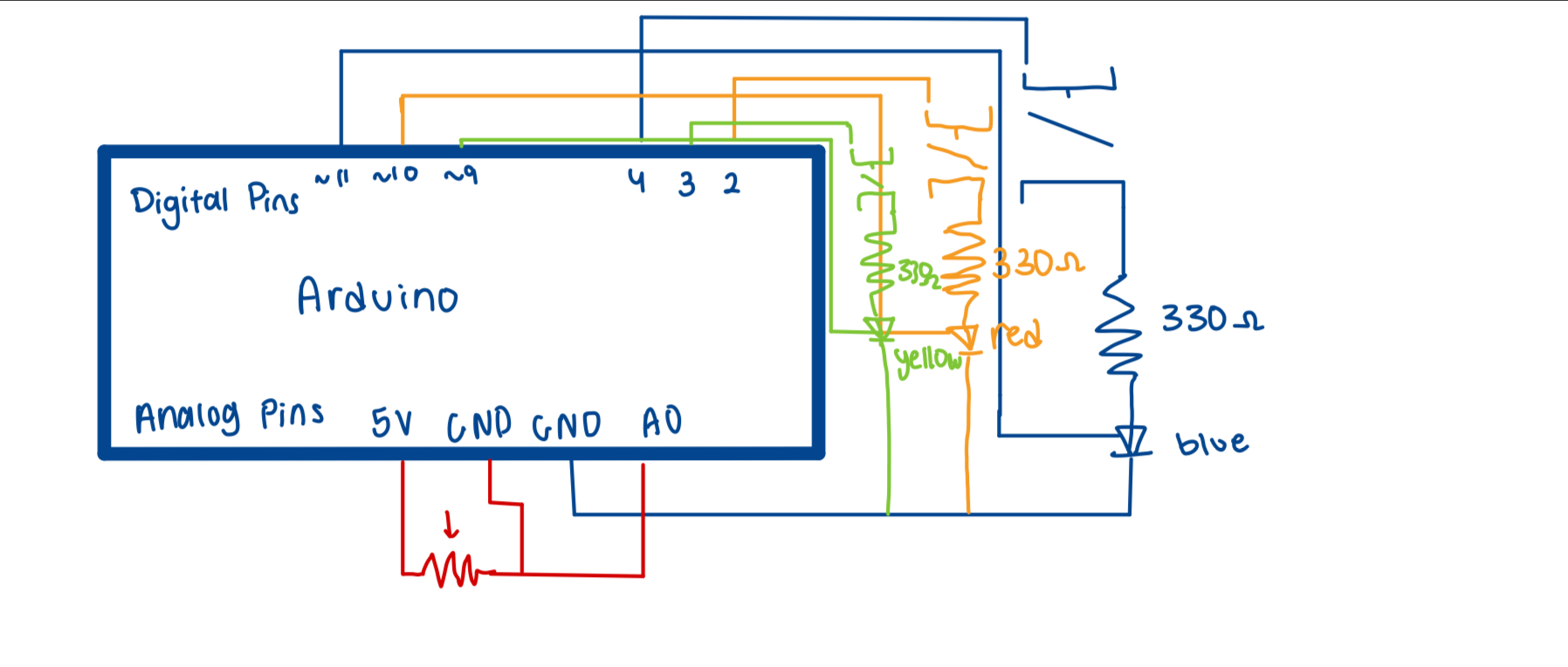
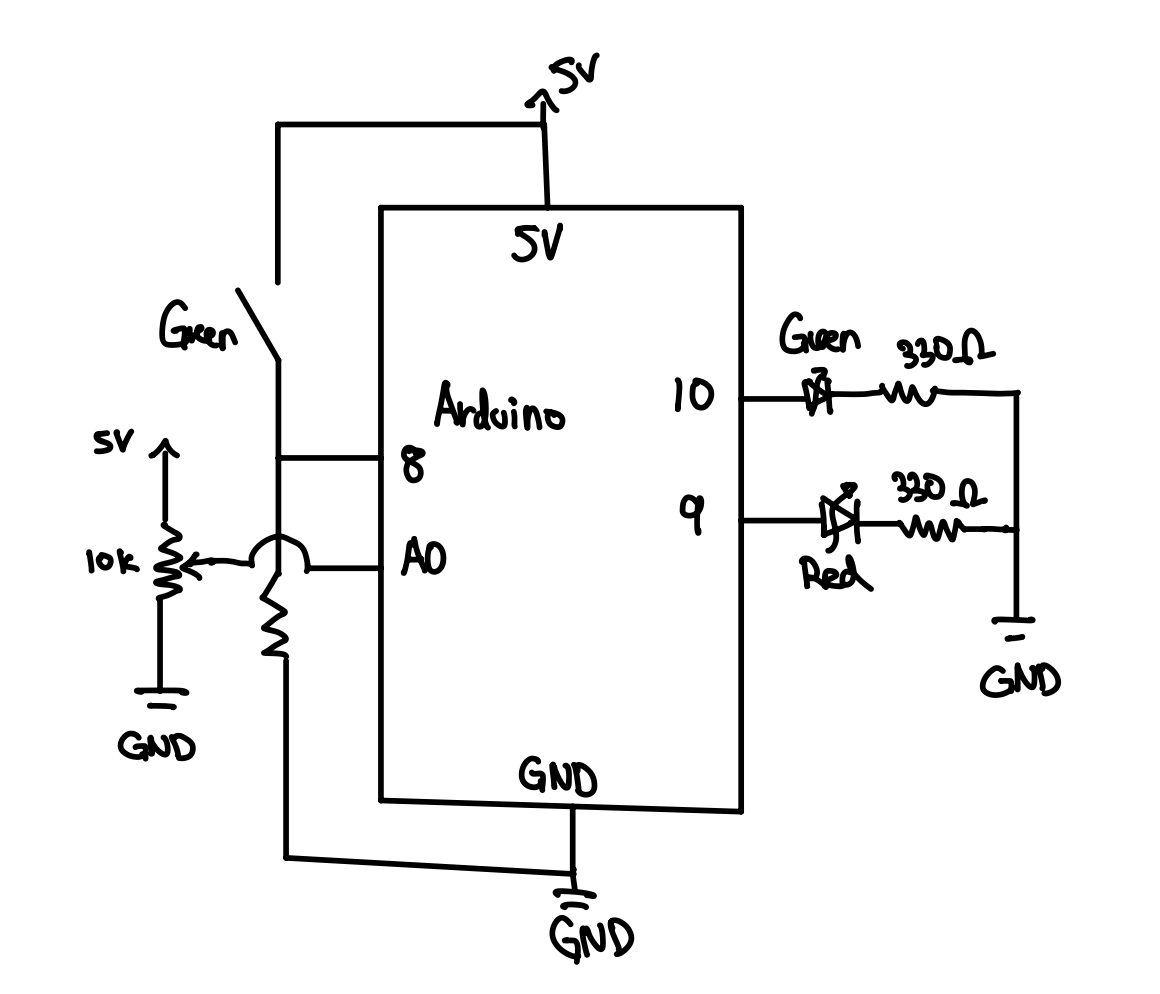
I made a circuit that took in two inputs, green switch and potentiometer. The output is displayed with two led lights: green and red.

int greenPin = 10;    
int redPin   = 9;     
int buttonPin = 8;    
int potPin    = A0;

void setup() {
  pinMode(greenPin, OUTPUT);    //two outputs led
  pinMode(redPin, OUTPUT);
  pinMode(buttonPin, INPUT);   //Input for button 

  digitalWrite(greenPin, HIGH);   //testing if leds work
  delay(1000);
  digitalWrite(greenPin, LOW);
  digitalWrite(redPin, HIGH);   
  delay(1000);
  digitalWrite(redPin, LOW);
}

void loop() {

  int potValue = analogRead(potPin);               //reading potentialometer value
  int brightness = map(potValue, 0, 1023, 0, 255); //scaling the potentimeter from 0 to 255
  int buttonState = digitalRead(buttonPin);        //when pressed it is set as high

  if (buttonState == HIGH) {      //if button is pressed, turn both lights off
    analogWrite(greenPin, 0); 
    analogWrite(redPin, 0);
  } else {                          //if not pressed, light's brightness is controlled by pot.
    analogWrite(greenPin, brightness);
    analogWrite(redPin, brightness);
  }
}

Basically, by default, the two led light’s brightness is controlled by the potentiometer. When I turn the potentiometer to max voltage, the led lights light up with maximum brightness. Otherwise, if I turn the potentiometer to 0, it means that the voltage becomes 0, hence showing no light.

Another input is the green switch and I made it so that when the button stage is high, meaning that when its pressed, the output becomes , turning the lights off.

This is the sample video:


This is the hand-drawn schematic, that we practiced in class today. Re-drawing it definitely helped.

Schematic Week 9 Handrawn

Reading Reflection – Week 9

Physical Computing’s Greatest Hits (and misses) 

Reading Tigoe’s article on “Physical Computing’s Greatest Hits (and Misses)” gave me a new appreciation for how simple ideas can be both educational and engaging in physical computing. I found it interesting that recurring themes, like theremin-like instruments, gloves, floor pads, and video mirrors, aren’t just repeated because they’re easy, but because they allow for creativity and experimentation. Even projects that seem simple, like LED displays or mechanical pixels, can produce surprising, beautiful, or playful results when combined with unique designs or gestures. I also liked how the article emphasized that physical computing focuses on human input and experience rather than just the machine’s output, which makes the interaction more meaningful and enjoyable.

I was especially inspired by projects that blend physical interaction with emotional or playful elements, such as remote hugs, interactive dolls, or meditation helpers. These projects show how technology can respond to people in subtle ways, creating experiences that feel alive or personal. I can see how many of these themes, like body-as-cursor or multitouch surfaces, could be adapted to new ideas, highlighting the importance of creativity over originality. Reading this made me think about how I might design my own physical computing projects, focusing on the human experience, interaction, and the joy of discovery rather than trying to invent something completely new from scratch.

Making Interactive Art: Set the Stage, Then Shut Up and Listen 

This reading helped me understand that interactive art is fundamentally different from traditional art. It’s not about presenting a fixed statement; it’s about creating a space or instrument where the audience can explore and participate. I found it interesting that the artist’s role is to suggest actions and provide context without telling people what to think or do. The comparison to directing actors made this clear: just as a director provides props and intentions, interactive artists set up the environment and let participants discover meaning through their actions. I realized that this approach makes the audience an essential co-creator of the artwork.

I was inspired by the idea that interactive art is a conversation between the creator and the audience. It made me think about how designing for discovery and participation can lead to more meaningful and engaging experiences. I liked how the reading emphasized listening to the audience, observing their reactions, and letting the work evolve based on their interaction. This approach feels very open and collaborative, encouraging creativity both from the artist and the participants. It made me consider how I could apply this perspective to projects or experiences I create, focusing on engagement and exploration rather than fixed outcomes.


Week 9 – Arduino: analog input & output Assignment

My Concept:

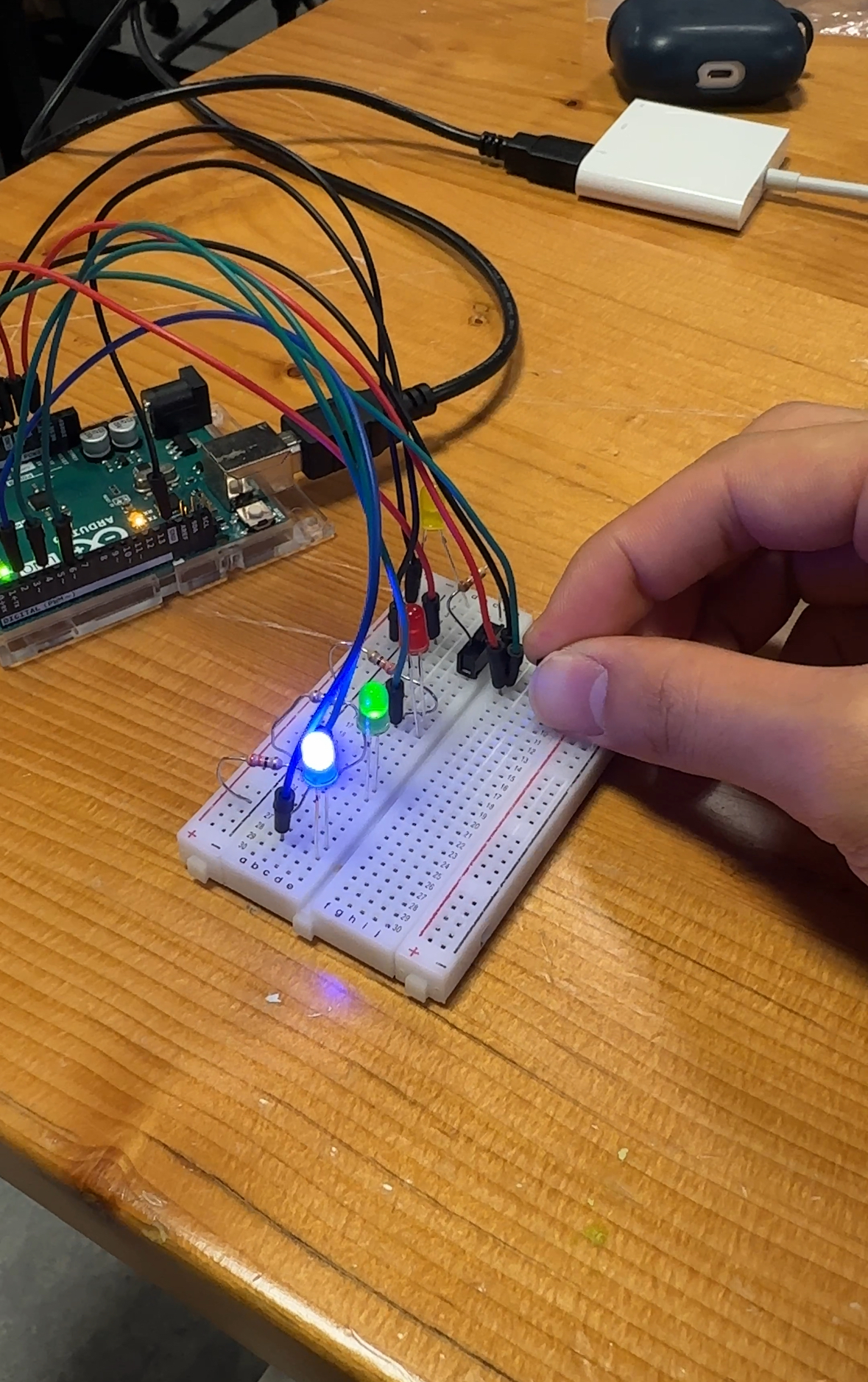
For this project, I wanted to control two LEDs using sensors in a creative way. One LED would respond to a potentiometer, changing its brightness based on how much I turned it. The other LED would respond to a pushbutton, turning on or off each time I pressed it. The idea was to combine analog input (potentiometer) and digital input (pushbutton) to control outputs in two different ways. I also wanted to make sure everything was wired properly on the breadboard with the Arduino so it all worked together. At first, I wanted to do a breathing light where it kind of switches on and off gradually like it’s a human breathing, but it took me hours to try and it still wasn’t working, so that was a big challenge for me, because I couldn’t figure it out. I had to try a couple of times and it wasn’t giving me what I wanted. So, I decided to stick on to the simple foundation of it, because i realized I needed more time to get comfortable with using the potentiometer and switch.

Video Demonstration: 

assignment_week9.mov

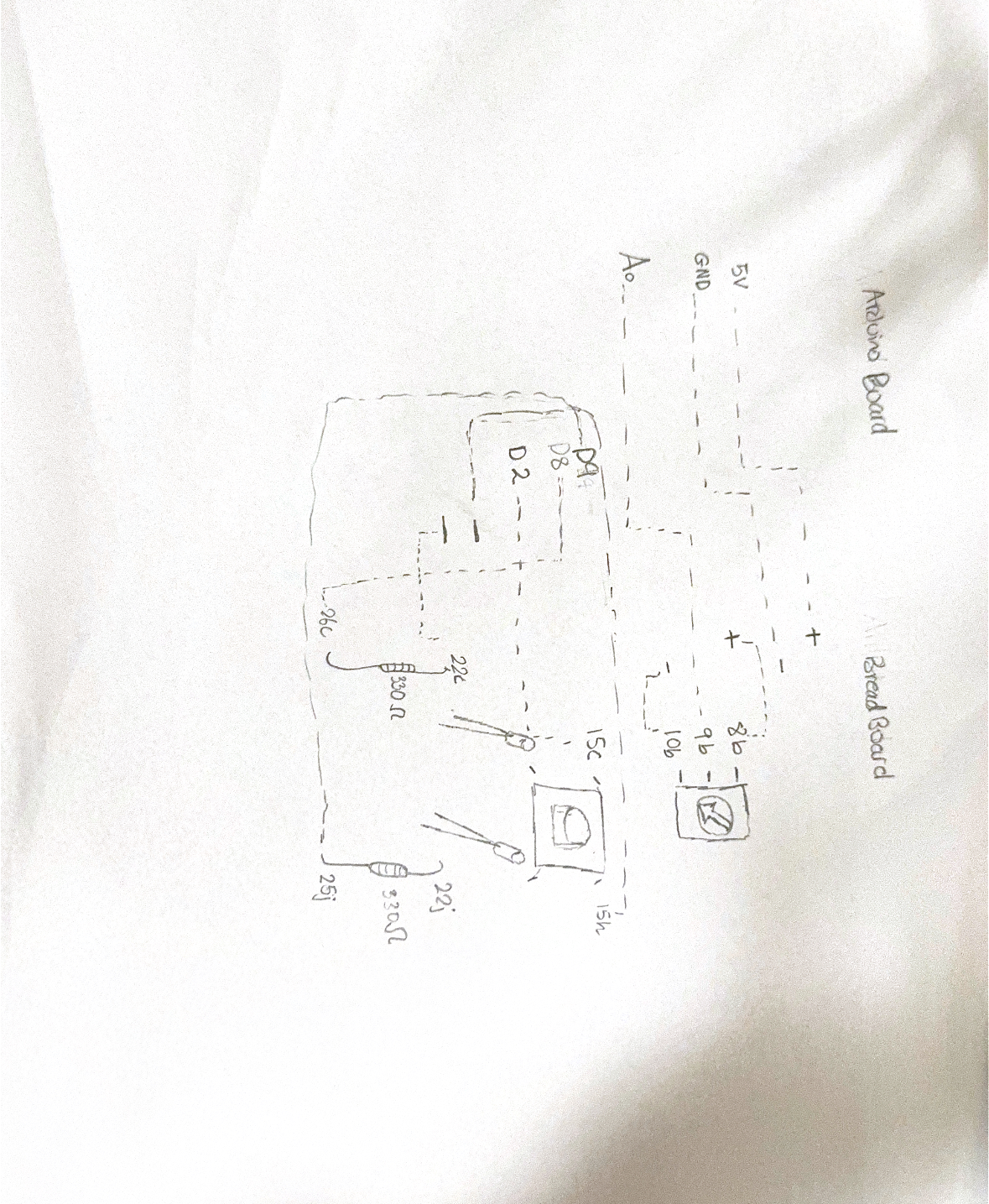
Hand-Drawn Schematic: 

Code I’m most proud of:

// Pin Definitions 
const int potPin = A0;       // Potentiometer middle pin connected to A0
const int buttonPin = 2;     // Pushbutton connected to digital pin 2
const int greenLedPin = 8;   // Green LED connected to digital pin 8 
const int blueLedPin = 9;    // Blue LED connected to digital pin 9 

// Variables 
int potValue = 0;           // Stores analog reading from potentiometer
int ledBrightness = 0;      // Stores mapped PWM value for blue LED
int buttonState = HIGH;     // Current reading of the button
int lastButtonState = HIGH; // Previous reading of the button
bool greenLedOn = false;    // Green LED toggle state

void setup() {
  pinMode(buttonPin, INPUT_PULLUP); // Enable internal pull-up resistor
  pinMode(greenLedPin, OUTPUT);
  pinMode(blueLedPin, OUTPUT);
  
  Serial.begin(9600); 
}

void loop() {
  //Read potentiometer and set blue LED brightness
  potValue = analogRead(potPin);                   // Read 0-1023
  ledBrightness = map(potValue, 0, 1023, 0, 255); // Map to PWM 0-255
  analogWrite(blueLedPin, ledBrightness);         // Set blue LED brightness

  // Read pushbutton and toggle green LED 
  buttonState = digitalRead(buttonPin);

  // Detect button press (LOW) that just changed from HIGH
  if (buttonState == LOW && lastButtonState == HIGH) {
    greenLedOn = !greenLedOn;                       // Toggle green LED state
    digitalWrite(greenLedPin, greenLedOn ? HIGH : LOW);
    delay(50);                                     // Debounce delay
  }

  lastButtonState = buttonState;

The code I’m most proud of is  basically the overall code where the green LED toggles ON/OFF with the pushbutton while the green LED changes brightness with the potentiometer. It was tricky at first because the button kept flickering, but I solved it with a debounce and I asked chatgpt to help me on what I had wrong and why this might have been happening. Here’s the code: 

I’m proud of this code because it solves the switch problem elegantly; the green LED reliably turns on and off without flickering, while the blue LED smoothly responds to the potentiometer. It made me feel like I had full control over both analog and digital inputs in the same circuit.

Reflection and Improvements:
This project taught me a lot about wiring and sensor behavior. One big challenge was the pushbutton;  at first, it would flicker, or the LED would turn on/off unexpectedly. Also, when I tried pressing the button with my finger, the breadboard wires kept moving because there were so many of them. Eventually, I realized using a pen to press the button made it much more stable and consistent.

For future improvements, I’d like to:

  • Use more organized jumper wires to make the breadboard less messy
  • Maybe add more sensors or another LED with creative behaviors
  • Explore smoother debouncing techniques in software to make the switch even more responsive

Even with the challenges, seeing both LEDs working together exactly how I wanted was really satisfying. It showed me how analog and digital inputs can interact with outputs, and how careful wiring and coding logic are equally important.

Github Link: 

https://github.com/deemaalzoubi/Intro-to-IM/blob/c9dc75423cd71b8ea21d50a5756c4d5e7f420ba5/assignment_week9.ino

Week 9 Reading Reflection 2

Reading Tom Igoe’s “Making Interactive Art: Set the Stage, Then Shut Up and Listen” made me rethink the way I think about creative work. What stood out to me most was his idea that artists shouldn’t script how people experience their work. I found it interesting when he said that by explaining too much, artists end up telling the audience what to think and how to act. That made a lot of sense: if the whole point of interactive art is to create a conversation, then the artist needs to give space for the audience to respond. I liked how he compared it to being a director: you can guide your actors, but you can’t tell them exactly how to feel. The same goes for an audience—you set the stage, then step back.

I also appreciated how he described interactive art as something that lives through the audience’s actions. The idea that people complete the artwork through their participation feels powerful. It reminds me that design isn’t just about control; it’s about trust—trusting that others will find meaning on their own. This reading encouraged me to think less about explaining and more about creating experiences that speak for themselves.

Week 9 – Foundations of a Mood Lamp

Concept

The idea behind this project is to create a simple mood lamp. You can switch between different colors using buttons and control the brightness with a potentiometer.

An important feature is that when you set a certain brightness for one color, that same brightness carries over when you switch to a different color. This makes the lamp feel intuitive to use. For example, if the lamp is set to 50% brightness on blue, switching to red keeps it at 50% instead of jumping to full brightness. This allows smooth color transitions without having to constantly readjust brightness.

The project combines digital inputs (buttons) and an analog input (potentiometer) to control analog outputs (LED brightness) in a simple but effective way.

https://github.com/kzeina/Intro-To-IM

week9 circuit demo

Code I’m Proud of

//use internal pull-up resistor (button connects to 5v when pressed)

   //default state is high, pressed = low

   pinMode(buttonPins[i], INPUT_PULLUP);

I used INPUT_PULLUP, which is a built-in resistor in Arduino that helps stabilize button inputs. It works by keeping the pin in a known state , HIGH when unpressed and LOW when pressed, preventing it from randomly floating between readings. I discovered it through ChatGPT while debugging an issue where my LEDs were turning on unexpectedly. I learned that because my setup only used buttons as inputs (without any pull-up resistors), the readings were unstable, causing the LEDs to light up when they shouldn’t.


void loop() {

 //loop through each button to check if it’s pressed

 for (int i = 0; i < 3; i++) {

   //button pressed (low because of input_pullup)

   if (digitalRead(buttonPins[i]) == LOW) { 

     //set this led as the active one

     activeLED = i;                         

     //turn off all other leds

     for (int j = 0; j < 3; j++) {

       if (j != i) analogWrite(ledPins[j], 0);

     }

   }

 }

 //if an led is active, adjust its brightness based on the potentiometer

 if (activeLED != -1) {

   //read analog value from potentiometer (0–1023)

   int sensorValue = analogRead(A0);            

   //control brightness of the active led

   analogWrite(ledPins[activeLED], sensorValue/4);  

 }

}

Frankly, I’m proud of almost all my code for this project. My background in computer science definitely helped me figure out the logic more easily. I used a nested loop that goes through each button (which I stored in an array, along with the LED pins) and checks its state. When a button is pressed, its corresponding LED turns on while all the others turn off. To let the potentiometer control the brightness of the active LED, I created a variable called activeLED. As long as it’s not set to -1 (meaning no LED is active), the code reads the potentiometer’s value and uses it to adjust the LED’s brightness.

Future Improvements

For future improvements, I’d like to make the interaction feel smoother and more dynamic. One idea is to add a toggle feature so pressing the same button again turns its LED off instead of just switching between them. I’d also love to make the LEDs fade in and out when changing colors to create a softer transition effect. It could be interesting to display which LED is currently active on an LCD screen or even through the Serial Monitor. Finally, adding sound feedback, like a small beep when an LED is switched, would make the experience more interactive and responsive.

Week 9: Analog and Digital Sensors

Main Concept:

I was always curious about using a temperature sensor because I could never imagine how such a tiny device can detect human temperature and convert it into volts. Therefore, I used this homework to experiment with the temperature sensor. I also decided to use the slider switch because I love the feeling of opening and closing it. I learned how to use the temperature sensor through an online tutorial (tutorial) since we have not yet covered it in class. It works quite simply. We supply electricity through the +VS pin to measure temperature internally, and the measured analog voltage is then sent back to the Arduino through the GND pin.


Figure 1 : temperature sensor + slide switch


Schematic

Full Video of Demonstration


Code I’m proud of:

This is the part of the code that I’m most proud of. First, I read the sensor value from pin A0 and convert it into millivolts since the temperature sensor calculates the corresponding voltage in millivolts. Then, I crafted this formula based on what I learned from the tutorial: each degree Celsius corresponds to 10 millivolts. Because the output voltage increases by 10 millivolts per degree Celsius, starting from 500 millivolts at 0°C, I subtracted 500 from the measured millivolts and divided the result by 10 to map the temperature to its corresponding voltage value. Converting Celsius to Fahrenheit was quite easy since I had already learned that in chemistry class.

//read the volatge from analogPin A0
  sensorValue = analogRead(A0);
  //convert digital numbers (0 to 1023) into voltage values 
  volts = sensorValue * maxVoltage / 1023.0;
  //convert volts into millivolts 
  millivolts = 1000 * volts;
  //convert into temperature in celsius
  celsius = (millivolts - 500)/10;
  //convert into temperature in fahrenheit 
  fahrenheit = (celsius * 9/5) + 32;


Reflections & Future Improvements:

Overall, I loved learning how to use the temperature sensor since I have always been fascinated by how such a tiny component can capture environmental variables. I was especially curious about why it has three pins, and I was able to understand the internal mechanism where we supply electricity to measure temperature, convert it into analog voltage, and send that voltage back to the Arduino. It was a bit challenging to find the right thresholds for each LED light to turn on and off smoothly. Sometimes I set the threshold of the last LED too high, so it never turned on. However, I was able to adjust them correctly through multiple experiments. For future improvements, I would like to combine the slider switch and temperature sensor so that they work together to control shared LED lights seamlessly. I tried doing this, but I had so many wires and LEDs that I struggled to find a proper way to connect them. Next time, I will spend more time figuring this out.

Week 9 – Reading Reflection

Physical Computing Themes & Making Interactive Art

Reading Tom Igoe’s “Physical Computing’s Greatest Hits (and Misses)” and “Making Interactive Art: Set the Stage, Then Shut Up and Listen” really resonated with me because it reminded me of my own experience designing interactive projects. My first big interactive project was the midterm photobooth, and I remember feeling overwhelmed by all the features I wanted to implement. I was worried that what I thought was straightforward and easy to use might not actually be intuitive for other people. This made me realize how important it is to balance functionality, design, and user experience, something both readings emphasize in different ways.

From the first reading, I was particularly drawn to mechanical pixels, because it reminded me of the Al Bahr Towers in Abu Dhabi, what I like to call the “pineapple towers”, whose scaled windows open and close in response to sunlight. It made me think about how even simple, repeating elements can be visually engaging while also responding to a system or environment. I started to see that originality doesn’t always come from inventing something completely new, but from how you execute and contextualize it.

Igoe’s second reading really made me reflect on my tendency to over-explain. I often want to make sure people ‘get it,’ but the article reminded me that interactive art is a conversation, not a lecture. It’s about providing context, affordances, and suggestions, then letting the audience explore, discover, and even surprise you with unexpected interactions. I like that this perspective treats the audience as active participants rather than passive observers, which matches my belief that both aesthetics and engagement are equally important. If a project doesn’t look appealing, people won’t approach it. If it doesn’t engage them, it loses its purpose.

What stood out most to me is how much trust you have to put in the design and in the audience. Seeing a project unfold in unexpected ways isn’t a failure; it’s part of the collaborative experience. I also realized that while I enjoy seeing people interact in ways I hadn’t anticipated, it only works as long as the interaction isn’t harmful.

Week 9 Reading Reflection 1

Reading Tom Igoe’s Physical Computing’s Greatest Hits (and Misses) really opened my eyes to how creative physical computing can be. I liked how he talked about different project themes that keep coming up, like theremin-style instruments, gloves, or meditation helpers, but still manage to feel fresh every time. What stood out to me was his point that even if an idea has been done before, there’s always room for originality. It’s not about being the first person to come up with something, but about how you make it your own. That made me see creativity in a new way; it’s more about exploring, experimenting, and putting a bit of yourself into the project.

I also liked how Igoe focused on the human side of physical computing. He reminds readers that the goal isn’t just to build machines that move or light up, but to design interactions that mean something. It made me realize that technology can be emotional and expressive, not just functional. Overall, the reading made me appreciate how physical computing connects people and ideas, and how much space there is to create something personal, even within familiar themes.

Week 9: Making Interactive Art: Set the Stage, Then Shut Up and Listen

Tom Igoe’s Making Interactive Art: Set the Stage, Then Shut Up and Listen made me think differently about what it really means to create something interactive. I liked how straightforward and almost blunt his advice was; don’t interpret your own work. That simple statement hit harder than I expected. I’ve noticed how easy it is to over-explain a project, especially when you’ve spent so much time building it. You want people to “get it,” so you tell them what it means, how to use it, and what to feel. But Igoe’s point is that doing that takes away the audience’s role completely. It turns interaction into instruction. That idea made me reflect on my own creative habits, especially how often I try to control an outcome rather than trust that people will find their own meaning through what I make.

I like how he compares interactive art to directing actors. A good director doesn’t feed emotions line by line; they set up the environment and let the actor discover the truth of the scene themselves. In the same way, an artist should set up a space or a system that invites exploration without dictating what’s supposed to happen. Igoe’s line about how the audience “completes the work” stayed with me because it reframes what success means in interactive art. It’s not about whether people interpret your piece exactly as you intended; it’s about whether they engage, react, and create their own story inside it. I think that takes a certain amount of humility and patience as an artist. You have to build something that’s open enough to allow surprise, even misunderstanding, and see that as part of the process instead of a failure.