Demo and sketch below:
Concept:
This project is based off a childhood game of mine, called magic touch. The core concept of that game is you are a wizard, and you must stop robots from attacking your castle, in the game these robots fall slowly carried by balloons containing symbols. You must draw the symbol on the balloon to pop it, and when all the balloons are popped on the robot they fall to their death.
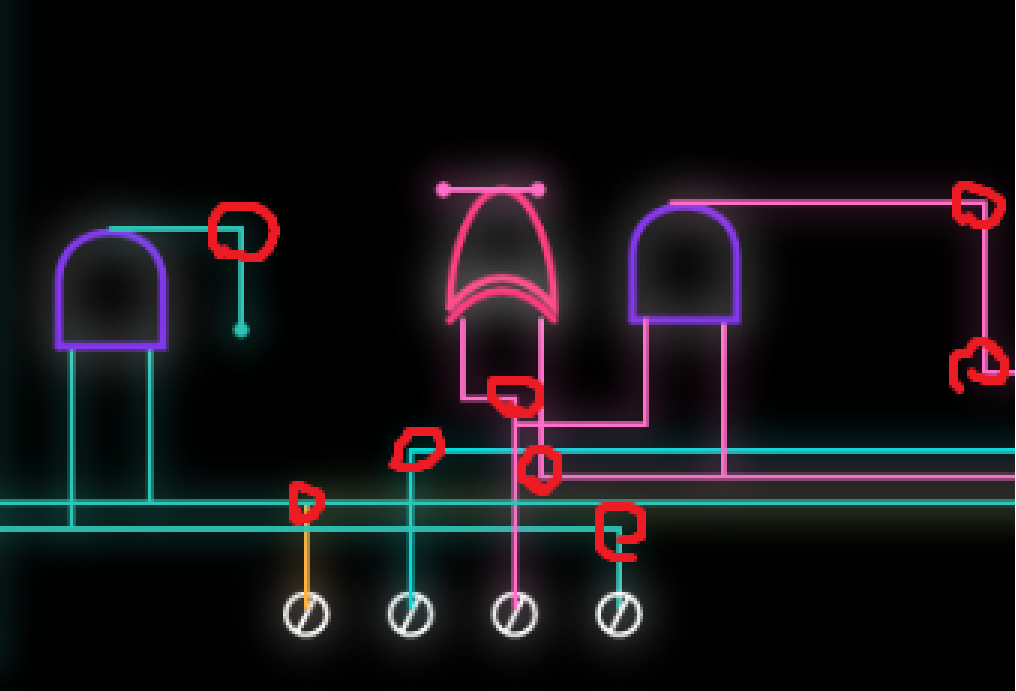
In my case, I made my game practically completely camera based, with no usage of keyboard at all, and a single use of your mouse just to toggle full screen. It is cyberpunk themed, and you are being attacked by drones, you must draw the symbols rotating around the drones with your hand to eradicate them and so that they don’t breach the system.
Implementation:
The code hierarchy consists of 2 folders, one for assets, and one for all the scripts.
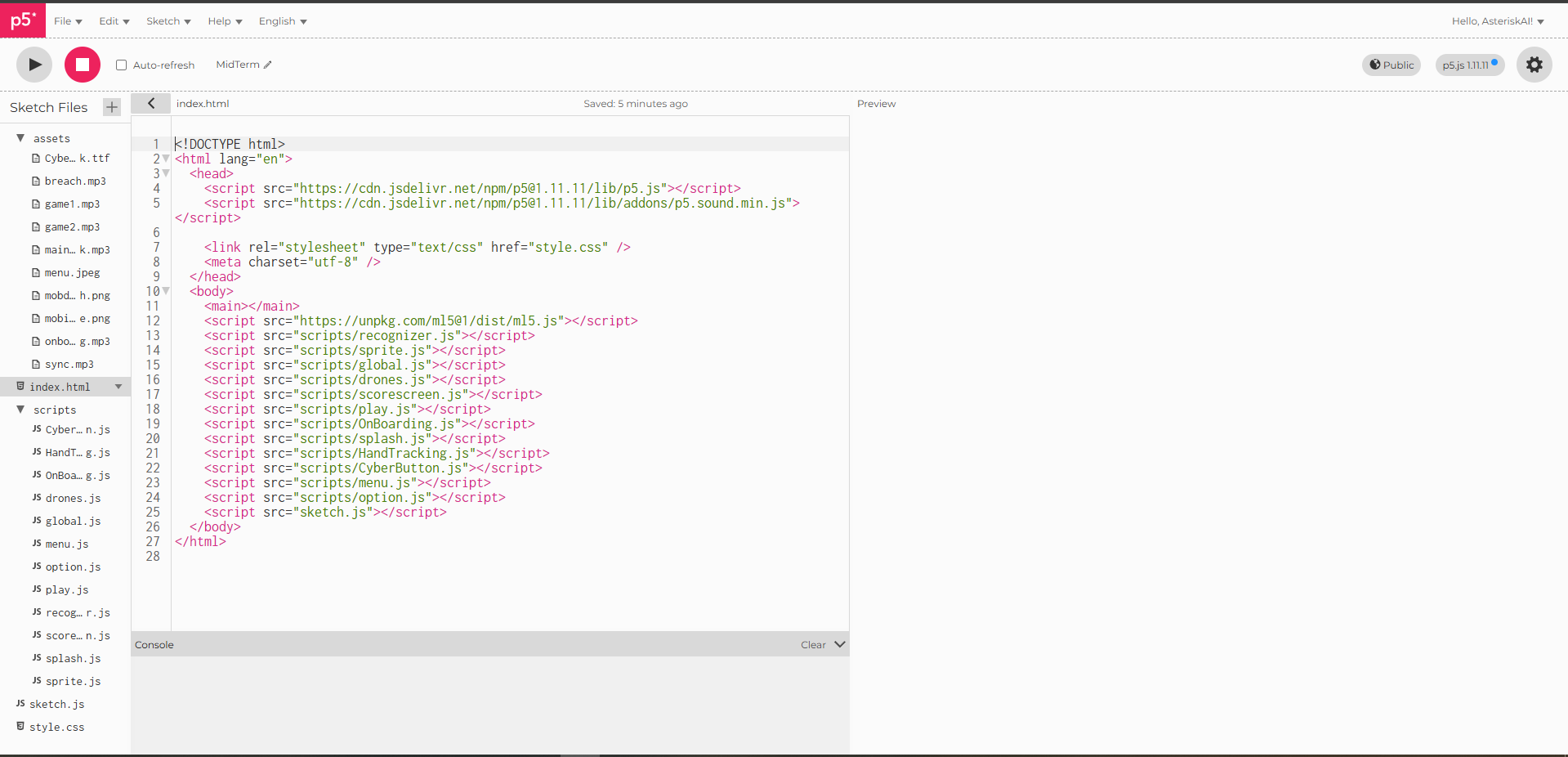
The assets folder is self explanatory, it consists all my music/sound effects, images and fonts.
The script folder consists of 12 java script files (excluding sketch.js which is outside the folder) . I will be summarizing what each file does while providing more technical context when needed.
CyberButton.js: This file contains a class called CyberButton, which takes in the position, width and height, and the label for the button (text inside button). 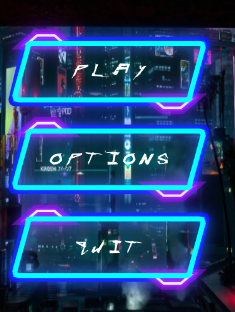
However most of the code is designing the button itself, it has an outer blue outline with a transparent inside and a “filled” cyan color. As well as 2 purple trapezoids coming out of the button and are diagonally opposite.
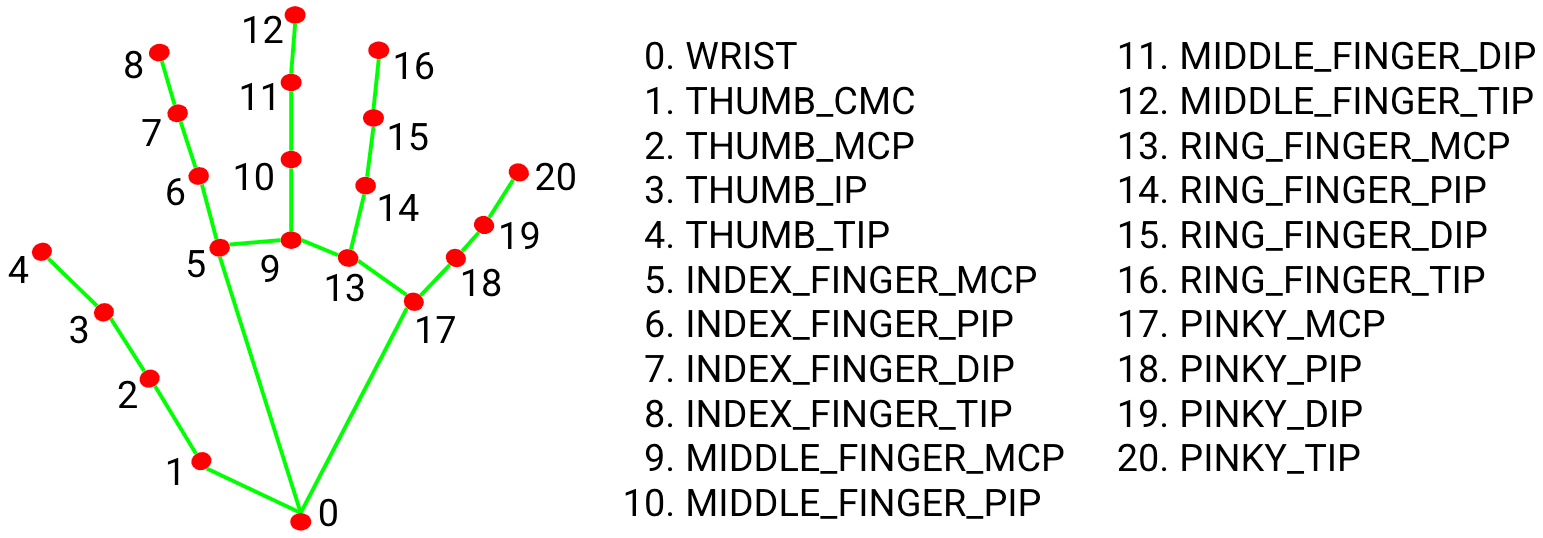
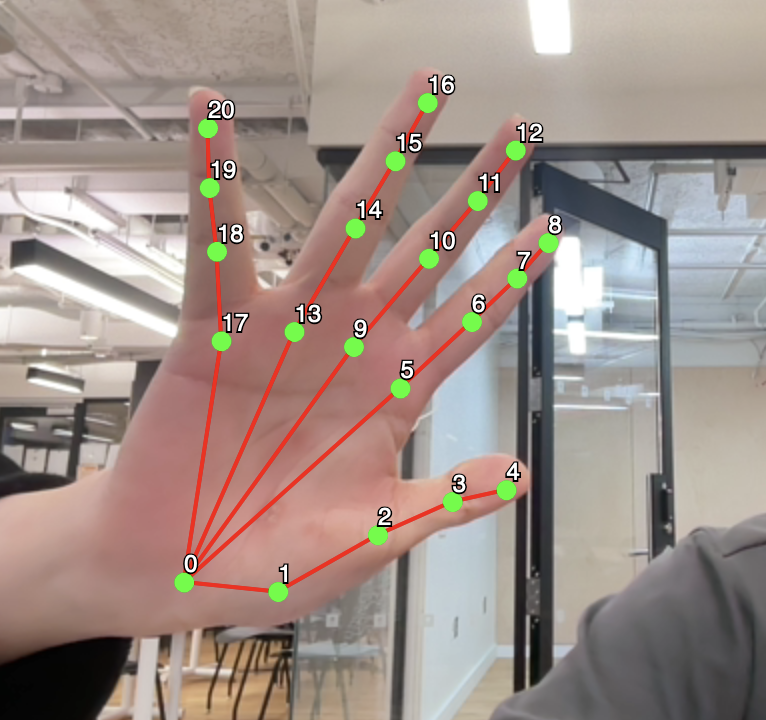
HandTracking.js: This is where the magic happens, this entire file contains the code for all the hand tracking and the optimization of said hand tracking. It consists of a class used to store the Kalman filter sittings for each hand shown on screen. I will quote my midterm progress post to explain what a Kalman filter is.
To explain the core concept:
The filtering has 3 steps:
– Predict
– Update
– Estimate
The Kalman filter works in a simple loop. First, it predicts what the system should look like next based on what it already knows. Then, it checks that prediction against a new (noisy) measurement and corrects itself.
Because of this, the Kalman filter has two main steps. The prediction step moves the current estimate forward in time and guesses how uncertain that estimate is. The correction step takes in a new measurement and uses it to adjust the prediction, giving a more accurate final estimate.
This file also calculates the distance between your thumb and index to determine when you are pinching and when you are not.
The way the pinching logic works is kind.. of over complicated for the game play. I am sure there is most probably a better way, but this is the way I figured out and if it works it works.
Now when drawing with your hand, we know that the detector itself is very sensitive, and sometimes your drawings just stop midway and that ruins the gameplay because of the sheer sensitivity of the model. I have the value of pinching so that it is true when below 30 (distance). However, this ONLY becomes false if the value exceeds 60 (this can be changed in options). This allows for leeway and basically gives you some sort of grace. You would need to basically have your index and thumb really close to pinch, but to make the pinching “false” you would have to make the distance between them really far (60, double of the threshold to pinch).
    if (pinchd < 30) {
      isPinching = true;
    }

---------------------------------

let isActuallyPinching = pinchd < pinchThreshold;
  // Gives the user a 30 pixel buffer for when drawing to reduce the probability of accidentally stopping drawing.

  // When we are drawing, we push the point of our cursor to the current path
  if (isActuallyPinching) {....}
OnBoarding.js: This contains all the information the user needs before starting the game, so how to play, how to navigate the menu, and how to make sure your user experience is as good as it can be.
drones.js: This file contains a class called Drone. We have 3 types of drones that will spawn during the game play, a normal drone, a miniboss drone, and a boss drone. What differentiates each drone is the amount of symbols you need to draw to eradicate the drones. For a normal drone, you get 1-2 symbols to draw, a mini boss has 5-8 symbols. and a boss has 15 symbols. There are 5 different symbols to draw, so symbols will be repeated. For the drones, I am using a sprite for the drone with an idle animation for the falling and a death animation. The mini boss drone is tinted purple and slightly bigger, while the boss drone is tinted and red and is very large.
global.js: This was kinda just to clean everything up, and this contains all the global variables used in the project.
// Path of the drawing
let currentPath = [];
// The variable that will hold the stroke recognizer class.
let recognizer;
// Keep track of the state of the game (start with the splash screen)
let state = "menu";
// Hand model, will become true when it is intiialized and ready
let modelReady = false;
// Variable for the camera feed
let video;
// Split stripes into animations
let animations = {};
// Raw data of the stripe sheets
let sheets = {};
// Background photo of the menu
let menubg;
// Master volume default at 50%
let masterVolume = 50;
// Threshold
let pinchThreshold = 60;
// Distance between thumb and index
let pinchd = 0;
// CyberPunk font
let cyberFont;
// Store the buttons
let btns = [];
// Store the hands
let hands = [];
// miniboss timer
let minibossTimer = 0;
// For ml5js, contains hand data
let handPose;
// Holds the value of the estimated x position from the Kalman filter
let smoothX = 0;
// Same as above but for y
let smoothY = 0;
// Kalman filter ratio
let kf;
// Timer before user can go menu
let gameOverTimer = 0;
// Sync level (0-100)
let syncLevel = 0;
// Last boss spawn
let lastBossMilestone = 0;
// Duration of the onboarding screen
let duration = 8000;
// Array to hold the drones
let drones = [];
// Timer to keep track of when to spawn drones
let spawnTimer = 0;
// Keep track when the boss is on screen
let bossMode = false;
// Variables to store music & sound effects
let syncmusic;
let game1music;
let game2music;
let onboardingmusic;
let breachedmusic;
let mainmenumusic;
// Holds all gameplay music to loop it
let gameplaymusic = [];
// Tracks which song in the gameplaymusic array is up next
let currentTrackIndex = 0;
// Keep track of how long the onboard screen has been going on for.
let onboardingStartTime = 0;
// Score of the current run
let score = 0;
// Store in browser memory or 0 if first time
let highscore = localStorage.getItem("breachHighscore") || 0;


// Draw cursor
function drawCursor(x, y) {
  push();
  fill(0, 255, 255);
  noStroke();
  ellipse(x, y, 20);
  fill(255);
  ellipse(x, y, 8);
  pop();
}
Menu.js: This file draws the menu, putting our background image, and our 3 buttons (play, options, quit).
Option.js: This file is to draw the option page, which can be accessed through clicking the option button. There are 3 things you can change in options, the pinch threshold we talked about earlier, the Kalman filter smoothening (latency – smoothness tradeoff). And finally the master volume of the game.
Play.js: This file contains the play page, where the background is made, where score is handled and where the spawning of the drones is done. The neat thing about the score system is, the saved high score persists across sessions, so even if you close the game with p5js, and re-open it, or even close your browser, as long as you don’t clear your cookies and site data, your high-score from any previous session will remain. This is done because p5js will store this information locally in your browser, and will be permanent till deleted manually.
localStorage.setItem("breachHighscore", highscore);
A normal drone spawns every 9 seconds, a mini boss drone will spawn every 20 seconds, and a boss drone will spawn every 1500 points.
This is all monitored by the function handleSpawning:
function handleSpawning() {
  if (!bossMode) {
    // Stop all other spawns once we hit the warning threshold (400)
    // This allows existing drones to clear before the boss arrives at 1500
    let nextThreshold = lastBossMilestone + 1500;
    if (score < nextThreshold - 100) {
      // Warning: Red pulse if Miniboss is 3 seconds away
      let nextMinibossTime = minibossTimer + 20000;
      if (millis() > 5000 && nextMinibossTime - millis() < 3000) {
          drawWarning("MINIBOSS INBOUND");
      }

      // Check for Miniboss spawn every 20 seconds, avoiding start of game
      if (millis() > 20000 && millis() - minibossTimer > 20000) {
          drones.push(new Drone("miniboss"));
          minibossTimer = millis();
      }

      // Spawn a drone when game start, then spawn a normal drone every 9 seconds.
      if (spawnTimer === 0 || millis() - spawnTimer > 9000) {
        drones.push(new Drone("normal"));
        spawnTimer = millis();
      }
    }

    // Warning: Final Boss warning when close to 1500 points
    if (score >= nextThreshold - 300 && score < nextThreshold) {
        drawWarning("CRITICAL SYSTEM BREACH DETECTED");
    }

    // Check for Final Boss trigger at 1500 points
    // Ensure the screen is actually clear of other drones before spawning
    if (score >= nextThreshold && drones.length === 0) {
        bossMode = true;
        lastBossMilestone = nextThreshold;
        let finalBoss = new Drone("boss");
        finalBoss.x = width / 2; // SPAWN CENTER
        drones.push(finalBoss);
    }
  }
}
When a mini boss or a boss is about to appear, red flashing lines will appear on the screen to warn the user of them being inbound:
// Visual warning effect function
function drawWarning(msg) {
    push();
    let alpha = map(sin(frameCount * 0.2), -1, 1, 50, 200);
    fill(255, 0, 50, alpha);
    textFont(cyberFont);
    textAlign(CENTER, CENTER);
    textSize(width * 0.032);
    text(msg, width / 2, height / 2);

    // Glitch line effect
    stroke(255, 0, 50, alpha);
    line(0, random(height), width, random(height));
    pop();
}
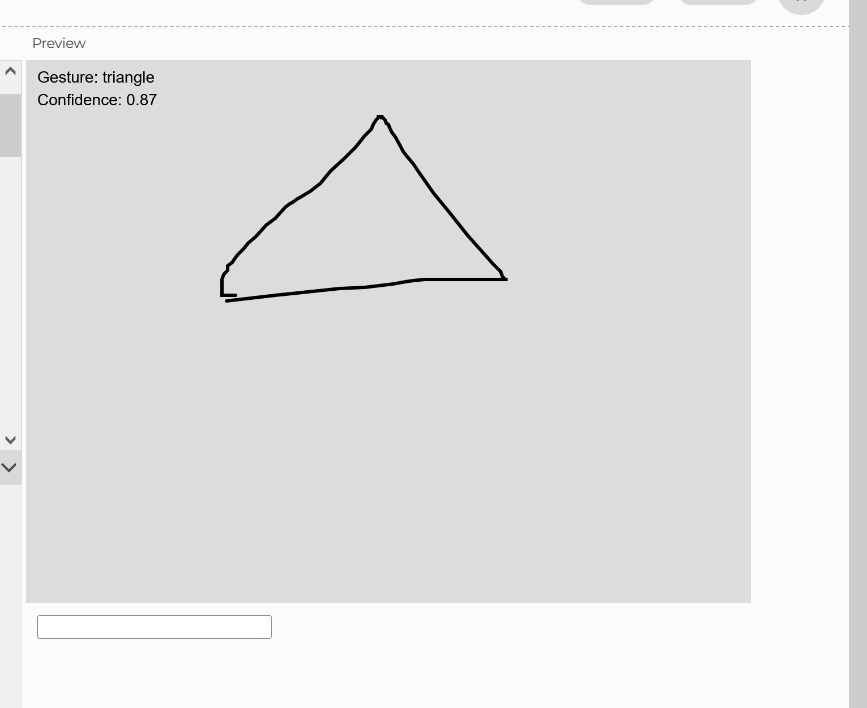
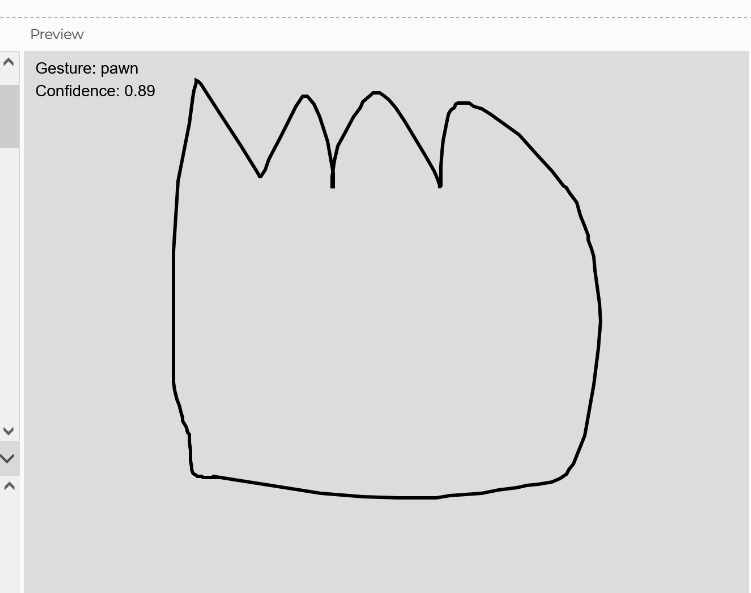
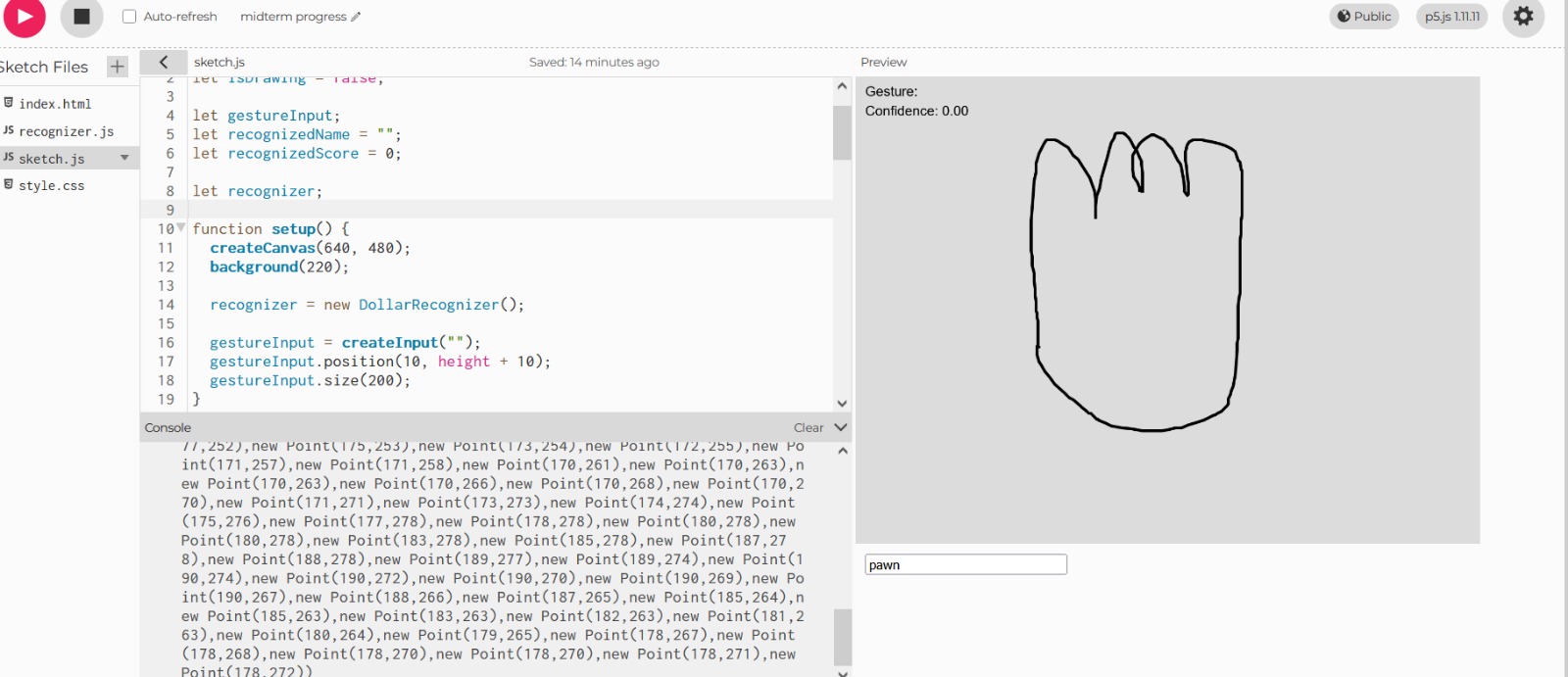
Recognizer.js: This is an open source code that I took which allows for symbol detection, as well as drawing and adding your own custom symbols. I edited the code slightly to delete every symbol I won’t be using, so that the detector doesn’t waste our time by saying the symbol drawn is something that isn’t in the game. And I added 2 custom symbols being “W” and “S”.
Score.js: This screen pops up after you die, and just shows your score, final score, and what to do to get back to the menu so that you can play again.
Splash.js: This is where the game begins, and just allows for the initialization of everything, the game will ask you to raise your hand and keep it raised while it “syncs” before moving to the on boarding screen.
Sprite.js: This file contains the code to handle the sprite, split it up, and animate it so it is used properly during game play.
// Slices a sheet into an array of images
function extractFrames(sheet, cols, rows) {
  let frames = [];
  let w = sheet.width / cols;
  let h = sheet.height / rows;

  for (let y = 0; y < rows; y++) {
    for (let x = 0; x < cols; x++) {
      let img = sheet.get(x * w, y * h, w, h);
      frames.push(img);
    }
  }
  return frames;
}

// Draws and cycles through the frames
function drawAnimatedSprite(category, action, x, y, w, h, speed = 0.15, startFrame = 0) {
  if (animations[category] && animations[category][action]) {
    let frames = animations[category][action];

    let index;
    if (action === "death") {
      // Calculate frames passed since death began
      let elapsed = frameCount - startFrame;
      index = min(floor(elapsed * speed), frames.length - 1);
    } else {
      index = floor(frameCount * speed) % frames.length;
    }

    push();
    imageMode(CENTER);
    image(frames[index], x, y, w, h);
    pop();
  }
}
We provide the image, and how many columns and rows it has. Splits the image with said column and rows so that each frame is extracted. Once all the frames are extracted, we can start drawing them with our second function, and this just loops through the frames using the formula:
index = floor(frameCount * speed) % frames.length;
The formula for death is different, as when it dies we want it to stop at the last frame, hence we use min which acts as a clamp and forces the index to stop at the last frame of the animation and stay there, preventing it from looping back to the beginning.
With all these separated files, we get a pretty clean sketch.js file which falls just under 100 lines.
function preload() {
  // Variable declared in handTracking.js
  handPose = ml5.handPose(() => {
    modelReady = true;
  });
  menubg = loadImage("assets/menu.jpeg");
  cyberFont = loadFont("assets/Cyberpunk.ttf");
  syncmusic = loadSound("assets/sync.mp3");
  game1music = loadSound("assets/game1.mp3");
  game2music = loadSound("assets/game2.mp3");
  breachedmusic = loadSound("assets/breach.mp3");
  mainmenumusic =loadSound("assets/mainmenusoundtrack.mp3");
  onboardingmusic = loadSound("assets/onboarding.mp3");
  sheets.normalIdle = loadImage("assets/mobidle.png");
  sheets.normaldeath = loadImage("assets/mobdeath.png");
}

function setup() {
  createCanvas(windowWidth, windowHeight);
  recognizer = new DollarRecognizer();
  gameplaymusic = [game1music, game2music];
  let constraints = {
    video: { width: 640, height: 480 },
    audio: false,
  };
  animations.normal = {
    idle: extractFrames(sheets.normalIdle, 4, 1),
    death: extractFrames(sheets.normaldeath, 6, 1)
  };
  video = createCapture(constraints);
  video.hide();

  handPose.detectStart(video, gotHands);
  textFont(cyberFont);

  for (let track of gameplaymusic) {
    track.setVolume(0.2);
    track.playMode('untilDone');
  }


  if (state == "menu") {
    makeMenuButtons();
  }
}


function draw() {
  background(0);
  let { pointerX, pointerY, clicking, rawDist } = handTracking();

  if (state === "splash") {
    drawSplashScreen();
    if (hands.length > 0) drawHandIndicator(pointerX, pointerY, rawDist);
  } else if (state === "onboarding") {
    drawOnboarding();
  } else if (state === "menu") {
    menu();
    for (let btn of btns) {
      btn.update(pointerX, pointerY, clicking);
      btn.draw();
    }
  } else if (state === "play") {
    runGameplay(pointerX, pointerY, clicking);
  } else if (state == "gameover") {
    drawGameOver(pointerX,pointerY,clicking)
  } else if (state == "quit") {
    // Stop script and quit
    remove();
  } else if (state == "options") {
    drawOptions(pointerX,pointerY,clicking);
  }

  if (hands.length > 0 && state !== "onboarding") {
    drawCursor(pointerX, pointerY);
  }

}

function windowResized() {
  resizeCanvas(windowWidth, windowHeight);
  if (state == "menu") {
    makeMenuButtons();
  }
}

function mousePressed() {
  let fs = fullscreen();
  fullscreen(!fs);
}
I am pretty happy with how it turned out, where all the interactions only use the camera, and I am happy with how the aesthetics of the game came out overall.
Reflection:
A lot of the errors I ran into stemmed from how am I going to have symbol recognition and smooth hand tracking, which both I was able to resolve using the recognizer open source code for the symbol recognition, and Kalman filtering for smooth hand tracking.
Improvements I think that could be made is the general aesthetics of the game could be more details, maybe add some more game modes so that there is more variety.
References:
Free Drones Asset Pack by Free Game Assets (GUI, Sprite, Tilesets)
Simple Kalman filter for tracking using OpenCV 2.2 [w/ code] – More Than Technical
Cyberpunk 2077 Neon Cityscape – 4K Ultra HD Cyberpunk Wallpaper
(1) Understand & Code a Kalman Filter [Part 1 Design] – YouTube
(1) Understand & Code a Kalman Filter [Part 2, Python] – Youtube