Week 4 – Generative Text Assignment

Concept:

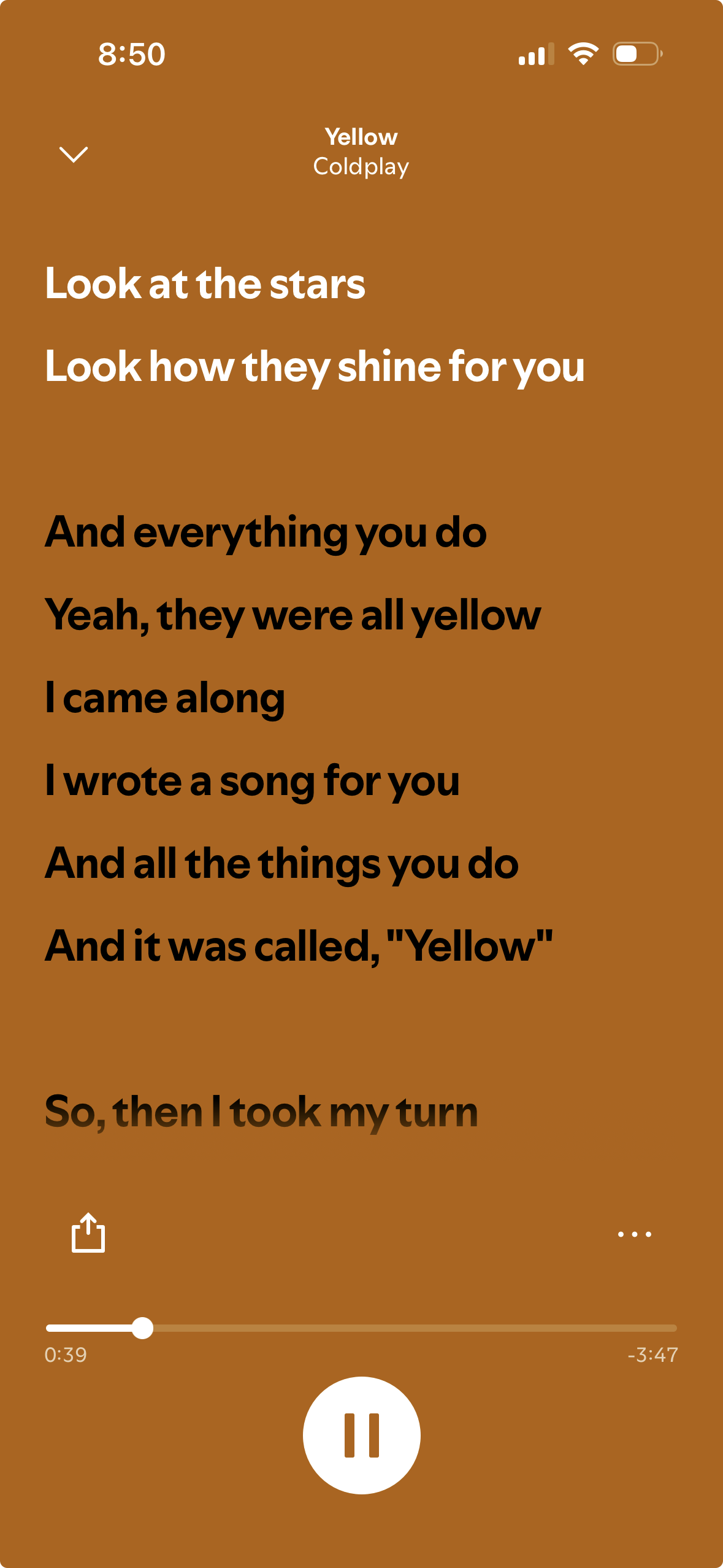
For this project, I wanted to experiment with text functions while learning and applying different codes to create a scrolling lyrics display similar to Spotify, Apple Music, and YouTube. When I first looked at the assignment, I immediately wanted to recreate the full music interface that includes the album cover and the timeline of the song at the bottom. But instead, I decided to focus only on the scrolling lyrics to make it more creative and manageable.

I chose the song Yellow by Coldplay because it reminds me of my last bus ride after a field trip in senior year. It was our last day of school after finishing our final exams, and on the way back from IMG everyone in my class was saying goodbye to each other at the final stoplight before we all went home. That moment felt nostalgic and emotional which is why I wanted to incorporate that feeling into my work.

Inspo from Spotify: 

Embedded sketch: (try pressing on the screen)

How it was made:

I usually start by building the background and adding simple codes that I know like the colored box and the title text at the top, the background, the size of the canvas, etc. After that, I started off by creating an array to store the lyrics so I could easily reference each line later in the code.

Then I created the scroll variable so the lyrics would begin at the bottom of the screen. Using translate() along with push() and pop(), I was able to make the lyrics scroll upward. While working on this part, I kept experimenting because sometimes the text wouldn’t move the way I wanted it to move. I also had to adjust the speed because it was first set to 0.3 but since I included the full lyrics of the song, I felt that 0.3 was too slow. I decided to change it to 0.6 which made the movement feel more reasonable.

I used this loop:

for (let i = 0; i < lyrics.length; i++) { //going through the lyrics line by line 
  let yPos = i * 40; //each line is 40 pixels below the previous one -using the name yPos for the positioning of lines vertically (y-axis)

This allowed the lyrics to display line by line with 40 pixels of spacing between each one. That spacing helped create a smoother scroll and prevented the lines from looking crowded.

For interactivity, I added the mouseIsPressed function with the if/else functions so that when the mouse is pressed, the scroll speed increases to 30. When it’s not pressed, it goes back to the normal pace of 0.6. I liked adding this because it made the project more engaging instead of just automatically scrolling.

Resources:

Push and pop functions: (all the resources helped me understand how push and pop work through examples and descriptions I was able to make my own transformation)
https://www.youtube.com/watch?v=KSo_VEbsWks 

https://www.youtube.com/watch?v=o9sgjuh-CBM

https://p5js.org/reference/p5/push/

Translate:

https://p5js.org/reference/p5/translate/ (in order for my lyrics to scroll and keep moving up from their starting point I had to use the translate function)

Text:

https://p5js.org/tutorials/loading-and-selecting-fonts/ (learning how to use text fonts and functions)

https://p5js.org/reference/ (Typography section to understand the types of text functions)

I also kept going back to Professor Aya’s slides, Week 4.1 and Week 4.2

I also used Musixmatch to get the lyrics of the song Yellow by Coldplay

Hardest Part of the Code (and the Part I’m Most Proud Of):

 //First layer of the lyrics 
push(); //starting a "transformation state" - using 'push' to save the current canvas settings
translate(10, height - scroll); //starting to move the original position 0,0 to 10 pixels from the left and being close to the bottom of the canvas 

for (let i = 0; i < lyrics.length; i++) { //going through the lyrics line by line 
  let yPos = i * 40; //each line is 40 pixels below the previous one -using the name yPos for the positioning of lines vertically (y-axis)
  
  //black txt if below the middle and white if above
  let currentY = (height - scroll) + yPos;//used to figure out the positions of the line
  if (currentY < height / 2) { //checking if the lyric is above the middle half, if it is it will change color
    fill(255); //the color of the text -white
  } else { //if it is below the screen it will..
    fill(0);
  }
  
  textSize(18); //text size of the lyrics 
  textStyle(BOLD); //adding bold text
  text(lyrics[i], 0, yPos, 280); //in order for the long lyrics to not go off the screen -lyrics is drawn inside this 280 sized pixel 
}
pop(); //concluding the end of the transformation so the other header doesnt move too

The hardest part was understanding how push(), pop(), and translate() all worked without affecting the rest of my design. The push() allowed me to save the current canvas settings before transforming it. Then with [translate(10, height – scroll);] I was able to shift the origin point so the lyrics would start near the bottom and move upward as the scroll value increased.

Inside the loop, [let yPos = i * 40;] this function made each lyric line 40 pixels below the previous one which keeps everything equal and smooth.

Then I used [let currentY = (height – scroll) + yPos;] to calculate the piston of each line on the canvas so that I can check where the lyric is positioned which will determine if it would change from black text to white (similar to Spotify). If the lyric was above the middle of the screen, it changed to white and if not it remained black until it reaches that point.

Similar to the issues I faced before, I had a hard time keeping the text inside the canvas because it would always go out. I decided to use [text(lyrics[i], 0, yPos, 280);] that draws each lyric at the x-position 0 and y-position yPos while being inside a 280-pixel text box so long lines wouldn’t overflow off the screen.

I’m proud of this section because even though it took time to understand, I was able to control the translation without changing the rest of my code. At one point I accidentally deleted the entire section, which was frustrating because it took me a while to feel confident in it, but since I practiced it before, I was able to rewrite it again.

Issues I faced:

At first, the lyrics started in the middle of the canvas and would bleed outside the frame which was a struggle because I couldn’t figure out how to fix it for a second. I remembered Professor Mang explaining how small positioning errors can happen when centering the text exactly in the middle because it will start exactly there instead of being all on the center. I also carefully adjusted the placement using translate() and the text box width: [text(lyrics[i], 0, yPos, 280);] that helped keep everything within the screen and made the scrolling smoother.

Final code: 

let lyrics = [//using the name lyrics for the array/list
  //adding all the lyrics of the song from Yellow -Coldplay
  "Look at the stars",
  "Look how they shine for you",
  "And everything you do",
  "Yeah, they were all yellow",
  "I came along",
  "I wrote a song for you",
  "And all the things you do",
  "And it was called, \"Yellow\"",
  "So, then I took my turn",
  "Oh, what a thing to have done",
  "And it was all yellow",
  "Your skin, oh yeah, your skin, and bones",
  "Turn into something beautiful",
  "And you know, you know I love you so",
  "You know I love you so",
  "I swam across",
  "I jumped across for you",
  "Oh, what a thing to do",
  "'Cause you were all yellow",
  "I drew a line",
  "I drew a line for you",
  "Oh, what a thing to do",
  "And it was all yellow",
  "And your skin, oh yeah, your skin, and bones",
  "Turn into something beautiful",
  "And you know, for you, I'd bleed myself dry",
  "For you I'd bleed myself dry",
  "It's true",
  "Look how they shine for you",
  "Look how they shine for you",
  "Look how they shine for-",
  "Look how they shine for you",
  "Look how they shine for you",
  "Look how they shine",
  "Look at the stars",
  "Look how they shine for you",
  "And all the things that you do"
];

let scroll = 0; //letting the lyrics start scrolling vertically

function setup() {
  createCanvas(300, 500); //canvas size
  textAlign(LEFT, TOP);  //postion of the text
  textFont('Helvetica'); //text font 
}

function draw() {
  background(158, 91, 28); //background color 'burnt orange'

   //First layer of the lyrics 
  push(); //starting a "transformation state" - using 'push' to save the current canvas settings
  translate(10, height - scroll); //starting to move the original position 0,0 to 10 pixels from the left and being close to the bottom of the canvas 
  
  for (let i = 0; i < lyrics.length; i++) { //going through the lyrics line by line 
    let yPos = i * 40; //each line is 40 pixels below the previous one -using the name yPos for the positioning of lines vertically (y-axis)
    
    //black txt if below the middle and white if above
    let currentY = (height - scroll) + yPos;//used to figure out the positions of the line
    if (currentY < height / 2) { //checking if the lyric is above the middle half, if it is it will change color
      fill(255); //the color of the text -white
    } else { //if it is below the screen it will..
      fill(0);
    }
    
    textSize(18); //text size of the lyrics 
    textStyle(BOLD); //adding bold text
    text(lyrics[i], 0, yPos, 280); //in order for the long lyrics to not go off the screen -lyrics is drawn inside this 280 sized pixel 
  }
  pop(); //concluding the end of the transformation so the other header doesnt move too
  
  //The scrolling movement 
  scroll += 0.6; //Speed of the scroll to make it a little faster since its the full song being used

  //Restarting the lyrics loop
  //checking if the scroll distance is greater > than the total height of the list
   if (scroll > (lyrics.length * 40) + height) { //calculation of height from the number of lines multiplied by 40 pixels each
   scroll = 0; //restarting the loop so the lyrics can come back from the bottom
  }

  //The title on the top
  noStroke(); //removing the outline of the rect
  fill(158, 91, 28); //color of background 
  rect(0, 0, width, 100); //adding a rect so that the lyrics can go under it -similar to spotify

  fill(255); //color of the text 'yellow'
  textAlign(CENTER); //adding it to the center of the frame
  textStyle(NORMAL);
  textSize(14); //size of text
  text("Yellow", width / 2, 45); //name of text + size
  
  textSize(12); //size of the second text of the band
  fill(255, 200); //color of the text -making it a little less white
  text("Coldplay", width / 2, 65); //name of text + size

  //Interactivity
  //when the mouse doesn't click, the lyrics move normally 
  //if mouse is clicked and stays on the canvas the lyrics will speed up
  if (mouseIsPressed) { //mouse pressed function
    scroll += 30; //move fast 
  } else {
    scroll += 0.6; //move at the normal speed
  }

}

Future improvements:

Even though this is my first time coding and creating generative text, I’m proud of how it turned out especially because of the scrolling effect and how similar it feels to Spotify’s lyrics feature. In the future, I’d like to add the time duration of the song at the bottom, along with play and pause buttons to make it feel more realistic. I also want to add small music note icons and experiment with the spacing between specific lines to match the original lyrics.

Week 4 – Creative Reading

Norman’s idea that when a design doesn’t work for multiple people, the design itself is the problem actually changed the way I view things. Normally when certain designs don’t work, I either get annoyed at myself for not knowing how to use them or just confused. One thing that drives me crazy is the D2 sensory doors on campus because even though they are automatic, I cannot seem to get into D2 smoothly without fighting with the doors. When pushing the door, it takes a while for it to move, and then sometimes when I enter while the door is opening, it just closes on me with no signal or sign for me to move. When I first came to university during my Marhaba Week and the first week of classes, I would always worry about the doors because something would always happen to me before I could actually get in the building to eat lunch or breakfast. After reading and applying Norman’s principles, I understand what has been happening for all those weeks I struggled with this issue. There is a lack of clear feedback and signifiers due to the lack of sensors (there is one sensor on one door, but it takes a few seconds to open, and it is only for the exit). There should be a system that responds to give clues and hints for the users. This model can be improved easily, but unfortunately, it is still a work in progress.

In interactive media, I realized that when a sketch takes a while to load because of an error, for example, or maybe the functions or buttons on the canvas don’t react, it causes a delay in the system. Users will tend to be confused and won’t know how to solve those issues. If they try to play around with the system or reset it, it can cause even more delays. Norman’s human-centered design reminds me that interaction is not just about making something work; instead, it’s actually about making it understandable. This is something I hope to carry with me moving forward, especially after becoming aware of these issues and experiencing them in real life.

Week 3: Creative Reading

The words interaction, interactive, and interactivity have been used a lot and I’ve hear those words multiple times so what really does it mean? The word ‘Interactivity’ from the Oxford dictionary means “the process of two people or things working together and influencing each other.” But I dont think I’ve thought of the word in this way. Before reading this text, I mostly used these words without really questioning them or thinking deeply about qualities does something have to be in order to be labeled as interactive. When thinking about the major interactive media, quite frequently I would ask people like professors or students what it is and it seems to be hard to explain. What is interactive media? What does it mean to interact? This made me realize that interactivity is often treated as a vague label rather than a specific defined concept. So looking at this reading and thinking of interactivity I liked how Crawford explained it. He defined interactivity as a conversation when two actors are actively listening, thinking, and speaking which shows that in order to have or make something interactive, it must be able to be present and respond through interactions from both sides. This definition stood out to me because it made ‘interactivity’ feel more intentional instead of it being seen as automatic.

One thing he mentioned was books and movies, while I first believed that movies and books are interactive, I understand now why they aren’t categorized as interactive. They are just one-way monologues, no matter how emotionally involved I feel while reading or watching them. It makes me questions everything, not just books and movies but also the smallest things like the sensory doors for example or every day materials. This made me think about how often reaction is mistaken for interaction in design and media. Overall, the reading made me more critical of how I design, plan, and execute my ideas and projects. Instead of focusing only on visuals, I will start to think more carefully about whether a system can actually listen, think, and respond in a meaningful way.

Week 3 – OOP Assignment (Magic of Light)

Concept:

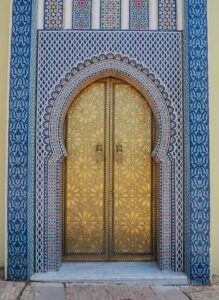
For this project, I created a generative artwork inspired by the idea of light and movement from a scene found in the movie Encanto. I asked my friends to tell me their favorite Disney movies, some mentioned Tangled, Moana, but one of them said Encanto. I started searching for movie clips to get inspiration from the scenes and movements but none of the Disney movies caught my attention until I looked at Encanto. While looking through images and clips from the film, I was drawn to the candle and flame that symbolized magic and hope. Looking at the circles and light around the candle made me wonder if I could also create the same scene through code which I titled Magic of Light.

Instead of creating the same exact image, I wanted to add my personal twists to create the feeling of movement and energy by making the flames move around a lot and also adding interactivity when clicking on the canvas.
Inspo: Encanto

Embedded sketch:

How the Artwork Was Made:
I first started by creating the base of my code, which to me is the background and candle. I then started creating the arrays and class for the lights and candlelight to start focusing closely on the code and specific movements of the balls which are the flames. I used a class to define each object that is moving included lots of codes and numbers so that the balls would bounce and move left/right or up/down in an array. Each object has its own position, speed, and behavior, which allows them to move independently across the canvas.

I organized my code using functions and clear variable names (light and candlelight) to keep it structured and smooth when I press play. I also added comments in the code (this is probably the best advice I got because when my code kept messing up and not working, I was easily able to look back and understand my thought process).

Resources:

Hardest Part of the Code (and the Part I’m Most Proud Of):
The hardest part of the code was figuring out how I wanted the objects to move and bounce around the canvas. I struggled at first because I didn’t fully understand how to use the array, loop, and class the same way we did in class but especially when trying to figure out how to make the balls bounce on from the edge using the reverse code.

move() {
    this.x += this.xspeed; //moves left/right
    this.y += this.yspeed; //moves up/down

    //using IF and || (OR) to make it bounce, when the ball hits the edge it is reversed by x-1
    if (this.x < 0 || this.x > width) this.xspeed *= -1;
    if (this.y < 0 || this.y > height) this.yspeed *= -1;
  }

I’m proud of this because it took me a while to fully understand what was happening instead of just copying the code. I went back to Professor Aya’s google slides and was able to follow exactly how to create the bounce but also looking at the Ball Class Example 1 helped me create the bounce. Once I understood how multiplying the speed by -1 reversed the direction, I was able to control the movement more intentionally.

Full Code:

let lights = []; //Creating my Array/list that will include all my candleLight

function setup() {
  createCanvas(400, 400);
  
  //Creating my loop for the balls/flames to fill the array with 150x objects (the circles)
  for (let i = 0; i < 250; i++) {
    let light = new candleLight(//candleLight is the new class I'm using for this section
      random(width), //Random x position
      random(height), //Random y position
      random(7, 13) //random size for the object
    );
    lights.push(light); } // To make the balls continue to come and move around the 'push' will push out a new object into the array
}

function draw() {
  background(0);

  // draw candle
  drawCandle();

  //The Loop through the list to update every ball of light
  for (let i = 0; i < lights.length; i++) {
    lights[i].move(); //updating position of ball
    lights[i].show(); //showing the ball
  }
}

function drawCandle() { //Creating the candle+flame
  fill("#E7BE42");
  rect(125, 200, 150, 200);

  fill("#E7BE42");
  ellipse(200, 200, 150, 50);

  fill("#FAF6D0");
  ellipse(200, 180, 20, 40);
}
//What each light will follow and be programmed as
class candleLight {
  constructor(x, y, size) {//everytime a new obkect is created
    this.x = x; //using this to give each ball its specific position
    this.y = y;
    this.size = size;
    
    //playing around with the speed
    this.xspeed = random(-1, 1); //left/right
    this.yspeed = random(-1, 1); //up/down
    
    //creating the array of 3 different color values    
    let colors = ["#FFD700", "#FF8C00", "#FAF6D0"];
    this.color = random(colors); 
  }

 move() {
    this.x += this.xspeed; //moves left/right
    this.y += this.yspeed; //moves up/down

    //using IF and || (OR) to make it bounce, when the ball hits the edge it is reversed by x-1
    if (this.x < 0 || this.x > width) this.xspeed *= -1;
    if (this.y < 0 || this.y > height) this.yspeed *= -1;
  }
  
  show() {
    noStroke();
    fill(this.color); //going back to the random colors above
    ellipse(this.x, this.y, this.size);
  }
}

function mousePressed() { //interactive aspect, when someone clicks on the sketch a new ball appears
  let newLight = new candleLight(
    mouseX,
    mouseY,
    random(5, 10)
  );
  lights.push(newLight); //add to the array
}


Problems I Ran Into:
One major issue I faced was constant errors in p5.js where the code would turn red, and I couldn’t figure out what was wrong. At one point, when I pressed play, the sketch would run but only show the black background with no objects. So I tried looking back from top to bottom and commenting again on the functions while also using // to remove the codes I assumed were causing the problem. I was the able to debug it and play it smoothly.

Final reflection:
I am proud of my final artwork because not only is this my first time writing a lot of code (lines 1–78), but I was also able to have fun with my friends throughout the process. Since we all have different majors, I usually show them what I’m learning and creating in Intro to IM. This time I asked them about their favorite movies and used that to create something that could connect us in a meaningful way.

I got my inspiration from the Disney movie Encanto and built my code around that idea. For future improvements, I want to create more realistic versions of my work because even though I’m proud of how far I’ve come and how I used the code, I know I can push myself further and make it look closer to the original inspiration.


Reading Reflection – Week#2

Every time I watch or read something about generative art, I feel really privileged because while many artists were trying to create art using limited computers and machines, I now have a laptop that allows me to create art whenever I want. Seeing the machines and codes in the talk made me realize how much effort and experimentation went into early computer art, which makes me appreciate the pieces even more since I know the background and history.
I also enjoy learning about different types of art because it allows me to question what art actually is. Before starting my major in Intro to IM and Understanding Interactive Media, I don’t think I would have considered generative art as “real” art, especially since it is created using code and computers. However, after my first two weeks in the major, I realized that art doesn’t have a fixed technical definition, because everyone perceives and understands it differently.
Casey Reas’ Eyeo talk on chance operations was overwhelming at first since he mentioned many different artworks and ideas very quickly making it hard to keep up. Although toward the end, I started to understand the structure of his approach, first introducing ideas through existing works and then building or continuing algorithms through code. One example that stood out to me was the Century piece, where he goes through 100 different artworks to generate a single evolving result, showing how systems can grow over time.
As someone with OCD, I usually want everything to be organized and controlled so the idea of randomness was never a suggestion to me. However, I realized that randomness can actually add beauty and meaning to art through overlapping shapes and unexpected placements. This way, art to me feels more expressive and story-driven than a perfectly structured piece.
After watching Casey Reas’ talk, I feel inspired to include randomness in my own work. I plan to experiment with random values and frameRate to allow my piece to change and evolve, while still keeping it controlled through specific rules in the code.

Week 2 – Generative Art

My concept:

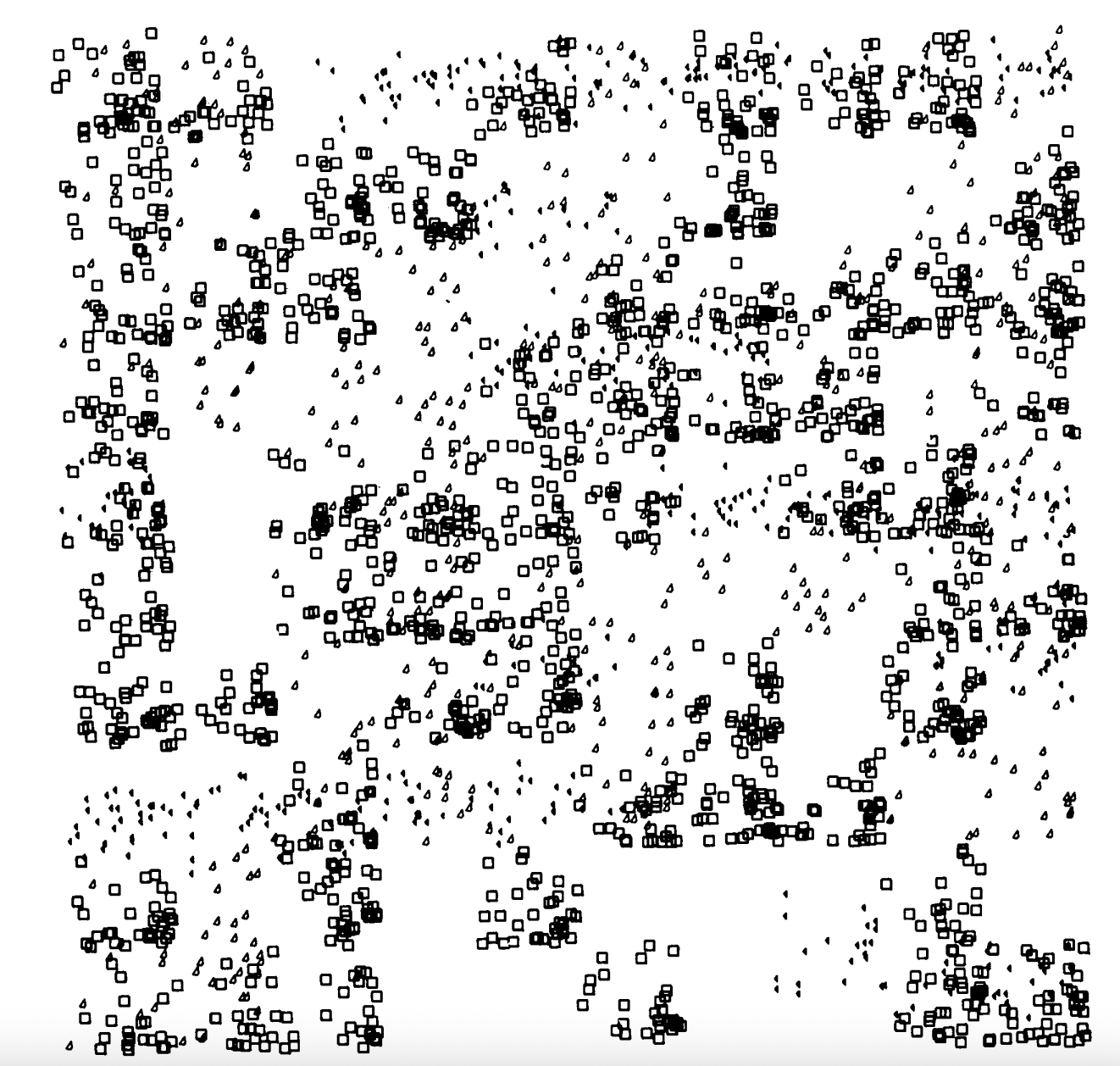
Initially I had lots of images saved from different types of designs, forms, and artists until I realized that I kept going back to page 19 in ProgrammInformation21_PI21. When it comes to art, I have drawn many zentangle-style pieces, which rely heavily on repetition and pattern, which is why I felt drawn to this specific art piece. I then decided to take inspiration from the piece and try to create movement similar to what I see. When I first looked at the image the shapes I saw were: triangles, squares, and circles. When I first looked at the image, the shapes I noticed were triangles, squares, and circles. Although circles are not clearly visible when zooming in, I decided to include them in my final piece to represent my initial visual interpretation of the artwork, hence why I called the piece Captured.

Inspiration from old computer art magazines: My project is inspired by early computer-generated art found in old programming and computer art magazines, where artists worked with limited tools leading to their reliance on shapes, repetition, and randomness.

Embedded Sketch:

How this was made:

This project took me around 4 hours to create. Much of the time was spent on searching and finding idea because I was just introduced to generative art and was still learning how randomness and loops affect visual outcomes. After finding the “perfect” inspiration I was then able to start brainstorming how I wanted my piece to look like.

At first I started off by creating just squares and triangles that were evenly spaced out but the results felt too structured compared to the chaotic image from the magazine. I then began experimenting with the [random] function:

let x = random (width); 
let y = random (height);

I combined this with rect() for squares and ellipse() for circles. Initially, I used a single square size [rect(x,y,10,10);] but unfortunately again, did not create the layered visual effect I wanted. To address this issue, I added more than one rect and played around with the width and height until I was able to layer three squares on top of each other with the small ellipse size. After I created the three different points for the triangles:

if (random(1) <0.8) { //80% chance to draw 3 rects and 1 ellips 
    rect(x,y,10,10); //x,y being random and 10,10 the W,H \|/ the same
    rect(x,y,7,7);
    rect(x,y,6,6);
    ellipse(x,y,5,5);
  } else { //the rest -> 20% will be triangles
    triangle(x, y-5, x-5, y+2, x+2, y+2);

I was also able to play around with the amount of shapes appearing on each frame (5) [for (let m = 0; m < 400; m++)]. Like everything else, starting is the hardest part so once I get used to the numbers and codes I used the rest of my time experimenting until I was satisfied with the results.

One code I am proud of:

for (let m = 0; m < 400; m++) { //drawing 400 shapes for every frame -> x5. Using m for my name

This was my favorite part of the code. I kept changing the number between 100 and 600 and experimenting with how the shapes changed and how the final piece turned out. In the end, I decided to keep it at 400 because it felt the closest to how I first saw the image. When I looked at everyone else’s self-portrait, I noticed that some people used this function, and at first I honestly didn’t understand how it worked. After looking into this source (JavaScript Loops Explained), I was finally able to create a similar effect and actually understand what the code can be used for instead of just copying it.

Resources: I of course wasn’t able to open p5.Js and create this project, so I kept referring back to the Week 2 lecture notes from both Professor Mang and Professor Aya’s weekly slides along with the website JavaScript Loops Explained Helped me create my code for the 400 shapes for each frame, I was able to make the loop but instead of using ‘i’ I just decided to use m for my name, adding a personal twist.

Full code:

function setup() {
  createCanvas(400, 400);
  frameRate(5); //to control the speed, or like I call this "the sets" I put 5 to make it slow but fast.
  noFill(); //black outline for the shapes
  stroke(0);
}

function draw() {
  background(255); //making the background white to match inspo

  for (let m = 0; m < 400; m++) { //drawing 400 shapes for every frame -> x5. Using m for my name
    
    //local variables created, so inside the loop each shape gets a new random position
    let x = random (width); 
    let y = random (height);
 
    if (random(1) <0.8) { //80% chance to draw 3 rects and 1 ellips 
      rect(x,y,10,10); //x,y being random and 10,10 the W,H \|/ the same
      rect(x,y,7,7);
      rect(x,y,6,6);
      ellipse(x,y,5,5);
    } else { //the rest -> 20% will be triangles
      triangle(x, y-5, x-5, y+2, x+2, y+2); //creating 3 different points for the triangle. Point 1: x, y-5 moving up. Point 2: x-5 moving left, y+2 moving down. Point 3: x+2 right, y+2 down
    }
  }
}


Reflection:

For future assignments, I think I’ll try to come up with ideas faster so I don’t spend so much time looking for the “perfect” inspiration before starting. Instead, I want to just start coding and see where it takes me. This feels like a fun challenge because the code can change so much depending on small adjustments. At the same time, having a general idea and then adjusting it as I go also works. I also want to experiment with more types of code. I know it’s not realistic to use every single thing we learn in one project, but it would be interesting to try combining more of them and seeing what comes out of it.

Week 1 – Self-Portrait

My Concept:
For my first project in Intro to IM, I decided to create a representation of myself using only 2D shapes in p5.js for my self-portrait. My goal was to use simple shapes to create the representation using the elements and colors for the face details, hijab/shailah, and abaya. Initially, I wanted to create a yellow bird or a kitten, but when I started writing the code for the face structure, I wanted to create something comparable to myself while challenging my skills. I then changed the shapes and sizes to fit the way I want to portray myself on this canvas. When frustrated or confused, I usually frown without noticing and my cheeks get really hot and red, which is why I wanted to capture myself in this specific emotional state.

How this was made:
Resources: In the second IM class, Professor Mang went through p5.js which I found extremely helpful because I was able to navigate the platform better. I started experimenting with the codes and different forms of digital art I could make. Unfortunately, I had some work that wasn’t saved, so I couldn’t go back to review it. I also found the technical readings link 1 link 2 helpful, throughout my process, I was going back and forth to create the lines or shapes.

I started this sketch by creating the background and then the face shape and hijab. I used basic 2D primitives like lines, ellipse, and arc for my face details. I began with a large black ellipse for my shailah in the background and my face. At first, my head looked like an exact circle but after adjusting the values a couple of times, I was able to change it slightly to a more oval shape that felt more natural. I then worked on the details of my face like my eyes, pupils, nose, mouth, and cheeks. While I found it confusing at first to figure out the math, I searched for a 400×400 graph to help with the placement which made the process easier for me because I had many trials figuring out the size, shape, and position of the eyes and nose for example.

I learned how to create the smile using the arc() function. Even though I experimented with different types of shapes and lines for the mouth, I wasn’t satisfied with the results, so I stuck with this one. I used the arc() with PI, which draws part of a circle and allowed me to create a subtle smile.

I also learned about the stroke() and noStroke() commands which I was proud of. When using stroke () it controls the outline of a shape, so when adding noStroke() it completely removes the outline. I used this for the cheeks to create a softer and more natural look. When I put the noStroke () command, all the shapes lost their outlines, so I decided to move the cheek commands to the bottom but it was still removing all the outlines from all the other shapes. This is when I realized that I must include the stroke() command for the shapes I want to keep the outline, in this case it was the eyes.

Embedded sketch:

function setup() {
  createCanvas(400, 400);
}
   function draw() {
   //update background color to pink
   background(200, 150, 200);
  
   //my scarf- shailah in black
   fill("black");
   ellipse(200,200,240,270); //x,y: center 250,250: width,height
   fill("white");
   fill("black");
   ellipse(200,250,100,350);
  
   //my abaya
   fill("black");
   ellipse(200,400,350,145);
     
   //my face, the base
   fill("#E5C9A0");
   ellipse(200,200,190,230); //putting it in the middle: x,y,w,h
     
   //my eyes 
   stroke(0);
   fill("white");
   ellipse (160,180,40,30); //left eye
   ellipse (240,180,40,30); //right eye
   //my pupils
   fill("black");
   ellipse (160,180,18,18); //left
   ellipse (240,180,18,18); //right
     
   //eyebrows
   stroke(0);
   fill("black");
   line(140,155,180,150); //left
   line(220,150,260,155); //right

   //my nose
   stroke(0);
   line(200,235,195,235); //long line
   line(200,199,210,235); //short line
   
   //mouth
   noFill();
   stroke(0);
   arc(200,260,60,30,0,PI); //x,y,w,h,startAngle0: start of curve,endAngle PI: half circle-end of curve
     
   //cheeks
   noStroke();
   fill("rgb(197,122,135)");
   ellipse(160,220,30,15); //left
   ellipse(250,220,30,15); //right
     
}


The code I’m proud of:

<//my nose
stroke(0);
line(200,235,195,235); //long line
line(200,199,210,235); //short line>

I know that it’s simple, but for some reason I spent a long time trying to figure out how to create the nose. At first, I created a triangle with 2 lines like this /\ but this wasn’t the nose I was looking for, so I decided to create the nose I normally see in simple illustrations and cartoons using one long and one short line. I had trouble finding the right coordinates because sometimes the line would reach the top of the canvas board and then it would disappear and then it would be short. This challenge led me to use a 400×400 grid again to help me understand the positioning better.

Reflection:

I enjoyed doing this mini project. At first, I was procrastinating and stressing all weekend about how I would use code to create a self-portrait, but the process turned out to be much more manageable than I expected. I am proud with how the final piece turned out. In the future, I would love to add motion or interactivity like making the eyes follow the mouse or the facial expressions change when the mouse is clicked. As I learn and become more confident with coding, I would like to revisit this project and create a more advanced version to reflect my growth in the course.