Week 4: Reading Response

My first time going to a library study room, I was confused on how to get out because I didn’t know you had to click a button to leave. Although it has a sign that says “click to exit,” I was still lost because other study rooms on campus didn’t have this, and the button is on the side of the door where you usually don’t look, something Norman calls a classic signifier failure. The more I used the study rooms, I found myself still struggling as sometimes the button to leave or the ID scanner to get inside just don’t work. When I swipe my ID and nothing happens I have no idea if my card failed, the reader failed, or I did something wrong, which is exactly the feedback problem Norman describes. Getting in and getting out also use two completely different interactions with no consistent logic and it breaks any conceptual model I try to build of how the door works.

I think I can apply Norman’s principles to my own work in p5.js sketches. One thing I want to start doing is making it clearer to users how they are supposed to interact with my sketches, whether they need to click, long press, or drag to interact with my piece. Right now someone could open my sketch and have no idea what to do with it, which is the same signifier problem Norman talks about with doors. I want to incorporate small visual cues like a pulsing cursor, an animated hand icon, or a brief on-screen hint that disappears after a few seconds to guide the user naturally into the interaction without overwhelming them with instructions.

Week 4: Generative Text

Concept

I wanted to make a generative text output inspired by one of my favorite childhood comfort food: alphabet soup. It’s a tomato soup where the pasta is made out of the letters (a-z). I wanted to recreate a soup bowl that would have letters floating around. In the sketch, it shows a white dinner plate with a reddish tomato soup filling, with 80 randomly generated lowercase letters slowly bouncing around inside the soup. The letters stay contained within the circular bowl, and when they hit the edge, it reverses direction just like real pasta letters drift and bump in a bowl of soup.

My Final Sketch!

Code I’m Proud Of

 // keep inside soup
if (dist(l.x, l.y, cx, cy) > radius) {
  l.speedX *= -1;
  l.speedY *= -1;
}

Before I had these lines, my letters were all just floating around the whole sketch and I needed a way to keep the letters within the soup circle. Instead of checking rectangular walls, I used the dist() function to measure how far each letter has drifted from the center of the soup. When that distance exceeds the soup’s radius, both speed values get flipped by multiplying by -1, sending the letter bouncing back inward. This keeps all 80 letters perfectly contained within the circular soup area at all times.

How This Was Made

I used a loop that runs 80 times to create 80 letter objects, each placed at a random position inside the soup circle using polar coordinates and it picks a random angle and distance from the center, then converts them into x and y coordinates with cos() and sin(). Each letter gets a random character using String.fromCharCode(), which converts numbers 97–122 into a through z (I learned this from w3schools), along with random speed values for both directions. All of this gets stored as objects in an array called letters[]. Every frame, each letter’s position is nudged by its speed values to create the floating movement, and dist() checks whether it has drifted too far from the center and if it has, both speeds are flipped by multiplying by -1, then it shows a bouncing movement of the letter back inward and contained within the soup circle. For the font, I played around with different fonts and I landed on Courier which was the closest I could find to the chunky, typewriter-style lettering you actually see on real alphabet pasta.

Reflection and Future Improvements

This project taught me how useful polar coordinates are for placing things inside a circle instead of just rectangular, and I got a lot more comfortable using object literals inside arrays as a lightweight way to store and manage multiple moving things at once. Next time, I’d love to add mouse interaction so clicking near a letter makes it spin or dissolve, add a spoon that follows the cursor and stirs letters out of the way, or occasionally have the letters briefly cluster into short words before drifting apart again, something like the artwork “Text Rain” that we looked at in class.

Week 3: Reading Response

I think a strongly interactive system is one where users feel like their actions genuinely matter and produce meaningful responses. The interaction goes beyond just getting any reaction, and to actually getting responses that feel thoughtful and varied based on what you actually do. A strongly interactive system gives you agency almost like you feel like you’re having a conversation with it rather than just triggering pre-programmed effects. The fridge light example really clicked for me here. Sure, the light turning on is necessary for seeing inside, but what would make it strongly interactive is if different lights indicated whether the fridge is full, running low on food, or out of ice. That kind of communication transforms a basic function into something that actually responds to your needs in a meaningful way.

Honestly, I’ve been prioritizing aesthetics way too much with my designs, and I want to flip that relationship entirely. I want interaction to be the main focus, with visuals supporting it rather than the other way around. I also really want to give users actual choice in what they interact with. I could add memory too, where the sketch remembers your previous interactions and elements behave differently based on that history. I want the goal is to surpass just making pretty things that happen to be clickable and instead create experiences where meaningful interaction is actually the heart of the piece.

Week 3: Arrays and OOP

Concept

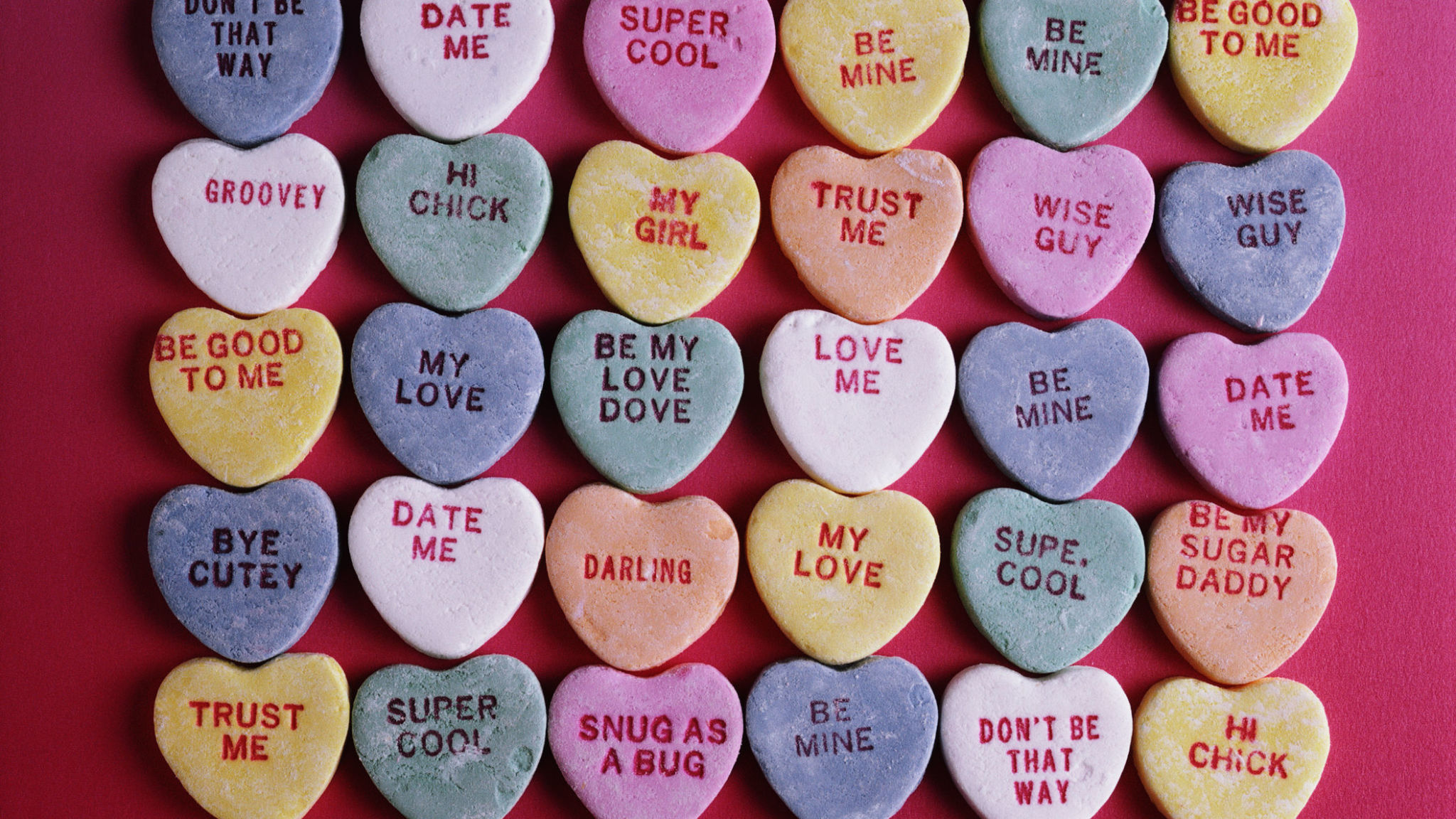
I was inspired by candy hearts (as seen below) during Valentine’s Day, which is coming up soon. I wanted to recreate the soft colors and heart shapes of the candy hearts while adding movement and interactivity. So, my final sketch has hearts float and bounce around the screen, and when you click, it changes colors (but still within the color palette I’ve chosen).

My Final Sketch!

Code that I’m Proud of

// hearts' colors selection
getRandomColor() {
  let colorChoice = int(random(4));
  
  if (colorChoice == 0) {
  return color(255, 200, 220);
} else if (colorChoice == 1) {
  return color(220, 200, 255);
} else if (colorChoice == 2) {
  return color(200, 230, 255);
} else {
  return color(200, 255, 220);
  }
}

changeColor() {
  this.col = this.getRandomColor();
}

I particularly liked how I structured the changeColor() method and the color selection system. I created dedicated method that randomly picks from my chosen pastel palette and learned how conditional statements work with color from Patt Vira’s tutorial on YouTube and w3schools’ Statement Reference page. Each time you click, all hearts get new random colors from this palette.

How this was made

I used Object-Oriented Programming with a Heart class in which, each heart object has properties like position, size, color, and movement. I also used an array called hearts[] to store and manage all the heart objects. In the setup() function, I create each heart with random positions and sizes using a for loop, then push them into the array. In the draw() function, I loop through the array to call move() and display() on each heart every frame, which creates the continuous animation. The move() function makes the hearts bounce around. It updates position by adding speed values to the coordinates. When a heart hits a canvas edge, the function reverses its direction by multiplying the speed by -1 and makes it bounce back. This keeps hearts moving continuously without leaving the screen. For the heart shape itself, I used a parametric equation I found from this YouTube tutorial. The equation uses sine and cosine functions to plot the mathematical curve of a heart shape.

Reflection and Future Improvements

I learned a lot about how objects and arrays work and for these elements, I honestly found YouTube tutorials, like The Coding Train and Patt Vira, more helpful than reference pages (though I still used them as a reference for this project), especially with getting used to OOP. Next time, I’d love to learn how to add text to the objects because for my project, the candy hearts I referenced has phrases on them (as seen above) that would’ve added a nice touch and more accuracy.

Week 2: Reading Reflection

Upon watching Casey Reas’ talk, I became interested in his approach of using artificial, computation processes to create something that feels “organic,” as he says. Another thing that resonated with me was when he mentioned how he was more interested on the paths that elements were taking while moving rather than on their individual location at specific moments. I plan on keeping these two features in my mind for my future works. I want to apply this thinking by designing systems where the journey and behavior of elements matter more than their fixed positions, letting randomness guide their movements while maintaining an intentional overall direction or purpose, and create something with that “organic” feeling, where the work doesn’t look rigidly programmed but instead has a natural, living quality to it.

I think the optimum balance lies in incorporating random elements by establishing controlled boundaries while allowing freedom within those constraints.  Simply put, controlling where something can exist or move, but letting how it moved or which specific direction it takes to be determind by chance. There would be a defined space or ruleset but then letting randomness operate freely within those parameters. In this way, everything still feels intentional and cohesive because it’s all happening within a thoughtfully designed framework.

Week 2: Loop

Concept

I drew inspiration from the movie Coraline, where there was a little door that lead to another world through a mysterious tunnel and I wanted to use that tunnel as my loop. So in my sketch, there’s a little door and when clicked, it reveals a mesmerizing tunnel of concentric circles that pulse and animate.

My Final Portrait!

Code that I’m Proud of

let animatedSize = d - t;
if (animatedSize > 0) {
  ellipse(0, 0, animatedSize);
}

d -= random(15, 35);

I wanted a “magical tunnel” effect so I used d – t to make all circles pulse inward together and random(15, 35) to give each circle irregular spacing. I think it was successful in capturing the mysterious portal feeling and as if you’re being pulled into another dimension.

How this was made

The draw() function has two states controlled by mouse interaction. When the mouse is not pressed, it shows a door: for the door, I wanted to create something simple yet mysterious, so I just used a rectangle with a small circle on the side as the handle and a plain black background. When the mouse is pressed, it shows a tunnel: for the tunnel effect, I initially tried using a for() loop but switched to a while() loop to get that random, organic effect. I was inspired by a p5.js example that used a while loop to create concentric circles with random spacing. The example code showed how while (d > minSize) could draw circles that decrease by random amounts using d -= random (5, 15), which created this uneven pattern instead of perfectly uniform circles. I thought this technique would be perfect for creating a mysterious tunnel effect and I heavily implemented that in my sketch. I used translate() to move origin point to the center, which made drawing the circles so much easier since I could just use ellipse() instead of calculating positions every time. I was also experimenting with the minSize value to control how much blank space shows in the center and settled with 100. I learned modulo operato % to make the animation loop endlessly.

Reflection and Future Improvements

I used the p5.js reference page for examples of for() and while() loops and The Coding Train’s playlist on YouTube about loops to understand the logic and process of creating a loop. These sources were helpful in making me understand loops better as I missed the class discussion about this. In the future, I’d like to learn adding color gradients for the circles and a spiral motion to add more depth and make it more whimsical-looking.

Week 1: Self-portrait

Concept

I decided to create myself as a pink crab on the beach. Instead of a traditional self-portrait, I wanted to make something that represents me through the things I like: the crab is my favorite animal, pink is my favorite color, and I like going to the beach! The beach is also a nod to my home country, The Philippines, which is known for having beautiful beaches.

My Final Portrait!

Code that I’m Proud Of

// claws
fill(227, 115, 131);
let biteSize = PI / 16;
let startAngle = biteSize * sin(frameCount * 0.1) + biteSize;
let endAngle = TWO_PI - startAngle;

// left claw
push();
translate(width / 2 - 60, height / 2 - 50);
rotate(radians(330));
arc(0, 0, 45, 45, startAngle, endAngle, PIE);
pop();

// right claw
push();
translate(width / 2 + 60, height / 2 - 50);
rotate(radians(210));
arc(0, 0, 45, 45, startAngle, endAngle, PIE);
pop();

This is the code I’m particularly proud of. I wanted my crab to have the motion of snapping its claws. So, I went on the p5.js reference page to look for something that would help with that. I found a coding reference for a Pac-Man style animation on the arc() section and decided to use that but I had to double and shift it to my liking and what’s fitting for my crab.

How this was made

For the background, I wanted to split the sky and the sand so I used rectangles and to slip them evenly, I just set the size to divide by the height accordingly. To add more of a “beach-y” feel, I added sun (using ellipse), clouds (using ellipse as well), and a beach umbrella (using rectangle and arc). For my crab, I split the body into two arcs because I wanted it to have different colors. For the face, I used two identical black ellipses and for the mouth, I used arc. Now for the legs (the part I spent quite a bit of time on), I used rectangles and had to manually shift each of them accordingly and because of that, some parts appear to be a bit uneven. Throughout the code, I learned to use  PI to control how arcs are drawn, since p5.js uses radians, and it allowed me to create half-circle for the body, smile, and claws. I also used push() and pop() to isolate translate() and rotate() so each part could be shifted independently without affecting the rest of the sketch.

Reflection and Future Improvements

I learned a lot useful coding skills from making this assignment and the p5.js reference page was a huge help. I feel more comfortable with p5.js and navigating myself on the reference page. With more practice, I’d like to learn more animations like clouds drifting or my crab moving sideways, and if there are ways to duplicate or mirror a function (concerning my crab’s legs) to save more time and make sure everything is perfectly even.