Week 8 — Creative switch

Project Reflection

For this project, the goal was to create a creative switch using Arduino that could be activated with a body part other than the hand. At first, I wanted to make something you could blow on, kind of like a tiny football field made out of cardboard where you blow a ball to complete the circuit. But I quickly realized the ball I was using was too light, so it didn’t push the wires together properly.

After trying a few different ideas, I switched to a bigger marble. But since it was heavier, blowing on it didn’t work either. That’s when I got the idea to make it something more fun and active, something you kick instead of blow. It turned into more of a little game than just a switch, which made it a lot more exciting to work on.

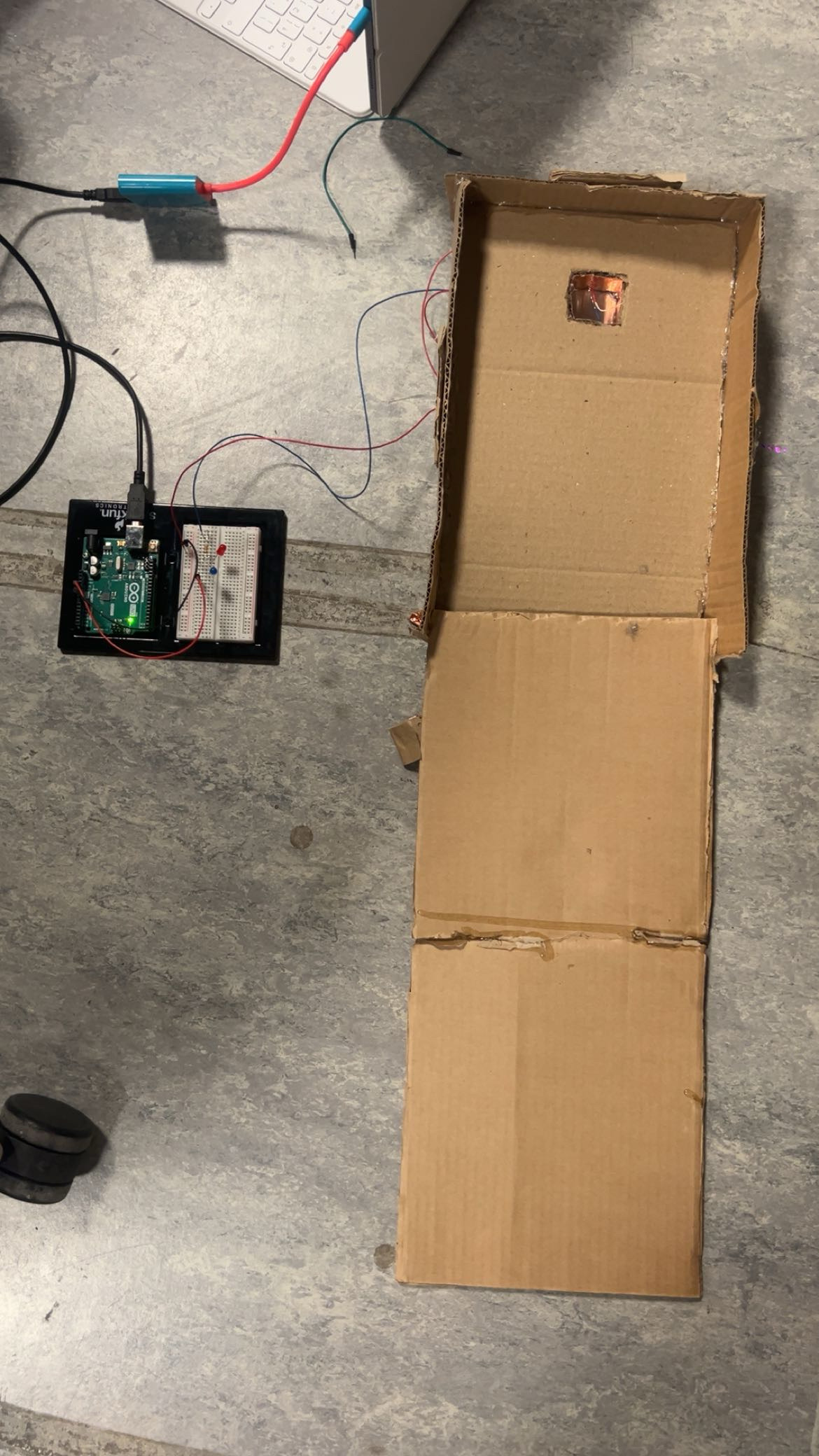
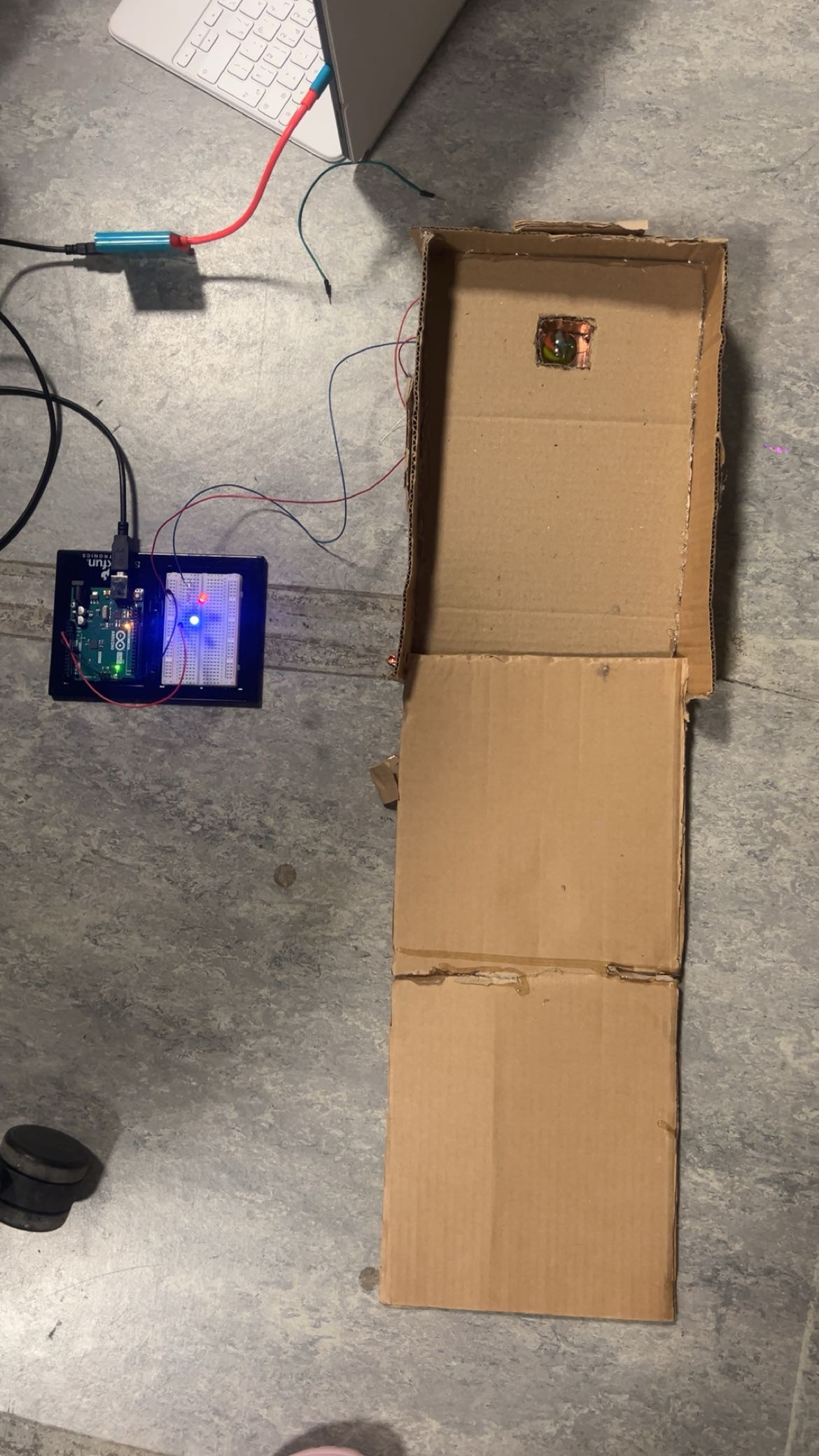
In the final version, the goal is to kick the ball into a hole. When the ball lands perfectly in the hole, it completes the circuit and makes the bulbs light up. If you miss, the lights stay off. I really liked this idea because it feels like a reward, the light turning on means you “won.” It doesn’t happen automatically; you have to earn it.

What I enjoyed most about this project is how it started as a simple idea and ended up becoming something playful and interactive. It reminded me that creativity often comes from solving problems, sometimes when something doesn’t work, it actually pushes you toward a better idea. I also liked how it connected movement and technology. Using my foot instead of my hand made it feel more like a real-world challenge or game.

Design

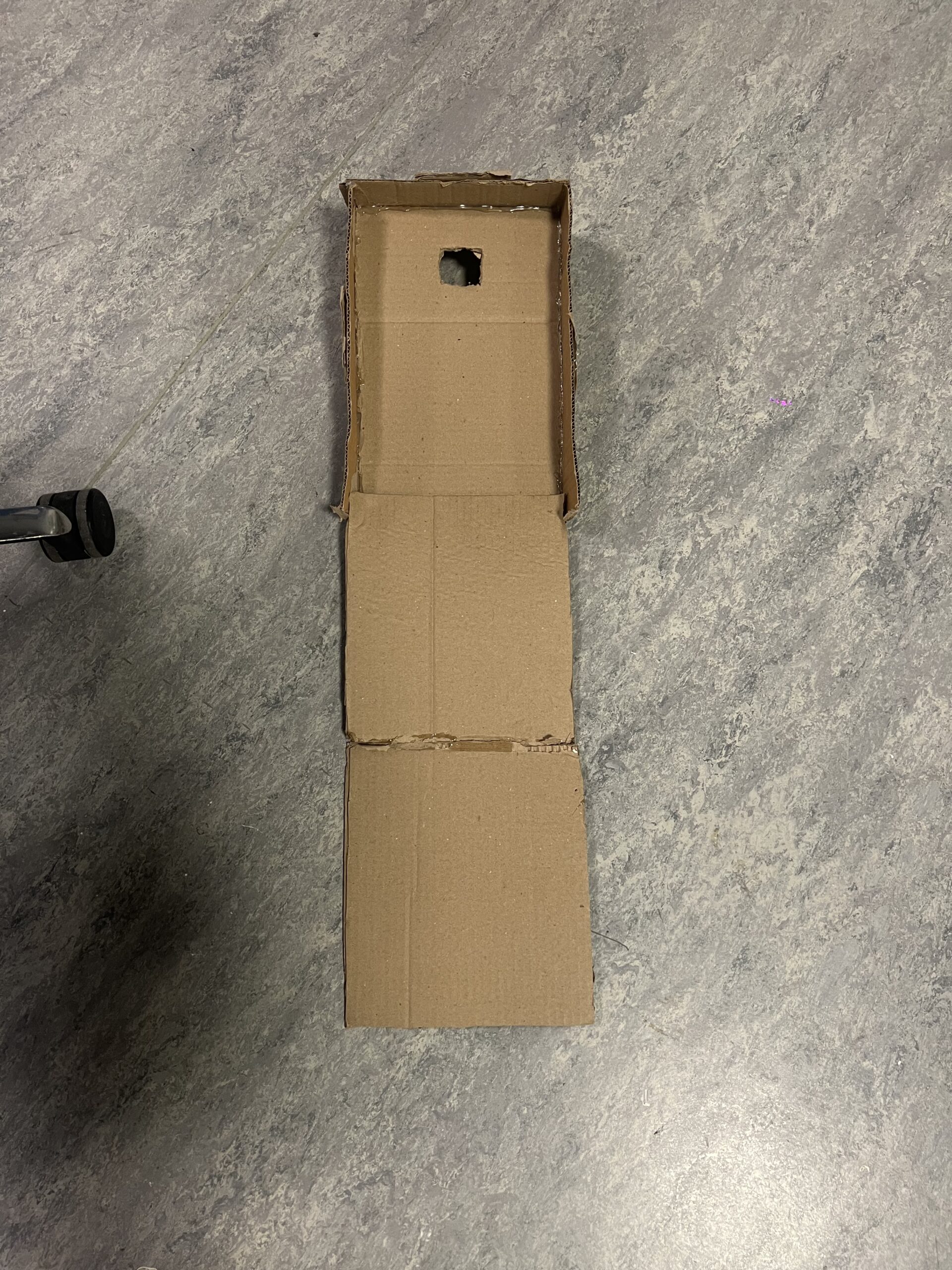
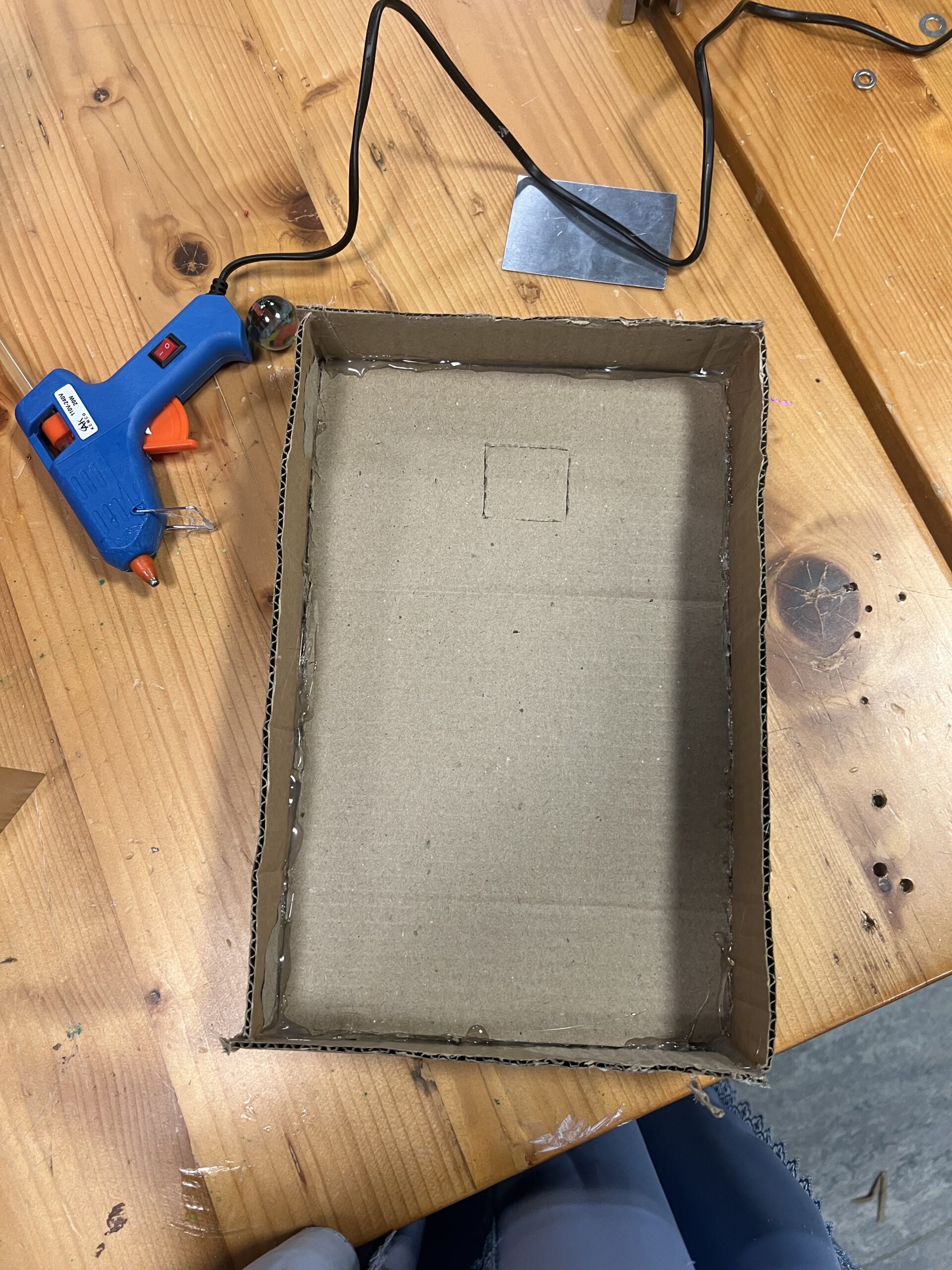
The design of my project is a cardboard slope that works kind of like a mini golf game. At the end of the slope, there’s a hole made out of cardboard that acts as the main target. I covered the inside of the hole with copper tape because it’s a good conductor of electricity. Underneath, I made two small holes where I inserted the wires. These wires touch each other only when the ball goes into the hole, completing the circuit and lighting up the bulb. I really like how simple but effective it is when you kick the ball just right, the light turns on as a little celebration of success.


Week 8 — Creative Reading Response

I really liked what Don Norman said in “Emotion and Design: Attractive Things Work Better.” The part about how positive emotions make things work better really stuck with me, because it’s something I’ve actually noticed ever since I was a child. It’s something I’ve always believed that when something looks good, we automatically treat it differently. It reminds me of the saying “Don’t judge a book by its cover,” but honestly, that’s what all of us do. The first thing we do is see. Sight is our first sense, before we touch something, taste it, or use it we see it. And that first impression already shapes how we feel.

I’ve noticed it especially with food. When a dish looks good, people automatically expect it to taste good too. That’s confirmation bias, when you already believe something will be good, your brain looks for ways to confirm it. So even if the taste is just okay, you feel like it’s amazing because it looked amazing first. But when food looks unappetizing, people get turned off before even trying it. It’s like it doesn’t even get a fair chance. The same thing happens with Apple products. Apple isn’t necessarily the most advanced or customizable compared to other technology, but people love it because it’s so visually clean and simple. The design itself feels satisfying and premium, and it makes people want to use it more. So I think Norman is completely right attractive things really do work better, because they make us feel better, and that feeling affects everything we do afterward.

And I really liked what Margaret Hamilton did too. She honestly inspires me so much. I love how she made something completely new and powerful during a time when women in STEM faced so many challenges. She didn’t let that stop her, she pushed through and proved that engineering and programming were just as creative and valuable as any other field it is the foundation of almost every field and it is our future. She made software engineering something real and respected, even when people didn’t think of it that way. What really stood out to me was how careful and disciplined she was with her work. It made me realize that real innovation isn’t just about having ideas only, it’s about discipline, care, and anticipating mistakes before they happen. It showed me how much progress depends on the people we don’t always see, the quiet thinkers, programmers, and engineers behind the scenes who carry so much responsibility. One small mistake can ruin everything, so being precise, testing carefully, and paying attention to detail are so important. Her story really reminded me how much patience, focus, and love go into the things that shape our world, even when most people never notice who’s behind them.

Week 7 — Final Game (Midterm Project)

https://editor.p5js.org/hajar.alk.2007/sketches/

Concept Recap

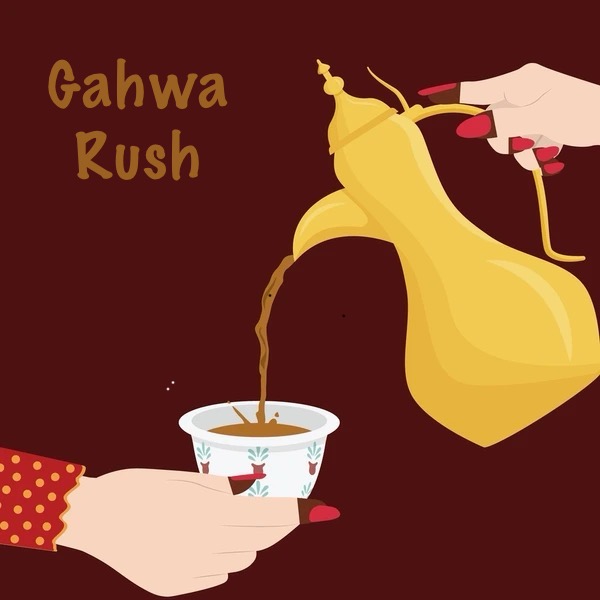
Now that I’ve finished my game, I just want to restate my concept briefly (which I explained in detail in my Week 6 submission). The original idea started as a candy game, but I decided to make it more traditional and personal by turning it into a Gahwa Rush theme. The inspiration came from my grandpa and my little brother how in our culture, gahwa is always seen as fine for kids while soft drinks aren’t. I found that really funny, so I made the goal of the game to catch the gahwa and avoid the Pepsi. It’s a simple idea, but it means a lot to me because it connects to my family and culture, and I’m really happy with how it turned out.

Week 7 Progress

This week, I was mainly working on the final details to perfect the game. Most of it was already done since last week the whole structure and idea were already there. What I focused on this week was adding sounds to make the game feel more alive and interactive. I also let my friend play it, and I noticed that it was really hard for her, even though for me it felt easy. That’s when I realized I had been increasing the difficulty too much without noticing because I kept testing and improving my own gameplay, so I was getting better while others weren’t. To fix that, I decided to lower the difficulty level to make the game more beginner-friendly and enjoyable for everyone.

I also found a small bug where the player would lose even when the character didn’t actually touch the Pepsi. To fix this, I adjusted the collision detection by making smaller rectangle frames around the Pepsi so that it only counts as a collision when it really touches the character.

Sources/Credit

https://youtu.be/enLvg0VTsAo?si=mPNyWkxCoWeOn3CG

https://youtu.be/bMYQbU01u04?si=KDpfq1w9eC_Bifax

https://youtu.be/Z57hx4ey5RY?si=ruAPhn2WmEeyHKXG

https://youtu.be/MuOcdYjF2F4?si=Z160JD3BE2VQnpvr

Although these YouTube links aren’t the same concept as my game and are actually very different, I used them to help me with the technical parts of creating my game. Since I’m still a beginner at coding, some things especially the math equations were really hard for me to figure out on my own. These videos really helped me understand how to make objects fall, how to make them appear randomly, and how to control different elements in the game. Even though their games had completely different themes, they included similar components that I could learn from, and I applied those ideas to make my own game work.

Code Highlight

const pw = p.w * PLAYER_HIT_SCALE.w;
const ph = p.h * PLAYER_HIT_SCALE.h;
const s  = ITEM_HIT_SCALE[it.kind] || { w: 0.5, h: 0.7 };
const iw = it.w * s.w, ih = it.h * s.h;

return (Math.abs(p.x - it.x) * 2 < (pw + iw)) &&
       (Math.abs(p.y - it.y) * 2 < (ph + ih));

When I was fixing the collision bug, it took me many tries to get it right. Even though I found YouTube videos about collision detection, I still couldn’t really figure it out at first because my game’s sprites and hitboxes didn’t match properly. The player would lose even when the Pepsi was far away. I kept testing and adjusting the numbers, but it wasn’t working. Then I found one YouTube video that explained hitboxes in a really simple way, and it finally made sense to me. That video helped me understand how to scale the hitboxes separately for each object, so I created smaller hitboxes around the Pepsi and the gahwa, and after that, the collisions finally worked perfectly. https://youtu.be/HK_oG_ev8FQ?si=BqtCL3WpHv3UpPQ0

End Of Project Reflection

Overall, I really enjoyed this project I genuinely, genuinely did. I loved developing my idea and adding more to it every single week. It’s crazy to see how much it changed from week 5, when I first thought of it, to how it looks now. It’s such an inspiring project for me because I got to be creative and technical at the same time. I also really enjoyed sharing it with my friends and family; everyone wanted to try it and play.

Even though it was a heavy project that took hours of work and a lot of effort, the result was completely worth it. I felt so accomplished when I finally finished it. It took a lot of trial and error, but that’s honestly what helped me learn the most. This project pushed me to apply everything I learned in class not just follow instructions, but actually take risks, test ideas, and build something real. It also made me go beyond what we learned and look for new solutions from other sources, like YouTube tutorials.

In the end, it was a very in-depth and challenging project, but I truly enjoyed every step of it not just the outcome. I loved the process of testing, debugging, and improving. It was fun, creative, and one of the most rewarding projects I’ve ever done.

There were definitely moments when I found bugs that I just couldn’t fix, and it felt so overwhelming. It was really frustrating because I would go through the code again and again and still couldn’t figure out what was wrong. But I started using the debugging techniques we learned in class, and that really helped me calm down and approach the problem more logically instead of panicking. There were also days when I spent hours trying to fix one thing, and after a while, my brain would just stop functioning. I couldn’t think straight anymore. But whenever I took a break and came back later, it was like my mind was refreshed, I could suddenly see the problem so much more clearly and finally debug it.

At some points, I honestly wanted to delete the whole code and just make a simpler game because I was so frustrated. But I’m really glad I didn’t. Finishing it made me feel so accomplished, and it really boosted my confidence in coding. I kept going even when I wanted to give up, and I pushed myself to find answers and look for external resources when I got stuck. That persistence made me realize that even if something feels impossible at first, I can figure it out if I stay patient and keep trying.

This project definitely required a lot of patience and I think that’s a skill I’m really starting to develop. I realized that when you’re coding, you’re not always going to get it right the first time, and that’s completely okay. There’s nothing wrong with making mistakes or needing multiple tries. Especially when you’re creating a game or something complex, patience is everything. You have to be willing to try again and again, test small changes, and stay calm even when things don’t work right away. This project really taught me that. It helped me understand that patience isn’t just something nice to have it’s one of the most important skills in programming.

Week 6 – Game Progress


Project concept

Last week, when I first thought of my game idea, I had almost the same concept as now, but it was originally a candy-themed game. Then I decided to make it closer to home, more customizable, and more traditional. I was trying to think about what should fall from the sky instead of candy, but I really couldn’t come up with anything at first.

Then one day, I was at my grandpa’s house, and I saw him drinking coffee with my little brother. It made me laugh because in our culture, especially in Arab families, they always tell kids not to drink soft drinks, but somehow Gahwa (Arabic coffee) is always allowed, even though it’s full of caffeine! What’s even funnier is that my grandpa used to give my little brother kahwa when he was literally a baby. He could only drink milk, but my grandpa would secretly give him kahwa without my parents knowing. In his mind, kahwa was totally fine, but soft drinks were bad.

That moment gave me the idea to make the game about Gahwa. So now, in my game, the goal is to catch the Gahwa and avoid the Pepsi , if you catch the Pepsi, the game is over. That twist made the game feel really traditional and personal to me.

I also decided to name the characters with Arab names and base them on my younger brother and sister. I really enjoyed that part because it made the game feel more meaningful and connected to my culture. Even though it’s a simple game and my technical experience isn’t that advanced yet, I really love the creative side of it. It feels fun and personal, and that’s what I enjoyed most.

What I am proud of

For my Week 6 submission, what I’m most proud of is that I made this entire game from scratch it’s my first time ever creating a full game, and that alone makes me really proud of myself. I’m also proud of how resourceful I was throughout the process. Even though the YouTube videos I found weren’t the same as my game at all, I still managed to understand their concepts and figure out how to apply them to my own project. I feel like I found really good sources that helped me learn and improve, and it showed me that I’m capable of teaching myself new things and solving problems independently.

I’m also really proud of my concept because it has a story behind it that makes it personal and meaningful. I feel like I did really well in both the creative and technical parts of the project. On the technical side, I worked hard to understand new concepts and used different sources to make my game function the way I wanted. On the creative side, it all came naturally because I was genuinely passionate about the idea. I really enjoyed bringing my story to life through the game, and that made the whole process even more special for me.

Bug

The only thing that’s bothering me about my game right now is that sometimes you lose even when the Pepsi is kind of far from the character. It doesn’t actually touch or collide with the player, but the game still ends as if it did. I think it’s because the data or hitbox isn’t directed properly to the character, so I’m planning to fix that bug. I also haven’t added any sounds yet, but I really want to, I just need to watch some tutorials first to learn how to do it correctly.

Code Highlight

This part of the code is one of the main things we learned in class, and it really became the foundation for my whole project. It basically controls what shows up on the screen depending on which stage of the game you’re in, like the home screen, instructions, character select, gameplay, or game over. This structure made everything so much easier for me because it helped organize my code and made it clear what each part should do. I started with this as my base and then kept building on it, adding more functions and features as I went along. It really helped me understand how to manage different screens in a game.

function draw() {
  background(0);
//conditions for screens 
  if (currentScreen === 'home')       drawHome();
  else if (currentScreen === 'instructions') drawInstructions();
  else if (currentScreen === 'character')    drawCharacterSelect();
  else if (currentScreen === 'game')         drawGame();
  else if (currentScreen === 'gameover')     drawGameOver();

Some Images I Used

Week 5 – Reading Response ( Computer Vision for Artists and Designers: Pedagogic Tools and Techniques for Novice Programmers )

Human vision and computer vision are very different. Humans are born with natural senses that let us see, feel, and understand what’s happening around us without even thinking about it. For example, if I see someone waving at me, I instantly know who they are and what that action means. Computers don’t have this kind of built-in understanding. They need to be given artificial “senses” through cameras and sensors. Instead of just seeing, a computer has to go step by step, detecting pixels, separating the object from the background, and then tracking where it moves. Humans process all of this automatically and with emotion, while computers rely only on data and instructions.

To help computers track what we want, we can use techniques like motion detection, background subtraction, brightness levels, and object tracking. These methods allow the computer to focus on what matters, like spotting movement or identifying a specific shape or color.

Computer vision brings something really exciting to the world of art because it makes art interactive. It allows artists, even those who aren’t very technical, to push their creativity further without as many limits. I find this so beautiful because it opens up new ways to experience and create art.

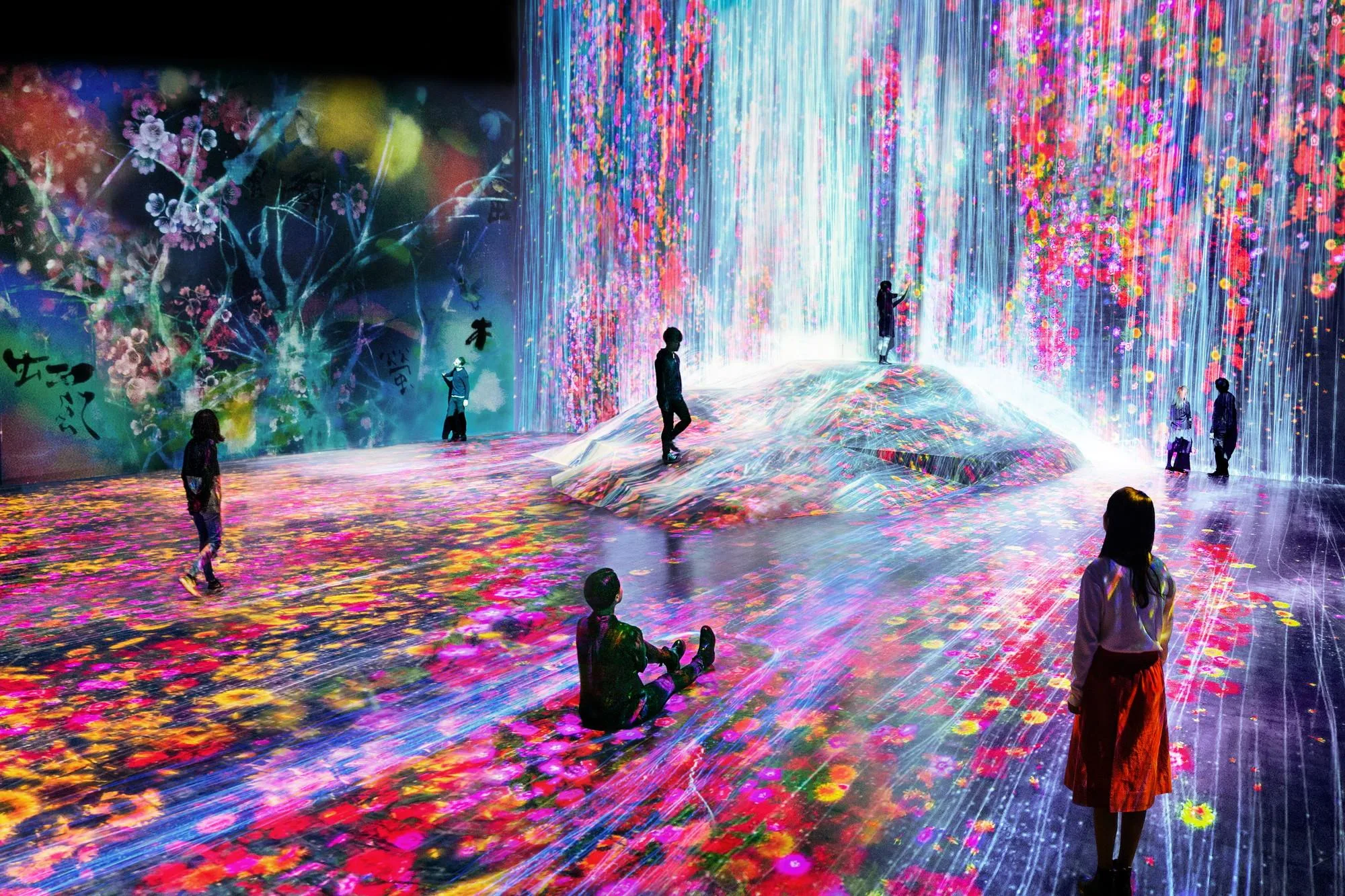
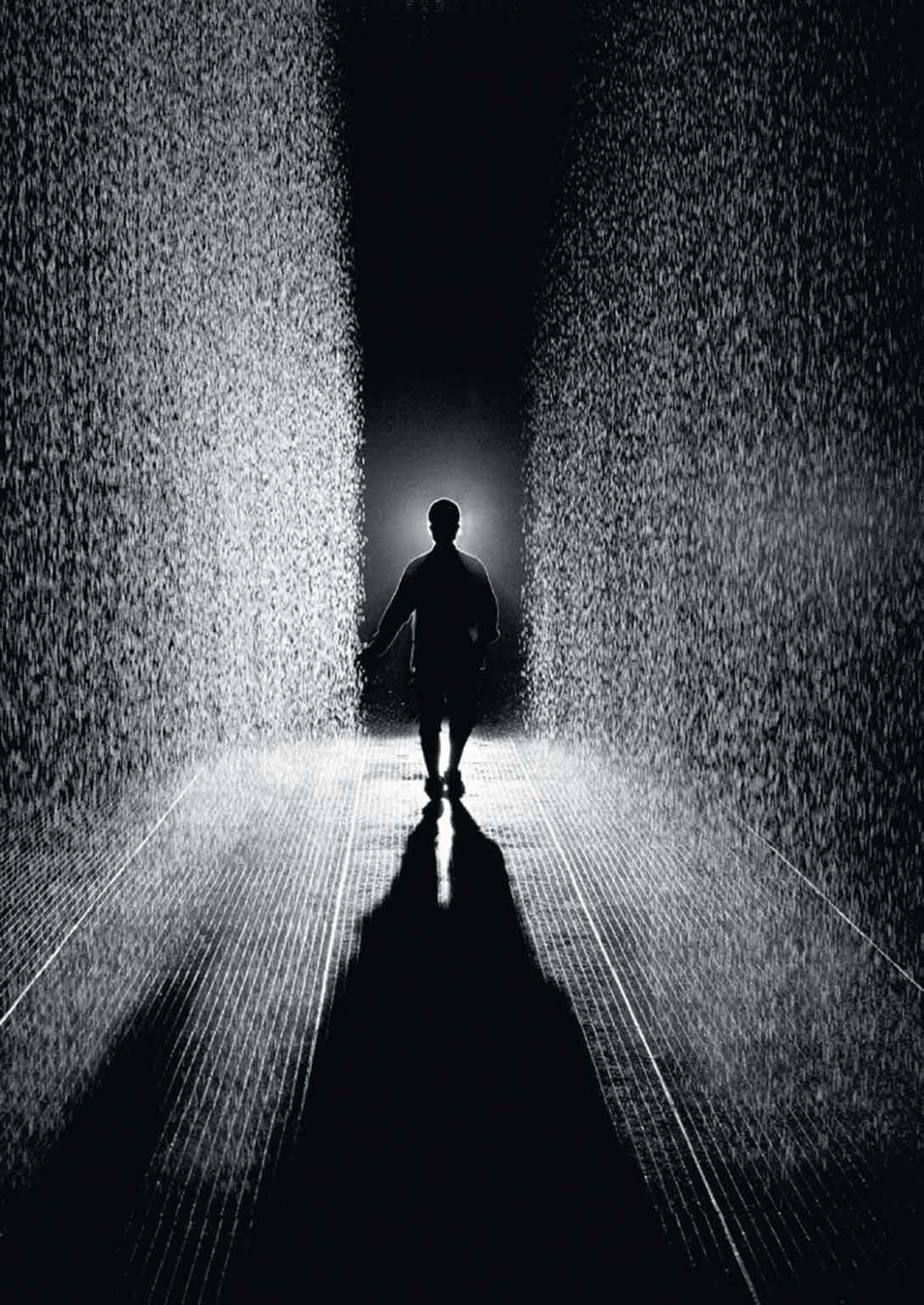
A great example of this is the Rain Room. In this installation, rain falls inside a dark room, but when someone walks through it, sensors detect their movement and stop the rain wherever they are standing. It feels like you have the power to control the rain. Another example is TeamLab Borderless, where massive digital projections respond to visitors’ movements, creating an ever-changing world of color and light.

What makes this so special is that it gives the audience a role in shaping the art. The original artist creates the setup, but every visitor changes how the piece looks and behaves through their actions. In a way, everyone becomes an artist. The artwork is never exactly the same twice, which makes it even more meaningful. It turns art into a shared, living experience where the line between the creator and the audience disappears.

Week 5 – Game Concept

This weeks focus : 

This week is the first week I’m working on my midterm project, I decided to focus on the game concept so I can have clear direction, I planned my entire concept from A to Z, but I did not focus on the technical side because I decided the most efficient way to start is with a clear plan.

The basket adventures : game concept

Goal:

Catch falling candies to score points and survive as long as possible, while avoiding poison candies that make you lose lives.

Lives

Player starts with 3 lives.

• Lose 1 life for each poison candy caught.

• When lives = 0 → Game Over screen appears.

Scoring:

+5 points for every second survived.

+10 points for each candy caught (optional extra boost).

• Display score at the top at all times.

Difficulty:

As time goes on, falling objects spawn faster and fall quicker.

Power-up (Immunity Mode):

• A special glowing candy sometimes falls.

• When caught → player becomes immune to poison for 10 seconds.

• A countdown timer appears on screen during immunity.

Game Modes (Themes)

The four modes are mostly visual changes:

1. Witch Land:

• Background: Haunted forest.

• Good objects: candy corn, pumpkins.

• Poison: Skulls or green potion bottles.

  • Power up: Bat.

2. Unicorn Land:

• Background: Pastel rainbow sky.

• Good objects: Cupcakes, rainbow candies.

• Poison: Spiky black storm clouds.

  • Power up: Star.

3. Funky Land:

• Background: Disco dance floor.

• Good objects: Ice cream.

• Poison: Gray or dull-colored shapes.

• Power up: sunglasses.

4. Animal Kingdom:

• Background: Jungle scene.

• Good objects: Bananas,  coconuts.

• Poison: snakes.

     • power up: leaves.

Different Screens

Game Flow Description

Home Page (Adventure Selection):

• The first screen shows the message:

“Where do you want to take the basket on an adventure?”

• The player chooses one of four themes:

1. Witch Land

2. Unicorn Land

3. Funky Land

4. Animal Kingdom

• Once a theme is chosen, it moves to the Instructions Page.

Instructions Page:

• Shows the selected theme background at the top.

• Displays clear instructions:

• What the good candy looks like and that it increases your score.

• What the poison candy looks like and that it takes away one life.

• The power-up candy image and that it gives immunity for 10 seconds.

• Controls for moving the basket (left and right arrow keys).

• How the scoring works:

“You gain 5 points for every second you survive.”

• A button or message appears: “Press SPACE to start!”

Gameplay:

• The selected theme’s background is displayed.

• Player moves the basket left and right to catch falling candies.

Good candy: Increases score.

Poison candy: Decreases lives by 1.

Power-up: Activates 10-second immunity with a visible countdown timer.

• The game gets faster and harder over time.

• When lives reach 0, the game ends and moves to the Game Over screen.

Game Over Screen:

• Displays:

Final score.

• A message: “Game Over!”

• Two options for the player:

1. Restart:

• Restarts the same theme immediately.

2. Choose New Theme:

• Returns to the Home Page where they can select a different theme.

At first, I thought of making a simple game with a basket catching candies because it felt like the kind of game anyone could play to relax or pass the time. I also wanted something my little siblings could enjoy, so I asked them for their thoughts. My younger sister immediately said it should be in a magical unicorn land, while one of my brothers insisted on a spooky witch land, and my other brother said it had to be in an animal kingdom. That’s when I realized it would be more fun and interactive to add multiple themed worlds. This way, the game could appeal to a wider audience and let players choose their own adventure, making it more exciting and personal for everyone who plays.


Code  highlight:

Figuring out the button placement was tricky at first. I used percentages for the positions and sizes instead of fixed numbers so the buttons would stay in the right spot no matter the screen size. It took a lot of trial and error to line them up perfectly with the image, and small changes made a big difference. Even though it was frustrating, I learned how to make my game flexible and work well on different devices.

// buttons placement based on background image
const buttonsPct = {
  unicorn: { xPct: 0.16, yPct: 0.23, wPct: 0.30, hPct: 0.26 }, // top-left
  animal:  { xPct: 0.54, yPct: 0.23, wPct: 0.30, hPct: 0.26 }, // top-right
  funky:   { xPct: 0.16, yPct: 0.60, wPct: 0.30, hPct: 0.26 }, // bottom-left
  witch:   { xPct: 0.54, yPct: 0.60, wPct: 0.30, hPct: 0.26 }  // bottom-right
};

 

Reading Response – Week 4

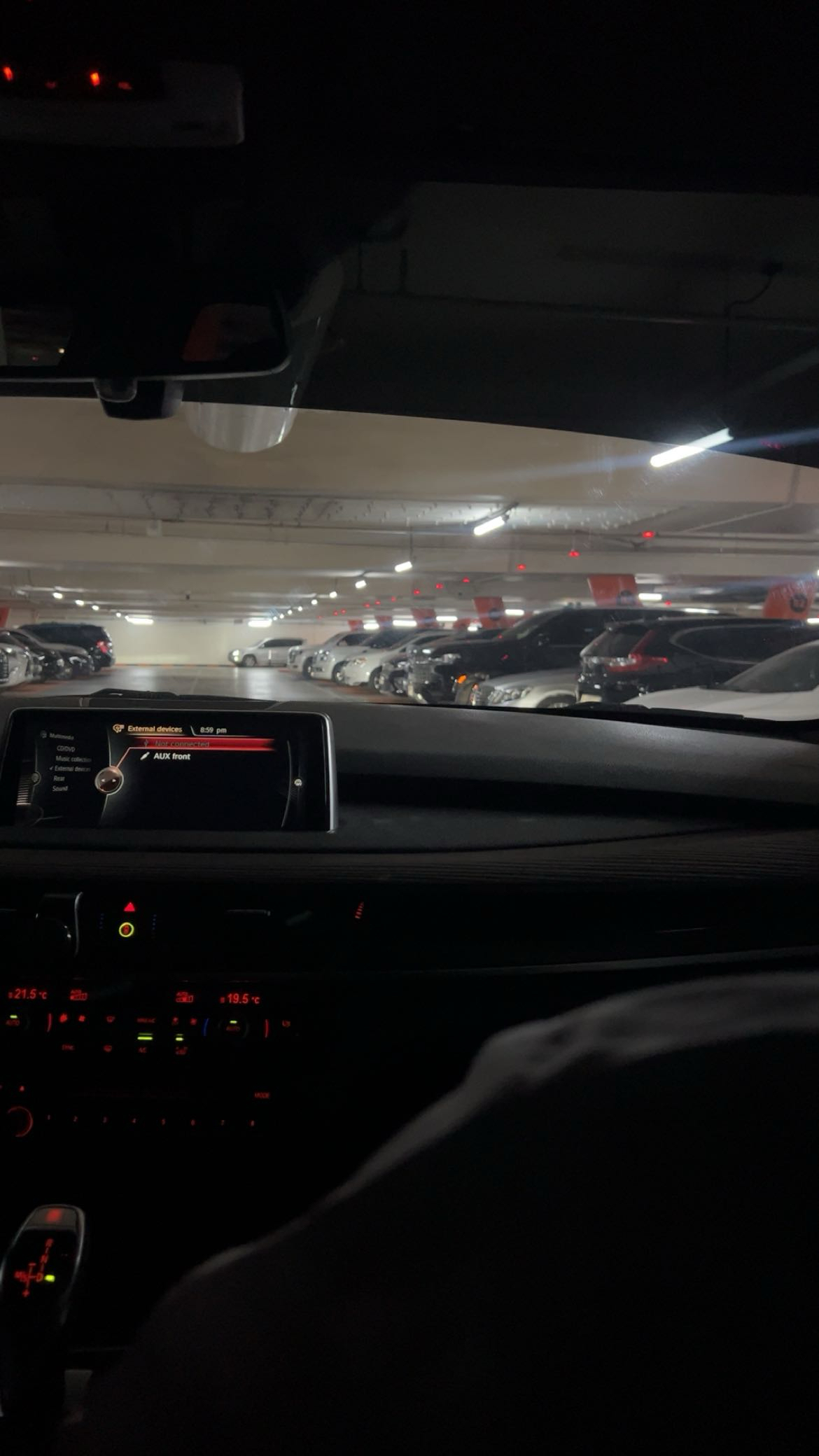
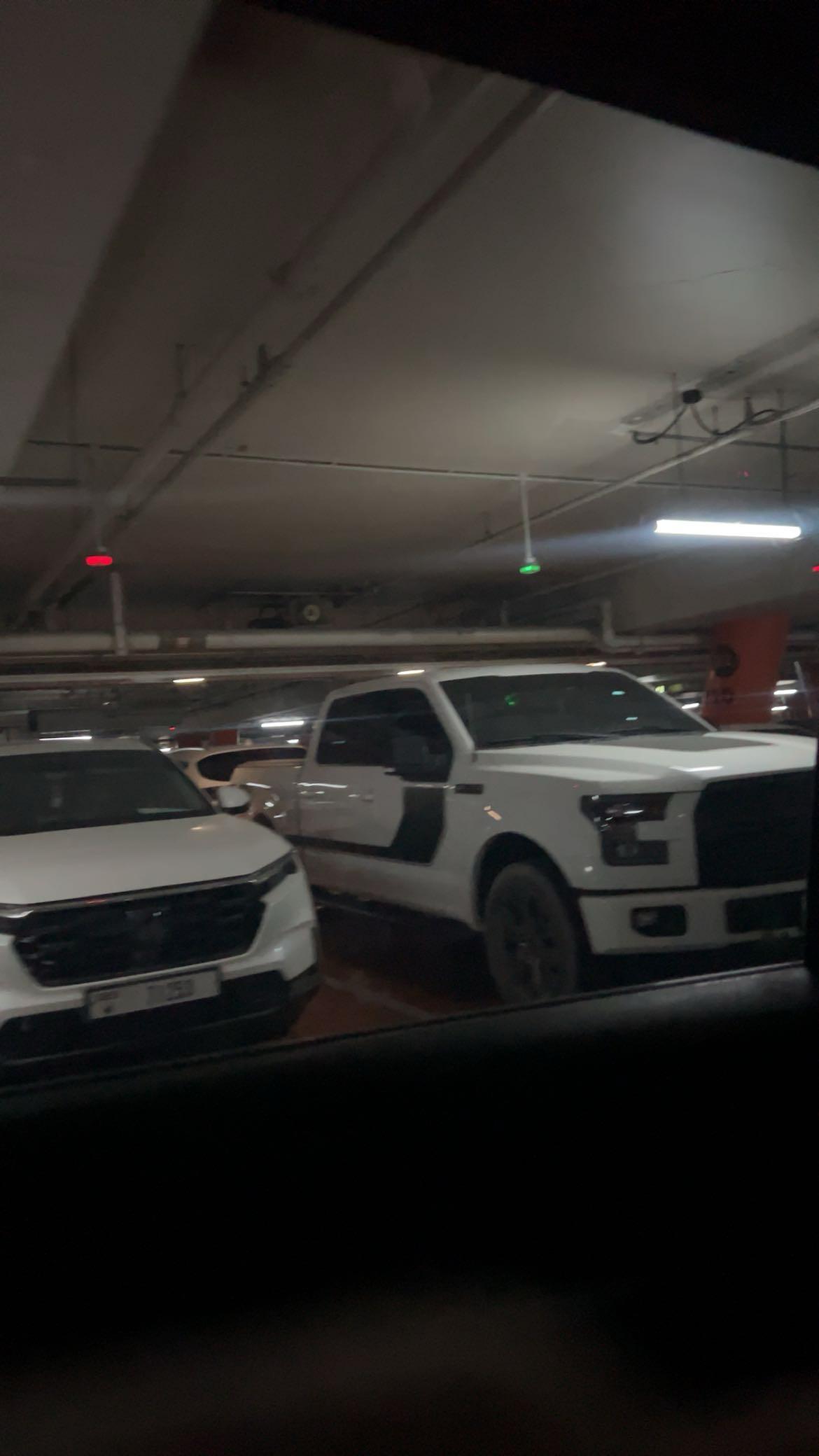
One thing that drives me crazy is when I’m looking for a parking spot in a busy garage that uses red and green lights to show if a spot is taken or free. Yesterday, I was rushing to make it to an appointment. I saw a spot far away, but then I noticed a green light closer to the mall entrance, which was supposed to mean the space was free. I drove toward it, only to find a car already parked there. By the time I went back to the original spot, it was taken. It was so frustrating and a complete waste of time.

From Norman’s perspective, this is a design problem caused by poor visibility and misleading signals. The green light gave me a false cue, similar to the confusing doors and devices he describes. A better design would use more accurate sensors that reliably detect when a car is present. It could even provide feedback, like showing when the spot was last updated, so drivers can trust what they see. This would prevent wasted time and make the whole parking experience smoother and less stressful.


When working on interactive media, especially projects that are heavy on user engagement, I would apply Norman’s principles by making the instructions very clear and giving clear, immediate feedback to every action. Norman emphasizes visibility and feedback, which are key for helping users understand what to do and what is happening as they interact with the program.

I think even in my p5.js projects, I can start practicing this. For example, if a user types an invalid input, instead of the program crashing, I could display a clear message telling them what went wrong and how to fix it. This way, the user isn’t left confused or frustrated. A good approach is to design as if the person using the program is a child, everything should be simple, obvious, and easy to understand without needing extra instructions. This makes the experience smoother, more engaging, and aligned with Norman’s idea of good, user-centered design.

Week 4 – Loading Data, Displaying text

I speak both Arabic and English, so when I learned that our project had to involve words, I knew I wanted to create something that brought both languages together. My first idea was simple: a program that translates colors typed in English into Arabic and displays them on the screen. At first, I liked it, but I quickly realized it felt too basic. Each time you typed a color, the same thing happened, for the same input you got the same output every single time.

To improve it, I thought to add a quiz that tested you on three random colors each time. This added some variation, but it still didn’t feel interactive enough. I wanted users to not just type answers but to interact with the piece and feel like they were shaping the experience. As I worked on making the program more dynamic, I found a YouTube video that helped me learn how to add randomness and interactivity to my code: https://youtu.be/-6v_AYyn49k?si=Ra0T98ejk4Xkcr-J. From that tutorial, I learned how to make the Arabic words appear in different random positions and sizes and how to create multiple modes so the user can switch between still, bouncing, and floating text. This gave the piece a balance between control and randomness, the user can make choices, but there’s still some sort of randomness. I also used custom fonts from Google Fonts by embedding them directly into my HTML file.

In the final version, I kept my original concept of translating colors, but now the project feels much more alive. The user can explore different modes, play with the experience, and see something new each time. It’s almost as if its art created by the words now. It’s structured enough for the user to have some control, but there’s always randomness, so it’s never exactly the same twice. For me, this connects to Chris Crawford’s ideas about interactivity, where both the user and the program are working together to create something meaningful, rather than the program just showing a static result. It’s no longer just a translation tool, it’s an interactive artwork that bridges both of my languages while letting others engage with it in a fun and personal way.

When I first added Arabic text to my program, it kept printing from left to right, which looked really strange because Arabic is supposed to flow right to left. It took me a couple of tries to figure out why this was happening. Eventually, I realized I needed to set the text direction directly in the code. Once I added a line to force the drawing context to use RTL, the Arabic words finally displayed correctly. It was a small but important fix that made the project look much more natural and readable.

// Draw Arabic word correctly (right to left)
   push();
   drawingContext.direction = 'rtl'; 
   textFont(arabicFont);
   textSize(item.size);
   fill(item.color);
   text(item.word, item.x, item.y);
   pop();
 }


Week 3 – Reading Response ( The Art of Interactive Design )


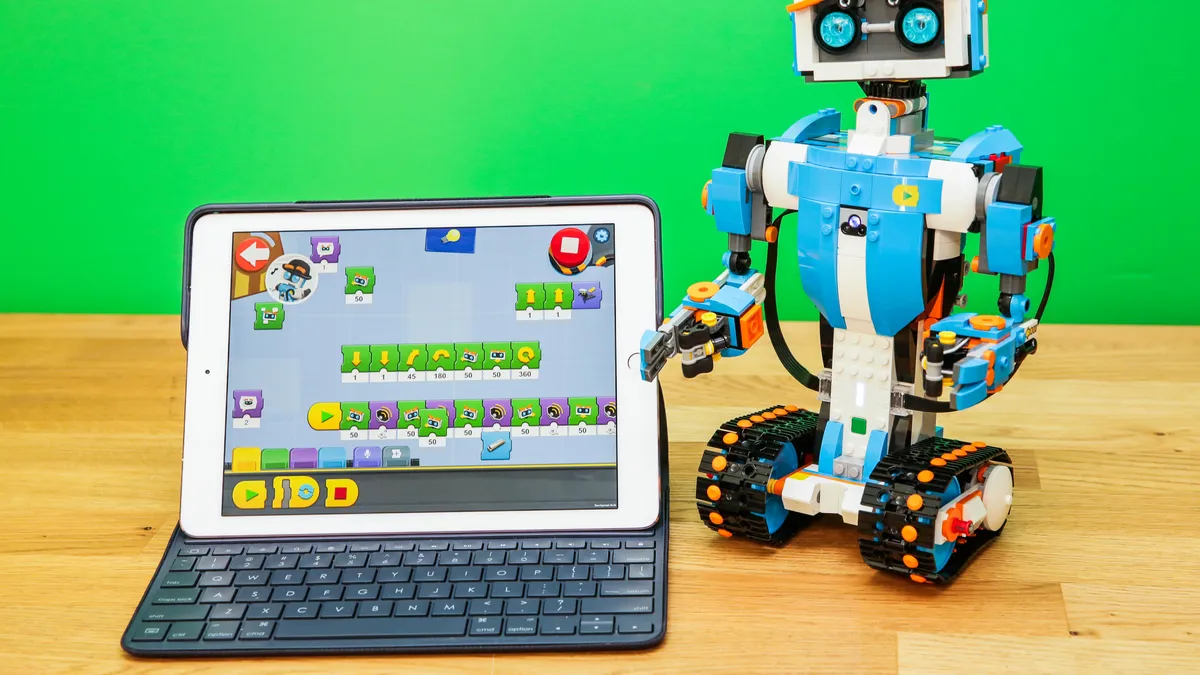
I think a strongly interactive system is one that feels like it’s really engaging with you, almost like having a conversation. The author describes interactivity as two sides listening, thinking, and responding, and I see that especially in how responsive a system is. When I was younger, I joined a LEGO robotics competition and built a robot from scratch. At first, it didn’t do anything, but once we added the Arduino parts and coded it, it started moving and reacting to our commands. It felt alive, like it was “listening” to us.

Artificial intelligence takes this even further. I heard about a study where researchers kept breaking a robot’s leg, and instead of shutting down, it figured out a new way to walk. That’s incredibly interactive because it shows learning and adaptation. Even something like Siri or Alexa shows this on a smaller scale, you ask a question, and it responds right away. For me, a truly interactive system listens, adapts, and almost feels like a partner, not just a machine following instructions.

I love how they made something normal we play with everyday interactive.

One idea I have for improving the degree of user interaction in my p5 sketches is adding an AI chat voice, kind of like Siri. Instead of having to leave the sketch and go back to the coding page whenever I have a question or need to fix something, I could just talk to the AI while working on my project. It would feel like we’re coding “together,” where I can ask questions out loud and get instant feedback or suggestions. This would make the process more fun and interactive, and it would keep me focused on creating instead of constantly switching between different pages or tools.

Week 3 – Functions, Arrays, and Object-Oriented Programming

For this project, I started with the really basic car code that was shared with us as an example. I liked how simple and clear it was, so I decided to build on that idea. I kept the general structure and movement the same, but instead of a car, I turned it into a spider. That meant changing the shapes, adding legs, and making it look a little more alive.

One thing I found pretty challenging was getting the legs to wiggle naturally. At first, they either didn’t move at all or moved in a really awkward way. It took me some trial and error, especially using functions like sin() and playing around with timing, to get it just right. In the end, I was able to make the spider’s legs move in a subtle way, which makes it feel like it has a bit of personality as it crawls around the canvas.
// make legs wigle
  legWiggle(index) {
    const phase = index * 10;
    return sin((frameCount + phase) * 0.05) * (this.legLength * 0.15);
  }
This piece of code makes the spider’s legs wiggle a bit, and it was honestly the hardest part for me. I had to keep experimenting with the numbers until the movement looked smooth and natural instead of random or awkward.