
Main Concept:
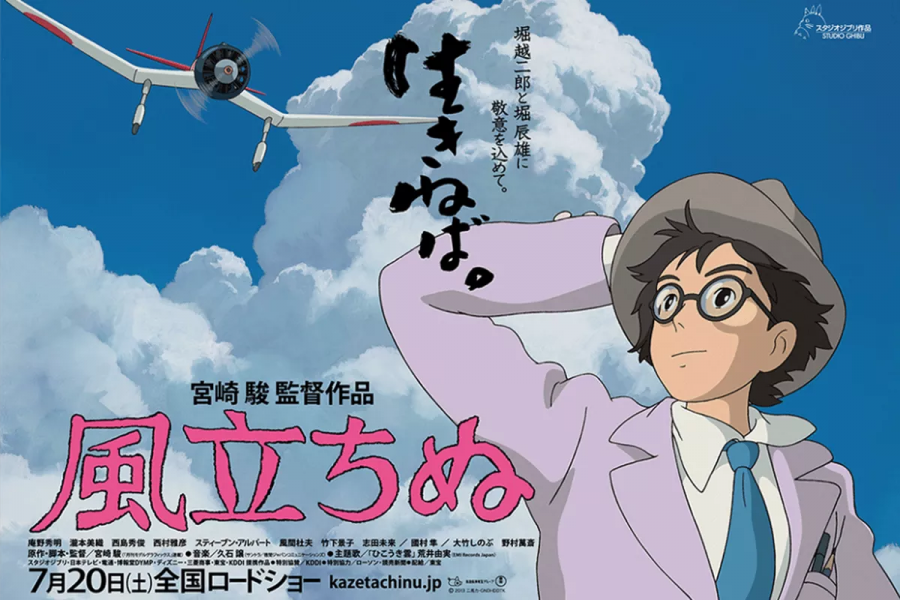
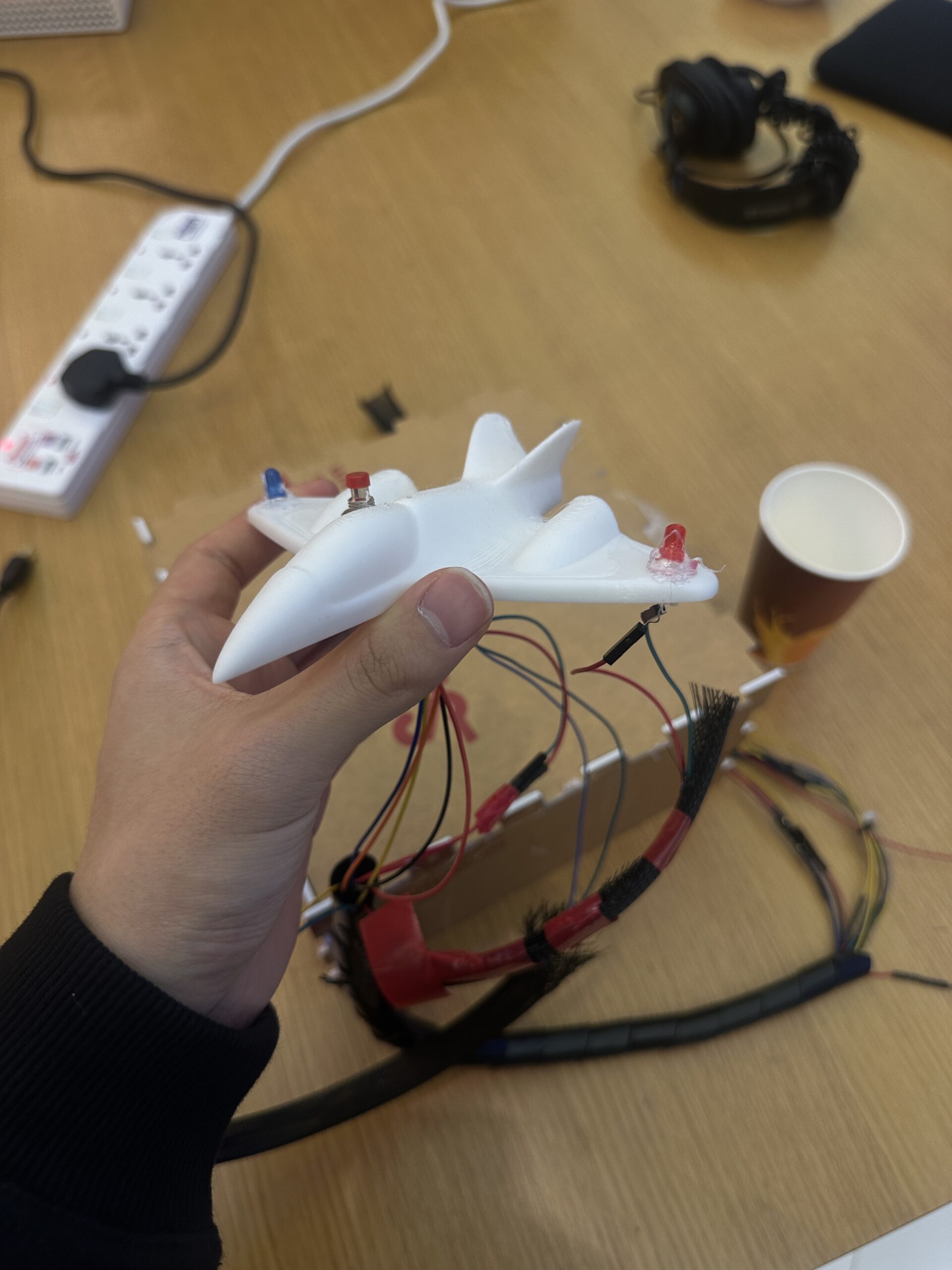
As a super ambitious Ghibli fan, it has always been my dream to step into a Ghibli world, especially The Wind Rises, the film about an aviation engineer during World War II. For this final project, I made my dream come true by creating an interactive game called Tokyo Flight where users can experience flying in the sky and controlling their own plane as a pilot. The game is controlled using a handmade physical airplane that I designed and built with a 3D printer. It includes an accelerometer to measure the plane’s tilt angle, a button to boost its speed, and LED lights that illuminate the airplane during gameplay. The objective is simple: collect as many stars as possible without getting hit by bombs.
Interaction Design:
Tokyo Flight is very interactive due to the effective communication between Arduino and p5. First of all, users control the airplane on the screen using a unique handmade airplane controller. During user testing, people found it very unique and interesting because it made them feel like they were actually flying in the sky, and they had never used this kind of controller before, so I am very proud of it. Furthermore, there is a button on the airplane that users can press to boost the plane’s speed on the screen. There are also LED lights on top of the controller so that users can see when they collect stars, reflecting the actual lights on real airplanes. Overall, the smooth communication between Arduino and p5, along with the unique controller, makes the game very interactive.
P5 Code:
Since my final project is an interactive game, my code uses different game states, and depending on which state the user is in, it displays the corresponding screen and either shows buttons or allows them to play the game. This is exactly what we learned in class before the midterm about using game states to control the flow of the game, so I applied that technique here. I also used the sprite trimming technique we learned in class. This time, however, I struggled to cut out each plane cleanly since the distances were not measured accurately. I tried adding padding, but the current state is the best I could do to make each plane size look consistent.
// get the width and height of the spritesheet
  let imageWidth = spritesheet.width;
  let imageHeight = spritesheet.height;

  // get the number of images in row and col
  let cols = 5;
  let rows = 6;
  let cellWidth = imageWidth / cols;
  let cellHeight = imageHeight / rows;

  // some padding between the images
  let padding = 5;

  airplaneSkins = [];

  // use the template from the class slides
  // extract each plane from the spritesheet
  for (let row = 0; row < rows; row++) {
    for (let col = 0; col < cols; col++) {
      // get the position and the size of each image
      let x = col * cellWidth + padding;
      let y = row * cellHeight + padding;
      let w = cellWidth - (padding * 2);
      let h = cellHeight - (padding * 2);

      // ensure we don't go outside the image bounds
      x = max(0, min(x, imageWidth - w));
      y = max(0, min(y, imageHeight - h));
      w = min(w, imageWidth - x);
      h = min(h, imageHeight - y);

      // extract the image if it is not empty
      if (w > 0 && h > 0) {
        let img = spritesheet.get(x, y, w, h);
        airplaneSkins.push(img);
      }
    }
  }
The part of the code that I am particularly proud of is mapping the sensor value from the accelerometer to the vertical position of the airplane. Since the sensor value ranged from 285 to 380, I set those as the minimum and maximum values and mapped them to the plane’s y position. I also added a threshold to prevent the plane from jittering. I initially tried controlling it through delay on the Arduino, but because I wanted the movement to feel more stable and robust, I implemented the threshold instead.
// function to control the airplane's movement
function updateControls() {
  let moveUp = false;
  let moveDown = false;
  // detect whether the space bar or the button is pressed or not
  let boosting = keyIsDown(32) || buttonPressed;

  // if the sensor is connected and the port is open
  if (useSensor && port && port.opened()) {
    // map the sensor value from the accelerometer to the plane's y position
    let targetY = map(sensorValue, 285, 380, plane.size / 2, height - plane.size / 2);
    // store the current y position of the plane
    let currentY = plane.y;
    // get the difference
    let diff = targetY - currentY;

    // the plane only moves if the difference is larger than the threshold
    let threshold = 3;
    if (abs(diff) > threshold) {
      if (diff > 0) {
        moveDown = true;
      } else {
        moveUp = true;
      }
    }
  } else {
    // if the sensor is not connected, then use keyboards to control
    moveUp = keyIsDown(UP_ARROW);
    moveDown = keyIsDown(DOWN_ARROW);
  }

  return { moveUp, moveDown, boosting };
}
Arduino Code
My Arduino code is fairly simple since I used some of the class templates. For the accelerometer, because we need to map the sensor value to the plane’s y position in p5, we use analogRead(A0) to read the sensor value from analog pin A0 and send it to p5 through the serial port. Likewise, we read the sensor value from the button using digitalRead(). For the LED lights, we read one character from p5: if it is 1, we turn on both LED pins; if it is 0, meaning the user is not collecting stars, we turn them off. I also set a delay of 100 to prevent sending sensor values to p5 too rapidly, which would make the plane shake due to the accelerometer’s sensitivity.
// pin to read button press
const int buttonPin = 2;

// LED pints to light up when stars are collected
const int led1 = 8;
const int led2 = 9;

unsigned long ledOnTime = 0;  // record when the LED turns on
const unsigned long ledDuration = 500;  // LEDs turn on after 500ms

void setup() {
  Serial.begin(9600);
  pinMode(buttonPin, INPUT); // set to input since we want to send sensor values
  pinMode(led1, OUTPUT);
  pinMode(led2, OUTPUT);
  digitalWrite(led1, LOW); // turn off first
  digitalWrite(led2, LOW);
}

void loop() {
  int x = analogRead(A0); // read accelerometer value (0 to 1023)
  int btn = digitalRead(buttonPin); // read the button state
  Serial.print("ACC:");
  Serial.print(x); // print accelerometer value
  Serial.print(",BTN:");
  Serial.println(btn); // print the button state (1 if is's pressed)

  if (Serial.available()) {
    char c = Serial.read(); // gets one character from p5
    if (c == '1') { // if it is 1
      // turn on the LED pins
      digitalWrite(led1, HIGH);
      digitalWrite(led2, HIGH);
      // save the time so that LEDs can turn off automatically after 500 ms
      ledOnTime = millis();
    }
    if (c == '0') { // if it is 0
      // turn off the LEDs
      digitalWrite(led1, LOW);
      digitalWrite(led2, LOW);
      // reset the timer to 0
      ledOnTime = 0;
    }
  }

  // if the LED has been lighting up for more than 500 ms
  if (ledOnTime > 0 && (millis() - ledOnTime) >= ledDuration) {
    // turn both off
    digitalWrite(led1, LOW);
    digitalWrite(led2, LOW);
    ledOnTime = 0;
  }

  // set delay to 100 so that plane on p5 won't be too sensitive
  delay(100);
}
Communication between P5 and Arduino:
Arduino and p5 communicate with each other in three ways. First, the accelerometer on the plane controller measures the tilting angle and sends sensor values to p5 so that the plane on the screen moves up and down accordingly. Second, there is a button on the plane that boosts the plane’s speed in p5 when pressed. When the button is pressed, we send its sensor value through the serial port, and p5 processes it. Lastly, there are two LED lights on the physical plane. Whenever the plane in p5 collects a star, p5 sends either a 1 or 0 to Arduino to turn the LEDs on or off. This represents communication from p5 to Arduino.
Schematic:
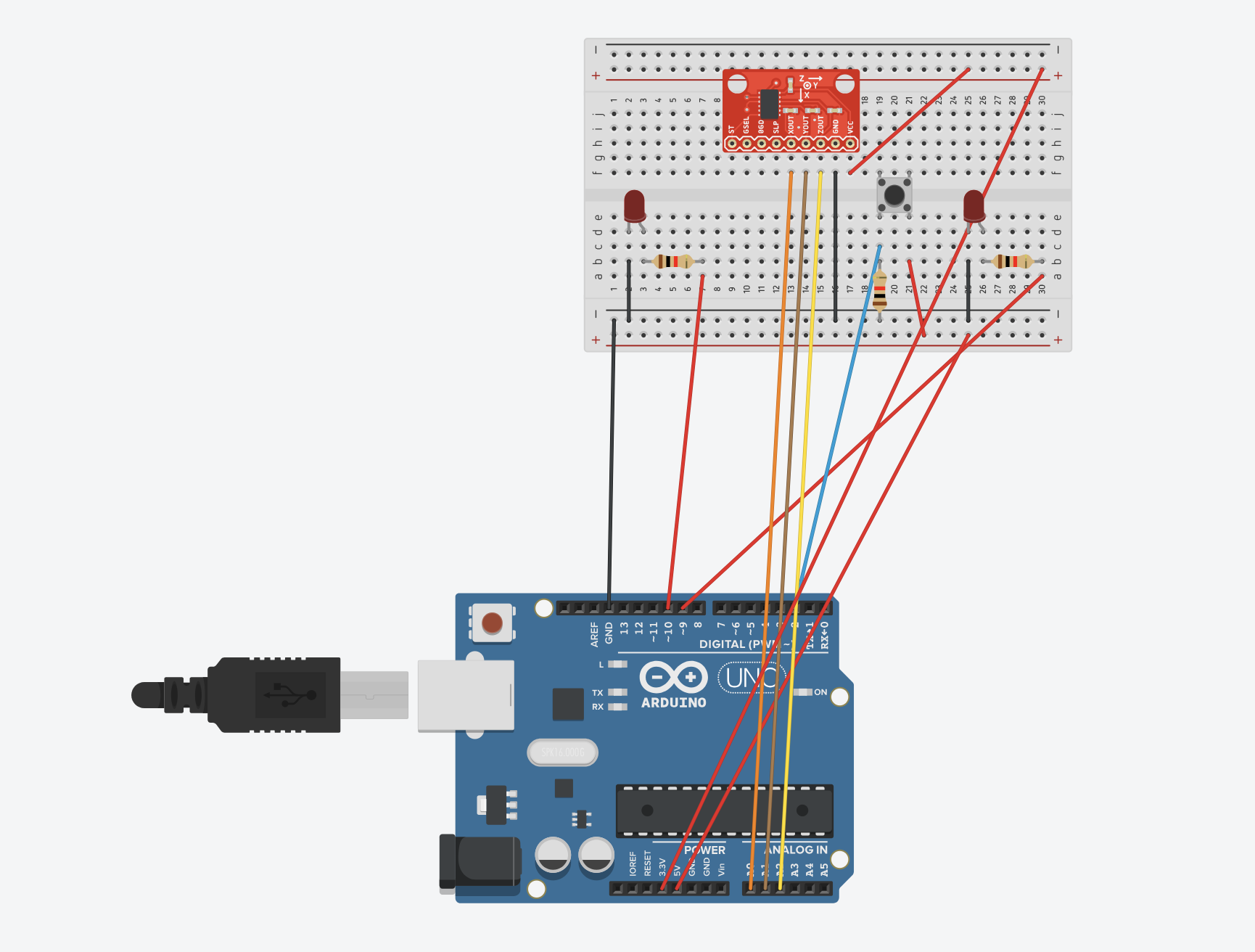
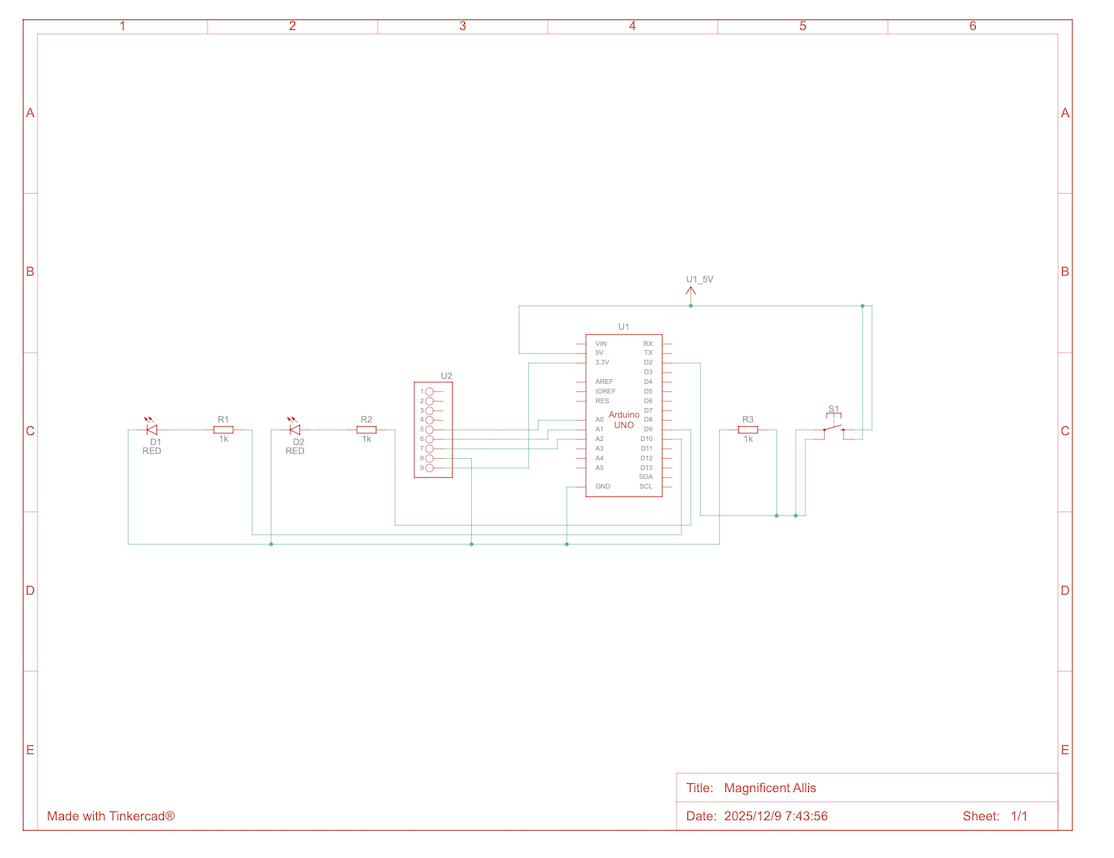
For some reason, the image is too blurry, so you can see the clear image of schematic through the link below:
User Testing & Experience:
Some people told me that the screen was a bit too laggy, so it was a little hard to play. Since this is a technical issue related to my laptop, I think I will need to use a better computer with a stronger CPU. I also received feedback at the IM show, and one professor mentioned that it would have been very nice if the airplane were shown from the user’s perspective. That way, the game would feel more interactive and immersive. So next time, I will improve the UI and make users feel like they are actual pilots.
These are the videos of users I filmed during IM Show.
What are some aspects that you are particularly proud of:
I’m especially proud of the button on the physical airplane because it was very challenging to embed it securely. At first, I considered using a LEGO block to hold the button in place, but it was too unstable. Instead, I decided to make a hole in the plane and embed the button directly. To do this, I asked a professor from Creative Robotics to help me understand how to use different drills to create a precise, tiny hole for the button. I also used a glue gun to attach it firmly to the plane. As a result, the button became very stable.
Future Improvements:
For future improvements, I would like to add a vibration motor to the physical airplane so that users can feel feedback when the plane in p5, for example, gets bombed. Additionally, since there are currently many wires coming out of the airplane, I want to reduce them to make the controller easier to use. In terms of UI, I want to add a moving character on the plane so that users feel as if they are actually riding it. I believe these improvements would make the game more interactive and visually engaging.
References:
For resources, I watched this tutorial ( https://www.youtube.com/watch?v=zpV7ac3ecl4 ) to learn how to use the accelerometer, especially because I didn’t know how it worked. It helped me understand which pins to connect and that there are 3 vectors I can use to measure the tilting angle. I also used ChatGPT to adjust the position and size of each button and screen element using getScale and scaleSize, which are custom functions I designed. The getScale() function helped me pick the smaller ratio between (800, 600) and (curWidth, curHeight), and use it as a base scale factor, which we multiply by the size of each element inside scaleSize(). This effectively helped me adjust the position and size of each component both in fullscreen and non fullscreen modes.
Furthermore, I learned about localStorage, which is a browser API that allows user data to persist on their browser even after they close it. This helped me create a persistent leaderboard that can store as much user data as needed. Lastly, I asked ChatGPT to figure out why the LED lights were not lighting up properly, and it told me that I had not placed the wire in the correct position. I used the class templates, but ChatGPT helped me work through the additional details I needed to complete my interactive game.