Midterm Project – Madame Digital

Embedded Sketch

Concept

Have you ever wanted to take a picture with a celebrity, but without the impossible chances of actually meeting one?That is basically the fantasy world Madame Digital captures!

My midterm project is basically inspired by the whole wax museum experience, but I wanted to turn it into something more personal and interactive instead of just something you look at. Instead of walking around and seeing celebrity figures from a distance, the user actually gets to choose a celebrity and then step into a digital photobooth with them. Once you pick who you want, the webcam turns on and you see yourself on screen next to the celebrity, almost like you’re actually standing there together. You can adjust yourself in the frame, see a live mirrored preview, and then take a photo that combines both of you into one image. The final result is like a little souvenir picture you can save, which was important to me because I wanted it to feel like you’re taking something away from the experience, not just clicking through it. I really liked the idea of taking something that normally exists in a physical place and turning it into something accessible on your screen, but still keeping that same excitement.

At the same time, I did not want it to feel like just another random app with buttons. I wanted it to feel like entering a space. Something a little theatrical, and a little staged in the best way possible. That is why I leaned into the red curtain background, gold touches, framed celebrity cards, and a series of screens that slowly guide the user through the experience, really giving them the museum vibe. The point of my project was not to try to be realistic. If anything, its charm comes from how intentionally artificial it is, just like a wax museum. Even though the whole thing is obviously digital and staged, the user still gets to walk away with a “memory.” That is what made the concept feel fun to me from the start, and that is what I wanted to preserve throughout the project.

How the Project Works

My project works as an interactive experience that guides the user through a digital version of a wax museum. When the user opens the project, they begin on a title screen and are led through instructions, a celebrity selection gallery, a live photobooth, and finally a souvenir screen. At each stage, the user interacts with the screen by clicking buttons or selecting options, which moves them forward in the experience. Once a celebrity is chosen, the webcam is activated and places the user next to their selected celebrity in a shared frame. The user can then take a photo, which combines both images into a single souvenir-style picture that they can view and also save at the end.

To make my project flow between the different stages, I used the state-based system we learned in class, where a variable called screenMode (also known as gameState from class) controls which screen is being displayed to the user. This was honestly one of the most important parts of the project because it keeps everything organized and prevents it from feeling messy and chaotic. Depending on the value of screenMode a different function runs which draws that specific screen.

if (screenMode === "start") {
  drawStart();
} else if (screenMode === "how") {
  drawHow();
} else if (screenMode === "gallery") {
  drawGallery();
} else if (screenMode === "booth") {
  drawBooth();
} else if (screenMode === "souvenir") {
  drawSouvenir();
}

I feel like this gameState system really shaped how my project came together. It really helped a lot with debugging, because if something wasn’t working, I could immediately tell which screen the problem was in.

Another part I am really proud of is how I built the gallery using arrays and loops instead of placing everything manually. Each celebrity is stored as an object, which made the whole system more flexible and easier for me to expand.

let celebrityList = [
  { name: "Taylor Swift", portraitFileName: "taylor.jpg" },
  { name: "Beyoncé", portraitFileName: "beyonce.jpg" },
  { name: "Timothée Chalamet", portraitFileName: "timothee.jpg" }
];
for (let i = 0; i < celebrityList.length; i++) {
  let x = 150 + i * 140;
  let y = 250;
  image(celebrityList[i].portraitImage, x, y, 120, 160);
}

I liked this part because it made the project feel more thought out technically. If I wanted to add more celebrities later, I wouldn’t have to redesign anything, I could just add more information, and it would work.

The part I am most proud of though, is the photobooth and souvenir feature because that is where the whole idea really comes together. Once the user selects a celebrity, the webcam turns on and places them in the same frame. I mirrored the webcam so it works like a normal selfie camera, which makes it feel more natural and less confusing. When the user clicks the snap button, the code creates a new image that combines both the webcam photo and the celebrity photo into one final photo.

souvenirPicture = createGraphics(photoWidth * 2 + 40, photoHeight + 40);

souvenirPicture.push();
souvenirPicture.translate(photoWidth, 20);
souvenirPicture.scale(-1, 1);
souvenirPicture.image(webcam, 0, 0, photoWidth, photoHeight);
souvenirPicture.pop();

souvenirPicture.image(
  chosenCelebrity.portraitImage,
  photoWidth + 20,
  20,
  photoWidth,
  photoHeight
);

This is my favorite part because it turns the interaction into something personal that the user can actually keep. It’s not just clicking through screens, instead you end up with a photo that feels like a souvenir from the experience. I also think the overall flow is something I am proud of. Even though the project is playful, the user is always being guided from one step to the next. Even small choices, like adding a music toggle (on and off button) and using the same museum-ish background style across screens helped make everything feel connected.

Challenges and Areas for Improvement

One of the biggest challenges I ran into was with the webcam. At first, it showed up twice, once as a default video element and once on the canvas. That was confusing because it looked like something was wrong with my drawing code, but it was actually just how p5 handles video by default. Hiding the original video element and manually drawing it solved the problem, but it definitely took some time to figure out. 

Another challenge I ran into was with the proportions and measurements. I had to deal with a lot of them at once, so it definitely got confusing at times. With coding in general, many challenges come up, so there were minor challenges throughout the code. However, with trial and error, I was able to fix them thankfully.

If I were to improve the project further, one thing I would really want to add is celebrity specific music. Right now the experience already has sound, but I think it would be way more immersive if each celebrity had their own audio choice attached to them. For example, if the user chooses Beyoncé, the background sound could shift into one of her songs, or when choosing Timothée Chalamet or Jennifer Aniston, a different sound could play that matches their overall vibe. I think this would make the gallery feel much more alive overall and more like each choice leads to a slightly different experience.

I would also like to add more customization to the final souvenir, like filters, or decorative frames, or maybe even different photobooth themes. The current version showcases the concept really well, but I can definitely imagine advancing it to make the experience feel even more personalized in a way.

References

Throughout this project, I used a mix of p5 examples, class slides, YouTube videos, and a previous student project to help me understand and implement different features.

These helped me figure out how to display the webcam inside the canvas and structure the photobooth layout.

I used these to understand different variables in order to flip the webcam so it works like a mirror.

These were important for learning how to use createGraphics and combine multiple elements into one image, and other just other image related code.

I also referenced a previous Intro to Interactive Media student project for this part. This helped me with the final image saving process.

These helped me understand how to create interactive buttons that respond to hover and clicks.

This example helped me structure the overall flow of my project and handle the different screens. I used a variable (screenMode) that works just like the in-class (gameState).

These helped me implement background music and button click sounds.

links that helped with general concepts and overall Object-oriented programming.

These helped me implement full-screen and understand the responsive canvas.

font 

Background Music

In addition to these references, I relied a lot on the class slides to understand the key concepts.

Usage of AI

I used ChatGPT mainly for the hardest parts of my project, especially when multiple things were happening at once and I couldn’t tell what exactly was going wrong. 

The most difficult part for me was the souvenir photo system. That part is not just simply “taking a picture,” it’s actually creating a completely new image, bringing the webcam photo, flipping it so it works like a mirror, placing it next to the celebrity image, and then saving everything together as one final frame. At first, I didn’t fully understand how that worked because it’s not the same as just drawing things on the screen. ChatGPT helped me understand that I was basically drawing on a separate hidden canvas and then displaying the result later. It also helped me understand how transformations work together, because if I flipped the webcam without positioning it correctly, it would either disappear or show up in the wrong place. That was one of the hardest parts because it required me to think about how everything is layered and combined, not just displayed.

Another difficult part was the celebrity gallery. I didn’t want to just place images randomly, I wanted it to feel like an actual selection screen with evenly spaced cards that respond to the mouse and adjust to different screen sizes. That meant I had to think about layout and proportions and spacing all at the same time. This part was actually more complicated than i thought because everything in my code is based on proportions like width 0.25 or height 0.16, so even small changes (like decimals) would completely change the layout in ways I didn’t expect. ChatGPT helped me understand how to think about these proportions more intentionally instead of just guessing numbers.

I also used ChatGPT to help me understand code that I was getting and adapting from references and other projects. Sometimes I would find an example that did something similar to what I wanted, but I didn’t fully understand how or why it worked. Instead of just copying it, I used ChatGPT to break it down and explain it to me, which helped me actually learn from it and adjust it to fit my own project.

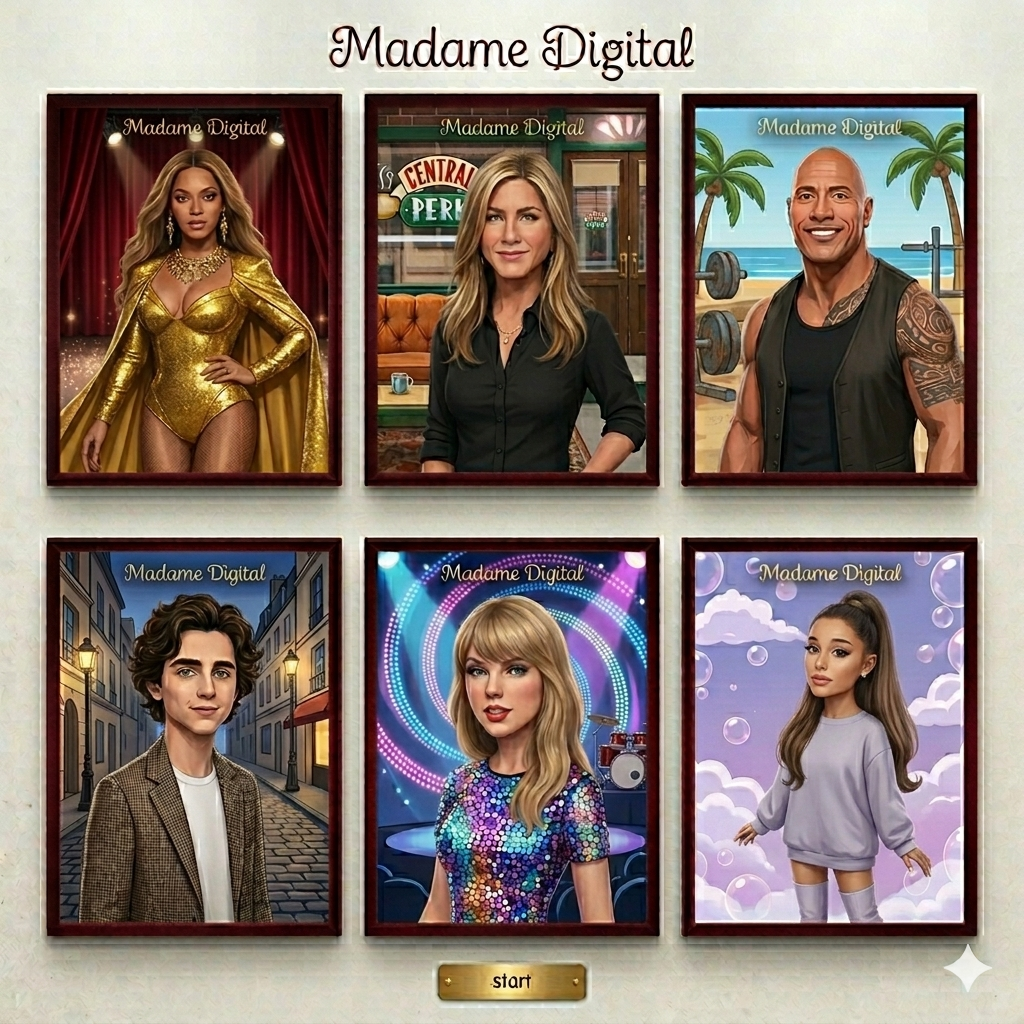
Another thing I used AI for was generating some of my visuals. I used Gemini to create the celebrity images as well as the red curtain background, since I wanted a very specific “Madame Tussauds” style aesthetic and it was faster to generate and then refine them. 
Overall, I used AI more as a tool to understand and debug difficult parts of my project, and to generate some visuals, rather than to build the project itself obviously. 
Midterm

Concept

This game is inspired by Emirati culture, specifically the tradition of Talli weaving, which is often associated with older generations thus the character Yedo which is a way of saying Grandma in Arabic . I wanted to create something that doesn’t just function as a game, but also reflects a part of the culture in a modern, interactive way. The idea of matching thread colors comes directly from the process of choosing and weaving Talli, where color plays an important role in the final design. By turning this into a fast paced challenge, I translated a traditional craft into something engaging and digital, while still keeping its cultural essence.

I also focused on the visual style using warm brown tones, wood textures, and handcrafted shapes to give the game a feeling of a traditional workspace rather than a typical digital interface. This made the experience feel more connected to the environment where Talli is actually made.

Embedded code

Highlighted code

//new round (source custom logic)
function startNewRound() {
  let target = random(talliColorOptions); //picks a random talli color from the list
  targetColorName = target.name; //stores the name of the color the player must find
  correctIndex = floor(random(12)); //chooses a random spot in the grid for the correct color
  gridColors = []; //clears the grid before filling it again
  //fills the grid with 12 colors one correct color and the rest random but not matching the target
  for (let i = 0; i < 12; i++) {
    if (i == correctIndex) gridColors.push(target);
    //places the correct color in its chosen position
    else {
      let other;
      do {
        other = random(talliColorOptions); //picks a random color option
      } while (other.name == target.name); //ensures it's not the target color
      gridColors.push(other); //adds the wrong color to the grid
    }
  }
  roundStartTime = millisInGame(); //records when this round started for the timer
}
function getClickedCellIndex(mx, my) {
  let cols = 4; //number of columns in the grid
  let rows = 3; //number of rows in the grid
  let cellW = width / 5; //width of each grid cell
  let cellH = height / 6; //height of each grid cell

  let startX = width / 2 - cellW * 1.5; //starting x position of the grid
  let startY = height / 2 - cellH * 1.5 + cellH; //starting y position of the grid

  let index = 0; //keeps track of which cell number its checking

  //This function loops through the grid and compares mx,my with each cell to figure out which cell was clicked.
  for (let r = 0; r < rows; r++) {
    //loops through each row
    for (let c = 0; c < cols; c++) {
      //loops through each column inside that row

      let x = startX + c * cellW; //x position of this cell
      let y = startY + r * cellH; //y position of this cell

      let hitW = cellW * 0.8; //slightly smaller hitbox width to make tapping feel nicer
      let hitH = cellH * 0.8; //slightly smaller hitbox height

      //checks if the mouse click (mx, my) is inside this cells hitbox
      if (
        mx > x - hitW / 2 &&
        mx < x + hitW / 2 &&
        my > y - hitH / 2 &&
        my < y + hitH / 2
      ) {
        return index; //returns the number of the cell that was clicked
      }

      index++; //moves to the next cell number
    }
  }
  return -1; //returns -1 if the click didnt hit any cell
}

These are the parts of my code I’m most proud of is how I generate each round and detect where the player clicks, using the startNewRound () and getClickedCellIndex () functions. This part was honestly the most challenging because it’s what makes the game actually work, not just look good. At first, I had a problem where the correct color would sometimes show up more than once, which made the game confusing. I fixed this by using a do. . .while loop that keeps picking a new random color until it’s different from the target color, so now there is always only one correct answer. Another issue I faced was that when I clicked on a Talli, it didn’t always register properly because the shape is not a perfect rectangle. To fix this, I created a slightly smaller “hitbox” inside each grid cell using 0.8 of the width and height, so the clicks feel more accurate and natural. I also had to carefully calculate the positions of each cell using rows, columns, and an index system, so I could match the clicked area to the correct color. This part really pushed me to think logically and problem solve, and it’s the reason the game feels interactive and responsive instead of just visual.

In terms of interaction, the game starts with a title screen where the player clicks a large “Start” button to begin. Once the game starts, the user sees a grid of twelve talli colors along with a prompt from Yedo telling them which color to tap. The player must click the correct talli before the timer runs out, and each correct answer immediately generates a new round with a fresh set of colors and a slightly shorter time limit. If the player clicks the wrong talli or runs out of time, the game switches to a game over screen showing their score and high score, and they can click again to restart. This loop of clicking, reacting, and racing against the timer is what makes the experience interactive and engaging.

How it was made

My midterm project was created by combining what I learned in class with my own ideas and experimentation. I built the game step by step, starting with the basic structure like setup () and draw(), then adding different features like the title screen, gameplay, timing system, and interactions. I used class examples such as the timer using millis (), the reset button, and fullscreen toggle, and adapted them to fit my game. I also used reference videos for things like the high score system and general game logic, then changed them to match my Talli concept. For the background I used generative ai to give me what I wanted and for the audio I selected a wood clicking sound to fit the theme.

A big part of my process was working in separate p5.js files before adding things into my main project. For example, I experimented with the Talli shape in a different file to get the design and details right, and I also tested parts of the game logic separately. While I was doing that, I was also building the title screen and setting up the base of my main project file. This helped me stay organized and avoid breaking my main code while testing new ideas.

One of the parts I struggled with at first was the timer bar, because I needed it to visually shrink as time passed. I figured it out by using millis to track how long the round has been running, and then using map to convert that time into the width of the bar. The full bar is drawn first, and then the shrinking red bar is drawn on top using the mapped value. For example, this line Let w = map()elapsed,0, allowedTime, barW, 0); takes the elapsed time and turns it into a decreasing width, so the bar gets shorter the closer the player gets to running out of time. Once I understood how map() works, the whole system made sense, and the timer bar became a clear visual indicator that adds pressure and makes the game feel more dynamic. I reference the p5Js website to understand this function and how it remaps one range of numbers into another this really helped to apply for when I wanted to shrink the timer bar.

After building the basic structure, I focused on the gameplay elements like the grid, score, and timer. I created the 4×3 grid by looping through rows and columns and assigning each cell a color from the gridColors array. The score system was placed in the top left corner using simple text placement, and I used millis to calculate how long each round has been running so I could control the timer and difficulty. I also added a restart system using a reset function that brings the player back to the title screen and resets all the main variables. For the text that shows the color and the color chosen I used the random function and built the sentence and depending on what color is chosen it is followed in on the sentence. For the high score, I followed a reference video and compared the current score to the saved one, updating it only when the player beats their previous best. This made the game feel more replayable and gave the player a reason to keep trying.

Most of the core logic, like generating random colors, building the grid, and detecting clicks, was developed through trial and error. I tested frequently, fixed issues like repeated colors and inaccurate click detection, and improved the game step by step. I referenced a basic p5.js code with screen switching and click detection example (linked in references ) to understand how to structure multiple screens (title, game, and game over) and how to check if the mouse is inside a rectangular area. I adapted the logic to fit my Talli Game by expanding it into a full grid system, adding timers, and creating custom hitboxes.

Overall, the project is a mix of class learning, references, and my own problem solving, with a workflow that kept my code clean and easier to manage.

Reflection and future ideas

Overall, I’m really proud of how this project turned out because I was able to turn a cultural idea into an actual working game. At the start, I didn’t expect it to come together this smoothly, especially with all the different parts like timing, interaction, and visuals. One of the biggest things I learned was how important it is to build step by step and test constantly, because small mistakes in logic can affect the whole game.

I also improved a lot in problem solving and the importance of being patient and having different files as back up to not lose my progress in case I get an error. For example, I had to figure out how to stop colors from repeating, how to make clicks more accurate, and how to organize my code so it didn’t get confusing. Working in separate files really helped me stay organized and experiment freely without breaking my main project. I also feel like I got better at thinking both creatively and logically at the same time, especially when designing the Talli and making sure it actually worked in the game. In the future I hope to be able to create more explorative and advanced games similar to games that follow a story as you complete the quests one that comes to mind is It Takes Two its a two player game but the concept is interesting since its a story game where you have two players work together to complete the game I like the concept of it being multiplayer so in the future I hope to be able to understand how to have two players and code for the different types of events in the game etc.

References :

High score reference :

https://www.youtube.com/watch?v=gvtXwIYh35s

Bezier shape:

https://p5js.org/reference/p5/bezierVertex/

Reset button:

https://editor.p5js.org/mrquirk/sketches/_5Jdl1JKH

Start button home page:

https://www.youtube.com/watch?v=HfvTNIe2IaQ

Fonts:

https://fonts.google.com/specimen/Old+Standard+TT?query=old

Sound file:

https://samplefocus.com/samples/wood-tap-click

P5js with screen switching and click detection reference :

Copy:https://editor.p5js.org/maa9946/sketches/09uKWhHdi

Original link: https://editor.p5js.org/ehersh/sketches/SJ8hr7XCm

Map ():

https://p5js.org/reference/p5/map/

Shape:

https://editor.p5js.org/maa9946/sketches/KeancnIJE

Reading Reflection- Week 5

This reading challenges the common stereotype that computer vision has to function similarly to human vision by highlighting how opaque digital images are, meaning that computers cannot interpret them without algorithms. It shows that computers basically cannot function if there were no algorithms to program them. Unlike humans that can constantly interpret context, different types of objects and different meanings, computers rely on simplified techniques, algorithms and systems such as frame differencing, background subtraction and brightness thresholding to detect movement or presence. For example, the reading explains that frame differencing compares pixel changes between frames, while background subtraction depends on differences from a stored image of the scene. This actually made me realise that computer vision is actually much more dependent on certain conditions having to work than I really initially thought. For instance, background subtraction only works if lighting and contrast are carefully designed. This shows that seeing for computers is more about structured assumptions. Meanwhile, the reading shows that we can actually guide what computers see by designing the background and physical environment, such as using high contrast, stable lighting or even infrared to improve detection. This connects to the idea of interactive media, where it’s not just coding systems but also designing physical and visual conditions that shape interaction.

What I felt was most interesting was how computer vision’s ability to track people overlaps with surveillance, and how artists actually engage with this. The reading discusses works such as Sorting Daemon and Suicide Box, where tracking systems are used to monitor and analyze people, sometimes raising ethical concerns about profiling and data collection. This made me question whether interactive art using computer vision is actually empowering participants or not. On one hand, projects like Videoplace create an embodied interaction where the human body becomes part of the system, but on the other hand, surveillance-based works turn viewers into objects of analysis. I think this is what makes computer vision powerful in art as it can both engage and critique. However, the author seems somewhat biased toward presenting computer vision as accessible and empowering for artists, while not fully addressing issues such as privacy and ethical risks. This raises a question: as computer vision becomes easier to use, how should artists balance creativity with responsibility? I also wonder whether using computer vision in interactive art always requires some level of surveillance, or if there are ways to design systems that avoid this dynamic altogether.

Midterm Project

The Concept

For my midterm project, I decided to create a choice-making game based on the Star Wars film series. The concept is that you have the choice to control the events in the film Revenge of the Sith, following up to Anakin Skywalker becoming Darth Vader. You get to control key events in the film to try to prevent Anakin Skywalker from becoming Darth Vader.

The Process and Challenges

I first started out by creating the starting page of the game on p5. I downloaded an image that I had and added a sound in the background in the draw function. I added the full-screen option and resized the window accordingly. My initial plan for the instructions page was for you to click an instructions button, and a box would appear telling you the instructions. I built the instructions button and the box appearing, but then I didn’t end up liking it as much as I thought I would. That’s when I decided to make the instructions appear in the same way the opening crawl appears at the beginning of every Star Wars film. I found a website that creates crawls and made one. The only problem was that the video was 90 MB, and p5 only supports up to 5 MB. I tried cutting up the video into several videos and playing them one after the other, but that was not working. It would only play one video, or it would play each one under the other in the same window at the same time. That made it extremely difficult to create the idea I wanted, and it made running p5 very uncooperative, as the page would refuse to load and p5 would crash.

That’s when I decided to switch to VS Code.

After switching to VS Code, I uploaded the instructions video, and it worked perfectly. A problem I faced however was that the background audio kept running overitself over and over again, so I switched its location to the setup() function and it worked. My sister told me afterwards, to include a way to skip the instructions because that would make debugging easier and playing much more enjoyable. I created a Skip button and a start button, but I ended up removing the skip button altogether since the start button served the same purpose.

I then began creating the nodes and game states. To do that, I decided to incorporate Object-Oriented Programming to create each question in its own seperate class instead of repeatedly writing down the questions and option buttons. I created my first question class and used it as a template. I attempted to use a for loop to run through the class because that’s what I assumed I had to do. Then I decided to completely omit the for loop and just accessing the classes without loops.

After accessing the question from my class, I started working on the conditional aspect of changing the node after clicking the choice you want. I tried doing a typical option1Button.mousePressed(xyz), but it wasn’t working. So I asked ChatGPT and it told me it’s because I’m not accessing the class itself so I had to include the array name before.

Following that, I started actually working with my game states. (since my game is a choice-making game, I had to incroporate a state for every single node). I used the following code example: if (firstQuestion[0].option1Button.mousePressed()){ gameState===’node2′; }. I used this because my if statements in the beginning of my game call to draw the other nodes once the game state changes. This did not work and I was not able to access my other node/question when I clicked the choice button..After multiple attempts at debugging like trying to make the background black to cover over the previous start page,  I resorted to ChatGPT which suggested I make a seperate transition function to be called when the buttons are pressed. This transition function would change the game state successfully and allow me to switch between nodes/questions since this was the structure of my game states:

function draw(){
//creating the conditions that will allow to switch between nodes
 if (gameState === 'start') {
    drawStartScreen();
  } else if(gameState==='instructions'){
    drawInstructions();
  } else   if (gameState==='node1'){//what happens in the first node and so on
    drawNode1();
  } else if (gameState==='node2'){
    drawNode2();
  } else if (gameState==='node3'){
    drawNode3();
  } else if(gameState==='node4'){
    drawNode4();
  } else if(gameState==='node5'){
    drawNode5();
  } else if(gameState==='node6'){
    drawNode6();
  } else if(gameState==='node7'){
    drawNode7();
  } else if(gameState==='sithEnding'){
    drawSithEnding();
  } else if(gameState==='deathEnding'){
    drawDeathEnding();
  } else if(gameState==='happyEnding'){
    drawHappyEnding();
  }
}

I then wrote the specific draw functions for each node. The concept of the transition node was extremely helpful and I used it repeatedly across my code. I proceeded to repeat the pattern of transition functions —> changing the node —> writing my drawNode functions.

I repeated this cycle across my timeline until I had to code the endings. Once I finished my endings, I had to incorporate a method to reset the game. At the endings of my timeline, I included a restart button. This button would call a transition function. This transition function would change the node back to ‘start’ again, effectively reseting the game.

Part I’m Most Proud Of

I’m most proud of using OOP for my questions and choice buttons. I think that was one of the most effective and efficient ways I could have run my code. It saved me so much time that could have been wasted debugging and searching for which question in particular to fix. It kept everything organized and structured.

class Question1{
    constructor(question, option1, option2){
        this.question = question;
        this.option1 = option1;
        this.option2 = option2;
    
        this.option1Button=createButton(this.option1);
        this.option1Button.style('font-size', '18px');
        this.option1Button.style('font-family', 'titleFont');
        this.option1Button.style('color', 'white');
        this.option1Button.style('background-color', 'black');
        this.option1Button.style('text-align', 'center');
        this.option1Button.style('border', 'none');
        this.option1Button.size(500, 80);
        this.option1Button.position(width*0.25 - 250, height/1.5);
        this.option1Button.hide();
    
    
        this.option2Button=createButton(this.option2);
        this.option2Button.style('font-size', '18px');
        this.option2Button.style('font-family', 'titleFont');
        this.option2Button.style('color', 'white');
        this.option2Button.style('background-color', 'black');
        this.option2Button.style('text-align', 'center');
        this.option2Button.style('border', 'none');
        this.option2Button.size(500, 80);
        this.option2Button.position(width*0.75 - 250, height/1.5);
        this.option2Button.hide();
    
    
    }


    display(){
        fill('white')
        textFont(titleFont); 
        textSize(34);
        textAlign(CENTER, CENTER)
        text(this.question, width/2, height/3);
    }
    show(){
        this.option1Button.show();
        this.option2Button.show();
    }
    hide(){
        this.option1Button.hide();
        this.option2Button.hide();
    }
}

AI Disclosure

I used Gemini to produce the backdrop images of the nodes. I used ChatGPT to debug issues such as:

  1. The soundtrack playing repeatedly, ChatGPT told me to move my soundtrack.play to setup() since draw() runs 60 times a second
  2. The nodes would not switch but that was because I did not know the difference between = and ===. ChatGPT explained the difference to me, and I was able to know when to use = and ===
  3. I was not able to change nodes when I click buttons, this was the structure I tried incorporating:
    (firstQuestion[0].option1Button.mousePressed()){ gameState==='node2'; }
    

    but it did not work and it refused to switch nodes. ChatGPT told me to incoroporate the transition nodes. That was I believe the most beneficial and efficient parts that ChatGPT told me to incorporate. Without it my code would be extremely chaotic and difficult to debug. It was extremely beneificial, and it allowed me to create the pattern I would use to switch out the node and game states. It was a one time suggestion, but it was something I repeatedly included in multiple parts of the code. Even within restarting  the game I used it. And also, towards the end of coding my instructions video was changing its position differently than I coded it. So, I applied the transition function to only call the video when the instructions button is pressed.

  4. My buttons would not be in the correct position until I hit full-screen, so ChatGPT told me to put their code in my windowResized function
  5. I used the CoPilot extension in VS Code to change stylistic components of my buttons. After I finished the project and posted the github link, I realized that I had been working on the project with my computer zoomed out to 33% instead of it being at the default 100%. So I asked the extension to change all the text and button sizes 66% smaller to fit the frame correctly. I did this to save time instead of going to every singular text and button and manually changing the sizes which would have been extremely time consuming. I made it lower the positions of my buttons and change the background colors instead of manually doing it for every button and text.

All the code was written entirely by me, all AI tools were used as a supplement to debug.

Reflection:

For the future I would love to incorporate the idea of creating and animating the actual characters and allowing the users to move the characters around with the mouse, choosing which other characters to speak to and picking choices from the dialogue themselves. I would want to give it a video game style. I would have loved to create more storylines and endings for the game as well.

GAME LINK: https://da3755-ui.github.io/prevent-the-fall-of-anakin/

Midterm Final Project

My overall concept:

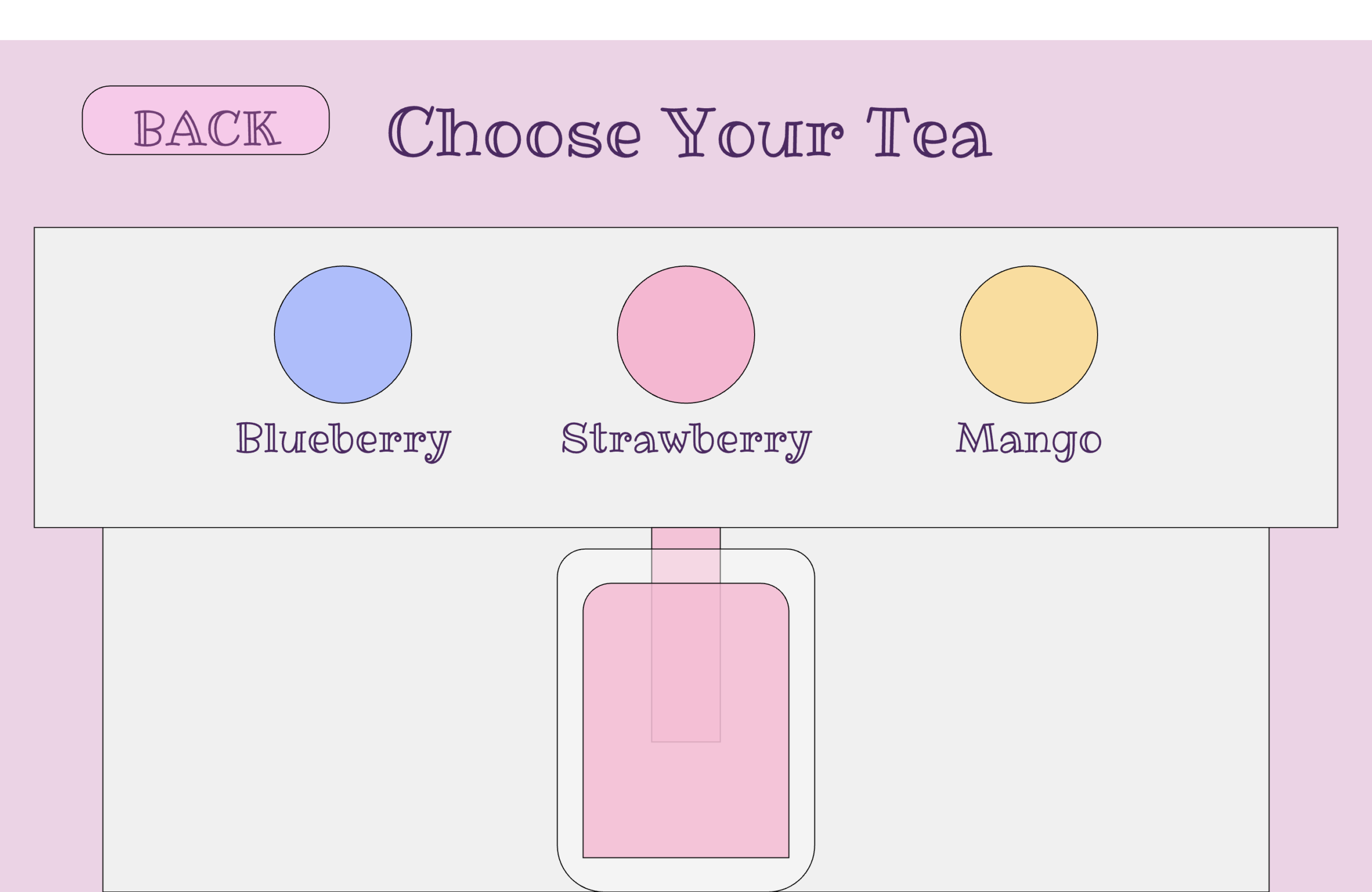
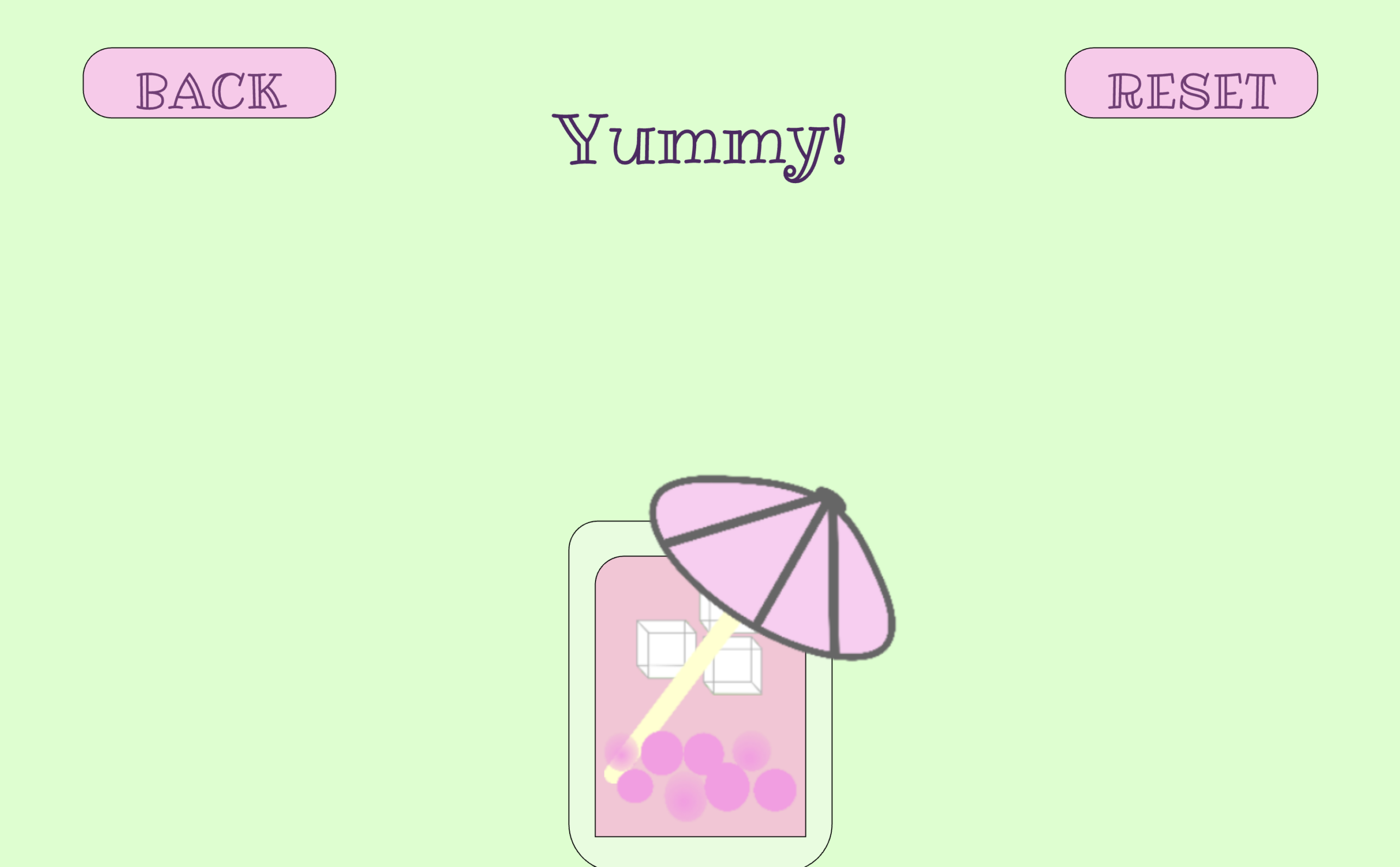
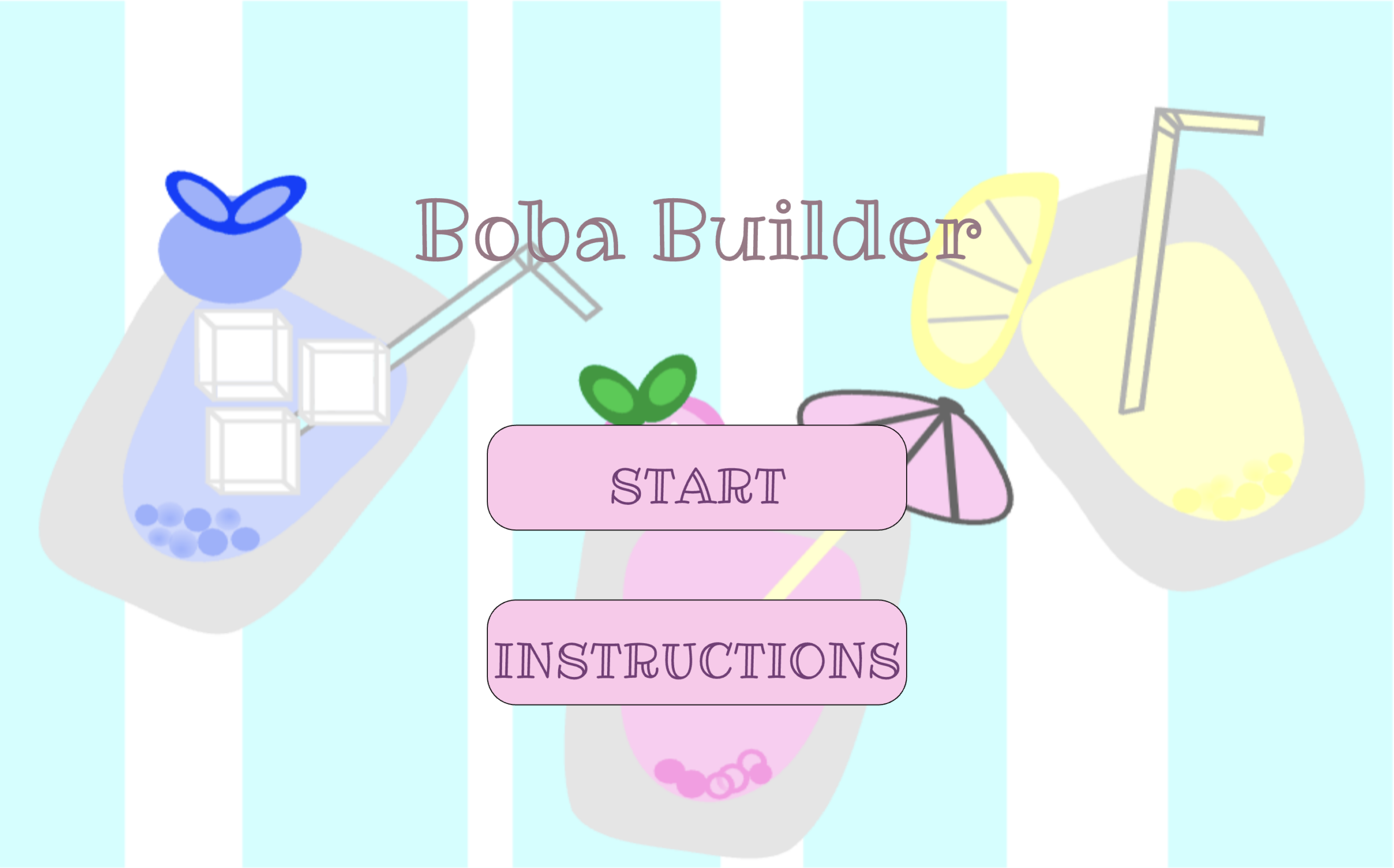
My project is an interactive game called Boba Builder, where the player gets to create their own custom bubble tea drink. I wanted the game to feel fun and give the user a cute, customizable experience, almost like a small digital cafe where you can design a drink however you want. The idea actually started because I was craving matcha, and at first I wanted to make a matcha‑themed game. But then I realized matcha doesn’t have many color or topping variations since it’s always green, so it didn’t feel very customizable. That made me think about other drinks, and then I remembered how popular boba tea was around 2020-2022 during the COVID era. I mean, it’s still popular now, but that was the time when it really became a trend. I liked how many different combinations you can make in real life, and that inspired me to turn it into a game where players can mix and match their own drink.

The main goal of my project was to make the player feel like they are actually building something step by step. Each screen represents a different part of the drink‑making process, and the choices the player makes show up inside the cup. I wanted the final drink to feel personal, like something the player actually created, and I liked the idea that every person could end up with a completely different drink. The game doesn’t have winning or losing; it’s more about creativity, enjoying the process, and having a fun little experience.

Final Project: 


How My Project Works: 

The entire game I built uses the same coding ideas we learned in class, which made it easier for me to understand how to structure everything. My project works using a state system in p5.js. This means the game changes screens depending on what the player chooses. For example, the game starts on the start screen, then moves to the tea screen, then the boba screen, then the ice screen, and so on. Each screen has its own buttons that let the player pick what they want to add to their drink. When the player clicks a button, the game updates a variable like chosenTea, chosenBoba, or chosenIce. These variables are then used inside my drawCup() function, which updates the cup and shows the player’s choices as they build their drink.

if (state === "start") {
  drawStartScreen();
} else if (state === "tea") {
  drawTeaScreen();
} else if (state === "bubbles") {
  drawBobaScreen();
} else if (state === "ice") {
  drawIceScreen();
} else if (state === "straw") {
  drawStrawScreen();
} else if (state === "color") {
  drawColorScreen();
} else if (state === "finished") {
  drawFinalScreen();
}

I also used object‑oriented programming to create my buttons. I made two classes: a Button class for rectangle buttons and a RoundButton class for circle buttons. Each button has its own position, size, color, and label. Both classes also have a clicked() function that checks if the player pressed the button. This helped me reuse the same code for all my buttons instead of rewriting it over and over. It made my project much more organized and easier to manage.

class Button {
  constructor(x, y, w, h, fillColor, textColor, txt) {
    this.x = x;
    this.y = y;
    this.w = w;
    this.h = h;
    this.fillColor = fillColor;
    this.textColor = textColor;
    this.text = txt;
  }

  draw() {
    fill(this.fillColor);
    rect(this.x, this.y, this.w, this.h, 30);
    fill(this.textColor);
    textSize(width * 0.035);
    text(this.text, this.x, this.y);
  }

  clicked() {
    return (
      mouseX > this.x - this.w / 2 &&
      mouseX < this.x + this.w / 2 &&
      mouseY > this.y - this.h / 2 &&
      mouseY < this.y + this.h / 2
    );
  }
}

The game also uses sound effects and background music. The background music plays throughout the whole game, and when the player pours tea, the pouring sound plays. When the pouring sound finishes, the game automatically moves to the next screen using pour.onended(nextState);. I also added sounds for boba, ice, and other actions to make the game feel more interactive and satisfying. At the end of the game, the player sees their final drink with all the choices they made.

What I’m Proud Of:

I’m really proud of how the whole game feels like a real drink‑making experience. The cup updates step by step, and the player can see their drink change as they make choices. I’m also proud that I figured out the back button issue. Now, on every screen, the player can go back to the previous page without breaking the game, which took a lot of testing and fixing. I’m also proud of the visuals I drew in Procreate. I made the start‑screen background, the toppings, and the decorations myself, and I think they make the game look cute and fun.

Another thing I’m proud of is the button system I created. I made a separate buttons.js file and used classes to organize all my buttons. This made my code much cleaner and helped me understand object‑oriented programming better. I’m also proud of how I used sound effects to make the game feel more real and less boring. The pouring sound, the drip sound, and the ice sound all add to the experience and make the game more satisfying to play.

I’m also proud that I solved some difficult bugs. The back button and the lag issues were really frustrating, but I kept trying different things until I fixed them. It felt good to finally get everything working the way I wanted.

Areas of Improvement & Problems I Faced:

One area I want to improve is how the layout works on different screen sizes. I used windowWidth and windowHeight to make the game responsive, but sometimes the buttons or text still look a little off on very small or very large screens. In the future, I want to create a better scaling system so everything stays in the right place no matter what device the player uses, even on phones.

I also had problems with the back button. Sometimes it didn’t reset the right variables, so old choices stayed on the screen. Other times, the game lagged because something was being recreated inside the draw() function instead of only running once in setup(). These issues took a long time to figure out, and I had to test many different things before I finally fixed them.

Another challenge was making sure the cup updated correctly with all the player’s choices. I had to keep track of many variables and make sure they all worked together without breaking anything. It was confusing at first, but once I organized everything and cleaned up my code, it became much easier to manage.

References: 

– Pouring sound:  https://freesound.org/people/piotrkier/sounds/700153/ 

  • I used this sound for when the tea pours into the cup.

– Drip sound:  https://freesound.org/people/Neotone/sounds/75345/ 

  • This sound plays when the player chooses boba or a color.

– Ice sound:  https://freesound.org/people/giddster/sounds/386431/ 

  • This sound is used when the player adds ice to their drink.

– Background Music: https://freesound.org/people/Mrthenoronha/sounds/370293/ 

  • I used this as the soft background music that plays during the whole game.

– Audio Editing Tool: https://clideo.com/editor/ 

  • I used this website to trim and edit my audio files so they fit better in the game.

– Font Used: https://fonts.google.com/specimen/Ribeye+Marrow 

  • This is the custom font I used for the text in my project.

– p5.js reference: https://p5js.org/reference/p5.MediaElement/onended/ 

  • I used this p5 reference to learn how the onended() function works. This helped me understand how to make the game move to the next screen after the pouring sound finishes.

Drawings:  

  • I used Procreate to draw the visuals for my project, including the start background and the toppings. I created each drawing myself and exported them as PNG files so I could use them for my game.

Ai usage: 

  • For my project, I mainly used ChatGPT to help me understand and fix problems that were confusing or hard to figure out on my own. One issue I had was that when I changed the size or position of something in my sketch, other parts of the layout sometimes reacted in ways I didn’t expect, especially because I was using a lot of percentage‑based values like width * 0.5 or height * 0.7. ChatGPT helped me understand how p5.js handles screen sizes and why certain numbers can affect the spacing of different elements. I also used ChatGPT to understand why my instructions text wasn’t breaking into separate lines and it was written in a way that wasn’t aesthetically appealing. It explained how the \n symbol works in p5.js and how text alignment affects multi‑line text, which helped me format my instructions correctly. Another major problem was my back button. Sometimes it took me to the wrong screen, sometimes it kept old choices even when restarting th whole p5 game, and sometimes it even made the whole game lag. ChatGPT helped me understand that this can happen if the order of resetting variables and changing states is wrong, or if something is being recreated inside the draw() function when it should only happen once in setup(). After learning this, I reorganized my code and fixed the issue. ChatGPT also helped me understand why my game lagged at certain moments by explaining that loading images or creating new objects inside the main loop can slow everything down. Finally, I asked ChatGPT to explain how the onended() function works for sounds, which helped me understand why I needed pour.onended(nextState); for my tea‑pouring animation. All the coding, design, and decisions in my project were done by me; ChatGPT only helped me understand confusing parts and figure out why certain things weren’t working the way I expected.

Midterm project Final

Overall Concept:

My midterm project, The Polyglot Galaxy, is an interactive generative text artwork that visualizes multilingual greetings as floating stars in a galaxy environment. The project expands on my Week 6 text generator into a more immersive interactive media system that implements text, sound, animation, state-based interaction and computer vision.

As each time the user clicks on the canvas, a greeting phrase from a different language is stamped onto the screen. Over time, these phrases accumulate and form an interstellar constellation like galaxy. Within the frame, it will display 4 different voices for my project I changed from a 400, 400 to a 600, 600 frames in order for the game to look a bit larger and I decided to split the frame into 4 quadrants consists of upper left, upper right, lower left and lower right. The visual aesthetic is inspired by space, glow, and floating motion, which represents languages as stars in a shared universe.

The visual aesthetic focuses on glow, floating motion, and cosmic space imagery. The project also includes a webcam frame that reacts to movement and brightness in the camera view. When the user moves or dances inside the camera frame, the brightness changes and the stars twinkle more strongly, making the interaction more interactive and playful. Sound is also integrated to create an immersive environment where clicking produces different audio effects and ambient music will be played during the interaction.

Progress Made:

During this spring break, I made improvements to both the visual interaction and the system structure. Firstly, I implemented a blinking glow effect using sin(frameCount) to animate and increase the brightness of the instruction text and the star-like greetings. This creates a subtle pulsating effect that help reinforces the galaxy atmosphere in the frame.

Secondly, I added 8 bursts that have tiny sparkles in the galaxy which was an idea implemented from Dan Shiffman video on the coding train and when the user clicks on the canvas. These small particles would spread outward like tiny dwarfs or planets and a bit like dancing stars. This gives the interaction a more dynamic, lively and playful feel.

Furthermore, I introduced some state-based interaction using a start screen and play state. When the project first loads, a start screen appears with instructions. After clicking, the user enters the interactive galaxy mode where phrases can be stamped.

Interactive sketch: https://editor.p5js.org/po2127/full/LyMPRYzi8


Another major improvement is how I integrated more of the webcam computer vision. Where I had the camera showing the player of the game. The camera brightness is found by sampling pixels from the webcam feed. This brightness value then controls the speed and intensity of the interaction, meaning the stars react to movement or lighting changes in the camera frame.

Lastly, I also improved the layout and interface to make it more readable by adjusting the position of the instruction text and ensuring it fits nicely within the frame. Moreover, I felt that the background music plays continuously during the play state to create an atmospheric soundscape as I decided to have music that resembled galaxy in space.

Code
Below is the code I am particularly proud of, and the core logic used to capture webcam data and calculate brightness for interaction:

cam = createCapture(VIDEO); // use computer cam
  cam.size(160, 120);  
  cam.hide();
}

function updateCamBrightness() {
  cam.loadPixels();
  let sum = 0;
  // sample pixels +40 for faster 
  for (let i = 0; i < cam.pixels.length; i += 40) 
// +40(RGBAx10) for faster and get realtime
{
    let r = cam.pixels[i];
    let g = cam.pixels[i + 1];
    let b = cam.pixels[i + 2];
    sum += (r + g + b) / 3;
  } // bright->r,g,b will high and sum will high

  let samples = cam.pixels.length / 40;
  camBrightness = sum / samples; // Avg brightness = 0..255
}

Sampling every 40 pixels helps reduce computational load while maintaining responsive interaction. This allows the program to run smoothly even while performing real-time visual updates.


I am also proud of the 8 sparkle burst effects, which adds immediate visual feedback when users interact. Despite its simple implementation as a lightweight particle system, it significantly improves the sense of energy and responsiveness in artwork while maintaining a good performance.

let bursts = [];

class Spark {
  constructor(x, y) {
    this.x = x;
    this.y = y;
    this.vx = random(-2, 2);
    this.vy = random(-2, 2);
    this.size = random(3, 7);
    this.alpha = 255;
    this.col = color(random(180, 255), random(180, 255), random(255));
  }

  update() {
    this.x += this.vx;
    this.y += this.vy;
    this.alpha -= 8;
  }

  show() {
    noStroke();
    fill(red(this.col), green(this.col), blue(this.col), this.alpha);
    ellipse(this.x, this.y, this.size);
  }

  finished() {
    return this.alpha <= 0;
  }
}

for (let i = bursts.length - 1; i >= 0; i--) {
  bursts[i].update();
  bursts[i].show();

  if (bursts[i].finished()) {
    bursts.splice(i, 1);
  }
}

for (let i = 0; i < 8; i++) {
  bursts.push(new Spark(mouseX, mouseY));
}


Challenges and Areas for Improvement

Challenges I encountered involved browser permissions and webcam access. In some environments, the camera simply doesn’t activate unless the page is running in a secure context or the user explicitly allows permission. To avoid interface issues, I chose to hide the raw camera feed and use it primarily as a data source for interaction.

Another challenge was to balance visual complexity with performance. Since the project involves having multiple animated objects and real-time pixel analysis, I needed to optimize certain processes, such as sampling pixels at intervals instead of trying to process the entire image frame.

In the future, the user interface could be improved further with clearer interaction prompts and more refined visual transitions.

Things to Improve for the Future

Although the project works well still there are several areas I would like to improve in the future.

Firstly, I would like to expand the number of languages and phrases in the dataset as currently the phrases come from a JSON file, but increasing the diversity of languages could make the galaxy feel richer and more global.

Moreover, I want to improve the visual design of the stars and glow effects such as by adding stronger particle systems, gradients, or shader effects could make the galaxy feel deeper and more immersive.

In addition, I would like to refine the interaction between the webcam and the visuals. Because as of now the brightness only affects twinkle speed, but in the future it could also influence star size, color, or particle behavior.

Last but not least, the sound design could be expanded because of now clicking produces different sound effects depending on the screen quadrant, but I would like to develop a more reactive sound system where the music evolves as more languages appear in the galaxy.

Overall, I felt like this project really helped me to explore how generative text, animation, sound, and computer vision can combine into a playful interactive media experience.

References
• Daniel Shiffman. (2019). The Coding Train: p5.js Tutorials.
https://thecodingtrain.com/
These tutorials helped me understand concepts such as webcam capture using createCapture(), particle systems, and generative animation techniques used in this project.
• p5.js. (n.d.). p5.js Reference.
https://p5js.org/reference/
The p5.js documentation was used as a reference for functions such as loadJSON(), sin(), map(), createCapture(), and frameCount that are used throughout the project.
• Casey Reas and Ben Fry. (2014). Processing: A Programming Handbook for Visual Designers and Artists. MIT Press.
• Coding Challenge 78: Simple Particle System

Midterm project – Cyberpunk Breach

Demo and sketch below:

Concept:

This project is based off a childhood game of mine, called magic touch. The core concept of that game is you are a wizard, and you must stop robots from attacking your castle, in the game these robots fall slowly carried by balloons containing symbols. You must draw the symbol on the balloon to pop it, and when all the balloons are popped on the robot they fall to their death.

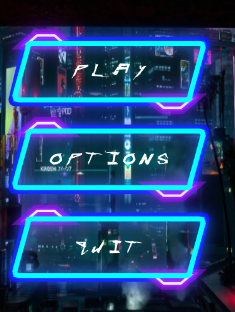
In my case, I made my game practically completely camera based, with no usage of keyboard at all, and a single use of your mouse just to toggle full screen. It is cyberpunk themed, and you are being attacked by drones, you must draw the symbols rotating around the drones with your hand to eradicate them and so that they don’t breach the system.

Implementation:

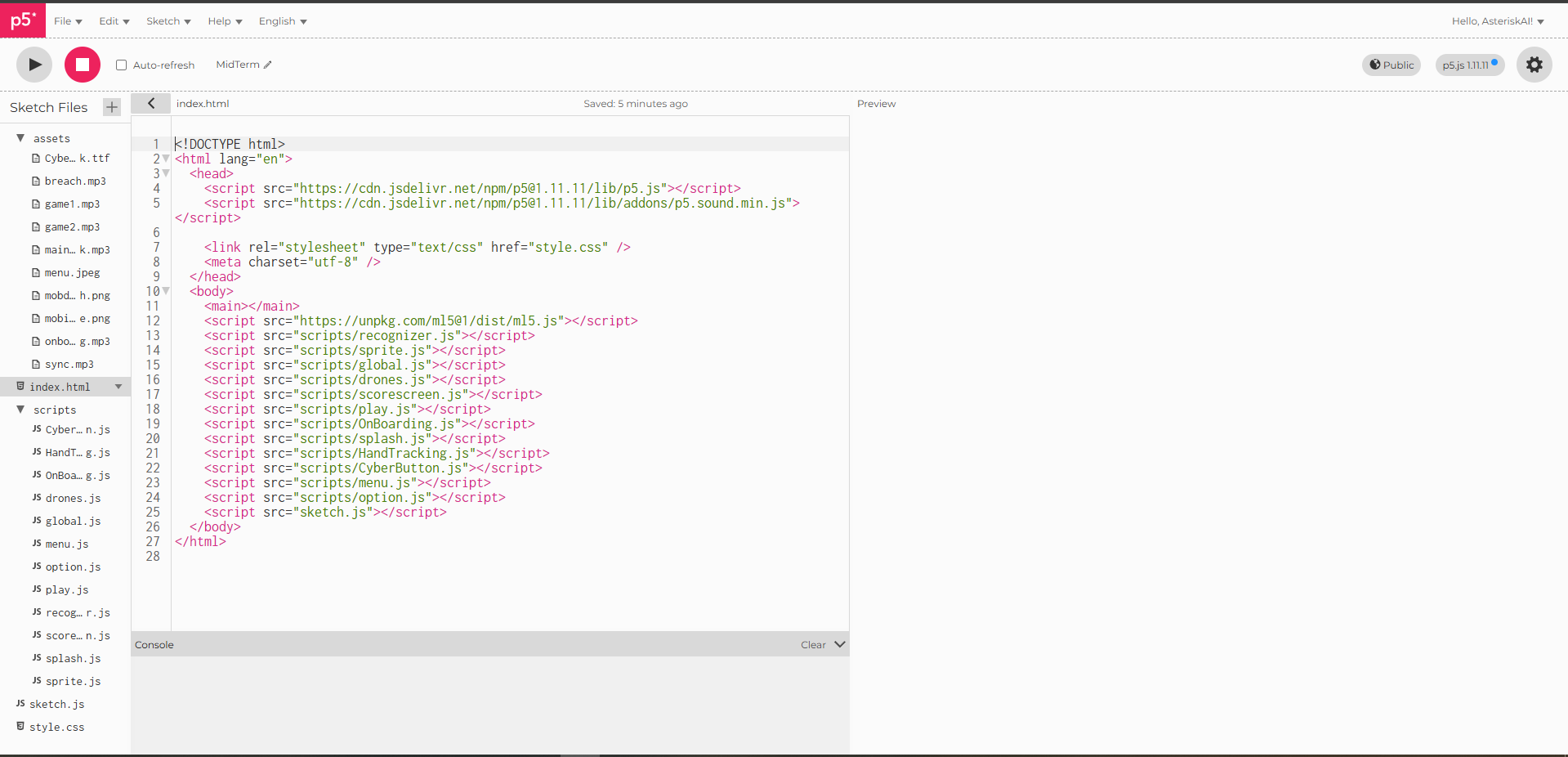
The code hierarchy consists of 2 folders, one for assets, and one for all the scripts.

The assets folder is self explanatory, it consists all my music/sound effects, images and fonts.

The script folder consists of 12 java script files (excluding sketch.js which is outside the folder) . I will be summarizing what each file does while providing more technical context when needed.

CyberButton.js: This file contains a class called CyberButton, which takes in the position, width and height, and the label for the button (text inside button).

However most of the code is designing the button itself, it has an outer blue outline with a transparent inside and a “filled” cyan color. As well as 2 purple trapezoids coming out of the button and are diagonally opposite.

HandTracking.js: This is where the magic happens, this entire file contains the code for all the hand tracking and the optimization of said hand tracking. It consists of a class used to store the Kalman filter sittings for each hand shown on screen. I will quote my midterm progress post to explain what a Kalman filter is.

To explain the core concept:

The filtering has 3 steps:

– Predict

– Update

– Estimate

The Kalman filter works in a simple loop. First, it predicts what the system should look like next based on what it already knows. Then, it checks that prediction against a new (noisy) measurement and corrects itself.

Because of this, the Kalman filter has two main steps. The prediction step moves the current estimate forward in time and guesses how uncertain that estimate is. The correction step takes in a new measurement and uses it to adjust the prediction, giving a more accurate final estimate.

This file also calculates the distance between your thumb and index to determine when you are pinching and when you are not.

The way the pinching logic works is kind.. of over complicated for the game play. I am sure there is most probably a better way, but this is the way I figured out and if it works it works.

Now when drawing with your hand, we know that the detector itself is very sensitive, and sometimes your drawings just stop midway and that ruins the gameplay because of the sheer sensitivity of the model. I have the value of pinching so that it is true when below 30 (distance). However, this ONLY becomes false if the value exceeds 60 (this can be changed in options). This allows for leeway and basically gives you some sort of grace. You would need to basically have your index and thumb really close to pinch, but to make the pinching “false” you would have to make the distance between them really far (60, double of the threshold to pinch).

    if (pinchd < 30) { 
      isPinching = true;
    }

---------------------------------

let isActuallyPinching = pinchd < pinchThreshold;
  // Gives the user a 30 pixel buffer for when drawing to reduce the probability of accidentally stopping drawing.

  // When we are drawing, we push the point of our cursor to the current path
  if (isActuallyPinching) {....}

OnBoarding.js: This contains all the information the user needs before starting the game, so how to play, how to navigate the menu, and how to make sure your user experience is as good as it can be.

drones.js: This file contains a class called Drone. We have 3 types of drones that will spawn during the game play, a normal drone, a miniboss drone, and a boss drone. What differentiates each drone is the amount of symbols you need to draw to eradicate the drones. For a normal drone, you get 1-2 symbols to draw, a mini boss has 5-8 symbols. and a boss has 15 symbols. There are 5 different symbols to draw, so symbols will be repeated. For the drones, I am using a sprite for the drone with an idle animation for the falling and a death animation. The mini boss drone is tinted purple and slightly bigger, while the boss drone is tinted and red and is very large.

global.js: This was kinda just to clean everything up, and this contains all the global variables used in the project.

// Path of the drawing
let currentPath = [];
// The variable that will hold the stroke recognizer class.
let recognizer;
// Keep track of the state of the game (start with the splash screen)
let state = "menu";
// Hand model, will become true when it is intiialized and ready
let modelReady = false;
// Variable for the camera feed
let video;
// Split stripes into animations
let animations = {};
// Raw data of the stripe sheets
let sheets = {};
// Background photo of the menu
let menubg;
// Master volume default at 50%
let masterVolume = 50;
// Threshold
let pinchThreshold = 60;
// Distance between thumb and index
let pinchd = 0;
// CyberPunk font
let cyberFont;
// Store the buttons
let btns = [];
// Store the hands
let hands = [];
// miniboss timer
let minibossTimer = 0;
// For ml5js, contains hand data
let handPose;
// Holds the value of the estimated x position from the Kalman filter
let smoothX = 0;
// Same as above but for y
let smoothY = 0;
// Kalman filter ratio
let kf;
// Timer before user can go menu
let gameOverTimer = 0;
// Sync level (0-100)
let syncLevel = 0;
// Last boss spawn
let lastBossMilestone = 0;
// Duration of the onboarding screen
let duration = 8000;
// Array to hold the drones
let drones = [];
// Timer to keep track of when to spawn drones
let spawnTimer = 0;
// Keep track when the boss is on screen
let bossMode = false;
// Variables to store music & sound effects
let syncmusic;
let game1music;
let game2music;
let onboardingmusic;
let breachedmusic;
let mainmenumusic;
// Holds all gameplay music to loop it
let gameplaymusic = [];
// Tracks which song in the gameplaymusic array is up next
let currentTrackIndex = 0;
// Keep track of how long the onboard screen has been going on for.
let onboardingStartTime = 0;
// Score of the current run
let score = 0;
// Store in browser memory or 0 if first time
let highscore = localStorage.getItem("breachHighscore") || 0;


// Draw cursor
function drawCursor(x, y) {
  push();
  fill(0, 255, 255);
  noStroke();
  ellipse(x, y, 20);
  fill(255);
  ellipse(x, y, 8);
  pop();
}

Menu.js: This file draws the menu, putting our background image, and our 3 buttons (play, options, quit).

Option.js: This file is to draw the option page, which can be accessed through clicking the option button. There are 3 things you can change in options, the pinch threshold we talked about earlier, the Kalman filter smoothening (latency – smoothness tradeoff). And finally the master volume of the game.

Play.js: This file contains the play page, where the background is made, where score is handled and where the spawning of the drones is done. The neat thing about the score system is, the saved high score persists across sessions, so even if you close the game with p5js, and re-open it, or even close your browser, as long as you don’t clear your cookies and site data, your high-score from any previous session will remain. This is done because p5js will store this information locally in your browser, and will be permanent till deleted manually.

localStorage.setItem("breachHighscore", highscore);

A normal drone spawns every 9 seconds, a mini boss drone will spawn every 20 seconds, and a boss drone will spawn every 1500 points.

This is all monitored by the function handleSpawning:

function handleSpawning() {
  if (!bossMode) {
    // Stop all other spawns once we hit the warning threshold (400)
    // This allows existing drones to clear before the boss arrives at 1500
    let nextThreshold = lastBossMilestone + 1500;
    if (score < nextThreshold - 100) {
      // Warning: Red pulse if Miniboss is 3 seconds away
      let nextMinibossTime = minibossTimer + 20000;
      if (millis() > 5000 && nextMinibossTime - millis() < 3000) {
          drawWarning("MINIBOSS INBOUND");
      }

      // Check for Miniboss spawn every 20 seconds, avoiding start of game
      if (millis() > 20000 && millis() - minibossTimer > 20000) { 
          drones.push(new Drone("miniboss"));
          minibossTimer = millis();
      }

      // Spawn a drone when game start, then spawn a normal drone every 9 seconds.
      if (spawnTimer === 0 || millis() - spawnTimer > 9000) {
        drones.push(new Drone("normal"));
        spawnTimer = millis();
      }
    }

    // Warning: Final Boss warning when close to 1500 points
    if (score >= nextThreshold - 300 && score < nextThreshold) {
        drawWarning("CRITICAL SYSTEM BREACH DETECTED");
    }

    // Check for Final Boss trigger at 1500 points
    // Ensure the screen is actually clear of other drones before spawning
    if (score >= nextThreshold && drones.length === 0) {
        bossMode = true;
        lastBossMilestone = nextThreshold;
        let finalBoss = new Drone("boss");
        finalBoss.x = width / 2; // SPAWN CENTER
        drones.push(finalBoss);
    }
  }
}

When a mini boss or a boss is about to appear, red flashing lines will appear on the screen to warn the user of them being inbound:

// Visual warning effect function
function drawWarning(msg) {
    push();
    let alpha = map(sin(frameCount * 0.2), -1, 1, 50, 200);
    fill(255, 0, 50, alpha);
    textFont(cyberFont);
    textAlign(CENTER, CENTER);
    textSize(width * 0.032);
    text(msg, width / 2, height / 2);
    
    // Glitch line effect
    stroke(255, 0, 50, alpha);
    line(0, random(height), width, random(height));
    pop();
}

Recognizer.js: This is an open source code that I took which allows for symbol detection, as well as drawing and adding your own custom symbols. I edited the code slightly to delete every symbol I won’t be using, so that the detector doesn’t waste our time by saying the symbol drawn is something that isn’t in the game. And I added 2 custom symbols being “W” and “S”.

Score.js: This screen pops up after you die, and just shows your score, final score, and what to do to get back to the menu so that you can play again.

Splash.js: This is where the game begins, and just allows for the initialization of everything, the game will ask you to raise your hand and keep it raised while it “syncs” before moving to the on boarding screen.

Sprite.js: This file contains the code to handle the sprite, split it up, and animate it so it is used properly during game play.

// Slices a sheet into an array of images
function extractFrames(sheet, cols, rows) {
  let frames = [];
  let w = sheet.width / cols;
  let h = sheet.height / rows;

  for (let y = 0; y < rows; y++) {
    for (let x = 0; x < cols; x++) {
      let img = sheet.get(x * w, y * h, w, h);
      frames.push(img);
    }
  }
  return frames;
}

// Draws and cycles through the frames
function drawAnimatedSprite(category, action, x, y, w, h, speed = 0.15, startFrame = 0) {
  if (animations[category] && animations[category][action]) {
    let frames = animations[category][action];
    
    let index;
    if (action === "death") {
      // Calculate frames passed since death began
      let elapsed = frameCount - startFrame;
      index = min(floor(elapsed * speed), frames.length - 1);
    } else {
      index = floor(frameCount * speed) % frames.length;
    }
    
    push();
    imageMode(CENTER); 
    image(frames[index], x, y, w, h);
    pop();
  }
}

We provide the image, and how many columns and rows it has. Splits the image with said column and rows so that each frame is extracted. Once all the frames are extracted, we can start drawing them with our second function, and this just loops through the frames using the formula:

index = floor(frameCount * speed) % frames.length;

The formula for death is different, as when it dies we want it to stop at the last frame, hence we use min which acts as a clamp and forces the index to stop at the last frame of the animation and stay there, preventing it from looping back to the beginning.

With all these separated files, we get a pretty clean sketch.js file which falls just under 100 lines.

function preload() {
  // Variable declared in handTracking.js
  handPose = ml5.handPose(() => {
    modelReady = true;
  });
  menubg = loadImage("assets/menu.jpeg");
  cyberFont = loadFont("assets/Cyberpunk.ttf");
  syncmusic = loadSound("assets/sync.mp3");
  game1music = loadSound("assets/game1.mp3");
  game2music = loadSound("assets/game2.mp3");
  breachedmusic = loadSound("assets/breach.mp3");
  mainmenumusic =loadSound("assets/mainmenusoundtrack.mp3");
  onboardingmusic = loadSound("assets/onboarding.mp3");
  sheets.normalIdle = loadImage("assets/mobidle.png");
  sheets.normaldeath = loadImage("assets/mobdeath.png");
}

function setup() {
  createCanvas(windowWidth, windowHeight);
  recognizer = new DollarRecognizer();
  gameplaymusic = [game1music, game2music];
  let constraints = {
    video: { width: 640, height: 480 },
    audio: false,
  };
  animations.normal = {
    idle: extractFrames(sheets.normalIdle, 4, 1),
    death: extractFrames(sheets.normaldeath, 6, 1)
  };
  video = createCapture(constraints);
  video.hide();

  handPose.detectStart(video, gotHands);
  textFont(cyberFont);
  
  for (let track of gameplaymusic) {
    track.setVolume(0.2); 
    track.playMode('untilDone'); 
  }
  

  if (state == "menu") {
    makeMenuButtons();
  }
}


function draw() {
  background(0);
  let { pointerX, pointerY, clicking, rawDist } = handTracking();

  if (state === "splash") {
    drawSplashScreen();
    if (hands.length > 0) drawHandIndicator(pointerX, pointerY, rawDist);
  } else if (state === "onboarding") {
    drawOnboarding();
  } else if (state === "menu") {
    menu();
    for (let btn of btns) {
      btn.update(pointerX, pointerY, clicking);
      btn.draw();
    }
  } else if (state === "play") {
    runGameplay(pointerX, pointerY, clicking);
  } else if (state == "gameover") {
    drawGameOver(pointerX,pointerY,clicking)
  } else if (state == "quit") {
    // Stop script and quit
    remove();
  } else if (state == "options") {
    drawOptions(pointerX,pointerY,clicking);
  }

  if (hands.length > 0 && state !== "onboarding") {
    drawCursor(pointerX, pointerY);
  }
  
}

function windowResized() {
  resizeCanvas(windowWidth, windowHeight);
  if (state == "menu") {
    makeMenuButtons();
  }
}

function mousePressed() {
  let fs = fullscreen();
  fullscreen(!fs);
}

I am pretty happy with how it turned out, where all the interactions only use the camera, and I am happy with how the aesthetics of the game came out overall.

Reflection:

A lot of the errors I ran into stemmed from how am I going to have symbol recognition and smooth hand tracking, which both I was able to resolve using the recognizer open source code for the symbol recognition, and Kalman filtering for smooth hand tracking.

Improvements I think that could be made is the general aesthetics of the game could be more details, maybe add some more game modes so that there is more variety.

References:

Free Drones Asset Pack by Free Game Assets (GUI, Sprite, Tilesets)

Simple Kalman filter for tracking using OpenCV 2.2 [w/ code] – More Than Technical

Cyberpunk 2077 Neon Cityscape – 4K Ultra HD Cyberpunk Wallpaper

(1) Understand & Code a Kalman Filter [Part 1 Design] – YouTube

(1) Understand & Code a Kalman Filter [Part 2, Python] – Youtube

Recognizer

V – CyberPunk 2077 OST

PixaBay (Sound Effects)

Midterm “Ladushki”

Sketch

* In order to play the game, go to p5 sketch and give access to the camera!

Concept

I created a game that is controlled by user’s video input. In Russia, we play a clapping game called “Ладушки” (ladushki; in English it’s called Patty Cake), where you need to match the rythm of the other person clapping, as well as their hands (right to right, left to left, two hands to two hands). A cute kind girl in the room welcomes the player to play this game with her, starting the game after a short tutorial.

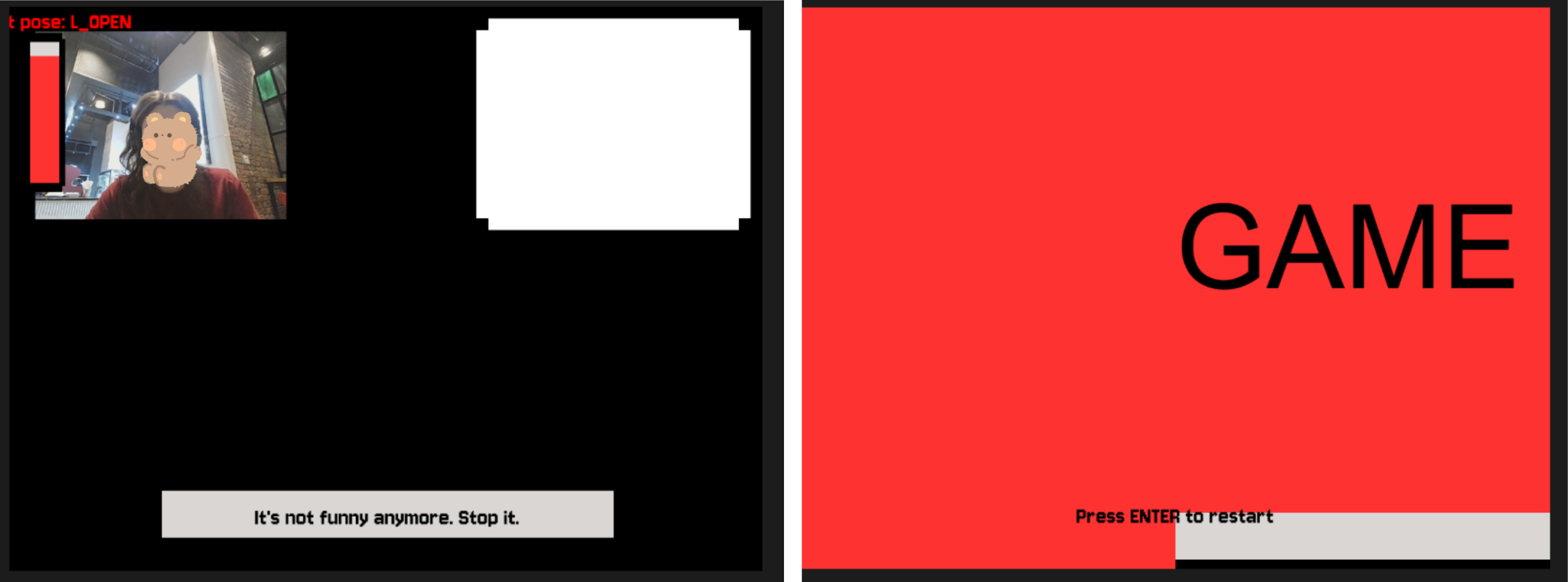
However, if the player fails to match the girl’s rythm and handpose, she will get more and more upset. With more mistakes, the girl will clap faster, and her anger will distort the environment and sound around her. What happens if you manage to fail so many times that she reaches the boiling point? Play and find out.

Proccess of Development & Parts I’m Proud of
Sprites & Design

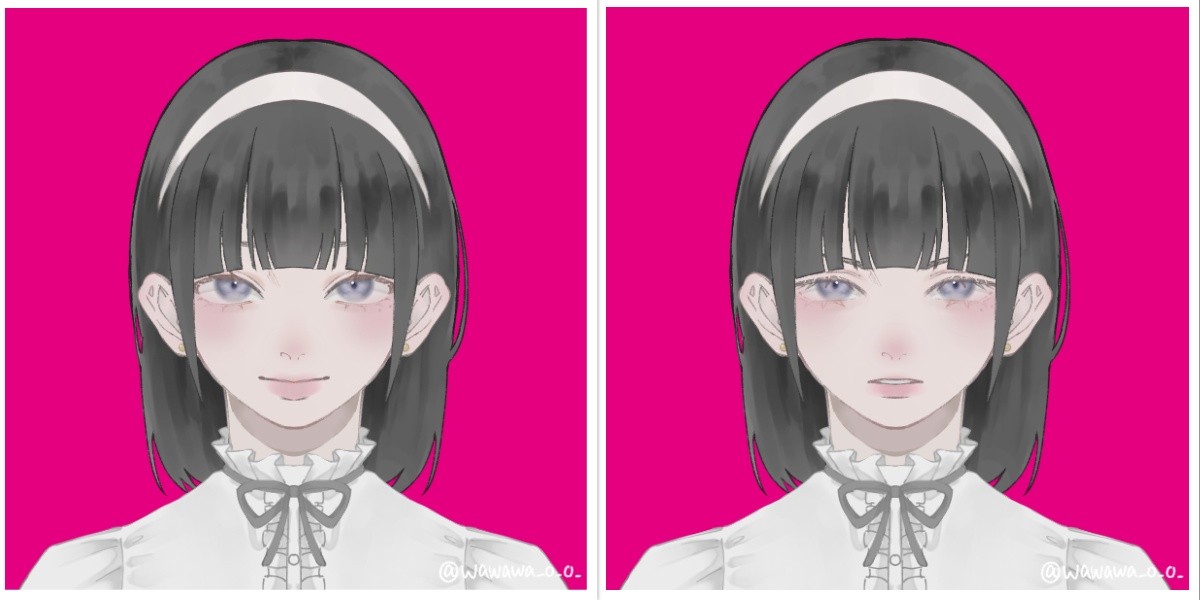
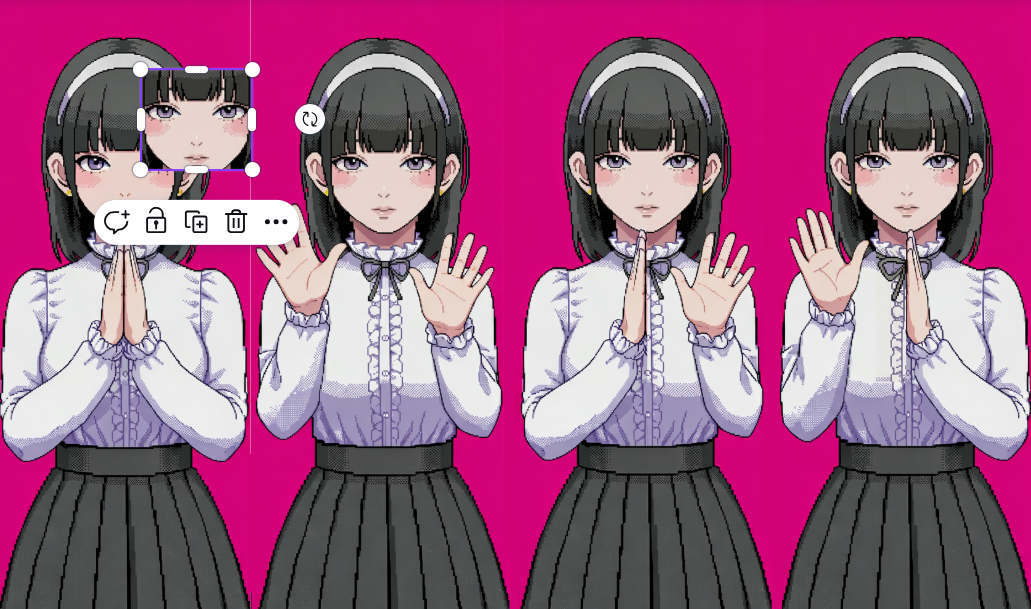
To create the sprites, I first created a character on Picrew, so I can later edit the image of a complete, well-designed in one style character. I chose the design of the girl to be cute-classy to fit the mood of the game.

After that, I inserted the photo to Nano Banana to pixelate to 16-bit and extend the image. After that, I edited the image in Canva, so all the faces, hands positions are properly aligned, and the image has all 4 positions with 4 different faces.

Sound

The sounds from the game were generated and/or taken from open-source copyright free resources. The background music was created using Suno AI using the following prompt:

Dreamy chiptune instrumental, midtempo, modular sections built for easy tempo shifts, Playful square leads carry a singable main motif, doubled an octave up on repeats, Soft, bouncy drum kit with rounded kicks and brushed snares; bubbly sub-sine/square bass locks to a simple walking pattern, Light 8-bit arps and gentle pitch bends sparkle at phrase ends while warm, detuned pad layers smear the edges for a cozy, nostalgic arcade glow, Occasional breakdowns thin to arps and pad swells before the full groove pops back in with extra countermelodies for an intensifying, joyful loop, playful, nostalgic, light, warm, soft, gentle, bright

Other sounds, such as clapping sounds, screaming sound were taken from Pixabay.

I had a lot of manipulations with sound for its speeding up/distortion for creepy effect.

update() {    
  //for sounds
  let current_rate = map(this.level, 50, 100, 1.0, 1.3, true);
  soundtrack.rate(current_rate);
  if (this.level >= 70) {
    let intensity = map(this.level, 70, 100, 0, 0.3); 
    distortion.set(intensity); // set the distortion amount
    distortion.drywet(map(this.level, 70, 100, 0, 0.2));
  } else {
  distortion.drywet(0); // keep it clean under level 70
  }

Here, I use few methods from p5.js sound reference page. Background soundtrack is connected to the distortion variable that can be seen in the code. By mapping the rate (speed of the soundtrack) and intensity (the distortion amount), as well as drywet value (for reverbing) and connecting all these values to the background soundtrack, the sound effect and background music slow but noticeable change is created.

ml5

The fundamental part of my project is hands tracking, which was implemented using ml5.js HandPose ML model.

The implementation process was carefully explained in my previous post since it was the first step in the development. I didn’t change this part since then, but I built up on closed palm pose detection: I added the following condition:

//DISTANCE BETWEEN THUMB AND PINKY is also counted for state of the hand
//define what means when hand is open and set status of the user's hand positions
if (hand.keypoints && hand.keypoints.length >= 21) {
  let isHandOpen = (
    hand.keypoints[4].y < hand.keypoints[2].y &&   
    hand.keypoints[8].y < hand.keypoints[5].y &&   
    hand.keypoints[12].y < hand.keypoints[9].y &&  
    hand.keypoints[16].y < hand.keypoints[13].y && 
    hand.keypoints[20].y < hand.keypoints[17].y &&
    abs(hand.keypoints[4].x - hand.keypoints[20].x) > abs(hand.keypoints[5].x - hand.keypoints[17].x));

  if (isHandOpen) {
    if (hand.handedness === "Right" && hand.keypoints[20].x - hand.keypoints[4].x > 0) {
      leftOpen = true;  
    } else if (hand.handedness === "Left" && hand.keypoints[20].x - hand.keypoints[4].x < 0) {
      rightOpen = true; 
    }
  }
}

The condition  abs(hand.keypoints[4].x - hand.keypoints[20].x) > abs(hand.keypoints[5].x - hand.keypoints[17].x));  measures the distance between pinky tip and thumb tip and compares it with the distance between knuckle of index finger and pinky, ensuring that the palm is fully open and not tilted. The condition  hand.keypoints[20].x - hand.keypoints[4].x < 0  checks if the distance between pinky and thumb tip is positive, ensuring that the user shows the inner side of the palm to the camera, not its back side.

Other parts

One part that I’m proud of in this code is the typewriter text effect in pixel dialogue window.

//draw text like a typewriter
function draw_text(t, anger_level) {
  //add shaking for higher anger levels
  let shakeAmount = 0;
  if (anger_level > 40 && anger_level < 100) {
    shakeAmount = map(anger_level, 40, 99, 0, 5, true); 
  }
  // random offset
  let offsetX = random(-shakeAmount, shakeAmount);
  let offsetY = random(-shakeAmount, shakeAmount);

  let currentIndex = floor(text_counter / text_speed);
  if (currentIndex < t.length) {
    text_counter++;
  }
  let displayedText = t.substring(0, currentIndex);

  push();
  translate(offsetX, offsetY);
  
  textFont(myFont);
  textSize(19);
  noStroke();
  
  fill(0);
  textAlign(CENTER, CENTER);
  rect(width/2, height*0.9, width*0.6+15, 40); //lines from side
  rect(width/2, height*0.9, width*0.6, 55); //lines from up/down
  //dialogue window
  fill(237, 240, 240);
  rect(width/2, height*0.9, width*0.6, 40);
  fill(0);
  text(displayedText, width/2, height*0.9);
  pop();
}

Here, if-condition checks on which index in the text we are currently on (default is set to 0 since text_counter = 0), if it’s less that the length of the desirable output string. If it is, it increments a counter. The counter is being divided by text speed (set to 2 frames), and the current index displayed is a rounded to lower number result of this division with the help of floor() function. Substring function converts the initial string to an array of characters using starting index (0) and ending index which is exactly the current index we’re reevaluating every time, and then it outputs the string captured between these indices. This way, a small pause (of 2 frames) between drawing each letter is created, creating an effect of typewriting.

In the final part of the function black rectangles are created under the main gray dialogue window, creating a pixel-style border to it.

Another valuable part of the code here is the shaking. In other parts of the code the shaking technique is almost the same: the offsets by x and y that depends on the anger level are passed to translate() function, changing the coordinates origin. Thanks to that, the whole dialogue window displayed has this new coordinate origin each time the function runs if the condition is satisfied, creating an effect of shaking.


Apart from that, the core of my code is the class “Girl” which controls almost everything connected to the girl charachter, from her speech to comparing handpose states. Also, I have some independent functions, like detect() that recognizes and returns the handpose state of the player and tutorial running that explains the player the rules of the game (by controlling and modifying some class public variables as well).

To control the game state, when it should run the tutorial, when the main part is being played, and when it’s over and needs a restart I use game states. For resseting, player is prompted to press “ENTER” on the final screen to fully restart the game by triggering the resetting function that sets all global variables back to default state and creates a new Girl object with new default attributes:

//reset the whole game upon calling this function
function resetGame() {
  // reset global variables
  game_state = "START";
  state = "CLOSED";
  text_counter = 0;
  screenFlash = 0;
  girlImages = [];
  
  girl = new Girl();
  
  // reset girl's variables
  girl.current_state = 0; 
  girl.level = 0;
  girl.change_state();
  endStage = 0;
  endTimer = 60;

  
  // reset the audio
  soundtrack.stop();
  soundtrack.rate(1.0);
  soundtrack.setVolume(1.0);
  distortion.set(0);
  distortion.drywet(0);
  soundtrack.loop();
}

...

function keyPressed() {
  ...
  if (keyCode === ENTER) {
    if (game_state === "GAME_OVER") {
      resetGame();
    }
  }
...
}

My code is pretty big but I feel like explained parts are the most interesting ones. I believe I have some inefficient parts in my code (such as hardcoded ending speech and its progression) but they all work now without lagging or taking long time to load, so I believe that at least for this projects it is fine to leave them like that.

While writing the code, I used the following resources:

    1. p5.js reference
    2. ml5.js reference
    3. The Coding Train Handpose video
    4. Gemini (Guided Learning Mode) for debugging and searching for functions of p5.js (such as substring function in typewriter, for example)

+just googling some methods and clarifications

Problems

Throughout the development of the project I ran into a lot of problems and small bugs but I will describe one that actually taught me a very useful trick.

I had a lot of visual parts that required precise positioning of the object, as well as I had different effects applied to them. Offsets of the object that were limiting its shaking, the mode of displaying the object (rectMode, imageMode), aligning, the translating conditions etc. were different for many parts. However, when you assign imageMode in one place globally, and then somewhere else you set another imageMode, and then in the third place you just use it without assigning expecting the default mode — the whole sketch turns to complete chaos. As you can see on the photos, I had video being aligned to another part of the screen, the textMode being set to some weird value, font style dissapearing, and textbox moving out of the screen. I learned how to isolate the styles (with the help of Gemini), as in this example:

function draw_video() {
  push();
  imageMode(CORNER);
  image(bg_img, 0, 0, width, height);
  
  //layer that gets the room darker as the anger level rises
  rectMode(CORNER);
  let mask_level = map(girl.level, 20, 100, 0, 180);
  noStroke();
  fill(0, mask_level);
  rect(0, 0, 640, 480);
  pop();

By surrounding the code block with push() and pop(), the style and code inside the block becomes isolated and doesn’t impact other parts of the code. It was really helpful, so I used it almost everywhere in my project!

Areas for Improvement

There’re some parts of my project that can be significantly improved and parts I don’t really like.

First of all, the final screamer, I feel like it is not scary enough to really make a great impact on the user. The concept was to have that cuteness vs. creepiness contrast. So, in contrast for a small childrens’ game and cutesy design, I wanted to make a really impactful and creepy screamer in the end, additional to other glitch/creepy effects. Turned out that making a scary screamer is actually a very hard job. I tested a few of the screamers versions, asking my friends to test the game so they can tell which one is scarier. I stopped on the current version because it was more unexpected, since it appears mid-sentence and has some stop-frame picture and not zoomed video or something else. Still, I feel like there’re ways to make this part much more surprising and scary that I wasn’t able to come up with.

Another part I could work on more is the design. I can’t draw, so in order to create visual assets I used picrew, editing AI (described earlier). However, I think that sprites created could be more fitting, and maybe I could have added additional sprites for more smooth pose-change, and sprites of a “still” pose. It is a bit hard to do in time-constraits and lack of skill, but I’m sure it’s something I can think about in the future.

Also, I believe I could introduce more unified control system. While playing, the user doesn’t touch the keyboard and only show their hands to the screen, but to progress through the tutorial and ending scene they need to press some buttons. I believe it is not really good to have these two controls systems mixed so maybe one of the improvement can be introducing some additional poses (like peace sign, maybe?) instead of keyboard pressing.

Gestione del bankroll durante il gioco nei casinò online e tecniche per controllare meglio il budget di gioco


Il bankroll è uno degli aspetti più importanti da considerare quando si gioca nei casinò online. Gestire il proprio budget in modo efficace è essenziale per evitare di finire in situazioni finanziarie difficili e per massimizzare le possibilità di vincita. In questa guida, esamineremo alcuni dei principi fondamentali della gestione del bankroll e condivideremo alcune tecniche pratiche per controllare meglio il budget di gioco.

Principi fondamentali della gestione del bankroll

1. Stabilire un budget iniziale: è fondamentale stabilire un budget iniziale prima di iniziare a giocare nei casinò online. Questo budget dovrebbe essere una somma di denaro che sei disposto a perdere senza causarti problemi finanziari. Una volta stabilito il budget iniziale, è importante rispettarlo e non superarlo.

2. Suddividere il budget in sessioni di gioco: suddividere il budget in sessioni di gioco ti aiuterà a gestirlo in modo più efficace. Ad esempio, se hai un budget di €100 e vuoi giocare per 5 sessioni, puoi assegnare €20 a ciascuna sessione. In questo modo, eviterai di spendere tutto il budget in una sola sessione e potrai goderti più a lungo l'esperienza di gioco.

3. Impostare limiti di perdita e vittoria: è importante impostare limiti di perdita e vittoria per evitare di andare fuori controllo durante il gioco. Ad esempio, puoi decidere di fermarti quando raggiungi una determinata somma di vincita o di perdita. Questi limiti ti aiuteranno a mantenere il controllo sul tuo bankroll e a evitare di incorrere in perdite eccessive.

4. Monitorare costantemente il bankroll: monitorare costantemente il tuo bankroll durante il gioco ti permetterà di avere sempre sotto controllo la tua situazione finanziaria. In questo modo, potrai prendere decisioni informate sulle scommesse da fare e evitare di spendere più di quanto ti puoi permettere.

Tecniche per controllare meglio il budget di gioco

1. Tenere un diario delle scommesse: tenere un diario delle scommesse ti aiuterà a monitorare le tue scommesse e a identificare eventuali schemi di gioco problematici. Registrare ogni scommessa che fai, insieme ai risultati e alle somme scommesse, ti darà una visione chiara del tuo comportamento di gioco e ti aiuterà a individuare eventuali aree che necessitano di miglioramento.

2. Utilizzare strumenti di controllo del gioco: molti casinò online offrono strumenti di controllo del gioco che ti aiutano a gestire il tuo bankroll in modo più efficace. Ad esempio, puoi impostare limiti di tempo e di deposito per evitare di giocare troppo a lungo o di scommettere più del dovuto. Utilizzare questi strumenti ti aiuterà a mantenere il controllo sul tuo gioco e a prevenire problemi legati al gioco d'azzardo.

3. Fare pause durante il gioco: fare pause durante il gioco è fondamentale per mantenere la lucidità mentale e evitare di prendere decisioni affrettate. Pianificare regolarmente delle pause durante  le sessioni di gioco ti permetterà di prendere fiato, riflettere sulle tue scommesse e riprendere il gioco in modo più concentrato.

In conclusione, la gestione del bankroll è un aspetto fondamentale del gioco nei casinò online. Seguendo i principi fondamentali della gestione del bankroll e utilizzando alcune tecniche pratiche per controllare meglio il budget di gioco, sarà possibile massimizzare le possibilità di vincita e ridurre al minimo i rischi finanziari. Ricordate sempre di giocare in modo responsabile e di consultare le risorse di supporto disponibili in caso di problemi legati al gioco d'azzardo. Buona fortuna!

Midterm Project

Here is the final sketch:

Examples of the evidence pieces: Overall Concept

For my midterm project, I created an interactive court trial simulation where the player takes on the role of a judge. The experience lets the player go through a courtroom scenario where they listen to the defendant’s and witness statements once you click on any of the characters, then examine 5 pieces of evidence, and decide whether the defendant is guilty or not guilty, and then you will get your result, whether you are correct or incorrect.

I wanted the project to feel immersive, as if you were inside a courtroom drama. Instead of just presenting information passively, I designed it so the player has to actively click through the dialogue, review the evidence using a slider, and make the final decisions. My goal was to combine the narrative, interaction, and sound design into one experience that feels like a small narrative game.

How the project works and what I’m proud of

The entire project is built with the state-based system that you showed us in class, which I found very useful to keep things organized. I used a global variable called state to control which screen is currently being duspayed and inside the main draw function, I check the value of state and call different functions, like drawcover, draw instruction, draw trial, draw evidence, draw verdict, and draw result. I also used oop for the clickable characters and for the different scenarios, which was useful because I can easily add or edit scenarios. I then created variables and uploaded images of evidence, in which I used a four-loop and arrays, that loop through every evidence item in the current case and create the image path using the case number and index, like 101_0.png, then store it into an array for the evidence. For the actual case randomizer, I used the random function currentCase = random(cases) and loadEvidenceForCase(currentCase). I made sure to name the evidence files in an index form with the case number, so the system can find them and match each piece of evidence with each case.

I am especially proud of how I structured the interaction system. On the trial screen, the player can click on any of the different characters (defendant, lawyer, witness) to open the statement pop-up. I used a Boolean variable popup to control the visibility and a counter variable popupstage to track the dialogue progression. This created a small dialogue that allows the statements to unfold step by step instead of appearing all at once, which i though made the game feel more controlled.

Another part I am proud of is the dynamic evidence loading system. Instead of manually loading each image one by one, I created a function that loops through the selected case evidence and builds the image file paths automatically. The images are stored in an array and displayed using a slider that lets the player scroll through them. This made the project more scalable because I could easily add more cases without rewriting a large portion of the code. Here is the code:

// load only the 5 evidence images for the current case
function loadEvidenceForCase(caseObj) {
  evidenceImages = []; // resets the evidenceimages array so old case images dont stay

  for (let i = 0; i < caseObj.evidence.length; i++) {
    //loop through every evidence item in the current case
    let imgPath = `evidence/${caseObj.caseNumber}_${i}.png`; //creates the image path using the case number and index, like 101_0.png
    loadImage(imgPath, (img) => {
      //load the image from that file path
      evidenceImages[i] = img; // when the image finishes loading, store it in the evidenceimages array
    });
  }
}

function preload() {
  coverImg = loadImage("cover.png");
  titleFont = loadFont("title font.otf");
  bodyFont = loadFont("body font.ttf");
  instructionsImg = loadImage("instructions background.png");
  trialImg = loadImage("trial.png");
  verdictImg = loadImage("verdict.png");
  correctverdictImg = loadImage("correct verdict.png");
  wrongverdictImg = loadImage("wrong verdict.png");
  clickSound = loadSound("clicking sound.wav");
  backgroundSound = loadSound("cover and instructions music.wav");
  gaspSound = loadSound("gasp.wav");
  gavelSound = loadSound("gavel sound.mp3");
  statementSound = loadSound("statement.wav");
  tickingSound = loadSound("tic.wav");
}

function setup() {
  createCanvas(windowWidth, windowHeight); //makes canvas fill entire screen

  backgroundSound.setVolume(0.4);

  // create characters
  defendant = new Character("Defendant", 417, 325, 1);
  lawyer = new Character("Lawyer", 500, 325, 1);
  witness = new Character("Witness", 840, 325, 1);

  //evidence button (which is hidden until trial screen)
  evidenceButton = createButton("View Evidence");
  evidenceButton.position(1050, 660); //
  evidenceButton.size(200, 50); // button width/height
  evidenceButton.style("background-color", "255");
  evidenceButton.style("color", "rgb(11,11,11)");
  evidenceButton.style("font", "tileFont");
  evidenceButton.style("font-size", "18px");
  evidenceButton.style("border-radius", "15px");
  evidenceButton.style("border", "3px solid black");
  evidenceButton.mousePressed(() => {
    if (currentCase) {
      // only open if a case is selected
      state = "evidence";
      evidencePopup = true;
      currentEvidenceIndex = 0;
      evidenceSlider.value(0); // reset slider
      justOpenedEvidence = true;
      evidenceButton.hide(); // hide it until trial screen
    }
  });
  //create slider for evidence (hidden until popup opens)
  evidenceSlider = createSlider(0, 4, 0, 1); // 5 pieces of evidence (0–4)
  evidenceSlider.position(550, 550);
  evidenceSlider.style("width", "200px");
  evidenceSlider.input(() => {
    currentEvidenceIndex = evidenceSlider.value();
  });
  evidenceSlider.hide();
}

function draw() {
  evidenceButton.hide();
  evidenceSlider.hide();

  //background music control depending on current game state
  if (
    state === "cover" ||
    state === "instructions" ||
    state === "trial" ||
    state === "evidence"
  ) {
    if (!backgroundSound.isPlaying()) {
      backgroundSound.loop();
    }
  } else {
    backgroundSound.stop();
  }

  //ticking sound that only plays during verdict decision
  if (state === "verdict") {
    if (!tickingSound.isPlaying()) {
      tickingSound.loop();
    }
  } else {
    tickingSound.stop();
  }

  //different screens depending on game state
  if (state === "cover") drawCover();
  else if (state === "instructions") drawInstructions();
  else if (state === "trial") drawTrial();
  else if (state === "evidence") drawEvidence();
  else if (state === "verdict") drawVerdict();
  else if (state === "result") drawResult();

  //tool to help me
  fill(255);
  textSize(16);
  textAlign(LEFT, TOP);
  text("X: " + mouseX + "  Y: " + mouseY, 10, 10);
}

Areas for improvement and problems

One of the biggest problems I ran into was managing alignment and the systems; at one point, changing the rectmode(CENTER) and textAlight (CENTER, CENTER) affected other parts of the code unexpectedly. So I had to learn how push and pop isolate the styling changes and where exactly to put them so they don’t affect the entire sketch. Another challenge was getting all of the evidence images to load correctly. Some of the files had different extensions like jpg or png, which caused loading errors because in the four loop, I only put the png extension. So I had to fix the file names and make sure the loading function matched the correct format. That taught me how sensitive the file paths are and how important consistency is. If I were to improve this project further, I would refine the visual design so it feels more polished and fix up the formatting of the buttons. I would also introduce a scoring system or a branching narrative so that the decisions feel even more impactful. The core system does work well, but I just think there is room to push it even further.

References and AI usage

I used this YouTube video and the reference page to better understand the scale function and implement it in my sketch, which I used for the characters: https://www.youtube.com/watch?v=pkHZTWOoTLM
https://p5js.org/reference/p5/scale/

I also used this P5 reference page to understand the drawingContext function, which I used to add shadows to my characters
https://p5js.org/reference/p5/drawingContext/

For Ai I mainly used ChatGPT. I sometimes ran into bugs where changing the position or layout of something in my sketch would unexpectedly affect other parts of the program. So ChatGPT helped me debug these issues by explaining what parts of the code might be interfering with each other and suggested ways to fix them. I also used chagpt to help me figure out a system for loading all of the evidence images into the game, since my project had around 100 pieces of evidence, and manually loading each image would have been inefficient. With ChatGPT’s help, I implemented the loop system that automatically loads evidence images from the evidence folder using the case number and image index. Another area where ChatGPT helped me was structuring my case scenario. It suggested using the const keyword when defining the cases so that the data could not accidentally be reassigned later. This helped keep the case info organized and protected from being changed while the game runs. It also provided some information on how to structure each case object, like adding a case number.

For the visual evidence, I used Gemini to generate the individual evidence images. All the coding decisions and implementations were done by me; the AI tools were used as guidance for debugging, structuring the code, and generating the visuals.