
My overall concept:
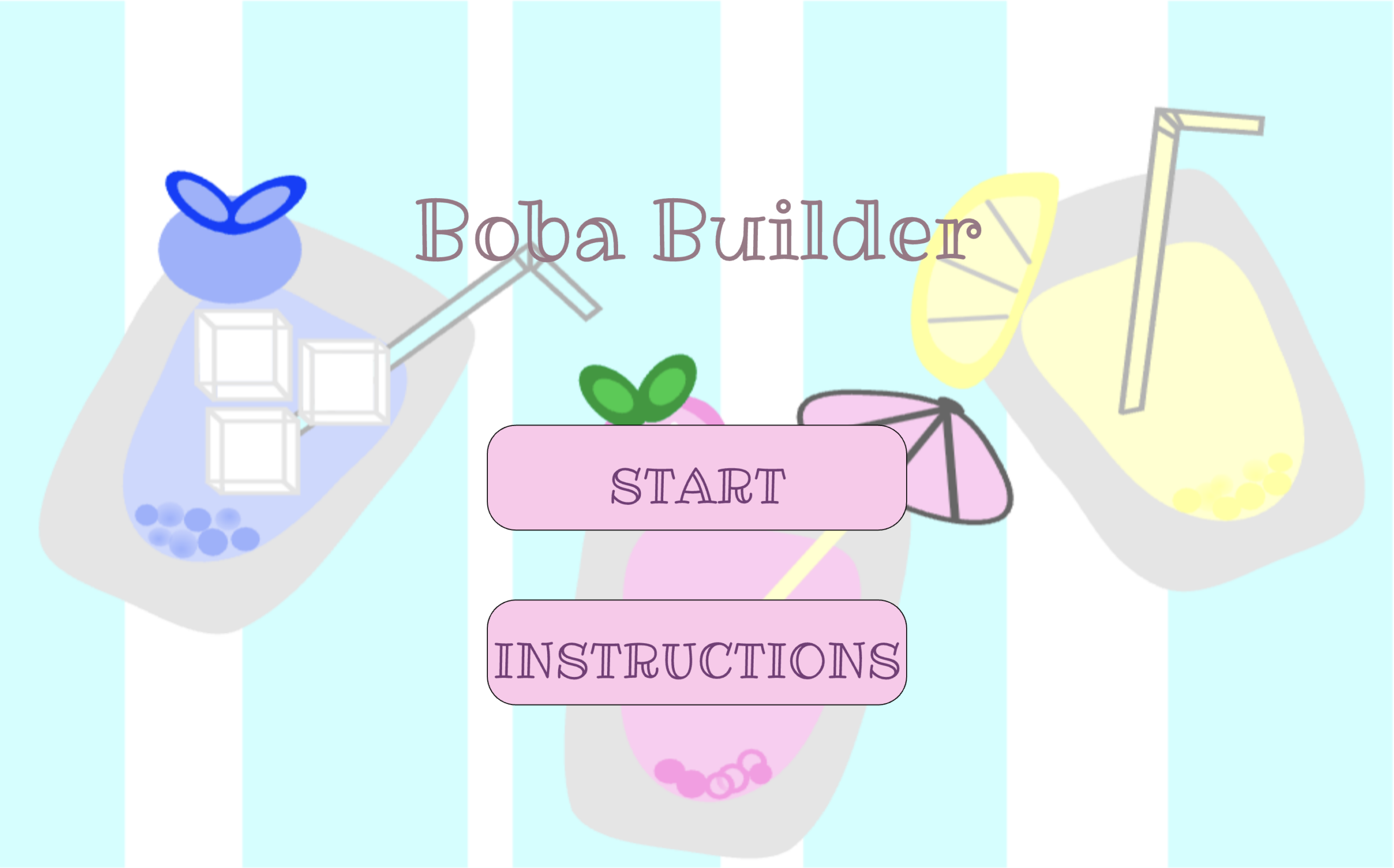
My project is an interactive game called Boba Builder, where the player gets to create their own custom bubble tea drink. I wanted the game to feel fun and give the user a cute, customizable experience, almost like a small digital cafe where you can design a drink however you want. The idea actually started because I was craving matcha, and at first I wanted to make a matcha‑themed game. But then I realized matcha doesn’t have many color or topping variations since it’s always green, so it didn’t feel very customizable. That made me think about other drinks, and then I remembered how popular boba tea was around 2020-2022 during the COVID era. I mean, it’s still popular now, but that was the time when it really became a trend. I liked how many different combinations you can make in real life, and that inspired me to turn it into a game where players can mix and match their own drink.
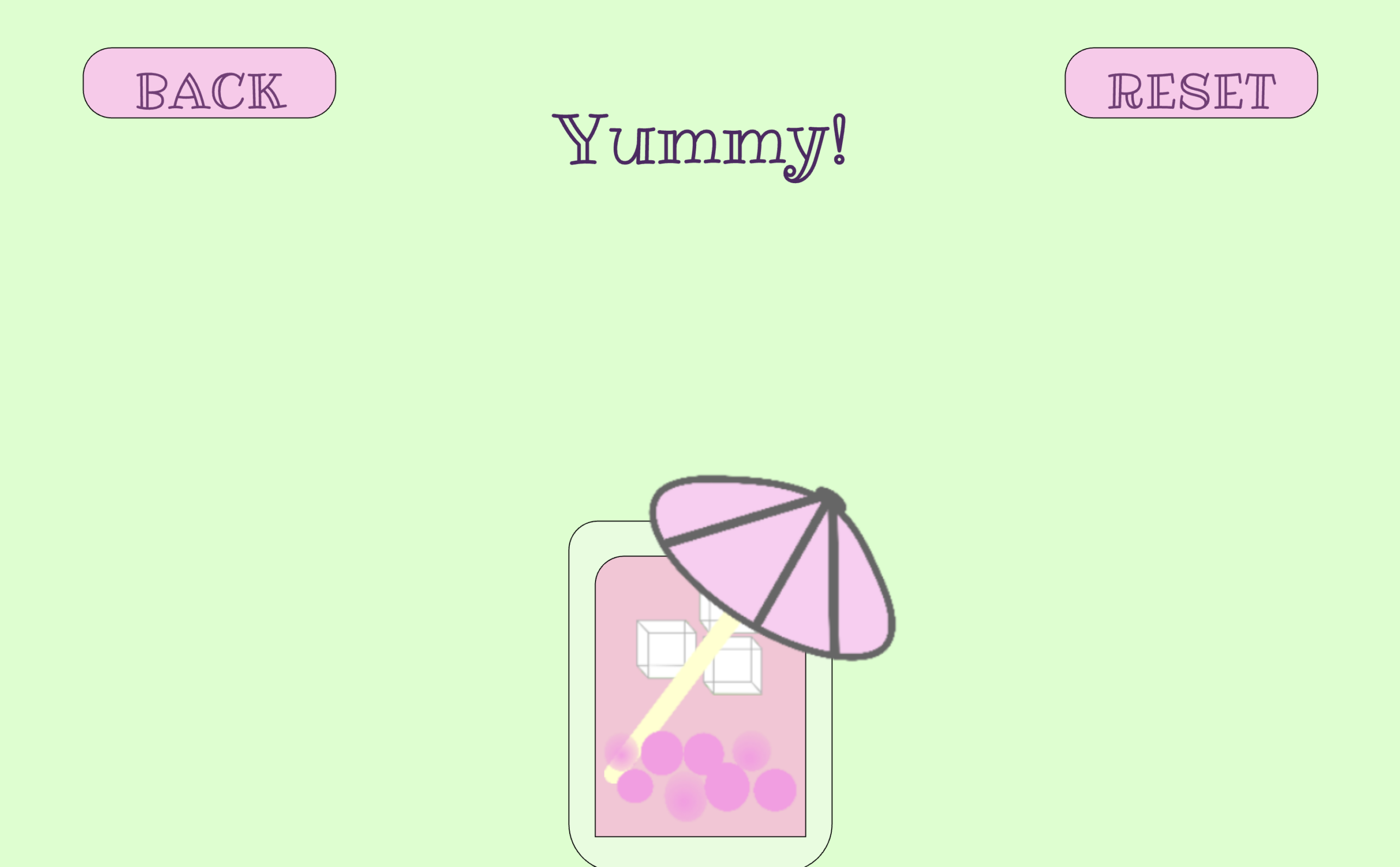
The main goal of my project was to make the player feel like they are actually building something step by step. Each screen represents a different part of the drink‑making process, and the choices the player makes show up inside the cup. I wanted the final drink to feel personal, like something the player actually created, and I liked the idea that every person could end up with a completely different drink. The game doesn’t have winning or losing; it’s more about creativity, enjoying the process, and having a fun little experience.
Final Project:
How My Project Works:
The entire game I built uses the same coding ideas we learned in class, which made it easier for me to understand how to structure everything. My project works using a state system in p5.js. This means the game changes screens depending on what the player chooses. For example, the game starts on the start screen, then moves to the tea screen, then the boba screen, then the ice screen, and so on. Each screen has its own buttons that let the player pick what they want to add to their drink. When the player clicks a button, the game updates a variable like chosenTea, chosenBoba, or chosenIce. These variables are then used inside my drawCup() function, which updates the cup and shows the player’s choices as they build their drink.
if (state === "start") {
  drawStartScreen();
} else if (state === "tea") {
  drawTeaScreen();
} else if (state === "bubbles") {
  drawBobaScreen();
} else if (state === "ice") {
  drawIceScreen();
} else if (state === "straw") {
  drawStrawScreen();
} else if (state === "color") {
  drawColorScreen();
} else if (state === "finished") {
  drawFinalScreen();
}
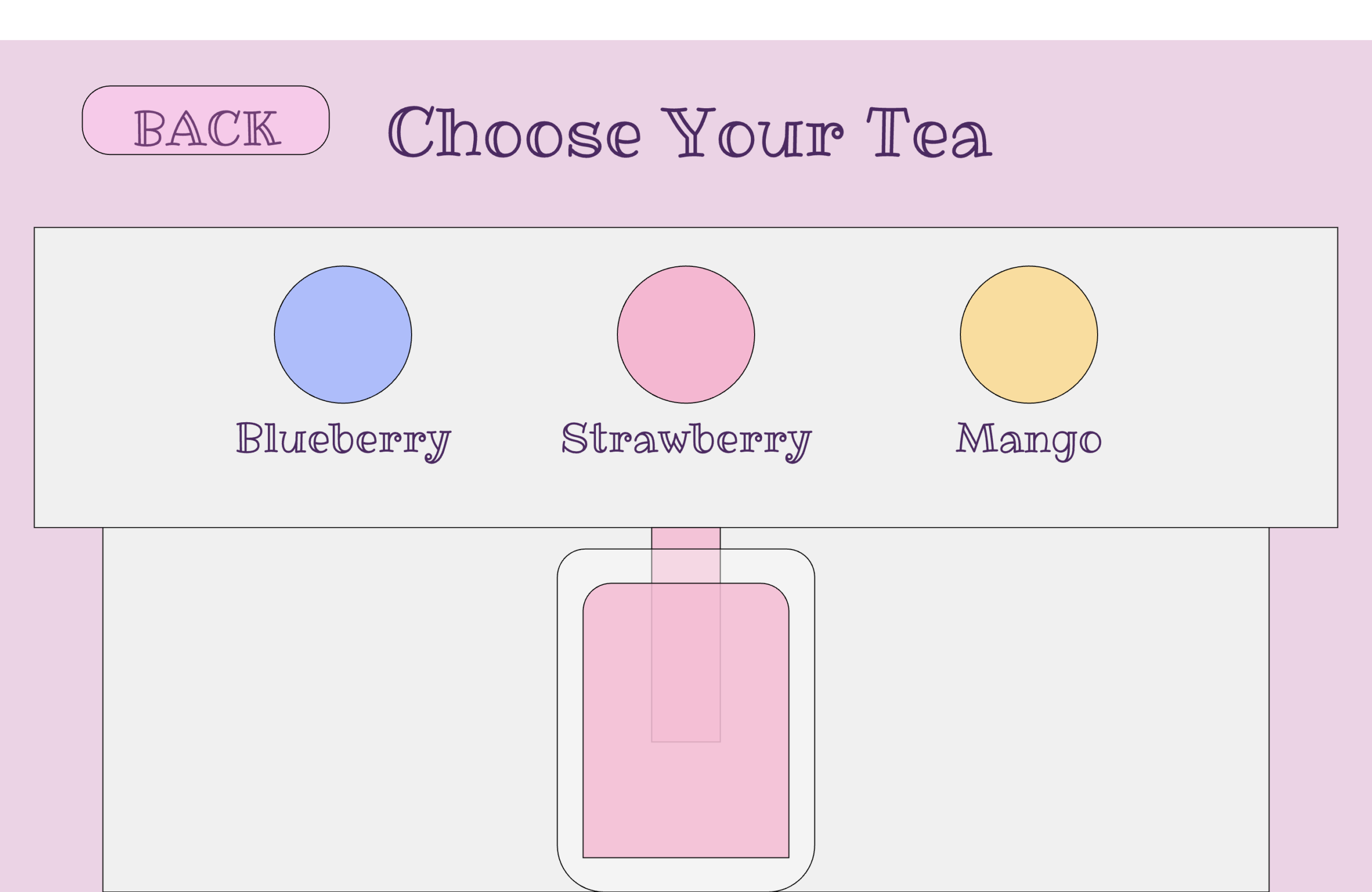
I also used object‑oriented programming to create my buttons. I made two classes: a Button class for rectangle buttons and a RoundButton class for circle buttons. Each button has its own position, size, color, and label. Both classes also have a clicked() function that checks if the player pressed the button. This helped me reuse the same code for all my buttons instead of rewriting it over and over. It made my project much more organized and easier to manage.
class Button {
  constructor(x, y, w, h, fillColor, textColor, txt) {
    this.x = x;
    this.y = y;
    this.w = w;
    this.h = h;
    this.fillColor = fillColor;
    this.textColor = textColor;
    this.text = txt;
  }

  draw() {
    fill(this.fillColor);
    rect(this.x, this.y, this.w, this.h, 30);
    fill(this.textColor);
    textSize(width * 0.035);
    text(this.text, this.x, this.y);
  }

  clicked() {
    return (
      mouseX > this.x - this.w / 2 &&
      mouseX < this.x + this.w / 2 &&
      mouseY > this.y - this.h / 2 &&
      mouseY < this.y + this.h / 2
    );
  }
}
The game also uses sound effects and background music. The background music plays throughout the whole game, and when the player pours tea, the pouring sound plays. When the pouring sound finishes, the game automatically moves to the next screen using pour.onended(nextState);. I also added sounds for boba, ice, and other actions to make the game feel more interactive and satisfying. At the end of the game, the player sees their final drink with all the choices they made.
What I’m Proud Of:
I’m really proud of how the whole game feels like a real drink‑making experience. The cup updates step by step, and the player can see their drink change as they make choices. I’m also proud that I figured out the back button issue. Now, on every screen, the player can go back to the previous page without breaking the game, which took a lot of testing and fixing. I’m also proud of the visuals I drew in Procreate. I made the start‑screen background, the toppings, and the decorations myself, and I think they make the game look cute and fun.
Another thing I’m proud of is the button system I created. I made a separate buttons.js file and used classes to organize all my buttons. This made my code much cleaner and helped me understand object‑oriented programming better. I’m also proud of how I used sound effects to make the game feel more real and less boring. The pouring sound, the drip sound, and the ice sound all add to the experience and make the game more satisfying to play.
I’m also proud that I solved some difficult bugs. The back button and the lag issues were really frustrating, but I kept trying different things until I fixed them. It felt good to finally get everything working the way I wanted.
Areas of Improvement & Problems I Faced:
One area I want to improve is how the layout works on different screen sizes. I used windowWidth and windowHeight to make the game responsive, but sometimes the buttons or text still look a little off on very small or very large screens. In the future, I want to create a better scaling system so everything stays in the right place no matter what device the player uses, even on phones.
I also had problems with the back button. Sometimes it didn’t reset the right variables, so old choices stayed on the screen. Other times, the game lagged because something was being recreated inside the draw() function instead of only running once in setup(). These issues took a long time to figure out, and I had to test many different things before I finally fixed them.
Another challenge was making sure the cup updated correctly with all the player’s choices. I had to keep track of many variables and make sure they all worked together without breaking anything. It was confusing at first, but once I organized everything and cleaned up my code, it became much easier to manage.
References:
– Pouring sound: https://freesound.org/people/piotrkier/sounds/700153/
- I used this sound for when the tea pours into the cup.
– Drip sound: https://freesound.org/people/Neotone/sounds/75345/
- This sound plays when the player chooses boba or a color.
– Ice sound: https://freesound.org/people/giddster/sounds/386431/
- This sound is used when the player adds ice to their drink.
– Background Music: https://freesound.org/people/Mrthenoronha/sounds/370293/
- I used this as the soft background music that plays during the whole game.
– Audio Editing Tool: https://clideo.com/editor/
- I used this website to trim and edit my audio files so they fit better in the game.
– Font Used: https://fonts.google.com/specimen/Ribeye+Marrow
- This is the custom font I used for the text in my project.
– p5.js reference: https://p5js.org/reference/p5.MediaElement/onended/
- I used this p5 reference to learn how the onended() function works. This helped me understand how to make the game move to the next screen after the pouring sound finishes.
– Drawings:
- I used Procreate to draw the visuals for my project, including the start background and the toppings. I created each drawing myself and exported them as PNG files so I could use them for my game.
Ai usage:
- For my project, I mainly used ChatGPT to help me understand and fix problems that were confusing or hard to figure out on my own. One issue I had was that when I changed the size or position of something in my sketch, other parts of the layout sometimes reacted in ways I didn’t expect, especially because I was using a lot of percentage‑based values like width * 0.5 or height * 0.7. ChatGPT helped me understand how p5.js handles screen sizes and why certain numbers can affect the spacing of different elements. I also used ChatGPT to understand why my instructions text wasn’t breaking into separate lines and it was written in a way that wasn’t aesthetically appealing. It explained how the \n symbol works in p5.js and how text alignment affects multi‑line text, which helped me format my instructions correctly. Another major problem was my back button. Sometimes it took me to the wrong screen, sometimes it kept old choices even when restarting th whole p5 game, and sometimes it even made the whole game lag. ChatGPT helped me understand that this can happen if the order of resetting variables and changing states is wrong, or if something is being recreated inside the draw() function when it should only happen once in setup(). After learning this, I reorganized my code and fixed the issue. ChatGPT also helped me understand why my game lagged at certain moments by explaining that loading images or creating new objects inside the main loop can slow everything down. Finally, I asked ChatGPT to explain how the onended() function works for sounds, which helped me understand why I needed pour.onended(nextState); for my tea‑pouring animation. All the coding, design, and decisions in my project were done by me; ChatGPT only helped me understand confusing parts and figure out why certain things weren’t working the way I expected.