Week 4- Reading response

One thing that drives me crazy is self-checkout and checkout lanes in general. Stores build 30 checkout stations but only use two. Now we have self-checkout, and still the process is confusing and slow. This problem is not about the technology itself. It is about poor design. The system does not clearly show how to use it efficiently. It lacks good signifiers. Simple visual cues, clear instructions, or intuitive layout would solve the problem. The action should be easy to understand without guessing.

From the reading, I learned that good design depends on affordances, signifiers, mapping, feedback, and clear conceptual models. In the case of self-checkout, the affordance exists because you can scan items and pay. But the signifiers are missing. The design does not communicate the correct sequence of actions. The mapping between the screen, the scanner, and the bagging area is also unclear. If designers focused more on discoverability and understanding, these everyday frustrations would not happen.

I can apply these principles to interactive media. In digital design, buttons, gestures, and workflows should clearly show what they do. Users should not guess how to swipe, click, or complete a task. Good feedback is also important. When a user takes an action, the system should respond immediately. Finally, the interface should support a simple conceptual model. Users should understand how the system works just by looking at it and trying it. If I design with clear signifiers, natural mapping, and strong feedback, I can create interactive work that feels simple, clear, and easy to use.

Week 4 – Digital Oracle

Concept

This work  acts an oracle by generating wise sayings. Predefined times, elements, actions and destinations are stored in the program and they are randomly paired up to create the oracle. This work employs the concept of lists to store the times, elements, actions and destinations. Text in p5js concept was explored in this work by employing textAlign, textSize and textFont to create the desired output for the work.

A background animation was created for the program by creating translucent circle that randomly move around on the screening. This was done using class and arrays. To keep the design visually appealing, when a ball goes off the screen, it appears on the opposite side of the screen and and continues moving the same trajectory.

An oracles fades and a new one appears and this is done by changing the transparency of the text each frame. When the text becomes fully transparent, it is deleted and a new one is formed and displayed. When you click on the screen, the program can also change between light and dark mode using the callback function mouseClicked and an if statement

Code I’m proud of

for (let i=0; i<currentLines.length; i++) {
    text(currentLines[i], width/2, startY + (i*spacing));
  }
  
  // Fading 
  textAlpha += fadeSpeed;
  
  if (textAlpha < 0) {
    currentLines.length = 0;
    generateNewPoem();
    fadeSpeed = 2;
  }
  
  if (textAlpha > 400) {
    fadeSpeed = -2;
  }

This is the code that generates the oracle and causes the fading effect. A for loop is used to print out randomly generated text in a vertical format and the if statements gradually increase the opaqueness of the the text and then makes it transparent eventually disappear.

Embedded Sketch

How it was made

The texts in the various arrays that are randomly selected where generated with Chat GPT with the goal of creating a more natural and consistent text

Reflection

This was a good exercise to make use of my knowledge in text manipulation, arrays, classes and other concepts learnt in other lectures. This work can be improved by building on the background animations and changing the colors the text are printed in to create a more visually pleasing effect.

Week 3 – creative reading response

I think a strongly interactive system is one where the user and the system affect each other. It is not just clicking and seeing something move. It feels like a two way conversation. The system responds fast and clearly. The user understands what caused the change. The user’s choices matter and can change what happens next.

In my p5 sketches, I mostly use mouse movement and clicks. The shapes or colors react, but the interaction is sometimes very basic. It does not always feel deep. To improve this, I can make the sketch remember what the user did before. The drawing can change over time based on their actions. This will make it feel more alive and less repetitive.

I also want to give better feedback. The system should clearly show that it is responding. Small changes in color, size, or movement can help. I can also use more controls like the keyboard. This will give the user more ways to interact. I want my sketches to feel like small worlds the user can explore, not just simple animations.

Week 4: Generative Text

Concept

I wanted to make a generative text output inspired by one of my favorite childhood comfort food: alphabet soup. It’s a tomato soup where the pasta is made out of the letters (a-z). I wanted to recreate a soup bowl that would have letters floating around. In the sketch, it shows a white dinner plate with a reddish tomato soup filling, with 80 randomly generated lowercase letters slowly bouncing around inside the soup. The letters stay contained within the circular bowl, and when they hit the edge, it reverses direction just like real pasta letters drift and bump in a bowl of soup.

My Final Sketch!

Code I’m Proud Of

 // keep inside soup
if (dist(l.x, l.y, cx, cy) > radius) {
  l.speedX *= -1;
  l.speedY *= -1;
}

Before I had these lines, my letters were all just floating around the whole sketch and I needed a way to keep the letters within the soup circle. Instead of checking rectangular walls, I used the dist() function to measure how far each letter has drifted from the center of the soup. When that distance exceeds the soup’s radius, both speed values get flipped by multiplying by -1, sending the letter bouncing back inward. This keeps all 80 letters perfectly contained within the circular soup area at all times.

How This Was Made

I used a loop that runs 80 times to create 80 letter objects, each placed at a random position inside the soup circle using polar coordinates and it picks a random angle and distance from the center, then converts them into x and y coordinates with cos() and sin(). Each letter gets a random character using String.fromCharCode(), which converts numbers 97–122 into a through z (I learned this from w3schools), along with random speed values for both directions. All of this gets stored as objects in an array called letters[]. Every frame, each letter’s position is nudged by its speed values to create the floating movement, and dist() checks whether it has drifted too far from the center and if it has, both speeds are flipped by multiplying by -1, then it shows a bouncing movement of the letter back inward and contained within the soup circle. For the font, I played around with different fonts and I landed on Courier which was the closest I could find to the chunky, typewriter-style lettering you actually see on real alphabet pasta.

Reflection and Future Improvements

This project taught me how useful polar coordinates are for placing things inside a circle instead of just rectangular, and I got a lot more comfortable using object literals inside arrays as a lightweight way to store and manage multiple moving things at once. Next time, I’d love to add mouse interaction so clicking near a letter makes it spin or dissolve, add a spoon that follows the cursor and stirs letters out of the way, or occasionally have the letters briefly cluster into short words before drifting apart again, something like the artwork “Text Rain” that we looked at in class.

Week 4 – Reading reflection

The reading shifted my perspective on designing from focusing more on the functionality of the product, which is the norm, to focusing on the user of the product or what we are designing. I realized that designing an  object or tool for the public requires you to have some consultations with other parties and we should invest more effort into how the user interacts with the product rather than the product design itself. The reading creates a concern though. Can this approach to focusing on the user’s interactions lead to a compromise in the quality  or functionality of the work produced and how do we find the right balance between functionality and interactivity.

Week 4 – Reading Reflection Megan

Something that genuinely drives me crazy (and it’s not in the reading) are the old washing machines that were in dorm laundry rooms. Not even because they’re complicated, but because you literally cannot tell what they are doing. You press start, sometimes it locks, sometimes it doesn’t, sometimes it just stops and you don’t know if it’s broken or thinking. I’ve stood there many times not knowing if I should open it, wait, or restart it. And the worst part is everyone reacts differently, some people keep pressing buttons, some unplug it, some hit it (honestly valid).

But after reading Norman I realized the problem is not that the machine is complicated but it’s that it has no feedback and no signifiers. The interface doesn’t communicate what state the machine is in. Norman explains that good design should make the possible actions discoverable and understandable. But here you don’t know if is it washing? paused? locked error?

The machine technically works, but the interaction fails. The simplest improvement would actually not be adding more buttons but adding better communication. A small progress bar, a timer that updates, or even a message like “Door will unlock in 30 seconds” would fix almost all the confusion. Norman talks about how users shouldn’t need instructions for simple objects, and when they do it means the design is wrong  . A washing machine should not require guessing or trial and error.

This connects a lot to interactive media. When someone opens a sketch or website, they don’t read instructions first. They try to understand it immediately. So discoverability becomes really important. Norman calls this human-centered design, which is designing based on how people actually behave, not how we wish they behaved  .

I realized my own project actually needed these ideas too. For example, at first my visualization was confusing because nothing indicated when the music would start, how to make it stop, and even at the beginning it still takes a bit to load and you don’t know why (even though its because the image and sound is uploading). After thinking about Norman’s principles, the play button became a signifier: it communicates the action you should take. Also the movement of the dots works as feedback. When the music gets louder and the dots expand, the system is telling you your action (playing the song) had an effect.

In interactive media especially, feedback is essential, for example, as Norman explains, users keep pressing elevator buttons when they don’t receive feedback. That’s literally what happens in digital projects too, if nothing responds, users assume it’s broken. So animations, hover effects, and sound reactions are not just decoration, they are communication.

Another idea from the reading is conceptual models. People build a mental explanation of how something works. If the system behaves differently from what they expect, they get confused. My sketch actually depends on this a little I would say: people assume music causes motion, so when the dots pulse with sound, it feels intuitive. They don’t need instructions.

Overall, the reading made me realize interactive art still has to be usable. Even if something is artistic, the viewer should understand how to interact with it. Good design is not just aesthetics, it is communication between the system and the user.

Week 4 – Data Visualization Assignment Megan

“YOaMoNUEvAYoL”

“The only thing more powerful than hate is love.”

“Together, we are America.”

– Benito Antonio Martínez Ocasio 2026

Concept

The concept of this project was to create something connected to the recent social and political conversations about Latin American communities, especially in the United States. Recently I watched the Bad Bunny halftime show that became extremely popular, and as a Latina it honestly felt like a huge moment. Seeing someone singing in Spanish in front of all of the USA, especially considering the controversies around immigration and the fact that many immigrants in the USA are Latino, made me want to base my project around that idea.

Therefore, for the project I chose the song “NUEVAYoL” by Bad Bunny, which was part of the performance and also part of the album that just won two Grammys. The song talks about New York and mixes the American image of the city with a Latin cultural perspective of it. Because of that, I used an image of the Empire State Building that felt vibrant and alive. The image has four dominant colors: orange, light blue, white, and gray. Then I found official 2023 data about Hispanic/Latino population in the United States organized by state. I grouped the states into three main regions: South, West, and Northeast.

Each main color in the image (blue, orange and white) represents one of those regional population groups, and so the amount each color appears is controlled by population data.

The idea is that the skyline is not just a picture anymore. The city lights are metaphorically “powered” by the people who live there. If a region has a larger Hispanic population, that color appears more often in the picture. The music adds movement because when the song gets louder, the dots grow and become brighter, so it feels more like a celebration instead of a static visualization.

To see (and listen) it in action just click the little  ⏯  button on the lower left corner!

Click the play ⏯ button!

Process

Originally I tried to make a migration tree showing people moving from Latin America to the U.S. But when I started doing it, technically it was data visualization, but visually I didn’t like it. It looked more like a diagram than something expressive.

After watching The Coding Train videos about sound visualization, I followed the tutorial and experimented with audio-reactive graphics (This tutorial is also why I kept the little toggle button in the corner to play and pause the audio). I then found this Bad Bunny song and immediately thought about using the Empire State Building because the song is about New York. However, I couldn’t use the song because of issues with the UAE library store so I had to extract the audio from the YouTube video of that song and then cut the mp3 so that the intro of the video that wasn’t part of the song itself. I learned how to do this and did it with my terminal.

First I created a sound visualizer using p5.js amplitude analysis (p5.Amplitude()), which gives a number between 0 and 1 representing how loud the music is at each moment. I mapped that value to the size of the dots so louder music makes the building pulse.

Then I converted the image into a pointillism drawing (i based myself of off these p5.js examples 1, 2). Instead of drawing every pixel, the code samples every 5 pixels in both directions. This reduces detail but still makes visible dots.

After that I connected the dataset. I loaded a CSV file using loadTable() and extracted the column HispanicTotal_2023. I summed populations into regional totals (West, South, Northeast). Instead of placing states spatially, I mapped data into a visual variable: color frequency. So, higher population = higher probability a dot of that color appears.

Media and tools used:

  • p5.js

  • The Coding Train tutorials

  • U.S. Census 2023 dataset

  • audio extracted and trimmed from YouTube

  • ChatGPT used to understand pixel arrays and debugging

One of the hardest parts was understanding how images are stored in p5.js. At first the dots appeared randomly because I didn’t understand that each pixel uses 4 values (RGBA). Once I learned how to correctly calculate the pixel index, the image reconstruction finally worked.

Code that I’m proud of

The part of the code I am most proud of is the section where the program reads the color of each pixel from the image and connects it to the demographic dataset. Instead of drawing the Empire State Building manually, the sketch actually reconstructs it from the photograph itself. The program loads the image and then scans across it every few pixels rather than reading every single one. For each sampled position it calculates where that pixel exists inside the image array, extracts the RGB color values, and then classifies the pixel as sky, window light, highlight, or building structure. After that, the demographic data determines whether the dot is drawn or not, so population directly controls how frequently certain colors appear. Because of this, the building is a data-driven reconstruction made of sampled points. The line that makes this possible is the calculation that converts the (x, y) position on the image into the correct position in the pixel array, which allows the code to access the exact color information for that location.

Another reason this is the part of the code I am most proud of is because I tried many different ways of displaying the data before arriving at this solution. I experimented with horizontal assignments, bar-style representations, mapping individual states directly, and even changing the size of the dots to represent population, but none of those approaches worked visually or conceptually. They either made the Empire State Building unrecognizable or the data unclear.

//sampling the image, skiping every 5 px to make dots
  for (let x = 0; x < img.width; x += 5) {
    for (let y = 0; y < img.height; y += 5) {

      // locate pixel inside the 1D pixel array to extract its color
      let index = (x + y * img.width) * 4;

      // RGB values of that pixel
      let r = img.pixels[index];
      let g = img.pixels[index + 1];
      let b = img.pixels[index + 2];

      // brightness decides how visible the dot should be
      let brightness = (r + g + b) / 3;

      // darker parts = bigger dots for the building silhouette to appear
      let dotsize = map(brightness, 0, 255, 2, 0);

      // music reaction: louder song = dots expand
      dotsize = dotsize + vol * 20;

      // classify the pixel color
let regionType;

if (r > 200 && g > 200 && b > 200){
  regionType = "white";      // bright highlights
}
else if (r > 200 && g > 120 && b < 100){
  regionType = "orange";     // other buildings
}
else if (b > r && b > g){
  regionType = "blue";       // background
}
else{
  regionType = "structure";  // gray building
}

// population controls how often each color appears
let maxRegion = max(westPopu, southPopu, eastPopu);
let allow = 0;

if(regionType === "orange"){        // WEST
  allow = map(westPopu, 0, maxRegion, 0.1, 1);
}
else if(regionType === "white"){    // SOUTH
  allow = map(southPopu, 0, maxRegion, 0.1, 1);
}
else if(regionType === "blue"){     // EAST
  allow = map(eastPopu, 0, maxRegion, 0.1, 1);
}
else{
  allow = 0.15; // so that the building structure always faints
}

noStroke();
fill(r, g, b);

if(random() < allow){
  circle(x, y, dotsize);
}
}

Overall Reflection

Overall I’m really happy with the final result. I like thaat it balances data and aesthetics. It is not a traditional chart, but it still encodes real demographic information so you don’t read numbers directly, but still you perceive distribution through color presence.

If I continue this project, I would add multiple years of census data and animate the skyline over time so you could see growth instead of a single snapshot. Another improvement would be adding clearer interaction (for example hovering to reveal which region each color corresponds to). Although, a limitation is that the visualization depends on the colors of this specific image so if the image changes, the mapping must also change.

Week 4 Reading Response Zere

  1. Something that drives me crazy and how it can be improved: “automatic doors” across campus! Primarily, the ones in D2, they drive me crazy every day. These so-called “automatic doors” are not even automatic at times, and are super heavy. A lot of the times they simply do not work, and I have to manually open them or wait until somebody opens them for me. It is especially frustrating when you want to have a nice lunch/dinner outside of D2, but carrying the heavy tray in and out of the cafeteria is made almost impossible if you are by yourself. These automatic doors could be improved by making their behavior consistent and by adding clearer signifiers and feedback to show when they are working. Since people in D2 often carry trays, the doors should be designed to open every time and stay open long enough to accommodate real use. This would provide a clear conceptual model of those “automatic doors”.
  2. How can I apply some of the author’s principles of design to IM?

    The main lesson from the reading is that interactive media should not make users stop and think, “What is going on here?” or “What am I supposed to do here?” Instructions, explanations, or repeated trials directly affect the user experience of what is meant to be interactive and understandable. In my opinion, interactive systems should clearly signal what actions are possible and what will happen after those actions are taken. Design has to be good – buttons clickable, interactions should respond quickly to the user. That is why feedback is important. I believe that IM should work with normal human expectations, that way there would be more people interested in it or pursuing it.

Week 4 – Generative text

Concept:
I was inspired by the idea of an “answer book.” When people feel confused or overwhelmed, they sometimes speak their question out loud and then randomly open a book to any page. Even though the page is chosen by chance, a sentence on that page can feel meaningful or comforting, and it can help the person feel calmer or more encouraged. Based on this idea, I created a simple online version of the answer book. The user brings their own question, then clicks once to receive a randomly generated sentence. The goal is not to give a perfect or “correct” answer, but to offer a small prompt that can shift the user’s mood, support reflection, and help them move forward.
How this was made:
I made this project by following a simple p5.js workflow and using a mix of learning resources to solve specific problems as they came up. I started by watching beginner YouTube tutorials on p5.js to understand the basic structure of a sketch, especially how `setup()` and `draw()` work, and how to display text on the canvas. After I had a basic template running, I used the official p5.js reference website to check the correct syntax for functions like `text()`, `textAlign()`, `textSize()`, `mousePressed()`, and `saveCanvas()`. Next, I built the “answer book” logic using online examples about randomness and arrays. I created several word banks (sentence starters, subjects, verbs, adjectives, and endings) and then used `random()` to pick one item from each list. I combined those parts into a full sentence, so every click generates a new “page” from the book. I tested the output many times and edited the word lists to make sure the sentences sounded smooth and encouraging, not broken or repetitive. When I got stuck or wanted to improve the design, I also used generative AI as a helper. I asked it for simple code patterns (like how to organize arrays, how to avoid repeating the same quote too often, and how to make the layout look cleaner).

The part I am proud of:
Actually, the whole thing is fun and interesting, it indeed took me sometimes to collaborate the part that we use for adding all the words together to form a sentences. But I will say the “word bank” itself is the most chellenging part. Since I have to go through many answer books and find some short sentences to make the whole sentence make sense. (somehow)

// Word banks 
let starters = ["Today I learned", "I keep forgetting", "I wish", "I noticed", "It feels like", "Sometimes","I hope", "I confess"];
let subjects = ["my phone", "the app", "the door", "my brain", "the algorithm", "the website", "this class","the thoughts"];
let verbs = ["is", "acts", "behaves", "works", "fails", "pretends", "keeps trying","destroy"];
let adjectives = ["confusing", "too fast", "too slow", "strangely helpful", "kinda broken", "overdesigned", "simple"];
let endings = [
  "and I blame the design.",
  "but I'm still alive.",
  "so I take a deep breath.",
  "and somehow it makes sense.",
  "and then I start over.",
  "and that’s the whole story."
];

Conclusion:
I think I did a goood job on this assignment. But if the time is longer, I think I can put more phrases inside the coding, make the text not that repeatable.

Week 4 – Generative Text Assignment

Concept:

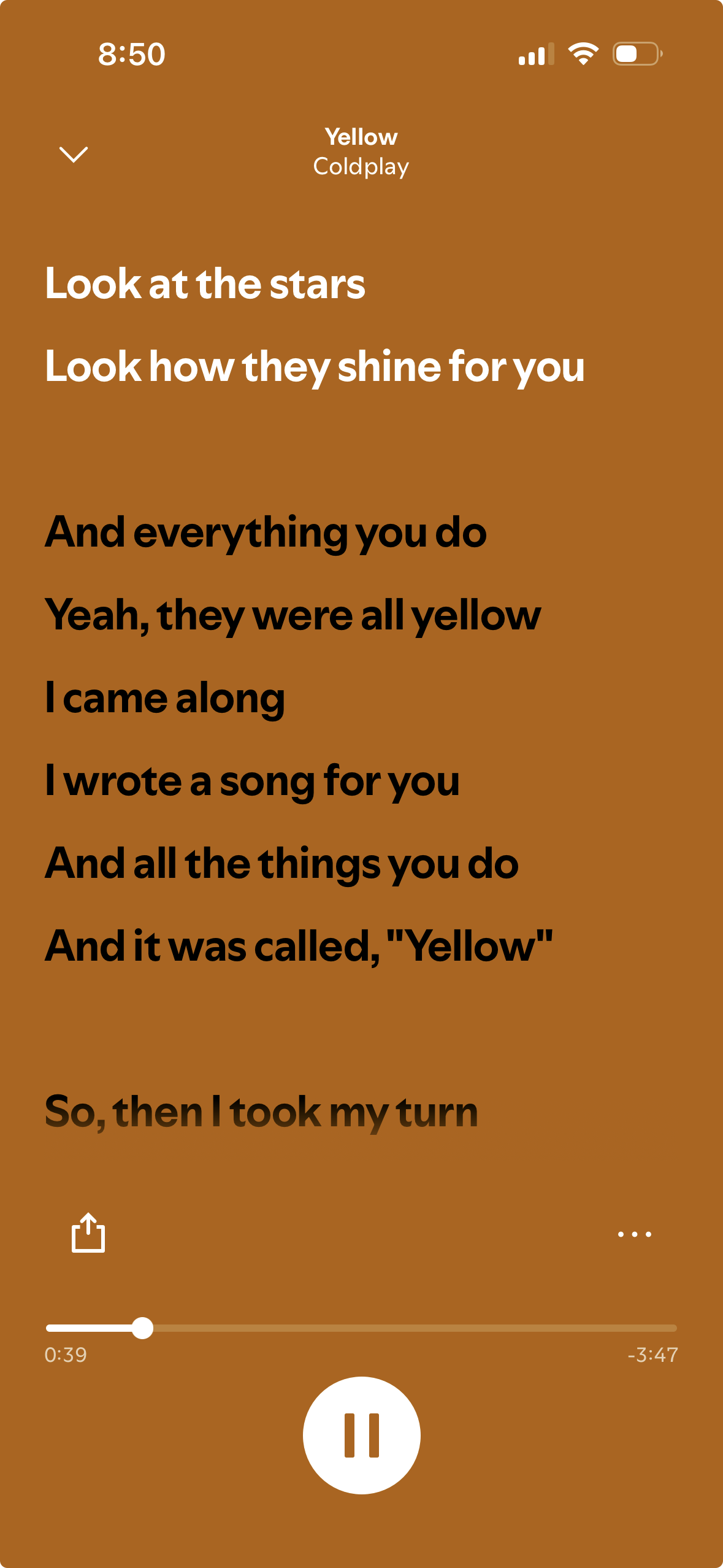
For this project, I wanted to experiment with text functions while learning and applying different codes to create a scrolling lyrics display similar to Spotify, Apple Music, and YouTube. When I first looked at the assignment, I immediately wanted to recreate the full music interface that includes the album cover and the timeline of the song at the bottom. But instead, I decided to focus only on the scrolling lyrics to make it more creative and manageable.

I chose the song Yellow by Coldplay because it reminds me of my last bus ride after a field trip in senior year. It was our last day of school after finishing our final exams, and on the way back from IMG everyone in my class was saying goodbye to each other at the final stoplight before we all went home. That moment felt nostalgic and emotional which is why I wanted to incorporate that feeling into my work.

Inspo from Spotify: 
Embedded sketch: (try pressing on the screen)

How it was made:

I usually start by building the background and adding simple codes that I know like the colored box and the title text at the top, the background, the size of the canvas, etc. After that, I started off by creating an array to store the lyrics so I could easily reference each line later in the code.

Then I created the scroll variable so the lyrics would begin at the bottom of the screen. Using translate() along with push() and pop(), I was able to make the lyrics scroll upward. While working on this part, I kept experimenting because sometimes the text wouldn’t move the way I wanted it to move. I also had to adjust the speed because it was first set to 0.3 but since I included the full lyrics of the song, I felt that 0.3 was too slow. I decided to change it to 0.6 which made the movement feel more reasonable.

I used this loop:

for (let i = 0; i < lyrics.length; i++) { //going through the lyrics line by line 
  let yPos = i * 40; //each line is 40 pixels below the previous one -using the name yPos for the positioning of lines vertically (y-axis)

This allowed the lyrics to display line by line with 40 pixels of spacing between each one. That spacing helped create a smoother scroll and prevented the lines from looking crowded.

For interactivity, I added the mouseIsPressed function with the if/else functions so that when the mouse is pressed, the scroll speed increases to 30. When it’s not pressed, it goes back to the normal pace of 0.6. I liked adding this because it made the project more engaging instead of just automatically scrolling.

Resources:

Push and pop functions: (all the resources helped me understand how push and pop work through examples and descriptions I was able to make my own transformation)
https://www.youtube.com/watch?v=KSo_VEbsWks 

https://www.youtube.com/watch?v=o9sgjuh-CBM

https://p5js.org/reference/p5/push/

Translate:

https://p5js.org/reference/p5/translate/ (in order for my lyrics to scroll and keep moving up from their starting point I had to use the translate function)

Text:

https://p5js.org/tutorials/loading-and-selecting-fonts/ (learning how to use text fonts and functions)

https://p5js.org/reference/ (Typography section to understand the types of text functions)

I also kept going back to Professor Aya’s slides, Week 4.1 and Week 4.2

I also used Musixmatch to get the lyrics of the song Yellow by Coldplay

Hardest Part of the Code (and the Part I’m Most Proud Of):

 //First layer of the lyrics 
push(); //starting a "transformation state" - using 'push' to save the current canvas settings
translate(10, height - scroll); //starting to move the original position 0,0 to 10 pixels from the left and being close to the bottom of the canvas 

for (let i = 0; i < lyrics.length; i++) { //going through the lyrics line by line 
  let yPos = i * 40; //each line is 40 pixels below the previous one -using the name yPos for the positioning of lines vertically (y-axis)
  
  //black txt if below the middle and white if above
  let currentY = (height - scroll) + yPos;//used to figure out the positions of the line
  if (currentY < height / 2) { //checking if the lyric is above the middle half, if it is it will change color
    fill(255); //the color of the text -white
  } else { //if it is below the screen it will..
    fill(0);
  }
  
  textSize(18); //text size of the lyrics 
  textStyle(BOLD); //adding bold text
  text(lyrics[i], 0, yPos, 280); //in order for the long lyrics to not go off the screen -lyrics is drawn inside this 280 sized pixel 
}
pop(); //concluding the end of the transformation so the other header doesnt move too

The hardest part was understanding how push(), pop(), and translate() all worked without affecting the rest of my design. The push() allowed me to save the current canvas settings before transforming it. Then with [translate(10, height – scroll);] I was able to shift the origin point so the lyrics would start near the bottom and move upward as the scroll value increased.

Inside the loop, [let yPos = i * 40;] this function made each lyric line 40 pixels below the previous one which keeps everything equal and smooth.

Then I used [let currentY = (height – scroll) + yPos;] to calculate the piston of each line on the canvas so that I can check where the lyric is positioned which will determine if it would change from black text to white (similar to Spotify). If the lyric was above the middle of the screen, it changed to white and if not it remained black until it reaches that point.

Similar to the issues I faced before, I had a hard time keeping the text inside the canvas because it would always go out. I decided to use [text(lyrics[i], 0, yPos, 280);] that draws each lyric at the x-position 0 and y-position yPos while being inside a 280-pixel text box so long lines wouldn’t overflow off the screen.

I’m proud of this section because even though it took time to understand, I was able to control the translation without changing the rest of my code. At one point I accidentally deleted the entire section, which was frustrating because it took me a while to feel confident in it, but since I practiced it before, I was able to rewrite it again.

Issues I faced:

At first, the lyrics started in the middle of the canvas and would bleed outside the frame which was a struggle because I couldn’t figure out how to fix it for a second. I remembered Professor Mang explaining how small positioning errors can happen when centering the text exactly in the middle because it will start exactly there instead of being all on the center. I also carefully adjusted the placement using translate() and the text box width: [text(lyrics[i], 0, yPos, 280);] that helped keep everything within the screen and made the scrolling smoother.

Final code: 

let lyrics = [//using the name lyrics for the array/list
  //adding all the lyrics of the song from Yellow -Coldplay
  "Look at the stars",
  "Look how they shine for you",
  "And everything you do",
  "Yeah, they were all yellow",
  "I came along",
  "I wrote a song for you",
  "And all the things you do",
  "And it was called, \"Yellow\"",
  "So, then I took my turn",
  "Oh, what a thing to have done",
  "And it was all yellow",
  "Your skin, oh yeah, your skin, and bones",
  "Turn into something beautiful",
  "And you know, you know I love you so",
  "You know I love you so",
  "I swam across",
  "I jumped across for you",
  "Oh, what a thing to do",
  "'Cause you were all yellow",
  "I drew a line",
  "I drew a line for you",
  "Oh, what a thing to do",
  "And it was all yellow",
  "And your skin, oh yeah, your skin, and bones",
  "Turn into something beautiful",
  "And you know, for you, I'd bleed myself dry",
  "For you I'd bleed myself dry",
  "It's true",
  "Look how they shine for you",
  "Look how they shine for you",
  "Look how they shine for-",
  "Look how they shine for you",
  "Look how they shine for you",
  "Look how they shine",
  "Look at the stars",
  "Look how they shine for you",
  "And all the things that you do"
];

let scroll = 0; //letting the lyrics start scrolling vertically

function setup() {
  createCanvas(300, 500); //canvas size
  textAlign(LEFT, TOP);  //postion of the text
  textFont('Helvetica'); //text font 
}

function draw() {
  background(158, 91, 28); //background color 'burnt orange'

   //First layer of the lyrics 
  push(); //starting a "transformation state" - using 'push' to save the current canvas settings
  translate(10, height - scroll); //starting to move the original position 0,0 to 10 pixels from the left and being close to the bottom of the canvas 
  
  for (let i = 0; i < lyrics.length; i++) { //going through the lyrics line by line 
    let yPos = i * 40; //each line is 40 pixels below the previous one -using the name yPos for the positioning of lines vertically (y-axis)
    
    //black txt if below the middle and white if above
    let currentY = (height - scroll) + yPos;//used to figure out the positions of the line
    if (currentY < height / 2) { //checking if the lyric is above the middle half, if it is it will change color
      fill(255); //the color of the text -white
    } else { //if it is below the screen it will..
      fill(0);
    }
    
    textSize(18); //text size of the lyrics 
    textStyle(BOLD); //adding bold text
    text(lyrics[i], 0, yPos, 280); //in order for the long lyrics to not go off the screen -lyrics is drawn inside this 280 sized pixel 
  }
  pop(); //concluding the end of the transformation so the other header doesnt move too
  
  //The scrolling movement 
  scroll += 0.6; //Speed of the scroll to make it a little faster since its the full song being used

  //Restarting the lyrics loop
  //checking if the scroll distance is greater > than the total height of the list
   if (scroll > (lyrics.length * 40) + height) { //calculation of height from the number of lines multiplied by 40 pixels each
   scroll = 0; //restarting the loop so the lyrics can come back from the bottom
  }

  //The title on the top
  noStroke(); //removing the outline of the rect
  fill(158, 91, 28); //color of background 
  rect(0, 0, width, 100); //adding a rect so that the lyrics can go under it -similar to spotify

  fill(255); //color of the text 'yellow'
  textAlign(CENTER); //adding it to the center of the frame
  textStyle(NORMAL);
  textSize(14); //size of text
  text("Yellow", width / 2, 45); //name of text + size
  
  textSize(12); //size of the second text of the band
  fill(255, 200); //color of the text -making it a little less white
  text("Coldplay", width / 2, 65); //name of text + size

  //Interactivity
  //when the mouse doesn't click, the lyrics move normally 
  //if mouse is clicked and stays on the canvas the lyrics will speed up
  if (mouseIsPressed) { //mouse pressed function
    scroll += 30; //move fast 
  } else {
    scroll += 0.6; //move at the normal speed
  }

}

Future improvements:

Even though this is my first time coding and creating generative text, I’m proud of how it turned out especially because of the scrolling effect and how similar it feels to Spotify’s lyrics feature. In the future, I’d like to add the time duration of the song at the bottom, along with play and pause buttons to make it feel more realistic. I also want to add small music note icons and experiment with the spacing between specific lines to match the original lyrics.