Week 2 Art Assignment – Dina

My Concept:

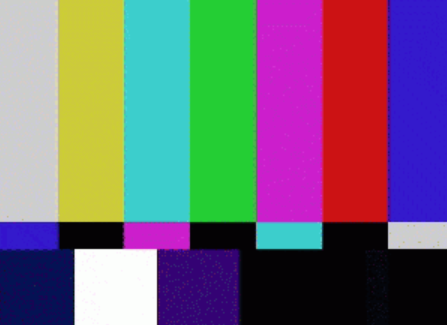
When I first started thinking about this project, I wanted to build something mosaic-like or pixelated, but the coloring of each of the rows was too complicated and required certain tools on p5 that I was not particularly comfortable with using yet, especially since I’m a beginner. So I started thinking and reflecting on the computer art examples provided to us and decided to create an interactive static TV error page that looks like this:

I chose this because it was something I could create using for loops and grids, and it also resembled modern abstract art. I also added some interactive elements or game-like structures to the sketch, like a button that introduces the sketch.

This is the final result:

The Process:

I initially built the first layer of rectangles of the error page using a nested for loop. Something confusing happened: the rectangles I initially set extended beyond the limits I set, which I realized was because I set the condition to be <= rather than just <. Once I understood this, the separation of the blocks became much easier.

My initial plans for the coloring were for the colors just to be static, similar to the error pages, but after doing my research and watching tutorials, I realized I would have had to create arrays and many more variables, which were beyond my existing knowledge and information.

That was when my entire sketch got deleted, and I could not recover it.

I had to restart my sketch from scratch, which was frustrating, but since I had already created it before, I remembered exactly what I did, so all went well. This also allowed me to make some changes, which ultimately made my result and process much more efficient. Since error pages come in very particular dimensions, I altered the width of the page from 400 to 490 so the division and building process of the error page’s blocks could be easier

I still had to figure out how to integrate coloring into the page, which is when I decided to use Microsoft CoPilot when it reminded me that I could use the random() function we learned in class.

I integrated the random function to generate random colors across the rgb hex, which worked! I was surprised because I did not know I could use the random function for colors.

That was when I decided to create an interactive element to the mosaic/error page. I decided to make it so that if you press the page, an “error” appears or the “mosaic.” I realized afterwards that no one seeing the piece would think of randomly clicking the page, which would make all my work go to waste. This is why I opted to create a “do not touch” button, which would make people curious to touch it. I used the p5 reference page to figure out how to add text to the page.

What Didn’t Work:

I tried to make the button bounce across the frame if the mouse was pressed outside the button’s boundaries, but that just messed up the main function of the button. So if I clicked on the button after it moved around, it would not lead me to the error page. I think I would have needed to create more variables for it to work.

Snippet of Code I’m Proud of:

I don’t necessarily have a favorite section in my code that I’m particularly fond of. But that is because every nested for loop integrates an if function within it, which is what I am most proud of in my code, since I managed to figure it out with a few trials.

//creating the first layer of the error page
for(let x=0; x<=width; x+=70){
for(let y=0; y<270; y+=270){ 
  if(mouseIsPressed&&mouseX>=205&&mouseX<=285&&mouseY>=155&&mouseY<=245){
    fill(random(255), random(255), random(255)); //to generate the color effect of error page
    noStroke();
     rect(x, y, 70, 270);
  } 
}
}


Reflection/Future:

I am pretty satisfied with the outcome; my favorite part of it would probably be how the colors of the error page keep alternating and are never static (pretty ironic considering my initial plan was for the colors to be static). I do wish, however, that I could have created a more complex mosaic or motion across the sketch, but considering how the sketch turned out I’m quite happy. In future work I would like to create more complex grids with many more conditions and integrating other interative elements to it. Especially arrays. I would really like to learn more about how to use arrays since all of the tutorials I tried to watch included them.


Week 2 Assignments

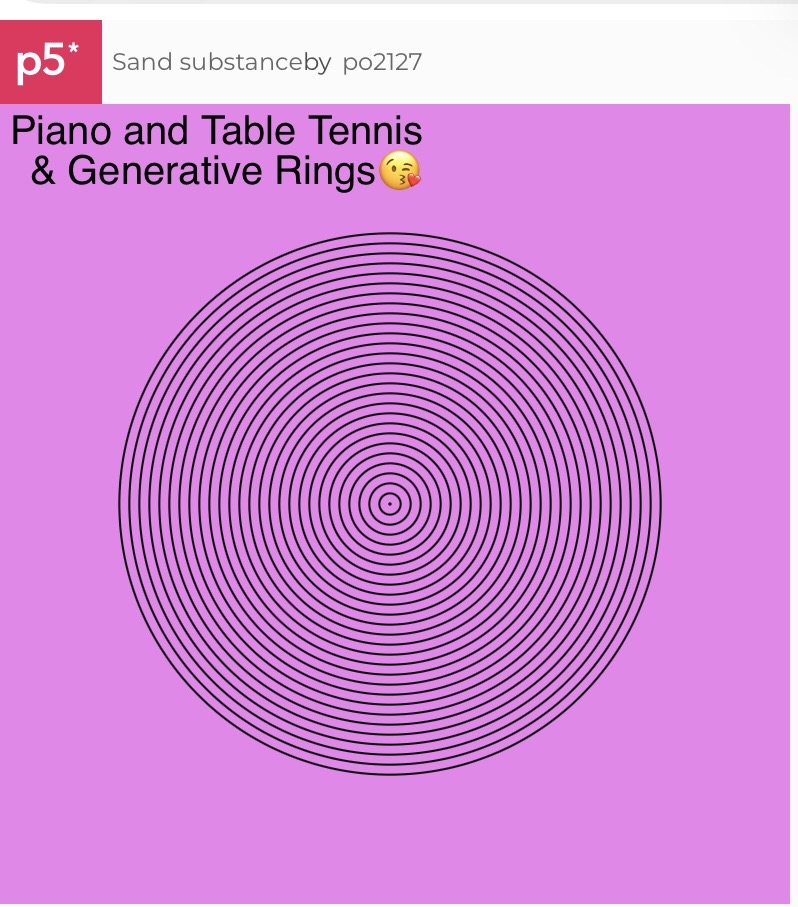
My concept of creating loops within this ring was to use the for and let commands to signal whether if the value satisfies this statement go for this number, or if the number doesńt satisfy the first condition set it might satisfy another condition. For the animation part I was thinking of first off setting G as a variable equal to the radius of circle + sin which is to move and go around in and out.


In terms of the code I am particularly proud of the lines for (let r = 10; r <= 280; r +=10) as I felt like I gave my code a specific radius to the width of the generative rings. Also, I like the code text(“&Generative Rings”) just because it was a little gimmick and emoji that I wanna create as an aesthetic to my project. Also I am proud of the code: let g = r+sin(frameCount * 0.05) * 10; because when having sin within the formula this allows the output to blink in and out like a wave and the frame count I set it to be *10 blinking in order to blink in and out faster but not too fast.

for (let r = 10; r <= 280; r += 10) {
let g = r+sin(frameCount * 0.05) * 10;
ellipse(200, 200, g, g);

Screenshot

<iframe src=”https://editor.p5js.org/po2127/full/cqCZ4-6WU”></iframe>

https://editor.p5js.org/po2127/full/cqCZ4-6WU

Cites reference:

https://p5js.org/reference/p5/sin/

https://p5js.org/reference/p5/for/

In terms of reflection on this work I was proud that as I once did a little bit of loops before when I was in high school for only 1 class and made me recall how the accumulated knowledge from that time really helped me get a better grasp at loops now for this project and I am able to apply this concept in more creative ways like this, and I also appreciated how to make animations using coding for the very first time, ideas for improvement would be to experiment with different types of loops not just for but incorporating others such as if else statements and that we have other formulas to make animations using coding.

Week 1: Self-Portrait (catch up)

My concept:
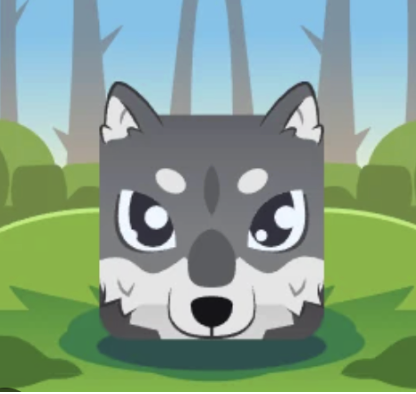
For the first assignment of this course, I began by thinking about how I would like to create my self-portrait. I was inspired by looking at different examples from other students and animations of different things. As I reflected on who I am and what I like, I immediately thought of the Blooket character I always chose, and I decided that it would be a perfect way to represent myself. I attempted to create a wolf animation inspired by the Blooket version using 2D shapes and colors, and I wanted to add a creative touch by including sunglasses, as I felt they fit the image and personality I’m trying to display. Below is the reference image for the Blooket animation:

Embedded Sketch:

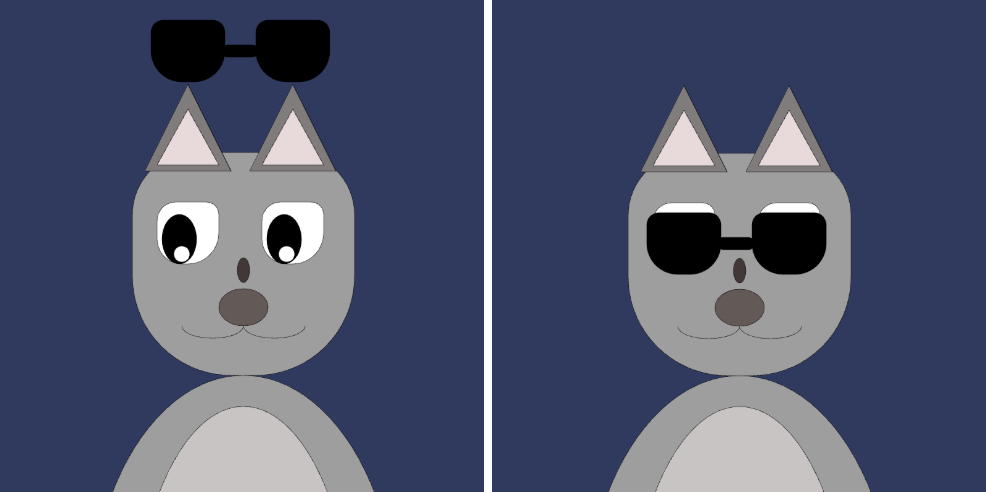
My vision was for the wolf to have sunglasses that go on and off. As a beginner in coding, I was able to create this effect by programming the glasses to move up and back down using the simple (mouseY) on the wolf’s face. This represents how I wanted the animation to be shown:


A Code I’m proud of:
A part of the code I am particularly proud of in this assignment is the eyes, along with the glasses. While creating the eyes, it took me a long time to adjust the edges and curves of the eye, then find the perfect size for the pupil, followed by adjusting the placement of the small white circles that makes the eye look more realistic. I tried with many different shapes to find what fit best, including circles, ellipses, and rectangles, in a variety of sizes.

//Eyes - In three parts:
//The wider white part of the eyes
fill("white");
rect(155, 190, 50, 50, 15, 10, 40, 20);
rect(240, 190, 50, 50, 15, 10, 40, 20);

//The pupils as black ovals 
fill(0);
ellipse(233, 195, 28, 40);
ellipse(148, 195, 28, 40);

//The small white circles to add a better look
fill("white");
circle(150, 207, 13);
circle(235, 207, 13);
//Glasses with movement
  fill(0);
  rect(155, mouseY, 60, 50, 10, 10, 50, 50);
  rect(240, mouseY, 60, 50, 10, 10, 50, 50);
  rect(197, mouseY, 30, 10, 5, 5, 5, 5);


Reflection and ideas for future work or improvements:
Overall, I am satisfied with the outcome of this assignment, especially since it was my first coding project and I completed it independently. I was able to use different references from the official p5.js website, along with the slides provided in class, to apply what I learned and create this self-portrait. For future work, I would like to improve the complexity of shapes and add more detail to the image. Additionally, I hope to further develop my coding skills so I can program the sunglasses to move more realistically, sliding up onto the wolf’s head and back down over the eyes, similar to how sunglasses work in real life.

References:
In this sketch, I used the class weekly slides covered provided by the professor, along with the p5 website, specifically the “Reference” page to explore different things I can add and control.
https://p5js.org/reference/ 

Reading Reflection – Week2

I hope to incorporate randomness as a touch of freedom to the well ordered code if I am intending to make a work of art, but use it as a functional tool if the work is to be of practical use. I wouldn’t want to use too much randomness, and I don’t want to make randomness the center of focus. The video mentioned randomness and chance and demonstrated it as a novel and  individual element in art, which deviates from my understanding of what art is. The speaker seems to be defining randomness using its most limited definition: true randomness generated without bias, unlike what the human brain would give, and claimed that artistis used to be responsible for order.  I personaly would like to believe that randomness is not so strictly defined, and that artists, especially the abstractionist, are probably the most random people among the population apart from psychopaths. They are the human end of randomess, and what they exhibit is a randomness enriched with meaning, emotion and expression.

This is why the way the speaker uses randomness as an artist is not something I would agree with. I believe art should be something more than the shapes and forms of the surface. The beauty ought to lie in the emotions and expression depicted through the work. There is a soul behind the cavas, whether physical or electronic. The extend to which the speaker pursures randomness is excessive. It is more a research of randomness rather than art. The lines and shapes created contain no meaning, and is a mere experiment that is goodlooking. There is no soul behind this. I don’t see this differently as a graph that may be formed from the data of a failed scientific experiment. The scale of randomness in art I would prefer is when the artist tries to express something through the randomness. For example: A work of random lines and connections that resulted from controlled code and processing afterwards that is aimed at expressing the pressure of modernlife and slight moments of relaxation people find within (I have this in my mind as a graph of crowded random lines where the gaps are bigger in some places). This would be my ideal of the scale of randomness: controlled and not covering over the emotions or the “soul”.

Week 2 – Reflection

When I watched Casey Reas’ Eyeo talk on Chance operations, I started thinking differently about how i use control in my art. Reas explains that the computer is not just a tool that follows orders, but a creative system that can use chance in a planned way. One part that really stood out to me was when he talked about artists like Sol LeWitt, where the instructions are the artwork and the final image is just one version of many possibilities. That made me realize that art does not always need to be fully planned to be meaningful. I noticed that in my own work I usually avoid randomness, especially when I paint portraits. I like to control the faces, expressions, and details, and I feel like adding random elements could ruin the image I worked hard on. I like knowing what the final result will look like and follow the structured plan of how it’s suppose to turn out. But Reas helped me see that even when a system creates something unexpected, it still comes from the artist’s ideas and decisions. Making me realize even when mistakes are made, sometimes it still helps us see that it can turn the thing we are creating better (whether it’s planned or not).

Before watching the talk, I thought randomness mostly made things messy and out of control. Now I understand that randomness can be planned and guided by rules. Reas explains how simple systems can create complex behaviors, and that really changed how I think about art. If I use chance in my own projects, I want to start with movement. Movement creates emotion and makes the artwork feel alive, and letting it behave in a slightly unpredictable way can make it more interesting. I also think randomness can make my projects more unique instead of looking repetitive. At the same time, I believe there needs to be a balance between chaos and structure. If a project is formal or important, too much randomness can feel a bit overwhelming, confusing or disrespectful. For me, the best balance is when I control the main rules but let chance decide small details, like position or scale. After watching Reas’ talk, I see chance not as something that ruins my work, but as something that helps me explore new ideas and think differently when working with projects, art, assignments, writing and etc.

Week 2 – Loop Art

My Concept

For this assignment, I wanted to create something simple, structured, and fully based on the techniques from the Week 2 slides. I decided to build a grid of squares using nested loops, just like the examples shown in class. But instead of keeping the grid static, I wanted it to feel a little more interactive.

My idea was to make the colors shift whenever the mouse is pressed, using the built‑in boolean variable mouseIsPressed from the slides. The end result of my project is a grid of evenly spaced squares that change color in a smooth loop every time you click.

Snippet of the code I’m proud of:

if (mouseIsPressed) {
  colorShift += 2;
}

if (colorShift > 255) {
  colorShift = 0;
}

I’m proud of this part because it uses boolean logic and variable incrementation.

  • When the mouse is pressed the variable colorShift increases.
  • This creates a looping color effect and it shows how conditionals and variables can work together to create interaction.

Embedded sketch:

How I made this: 

I started by creating a canvas using createCanvas(600, 400), just like in the examples from class. Then I used nested for loops to place squares across the screen.

To make the squares spaced further apart, I increased the loop step to x += 70 and y += 70. This gives the grid a clean, airy look.

Next, I added a variable called colorShift that starts at 0. Using the boolean variable mouseIsPressed (from the slides), I made the number increase whenever the mouse is clicked. This number is then added into the fill() colors so the squares change color interactively.

I also used simple conditionals (if, else if, else) to change the color depending on how far down the screen the square is.

Finally, I drew each square using rect(x, y, 50, 50) inside the nested loops. Because the loops repeat across the whole canvas, the pattern fills the screen automatically.

Reflection and future ideas

Overall, I’m really happy with how this piece turned out, because it uses simple tools like loops, conditionals, boolean variables, and a bit of animation, yet it still manages to feel interactive. Even though the sketch is built from very basic building blocks, the way everything works together makes the grid feel responsive and alive.

Using mouseIsPressed was especially fun, because it showed me how a single boolean variable can instantly make a sketch interactive. Just clicking the mouse changes the colors across the whole grid, and that small action makes the code fun.

If I had more time or knew more about p5.js, I would like to try more effects. For example, I could make the shapes respond to sound, or create more interactive features like clicking to make new shapes appear. I would also like to experiment with colors to make smoother gradients and more interesting palettes. In the future, I want to keep exploring user interaction and generative art using what I have learned so far and what I will learn next.

References

  • Week 2 Slides, (Conditionals, Loops, Boolean Variables) Used for understanding nested loops, mouseIsPressed, relational operators, and conditional logic.
  • p5.js Reference https://p5js.org/reference/ Used to check syntax for rect(), fill(), and basic drawing functions.