Week 13 – User Testing

For this week’s user test, I asked a couple of acquaintances to interact with the Memory Dial without explaining anything upfront. I wanted to see how much the system communicates on its own and whether the visuals give any sense of “cause and effect” without my narration.

The first reaction was always the same: “It looks pretty, but what does it do?”
That told me something immediately – people understood they were looking at a reactive visual piece, but they couldn’t tell what influenced what. They waved their hands, stepped closer, dimmed the room lights with their phone flash, spoke near the laptop mic, and slowly started noticing patterns:

Once they figured out these relationships, the piece became much more interesting to them. The visuals were described as “alive,” “breathing,” and “calming.” But almost every tester needed a little hint about the sensors before they fully understood the interaction.

Because of this, I later added a few lines on the landing page briefly explaining what the room is controlling:

After that addition, testers understood the interaction far faster.

One more observation: the timed poetry reveal was a pleasant surprise for everyone, but since the demo interval was short, the poem sometimes popped up before they had fully understood the visuals. They liked it, but it felt “mysterious without warning.”

Link to video

What worked well

The aura system made sense once users noticed the patterns.
People liked how the three layers moved differently. The breathing halo reacting to sound was the most immediately understood and got the most comments. Testers also said the overall motion felt calm instead of distracting.

The poem reveal was everyone’s favorite moment.
Even though it startled a few people, the transition and fade-in were described as “soft” and “cinematic.” Users said it made the piece feel thoughtful and “less like a tech demo and more like an experience.”

The visuals feel cohesive.
No one felt overwhelmed by the amount of motion, which was a relief because this system has a lot going on.

Room for Improvement

People needed guidance early on.
Without context, the sensors were basically invisible. Users tried to understand the visuals by guessing instead of experimenting. A tiny amount of text solved the issue, which shows the landing page actually matters.

Poem timing needs a cue.
Since users didn’t know a poem would appear, the transition felt abrupt during testing. A small hint like “The room is writing…” or a subtle dimming before the text appears might help lead the eye.

Distance-based motion was harder to notice.
Unlike sound or light, distance required more exaggerated motion. Some testers were just sitting down and moving their hands in front of the ultrasonic sensor. I guess that’s what matters more in the end since the difference might not be entirely comprehensible from a distance.

Final Thoughts

The Memory Dial works without instructions, but only after a short moment of confusion. Once people learn what the sensors represent, the piece becomes engaging and even meditative. It encourages slow interaction rather than quick action, and that resonated with users.

This test showed me that the concept is strong, but the system benefits from gentle onboarding, even something as simple as a few lines on the landing screen. With those adjustments, the Memory Dial becomes easier to understand and more enjoyable for first-time viewers.

Week 14: Final Project Documentation

Make a Wish ✨

Concept

My final project is a Disney’s Tangled themed reaction-time game. A major focus in Tangled is the floating lanterns that appear every year on Rapunzel’s birthday. These same lanterns are also popularly known as “wish” lanterns and I wanted to mix these two ideas to create my game. The overall flow of the game is that the user catches enough lanterns to earn a wish, and can then type and send out their wish into the universe with the other lanterns.

Video Documentation

Interaction Design

Once the user starts the game, the lanterns in front of them start to light up and turn off rapidly, and lively music, specifically the Kingdom Dance music from the film, plays in the background. The user needs to press a lit up lantern’s corresponding button to “catch” it. Every time they catch a lantern, their score (displayed on the p5js screen) goes up. Once they’ve reached a score of 20, the lanterns turn off and I See the Light begins to play in the background. They can input their wish on the screen and press ‘Enter’ to send it up with the floating wish lanterns. The physical lanterns blink pleasantly as the user’s wish floats upwards. Once out of sight, the light and music stops and the experience finishes. The user then gets the option to restart if they wish.

Arduino

Code:

// 4 lanterns (1 pin per lantern, 4 LEDs in parallel) + 4 buttons

// LED pins - one pin controls all 4 LEDs per lantern
const int lantern1 = 2;
const int lantern2 = 5;
const int lantern3 = 8;
const int lantern4 = 11;

// Button pins (using internal pullup resistors)
const int button1 = A0;
const int button2 = A2;
const int button3 = A3;
const int button4 = A4;

// track lit up lanterns
bool lanternActive[4] = {false, false, false, false};

// Button state tracking for debouncing
bool lastButtonState[4] = {HIGH, HIGH, HIGH, HIGH};   // last stable reading
unsigned long lastDebounceTime[4] = {0, 0, 0, 0};
const unsigned long debounceDelay = 50;   // 50ms debounce duration

void setup() {
  Serial.begin(9600);
  
  // Initialize LED pins
  pinMode(lantern1, OUTPUT);
  pinMode(lantern2, OUTPUT);
  pinMode(lantern3, OUTPUT);
  pinMode(lantern4, OUTPUT);
  
  // Initialize button pins with internal pullup
  pinMode(button1, INPUT_PULLUP);
  pinMode(button2, INPUT_PULLUP);
  pinMode(button3, INPUT_PULLUP);
  pinMode(button4, INPUT_PULLUP);
  
  // Turn off all LEDs initially
  turnOffAllLanterns();
  
  // Wait for serial to stabilize
  delay(1000);
  
  // debugging
  Serial.println("READY");
  Serial.println("Button test: Press each button");
  Serial.flush();
}

void loop() {
  // Check for commands from p5.js
  if(Serial.available() > 0) {
    String command = Serial.readStringUntil('\n');
    command.trim();
    
    if(command.startsWith("ON:")) {
      int lanternNum = command.substring(3).toInt();
      turnOnLantern(lanternNum);
    }
    else if(command.startsWith("OFF:")) {
      int lanternNum = command.substring(4).toInt();
      turnOffLantern(lanternNum);
    }
    else if(command == "ALLON") {
      turnOnAllLanterns();
    }
    else if(command == "ALLOFF") {
      turnOffAllLanterns();
    }
  }
  
  // Check buttons with debouncing
  checkButton(0, button1);
  checkButton(1, button2);
  checkButton(2, button3);
  checkButton(3, button4);
}

// Button check function
void checkButton(int buttonIndex, int buttonPin) {
  bool reading = digitalRead(buttonPin);
  
  // check if reading is bouncing, reset debounce timer
  if(reading != lastButtonState[buttonIndex]) {
    lastDebounceTime[buttonIndex] = millis();
    
    // If state is now LOW (pressed), send immediately
    if(reading == LOW) {
      Serial.print("BTN:");
      Serial.println(buttonIndex + 1);
      Serial.flush(); // data is sent immediately
    }
  }
  
  lastButtonState[buttonIndex] = reading;
}

// LED Control Functions

void turnOnLantern(int lanternNum) {
  lanternActive[lanternNum - 1] = true;
  
  switch(lanternNum) {
    case 1:
      digitalWrite(lantern1, HIGH);
      break;
    case 2:
      digitalWrite(lantern2, HIGH);
      break;
    case 3:
      digitalWrite(lantern3, HIGH);
      break;
    case 4:
      digitalWrite(lantern4, HIGH);
      break;
  }
}

void turnOffLantern(int lanternNum) {
  lanternActive[lanternNum - 1] = false;
  
  switch(lanternNum) {
    case 1:
      digitalWrite(lantern1, LOW);
      break;
    case 2:
      digitalWrite(lantern2, LOW);
      break;
    case 3:
      digitalWrite(lantern3, LOW);
      break;
    case 4:
      digitalWrite(lantern4, LOW);
      break;
  }
}

void turnOnAllLanterns() {
  for(int i = 0; i < 4; i++) {
    lanternActive[i] = true;
  }
  
  digitalWrite(lantern1, HIGH);
  digitalWrite(lantern2, HIGH);
  digitalWrite(lantern3, HIGH);
  digitalWrite(lantern4, HIGH);
}

void turnOffAllLanterns() {
  for(int i = 0; i < 4; i++) {
    lanternActive[i] = false;
  }
  
  digitalWrite(lantern1, LOW);
  digitalWrite(lantern2, LOW);
  digitalWrite(lantern3, LOW);
  digitalWrite(lantern4, LOW);
}

Description:

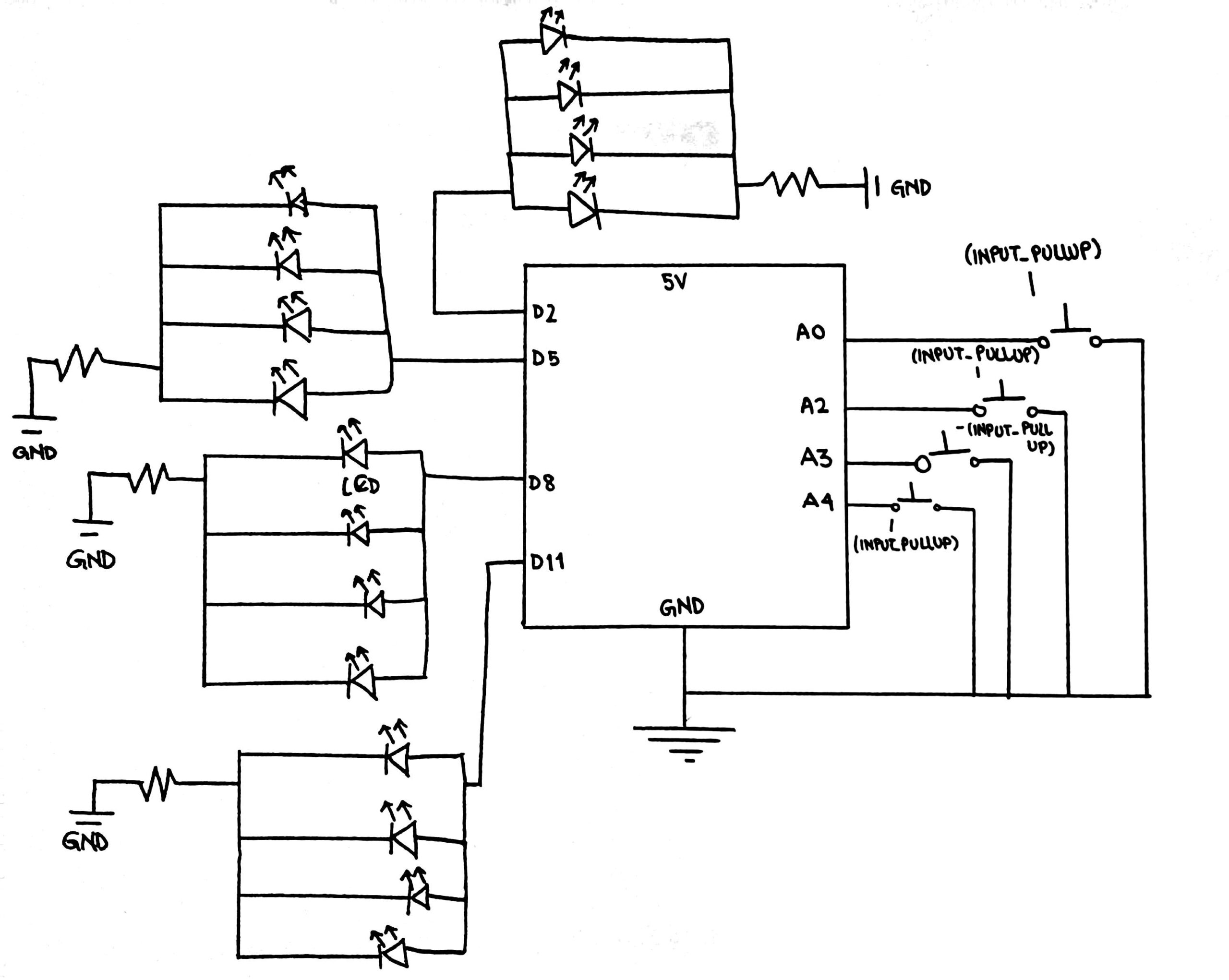
This Arduino sketch controls four LED-based lanterns and four physical push buttons while communicating with the p5.js application through the Serial connection. Each lantern consists of four LEDs connected in parallel and is controlled by a single digital output pin (2, 5, 8, and 11), while the buttons are connected to analog pins (A0, A2, A4, and A3) and use internal pull-up resistors, meaning they read HIGH by default and LOW when pressed.

The program tracks the active state of each lantern using an array and also monitors button activity with additional arrays that store the last button state and the last debounce time, applying a 50-millisecond debounce delay to prevent false or repeated presses caused by mechanical noise.

Inside the main loop, the Arduino continuously listens for serial commands sent from p5.js, such as instructions to turn individual lanterns on or off using formatted messages like “ON:1” or “OFF:3”, as well as commands that control all lanterns at once using “ALLON” and “ALLOFF”. At the same time, the loop constantly checks each physical button using a dedicated debouncing function that detects state changes, filters out signal noise, and immediately sends a message like “BTN:1” through the Serial port when a valid press occurs so that the visual system can respond instantly.

Schematic

P5.js

(you can enter fullscreen mode by double-clicking on the canvas in p5.js)

Description:

The p5.js sketch controls the full digital side of the interactive experience by handling the visuals, sound, gameplay logic, and communication with the Arduino. It manages multiple game states including the start screen, instructions, active gameplay, and the final wish sequence. The program sends commands to the Arduino to activate and deactivate physical lantern LEDs while simultaneously listening for incoming button press data through the Web Serial API. Animated lanterns are continuously spawned and float upward across the screen, a live score is tracked, and background music changes based on the game state. Once the user successfully collects enough lanterns, a text input appears to capture and animate their written wish before the experience resets.

Arduino + p5.js communication

The communication between the Arduino and p5.js is handled through serial data exchange. The Arduino continuously listens for text-based commands sent from p5.js, such as “ON:1”, “OFF:3”, ALLON, and ALLOFF, which control the physical LED lanterns. At the same time, the Arduino sends messages like “BTN:1” whenever a physical button is pressed. These messages are read and interpreted by p5.js to update the game state, score, and visuals. This two-way communication allows the physical hardware and the digital game to stay perfectly synchronized.

What I’m most proud of

I think what I’m most proud of is the physical components and setup of this game, as the software side of it is not too complex. I got to use a lot of new tools such as 3-D printing for the lanterns and laser cutting for the panel box for the buttons which I may not have used otherwise. Moreover, I got through several issues, such as the not visible yellow light from LEDs (which was the initial plan) by switching to blue, and the mess of wires going into the Arduino (that was an eyesore) by adding the cardboard base under the lanterns to hide the wires under. Just yesterday, I found that one of the buttons in my panel box was no longer working and I had to remove the solder from it to free the wires and replace the system with a new button. I’m also still very proud of the castle that’s part of the visuals in p5.js as I made every single individual shape of that silhouette through trial and error with the shape coordinates.

How this was made

Media sources:
The starting page’s background image came from this website: wallup.net
The font Homemade Apple cam from fonts.google.com
The background music was from the Youtube videos linked previously in the post

The game concept, code, and writeup were done by me, with AI being used for debugging the p5.js code. For example, it helped me debug the connectSerial() and readSerial() functions when they weren’t working as I still was not fully clear on how they connected and functioned, and it’s also how I found out about the windowResized() function.

// Keeps the layout responsive when the browser window is resized
function windowResized() {
  resizeCanvas(windowWidth, windowHeight);
  // Reposition input box
  if (wishInput) {
    wishInput.position(windowWidth/2 - 180, windowHeight - 100);
    // Keeps the wish input centered at the bottom of the screen
  }
  if (restartButton && experienceFinished) {
    restartButton.position(windowWidth / 2 - 110, windowHeight / 2 - 25);
    // Keeps the restart button centered on the screen after resizing
  }
}

My grammar and sentence phrasing in general in this writeup was occasionally polished by Grammarly to help make it more clear and concise.

Future Improvement

I think there are many things I would like to improve in the future:
1) Make a full platform (similar to the one for the buttons) for the lanterns to sit on under which I can hide the Arduino and the full wire.
2) Create a mechanism that allows the player to adjust the game speed, maybe through a potentiometer.
3) Use a brighter source of light such a neo pixels instead of LEDs so that lanterns shine brighter.
4) On the software side the user can still click anywhere on the screen and that creates their own lantern that begins floating upwards, but currently there is no corresponding reaction in the physical setup. It would be interesting to set up such a reaction for every new lantern that is spawned by clicking.

Week 14 – Final Project

Inspired from parking lot detection system, my project is a small re-creation of that as well as a mix of some fun elements to entertain users. The idea is simple: a system that detects if a room is occupied or not as well as a way of showing the number of people in the room. This system can be used in the Bahara rooms. These rooms have no windows and there is no ptracical way of checking if the room is in use without acutally opening the doors. Hence, the secuirty working in our campus has to periodically check if there are any people in the room, as well as possible accidents. Using this system can provide people with these unknown information.
Link to p5js: https://editor.p5js.org/yj2082/full/CUheQmfX3
Link to Arduino: https://github.com/yongjejeon/Detection-Ardunio-p5js

How this was made(Arduino Explanation):
This system uses 2 Infrared distance sensors and 1 neo pixel ring. The 2 distance sensors are placed side by side to check if the person either entered the room or exited the room. If sensor 1 detects first before sensor 2, then it means that the person entered the room and vice versa. There is more logic in double checking if the detection is really true or not. For example, there are cases where user moves too slow or the user stops half way. These shouldnt be counted so I added a logic to at first detect potential IN or potential OUT and confirming if these are actually IN and OUT depending if timeout does not run out. We have a boolean variable called armed. It is set to true if there is no detection. If there is a detection, there are 3 cases: Idle, S1 active and S2 active. If its idle it means that there is potentially a in or an out. It checks and sends to either S1 active or S2 active cases. In either of the cases, it does sometime similar, it checks if the other sensor is met before the time out, if its not then its idle. If it meets, than it means that its confirmed to be either In or out.

/arming logic
      if (s1 || s2) {             //either the sensor sees somethings
        lastNotClearTime = now;
      } else {                //if both are clear meaning enought time since delay has passed
        if (!armed && (now - lastNotClearTime > CLEAR_DELAY)) {
          armed = true;
        }
      }
      //direction
      switch (state) {

        case IDLE:  //only if armed is true, it reacts. 
          if (armed) {
            if (s1 && !s2) { //sensor 1 sees but sensor 2 does not
              state = S1_ACTIVE;    //potential IN
              stateStart = now;
            } else if (s2 && !s1) { //other case
              state = S2_ACTIVE;    //potential OUT
              stateStart = now;
            }
          }
          break;

        case S1_ACTIVE:     //potential IN
          if (s2) {       //if we see s2 before time out,
            // Sequence: S1 then S2 -> IN
            peopleCount++;
            if (peopleCount < 0) peopleCount = 0;
            updateRing();
            lastEvent = 1;   // IN
            armed = false;
            lastNotClearTime = now;
            state = IDLE;
          } else if (!s1 || (now - stateStart > TIMEOUT)) {   //if time out then idle
            state = IDLE;
          }
          break;

        case S2_ACTIVE:
          if (s1) { //same idea for sensor 2
            peopleCount--;
            if (peopleCount < 0) peopleCount = 0;
            updateRing();
            lastEvent = -1;  // OUT
            armed = false;
            lastNotClearTime = now;
            state = IDLE;
          } else if (!s2 || (now - stateStart > TIMEOUT)) {
            state = IDLE;
          }
          break;
      }

The neo pixel ring on the other hand provides one simple information: if the room is occupied or not. If there is no one in the room, meaning the count is 0, then it displays green. If there is atleast one person in the room, then it displays red.

//updating led based on count if room is occupied its red if not its green
void updateRing() {
  ring.clear();
  if (peopleCount > 0) {
    for (int i = 0; i < NUM_LEDS; i++) {
      ring.setPixelColor(i, ring.Color(150, 0, 0));
    }
  } else {
    for (int i = 0; i < NUM_LEDS; i++) {
      ring.setPixelColor(i, ring.Color(0, 150, 0));
    }
  }
  ring.show();
}


Arduino sends 2 information: the number of people and if its IN or OUT.

      Serial.print(peopleCount);
      Serial.print(',');
      Serial.println(lastEvent);

How this was made (P5js)

There is two transactions between p5js and arduino. p5js receives count and if a person enters or not.

if (port.opened()) {
    let data = port.readUntil("\n"); //reading line from ardunio
    if (data.length > 0) {            //if read, split the data by comma
      let parts = split(trim(data), ",");
      if (parts.length === 2) {
        let pc = int(parts[0]);
        if (!isNaN(pc) && pc >= 0) {
          peopleCount = pc;            //receiving count 
        }

        let ev = int(parts[1]);
        if (!isNaN(ev)) {
          lastEvent = ev;              //checking if entered or exited
        }

On the other hand, p5js sends reset command to arduino to reset counter for people when r is pressed. This is the helper function for that.

function resetCount() {
  // Reset on the p5 side
  peopleCount = 0;
  lastPeopleCount = 0;
  statusMessage = "Manual reset to 0.";
  showGifForCount(0);
  console.log("People count manually reset to 0 in p5.");

  //Reset arduino
  if (port.opened()) {
    port.write("RESET\n");
    console.log("Sent RESET command to Arduino.");
  }
}

This is the main logic of p5js. It saves the meme that suits each situation with a dictionary. the key is the number of people and the value is the image address. Im proud of how I included memes in my project to bring humor into my project. Without it my project would have been a detection system, which is cool by itself, but there are nothing to show or present in the showcase other than showing how it can detect yoshi. However, this adds a layer of exitement into my project and a motivation for users to test my project more than once to find out which meme comes out next.

let gifGroups = {
  0: [
    "https://media.tenor.com/hrisiYKNn6UAAAAj/you-may-now-enter-kourtlyn-wiggins.gif",
    "https://media1.tenor.com/m/IZF4HViktvgAAAAd/abbott-elementary-come-on-in.gif",
    "https://media1.tenor.com/m/ZGJod50ebXIAAAAd/you-want-to-come-in-invitation.gif"
  ],
  1: [
    "https://media.tenor.com/eIoZmG3L4fYAAAAi/yoshi-yoshi-tv.gif", 
    "https://media1.tenor.com/m/lANYAosZI4AAAAAd/yoshi-mario.gif" 
  ],
  2: [
    "https://media1.tenor.com/m/8Mt2eEPPSg4AAAAd/happy-birthday-dance.gif"  
  ],
  3: [
    "https://media1.tenor.com/m/cMvelryh5BAAAAAd/car.gif",
    "https://media1.tenor.com/m/ovq2B-ML6I4AAAAd/guys-hugging.gif"
  ],
  4: [
    "https://media1.tenor.com/m/ROTEC3I3vkQAAAAd/despicable-me.gif",
    "https://media1.tenor.com/m/onl3-G1xIGEAAAAd/walk-cross.gif"
  ],
  5: [
    "https://media1.tenor.com/m/K3shTb7Ow-MAAAAd/johnny-depp-movie.gif",
    "https://media1.tenor.com/m/iLYNgJj42gEAAAAd/dwight-the-office.gif",
    "https://media1.tenor.com/m/ywI3ImfzsvYAAAAd/nicolas-cage-who-are-you-people.gif",
    "https://media1.tenor.com/m/ZBuCuZ4Ms-oAAAAd/where-did-all-of-these-people-come-from-patrick.gif"
  ],
  6: [
    "https://media1.tenor.com/m/27Atub3mjoMAAAAd/jordan-stop-it.gif"
  ],
  7: [ 
    "https://media1.tenor.com/m/fTXGp5PtzscAAAAd/yoshi-luigi.gif"
  ],
  8: [ // 8 or more
    "https://media.tenor.com/uaqJICjtx4QAAAAM/that%27s-it-enough.gif"
  ]
};

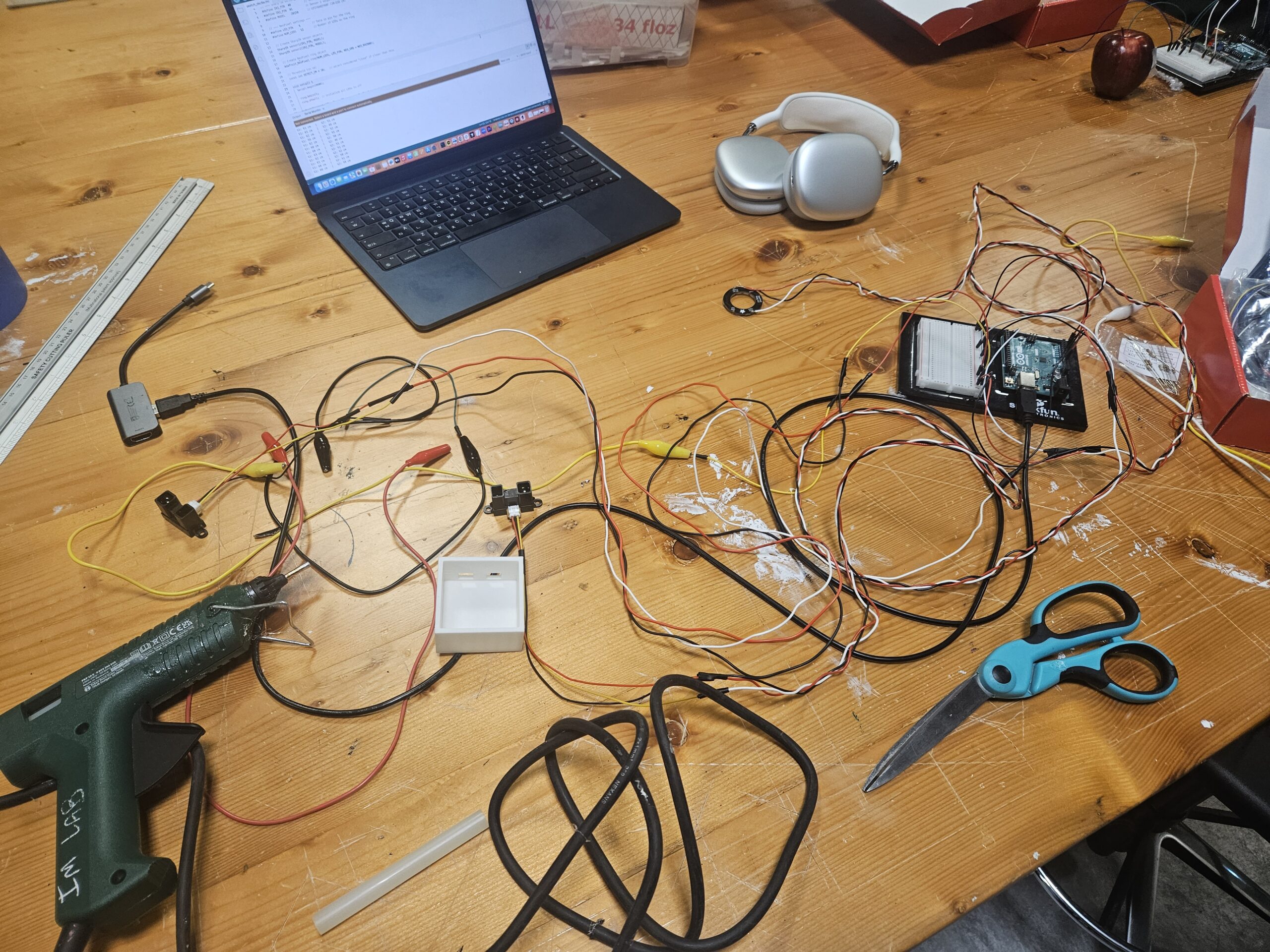
For the final project display, I created a small door way to test this system in action. Using laser cutting printers I cut out a door way large enough for my yoshi doll to walk through. I also used 3D printers to print out 2 things: a case for the Infrared sensors and a case for the arduino board. I made these myself and although it was confusing at first, I was able to quickly adapt to it.

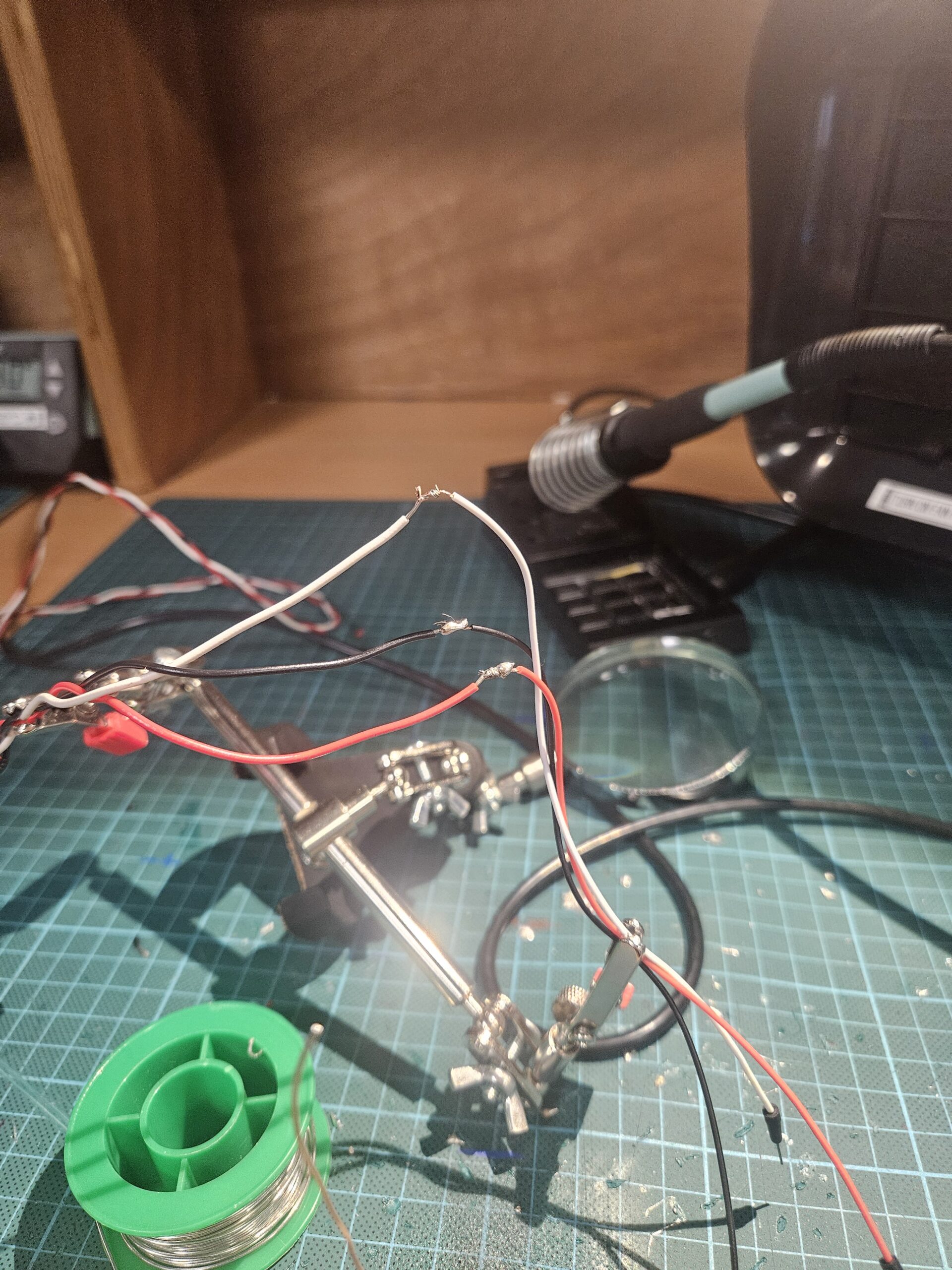
Since these sensors were not from the ardunio kit, I had to solder wires to the sensors as well as for the neo pixels. Thankfully, I was able to get used to soldering towards the end.

Schematic

Usage of AI
I received help from AI when displaying the memes.

function showGifForCount(count) {
  // Remove previous gif element if any
  if (gifElement) {
    gifElement.remove();
    gifElement = null;
  }

  let url = pickGifForPeopleCount(count);
  if (!url) return;

The memes were not made by me. They were all saved from a website called tenor.com.

Future Improvement
One major improvement is the cable management. In the current prototype, the wiring between the sensors, microcontroller, and LED ring is exposed, which makes the setup look unfinished and less polished. A future version could incorporate a more integrated system and internal routing channels to hide the wires and create a cleaner presentation.

Shahram Chaudhry – Final Project Documentation

Concept

For my midterm project, I created a mind palace experience where users could choose to get rid of memories. For my final project, I wanted to continue exploring the theme of memory,  but take it in the opposite direction. This time, users can’t choose whether they lose a memory or not; instead, it depends on their ability to remember.

In Faded, LEDs light up in a sequence, and the user has to repeat the sequence correctly. A blurred image on the screen represents a memory, if the user recalls the pattern correctly, the image becomes clear. If they make a mistake, the memory is lost, and the image fades.

It’s a slightly ironic twist: to hold on to a memory, you need a good memory. The project reflects how we remember or forget.

Pictures/Videos

Final Interaction Video

How does the implementation work?

Interaction Design

  • The experience begins with a landing screen and an instructions page.
  • A “Connect to Arduino” button helps with easy serial connection. .
  • The system is designed to enter fullscreen on mouse click, but also includes a failsafe:
    • If the user presses the spacebar before going fullscreen, it first triggers fullscreen mode.
    • On the next spacebar press, the game starts. (For the showcase, the experience will remain in fullscreen from the start.)
  • On starting the game, a blurred image (memory) is displayed on screen.
  • A random sequence of 4 LEDs flash one by one.
  • The player must repeat the sequence using the corresponding physical buttons.
  • If the sequence is correct:
    • The blurred image becomes clear, representing a remembered memory.
  • If the player makes a mistake:
    • The memory is lost, and a “Game Over” message is shown as the memory fades away.

Arduino Code:

int buttonPins[4] = {2, 3, 4, 5};
int ledPins[4]    = {8, 9, 10, 11};
int lastState[4] = {HIGH, HIGH, HIGH, HIGH};

void setup() {
  Serial.begin(9600);
  for (int i = 0; i < 4; i++) {
    pinMode(buttonPins[i], INPUT_PULLUP);
    pinMode(ledPins[i], OUTPUT);
    digitalWrite(ledPins[i], LOW);
  }
}

void loop() {
  if (Serial.available()) {
    String input = Serial.readStringUntil('\n');
    input.trim();
    if (input == "-1") {
      // Turn off ALL LEDs
      for (int i = 0; i < 4; i++) {
        digitalWrite(ledPins[i], LOW);
      }
    } 
    else {
      int index = input.toInt();
      if (index >= 0 && index < 4) {
        digitalWrite(ledPins[index], HIGH); // Turn on specific LED
      }
    }
  }

  for (int i = 0; i < 4; i++) {
    int reading = digitalRead(buttonPins[i]);
    // Because the buttons use INPUT_PULLUP, the pin reads HIGH when unpressed and LOW when pressed. So when button is pressed, state changes from HIGH to LOW.
    if (lastState[i] == HIGH && reading == LOW) {
      // Send button info to p5.js
      Serial.print("BUTTON:");
      Serial.println(i);
      // light up LED when that button is pressed
      digitalWrite(ledPins[i], HIGH);
      delay(120);
      digitalWrite(ledPins[i], LOW);
    }
    lastState[i] = reading; 
  }
}

Schematic:

p5.js Code and Description

The p5.js sketch is the main part as it is managing visuals, game flow, and Arduino communication. It controls screen transitions using a currentScreen variable, loads and blurs memory images dynamically, and generates a random LED sequence that is shown with proper timing using millis() and flags. The sketch receives button input from Arduino via serial and checks it against the correct sequence to determine success or failure. It also sends LED control commands back to Arduino and provides audio feedback for correct or incorrect inputs, creating a cohesive and interactive experience.

View p5.JS code

Arduino and p5.js Communication

  • p5.js to Arduino:
    • Sends LED index (“0\n” to “3\n”) to flash a specific LED.
    • Send “-1\n” to turn all LEDs off. 
  • Arduino to p5.js:
    • On button press, Arduino sends BUTTON:x (e.g., BUTTON:2) to identify which button was pressed.
    • p5.js parses this input and compares it to the expected sequence.

Aspects I’m proud of?

I’m someone who isn’t very handy and had never soldered before, so being able to solder everything, no matter how long it took, was something I’m genuinely proud of. I’m also proud of the concept itself. It’s simple but carries a deeper, emotional meaning about memory and loss. Even though the technical side isn’t overly complex, I intentionally kept it that way to make the experience more approachable and enjoyable. I had fun building it, and I hope it is rewarding to see others engage with it without feeling overwhelmed by complicated interactions.

How this was made:

Initially, I used  images from the internet, but I found it difficult to find ones that were  nostalgic, aesthetic, and suitable for fullscreen display. Eventually, I turned to AI image generation, and while I’m often skeptical about its accuracy, this time I was genuinely pleased with the results. The generated images conveyed the intended atmosphere and worked well with the game’s visual design.

On the coding side, one of my main struggles was implementing the showSequence() function, which controls the timing of LED flashes. I initially attempted to manage it using simple flags, but the logic became unreliable. With help from ChatGPT, I learned to use millis() and a lastTime variable to precisely track time intervals. This made the LED sequence much more consistent and readable.

Another area where AI support was valuable was in blurring images. I had initially applied a filter(BLUR, 10) directly to the image, but it unintentionally blurred the entire canvas. ChatGPT suggested using a separate blurLayer graphics buffer to isolate and control the blur effect. Additionally, I was manually creating each button’s design and behavior across different screens, which led to a lot of repetitive code. On AI’s suggestion, I created a reusable drawButton() function, which significantly simplified the interface logic and made the code cleaner.

AI also helped me understand Arduino’s serial communication functions more clearly. I learned the difference between readStringUntil() and readBytesUntil(), and how readStringUntil(‘\n’) could be used to parse complete lines of input from the serial port from this example: Arduino documentation.

Future Improvements

To enhance the experience, I’d like to implement multiple levels with increasing difficulty, where the LED sequences become longer or faster as the player progresses. This would add a sense of progression. Additionally, I’d like to add subtle background audio that evolves based on the player’s performance, making the experience more immersive. 


Week 13 – Shahram Chaudhry – User Testing

For this week’s usability test, I had one person try my interactive memory game without giving them any instructions at all. I wanted to see if the game made sense on its own and whether they could figure out what to do just by watching and interacting with it.

Right away, they understood that it was some kind of memory or reaction game. As soon as the LEDs started lighting up in a sequence, they naturally tried to repeat it using the buttons. They did not need the main written instructions to figure out what the goal of the game was.

There was a bit of confusion, though. Because of the slight delay that sometimes happens between Arduino and p5.js, they were not always sure if the game had registered their button press or how long they needed to wait before the next LED would turn on. They mentioned that the timing threw them off a little and that they were not sure whether the game was lagging or if the delay was intentional.

Link for user testing video.

What worked well

The buttons were very intuitive. The tester said it was easy to understand that you just press them and see what happens. Even though they skipped the main instructions, the messages that appear during the game, like “Watch the sequence” or “Press the buttons now,” were enough to guide them. The overall interaction felt simple and understandable.

Areas that could be improved

The biggest issue was the timing between the LEDs and the user inputs. The delay sometimes made the game feel slower than it should be, and the tester wasn’t sure when to focus on the LEDs and when to start pressing buttons. This came from the communication speed between p5.js and the Arduino, but from a user’s point of view it just felt like a pause with no explanation.

A simple fix here would be adding a small message before the game starts that says something like “The LEDs will light up in a pattern. Watch carefully. There may be a short delay before you can start pressing.” That way the player knows what to expect.

Another thing I noticed is that when the player presses the spacebar to start, the LED sequence begins almost right away. For someone who did not read the instructions, this means they have to quickly switch attention from the screen to the LED buttons with no warm up. Adding even a two second “Get ready…” screen would help the user settle in before the actual sequence begins.

Final thoughts

Even with the timing issues, the game was still very easy for the tester to understand. The layout is simple, the buttons are satisfying to press, and the idea of repeating a sequence feels familiar. The small delay caused some hesitation, but overall the interaction was still clear enough for someone to figure out without being told what to do.


User testing

videos

User Testing

I asked two of my friends to try the project without giving them any instructions at all. I basically stepped back and just watched how they interacted with it. I wanted to see what they touched first, what they ignored, what they were drawn to, and where they hesitated.

The first user started gently, almost testing the waters, but the moving colors grabbed his attention fast. He pressed the big button and immediately saw his face in the painterly camera view, which made him smile. After that, he began switching modes and taking pictures like it made sense right away. The potentiometer especially got him excited. He kept turning it back and forth and saying how cool it felt that the strokes actually changed with the knob. The only time he paused was when he said it would be really helpful to have a quick three second countdown before the picture is taken so people can pose. Other than that, everything felt natural to him.

The second user had a totally different vibe. He came in pressing buttons really fast just to see what would happen. The system actually handled that well and he picked up the mapping between the controls and the changes on screen pretty quickly. He really liked how turning the knob changed the strokes and even said it felt more physical and satisfying than using a mouse. The only point where he seemed confused was after he saved a photo, because the interface didn’t really say anything. He wasn’t sure if the picture actually saved or how to get back to the live view. That moment definitely needs better feedback.

What felt great

    1. People figured things out by exploring, not thinking.
    2. The hardware controls feel natural — especially the knob!
    3. The color modes make people react emotionally (in a good way!).

What needs to change

    1. Clear photo-save feedback (a flash, message, anything!).
    2. A countdown before capturing the image.
    3. A more obvious return-to-camera cue

      What I wanted to explain

I think just two things: which button saves, and how to return after saving. If the UI signals those moments better, the whole experience becomes effortlessly smooth.

Week 13 – User Testing

Are they able to figure it out? Where do they get confused and why?
My friends were a bit confused what to do in first place. So, I included instructions on top left corner, that by doing a fist they could transition between different 3D models and by using index finger and thumb they could manipulate the sketch.

Do they understand the mapping between the controls and what happens in the experience?
They do understand it. Controls how to use it is already given in the top left corner as instructions, so no problem with that.

What parts of the experience are working well? What areas could be improved?
I’m still working on adding new 3D models and adding explanation to each one and how it is specifically tied to Kazakh culture. I want people to learn about Kazakh culture and feel the items, observe them, and etc. I want to do a menu screen, and another instructions screen. Add 3 more Kazakh Cultural elements. Also, more features that would allow to do something interesting with the sketch line draw lines and oscillations and something interactive like this on the background of 3D model. In addition, I will working heavily on Arduino side from now on, I want to make Neopixel Adafruit not just turn a particular color, but make a beautiful pattern, so others on the exhibition will also come to take a look.

What parts of your project did you feel the need to explain? How could you make these areas more clear to someone that is experiencing your project for the first time?
I think using a fist to transition between different 3D models is pretty cool idea, and I get to explore hand gestures more. I will try to make instructions constant on the page, in case user forgot, they will always be there. Also, in main menu I will try to explain a bit about the project itself. The project teaches people about Kazakh culture through interactive 3D objects. The user moves their hand in front of the webcam and controls a 3D asyq, kiiz ui, dombyra, taqiya in real time. Hand rotation and hand openness change rotation, scale, and animation of the models. The goal is to make cultural objects feel alive and playful. Handpose in p5.js finds key points on the user hand. The code maps these points to rotation and size values. The 3D models load from external OBJ files. The models update their rotation and scale on every frame based on hand movement. The interaction is simple so anyone can explore the cultural objects. The user brings their hand into the camera. Turning the index finger rotates the model.  Bigger pinch between thumb and index distance makes the model grow. I want to implement moving the hand forward or backward changes the distance of the models. The idea is to mix physical movement with digital cultural storytelling. The Arduino sends arcade button state to. p5.js reads the values using the Web Serial API and starts the game. From p5.js to Arduino communication happens when user does a fist, then the 3D model changes and Adafruit Neopixel lights up a different color depending on which particular 3D model is on the screen. So far, asyq (blue), kiiz ui (orange), dombyra (red), taqiya (green). I am proud that the project takes Kazakh cultural objects and makes them interactive. I like that people can learn culture through movement. I am happy that the 3D models work smoothly with hand tracking. I used generative AI to help fix errors, structure the code, and write the description. All cultural objects are based on real Kazakh designs. I found 3D models online on Sketchfab, and I will reference them. I want to add more gestures for cultural actions like throwing the asyq. I want to add more Kazakh cultural objects.  I also want to create a cleaner guide so visitors can learn the meaning of each cultural object.

Week 13: Final Project User Testing

User Testing Videos

The first video was at the initial stages of development, where the user have feedback on the basic functions of the project. The feedback was integrated into the work before the second stage of user testing. The second user testing was done at a more advanced stage to see if the controls were improved and what steps need to be taken to improve the user experience and clarify the rules and functions of the project.

User Testing 1

User Testing 2

Are they able to figure it out? Where do they get confused and why? Do they understand the mapping between the controls and what happens in the experience?

They were able to figure it out with minimal instructions provided to them which will be added to the introduction screen at the start of the experience. Though one user did confused on whether it was necessary to keep pressing the sensor or whether one press would be sufficient to reach the work, which will be integrated in the instructions to avoid confusion. Further, they expressed that the speed difference that comes with more pressure being applied to the sensor was not noticeable so creating a larger range of speed could also be beneficial in clarifying the workings of the project.

What parts of the experience are working well? What areas could be improved?

The first user expressed her worry about the movement not being smooth during the walk to the artwork, with multiple stops despite them not removing their hand of the sensor. Which turned out to be an issue with the physical set-up of the wires, that created instability in their readings. Which was then improved for the second user testing, resulting in smoother transitions between artworks when the sensors are pressed. They also expressed that they wished there was a way to enter the artworks from the controller itself, not from the keyboard, which resulted in me adding a toggle switch to the controller for a more compact and full function control area that improved the experience to be easier to navigate. I believe hiding the wires below the board is the next step to further improve the user experience and make sure it is as easy to navigate and visually appealing as possible.

What parts of your project did you feel the need to explain? How could you make these areas more clear to someone that is experiencing your project for the first time?

With a introduction screen to introduce the user to the controls, I believe I can avoid adding sentences at the top of the screen which I believe can be distracting, so for a more engaging experience I’d like to integrate an opening screen that holds all the instructions in a concise and digestible form that the user can understand. I am also currently working on improving the artworks to include the different elements discussed in the project plan with integrating sound and visuals into the experience to make it more interesting and meaningful.

The process of testing was very insightful on what an outside look on the project is like and has assisted me in planning out my next steps more productively to create the best possible experience for the users. I will be integrating the feedback of the users during the next development steps along with my original plan.

Final Project Documentation

 Concept

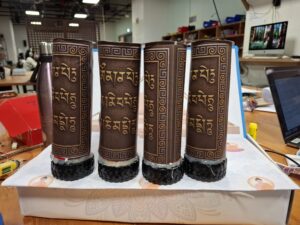
For my final project, I wanted to build an installation that captures a piece of home: the experience of walking around a stupa in Nepal and spinning the prayer wheels. Growing up, I always loved the peaceful repetition of spinning each wheel, even before I fully understood their spiritual meaning. Over time, I learned that prayer wheels (Mani wheels) are believed to spread blessings and compassion every time they turn.

My goal was to translate that ritual into an interactive digital-physical artwork. The project consists of two main parts:

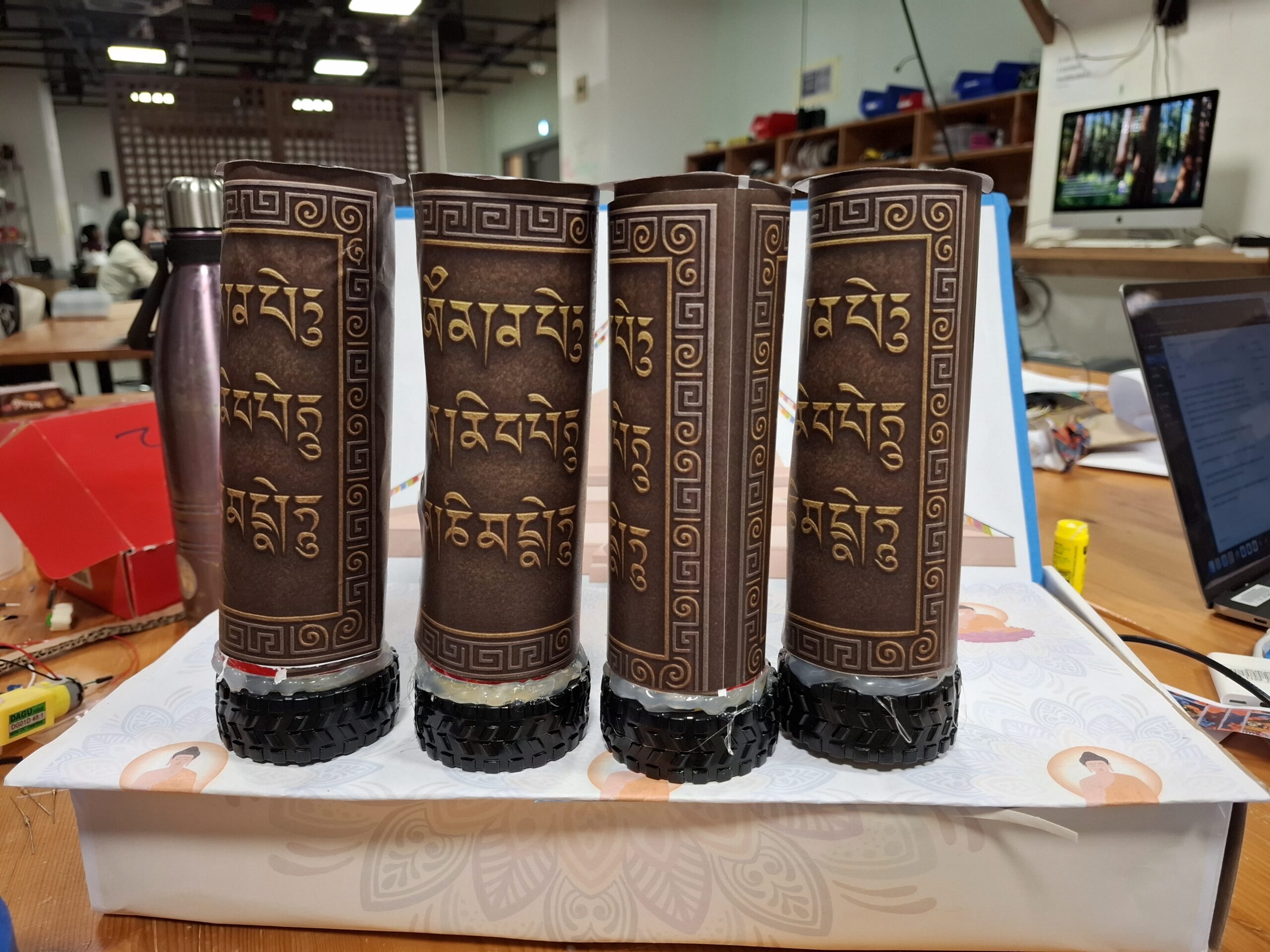
A physical prayer wheel that plays a sacred “Om” sound when spun.

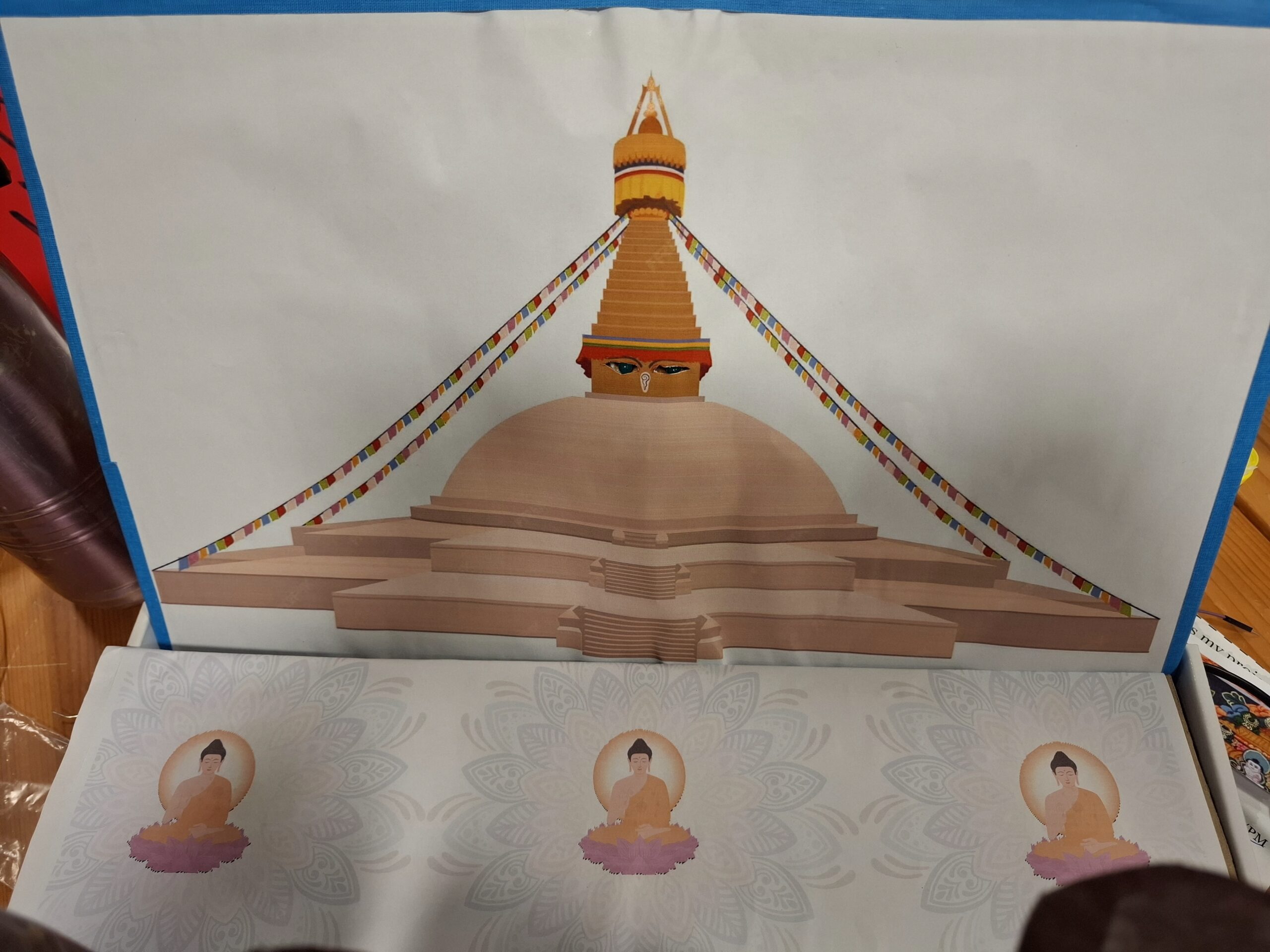
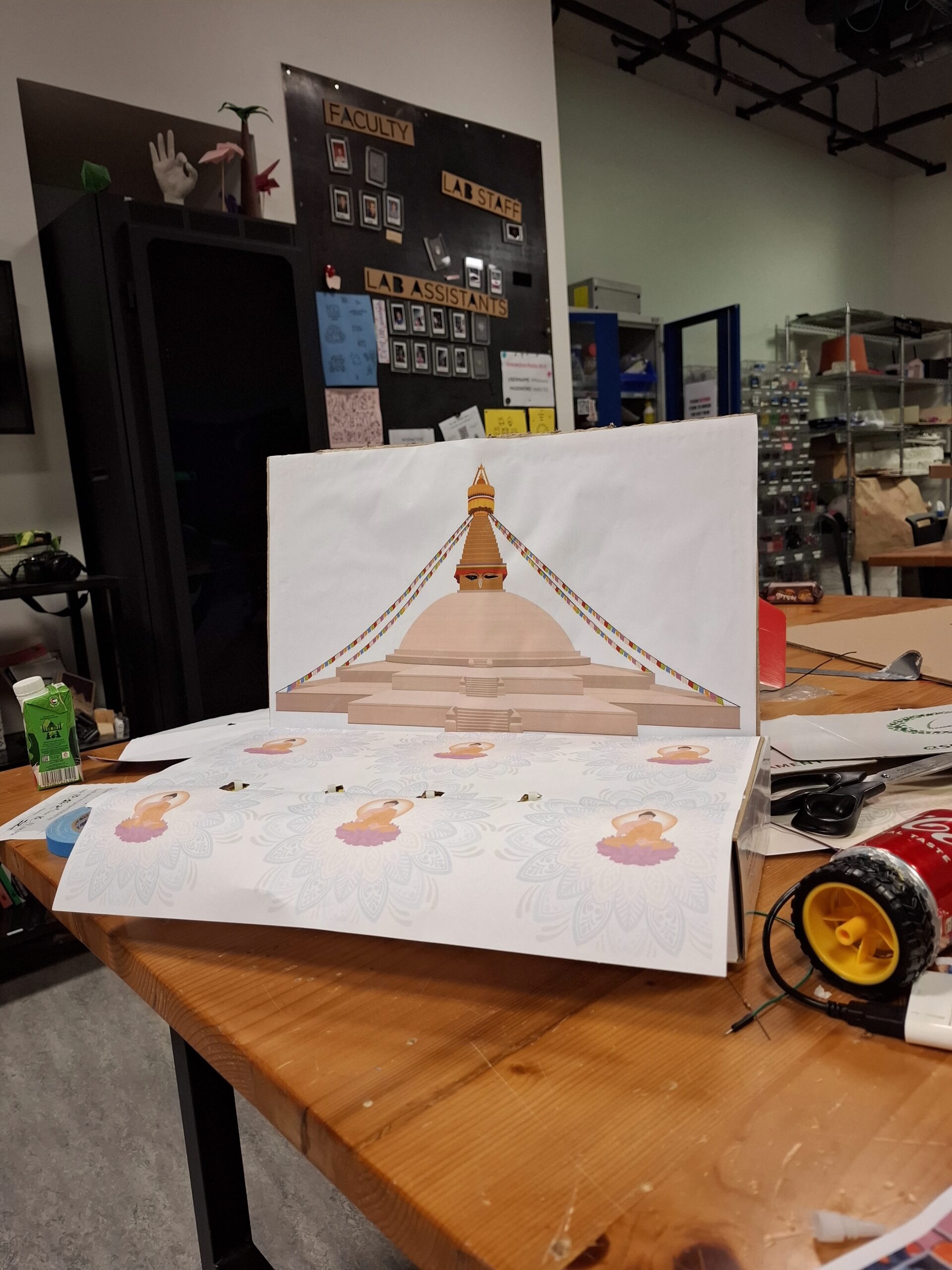
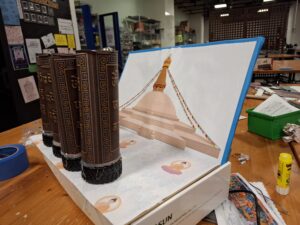
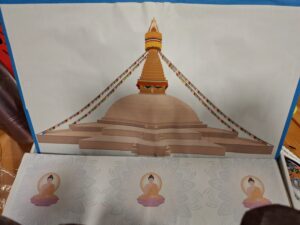
A digitally illustrated stupa in p5.js, where different architectural sections light up on the physical stupa when touched.

Together, the two elements let the user explore both the ritualistic and symbolic aspects of the stupa.
How the Implementation Works
Interaction Design

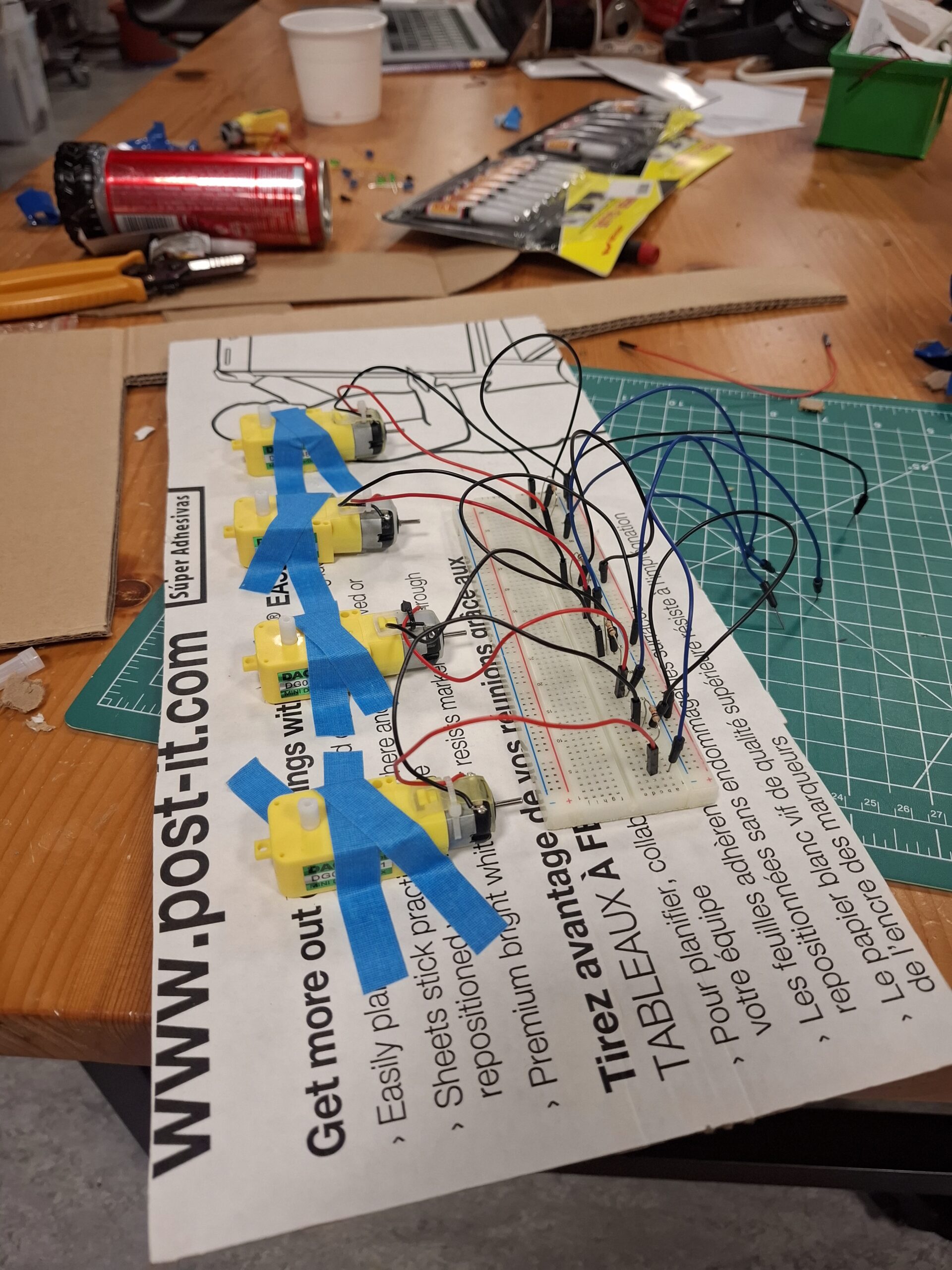
The experience begins with the user spinning the prayer wheel. Instead of powering the wheel with a motor, I use the motor as a generator, when the wheel spins, it produces a small voltage. That voltage is read by the Arduino as a signal.

At the same time, the stupa illustration in p5.js acts like an interactive map. When the user touches different physical regions of the stupa (pinnacle, dome, Buddha’s eyes, mandala, etc.) in p5js then p5js sends signal to arudino and light up the parts in physical space.

The design relies on:

Discovery: Users figure out what is touch-sensitive by interacting.

Cultural symbolism: Each part of the stupa has meaning, and the lighting reveals that visually.

Multi-modal feedbackL Sound (prayer wheel), light (stupa), and animation (p5.js).


Arudino Code:

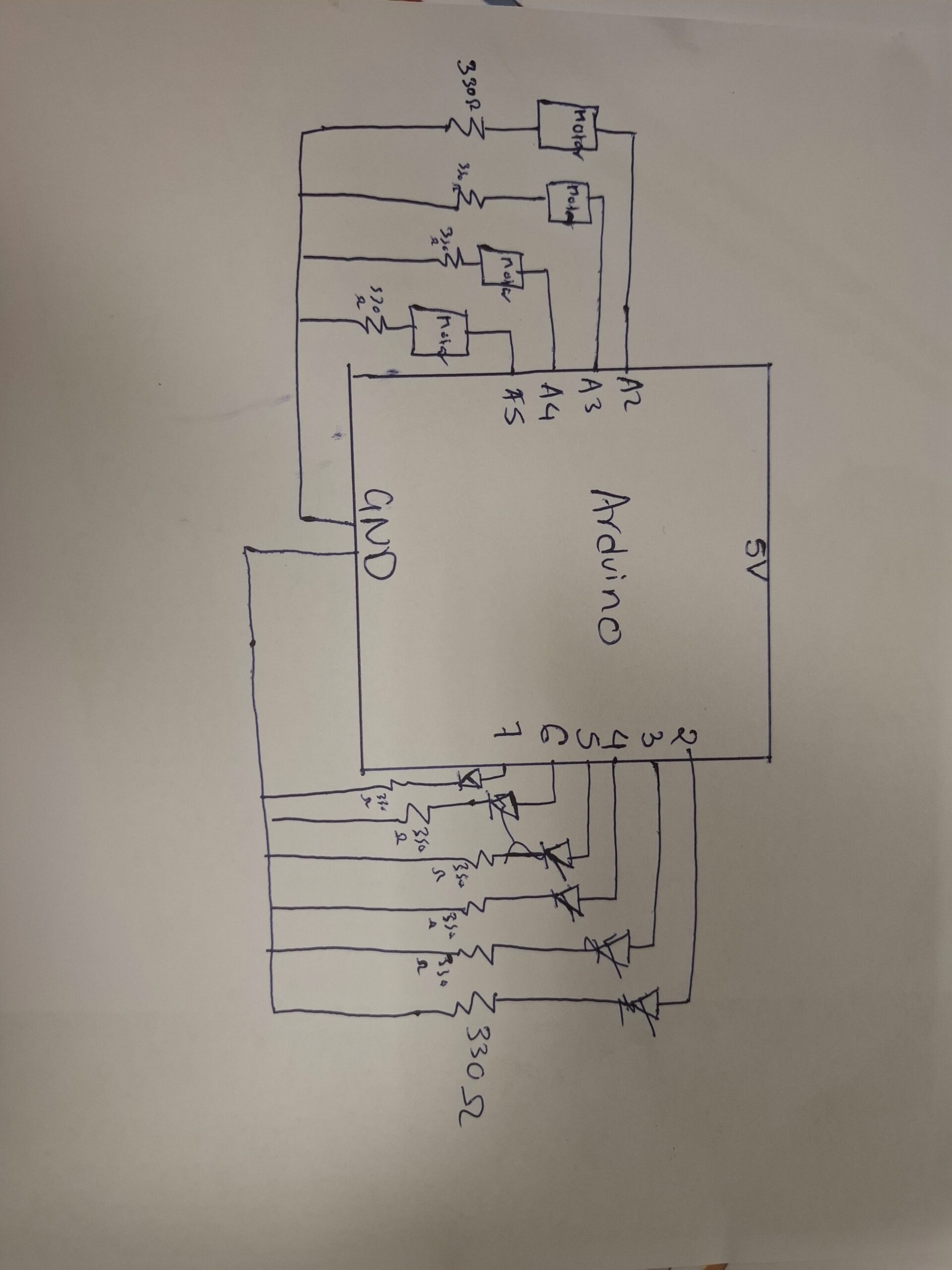
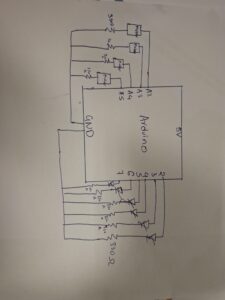
My Arduino reads four analog voltages from the prayer wheel motor and also listens for letters sent from p5.js. Each letter corresponds to a part of the stupa that should light up.

// ----- Analog input pins -----
const int volt2 = A2;   // Sensor or voltage input on A2
const int volt3 = A3;   // Sensor or voltage input on A3
const int volt4 = A4;   // Sensor or voltage input on A4
const int volt5 = A5;   // Sensor or voltage input on A5

// ----- Digital output pins (LEDs / relays / indicators) -----
const int pinnacle = 2;
const int thirteen = 3;
const int eye1 = 4;
const int eye2 = 5;
const int dome = 6;
const int mandala = 7;
const int flag = 8;

void setup() {
  // Configure analog input pins
  pinMode(volt2, INPUT);
  pinMode(volt3, INPUT);
  pinMode(volt4, INPUT);
  pinMode(volt5, INPUT);

  // Configure all digital output pins
  pinMode(pinnacle, OUTPUT);
  pinMode(thirteen, OUTPUT);
  pinMode(eye1, OUTPUT);
  pinMode(eye2, OUTPUT);
  pinMode(dome, OUTPUT);
  pinMode(mandala, OUTPUT);
  pinMode(flag, OUTPUT);

  // Start serial communication
  Serial.begin(9600);
}

void loop() {

  // ----- Read all analog inputs -----
  int a2 = analogRead(volt2);
  int a3 = analogRead(volt3);
  int a4 = analogRead(volt4);
  int a5 = analogRead(volt5);

  // ----- Send readings to the Serial Monitor (comma-separated) -----
  Serial.print(a2);
  Serial.print(",");
  Serial.print(a3);
  Serial.print(",");
  Serial.print(a4);
  Serial.print(",");
  Serial.print(a5);
  Serial.print("\n");

  delay(50); // Small delay for stable output


  // ----- Handle incoming serial commands -----
  while (Serial.available() > 0) {

    char message = Serial.read();   // Read one character command

    allOff();   // Always reset all outputs first


    // ----- Activate specific outputs based on incoming character -----
    if (message == 'p') {
      digitalWrite(pinnacle, HIGH);     // Turn on pinnacle
    }
    else if (message == 't') {
      digitalWrite(thirteen, HIGH);     // Turn on thirteen
    }
    else if (message == 'e') {          // "e" turns on both eyes
      digitalWrite(eye1, HIGH);
      digitalWrite(eye2, HIGH);
    }
    else if (message == 'd') {
      digitalWrite(dome, HIGH);         // Dome on
    }
    else if (message == 'm') {
      digitalWrite(mandala, HIGH);      // Mandala on
    }
    else if (message == 'f') {
      digitalWrite(flag, HIGH);         // Flag on
    }
    // Any other character is ignored
  }
}


// ----- Helper function: turn ALL outputs OFF -----
void allOff() {
  digitalWrite(pinnacle, LOW);
  digitalWrite(thirteen, LOW);
  digitalWrite(eye1, LOW);
  digitalWrite(eye2, LOW);
  digitalWrite(dome, LOW);
  digitalWrite(mandala, LOW);
  digitalWrite(flag, LOW);
}

Schematic of the Circuit
p5.js Code Description

The p5.js sketch does these things:

Draws multiple screens (welcome screen → prayer wheel → stupa)

Listens for sensor values sent from Arduino

Plays an “Om” sound only when the wheel spins

Sends letters (‘p’, ‘t’, ‘e’, ‘d’, ‘m’) back to Arduino to activate lights

Handles all on-screen interactions through mouse clicks

code:

// -------------------------------------------------------------
// GLOBAL VARIABLES
// -------------------------------------------------------------

let port;                 // Serial port object for Arduino communication
let button;               // Connect button
let open = false;         // Tracks whether the port is open
let trimvalue;            // Parsed Arduino sensor values
let screen = 1;           // Screen state controller
let sentCommand = false;  // Tracks if Arduino command is already sent
let soundPlaying = false; // Prevents OM sound from retriggering too fast


// -------------------------------------------------------------
// ASSET LOADING (Audio + Images)
// -------------------------------------------------------------
function preload() {

  /////////music////////
  om_sound = loadSound('om.mp3'); // sound from https://pixabay.com/music/search/om/

  // UI Images (all from canva.com as cited)
  welcomescreen = loadImage("startpage.png"); // image from canva.com
  screen2i = loadImage("screen2i.png");       // image from canva.com
  screen3i = loadImage("screen3i.png");       // image from canva.com
  screenpi = loadImage("screenpi.png");       // image from canva.com
  screenmi = loadImage("screenmi.png");       // image from canva.com
  screendi = loadImage("screendi.png");       // image from canva.com
  screenei = loadImage("screenei.png");       // image from canva.com
  screenti = loadImage("screenti.png");       // image from canva.com
}


// -------------------------------------------------------------
// SETUP FUNCTION — Runs once
// -------------------------------------------------------------
function setup() {

  createCanvas(400, 400);

  // Create serial port object (p5.js → Arduino communication bridge)
  port = createSerial();

  // Create connect button
  button = createButton("Connect to Arduino");
  button.position(width / 2 - 50, height / 2);
  button.mousePressed(openArduino); // Attach handler
}


// -------------------------------------------------------------
// OPEN ARDUINO SERIAL PORT
// -------------------------------------------------------------
function openArduino() {

  // If port is not already open, open it
  if (!port.opened()) {

    port.open(9600);   // Must match Arduino baud rate
    open = true;       // Mark port as open
    button.remove();   // Hide button after connecting
  }
}


// -------------------------------------------------------------
// MAIN DRAW LOOP — Runs continuously
// -------------------------------------------------------------
function draw() {

  // Only run UI + sound + sensor logic after port is open
  if (open == true) {

    // ---------------------------------------------------------
    // Screen Navigation
    // ---------------------------------------------------------
    if (screen == 1) {
      welcomescreenf();  // Start page
    }
    else if (screen == 2) {
      screen2f();
    }
    else if (screen == 3) {
      screen3f();
    }
    else if (screen == 4) {
      screenpf();
    }
    else if (screen == 7) {
      screend();
    }
    else if (screen == 8) {
      screenm();
    }

    // ---------------------------------------------------------
    // Read serial input (Arduino → p5.js)
    // ---------------------------------------------------------
    value = port.readUntil("\n");  // Read full sensor line
    port.clear();                  // Clear leftover buffer

    trimvalue = value.trim().split(",");  
    console.log(trimvalue);        // Print array of sensor values


    // ---------------------------------------------------------
    // SOUND TRIGGER LOGIC — OM sound plays when any sensor > 0
    // ---------------------------------------------------------
    if (!soundPlaying) {

      if (
        parseInt(trimvalue[0]) > 0 ||
        parseInt(trimvalue[1]) > 0 ||
        parseInt(trimvalue[2]) > 0 ||
        parseInt(trimvalue[3]) > 0
      ) {
        soundPlaying = true;  // Prevents double-trigger

        om_sound.play();      // Play OM sound

        // Reset lock after sound finishes
        om_sound.onended(() => {
          soundPlaying = false;
        });
      }
    }
  }

  // If port is closed → pause sound
  else {
    om_sound.pause();
  }
}


// -------------------------------------------------------------
// WELCOME SCREEN
// -------------------------------------------------------------
function welcomescreenf() {
  image(welcomescreen, 0, 0, 400, 400);
}


// -------------------------------------------------------------
// MOUSE-PRESSED HANDLER FOR SCREEN NAVIGATION + ARDUINO COMMANDS
// -------------------------------------------------------------
function mousePressed() {

  // ---------------- Screen 1 → Screen 2 -----------------
  if (screen == 1 &&
      mouseX >= 135 && mouseX <= 263 &&
      mouseY >= 354 && mouseY <= 371) {

    screen2f();
  }

  // ---------------- Screen 2 → Screen 3 -----------------
  else if (screen == 2 &&
           mouseX >= 120 && mouseX <= 346 &&
           mouseY >= 192 && mouseY <= 366) {

    screen3f();
  }

  // ---------------- Screen 3 Interactive Hotspots -----------------
  else if (screen == 3) {

    // Pinnacle (Top)
    if (mouseInside(192, 211, 117, 144)) {
      screenpf();  // Arduino: 'p'
    }

    // Thirteen tiers
    else if (mouseInside(185, 225, 147, 178)) {
      screent();   // Arduino: 't'
    }

    // Eyes
    else if (mouseInside(183, 244, 183, 195)) {
      screene();   // Arduino: 'e'
    }

    // Dome
    else if (mouseInside(124, 289, 194, 233)) {
      screend();   // Arduino: 'd'
    }

    // Mandala
    else if (mouseInside(0, 400, 240, 286)) {
      screen = 8;
      screenm();   // Arduino: 'm'
    }
  }

  // ---------------- Back Buttons for All Detail Screens -----------------

  else if (screen == 4 && mouseInside(148, 240, 339, 355)) goBackToMain();
  else if (screen == 5 && mouseInside(126, 274, 302, 325)) goBackToMain();
  else if (screen == 6 && mouseInside(122, 260, 302, 326)) goBackToMain();
  else if (screen == 7 && mouseInside(129, 274, 305, 329)) goBackToMain();
  else if (screen == 8 && mouseInside(115, 259, 304, 325)) goBackToMain();
}


// -------------------------------------------------------------
// HELPERS
// -------------------------------------------------------------

// Reusable function for BACK NAVIGATION
function goBackToMain() {
  port.write(' ');  // Sends "turn everything OFF" to Arduino
  screen = 3;
  screen3f();
}

// Check if mouse is inside a bounding box
function mouseInside(x1, x2, y1, y2) {
  return mouseX >= x1 && mouseX <= x2 &&
         mouseY >= y1 && mouseY <= y2;
}


// -------------------------------------------------------------
// SCREEN FUNCTIONS + ARDUINO COMMANDS
// -------------------------------------------------------------

function screen2f() {
  image(screen2i, 0, 0, 400, 400);
  screen = 2;
}

function screen3f() {
  image(screen3i, 0, 0, 400, 400);
  screen = 3;
}

function screenpf() {
  image(screenpi, 0, 0, 400, 400);
  port.write('p');  // Send “pinnacle”
  screen = 4;
}

function screent() {
  image(screenti, 0, 0, 400, 400);
  port.write('t');
  screen = 5;
}

function screene() {
  image(screenei, 0, 0, 400, 400);
  port.write('e');
  screen = 6;
}

function screend() {
  image(screendi, 0, 0, 400, 400);
  port.write('d');
  screen = 7;
}

function screenm() {
  image(screenmi, 0, 0, 400, 400);
  port.write('m');
  screen = 8;
}

p5js screen:

Full Screen p5js code:

// -------------------------------------------------------------
// GLOBAL VARIABLES
// -------------------------------------------------------------

let port;                 // Serial port object for Arduino communication
let button;               // Connect button
let open = false;         // Tracks whether the port is open
let trimvalue;            // Parsed Arduino sensor values
let screen = 1;           // Screen state controller
let sentCommand = false;  // Tracks if Arduino command is already sent
let soundPlaying = false; // Prevents OM sound from retriggering too fast


// -------------------------------------------------------------
// ASSET LOADING (Audio + Images)
// -------------------------------------------------------------
function preload() {

  /////////music////////
  om_sound = loadSound('om.mp3'); // sound from https://pixabay.com/music/search/om/

  // UI Images (all from canva.com as cited)
  welcomescreen = loadImage("startpage.png"); // image from canva.com
  screen2i = loadImage("screen2i.png");       // image from canva.com
  screen3i = loadImage("screen3i.png");       // image from canva.com
  screenpi = loadImage("screenpi.png");       // image from canva.com
  screenmi = loadImage("screenmi.png");       // image from canva.com
  screendi = loadImage("screendi.png");       // image from canva.com
  screenei = loadImage("screenei.png");       // image from canva.com
  screenti = loadImage("screenti.png");       // image from canva.com
}

// -------------------------------------------------------------
// SETUP — now starts in window size but ready for fullscreen
// -------------------------------------------------------------
function setup() {
  createCanvas(400, 400);           // your original size
  // If you open the sketch in a new tab it will start fullscreen-ready

  port = createSerial();

  button = createButton("Connect to Arduino");
  button.position(width / 2 - 50, height / 2);
  button.mousePressed(openArduino);
}

// -------------------------------------------------------------
// MAKE CANVAS ALWAYS FILL THE SCREEN (even after fullscreen)
// -------------------------------------------------------------
function windowResized() {
  resizeCanvas(windowWidth, windowHeight);
}

// -------------------------------------------------------------
// PRESS "F" → TOGGLE FULLSCREEN
// -------------------------------------------------------------
function keyPressed() {
  if (key === 'f' || key === 'F') {
    let fs = fullscreen();
    fullscreen(!fs);
  }
}

// -------------------------------------------------------------
// MAIN DRAW LOOP
// -------------------------------------------------------------
function draw() {
  background(0);

  if (open == true) {

    // ---------------------------------------------------------
    // Screen Navigation (your original images, now scaled)
    // ---------------------------------------------------------
    if (screen == 1) {
      image(welcomescreen, 0, 0, width, height);
    }
    else if (screen == 2) {
      image(screen2i, 0, 0, width, height);
    }
    else if (screen == 3) {
      image(screen3i, 0, 0, width, height);
    }
    else if (screen == 4) {
      image(screenpi, 0, 0, width, height);
    }
    else if (screen == 5) {
      image(screenti, 0, 0, width, height);
    }
    else if (screen == 6) {
      image(screenei, 0, 0, width, height);
    }
    else if (screen == 7) {
      image(screendi, 0, 0, width, height);
    }
    else if (screen == 8) {
      image(screenmi, 0, 0, width, height);
    }

    // ---------------------------------------------------------
    // Read serial input
    // ---------------------------------------------------------
    let value = port.readUntil("\n");
    port.clear();

    if (value != "") {
      trimvalue = value.trim().split(",");  
      console.log(trimvalue);

      // ---------------------------------------------------------
      // SOUND TRIGGER LOGIC
      // ---------------------------------------------------------
      if (!soundPlaying) {
        if (
          parseInt(trimvalue[0]) > 0 ||
          parseInt(trimvalue[1]) > 0 ||
          parseInt(trimvalue[2]) > 0 ||
          parseInt(trimvalue[3]) > 0
        ) {
          soundPlaying = true;
          om_sound.play();

          om_sound.onended(() => {
            soundPlaying = false;
          });
        }
      }
    }
  }
  else {
    om_sound.pause();
  }
}

// -------------------------------------------------------------
// MOUSE-PRESSED HANDLER — scaled coordinates for fullscreen
// -------------------------------------------------------------
function mousePressed() {

  if (!open) return;

  // Scale mouse coordinates to original 400×400 layout
  let mx = mouseX * 400 / width;
  let my = mouseY * 400 / height;

  // ---------------------------------------------------------
  // SCREEN 1 → Start Button
  // ---------------------------------------------------------
  if (screen == 1) {
    if (mx >= 135 && mx <= 263 && my >= 354 && my <= 371) {
      screen = 2;
    }
  }

  // ---------------------------------------------------------
  // SCREEN 2 → Next Button
  // ---------------------------------------------------------
  else if (screen == 2) {
    if (mx >= 120 && mx <= 346 && my >= 192 && my <= 366) {
      screen = 3;
    }
  }

  // ---------------------------------------------------------
  // SCREEN 3 → 5 Interactive Zones
  // ---------------------------------------------------------
  else if (screen == 3) {

    // PF
    if (mx >= 192 && mx <= 211 && my >= 117 && my <= 144) { 
      screenpf(); 
    }

    // T
    else if (mx >= 185 && mx <= 225 && my >= 147 && my <= 178) { 
      screent(); 
    }

    // E
    else if (mx >= 183 && mx <= 244 && my >= 183 && my <= 195) { 
      screene(); 
    }

    // D
    else if (mx >= 124 && mx <= 289 && my >= 194 && my <= 233) { 
      screend(); 
    }

    // M
    else if (mx >= 0 && mx <= 400 && my >= 240 && my <= 286) { 
      screenm(); 
    }
  }

  // ---------------------------------------------------------
  // BACK BUTTONS FOR SCREENS 4–8
  // ---------------------------------------------------------
  else if (screen == 4) {
    if (mx >= 148 && mx <= 240 && my >= 339 && my <= 355) goBackToMain();
  }

  else if (screen == 5) {
    if (mx >= 126 && mx <= 274 && my >= 302 && my <= 325) goBackToMain();
  }

  else if (screen == 6) {
    if (mx >= 122 && mx <= 260 && my >= 302 && my <= 326) goBackToMain();
  }

  else if (screen == 7) {
    if (mx >= 129 && mx <= 274 && my >= 305 && my <= 329) goBackToMain();
  }

  else if (screen == 8) {
    if (mx >= 115 && mx <= 259 && my >= 304 && my <= 325) goBackToMain();
  }
}

// -------------------------------------------------------------
// HELPERS
// -------------------------------------------------------------
function goBackToMain() {
  port.write(' ');  // turn everything off
  screen = 3;
}

// -------------------------------------------------------------
// SCREEN FUNCTIONS + ARDUINO COMMANDS (unchanged)
// -------------------------------------------------------------
function screenpf() {
  port.write('p');
  screen = 4;
}
function screent() {
  port.write('t');
  screen = 5;
}
function screene() {
  port.write('e');
  screen = 6;
}
function screend() {
  port.write('d');
  screen = 7;
}
function screenm() {
  port.write('m');
  screen = 8;
}

// -------------------------------------------------------------
// OPEN ARDUINO SERIAL PORT
// -------------------------------------------------------------
function openArduino() {
  if (!port.opened()) {
    port.open(9600);
    open = true;
    button.remove();
  }
}


Arduino  and p5.js Communication

Flow:

User spins the wheel → motor sends voltage

Arduino reads values → prints as CSV string

p5.js reads the CSV → detects movement → plays sound

User clicks a part of the stupa in p5.js → p5 sends a letter

Arduino receives the letter → lights the corresponding LEDs

This loop creates a tight physical and digital connection.

What I’m Proud Of

One of the things I’m most proud of in this project is the way I used a motor as a sensor. In class, we mostly learned how to drive a motor, how to make it spin, how to control its speed, how to power it. But we never talked much about using a motor in reverse, as a generator. The idea actually came from something I learned back in high school: when you spin a motor manually, it becomes a dynamo and creates a small voltage. Remembering that old concept and realizing I could apply it here felt like a huge breakthrough. Instead of attaching extra sensors or complicated hardware, I turned the motor itself into the perfect input device for the prayer wheel. It made the interaction feel more authentic and made me feel resourceful like I made something out of almost nothing.

I’m also proud that the project became more than just a technical assignment. A lot of Arduino + p5.js demos end up being simple lights or sliders, but I wanted my project to feel culturally grounded and emotionally meaningful. Recreating the experience of spinning a prayer wheel and interacting with a stupa allowed me to share a part of Nepalese culture in a way that felt personal. It wasn’t just, “Here’s a sensor and an LED” it was a small spiritual journey for the user. The moment the “Om” sound plays when the wheel turns feels like the installation is breathing with you.

Finally, I’m proud of creating a fully two-way communication system between Arduino and p5.js. At the beginning of the semester, I struggled even to understand how serial communication worked. But in this project, the Arduino and p5.js are constantly talking to each other. Arduino sends sensor data to p5.js, p5.js analyzes it, then sends back precise commands to control the lights on the physical stupa. This feedback loop makes the experience feel alive and responsive. Building this system made me feel like I actually understand how physical computing and digital interaction can merge into one continuous experience.

Overall, the project pushed me technically, creatively, and culturally. It’s the first time I felt like I wasn’t just completing a class assignment. I was creating something that feels like mine.
How This Was Made

I used several tools throughout this project:

Arduino UNO for sensing and controlling LEDs

p5.js for the interactive visuals and sound

Adobe Illustrator / Canva (or whichever tool you used) for drawing the stupa

A small DC motor as a dynamo sensor

WordPress to document the process

Generative AI (ChatGPT) to help debug my Arduino code,  and explain concepts more clearly

The write-up for this project came together very organically. Instead of sitting down and trying to write a perfect report in one go, I started by brainstorming everything in my head and dumping ideas onto paper. I wrote down fragments of thoughts, sketches of memories about stupas and prayer wheels, notes about how the interactions should feel, and even some quick diagrams. It was messy at first, but that process helped me understand what parts of the project mattered the most to me.

From there, I organized the ideas into sections—concept, interaction, technical breakdown, cultural meaning, challenges, and future improvements. I rewrote and refined them little by little. Some parts came from real experiences I’ve had at stupas in Nepal, and others came from experimenting with the Arduino and p5.js until something clicked. Once I had the raw content, I shaped it into the final narrative you see here.


Area for future improvement:

I also want to add more lights and more detailed lighting zones on the stupa. At the moment, the LEDs represent the main sections (like the pinnacle, dome, eyes, mandala, etc.), but the lighting could be much richer. I imagine having multiple LEDs in each section, maybe even different colors or subtle animations (like pulsing or fading) to show the sacredness and energy of that part of the structure. More lights would not only make the physical model more visually striking, but also help guide the user’s attention and make the mapping between touch and light feel clearer.

Lastly, I’d like to include more educational content about stupa symbolism. Right now, the project hints at the meanings (like the dome representing the world or the eyes representing wisdom), but I could go deeper. For example, when a section lights up, a short description could appear explaining its spiritual role, history, or connection to Buddhist philosophy. This would turn the installation not just into an interactive artwork, but also a small learning experience about Nepali and Himalayan culture.
Final working video:

Google drive link


Week 13: User testing

Most users were able to understand the basic concept of interacting with the prayer wheel and the stupa. They could figure out that touching different parts of the stupa would cause the lights to turn on and trigger audio responses. However, the main area of confusion was which specific areas of the stupa were touch-sensitive. Users often touched the wrong parts and then tried to adjust their behavior based on trial and error.

Even though the mapping between each touch point and the animation/light feedback did make sense to them after discovery, the initial uncertainty slowed down the interaction. Some users expressed that they “felt like they knew better,” meaning they expected the interactive areas to match their own understanding of how a stupa is structured, rather than how my sensor layout was designed.

What Worked Well & What Could Be Improved

The prayer wheel interaction worked especially well. Users intuitively understood that the wheel was meant to be spun, and the connection between spinning motion and sound was clear. The feedback loop felt natural and satisfying.

The lighting on the stupa, however, could be improved. While the concept of touching different architectural parts (pinnacle, dome, mandala, etc.) was meaningful, the technical responsiveness wasn’t always consistent. This inconsistency made some users second-guess whether they were interacting correctly or whether the system was malfunctioning. Improving sensor sensitivity or adding clearer visual affordances would help eliminate this confusion.

Areas I Felt the Need to Explain

The two aspects that required the most explanation were:

The cultural concept of the prayer wheel
Some users were not familiar with what a prayer wheel is or how it traditionally functions. This lack of background knowledge made the interaction less immediately intuitive for them.

Which specific parts of the stupa activate the LEDs
The stupa layout visually makes sense, but it wasn’t obvious to users where to touch. They needed guidance on how the different zones mapped to the lighting changes.

To make these areas clearer in the future, I could incorporate visual cues, such as subtle highlights, icons, or glowing outlines that indicate interactive regions. Alternatively, I could add a brief onboarding animation that demonstrates the interaction without relying on text.

User testing video: google drive