All Posts

Week 11 – Assignment (Rujul and Mariam Al Khoori)

Exercise 1: ARDUINO TO P5 COMMUNICATION

Using the potentiometer the ellipse is moved across the screen while also changing its opacity.

P5.js Sketch:

// variable to control x-coordinate
let x = 0;
function setup() {
  createCanvas(640, 480);
  textSize(18);
}
function draw() {
  // sets background
  background(255);
  stroke(0);
  // draws ellipse on canvas
  fill(0,255,0,map(x, 0, 1023, 0, 255))
  ellipse(map(x, 0, 1023, 0, width), height / 2, 100, 100);
  
  // checks if serial communication has been established
  fill(0)
  if (!serialActive) {
    text("Press Space Bar to select Serial Port", 20, 30);
  } else {
    text("Connected", 20, 30);
  }
  
}
// sets up serial connection
function keyPressed() {
  if (key == " ") {
    // important to have in order to start the serial connection!!
    setUpSerial();
  }
}
// This function will be called by the web-serial library
// with each new *line* of data. The serial library reads
// the data until the newline and then gives it to us through
// this callback function
function readSerial(data) {
  ////////////////////////////////////
  //READ FROM ARDUINO HERE
  ////////////////////////////////////
  if (data != null) {
    x = int(trim(data));
  }
  
}

Arduino Sketch:

void setup() {
  // Start serial communication so we can send data
  // over the USB connection to our p5js sketch
  Serial.begin(9600);
  // We'll use the builtin LED as a status output..
  pinMode(LED_BUILTIN, OUTPUT);
}
void loop() {
  // gets sensor reading
  int sensor = analogRead(A0);
  delay(5);
  // indicates data transfer
  digitalWrite(LED_BUILTIN, HIGH);
  // sends data to p5
  Serial.println(sensor);
  
  // indicates data transfer
  digitalWrite(LED_BUILTIN, LOW);
  
}

VIDEO – Exercise1


Assignment 2: P5 TO ARDUINO COMMUNICATION

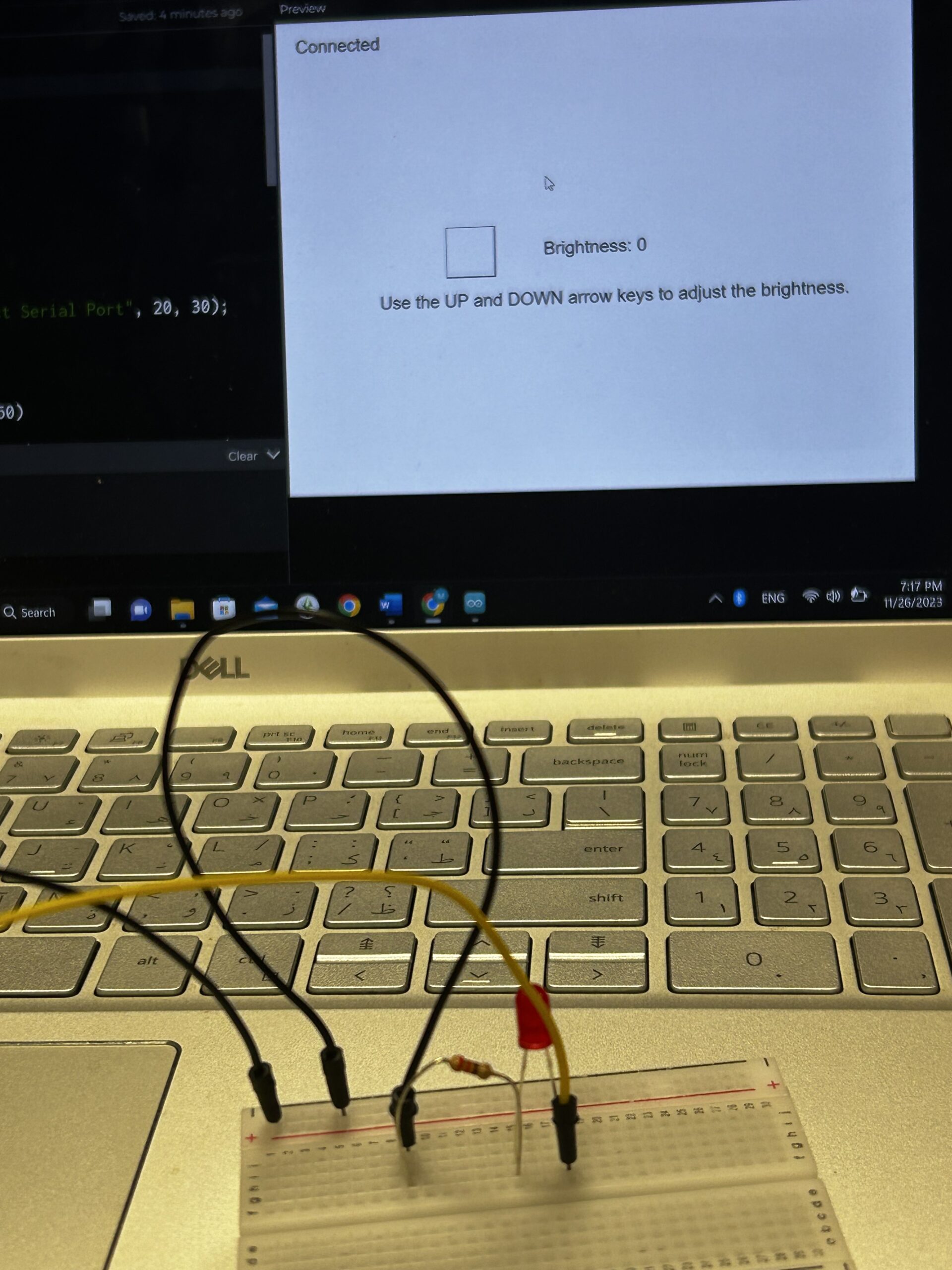
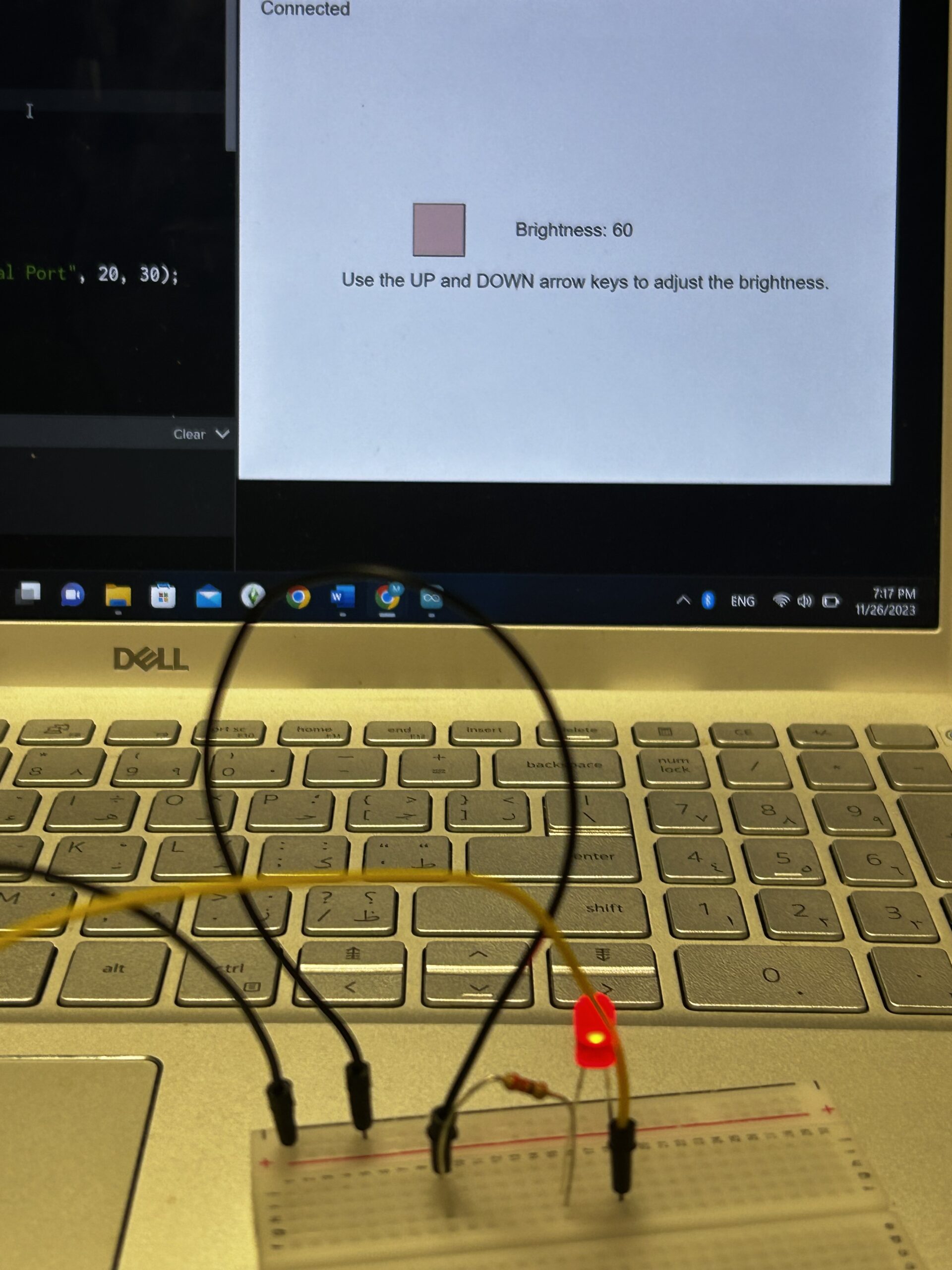
Brightness of the LED changes when pressing the UP and DOWN keys.

P5.js Sketch:

let brightness=0;

function setup() {
  createCanvas(640, 480);
  textSize(18);
}

function draw() {
  background(255);
  fill(0);

  if (!serialActive) {
    text("Press Space Bar to select Serial Port", 20, 30);
  } else {
    text("Connected", 20, 30);
  }
  fill(255,0,0,brightness)
  square(width/2-150,height/2-30,50)
  fill(0)
  text("Brightness: "+str(brightness),width/2-50,height/2)
  text("Use the UP and DOWN arrow keys to adjust the brightness. ",width/2-220,height/2+50)

  if (keyIsPressed) {
    if (keyCode==UP_ARROW) {
      if (brightness<255){
        brightness+=5;
      }  
    } else if (keyCode==DOWN_ARROW) {
      if (brightness>0){
        brightness-=5;
      }
    }
  } 
}

function keyPressed() {
  if (key == " ") {
    // important to have in order to start the serial connection!!
    setUpSerial();
  }
}

function readSerial(data) {
  if (data != null) {
    writeSerial(brightness+"\n");
  }
}

Arduino Sketch:

int LedPin = 5;

void setup() {
  // Start serial communication so we can send data
  // over the USB connection to our p5js sketch
  Serial.begin(9600);

  // We'll use the builtin LED as a status output..
  pinMode(LED_BUILTIN, OUTPUT);

  // Outputs on this pin
  pinMode(LedPin, OUTPUT);

  // Blink them so we can check the wiring
  digitalWrite(LedPin, HIGH);
  delay(200);
  digitalWrite(LedPin, LOW);

  // start the handshake
  while (Serial.available() <= 0) {
    digitalWrite(LED_BUILTIN, HIGH); // on/blink while waiting for serial data
    Serial.println("0"); // send a starting message
    delay(300);            // wait 1/3 second
    digitalWrite(LED_BUILTIN, LOW);
    delay(50);
  }
}

void loop() {
  // wait for data from p5 before doing something
  while (Serial.available()) {
    Serial.println("0");
    digitalWrite(LED_BUILTIN, HIGH); // led on while receiving data

    int brightness = Serial.parseInt();
    if (Serial.read() == '\n') {
      analogWrite(LedPin, brightness);
    }
  }
  digitalWrite(LED_BUILTIN, LOW);
}
VIDEO – Exercise2


Assignment 3: BI-DIRECTIONAL COMMUNICATION

The LED glows up when the ball touches the ground. The ultrasonic sensor is used to change the direction of the wind.

P5.js Sketch:

let velocity;
let gravity;
let posit5
let acceleration;
let wind;
let drag = 0.99;
let mass = 50;
let LED=0;
let wind_speed=0;

function setup() {
  createCanvas(640, 360);
  noFill();
  position = createVector(width/2, 0);
  velocity = createVector(0,0);
  acceleration = createVector(0,0);
  gravity = createVector(0, 0.5*mass);
  wind = createVector(0,0);
}

function draw() {
  background(255);
  fill(0)
  if (!serialActive) {
    text("Press RIGHT key to select Serial Port", 20, 30);
  } else {
    text("Connected", 20, 30);
  }
  applyForce(wind);
  applyForce(gravity);
  velocity.add(acceleration);
  velocity.mult(drag);
  position.add(velocity);
  acceleration.mult(0);
  fill(205,104,219); 
  ellipse(position.x,position.y,mass,mass);
  if (position.y > height-mass/2) {
      velocity.y *= -0.9;  // A little dampening when hitting the bottom
      position.y = height-mass/2;
    }
  
  if (position.y==height-mass/2){
    LED=1
  }else{
    LED=0
  }
  
  if (position.x>=width || position.x<=0){
    position.x=width/2
  }   
}

function applyForce(force){
  // Newton's 2nd law: F = M * A
  // or A = F / M
  let f = p5.Vector.div(force, mass);
  acceleration.add(f);
}

function keyPressed(){
  if (key==' '){
    
    mass=random(15,80);
    position.y=-mass;
    velocity.mult(0);
  }
  if (keyCode==RIGHT_ARROW){
    setUpSerial();
  }
}

function readSerial(data) {
  ////////////////////////////////////
  //READ FROM ARDUINO HERE
  ////////////////////////////////////

  if (data != null) {
    let fromArduino = trim(data);
    distance= int(fromArduino);
    if (distance>10){
      wind.x=2
    }
    else{
      wind.x=-2
    }
    
    let sendToArduino = LED+"\n";
    writeSerial(sendToArduino);
  }
}

Arduino Sketch:

int LedPin = 2;
int trigPin = 9;
int echoPin = 10;
long duration;
int distance;

void setup() {
  // Start serial communication so we can send data
  // over the USB connection to our p5js sketch
  pinMode(trigPin, OUTPUT); 
  pinMode(echoPin, INPUT);
  Serial.begin(9600);
  pinMode(LED_BUILTIN, OUTPUT);

  // Outputs on these pins
  pinMode(LedPin, OUTPUT);

  // Blink them so we can check the wiring
  digitalWrite(LedPin, HIGH);
  delay(200);
  digitalWrite(LedPin, LOW);


  // start the handshake
  while (Serial.available() <= 0) {
    digitalWrite(LED_BUILTIN, HIGH); // on/blink while waiting for serial data
    Serial.println("0,0"); // send a starting message
    delay(300);            // wait 1/3 second
    digitalWrite(LED_BUILTIN, LOW);
    delay(50);
  }
}

void loop() {
  // wait for data from p5 before doing something
  while (Serial.available()) {
    digitalWrite(LED_BUILTIN, HIGH); // led on while receiving data

    int LED = Serial.parseInt();
    if (Serial.read() == '\n') {
      digitalWrite(LedPin, LED);
      digitalWrite(trigPin, LOW);
      delayMicroseconds(2); 
      digitalWrite(trigPin, HIGH);
      delayMicroseconds(10);
      digitalWrite(trigPin, LOW);
      // Reads the echoPin, returns the sound wave travel time in microseconds
      duration = pulseIn(echoPin, HIGH);
      // Calculating the distance
      distance = duration * 0.034 / 2;
      Serial.println(distance);
    }
  }
  digitalWrite(LED_BUILTIN, LOW);
}

VIDEO – Exercise3 Wind

VIDEO – Exercise3 LED

Week 11- Serial Communication

Exercise 1: ARDUINO TO P5 COMMUNICATION

Schematic

Circuit Diagram 

P5.js Code
We used the same example provided in class, however, we just added this part to the code:

function draw() {
  
  background('#6FA9B0')

  if (!serialActive) {
    fill("rgb(255,255,255)")
    text("Press Space Bar to select Serial Port", 20, 30);
  } else {

    noStroke()
    // draw a circle, alpha value controls the x-position of the circle
    circle(map(alpha, 0, 1023, 0, 640), 240, 50)

  }
}


Arduino

We used the same one provided in class.

Video


Exercise 2: P5 TO ARDUINO COMMUNICATION

Schematic

Circuit Diagram 

P5.js Code

let brightness = 0; 
let slider;
let img;

//preload images
function preload(){
  img = loadImage('sun.png');
  img2 = loadImage('moon.png');
}

function setup() {
  createCanvas(400, 400);
  //create slider
  slider = createSlider(0, 255, 100);
  slider.position(width/2-50,height/2+25);
  slider.style('width', '80px');
}

function draw() {
  background('#85CCEC');
  image(img,235,130,150,180); 
  image(img2,30,140,100,160);
  
  let val = slider.value();
  brightness = val;
  
  // instructions
  textAlign(CENTER,CENTER);
  textSize(16);
  textStyle(BOLD)
  text("Control the brightness using the slider below!",width/2,100);
  
  //connects serial port
  if (!serialActive) {
    textSize(10);
    text("Press Space Bar to select Serial Port", 100, 30);
  } else {
    textSize(10);
    text("Connected",100,30);
  }


}

function keyPressed() {
  if (key == " ") {
    // important to have in order to start the serial connection!!
    setUpSerial();
  }
}


function readSerial(data) {

  //READ FROM ARDUINO HERE
  
  if (data != null) {
    // if there is a message from Arduino, continue
    
    //SEND TO ARDUINO HERE (handshake)
    
    let sendToArduino = brightness + "\n";
    writeSerial(sendToArduino);
  }
}


Arduino Code

int LED = 5;
void setup() {
  Serial.begin(9600);
  pinMode(LED, OUTPUT);
  // start the handshake
  while (Serial.available() <= 0) {
    Serial.println("Wait");  // send a starting message
    delay(300);               // wait 1/3 second
  }
}
void loop() {
  // wait for data from p5 before doing something
  while (Serial.available()) {
    int brightness = Serial.parseInt(); 
    if (Serial.read() == '\n') {
      analogWrite(LED, brightness); // turn on LED and adjusts brightness
      Serial.println("LIT"); 
    }
  }
}


Video

Exercise 3: BI-DIRECTIONAL COMMUNICATION

Schematic

Circuit Diagram 

P5.js Code

let hit = 0;  // whether the ball hit the ground
let reset = 0;  // whether Arduino sent a reset argument (a button press)

// Ball physics
let velocity;
let gravity;
let position;
let acceleration;
let wind; // wind direction is controlled by Arduino (potentiometer)
let drag = 0.99;
let mass = 50;

function setup() {
  createCanvas(600, 600);
  noFill();
  position = createVector(width / 2, 0);
  velocity = createVector(0, 0);
  acceleration = createVector(0, 0);
  gravity = createVector(0, 0.5 * mass);
  wind = createVector(0, 0);
}

function draw() {
  background('pink');
  applyForce(wind);
  applyForce(gravity);
  velocity.add(acceleration);
  velocity.mult(drag);
  position.add(velocity);
  acceleration.mult(0);
  fill(255)
  ellipse(position.x, position.y, mass, mass);
  if (position.y > height - mass / 2) {
    velocity.y *= -0.9; // A little dampening when hitting the bottom
    position.y = height - mass / 2;
    hit = 1;
  } else {
    hit = 0;
  }

  if (!serialActive) {
    console.log("Press Space Bar to select Serial Port");
  } else {
    // 
    // console.log("Connected");
    if (reset == 1) { // if reset signal is sent and flagged (button press)
      reset = 0; // clear the flag
      
      // reset ball with some random mass
      mass = random(15, 80);
      position.x = width / 2;
      position.y = -mass;
      velocity.mult(0);
    }
  }
}

function applyForce(force) {
  // Newton's 2nd law: F = M * A
  // or A = F / M
  let f = p5.Vector.div(force, mass);
  acceleration.add(f);
}

function keyPressed() {
  if (key == " ") {
    // important to start the serial connection!
    setUpSerial();
  }
}

function readSerial(data) {
  
  //READ FROM ARDUINO HERE
  

  if (data != null) {
    // split the message
    let fromArduino = split(trim(data), ",");
    // if the right length, then proceed
    if (fromArduino.length == 2) {
      reset = fromArduino[0];
      wind.x = fromArduino[1];
    }

    
    //SEND TO ARDUINO HERE (handshake)
    
    let sendToArduino = hit + "\n";
    writeSerial(sendToArduino);
  }
}


Arduino Code

int buttonSwitch = A2;
int potentiometer = A0;
int ledOut = 11;

void setup() {
  Serial.begin(9600);
  pinMode(12, OUTPUT);
  digitalWrite(ledOut, LOW);  // in the case of reconnection while p5 is running
  // start the handshake
  while (Serial.available() <= 0) {
    Serial.println("-1,-1");  // send a starting message
    delay(300);               // wait 1/3 second
  }
}

void loop() {
  // wait for data from p5 before doing something
  while (Serial.available()) {
    int hit = Serial.parseInt(); // receives 1 argument, whether the ball hit the ground
    if (Serial.read() == '\n') {
      digitalWrite(ledOut, hit); // turn on LED if the ball is in contact with the ground (1 -> HIGH) turn off LED if not (0, -> LOW)
      int sensor = digitalRead(buttonSwitch); // read button
      delay(1);
      int sensor2 = analogRead(potentiometer); // read potentiometer
      delay(1);
      Serial.print(sensor); // button
      Serial.print(',');
      if (sensor2 < 512) { // potentiometer; depending whether the value is over or below half, direction of the wind is set
        Serial.println(1);
      } else {
        Serial.println(-1);
      }
    }
  }
}


Video

Week 11 – Assignment

Video

P5.js code

let velocity;
let gravity;
let position;
let acceleration;
let wind;
let drag = 0.99;
let mass = 50;

let didTouch = 0;

function setup() {
  createCanvas(640, 360);
  noFill();
  position = createVector(width/2, 0);
  velocity = createVector(0,0);
  acceleration = createVector(0,0);
  gravity = createVector(0, 0.5*mass);
  wind = createVector(0,0);
}

function draw() {
  background(255);
  applyForce(wind);
  applyForce(gravity);
  velocity.add(acceleration);
  velocity.mult(drag);
  position.add(velocity);
  acceleration.mult(0);
  ellipse(position.x,position.y,mass,mass);
  if (position.y > height-mass/2) {
      didTouch = 1;
      velocity.y *= -0.9;  // A little dampening when hitting the bottom
      position.y = height-mass/2;
  } else {
    didTouch = 0
  }
}

function applyForce(force){
  // Newton's 2nd law: F = M * A
  // or A = F / M
  let f = p5.Vector.div(force, mass);
  acceleration.add(f);
}

function keyPressed(){
  if (keyCode==LEFT_ARROW){
    wind.x=-1;
  }
  if (keyCode==RIGHT_ARROW){
    wind.x=1;
  }
  if (key==' '){
    mass=random(15,80);
    position.y=-mass;
    position.x = width / 2
    velocity.mult(0);
  }
  
  if (key == 's') {
    setUpSerial();
  }
}

// This function will be called by the web-serial library
// with each new *line* of data. The serial library reads
// the data until the newline and then gives it to us through
// this callback function
function readSerial(data) {
  ////////////////////////////////////
  //READ FROM ARDUINO HERE
  ////////////////////////////////////

  if (data != null) {
    // make sure there is actually a message
    // split the message
    let fromArduino = split(trim(data), ",");
    // if the right length, then proceed
    if (fromArduino.length == 1) {
      // only store values here
      // do everything with those values in the main draw loop
      
      // We take the string we get from Arduino and explicitly
      // convert it to a number by using int()
      // e.g. "103" becomes 103
      windValue = int(fromArduino[0]);
      wind = createVector(map(windValue, 0, 1023, -2, 2), 0)
    }

    //////////////////////////////////
    //SEND TO ARDUINO HERE (handshake)
    //////////////////////////////////
    let sendToArduino = didTouch + "\n";
    print(sendToArduino)
    writeSerial(sendToArduino);
  }
}

Arduino code

// Week 11.2 Example of bidirectional serial communication

// Inputs:
// - A0 - sensor connected as voltage divider (e.g. potentiometer or light sensor)
// - A1 - sensor connected as voltage divider 
//
// Outputs:
// - 2 - LED
// - 5 - LED

int ledPin = 5;
int potPin = A2;

void setup() {
  // Start serial communication so we can send data
  // over the USB connection to our p5js sketch
  Serial.begin(9600);

  // We'll use the builtin LED as a status output.
  // We can't use the serial monitor since the serial connection is
  // used to communicate to p5js and only one application on the computer
  // can use a serial port at once.
  pinMode(LED_BUILTIN, OUTPUT);

  // Outputs on these pins
  pinMode(ledPin, OUTPUT);

  // Blink them so we can check the wiring
  digitalWrite(ledPin, HIGH);
  delay(200);
  digitalWrite(ledPin, LOW);


  // start the handshake
  while (Serial.available() <= 0) {
    digitalWrite(LED_BUILTIN, HIGH); // on/blink while waiting for serial data
    Serial.println("0"); // send a starting message
    delay(300);            // wait 1/3 second
    digitalWrite(LED_BUILTIN, LOW);
    delay(50);
  }
}

void loop() {
  // wait for data from p5 before doing something
  while (Serial.available()) {
    digitalWrite(LED_BUILTIN, HIGH); // led on while receiving data

    int ledLight = Serial.parseInt();
    if (Serial.read() == '\n') {
      digitalWrite(ledPin, ledLight);
      int sensor = analogRead(potPin);
      delay(5);
      Serial.println(sensor);
    }
  }
  digitalWrite(LED_BUILTIN, LOW);
}


In Class Exercises

Exercise 1: ARDUINO TO P5 COMMUNICATION

Schematic

Circuit Diagram 

P5.js Code
We used the same example provided in class, however, we just added this part to the code:

function draw() {
  
  background('#6FA9B0')

  if (!serialActive) {
    fill("rgb(255,255,255)")
    text("Press Space Bar to select Serial Port", 20, 30);
  } else {

    noStroke()
    // draw a circle, alpha value controls the x-position of the circle
    circle(map(alpha, 0, 1023, 0, 640), 240, 50)

  }
}

Arduino

We used the same one provided in class.

Video

Exercise 2: P5 TO ARDUINO COMMUNICATION

Schematic

Circuit Diagram 

P5.js Code

let brightness = 0; 
let slider;
let img;

//preload images
function preload(){
  img = loadImage('sun.png');
  img2 = loadImage('moon.png');
}

function setup() {
  createCanvas(400, 400);
  //create slider
  slider = createSlider(0, 255, 100);
  slider.position(width/2-50,height/2+25);
  slider.style('width', '80px');
}

function draw() {
  background('#85CCEC');
  image(img,235,130,150,180); 
  image(img2,30,140,100,160);
  
  let val = slider.value();
  brightness = val;
  
  // instructions
  textAlign(CENTER,CENTER);
  textSize(16);
  textStyle(BOLD)
  text("Control the brightness using the slider below!",width/2,100);
  
  //connects serial port
  if (!serialActive) {
    textSize(10);
    text("Press Space Bar to select Serial Port", 100, 30);
  } else {
    textSize(10);
    text("Connected",100,30);
  }


}

function keyPressed() {
  if (key == " ") {
    // important to have in order to start the serial connection!!
    setUpSerial();
  }
}


function readSerial(data) {

  //READ FROM ARDUINO HERE
  
  if (data != null) {
    // if there is a message from Arduino, continue
    
    //SEND TO ARDUINO HERE (handshake)
    
    let sendToArduino = brightness + "\n";
    writeSerial(sendToArduino);
  }
}

Arduino Code

int LED = 5;
void setup() {
  Serial.begin(9600);
  pinMode(LED, OUTPUT);
  // start the handshake
  while (Serial.available() <= 0) {
    Serial.println("Wait");  // send a starting message
    delay(300);               // wait 1/3 second
  }
}
void loop() {
  // wait for data from p5 before doing something
  while (Serial.available()) {
    int brightness = Serial.parseInt(); 
    if (Serial.read() == '\n') {
      analogWrite(LED, brightness); // turn on LED and adjusts brightness
      Serial.println("LIT"); 
    }
  }
}

Video

Exercise 3: BI-DIRECTIONAL COMMUNICATION

Schematic

Circuit Diagram 

P5.js Code

let hit = 0;  // whether the ball hit the ground
let reset = 0;  // whether Arduino sent a reset argument (a button press)

// Ball physics
let velocity;
let gravity;
let position;
let acceleration;
let wind; // wind direction is controlled by Arduino (potentiometer)
let drag = 0.99;
let mass = 50;

function setup() {
  createCanvas(600, 600);
  noFill();
  position = createVector(width / 2, 0);
  velocity = createVector(0, 0);
  acceleration = createVector(0, 0);
  gravity = createVector(0, 0.5 * mass);
  wind = createVector(0, 0);
}

function draw() {
  background('pink');
  applyForce(wind);
  applyForce(gravity);
  velocity.add(acceleration);
  velocity.mult(drag);
  position.add(velocity);
  acceleration.mult(0);
  fill(255)
  ellipse(position.x, position.y, mass, mass);
  if (position.y > height - mass / 2) {
    velocity.y *= -0.9; // A little dampening when hitting the bottom
    position.y = height - mass / 2;
    hit = 1;
  } else {
    hit = 0;
  }

  if (!serialActive) {
    console.log("Press Space Bar to select Serial Port");
  } else {
    // 
    // console.log("Connected");
    if (reset == 1) { // if reset signal is sent and flagged (button press)
      reset = 0; // clear the flag
      
      // reset ball with some random mass
      mass = random(15, 80);
      position.x = width / 2;
      position.y = -mass;
      velocity.mult(0);
    }
  }
}

function applyForce(force) {
  // Newton's 2nd law: F = M * A
  // or A = F / M
  let f = p5.Vector.div(force, mass);
  acceleration.add(f);
}

function keyPressed() {
  if (key == " ") {
    // important to start the serial connection!
    setUpSerial();
  }
}

function readSerial(data) {
  
  //READ FROM ARDUINO HERE
  

  if (data != null) {
    // split the message
    let fromArduino = split(trim(data), ",");
    // if the right length, then proceed
    if (fromArduino.length == 2) {
      reset = fromArduino[0];
      wind.x = fromArduino[1];
    }

    
    //SEND TO ARDUINO HERE (handshake)
    
    let sendToArduino = hit + "\n";
    writeSerial(sendToArduino);
  }
}

Arduino Code

int buttonSwitch = A2;
int potentiometer = A0;
int ledOut = 11;

void setup() {
  Serial.begin(9600);
  pinMode(12, OUTPUT);
  digitalWrite(ledOut, LOW);  // in the case of reconnection while p5 is running
  // start the handshake
  while (Serial.available() <= 0) {
    Serial.println("-1,-1");  // send a starting message
    delay(300);               // wait 1/3 second
  }
}

void loop() {
  // wait for data from p5 before doing something
  while (Serial.available()) {
    int hit = Serial.parseInt(); // receives 1 argument, whether the ball hit the ground
    if (Serial.read() == '\n') {
      digitalWrite(ledOut, hit); // turn on LED if the ball is in contact with the ground (1 -> HIGH) turn off LED if not (0, -> LOW)
      int sensor = digitalRead(buttonSwitch); // read button
      delay(1);
      int sensor2 = analogRead(potentiometer); // read potentiometer
      delay(1);
      Serial.print(sensor); // button
      Serial.print(',');
      if (sensor2 < 512) { // potentiometer; depending whether the value is over or below half, direction of the wind is set
        Serial.println(1);
      } else {
        Serial.println(-1);
      }
    }
  }
}

Video

Week 11 – Final project idea

I had two ideas for my final project but I’m still undecided on what I want to do

1. Pachinko machine 

Creating a pachinko machine that incorporates Arduino to add interaction, perhaps using servo motors to control some obstacles, or adding sound/lights whenever the ball hits a nail, or using Arduino to detect which hole the ball fell into. However, I can’t think of a good way of integrating P5.JS with this project without it being gimmicky like showing the score on P5.js, or shooting the balls from P5.js. I feel those interactions belong in the physical world and implementing them digitally takes away from it. Any interaction I can think of is better served physically, so I am not sure if I will proceed with this idea even though I personally like this idea more as it’s more fun.
Christmas Gift [Handmade DIY] Pinball Game Board Game Wooden Toy Handmade DIY - Shop jwoodgarden Wood, Bamboo & Paper - Pinkoi

2. Hello Kitty photobooth

A photobooth-type project, where the p5.js sketch is responsible for displaying the camera and taking the photos. The ‘twist’ is the usage of Arduino and the presence of a physical Hello Kitty that is sensed by the Arduino. By moving around the physical Hello Kitty it adjusts her location on the screen, so you can move her around and adjust her size, make her big so the viewer can stand next to her in the photo, or make her small and the viewer can hold her in the palm of their hands.

Assignment 11 (w/ Rujul)

Assignment 1: ARDUINO TO P5 COMMUNICATION

While controlling the potentiometer the ellipse would move across the screen while changing the opacity of it.

P5.js Sketch:

// variable to control x-coordinate
let x = 0;

function setup() {
  createCanvas(640, 480);
  textSize(18);
}

function draw() {
  // sets background
  background(255);
  stroke(0);

  // draws ellipse on canvas
  fill(0,255,0,map(x, 0, 1023, 0, 255))
  ellipse(map(x, 0, 1023, 0, width), height / 2, 100, 100);
  
  // checks if serial communication has been established
  fill(0)
  if (!serialActive) {
    text("Press Space Bar to select Serial Port", 20, 30);
  } else {
    text("Connected", 20, 30);
  }
  
}

// sets up serial connection
function keyPressed() {
  if (key == " ") {
    // important to have in order to start the serial connection!!
    setUpSerial();
  }
}

// This function will be called by the web-serial library
// with each new *line* of data. The serial library reads
// the data until the newline and then gives it to us through
// this callback function
function readSerial(data) {
  ////////////////////////////////////
  //READ FROM ARDUINO HERE
  ////////////////////////////////////
  if (data != null) {
    x = int(trim(data));
  }
  
}

Edit: https://editor.p5js.org/mariamalkhoori/sketches/f-MgfWbwx

Arduino Sketch:

void setup() {
  // Start serial communication so we can send data
  // over the USB connection to our p5js sketch
  Serial.begin(9600);

  // We'll use the builtin LED as a status output..
  pinMode(LED_BUILTIN, OUTPUT);

}

void loop() {

  // gets sensor reading
  int sensor = analogRead(A0);
  delay(5);

  // indicates data transfer
  digitalWrite(LED_BUILTIN, HIGH);

  // sends data to p5
  Serial.println(sensor);
  
  // indicates data transfer
  digitalWrite(LED_BUILTIN, LOW);
  

}

Results: 

assignment1

Assignment 2: P5 TO ARDUINO COMMUNICATION

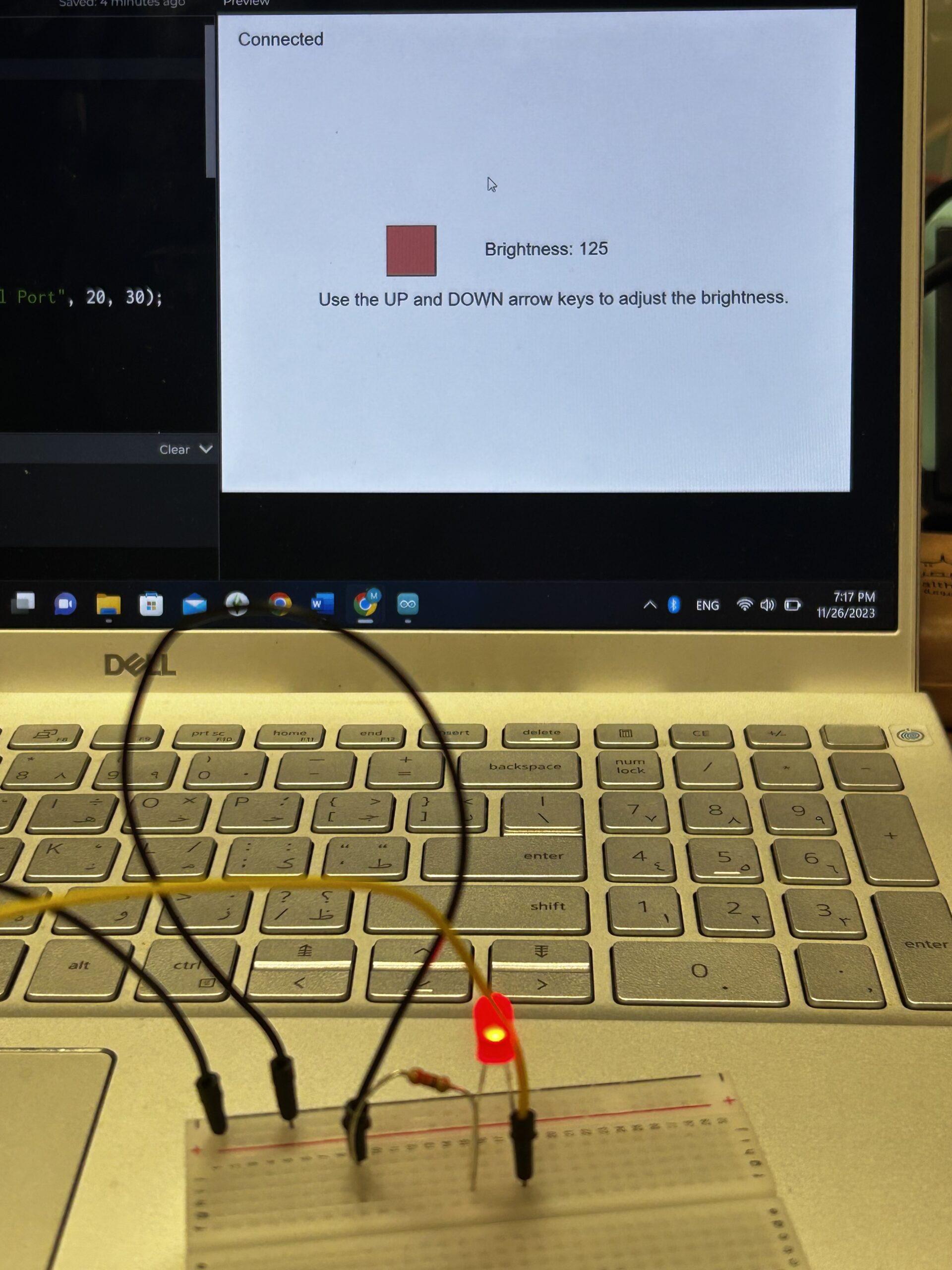
Brightness of the LED changes when pressing the UP and DOWN key buttons

P5.js Sketch:

let brightness=0;

function setup() {
  createCanvas(640, 480);
  textSize(18);
}

function draw() {
  background(255);
  fill(0);

  if (!serialActive) {
    text("Press Space Bar to select Serial Port", 20, 30);
  } else {
    text("Connected", 20, 30);
  }
  fill(255,0,0,brightness)
  square(width/2-150,height/2-30,50)
  fill(0)
  text("Brightness: "+str(brightness),width/2-50,height/2)
  text("Use the UP and DOWN arrow keys to adjust the brightness. ",width/2-220,height/2+50)

  if (keyIsPressed) {
    if (keyCode==UP_ARROW) {
      if (brightness<255){
        brightness+=5;
      }  
    } else if (keyCode==DOWN_ARROW) {
      if (brightness>0){
        brightness-=5;
      }
      
    }
  } 
}

function keyPressed() {
  if (key == " ") {
    // important to have in order to start the serial connection!!
    setUpSerial();
  }
}

function readSerial(data) {
  if (data != null) {
    writeSerial(brightness+"\n");
  }
}

Edit: https://editor.p5js.org/mariamalkhoori/sketches/f7vn6lagB

Arduino Sketch:

int LedPin = 5;

void setup() {
  // Start serial communication so we can send data
  // over the USB connection to our p5js sketch
  Serial.begin(9600);

  // We'll use the builtin LED as a status output..
  pinMode(LED_BUILTIN, OUTPUT);

  // Outputs on this pin
  pinMode(LedPin, OUTPUT);

  // Blink them so we can check the wiring
  digitalWrite(LedPin, HIGH);
  delay(200);
  digitalWrite(LedPin, LOW);

  // start the handshake
  while (Serial.available() <= 0) {
    digitalWrite(LED_BUILTIN, HIGH); // on/blink while waiting for serial data
    Serial.println("0"); // send a starting message
    delay(300);            // wait 1/3 second
    digitalWrite(LED_BUILTIN, LOW);
    delay(50);
  }
}

void loop() {
  // wait for data from p5 before doing something
  while (Serial.available()) {
    Serial.println("0");
    digitalWrite(LED_BUILTIN, HIGH); // led on while receiving data

    int brightness = Serial.parseInt();
    if (Serial.read() == '\n') {
      analogWrite(LedPin, brightness);
    }
  }
  digitalWrite(LED_BUILTIN, LOW);
}
Results:

assignment2

Assignment 3: BI-DIRECTIONAL COMMUNICATION

The LED glows up when the ball touches the ground. The ultrasonic sensor is used to change the direction of the wind.

P5.js Sketch

let velocity;
let gravity;
let posit5
let acceleration;
let wind;
let drag = 0.99;
let mass = 50;
let LED=0;
let wind_speed=0;

function setup() {
  createCanvas(640, 360);
  noFill();
  position = createVector(width/2, 0);
  velocity = createVector(0,0);
  acceleration = createVector(0,0);
  gravity = createVector(0, 0.5*mass);
  wind = createVector(0,0);
}

function draw() {
  background(255);
  fill(0)
  if (!serialActive) {
    text("Press RIGHT key to select Serial Port", 20, 30);
  } else {
    text("Connected", 20, 30);
  }
  applyForce(wind);
  applyForce(gravity);
  velocity.add(acceleration);
  velocity.mult(drag);
  position.add(velocity);
  acceleration.mult(0);
  fill(205,104,219); 
  ellipse(position.x,position.y,mass,mass);
  if (position.y > height-mass/2) {
      velocity.y *= -0.9;  // A little dampening when hitting the bottom
      position.y = height-mass/2;
    }
  
  if (position.y==height-mass/2){
    LED=1
  }
  else{
    LED=0
  }
  
  if (position.x>=width || position.x<=0){
    position.x=width/2
  }
  
    
}

function applyForce(force){
  // Newton's 2nd law: F = M * A
  // or A = F / M
  let f = p5.Vector.div(force, mass);
  acceleration.add(f);
}

function keyPressed(){
  if (key==' '){
    
    mass=random(15,80);
    position.y=-mass;
    velocity.mult(0);
  }
  if (keyCode==RIGHT_ARROW){
    setUpSerial();
  }
}

function readSerial(data) {
  ////////////////////////////////////
  //READ FROM ARDUINO HERE
  ////////////////////////////////////

  if (data != null) {
    let fromArduino = trim(data);
    distance= int(fromArduino);
    if (distance>10){
      wind.x=2
    }
    else{
      wind.x=-2
    }
    
    let sendToArduino = LED+"\n";
    writeSerial(sendToArduino);
  }
}

EDIT: https://editor.p5js.org/mariamalkhoori/sketches/MvolZDB7W

Arduino Sketch:

int LedPin = 2;
int trigPin = 9;
int echoPin = 10;
long duration;
int distance;

void setup() {
  // Start serial communication so we can send data
  // over the USB connection to our p5js sketch
  pinMode(trigPin, OUTPUT); 
  pinMode(echoPin, INPUT);
  Serial.begin(9600);
  pinMode(LED_BUILTIN, OUTPUT);

  // Outputs on these pins
  pinMode(LedPin, OUTPUT);

  // Blink them so we can check the wiring
  digitalWrite(LedPin, HIGH);
  delay(200);
  digitalWrite(LedPin, LOW);


  // start the handshake
  while (Serial.available() <= 0) {
    digitalWrite(LED_BUILTIN, HIGH); // on/blink while waiting for serial data
    Serial.println("0,0"); // send a starting message
    delay(300);            // wait 1/3 second
    digitalWrite(LED_BUILTIN, LOW);
    delay(50);
  }
}

void loop() {
  // wait for data from p5 before doing something
  while (Serial.available()) {
    digitalWrite(LED_BUILTIN, HIGH); // led on while receiving data

    int LED = Serial.parseInt();
    if (Serial.read() == '\n') {
      digitalWrite(LedPin, LED);
      digitalWrite(trigPin, LOW);
      delayMicroseconds(2); 
      digitalWrite(trigPin, HIGH);
      delayMicroseconds(10);
      digitalWrite(trigPin, LOW);
      // Reads the echoPin, returns the sound wave travel time in microseconds
      duration = pulseIn(echoPin, HIGH);
      // Calculating the distance
      distance = duration * 0.034 / 2;
      Serial.println(distance);
    }
  }
  digitalWrite(LED_BUILTIN, LOW);
}
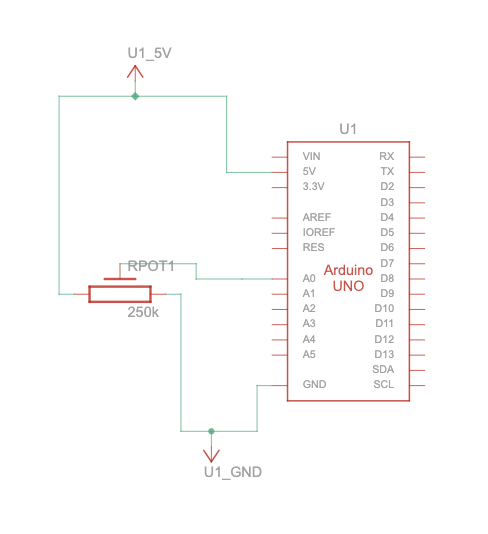
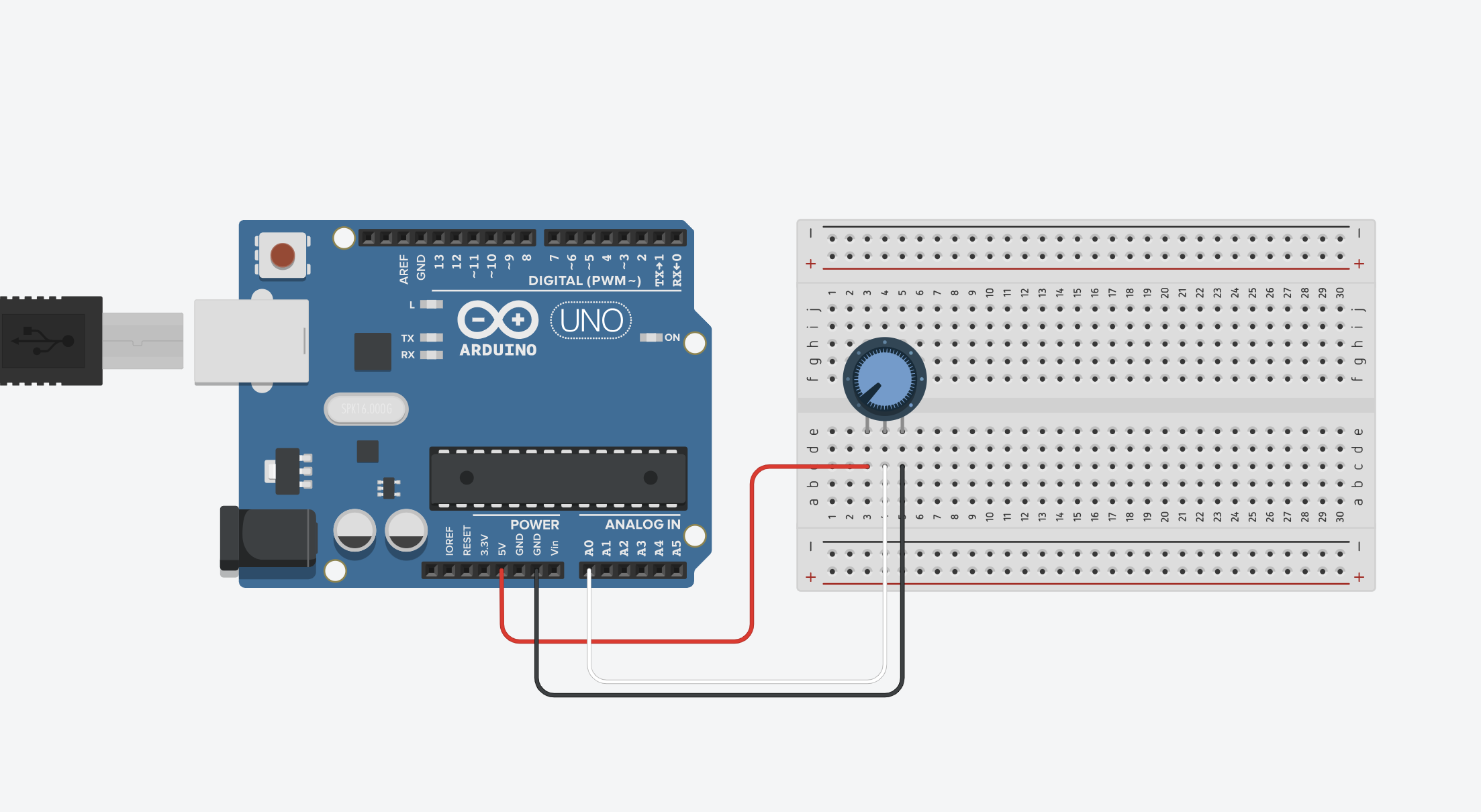
Results:

assignment3LED

assignment3WIND

Week 11: reading response

The shift in approaching disability, as outlined in the text, from a medical model to a social model is indeed intriguing and resonates with a more inclusive and human-centric perspective. The idea that disabilities are not solely medical conditions but are shaped by societal factors opens up new avenues for design solutions. I particularly find the example of eyewear transformation from a medical necessity to a key fashion accessory compelling. The shift from perceiving glasses merely as vision correction tools to considering them as items of clothing aligns with the social model. The recognition of the cultural and fashion aspects of eyewear challenges the conventional view of assistive devices, emphasizing the importance of societal perceptions.

However, I am somewhat uncertain about the notion that design for disability should seamlessly integrate with mainstream design. While collaboration and shared perspectives are undoubtedly valuable, there may be unique challenges and considerations specific to designing for disabilities that require specialized attention. It’s crucial to strike a balance between inclusive design practices and recognizing the distinct needs of individuals with disabilities. The risk of blending the two seamlessly lies in potentially overlooking the specific requirements and experiences of those with disabilities. Designing for disabilities might benefit from a dedicated focus to ensure that the resulting solutions genuinely address the challenges faced by the community.

Week 11 | Serial Communication: Serial Communication Exercises Assignment

Serial Communication Exercises Assignment:

Exercise (1) make something that uses only one sensor  on Arduino and makes the ellipse in p5 move on the horizontal axis, in the middle of the screen, and nothing on arduino is controlled by p5
ellipse(map(alpha, 0, 1023, 0, 640), 80, 80, 80);

Video Demonstration IMG_5539 2

Exercise (2) make something that controls the LED brightness from p5
function keyPressed() {
  
  // set up connection with p5:
  if (key == " ") {
    setUpSerial();
  }
  
  if (key == "1"){
    left = 10;
  }
  
  if (key == "2"){
    left = 100;
  }
  
  if(key == "3"){
    left = 255;
  }
}

Video DemonstrationIMG_5542

Exercise (3) take the gravity wind example  and make it so every time the ball bounces one led lights up and then turns off, and you can control the wind from one analog sensor
P5 CODE

let velocity;
let gravity;
let position;
let acceleration;
let wind;
let drag = 0.99;
let mass = 50;
let isBouncing = 0;

function setup() {
  createCanvas(640, 480);
  textSize(18);

  position = createVector(width / 2, 0);
  velocity = createVector(0, 0);
  acceleration = createVector(0, 0);
  gravity = createVector(0, 0.5 * mass);
  wind = createVector(0, 0);
}

function draw() {
  background(255);

  if (!serialActive) {
    text("Press Space Bar to select Serial Port", 20, 30);
  } else {
    applyForce(wind);
    applyForce(gravity);
    velocity.add(acceleration);
    velocity.mult(drag);
    position.add(velocity);
    acceleration.mult(0);

    ellipse(position.x, position.y, mass, mass);
    if (position.y > height - mass / 2) {
      velocity.y *= -0.9; // A little dampening when hitting the bottom
      position.y = height - mass / 2;
      isBouncing = 1;
    } else {
      isBouncing = 0;
    }
  }
}

function keyPressed() {
  if (key == " ") {
    // important to have in order to start the serial connection!!
    setUpSerial();
  } else if (key == "ENTER") {
    mass = random(15, 80);
    position.y = -mass;
    velocity.mult(0);
  }
}

function readSerial(data) {
  if (data != null) {
    // make sure there is actually a message
    // split the message
    let fromArduino = split(trim(data), ",");
    // if the right length, then proceed
    if (fromArduino.length == 1) {
      // only store values here
      // do everything with those values in the main draw loop
      let potValue = int(fromArduino[0]);
      wind.x = map(potValue, 0, 1023, -1, 1);
    }

    //////////////////////////////////
    //SEND TO ARDUINO HERE (handshake)
    //////////////////////////////////
    let sendToArduino = isBouncing + "\n";
    writeSerial(sendToArduino);
  }
}

function applyForce(force) {
  // Newton's 2nd law: F = M * A
  // or A = F / M
  let f = p5.Vector.div(force, mass);
  acceleration.add(f);
}

ARDUINO CODE

int ledPin = 5;
const int potPin = A1;

void setup() {
  Serial.begin(9600);
  pinMode(LED_BUILTIN, OUTPUT);
  pinMode(ledPin, OUTPUT);
  pinMode(potPin, INPUT);
  // start the handshake
  while (Serial.available() <= 0) {
    digitalWrite(LED_BUILTIN, HIGH); // on/blink while waiting for serial data
    Serial.println("0,0"); // send a starting message
    delay(300);            // wait 1/3 second
    digitalWrite(LED_BUILTIN, LOW);
    delay(50);
  }
}

void loop() {
  // wait for data from p5 before doing something
  while (Serial.available()) {
    digitalWrite(LED_BUILTIN, HIGH); // led on while receiving data
    digitalWrite(ledPin, LOW);
    int isBouncing = Serial.parseInt();
    if (Serial.read() == '\n') {
      int potValue = analogRead(potPin);
      delay(5);
      Serial.println(potValue);
    }
    // Set LED brightness based on whether bouncing.
    if (isBouncing == 1) {
      digitalWrite(ledPin, HIGH);
    } else {
      digitalWrite(ledPin, LOW);
    }
  }
  digitalWrite(LED_BUILTIN, LOW);
}
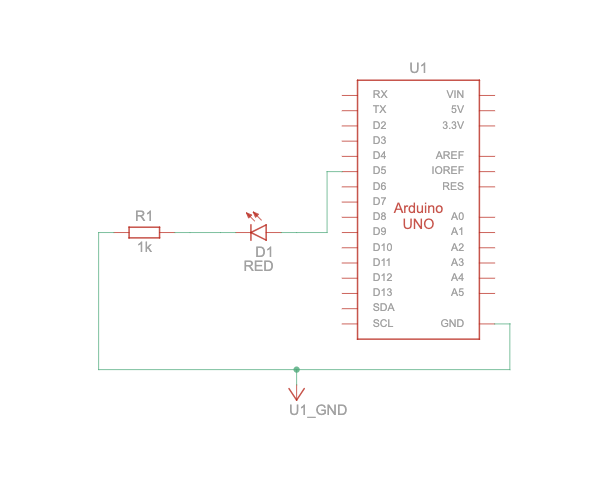
Video Demonstration IMG_5610

Week 11 – In class exercises

  1. make something that uses only one sensor  on Arduino and makes the ellipse in p5 move on the horizontal axis, in the middle of the screen, and nothing on arduino is controlled by p5For this exercise, I modified the p5js code using a potentiometer on the arduino. Different values of the potentiometer are mapped to the x coordinates of the ellipse. This makes it move across the horizontal axis in the middle of the screen. The arduino code remains the same as the example code.
let y=height/2;
let x = 0;
let left = 0; // True (1) if mouse is being clicked on left side of screen
let right = 0; // True (1) if mouse is being clicked on right side of screen

function setup() {
  createCanvas(640, 480);
  textSize(18);
}

function draw() {
  background(255);
  // one value from Arduino controls the background's red color
  fill(255, 0, 255, map(x, 0, 1023, 0, 255));
  ellipse(map(x, 0, 1023, 0, width), 30, 30);

  // the other value controls the text's transparency value

  if (!serialActive) {
    text("Press Space Bar to select Serial Port", 20, 30);
  } else {
    text("Connected", 20, 30);
  }


function keyPressed() {
  if (key == " ") {
    // important to have in order to start the serial connection!!
    setUpSerial();
  }
}

// This function will be called by the web-serial library
// with each new *line* of data. The serial library reads
// the data until the newline and then gives it to us through
// this callback function
function readSerial(data) {
  ////////////////////////////////////
  //READ FROM ARDUINO HERE
  ////////////////////////////////////

  if (data != null) {
    // make sure there is actually a message
    // split the message
    let fromArduino = split(trim(data), ",");
    // if the right length, then proceed
    if (fromArduino.length == 2) {
      // only store values here
      // do everything with those values in the main draw loop
      
      // We take the string we get from Arduino and explicitly
      // convert it to a number by using int()
      // e.g. "103" becomes 103
      y = int(fromArduino[0]);
      x = int(fromArduino[1]);
    }

    //////////////////////////////////
    //SEND TO ARDUINO HERE (handshake)
    //////////////////////////////////
    let sendToArduino = left + "," + right + "\n";
    writeSerial(sendToArduino);
  }
}

2. make something that controls the LED brightness from p5

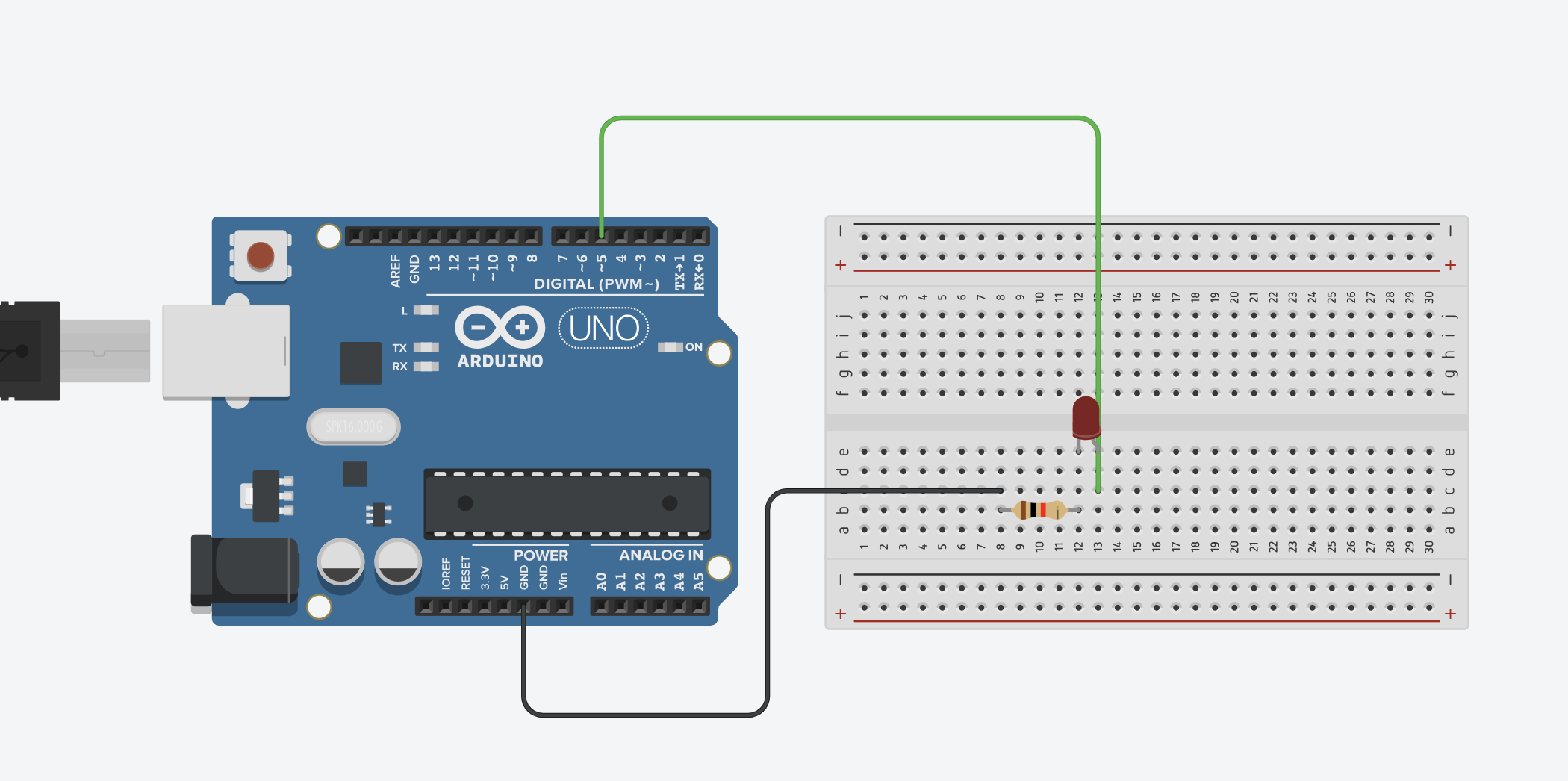
again tweaking the previous p5js and arduino codes, for this one, Pressing the up or down arrow key on the keyboard, run through p5js, increases or decreases the brightness of the leds on the arduino respectively. this was done using the concept of pulse width modulation.

p5js code:

let rVal = 0;
let alpha = 255;
let brightness = 0;

function setup() {
  createCanvas(640, 480);
  textSize(18);
}

function draw() {
  background(map(rVal, 0, 1023, 0, 255), 255, 255);
  fill(255, 0, 255, map(alpha, 0, 1023, 0, 255));

  if (!serialActive) {
    text("Press Space Bar to select Serial Port", 20, 30);
  } else {
    text("Connected", 20, 30);
    text('rVal = ' + str(rVal), 20, 50);
    text('alpha = ' + str(alpha), 20, 70);
  }
}

function keyPressed() {
  if (key == " ") {
    setUpSerial();
  } else if (keyCode === UP_ARROW) {
    brightness = constrain(brightness + 20, 0, 255);
    sendToArduino();
  } else if (keyCode === DOWN_ARROW) {
    brightness = constrain(brightness - 20, 0, 255);
    sendToArduino();
  }
}

function sendToArduino() {
  let sendToArduino = brightness + "\n";
  writeSerial(sendToArduino);
}

function readSerial(data) {
  if (data != null) {
    let fromArduino = split(trim(data), ",");
    if (fromArduino.length == 2) {
      rVal = int(fromArduino[0]);
      alpha = int(fromArduino[1]);
    }
    let sendToArduino = brightness + "," + brightness + "\n";
    writeSerial(sendToArduino);
  }
}


arduino code:

int leftLedPin = 2;
int rightLedPin = 5;

void setup() {
  // Start serial communication so we can send data
  // over the USB connection to our p5js sketch
  Serial.begin(9600);

  // We'll use the builtin LED as a status output.
  // We can't use the serial monitor since the serial connection is
  // used to communicate to p5js and only one application on the computer
  // can use a serial port at once.
  pinMode(LED_BUILTIN, OUTPUT);

  // Outputs on these pins
  pinMode(leftLedPin, OUTPUT);
  pinMode(rightLedPin, OUTPUT);

  // Blink them so we can check the wiring
  digitalWrite(leftLedPin, HIGH);
  digitalWrite(rightLedPin, HIGH);
  delay(200);
  digitalWrite(leftLedPin, LOW);
  digitalWrite(rightLedPin, LOW);

  // start the handshake
  while (Serial.available() <= 0) {
    digitalWrite(LED_BUILTIN, HIGH); // on/blink while waiting for serial data
    Serial.println("0,0"); // send a starting message
    delay(300);            // wait 1/3 second
    digitalWrite(LED_BUILTIN, LOW);
    delay(50);
  }
}
void loop() {
  // wait for data from p5 before doing something
  while (Serial.available()) {
    digitalWrite(LED_BUILTIN, HIGH); // led on while receiving data

    int left = Serial.parseInt();
    int right = Serial.parseInt();
    if (Serial.read() == '\n') {
      Serial.print("Left: ");
      Serial.print(left);
      Serial.print(", Right: ");
      Serial.println(right);

      analogWrite(leftLedPin, left);
      analogWrite(rightLedPin, right);
    }
  }
  digitalWrite(LED_BUILTIN, LOW);
}


3. take the gravity wind example (https://editor.p5js.org/aaronsherwood/sketches/I7iQrNCul) and make it so every time the ball bounces one led lights up and then turns off, and you can control the wind from one analog sensor

I found this one to be a little challenging but eventually made it work. the ball bounces with the same logic and physics from the example. Each time it touches the ground, using a boolean variable ballOnGround, it is equated to 1 or 0. this is then sent to the arduino where the LED turns on if it is 1. For the sensor contrilling wind, Im using a photoresitor whose values are mapped to the x coordinate of the wind vector. The ball moves faster when the value is larger. MouseClicking restarts the movement of the ellipse. The issue I face is slight delay in the led lighting up.

video:

p5.js Code:

let velocity;
let gravity;
let position;
let acceleration;
let wind;
let drag = 0.99;
let mass = 20;
let ballOnGround=1;
function setup() {
  createCanvas(640, 360);
  noFill();
  position = createVector(width/2, 0);
  velocity = createVector(0,0);
  acceleration = createVector(0,0);
  gravity = createVector(0, 0.5*mass);
  wind = createVector(0,0);
}

function draw() {
  background(255);
  
  if (!serialActive) {
    text("Press Space Bar to select Serial Port", 20, 30);
  } else {
    applyForce(wind);
    applyForce(gravity);
    velocity.add(acceleration);
    velocity.mult(drag);
    position.add(velocity);
    acceleration.mult(0);

    fill(0);
    ellipse(position.x, position.y, mass, mass);
    if (position.y > height - mass / 2) {
      velocity.y *= -0.9; // A little dampening when hitting the bottom
      position.y = height - mass / 2;
      ballOnGround = 1;
      let sendToArduino = ballOnGround + "\n";
    writeSerial(sendToArduino);
    ballOnGround = 0;
    sendToArduino = ballOnGround + "\n";
    writeSerial(sendToArduino);
    } else {
      ballOnGround = 0;
    }
  }
  
  
  if (mouseIsPressed) {
      restartSketch();
    }
}

function applyForce(force){
  // Newton's 2nd law: F = M * A
  // or A = F / M
  let f = p5.Vector.div(force, mass);
  acceleration.add(f);
}


function keyPressed() {
  if (key == " ") {
    // important to have in order to start the serial connection!!
    setUpSerial();
  } 
}

function readSerial(data) {
  if (data != null) {
    // make sure there is actually a message
    // split the message
    let fromArduino = split(trim(data), ",");
    // if the right length, then proceed
    if (fromArduino.length == 1) {
      // only store values here
      // do everything with those values in the main draw loop
      let photoresistor = int(fromArduino[0]);
      
      //change the wind based on the photoresistor readings
      wind.x = map(photoresistor, 0, 1000, -5, 5);
      
    }

    //////////////////////////////////
    //SEND TO ARDUINO HERE (handshake)
    //////////////////////////////////
    // let sendToArduino = ballOnGround + "\n";
    // writeSerial(sendToArduino);
  }
}


function restartSketch() {
  // Reset relevant variables to their initial values
  position = createVector(width / 2, 0);
  velocity = createVector(0, 0);
  acceleration = createVector(0, 0);
  wind = createVector(0, 0);
  mass = 50;
  ballOnGround = 0;
}

arduino code:

int ledPin = 2;
const int photoresistorPin = A0;

void setup() {
  Serial.begin(9600);
  pinMode(LED_BUILTIN, OUTPUT);
  pinMode(ledPin, OUTPUT);
  pinMode(photoresistorPin, INPUT);

  // start the handshake
  while (Serial.available() <= 0) {
    digitalWrite(LED_BUILTIN, HIGH); // on/blink while waiting for serial data
    Serial.println("0,0");           // send a starting message
    delay(300);                      // wait 1/3 second
    digitalWrite(LED_BUILTIN, LOW);
    delay(50);
  }
}

void loop() {
  // wait for data from p5 before doing something
  while (Serial.available()) {
    digitalWrite(LED_BUILTIN, HIGH); // led on while receiving data
    int ballOnGround = Serial.parseInt();
    if (Serial.read() == '\n') {
      int photoresistorValue = analogRead(photoresistorPin);

      // Send photoresistor value to p5.js
      Serial.println(photoresistorValue);
      digitalWrite(ledPin, HIGH);
      digitalWrite(ledPin, LOW);
      // Control the LED based on the bouncing state.
      if (ballOnGround == 1) {
        digitalWrite(ledPin, HIGH);
      } else {
        digitalWrite(ledPin, LOW);
      }
    }
  }
  digitalWrite(LED_BUILTIN, LOW);
}
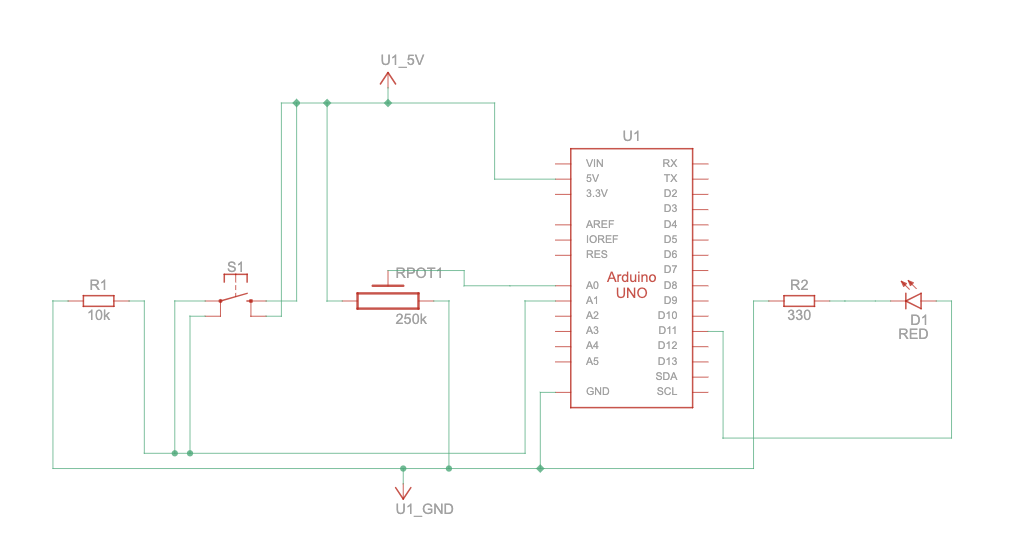
 

Final Project Concept: Something ml5.js

For my final project, I plan to utilize the ml5.js library and Arduino to create either an “electronic buddy” or an “art-aiding” device. Concerning the electronic buddy, my idea involves employing the ml5 library to execute a face recognition machine learning model through the webcam of a laptop or an attached camera. The objective is to enable the “buddy” to navigate towards the user. This electronic companion would be capable of displaying messages using the display unit in the SparkFun Inventor’s Kit for Arduino Uno. Additionally, it could produce sounds, potentially incorporating recorded messages.

On the other hand, the concept of the art-aiding device shares some similarities with the electronic buddy. This mobile device would be equipped with servo motors, possibly two or three in number. Colored pencils or markers, depending on what works best, would be attached to these servo motors. The servo motors would be allowed to move at specific angles, enabling the attached pencils or markers to make contact with a canvas. The user would have control over the device’s movement direction and the servo motors, along with the attached pencils, using p5 and a machine learning model from ml5.js.