All Posts

Ideas For Final Project


Idea 1 

For the first idea, I’m thinking of using either real-time data or just existing data and creating a creative visualization that can be controlled by the user through an ultrasonic sensor. My second option for data visualization is to apply the concept of sonification in the field of astronomy where data is converted into sound as an output demonstrating  some waves that are being radiated in space or a black hole studied by NASA. If I go with this idea, I’ll probably try to connect the sound of those waves with the user’s interaction with the ultrasonic sensor and connect it to what’s displayed on p5js.

Idea 2

My second idea does not involve any data its more like a game. The game would either involve a journey in an old house and the user will be moving through different rooms or it would be a whole night journey in multiple settings like a home, forest, streets, etc. The main concept is that they will be using their phones as a flashlight to search for certain objects asked by the game in order to win or complete the narrative. The light would be detected by the light sensor and it would be connected to p5js so the space they are in is bright enough for them to look for the item. This idea might be tough because I’m not sure to what extent it is plausible to implement.

Week 11 Serial Communication

Exercise 1

Team members: Nafiha, Javeria

Something that uses only one sensor  on Arduino and makes the ellipse in p5 move on the horizontal axis, in the middle of the screen, and nothing on arduino is controlled by p5.

P5JS code

let redValue = 0;
let transparency = 255;

function setup() {
  createCanvas(640, 480);
  textSize(18);
}

function draw() {
  if (key == " ") {
    initiateSerialConnection();
  }

  background(map(redValue, 0, 1023, 0, 255), 255, 255);
  fill(255, 0, 255, map(transparency, 0, 1023, 0, 255));

  if (!isSerialActive) {
    text("Press Space Bar to select Serial Port", 20, 30);
  } else {
    ellipse(redValue / 2, 240, 100, 100);
  }
}

function keyPressed() {
  if (key == " ") {
    initiateSerialConnection();
  }
}

function readSerial(data) {
  if (data != null) {
    let fromArduino = split(trim(data), ",");
    if (fromArduino.length == 2) {
      redValue = int(fromArduino[0]);
      transparency = int(fromArduino[1]);
    }
  }
}


Arduino code

void setup() {
 Serial.begin(9600);
 pinMode(LED_BUILTIN, OUTPUT);
// start the handshake
 while (Serial.available() <= 0)
{
   Serial.println("0,0"); // send a starting message
   delay(300);            // wait 1/3 second
 }
}
void loop()
{
 // wait for data from p5 before doing something
   while (Serial.available())
{
   digitalWrite(LED_BUILTIN, HIGH); // led on while receiving data
 // Read sensor value
 int sensorValue = analogRead(A0);
  Serial.print(sensorValue);
 // Map sensor value to screen width
 int screenValue = map(sensorValue, 0, 1023, 0, 800);
 // Send mapped value to p5.js
 Serial.println(screenValue);
 delay(50); //    for stability
}
digitalWrite(LED_BUILTIN, LOW);
}

Exercise 2

Something that controls the LED brightness from p5. LED’s brightness is changed by mouseX and the other’s by mouse Y.

P5JS code

let rVal = 0;
let alpha = 255;
let left = 0; // True (1) if mouse is being clicked on left side of screen
let right = 0; // True (1) if mouse is being clicked on right side of screen
function setup() {
 createCanvas(255, 255);
 textSize(18);
}
function draw() {
 // one value from Arduino controls the background's red color
 background(map(rVal, 0, 1023, 0, 255), 255, 255);
 // the other value controls the text's transparency value
 fill(255, 0, 255, map(alpha, 0, 1023, 0, 255));
 if (!serialActive) {
   text("Press Space Bar to select Serial Port", 20, 30);
 } else {
   text("Connected", 20, 30);
  
   // Print the current values
   text('rVal = ' + str(rVal), 20, 50);
   text('alpha = ' + str(alpha), 20, 70);
 }
 // click on one side of the screen, one LED will light up
 // click on the other side, the other LED will light up
 if (mouseIsPressed) {
   if (mouseX <= width / 2) {
     left = 1;
   } else {
     right = 1;
   }
 } else {
   left = right = 0;
 }
}
function keyPressed() {
 if (key == " ") {
   // important to have in order to start the serial connection!!
   setUpSerial();
 }
}
// This function will be called by the web-serial library
// with each new *line* of data. The serial library reads
// the data until the newline and then gives it to us through
// this callback function
function readSerial(data) {
 ////////////////////////////////////
 //READ FROM ARDUINO HERE
 ////////////////////////////////////
 if (data != null) {
   // make sure there is actually a message
   // split the message
   let fromArduino = split(trim(data), ",");
   // if the right length, then proceed
   if (fromArduino.length == 2) {
     // only store values here
     // do everything with those values in the main draw loop
    
     // We take the string we get from Arduino and explicitly
     // convert it to a number by using int()
     // e.g. "103" becomes 103
     rVal = int(fromArduino[0]);
     alpha = int(fromArduino[1]);
   }
   //////////////////////////////////
   //SEND TO ARDUINO HERE (handshake)
   //////////////////////////////////
  
   let sendToArduino = mouseX + "," + mouseY + "\n";
   writeSerial(sendToArduino);
 }
}

Arduino code

int leftLedPin = 2;
int rightLedPin = 5;
void setup() {
 // Start serial communication so we can send data
 // over the USB connection to our p5js sketch
 Serial.begin(9600);
 // We'll use the builtin LED as a status output.
 // We can't use the serial monitor since the serial connection is
 // used to communicate to p5js and only one application on the computer
 // can use a serial port at once.
 pinMode(LED_BUILTIN, OUTPUT);
 // Outputs on these pins
 pinMode(leftLedPin, OUTPUT);
 pinMode(rightLedPin, OUTPUT);
 // Blink them so we can check the wiring
 digitalWrite(leftLedPin, HIGH);
 digitalWrite(rightLedPin, HIGH);
 delay(200);
 digitalWrite(leftLedPin, LOW);
 digitalWrite(rightLedPin, LOW);
 // start the handshake
 while (Serial.available() <= 0) {
   digitalWrite(LED_BUILTIN, HIGH); // on/blink while waiting for serial data
   Serial.println("0,0"); // send a starting message
   delay(300);            // wait 1/3 second
   digitalWrite(LED_BUILTIN, LOW);
   delay(50);
 }
}
void loop() {
 // wait for data from p5 before doing something
 while (Serial.available()) {
   digitalWrite(LED_BUILTIN, HIGH); // led on while receiving data
   int posX = Serial.parseInt();
   int posY = Serial.parseInt();
   if (Serial.read() == '\n') {
     analogWrite(leftLedPin, posX);
     analogWrite(rightLedPin, posY);
     int sensor = analogRead(A0);
     delay(5);
     int sensor2 = analogRead(A1);
     delay(5);
     Serial.print(sensor);
     Serial.print(',');
     Serial.println(sensor2);
   }
 }
 digitalWrite(LED_BUILTIN, LOW);
}

Exercise 3

Bouncing ball: potentiometer is used as the analog sensor to control the breeze.

P5JS code

let velocity;
let gravity;
let position;
let acceleration;
let breeze;
let drag = 0.99;
let mass = 50;
let heightOfBall = 0;
function setup() {
  createCanvas(640, 360); // Create a canvas of 800x400 pixels
 
  noFill();
  position = createVector(width/2, 0);
  velocity = createVector(0,0);
  acceleration = createVector(0,0);
  gravity = createVector(0, 0.5*mass);
  breeze = createVector(0,0); 
}
function draw() {
  background(215);
  fill(0);
  
  if (!serialActive) {
    text("Press the space bar to select the serial Port", 20, 30);
  }
  else 
  {
    text("Arduino is connected! Press b to jump.", 20, 30);
  
  applyForce(breeze);
  applyForce(gravity);
  velocity.add(acceleration);
  velocity.mult(drag);
  position.add(velocity);
  acceleration.mult(0);
  ellipse(position.x,position.y,mass,mass);
    
  if (position.y > height-mass/2) {
      velocity.y *= -0.9;  // A little dampening when hitting the bottom
      position.y = height-mass/2;
    
    heightOfBall = 0;
    
    } 
    else {
      heightOfBall = 1;
    }
  }
}
function applyForce(force){
  // Newton's 2nd law: F = M * A
  // or A = F / M
  let f = p5.Vector.div(force, mass);
  acceleration.add(f);
}
function keyPressed() {
  if (key == " ") {
    // important to have in order to start the serial connection!!
    setUpSerial();
  }   
  else if (key=='b'){
    mass=random(15,80);
    position.y=-mass;
    velocity.mult(0);
  }
}
// this callback function
function readSerial(data) {
    ////////////////////////////////////
    //READ FROM ARDUINO HERE
    ////////////////////////////////////
  
     if (data != null) {
    // make sure there is actually a message
    
    let fromArduino = split(trim(data), ",");
    
       // if the right length, then proceed
    if (fromArduino.length == 1) {
//sensor value is the input from potentiometer
      let sensorVal = int(fromArduino[0]);
      
//potentiometer value ranges from 0 - 1023
//for values less than 400,wind blows to right
      if (sensorVal < 400){
        breeze.x=1
      }
//if value between 400 and 500, wind stops so ball stops
      else if(sensorVal >= 400 && sensorVal < 500){
        breeze.x = 0
      }
//if value greater than 500, wind blows to left
      else {
        breeze.x = -1
      }
          //////////////////////////////////
          //SEND TO ARDUINO HERE (handshake)
          //////////////////////////////////
    }
//height of ball sent to arduino to check if ball on floor or not
    let sendToArduino = heightOfBall  + "\n";
    writeSerial(sendToArduino);
  }
}

Arduino code

const int poten_pin = A0;
const int ledPin = 2;
void setup() {
 Serial.begin(9600); // Start serial communication at 9600 bps
 pinMode(LED_BUILTIN, OUTPUT);
 pinMode(ledPin, OUTPUT);
 pinMode(poten_pin, INPUT);
 // start the handshake
 while (Serial.available() <= 0) {
   digitalWrite(LED_BUILTIN, HIGH); // on/blink while waiting for serial data
   Serial.println("0,0"); // send a starting message
   delay(300);            // wait 1/3 second
   digitalWrite(LED_BUILTIN, LOW);
   delay(50);
 }
}
void loop()
{
 // wait for data from p5 before doing something
   while (Serial.available())
   {
     digitalWrite(LED_BUILTIN, HIGH);
     digitalWrite(ledPin, LOW);
//read the position of ball from p5
     int position = Serial.parseInt();
  
     if (Serial.read() == '\n') {
       // Read potentiometer value
     int sensorValue = analogRead(poten_pin);
     //send value to p5
     Serial.println(sensorValue);
     }
//if ball is touching the ground i.e. height is zero, turn LED on
     if (position == 0)
     {
       digitalWrite(ledPin, HIGH);
     }
     else{
       digitalWrite(ledPin, LOW);
     }
   }
     digitalWrite(LED_BUILTIN, LOW);
   }


Class Exercises

  1. make something that uses only one sensor  on Arduino and makes the ellipse in p5 move on the horizontal axis, in the middle of the screen, and nothing on arduino is controlled by p5.

Ex1 video demo

2. make something that controls the LED brightness from p5

Ex2 video demo

3. take the gravity wind example (https://editor.p5js.org/aaronsherwood/sketches/I7iQrNCul) and make it so every time the ball bounces one led lights up and then turns off, and you can control the wind from one analog sensor.

Ex3 video demo

Week 11: In class exercises

For the first exercise, Nafiha and I decided to use a light sensor as the analog input value for the movement of the ellipse on the p5js screen.

P5js Code

//exercise 1 p5js

let redValue = 0;
let transparency = 255;

function setup() {
  createCanvas(640, 480);
  textSize(18);
}

function draw() {
  if (key == " ") {
    initiateSerialConnection();
  }

  background(map(redValue, 0, 1023, 0, 255), 255, 255);
  fill(255, 0, 255, map(transparency, 0, 1023, 0, 255));

  if (!isSerialActive) {
    text("Press Space Bar to select Serial Port", 20, 30);
  } else {
    ellipse(redValue / 2, 240, 100, 100);
  }
}

function keyPressed() {
  if (key == " ") {
    initiateSerialConnection();
  }
}

function readSerial(data) {
  if (data != null) {
    let fromArduino = split(trim(data), ",");
    if (fromArduino.length == 2) {
      redValue = int(fromArduino[0]);
      transparency = int(fromArduino[1]);
    }
  }
}

Arduino Code

//exercise 1 arduino

void setup() {
 Serial.begin(9600);
 pinMode(LED_BUILTIN, OUTPUT);
// start the handshake
 while (Serial.available() <= 0)
{
   Serial.println("0,0"); // send a starting message
   delay(300);            // wait 1/3 second
 }
}
void loop()
{
 // wait for data from p5 before doing something
   while (Serial.available())
{
   digitalWrite(LED_BUILTIN, HIGH); // led on while receiving data
 // Read sensor value
 int sensorValue = analogRead(A0);
  Serial.print(sensorValue);
 // Map sensor value to screen width
 int screenValue = map(sensorValue, 0, 1023, 0, 800);
 // Send mapped value to p5.js
 Serial.println(screenValue);
 delay(50); //    for stability
}
digitalWrite(LED_BUILTIN, LOW);
}

For the second exercise the LED’s brightness is changed by mouseX and the other’s by mouse Y.

P5js Code

//exercise 2 p5js
let rVal = 0;
let alpha = 255;
let left = 0; // True (1) if mouse is being clicked on left side of screen
let right = 0; // True (1) if mouse is being clicked on right side of screen
function setup() {
 createCanvas(255, 255);
 textSize(18);
}
function draw() {
 // one value from Arduino controls the background's red color
 background(map(rVal, 0, 1023, 0, 255), 255, 255);
 // the other value controls the text's transparency value
 fill(255, 0, 255, map(alpha, 0, 1023, 0, 255));
 if (!serialActive) {
   text("Press Space Bar to select Serial Port", 20, 30);
 } else {
   text("Connected", 20, 30);
  
   // Print the current values
   text('rVal = ' + str(rVal), 20, 50);
   text('alpha = ' + str(alpha), 20, 70);
 }
 // click on one side of the screen, one LED will light up
 // click on the other side, the other LED will light up
 if (mouseIsPressed) {
   if (mouseX <= width / 2) {
     left = 1;
   } else {
     right = 1;
   }
 } else {
   left = right = 0;
 }
}
function keyPressed() {
 if (key == " ") {
   // important to have in order to start the serial connection!!
   setUpSerial();
 }
}
// This function will be called by the web-serial library
// with each new *line* of data. The serial library reads
// the data until the newline and then gives it to us through
// this callback function
function readSerial(data) {
 ////////////////////////////////////
 //READ FROM ARDUINO HERE
 ////////////////////////////////////
 if (data != null) {
   // make sure there is actually a message
   // split the message
   let fromArduino = split(trim(data), ",");
   // if the right length, then proceed
   if (fromArduino.length == 2) {
     // only store values here
     // do everything with those values in the main draw loop
    
     // We take the string we get from Arduino and explicitly
     // convert it to a number by using int()
     // e.g. "103" becomes 103
     rVal = int(fromArduino[0]);
     alpha = int(fromArduino[1]);
   }
   //////////////////////////////////
   //SEND TO ARDUINO HERE (handshake)
   //////////////////////////////////
  
   let sendToArduino = mouseX + "," + mouseY + "\n";
   writeSerial(sendToArduino);
 }
}

Arduino Code

//exercise 2 arduino
int leftLedPin = 3;
int rightLedPin = 6;
void setup() {
 // Start serial communication so we can send data
 // over the USB connection to our p5js sketch
 Serial.begin(9600);
 // We'll use the builtin LED as a status output.
 // We can't use the serial monitor since the serial connection is
 // used to communicate to p5js and only one application on the computer
 // can use a serial port at once.
 pinMode(LED_BUILTIN, OUTPUT);
 // Outputs on these pins
 pinMode(leftLedPin, OUTPUT);
 pinMode(rightLedPin, OUTPUT);
 // Blink them so we can check the wiring
 digitalWrite(leftLedPin, HIGH);
 digitalWrite(rightLedPin, HIGH);
 delay(200);
 digitalWrite(leftLedPin, LOW);
 digitalWrite(rightLedPin, LOW);
 // start the handshake
 while (Serial.available() <= 0) {
   digitalWrite(LED_BUILTIN, HIGH); // on/blink while waiting for serial data
   Serial.println("0,0"); // send a starting message
   delay(300);            // wait 1/3 second
   digitalWrite(LED_BUILTIN, LOW);
   delay(50);
 }
}
void loop() {
 // wait for data from p5 before doing something
 while (Serial.available()) {
   digitalWrite(LED_BUILTIN, HIGH); // led on while receiving data
   int xPos = Serial.parseInt();
   int yPos = Serial.parseInt();
   if (Serial.read() == '\n') {
     analogWrite(leftLedPin, xPos);
     analogWrite(rightLedPin, yPos);
     int sensor = analogRead(A0);
     delay(5);
     int sensor2 = analogRead(A1);
     delay(5);
     Serial.print(sensor);
     Serial.print(',');
     Serial.println(sensor2);
   }
 }
 digitalWrite(LED_BUILTIN, LOW);
}

For the third exercise, we used a potentiometer as our analog sensor to control the breeze.

Video

link: https://youtube.com/shorts/Yh3D4YKBIeA?feature=share

P5js Code

//exercise 3 p5js
let velocity;
let gravity;
let position;
let acceleration;
let breeze;
let drag = 0.99;
let mass = 50;
let heightOfBall = 0;
function setup() {
  createCanvas(640, 360); 
 
  noFill();
  position = createVector(width/2, 0);
  velocity = createVector(0,0);
  acceleration = createVector(0,0);
  gravity = createVector(0, 0.5*mass);
  breeze = createVector(0,0); 
}
function draw() {
  background(215);
  fill(0);
  
  if (!serialActive) {
    text("Press the space bar to select the serial Port", 20, 30);
  }
  else 
  {
    text("Arduino is connected! Press b to jump.", 20, 30);
  
  applyForce(breeze);
  applyForce(gravity);
  velocity.add(acceleration);
  velocity.mult(drag);
  position.add(velocity);
  acceleration.mult(0);
  ellipse(position.x,position.y,mass,mass);
    
  if (position.y > height-mass/2) {
      velocity.y *= -0.9;  // A little dampening when hitting the bottom
      position.y = height-mass/2;
    
    heightOfBall = 0;
    
    } 
    else {
      heightOfBall = 1;
    }
  }
}
function applyForce(force){
  // Newton's 2nd law: F = M * A
  // or A = F / M
  let f = p5.Vector.div(force, mass);
  acceleration.add(f);
}
function keyPressed() {
  if (key == " ") {
    // important to have in order to start the serial connection!!
    setUpSerial();
  }   
  else if (key=='b'){
    mass=random(15,80);
    position.y=-mass;
    velocity.mult(0);
  }
}
// this callback function
function readSerial(data) {
    ////////////////////////////////////
    //READ FROM ARDUINO HERE
    ////////////////////////////////////
  
     if (data != null) {
    // make sure there is actually a message
    
    let fromArduino = split(trim(data), ",");
    
       // if the right length, then proceed
    if (fromArduino.length == 1) {
//sensor value is the input from potentiometer
      let sensorVal = int(fromArduino[0]);
      
//potentiometer value ranges from 0 - 1023
//for values less than 400,wind blows to right
      if (sensorVal < 400){
        breeze.x=1
      }
//if value between 400 and 500, wind stops so ball stops
      else if(sensorVal >= 400 && sensorVal < 500){
        breeze.x = 0
      }
//if value greater than 500, wind blows to left
      else {
        breeze.x = -1
      }
          //////////////////////////////////
          //SEND TO ARDUINO HERE (handshake)
          //////////////////////////////////
    }
//height of ball sent to arduino to check if ball on floor or not
    let sendToArduino = heightOfBall  + "\n";
    writeSerial(sendToArduino);
  }
}

Arduino Code

const int poten_pin = A0;
const int ledPin = 2;
void setup() {
  Serial.begin(9600); // Start serial communication at 9600 bps
  pinMode(LED_BUILTIN, OUTPUT);
  pinMode(ledPin, OUTPUT);
  pinMode(poten_pin, INPUT);
  // start the handshake
  while (Serial.available() <= 0) {
    digitalWrite(LED_BUILTIN, HIGH); // on/blink while waiting for serial data
    Serial.println("0,0"); // send a starting message
    delay(300);            // wait 1/3 second
    digitalWrite(LED_BUILTIN, LOW); 
    delay(50);
  }
}
void loop() 
{
  // wait for data from p5 before doing something
    while (Serial.available()) 
    {
      digitalWrite(LED_BUILTIN, HIGH);
      digitalWrite(ledPin, LOW);
//read the position of ball from p5
      int position = Serial.parseInt();
    
      if (Serial.read() == '\n') {
        // Read potentiometer value
      int sensorValue = analogRead(poten_pin);
      //send value to p5
      Serial.println(sensorValue);
      }
//if ball is touching the ground i.e. height is zero, turn LED on
      if (position == 0)
      {
        digitalWrite(ledPin, HIGH);
      }
      else{
        digitalWrite(ledPin, LOW);
      }
    }
      digitalWrite(LED_BUILTIN, LOW); 
    }


Final Project Proposal

I want to create a color-mixing game. Using potentiometers that represent primary colors red, green and blue, players will have to match a presented color as closely as possible by tuning the RGB values. I will use some sort of a system or an equation to calculate a score as to how close to the target color the match is. The feedback would be instant, meaning that the color changes would appear at the same time the potentiometers are used. I think it would be nice to have multiple rounds, let’s say 5, which would progress in difficulty, and perhaps a time limit for each round. There would be a final score that could be used for the players to compete with each other. I believe that the game would be a valuable interactive experience in terms of providing a better understanding of color theory and enhancing visual perception.


Week 11 Exercises

Exercise 1: Move a circle in P5Js using a single Arduino Sensor

Idea:

My idea was to simply use a potentiometer, since I wanted to practice serial connection between Arduino and P5JS. Since a potentiometer gives stable input, I thought it would be the best to use it to test the waters.

P5Js Code:

let ardVal = 0.0; // global variable to store the incoming data
let circleRad = 25;
function setup() {
  createCanvas(400, 400);
   frameRate(60);
}

function draw() {
  background(220);
  
  //map the input from arduino to the position of the circle
  let xPos = map(ardVal, 0, 1023, circleRad, width - circleRad);
  
  noStroke();
  fill(255,0,0); //red ball
  ellipse(xPos, 200, 2 * circleRad, 2 * circleRad);

  if(!serialActive)
  {
    print("Serial is not active");
  }

}

// to establish the serial connection
function keyPressed() {
  if (key == " ") {
    // important to have in order to start the serial connection!!
    setUpSerial(9600);
    print("SERIAL ACTIVATED");
  }
}

// how we read the incoming data
function readSerial(data) {

  if (data != null) {
    // make sure there is actually a message
    ardVal = data //read the incoming data as a float
    }  
}

I wanted to display a simple red circle that moves across the screen based on the value of the potentiometer. Only the value of the potentiometer is sent from Arduino, and nothing is sent back to Arduino from P5Js.

Arduino Code:

#include <Arduino.h>

const int potInPin = A0;

void setup() {
  Serial.begin(9600); // 9600 bits per second
  pinMode(LED_BUILTIN, OUTPUT);
}

void loop() {
  int potValue = analogRead(potInPin);
  Serial.println(potValue);
}

The Arduino side of things is very simple. I read the value from the potentiometer and write it to the serial port.

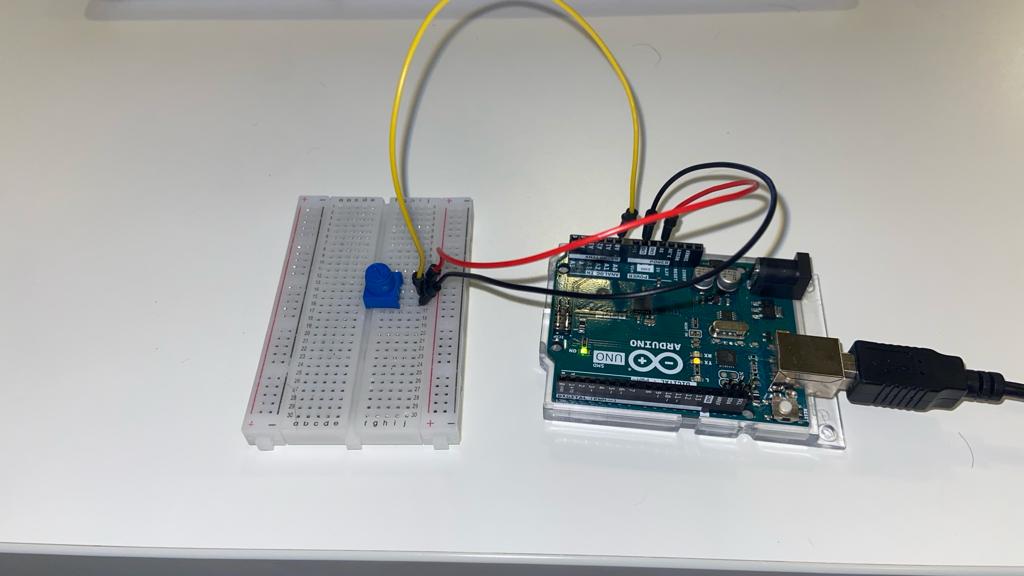
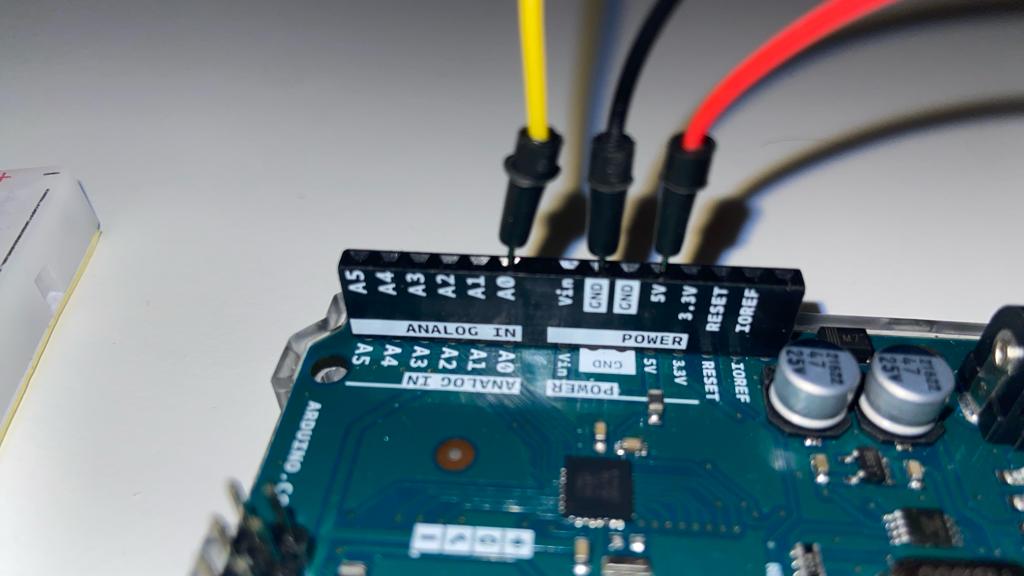
Circuit:
The circuit simply takes input from the potentiometer using the A0 pin.
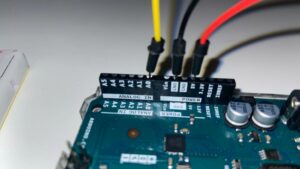
Exercise 2: Move a circle in P5Js using a single Arduino Sensor

Note:

For this exercise, I had issues getting serial communication from P5Js to Arduino to work. I tinkered for a few hours, but then ended up finding this P5Js serial library that seems to be simpler to use, and I was able to get communication up and running with this. I will be using this library for future projects, and the rest of the exercises.

It can be imported via adding this to your P5Js sketch, in the index.html file:

<script src="https://unpkg.com/@gohai/p5.webserial@^1/libraries/p5.webserial.js"></script>

Idea:

Once I had communication running, the idea I (actually my friend who was watching me tinker) came up with was to create a sensor that would let you know where mines in minesweeper were. Thus, this LED would serve as a mine sensor. For this, I needed to create a simple minesweeper game, and add the functionality of detecting mines via the LED in the Arduino circuit.

Instead of making it a minesweeper game though, I decided to turn the game into that of a mouse trying to detect mines on the field. You can press “d” to defuse if you are on a mine. However, if you press “d” on the wrong mine, you lose a turn. The game is won if you defuse all the bombs, and lost if you try to defuse incorrectly too many times. The mouse can be controlled via the arrow keys.

Note: Please open the sketch in a new tab

P5Js Code:

It was very easy to create the port for connection. All I had to do was create a serial port object in the setup() function as follows:

function setup() {
  createCanvas(400, 500);
  //create a 2D array
  grid = create2DArray(numRows, numCols);

  //setup the grid cells
  for (let i = 0; i < numRows; i++) {
    for (let j = 0; j < numCols; j++) {
      grid[i][j] = new Cell(i, j, gridWidth / numRows, gridHeight / numCols);
    }
  }

  //place the mines
  placeMines();

  //create the mouse
  bombMouse = new Mouse();

  //create the serial port
  port = createSerial()

}

And then I asked the user to press space to begin the game, and pressing space asks the user to connect to the correct serial device, in this case our Arduino.

function keyPressed() {
  //to open the serial port
  if (key == " ") {
    if(port.opened())
    {
      return; //already opened
    }
    print("ACTIVATED");
    port.open(9600);
  }

  if (key == "d") {
    bombMouse.defuse();
  }

}

Finally, sending input to Arduino from P5Js is very simple as well:

let distance = bombMouse.distanceFromClosestBomb();

  let message = String(distance) + "\n";

  //send the distance to the arduino
  port.write(message);
  print(distance + "vs" + message);

I send the message as a string, and parse the integers from the string in Arduino.

The rest of the code for the game can be viewed on the P5Js web editor linked above.

Arduino Code:

The Arduino code for this was very simple. Parse distance through Serial.parseInt(), and then map it to brightness values. If the distance is 0, AKA mouse is on a mine, then the LED should blink.

#include <Arduino.h>

const int LED_PIN = 5;

int lastToggleTime = 0;
int currentStatus = LOW;

void setup()
{
  pinMode(LED_PIN, OUTPUT);
  Serial.begin(9600);
}

void loop()
{

  if(Serial.available() == 0)
  {
    //if no data is available, wait
    return;
  }

  //read distance from P5Js
  int distance = Serial.parseInt();

  if(distance == 0)
  {
    if(millis() - lastToggleTime < 30)
    {
      //if less than 1 second has passed, wait
      return;
    }
    lastToggleTime = millis();

    if(currentStatus == LOW)
    {
      currentStatus = HIGH;
    }
    else
    {
      currentStatus = LOW;
    }

    //if distance is 0, start blinking
    digitalWrite(LED_PIN, currentStatus);

  }

  else{
      
  //map distance to brightness but only show values between 0 and 3
  float brightness = map(distance, 0, 8, 255, 0); // max distance is 4 + 4 = 8

  //set brightness
  analogWrite(LED_PIN, brightness);
  }
  
}

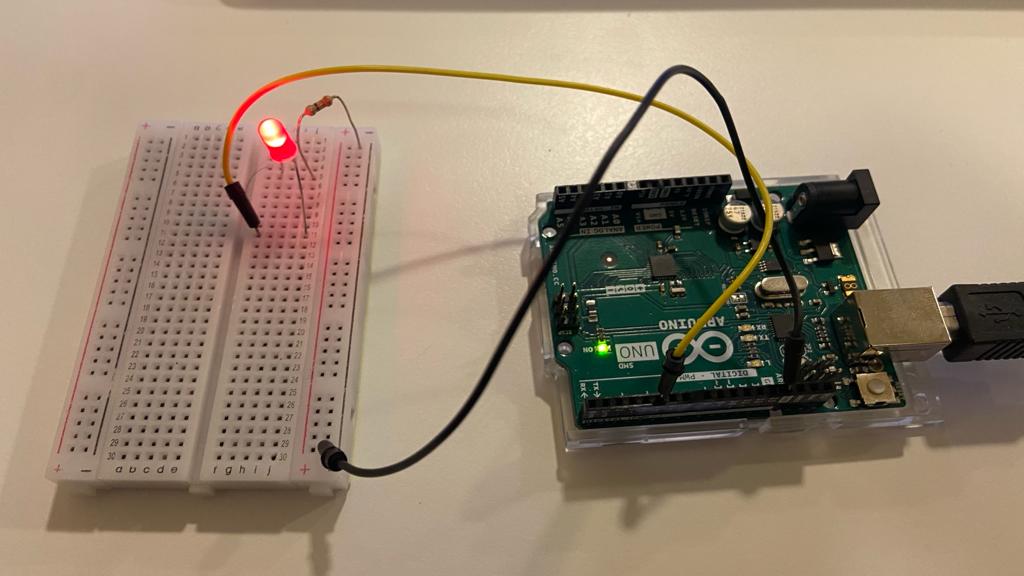
Circuit:

The circuit is a basic LED running circuit that takes input using a PWM pin (5).
Exercise 3:

This circuit takes input from the potentiometer to control the wind direction. Also, every time the ball hits the ground, a signal from P5Js is sent to Arduino so that the LED is turned on during the ball’s impact with the ground.

P5Js Code:

let velocity;
let gravity;
let position;
let acceleration;
let wind;
let drag = 0.99;
let mass = 50;

//port for arduino
let port;

function setup() {
  createCanvas(640, 360);
  noFill();
  position = createVector(width/2, 0);
  velocity = createVector(0,0);
  acceleration = createVector(0,0);
  gravity = createVector(0, 0.5*mass);
  wind = createVector(0,0);

  port = createSerial();
}

function draw() {
  if(!port.opened())
  {
    background(220, 200); 
    fill(0);
    textSize(25);
    text("PRESS SPACE TO START", 50, height/2);
    return;
  }

  //read the serial port
  if(port.available())
  {
    let inString = port.readUntil('\n');
    let potVal = -1;
    if(inString.length > 0)
    {
      potVal = int(inString);
      wind.x = map(potVal, 0, 1023, -1, 1);

    }
  }

  print("WIND: " + wind.x);


  background(255);
  applyForce(wind);
  applyForce(gravity);
  velocity.add(acceleration);
  velocity.mult(drag);
  position.add(velocity);
  acceleration.mult(0);
  noStroke();
  fill(255,0,0);
  ellipse(position.x,position.y,mass,mass);
  if (position.y > height-mass/2) {
      velocity.y *= -0.9;  // A little dampening when hitting the bottom
      position.y = height-mass/2;

      //send a signal to arduino to turn on the LED
      port.write("1\n");
    }

  else{
    port.write("0\n");
  }

  //clear the buffer
  port.clear();

  
}

function applyForce(force){
  // Newton's 2nd law: F = M * A
  // or A = F / M
  let f = p5.Vector.div(force, mass);
  acceleration.add(f);
}

function keyPressed(){
  if (keyCode==LEFT_ARROW){
    wind.x=-1;
  }
  if (keyCode==RIGHT_ARROW){
    wind.x=1;
  }
  if (key==' '){
    mass=random(15,80);
    position.y=-mass;
    velocity.mult(0);
  }

  if(key == " ")
  {
    port.open(9600); // open a port at 9600 baud
  }
}


Arduino Code:

#include <Arduino.h>

const int ledPin = 5;
const int potPin = A0;

int timeSinceLastSerial = 0;


void setup() {
  pinMode(ledPin, OUTPUT);
  pinMode(potPin, INPUT);
  digitalWrite(ledPin, LOW); //initially off

  Serial.begin(9600);

}

void loop() {
  int val;

  if(millis() - timeSinceLastSerial < 2) //if it has not been more than 20ms since last serial message
  {
    return; //do nothing
  }

  timeSinceLastSerial = millis(); //update time since last serial message

  //serial exchange

  if(Serial.available()) //if there is data to read
  {
    val = Serial.parseInt(); //read the input from serial
  }

  if(val == 1)
  {
    digitalWrite(ledPin, HIGH); //turn on LED
  }
  else
  {
    digitalWrite(ledPin, LOW); //turn off LED
  }

  Serial.println(analogRead(potPin)); //send potentiometer value across serial

}

Circuit:
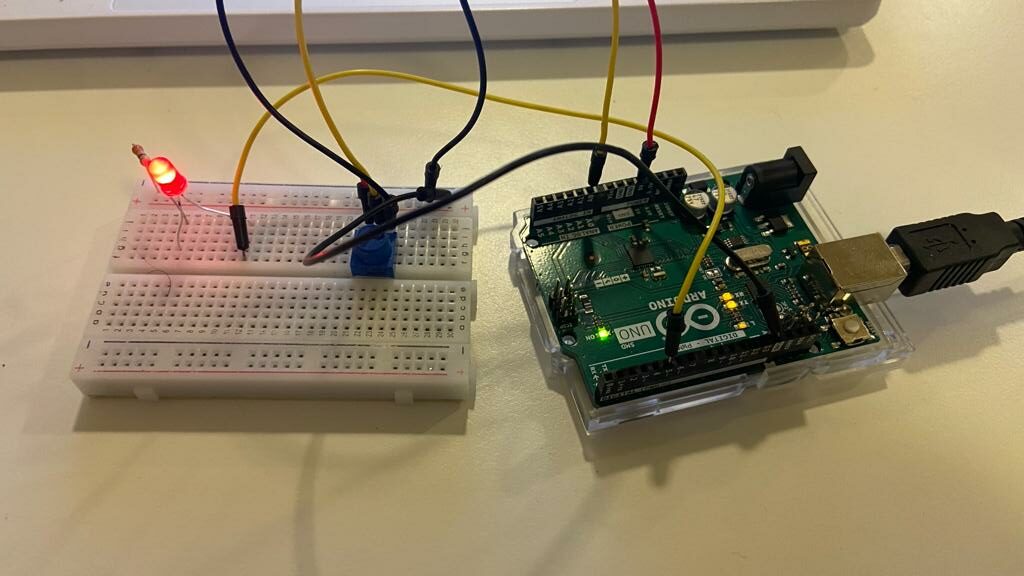
The circuit is a combination of the circuits from Exercises 1 & 2. There is a potentiometer whose value is read from Pin A0, and an LED powered by PWM pin 5 based on input from the P5Js sketch.

Video Demonstration:

Serial Communication: In-class exercises

EXERCISE 1

Task: make something that uses only one sensor on Arduino and makes the ellipse in p5 move on the horizontal axis, in the middle of the screen, and nothing on arduino is controlled by p5

Code for P5 and Arduino commented at the end of it:

Demonstration: 

EXERCISE 2

Task: make something that controls the LED brightness from p5

Code for P5 and Arduino commented at the end of it:

Demonstration:

EXERCISE 3

Task: take the gravity wind example and make it so every time the ball bounces one led lights up and then turns off, and you can control the wind from one analog sensor.

This was the hardest exercise to do. I made it work, however, instead of fully turning off when the ball is fully on the ground, the LED lights up. This would be a problem to solve in the future.

Code for P5 and Arduino commented at the end of it:

Demonstration:

Final Project – Preliminary Concept

For the final project, I have decided to create an immersive experience where people could make their own NYUAD ID cards.

Usually, people do not like the photographs on their ID cards. This issue inspired me to program a way in which we can take our own photos for the ID. For instance, a user can press a button and take their photo live by looking at the camera. Maybe I will also mirror the final photograph so that it looks just as when you look at yourself in the mirror. According to my research, people actually think that a mirror reflection is much more attractive to you than a photograph.

Moreover, I have some friends who chose or go by a different name than the one in the passport. This will also be incorporated in this program, where a person could write their preferred name on a touch screen, which will be reflected on their ID.

Also, I believe that many students can relate to the issue that our ID cards are not unique and do not show any individuality. In my program, there will be an option to add accessories to their photos. For instance, I plan to incorporate different images of scarves, jewelry, hats, mustaches, etc.

NYU New York has already made some changes to their ID cards, where students can change their ID cards for free.

New York University on X: "NYU community members who would like to: • have  their NYU ID card replaced to reflect their chosen/preferred name, or •  have the photo on their card

Furthermore, as suggested by my classmates and Professor Shiloh during the class discussion, I can add an option to control lighting using a ring light (brightness through a potentiometer and color of the light by linking the remote to Arduino). In this way, people can control the setting in which they take the photo, which is also very important to the quality of your final photograph.

The ID card will resemble the NYU ID, however, incorporating all the features mentioned above should produce a fun and engaging project.

Week #11 – Reading reflection

Design Meets Disability

I really liked the discussion on the tension between fashion and discretion. Specifically, Graham Pullin shows how glasses become not just an assistive medical device, but it transformed into a fashionable item of “our garderobe”. In my own experience, I have many friends who used to wear glasses without lenses or lenses without dioptri. I chose glasses according to my aesthetic tastes and only then I would think about their practicality and the medical parameters. These examples prove the point made by Pullin and point to the rightness of her arguments.

It is not the first time I have heard that disability is not solely a medical issue. Instead, it stands as a social and cultural one. In the field of disability studies, this is called a medical model.

The Medical Model views disability as resulting from an individual person’s physical or mental limitations, and is not connected to the social or geographical environments. The Medical Model focuses on finding a “cure” or making a person more “normal.”

© University of Oregon

Having taken a course in disability studies previously, this reading was not really eye-opening to me. However, I understand that the topic of discussion in this article is thought-provoking and relates to our class material a lot. Such question as to how we make designs more accessible is important. I believe we should try and pursue designs that are suitable for everyone. We, as designers, can make things accessible and take action towards building a  more inclusive society.

Self- playing dancing instrument

Concept

For this assignment, we decided to do a musical instrument that will produce music on its own. Typically, musical instruments are associated with a person playing them. However, in our project, we devised a system wherein a performer assumed the dual role of both playing the instrument and acting as the player. The servo motor symbolizes the player, while a piece of cardboard mounted on a stick symbolizes the instrument.

How music is produced:

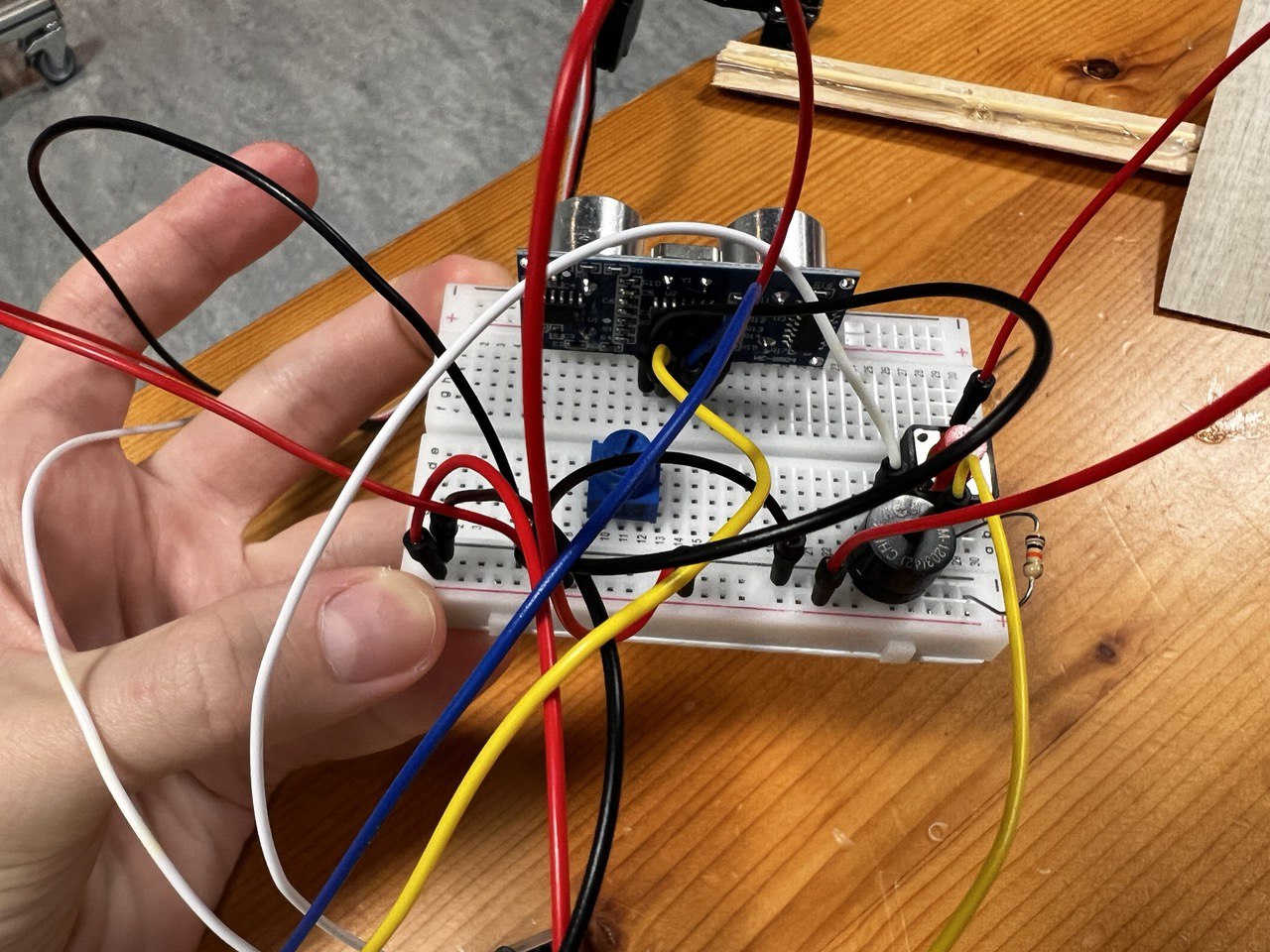
As the servo motor moves, the attached pad also moves, causing variations in the distance detected by the ultrasonic sensor. Depending on these different distances, the speaker emits sounds with varying frequencies.

Setup

Video


Code and highlights of the procedure
  1. We have used the example in the kit’s documentation (you can find it here) to code the distance sensor, adjusting some aspects of it.
  2. We manipulated the position of the servo motor by using myservo.write() and delay(). Here, we played with degrees and set up the delay to be 50ms for the servo to reach the position.
  3. We used the function of a map() and constrain() together, as learned in class, to match the distance values to the frequency values.
  4. We also added a button, which when pressed can change the frequency range, so that all the melody’s frequencies are higher.
// assign the variables for distance and button
#define trigPin 13
#define echoPin 12
#define buttonPin 2

// include library for Servo motor
#include <Servo.h>

Servo myservo;  // create servo object to control a servo
// twelve servo objects can be created on most boards

// assign the first position
// variable to store the servo position
int pos = 0;


void setup() {
  Serial.begin(9600);
  pinMode(trigPin, OUTPUT);  //distance
  pinMode(echoPin, INPUT);
  myservo.attach(9);  // attaches the servo on pin 9 to the servo object

  pinMode(buttonPin, INPUT);  // switch
}

int frequency;  // assign the frequency variable

void loop() {
  // from distance sensor example
  long duration, distance;
  digitalWrite(trigPin, LOW);  // Added this line
  delayMicroseconds(2);        // Added this line
  digitalWrite(trigPin, HIGH);
  //  delayMicroseconds(1000); - Removed this line
  delayMicroseconds(10);  // Added this line
  digitalWrite(trigPin, LOW);
  duration = pulseIn(echoPin, HIGH);
  distance = (duration / 2) / 29.1;


  if (distance >= 200 || distance <= 0) {
    Serial.println("Out of range");
  } else {
    Serial.print(distance);
    Serial.println(" cm");
  }


  // we contrain the distance to be from 0 to 50 and map the distance values to the frequency values
  // if the button is not pushed then the melody plays in low frequencies
  // if the button is pushed, then the frequency  is higher


  if (digitalRead(buttonPin) == LOW) {
    frequency = map(constrain(distance, 0, 50), 0, 50, 100, 1000);
  } else {
    frequency = map(constrain(distance, 0, 50), 0, 50, 500, 2000);
  }

  //code for SERVO position
  myservo.write(90);
  delay(50);
  myservo.write(45);
  delay(50);
  myservo.write(25);
  delay(50);
  myservo.write(70);
  delay(50);
  myservo.write(100);
  delay(50);
  myservo.write(60);
  delay(50);  // waits 50ms for the servo to reach the position

  // play the sound from pin 6
  tone(6, frequency);
}
Reflection

We faced one issue when building the setup. We wanted to use a bigger servo motor which is stronger and could hold the stick, however, it was not working the way we planned (not like a mini one in our kit). As we researched, we found out that actually, this servo motor allows for full-speed rotation at the value of 180 and a stop at the value of 0. This was not suitable for our project, so we proceeded with using a hot glue gun to connect the stick to the servo motor we had in the kit.

We could also make the appearance better by decorating the cardboard using for example an image of a robot.

Moreover, for future projects, we could actually play different melodies and control the volume using the potentiometer. Otherwise, we could use a potentiometer to manipulate the movements of the servo motor, by coding different patterns of the moves produced by the servo motor.

Overall, I think this was a fun project to do and I liked the final result a lot!